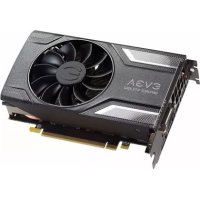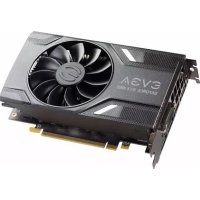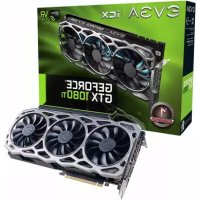
GeForce GTX 1080 Ti FTW3 Gaming - Graphic card EVGA - Free user manual and instructions
Find the device manual for free GeForce GTX 1080 Ti FTW3 Gaming EVGA in PDF.



| Technical Specifications | GPU NVIDIA GeForce GTX 1080 Ti, 11 GB GDDR5X, 3584 CUDA cores |
|---|---|
| Clock Frequency | Base: 1480 MHz, Boost: 1582 MHz |
| Memory Interface | 352 bits |
| Power Connectors | 2 x 8-pin |
| Video Outputs | 3 x DisplayPort, 1 x HDMI, 1 x DVI |
| Recommended Usage | High-resolution gaming, intensive graphic applications |
| Maintenance | Regular cleaning of fans, driver updates |
| Safety | Avoid overheating, use in a well-ventilated case |
| General Information | Compatible with DirectX 12, VR Ready |
Frequently Asked Questions - GeForce GTX 1080 Ti FTW3 Gaming EVGA
User questions about GeForce GTX 1080 Ti FTW3 Gaming EVGA
0 question about this device. Answer the ones you know or ask your own.
Ask a new question about this device
Download the instructions for your Graphic card in PDF format for free! Find your manual GeForce GTX 1080 Ti FTW3 Gaming - EVGA and take your electronic device back in hand. On this page are published all the documents necessary for the use of your device. GeForce GTX 1080 Ti FTW3 Gaming by EVGA.
USER MANUAL GeForce GTX 1080 Ti FTW3 Gaming EVGA
Intelligent Innovation
Table of contents
Overview 2
Hardware Installation 3
Quick Start 3
Hardware Installation Details 4
Graphics Cards Requiring Additional Power 4
SLI Installation 5
Software Installation 5
Setting up Multiple Displays 6
Quick Fixes 7
Additional Support 8
Compliance Information 9
EVGA
Intelligent Innovation
Overview
Thank you for purchasing a genuine EVGA graphics card. EVGA is an NVIDIA® Authorized Solution Provider that builds high performance 3D cards. Our graphics cards are fully compatible with the latest 2D and 3D graphical requirements.
Before installing your EVGA graphics card, it is highly recommended to first register the product to receive the full support and warranty. You can register your card online at www.evga.com/register.
EVGA also strives to provide a full range of programs and services to enhance the customer experience including but not limited to:
EVGA Advanced RMA (EAR) Program:
The EVGA Advanced RMA (EAR) Program is a program to protect yourself and your product in the case of product failure. For more information please visit www.evga.com/support/ear.
EVGA Step-Up ^® Program:
In order to give our customers the greatest amount of flexibility when purchasing EVGA graphics cards, we have instituted the EVGA Step-Up® Program. For more information please visit www.evga.com/stepup.
EVGA Online Community:
To visit the EVGA community forums, please visit www.evga.com/forums for more information.
EVGA Precision XOC™:
Designed from the ground up to support new GPU technology, EVGA Precision XOC™ redefines what overclocking software should be. For more information please visit www.evga.com/precisionxoc.
EVGA FAQ:
To search our knowledge base and product FAQ, please visit www.evga.com/faq for more information.
EVGA Gaming™:
If you live to game, this is the place for you! We have the best tournaments, prizes and game servers. For more information please visit www.vvgagaming.com.
Folding@EVGA:
Distributed computing for the greater good. Did you know that you can turn your graphics card into a shared supercomputer? For more information please visit www.evga.com/folding.
EVGA
Intelligent Innovation
EVGA Social Networks™:
Stay up to date on contests, promotions, tech tips, new products, driver releases and more by following EVGA on your favorite social network! For more information please visit www.evga.com/sonet.
MODS RIGS™:
\$1K Sponsorships for every 200 posts. Come show off your rig and join in on one of the biggest things happening at EVGA. For more information please visit www.modsrigs.com.
Hardware Installation

Preparing Your Computer
WARNING: Turn off the power to your system and discharge your body's static electric charge by touching a grounded surface – for example, the metal surface of the power supply or chassis – before performing any hardware procedure. EVGA assumes no liability for any damage, caused directly or Indirectly, by Improper installation of any components. If you do not feel comfortable with performing
the installation procedure, consult a qualified computer technician. Damage to the system components, the graphics card, and injury to yourself may result if power is applied during installation. Now that you have prepared your computer, you are ready to install your graphics card.
Quick Start
- Before starting installation, it is recommended to completely remove all drivers for your existing graphics card (If you have one).
- Power off the computer and all attached devices (keyboard, mouse, etc.).
- Disconnect the display cable from your current display adapter on the back of the computer.
- Remove your existing graphics card (if you have one) from your computer. You will do this by removing the retaining screw and pulling the card out in a straight up fashion. Please note that your motherboard may have a PCI Express (PCI-E) latch on the slot that needs to be pressed in first.
(NOTE: If your motherboard has integrated or onboard video, you may need to disable it first, please contact your system or motherboard manufacturer for additional information.)
EVGA
Intelligent Innovation
- Align your new card with the appropriate slot, (see illustration below) and press it in firmly until the card is fully seated. Make sure that the metal contacts of the card are completely pushed into the expansion slot.
- Connect the supplemental PCI Express (PCI-E) power adapter(s) to the card if applicable. (See illustration below.)
- Replace the retaining screw to fasten the card into place, and then replace the computer cover.
- Reconnect any devices that you detached during installation, and then connect the monitor's video cable to your new graphics card.
- Apply power to your system, boot to the operating system and install the proper drivers.
Hardware Installation Details
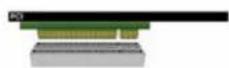
PCI Express (PCI-E) and PCI slots are different, so prior to installation; please verify that the graphics card bus type and available slot are the same.
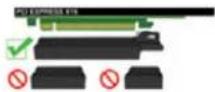
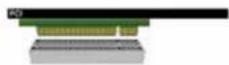
PCI Graphics Cards PCI Express (PCI-E) Graphics Cards
Graphics Cards Requiring Additional Power
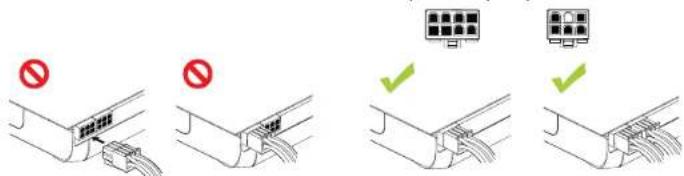
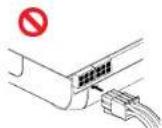
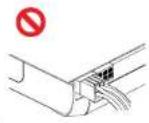
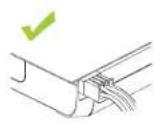
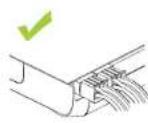
If your graphics card is equipped with a supplemental power adapter, it is required that it be connected at the time of installation. This supplemental power adapter ensures that your graphics card receives the necessary power that will allow it to function at optimal performance levels. Your card may require one or more 6 or 8-pin PCI Express (PCI-E) supplemental power connectors. Please note that the 8-pin PCI-E power connector is not the same as the 8-pin CPU power connector. Please see the below illustration.
Always use the PCIE power cables from your Power Supply first, only use included adapters when your Power Supply does NOT have the appropriate connectors. 8 pin or 6+2 pin 6 pin
8 pin or 6+2 pin 6 pin
text_image
Diagram illustrating four steps of installing or adjusting a device, marked with red prohibition signs and green checkmarks.EVGA
Intelligent Innovation
SLI Installation (optional)
On some EVGA graphics cards, it is possible to link multiple graphics cards together for improved performance, this is called SLI. To install multiple cards in SLI, follow the below instructions, please note that in SLI setups both cards must be the same model. For a video overview of setting up SLI, please visit www.evga.com/slivideo. Also, you can view FAQ about SLI at http://www.evga.com/support/faq/?1=58605.
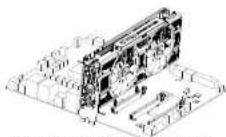
Install your first Gel orce graphics card into the Primary PCI Express x16 alot.
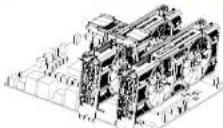
2-way SL: install your second Get once graphics card in to the secondary PCI Express x16 slot. Connect the two cards together using the 2-way/new 2-way SL bridge connector that came with your SL-ready motherboard.
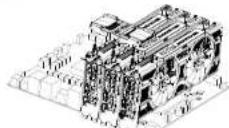
3-way SLI: install the third GeForce card into the tertiary PCI Express slot on the motherboard. Connect the GeForce cards together using the 3-way SLI bridge connector that came with your SLI-ready motherboard.
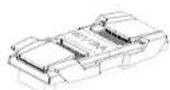
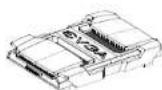
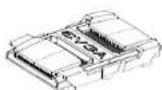
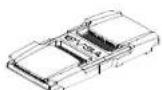
New-2-way SLI* 2-way SLI 3-way SLI 4-way SLI
For ALL SLI configurations, please consult your motherboards user manual for proper placement of cards in the given PCI Express slots. Always install the cards in 8x or 10x slots, as SLI will not function in 4x, the specific set information should be available in the motherboards users manual.
The above SLI bridges are included with your SLI ready motherboard depending on the configurations it supports. In order for your SLI setup to work properly, you will need to use the appropriate bridge based on the number of cards you are connecting. *Now 2 way SLI bridge for GTX 10 series. SLI technology is not supported by GTX 1060 / 1050T / 1050
Software Installation
When you boot up your computer for the first time after installing your new graphics card, Windows may detect a new display device and attempt to install the drivers. If it gives you the option to cancel, please do so, otherwise wait for Windows to complete the installation (a reboot may be necessary).
After this process has been completed, it is necessary to install the recommended drivers for your graphics card. To begin, it is recommended to download the latest drivers from www.evga.com/support. alternatively, you can install the drivers off the EVGA Installation DVD.
EVGA
Intelligent Innovation
NOTE: If adding a secondary card to an existing PC, you may be required to REINSTALL the driver again.
Note: If the autorun driver installation menu does not appear, it can be launched manually by clicking on the "Computer" or "My Computer" icon, and double clicking the icon for your DVD/CD drive. After that double click on the "autorun.exe" file.
Once the autorun installation menu appears, select the "Install Video Drivers" button. This will start the driver installation process.
Note: During installation, you may be prompted by the Microsoft WHQL (Windows Hardware Quality Labs) warning, please select the "Continue" or "Install this driver software anyway" option, as it is safe to do so.
Setting up Multiple Displays
The NVIDIA® Control Panel allows you to configure a multi-display environment, whether it is through multiple computer monitors or by using a monitor in conjunction with an HDTV. The ability to use multiple displays within Windows can simplify many everyday tasks by spreading out the Windows Desktop area, or make working with an HDTV even easier by allowing you to watch a movie on one of the displays, while performing other tasks on the other display. Multiple display configurations can be made in the "Set up Multiple Displays" subsection located in the NVIDIA® Control Panel. To access the NVIDIA® control panel, simply right click on the desktop, and select "NVIDIA® Control Panel".
Single Mode
Select just one checkbox for the monitor you wish to use as your single display. This will disable the secondary output and is the default setting if you only have one monitor connected to the graphics card.
Extended Mode
Select two or more checkboxes to enable more than one monitor. Once checked, right click on the monitors in the section below to set the desired mode. Extended desktop mode can independently control resolution and refresh rate settings for each display.
Duplicate Displays
Select two or more checkboxes to enable more than one monitor. Once checked, right click on the monitors in the section below to set them to duplicate display mode, and select the primary monitor. Duplicate displays require identical resolutions between both displays.
Enabling SLI (optional)
If you installed multiple cards in SLI mode, you will need to enable SLI to get the maximum performance from your system. To enable SLI, visit the NVIDIA ^® control panel by right clicking on the desktop, and select "NVIDIA ^® Control Panel." Next, select "Set SLI and PhysX configuration." Finally, select "Maximize 3D Performance" and select apply. To see a video overview of the SLI installation procedure, please visit www.evga.com/slifvideo.
EVGA
Intelligent Innovation
Quick Fixes
Problem: At boot-up, all you hear is a series of beeps from the computer, but see no image on the screen.
Cause: The beep sounds are a warning sound from the motherboard BIOS that says it cannot initialize the graphics card, this can mean one of four things:
1) The card is not seated properly.
2) There is a problem with the motherboard's graphics card slot.
3) Supplemental PCI-E power is not connected to the graphics card.
4) There is a problem with the graphics card.
Solution: Remove the card from the computer and reinsert it, making sure that the card is seated properly in the slot, and then try to boot the computer again. If this does not work then the problem is either with the motherboard or the graphics card and you should contact your hardware manufacturer for further assistance.
Problem: The integrated video adapter has not been disabled prior to installing the new graphics card, and/or the previous adapter's drivers have not been properly uninstalled.
Cause: The integrated video adapter has not been disabled prior to installing the new graphics card and/or not having uninstalled the display drivers from your previous display adapter.
Solution: Ensure the integrated video adapter has been disabled through your motherboard's BIOS or the Windows Device Manager prior to installing the new graphics card, and that you have uninstalled the drivers through the Windows Control Panel. After the new card has been installed, connect the monitor cable and if required, any supplemental power adapters to the new card before booting up the system.
Problem: Games lockup or crash to the desktop.
Solution: Verify that all the necessary hardware drivers are installed and up to date, including the chipset, video and sound card drivers. Reinstall the latest version of DirectX (located on EVGA installation disc) or the game itself. Also, verify the game has all the necessary patches installed that are available from the developer.
Problem: Where can I find the latest drivers for my graphics card?
Solution: The latest drivers can be found at www.evga.com/support/drivers.
7
English English
EVGA
Intelligent Innovation
Problem: When viewing my PC on an HDTV, the entire desktop is not visible, and certain areas: such as the Windows taskbar, reside offscreen.
Solution: Firstly, ensure that you are running at the correct resolution for your display. If it is, try adjusting the "Resize Desktop" feature. This lets you compensate for HIDTV overscan so that the entire desktop is visible. In this case, to view display elements that appear offscreen, NVIDIA ^2 recommends using the Overscan Shift feature to pan the desktop. You can access the Overscan Shift controls from the TV Settings page of the NVIDIA ^® panel.
Note: For problems not listed in this document, please visit the EVGA Knowledge Base at www.evga.com/faq.
Additional Support
Should you require any assistance with the installation or troubleshooting of your EVGA graphics card. please visit the support section of our website at www.evga.com/support. There you will be able to download drivers, check out our extensive Knowledge Base, and submit technical and customer support inquiries. Be sure to also visit the EVGA forums at www.evga.com/forums.
Alternatively, we can be reached by phone. Before contacting Customer Service, please review this manual. If you need to contact Customer Service, please have your system configuration as well as your card's model number and serial number ready. You will need to register your product before a support technician can assist you. You may register your card online at www.evgs.com/register.
• Hours of Operation: 24/7 Technical Phone Support
• Phone Support: (888) 880-EVGA (3842)
• Tech Support Web Site: www.evga.com/support
Warranty Program to Fit your Needs
Most EVGA products are covered under a 3 Year Warranty. For more information please visit www.evga.com/support/warranty.
8
EVGA
Intelligent Innovation
Compliance Information
FCC Compliance Information
This device complies with FCC Rules Part 15. Operation is subject to the following two conditions: This device may not cause harmful interference, and this device must accept any interference received, including interference that may cause underserved operation. This equipment has been tested and found to comply with the limits for a Class B digital device, pursuant to Part 16 of the FCC Rules. These limits are designed to provide reasonable protection against harmful interference in a residential installation. This equipment generates, uses and can radiate radio frequency energy and, if not installed and used in accordance with the manufacturer's instructions, may cause harmful interference to radio communications. However, there is no guarantee that interference will not occur in a particular installation. In this equipment does cause harmful interference to radio or television reception, which can be determined by turning the equipment off and on, the user is encouraged to try to correct the interference by one or more of the following measures:
Increase the separation between the equipment and signal source. Connect the equipment to an outlet on a circuit different from that to which the signal source is connected. Consult the dealer or an experienced computer technician for help. The use of shielded cables for connection of the monitor to the graphics card is required to ensure compliance with FOC regulations. Changes or modifications to this unit not expressly approved by the party responsible for compliance could void the user's authority to operate the equipment.
CE Compliance Information
EMC Directive 80/336/EEC and Amendment 92/31/EEC, Class B Digital Device EN 50081-14, Generic Emissions Standard for Residential, Commercial and Light Industrial Products (EN 55022/QISPR 22, Limits and Methods of Measurement of Radio, (EN 55022/QISPR 22, Limits and Methods of Measurement of Radio interference Characteristics Information Technology Equipment Warning: This is a Class B product. In a domestic environment this product may cause radio interference in which case the user may be required to take adequate measure. EN 50082-1, Generic Immunity Standard for Residential, Commercial and Light Industrial Products (IEC 801-2, IEC 801-3, IEC 801-4)
Macrovision Product Notice
This product may incorporate copyright protection technology that is protected by U.S. patents and other intellectual property rights. Use of this copyright protection technology must be authorized by Macrovision, and is intended for home and other limited viewing uses only unless otherwise authorized by Macrovision. Reverse engineering or disassembly is prohibited.
Trademark Information
©2001-2017 All rights reserved. The manual is the property of EVGA corp., and is protected by copyright, trademark and other intellectual property laws, and no part may be reproduced, transmitted, stored or translated into any other computer or foreign language without the express prior written permission of EVGA corp. EVGA Corp. EVGA, the EVGA logo and combinations thereof are trademarks of EVGA Corp. All brands and companies are trademarks of registered Trademarks of their respective companies and may not be used without permission. All other trademarks are the property of their respective owners. The information contained in this manual may be subject to change without notice. EVGA reserves the right to terminate this license if there is a violation of its terms or default by the Original Purchaser. Upon termination, for any reason, all copies of the Software must be immediately returned to EVGA and the Original Purchaser shall be liable to EVGA Corp. for any and all damages suffered as a result of the violation or default. The information contained herein is subject to change without notice and is provided "AS IS" without warranty of any kind (express or implied). Users are advised to obtain the latest version of relevant information to verify this information being relied on in current and complete.
9
English
EVGA
Intelligent Innovation
Inhaltsverzeichnis
Übersicht 11
Hardwareinstallation 12
Schnellstart 12
Hardwareinstallationsdetails 13
Intelligent Innovation
Übersicht
EVGA-Online-Community:
Intelligent Innovation
EVGA-Social-Networks™:
Hardwareinstallation

Intelligent Innovation
Hardwareinstallationsdetails
Intelligent Innovation
SLI-Installation (optional)
Intelligent Innovation
Softwareinstallation
Intelligent Innovation
Klon-Modus
Intelligent Innovation
Intelligent Innovation
Herstellergarantie
This device complies with FCC Rules Part 15. Operation is subject to the following two conditions: This device may not cause harmful interference, and this device must accept any interference received, including interference that may cause undesired occurrence. This equipment has been tested and found to comply with the limits for a Class B digital device, pursuant to Part 15 of the FCC Rules. Those limits are designed to provide reasonable protection against harmful interference in a residential installation. This equipment generates, uses and can reduce radio frequency energy and, if not installed and use in accordance with the manufacturer's instructions, may cause harmful interference to radio communications. However, there is no guarantee that interference will not occur in a particular installation. If this equipment does cause harmful interference to radio or television reception, which can be determined by turning the equipment off and on, the user is encouraged to try to correct the interference by one or more of the following measures:
Increase the separation between the equipment and signal source. Connect the equipment to an outlet on a circuit different from that, to which the signal source is connected. Consult the dealer or an experienced computer technician for help. The use of shielded cables for connection of the monitor to the graphics card is required to ensure compliance with FCC regulations. Changes or modifications to this unit not expressly approved by the party responsible for compliance could void the user's authority to operate the equipment.
EMC Directive 89/336/EEC and Annexion 02/31/EEC, Class B Digital Device EN 50081-14. Generic Emissions Standard for Residential, Commercial and Light Industrial Products (EN 55022/OISPR 22, Limits and Methods of Measurement of Radio), EN 55022/OISPR 22, Limits and Method of Measurement of Radio Interference Characteristics Information Technology Equipment Warning: This is a Class B product. In a domestic environment this product may cause radio interferes in which case the user may be required to take adequate measure. EN 55082-1, Generic Immunity Standards for Residential, Commercial and Light Industrial Products (IEC 801-2, IEC 801-3, IEC 801-4).
This product may incorporate copyright protection technology that is protected by U.S. patents and other Intellectual property rights. Use of this copyright protection technology must be authorized by Macrovision, and is intended for home and other limited viewing uses only unless otherwise authorized by Macrovision. Reverse engineering or disassembly is prohibited.
©2001-2017 All rights reserved. The manual is the property of EVGA corp. and is protected by copyright, trademark and other intellectual property laws, and no part may be reproduced, transmitted, stored or translated into any other computer or foreign language without the express or prior written permission of EVGA corp. EVGA Corp. EVGA, the EVGA logo and combinations thereof are trademarks of EVGA Corp. All brands and companies are trademarks of registered Trademarks of their respective companies and may not be used without permission. All other trademarks are the property of their respective owners. The information contained in this manual may be subject to change without notice. EVGA reserves the right to terminate this license if there is a violation of its terms or default by the Original Purchaser. Upon termination, for any reason, all copies of the Software must be immediately returned to EVGA and the Original Purchaser shall be liable to EVGA Corp. for any and all damages suffered as a result of the violation or default. The information contained herein is subject to change without notice and is provided "AS IS" without warranty of any kind express or implied. Users are advised to obtain the latest version of relevant information to verify that information being relied on a current and compete.
DeutschDeutsch
EVGA
Intelligent Innovation
Tabla de Contenidos
Intelligent Innovation
Información General
Intelligent Innovation
EVGA Redes Sociales™:
Intelligent Innovation
Intelligent Innovation
Intelligent Innovation
Intelligent Innovation
Intelligent Innovation
Intelligent Innovation
Intelligent Innovation
Table des matières
Introduction 29
Intelligent Innovation
Aperçu
Intelligent Innovation
EVGA Social Networks™:
Intelligent Innovation
Intelligent Innovation
Intelligent Innovation
Intelligent Innovation
Dépannage rapide
Intelligent Innovation
Intelligent Innovation
Intelligent Innovation
Índice
Visão geral 38
Intelligent Innovation
Visão geral
Intelligent Innovation
Redes sociais™ EVGA:
Intelligent Innovation
text_image
Diagram illustrating four steps of installing or adjusting a device, marked with red prohibition signs and green checkmarks.PortuguêsPortuguês
EVGA
Intelligent Innovation
Intelligent Innovation
Intelligent Innovation
Soluções rápidas
Intelligent Innovation
Intelligent Innovation
Intelligent Innovation
目次
概要 47
ハードウェアのインストール 48
クイックスタート 48
ハードウェアのインストールの詳細 49
Intelligent Innovation
概要
Intelligent Innovation
EVGA ソーシャルネットワーク
Intelligent Innovation
Intelligent Innovation
SLI環境の構築(オプション)
Intelligent Innovation
Intelligent Innovation
トラブルシューティング
Intelligent Innovation
Intelligent Innovation
互換性について
FCC互換性について
This device complies with FCG Rules Part 15, Operation is subject to the following two conditions:
This device may not cause harmful interference, and this device must accept any interference received, including interference that may cause unoxidized operation. This equipment has been tested and found to comply with the limits for a Class B digital device, pursuant to Part 15 of the FCC Rules. These limits are designed to provide reasonable protection against harmful interference in a residential installation. This equipment generates, uses and can rotate radio frequency energy and, it not installed and used in accordance with the manufacturer's instructions, may cause harmful interference to radio communications. However, there is no guarantee that interference will not occur in a particular installation. If this equipment does cause harmful interference to radio or television reception, which can be determined by turning the equipment off and on, the user is encouraged to try to correct the interference by one or more of the following measures:
Increase the separation between the equipment and signal source. Connect the equipment to an outlet on a circuit different from that to which the signal source is connected. Consult the closer or an experienced computer technician for help. The use of shielded cables for connection of the monitor to the graphics card is required to ensure compliance with FCG regulations. Changes or modifications to this unit not expressly approved by the party responsible for compliance could void the user's authority to operate the equipment.
(1)互换性について
EMC Directive 90/338/IEEC and AMTEN 02/31/IEC. Class B Digital Device EN 50061-14: Generic Emissions Standard for Residential, Commercial and Light Industrial Products (EN 55022/OISPR 22, Limits and Methods of Measurement of Radio, IEN 55022/OISPR 22, Limits and Method of Measurement of Radio Interference Characteristics Information Technology Equipment Warning This is a Class B product. In a domestic environment this product may cause radio interference in which case the user may be required to take adequate measure. EN 50082-1, Generic Immunity Standard for Residential, Commercial and Light Industrial Products (IEC 801-2, IEC 801-3, IEC 801-4).
法律情報
This product may incorporate copyright protection technology that is protected by U.S. patents and other intellectual property rights. Use of this copyright protection technology must be authorized by Macrovision, and is intended for home and other limited viewing uses only unless otherwise authorized by Macrovision. Reverse engineering or disassembly is prohibited.
商標について
©2001-2017 All rights reserved. The manual is the property of EVGA corp. and is protected by copyright, trademarks and other intellectual property laws, and no part may be reproduced, transmitted, stored or translated into any other computer or foreign language without the express prior written permission of EVGA corp. EVGA Corp. EVGA, the EVGA logo and combinations thereof are trademarks of EVGA Corp. All brands and companies are trademarks of registered Trademarks of their respective companies and may not be used without permission. All other trademarks are the property of their respective owners. The information contained in this manual may be subject to change without notice. EVGA reserves the right to terminate this license if there is a violation of its terms or default by the Original Purchaser. Upon termination, for any reason, all copies of the Software must be immediately returned to EVGA and the Original Purchaser shall be liable to EVGA Corp. for any and all damages suffered as a result of the violation or default. The information contained herein is subject to change without notice and is provided "AS IS" without warranty of any kind express or implied. Users are advised to obtain the latest version of relevant information to verify that information being relied on a current and complete.
EVGA
Intelligent Innovation
目錄
概論 56
硬體安裝 57
快速指南 57
硬體安裝細節 58
顯示卡需額外電源 58
SLI 安装 59
軟體安装 59
多重串聯顯示設置 60
疑難排解 60
附加支援 61
產品規範聲明 62
EVGA
Intelligent Innovation
概論
Intelligent Innovation
EVGA 社群網路™:
Intelligent Innovation
Intelligent Innovation
SLI 安装 (選擇性安裝)
Intelligent Innovation
Intelligent Innovation
Intelligent Innovation
為您量身設計的保固方案
This device complies with FCG Rules Part 15. Operation is subject to the following two conditions:
This device may not cause harmful interference, and this device must accept any interference received, including interference that may cause unobserved operation. This equipment has been tested and found to comply with the limits for a Class B digital device, pursuant to Part 15 of the FCC Rules. These limits are designed to provide reasonable protection against harmful interference in a residential installation. This equipment generates, uses and can rotate radio frequency energy and, if not installed and uses in accordance with the manufacturer's instructions, may cause harmful interference to radio communications. However, there is no guarantee that interference will not occur in a particular installation. If this equipment does cause harmful interference to radio or television reception, which can be determined by turning the equipment off and on, the user is encouraged to try to correct the interference by one or more of the following measures:
Increase the separation between the equipment and signal source. Connect the equipment to an outlet on a circuit different from that to which the signal source is connected.
Consult the dealer or an experienced computer technician for help. The use of shielded cables for connection of the monitor to the graphics card is required to ensure compliance with FCC regulations. Changes or modifications to this unit not expressly approved by the party responsible for compliance could void the user's authority to operate the equipment.
CE Compliance Information
ENC Directive B9/336/IEC and Amendment 92/31/IEC, Class B Digital Device EN 500R1-14, Generic Emissions Standard for Residential, Commercial and Light Industrial Products EN 55022/OISPR 22, Limits and Methods of Measurement of Radiok, EN 55022/OISPR 22, Limits and Method of Measurement at Radio Interference Characteristics Information Technology Equipment Warning: This is a Class B product. In a domestic environment this product may cause radio interference in which case the user may be required to take adequate measure. EN 500R2-1, Generic Immunity Standard for Residential, Commercial and Light Industrial Products (IEC 801-2, IEC 801-3, IEC 801-4)
Macrovision 聲明
This product may incorporate copyright protection technology that is protected by U.S. patents and other intellectual property rights. Use of this copyright protection technology must be authorized by Macrovision, and is intended for home and other limited viewing uses only unless otherwise authorized by Macrovision. Reverse engineering or disassembly is prohibited.
註冊商標資訊
©2001-2017 All rights reserved. The manual is the property of EVGA corp., and is protected by copyright, trademark and other intellectual property laws, and no part may be reproduced, transmitted, stored or translisted into any other computer or foreign language without the express prior written permission of EVGA corp., EVGA Corp. EVGA, the EVGA logo and combinations thereof are trademarks of EVGA Corp. All brands and companies are trademarks of registered Trademarks of their respective companies and may not be used without permission. All other trademarks are the property of their respective owners. The information contained in this manual may be submitted; to change without notice, EVGA reserves the right to terminate this license if there is a violation of its terms or default by the Original Purchaser. Upon termination, for any reason, all copies of the Software must be immediately returned to EVGA and the Original Purchaser shall be liable to EVGA Corp. for any and all damages suffered as a result of the violation or default. The information contained herein is subject to change without notice and is provided "AS IS" without warranty or any kind of express or implied. Users are advised to contain the latest version of relevant information to verify that information being relied on its current and expects.
EVGA
Intelligent Innovation
目录
概论 64
硬件安装 65
快速指南 65
硬件安装细节 66
显卡需额外电源 66
SLI 安装 67
软件安装 67
建立多个显示功能 68
疑难解答 68
额外支援 69
产品规范声明 70
6364
简体中文 简体中文
EVGA
Intelligent Innovation
概论
Intelligent Innovation
EVGA 社区网络™:
Intelligent Innovation
text_image
Diagram illustrating four steps of installing or adjusting a device, marked with red prohibition signs and green checkmarks.EVGA
Intelligent Innovation
SLI 安装 (选择性安装)
EVGA 显卡连结另款张同款支持SLI技术的显示适配器以提升效能.请注意在安装SLI时每张显示适配器都必须是相同型号·SLI安装影片请冻结至: www.evga.com/slivideo - 拉可冻结至 http://www.evga.com/support/faq/?f=58605
Intelligent Innovation
注意:在安装的过程中,若您收到Microsoft WHQL (Windows Hardware Quality Labs) 證示,请选择 "Continue" or "Install this driver software anyway",因为安装并不具危险性。
建立多个显示功能
Intelligent Innovation
Intelligent Innovation
为您量身设计的保修方案
This device complies with FCC Rules Part 15. Operation is subject to the following two conditions:
This device may not cause harmful interference, and this device must accept any interference received, including interference that may cause unoxidized operation. This equipment has been tested and found to comply with the limits for a Case 15 digital device, pursuant to Part 15 of the FCG Rules. These limits are designed to provide reasonable protection against harmful interference in a residential installation. This equipment generates, use and can reduce radio frequency energy and, if not installed and use in accordance with the manufacturer's instructions, may cause harmful interference to radio communications. However, there is no guarantee that interference will not occur in a particular installation. If the equipment does cause harmful interference to radio or television reception, which can be determined by turning the equipment off and on, the user is encouraged to try to correct the interference by one or more of the following measures:
Increase the separation between the equipment and signal source. Connect the equipment to an outlet on a circuit different from that to which the signal source is connected.
Consult the dealer or an experienced computer technician for help. The use of shielded cables for connection of the monitor to the graphics card is required to ensure compliance with FCC regulations. Changes or modifications to this unit not expressly approved by the party responsible for compliance could void the user's authority to operate the equipment.
CE Compliance Information
EMC Disclose 80/336/EEC and Amendment 02/31/EEC. Class B Digital Device EN 50061-14, Generic Emissions Standard for Residential, Commercial and Light Industrial Products; EN 50022/CISPR 22, Limits and Methods of Measurement of Radio; EN 55022/CISPR 22, Limits and Method of Measurement of Radio Interference Characteristics Information Technology Equipment Warning: This is a Class B product. In a domestic environment this product may cause radio interference in which case the user may be required to take adequate measure. EN 50061-1, Generic Immunity Standard for Residential, Commercial and Light Industrial Products (IEC 801-2, IIC 801-3, IIC 801-4).
Macrovision 声明
This product may incorporate copyright protection technology that is protected by U.S. patents and other Intellectual property rights. Use of this copyright protection technology must be authorized by Macrovision, and is intended for home and other limited viewing uses only unless otherwise authorized by Macrovision. Reverse engineering or disassembly is prohibited.
注册商标信息
©2001-2017 All rights reserved. The manual is the property of EVGA corp. and is protected by copyright, trademark and other intellectual property laws, and no part may be reproduced, transmitted, stored or translated into any other computer or foreign language without the express prior written permission of EVGA corp. EVGA Corp. EVGA, the EVGA logo and combinations thereof are trademarks of EVGA Corp. All brands and companies are trademarks of registered Trademarks of their respective companies and may not be used without permission. All other trademarks are the property of their respective owners. The information contained in this manual may be subject to change without notice. EVGA reserves the right to terminate this license if there is a violation of its terms or default by the Original Purchaser. Upon termination, for any reason, all copies of the Software must be immediately returned to EVGA and the Original Purchaser shall be liable to EVGA Corp. for any and all damages suffered as a result of the violation or default. The information contained herein is subject to change without notice and is provided "AS IS" without warranty of any and express or implied. Users are advised to obtain the latest version of relevant information to verify that information being relied on a current and complete.
EVGA
Intelligent Innovation
Daftar isi
Garis Besar 72
Intelligent Innovation
Garis Besar
EVGA Online Community:
Intelligent Innovation
EVGA Social Networks™
Intelligent Innovation
PCI Graphics CardsPCI Express (PCI-E) Graphics Cards
text_image
Diagram illustrating four steps of installing or removing a device, with red and green symbols indicating no restrictions and checkmarks.Indonesia
EVGA
Intelligent Innovation
instalasi SLI (opsional)
Intelligent Innovation
Intelligent Innovation
Perbaikan Cepat
Intelligent Innovation
Intelligent Innovation
Informasi Kepatuhan
Informasi FCC
Intelligent Innovation
Table of contents
Panoramica 81
Intelligent Innovation
Panoramica
EVGA Online Community:
Per partecipare ai forum della community EVGA, visita www.evga.com/forums.
EVGA Precision XOC™:
Intelligent Innovation
EVGA Social Networks™:
Intelligent Innovation
text_image
Diagram illustrating four steps of installing or adjusting a device, marked with red prohibition signs and green checkmarks.8384
Italiano Italiano