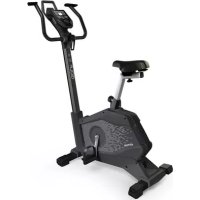
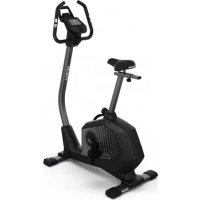
Golf S4 - Exercise bike KETTLER - Free user manual and instructions
Find the device manual for free Golf S4 KETTLER in PDF.



| Brand | Kettler |
| Model | Golf S4 |
| Product type | Exercise bike |
| Dimensions (L x W x H) | Approx. 100 x 50 x 120 cm |
| Weight | Approx. 35 kg |
| Power supply | Batteries or mains adapter (depending on version) |
| Display | Numeric display with backlight |
| Heart rate measurement | Hand grip sensors and chest strap (optional) |
| Training programs | Quick start, target (time/distance/calories), HRC, profiles 1-6, personal configurator |
| Resistance modes | Auto (speed-independent) and Manu (speed-dependent) |
| Resistance levels | Adjustable via central knob |
| Number of users | 1 host + up to 4 individual profiles |
| Result memory | Yes, for each user |
| Safety lock | Electric (motor) or mechanical depending on version |
| Frame material | Steel |
| Pedals | With adjustable foot straps |
| Saddle | Adjustable in height and horizontally |
| Maintenance and cleaning | Clean with a damp cloth, no harsh products. Check screws every 6 days of use. |
| Safety | Read the manual before use. Consult a doctor before training. Stop if you feel unwell. |
| Spare parts and repairability | Use only original Kettler parts. Replace damaged parts immediately. |
Frequently Asked Questions - Golf S4 KETTLER
User questions about Golf S4 KETTLER
0 question about this device. Answer the ones you know or ask your own.
Ask a new question about this device
Download the instructions for your Exercise bike in PDF format for free! Find your manual Golf S4 - KETTLER and take your electronic device back in hand. On this page are published all the documents necessary for the use of your device. Golf S4 by KETTLER.
USER MANUAL Golf S4 KETTLER
Please observe the following instructions for your own safety:
- The training device must be set up on an appropriate and firm surface.
- Inspect the connections for firm fitting before initial operation and additionally after approximately six operation days.
- In order to prevent injuries caused by wrong stress or overstress, the training device may only be used in accordance with the instructions.
- It is not recommended to permanently set up the device in humid rooms due to the resulting corrosion development.
- Assure yourself regularly that the training device functions properly and that it is in duly condition.
- The operator is responsible for the safety controls, which have to be carried out on a regular and proper basis.
-
Defective or damaged parts must be exchanged immediately. Only use original KETTLER spare parts.
-
The device may not be used until after repairs are completed.
- The safety level of the device can only be maintained provided that it is regularly inspected for damage and wear and tear.
For Your Safety:
- Before starting the training, check with your GP that you are fit for training with this device. The doctor's findings should form the basis for the setup of your training programme. Incorrect or excessive training may damage your health.
- Systems to monitor your heart rate can be imprecise. Excessive training may result in serious damage to your health or death. Should you feel dizzy or weak, stop the training immediately.
The Training Program Computer System
Display and Keyboard
SAFETY INTERLOCK ON CROSSTRAINERS WITH REAR-WHEEL DRIVE
Electrical interlock (only with motorized devices):
To unlock the pedal arms, turn on the display.
To lock the pedal arms, turn off the display by pressing down for a few seconds on the left key (4), or wait until it turns off automatically.
Mechanical interlock:
To unlock or lock the pedal arms, turn the knob to the corresponding marked position.
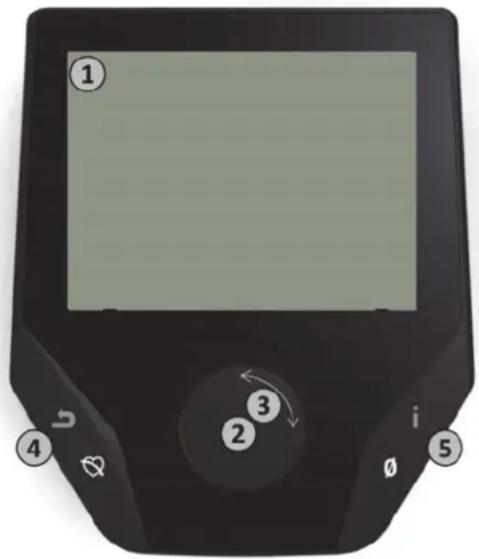
1
1. Display
The display provides you with all important information. These distinctions should be noted between the Menu list and the Training Program list displays:
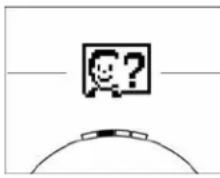
Menu Display
When the display is turned on, you arrive at the Menu list.
Here you can make settings for the user- or machine data, select a Training Program, and read your training results.
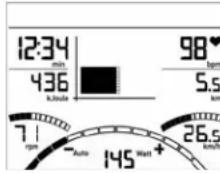
Training Display
After selecting a Training Program, you arrive at the Training Programs display.
It provides you with all important training scores and the Training Program profile.
2
2. Central Key - Press
In the Menu: By pressing the central key you confirm the selected item. This brings you to the selected Menu item or the selected Training Program.
In the Training: no function
3
3. Central Key - Turn
In the Menu: change the selection in the respective Menu. The semicircular image in the lower display area indicates additional selection options.
In the Training: change the pedaling resistance
4
4. Left Key
In the Menu: jump back to the main Menu. Any changes made will not be saved.
In the Training: end the Training Program and start the recovery pulse measurement. By pressing again, you can return to the Training Program.
5
5. Right Key
In the Menu: calling up of the contextual information. The significance of the Menu item is explained in more detail.
In the Training: display of average scores/values. When the key is pressed, average scores/values are displayed for a few seconds.
The Menu
First Level: The Start Menu – User Selection
flowchart
graph LR
    A["Machine settings"] --> B["Guest users"]
    B --> C["Individually set users"]
    C --> D["Adding new users"]
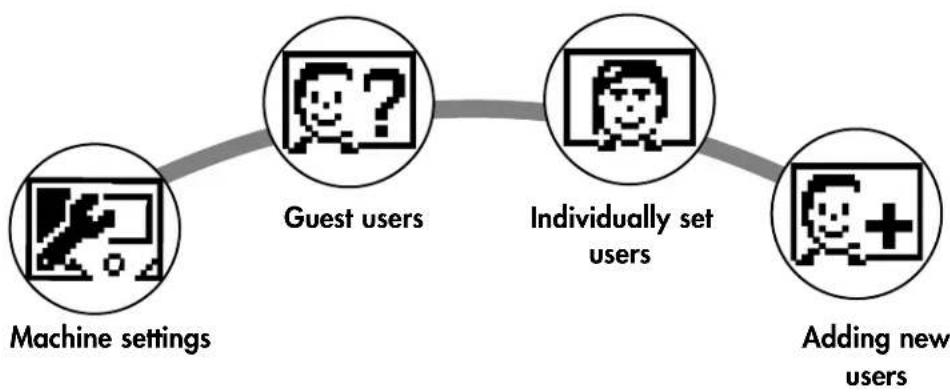
Upon starting the machine you arrive, after a brief greeting, at the Start Menu. This Menu is primarily for selection of the user on whose account the Training Session is to take place. You may also add a new user and, under the item "Machine Settings", make basic settings for all users.
An overview of the Menu items (from left to right):
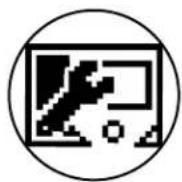
1. Machine Settings
With this Menu item you may make all multi-user machine settings (e.g., change machine language, change units of measure etc.).
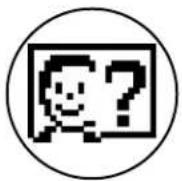
2. Guest Users
The Guest User is a preset user profile. It gives you the option of training without presets. In the Guest User Profile no Training Program results are saved. No personal settings may be made.
3. Individually-created User Accounts (by name)
To the right of the Guest User there appear up to 4 individually-set users. These are designed as personal user accounts for persons who use Training Programs regularly. In the accounts, individual settings can be made and personal Training Program results can be saved.
4. Create new user
In this Menu a new individual user (see No. 3) can be entered. When this Menu is selected, name and age are requested. The user may also select a Profile Face. Finally the new user is integrated into the Start Menu.
The Menu
Second Level: the user Menu – in the user's personal account
flowchart
graph LR
    A["Personal Settings"] --> B["My Results"]
    B --> C["My Last Training Session"]
    C --> D["My Training Program List"]
    D --> E["Training Program Configurator"]
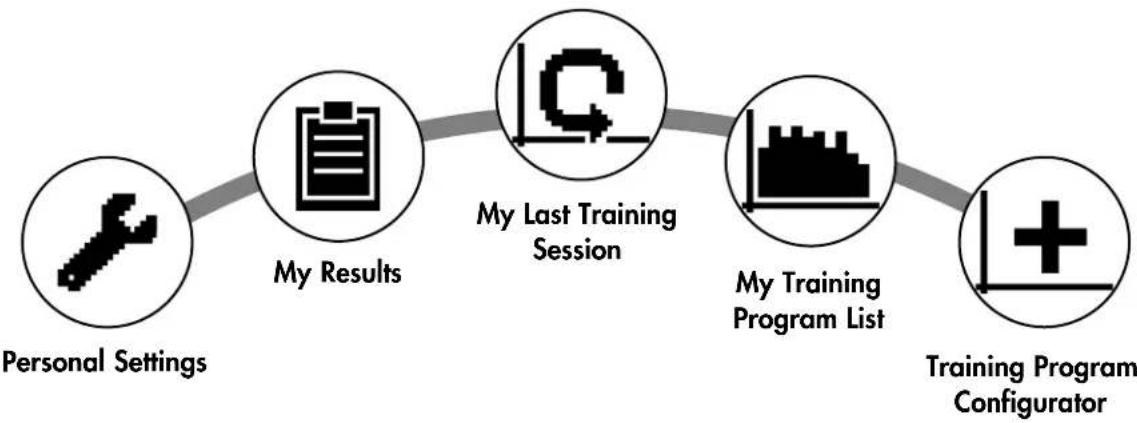
If you select an individual user, you will arrive at this person's user Menu. Here almost everything involves the personal Training Program. The User Menu for a Guest User contains only the three items on the right.

1. Personal Settings
In this Menu item you may make all user-specific settings (e.g., changing the age). Changes to this Menu do not affect the data of other users.

2. My Results
Under 'My Results' the personal overall performance achieved, and the results from the last training session, can be read.

3. My Last Training Session
When this Menu item is selected, you are taken directly to the last training session which was begun. This Menu item is always preselected when you arrive at the User Menu. Thus the last training session is only a click away.

4. My Training Program List
In this list you will find all training sessions which have been saved on the machine. The various Training Program types are described below.
5. Training Program Configurator
With the Training Program Configurator, an individual training profile may be set. Once you have set it, the profile will be stored in the Training Program List. For each user, there is storage space for an individually-configured Training Program. Through configuration of a new Training Program, the previous Training Program is overridden.
The Available Training Programs in the 'My Training Programs List' Menu
flowchart
graph TD
    A["Heart Symbol"] --> B["Step 1: Fire Icon"]
    B --> C["Step 2: Fire Icon with Arrow"]
    C --> D["Step 3: Fire Icon with Line"]
    D --> E["Step 4: Fire Icon with Line"]
    E --> F["Step 5: Fire Icon with Bar Chart"]
    F --> G["Step 6: Fire Icon with Triangle"]
    G --> H["Step 7: Final Step"]
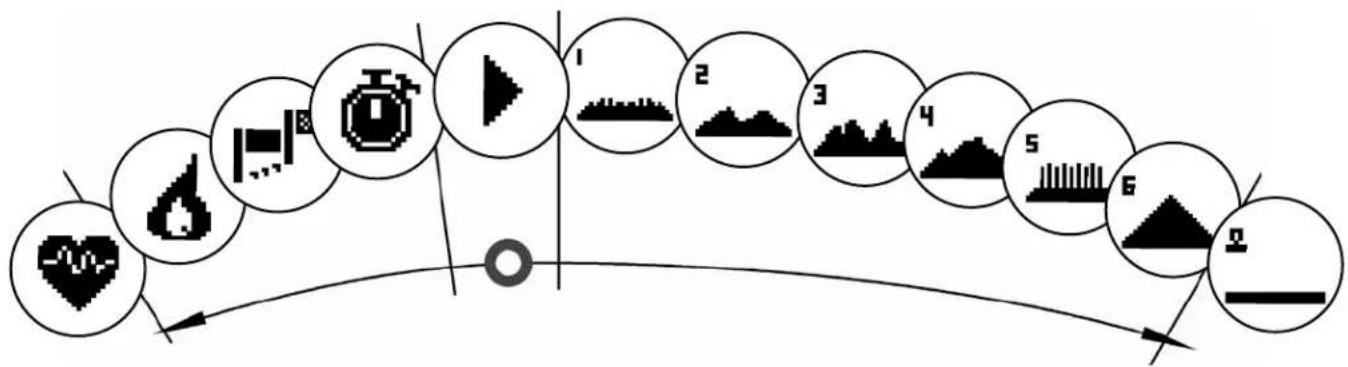
In the Menu item 'My Training Programs List' for an individual user or Guest User, various types of Training Programs are located. These are explained as follows:
1. Quick Start
Start a Training Session simply, without any further entry options. All scores/values are set at zero. You decide about Training Program duration and intensity. This Training Program is preset upon entry into the Menu 'My Training Programs List'.
2. Training Programs with target scores/values (time / distance / calories)
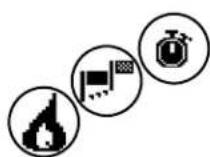
If you turn to the left from the starting point, you will arrive at the 3 Training Programs with target scores/values. Set yourself a personal target score/value for the Training Session, for time, distance, or an energy (calorie) value that you wish to burn off. Then during the Training Session the selected value will count down to zero.

3. Heart-Rate-Oriented Training Program (HRC Training Program)
To the far left of the selection list is the HRC Training. This is the ideal Training type for training in a targeted manner for a certain heart rate range. Before the Training Session, enter the desired heart rate. The training device will then set the performance level in the Training Session so that you reach this specified heart rate and maintain it. The central graphic in the Display shows you during the Training Session whether you are training within the target range, or whether you are above or under the target range.
TIP: In the Menu under 'Personal Settings' > 'HRC Start Level' you can define the performance level at which you want to begin the HRC Training Session. Well-trained exercisers tend to select a higher Start Level; beginning exercisers usually select a lower setting.
4. Profile Training Sessions
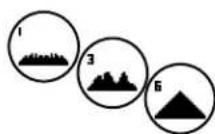
Beginning at "Quick Start" and turning to the right, you will arrive at Profile Trainings 1 – 6. In the Profile Trainings the Training Device changes the performance level automatically based on the profile. The performance level changes in Profiles 1-3 are moderate, in Profiles 4-6 more substantial. After choosing a Profile Training, set the time length for the Training Session and start training.
TIP: by turning the central key (3) during the Training Session, you can push the entire Profile up or down.
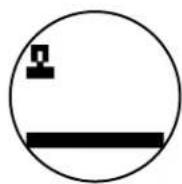
5. Exercising with the self-configured Profile
To the far right of the selection list, the storage space for your individually-set Profile can be found.
Training Program Functions
Training modes AUTO and MANU (ONLY FOR ERGOMETER)
AUTO mode (rotation speed-independent):
In this mode, you enter the target performance value in watts. By turning the knob, this watt target value can be changed. The Ergometer System calculates the necessary brake resistance level from the target value in watts and the current pedaling rate, and changes it immediately based on changes in the pedaling rate. Thus you have the safety of always training at the desired watt target level.
MANU mode (rotation speed-dependent):
In the MANU mode, you choose a brake resistance level (a "gear"). This remains constant regardless of your pedaling rate. The performance in watts is the result, and it varies with changes in gear selection (resistance) or pedaling rate.
The performance display in the points area is automatically adjusted. This is indicated by an animated figure running up or down.
Pulse Zones
5 Pulse Zones, Z1-Z5, are displayed. They are calculated based on the age entered.
Maximal Training Program pulse (HR Max) = 220 - age
Z1 = 50-60% of the HR Max = WARM-UP
Z2 = 61 - 70% of the HR Max = FAT BURNING
Z3 = 71 - 80% of the HR Max = ENDURANCE
Z4 = 81 - 90% of the HR Max = INTENSIVE ENDURANCE
Z5 = 91-100% of the HR Max = MAXIMUM RANGE
The Pulse Zones are displayed in the text space, when this function is activated under "Personal Settings>Pulse Zones".
Recovery Pulse Measurement
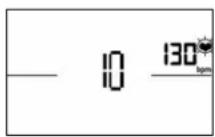
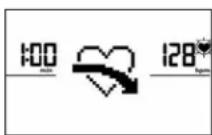
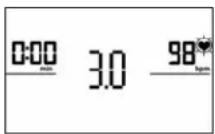
During the Training Session and active pulse measurement, press the Recovery Pulse key. After 10 seconds the measurement will begin.
The device will measure your pulse in a 60-second countdown.
Subsequently, the recovery pulse grade will be displayed.
The display will be ended after 20 seconds or by pressing the Recovery Pulse key.
If at the beginning or end of the countdown no pulse is registered, an error message will appear.
Turning off the display
After 4 minutes without activity, or by pressing and holding the left key, the display is turned off.
Pulse Measurement
The pulse can be measured via 2 sources:
- Hand pulse
The connection is located on the back side of the display;
- Chest strap
The input is located on the back side of the display.
(Chest strap not always included at delivery) The POLAR Chest Strap T34 is available as an accessory (Art.-No. 67002000). Only "uncoded systems" function.
For heart-rate-oriented Training Programs, the chest strap is recommended.
1
Affichage du menu
flowchart
graph TD
    A["Heart"] --> B["Play Button"]
    B --> C["Ground"]
    C --> D["Environment Icon"]
    D --> E["Stage Icon"]
    E --> F["Final Step"]
natural_image
Pure electrical circuit symbols without any text or labels1. Démarrage rapide
1
1. Display
Menuweergave
Z1 = 50-60% van HR Max = OPWARMEN
Z2 = 61-70% van HR Max = VETVERBRANDING
Z3 = 71 - 80% van HR Max = UITHOUDINGSVERMOGEN
Z4 = 81-90% van HR Max = UITHOUDINGSVERMOGEN INTENSIEF
Z5 = 91-100% van HR Max = MAXIMAAL BEREIK
1
1. Pantalla
Vista de menú
Il menu
PL
1
1. Wyświetlacz
Widok menu
Z1 = 50-60% HR Max = ROZGRZEWKA
Z2 = 61-70% HR Max = SPALANIE TŁUSZCZU
Z3 = 71-80% HR Max = WYTRZYMAŁOŚĆ
Z4 = 81-90% HR Max = WYTRZYMAŁOŚĆ -TRENING INTENSYWNY
Z5 = 91-100% HR Max = MAKSYMALNY ZAKRES
1
1. Mostrador
Z3 = 71 - 80% de HR Max = RESISTÊNCIA
Z4 = 81-90% de HR Max = RESISTÊNCIA INTENSIVA
Z5 = 91-100% de HR Max = FAIXA MÁXIMA
1
1. Display
Menuvisning
Zobrazení nabídky
Z1 = 50-60% z HR Max = ZAHŘÁTÍ
Z2 = 61-70% z HR Max = SPALOVÁNÍ TUKŮ
Z3 = 71 - 80% z HR Max = VÝDRŽ
Z4 = 81-90% z HR Max = INTENZIVNÍ VÝDRŽ
Z5 = 91-100% z HR Max = MAXIMUM
1
1. Дисплей
Индикация меню
natural_image
Man performing a rowing machine on a gym (no visible text or symbols)
natural_image
Black-and-white photo of two boys racing on a go-kart in an outdoor park setting (no text or symbols visible)
natural_image
Black-and-white photo of a man and a young girl playing table tennis outdoors, with a KATIK KATIK device visible (no text or symbols on the main subjects)
natural_image
Black-and-white photo of two people walking and conversing on a patio table, with wooden chairs and furniture in the foreground (no visible text or symbols)
- Please observe the following instructions for your own safety:
- For Your Safety:
- The Training Program Computer System
- Display and Keyboard
- SAFETY INTERLOCK ON CROSSTRAINERS WITH REAR-WHEEL DRIVE
- Electrical interlock (only with motorized devices):
- Mechanical interlock:
- Display
- Menu Display
- Training Display
- Central Key - Press
- Central Key - Turn
- Left Key
- Right Key
- The Menu
- An overview of the Menu items (from left to right):
- Machine Settings
- Guest Users
- Individually-created User Accounts (by name)
- Create new user
- Personal Settings
- My Results
- My Last Training Session
- My Training Program List
- Training Program Configurator
- The Available Training Programs in the 'My Training Programs List' Menu
- Quick Start
- Training Programs with target scores/values (time / distance / calories)
- Heart-Rate-Oriented Training Program (HRC Training Program)
- Profile Training Sessions
- Exercising with the self-configured Profile
- Training Program Functions
- Pulse Zones
- Recovery Pulse Measurement
- Turning off the display
- Pulse Measurement
- Affichage du menu
- Démarrage rapide
- Menuweergave
- Pantalla
- Vista de menú
- Il menu
- Wyświetlacz
- Widok menu
- Mostrador
- Menuvisning
- Zobrazení nabídky
- Дисплей
- Индикация меню
Brand : KETTLER
Model : Golf S4
Category : Exercise bike