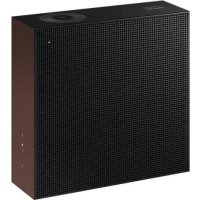
VL350 - Pregnant SAMSUNG - Free user manual and instructions
Find the device manual for free VL350 SAMSUNG in PDF.



| Product type | Wireless speaker |
| Brand | Samsung |
| Model | VL350 |
| Weight | 2.1 kg |
| Dimensions (W x H x D) | 210.0 x 211.5 x 70.0 mm |
| Power supply | AC/DC adapter (DC 5V input for control box) |
| Connectivity | Bluetooth, Wi-Fi (2.4/5 GHz), AUX (3.5 mm line input), LAN Ethernet |
| Speakers | 1 x woofer, 1 x tweeter, 4 ohms |
| Wireless output power | Wi-Fi max 100 mW (2.4/5 GHz), BT max 100 mW (2.4 GHz) |
| Operating temperature | +5°C to +35°C |
| Operating humidity | 10 % to 75 % |
| Special features | Touch control (volume), voice recognition via mobile device, Audio Group, stereo mode (2 speakers), SmartThings compatible |
| Maintenance and cleaning | Unplug, wipe with a soft, dry cloth; do not use alcohol, solvents or chemicals |
| Safety | Do not open, avoid moisture, use grounded outlet, do not expose to rain |
| Spare parts and repairability | Built-in battery not user-replaceable; contact an authorized service center |
| General information | Standby consumption 3.0 W (Wi-Fi on); compatibility with Spotify Connect, Amazon Alexa |
Frequently Asked Questions - VL350 SAMSUNG
User questions about VL350 SAMSUNG
0 question about this device. Answer the ones you know or ask your own.
Ask a new question about this device
Download the instructions for your Pregnant in PDF format for free! Find your manual VL350 - SAMSUNG and take your electronic device back in hand. On this page are published all the documents necessary for the use of your device. VL350 by SAMSUNG.
USER MANUAL VL350 SAMSUNG
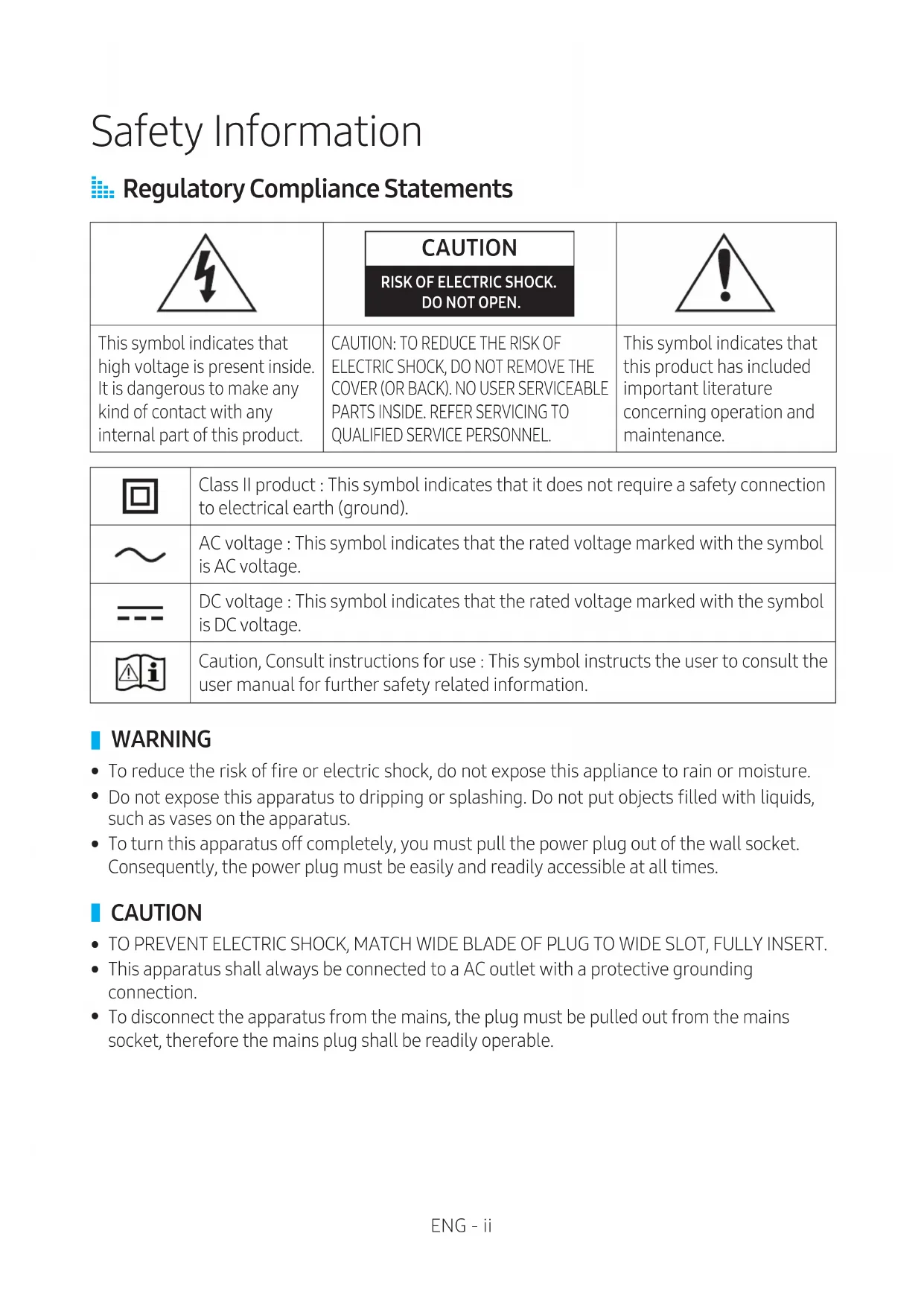
Regulatory Compliance Statements
 | CAUTIONRISK OF ELECTRIC SHOCK.DO NOT OPEN. |  |
| This symbol indicates that high voltage is present inside. It is dangerous to make any kind of contact with any internal part of this product. | CAUTION: TO REDUCE THE RISK OF ELECTRIC SHOCK, DO NOT REMOVE THE COVER (OR BACK). NO USER SERVICEABLE PARTS INSIDE. REFER SERVICING TO QUALIFIED SERVICE PERSONNEL. | This symbol indicates that this product has included important literature concerning operation and maintenance. |
 | Class II product : This symbol indicates that it does not require a safety connection to electrical earth (ground). |
 | AC voltage : This symbol indicates that the rated voltage marked with the symbol is AC voltage. |
 | DC voltage : This symbol indicates that the rated voltage marked with the symbol is DC voltage. |
 | Caution, Consult instructions for use : This symbol instructs the user to consult the user manual for further safety related information. |
WARNING
- To reduce the risk of fire or electric shock, do not expose this appliance to rain or moisture.
- Do not expose this apparatus to dripping or splashing. Do not put objects filled with liquids, such as vases on the apparatus.
- To turn this apparatus off completely, you must pull the power plug out of the wall socket. Consequently, the power plug must be easily and readily accessible at all times.
CAUTION
• TO PREVENT ELECTRIC SHOCK, MATCH WIDE BLADE OF PLUG TO WIDE SLOT, FULLY INSERT.
- This apparatus shall always be connected to a AC outlet with a protective grounding connection.
- To disconnect the apparatus from the mains, the plug must be pulled out from the mains socket, therefore the mains plug shall be readily operable.

Safety precautions
Power Supply Precautions
- Do not overload outlets or extension cords.
- This may result in abnormal heat or fire.
- Do not plug in or unplug the power cord with wet hands.
- Do not place the product near heating equipment.
- Do not bend the power cord or pull it forcefully.
- Do not put heavy objects on the power cord.
- Do not plug the power cord into a loose or damaged outlet.
- If the connection is unstable, there is a risk of fire.
- To clean the power plug blades, remove the plug from the wall outlet and wipe the blades with a dry cloth only.
- Fully insert the power cord's plug into the wall outlet so that the plug is firmly attached to the outlet.
- Before connecting the AC power cord to the DC adaptor outlet, make sure the voltage designation of the DC adaptor corresponds to the local electrical supply.
Installation Precautions
- Do not install the product near equipment or objects that generate heat or produce fire (candles, mosquito coils, heaters, radiators, etc.). Do not install in direct sunlight.
- When moving the product, turn off the power and disconnect all cords (include the power cord) from the unit.
- A damaged cord may cause a fire and poses a risk of electric shock.
- Installing the product in environments with high heat or humidity, dust, or extreme cold, can lead to quality problems or cause the product to malfunction. Before you install the product in an environment that is outside the norm, please contact a Samsung dealer or service centre for additional information.
- When placing the product on a shelf, cabinet, or desk, make sure the top panel faces upwards.
- Do not place the product on an unstable surface (e.g. a shaky shelf, a tilted desk, etc.).
- Dropping the product can cause it to malfunction and poses a risk of injury. Severe vibration or impact can also cause the product to malfunction and lead to a fire hazard.
• Install your product with enough space around it for ventilation.
- Leave at least 10cm at the rear of the product and more than 5cm on each side of the product.
- Keep the plastic packing materials out of reach of your children.
- Children playing with the plastic packing materials run the risk of suffication.
Usage Precautions
- Using for an extended time at high volume may cause serious damage to your hearing.
- If you are exposed to sound louder than 85db for an extended time, you may adversely affect your hearing. The louder the sound is, the more seriously damaged your hearing may become. Note that an ordinary conversation is between 50 to 60 db and road noise is approximately 80 db.
- This product contains dangerous high voltage. Do not attempt to disassemble, repair, or modify it yourself.
- Contact a Samsung dealer or service centre when your product is in need of repair.
- Do not place any container that contains liquid on the product (e.g. a vase, beverages, cosmetics, chemicals, etc.). Do do not allow any metal objects (e.g. coins, hair clips, etc.) or flammable material (e.g. paper, matches, etc.) to enter the product (through the air vents, I/O ports, etc.).
- If any harmful material or liquid enters the product, turn off the product immediately, unplug the power cord, and then contact a Samsung dealer or service centre.
- Do not drop the product. In case of a mechanical breakdown, disconnect the power cord and contact a Samsung dealer or service centre.
- There is a risk of fire or electric shock.
- Do not hold or pull the product by the power cord or the signal cable.
- A damaged cable can cause the product to malfunction, cause a fire, and poses a risk of electric shock.
- Do not use or keep flammable materials near the product.
- If the product emits an abnormal sound or a burnt smell or smokes, unplug the power-cord immediately and contact a Samsung dealer or service centre.
- If you smell gas, ventilate the room immediately. Do not touch the power plug of the product. Do not turn the product off or on.
-
Do not strike or subject the product to a sudden shock. Do not pierce the product with a sharp object.
-
This product can be moved and placed indoors.
- This product is not waterproof or dustproof.
- Be careful when moving the product to avoid dropping it and possibly damaging it.
Cleaning Precautions
- Never use alcohol, solvents, waxes, benzene, thinners, air freshener, or lubricants to clean the product, or spray insecticide on the product.
- Using any of these materials can discolour the exterior coating or cause it to split or peel off, or remove the labelling on the product.
- To clean the product, unplug the power cord, and then wipe the product with a clean, dry, soft cloth (Microfiber, cotton).
- Avoid leaving dust on the product. Dust can scratch its surface.
Contents
Safety Information
Regulatory Compliance Statements......ii
WARNING......ii
CAUTION....ii
Safety precautions......iii
Power Supply Precautions ....iii
Installation Precautions......iii
Usage Precautions......iv
Cleaning Precautions......v
Getting Started
Checking the Components ......2
Product Overview....3
Top / Front / Right Side of the Speaker .....3
Rear of the Speaker....5
Using Dial Controller 6
Top of the Dial Controller......6
Bottom of the Dial Controller......8
Connecting between the Dial
Controller and Speaker......9
Connecting to Bluetooth
Connecting to Wi-Fi
Connecting to an External Device
Connecting an external device via the AUX cable....13
Additional Functions
Using mobile device voice recognition ... 14
Using via Wi-Fi connection.... 16
Using 2 units - Audio Group ...... 16
Using 2 units - Stereo (Dedicated for VL350 / VL351)....17
Connecting with a Samsung Smart TV....19
Connecting an Amazon product......20
Installing the Wall Mount
Appendix
Troubleshooting....26
Open Source Licence Notice ....29
Licences....29
Specifications....29
Additional Information......31
About the Network Connection...... 31
Works with SmartThings™ 31
Copyright 31
Getting Started
Checking the Components
Check the components supplied with your speakers.
VL350 / VL351
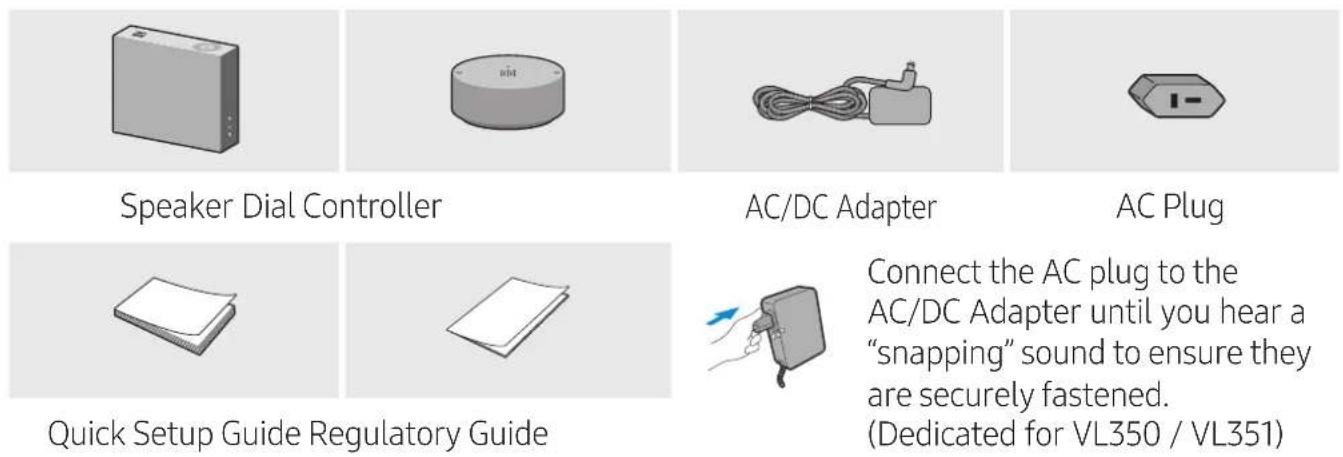
The AC plug may look different or can be an integrated unit with the AC/DC adapter. (Dedicated for VL350 / VL351)
The AC plug cannot be removed after assembly. (Dedicated for VL350 / VL351)
VL550 / VL551
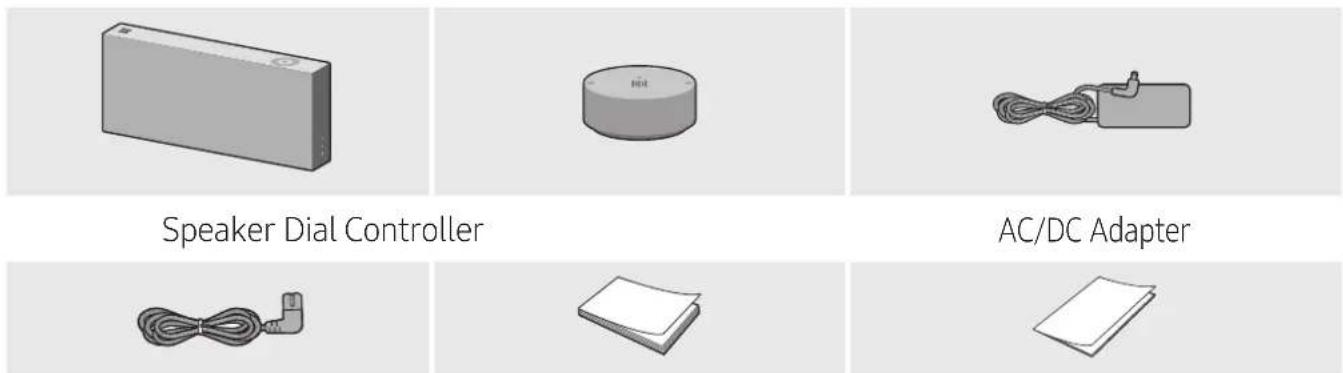
Power Cable Quick Setup Guide Regulatory Guide
Make sure to rest the AC/DC Adapter flat on a table or the floor. If you place the AC/DC Adapter so that it is hanging with the AC cord input facing upwards, water or other foreign substances could enter the Adapter and cause the Adapter to malfunction.
To purchase additional components or optional cables, contact a Samsung Service Centre or Samsung Customer Care.
CAUTION
√ Do not place any items on top off or sit on the main unit.
√ Handle the product with care as it has sharp edges.
√ See the speaker's bottom for important safety information.

Product Overview
Top / Front / Right Side of the Speaker
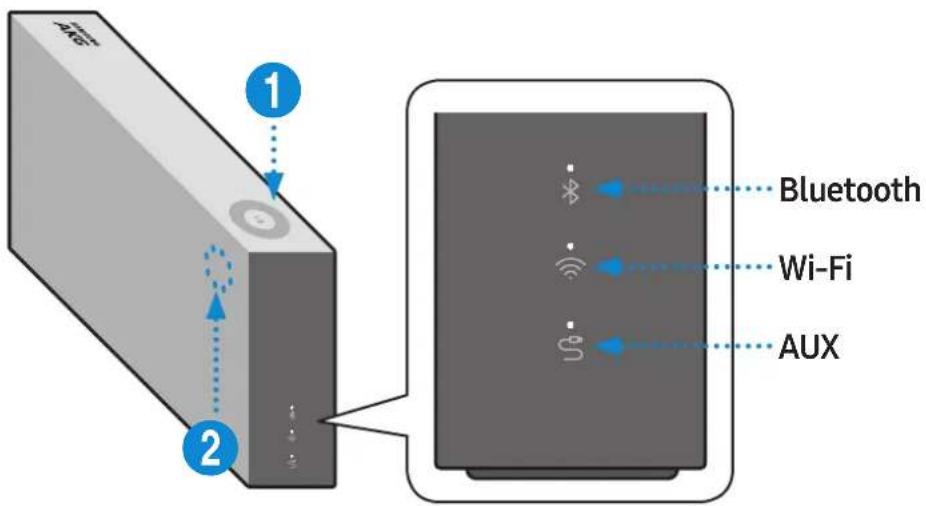
| 1 | 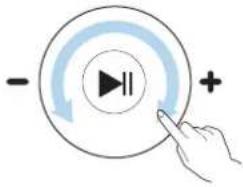 | Volume adjustment (Turning the Touch-wheel) | Touch and drag the touch wheel clockwise to increase the volume. Touch and drag the touch wheel anticlockwise to decrease the volume. |
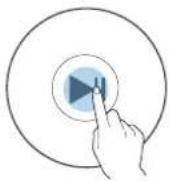 |  Play / Pause Play / Pause | Touch ▶II to play or pause music. |

LED
Display
| LED Status | Description | ||
| Operation Mode | |||
| White | On Connected / Normal operation - | ||
| Blinking | Booting - | ||
| Ready for connecting to Dial Controller | - | ||
| Updating the firmware - | |||
| Ready for Wi-Fi connection Wi-Fi | |||
| Blue Blinking Waiting to connect the device Bluetooth | |||
| Red | On | Connection error | - |
| Yellow | Blink once | When the volume is set to Min or Max | - |
| Off | Off | Power saver | - |
If not used for more than 5 minutes, the mode is changed to Standby to decrease energy consumption.
The Bluetooth / Wi-Fi / AUX button activates one function at a time.
Play / Pause and Skip features are not available in AUX mode.
Press Bluetooth button for 5 seconds or more to set up Bluetooth connection.
Mute / unmute feature can be used with the Play / Pause button while in AUX mode or Bluetooth mode (connected to a TV).
Rear of the Speaker
flowchart
graph TD
    A["Power Switch"] --> B["Connection"]
    B --> C["Reset Button"]
    C --> D["Device 1"]
    C --> E["Device 2"]
    C --> F["Device 3"]
    C --> G["Device 4"]
    C --> H["Device 5"]
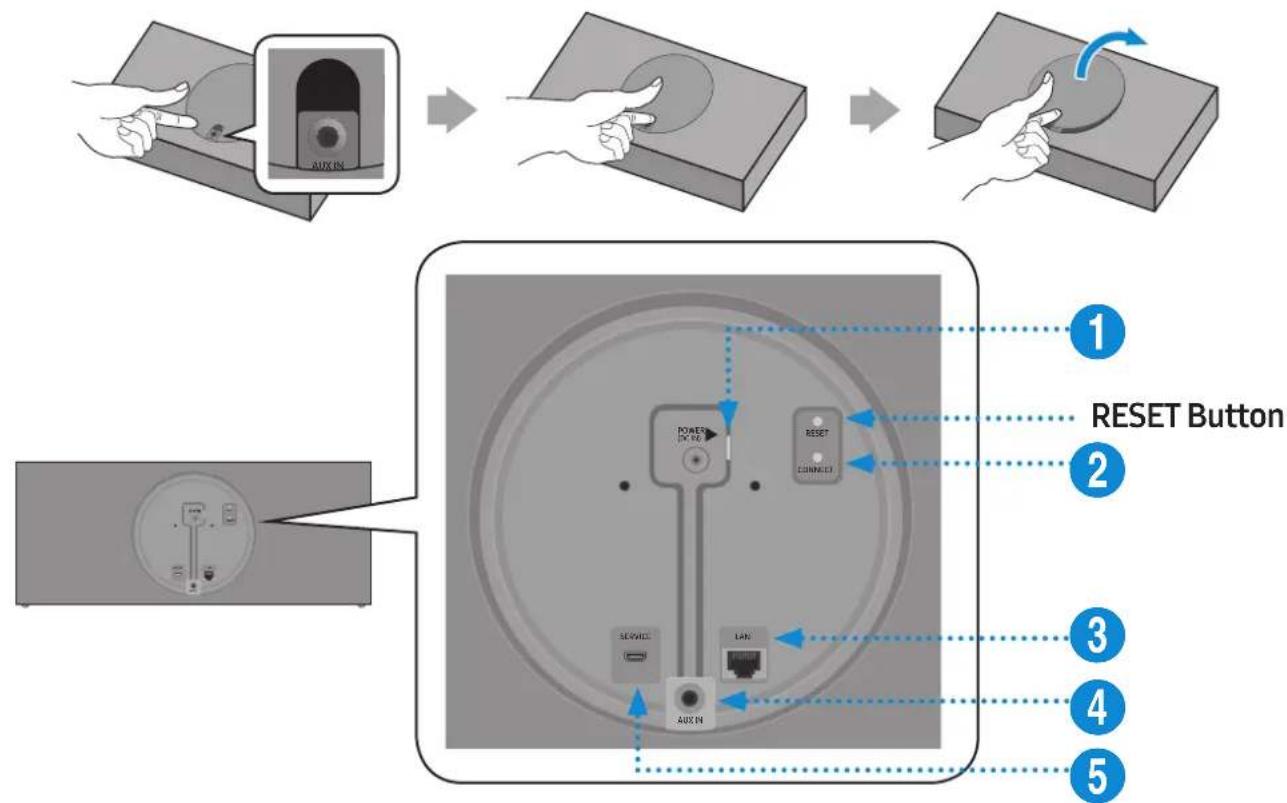
1 POWER (DC IN) Jack
- Connect the power cord to the AC/DC adapter. (Dedicated for VL550 / VL551)
- Connect the AC/DC adapter output power cord (round plug) to the POWER (DC IN) port on the speaker.
2 CONNECT Button
Press : To disconnect from or reconnect with the Dial Controller. Long press it for 5 seconds : To initiate Wi-Fi connection.
3 LAN Jack Used to connect the speaker to the wired network.
4 AUX IN Jack Connect it to the analogue output port on an external device.
5 SERVICE Jack Used to update the speaker firmware by a service engineer.
Use Cat 7 (*STP Type) cable for the connection. (* Shielded Twisted Pair)
The RESET button is for troubleshooting.

Using Dial Controller
Top of the Dial Controller
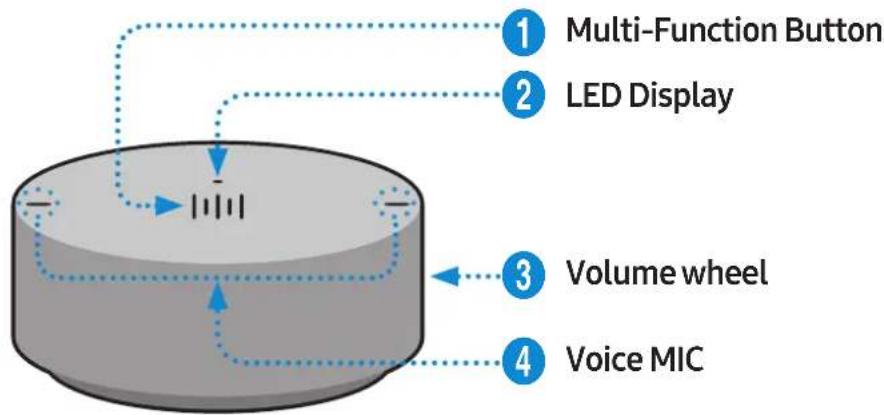
flowchart
graph TD
    A["Multi-Function Button"] --> B["LED Display"]
    B --> C["Volume wheel"]
    C --> D["Voice MIC"]
| 1 | 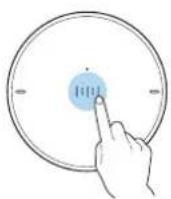 |  X1 Play / Pause Touch X1 Play / Pause Touch | ||||X1 to play or pause music. |
 X2 Play the next music X2 Play the next music | Touch ||||| X2 to play the next music. | ||
 X3 Play the previous music X3 Play the previous music | Touch ||||| X3 to play the previous music. | ||
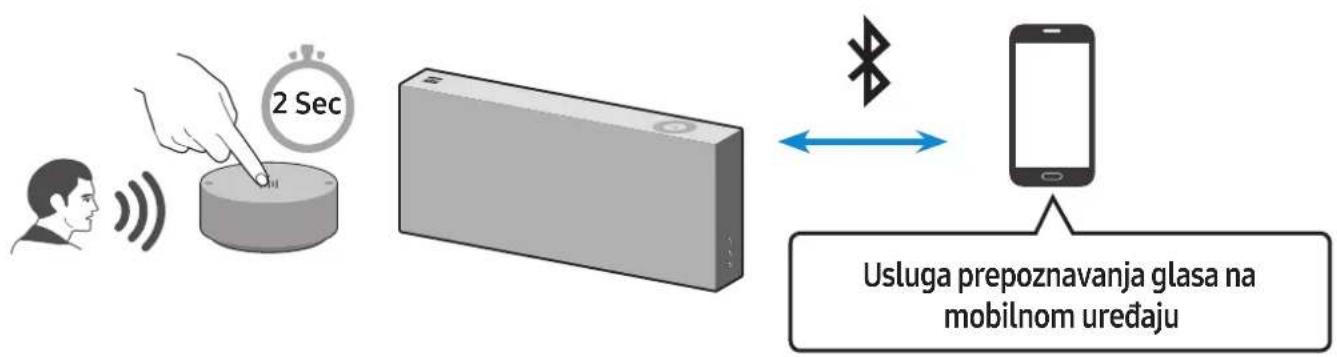
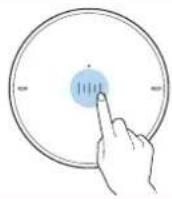 |  2 Sec Mobile device voice recognition 2 Sec Mobile device voice recognition | Press for 2 seconds to activate the voice recognition service in your mobile device.• It is available only in Bluetooth mode. | |
2
LED Display The indicator blinks, lights, or changes the colour depending on the speaker status.
| LED Status | Description | ||
| Operation Battery | |||
| Off All | Off Standby | Battery discharged | |
| White | On Normal operation Fully charged | ||
| Blinking | Waiting for connection to the speaker | - | |
| Cyan On | Mobile voice recognition active (Dedicated for Bluetooth) | - | |
| Red On | Connection to the speaker failure | - | |
| In error | |||
| Yellow Blink once | When the volume is set to Min or Max | - | |
| Pink | Blink once after key use | - | Battery less than 10 % |
| On Currently charging | |||
3
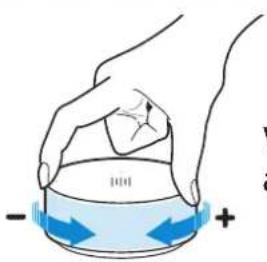
(Turning the volume wheel)
Turn the volume wheel clockwise to increase the volume.
Turn the volume wheel anticlockwise to decrease the volume.
4
Voice MIC MICs that are used for mobile device voice recognition.

Play / Pause and Skip features are not available in AUX mode.
Bottom of the Dial Controller
1 Remove the cover at the bottom of Dial Controller and then turn on the power.
- Charge your Dial Controller before turning the power on.
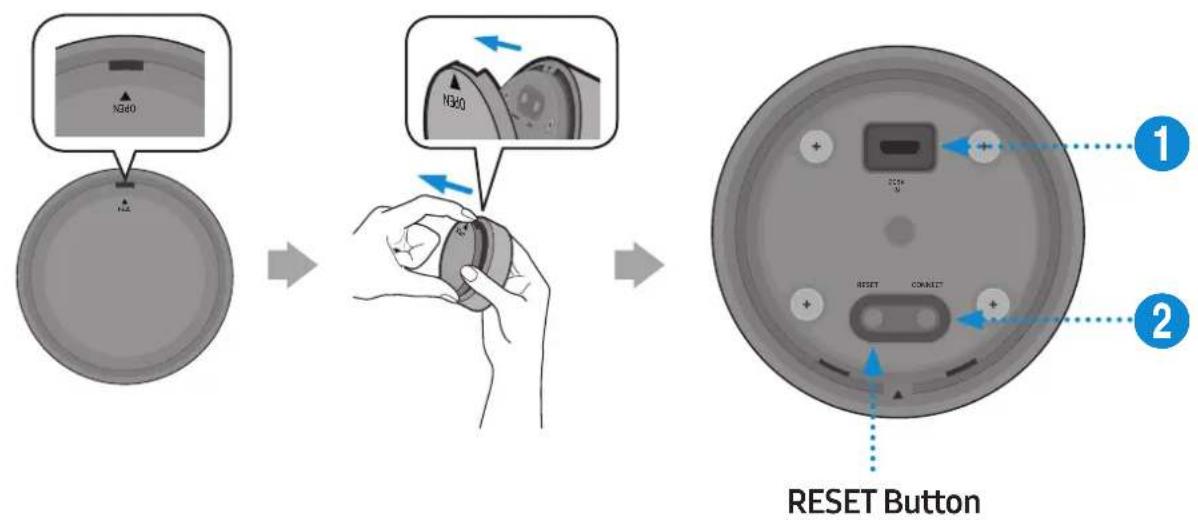
1 DC 5V IN Jack Connect the Micro USB cable to charge the Dial Controller.
2 CONNECT Button Try connecting to a Speaker.
2 Check the LED status (blinking in pink). If the battery level is low, charge the Dial Controller by connecting the Micro USB cable. (For more information about the LED display, see page 7.)
It takes approximately 3 hours to fully charge the battery. Fully charged battery can last up to 90 days.
Battery life is subject to use conditions and environment.
The RESET button is for troubleshooting.
Connecting between the Dial Controller and Speaker
\* Before use of the Dial Controller
Charge the Dial Controller until the LED lights. (When fully charged, the LED changes to white.)
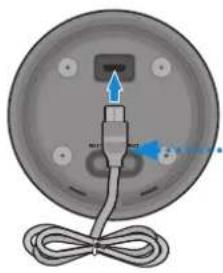
natural_image
Diagram of a circular device with a cable and labeled ports, no text or symbols presentMicro USB Cable (not supplied)
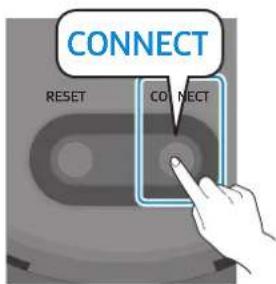
1 Press the CONNECT button on the rear of the speaker.
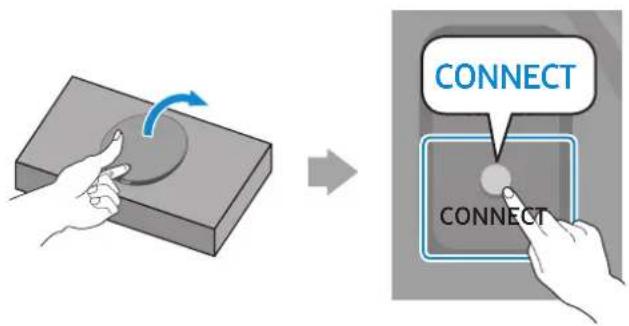
2 Press the CONNECT button on the bottom of the Dial Controller.
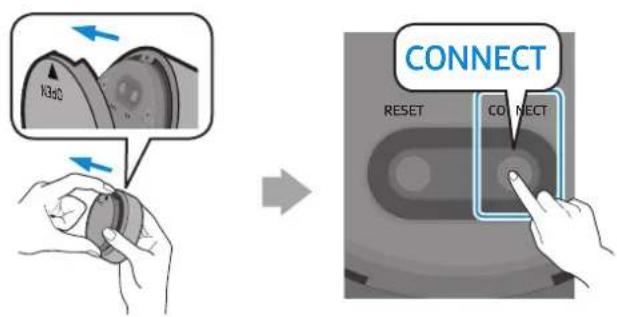
3 Once the Dial Controller and speaker are connected, you can hear voice message, "Pairing is complete.", from speaker.
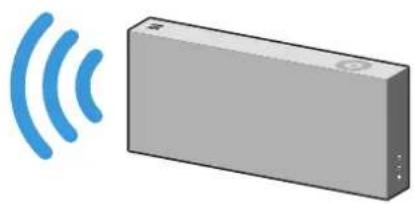
natural_image
Illustration of a gray rectangular device with blue signal waves, no text or symbols presentConnecting to Bluetooth
You can connect a mobile device via the Bluetooth, and then enjoy sound from the speaker.
\* First time connection
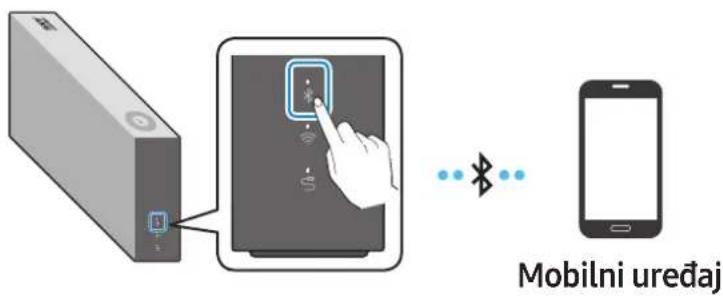
1 Press the Bluetooth button on the right side of the speaker for 5 seconds or more.
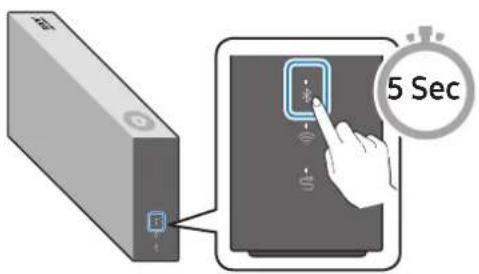
2 Select the speaker from the Bluetooth list on your mobile device and connect it. (e.g. [AV] Samsung AKG VL5)
![" [AV] Samsung AKG VL *"](/content/2026/03/437494/images/cb74409bbdf079b64db25a1d3b4c3a513967b0da42b48a4d2b633195f1edc23c.jpg)
Mobile device
\* Reconnection
Only Step 2 is required when reconnecting to mobile devices.
Bluetooth connection allows you to use voice recognition service in your mobile device.
Connecting to Wi-Fi
1 Press the Wi-Fi button on the right side of the speaker to switch to Wi-Fi mode.
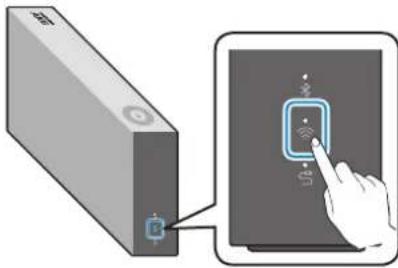
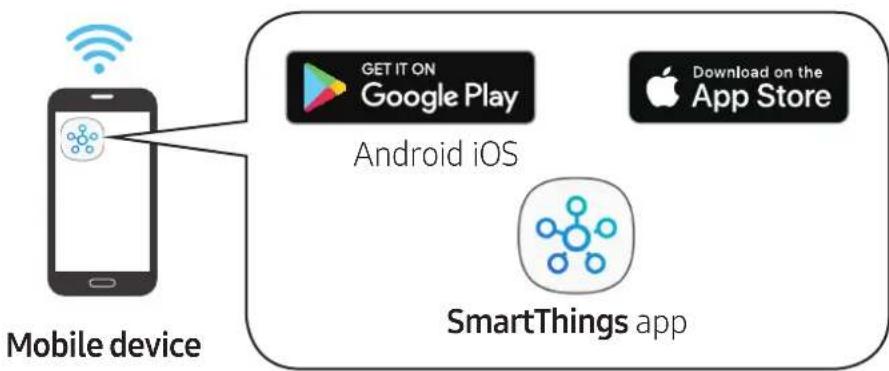
2 Download the SmartThings app to your mobile device and then launch it.
- You cannot configure the settings for the devices that are not supported by the SmartThings app.
- SmartThings requirements : Android 6.0 or newer version / iOS 10.0 or newer version
• To use the SmartThings app, a Samsung Account is required.
flowchart
graph TD
    A["Mobile device"] --> B["Android iOS"]
    B --> C["SmartThings app"]
    D["GET IT ON Google Play"] --> B
    E["Download on the App Store"] --> B
3 Follow the instructions on the SmartThings app screen to complete settings.
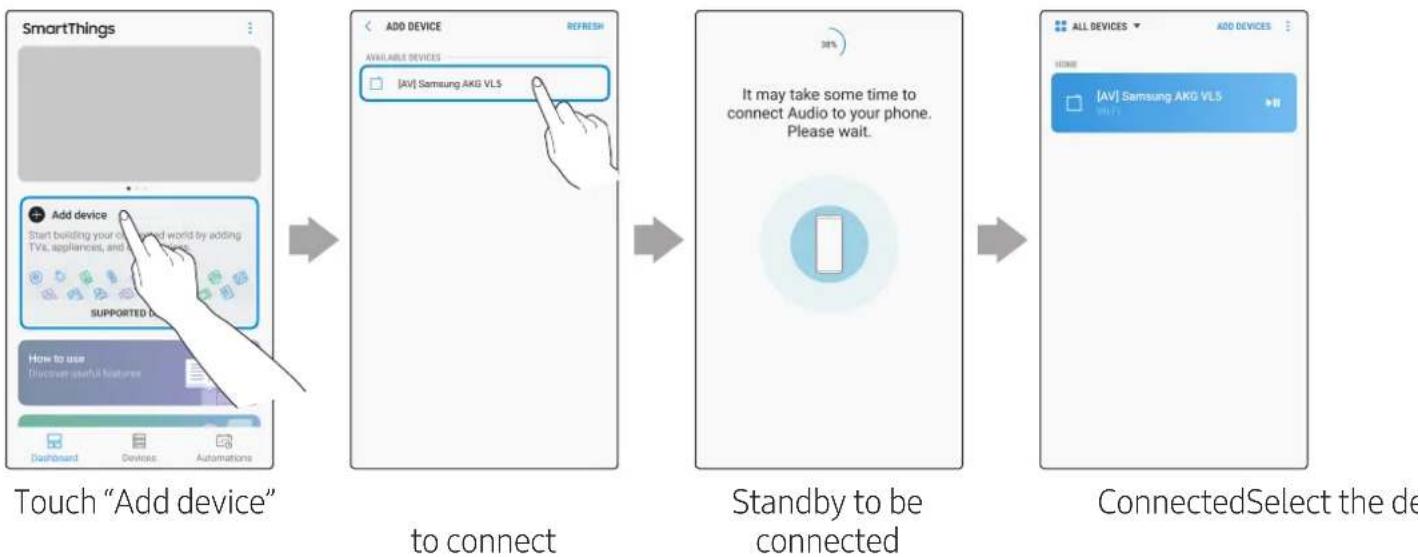
flowchart
graph LR
    A["SmartThings"] --> B["Add Device"]
    B --> C["Add Device to connect"]
    C --> D["Standby to be connected"]
    D --> E["ConnectedSelect the device"]
4 Repeat steps 1-3 to connect all speakers to the same wireless router.
- Spotify Premium users can enjoy music by using the Spotify app.
5-1 Follow the instruction below to reconnect or connect to a new wireless router.
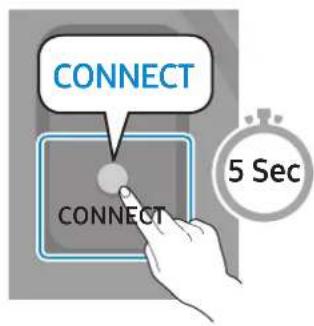
Press the CONNECT button for 5 seconds.
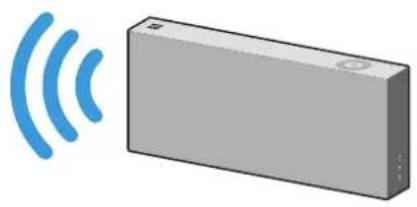
natural_image
Illustration of a gray rectangular device with blue signal waves, no text or symbols presentThe speaker generates a voice message notifying that it is now in standby mode.
5-2 Repeat step 3.
* Deleting a device from SmartThings app
![ALL DEVICES ADD DEVICES HOME [AV] Samsung ARD VL5 [AV] ARD VL5 →II](/content/2026/03/437494/images/9531883609ab9cfb5b9d6ef8c5592c57b4509802f3881f48754886b5c5600867.jpg)
Touch in the top right of the device list
![ALL DEVICES Edit HOME Add scene [AV] Samsung AKG VLS →II](/content/2026/03/437494/images/36ab202e3381a7c0c33e7f1ab6a6d49470269c25c731ff6f6327a792adfc36ec.jpg)
Touch "Edit"
![[AV] Samsung AKG VL5 You can only delete your own devices and devices that are in locations that belong to you.](/content/2026/03/437494/images/981e5e795f5095fa62b6eccaad28d305280d8079d0f894e70b1a69d5d4b922ae.jpg)
Touch next to the device to remove
Connecting to an External Device
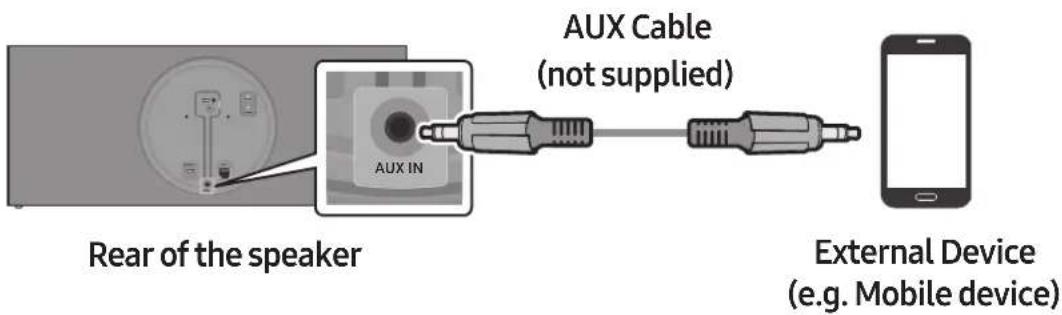
Connecting an external device via the AUX cable
You can connect a mobile device via the AUX cable, and then enjoy sound from the speaker.
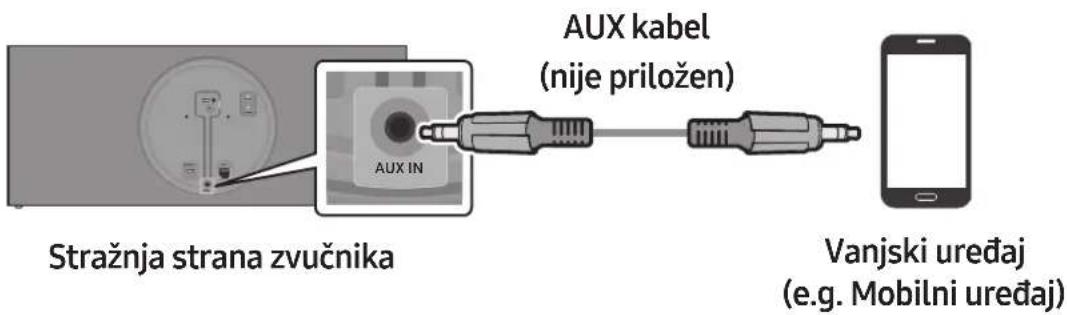
1 Press the AUX button on the right side of the speaker to switch to AUX mode.
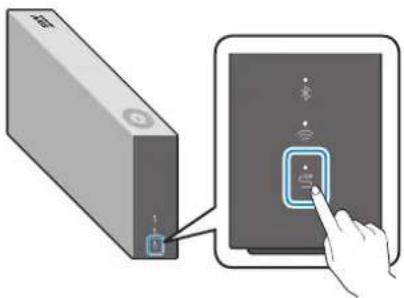
2 Connect the AUX IN port on the rear of the speaker to an external device via the AUX cable (not supplied).
Additional Functions

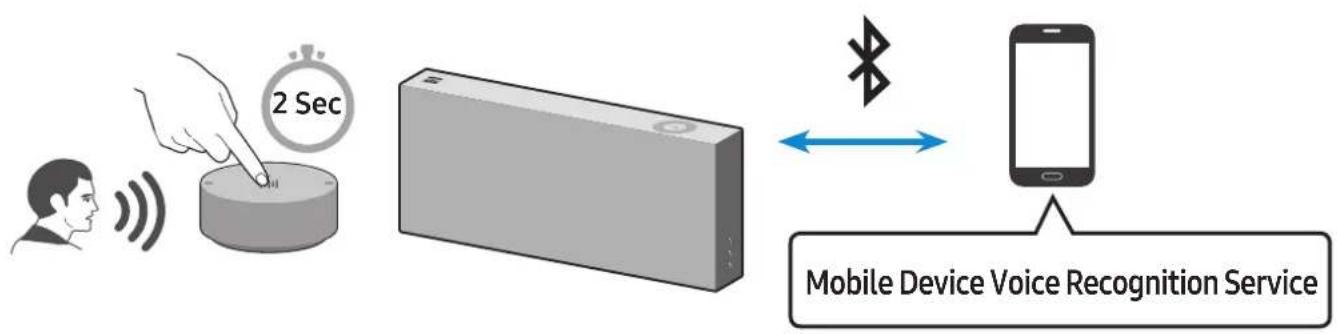
Using mobile device voice recognition
Dedicated functions in Bluetooth mode
- This function can be used only when a mobile device is connected via Bluetooth.
- The operation may differ depending on the specification of the mobile device.
flowchart
graph LR
    A["User"] --> B["2 Sec"]
    B --> C["Device"]
    C --> D["Mobile Device Voice Recognition Service"]
    D --> E["Mobile Device"]
    style A fill:#f9f,stroke:#333
    style B fill:#ccf,stroke:#333
    style C fill:#cfc,stroke:#333
    style D fill:#fcc,stroke:#333
    style E fill:#ffc,stroke:#333

Depending on the voice recognition service provided by your mobile device (e.g. Bixby, Siri, Google Assistant, etc.), its availability and usage may differ.
| Function example Speaking example | |
| Listening to music Play TOP | 100 |
| Sending messages Forward | my most recent text message to mom |
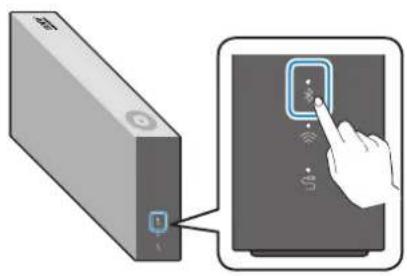
1 Press the Bluetooth button on the right side of the speaker to switch to Bluetooth mode.
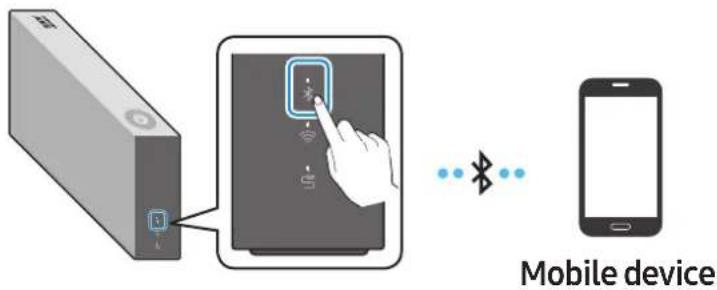
1-1 If you have not already, set up Bluetooth connection between the speakers and your mobile device.
• To connect a mobile device, please see [Connecting to Bluetooth] Click here.
2 Press and hold the Multi-Function button on Dial Controller until LED shows cyan. (for 2 seconds or more)
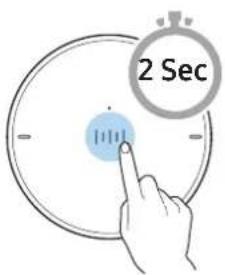
3 LED colour turns cyan, indicating the device's voice recognition is activated. Speak directly to Dial Controller to use voice recognition service.
In case of S voice on Samsung Galaxy, be sure to release the lock pattern for use of the function.

CAUTION
√ Maintain at least 1.5 cm distance between your face and Dial Controller when using voice recognition service.

Using via Wi-Fi connection
Functions upon Wi-Fi connection
• Using 2 units - Audio Group
• Using 2 units - Stereo (Dedicated for VL350 / VL351)
- Connecting with a Samsung Smart TV
- Connecting an Amazon product
Speakers should be all connected to the same wireless router.
5 GHz wireless connection is recommended when using two devices.
When using two devices, a time difference between the video output of the connected equipment and its audio output may occur.
On rare occasions, there can be choppy audio or interruption of connection due to wireless interference when used in some conditions.
Using 2 units - Audio Group
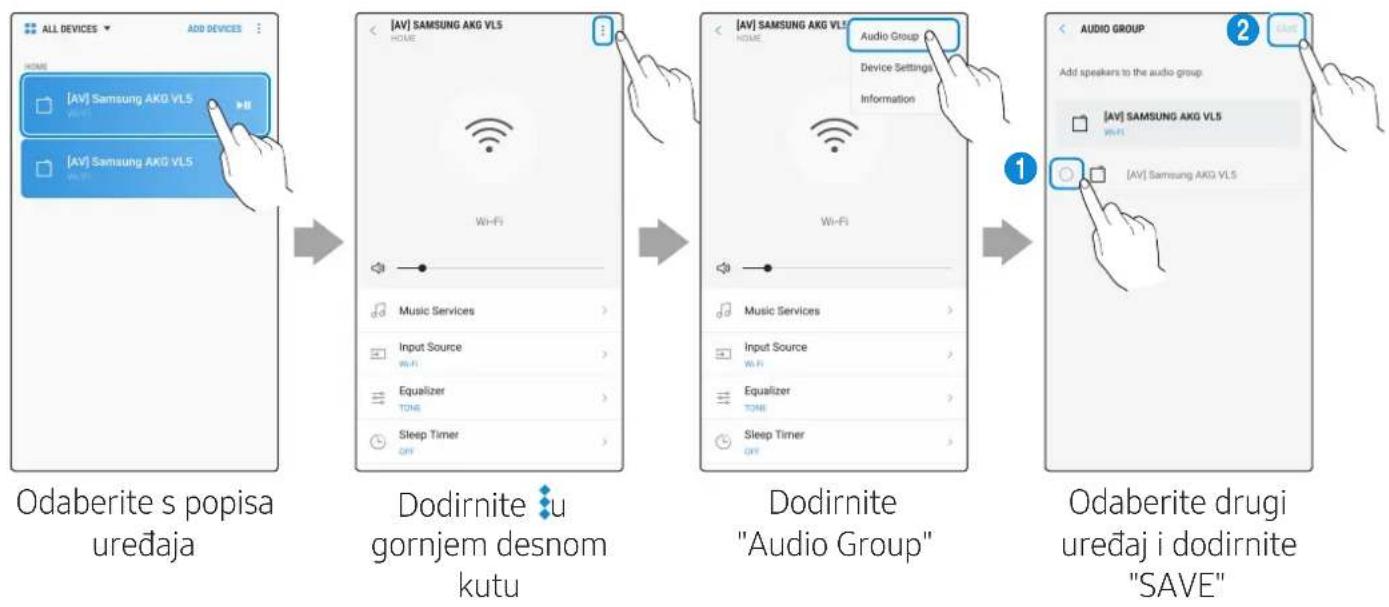
1 Use SmartThings app to connect and enjoy 2 speakers as a Audio Group.
- To use Audio Group, all speakers must be connected to the same wireless router.
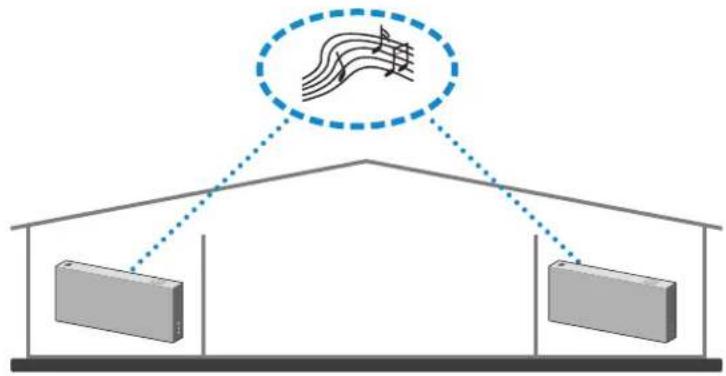
flowchart
graph TD
    A["Base Station 1"] --> B["Central Hub"]
    C["Base Station 2"] --> B
    B --> D["Output Line"]
    style D stroke-dasharray: 5 5
    note right of D: Connected line with musical notes symbolizing music or signal flow
2 Select Audio Group in SmartThings app.
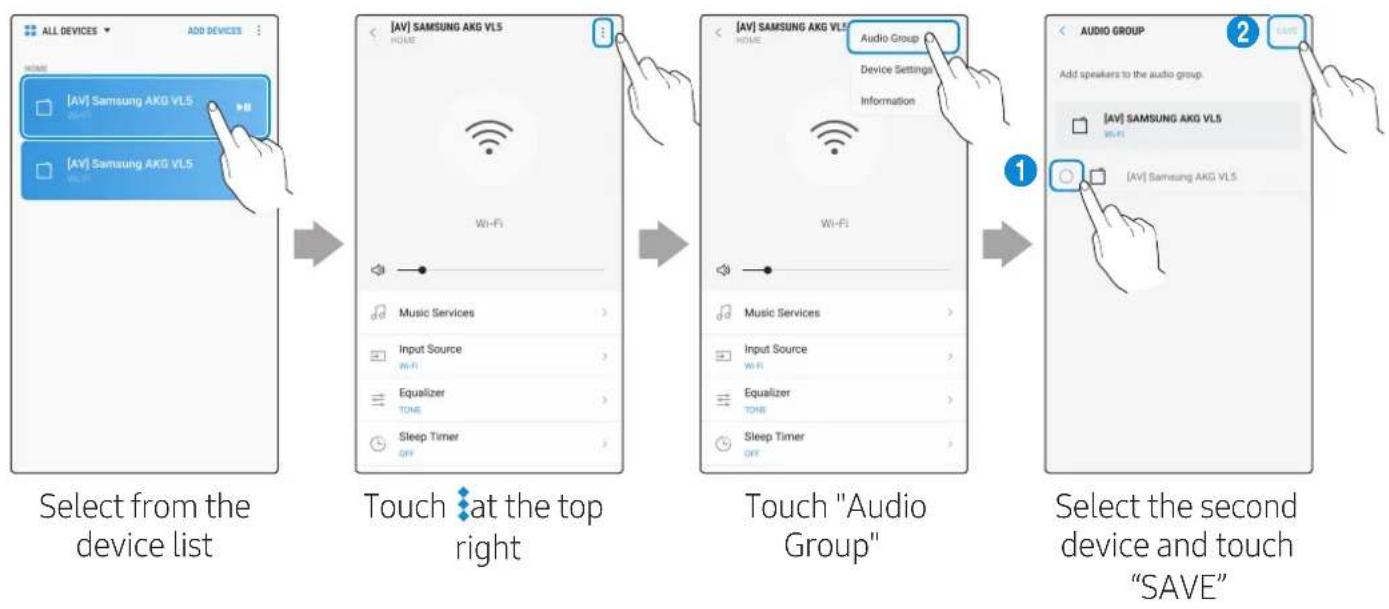
flowchart
graph TD
    A["Select from the device list"] --> B["Touch at the top right"]
    B --> C["Touch "Audio Group""]
    C --> D["Select the second device and touch "SAVE""]
Using 2 units - Stereo (Dedicated for VL350 / VL351)
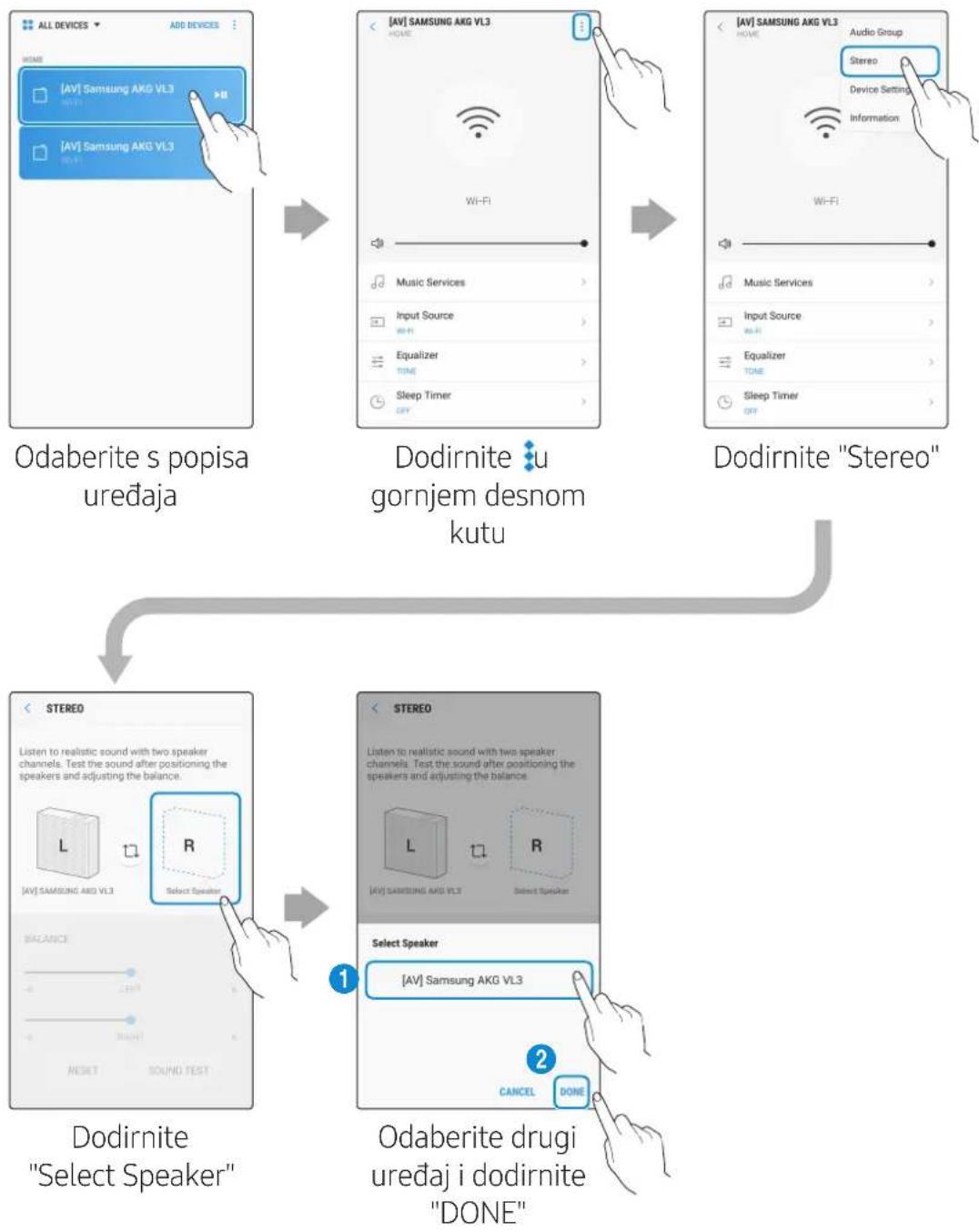
1 Use SmartThings app to connect and enjoy two speakers as a Stereo.
- To use Stereo, all speakers must be connected to the same wireless router.
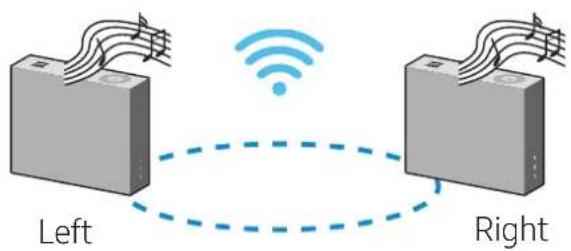
2 Select Stereo in SmartThings app.
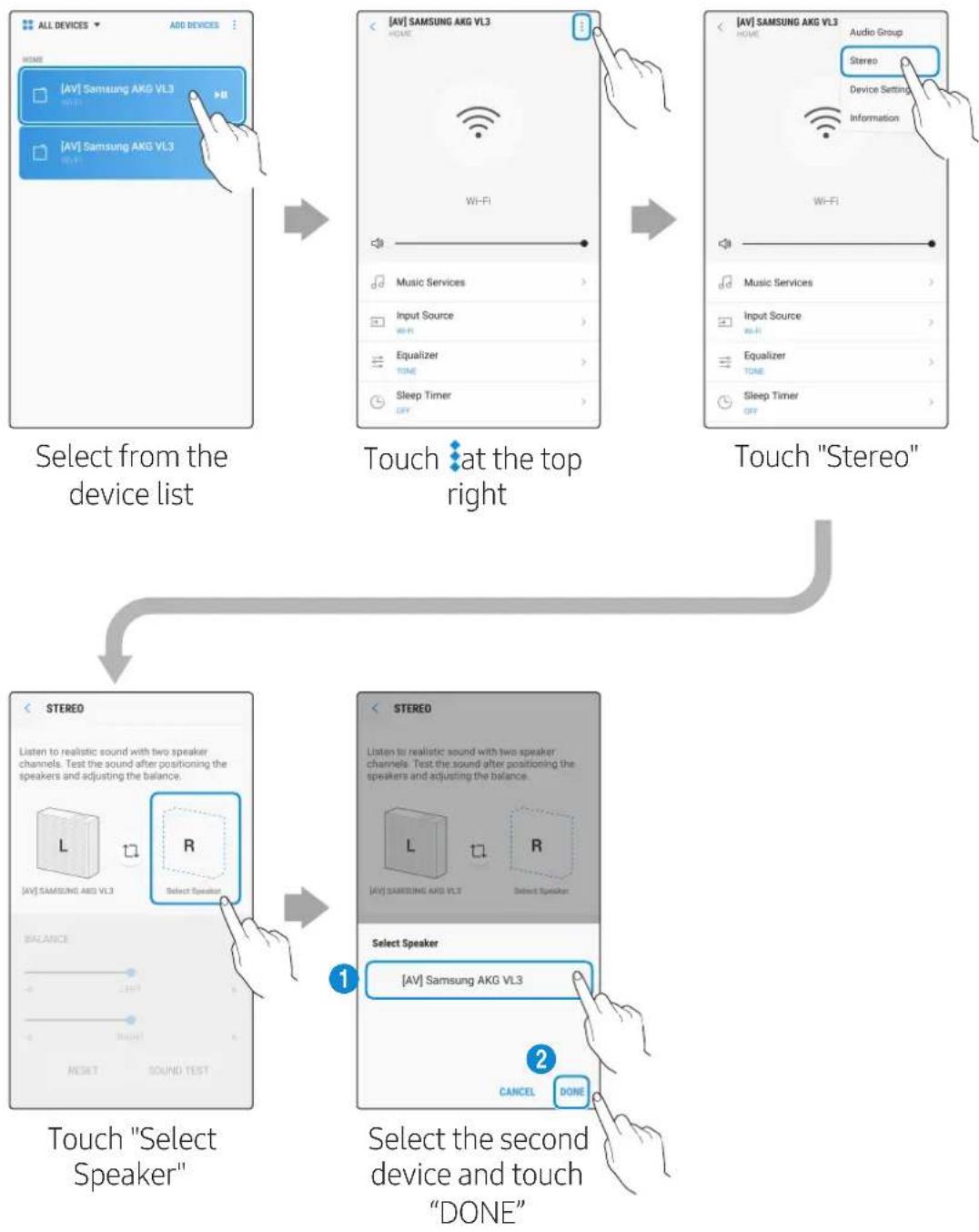
flowchart
```mermaid
graph TD
    A["Select from the device list"] --> B["Touch at the top right"]
    B --> C["Touch "Stereo""]
    C --> D["Select the second device and touch "DONE""]

    subgraph Device List
        A1["ALL DEVICES"] --> A2["ADD DEVICES"]
        A3["AV"] Samsung AKG VL3
        A4["AV"] Samsung AKG VL3
        A5["AV"] Samsung AKG VL3
        A6["AV"] Samsung AKG VL3
        A7["AV"] Samsung AKG VL3
        A8["AV"] Samsung AKG VL3
        A9["AV"] Samsung AKG VL3
        A10["AV"] Samsung AKG VL3
        A11["AV"] Samsung AKG VL3
        A12["AV"] Samsung AKG VL3
        A13["AV"] Samsung AKG VL3
        A14["AV"] Samsung AKG VL3
        A15["AV"] Samsung AKG VL3
        A16["AV"] Samsung AKG VL3
        A17["AV"] Samsung AKG VL3
        A18["AV"] Samsung AKG VL3
        A19["AV"] Samsung AKG VL3
        A20["AV"] Samsung AKG VL3
        A21["AV"] Samsung AKG VL3
        A22["AV"] Samsung AKG VL3
        A23["AV"] Samsung AKG VL3
        A24["AV"] Samsung AKG VL3
        A25["AV"] Samsung AKG VL3
        A26["AV"] Samsung AKG VL3
        A27["AV"] Samsung AKG VL3
        A28["AV"] Samsung AKG VL3
        A29["AV"] Samsung AKG VL3
        A30["AV"] Samsung AKG VL3
        A31["AV"] Samsung AKG VL3
        A32["AV"] Samsung AKG VL3
        A33["AV"] Samsung AKG VL3
        A34["AV"] Samsung AKG VL3
        A35["AV"] Samsung AKG VL3
        A36["AV"] Samsung AKG VL3
        A37["AV"] Samsung AKG VL3
        A38["AV"] Samsung AKG VL3
        A39["AV"] Samsung AKG VL3
        A40["AV"] Samsung AKG VL3
        A41["AV"] Samsung AKG VL3
        A42["AV"] Samsung AKG VL3
        A43["AV"] Samsung AKG VL3
        A44["AV"] Samsung AKG VL3
        A45["AV"] Samsung AKG VL3
        A46["AV"] Samsung AKG VL3
        A47["AV"] Samsung AKG VL3
        A48["AV"] Samsung AKG VL3
        A49["AV"] Samsung AKG VL3
        A50["AV"] Samsung AKG VL3
    end

    subgraph Device Selection
        B1["STEREO"]
        B2["STEREO"]
    end

    Note: The diagram shows a sequence of devices with labels indicating their names and functions. The sequences are labeled with numbers and types (e.g., L, R, S, T, U, V). Note: The sequences are labeled with numbers and types (e.g., L, R, S, T, U, V). Note: The sequences are labeled with numbers and types (e.g., L, R, S, T, U, V). Note: The sequences are labeled with numbers and types (e.g., L, R, S, T, U, V). Note: The sequences are labeled with numbers and types (e.g., L, R, S, T, U) but not explicitly shown in the original image. Note: The sequences are labeled with numbers and types (e.g., L, R, S, T, U) but not explicitly shown in the original image. Note: The sequences are labeled with numbers and types (e.g., L, R, S, T, U) but not explicitly shown in the original image. Note: The sequences are labeled with numbers and types (e.g., L, R, S, T, U) but not explicitly shown in the original image. Legend indicates 'Audio Group' or 'Stereo'.    Note: The sequences are labeled with numbers and types (e.g., L, R, S, T, U) but not explicitly shown in the original image. Note: The sequences are labeled with numbers and types (e.g., L, R, S, T, U) but not explicitly shown in the original image. Note: The sequences are labeled with numbers and types (e.g., L, R, S, T, U) but not explicitly shown in the original image.    Note: The sequences are labeled with numbers and types (e.g., L, R, S, T, U) but not explicitly shown in the original image. Note: The sequences are labeled with numbers and types (e.g., L, R, S, T, U) but not explicitly shown in the original image. Note: The sequences are labeled with numbers and types (e.g., L, R, S, T, U) but not explicitly shown in the original image.
    Note: The sequences are labeled with numbers and types (e.g., L, R, S, T, U) but not explicitly shown in the original image. Note: The sequences are labeled with numbers and types (e.g., L, R, S, T, U) but not explicitly shown in the original image. Note: The sequences are labeled with numbers and types (e.g., L, R, S, T, U) but not explicitly shown in the original image.

    Note: The sequences are labeled with numbers and types (e.g., L, R, S, T, U) but not explicitly shown in the original image. Note: The sequences are labeled with numbers and types (e.g., L, R, S, T, U) but not explicitly shown in the original image. Note: The sequences are labeled with numbers and types (e.g., L, R, S, T, U) but not explicitly shown in the original image.

VL550 / VL551 is already a Stereo device so does not support Stereo Multiple connection, only for Audio Group function.
Connecting with a Samsung Smart TV
- This feature is available only for Samsung Smart TVs released in 2014 and later.
- TV must be connected to a wireless router.
- Your Samsung speakers should be connected to the wireless router that is connected to your TV. (Refer to the corresponding product's user manual.)
■ Connecting 1 speaker to Samsung Smart TV 2018
Home (☐) → Settings (☐) → Sound → Sound Output → [AV] Samsung AKG VL*(Wi-Fi)
■ Connecting 2 speakers to Samsung Smart TV 2018
Home (☐) → Settings (☐) → Sound → Wi-Fi Speaker Surround Setup
■ Connecting 1 speaker to Samsung Smart TV 2017
Home (☐) → Settings (☐) → Sound → Sound Output → [AV] Samsung AKG VL*(Wi-Fi)
■ Connecting 2 speakers to Samsung Smart TV 2017
Home (☐) → Settings (☐) → Sound → Wi-Fi Speaker Surround Setup
■ Connecting 1 speaker to Samsung Smart TV 2016
Home (☐) → Settings (☐) → Sound → Select Speaker → [AV] Samsung AKG VL*(Wi-Fi)
■ Connecting 2 speakers to Samsung Smart TV 2016
Home (☐) → Settings (☐) → Sound → Expert Settings → Wireless Speaker Manager
■ Connecting 1 or 2 speakers to a 2015 Samsung Smart TV
Menu → Sound → Speaker List
■ Connecting 1 or 2 speakers to a 2014 Samsung Smart TV
Menu → Sound → Speaker Settings → Multiroom Link - Settings
Because the menus may differ depending on the year of manufacture, refer to your TV manual.
Connecting an Amazon product
• This feature may not be available in some countries.
- This service is provided by Amazon and can be terminated at any time. Samsung does not assume responsibility for service availability.
■ Connect and use with an Amazon product (Amazon Echo)
Use an Amazon Echo product to control your Speaker and enjoy music services provided by Amazon Echo.

Check if the Speaker is connected to Wi-Fi. [Connecting to Wi-Fi] Click here.
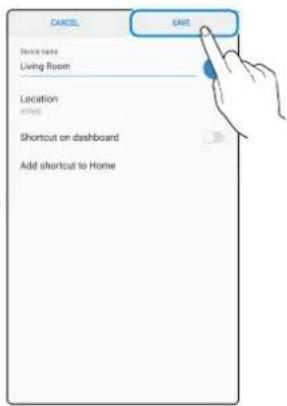
1 In the SmartThings app, change your Speaker's name to one that can be recognized by your Amazon device.
(Example: Samsung, Speaker, Living Room, Family Room, Bedroom, Office, etc.)

CAUTION
√ Amazon devices may not recognize names that contain elements such as special characters.
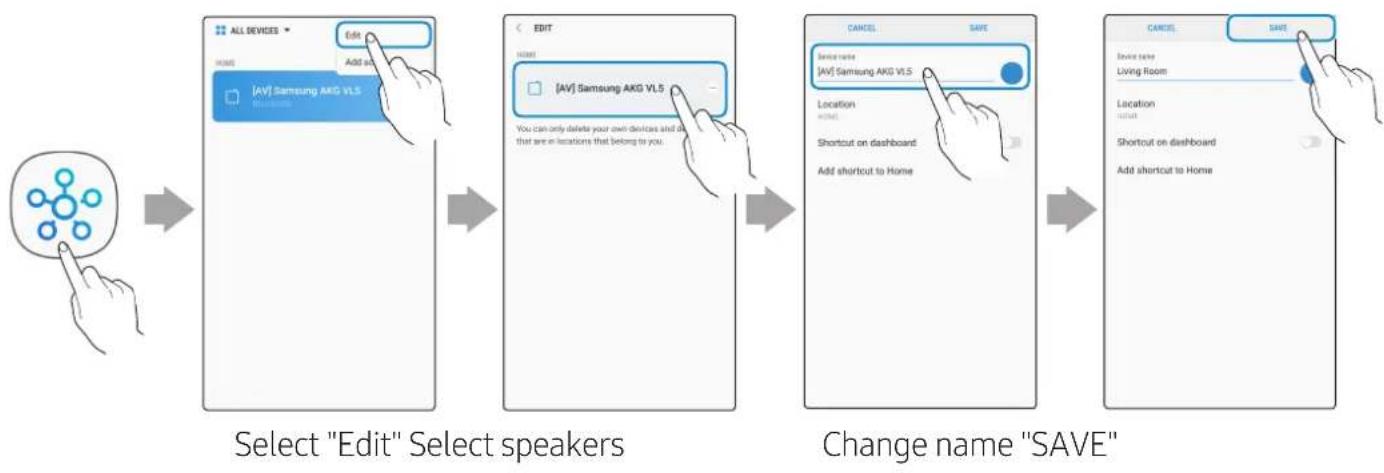
flowchart
graph LR
    A["Select "Edit" Select speakers"] --> B["Edit: ALL DEVICES → Home, Add so"]
    B --> C["Edit: [AV"] Samsung AKG VLS → Home, Add so]
    C --> D["Change name "SAVE": CANCEL, SAVE"]
    D --> E["Change name "SAVE": CANCEL, SAVE"]
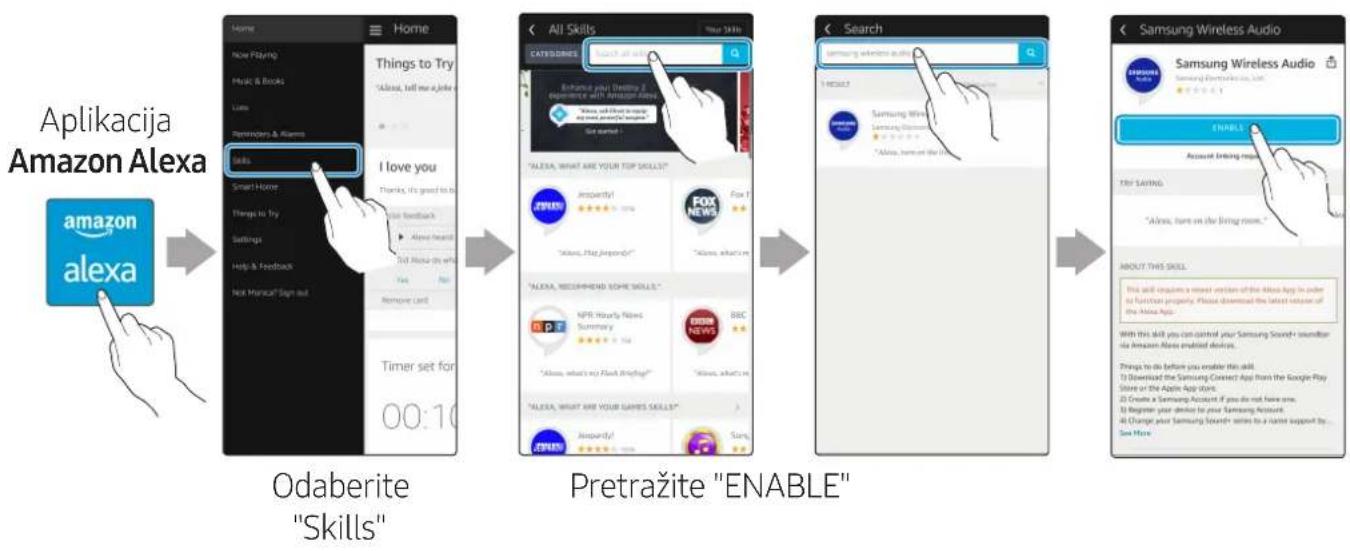
2 In the Alexa app, search "Samsung Wireless Audio" in Skills, and then select ENABLE.
- Skip this step if you have Skills set up already.
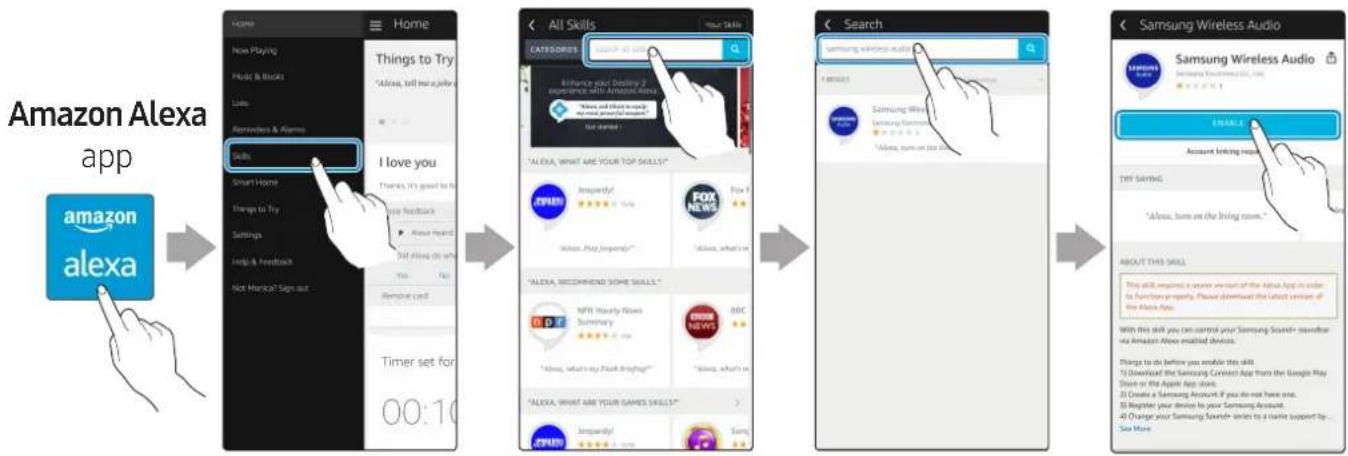
flowchart
graph LR
    A["Home"] --> B["Things to Try"]
    B --> C["All Skills"]
    C --> D["Search"]
    D --> E["Samsung Wireless Audio"]

    subgraph Applications
        A1["amazon alexa app"]
        A2["Now Playing"]
        A3["Make & Books"]
        A4["Late"]
        A5["Reminders & Alarms"]
        A6["Skills"]
        A7["I love you"]
        A8["Smart Home"]
        A9["Things to Try"]
        A10["Settings"]
        A11["Help & Feedback"]
        A12["Not Meiscal? Sign out"]
        A13["Remove card"]
        A14["Timer set for 00:10"]
    end

    subgraph Details
        B1["Thank you! Download 2 experience with Amazon Alexa"]
        B2["Ask you! What Are Your Top Skills"]
        B3["Imprandy! FOX NEWS"]
        B4["Ask you! Please Imit"]
        B5["Ask you! What is the skill"]
        B6["Ask you! What is the skill"]
        B7["Ask you! What is the skill"]
    end

    subgraph Settings
        B8["Alexa Heard"]
        B9["Did Also do what"]
        B10["Yes"]
        B11["No"]
    end

    subgraph Tools
        C1["ALEXA, WHAT ARE YOUR TOP SKILLS"]
        C2["APELLI"]
        C3["APRE Hourly News Summary"]
        C4["ABC News"]
        C5["Please, what's in a Pouch Briefing"]
        C6["ALEXA, WHAT ARE YOUR GAMES SKILLS"]
        C7["APELLI"]
        C8["Imprandy! Seng"]
    end

    subgraph Applications
        D1["Samsung Wireless Audio"]
        D2["Samsung Wireless Audio"]
        D3["Samsung Wireless Audio"]
        D4["Samsung Wireless Audio"]
        D5["Samsung Wireless Audio"]
        D6["Samsung Wireless Audio"]
        D7["Samsung Wireless Audio"]
        D8["Samsung Wireless Audio"]
        D9["Samsung Wireless Audio"]
        D10["Samsung Wireless Audio"]
        D11["Samsung Wireless Audio"]
        D12["Samsung Wireless Audio"]
        D13["Samsung Wireless Audio"]
        D14["Samsung Wireless Audio"]
        D15["Samsung Wireless Audio"]
        D16["Samsung Wireless Audio"]
        D17["Samsung Wireless Audio"]
        D18["Samsung Wireless Audio"]
        D19["Samsung Wireless Audio"]
        D20["Samsung Wireless Audio"]
    end
Select "Skills" Search "ENABLE"
3 In the Alexa app, tap Smart Home → Devices → DISCOVER to complete the connection.
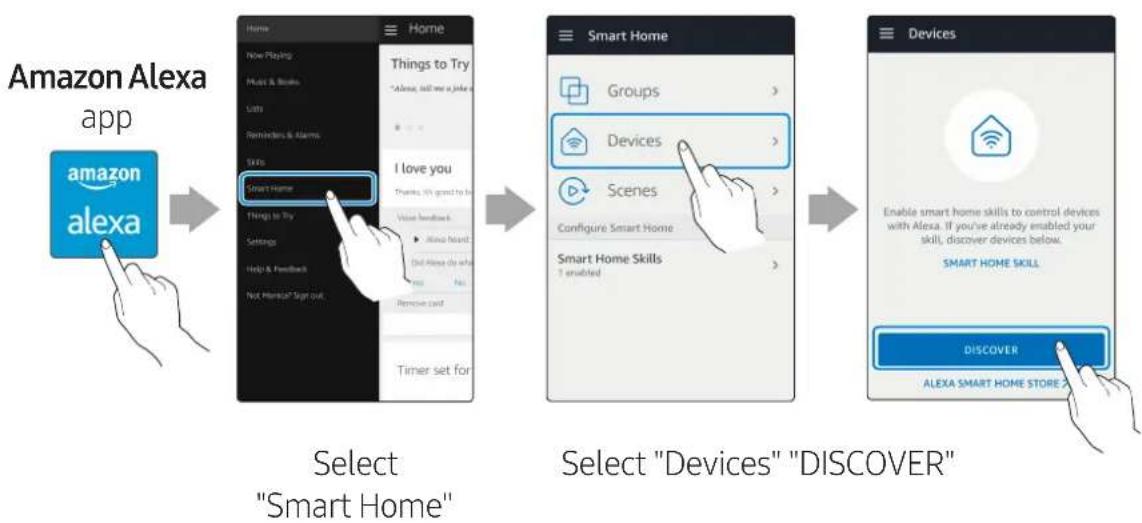
flowchart
graph LR
    A["Amazon Alexa app"] --> B["Home: Amazon"]
    B --> C["Select "Smart Home""]
    C --> D["Smart Home Skills: Groups, Devices, Scenes"]
    D --> E["Select "Devices" "DISCOVER""]
    E --> F["Devices: Enable smart home skills to control devices with Alexa. If you've already enabled your skill, discover devices below. SMART HOME SKILL"]
■ Use voice commands to control the Speaker
- The Amazon Echo service you can use with your Speaker is limited to music. Other services provided by Amazon Echo, such as news and weather, can only be accessed through your Amazon Echo product.


Trigger + Command + Speaker name
Use the Speaker name you changed in the SmartThings app.
[Connect and use with an Amazon product (Amazon Echo)] Click here.
| Action Voice Command | |
| To search an audio device added to theSmartThingsaccount connected to theAmazon Alexaaccount | "Alexa Discover devices" |
* To use voice commands for the Speaker named "Living room"
| Action Voice Command | |
| To set the volume level to 20 "Alexa Set the volume to 20 on Living room" | |
| To increase the volume level "Alexa Volume up on Living room" | |
| To mute the sound "Alexa Mute on Living room" | |
| To listen to a radio station named KISS FM "Alexa Play Kiss FM on Living room" | |
| To play the next song "Alexa Next song on Living room" | |
| To stop the audio "Alexa Stop on Living room" | |
| To turn the audio on "Alexa Turn on Living room" | |
| To turn the audio off "Alexa Turn off Living room" | |
| To change the input source "Alexa Switch to Bluetooth on Living room" | |
Installing the Wall Mount
Purchase wall mounting screws according to the type and thickness of the wall you want to mount the Speaker on.
• Considerations for purchasing
- Endurable load : VL350 / VL351 : Above 8.4 Kg
VL550 / VL551 : Above 18.0 Kg
- Hole size : M5
Do not install in a place with high temperature or humidity.
Verify whether the wall is strong enough to support the product's weight. If not, reinforce the wall or choose another installation point.
Purchase and use the fixing screws or anchors appropriate for the kind of wall you have (plaster board, iron board, wood, etc.). If possible, fix the support screws into wall studs. Install on a vertical wall only.
Make sure the unit is turned off and unplugged before you install it. Otherwise, it may cause an electric shock.
Please have a qualified installer install the Wall Mount Bracket.
Ask a professional installation company to mount your product on the wall.
Samsung Electronics is not liable for any damage to the product due to the product being installed inappropriately.
Please beware not to install the speaker being laid down or turned upside down.
Wall-Mount Components

Bracket-Wall

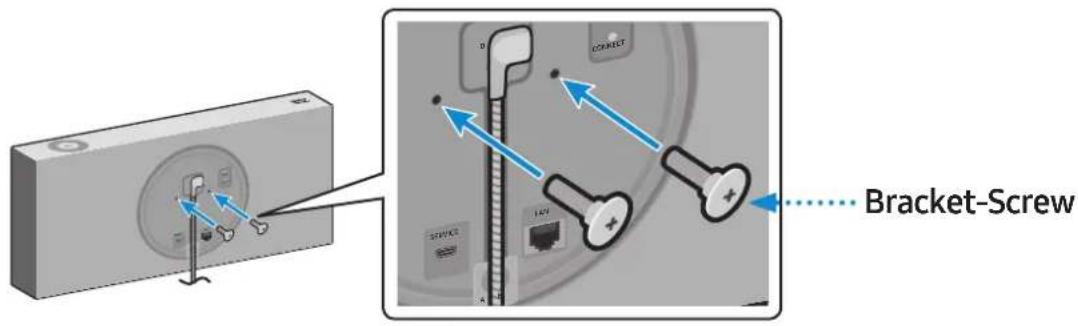
Bracket-Screw (2 EA)

Wall Fixing Screw (2 EA) (not supplied)
1 Connect the AC/DC Adapter on the main unit before installation of the wall mount.
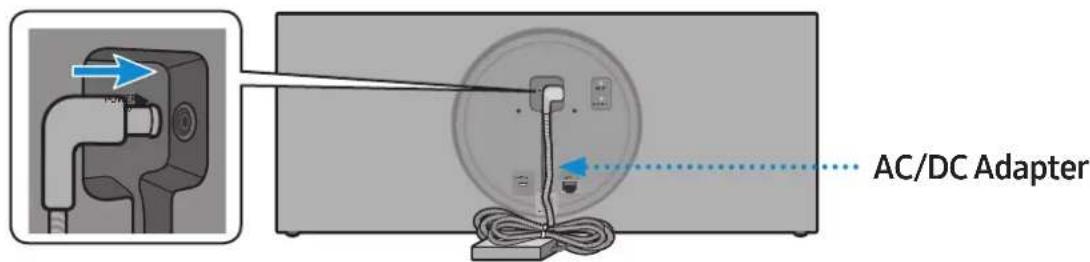
2 Fix the Bracket-Wall, and then fasten the Wall Fixing Screw from the left hole.
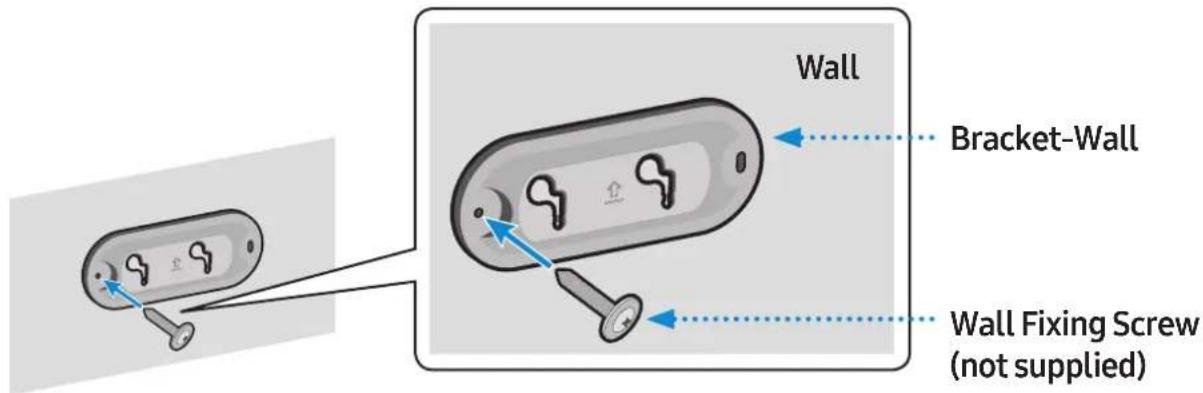
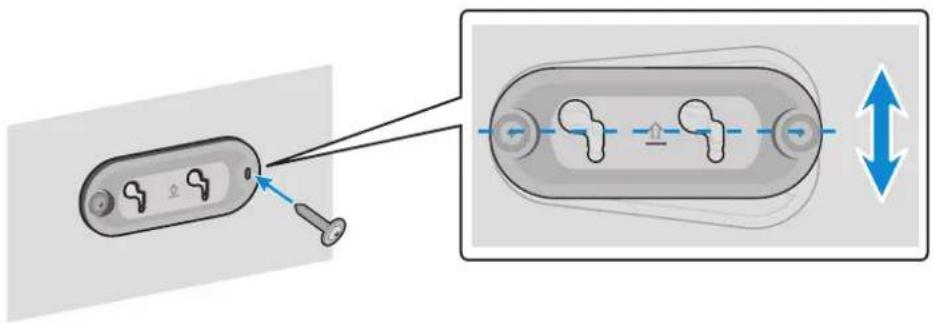
3 Fasten the Wall Fixing Screw in the right hole.
- When leveling is not made correctly, slightly unfasten the Wall Fixing Screw on the left and then adjust the Bracket-Wall up or down for leveling.
4 Fasten two Bracket-Screw into the bracket hole on the rear of the main unit.
5 Align the Bracket-Screw on the main unit to fit into the large groove of Bracket-Wall. Slide it in the arrow direction until it is seated in the small groove.
- Be sure to slide it in the arrow direction until it is seated in the small groove of the Bracket-Wall.
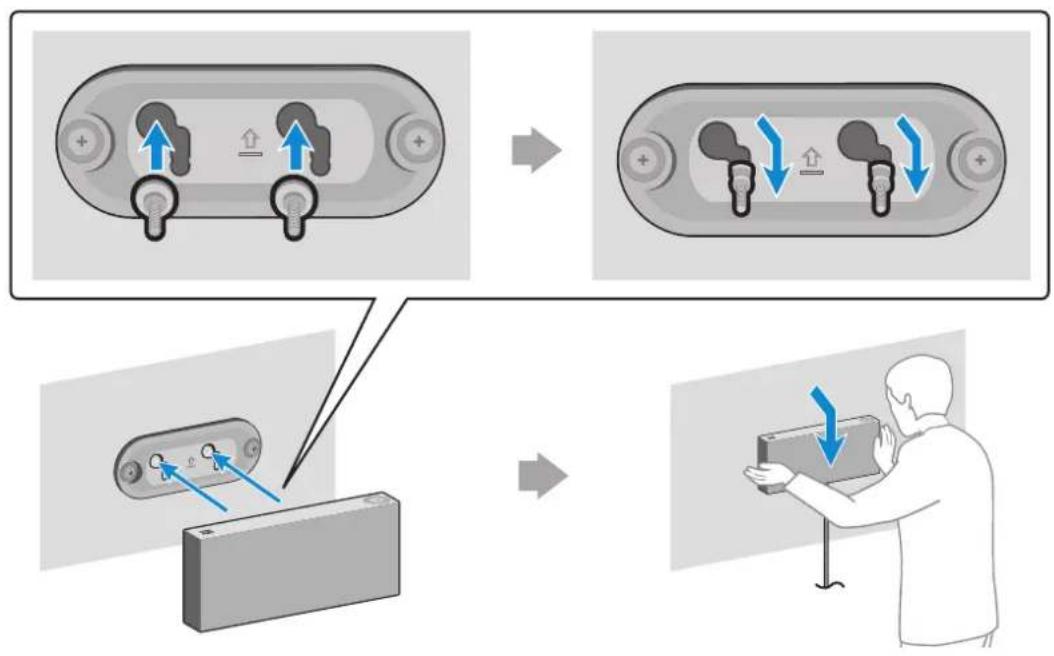
flowchart
graph TD
    A["Device with +/− symbols"] --> B["Adjustment to battery"]
    B --> C["Control panel with switch"]
    C --> D["User action: 'Down' arrow, 'Up' arrow"]
\* Removing the Wall Mount
Lift the main unit up until the Bracket-Screw is seated in the large groove of Bracket-Wall and then pull out the main unit.
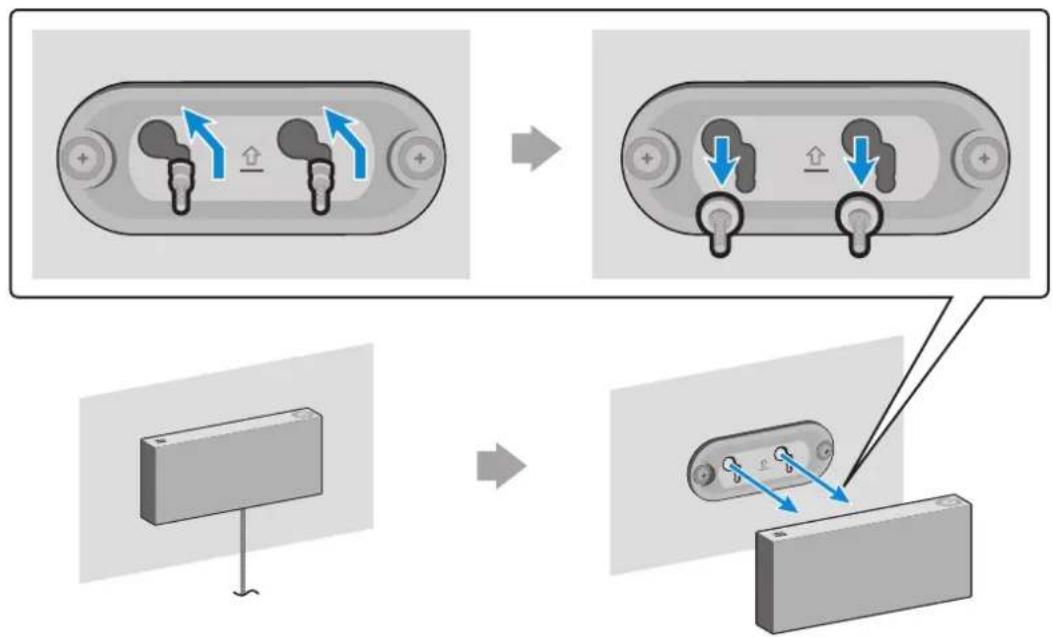
flowchart
graph TD
    A["Device Port 1"] --> B["Load Insert"]
    B --> C["Lock Operation"]
    C --> D["Display Unit"]
    D --> E["Final Display Unit"]
Appendix

Troubleshooting
Before requesting service, please check the following.
| Symptom Check Remedy | ||
| The speaker does not turn on. | Check if the power cord is properly connected. | Plug in the power cord. |
| There is no response when you press a button or touch wheel area. | The button or touch wheel area may be exposed to statics. | Remove the plug and connect it again. |
| There is no sound. | Is your speaker connected to a power source?The volume may be set to the lowest level. | Check if the speaker is properly connected to the power.Try adjusting volume. |
| The Dial Controller does not work. | The Dial Controller may not have enough battery power.The Dial Controller may be out of operating range.Check the connection between the Dial Controller and speaker. | Press the RESET button on the bottom of the Dial Controller.Charge the battery as instructed for the Dial Controller LED version.Bring the Dial Controller closer to the speaker.Check “Connecting between the Dial Controller and Speaker”. (9 page) Click here. |
| Cannot connect the speaker to a mobile device or TV. | For wired connectionCheck the cable connection.Check on the right side of the speaker and make sure that the speaker mode is set to AUX mode. | Check the name of the port and make sure that the cable is connected to the right port.See “Connecting to an External Device”. (13 page)Click here. |
| For Bluetooth connectionCheck on the right side of the speaker and make sure that the speaker mode is set to Bluetooth mode.Set the speaker to Bluetooth mode and try searching from the mobile device or TV again. | Press the Bluetooth button on the right side of the speaker for 5 seconds or longer to enter the standby mode and search for the speaker from your mobile device or TV.See “Connecting to Bluetooth”. (10 page) Click here. | |
| For Wi-Fi connectionCheck if your TV is a supported model.Make sure that your mobile device or TV is connected to the Wi-Fi network.Make sure that your speaker is connected to the Wi-Fi network.Check the DFS channel.(DFS : Dynamic Frequency Selection) | This feature supports Samsung Smart TVs released in 2014 and later.If your TV is not connected to the Wi-Fi network, use the network menu on the TV to establish the connection.(See the user manual provided with your TV)If the TV is already connected, the speaker should appear onSmartThingsapp on your mobile device (smartphones, tablets, etc.). See “Using via Wi-Fi connection”. (16 page) Click here.Connecting the TV and speaker over Wi-Fi may not be available if your wireless router uses the DFS channel. For details, please contact your internet provider. | |
| The audio stutters when playing music or videos on my mobile device over Bluetooth. | Check if there are any nearby devices that use radio communications or may cause interferences.Are your mobile device or any radio communication devices are connected to 2.4 GHz Wi-Fi network? | If you have any nearby device that use radio communications or may cause interferences, please turn them off.See “Connecting to Bluetooth”. (10 page) Click here.If your mobile device or other radio communication devices are connected to a 2.4 GHz Wi-Fi network, this may cause interferences. Try to connect your mobile device to a 5 GHz network. |
| The audio stutters when the speaker is connected in Audio Group or Stereo mode over Wi-Fi. | Are you using a 2.4 GHz Wi-Fi network to connect your mobile device and speaker?Check the distance between your wireless router and speaker.Check the distance between the speakers. | Connect your mobile device and speaker to a 5 GHz Wi-Fi network.Make sure that your wireless router and speaker are within the operating range from each other.Try to power off your wireless router and restart.Make sure that your speakers are within the operating range from each other. |
| The speaker loses connection or stays disconnected intermittently when used in stereo mode after connecting TV and speakers via Wi-Fi. | Are you using a 2.4 GHz Wi-Fi network to connect your TV and speaker?Check the distance between the wireless router, TV, and speaker. | Connect your TV and speaker to a 5 GHz Wi-Fi network.If you are already connected to a 5 GHz Wi-Fi network and having this problem, check the DFS channel.Make sure that your wireless router, TV, and speaker are all within the operating range. |
| SmartThings app does not show the speaker on the list of available devices when I try to connect it over Wi-Fi. | Is your speaker connected to a power source?Is your mobile device connected to a wireless router? | Check if the speaker is properly connected to the power.Connect your mobile device to the wireless router.Press CONNECT button in the back of the speaker for 5 seconds or longer to enter standby mode and try to connect again. |
If the problem persists, contact the Samsung Call Centre for troubleshooting.
Open Source Licence Notice
- For further information on Open Sources used in this product, please visit the website: http://opensource.samsung.com
Licences
- The Spotify Software is subject to third party licences found here: www.spotify.com/connect/third-party-licenses
- For more information about Spotify Connect, please visit www.spotify.com/connect

Spotify®
Specifications
| Model Name VL350 / VL351 VL550 / VL551 | ||
| Weight 2.1 Kg 4.6 Kg | ||
| Dimensions (W X H X D) 210.0 X 211.5 X 70.0 mm 522.0 X 211.5 X 70.0 mm | ||
| Speaker Woofer x 1, Tweeter x 1, 4 ohm Woofer x 3, Tweeter x 2, 4 ohm | ||
| Operating Temperature Range | +5°C to +35°C | |
| Operating Humidity Range | 10 % to 75 % | |
| Wireless LAN | Built-in | |
| Security | WEP (OPEN/SHARED)WPA-PSK (TKIP/AES)WPA2-PSK (TKIP/AES) | |
| Wireless device output powerWi-Fi max transmitter power | 100mW at 2.4GHz – 2.4835GHz,5.15GHz – 5.35GHz & 5.47GHz – 5.725GHz | |
| Wireless device output powerBT max transmitter power | 100mW at 2.4GHz – 2.4835GHz | |
• Network speeds equal to or below 10Mbps are not supported.
- Design and specifications are subject to change without prior notice.
- For more information about the power supply and power consumption, refer to the label attached to the product. (Label : Bottom of the Speaker Main Unit)
• Weight and dimensions are approximate.
- For further details on using the speaker, visit www.samsung.com.
| Overall Standby Power Consumption (W)(All the network ports are “ON” condition) | 3.0 W | |
| Wi-Fi | Disabling Wi-Fi | In Wi-Fi mode, press the Play / Pause button (on the top side) and the CONNECT button (in the rear side) together and hold for 30 seconds or more to disable Wi-Fi. |
| Enabling Wi-Fi | Press the Wi-Fi button on the right side of the speaker while Wi-Fi is disabled and hold for 30 seconds or more to enable Wi-Fi again. | |
| Bluetooth | Disabling Bluetooth | In Bluetooth mode, press the Play / Pause button (on the top side) and the CONNECT button (in the rear side) together and hold for 30 seconds or more to disable Bluetooth. |
| Enabling Bluetooth | Press the Bluetooth button on the right side of the speaker while Bluetooth is disabled and hold for 30 seconds or more to enable Bluetooth again. | |
Wi-Fi and Bluetooth are enabled in default settings.
When Wi-Fi and Bluetooth are disabled, turning the product off and on does not enable them.

Additional Information
About the Network Connection
- Depending on the wireless router used, some network operations may perform differently.
- For detailed information on networking with a wireless router or modem, refer to the router's or modem's documentation.
- Select the wireless channel that is not in use. If selected channel is also used by other communication devices in close proximity, it may cause wireless interference which interrupts communications or cause choppy audio.
- Experiencing choppy audio and interruption of connection due to wireless interference is possible as the performance of wireless LAN is affected by your environment and use conditions including router's performance, distance, obstruction, and interference by other mobile devices.
- WEP encryption does not work with WPS (PBC) / WPS (PIN).
Works with SmartThings™
- This product is compatible with SmartThings.
- SmartThings service varies from country to country.
-
For more information, visit http://www.smartthings.com
-
Figures and illustrations in this Full Manual are provided for reference only and may differ from actual product appearance.
- An administration fee may be charged if either
(a) an engineer is called out at your request and there is no defect in the product (i.e. where you have failed to read this user manual).
(b) you bring the unit to a repair centre and there is no defect in the product (i.e. where you have failed to read this user manual). - The amount of such administration charge will be advised to you before any work or home visit is carried out.

Copyright
© 2018 Samsung Electronics Co., Ltd. All rights reserved; No part or whole of this user's manual may be reproduced or copied without the prior written permission of Samsung Electronics Co., Ltd.
- Hereby, Samsung Electronics, declares that this equipment is in compliance with Directive 2014/53/EU. The full text of the EU declaration of conformity is available at the following internet address: http://www.samsung.com go to Support > Search Product Support and enter the model name. This equipment may be operated in all EU countries.
The 5GHz WLAN(Wi-Fi or SRD) function of this equipment may only be operated indoors.

[Correct disposal of batteries in this product]
(Applicable in countries with separate collection systems)
This marking on the battery, manual or packaging indicates that the batteries in this product should not be disposed of with other household waste at the end of their working life. Where marked, the chemical symbols Hg, Cd or Pb indicate that the battery contains mercury, cadmium or lead above the reference levels in EC Directive 2006/66.
If batteries are not properly disposed of, these substances can cause harm to human health or the environment.
To protect natural resources and to promote material reuse, please separate batteries from other types of waste and recycle them through your local, free battery return system.

Correct Disposal of This Product (Waste Electrical & Electronic Equipment)
(Applicable in countries with separate collection systems)
This marking on the product, accessories or literature indicates that the product and its electronic accessories (e.g. charger, headset, USB cable) should not be disposed of with other household waste at the end of their working life.
To prevent possible harm to the environment or human health from uncontrolled waste disposal, please separate these items from other types of waste and recycle them responsibly to promote the sustainable reuse of material resources.
Household users should contact either the retailer where they purchased this product, or their local government office, for details of where and how they can take these items for environmentally safe recycling.
Business users should contact their supplier and check the terms and conditions of the purchase contract.
This product and its electronic accessories should not be mixed with other commercial wastes for disposal.

WARNING
To remove the battery contact an authorised service centre. To obtain battery removal instructions please visit samsung.com/global/ecodesign_energy
You must not remove (or attempt to remove) the battery incorporated in this product on your own. FOR YOUR OWN SAFETY, DO NOT ATTEMPT TO REMOVE THE BATTERY ON YOUR OWN OR DISPOSE OF IT IN FIRE. DO NOT DISASSEMBLE. CRUSH OR PUNCTURE THE BATTERY.
For information on Samsung's environmental commitments and product specific regulatory obligations e.g. REACH, WEEE, Batteries, visit:
http://www.samsung.com/uk/aboutsamsung/samsungelectronics/corporatecitizenship/data_corner.html
natural_image
Three gray 3D-rendered objects: a rectangular block, a circular device with a knob, and a connected cable (no text or symbols)Високоговорител Контролер

natural_image
Three separate images showing a cable, a notepad, and a blank sheet (no text or symbols)natural_image
Simple line drawing of a hand pointing at a circular button with a play symbol and directional arrows, no text or labels present.natural_image
Circular device with attached cable and connector, showing no text or symbolsnatural_image
Hand pressing a button on a 3D block with a blue arrow indicating rotation (no text or symbols)

natural_image
3D rendering of a rectangular electronic device with no visible text or symbolsflowchart
graph LR
    A["SmartThings"] --> B["Add device"]
    B --> C{Add Device: Available Devices}
    C -->|Yes| D["Add Device: Start building your own world by adding TVs, appliances, and 4.5% of the system"]
    C -->|No| E["Supported device: How to use Discover useful features"]
    D --> F["Add Device: Start building your own world by adding TVs, appliances, and 4.5% of the system"]
    E --> G["Discover useful features: Dashboard, Devices, Automations"]
    F --> H["Add Device: Start building your own world by adding TVs, appliances, and 4.5% of the system"]
    G --> I["Discover useful features: Dashboard, Devices, Automations"]
    H --> J["Add Device: Start building your own world by adding TVs, appliances, and 4.5% of the system"]
    I --> K["Discover useful features: Dashboard, Devices, Automations"]
    L["Add Device"] --> M["Add Device: Start building your own world by adding TVs, appliances, and 4.5% of the system"]
    M --> N["Add Device: Start building your own world by adding TVs, appliances, and 4.5% of the system"]
    O["Add Device"] --> P["Add Device: Start building your own world by adding TVs, appliances, and 4.5% of the system"]
    P --> Q["Add Device: Start building your own world by adding TVs, appliances, and 4.5% of the system"]
    R["Add Device"] --> S["Add Device: Start building your own world by adding TVs, appliances, and 4.5% of the system"]
    S --> T["Add Device: Start building your own world by adding TVs, appliances, and 4.5% of the system"]
    U["Add Device"] --> V["Add Device: Start building your own world by adding TVs, appliances, and 4.5% of the system"]
    V --> W["Add Device: Start building your own world by adding TVs, appliances, and 4.5% of the system"]
    X["Add Device"] --> Y["Add Device: Start building your own world by adding TVs, appliances, and 4.5% of the system"]
    Z["Add Device"] --> AA["Add Device: Start building your own world by adding TVs, appliances, and 4.5% of the system"]
    AB["Add Device"] --> AC["Add Device: Start building your own world by adding TVs, appliances, and 4.5% of the system"]
    AD["Add Device"] --> AE["Add Device: Start building your own world by adding TVs, appliances, and 4.5% of the system"]
    AF["Add Device"] --> AG["Add Device: Start building your own world by adding TVs, appliances, and 4.5% of the system"]
    AH["Add Device"] --> AI["Add Device: Start building your own world by adding TVs, appliances, and 4.5% of the system"]
    AJ["Add Device"] --> AK["Add Device: Start building your own world by adding TVs, appliances, and 4.5% of the system"]
    AL["Add Device"] --> AM["Add Device: Start building your own world by adding TVs, appliances, and 4.5% of the system"]
    AN["Add Device"] --> AO["Add Device: Start building your own world by adding TVs, appliances, and 4.5% of the system"]
    AP["Add Device"] --> AQ["Add Device: Start building your own world by adding TVs, appliances, and 4.5% of the system"]
    AR["Add Device"] --> AS["Add Device: Start building your own world by adding TVs, appliances, and 4.5% of the system"]
    AT["Add Device"] --> AU["Add Device: Start building your own world by adding TVs, appliances, and 4.5% of the system"]
    AV["Add Device"] --> AW["Add Device: Start building your own world by adding TVs, appliances, and 4.5% of the system"]
    AX["Add Device"] --> AY["Add Device: Start building your own world by adding TVs, appliances, and 4.5% of the system"]
    AZ["Add Device"] --> BA["Add Device: Start building your own world by adding TVs, appliances, and 4.5% of the system"]
    BB["Add Device"] --> BC["Add Device: Start building your own world by adding TVs, appliances, and 4.5% of the system"]
    BD["Add Device"] --> BE["Add Device: Start building your own world by adding TVs, appliances, and 4.5% of the system"]
    BF["Add Device"] --> BG["Add Device: Start building your own world by adding TVs, appliances, and 4.5% of the system"]
    BH["Add Device"] --> BI["Add Device: Start building your own world by adding TVs, appliances, and 4.5% of the system"]
    BJ["Add Device"] --> BK["Add Device: Start building your own world by adding TVs, appliances, and 4.5% of the system"]
    BL["Add Device"] --> BM["Add Device: Start building your own world by adding TVs, appliances, and 4.5% of the system"]
    BN["Add Device"] --> BO["Add Device: Start building your own world by adding TVs, appliances, and 4.5% of the system"]
    BP["Add Device"] --> BQ["Add Device: Start building your own world by adding TVs, appliances, and 4.5% of the system"]
    BQ --> BR["Add Device: Start building your own world by adding TVs, appliances, and 4.5% of the system"]
    BS["Add Device"] --> BT["Add Device: Start building your own world by adding TVs, appliances, and 4.5% of the system"]
    BU["Add Device"] --> BV["Add Device: Start building your own world by adding TVs, appliances, and 4.5% of the system"]
    BW["Add Device"] --> BX["Add Device: Start building your own world by adding TVs, appliances, and 4.5% of the system"]
    BY["Add Device"] --> BZ["Add Device: Start building your own world by adding TVs, appliances, and 4.5% of the system"]
    CA["Add Device"] --> CB["Add Device: Start building your own world by adding TVs, appliances, and 4.5% of the system"]
    CB --> CC["Add Device: Start building your own world by adding TVs, appliances, and 4.5% of the system"]
    DD["Add Device"] --> DE["Add Device: Start building your own world by adding TVs, appliances, and 4.5% of the system"]
    DF["Add Device"] --> DG["Add Device: Start building your own world by adding TVs, appliances, and 4.5% of the system"]
    DH["Add Device"] --> DI["Add Device: Start building your own world by adding TVs, appliances, and 4.5% of the system"]
    DJ["Add Device"] --> DK["Add Device: Start building your own world by adding TVs, appliances, and 4.5% of the system"]
    DL["Add Device"] --> DM["Add Device: Start building your own world by adding TVs, appliances, and 4.5% of the system"]
    DY["Dokosnete "Add device""] -.-> D
natural_image
Illustration of a device with a button and finger interacting with it, showing no text or symbols.flowchart
graph TD
    A["Base Station 1"] --> B["Central Hub"]
    C["Base Station 2"] --> B
    B --> D["Output Line"]
    style B fill:#f9f,stroke:#333,stroke-width:2px
    note right of B: Dashed circle contains a hand icon pointing to the central hub.
flowchart
graph LR
    A["Start: Initial device with network icon"] --> B["Edit: All Devices"]
    B --> C["Add to [AV"] Samsung AKG VLS]
    C --> D["Write back to Home"]
    D --> E["Cancel: Remove home, Save"]
    E --> F["End: Cancel with 'EXIT' button"]
Изберете „Edit“
Изберете
високоговорители
![CANCEL SAVE Tested name [AV] Samsung AKG VLS Location HOME Shortcut on dashboard Add shortcut to Home](/content/2026/03/437494/images/df05e19f3043fba62fdc86286847fefa48e7582c7c9bbe331a5ff33954e3d53d.jpg)

flowchart
graph LR
    A["Amazon Alexa"] --> B["Home: New Playing, Music & Books, Lists, Reminders & Names, Skills, Smart Home"]
    B --> C["Things to Try: 'Please tell me a job for you! I love you, Thanks, it's good to be your feedback'"]
    C --> D["Smart Home Skills: Configure Smart Home"]
    D --> E["Groups: Devices"]
    D --> F["Scenes: I enabled"]
    E --> G["Discover"]
    F --> H["DISCOVER"]
flowchart
graph TD
    A["Device with +/− symbols"] --> B["Control panel with two upward arrows"]
    B --> C["Device with two downward arrows"]
    C --> D["Device with one downward arrow"]
    D --> E["Device with one up/down arrow"]
    E --> F["Device with one down/down arrow"]
    F --> G["User interacting with device"]
flowchart
graph TD
    A["Device 1: Top-Left Port with ↑/↓ ports"] --> B["Device 2: Top-Right Port with ↑/↓ ports"]
    B --> C["Device 3: Battery Pack with ↓/↓ port"]
    C --> D["Device 4: Battery Pack with ↓/↓ port"]
Приложение

Лицензи за www.spotify.com/connect/third-party-licenses.
flowchart
graph TD
    A["Input: Power switch with AUX IN"] --> B["Insert: Switch to display"]
    B --> C["Transfer to Gumb RESET"]
    C --> D["Final device with Power Switch, RESET, LAN, and AUX IN"]
    style A fill:#f9f,stroke:#333
    style D fill:#bbf,stroke:#333
| 1 | Utikač za POWER (DC IN) vezu | 1. Priključite kabel za napajanje u adapter za izmjeničnu/istosmjernu struju. (odnosi se na modele VL550 / VL551)2. Uključite izlazni kabel za napajanje s adapterom za izmjeničnu/istosmjernu struju (okrugli utikač) u priključak POWER (DC IN) na zvučniku. |
| 2 | Gumb CONNECT | Pritisnite : Da biste isključili ili ponovno povezali s uređajem Upravljački brojčanik (Upravljački brojčanik).Dugi pritisak, na 5 sekundi : Pokretanje bežične veze. |
| 3 | Utikač za LAN vezu | Upotrebljava se za povezivanje zvučnika s ožičenom mrežom. |
| 4 | Utikač za AUX IN vezu | Spojite ga na analogni izlaz vanjskog uređaja. |
| 5 | Utikač za SERVICE vezu | Servisni inženjeri upotrebljavaju ga za ažuriranje firmvera zvučnika. |
Za vezu koristite kabel kategorije 7 (vrste STP*). (*Oklopljene upredene parice)
Gumb za RESET namijenjen je rješavanju problema.
1
natural_image
Diagram of a circular device with a cable and labeled ports, no text or symbols presentnatural_image
Illustration of a gray rectangular device with blue signal waves, no text or symbols presentPovezivanje s Bluetooth vezom
Mobilni uređaj možete povezati Bluetoothom, a zatim uživati u zvuku iz zvučnika.
2 Povežite priključak AUX IN na stražnjoj strani zvučnika na vanjski uređaj pomoću AUX kabela (nije priložen).
Dodatne funkcije

Uporaba prepoznavanja glasa na mobilnom uređaju
Posebne funkcije u načinu rada Bluetooth
- Ova se funkcija može upotrijebiti samo kada je mobilni uređaj povezan putem Bluetooth veze.
- Rad se može razlikovati ovisno o specifikacijama mobilnog uređaja.
flowchart
graph LR
    A["User"] --> B["2 Sec"]
    B --> C["Phone with antenna"]
    C --> D["Smartphone with Bluetooth"]
    D <--> E["Smartphone with Bluetooth"]
    E --> F["Usluga prepoznavanja glasa na mobilnom uređaju"]

Ovisno o usluzi prepoznavanja glasa koju pruža vaš mobilni uređaj (npr. Bixby, Siri, Google Assistant itd.), dostupnost i uporaba mogu se razlikovati.
1-1 Ako već to niste učinili, postavite Bluetooth vezu između zvučnika i mobilnog uređaja.
- Da biste povezali mobilni uređaj, pogledajte [Povezivanje s Bluetooth vezom] Kliknite ovdje.
flowchart
graph TD
    A["Base Station 1"] --> B["Central Cable"]
    C["Base Station 2"] --> B
    B --> D["Output Line"]
    style B stroke:#000,stroke-width:2px
    style D stroke:#000,stroke-width:2px
2 Odaberite Audio Group u aplikaciji SmartThings.
Uporaba 2 jedinica - Stereo (odnosi se na modele VL350 / VL351)
2 Odaberite Stereo u aplikaciji SmartThings.
flowchart
graph TD
    A["All Devices"] --> B["Add Devices"]
    B --> C{[AV] Samsung AKG VL3}
    C --> D["WEI"]
    C --> E{[AV] Samsung AKG VL3}
    E --> F["WEI"]
    G["Dodarite s popisa uređaja"] --> H["+"]
    I["Dodirnite u gornjem desnom kutu"] --> J["+"]
    K["Dodirnite "Stereo""] --> L["+"]
    M["Dodirnite "Select Speaker""] --> N["+"]
    O["Dodarite drugi uređaj i dodirnite "DONE""] --> P["+"]
    Q["+"] --> R["+"]
    S["+"] --> T["+"]
    U["+"] --> V["+"]
    W["+"] --> X["+"]
    Y["+"] --> Z["+"]
    AA["+"] --> AB["+"]
    AC["+"] --> AD["+"]
    AE["+"] --> AF["+"]
    AG["+"] --> AH["+"]
    AI["+"] --> AJ["+"]
    AK["+"] --> AL["+"]
    AM["+"] --> AN["+"]
    AO["+"] --> AP["+"]
    AQ["+"] --> AR["+"]
    AS["+"] --> AT["+"]
    AU["+"] --> AV["+"]
    AW["+"] --> AX["+"]
    AY["Audio Group"] --> AZ["Stereo"]
    AZ --> BA["Device Setting"]
    BA --> BB["Information"]
    BC["Music Services"] --> BD["Input Source"]
    BD --> BE["Equalizer"]
    BE --> BF["TONE"]
    BF --> BG["Sleep Timer OFF"]
    BH["Audio Group"] --> BI["Stereo"]
    BI --> BJ["Device Setting"]
    BJ --> BK["Information"]
    BL["Music Services"] --> BM["Input Source"]
    BM --> BN["Equalizer"]
    BN --> BO["TONE"]
    BO --> BP["Sleep Timer OFF"]

VL550 / VL551 je Stereo uređaj, pa ne podržava višestruko stereo povezivanje, samo u funkciju Audio Group.
Povezivanje s televizorima Samsung Smart
- Ova je značajka dostupna samo za televizore Samsung Smart stavljene na tržište 2014. i kasnije.
- Televizor mora biti povezan s bežičnim usmjerivačem.
- Zvučnici Samsung moraju biti povezani s bežičnim usmjerivačem koji je povezan s televizorom (pogledajte odgovarajući korisnički priručnik za proizvod).
Povezivanje 1 zvučnika s televizorom Samsung Smart TV 2018
Početna stranica (☐) → Postavke (☐) → Zvuk → Izlaz zvuka → [AV] Samsung AKG VL*(Wi-Fi)
Povezivanje 2 zvučnika s televizorom Samsung Smart TV 2018
Početna stranica (☐) → Postavke (☐) → Zvuk → Postavljanje prostornog ozvučenja za Wi-Fi zvučnik
Povezivanje 1 zvučnika s televizorom Samsung Smart TV 2017
Početna stranica (☐) → Postavke (☐) → Zvuk → Izlaz zvuka → [AV] Samsung AKG VL*(Wi-Fi)
Povezivanje 2 zvučnika s televizorom Samsung Smart TV 2017
Početna stranica (☐) → Postavke (☐) → Zvuk → Postavljanje prostornog ozvučenja za Wi-Fi zvučnik
Povezivanje 1 zvučnika s televizorom Samsung Smart TV 2016
Početna stranica (☐) → Postavke (☐) → Zvuk → Odaberi zvučnik → [AV] Samsung AKG VL*(Wi-Fi)
Povezivanje 2 zvučnika s televizorom Samsung Smart TV 2016
Početna stranica (☐) → Postavke (☐) → Zvuk → Stručne postavke → Upravljanje bežičnim zvučnicima
Povezivanje 1 ili 2 zvučnika s televizorom Samsung Smart proizvedenog 2015. godine
flowchart
graph LR
    A["Hand pointing at a molecular structure"] --> B["Add device with [AV"] Samsung AKG VLS]
    B --> C["Edit with Home and Add an icon"]
    C --> D["Remove ID: Odaberite "Edit" Odaberite zvučnike"]
    D --> E["Remove ID: [AV"] Samsung AKG VLS with location and address that are in locations that belong to you.]
    E --> F["Remove ID: Promijenite naziv"]
    F --> G["Remove ID: Promijenite naziv with location and shareout on dashboard, add shortcut to Home"]
    G --> H["Remove ID: Promijenite naziv with location and shareout on dashboard, add shortcut to Home"]
    H --> I["Remove ID: Promijenite naziv with location and shareout on dashboard, add shortcut to Home"]
2 U aplikaciji Alexa potražite "Samsung Wireless Audio" u mogućnosti Skills i odaberite ENABLE.
- Ako ste mogućnost Skills već postavili, preskočite ovaj korak.
flowchart
graph LR
    A["Aplikacija Amazon Alexa"] --> B["Home"]
    B --> C["Things to Try"]
    C --> D["Smart Home"]
    D --> E["I love you"]
    E --> F["Options for My Feedback"]
    F --> G["Help & Feedback"]
    G --> H["Home: New Microsoft Sign out"]
    H --> I["Remove List"]
    I --> J["Timer set for 00:10"]

    B --> K["Odaberite "Skills""]
    K --> L["Search"]
    L --> M["Pretražite "ENABLE""]

    M --> N["Search: Samsung Wireless Audio"]
    N --> O["Download: Samsung Wireless Audio"]
    O --> P["Account linking request"]

    style A fill:#4CAF50,stroke:#333
    style B fill:#E6F3FF,stroke:#333
    style K fill:#E6F3FF,stroke:#333
    style L fill:#E6F3FF,stroke:#333
    style M fill:#E6F3FF,stroke:#333
3 U aplikaciji Alexa dodirnite Smart Home → Devices → DISCOVER da biste dovršili povezivanje.
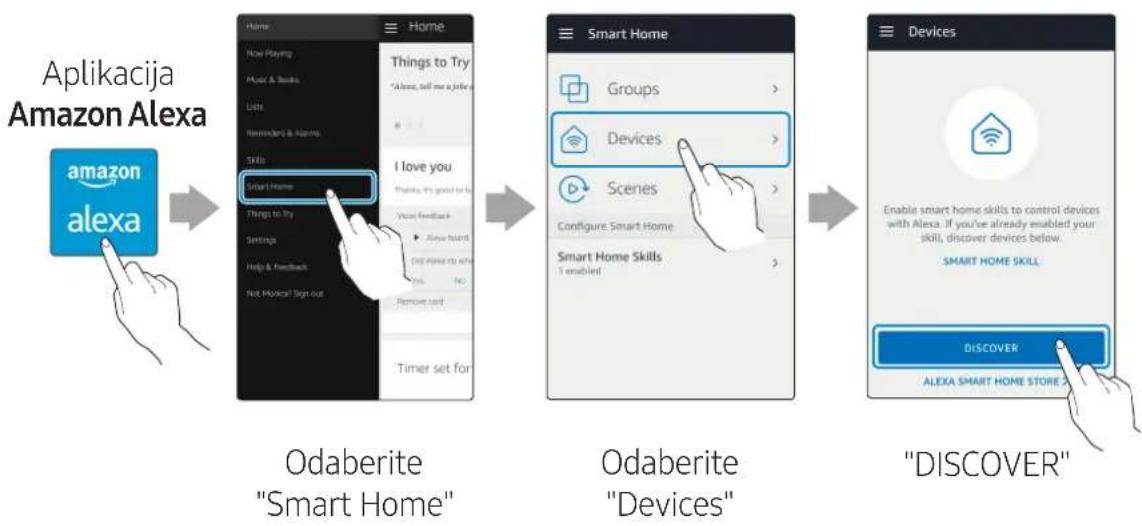
flowchart
graph LR
    A["Aplikacija Amazon Alexa"] --> B["Home: Amazon"]
    B --> C["Things to Try"]
    C --> D["Options, tell me a job"]
    D --> E["Skills: Highlights & Names"]
    E --> F["I love you"]
    F --> G["Things to Try"]
    G --> H["Settings: Help & Feedback"]
    H --> I["Not Musical Sign out"]
    I --> J["Remove card"]
    J --> K["Timer set for"]

    L["Odaberite "Smart Home""] --> M["Smart Home Skills"]
    M --> N["Groups"]
    M --> O["Devices"]
    M --> P["Scenes"]
    M --> Q["Configure Smart Home"]
    M --> R["Smart Home Skills"]
    R --> S["1 enabled"]

    T["Odaberite "Devices""] --> U["Smart Home Skills"]
    U --> V["Groups"]
    U --> W["Devices"]
    U --> X["Scenes"]
    U --> Y["Configure Smart Home"]
    U --> Z["Smart Home Skills"]
    Z --> AA["1 enabled"]

    AB["DISCOVER"] --> AC["Smart Home Skills"]
    AC --> AD["Groups"]
    AC --> AE["Devices"]
    AC --> AF["Scenes"]
    AC --> AG["Configure Smart Home"]
    AC --> AH["Smart Home Skills"]
    AH --> AI["1 enabled"]

    AJ["DISCOVER"] --> AK["Smart Home Skills"]
    AK --> AL["Groups"]
    AK --> AM["Devices"]
    AK --> AN["Scenes"]
    AK --> AO["Configure Smart Home"]
    AK --> AP["Smart Home Skills"]
    AP --> AQ["1 enabled"]

    style A fill:#f9f,stroke:#333
    style B fill:#ccf,stroke:#333
    style L fill:#cfc,stroke:#333
    style M fill:#fcc,stroke:#333
    style N fill:#cff,stroke:#333
    style O fill:#ffc,stroke:#333
    style P fill:#fcc,stroke:#333
    style Q fill:#fcc,stroke:#333
    style R fill:#fcc,stroke:#333
    style S fill:#fcc,stroke:#333
    style T fill:#fcc,stroke:#333
    style U fill:#fcc,stroke:#333
    style V fill:#fcc,stroke:#333
    style W fill:#fcc,stroke:#333
    style X fill:#fcc,stroke:#333
    style Y fill:#fcc,stroke:#333
    style Z fill:#fcc,stroke:#333
    style AA fill:#fcc,stroke:#333
■ Za upravljanje zvučnikom upotrijebite glasovne naredbe
2 Postavite Zidni nosač, a zatim pričvrstite Vijak za montažu na zid kroz lijevu rupu.
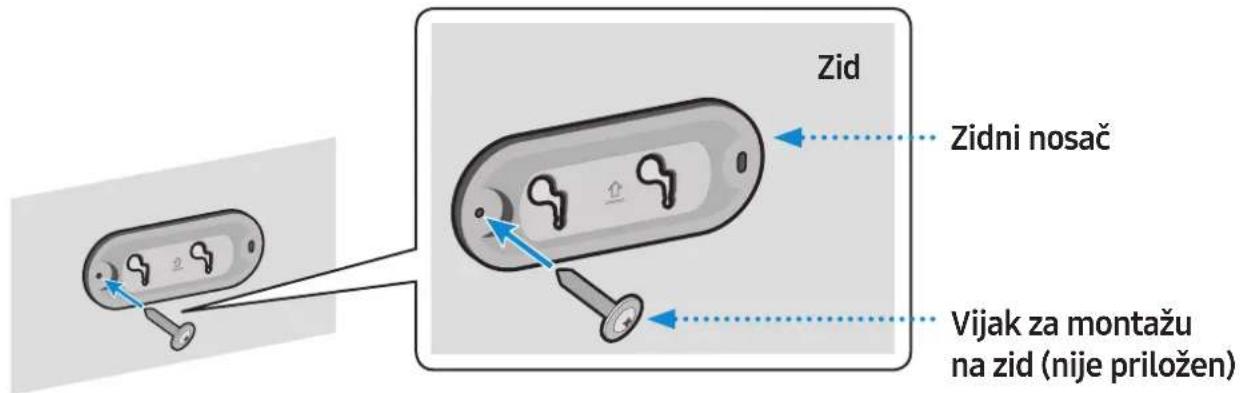
3 Pričvrstite Vijak za montažu na zid kroz desnu rupu.
- Ako proizvod nije dobro poravnat, malo otpustite Vijak za montažu na zid na lijevoj strani i zatim pomaknite Zidni nosač prema gore ili dolje da biste ga poravnali.
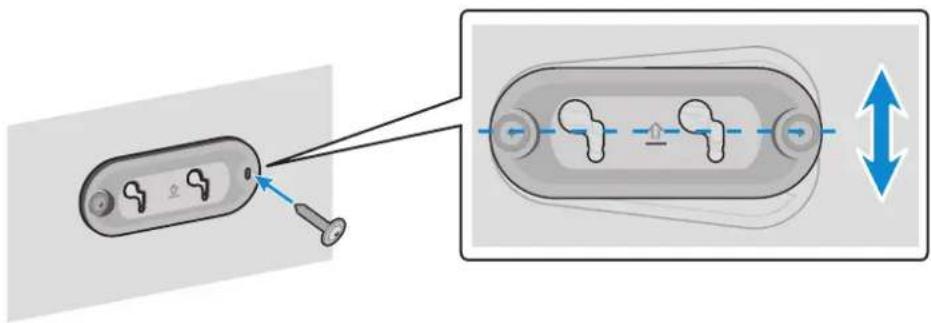
© 2018 Samsung Electronics Co., Ltd.
Sva prava pridržana; nijedan dio ovog korisničkog priručnika ne smije se reproducirati ili kopirati bez prethodnog pismenog odobrenja tvrtke Samsung Electronics Co., Ltd.
natural_image
Three grayscale 3D-rendered objects: a rectangular block, a circular device with '104' label, and a connected cable (no text or symbols)natural_image
Three grayscale illustrations: a cable with a plug, a notepad, and a blank sheet (no text or symbols)natural_image
Simple line drawing of a closed book or notebook (no text or symbols visible)natural_image
Illustration of a hand pressing a button with a play button inside, surrounded by a circular arrow and plus sign (no text or symbols)natural_image
Diagram of a circular device with a cable and labeled ports, no text or symbols presentnatural_image
Illustration of a gray rectangular device with blue signal waves, no text or symbols presentflowchart
graph TD
    A["Base Station 1"] --> B["Line"]
    C["Base Station 2"] --> B
    B --> D["Central Cable / Cable Connection"]
    D --> E["Output Line"]
    style D stroke:#000,stroke-width:2px
    style E stroke:#000,stroke-width:2px
2 V aplikaci SmartThings vyberte funkci Audio Group.
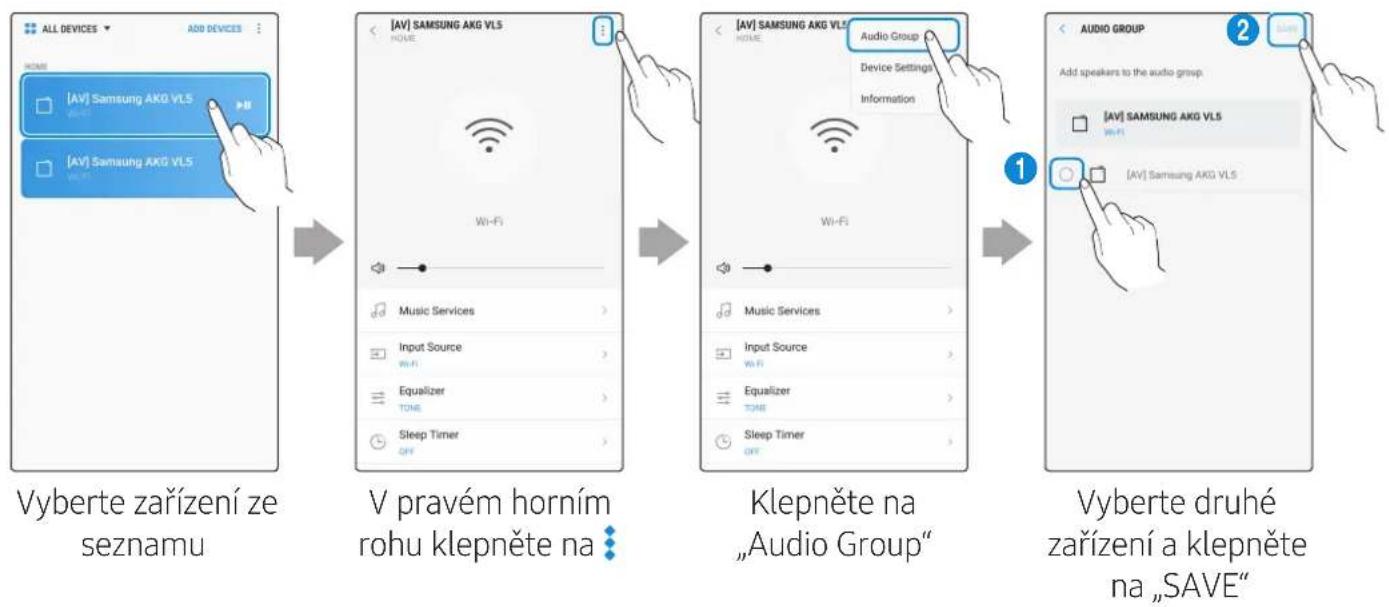
flowchart
graph LR
A["Home"] --> B["Things to Try"]
B --> C["All Skills"]
C --> D["Search"]
D --> E["Samsung Wireless Audio"]
subgraph Aplikace Amazon Alexa
A1["amazon alexa"]
end
subgraph B
B1["Smart Home"]
B2["Things to Try"]
B3["Settings"]
B4["Help & Feedback"]
B5["Not Meiscal? Sign out"]
B6["Remove card"]
B7["Timer set for 00:10"]
end
subgraph C
C1["ALEXIA, WHAT ARE YOUR TOP SKILLS"]
C2["JPWBI"]
C3["FOX NEWS"]
C4["ALEXIA, RECOMMEND SOME SKILLS"]
C5["APRE Hourly News Summary"]
C6["CORNIS NEWS"]
C7[""ALEXIA, WHAT ARE YOUR GAMES SKILLS"]
C8["JPWBI"]
C9[""AMPO"]
C10[""AMPO"]
end
subgraph D
D1["Samsung Wireless Audio"]
D2["SAMSUNG", "Samsung Wireless Audio"]
D3[""AMPO", "Samsung Wireless Audio"]
D4[""ALEXIA", "AMP", "AMP", "AMP", "AMP", "AMP", "AMP", "AMP", "AMP", "AMP", "AMP", "AMP", "AMP", "AMP", "AMP", "AMP", "AMP", "AMP", "AMP", "AMP", "AMP", "AMP", "AMP", "AMP", "AMP", "AMP", "AMP", "AMP", "AMP", "AMP", "AMP", "AMP", "AMP", "AMP", "AMP, ALL"<br> end<br> <br> subgraph E<br> E1["Samsung Wireless Audio"]
E2["Samsung Wireless Audio"]
E3[""AMPO", "Samsung Wireless Audio"]
E4[""AMPO", "Samsung Wireless Audio"]
E5[""AMPO", "Samsung Wireless Audio"]
E6[""AMPO", "Samsung Wireless Audio"]
E7[""AMPO", "Samsung Wireless Audio"]
E8[""AMPO", "Samsung Wireless Audio"]
E9[""AMPO", "Samsung Wireless Audio"]
E10[""AMPO", "Samsung Wireless Audio"]
E11[""AMPO", "Samsung Wireless Audio"]
E12[""AMPO", "Samsung Wireless Audio"]
E13[""AMPO", "Samsung Wireless Audio"]
E14[""AMPO", "Samsung Wireless Audio"]
E15[""AMPO", "Samsung Wireless Audio"]
E16[""AMPO", "Samsung Wireless Audio"]
E17[""AMPO", "Samsung Wireless Audio"]
E18[""AMPO", "Samsung Wireless Audio"]
E19[""AMPO", "Samsung Wireless Audio"]
E20[""AMPO", "Samsung Wireless Audio"]
E21[""AMPO", "Samsung Wireless Audio"]
E22[""AMPO", "Samsung Wireless Audio"]
E23[""AMPO", "Samsung Wireless Audio"]
E24[""AMPO", "Samsung Wireless Audio"]
E25[""AMPO", "Samsung Wireless Audio"]
E26[""AMPO", "Samsung Wireless Audio"]
E27[""AMPO", "Samsung Wireless Audio"]
E28[""AMPO", "Samsung Wireless Audio"]
E29[""AMPO", "Samsung Wireless Audio"]
E30[""AMPO", "Samsung Wireless Audio"]
E31[""AMPO", "Samsung Wireless Audio"]
E32[""AMPO", "Samsung Wireless Audio"]
E33[""AMPO", "Samsung Wireless Audio"]
E34[""AMPO", "Samsung Wireless Audio"]
E35[""AMPO", "Samsung Wireless Audio"]
E36[""AMPO", "Samsung Wireless Audio"]
E37[""AMPO", "Samsung Wireless Audio"]
E38[""AMPO", "Samsung Wireless Audio"]
E39[""AMPO", "Samsung Wireless Audio"]
E40[""AMPO", "Samsung Wireless Audio"]
end
flowchart
graph LR
    A["Aplikace Amazon Alexa"] --> B["Home: Amazon alexa"]
    B --> C["Things to Try: New Playing Music & Books Lists Reminders & Alarms Tests I Love you: Smart Home Things to Try Settings Help & Feedback Not Musical Sign out"]
    C --> D["Visual feedback: Thanks, Yes, Good to be Done, No Remove card Timer set for"]
    D --> E["Smart Home Skills: Groups, Devices, Scenes Configure Smart Home Smart Home Skills"]
    E --> F["Groups: Enable smart home skills to control devices with Alexa. If you've already enabled your skill, discover devices below. SMART HOME SKILL: Discover"]
    F --> G["Devices: Enable smart home skills to control devices with Alexa. If you've already enabled your skill, discover devices below. SMART HOME SKILL: Discover"]
flowchart
graph TD
    A["Device with two switches"] --> B["Control panel with arrows indicating direction"]
    B --> C["User interacting with device"]
    style A fill:#f9f,stroke:#333
    style B fill:#ccf,stroke:#333
    style C fill:#dfd,stroke:#333
flowchart
graph TD
    A["Device Port 1"] --> B["Control Panel with Down Arrow"]
    B --> C["Device Port 2"] --> D["Control Panel with Up Arrow"]
    D --> E["Device Port 3"] --> F["Storage Block with Down Arrow"]
    F --> G["Device Port 4"] --> H["Storage Block with Down Arrow"]

Řešení problémů
© 2018 Samsung Electronics Co., Ltd.
natural_image
Diagram of a circular device with a cable and indicator lights, no text or symbols presentnatural_image
Illustration of a gray rectangular device with blue signal waves, no text or symbols presentflowchart
graph TD
    A["Base Station 1"] --> B["Line"]
    C["Base Station 2"] --> B
    B --> D["Central Cable / Cable Connection"]
    D --> E["Output Line"]
    style D stroke:#000,stroke-width:2px
    style E stroke:#000,stroke-width:2px
flowchart
graph TD
    A["ALL DEVICES"] --> B["Add Devices"]
    B --> C{All Devices}
    C --> D["All Devices"]
    D --> E["Add Devices"]

    subgraph A
        F["All Devices"]
        G["Add Devices"]
        H["All Devices"]
    end

    subgraph B
        I["All Devices"]
        J["Add Devices"]
        K["All Devices"]
    end

    subgraph C
        L["All Devices"]
        M["Add Devices"]
        N["All Devices"]
    end

    subgraph D
        O["All Devices"]
        P["Add Devices"]
        Q["All Devices"]
    end

    subgraph E
        R["All Devices"]
        S["Add Devices"]
        T["All Devices"]
    end

    subgraph F
        U["All Devices"]
        V["Add Devices"]
        W["All Devices"]
    end

    subgraph G
        X["All Devices"]
        Y["Add Devices"]
        Z["All Devices"]
    end

    subgraph H
        AA["All Devices"]
        AB["Add Devices"]
        AC["All Devices"]
    end

    subgraph I
        AD["All Devices"]
        AE["Add Devices"]
        AF["All Devices"]
    end

    subgraph J
        AG["All Devices"]
        AH["Add Devices"]
        AI["All Devices"]
    end

    subgraph K
        AJ["All Devices"]
        AK["Add Devices"]
        AL["All Devices"]
    end

    subgraph L
        AM["All Devices"]
        AN["Add Devices"]
        AO["All Devices"]
    end

    subgraph M
        AP["All Devices"]
        AQ["Add Devices"]
        AR["All Devices"]
    end

    subgraph N
        AS["All Devices"]
        AT["Add Devices"]
        AU["All Devices"]
    end

    subgraph O
        AV["All Devices"]
        AW["Add Devices"]
        AX["All Devices"]
    end

    subgraph P
        AY["All Devices"]
        AZ["Add Devices"]
        BA["All Devices"]
    end

    subgraph Q
        BB["All Devices"]
        BC["Add Devices"]
        BD["All Devices"]
    end

    subgraph S
        BE["All Devices"]
        BF["Add Devices"]
        BG["All Devices"]
    end

    subgraph T
        BH["All Devices"]
        BI["Add Devices"]
        BJ["All Devices"]
    end

    subgraph U
        BK["All Devices"]
        BL["Add Devices"]
        BM["All Devices"]
    end

    subgraph V
        BN["All Devices"]
        BO["Add Devices"]
        BP["All Devices"]
    end

    subgraph W
        BQ["All Devices"]
        BR["Add Devices"]
        BS["All Devices"]
    end

    subgraph X
        BT["All Devices"]
        BU["Add Devices"]
        BV["All Devices"]
    end

    subgraph Y
        BW["All Devices"]
        BX["Add Devices"]
        BY["All Devices"]
    end

    subgraph Z
        BZ["All Devices"]
        CA["Add Devices"]
        CB["All Devices"]
    end

    subgraph AA
        CC["All Devices"]
        CD["Add Devices"]
        CE["All Devices"]
    end

    subgraph AB
        CF["All Devices"]
        DG["Add Devices"]
        DH["All Devices"]
    end

    subgraph AC
        DI["All Devices"]
        DJ["Add Devices"]
        DE["All Devices"]
    end

    subgraph AF
        EF["All Devices"]
        GF["Add Devices"]
        GH["All Devices"]
    end

    subgraph AG
        GHQ["SAMSUNG AKG VLS"] --> GHQ
    end

    subgraph BH
        BHQ --> BHQ
    end

    subgraph BI
        BIQ["SAMSUNG AKG VLS"] --> BIQ
    end

    subgraph BJ
        BJQ --> BJQ
    end

    subgraph CK
        CKQ["SAMSUNG AKG VLS"] --> CKQ
    end

    subgraph DA
        DAQ["SAMSUNG AKG VLS"] --> DAQ
    end

    subgraph AE
        AEQ["SAMSUNG AKG VLS"] --> AEQ
    end

    subgraph AF
        AFQ["SAMSUNG AKG VLS"] --> AFQ
    end

    subgraph BG
        BGQ["SAMSUNG AKG VLS"] --> BGQ
    end

    subgraph BH
        BHQ --> BHQ
    end

    subgraph BI
        BIQ --> BIQ
    end

    subgraph BJ
        BJQ --> BJQ
    end

    subgraph BJQ --> BJQ
    BJQ --> BJQ
flowchart
graph LR
    A["Amazon Alexa-App"] --> B["Home: New Playing, Music & Books, Labs, Reminders & Names"]
    B --> C["Things to Try: 'Sales, Tell me a job'!"]
    C --> D["I Love you: Smart Home, Things to Try, Settings, Help & Feedback, Not Makeup? Sign out"]
    D --> E["Remove card"]
    E --> F["Timer set for 00:10"]

    G["„Skills“ auswählen"] --> H["Search: All Skills, Features, Tools"]
    H --> I["Search: Samsung Wireless Audio, Samsung Wireless Audio, Samsung Wireless Audio, Samsung Wireless Audio, Samsung Wireless Audio, Samsung Wireless Audio, Samsung Wireless Audio, Samsung Wireless Audio, Samsung Wireless Audio, Samsung Wireless Audio, Samsung Wireless Audio, Samsung Wireless Audio, Samsung Wireless Audio, Samsung Wireless Audio, Samsung Wireless Audio, Samsung Wireless Audio, Samsung Wireless Audio, Samsung Wireless Audio, Samsung Wireless Audio, Samsung Wireless Audio, Samsung Wireless Audio, Samsung Wireless Audio, Samsung Wireless Audio, Samsung Wireless Audio, Samsung Wireless Audio, Samsung Wireless Audio"]

    J["Suchen „ENABLE”"] --> K["Search: 'All Skills', Features, Tools"]
    K --> L["Search: Samsung Wireless Audio, Samsung Wireless Audio, Samsung Wireless Audio, Samsung Wireless Audio, Samsung Wireless Audio, Samsung Wireless Audio, Samsung Wireless Audio, Samsung Wireless Audio, Samsung Wireless Audio, Samsung Wireless Audio, Samsung Wireless Audio, Samsung Wireless Audio, Samsung Wireless Audio, Samsung Wireless Audio, Samsung Wireless Audio, Samsung Wireless Audio, Samsung Wireless Audio, Samsung Wireless Audio, Samsung Wireless Audio, Samsung Wireless Audio"]
flowchart
graph TD
    A["Device with two switches"] --> B["Control panel with arrows indicating direction"]
    B --> C["User interacting with device"]
    style A fill:#f9f,stroke:#333
    style B fill:#ccf,stroke:#333
    style C fill:#cfc,stroke:#333
flowchart
graph TD
    A["Device Port 1"] --> B["Control Panel with Down Arrow"]
    B --> C["Device Port 2"] --> D["Control Panel with Up Arrow"]
    D --> E["Device Port 3"] --> F["Storage Block with Down Arrow"]
    F --> G["Device Port 4"] --> H["Storage Block with Down Arrow"]
Anhang

Störungssuche
www.spotify.com/connect/third-party-licenses
ETTEVAATUST! ......ii
natural_image
Three 3D-rendered objects: a rectangular block, a circular device with a knob, and a connected cable (no text or symbols)Kölar Juhtnupp

natural_image
Three separate images: a cable with a right-angle tip, a notepad, and a blank sheet (no text or symbols)natural_image
Diagram of a circular device with a cable and labeled ports, no text or symbols presentnatural_image
Illustration of a gray rectangular device with blue signal waves, no text or symbols presentBluetooth-seadmega ühendamine
flowchart
graph TD
    A["Base Station 1"] --> B["Central Cable"]
    C["Base Station 2"] --> B
    B --> D["Output Line"]
    style B stroke:#000,stroke-width:2px
    style D stroke:#000,stroke-width:2px
2 Valige Audio Group rakenduses SmartThings
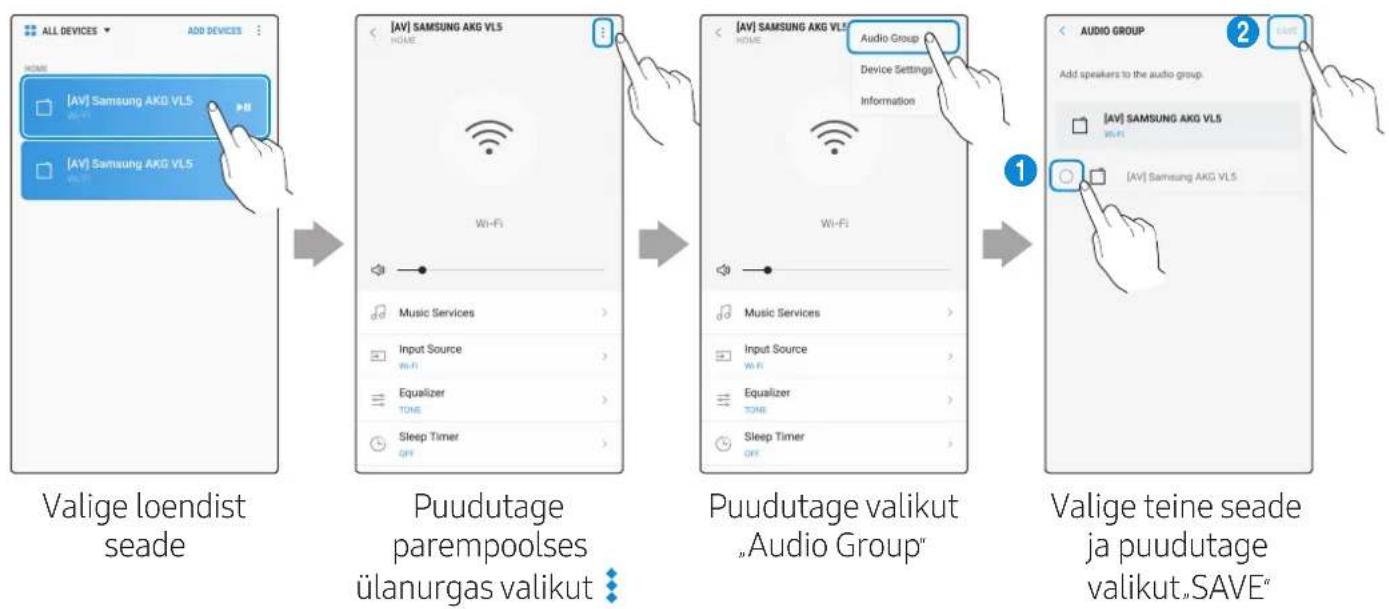
flowchart
graph TD
    A["Valige loendist seade"] --> B["Puudutage parempoolses ülanurgas valikut"]
    B --> C["Puudutage valikut „Audio Group”"]
    C --> D["Valige teine seade ja puudutage valikut „SAVE”"]
Kasutades 2 seadet - Stereo (VL350 / VL351 puhul)
2 Valige Stereo rakenduses SmartThings.
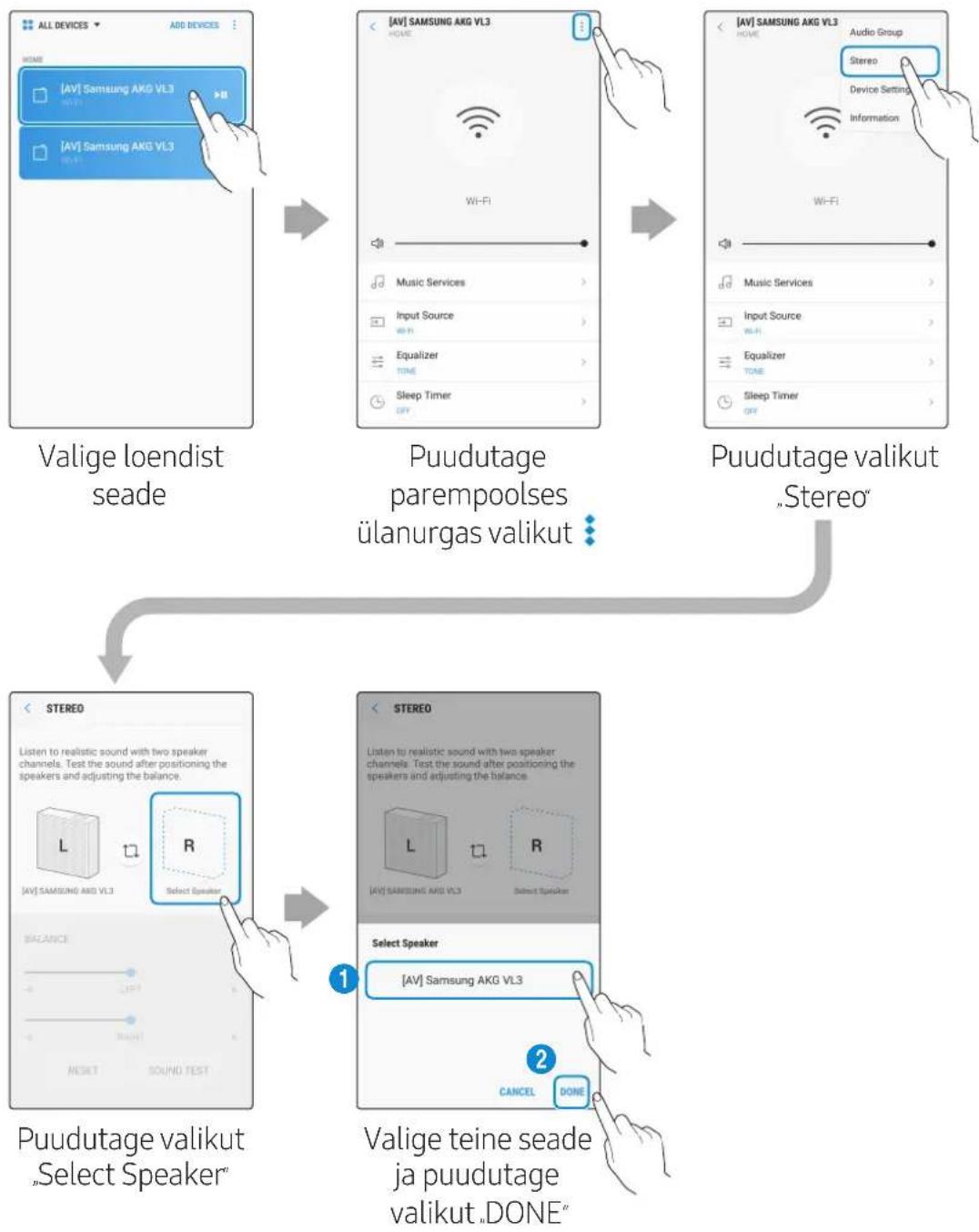
flowchart
graph TD
    A["Valige loendist seade"] --> B["Puudutage parempoolses ülanurgas valikut"]
    B --> C["Puudutage valikut „Stereo”"]
    C --> D["Valige teine seade ja puudutage valikut „DONE”"]

flowchart
graph TD
    A["Device with +/− symbols"] --> B["Control panel with two upward arrows"]
    B --> C["Device with two downward arrows"]
    C --> D["Device with one downward arrow"]
    D --> E["Device with one up/down arrow"]
    E --> F["User interacting with device"]
flowchart
graph TD
    A["Device Port 1"] --> B["Adjustment to Battery"]
    B --> C["Adjustment to Control Panel"]
    C --> D["Final Control Panel with Disassembly"]
Törkeotsing
flowchart
graph TD
    A["Main Switch"] --> B["Adjustment Button"]
    B --> C["Reset Button"]
    C --> D["Back panel with Power, Control, Lock, and AUXIN buttons"]
    D --> E["Bouton RESET"]
natural_image
Diagram of a circular device with a cable and labeled ports, no text or symbols presentCâble micro USB (non fourni)
natural_image
Illustration of a gray rectangular device with blue signal waves, no text or symbols presentflowchart
graph TD
    A["Base Station 1"] --> B["Line"]
    C["Base Station 2"] --> D["Line"]
    B -.-> E["Central Cable / Cable Connection"]
    D -.-> E
    style E fill:#f9f,stroke:#333,stroke-width:2px
flowchart
graph LR
    A["Hand pointing at a molecular structure"] --> B["Selection: ALL DEVICES → Edit"]
    B --> C["Selection: [AV"] Samsung AKG VLS → Edit]
    C --> D["Selection: You can only delete your own devices and do that are in locations that belong to you."]
    D --> E["Changer: Cancel → SAVE"]
    E --> F["Change: Cancel → SAVE"]
flowchart
graph TD
    A["Device with +/− symbols"] --> B["Control panel with two upward arrows"]
    B --> C["Device with two downward arrows"]
    C --> D["Device with one downward arrow"]
    D --> E["Device with one up/down arrow"]
    E --> F["Device with one down/down arrow"]
    F --> G["User interacting with device"]
flowchart
graph TD
    A["Device Port 1"] --> B["Switch with Blue Arrow"]
    B --> C["Switch with Red Arrow"]
    C --> D["Switch with Blue Arrow"]
    D --> E["Switch with Red Arrow"]
    E --> F["Switch with Blue Arrow"]
    F --> G["Switch with Red Arrow"]
Annexe

© 2018 Samsung Electronics Co., Ltd.
natural_image
Illustration of a hand holding a container with blue arrows indicating direction (no text or symbols)natural_image
Illustration of a gray rectangular device with blue signal waves, no text or symbols presentΣύνδεση Bluetooth
natural_image
Illustration of a device with a button and finger interacting with it, showing no text or symbols.Speak directly to Dial Controller to use voice recognition service.

flowchart
graph TD
    A["Base Station 1"] --> B["Line"]
    C["Base Station 2"] --> B
    B --> D["Central Cable / Cable Connection"]
    D --> E["Output Line"]
    style D stroke:#000,stroke-width:2px
    style E stroke:#000,stroke-width:2px
flowchart
graph LR
    A["Εφαρμονή Amazon Alexa"] --> B["Home"]
    B --> C["Things to Try"]
    C --> D["I love you"]
    D --> E["Smart Home"]
    E --> F["Things to Try"]
    F --> G["Settings"]
    G --> H["Help & Feedback"]
    H --> I["Not Manual/Sign out"]
    I --> J["Timer set for 00:10"]

    B --> K["Home"]
    K --> L["Things to Try"]
    L --> M["I love you"]
    M --> N["Smart Home"]
    N --> O["Things to Try"]
    O --> P["Settings"]
    P --> Q["Help & Feedback"]
    Q --> R["Not Manual/Sign out"]

    K --> S["Home"]
    S --> T["Things to Try"]
    T --> U["I love you"]
    U --> V["Smart Home"]
    V --> W["Things to Try"]
    W --> X["Settings"]
    X --> Y["Help & Feedback"]
    Y --> Z["Not Manual/Sign out"]

    S --> W
    W --> AA["Timer set for 00:10"]

    K --> AB["Home"]
    AB --> AC["Things to Try"]
    AC --> AD["I love you"]
    AD --> AE["Smart Home"]
    AE --> AF["Things to Try"]
    AF --> AG["Settings"]
    AG --> AH["Help & Feedback"]
    AH --> AI["Not Manual/Sign out"]

    K --> AB
    AB --> AJ["Things to Try"]
    AJ --> AK["I love you"]
    AK --> AL["Smart Home"]
    AL --> AM["Things to Try"]
    AM --> AN["Settings"]
    AN --> AO["Help & Feedback"]
    AO --> AP["Not Manual/Sign out"]

    K --> AB
    AB --> AQ["Things to Try"]
    AQ --> AR["I love you"]
    AR --> AS["Smart Home"]
    AS --> AT["Things to Try"]
    AT --> AU["Settings"]
    AU --> AV["Help & Feedback"]
    AV --> AW["Not Manual/Sign out"]

    K --> AB
    AB --> AX["Things to Try"]
    AX --> AY["I love you"]
    AY --> AZ["Smart Home"]
    AZ --> BA["Things to Try"]
    BA --> BB["Settings"]
    BB --> BC["Help & Feedback"]
    BC --> BD["Not Manual/Sign out"]

    K --> AB
    AB --> BE["Things to Try"]
    BE --> BF["I love you"]
    BF --> BG["Smart Home"]
    BG --> BH["Things to Try"]
    BH --> BI["Settings"]
    BI --> BJ["Help & Feedback"]
    BJ --> BK["Not Manual/Sign out"]

    K --> AB
    AB --> BL["Things to Try"]
    BL --> BM["I love you"]
    BM --> BN["Smart Home"]
    BN --> BO["Things to Try"]
    BO --> BP["Settings"]
    BP --> BQ["Help & Feedback"]
    BQ --> BR["Not Manual/Sign out"]

    K --> AB
    AB --> BS["Things to Try"]
    BS --> BT["I love you"]
    BT --> BU["Smart Home"]
    BU --> BV["Things to Try"]
    BV --> BW["Settings"]
    BW --> BX["Help & Feedback"]
    BX --> BY["Not Manual/Sign out"]

    K --> AB
    AB --> BY
    BY --> BZ["Samsung Wireless Audio"]

    K --> AB
    AB --> CA["Samsung Wireless Audio (Samsung Wireless Audio)"]

    K --> AB
    AB --> CB["Samsung Wireless Audio (Samsung Wireless Audio)"]

    K --> AB
flowchart
graph LR
    A["Εφαρμογή Amazon Alexa"] --> B["Home: Amazon alexa"]
    B --> C["Things to Try: New Music & Books, Lists, Reminders & Names, Skills, Smart Home"]
    C --> D["Things to Try: New Music & Books, Lists, Reminders & Names, Skills, Smart Home"]
    D --> E["I love you: Thanks, it's good to be, Your Feedback, Have heard! Did Here to see You, No Remove card, Timer set for"]
    E --> F["Smart Home Skills: I enabled"]
    F --> G["Groups: Devices"]
    F --> H["Scenes: Configure Smart Home"]
    F --> I["Discover: Alexa SMART HOME STORE"]
    G --> J["«DISCOVER»"]
    H --> J
    I --> J
flowchart
graph TD
    A["Device with +/− symbols"] --> B["Control panel with two upward arrows"]
    B --> C["Device with two downward arrows"]
    C --> D["Device with one downward arrow"]
    D --> E["Device with one up/down arrow"]
    E --> F["Device with one down/down arrow"]
    F --> G["User interacting with device"]
flowchart
graph TD
    A["Device Port 1"] --> B["Switch with Blue Arrow"]
    B --> C["Switch with Red Arrow"]
    C --> D["Switch with Blue Arrow"]
    D --> E["Switch with Red Arrow"]
    E --> F["Switch with Blue Arrow"]
    F --> G["Switch with Red Arrow"]
Παράρτημα

© 2018 Samsung Electronics Co., Ltd.
natural_image
Hand icon showing a button with a play button inside a circle, with no text or symbolsnatural_image
Diagram of a circular device with a cable and labeled ports, no text or symbols presentnatural_image
Illustration of a gray rectangular device with blue signal waves, no text or symbols presentflowchart
graph LR
    A["User"] --> B["Hand pointing to 2 Sec"]
    B --> C["Battery"]
    C --> D["Mobile Phone"]
    D --> E["Wireless Signal"]
    E --> F["Wireless Signal"]
    F --> G["Wireless Signal"]
    G --> H["Wireless Signal"]
    H --> I["Wireless Signal"]
    I --> J["Wireless Signal"]
    J --> K["Wireless Signal"]
    K --> L["Wireless Signal"]
    L --> M["Wireless Signal"]
    M --> N["Wireless Signal"]
    N --> O["Wireless Signal"]
    O --> P["Wireless Signal"]
    P --> Q["Wireless Signal"]
    Q --> R["Wireless Signal"]
    R --> S["Wireless Signal"]
    S --> T["Wireless Signal"]
    T --> U["Wireless Signal"]
    U --> V["Wireless Signal"]
    V --> W["Wireless Signal"]
    W --> X["Wireless Signal"]
    X --> Y["Wireless Signal"]
    Y --> Z["Wireless Signal"]
    Z --> AA["Wireless Signal"]
    AA --> AB["Wireless Signal"]
    AB --> AC["Wireless Signal"]
    AC --> AD["Wireless Signal"]
    AD --> AE["Wireless Signal"]
    AE --> AF["Wireless Signal"]
    AF --> AG["Wireless Signal"]
    AG --> AH["Wireless Signal"]
    AH --> AI["Wireless Signal"]
    AI --> AJ["Wireless Signal"]
    AJ --> AK["Wireless Signal"]
    AK --> AL["Wireless Signal"]
    AL --> AM["Wireless Signal"]
    AM --> AN["Wireless Signal"]
    AN --> AO["Wireless Signal"]
    AO --> AP["Wireless Signal"]
    AP --> AQ["Wireless Signal"]
    AQ --> AR["Wireless Signal"]
    AR --> AS["Wireless Signal"]
    AS --> AT["Wireless Signal"]
    AT --> AU["Wireless Signal"]
    AU --> AV["Wireless Signal"]
    AV --> AW["Wireless Signal"]
    AW --> AX["Wireless Signal"]
    AX --> AY["Wireless Signal"]

flowchart
graph TD
    A["Base Station 1"] --> B["Central Cable"]
    C["Base Station 2"] --> B
    B --> D["Output Line"]
    style B stroke:#000,stroke-width:2px
    style D stroke:#000,stroke-width:2px
flowchart
graph LR
    A["Amazon Alexa alkalmazás"] --> B["Home: Amazon Alexa"]
    B --> C["Home: Smart Home"]
    C --> D["Smart Home: Groups, Devices, Scenes"]
    D --> E["Smart Home Skills: Configure Smart Home"]
    E --> F["Smart Home Skills: I enabled"]
    F --> G["Discover: Enable smart home skills to control devices with Alexa. If you've already enabled your skill, discover devices below. SMART HOME SKILL"]
    G --> H["Discover: Enable smart home skills to control devices with Alexa. If you've already enabled your skill, discover devices below. SMART HOME SKILL"]
flowchart
graph TD
    A["Device with +/− symbols"] --> B["Control panel with two upward arrows"]
    B --> C["Device with two downward arrows"]
    C --> D["Device with one downward arrow"]
    D --> E["Device with one up/down arrow"]
    E --> F["Device with one down arrow"]
    F --> G["User interacting with device"]
flowchart
graph TD
    A["Device Port 1"] --> B["Switch with Blue Arrow"]
    B --> C["Switch with Red Arrow"]
    C --> D["Switch with Blue Arrow"]
    D --> E["Switch with Red Arrow"]
    E --> F["Switch with Blue Arrow"]
    F --> G["Switch with Red Arrow"]
Függelék

Hibaelhárítás
© 2018 Samsung Electronics Co., Ltd.
natural_image
Three gray 3D-rendered objects: a rectangular block, a circular device with 'pin' label, and a connected cable (no text or symbols)natural_image
Three grayscale illustrations: a cord with a handle, a closed book, and a blank sheet (no text or symbols)natural_image
Circular device with attached cable and connector, no visible text or symbolsnatural_image
Illustration of a gray rectangular device with blue signal waves, no text or symbols presentConnessione al Bluetooth
natural_image
Illustration of a device with a button and finger interacting with it, showing no text or symbols.flowchart
graph TD
    A["Base Station 1"] --> B["Central Cable"]
    C["Base Station 2"] --> B
    B --> D["Output Line"]
    style B stroke:#000,stroke-width:2px
    style D stroke:#000,stroke-width:2px
flowchart
graph TD
    A["ALL DEVICES"] --> B["Add Devices"]
    B --> C["Select Speaker"]
    C --> D["Select Speaker"]
    D --> E["Toccare "Select Speaker""]
    E --> F["Select Speaker"]
    F --> G["Toccare "Stereo""]
    G --> H["Select Speaker"]
    H --> I["Toccare "Elenco dispositivi e toccare "DONE""]

    subgraph Select Speaker
        J["Listen to realistic sound with two speaker channels. Test the sound after positioning the speakers and adjusting the balance. L AVI SAMSUNG AKG VL3 R BALANCE RESET SOUND TEST"]
    end

    subgraph Elenco dispositivi
        K["Select Speaker: [AVI"] Samsung AKG VL3]
        L["Audio Group Audio Group"]
        M["Stereo Device Setting Information"]
    end

    subgraph Stereo
        N["Listen to realistic sound with two speaker channels. Test the sound after positioning the speakers and adjusting the balance. L AVI SAMSUNG AKG VL3 R BALANCE RESET SOUND TEST"]
        O["Select Speaker: CANCEL DONE"]
    end

flowchart
graph LR
    A["Hand pointing at a molecular structure"] --> B["Select the device with 'Edit' and 'Select the device with 'Edit' also' using Altoparlanti"]
    B --> C["Add to [AV"] Samsung AKG VLS]
    C --> D["Select the device with 'Edit' and 'Select the device with 'Edit' also' using Altoparlanti"]
    D --> E["Add to [AV"] Samsung AKG VLS]
    E --> F["Select the device with 'Edit' and 'Select the device with 'Edit' also' using Altoparlanti"]
    F --> G["Add to [AV"] Samsung AKG VLS]
    G --> H["Select the device with 'Edit' and 'Select the device with 'Edit' also' using Altoparlanti"]
    H --> I["Add to [AV"] Samsung AKG VLS]
    I --> J["Select the device with 'Edit' and 'Select the device with 'Edit' also' using Altoparlanti"]
    J --> K["Add to [AV"] Samsung AKG VLS]
    K --> L["Select the device with 'Edit' and 'Select the device with 'Edit' also' using Altoparlanti"]
    L --> M["Add to [AV"] Samsung AKG VLS]
    M --> N["Select the device with 'Edit' and 'Select the device with 'Edit' also' using Altoparlanti"]
    N --> O["Add to [AV"] Samsung AKG VLS]
    O --> P["Select the device with 'Edit' and 'Select the device with 'Edit' also' using Altoparlanti"]
    P --> Q["Add to [AV"] Samsung AKG VLS]
    Q --> R["Select the device with 'Edit' and 'Select the device with 'Edit' also' using Altoparlanti"]
    R --> S["Add to [AV"] Samsung AKG VLS]
    S --> T["Select the device with 'Edit' and 'Select the device with 'Edit' also' using Altoparlanti"]
    T --> U["Add to [AV"] Samsung AKG VLS]
    U --> V["Select the device with 'Edit' and 'Select the device with 'Edit' also' using Altoparlanti"]
    V --> W["Add to [AV"] Samsung AKG VLS]
    W --> X["Select the device with 'Edit' and 'Select the device with 'Edit' also' using Altoparlanti"]
    X --> Y["Add to [AV"] Samsung AKG VLS]
    Y --> Z["Select the device with 'Edit' and 'Select the device with 'Edit' also' using Altoparlanti"]
    Z --> AA["Add to [AV"] Samsung AKG VLS]
    AA --> AB["Select the device with 'Edit' and 'Select the device with 'Edit' also' using Altoparlanti"]
    AB --> AC["Add to [AV"] Samsung AKG VLS]
    AC --> AD["Select the device with 'Edit' and 'Select the device with 'Edit' also' using Altoparlanti"]
    AD --> AE["Add to [AV"] Samsung AKG VLS]
    AE --> AF["Select the device with 'Edit' and 'Select the device with 'Edit' also' using Altoparlanti"]
    AF --> AG["Add to [AV"] Samsung AKG VLS]
    AG --> AH["Select the device with 'Edit' and 'Select the device with 'Edit' also' using Altoparlanti"]
    AH --> AI["Add to [AV"] Samsung AKG VLS]
    AI --> AJ["Select the device with 'Edit' and 'Select the device with 'Edit' also' using Altoparlanti"]
    AJ --> AK["Add to [AV"] Samsung AKG VLS]
    AK --> AL["Select the device with 'Edit' and 'Select the device with 'Edit' also' using Altoparlanti"]
    AL --> AM["Add to [AV"] Samsung AKG VLS]
    AM --> AN["Select the device with 'Edit' and 'Select the device with 'Edit' also' using Altoparlanti"]
    AN --> AO["Add to [AV"] Samsung AKG VLS]
    AO --> AP["Select the device with 'Edit' and 'Select the device with 'Edit' also' using Altoparlanti"]
    AP --> AQ["Add to [AV"] Samsung AKG VLS]
    AQ --> AR["Select the device with 'Edit' and 'Select the device with 'Edit' also' using Altoparlanti"]
    AR --> AS["Add to [AV"] Samsung AKG VLS]
    AS --> AT["Select the device with 'Edit' and 'Select the device with 'Edit' also' using Altoparlanti"]
    AT --> AU["Add to [AV"] Samsung AKG VLS]
    AU --> AV["Select the device with 'Edit' and 'Select the device with 'Edit' also' using Altoparlanti"]
    AV --> AW["Add to [AV"] Samsung AKG VLS]
    AW --> AX["Select the device with 'Edit' and 'Select the device with 'Edit' also' using Altoparlanti"]
    AX --> AY["Add to [AV"] Samsung AKG VLS]
    AY --> AZ["Select the device with 'Edit' and 'Select the device with 'Edit' also' using Altoparlanti"]
    AZ --> BA["Add to [AV"] Samsung AKG VLS]
    BA --> BB["Select the device with 'Edit' and 'Select the device with 'Edit' also' using Altoparlanti"]
    BB --> BC["Add to [AV"] Samsung AKG VLS]
    BC --> BD["Select the device with 'Edit' and 'Select the device with 'Edit' also' using Altoparlanti"]
    BD --> BE["Add to [AV"] Samsung AKG VLS]
    BE --> BF["Select the device with 'Edit' and 'Select the device with 'Edit' also' using Altoparlanti"]
    BF --> BG["Add to [AV"] Samsung AKG VLS]
    BG --> BH["Select the device with 'Edit' and 'Select the device with 'Edit' also' using Altoparlanti"]
    BH --> BI["Add to [AV"] Samsung AKG VLS]
    BI --> BJ["Select the device with 'Edit' and 'Select the device with 'Edit' also' using Altoparlanti"]
    BJ --> BK["Add to [AV"] Samsung AKG VLS]
    BK --> BL["Select the device with 'Edit' and 'Select the device with 'Edit' also' using Altoparlanti"]
    BL --> BM["Add to [AV"] Samsung AKG VLS]
    BM --> BN["Select the device with 'Edit' and 'Select the device with 'Edit' also' using Altoparlanti"]
    BN --> BO["Add to [AV"] Samsung AKG VLS]
    BO --> BP["Select the device with 'Edit' and 'Select the device with 'Edit' also' using Altoparlanti"]
    BP --> BQ["Add to [AV"] Samsung AKG VLS]
    BQ --> BR["Select the device with 'Edit' and 'Select the device with 'Edit' also' using Altoparlanti"]
    BR --> BS["Add to [AV"] Samsung AKG VLS]
    BS --> BT["Select the device with 'Edit' and 'Select the device with 'Edit' also' using Altoparlanti"]
    BT --> BU["Add to [AV"] Samsung AKG VLS]
    BU --> BV["Select the device with 'Edit' and 'Select the device with 'Edit' also' using Altoparlanti"]
    BV --> BW["Add to [AV"] Samsung AKG VLS]
    BW --> BX["Select the device with 'Edit' and 'Select the device with 'Edit' also' using Altoparlanti"]
    BX --> BY["Add to [AV"] Samsung AKG VLS]
    BY --> BZ["Select the device with 'Edit' and 'Select the device with 'Edit' also' using Altoparlanti"]
    BZ --> CA["Add to [AV"] Samsung AKG VLS]
    CA --> CB["Select the device with 'Edit' and 'Select the device with 'Edit' also' using Altoparlanti"]
    CB --> CC["Add to [AV"] Samsung AKG VLS]
    CC --> CD["Select the device with 'Edit' and 'Select the device with 'Edit' also' using Altoparlanti"]
    CD --> CE["Add to [AV"] Samsung AKG VLS]
    CE --> CF["Select the device with 'Edit' and 'Select the device with 'Edit' also' using Altoparlanti"]
    CF --> CG["Add to [AV"] Samsung AKG VLS]
    CG --> CH["Select the device with 'Edit' and 'Select the device with 'Edit' also' using Altoparlanti"]
flowchart
graph LR
    A["App Amazon Alexa"] --> B["Home: New Playing, Music & Books, Lasso, Reminders & Kampo"]
    B --> C["Home: Skills: Smart Home, Things to Try, Settings, Help & Feedback, Not Medical Sign out"]
    C --> D["Search: All Skills, Features, Tools, Scores, Sizes, Topics, Messages"]
    D --> E["Selection: 'Skills' Effettua la ricerca"]
    E --> F["Search: Samsung Wireless Audio, Features, Tools, Sizes, Topics, Messages"]
    F --> G["Enable: Samsung Wireless Audio, Features, Tools, Sizes, Topics, Messages"]
flowchart
graph TD
    A["Device with +/− symbols"] --> B["Control panel with two upward arrows"]
    B --> C["Device with two downward arrows"]
    C --> D["Device with one downward arrow"]
    D --> E["Device with one up/down arrow"]
    E --> F["Device with one down/down arrow"]
    F --> G["User interacting with device"]
flowchart
graph TD
    A["Device Port 1"] --> B["Adjustment to Battery"]
    B --> C["Device Port 2"]
    C --> D["Adjustment to Battery"]
    D --> E["Final Control Unit"]
Appendice

© 2018 Samsung Electronics Co., Ltd.
http://www.samsung.com/it/aboutsamsung/sustainability/environment/our-commitment/data/
BRĪDINĀJUMS ......ii
UZMANĪBU! ......ii
natural_image
Diagram of a circular device with a cable and labeled ports, no text or symbols presentnatural_image
Illustration of a gray rectangular device with blue signal waves, no text or symbols presentflowchart
graph TD
    A["Base Station 1"] --> B["Central Cable"]
    C["Base Station 2"] --> B
    B --> D["Bottom Base Station"]
    style B stroke:#000,stroke-width:2px
    note right of B: Cable or Cable connection
    note left of B: Cable or Cable connection
flowchart
graph LR
    A["Programma Amazon Alexa"] --> B["Home"]
    B --> C["Things to Try"]
    C --> D["I love you"]
    D --> E["Smart Home"]
    E --> F["Things to Try"]
    F --> G["Settings"]
    G --> H["Help & Feedback"]
    H --> I["Text Musical Sign Out"]
    I --> J["Remove Card"]
    J --> K["Timer set for 00:10"]

    L["Izvelieties "Skills""] --> M["Search"]
    M --> N["Samsung Wireless Audio"]

    O["Meklējiet "ENABLE""] --> P["Search"]
    P --> Q["Samsung Wireless Audio"]

    R["About This Skill"] --> S[" Samsung Wireless Audio"]
    S --> T[" ENABLE "]
    T --> U[" Account linking request "]
    U --> V[" Change your Samsung Sound+ sends to a client support by... See More "]

    style A fill:#4CAF50,stroke:#333
    style L fill:#FFA500,stroke:#333
    style O fill:#E6F2FF,stroke:#333
3 Programmā Alexa pieskarieties pie Smart Home → Devices → DISCOVER, lai pabeigtu savienojuma izveidi.
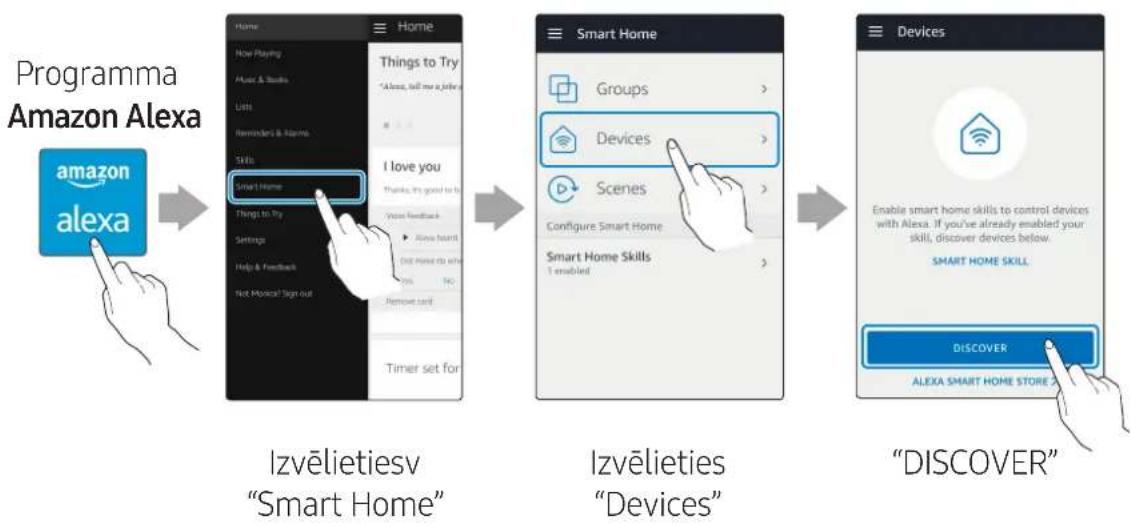
flowchart
Smart home development flowchart showing steps from Amazon Alexa to Discovery, including feature extraction and device enable.flowchart
graph TD
    A["Device with two switches"] --> B["Control panel with buttons"]
    B --> C["User action: 'Down' and 'Up' signals"]
    C --> D["Next step: 'Down' and 'Up' signals"]
© 2018 Samsung Electronics Co., Ltd.
natural_image
Three grayscale product images: a rectangular box, a circular device with a lid, and a connected electrical plug (no text or symbols visible)Garsiakalbis Valdiklis
natural_image
Three separate images: a cord with a plug, a blank notebook, and a closed book (no text or symbols)flowchart
graph TD
    A["Device with AUXIN"] --> B["Switch to Power Inic"]
    B --> C["Switch to Connection"]
    C --> D["Switch to Mygtukas RESET"]
    D --> E["Device with Power Inic"]
    E --> F["Switch to Service"]
    F --> G["Switch to LAN"]
    G --> H["Switch to Power Inic"]
1
POWER (DC IN) jungtis
natural_image
Illustration of a hand holding a container with blue liquid and directional arrows indicating flow or movement (no text or symbols)(Garsumo reguliavimo ratuko pasukimas)
natural_image
Diagram of a circular device with a cable and labeled ports, no text or symbols presentUSB mikrojungties kabelis (nepridedamas)
natural_image
Illustration of a gray rectangular device with blue signal waves, no text or symbols presentPrijungimas naudojant „Bluetooth“
Mobiluji jrenginj galite prijungti „Bluetooth“ ryšiu ir mėgautis per garsiakalbj atkuriamu garsu.
flowchart
graph TD
    A["Base Station 1"] --> B["Line"]
    C["Base Station 2"] --> B
    B --> D["Central Cable / Cable Connection"]
    D --> E["Output Line"]
    style D stroke:#000,stroke-width:2px
    style E stroke:#000,stroke-width:2px
2 Pasirinkite Audio Group programoje „SmartThings“.
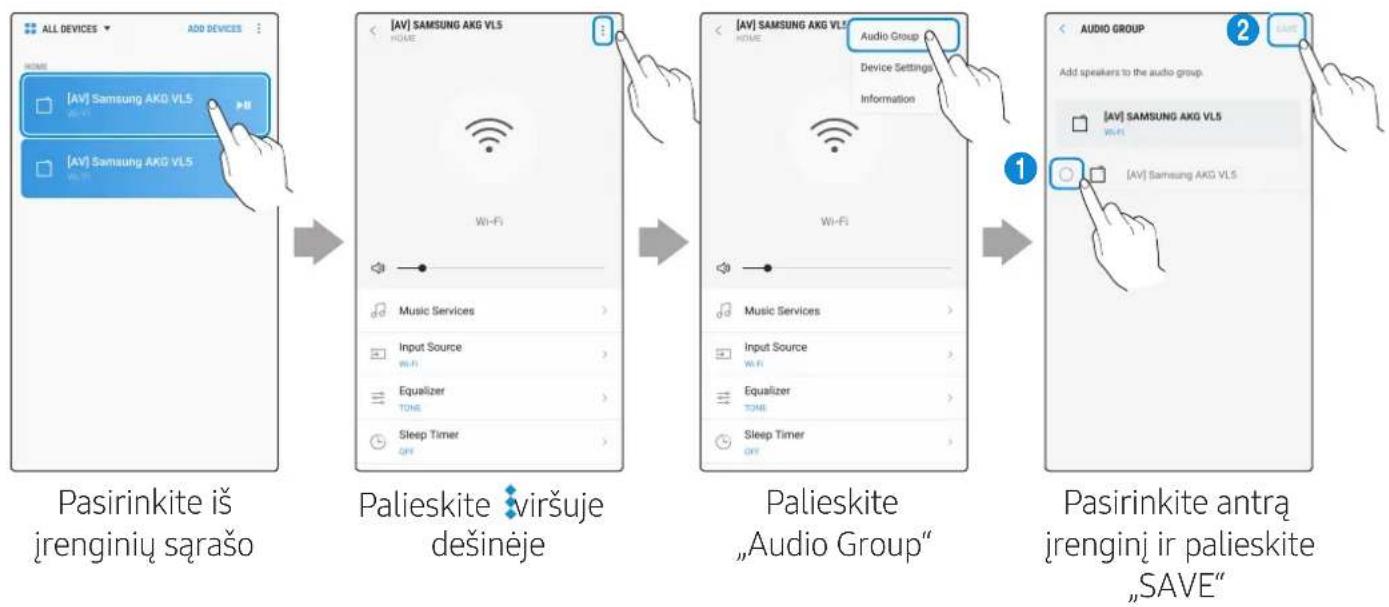
Naudojami 2 jrenginiai - Stereo (Skirta VL350 / VL351)
flowchart
graph LR
    A["Hand pointing at a microchip"] --> B["Add device to Edit"]
    B --> C["Edit: [AV"] Samsung AKG VLS]
    C --> D["Add device to Edit"]
    D --> E["Add device to Edit"]
    E --> F["Cancel: Save"]
    F --> G["Device name: [AV"] Samsung AKG VLS]
    G --> H["Location: Home"]
    G --> I["Shortcut on dashboard: Add shortcut to Home"]
    I --> J["Cancel: SAVE"]
    J --> K["Device name: Living Room: Location: Home"]
    J --> L["Shortcut on dashboard: Add shortcut to Home"]
flowchart
graph LR
    A["Programa „Amazon Alexa" with Amazon alexa"] --> B["Home: Home Playing"]
    B --> C["Things to Try: "Always, tell me a joke"]
    C --> D["Items: Smart Home, Things to Try, Settings, Help & Feedback, New Manca? Sign out"]
    D --> E["I love you: Smart Home, Things to Try, Settings, Help & Feedback, New Manca? Sign out"]
    E --> F["Remove Card"]
    F --> G["Timer set for 00:10"]
    G --> H["Pasirinkite „Skills""]
    H --> I["Search: Samsung Wireless Audio"]
    I --> J["Text: Samsung Wireless Audio"]
    J --> K["Text: Samsung Wireless Audio"]
    K --> L["Text: Samsung Wireless Audio"]
    L --> M["Text: Samsung Wireless Audio"]
    M --> N["Text: Samsung Wireless Audio"]
    N --> O["Text: Samsung Wireless Audio"]
    O --> P["Text: Samsung Wireless Audio"]
    P --> Q["Text: Samsung Wireless Audio"]
    Q --> R["Text: Samsung Wireless Audio"]
    R --> S["Text: Samsung Wireless Audio"]
3 Programoje „Alexa“ bakstelěkite Smart Home → Devices → DISCOVER kad užmegztuměte ryšj.
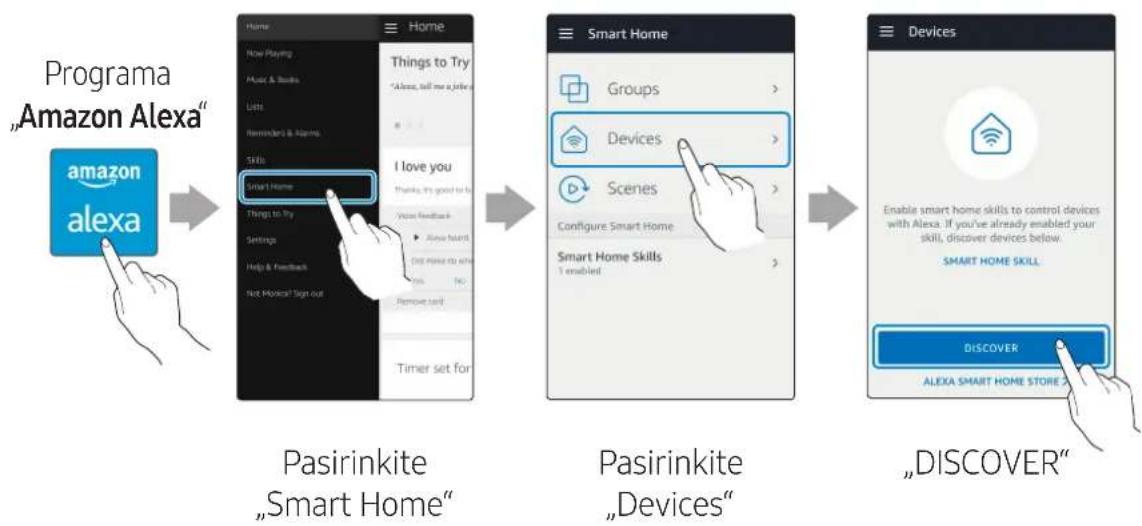
flowchart
graph LR
    A["Programa „Amazon Alexa""] --> B["Home: 'Amazon Alexa' with a blue hand icon"]
    B --> C["Pasirinkite „Smart Home""]
    C --> D["Passive devices: Groups, Devices, Scenes, Configure Smart Home, Smart Home Skills, I enabled"]
    D --> E["Discover "DISCOVER", ALEXA SMART HOME STORE 2"]
flowchart
graph TD
    A["Device with +/− symbols"] --> B["Control panel with two upward arrows"]
    B --> C["Device with two downward arrows"]
    C --> D["Device with one downward arrow"]
    D --> E["Device with one up/down arrow"]
    E --> F["Device with one down/down arrow"]
    F --> G["User interacting with device"]
flowchart
graph TD
    A["Device Port 1"] --> B["Switch with Blue Arrow"]
    B --> C["Switch with Red Arrow"]
    C --> D["Switch with Blue Arrow"]
    D --> E["Switch with Red Arrow"]
    E --> F["Switch with Blue Arrow"]
    F --> G["Switch with Red Arrow"]
Priedas

Trikčių šalinimas
natural_image
Four grayscale product images: a rectangular box, a circular device with indicator lights, a connected cable, and a plug (no text or symbols visible)natural_image
Three gray 3D-rendered objects: a rectangular block, a circular device with 'M' label, and a connected cable (no text or symbols)natural_image
Three separate images showing different types of cable and a blank notebook, no text or symbols present.natural_image
Diagram of a circular device with a cable and labeled ports, showing no text or symbols beyond the label (no readable text or symbols)natural_image
Illustration of a gray rectangular device with blue signal waves, no text or symbols presentflowchart
graph TD
    A["Base Station 1"] --> B["Central Cable"]
    C["Base Station 2"] --> B
    B --> D["Output Line"]
    style B stroke:#000,stroke-width:2px
    style D stroke:#000,stroke-width:2px
1 Use SmartThings app to connect and enjoy two speakers as a Stereo.
flowchart
graph LR
    A["Aplicacja Amazon Alexa"] --> B["My Home"]
    B --> C["Things to Try"]
    C --> D["I love you"]
    D --> E["Smart Home"]
    E --> F["Things to Try"]
    F --> G["Settings"]
    G --> H["Help & Feedback"]
    H --> I["Ask Minutes Sign Out"]
    I --> J["Remove Card"]
    J --> K["Timer set for 00:10"]

    C --> L["All Skills"]
    L --> M["Search"]
    M --> N["Samsung Wireless Audio"]

    L --> O["Property1"]
    L --> P["FOX NEWS"]
    L --> Q["Other!"]

    O --> R["Other!"]

    M --> S["Samsung Wireless Audio"]
    S --> T["Account linking request"]

    T --> U["Other!"]

    M --> V["Wyszukaj „ENABLE”"]

    V --> W["Download the Samsung Connect App from the Google Play Store or the Apple App store."]

    W --> X["Register your device to your Samsung Account."]
    W --> Y["Change your Samsung Sound+ sales to a claims support by... See More"]
flowchart
graph TD
    A["Device with +/− symbols"] --> B["Control panel with two upward arrows"]
    B --> C["Device with two downward arrows"]
    C --> D["Device with one downward arrow"]
    D --> E["Device with one up/down arrow"]
    E --> F["Device with one down/down arrow"]
    F --> G["User interacting with device"]
flowchart
graph TD
    A["Device Port 1"] --> B["Switch with Blue Arrow"]
    B --> C["Switch with Red Arrow"]
    C --> D["Switch with Blue Arrow"]
    D --> E["Switch with Red Arrow"]
    E --> F["Switch with Blue Arrow"]
    F --> G["Switch with Red Arrow"]
Załącznik

flowchart
graph TD
    A["Device with AUX IN"] --> B["Device with Power Switch"]
    B --> C["Device with Connection"]
    C --> D["Switch to Power Switch"]
    D --> E["Switch to Power Switch"]
    E --> F["Switch to Power Switch"]
    F --> G["Switch to Power Switch"]
    G --> H["Switch to Power Switch"]
    H --> I["Switch to Power Switch"]
    I --> J["Switch to Power Switch"]
    J --> K["Switch to Power Switch"]
    K --> L["Switch to Power Switch"]
    L --> M["Switch to Power Switch"]
    M --> N["Switch to Power Switch"]
    N --> O["Switch to Power Switch"]
    O --> P["Switch to Power Switch"]
    P --> Q["Switch to Power Switch"]
    Q --> R["Switch to Power Switch"]
    R --> S["Switch to Power Switch"]
    S --> T["Switch to Power Switch"]
    T --> U["Switch to Power Switch"]
    U --> V["Switch to Power Switch"]
    V --> W["Switch to Power Switch"]
    W --> X["Switch to Power Switch"]
    X --> Y["Switch to Power Switch"]
    Y --> Z["Switch to Power Switch"]
    Z --> AA["Switch to Power Switch"]
    AA --> AB["Switch to Power Switch"]
    AB --> AC["Switch to Power Switch"]
    AC --> AD["Switch to Power Switch"]
    AD --> AE["Switch to Power Switch"]
    AE --> AF["Switch to Power Switch"]
    AF --> AG["Switch to Power Switch"]
    AG --> AH["Switch to Power Switch"]
    AH --> AI["Switch to Power Switch"]
    AI --> AJ["Switch to Power Switch"]
    AJ --> AK["Switch to Power Switch"]
    AK --> AL["Switch to Power Switch"]
    AL --> AM["Switch to Power Switch"]
    AM --> AN["Switch to Power Switch"]
    AN --> AO["Switch to Power Switch"]
    AO --> AP["Switch to Power Switch"]
    AP --> AQ["Switch to Power Switch"]
    AQ --> AR["Switch to Power Switch"]
    AR --> AS["Switch to Power Switch"]
    AS --> AT["Switch to Power Switch"]
    AT --> AU["Switch to Power Switch"]
    AU --> AV["Switch to Power Switch"]
    AV --> AW["Switch to Power Switch"]
    AW --> AX["Switch to Power Switch"]
    AX --> AY["Switch to Power Switch"]
natural_image
Diagram of a circular device with a cable and labeled ports, no text or symbols presentCablu micro-USB (nefurnizat)
natural_image
Illustration of a gray rectangular device with blue signal waves, no text or symbols presentConectarea la Bluetooth
natural_image
3D rendering of a rectangular electronic device with no visible text or symbolsAtingeti „Edit“
![[AV] Samsung AKG VL5 You can only delete your own devices and devices that are in locations that belong to you.](/content/2026/03/437494/images/cae3ed26935efd7c35617c849e4484c60f578e81d563d9799df9e35c8ef8a43a.jpg)
flowchart
graph TD
    A["Base Station 1"] --> B["Line"]
    C["Base Station 2"] --> B
    B --> D["Central Cable / Cable Connection"]
    D --> E["Output Line"]
    style D stroke:#000,stroke-width:2px
    style E stroke:#000,stroke-width:2px
flowchart
graph TD
    A["Device with +/− symbols"] --> B["Control panel with two switches"]
    B --> C["Device with +/− symbols"]
    C --> D["User action: 'Down' and 'Up' states"]
    D --> E["Device with +/− symbols"]
    E --> F["Device with +/− symbols"]
flowchart
graph TD
    A["Device Port 1"] --> B["Adjustment to Battery"]
    B --> C["Adjustment to Control Panel"]
    C --> D["Final Control Panel with Disassembly"]
Anexă

Depanare
© 2018 Samsung Electronics Co., Ltd.
natural_image
Illustration of a hand pressing a button with a play button inside, surrounded by curved arrows and a circle (no text or symbols)Podešavanje jačine zvuka (Okretanje točkića na dodir)
Dodirnite točkić osetljiv na dodir i prevucite ga u smeru kretanja kazaljki na satu da biste povećali jačinu zvuka.
Dodirnite točkić osetljiv na dodir i prevucite ga u smeru suprotnom od kretanja kazaljki na satu da biste smanjili jačinu zvuka.


Reprodukuj / Pauziraj
Pritisnite ▶II da biste reprodukovali ili pauzirali muziku.

Prikaz
LED
lampica
| LED lampica | Status | Opis | |
| Radnja Režim | |||
| Bela | Uključena Povezan / Normalan rad - | ||
| Treperi | Pokretanje - | ||
| Spreman za povezivanje na Kontroler biranja | - | ||
| Ažuriranje firmvera - | |||
| Spreman za Wi-Fi povezivanje Wi-Fi | |||
| Plava Treperi Čekanje na povezivanje uređaja Bluetooth | |||
| Crvena Uključena Greška u povezivanju - | |||
| Žuto | Treperi jednom | Kada je jačina postavljena na min. ili maks. | - |
| Isključena | Isključena | Štednja energije | - |
Ukoliko se ne koristi u periodu dužem od 5 minuta, režim se menja u U pripravnosti kako bi se smanjila potrošnja energije.
Dugme Bluetooth / Wi-Fi / AUX aktivira jednu po jednu funkciju.
Funkcije Reprodukuj / Pauziraj i Preskoči nisu dostupne u režimu AUX.
Da biste podesili Bluetooth vezu, pritisnite dugme Bluetooth u trajanju od 5 sekundi ili duže.
Funkcija Priguši ton/poništi prigušenje tona može da se koristi sa dugmetom Reprodukuj / Pauziraj u režimu AUX ili Bluetooth (povezan na TV aparat).
natural_image
Diagram of a circular device with a cable and labeled ports, no text or symbols presentnatural_image
Illustration of a gray rectangular device with blue signal waves, no text or symbols present1-1 Ako već niste, podesite Bluetooth vezu između zvučnika i vašeg mobilnog uređaja.
flowchart
graph LR
    A["Hand pointing at a molecular structure"] --> B["Add device to 'All Devices' with 'Edit' screen"]
    B --> C["Add device to 'Izaberite opciju „Edit’"]
    C --> D["Add device to 'Izaberite zvučnike' with 'EDIT' screen and 'AIV' Samsung AKG VLS device, and 'You can only delete your own devices and do that are in locations that belong to you'"]
    D --> E["Add device to 'Promenite naziv „SAVE’ with 'CANCEL', 'SAVE' screen, and 'Device name: [AV"] Samsung AKG VLS']
    E --> F["Add device to 'Promenite naziv „SAVE’ with 'CANCEL', 'SAVE' screen, and 'Device name: [AV"] Samsung AKG VLS device, and 'Location: [AV]' device, and 'Shortout on dashboard', 'Location: [AV]' device, and 'Shortout on dashboard', 'Add shortcut to Home']
2 U aplikaciji Alexa, pretražite „Samsung Wireless Audio“ u opciji Skills i izaberite ENABLE.
- Preskočite ovaj korak ako ste već podesili opciju Skills.
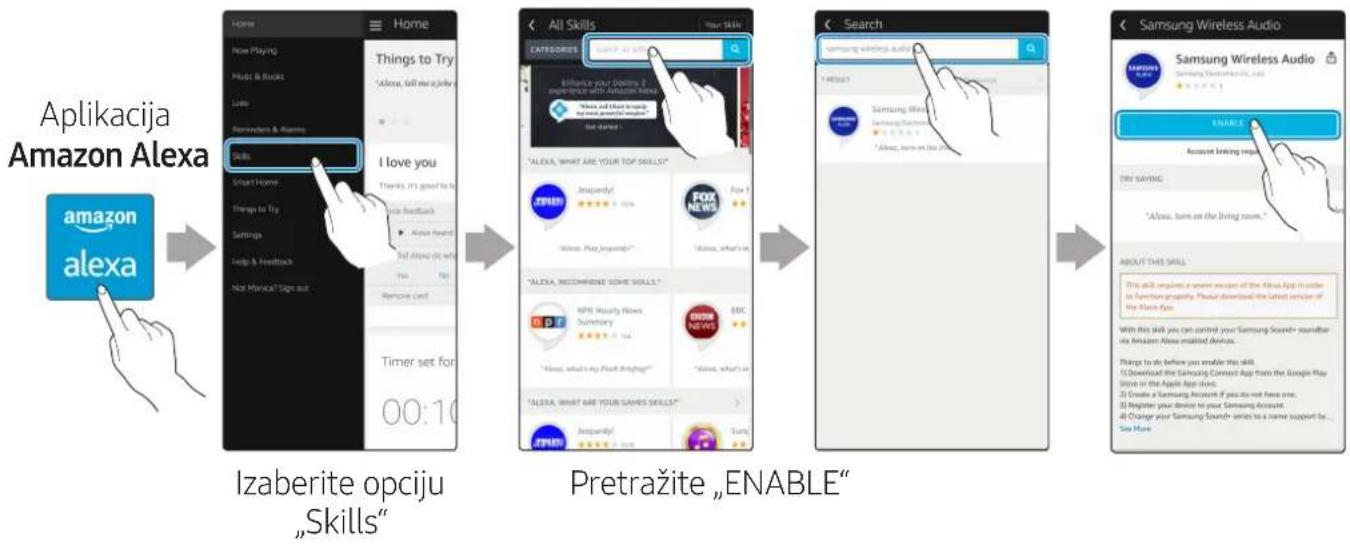
flowchart
graph LR
    A["Aplikacija Amazon Alexa"] --> B["Home: New Playing, Music & Books, Labs, Reminders & Planos"]
    B --> C["Home: Skills: Smart Home, Things to Try, Savings, Help & Feedback, Not Medical? Sign out"]
    C --> D["Home: New Playing, Music & Books, Labs, Reminders & Planos"]
    D --> E["Home: Skills: I Love you, Smart Home, Things to Try, Savings, Help & Feedback, Not Medical? Sign out"]
    E --> F["Home: New Playing, Music & Books, Labs, Reminders & Planos"]
    F --> G["Home: Skills: I Love you, Smart Home, Things to Try, Savings, Help & Feedback, Not Medical? Sign out"]
    G --> H["Home: Skills: All Skills: CATEGORIES: Search! All Skills: 100%"]
    H --> I["Home: Skills: All Skills: 100%"]
    I --> J["Home: Skills: All Skills: 100%"]
    J --> K["Home: Skills: All Skills: 100%"]
    K --> L["Home: Skills: All Skills: 100%"]
    L --> M["Home: Skills: All Skills: 100%"]
    M --> N["Home: Skills: All Skills: 100%"]
    N --> O["Home: Skills: All Skills: 100%"]
    O --> P["Home: Skills: All Skills: 100%"]
    P --> Q["Home: Skills: All Skills: 100%"]
    Q --> R["Home: Skills: All Skills: 100%"]
    R --> S["Home: Skills: All Skills: 100%"]
    S --> T["Home: Skills: All Skills: 100%"]
    T --> U["Home: Skills: All Skills: 100%"]
    U --> V["Home: Skills: All Skills: 100%"]
    V --> W["Home: Skills: All Skills: 100%"]
    W --> X["Home: Skills: All Skills: 100%"]
    X --> Y["Home: Skills: All Skills: 100%"]
    Y --> Z["Home: Skills: All Skills: 100%"]
    Z --> AA["Home: Skills: All Skills: 100%"]
    AA --> AB["Home: Skills: All Skills: 100%"]
    AB --> AC["Home: Skills: All Skills: 100%"]
    AC --> AD["Home: Skills: All Skills: 100%"]
    AD --> AE["Home: Skills: All Skills: 100%"]
    AE --> AF["Home: Skills: All Skills: 100%"]
    AF --> AG["Home: Skills: All Skills: 100%"]
    AG --> AH["Home: Skills: All Skills: 100%"]
    AH --> AI["Home: Skills: All Skills: 100%"]
    AI --> AJ["Home: Skills: All Skills: 100%"]
    AJ --> AK["Home: Skills: All Skills: 100%"]
    AK --> AL["Home: Skills: All Skills: 100%"]
    AL --> AM["Home: Skills: All Skills: 100%"]
    AM --> AN["Home: Skills: All Skills: 100%"]
    AN --> AO["Home: Skills: All Skills: 100%"]
    AO --> AP["Home: Skills: All Skills: 100%"]
    AP --> AQ["Home: Skills: All Skills: 100%"]
    AQ --> AR["Home: Skills: All Skills: 100%"]
    AR --> AS["Home: Skills: All Skills: 100%"]
    AS --> AT["Home: Skills: All Skills: 100%"]
    AT --> AU["Home: Skills: All Skills: 100%"]
    AU --> AV["Home: Skills: All Skills: 100%"]
    AV --> AW["Home: Skills: All Skills: 100%"]
    AW --> AX["Home: Skills: All Skills: 100%"]
    AX --> AY["Home: Skills: All Skills: 100%"]
    AY --> AZ["Home: Skills: All Skills: 100%"]
    AZ --> BA["Home: Skills: All Skills: 100%"]
    BA --> BB["Home: Skills: All Skills: 100%"]
    BB --> BC["Home: Skills: All Skills: 100%"]
    BC --> BD["Home: Skills: All Skills: 100%"]
    BD --> BE["Home: Skills: All Skills: 100%"]
    BE --> BF["Home: Skills: All Skills: 100%"]
    BF --> BG["Home: Skills: All Skills: 100%"]
    BG --> BH["Home: Skills: All Skills: 100%"]
    BH --> BI["Home: Skills: All Skills: 100%"]
    BI --> BJ["Home: Skills: All Skills: 100%"]
    BJ --> BK["Home: Skills: All Skills: 100%"]
    BK --> BL["Home: Skills: All Skills: 100%"]
    BL --> BM["Home: Skills: All Skills: 100%"]
    BM --> BN["Home: Skills: All Skills: 100%"]
    BN --> BO["Home: Skills: All Skills: 100%"]
    BO --> BP["Home: Skills: All Skills: 100%"]
    BP --> BQ["Home: Skills: All Skills: 100%"]
    BQ --> BR["Home: Skills: All Skills: 100%"]
    BR --> BS["Home: Skills: All Skills: 100%"]
    BS --> BT["Home: Skills: All Skills: 100%"]
    BT --> BU["Home: Skills: All Skills: 100%"]
    BU --> BV["Home: Skills: All Skills: 100%"]
    BV --> BW["Home: Skills: All Skills: 100%"]
    BW --> BX["Home: Skills: All Skills: 100%"]
    BX --> BY["Home: Skills: All Skills: 100%"]
    BY --> BZ["Home: Skills: All Skills: 100%"]
    BZ --> CA["Home: Skills: All Skills: 100%"]
    CA --> CB["Home: Skills: All Skills: 100%"]
    CB --> CC["Home: Skills: All Skills: 100%"]
3 U aplikaciji Alexa, dodirnite Smart Home → Devices → DISCOVER da biste obavili povezivanje.

flowchart
graph LR
    A["Aplikacija Amazon Alexa"] --> B["Home: Amazon alexa"]
    B --> C["Items: New Playing, Music & Books, etc."]
    C --> D["Things to Try: Smart Home"]
    D --> E["I love you: Things is good to be"]
    E --> F["Views feedback: I have heard!"]
    F --> G["Get Also do what you can go"]
    G --> H["No: Remove card"]
    H --> I["Timer set for"]

    B --> J["Items: New Playing, Music & Books, etc."]
    J --> K["Things to Try: Smart Home"]
    K --> L["I love you: Things is good to be"]
    L --> M["Views feedback: I have heard!"]
    M --> N["Get Also do what you can go"]
    N --> O["No: Remove card"]
    O --> P["Timer set for"]

    C --> Q["Items: New Playing, Music & Books, etc."]
    Q --> R["Things to Try: Smart Home"]
    R --> S["I love you: Things is good to be"]
    S --> T["Views feedback: I have heard!"]
    T --> U["Get Also do what you can go"]
    U --> V["No: Remove card"]
    V --> W["Timer set for"]

    D --> X["Items: Smart Home"]
    X --> Y["Groups"]
    X --> Z["Devices"]
    X --> AA["Scenes"]
    X --> AB["Configure Smart Home"]
    X --> AC["Smart Home Skills"]
    X --> AD["I enabled"]

    F --> AE["Items: Smart Home"]
    AE --> AF["Groups"]
    AE --> AG["Devices"]
    AE --> AH["Scenes"]
    AE --> AI["Configure Smart Home"]
    AE --> AJ["Smart Home Skills"]
    AE --> AK["I enabled"]

    G --> AL["Items: Smart Home"]
    AL --> AM["Groups"]
    AL --> AN["Devices"]
    AL --> AO["Scenes"]
    AL --> AP["Configure Smart Home"]
    AL --> AQ["Smart Home Skills"]
    AL --> AR["I enabled"]

    H --> AS["Items: Smart Home"]
    AS --> AT["Groups"]
    AS --> AU["Devices"]
    AS --> AV["Scenes"]
    AS --> AW["Configure Smart Home"]
    AS --> AX["Smart Home Skills"]
    AS --> AY["I enabled"]

    I --> AZ["Items: Smart Home"]
    AZ --> BA["Groups"]
    AZ --> BB["Devices"]
    AZ --> BC["Scenes"]
    AZ --> BD["Configure Smart Home"]
    AZ --> BE["Smart Home Skills"]
    AZ --> BF["I enabled"]

    M --> BG["Items: Smart Home"]
    BG --> BH["Groups"]
    BG --> BI["Devices"]
    BG --> BJ["Scenes"]
    BG --> BK["Configure Smart Home"]
    BG --> BL["Smart Home Skills"]
    BG --> BM["I enabled"]

    N --> BN["Items: Smart Home"]
    BN --> BO["Groups"]
    BN --> BP["Devices"]
    BN --> BQ["Scenes"]
    BN --> BR["Configure Smart Home"]
    BN --> BS["Smart Home Skills"]
    BN --> BT["I enabled"]

    AA --> BU["Items: Smart Home"]
    BU --> BV["Groups"]
    BU --> BW["Devices"]
    BU --> BX["Scenes"]
    BU --> BY["Configure Smart Home"]
    BU --> BZ["Smart Home Skills"]
    BU --> CA["I enabled"]

    AD --> CB["Items: Smart Home"]
    CB --> CC["Groups"]
    CB --> CD["Devices"]
    CB --> DD["Scenes"]
    CB --> DE["Configure Smart Home"]
    CB --> DF["Smart Home Skills"]
    CB --> DG["I enabled"]

    AE --> DH["Items: Smart Home"]
    DH --> DI["Groups"]
    DH --> DJ["Devices"]
    DH --> DK["Scenes"]
    DH --> DL["Configure Smart Home"]
    DH --> DM["Smart Home Skills"]
    DH --> DN["I enabled"]

    AU --> DO["Items: Smart Home"]
    DO --> DP["Groups"]
    DO --> DPB["Devices"]
    DO --> DPC["Scenes"]
    DO --> DPD["Configure Smart Home"]
    DO --> DPE["Smart Home Skills"]
    DO --> DPF["I enabled"]

    AU --> DC["Items: Smart Home"]
    DC --> DD
    DC --> DDb
    DC --> DDc
    DC --> DDd
    DC --> DDe
    DC --> DDf
■ Upravljajte zvučnikom pomoću glasovnih komandi
- Usluga Amazon Echo koju možete da koristite s vašim zvučnikom je ograničena na muziku. Ostalim uslugama koje pruža Amazon Echo, kao što su vesti i vremenska prognoza, možete pristupiti jedinom putem proizvoda Amazon Echo.


2 Postavite Nosač za zid, a zatim pričvrstite Vijak za pričvršćivanje na zid u levom otvoru.
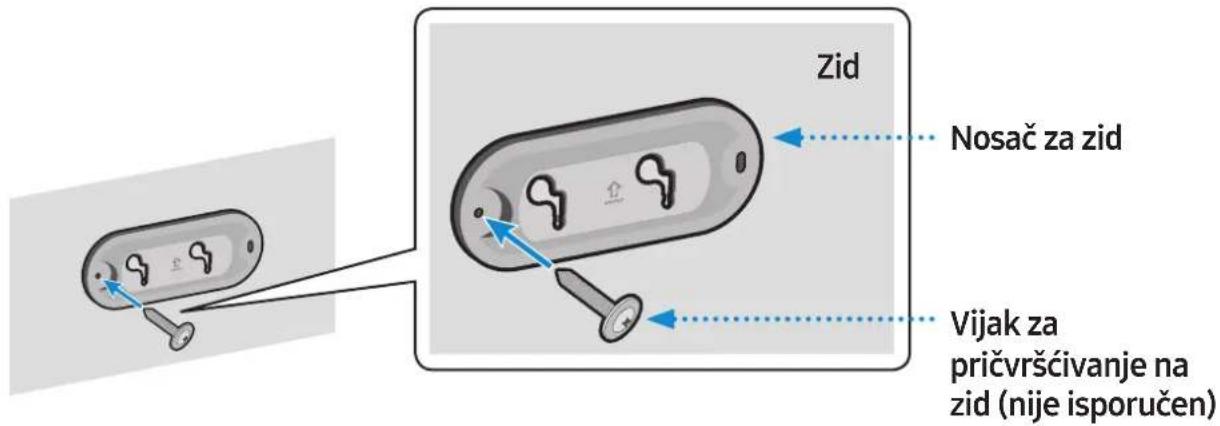
3 Pričvrstite Vijak za pričvršćivanje na zid u desnom otvoru.
- U slučaju da nivelisanje nije pravilno odrađeno, malo popustite Vijak za pričvršćivanje na zid sa leve strane, pa podesite Nosač za zid nagore ili nadole radi nivelisanja.
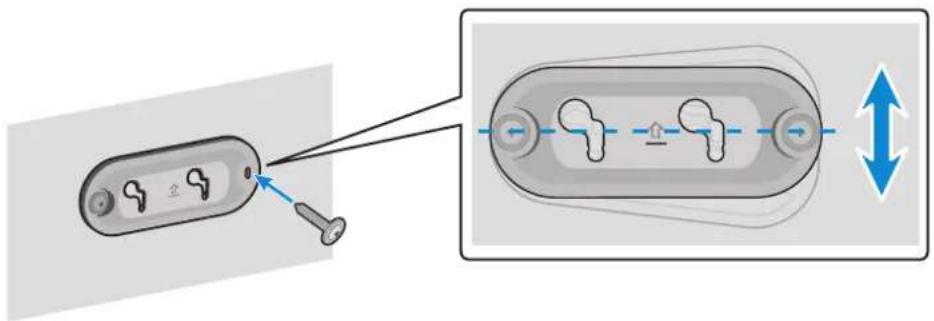
4 Pričvrstite dva Vijak za nosač u otvor za nosač na zadnjem delu glavne jedinice.
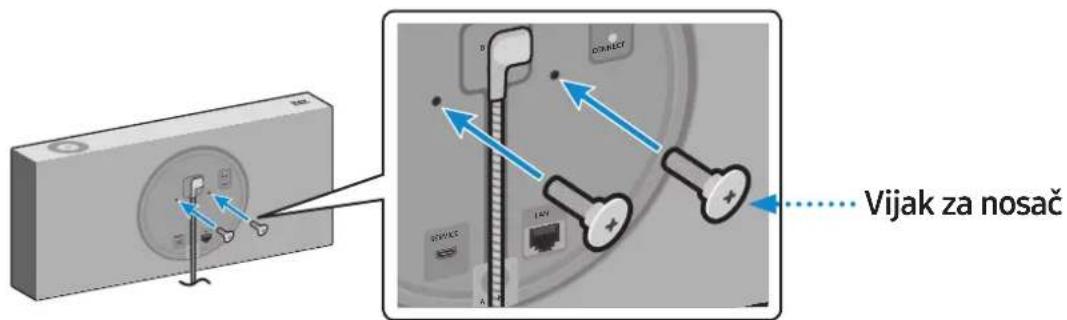
5 Poravnajte Vijak za nosač na glavnoj jedinici tako da odgovara većem žlebu na Nosač za zid. Pomerite ga u smeru strelice dok ne legne u manji žleb.
- Vodite računa da ga pomerite u smeru strelice dok ne legne u manji žleb Nosač za zid.
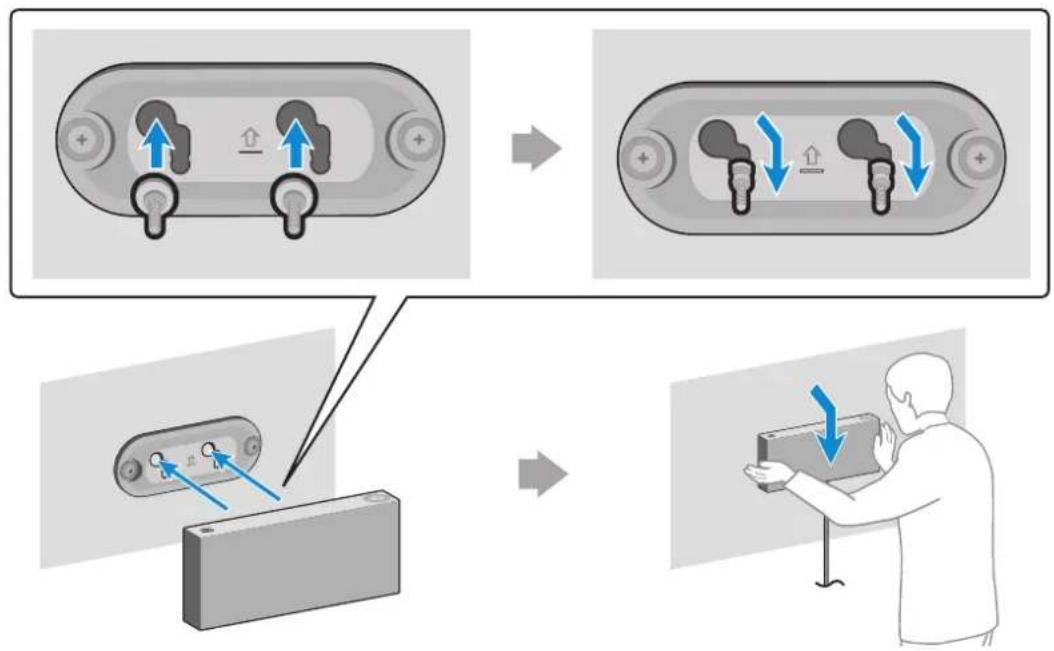
flowchart
graph TD
    A["Device with +/− symbols"] --> B["Control panel with two switches"]
    B --> C["Device with +/− symbols"]
    C --> D["Device with two switches"]
    D --> E["Device with +/− symbols"]
    E --> F["User interacting with device"]
\* Uklanjanje zidnog nosača
Podižite glavnu jedinicu dok se Vijak za nosač ne nađe u većem žlebu Nosač za zid, a zatim izvucite glavnu jedinicu.
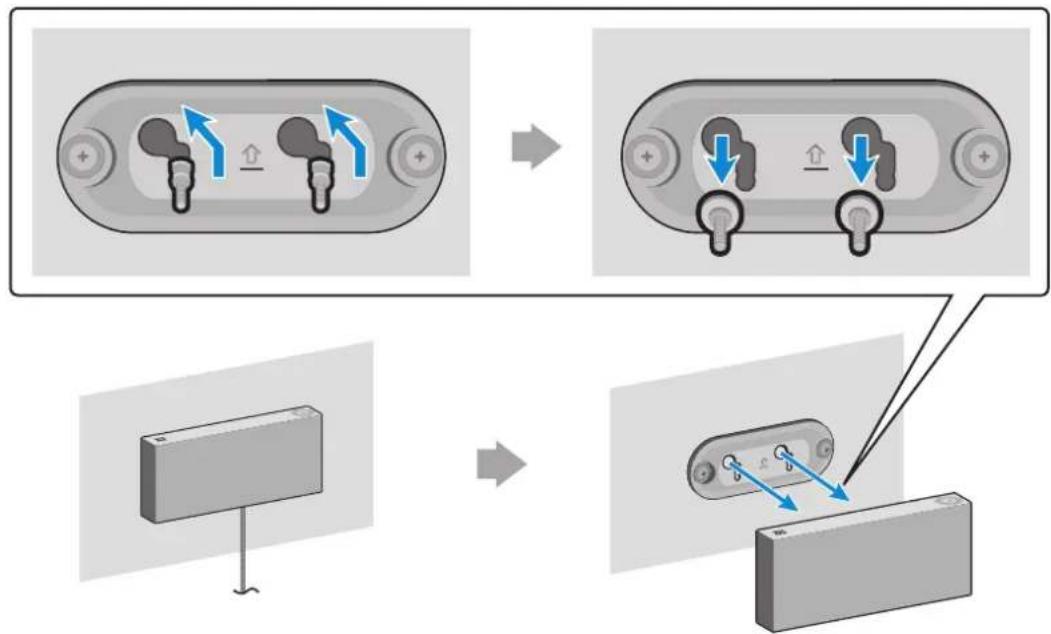
flowchart
graph TD
    A["Device Port 1"] --> B["Insertion"]
    B --> C["Disassembly"]
    C --> D["Terminal Block"]
Dodatak

Rešavanje problema
natural_image
Illustration of a hand holding a container with blue arrows indicating direction (no text or symbols)(otáčanie kolieska hlasitosti)
natural_image
Diagram of a circular device with a cable and labeled ports, no text or symbols presentnatural_image
Illustration of a gray rectangular device with blue signal waves, no text or symbols presentPripojenie k rozhraniu Bluetooth
flowchart
graph TD
    A["Base Station 1"] --> B["Central Cable"]
    C["Base Station 2"] --> B
    B --> D["Output Line"]
    style B stroke:#000,stroke-width:2px
    style D stroke:#000,stroke-width:2px
2 Vyberte možnost Audio Group v aplikácii SmartThings.
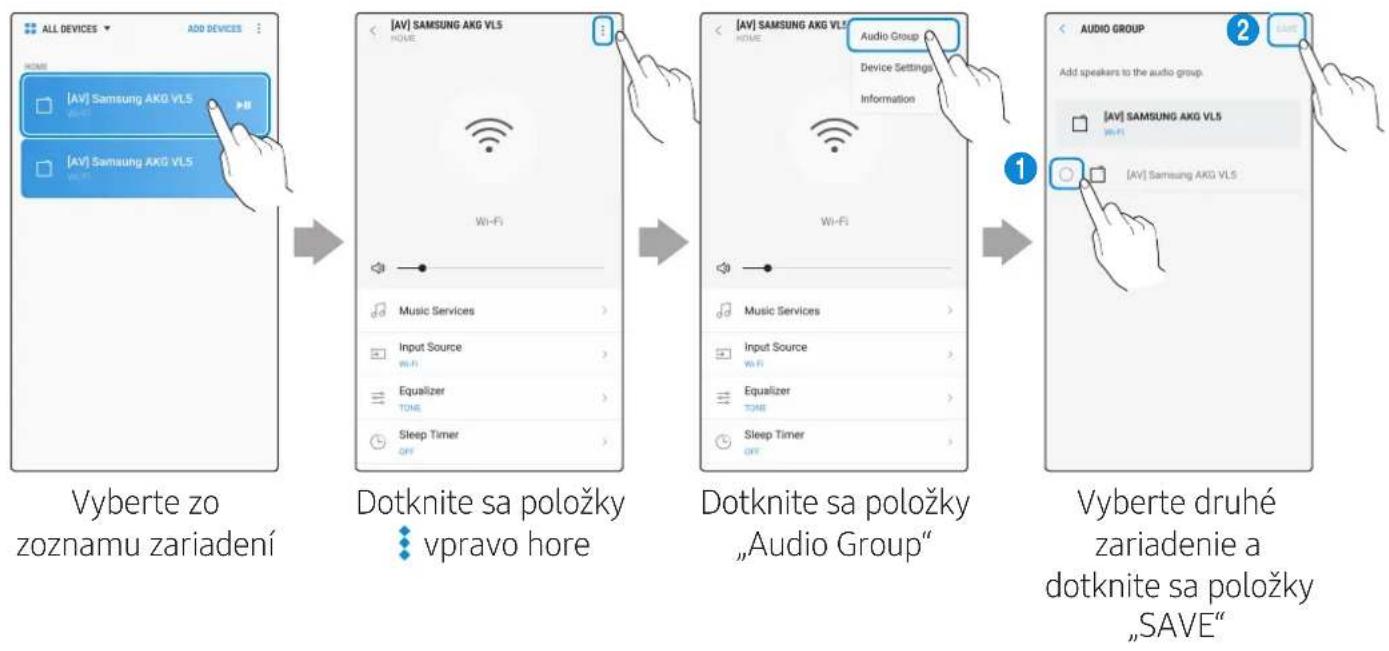
Ponuka → Zvuk → Speaker List
flowchart
graph LR
    A["Aplikácia Amazon Alexa"] --> B["Home"]
    B --> C["Things to Try"]
    C --> D["All Skills"]
    D --> E["Search"]
    E --> F["Samsung Wireless Audio"]

    subgraph Applications
        G["amazon alexa"] --> H["My Playing"]
        H --> I["Music & Books"]
        I --> J["Lists"]
        J --> K["Applications & Answers"]
        K --> L["Skills"]
        L --> M["I love you"]
        M --> N["Smart Home"]
        N --> O["Things to Try"]
        O --> P["Settings"]
        P --> Q["Help & Feedback"]
        Q --> R["Hot Makeup/Sign out"]
        R --> S["Remove Card"]
        S --> T["Timer set for 00:10"]
    end

    subgraph Methods
        U["Vyberte položku „Skills“"] --> V["Options for the skills"]
        V --> W["Enhanced your lifestyle & experience with Instagram Music"]
        W --> X["What is what's going on my home? You're looking to you? You're looking to you? You're looking to you? You're looking to you? You're looking to you? You're looking to you? You're looking to you? You're looking to you? You're looking to you? You're looking to you? You're looking to you? You're looking to you? You're looking to you? You're looking to you? You're looking to you? You're looking to you? You're looking to you? You're looks like this book"]
        V --> W
        W --> X
        X --> Y["Options for the skills"]
        Y --> Z["Options for the skills"]
        Z --> AA["Options for the skills"]
        AA --> AB["Options for the skills"]
        AB --> AC["Options for the skills"]
        AC --> AD["Options for the skills"]
        AD --> AE["Options for the skills"]
    end

    subgraph Applications
        AF["Search"] --> AG["Samsung Wireless Audio"]
        AG --> AH[" Samsung Wireless Audio "]
        AH --> AI[" Samsung Wireless Audio "]
        AI --> AJ[" Samsung Wireless Audio "]
        AJ --> AK[" Samsung Wireless Audio "]
        AK --> AL[" Samsung Wireless Audio "]
        AL --> AM[" Samsung Wireless Audio "]
        AM --> AN[" Samsung Wireless Audio "]
        AN --> AO[" Samsung Wireless Audio "]
        AO --> AP[" Samsung Wireless Audio "]
        AP --> AQ[" Samsung Wireless Audio "]
        AQ --> AR[" Samsung Wireless Audio "]
        AR --> AS[" Samsung Wireless Audio "]
        AS --> AT[" Samsung Wireless Audio "]
        AT --> AU[" Samsung Wireless Audio "]
        AU --> AV[" Samsung Wireless Audio "]
        AV --> AW[" Samsung Wireless Audio "]
        AW --> AX[" Samsung Wireless Audio "]
        AX --> AY[" Samsung Wireless Audio "]
        AY --> AZ[" Samsung Wireless Audio "]
        AZ --> BA[" Samsung Wireless Audio "]
        BA --> BB[" Samsung Wireless Audio "]
        BB --> BC[" Samsung Wireless Audio "]
        BC --> BD[" Samsung Wireless Audio "]
        BD --> BE[" Samsung Wireless Audio "]
        BE --> BF[" Samsung Wireless Audio "]
        BF --> BG[" Samsung Wireless Audio "]
        BG --> BH[" Samsung Wireless Audio "]
        BH --> BI[" Samsung Wireless Audio "]
        BI --> BJ[" Samsung Wireless Audio "]
        BJ --> BK[" Samsung Wireless Audio "]
        BK --> BL[" Samsung Wireless Audio "]
        BL --> BM[" Samsung Wireless Audio "]
        BM --> BN[" Samsung Wireless Audio "]
        BN --> BO[" Samsung Wireless Audio "]
        BO --> BP[" Samsung Wireless Audio "]
        BP --> BQ[" Samsung Wireless Audio "]
        BQ --> BR[" Samsung Wireless Audio "]
        BR --> BS[" Samsung Wireless Audio "]
        BS --> BT[" Samsung Wireless Audio "]
        BT --> BU[" Samsung Wireless Audio "]
        BU --> BV[" Samsung Wireless Audio "]
        BV --> BW[" Samsung Wireless Audio "]
        BW --> BX[" Samsung Wireless Audio "]
        BX --> BY[" Samsung Wireless Audio "]
        BY --> BZ[" Samsung Wireless Audio "]
        BZ --> CA[" Samsung Wireless Audio "]
        CA --> CB[" Samsung Wireless Audio "]
        CB --> CC[" Samsung Wireless Audio "]
        CC --> CD[" Samsung Wireless Audio "]
        CD --> CE[" Samsung Wireless Audio "]
        CE --> CF[" Samsung Wireless Audio "]
        CF --> CG[" Samsung Wireless Audio "]
        CG --> CH[" Samsung Wireless Audio "]
        CH --> CI[" Samsung Wireless Audio "]
        CI --> CJ[" Samsung Wireless Audio "]
        CJ --> CK[" Samsung Wireless Audio "]
        CK --> CL[" Samsung Wireless Audio "]
        CL --> CM[" Samsung Wireless Audio "]
        CM --> CN[" Samsung Wireless Audio "]
        CN --> CO[" Samsung Wireless Audio "]
        CO --> CP[" Samsung Wireless Audio "]
        CP --> CQ[" Samsung Wireless Audio "]
        CQ --> CR[" Samsung Wireless Audio "]
        CR --> CS[" Samsung Wireless Audio "]
        CS --> CT[" Samsung Wireless Audio "]
        CT --> CU[" Samsung Wireless Audio "]
        CU --> CV[" Samsung Wireless Audio "]
        CV --> CW[" Samsung Wireless Audio "]
        CW --> CX[" Samsung Wireless Audio "]
        CX --> CY[" Samsung Wireless Audio "]
        CY --> CZ[" Samsung Wireless Audio "]
    end
flowchart
graph LR
    A["Aplikácia Amazon Alexa"] --> B["Home: "Smart Home" with 'Alexa' icon"]
    B --> C["Things to Try: "Alexa, tell me a jelen", "I love you", "Remove card", "Timer set for""]
    C --> D["Groups: "Devices", "Scenes", "Configure Smart Home", "Smart Home Skills", "DisCOVER", "ALEXA SMART HOME STORE""]
    D --> E["Develop the smart home skills to control devices with Alexa if you've already enabled your skill, discover devices below."]
    E --> F["DISCOVER"]
flowchart
graph TD
    A["Device with +/− symbols"] --> B["Control panel with two switches"]
    B --> C["Device with +/− symbols"]
    C --> D["Device with two switches"]
    D --> E["Device with +/− symbols"]
    E --> F["User interacting with device"]
natural_image
Hand icon showing a play button inside a circle with arrows, next to a plus sign (no text or symbols)flowchart
graph TD
    A["Personnel with AUX IN"] --> B["Device with Power Switch"]
    B --> C["Device with LINKS"]
    C --> D["Gumb RESET"]
    D --> E["Device with LINKS"]
    style A fill:#f9f,stroke:#333
    style E fill:#bbf,stroke:#333
natural_image
Diagram of a circular device with a cable and labeled ports, no text or symbols presentKabel Micro USB (ni priložen)
1 Pritisnite gumb CONNECT na zadnji strani zvočnika.
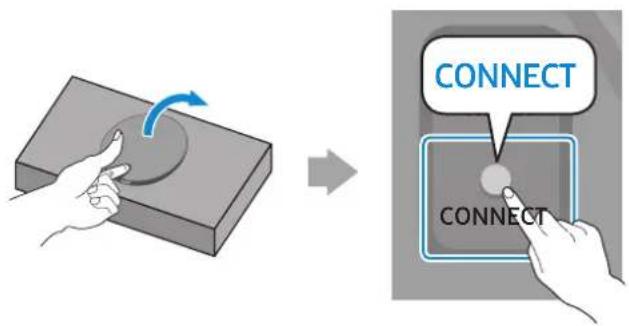
2 Pritisnite gumb CONNECT na dnu vrtljivega gumba za upravljanje.
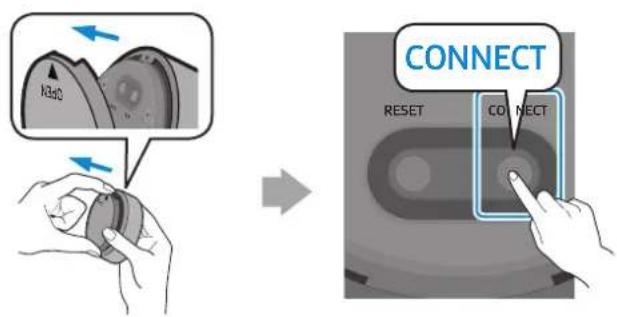
natural_image
Illustration of a gray rectangular device with blue signal waves, no text or symbols presentPovezovanje z vmesnikom Bluetooth
2 Prenesite aplikacijo SmartThings v mobilno napravo in jo zaženite.
flowchart
graph TD
    A["Base Station 1"] --> B["Central Hub"]
    C["Base Station 2"] --> B
    B --> D["Output Line"]
    style B fill:#f9f,stroke:#333,stroke-width:2px
    note right of B: Blue dashed oval labeled 'Line Segment 1'
2 V aplikaciji SmartThings izberite Audio Group.
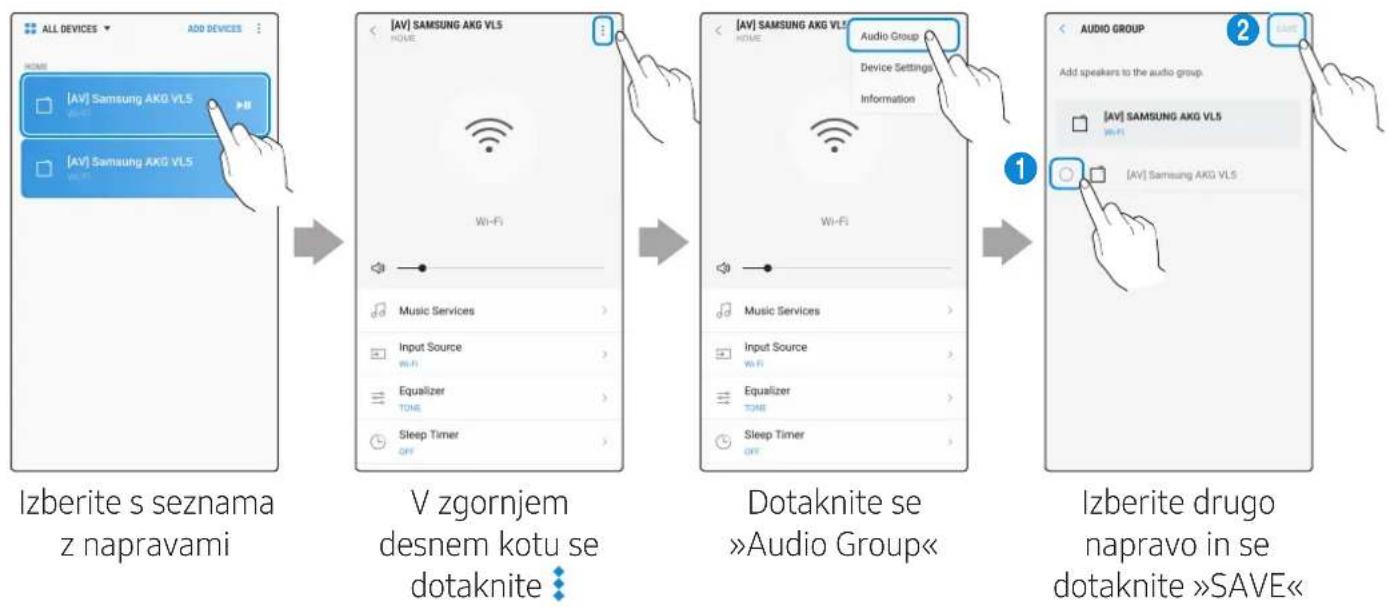
Uporaba 2 enot - Stereo (Za model VL350 / VL351)
2 V aplikaciji SmartThings izberite Stereo.
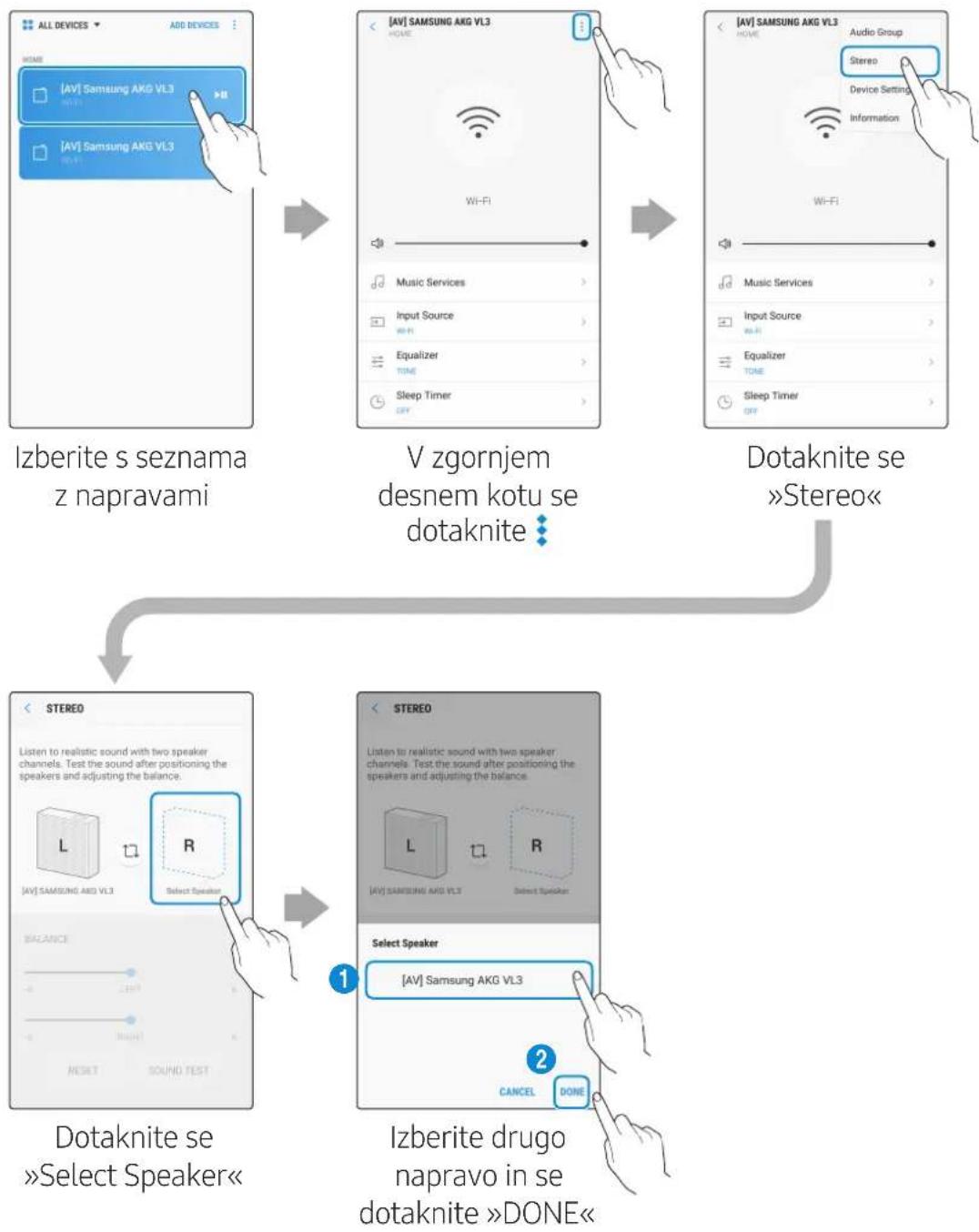
flowchart
graph TD
    A["All Devices"] --> B["Add Devices"]
    B --> C{Izberite s seznama z napravami}
    C --> D["V zgornjem desnem kotu se dotaknite"]
    D --> E["Dotaknite se »Stereo«"]
    E --> F["Select Speaker"]
    F --> G["Izberite drugo napravo in se dotaknite »DONE«"]

flowchart
graph LR
    A["Hand pointing at a molecular structure"] --> B["Add edit"]
    B --> C["Edit with [AV"] Samsung AKG VLS]
    C --> D["Edit with [AV"] Samsung AKG VLS]
    D --> E["Cancel SAVE Service name: [AV"] Samsung AKG VLS Location Shortout on dashboard Add shortcut to Home]
    E --> F["Cancel SAVE Device name: Living Room Location Shortout on dashboard Add shortcut to Home"]
flowchart
graph LR
    A["Aplikacija Amazon Alexa"] --> B["Home: New Playing"]
    B --> C["Things to Try: 'Alkasi, tell me a John'"]
    C --> D["I love you: Smart Home, Things to Try, Settings, Help & Feedback, etc."]
    D --> E["Timer set for 00:10"]
    E --> F["Search: 'All Skills', 'Search of skills'"]
    F --> G["Search: 'Samsung wireless audio', 'Samsung wireless audio', 'Samsung wireless audio', 'Samsung wireless audio'"]
    G --> H["Session: 'Selection', 'Session', 'Selection'"]
    H --> I["Sales: 'Sales, sales, sales, sales'"]
    I --> J["Sales: 'Sales, sales, sales, sales'"]
    J --> K["Sales: 'Sales, sales, sales, sales'"]
    K --> L["Sales: 'Sales, sales, sales, sales'"]
    L --> M["Sales: 'Sales, sales, sales, sales'"]
    M --> N["Sales: 'Sales, sales, sales, sales'"]
    N --> O["Sales: 'Sales, sales, sales, sales'"]
    O --> P["Sales: 'Sales, sales, sales, sales'"]
    P --> Q["Sales: 'Sales, sales, sales, sales'"]
    Q --> R["Sales: 'Sales, sales, sales, sales'"]
    R --> S["Sales: 'Sales, sales, sales, sales'"]
    S --> T["Sales: 'Sales, sales, sales, sales'"]
    T --> U["Sales: 'Sales, sales, sales, sales'"]
    U --> V["Sales: 'Sales, sales, sales, sales'"]
    V --> W["Sales: 'Sales, sales, sales, sales'"]
    W --> X["Sales: 'Sales, sales, sales, sales'"]
    X --> Y["Sales: 'Sales, sales, sales, sales'"]
    Y --> Z["Sales: 'Sales, sales, sales, sales'"]
    Z --> AA["Sales: 'Sales, sales, sales, sales'"]
    AA --> AB["Sales: 'Sales, sales, sales, sales'"]
    AB --> AC["Sales: 'Sales, sales, sales, sales'"]
    AC --> AD["Sales: 'Sales, sales, sales, sales'"]
    AD --> AE["Sales: 'Sales, sales, sales, sales'"]
    AE --> AF["Sales: 'Sales, sales, sales, sales'"]
    AF --> AG["Sales: 'Sales, sales, sales, sales'"]
    AG --> AH["Sales: 'Sales, sales, sales, sales'"]
    AH --> AI["Sales: 'Sales, sales, sales, sales'"]
    AI --> AJ["Sales: 'Sales, sales, sales, sales'"]
    AJ --> AK["Sales: 'Sales, sales, sales, sales'"]
    AK --> AL["Sales: 'Sales, sales, sales, sales'"]
    AL --> AM["Sales: 'Sales, sales, sales, sales'"]
    AM --> AN["Sales: 'Sales, sales, sales, sales'"]
    AN --> AO["Sales: 'Sales, sales, sales, sales'"]
    AO --> AP["Sales: 'Sales, sales, sales, sales'"]
    AP --> AQ["Sales: 'Sales, sales, sales, sales'"]
    AQ --> AR["Sales: 'Sales, sales, sales, sales'"]
    AR --> AS["Sales: 'Sales, sales, sales, sales'"]
    AS --> AT["Sales: 'Sales, sales, sales, sales'"]
    AT --> AU["Sales: 'Sales, sales, sales, sales'"]
    AU --> AV["Sales: 'Sales, sales, sales, sales'"]
    AV --> AW["Sales: 'Sales, sales, sales, sales'"]
    AW --> AX["Sales: 'Sales, sales, sales, sales'"]
    AX --> AY["Sales: 'Sales, sales, sales, sales'"]
    AY --> AZ["Sales: 'Sales, sales, sales, sales'"]
    AZ --> BA["Sales: 'Sales, sales, sales, sales'"]
    BA --> BB["Sales: 'Sales, sales, sales, sales'"]
    BB --> BC["Sales: 'Sales, sales, sales, sales'"]
    BC --> BD["Sales: 'Sales, sales, sales, sales'"]
    BD --> BE["Sales: 'Sales, sales, sales, sales'"]
    BE --> BF["Sales: 'Sales, sales, sales, sales'"]
    BF --> BG["Sales: 'Sales, sales, sales, sales'"]
    BG --> BH["Sales: 'Sales, sales, sales, sales'"]
    BH --> BI["Sales: 'Sales, sales, sales, sales'"]
    BI --> BJ["Sales: 'Sales, Sales, sales, sales'"]
    BJ --> BK["Sales: 'Sales, Sales, sales, sales'"]
    BK --> BL["Sales: 'Sales, Sales, sales, sales'"]
    BL --> BM["Sales: 'Sales, Sales, sales, sales'"]
    BM --> BN["Sales: 'Sales, Sales, sales, sales'"]
    BN --> BO["Sales: 'Sales, Sales, sales, sales'"]
    BO --> BP["Sales: 'Sales, Sales, sales, sales'"]
    BP --> BQ["Sales: 'Sales, Sales, sales, sales'"]
    BQ --> BR["Sales: 'Sales, Sales, sales, sales'"]
    BR --> BS["Sales: 'Sales, Sales, sales, sales'"]
    BS --> BT["Sales: 'Sales, Sales, sales, sales'"]
    BT --> BU["Sales: 'Sales, Sales, sales, sales'"]
    BU --> BV["Sales: 'Sales, Sales, sales, sales'"]
    BV --> BW["Sales: 'Sales, Sales, sales, sales'"]
    BW --> BX["Sales: 'Sales, Sales, sales, sales'"]
    BX --> BY["Sales: 'Sales, Sales, sales', "Selection""]
3 V aplikaciji Alexa pritisnite Smart Home → Devices → DISCOVER, da dokončate povezovanje.
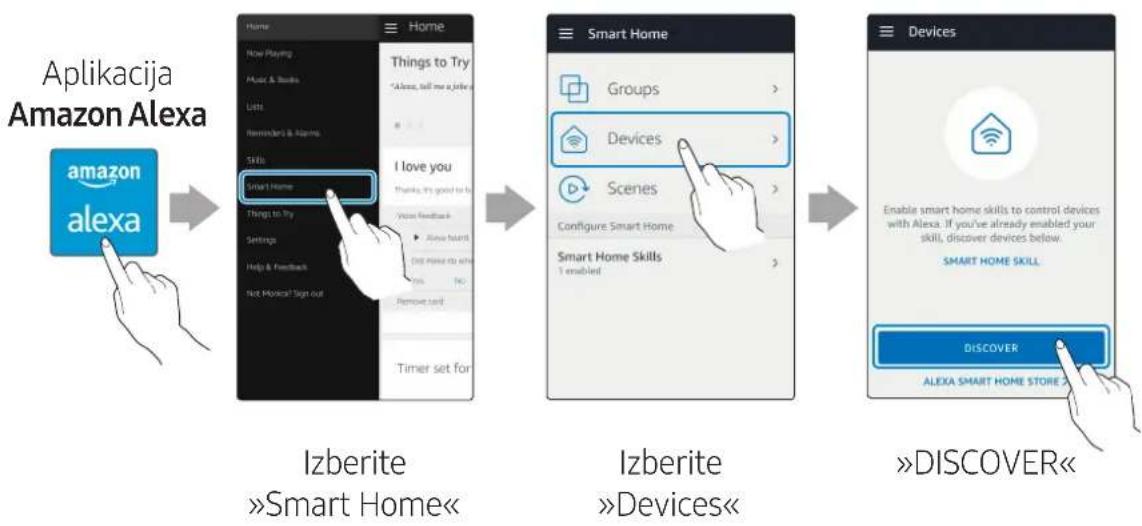
flowchart
graph LR
    A["Aplikacija Amazon Alexa"] --> B["Home: Amazon alexa"]
    B --> C["Items: New Playing, Music & Books, Lists, Reminders & Names, Skills, Smart Home"]
    C --> D["Items: Things to Try, You're a job, etc."]
    D --> E["Items: I love you, Thanks, It's good to be, Your Feedback, Have heard!"]
    E --> F["Items: Do You do so, Yes, No, Remove card"]
    F --> G["Items: Timer set for Smart Home"]
    G --> H["Items: Smart Home Skills"]
    H --> I["Items: Groups"]
    H --> J["Items: Devices"]
    H --> K["Items: Scenes"]
    H --> L["Items: Configure Smart Home"]
    H --> M["Items: Smart Home Skills"]
    M --> N["Items: I enabled"]
    N --> O["Items: Smart Home Skills"]
    O --> P["Items: Devices"]
    P --> Q["Items: Enable smart home skills to control devices with Alexa. If you've already enabled your skill, discover devices below."]
    Q --> R["Items: SMART HOME SKILL"]
    R --> S["Items: Discover"]
    S --> T["Items: ALEXA SMART HOME STORE 2"]
4 Dva Vijaka nosilca pritrdite v luknjo nosilca na zadnji strani glavne enote.
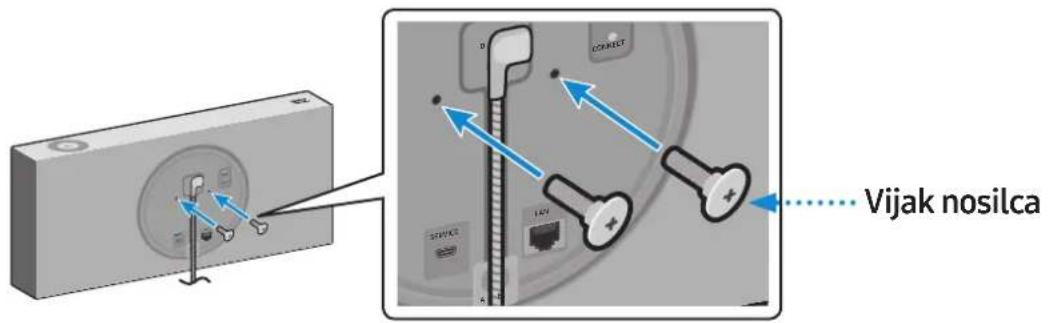
5 Poravnajte Vijak nosilca na glavni enoti, da se prilega velikemu utoru Stenskega nosilca. Potisnite ga v smeri puščice, da se zaskoči v majhen utor.
If you have any questions or comments relating to Samsung products, please contact the SAMSUNG customer care centre listed for your country.
| Country Contact Centre | ☎ | Web Site |
| ■ North America | ||
| U.S.A 1-800-SAMSUNG (726-7864) www.samsung.com/us/support | ||
| CANADA 1-800-SAMSUNG (726-7864) | www.samsung.com/ca/support (English)www.samsung.com/ca_fr/support (French) | |
| ■ Latin America | ||
| MEXICO 01-800-SAMSUNG (726-7864) www.samsung.com/mx/support | ||
| BRAZIL | 0800-124-421 (Demais cidades e regiões)4004-0000 (Capitais e grandes centros) | www.samsung.com/br/support |
| COSTA RICA 00-800-1-SAMSUNG (726-7864) | www.samsung.com/latin/support (Spanish)www.samsung.com/latin_en/support (English) | |
| DOMINICAN REPUBLIC | 1-809-200-7264 | |
| ECUADOR 1-800-SAMSUNG (72-6786) | ||
| EL SALVADOR 8000-SAMSUNG (726-7864) | ||
| GUATEMALA 1-800-299-0033 | ||
| HONDURAS 800-2791-9111 | ||
| JAMAICA | 1-800-SAMSUNG (726-7864) | www.samsung.com/latin_en/support (English) |
| NICARAGUA | 001-800-5077267 | www.samsung.com/latin/support (Spanish)www.samsung.com/latin_en/support (English) |
| PANAMA | 800-0101 | |
| PUERTO RICO | 1-800-682-3180 | |
| TRINIDAD & TOBAGO | 1-800-SAMSUNG (726-7864) | |
| VENEZUELA | 0-800-SAMSUNG (726-7864) | |
| COLOMBIA | Bogotá en el 600 12 72Sin costo en todo el país 01 8000 112 112Y desde tu celular #726 | www.samsung.com/co/support |
| CHILE | 800-SAMSUNG (726-7864) | www.samsung.com/cl/support |
| BOLIVIA | 800-10-7260 | |
| PERU | 080077708 Desde teléfonos fijos, públicos o celulares | www.samsung.com/pe/support |
| ARGENTINA | 0800-555-SAMS (7267) | www.samsung.com/ar |
| URUGUAY 0800-SAMS (7267) | www.samsung.com/uy | |
| PARAGUAY | 0800-11-SAMS(7267) | www.samsung.com/py |
| ■ Europe | ||
| UK | 0330 SAMSUNG (7267864) | www.samsung.com/uk/support |
| IRELAND (EIRE) | 0818 717100 | www.samsung.com/ie/support |
| GERMANY | 06196 77 555 77 | www.samsung.com/de/support |
| FRANCE | 01 48 63 00 00 | www.samsung.com/fr/support |
| ITALIA | 800-SAMSUNG (800.7267864) | www.samsung.com/it/support |
| SPAIN | 0034902172678 | www.samsung.com/es/support |
| PORTUGAL | 808 207 267 | www.samsung.com/pt/support |
| LUXEMBURG | 261 03 710 | www.samsung.com/be_fr/support |
| NETHERLANDS | 088 90 90 100 | www.samsung.com/nl/support |
| BELGIUM | 02-201-24-18 | www.samsung.com/be/support (Dutch)www.samsung.com/be_fr/support (French) |
| Country Contact Centre | Web Site | |
| NORWAY 815 5648 | 0 www.samsung.com/no/support | |
| DENMARK 707 019 | 70 www.samsung.com/dk/support | |
| FINLAND 030-6227 | 515 www.samsung.com/fi /support | |
| SWEDEN 0771 726 | 786 www.samsung.com/se/support | |
| POLAND | 801-172-678* lub +48 22 607-93-33**(koszt połączenia według taryfy operatora) | http://www.samsung.com/pl/support/ |
| HUNGARY 0680SA | MSUNG (0680-726-7864) www.samsung.com/hu/support | |
| AUSTRIA | 0800-SAMSUNG (0800-7267864)[Only for Dealers] 0810-112233 | www.samsung.com/at/support |
| SWITZERLAND | 0800 726 78 64 (0800-SAMSUNG) | www.samsung.com/ch/support (German)www.samsung.com/ch_fr/support (French) |
| CZECH | 800 - SAMSUNG (800-726786) | www.samsung.com/cz/support |
| SLOVAKIA | 0800 - SAMSUNG (0800-726 786) | www.samsung.com/sk/support |
| CROATIA | 072 726 786 | www.samsung.com/hr/support |
| BOSNIA | 055 233 999 | www.samsung.com/support |
| MONTENEGRO | 020 405 888 | |
| SLOVENIA | 080 697 267 (brezplačna številka) | www.samsung.com/si/support |
| SERBIA | 011 321 6899 | www.samsung.com/rs/support |
| ALBANIA | 045 620 202 | www.samsung.com/al/support |
| BULGARIA | *3000 Цена в мрежата0800 111 31, Безплатна телефонна линия | www.samsung.com/bg/support |
| ROMANIA | *8000 (apel in retea)08008-726-78-64 (08008-SAMSUNG)Apel GRATUIT | www.samsung.com/ro/support |
| CYPRUS | 8009 4000 only from landline, toll free | www.samsung.com/gr/support |
| GREECE | 80111-SAMSUNG (80111 726 7864) only from land line(+30) 210 6897691 from mobile and land line | |
| LITHUANIA | 8-800-77777 | www.samsung.com/lt/support |
| LATVIA | 8000-7267 | www.samsung.com/lv/support |
| ESTONIA | 800-7267 | www.samsung.com/ee/support |
| ■ CIS | ||
| RUSSIA | 8-800-555-55-55 (VIP care 8-800-555-55-88) | www.samsung.com/ru/support |
| BELARUS | 810-800-500-55-500 | www.samsung.com/support |
| GEORGIA | 0-800-555-555 | |
| ARMENIA | 0-800-05-555 | |
| AZERBAIJAN | 0-88-555-55-55 | |
| KAZAKHSTAN | 8-10-800-500-55-500(GSM: 7799, VIP care 7700) | www.samsung.com/kz_ru/support |
| UZBEKISTAN | 00-800-500-55-500 (GSM: 7799) | www.samsung.com/support |
| KYRGYZSTAN | 00-800-500-55-500 (GSM: 9977) | |
| TAJIKISTAN | 8-10-800-500-55-500 (GSM: 8888) | |
| MONGOLIA | 1800-25-55 | |
| UKRAINE | 0-800-502-000 | www.samsung.com/ua/support (Ukrainian)www.samsung.com/ua_ru/support (Russian) |
| MOLDOVA | 0-800-614-40 | www.samsung.com/support |
| ■ Asia Pacific | ||
| CHINA | 400-810-5858 | www.samsung.com/cn/support |
| HONG KONG | 3698 4698 | www.samsung.com/hk/support (Chinese)www.samsung.com/hk_en/support (English) |
| MACAU | 0800 333 | www.samsung.com/support |
| SINGAPORE | 1800 7267864 | 1800-SAMSUNG | www.samsung.com/sg/support |
| AUSTRALIA 1300 362 603 www.samsung.com/au/support | ||
| NEW ZEALAND | 0800 726 786 (All Product)0800 6 726 786 | www.samsung.com/nz/support |
| VIETNAM | 1800 588 889 | www.samsung.com/vn/support |
| THAILAND | 0-2689-32321800-29-3232 (Toll free) | www.samsung.com/th/support |
| MYANMAR | +95-1-2399-888 | www.samsung.com/mm/support |
| CAMBODIA | +855-23-9932321800-20-3232 (Toll free) | www.samsung.com/th/support |
| LAOS | +856-214-17333 | |
| MALAYSIA | 1800-88-9999+603-7713 7420 (Overseas contact) | www.samsung.com/my/support |
| INDONESIA | 021-5699-77770800-112-8888 (All Product, Toll Free) | www.samsung.com/id/support |
| PHILIPPINES | 1-800-10-726-7864 [ PLDT Toll Free ]1-800-8-726-7864 [ Globe Landline and Mobile ]02-422-2111 [ Standard Landline ] | www.samsung.com/ph/support |
| TAIWAN | 0800-329-999 | www.samsung.com/tw/support |
| INDIA | 1800 40 SAMSUNG (1800 40 7267864)(Toll-Free) | www.samsung.com/in/support |
| NEPAL | 16600172667 (Toll Free for NTC Only)9801572667 | |
| BANGLADESH | 0961230030008000300300 (Toll free) | |
| SRI LANKA | +9411SAMSUNG (+94117267864)+94117540540+94115900000 | |
| ■ Middle East | ||
| EGYPT | 08000-726786416580 | www.samsung.com/eg/support |
| IRAN | 021-8255 [CE] | www.samsung.com/iran/support |
| ISRAEL | *6963 | www.samsung.com/il/support/ |
| SAUDI ARABIA | (+966) 8002474357 (800 24/7 HELP) | www.samsung.com/sa/homewww.samsung.com/sa_en |
| PAKISTAN | 0800-Samsung (72678) | www.samsung.com/pk/support |
| U.A.E | 800-SAMSUNG (800 - 726 7864) | www.samsung.com/ae/support (English)www.samsung.com/ae_ar/support (Arabic) |
| OMAN | 800-SAM CS (800-72627) | |
| KUWAIT | 183-CALL (183-2255) | |
| BAHRAIN 8000-GSAM (8000-4726) | ||
| QATAR | 800-CALL (800-2255) | |
| TURKEY | 444 7711 | www.samsung.com/tr/support |
| JORDAN | 0800-2227306 5777444 | www.samsung.com/levant/support |
| SYRIA 962 5777444 | ||
| LEBANON 1299 | ||
| IRAQ 80010080 | ||
| ALGERIA 3004 | www.samsung.com/n_africa/supportTUNISIA 80100012 | |
| MOROCCO 080 100 22 55 | ||
| ■ Africa | ||
| SOUTH AFRICA 0860 SAMSUNG (726 7864) | www.samsung.com/support | |
| NAMIBIA 08197267864 | ||
| ZAMBIA 3434 | ||
| MAURITIUS 800 2550 | ||
| REUNION 0262 50 88 80 | ||
| ANGOLA 917 267 864 | ||
| ZIMBABWE 0808 0204 | ||
| MOZAMBIQUE 847267864 | ||
| NIGERIA | 0800-726-7864 | www.samsung.com/africa_en/support |
| GHANA | 0800-100-077 | |
| COTE D'IVOIRE | 8000-00-77 | www.samsung.com/africa_fr/support |
| SENEGAL 800-00-0077 | ||
| CAMEROON | 67095-0077 | |
| KENYA | 0800 545 545 | www.samsung.com/support |
| UGANDA | 0800 300 300 | |
| TANZANIA 0800 780 089 | ||
| RWANDA | 9999 | |
| BURUNDI 200 | ||
| DRC | 499999 | |
| SUDAN | 1969 | |
SAMSUNG

- Regulatory Compliance Statements
- WARNING
- CAUTION
- Safety precautions
- Power Supply Precautions
- Installation Precautions
- Usage Precautions
- Cleaning Precautions
- Contents
- Safety Information
- Getting Started
- Connecting to Bluetooth
- Connecting to Wi-Fi
- Connecting to an External Device
- Additional Functions
- Installing the Wall Mount
- Appendix
- Checking the Components
- Product Overview
- Top / Front / Right Side of the Speaker
- POWER (DC IN) Jack
- CONNECT Button
- LAN Jack Used to connect the speaker to the wired network.
- AUX IN Jack Connect it to the analogue output port on an external device.
- SERVICE Jack Used to update the speaker firmware by a service engineer.
- Using Dial Controller
- Top of the Dial Controller
- Bottom of the Dial Controller
- Connecting between the Dial Controller and Speaker
- \* Before use of the Dial Controller
- \* First time connection
- \* Reconnection
- Connecting an external device via the AUX cable
- Using mobile device voice recognition
- Dedicated functions in Bluetooth mode
- Using via Wi-Fi connection
- Functions upon Wi-Fi connection
- Using 2 units - Audio Group
- Using 2 units - Stereo (Dedicated for VL350 / VL351)
- Connecting with a Samsung Smart TV
- ■ Connecting 1 speaker to Samsung Smart TV 2018
- ■ Connecting 2 speakers to Samsung Smart TV 2018
- ■ Connecting 1 speaker to Samsung Smart TV 2017
- ■ Connecting 2 speakers to Samsung Smart TV 2017
- ■ Connecting 1 speaker to Samsung Smart TV 2016
- ■ Connecting 2 speakers to Samsung Smart TV 2016
- ■ Connecting 1 or 2 speakers to a 2015 Samsung Smart TV
- ■ Connecting 1 or 2 speakers to a 2014 Samsung Smart TV
- Connecting an Amazon product
- ■ Connect and use with an Amazon product (Amazon Echo)
- ■ Use voice commands to control the Speaker
- • Considerations for purchasing
- Wall-Mount Components
- \* Removing the Wall Mount
- Troubleshooting
- Open Source Licence Notice
- Licences
- Additional Information
- About the Network Connection
- Works with SmartThings™
- Copyright
- [Correct disposal of batteries in this product]
- (Applicable in countries with separate collection systems)
- Correct Disposal of This Product (Waste Electrical & Electronic Equipment)
- Приложение
- 1
- Povezivanje s Bluetooth vezom
- Dodatne funkcije
- Uporaba prepoznavanja glasa na mobilnom uređaju
- Posebne funkcije u načinu rada Bluetooth
- Odaberite Audio Group u aplikaciji SmartThings.
- Uporaba 2 jedinica - Stereo (odnosi se na modele VL350 / VL351)
- Odaberite Stereo u aplikaciji SmartThings.
- Povezivanje s televizorima Samsung Smart
- ■ Za upravljanje zvučnikom upotrijebite glasovne naredbe
- V aplikaci SmartThings vyberte funkci Audio Group.
- Řešení problémů
- Anhang
- Störungssuche
- Bluetooth-seadmega ühendamine
- Kasutades 2 seadet - Stereo (VL350 / VL351 puhul)
- Törkeotsing
- Annexe
- Σύνδεση Bluetooth
- Παράρτημα
- Függelék
- Hibaelhárítás
- Connessione al Bluetooth
- Appendice
- POWER (DC IN) jungtis
- Prijungimas naudojant „Bluetooth“
- Pasirinkite Audio Group programoje „SmartThings“.
- Naudojami 2 jrenginiai - Stereo (Skirta VL350 / VL351)
- Priedas
- Trikčių šalinimas
- Use SmartThings app to connect and enjoy two speakers as a Stereo.
- Załącznik
- Conectarea la Bluetooth
- Anexă
- Depanare
- ■ Upravljajte zvučnikom pomoću glasovnih komandi
- \* Uklanjanje zidnog nosača
- Dodatak
- Rešavanje problema
- Pripojenie k rozhraniu Bluetooth
- Vyberte možnost Audio Group v aplikácii SmartThings.
- Povezovanje z vmesnikom Bluetooth
- V aplikaciji SmartThings izberite Audio Group.
- Uporaba 2 enot - Stereo (Za model VL350 / VL351)
- SAMSUNG
Brand : SAMSUNG
Model : VL350
Category : Pregnant