
Level U Pro EOBN920 - Cellphone SAMSUNG - Free user manual and instructions
Find the device manual for free Level U Pro EOBN920 SAMSUNG in PDF.
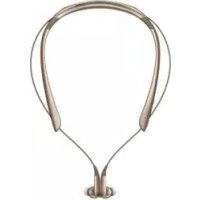



| Product Type | Bluetooth Wireless Neckband Headset |
| Brand | Samsung |
| Model | Level U Pro EOBN920 |
| Weight | Approx. 50 g |
| Dimensions (L x W x H) | Approx. 150 x 150 x 15 mm |
| Battery Type | Rechargeable Lithium-ion |
| Battery Capacity | 180 mAh (estimated) |
| Charging Time | Approx. 2 hours |
| Playback Time | Up to 10 hours (estimated) |
| Standby Time | Up to 300 hours (estimated) |
| Connectivity | Bluetooth |
| Bluetooth Version | Bluetooth 4.1 (estimated) |
| Bluetooth Range | Up to 10 meters |
| Supported Bluetooth Profiles | HFP, A2DP, AVRCP |
| Main Functions | Hands-free calls, music playback, S Voice, UHQ-BT, Sound with Me, vibration |
| Buttons | Power, Multifunction, Volume +/- |
| LED Indicator | Red, green, blue depending on status |
| Microphone | Built-in |
| Care and Cleaning | Wipe with a soft, dry cloth. Do not use chemicals. |
| Safety | Do not expose to water. Keep away from pacemakers. Use only Samsung approved accessories. |
| Spare Parts and Repairability | Battery replaceable only by an authorized service center. Accessories available from Samsung. |
| General Information | Samsung Level app compatible with Android 4.2.2+. CE certified. |
Frequently Asked Questions - Level U Pro EOBN920 SAMSUNG
User questions about Level U Pro EOBN920 SAMSUNG
0 question about this device. Answer the ones you know or ask your own.
Ask a new question about this device
Download the instructions for your Cellphone in PDF format for free! Find your manual Level U Pro EOBN920 - SAMSUNG and take your electronic device back in hand. On this page are published all the documents necessary for the use of your device. Level U Pro EOBN920 by SAMSUNG.
USER MANUAL Level U Pro EOBN920 SAMSUNG
Please read this manual before using the device to ensure safe and proper use.
- Images may differ in appearance from the actual product. Content is subject to change without prior notice.
- Before using the headset, make sure it is compatible with your device.
Instructional icons

Warning: situations that could cause injury to yourself or others

Caution: situations that could cause damage to your device or other equipment

Note: notes, usage tips, or additional information
Getting started
Package contents
Check the product box for the following items:
- Headset
- Quick start guide

- The items supplied with the device and any available accessories may vary depending on the region or service provider.
- The supplied items are designed only for this device and may not be compatible with other devices.
- Appearances and specifications are subject to change without prior notice.
- You can purchase additional accessories from your local Samsung retailer. Make sure they are compatible with the device before purchase.
- Use only Samsung-approved accessories. Using unapproved accessories may cause performance problems and malfunctions that are not covered by the warranty.
- Availability of all accessories is subject to change depending entirely on manufacturing companies. For more information about available accessories, refer to the Samsung website.
Device layout
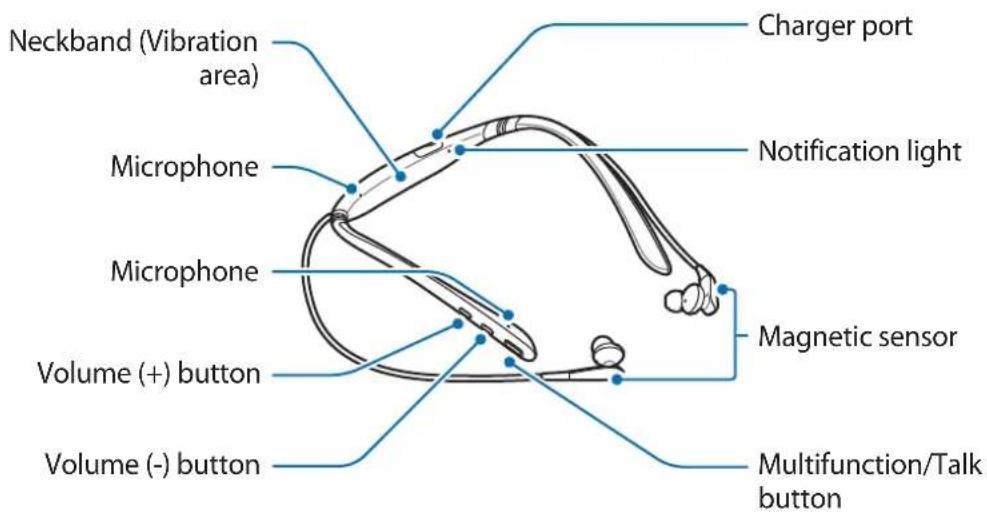
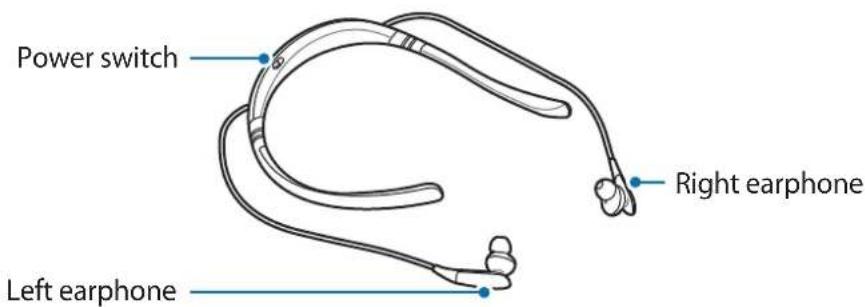
Buttons and functions
| Name Function | |
| Power switch | Slide to turn the headset on or off.Slide to the right and hold for approximately three seconds to enter Bluetooth pairing mode. |
| Multifunction/Talk button | Press to answer or end calls.Press to play or pause multimedia files.Press and hold for one second to reject a call or to launch S Voice. |
| Volume buttons | Press to adjust the volume during a call or media playback.Press and hold the Volume (-) button to skip to the next file during media playback.Press and hold the Volume (+) button to skip to the previous file during media playback.Press and hold the Volume buttons (+ and -) simultaneously for about a second to turn the vibration feature on or off. |
Charging the battery
Charge the battery before using the headset for the first time or when the headset has been unused for extended periods.

Use only Samsung-approved chargers and cables. Unapproved chargers or cables can cause the battery to explode or damage the headset.

If the battery is completely discharged, the headset cannot be turned on immediately when the charger is connected. Allow a depleted battery to charge for a few minutes before turning on the headset.
Open the charger port cover. Connect the headset to a computer or the USB power adaptor via the USB cable. Plug the USB power adaptor into an electric socket.
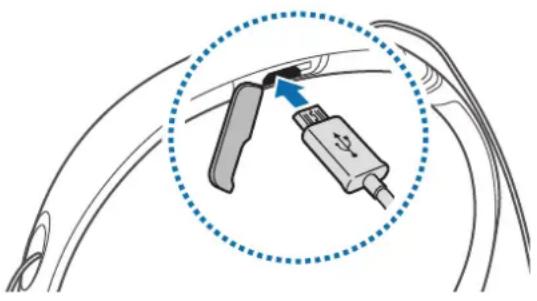

Connecting the charger improperly may cause serious damage to the headset. Any damage caused by misuse is not covered by the warranty.

- You can charge the headset using the charger (sold separately).
- The headset can be used while it is charging, but it may take longer to fully charge the battery.
- While charging, the headset may heat up. This is normal and should not affect the headset's lifespan or performance. If the battery gets hotter than usual, the charger may stop charging.
- If the headset is not charging properly, take the headset and the charger to a Samsung Service Centre.
After fully charging, first unplug the USB cable from the headset, and then unplug it from the computer or the electric socket.

- To save energy, unplug the charger when not in use. The charger does not have a power switch, so you must unplug the charger from the electric socket when not in use to avoid wasting power. The charger should remain close to the electric socket and easily accessible while charging.
- The socket-outlet shall be installed near the equipment and shall be easily accessible.
Turning the headset on and off
• Ⓞ:ON • ⏻ : OFF - ①: Bluetooth pairing mode

Follow all posted warnings and directions from authorised personnel in areas where the use of wireless devices is restricted, such as aeroplanes and hospitals.
Notification light identification
The notification light alerts you to the headset's status.
| Status Colour | |
| Power on | • Flashes blue three times |
| Bluetooth pairing mode | • Flashes red, green, and blue |
| Connected via Bluetooth | • Quickly flashes blue three times |
| Incoming call | • Flashes blue |
| Charging | • Continuously on red |
| Fully charged | • Continuously on green |
| During use or in sleep mode | • Off |

- If the notification light does not work as described, disconnect the charger from the headset and reconnect it.
- The notification light may work differently depending on the connected device.
Connecting via Bluetooth
Bluetooth
About Bluetooth
Bluetooth is a wireless technology standard that uses a 2.4 GHz frequency to connect to various devices over short distances. It can connect and exchange data with other Bluetooth enabled devices, such as mobile devices, computers, printers, and other digital home appliances, without connecting via cables.
Notices for using Bluetooth
- To avoid problems when connecting your headset to another device, place the devices close to each other.
- Ensure that your headset and the other Bluetooth device are within the Bluetooth connection range (10 m). The distance may vary depending on the environment the devices are used in.
- Ensure that there are no obstacles between the headset and a connected device, including human bodies, walls, corners, or fences.
- Do not touch the Bluetooth antenna of a connected device.
- Bluetooth uses the same frequency as some industrial, scientific, medical, and low power products and interference may occur when making connections near these types of products.
- Some devices, especially those that are not tested or approved by the Bluetooth SIG, may be incompatible with the headset.
- Do not use the Bluetooth feature for illegal purposes (for example, pirating copies of files or illegally tapping communications for commercial purposes).
Connecting to other devices
This headset is compatible with Bluetooth-enabled devices.
1 Headset Slide the Power switch to the right and hold it for approximately three seconds to enter Bluetooth pairing mode.
When you turn on the headset for the first time, it automatically enters Bluetooth pairing mode.
2 Other device Activate the Bluetooth feature and search for Bluetooth devices.
For more information, refer to the other device's user manual.
3 Other device Tap Samsung Level U Pro (0000) from the list.
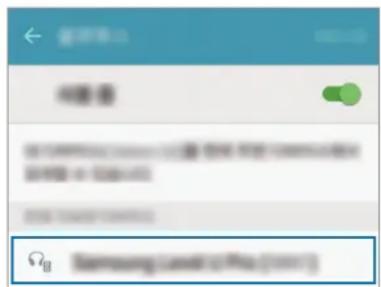
- The PIN for the headset is the four-digit number in parenthesis displayed on the other device's Bluetooth settings screen. The number differs depending on the headset.
- Once devices are paired, recently connected devices automatically connect to your headset whenever you turn it on.
- If the Bluetooth connection fails or other device cannot locate the headset, remove the device's information from the other device's list. Then, try to connect again.
- If the headset does not work properly, restart it or try to pair the devices again.
- The Bluetooth connection range and sound quality may vary depending on the connected devices.
Connecting additional devices
The headset can connect to up to two Bluetooth-enabled devices at the same time. When you connect the headset to two devices, the last device you connect is recognised as the primary device. The other device is recognised as the secondary device.
1 Connect the headset to a device via Bluetooth. 2 Slide the Power switch to the right and hold it for approximately three seconds to enter Bluetooth pairing mode. The first device will be disconnected. 3 Connect the headset to a second device. 4 Reconnect the headset to the first device.

This feature may not be supported on some devices.
Reconnecting or disconnecting the devices
Reconnecting the devices
If the Bluetooth connection ends due to the distance between the devices, bring the devices closer together within a certain period of time. The devices will automatically reconnect.
If the Bluetooth connection ends because of a device malfunction, access the Bluetooth menu on the connected device to pair them again.
Disconnecting the devices
Slide the Power switch to the right and hold it for approximately three seconds. Then, the connection ends and the headset enters Bluetooth pairing mode.
You can also end the connection by turning off the headset. When you turn on the headset again and the devices are in range, the headset automatically connects with the most recently paired device.

Noise may occur if the Bluetooth connection is disconnected improperly.
Using the headset
Wearing the headset

The headset contains magnets in its earbuds. The American Heart Association (US) and the Medicines and Healthcare Products Regulatory Agency (UK) both warn that magnets can affect the operation of implanted pacemakers, cardioverters, defibrillators, insulin pumps or other electro medical devices (collectively, “Medical Device”) within the range of 15 cm (6 inches). If you are a user of any of these Medical Devices, DO NOT USE THE HEADSET UNLESS YOU HAVE CONSULTED WITH YOUR PHYSICIAN.

- Do not store your headset near magnetic fields. Magnetic stripe cards, including credit cards, phone cards, passbooks, and boarding passes, may be damaged by magnetic fields.
- Do not bend or twist the headset excessively.
- Do not apply excessive pressure to the headset.
- Do not pull on any part of the headset excessively.
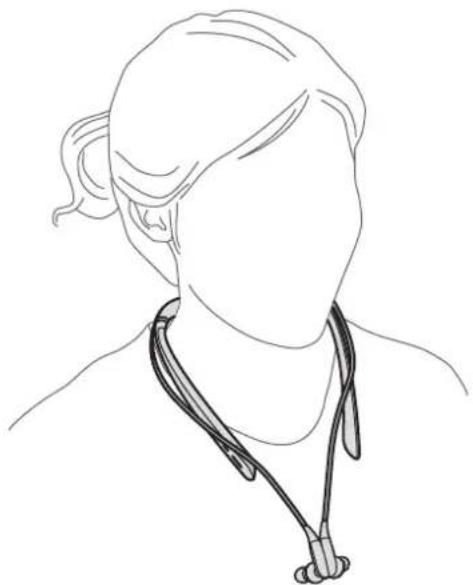
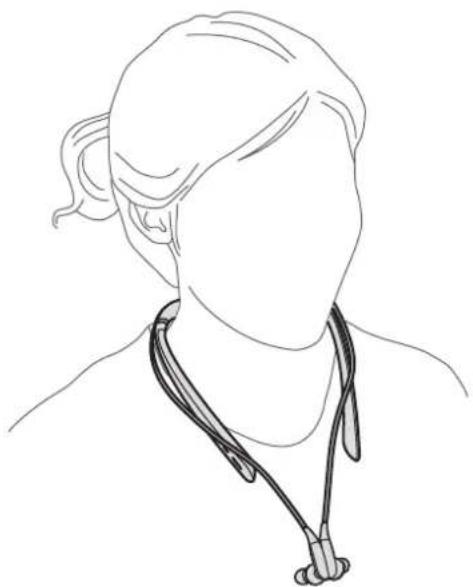
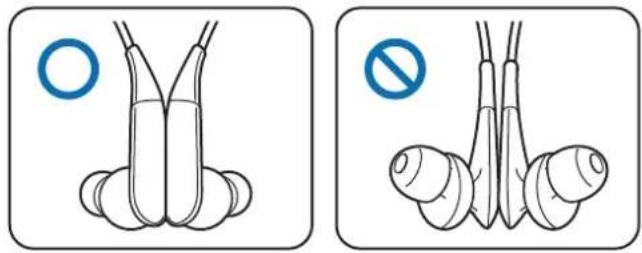
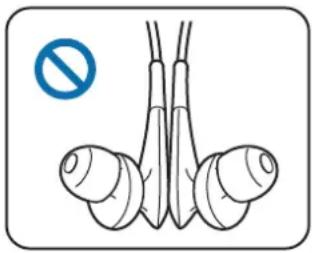
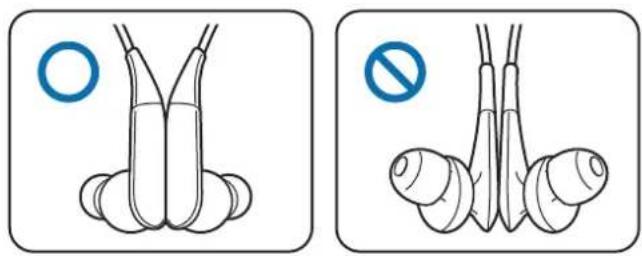
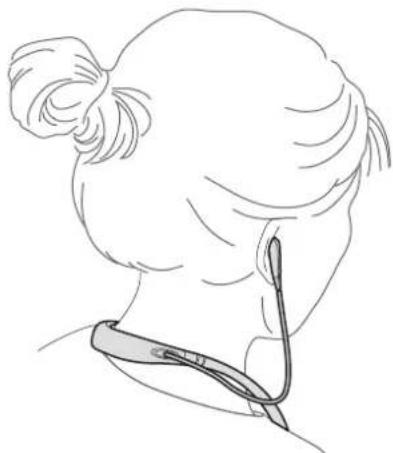
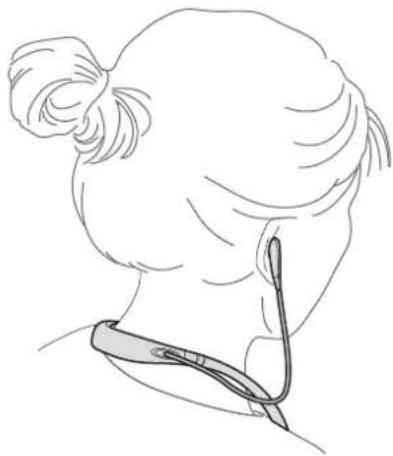
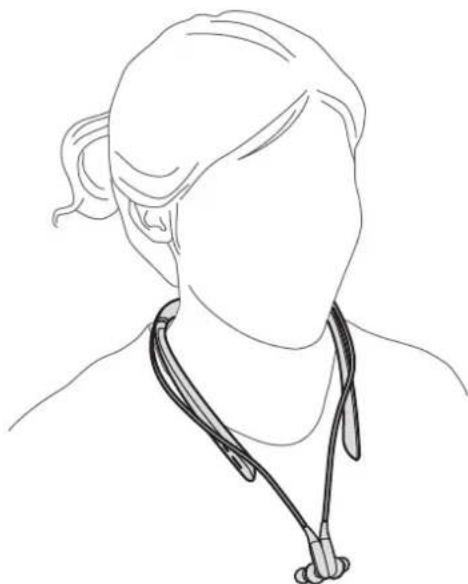
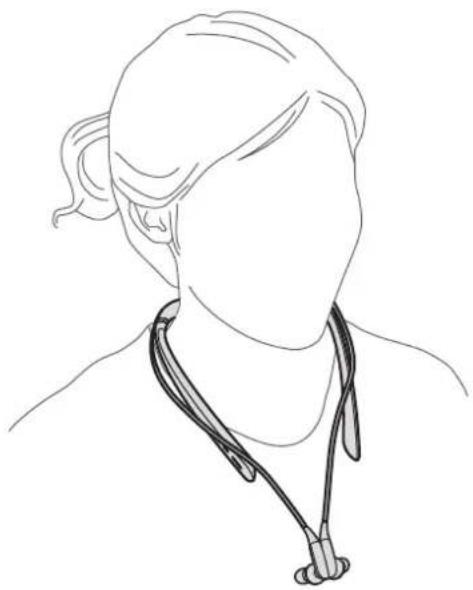
Wear the headset as shown in the image below.
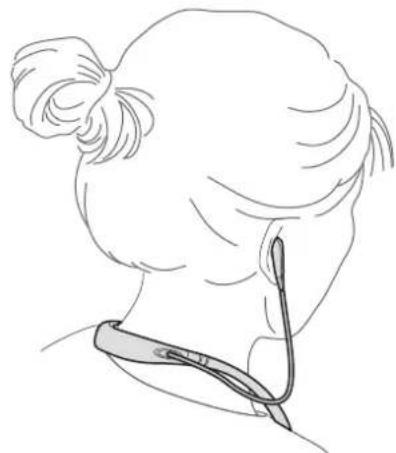
Wearing and connecting the headset
Wearing the headset
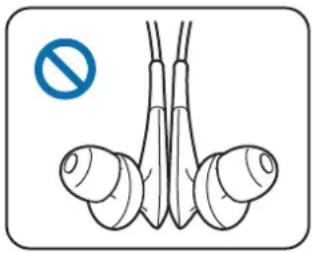
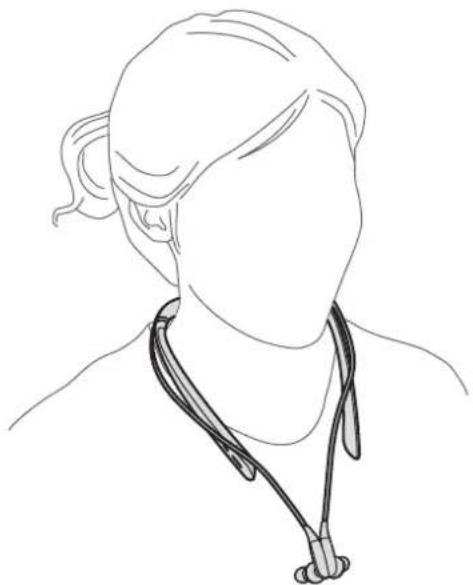
Insert the earphones into your ears or wear the headset around your neck while the earphones are not connected to each other.
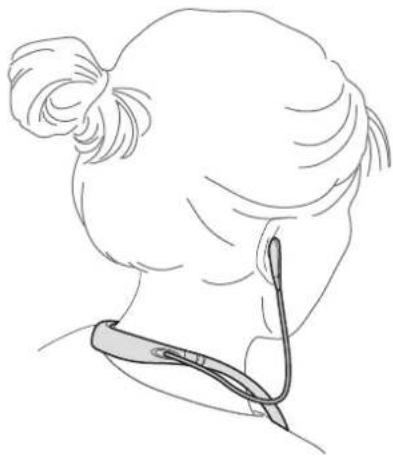
Connecting the earphones
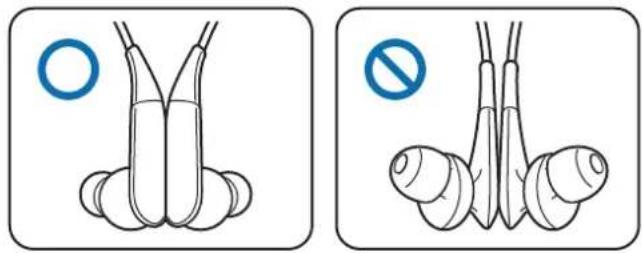
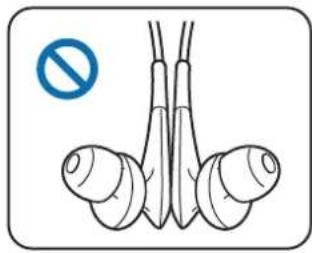
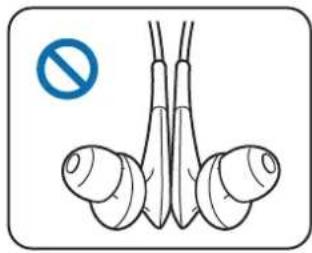
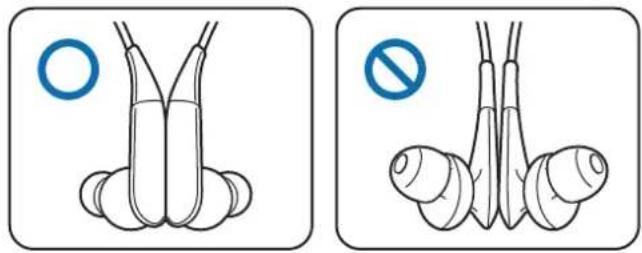
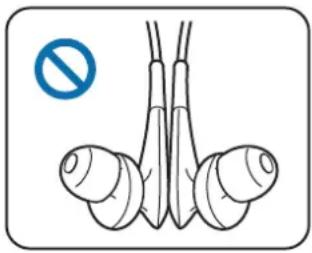
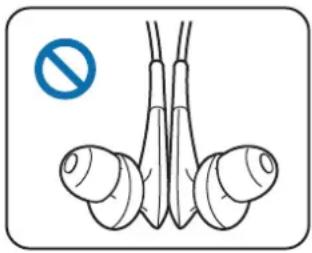
Connect the earphones to each other using the built-in magnets.

The magnetic sensor may not work properly if the earphones are not connected properly.
Using the headset
Various features are available when the headset is connected to another device.

The following descriptions are based on a Samsung mobile device running Android 5.0. Some features may not be available depending on the connected device.
Calling features
Answering a call
When a call comes in while you are wearing the headset, the headset will beep and vibrate. Press the Talk button to answer the call.
When a call comes in while the earphones are connected, the headset will vibrate. Separate the earphones and put them on your ears. When you separate the earphones, the call will be received.

- When the headset is connected to two devices and both devices receive calls simultaneously, you can only answer the primary device's call.
- When you play a multimedia file from one device, you can still answer calls from the other device.
Rejecting a call
Press and hold the Talk button for one second or connect the earphones.
Adjusting the volume
Press the Volume button.
Switching sound output
Use the connected device's call features to switch call audio between the headset and the device.
Ending a call
Press the Talk button or connect the earphones.
Playing multimedia files
Control media playback, such as music and videos, using the Multifunction button.
Playing and pausing a multimedia file
Press the Multifunction button. The most recently-played music file will play automatically in the default music app installed on the connected device.
During playback, press the Multifunction button to pause playback or connect the earphones. To resume playback, press the Multifunction button again.

When two connected devices are simultaneously playing multimedia files, the headset will stream from the device that started playing a file first. When you pause the currently-playing file, the file playing on the other device will play automatically.
Skipping to the next multimedia file
Press and hold the Volume (-) button to skip to the next file during playback.
Skipping to the previous multimedia file
Press and hold the Volume (+) button to skip to the previous file during playback.
Adjusting the volume
Press the Volume button.
Launching S Voice
Press and hold the Multifunction button for one second. S Voice will launch on the connected device.

This feature is available only with Samsung mobile devices supporting S Voice.
Using Samsung Level
On the connected device, download the Samsung Level app from Google Play Store or Galaxy Apps. With the app, you can check the remaining battery power and adjust the volume. You can also set the headset to notify you via voice notification or vibrate when you have notifications on the connected device. For more information, refer to the app's help menu.

The Samsung Level app is compatible with Samsung mobile devices running Android operating system 4.2.2 or later. Some features may differ or may not work on your headset depending on the connected device or the operating system.
Using the ultra high quality Bluetooth (UHQ-BT) feature
If a connected mobile device supports the ultra high quality Bluetooth (UHQ-BT) feature, you can listen to UHQ audio using the headset. Use the Samsung Level app on the connected mobile device to deactivate the UHQ-BT feature. For more information, refer to the Samsung Level app's help information.

- When you use the Bluetooth feature to listen to UHQ audio, the headset's battery efficiency and the maximum Bluetooth range (10 m) may be reduced.
- Visit www.samsung.com to view the product specifications for the connected mobile device to confirm that it supports the UHQ-BT feature.
Sharing audio via Sound with Me
Share audio that you are listening to on your headset with other headsets that support the Sound with Me feature.
Ensure that the headset that you want to share audio with is turned on.

- Your headset must be connected to a mobile device, such as a smartphone or tablet. If your headset is connected to more than one mobile device, you cannot share audio with other headsets.
- If the headsets are more than five metres apart while sharing audio, the signal quality may be poor.
- If the other headset is turned off during sharing, it will be disconnected from your headset. When you turn it on again, it will automatically reconnect to the mobile device that it was connected to before sharing audio.
- Visit www.samsung.com to view the product specifications for the other headset to confirm that it supports the Sound with Me feature.
Using the Power switch
To activate audio sharing, slide the power switch of the other headset to the right two times to enable it to be located. Then, slide the Power switch of your headset to the right once. The audio you are currently listening to will be shared with the other headset.
To deactivate audio sharing, slide your headset's Power switch to the right and hold it for about a second.
Using Samsung Level
On the connected mobile device, launch the Samsung Level app to share audio with other headsets.
For more information, refer to the app's help information.
Appendix
Troubleshooting
Before contacting a Samsung Service Centre, please attempt the following solutions.
Your headset does not turn on
When the battery is completely discharged, your headset will not turn on. Charge the battery completely before turning on the headset.
Your headset freezes
If the headset's audio experiences any problems, such as freezing or distorting, try to resolve it by turning off the headset and then turning it on again.
If the headset is still unresponsive, end the Bluetooth connection and reconnect it. To do this, slide the Power switch to the right and hold it for approximately three seconds to enter Bluetooth pairing mode. When the headset enters Bluetooth pairing mode, connect the devices again, and then check the operation of the headset.
If the problem is still not resolved, contact a Samsung Service Centre.
The battery does not charge properly (For Samsung-approved chargers)
Ensure that the charger is connected properly.
If the problem is still not resolved, contact a Samsung Service Centre.
Another Bluetooth device cannot locate your headset
- Ensure that your headset is in Bluetooth pairing mode.
- Restart your headset and search for the headset again.
- Ensure that your headset and the other Bluetooth device are within the Bluetooth connection range (10 m).
If the tips above do not solve the problem, contact a Samsung Service Centre.
Your headset cannot connect to another Bluetooth device
Ensure that your headset and the other Bluetooth device are within the maximum Bluetooth range (10 m).
Bluetooth connection is often disconnected
- If there are obstacles between the devices, the operating distance may be reduced.
- Ensure that your headset and the other Bluetooth device are within the maximum Bluetooth range (10 m).
- When using the headset with other Bluetooth devices, the connection may be affected by electromagnetic waves. Use the headset in environments with fewer wireless devices present.
You cannot hear others speaking
- Adjust the device volume.
- Adjust the volume on the connected device when you cannot hear sounds on your headset at full volume.
Sound echoes during a call
Adjust the volume by pressing the Volume button or move to another area.
Others cannot hear you speaking on a call
- Ensure that you are not covering the built-in microphone.
- Ensure that the microphone is close to your mouth.
Audio quality is poor
- Wireless network services may be disabled due to issues with the service provider's network. Ensure to keep the headset away from electromagnetic waves.
- Ensure that your headset and the other Bluetooth device are within the maximum Bluetooth range (10 m).
- You may experience drops in volume or noise depending on the connected device's volume. To avoid this, appropriately adjust the connected device's sound.
The headset works differently as described in the manual
• Available functions may differ depending on the connected device. - Some features cannot be used when two devices are connected with the headset at the same time.
The battery depletes faster than when first purchased
- When you expose the headset or the battery to very cold or very hot temperatures, the useful charge may be reduced.
- The battery is consumable and the useful charge will get shorter over time.
Removing the battery
- To remove the battery, you must visit an authorised service centre with the provided instructions.
- For your safety, you must not attempt to remove the battery. If the battery is not properly removed, it may lead to damage to the battery and device, cause personal injury, and/or result in the device being unsafe.
- Samsung does not accept liability for any damage or loss (whether in contract or tort, including negligence) which may arise from failure to precisely follow these warnings and instructions, other than death or personal injury caused by Samsung's negligence.
1 Remove the rubber cover from the left side of the neckband by pulling it from the end of the left neckband. Then, remove the left neckband.
2 Separate the earphone cable from the neckband cover.
3 Remove the neckband cover.
4 Disconnect the battery connector.
5 Lift the battery and cut the cables.
6 Remove the battery.
Declaration of Conformity
Product details
For the following
Product: Bluetooth Stereo Headset
Model(s): EO-BN920

Declaration & Applicable Standards
We hereby declare that the product above is in compliance with the essential requirements of the R&TTE Directive (1999/5/EC) by application of:
SAFETY EN 60950-1:2006+A11:2009+A1:2010+A12:2011+A2:2013
SAR EN 62479:2010
EMC EN 301 489-1 V1.9.2 (09-2011)
and the Directive (2011/65/EU) on the restriction of the use of certain hazardous substances in electrical and electronic equipment by application of EN 50581:2012.
Representative in the EU
Samsung Electronics Euro QA Lab.
Blackbushe Business Park
Saxony Way, Yateley, Hampshire
GU46 6GG, UK
2015.09.14 Stephen Colclough / EU Representative
(Place and date of issue) (Name and signature of authorised person)
* This is not the address of Samsung Service Centre. For the address or the phone number of Samsung Service Centre, see the warranty card or contact the retailer where you purchased your product.
Copyright
Copyright © 2015 Samsung Electronics
This manual is protected under international copyright laws.
No part of this manual may be reproduced, distributed, translated, or transmitted in any form or by any means, electronic or mechanical, including photocopying, recording, or storing in any information storage and retrieval system, without the prior written permission of Samsung Electronics.
Trademarks
• SAMSUNG and the SAMSUNG logo are registered trademarks of Samsung Electronics. - Bluetooth is a registered trademark of Bluetooth SIG, Inc. worldwide. • All other trademarks and copyrights are the property of their respective owners.

Attach the earphones

Using the headset
Blackbushe Business Park
Saxony Way, Yateley, Hampshire
GU46 6GG, UK

Copyright © 2015 Samsung Electronics


Using the headset
Blackbushe Business Park
Saxony Way, Yateley, Hampshire
GU46 6GG, UK
Copyright © 2015 Samsung Electronics


Blackbushe Business Park
Saxony Way, Yateley, Hampshire
GU46 6GG, UK
2015.09.14 Stephen Colclough / EU Representative

Copyright © 2015 Samsung Electronics


Blackbushe Business Park
Saxony Way, Yateley, Hampshire
GU46 6GG, UK
2015.09.14 Stephen Colclough / EU Representative

Copyright © 2015 Samsung Electronics


Blackbushe Business Park
Saxony Way, Yateley, Hampshire
GU46 6GG, UK
Copyright © 2015 Samsung Electronics


Blackbushe Business Park
Saxony Way, Yateley, Hampshire
GU46 6GG, UK
Copyright © 2015 Samsung Electronics

Connecting the earphones

Using the headset
Blackbushe Business Park
Saxony Way, Yateley, Hampshire
GU46 6GG, UK
2015.09.14 Stephen Colclough / EU Representative


Blackbushe Business Park
Saxony Way, Yateley, Hampshire
GU46 6GG, UK
2015.09.14 Stephen Colclough / EC Representative

Copyright © 2015 Samsung Electronics

Improperly connecting the charger may cause serious damage to the device. Damage caused by mishandling is not covered by the warranty.

- You can charge the device using the charger (sold separately).
- The device can be used while charging, but fully charging the battery may take longer.
- During charging, the device may heat up. This is normal and should not affect the lifespan or performance of the device. If the battery gets hotter than usual, the charger may stop charging.
- If the device does not charge properly, take the device and charger to a Samsung service center.
After fully charging, disconnect the USB cable from the device, then unplug it from the computer or electrical outlet.

Connecting the device

Using the device
3 Remove the band cover.
Blackbushe Business Park
Saxony Way, Yateley, Hampshire
GU46 6GG, UK
SHoldough
2015.09.14 Stephen Colclough / EU Representative
Copyright © 2015 Samsung Electronics

Incorrect connection of the charger may cause serious damage to the headphones. Any damage caused by improper use is not covered by the warranty.


Connecting the headphones
Connect the headphones to each other using the built-in magnets.

Blackbushe Business Park
Saxony Way, Yateley, Hampshire
GU46 6GG, UK
2015.09.14 Stephen Colclough / EU Representative
(place and date of issue) (name and signature of authorized person)
* This is not the address of a Samsung service center. For the address or phone number of a Samsung service center, refer to the warranty card or contact the retailer where you purchased the product.
Copyright
Copyright © 2015 Samsung Electronics
This manual is protected by international copyright laws.
No part of this manual may be reproduced, distributed, translated, or transmitted in any form or by any means, electronic or mechanical, including photocopying, recording, and storage in any information storage and retrieval system, without the prior written permission of Samsung Electronics.
Trademarks
- SAMSUNG and the SAMSUNG logo are registered trademarks of Samsung Electronics.
- Bluetooth® is a registered trademark of Bluetooth SIG, Inc. worldwide.
- All other trademarks and copyrights are the property of their respective owners.
Read first

Using and connecting the earphones
Using the earphones
Connecting the earphones

Using the earphones
Blackbushe Business Park
Saxony Way, Yateley, Hampshire
GU46 6GG, UK
2015.09.14 Stephen Colclough / EU Representative

Copyright © 2015 Samsung Electronics
This manual is protected by international copyright laws.

Connecting the headphones

Using the headphones
Blackbushe Business Park
Saxony Way, Yateley, Hampshire
GU46 6GG, UK

Connecting the headphones

Using the headphones
Blackbushe Business Park
Saxony Way, Yateley, Hampshire
GU46 6GG, UK
2015.09.14 Stephen Colclough / ES representative


Using the headphones
Blackbushe Business Park
Saxony Way, Yateley, Hampshire
GU46 6GG, UK
2015.09.14 Stephen Colclough / EU Representative

Copyright © 2015 Samsung Electronics
- Headset
- Quick Start Guide


Wearing and connecting the headset
Wearing the headset
Connecting the earbuds

Sharing audio with Sound with Me
Blackbushe Business Park
Saxony Way, Yateley, Hampshire
GU46 6GG, UK

2015.09.14 Stephen Colclough / EU Representative
Copyright © 2015 Samsung Electronics

Connecting the headphones

Using the headset
Share audio via Sound with Me
Blackbushe Business Park
Saxony Way, Yateley, Hampshire
GU46 6GG, UK
2015.09.14 Stephen Colclough / EU representative

Copyright © 2015 Samsung Electronics

If you connect the charger incorrectly, this can cause serious damage to the headset. Damage caused by incorrect use is not covered by the warranty.


The magnetic sensor may not work correctly if the earphones are not connected properly.
Using the headset
Share audio via Sound with Me
Blackbushe Business Park
Saxony Way, Yateley, Hampshire
GU46 6GG, UK
2015.09.14 Stephen Colclough / EU representative
Copyright © 2015 Samsung Electronics


Blackbushe Business Park
Saxony Way, Yateley, Hampshire
GU46 6GG, UK
Copyright © 2015 Samsung Electronics


Wearing the headset
Share sound via Sound with Me
Blackbushe Business Park
Saxony Way, Yateley, Hampshire
GU46 6GG, UK


Blackbushe Business Park
Saxony Way, Yateley, Hampshire
GU46 6GG, UK

Wearing and connecting the headset
Wearing the headset
Connecting the earphones

The magnetic sensor on the earphones will not work if the earphones are not properly connected.
Using the earphones
When the earphones are connected to another device, various functions are available.

Blackbushe Business Park
Saxony Way, Yateley, Hampshire
GU46 6GG, UK

Connecting the earphones

Blackbushe Business Park
Saxony Way, Yateley, Hampshire
GU46 6GG, UK
2015.09.14 Stephen Colclough / EU Representative
Copyright © 2015 Samsung Electronics


Copyright © 2015 Samsung Electronics
Connecting the earphones
Using the headset
Wearing and connecting the headset
Wearing the headset
Connecting the earphones
Using the headset
Copyright © 2015 Samsung Electronics


Blackbushe Business Park
Saxony Way, Yateley, Hampshire
GU46 6GG, UK
© Samsung Electronics, 2015.


Blackbushe Business Park
Saxony Way, Yateley, Hampshire
GU46 6GG, UK
© Samsung Electronics, 2015

Connecting the headset

Using the headset
Blackbushe Business Park
Saxony Way, Yateley, Hampshire
GU46 6GG, UK
2015.09.14 Stephen Colclough / EO representative
Copyright © 2015 Samsung Electronics
Please read this manual before using the device to ensure safe and proper use.
- Images may differ in appearance from the actual product. Content is subject to change without prior notice.
- Before using the headset, make sure it is compatible with your device.
Instructional icons

Warning: situations that could cause injury to yourself or others

Caution: situations that could cause damage to your device or other equipment

Note: notes, usage tips, or additional information
Getting started
Package contents
Check the product box for the following items:
- Headset
- Quick start guide

- The items supplied with the device and any available accessories may vary depending on the region or service provider.
- The supplied items are designed only for this device and may not be compatible with other devices.
- Appearances and specifications are subject to change without prior notice.
- You can purchase additional accessories from your local Samsung retailer. Make sure they are compatible with the device before purchase.
- Use only Samsung-approved accessories. Using unapproved accessories may cause performance problems and malfunctions that are not covered by the warranty.
- Availability of all accessories is subject to change depending entirely on manufacturing companies. For more information about available accessories, refer to the Samsung website.
Device layout
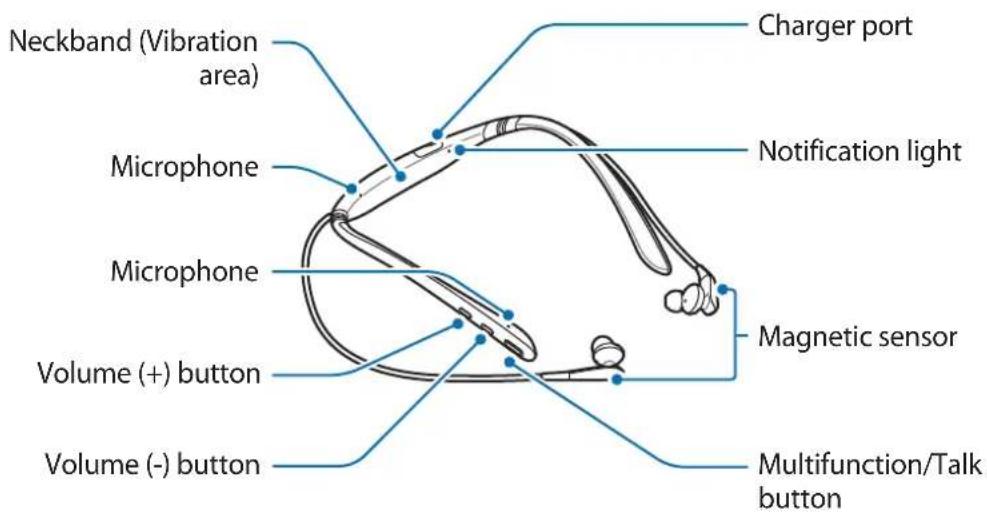
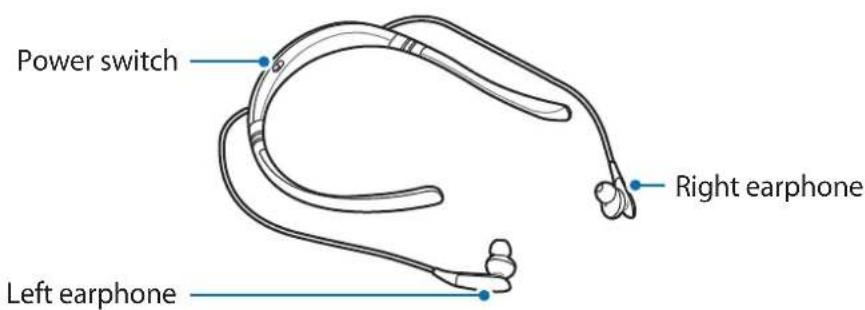
Buttons and functions
| Name Function | |
| Power switch | Slide to turn the headset on or off.Slide to the right and hold for approximately three seconds to enter Bluetooth pairing mode. |
| Multifunction/Talk button | Press to answer or end calls.Press to play or pause multimedia files.Press and hold for one second to reject a call or to launch S Voice. |
| Volume buttons | Press to adjust the volume during a call or media playback.Press and hold the Volume (-) button to skip to the next file during media playback.Press and hold the Volume (+) button to skip to the previous file during media playback.Press and hold the Volume buttons (+ and -) simultaneously for about a second to turn the vibration feature on or off. |
Charging the battery
Charge the battery before using the headset for the first time or when the headset has been unused for extended periods.

Use only Samsung-approved chargers and cables. Unapproved chargers or cables can cause the battery to explode or damage the headset.

If the battery is completely discharged, the headset cannot be turned on immediately when the charger is connected. Allow a depleted battery to charge for a few minutes before turning on the headset.
Open the charger port cover. Connect the headset to a computer or the USB power adaptor via the USB cable. Plug the USB power adaptor into an electric socket.
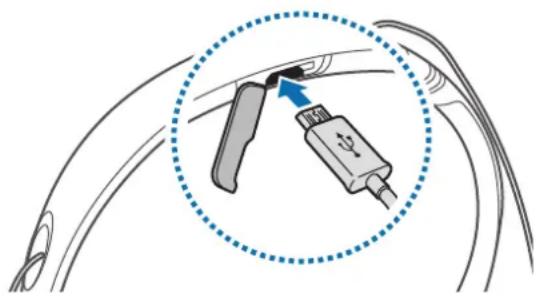

Connecting the charger improperly may cause serious damage to the headset. Any damage caused by misuse is not covered by the warranty.

- You can charge the headset using the charger (sold separately).
- The headset can be used while it is charging, but it may take longer to fully charge the battery.
- While charging, the headset may heat up. This is normal and should not affect the headset's lifespan or performance. If the battery gets hotter than usual, the charger may stop charging.
- If the headset is not charging properly, take the headset and the charger to a Samsung Service Center.
After fully charging, first unplug the USB cable from the headset, and then unplug it from the computer or the electric socket.

To save energy, unplug the charger when not in use. The charger does not have a power switch, so you must unplug the charger from the electric socket when not in use to avoid wasting power. The charger should remain close to the electric socket and easily accessible while charging.
Turning the headset on and off
• ON • ⏻ : OFF
- ①: Bluetooth pairing mode

Follow all posted warnings and directions from authorized personnel in areas where the use of wireless devices is restricted, such as airplanes and hospitals.
Notification light identification
The notification light alerts you to the headset's status.
| Status Color | |
| Power on | • Flashes blue three times |
| Bluetooth pairing mode | • Flashes red, green, and blue |
| Connected via Bluetooth | • Quickly flashes blue three times |
| Incoming call | • Flashes blue |
| Charging | • Continuously on red |
| Fully charged | • Continuously on green |
| During use or in sleep mode | • Off |

- If the notification light does not work as described, disconnect the charger from the headset and reconnect it.
- The notification light may work differently depending on the connected device.
Connecting via Bluetooth
Bluetooth
About Bluetooth
Bluetooth is a wireless technology standard that uses a 2.4 GHz frequency to connect to various devices over short distances. It can connect and exchange data with other Bluetooth enabled devices, such as mobile devices, computers, printers, and other digital home appliances, without connecting via cables.
Notices for using Bluetooth
- To avoid problems when connecting your headset to another device, place the devices close to each other.
- Ensure that your headset and the other Bluetooth device are within the Bluetooth connection range (10 m). The distance may vary depending on the environment the devices are used in.
- Ensure that there are no obstacles between the headset and a connected device, including human bodies, walls, corners, or fences.
- Do not touch the Bluetooth antenna of a connected device.
- Bluetooth uses the same frequency as some industrial, scientific, medical, and low power products and interference may occur when making connections near these types of products.
- Some devices, especially those that are not tested or approved by the Bluetooth SIG, may be incompatible with the headset.
- Do not use the Bluetooth feature for illegal purposes (for example, pirating copies of files or illegally tapping communications for commercial purposes).
Connecting to other devices
This headset is compatible with Bluetooth-enabled devices.
1 Headset Slide the Power switch to the right and hold it for approximately three seconds to enter Bluetooth pairing mode.
When you turn on the headset for the first time, it automatically enters Bluetooth pairing mode.
2 Other device Activate the Bluetooth feature and search for Bluetooth devices.
For more information, refer to the other device's user manual.
3 Other device Tap Samsung Level U Pro (0000) from the list.
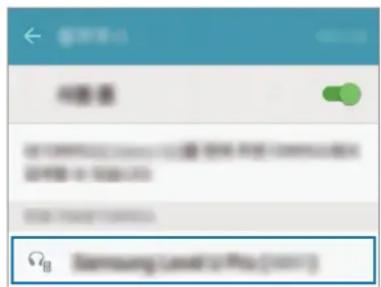

- The PIN for the headset is the four-digit number in parenthesis displayed on the other device's Bluetooth settings screen. The number differs depending on the headset.
- Once devices are paired, recently connected devices automatically connect to your headset whenever you turn it on.
- If the Bluetooth connection fails or other device cannot locate the headset, remove the device's information from the other device's list. Then, try to connect again.
- If the headset does not work properly, restart it or try to pair the devices again.
- The Bluetooth connection range and sound quality may vary depending on the connected devices.
Connecting additional devices
The headset can connect to up to two Bluetooth-enabled devices at the same time. When you connect the headset to two devices, the last device you connect is recognized as the primary device. The other device is recognized as the secondary device.
1 Connect the headset to a device via Bluetooth. 2 Slide the Power switch to the right and hold it for approximately three seconds to enter Bluetooth pairing mode. The first device will be disconnected. 3 Connect the headset to a second device. 4 Reconnect the headset to the first device.

This feature may not be supported on some devices.
Reconnecting or disconnecting the devices
Reconnecting the devices
If the Bluetooth connection ends due to the distance between the devices, bring the devices closer together within a certain period of time. The devices will automatically reconnect.
If the Bluetooth connection ends because of a device malfunction, access the Bluetooth menu on the connected device to pair them again.
Disconnecting the devices
Slide the Power switch to the right and hold it for approximately three seconds. Then, the connection ends and the headset enters Bluetooth pairing mode.
You can also end the connection by turning off the headset. When you turn on the headset again and the devices are in range, the headset automatically connects with the most recently paired device.

Noise may occur if the Bluetooth connection is disconnected improperly.
Using the headset
Wearing the headset

The headset contains magnets in its earbuds. The American Heart Association (US) and the Medicines and Healthcare Products Regulatory Agency (UK) both warn that magnets can affect the operation of implanted pacemakers, cardioverters, defibrillators, insulin pumps or other electro medical devices (collectively, “Medical Device”) within the range of 15 cm (6 inches). If you are a user of any of these Medical Devices, DO NOT USE THE HEADSET UNLESS YOU HAVE CONSULTED WITH YOUR PHYSICIAN.

- Do not store your headset near magnetic fields. Magnetic stripe cards, including credit cards, phone cards, passbooks, and boarding passes, may be damaged by magnetic fields.
- Do not bend or twist the headset excessively.
- Do not apply excessive pressure to the headset.
- Do not pull on any part of the headset excessively.
Wear the headset as shown in the image below.
Wearing and connecting the headset
Wearing the headset
Insert the earphones into your ears or wear the headset around your neck while the earphones are not connected to each other.
Connecting the earphones
Connect the earphones to each other using the built-in magnets.

The magnetic sensor may not work properly if the earphones are not connected properly.
Using the headset
Various features are available when the headset is connected to another device.

The following descriptions are based on a Samsung mobile device running Android 5.0. Some features may not be available depending on the connected device.
Calling features
Answering a call
When a call comes in while you are wearing the headset, the headset will beep and vibrate. Press the Talk button to answer the call.
When a call comes in while the earphones are connected, the headset will vibrate. Separate the earphones and put them on your ears. When you separate the earphones, the call will be received.

- When the headset is connected to two devices and both devices receive calls simultaneously, you can only answer the primary device's call.
- When you play a multimedia file from one device, you can still answer calls from the other device.
Rejecting a call
Press and hold the Talk button for one second or connect the earphones.
Adjusting the volume
Press the Volume button.
Switching sound output
Use the connected device's call features to switch call audio between the headset and the device.
Ending a call
Press the Talk button or connect the earphones.
Playing multimedia files
Control media playback, such as music and videos, using the Multifunction button.
Playing and pausing a multimedia file
Press the Multifunction button. The most recently-played music file will play automatically in the default music app installed on the connected device.
During playback, press the Multifunction button to pause playback or connect the earphones. To resume playback, press the Multifunction button again.

When two connected devices are simultaneously playing multimedia files, the headset will stream from the device that started playing a file first. When you pause the currently-playing file, the file playing on the other device will play automatically.
Skipping to the next multimedia file
Press and hold the Volume (-) button to skip to the next file during playback.
Skipping to the previous multimedia file
Press and hold the Volume (+) button to skip to the previous file during playback.
Adjusting the volume
Press the Volume button.
Launching S Voice
Press and hold the Multifunction button for one second. S Voice will launch on the connected device.

This feature is available only with Samsung mobile devices supporting S Voice.
Using Samsung Level
On the connected device, download the Samsung Level app from Google Play Store or Galaxy Apps. With the app, you can check the remaining battery power and adjust the volume. You can also set the headset to notify you via voice notification or vibrate when you have notifications on the connected device. For more information, refer to the app's help menu.

The Samsung Level app is compatible with Samsung mobile devices running Android operating system 4.2.2 or later. Some features may differ or may not work on your headset depending on the connected device or the operating system.
Using the ultra high quality Bluetooth (UHQ-BT) feature
If a connected mobile device supports the ultra high quality Bluetooth (UHQ-BT) feature, you can listen to UHQ audio using the headset. Use the Samsung Level app on the connected mobile device to deactivate the UHQ-BT feature. For more information, refer to the Samsung Level app's help information.

- When you use the Bluetooth feature to listen to UHQ audio, the headset's battery efficiency and the maximum Bluetooth range (10 m) may be reduced.
- Visit www.samsung.com to view the product specifications for the connected mobile device to confirm that it supports the UHQ-BT feature.
Sharing audio via Sound with Me
Share audio that you are listening to on your headset with other headsets that support the Sound with Me feature.
Ensure that the headset that you want to share audio with is turned on.

- Your headset must be connected to a mobile device, such as a smartphone or tablet. If your headset is connected to more than one mobile device, you cannot share audio with other headsets.
- If the headsets are more than five meters apart while sharing audio, the signal quality may be poor.
- If the other headset is turned off during sharing, it will be disconnected from your headset. When you turn it on again, it will automatically reconnect to the mobile device that it was connected to before sharing audio.
- Visit www.samsung.com to view the product specifications for the other headset to confirm that it supports the Sound with Me feature.
Using the Power switch
To activate audio sharing, slide the power switch of the other headset to the right two times to enable it to be located. Then, slide the Power switch of your headset to the right once. The audio you are currently listening to will be shared with the other headset.
To deactivate audio sharing, slide your headset's Power switch to the right and hold it for about a second.
Using Samsung Level
On the connected mobile device, launch the Samsung Level app to share audio with other headsets.
For more information, refer to the app's help information.
Troubleshooting
Before contacting a Samsung Service Center, please attempt the following solutions.
Your headset does not turn on
When the battery is completely discharged, your headset will not turn on. Charge the battery completely before turning on the headset.
Your headset freezes
If the headset's audio experiences any problems, such as freezing or distorting, try to resolve it by turning off the headset and then turning it on again.
If the headset is still unresponsive, end the Bluetooth connection and reconnect it. To do this, slide the Power switch to the right and hold it for approximately three seconds to enter Bluetooth pairing mode. When the headset enters Bluetooth pairing mode, connect the devices again, and then check the operation of the headset.
If the problem is still not resolved, contact a Samsung Service Center.
The battery does not charge properly (For Samsung-approved chargers)
Ensure that the charger is connected properly.
If the problem is still not resolved, contact a Samsung Service Center.
Another Bluetooth device cannot locate your headset
- Ensure that your headset is in Bluetooth pairing mode.
- Restart your headset and search for the headset again.
- Ensure that your headset and the other Bluetooth device are within the Bluetooth connection range (10 m).
If the tips above do not solve the problem, contact a Samsung Service Center.
Your headset cannot connect to another Bluetooth device
Ensure that your headset and the other Bluetooth device are within the maximum Bluetooth range (10 m).
Bluetooth connection is often disconnected
- If there are obstacles between the devices, the operating distance may be reduced.
- Ensure that your headset and the other Bluetooth device are within the maximum Bluetooth range (10 m).
- When using the headset with other Bluetooth devices, the connection may be affected by electromagnetic waves. Use the headset in environments with fewer wireless devices present.
You cannot hear others speaking
- Adjust the device volume.
- Adjust the volume on the connected device when you cannot hear sounds on your headset at full volume.
Sound echoes during a call
Adjust the volume by pressing the Volume button or move to another area.
Others cannot hear you speaking on a call
- Ensure that you are not covering the built-in microphone.
- Ensure that the microphone is close to your mouth.
Audio quality is poor
- Wireless network services may be disabled due to issues with the service provider's network. Ensure to keep the headset away from electromagnetic waves.
- Ensure that your headset and the other Bluetooth device are within the maximum Bluetooth range (10 m).
- You may experience drops in volume or noise depending on the connected device's volume. To avoid this, appropriately adjust the connected device's sound.
The headset works differently as described in the manual
• Available functions may differ depending on the connected device. - Some features cannot be used when two devices are connected with the headset at the same time.
The battery depletes faster than when first purchased
- When you expose the headset or the battery to very cold or very hot temperatures, the useful charge may be reduced.
- The battery is consumable and the useful charge will get shorter over time.
Copyright
Copyright © 2015 Samsung Electronics
This manual is protected under international copyright laws.
No part of this manual may be reproduced, distributed, translated, or transmitted in any form or by any means, electronic or mechanical, including photocopying, recording, or storing in any information storage and retrieval system, without the prior written permission of Samsung Electronics.
Trademarks
• SAMSUNG and the SAMSUNG logo are registered trademarks of Samsung Electronics. - Bluetooth is a registered trademark of Bluetooth SIG, Inc. worldwide. • All other trademarks and copyrights are the property of their respective owners.


Using the headset
Copyright © 2015 Samsung Electronics

Wearing and connecting the earphones
Wearing the earphones
Connecting the earpieces
Use the built-in magnetic sensors to connect the earpieces to each other.

Using the earphones
Sharing audio with Sound with Me

Wearing and connecting the earphones
Wearing the earphones
Connecting the earphones
Connect the earphones to each other using the built-in magnets.

Using the earphones
Copyright © 2015 Samsung Electronics
This manual is protected by international copyright laws.


© Samsung Electronics, 2015.

Connecting the earphones

Using the headphones

Product wearing state
Product wearing
Earphone attachment

How to use the product

- INSTRUCTIONAL ICONS
- GETTING STARTED
- PACKAGE CONTENTS
- DEVICE LAYOUT
- BUTTONS AND FUNCTIONS
- CHARGING THE BATTERY
- TURNING THE HEADSET ON AND OFF
- NOTIFICATION LIGHT IDENTIFICATION
- CONNECTING VIA BLUETOOTH
- BLUETOOTH
- ABOUT BLUETOOTH
- NOTICES FOR USING BLUETOOTH
- CONNECTING TO OTHER DEVICES
- CONNECTING ADDITIONAL DEVICES
- RECONNECTING OR DISCONNECTING THE DEVICES
- RECONNECTING THE DEVICES
- DISCONNECTING THE DEVICES
- USING THE HEADSET
- WEARING THE HEADSET
- WEARING AND CONNECTING THE HEADSET
- CONNECTING THE EARPHONES
- CALLING FEATURES
- ANSWERING A CALL
- REJECTING A CALL
- ADJUSTING THE VOLUME
- SWITCHING SOUND OUTPUT
- ENDING A CALL
- PLAYING MULTIMEDIA FILES
- PLAYING AND PAUSING A MULTIMEDIA FILE
- SKIPPING TO THE NEXT MULTIMEDIA FILE
- SKIPPING TO THE PREVIOUS MULTIMEDIA FILE
- LAUNCHING S VOICE
- USING SAMSUNG LEVEL
- USING THE ULTRA HIGH QUALITY BLUETOOTH (UHQ-BT) FEATURE
- SHARING AUDIO VIA SOUND WITH ME
- USING THE POWER SWITCH
- APPENDIX
- TROUBLESHOOTING
- YOUR HEADSET DOES NOT TURN ON
- YOUR HEADSET FREEZES
- THE BATTERY DOES NOT CHARGE PROPERLY (FOR SAMSUNG-APPROVED CHARGERS)
- ANOTHER BLUETOOTH DEVICE CANNOT LOCATE YOUR HEADSET
- YOUR HEADSET CANNOT CONNECT TO ANOTHER BLUETOOTH DEVICE
- BLUETOOTH CONNECTION IS OFTEN DISCONNECTED
- YOU CANNOT HEAR OTHERS SPEAKING
- SOUND ECHOES DURING A CALL
- OTHERS CANNOT HEAR YOU SPEAKING ON A CALL
- AUDIO QUALITY IS POOR
- THE HEADSET WORKS DIFFERENTLY AS DESCRIBED IN THE MANUAL
- THE BATTERY DEPLETES FASTER THAN WHEN FIRST PURCHASED
- REMOVING THE BATTERY
- DECLARATION OF CONFORMITY
- PRODUCT DETAILS
- DECLARATION & APPLICABLE STANDARDS
- REPRESENTATIVE IN THE EU
- COPYRIGHT
- TRADEMARKS
- ATTACH THE EARPHONES
- CONNECTING THE DEVICE
- USING THE DEVICE
- CONNECTING THE HEADPHONES
- READ FIRST
- USING AND CONNECTING THE EARPHONES
- USING THE EARPHONES
- USING THE HEADPHONES
- CONNECTING THE EARBUDS
- SHARING AUDIO WITH SOUND WITH ME
- SHARE AUDIO VIA SOUND WITH ME
- SHARE SOUND VIA SOUND WITH ME
- CONNECTING THE HEADSET
- WEARING AND CONNECTING THE EARPHONES
- WEARING THE EARPHONES
- CONNECTING THE EARPIECES
- PRODUCT WEARING STATE
- PRODUCT WEARING
- EARPHONE ATTACHMENT
- HOW TO USE THE PRODUCT
Brand : SAMSUNG
Model : Level U Pro EOBN920
Category : Cellphone