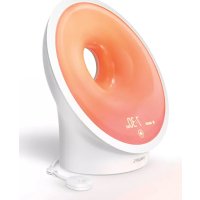
Somneo Sleep & Wakeup Light HF3671 - Light therapy PHILIPS - Free user manual and instructions
Find the device manual for free Somneo Sleep & Wakeup Light HF3671 PHILIPS in PDF.



| Product type | Light therapy lamp and connected alarm clock |
| Brand | Philips |
| Model | Somneo Sleep & Wakeup Light HF3671 |
| Dimensions (height x width x depth) | 225 × 220 × 120 mm |
| Weight | 0.78 kg (main unit) |
| Power supply | 24 V DC, 0.75 A (power adapter included) |
| Standby consumption | < 2 W (Wi-Fi on), < 1 W (Wi-Fi off) |
| Main functions | Dawn simulation (30 min), sunset simulation (5-45 min), RelaxBreathe, FM radio, AUX input, night light, bedside lamp, USB charging |
| Connectivity | Wi-Fi 2.4 GHz (IEEE 802.11 b/g/n), SleepMapper app |
| AmbiTrack sensors | Brightness, temperature, humidity, sound pressure |
| Number of light intensity levels | 25 levels (bedside lamp and alarm) |
| Color temperature | 1500 K - 2800 K |
| Maximum illuminance at 45 cm | 350 lux |
| FM radio band | 87.5 - 108 MHz |
| Ports | USB (charging), AUX (audio input), power connector |
| Safety | Standards IEC 60598, IEC 62471, IEC 62368; do not use in humid environment; non-replaceable LEDs |
| Maintenance and cleaning | Clean with a soft, dry cloth; do not use abrasive products |
| Spare parts and repairability | Non-replaceable LEDs; replaceable power adapter (same type) |
| General information | Domestic use; operating temperature 5-35°C; humidity 20-90% |
Frequently Asked Questions - Somneo Sleep & Wakeup Light HF3671 PHILIPS
User questions about Somneo Sleep & Wakeup Light HF3671 PHILIPS
0 question about this device. Answer the ones you know or ask your own.
Ask a new question about this device
Download the instructions for your Light therapy in PDF format for free! Find your manual Somneo Sleep & Wakeup Light HF3671 - PHILIPS and take your electronic device back in hand. On this page are published all the documents necessary for the use of your device. Somneo Sleep & Wakeup Light HF3671 by PHILIPS.
USER MANUAL Somneo Sleep & Wakeup Light HF3671 PHILIPS
Introduction 7
General description 7
Intended use 7
The effects of the Sleep & Wake-Up Light
Important safety information 8
Safety and compliance 9
Electromagnetic fields (EMF) 10
Interactive menu icons 10
Connecting your appliance to Wi-Fi 10
Navigating the menu 12
Setting wake-up profiles 12
Time + alarm back-up 14
Snoozing 14
14
Using the appliance as a bedside lamp 14
Midnight Light 15
Settings 15
Listening to music 17
Wind-down programs 17
Sunset simulation 18
RelaxBreathe 18
Bedtime function 20
Charging your mobile phone 20
Cleaning and storage 20
Recycling 20
Warranty and support 21
Troubleshooting 21
Specifications 24
Open-source and third-party software 26
Introduction
Congratulations on your purchase and welcome to Philips! To fully benefit from the support that Philips offers, register your product at www.philips.com/welcome.
The Philips SmartSleep connected Sleep & Wake-Up Light helps you wake up more pleasantly. The light gently prepares your body for waking up at the set time and can be accompanied by natural wake-up sounds or FM radio. The light-guided breathing function, personalized sun settings, bedroom environment tracking and several other features make this connected Sleep & Wake-Up Light the perfect companion for your bedroom.
Tip: Using the Philips SleepMapper app will enable extra features. These features are explained in the app.
If the appliance is updated through connecting it to Wi-Fi with the app, the information in this document may not be up to date. Find the latest user manual on www.philips.com/support by searching for the type number of your appliance.
General description
The numbered items in this list refer to the numbered items in the overview illustration.
1 Lamp housing
2 Display
3 Sound pressure sensor
4 USB charging port
5 Reset button
6 Radio antenna
7 AmbiTrack sensor: Humidity and temperature sensor
8 Auxiliary (AUX) socket
9 Adapter DC socket
10 Speaker
11 Snooze/Midnight Light
12 Adapter
13 Small plug
Intended use
The Philips SmartSleep connected Sleep & Wake-Up Light is intended to give you a more natural and refreshed wake-up and a relaxed feeling before falling asleep.
This is not a general illumination product.
The effects of the Sleep & Wake-Up Light
The Philips SmartSleep connected Sleep & Wake-Up Light gently prepares your body for waking up during the last 30 minutes of sleep. In the early morning hours our eyes are more sensitive to light than when we are awake. During that
period the relatively low light levels of a simulated natural sunrise prepare our body for waking up and getting alert.
People who use the appliance wake up more easily, have a better overall mood in the morning and feel more energetic. Because the sensitivity to light differs per person, you can set the light intensity of your appliance to a level that matches your light sensitivity for an optimal start of the day.
To fully experience the effects of the connected Sleep & Wake-Up Light, place the appliance at approximately 16 in. - 20 in. / 40 cm - 50 cm from your head, on a flat stable surface of your bedside table.
For more information about the connected Sleep & Wake-Up Light, see www.philips.com.
Important safety information
Read this important information carefully before you use the appliance and save it for future reference.
Danger

Water and electricity are a dangerous combination. Do not use this appliance in wet surroundings (e.g. in the bathroom or near a shower or swimming pool).
- Keep the adapter dry.
- This appliance is for indoor use only.
- Do not let water run into the appliance or spill water onto the appliance.
- Do not immerse the appliance in water or rinse under the tap.
- Do not place anything close to the appliance that could cause water or any other liquid to drip or splash onto the appliance.
- The adapter contains a transformer, which converts an unsafe 100V - 240V AC mains voltage to a safe 24V DC low voltage. Do not cut off the adapter to replace it with another plug, as this causes a hazardous situation.
Warning
- Never use the appliance if the lamp housing is damaged, broken or missing.
- If the adapter, cord or appliance has been damaged in any way, liquid has spilled or objects have fallen into and/or onto the appliance, the appliance has been exposed to rain or moisture, does not operate normally or has been dropped or damaged, it should not be operated.
If you feel uncomfortable at any point while using RelaxBreathe in the breathing exercise, just go back to breathing normally.
Only use the appliance in combination with the adapter supplied.
If the adapter is damaged, always have it replaced with one of the original type in order to avoid a hazard. -
This appliance is not intended for use by persons (including children) with reduced physical, sensory or mental capabilities, or lack of experience and knowledge, unless they have been given supervision or instruction concerning use of the appliance by a person responsible for their safety.
-
Consult your doctor before you start using the appliance if you have suffered from or are suffering from depression.
- Do not use this appliance as a means to reduce your hours of sleep. The purpose of this appliance is to help you wake up more easily. It does not diminish your need for sleep.
Caution
- Check if the voltage indicated on the appliance corresponds to the local voltage before you connect the appliance.
- Protect the power cord from being walked on or pinched, particularly at plugs, wall sockets and points where it exits from the lamp.
- Do not use the adapter in or near wall sockets that contain an electric air freshener to prevent irreparable damage to the adapter.
- Do not drop the appliance on the floor, hit it hard or expose it to other heavy shocks.
- Place the appliance on a stable, level and non-slippery surface.
- Do not impair the cooling of the appliance by covering the appliance with items such as blankets, curtains, clothes, papers, etc.
- Do not use the appliance at room temperatures lower than 5^ or higher than 35^ .
- The appliance has no on/off switch. To disconnect the appliance, remove the adapter from the socket-outlet. The adapter and socket-outlet shall remain easily accessible at all times.
- This appliance is only intended for household use, including similar use for instance in hotels.
- No naked flame sources, such as lighted candles, should be placed on the appliance.
- The LEDs inside this Wake-Up Light are not replaceable, when they reach their end of life the whole Wake-Up Light shall be replaced.
General
If you often wake up too early or with a headache, reduce the set light intensity level and/or the set sunrise simulation time.
- If you often wake up by the alarm sound, increase the set light intensity level or the set sunrise simulation time.
- If you share a bedroom with someone else, this person may unintentionally wake up from the light of the appliance, even though this person is further removed from the appliance. This phenomenon is the result of differences in light sensitivity between people.
- The power consumption of the appliance is lowest if no device is connected to the USB port and the lamp, radio, display and Wi-Fi are turned off.
Safety and compliance
This appliance meets the safety requirements in the EU for:
- IEC 60598: Luminaires.
-
IEC 62471: Photobiological safety of lamps and lamp systems.
-
IEC 62368: Audio/video, information and communication technology equipment.
Electromagnetic fields (EMF)
This Philips appliance complies with all applicable standards and regulations regarding exposure to electromagnetic fields.
Interactive menu icons
| Wake-up profile/Alarm Light intensity and light on/off | Return to higher level in the menu | |
| Settings Sounds Confirm and save | setting | |
| Wind-down program AUX socket radio | ||
| Enable Wi-Fi Disable Wi-Fi Change alarm settings | ||
| Display settings and display brightness | Select natural sound Dismiss alarm | |
| Enable display timeout Disable display timeout Deactivate alarm | ||
| Enable audio feedback Disable audio feedback Light or sound | guidance | |
| Sunset simulation Duration of the wake-up profile | Delete wake-up profile | |
| Days of the week RelaxBreathe RelaxBreathe pace | ||
| Select day of the week Deselect day of the week Duration of a program | ||
| Start bedtime Start program Stop program | ||
Connecting your appliance to Wi-Fi
If the appliance is updated through connecting it to Wi-Fi with the app, the information in this document may not be up to date. Find the latest user manual on www.philips.com/support. Philips reserves the right to update the firmware of the appliance.
Easy Wi-Fi setup
Download the Philips SleepMapper app from Google Play or the App Store on your mobile phone. See the information in Google Play or the App Store to check if your mobile phone is compatible with the app. You can easily set up the Wi-Fi connection to your connected Sleep & Wake-Up Light.
The setup to install your Sleep & Wake-Up Light and connect to your home Wi-Fi network only needs to be done once. This setup will take approximately 5-10 minutes.
Setup wizard of the connected Sleep & Wake-Up Light
1 When you use your connected Sleep & Wake-Up Light for the first time, a setup wizard starts on the appliance.
2 After selecting your language on the display of the appliance, continue in the app. Make sure that you have the app open on your mobile phone.
3 Follow the instructions in the app to connect your appliance to the Wi-Fi network. If you have trouble connecting your appliance, check the support section in the app or the items mentioned in the troubleshooting section in this user manual (see 'Troubleshooting').
- If you previously chose to set up your appliance without the app, but now want to connect your appliance to the app, press the Wi-Fi icon in the settings menu of your appliance. The access point mode icon will be shown on the display. Open the app on your mobile phone to connect.
- If you have changed your Wi-Fi home network or changed your password, press and hold the Wi-Fi icon in the settings menu of your appliance for 8 seconds. The access point mode icon will be shown on the display. Open the app on your mobile phone to connect.
The Wi-Fi connection issue icon might appear on the display if a connection cannot be established. Check the troubleshooting section to solve the problem.


Note: The app on your mobile phone and your connected Sleep & Wake-Up Light can ONLY communicate with each other when both appliances are connected to the same home Wi-Fi network. If this is not the case, you cannot remotely control the appliance through the app (e.g. set an alarm).
AmbiTrack sensors
The connected Sleep & Wake-Up Light collects input from its surroundings through the AmbiTrack sensors. AmbiTrack sensors measure light, humidity, temperature and sound pressure. These factors can influence your sleep. Only in the app you can see information on the recommended values for ideal sleep conditions. The measurements of the sensors can be influenced by the surroundings of the appliance. For example, if you place the appliance next to a window or near a heating source such as a radiator, the temperature and humidity sensors might not represent the temperature / humidity of the entire room.
Setting up your appliance without the app
You can set up the Sleep & Wake-Up Light without the app. Before you can use the appliance, a setup wizard on the appliance needs to be completed first. You can connect the appliance to the app later.
12 English
We strongly recommend you to set up your appliance with the SleepMapper app in order to enjoy all functionalities the app offers.
1 Start the setup wizard by tapping on the start icon on the display of the appliance.
2 You will be guided through the setup wizard on the appliance, where you set the desired settings, a wake-up profile and a winddown program.
Note: The wake-up profile and the wind-down program can be set later. Skip these settings by tapping the arrow repeatedly. However, we advise you to set your wake-up profile and your wind-down program during this setup. This can help you explore the different functions of the appliance.
Navigating the menu
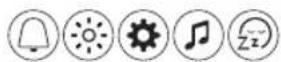
If you have set up your appliance with the help of the SleepMapper app or through the setup wizard (see 'Setting up your appliance without the app') on the appliance, you will see the menu as described in the following sections.
On the display of the appliance you can select and set the wake-up profile, bedside lamp, settings, sound (source) or the wind-down program.
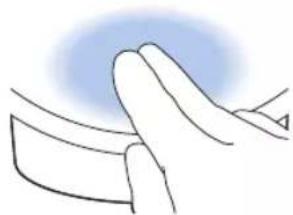
Note: If the display is blank, move your hand towards the lower part of appliance to show the display menu. You will see the menu icons.

Confirming and saving settings
All your personalized settings and profiles will be permanently stored in the memory. You can change them at any time. Press the check mark icon to confirm and save the desired profile or setting change in any menu.
Note: Your personalized settings and profiles will not be lost, if you remove the adapter from the electrical outlet.
Setting wake-up profiles

In your wake-up profile on the appliance you can set the alarm time, the maximum light intensity and type of wake-up sound you prefer. In total you can set two different wake-up profiles in the menu of the appliance. With the SleepMapper app, you can set more wake-up profiles.
Note: The main display of the appliance shows the set alarm time if an alarm is active.

Note: Press and hold the alarm icon in the main menu to deactivate all set alarms at once.
1 You can toggle between different wake-up profiles on the appliance by using the arrow icons
2 To deactivate the alarm, press the deactivate alarm icon
3 Press the alarm settings icon to enter the alarm profile set-up menu.

Alarm time and day

In this menu you can change the time by pressing + or -. The alarm will be automatically repeated every day.

You can select on which day of the week the alarm should go off.
1 Press the calendar icon

2 The days of the week are indicated by the first letter of the day. When an alarm is active, the letter is shown brightly. You can toggle between the days of the week by using the arrow icons.

3 To deactivate the alarm for a certain day, press this icon. When a specific day is inactive, the letter of that day is only dimly visible.
Light intensity of the wake-up profile

The lamp of the appliance simulates a sunrise. Like a sunrise, the brightness of the lamp increases gradually. During this wake-up curve, the color of the light changes from soft red to warm orange to bright yellow.

Press icon on the display to choose one of the 25 light intensity levels.

Duration of the wake-up profile
The default duration of the wake-up curve (brightness increase to the set maximum light intensity) is 30 minutes. The duration can be changed to your preference by pressing the icon on the appliance.


Press this icon to open the sounds menu to set the sound of the wake-up profile.
14 English

1 Press the toggle icon to choose one of the three sounds options: natural sounds, radio or no sound.
2 Press the natural sounds icon to select one of the natural sounds or press the radio icon to select one of the radio presets.
3 You can set the volume with the loudspeaker icon
Remove a wake-up profile

Press this icon to change the alarm. To remove a wake-up profile, press
Time + alarm back-up
In the event of a power failure, all functions of the appliance, including the display, do not work. However, the internal clock and a back-up alarm remain active for at least 8 more hours.
If during the power failure the set alarm time is due, a back-up alarm goes off generating a beeping sound for approximately 1 minute.
Snoozing
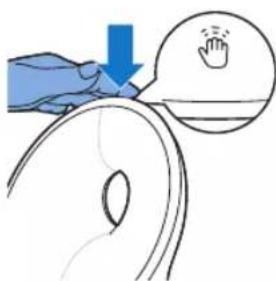
When the wake-up curve has ended (when the set maximum light intensity has been reached) and the alarm sound is playing, you can tap the top of the appliance to snooze.
The lamp stays on, but the sound is muted. The snooze duration can be adjusted in the app. The default snooze duration is 9 minutes. After 9 minutes, the alarm sound starts playing again.
Note: The light and sound automatically turn off 60 minutes after the alarm has gone off or 60 minutes after the last snooze action.
Dismissing the alarm

When the wake-up curve is active or the alarm goes off, you can dismiss it by pressing this icon on the appliance. If you dismiss it, this alarm profile is deactivated for that day.
Using the appliance as a bedside lamp

You can use the connected Sleep & Wake-Up Light as a bedside lamp.
Press the bedside lamp icon on the display to switch on the bedside lamp.
Note: You can increase and decrease the brightness intensity. You can select a brightness between 1 (low) and 25 (high). The default brightness setting is 20.

To switch off the light, press the cross icon in the menu.
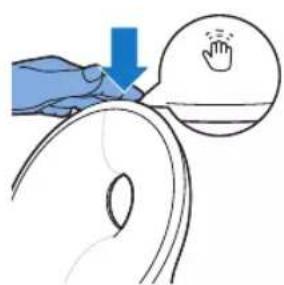
Tip: When the light is on, you can also turn off the light with a single tap on the top of the appliance. All active programs will stop. Set alarms remain active.
Midnight Light
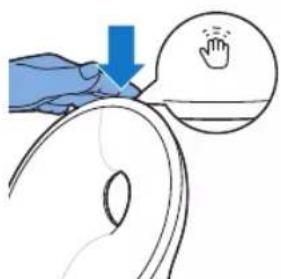
If you wake up during the night, you can tap the top of the appliance to activate a dim light. This dim, subtle orange light provides you with just enough light to find your way in the dark. Switch off the Midnight Light by tapping the top of the appliance again.
Note: The Midnight Light cannot be activated directly when the main light is already on. In that case, first tap the top of the appliance to deactivate the main light. Then tap again to activate the Midnight Light.
Settings

Press the settings icon to open the settings menu.
Note: Press and hold the settings icon for 8 seconds to open a new menu, in which you can select VERSION (firmware version of the appliance) or DEMO mode (accelerated wake-up curve).
In the settings menu, you can adjust the clock time (when Wi-Fi is disabled), the audio feedback, the display brightness of the appliance and enable/disable Wi-Fi.
Time

Press this icon to open the time menu.

In this menu you can change the time by pressing + or -
Press the time notation icon to toggle between the 12-hour clock and 24-hour clock.
Note: This option is not available when the appliance is connected to Wi-Fi.
Wi-Fi

Turn Wi-Fi on or off by pressing on the Wi-Fi icon. When Wi-Fi is disabled any update made in the app will not be implemented until the Wi-Fi connection is restored.

Note: Press and hold the Wi-Fi icon for approximately 8 seconds to return to access point mode. Open access point mode when you want to connect your appliance to a different Wi-Fi network or if you have changed your Wi-Fi password.
Audio feedback

If you accidentally activated access point mode, press the Wi-Fi icon in the Wi-Fi menu twice to activate Wi-Fi again. Your connected Sleep & Wake-Up Light remembers the network you were connected to.
Display settings

Press the display settings icon in the settings menu to set the display settings.

In this menu you can adjust the display brightness level and select the display timeout option.
Display brightness
You can adjust the display brightness from level 1 to level 6 with the plus and minus icons. Choose a level that is optimal for you to see the display at night. The appliance automatically adjusts the display brightness when the ambient light in your bedroom changes.

Display timeout
If you do not want the appliance to produce any light, not even from the time indication, press the display timeout icon to turn off the display completely. The display turns off gradually a few seconds after your last interaction with the icons.
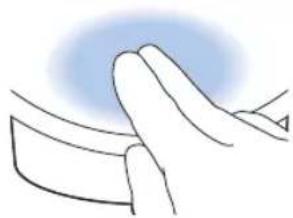
Normally, if you do not touch the display for some time in any menu, the display reverts to time and status indication only. When the display timeout is activated, no time indication is shown.
Press the disable display timeout icon to turn on the display again.
Tip: If you want to check the time or select a function while the display timeout is activated, just place your hand near the display to turn it on for a few seconds.
Listening to music

Press the sounds icon to select the preferred sound source.
Tip: Press and hold the sounds icon to activate/deactivate the sound via the menu.

In the sounds menu, you can select radio or play your own music by connecting a music playing device to the AUX socket.
Tip: When the radio or music is on, you can turn off the sound with a single tap on top of the appliance. All active programs will stop. Set alarms remain active.
Listening to radio

You can listen to the FM radio with the Sleep & Wake-Up Light. If you selected the radio function in the sounds menu, it shows the selected radio station. You can manually change the radio station by selecting the FM frequency of another radio station.

Tip: Make sure to unwind the antenna fully and move it around until you receive the best reception.
You can preset 5 radio stations. Use the FM frequency setting icon to select a radio station. Press and hold the double arrow button to automatically search for the next radio station.
After setting a radio station, you can easily add another preset radio station by selecting the toggle icon With this process, you can preset 5 radio stations.
Set the preferred volume with the loudspeaker icon
Music via Auxiliary (AUX) socket

You can use the connected Sleep & Wake-Up Light as a speaker for music by connecting a music playing device (for instance your mobile phone) to the AUX socket.
If the sound is not loud enough when you have set the volume on the appliance to maximum, increase the volume on your music playing device.
If the sound is too loud or distorted when you have set the volume on the appliance to low, decrease the volume on your music playing device.
Note: You need an AUX cable to connect the connected Sleep & Wake-Up Light to a music playing device.
Note: You cannot wake up to music from a device connected to the AUX socket.
Wind-down programs

Press the wind-down program icon to choose the desired wind-down program.


The appliance features two wind-down programs to help you relax before you fall asleep: sunset simulation and RelaxBreathe.
You can deactivate the active wind-down program by tapping the top of the appliance.
You can also activate or deactivate the bedtime function in this menu.
Sunset simulation

During the sunset simulation, the brightness of the light decreases gradually with colors changing from bright yellow to warm orange to soft red.

Press the sunset simulation icon to enter the sunset simulation set-up menu.

Press play to start the sunset simulation. Press stop or tap on the top of the appliance to stop the program.

Use this icon to set the duration of the sunset simulation. You can select a duration of 5, 10, 15, 20, 30 or 45 minutes.

You can change the light intensity of the sunset simulation with the light icon.

Press the sounds icon to set a sound that fades away during the sunset simulation.

Press the toggle icon to choose one of the three sound options: natural sounds, radio or no sound. You can also play your own music by connecting a music playing device to the AUX socket.
Press the natural sounds icon to select one of the natural sounds.
You can set the initial volume with the loudspeaker icon
RelaxBreathe

RelaxBreathe uses the belly breathing technique as a basis for the breathing program. You can choose one of the breathing programs, guided by light or sound. The combination of the belly breathing exercise and the guidance of the connected Sleep & Wake-Up Light helps you slow down and feel relaxed.

Press the RelaxBreathe icon to enter the RelaxBreathe set-up menu.


Press play to start the RelaxBreathe session. Press stop or tap on the top of the appliance to stop RelaxBreathe.
Press this icon to set the duration of the relaxation program. You can select a duration of 5, 10 or 15 minutes.
You can select one of seven relaxation programs with preset breathing pace. Each relaxation program has a different breathing pace. The program '4 breaths' is preset to 4 breaths per minute. Program '5 breaths' is preset to 5 breaths per minute. Each next program has one additional breath per minute. The last program (10 breaths) is preset to 10 breaths per minute.
You can select light or sound to guide you during the selected relaxation program. Follow the light or sound when you inhale and exhale.
- For guidance with light, inhale when the light intensity increases. In between the two subtle light flashes, hold your breath. Exhale slowly when the light intensity decreases.
- For guidance with sound, inhale when the intensity of the sound of the waves increases. When the intensity of the sound pauses, hold your breath. Slowly exhale when the intensity of the sound of the waves decreases.
Follow your preferred pace with the help of light or sound for a more relaxed feeling. You can even do this with your eyes closed.
Note: You can find an instruction video of RelaxBreathe in the app and on the Philips website.
Belly breathing for relaxation
Belly breathing is the most recognized breathing exercise technique to help people relax. When you breathe from your belly, your diaphragm pulls down automatically. This pulls down your lungs and allows you to inhale fully and deeply.
Caution: If you feel uncomfortable at any point during this breathing exercise, just go back to breathing normally.
How to do belly breathing
1 Lie down comfortably on your back.
2 Inhale through your nose, exhale through your nose or mouth.

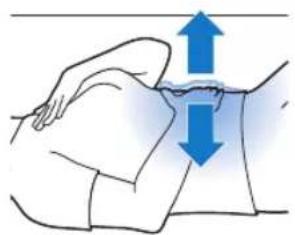
3 Place one hand on your stomach and your other hand on your chest.
You should see your hand on your stomach move up with each inhale and move down with each exhale. The hand on your chest should only move slightly.
4 Your breath should only come from your belly. Try to make your exhale longer than your inhale as this will quickly make you feel more relaxed.
Note: The RelaxBreathe function of the appliance can guide you during belly breathing.
Bedtime function


You can track your time in bed by long-pressing the top of the appliance for approximately 2 seconds before going to sleep to activate the bedtime function. Or activate bedtime in the wind-down menu. You can also start the bedtime function by pressing 'start tracking' in the SleepMapper app.
A moon icon will appear on the display of the appliance to let you know bedtime tracking has started. You can find more information about the bedtime function in the app.
Charging your mobile phone
You can use the USB port (see 'General description') to charge your mobile phone.
Cleaning and storage
Clean the appliance with a soft, dry cloth.
- Do not use abrasive cleaning agents, pads or cleaning solvents like alcohol, acetone, etc., as this may damage the surface of the appliance.
- If you are not going to use the appliance for an extended period of time, remove the adapter from the wall outlet and store the appliance in a safe, dry location where it will not be crushed, banged, or subject to damage.
- Do not wrap the cord around the appliance when storing it.
Recycling
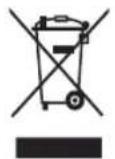
This symbol means that this product shall not be disposed of with normal household waste (2012/19/EU).
- Follow your country's rules for the separate collection of electrical and electronic products. Correct disposal helps prevent negative consequences for the environment and human health.
Warranty and support
If you need information or support, please visit www.philips.com/support or go to your Philips dealer. You can also contact the philips Consumer Care Center in your country (see the international warranty leaflet for contact details).
Troubleshooting
This chapter summarizes the most common problems you could encounter with the appliance. If you are unable to solve the problem with the information below, visit www.philips.com/support for a list of frequently asked questions or contact the Consumer Care Center in your country.
If the appliance is updated through connecting it to Wi-Fi with the app, the information in this document may not be up to date. Find the latest user manual on www.philips.com/support. Philips reserves the right to update the firmware of the appliance.
Connectivity troubleshooting
Problem Solution
| I cannot download the app on my mobile phone. | The app is available for Android and iOS mobile phones. The app is not available for Windows phones. |
| I cannot connect my Wake-Up Light to my home-Wi-Fi network, what should I do? | If you cannot connect your Wake-Up Light to your home Wi-Fi network and still see the flashing icon for access point mode it could be one of following issues:1. Wrong password. Make sure that you entered the correct Wi-Fi network password and try again.2. Is your router suitable for connection with your Wake-Up Light? Your router must have a 2,4 GHz band to communicate with the appliance. For the first time setup make sure your mobile phone and the appliance are both connected to the same 2,4 GHz Wi-Fi network, otherwise you will not be able to connect the appliance and your mobile phone. The appliance cannot connect to a 5 GHz network. Temporarily switch off the 5 GHz network to connect the appliance to 2,4 GHz network. Afterwards you can switch on the 5 GHz network again.3. Check the signal strength of the Wi-Fi. If the signal is weak, the appliance cannot connect properly. Move the appliance closer to the router to make sure that a good Wi-Fi signal is available. |
| If the previous steps do not solve the issue, consider the following:1. Go back to default settings by pressing the end of a paperclip into the reset button on the back of the appliance (see 'General description'). This reset will remove all personal settings.2. If the previous steps are not the issue, contact the Philips Consumer Care Center in your country. | |
| Connecting my connected Sleep & Wake-Up Light to a Wi-Fi guest network does not work. | Using your appliance within a guest network is not supported. Please set up your appliance within a regular Wi-Fi network. |
22 English
Problem Solution
| How do I remove my personal Wi-Fi settings and alarms from the connected Sleep & Wake-Up Light? | Go back to default settings by pressing the end of a paperclip into the reset button on the back of the appliance (see 'General description'). |
| I want to connect my new smartphone to my connected Sleep & Wake-Up Light. What do I need to do? | If your mobile phone is still connected to the Sleep & Wake-Up Light, first remove the connection in the app in the 'more' tab by selecting 'Forget device'. Please install the app again on your new mobile phone. Indicate in the app that you already installed the connected Sleep & Wake-Up Light and follow the instructions in the app. |
| I cannot use the app to set alarms or control the connected Sleep & Wake-Up Light. | First, check if your Sleep & Wake-Up Light is connected to a Wi-Fi network. If you completed the Wi-Fi Setup through the Philips SleepMapper app and connected your appliance to a specific Wi-Fi network, you should see a steady Wi-Fi symbol on the main display of the appliance, in the upper right corner. First check if Wi-Fi on your mobile phone and router are enabled. If you see the Wi-Fi disabled icon on the display of the appliance, enable Wi-Fi first. Your mobile phone could have reconnected to a different Wi-Fi network. Make sure that your mobile phone and appliance are connected to the same home Wi-Fi network. If you see the Wi-Fi connection issue icon it could be one of the following issues.1. Check the settings for your home Wi-Fi network on the router. It could be that universal Plug and Play (UPnP) is not enabled on your router. Enable this setting on the router.2. Check the signal strength of the Wi-Fi. If the signal is weak, the appliance cannot connect properly. Move the appliance closer to the router to make sure that a good Wi-Fi signal is available.3. You might have changed the home Wi-Fi password or installed a new router. |
| If the previous steps do not solve the issue, consider the following:1. Go back to default settings by pressing the end of a paperclip into the reset button on the back of the appliance (see 'General description'). This reset will remove all personal settings.2. If the previous steps are not the issue, contact the Philips Consumer Care Center in your country. | |
| I have a new router/Wi-Fi password/Wi-Fi network and I want to connect my connected Sleep & Wake-Up light to it. What do I need to do? | Follow these steps to set up a connection again:1. In the SleepMapper app, go to the 'More' tab and click on 'View device details' and select 'Forget device'.2. In the settings menu of your Sleep & Wake-Up Light, press and hold the Wi-Fi icon for 8 seconds. You will see the access point mode icon 'On the display.3. Open the app again, go to the 'More' tab to add select 'Add a new device'.Follow the instructions in the app. |
General troubleshooting
Problem Solution
| The icon on the display or the light on the appliance does not respond when I try to set different functions. | 1. Disconnect the appliance from the power source by removing the adapter from the wall socket. Wait 10 seconds and reconnect the appliance. Start it again. 2. If restarting the appliance does not work, go back to default settings by pressing the end of a paperclip into the reset button on the back of the appliance (see 'General description'). Please note that all personal settings (set alarm etc.) will be removed by going back to default settings. If the appliance still does not work, contact Philips Consumer Care Center in your country. |
| The lamp does not go on when the alarm goes off. | Perhaps you set a light intensity level that is too low. Increase the light intensity level in your wake-up profile. |
| Perhaps you turned off the alarm function. The alarm icon is visible on the display when the alarm is active. | |
| The lamp does not go on right away when I switch it on. | It may take between 1 to 5 seconds for the lamp to go on, depending on the set light intensity level. |
| I do not hear the alarm sound when the alarm goes off. | Perhaps you set a sound level that is too low. To set a higher sound level, increase the volume level of the wake-up sound in your wake-up profile. |
| When you have set an alarm, you will first see the light of the wake-up curve. The alarm sound only starts playing when the set alarm time has been reached. You can change the duration of the wake-up light curve. | |
| If you selected the FM radio as the alarm sound, turn on the FM radio after you turn off the alarm to check if the FM radio works. Check if your FM radio is correctly tuned to a radio station. If necessary, adjust the frequency. If the radio still does not work, contact the Philips Consumer Care Center in your country. | |
| The FM radio does not work or makes a crackling sound. | Check if the FM radio is correctly tuned to a radio station. If necessary, adjust the frequency. |
| Change the position of the antenna by moving it around. Make sure that you have unwound the antenna completely. | |
| Perhaps the broadcast signal is weak. Adjust the frequency and/or change the position of the antenna by moving it around. Make sure you have unwound the antenna completely. | |
| The alarm went off yesterday, but it did not go off today. | Perhaps you turned off the alarm function or only set the alarm for a specific day. The alarm icon is visible on the display when the alarm is due within 24 hours. |
| In the Philips SleepMapper app you have several options to set alarms; perhaps the alarm was not set correctly. Check if you have set the alarm in the app correctly. Make sure your appliance and the app are connected to the same home Wi-Fi network when you set an alarm. |
24 English
Problem Solution
| I wanted to snooze, but the alarm did not go off again after 9 minutes. | You might have accidentally pressed this icon \( \oplus \) on the display to dismiss the alarm. This deactivates the alarm for that day. Tap the top of the appliance to snooze. |
| The light wakes me too early or too late. | Perhaps the light intensity level you have set is not appropriate for you. Try a lower light intensity level if you wake up too early or a higher intensity level of you wake up too late. You can also change the duration of the wake-up curve. If light intensity 1 is not low enough, move the appliance further away from the bed. If the light intensity is not high enough to wake you, make sure that the light of the appliance is not blocked by any object and the appliance is nearby. |
| I am unable to turn the Midnight Light function on/off. | Make sure you tap on the correct position (top/back) of the appliance. |
| I am unable to stream music via USB. | The USB connection is only for charging your mobile phone. You are not able to stream music to the connected Sleep & Wake-Up Light. |
| The AUX socket doesn't work properly. | Try to set the volume on your mobile phone either higher or lower. If necessary, adjust the volume level on the appliance as well. |
| Suddenly the appliance makes a beeping sound. | The backup alarm went off. This can happen up to 8 hours after the power was removed and a set alarm time is due. The alarm sound stops automatically after approximately 1 minute. You also can stop the alarm sound immediately if you power up the appliance for a brief moment. To prevent the back-up alarm from going off when the power is removed (e.g. storage) disable the alarms prior to powering down. |
Specifications
Adapter
Manufacturer PHILIPS
Type number HF20
Rated input voltage 100 - 240 V AC
Rated input frequency 50 / 60Hz
Rated output voltage 24.0 V DC
Rated output current 0.75 A
Rated output power 18.0 W
No-load power < 0.1W
Efficiency class VI
Safety classification Class II power supply

Dimensions 35 × 78 × 66 ~mm (1.38 x 3.07 x 2.6 in.) for EU version (height x width x depth) 50 × 78 × 56 ~mm (1.97 x 3.07 x 2.2 in.) for UK version
Weight Approx. 0.12kg 4.2 oz.) for EU version
Approx. 0.13kg (4.6 oz.) for UK version
Cord length Approx. 150~cm (4.9 ft)
Main unit
Manufacturer PHILIPS
Type number HF3670, HF3671, HF3672
Rated input voltage 24 V DC
Rated input current 0.75 A
Rated input power 18 W
Standby power appliance < 2W (Wi-Fi on and display at maximum brightness)
(main unit + adapter) < 1W (Wi-Fi off and display maximum brightness)
Conditions: night (12 h / 0 lux), day (12 h / 500 lux), all functions < 0.5 W (Wi-Fi off and display off) suspended
Safety classification Class III luminaire

Dimensions Approx. 225× 220× 120mm (8.86 x 8.66 x 4.72 in.) (height x width x depth)
Weight Approx. 0.78kg (27.5 oz.)
Ports
USB charging 5 V DC, 1 A
AUX sensitivity 280mV
Light
Light output (level 1 - 25) Approx. 1 lux - 350 lux at 45 cm (approx. 1 lux - 350 lux at 17.7 in.)
*depending on model
Light color (level 1-25) Approx. 1500 K - 2800 K
FM
FM-radio frequency band 87.5 MHz - 108.0 MHz
Wi-Fi
Operating frequency (channel 1 - 13) 2412 MHz - 2472 MHz
Modulation type IEEE 802.11b, 802.11g, 802.11n
RF output power Max. 20 dBm
AmbiTrack sensors
| Light sensor 0 lux to 2500 lux |
| Temperature sensor 0 °C to 50 °C (32 °F to 122 °F) |
| Humidity sensor 0 % to 100 % (relative humidity) |
| Sound pressure sensor 30 dBA to 70 dBA |
Operating conditions
Temperature 5^ to 35^ (41°F to 95°F)
Relative humidity 20% to 90% (no condensation)
Atmospheric pressure 86 kPa to 106 kPa
Storage conditions
Temperature -20^ to 50^ (-4^ to 122^)
Relative humidity 20% to 90% (no condensation)
Atmospheric pressure 86 kPa to 106 kPa
Open-source and third-party software
A copy of the open-source software and third-party commercial software
license agreement can be found on the website www.philips.com/support
Search for the device number HF3670 / HF3671 / HF3672 / HF3650 / HF3651 /
HF3652 / HF3653 / HF3654 on the technical documentation page of the product.
Indhold
Introduktion 28
Gearned-programmer 39
IEC 60598: Armaturer.
IEC 62471: Fotobiologisk sikkerhed for lamper og lampesystemer.
- IEC 62368: Audio/video, informations- og kommunikationsteknologiudstyr.
Backup for tid + alarm
www.philips.com/support
Charge USB 5 V CC, 1 A
Nominell utgangsspenning 24,0 V DC
Nimellislahtojannite 24,0 V DC
226 Suomi
Nimellislahtovirta 0,75 A
Nimellislahtöteho 18,0 W
Kuormittamaton teho < 0,1 W
Tehokkuusluokka VI
Tid + larm-backup 236
Snoopze 236
Avvisalarmet 236
Anvanda apparaten som sanglampa 237
Nattbelysning 237
Inställingar 237
Lyssna pa musik 239
Avkopplingsprogram 240
Solnedgangssimulering 240
RelaxBreathe 241
Nominell utspanning 24,0 V DC
Frekvensband for FM-radio 87,5 MHz -108,0 MHz
Wi-Fi
Driftfrekvens (kanal 1-13) 2412 MHz - 2472 MHz
Modulationstyp IEEE 802.11b, 802.11g, 802.11n
RF-uteffekt Max. 20 dBm
AmbiTrack-sensorer
Ljussensor 0 lux - 2 500 lux
Temperatursensor 0^ till 50^
Luftfuktigkeitssensor 0% -100% (relativ luftfuktigkeit)
Ljudtryckssensor 30-70 dBA
Driftforhällanden
Temperatur 5^ till 35^
Relativ luftfuktighet 20% till 90% (icke kondenserande)
Atmosfäriskt tryck
86 kPa till 106 kPa

- Introduction
- General description
- Intended use
- The effects of the Sleep & Wake-Up Light
- Important safety information
- Danger
- Warning
- Caution
- General
- Safety and compliance
- Electromagnetic fields (EMF)
- Interactive menu icons
- Connecting your appliance to Wi-Fi
- Easy Wi-Fi setup
- Setup wizard of the connected Sleep & Wake-Up Light
- AmbiTrack sensors
- Setting up your appliance without the app
- English
- Navigating the menu
- Confirming and saving settings
- Setting wake-up profiles
- Alarm time and day
- Light intensity of the wake-up profile
- Duration of the wake-up profile
- English
- Remove a wake-up profile
- Time + alarm back-up
- Snoozing
- Dismissing the alarm
- Using the appliance as a bedside lamp
- Midnight Light
- Settings
- Time
- Wi-Fi
- Audio feedback
- Display settings
- Display brightness
- Display timeout
- Listening to music
- Listening to radio
- Music via Auxiliary (AUX) socket
- Wind-down programs
- Sunset simulation
- RelaxBreathe
- Belly breathing for relaxation
- How to do belly breathing
- Bedtime function
- Charging your mobile phone
- Cleaning and storage
- Recycling
- Warranty and support
- Troubleshooting
- Connectivity troubleshooting
- English
- General troubleshooting
- English
- Specifications
- Adapter
- Main unit
- Ports
- Light
- FM
- Operating conditions
- Storage conditions
- Open-source and third-party software
- Indhold
- Backup for tid + alarm
- Suomi
- AmbiTrack-sensorer
- Driftforhällanden
Brand : PHILIPS
Model : Somneo Sleep & Wakeup Light HF3671
Category : Light therapy