RoadMate 5630TLM - Browser MAGELLAN - Free user manual and instructions
Find the device manual for free RoadMate 5630TLM MAGELLAN in PDF.



| Product Type | Built-in GPS navigator |
| Brand | Magellan |
| Model | RoadMate 5630TLM |
| Dimensions (estimated) | Approximately 12 x 8 x 2 cm |
| Weight (estimated) | Approximately 200 g |
| Screen | Color touchscreen (unspecified, estimated 5 inches) |
| Battery | Built-in rechargeable lithium-ion battery, battery life approximately 2 hours |
| Power supply | 12V cigarette lighter adapter included; optional AC adapter |
| Charging time | Approximately 4 hours for full charge |
| Navigation functions | Route calculation (fastest, shortest, highways, avoid highways), voice guidance with text-to-speech, 2D/3D map display, points of interest (POI), search by address, intersection, postal code, coordinates |
| Special features | OneTouch (quick access to favorites), SmartDetour, POI near highway exits, traffic (on some models), lane assist, landmark guidance, automatic night mode |
| Mapping | Preloaded maps, possibility to add regions via MicroSD card (not available on all receivers) |
| Connectivity | USB port for updates and PC connection; audio output; MicroSD port (depending on model) |
| Safety | Safe driving mode (disables certain functions when driving > 10 mph), headlight reminder, fatigue alert, speed warnings |
| Operating temperature | Maximum 60°C (140°F) |
| Care and cleaning | Clean with a soft cloth; avoid liquids and extreme temperatures; do not expose to prolonged sunlight |
| Spare parts and repairability | Non-removable battery; repairs by authorized center; one-year limited warranty |
| General information | Complies with FCC and IC standards (class B); do not use as sole navigation aid; always obey traffic laws |
Frequently Asked Questions - RoadMate 5630TLM MAGELLAN
User questions about RoadMate 5630TLM MAGELLAN
0 question about this device. Answer the ones you know or ask your own.
Ask a new question about this device
Download the instructions for your Browser in PDF format for free! Find your manual RoadMate 5630TLM - MAGELLAN and take your electronic device back in hand. On this page are published all the documents necessary for the use of your device. RoadMate 5630TLM by MAGELLAN.
USER MANUAL RoadMate 5630TLM MAGELLAN
The Magellan RoadMate receiver is a vehicle-navigation aid designed to assist you in arriving at your selected destinations. When using the Magellan RoadMate receiver, these safety rules must be followed to prevent accidents that can result in injury or death to yourself or others:
Please check the applicable regulations in your state regarding windshield mounting. Certain states prohibit the mounting of any items on your windshield. Go to www.magellanGPS.com for alternative mounting solutions.
When driving, the need to view the display is minimal. Voice prompts will guide you to your destination. The driver should enter data or program the Magellan RoadMate receiver only when the vehicle is stationary. Only a vehicle passenger should enter data or program the Magellan RoadMate receiver while the vehicle is moving. Do not become distracted by the receiver while driving, and always be fully aware of all driving conditions.
It is your responsibility to comply with all traffic laws and to use the Magellan RoadMate and mounting options in such a manner that the user is in compliance with applicable laws.
Roads, points of interest (POIs), business and service locations may change over time. As a result the database may contain inaccuracy. Also, the database does not include, analyze, process, consider, or reflect any of the following: legal restrictions (such as vehicle type, weight, height, width, load and speed restrictions); road slope or gradient; bridge height, width, weight or other limits; population density; neighborhood quality or safety; availability or proximity of police, emergency rescue, medical or other assistance; construction work zones or hazards; road or lane closures; road, traffic or traffic facilities' safety or condition; weather conditions; pavement characteristics or conditions; special events; traffic congestion. It is your responsibility to disregard any unsafe, hazardous or illegal route suggestions.
Keep the Magellan RoadMate receiver safe from extreme temperature conditions. For example, do not leave it exposed to direct sunlight for an extended period of time.
Take care when mounting the Magellan RoadMate receiver in your vehicle, whether using the windshield mount or other mounts, that it does not obstruct the driver's view of the road, interfere with the operation of the vehicle's safety devices such as air bags, or present a hazard to occupants of the vehicle should the receiver be dislodged while driving. It is your responsibility to assess the risks associated with damage to your vehicle or vehicle occupants as the result of your choices in mounting the Magellan RoadMate receiver.
Temperature
The maximum operating temperature is 140^ (60^) .
Battery
The battery in the Magellan RoadMate receiver is rechargeable and should not be removed. In the event that it should need to be replaced, please contact Magellan Technical Support.
Charging the Magellan RoadMate
An optional AC adapter is available as an accessory for your Magellan RoadMate. Use of another type of AC adapter can result in malfunction and/or possible fire hazard due to battery overheating.
Only use the car charger approved for/supplied with your Magellan RoadMate receiver. Use of another type of car charger will result in fire or electric shock.
For safety reasons, the battery in your Magellan RoadMate receiver will stop charging when the ambient temperature is less than 32^ (0^) or more than 113^ (45^) .
It will take approximately 4 hours of charging the Magellan RoadMate receiver through the vehicle power adapter or optional AC adapter to obtain a full battery charge. It is
recommended that you charge the battery initially for at least 2 hours.
Use only the charger approved for your Magellan RoadMate receiver.
Estimated usage of the Magellan RoadMate on battery power is approximately 2 hours.
Federal Communication Commission Interference Statement
This equipment has been tested and found to comply with the limits for class B digital devices, in accordance with part 15 of the FCC Rules. These limits are designed to provide reasonable protection against harmful interference in a residential installation. This equipment generates, uses and can radiate radio frequency energy and, if not installed and used in accordance with the instructions, may cause harmful interference to radio communications. However, there is no guarantee that interference will not occur in a particular installation. If this equipment does cause harmful interference to radio or television reception, which can be determined by turning the equipment off and on, the user is encouraged to try to correct the interference by one of the following measures:
Reorient or relocate the receiving antenna.
Increase the separation between the equipment and receiver.
Connect the equipment into an outlet on a circuit different from that to which the receiver is connected.
Consult the dealer or an experienced radio/TV technician for help.
This device complies with Part 15 of the FCC Rules. Operation is subject to the following two conditions: (1) This device may not cause harmful interference, and (2) this device must accept any interference received, including interference that may cause undesired operation.
FCC Caution: Any changes or modifications not expressly approved by the party responsible for compliance could void the user's authority to operate this equipment.
IMPORTANT NOTE:
FCC Radiation Exposure Statement:
This equipment complies with FCC radiation exposure limits set forth for an uncontrolled environment. End users must follow the specific operating instructions for satisfying RF exposure compliance.
This transmitter must not be co-located or operating in conjunction with any other antenna or transmitter.
In order to maintain compliance with FCC regulations, shielded cables must be used with this equipment. Operation with non-approved equipment or unshielded cables is likely to result in interference to radio and TV reception. The user is cautioned that changes and modifications made to the equipment without the approval of manufacturer could void the user's authority to operate this equipment.
MagellanRoadMate

Tested To Comply With FCC Standards
FOR HOME OR OFFICE USE
The Magellan RoadMate receiver must be installed and operated at a distance no closer then 8 inches (20cm) from the user.
This Class B digital apparatus meets all requirements of the Canadian Interference-Causing Equipment Regulations.
IC statement
This device complies with Industry Canada licence-exempt RSS standard(s). Operation is subject to the following two conditions:
- This device may not cause interference and
- This device must accept any interference, including interference that may cause undesired operation of the device.
IMPORTANT NOTE:
IC Radiation Exposure Statement:
This equipment complies with IC radiation exposure limits established for an uncontrolled environment. End users must follow the specific operating instructions for satisfying RF exposure compliance.
This transmitter must not be co-located or operated in conjunction with any other antenna or transmitter.
One or more claims of the following patents may cover this product: U.S. patent No. 5,544,060, U.S. patent No. 5,654,892, U.S. patent No. 5,832,408 and U.S. patent No. 5,987,375
The information provided in this document is subject to change without notice. Improvements and enhancements to the product may occur without any formal notification. Check the Magellan website (www.magellanGPS.com/support) for product updates and additional information.
This user manual will give you the necessary information on how to use the various features of the Magellan RoadMate receiver.
Visit us at magellanGPS.com/support
© 2016-2017 MiTAC International Corporation. The Magellan logo, Magellan, RoadMate and Quickspell are registered trademarks of MiTAC International Corporation. SmartDetour and OneTouch are trademarks of MiTAC International Corporation and are used under license by MiTAC International Corporation. All rights reserved.
All other products and brand names are trademarks of their respective holders.
No part of this user manual may be reproduced or transmitted in any form or by any means, electronic or mechanical, including photocopying and recording, for any purpose other than the purchaser's personal use, without the prior written permission of MiTAC International Corporation.
The information provided in this document are correct at the time that it is created. MiTAC International Corporation assumes no responsibility or liability for any errors or inaccuracies that may appear in the contents of this User Manual.
Table of Contents
Magellan RoadMate GPS Receiver. 6
Getting Started 8
Map Screen 12
Selecting a Destination 15
Points of Interest (POI) 19
Traveling on a Route 21
OneTouch Menu 23
Traffic 25
Settings. 26
Warranty 32
Other Languages
Francais (French) 33
Espanol (Spanish) 65
Deutsch (German) 97
Italiano (Italian) 129
Portugues (Portuguese) 161
pysckn (Russian) 193
Simplified Chinese 225
Traditional Chinese 257
Magellan RoadMate GPS Receiver
The Magellan® RoadMate® receiver is a vehicle navigation product that uses GPS signals from satellites to calculate your precise location and compute navigational information to guide you to your destination. Knowing its position and movement, your receiver can then overlay this information on detailed maps to provide a visual representation of your location.
With the Magellan RoadMate, you can:
- Save searches and addresses to the OneTouchTM menu for quick access to favorite destinations.
- Store your home address and quickly get routing details to your home.
- Enter and save addresses in your address book and get routing information to those addresses at any time.
- Route to an address using the QuickSpell™ and Smart City search for easy, errorless address entry.
- Route to any Point of Interest (POI) preloaded into your Magellan RoadMate receiver, including hospitals, restaurants, shopping malls, parks, and more.
- Receive navigation instructions with Voice Alerts (Text-to-Speech).
- Create a route with multiple destinations.
View Highway Exit POIs, a list of gas stations, restaurants, hotels and auto repair shops located at nearby highway exits. - Personalize your Magellan RoadMate receiver in the Settings menu.
- Receive traffic information to avoid delays in your travel (select models only).
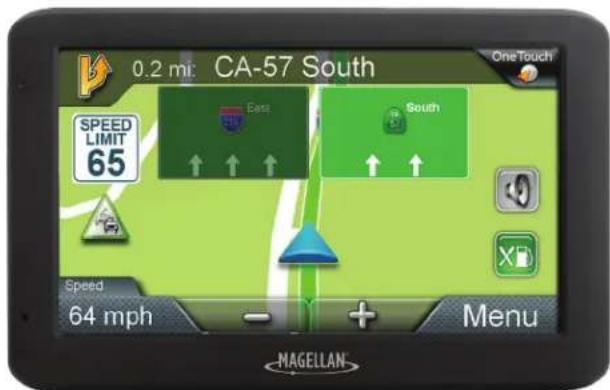
Create and customize routes and settings, knowing that Magellan RoadMate will always provide cutting-edge mapping, low-power battery consumption, and secure technology for your navigation needs.
The Magellan RoadMate receiver has a built-in battery so, in most cases, you will be able to follow these instructions while reading them on your computer screen without plugging the Magellan RoadMate receiver to AC power using an optional AC power adapter.
Note: While indoors, you may not get sufficient satellite signals to compute your location, so your location information may not be updated. However, the GPS chipset installed in the Magellan RoadMate receiver will pick up satellite signals in some very demanding locations. You may find that the Magellan RoadMate receiver will even compute a position indoors. Even with the improved GPS chipset, the receiver may not be able to always compute a fix indoors.
If you are not getting sufficient satellite signals while in a garage or other structure, move to a location where there is a clear view of the sky, and you should immediately see an improvement in signal strength.
Thank you for using the Magellan RoadMate.
A Power button
B Audio out
C MicroSD card slot (not available on all receivers)
Note: The microSD card allows you to access optional map regions. Visit the Magellan Online Shop for additional map regions available for your receiver.
D USB Connection
Note: Power input derives from the vehicle power adapter cable or optional AC power adapter. The USB connection is also used for connecting your receiver to a personal computer for map and software updates using the Magellan Content Manager application.
Reset
The reset button is located on the lower right corner of the back of your receiver. To reset your receiver, gently insert a paperclip into the reset hole to press the reset button with the receiver turned on. The receiver should restart with factory default settings.
Getting Started 2
Powering on the Magellan RoadMate receiver
The Power On/Off switch is located on the top of the Magellan RoadMate receiver.
Turning the Magellan RoadMate receiver On
-
Press the power switch.
-
Read and tap after the initial splash Warnings screen is displayed.
Turning the Magellan RoadMate receiver Off
Press the power switch. The receiver will automatically power off in 15 seconds.
Cancel: Cancels the power off sequence and returns to last viewed screen.
Power Down Now: Turns the receiver off immediately, bypassing the 15 second delay.
Note: The receiver will begin the power off sequence anytime the power cable is disconnected from the receiver or power is turned off at the 12 V power receptacle.
Battery Levels
The Magellan RoadMate receiver has an internal battery that charges whenever the receiver is connected to external power.
Note: The battery can only be serviced by authorized Magellan repair facilities.
Viewing the Battery Level Indicator
- Tap on the Menu button in the right corner of the Map screen.
- The battery level indicator is located in the upper right corner of the Main Menu, just below the satellite signal indicator. Green bars indicate battery level.
Speaker Volume
Changing the Volume from the Map Screen
- Tap . Additional controls appear.
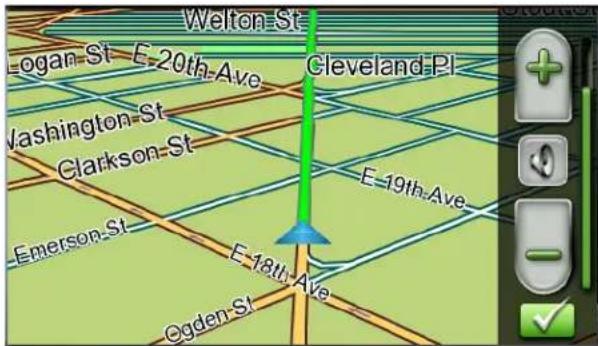
- Tap the speaker button to mute the volume, or tap the + or - buttons to raise or lower the volume.
- Tap
Changing the Volume from Settings
- Access the Main Menu.
- Tap .
- Tap Sound.
- Tap inside the Master volume adjust bar to change the volume level of your RoadMate receiver.
- Tap to save and exit.
Setting Button Sounds On or Off
- Access the Main Menu.
- Tap
- Tap Sound.
- Tap the check box for Button Sounds to
play (checked) or turn off (unchecked) button sounds.
Setting Smart Volume On or Off
The Smart Volume feature changes the receiver volume automatically as your speed changes to compensate for road noise.
-
Access the Main Menu.
-
Tap

- Tap Sound.
- Tap the Smart Volume check box to turn on (checked) or turn off (unchecked) this feature.
Brightness
Accessing the Brightness Control

- Access the Main Menu.
- Tap
- Tap Brightness.
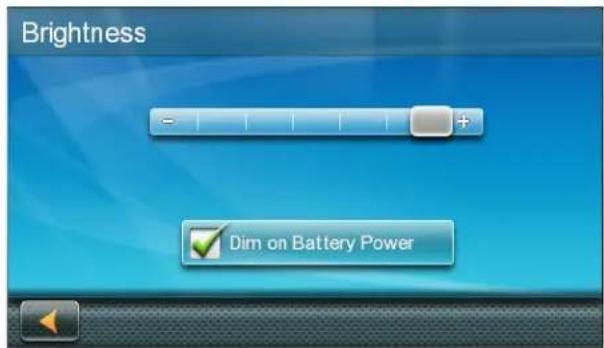
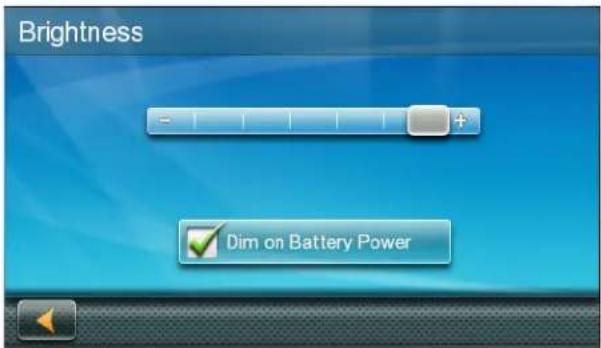
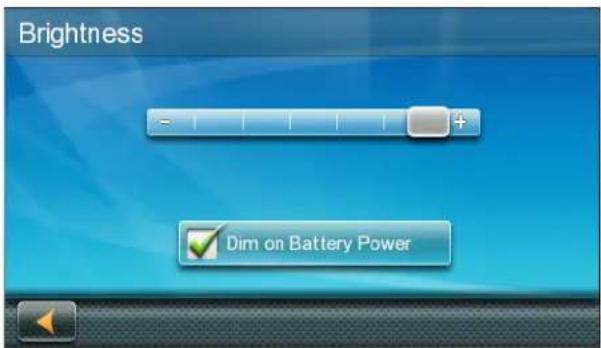
- Slide the brightness adjust bar to set the desired brightness.
Note: A Dim on Battery Power option, when checked, will reduce screen brightness when operating exclusively on battery power and you haven't touched the screen for a few seconds. This prolongs battery life between charges.
Main Menu
The Main Menu screen is the RoadMate's central hub of activity, containing icons for all of the receiver's major functions.
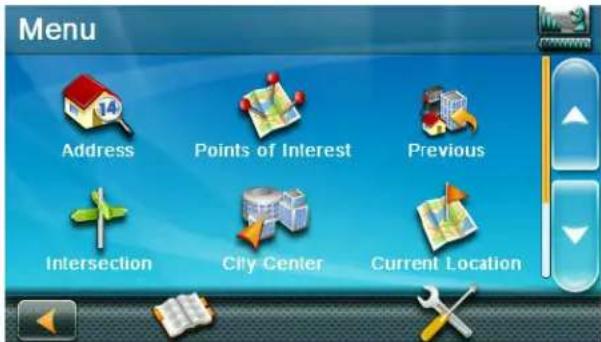
Accessing the Main Menu
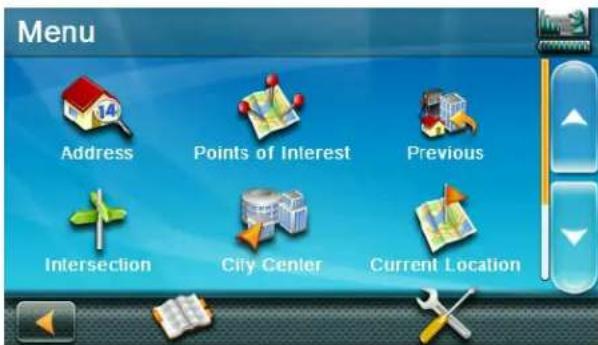
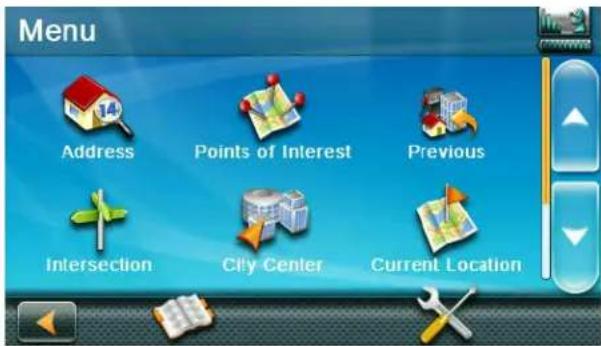
Tap Menu from the Map screen to access:
| Address Enter a | n address as a route destination. | |
| Points of Interest | Select a Point of Interest (POI) from a list of preloaded locations as a destination. | |
| Previous List of | your most recently visited destinations, allowing you to quickly select one to route to again. | |
| Intersection Create | create a route to an intersection of two streets. | |
| City Center Create | create a route to the geographical center of a city. | |
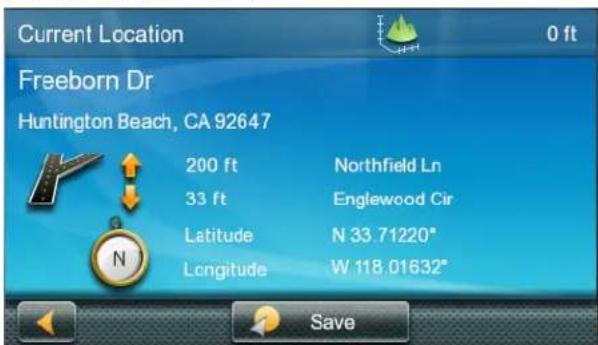
| Current Location | Displays information about your position, including: • Street name • Names of streets around you • Lat/Long information for your position | |
| Coordinates En | er Coordinates for Routing. | |
| Back Access the | Map screen. | |
| Address Book A | Access the Address Book to save addresses and destinations. | |
| Settings Display | Settings menu, which can be used to access functions for customizing your RoadMate receiver. | |
| Satellite Status | Graphic display of the strength of satellite signals being received. | |
| Battery Level G | Graphic display of the current battery level. |
Keypad
The keypad is the most common method for entering data into your RoadMate receiver. Understanding the keypad while entering an address is important for use of your RoadMate.
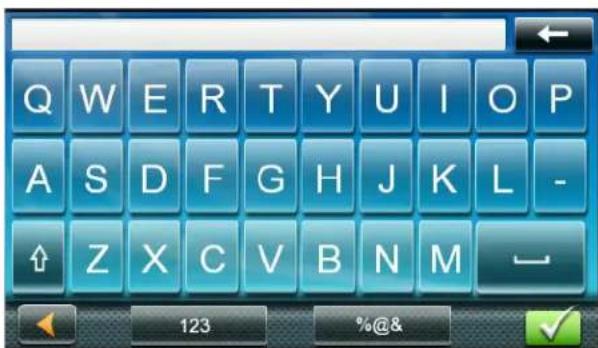
Keypad Overview
| ← | Backspace Move | is the cursor one position backwards, or deletes the preceding character. |
| ↑ | Shift Shifts between uppercase and lowercase characters. | |
| - | Space Inserts a space at the cursor position. | |
| 123 | Numeric Displays a numeric keypad. | |
| *@& | Symbols Displays available symbols. | |
| Previous Previo | us destination list (Enter City only) When entering a city, this list displays cities previously entered. Tap on a city from the displayed list to select that city. | |
| Zip Code | Zip Code (Enter | City only) Displays a numeric keypad to quickly enter a city's zip code. |
| List | List (Enter City | only) Press the List button while entering a city to display a list of cities beginning with the characters you have entered. |
| Accept (Entering | City) Accepts the suggested city displayed in the data field. (Entering street) Displays a list of streets beginning with the characters entered. |
Selecting From List
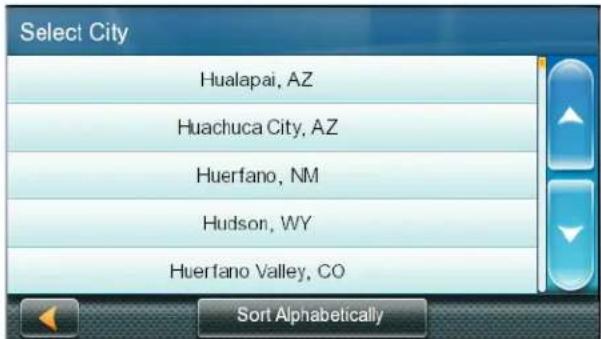
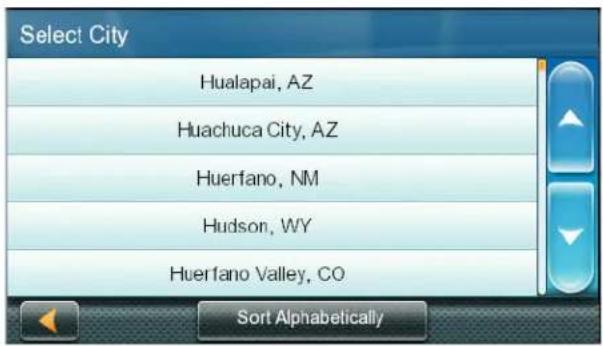
When a list of items found in the database are displayed, use the arrows on the right to move the list up and down and tap on the desired item in the list to continue.
Selecting QWERTY or ABC Keyboard
- Access the Main Menu.
- Tap X.
- Tap Keyboard.
- Select QWERTY or ABC.
Notes on Entering Data
If you have trouble getting desired results, follow these tips:
- Check to see if the name of a location contains apostrophes and hyphens if you do not see the POI or street name you are looking for in the list.
-
The more characters you enter, the smaller the list of possible options is from which to choose.
-
You cannot use accented letters when entering a street or city name. You can enter city and streets names using only standard characters.
QuickSpell
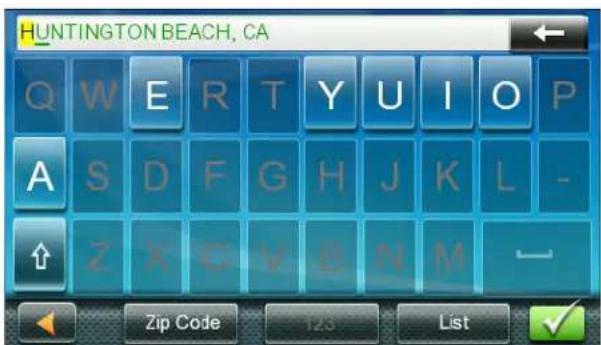
As letters are entered for a city or street, the Quickspell feature checks the database for cities or streets that begin with the letters entered. Any letters that cannot be used to spell a city or street name are greyed out.
Smart City Search
The Smart City Search feature attempts to predict the city you are looking for based on your position and cities you've gone to before.
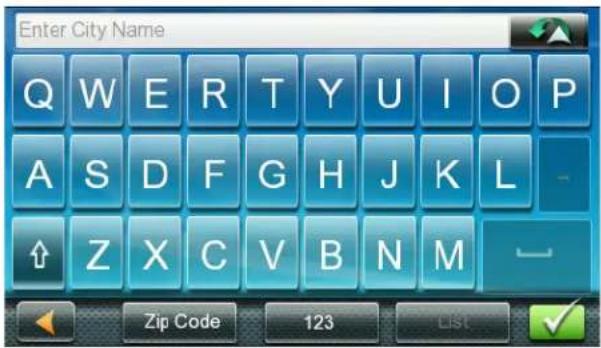
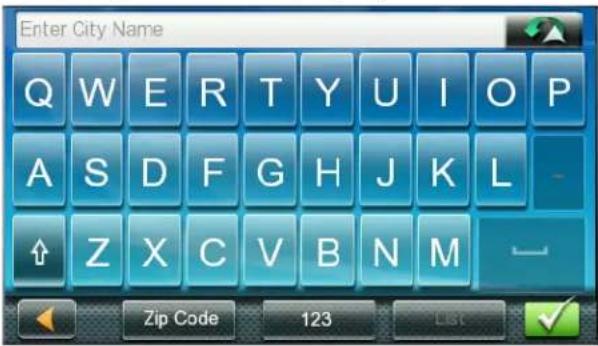
Whenever entering or searching for an address, the Enter City Name keyboard is displayed first.
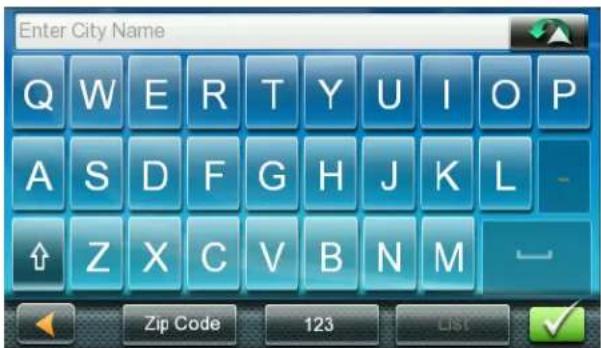
As letters are entered, Quickspell checks the database for cities beginning with the letters entered. Keys that don't spell a city in the database are greyed out, and Smart City Search displays a suggested city in the text field.
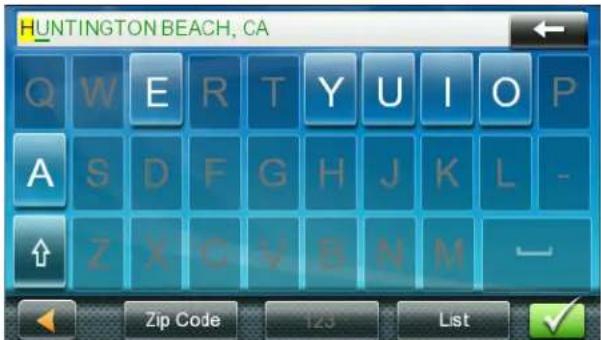
Tap the button to continue when the city is correct.
Tapping the button displays a list of cities that begin with the letters entered.
Map Screen 3
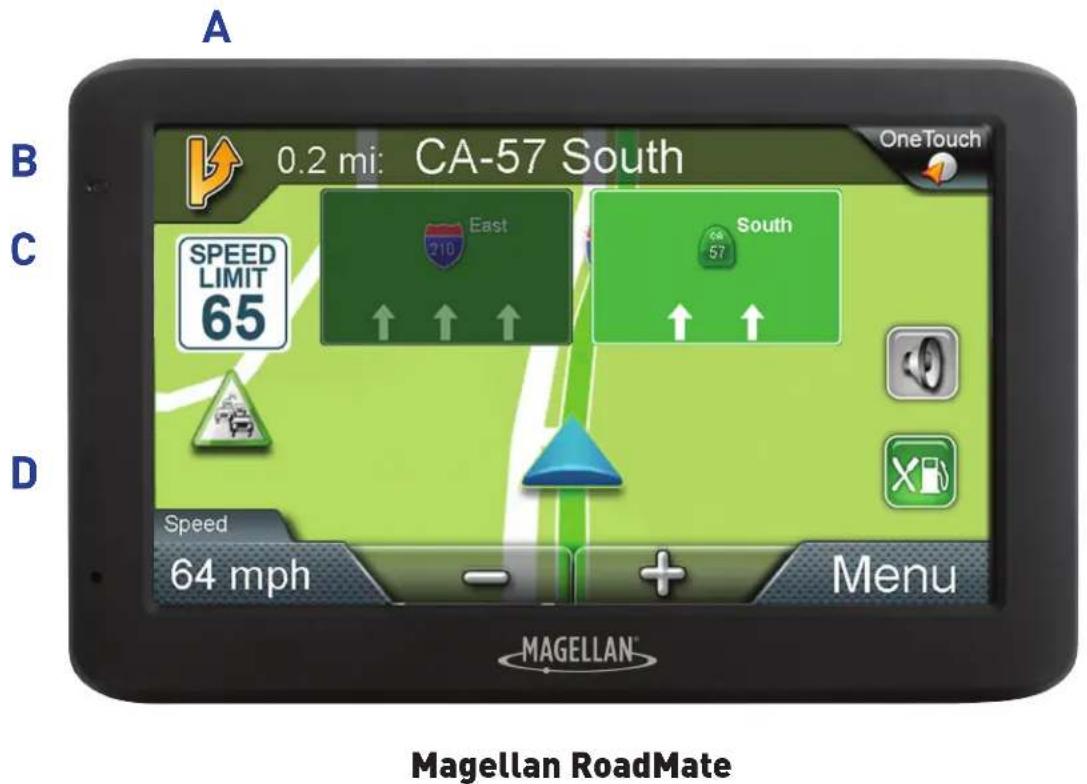
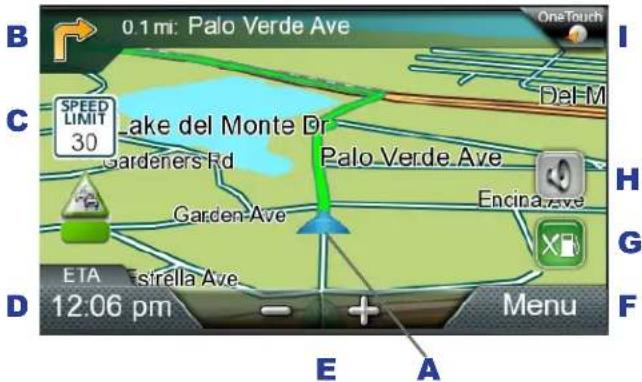
The Map screen is often used when you're following a route or just traveling around a city, and will likely be displayed in one of two unique modes: normal and routing.
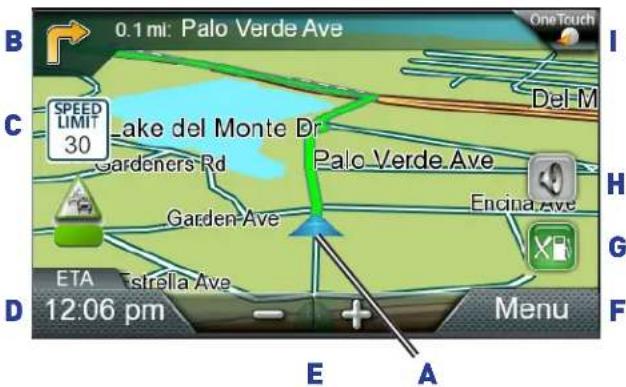
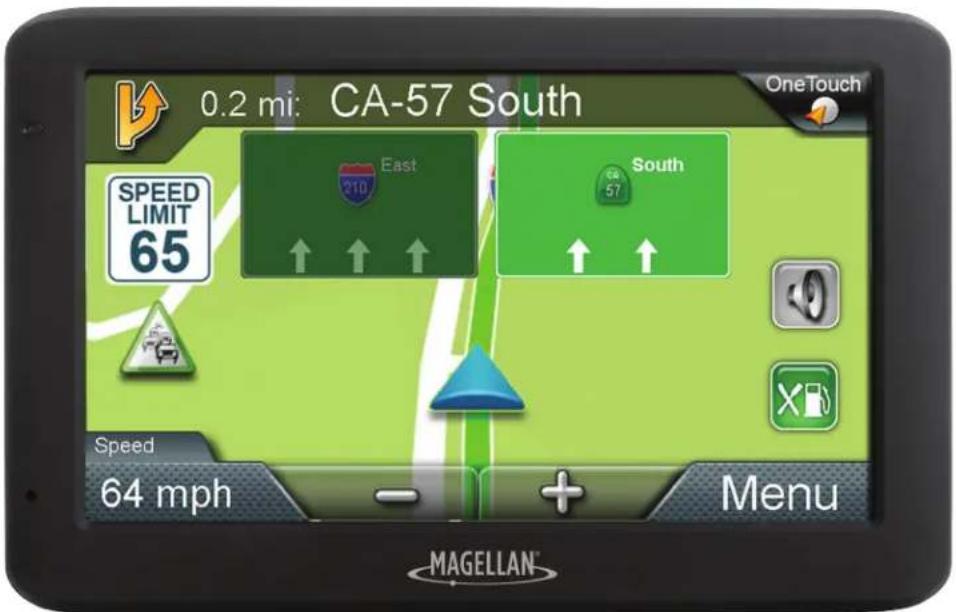
A Your Current Location
B Turn instructions for next maneuver
Tap to display the maneuver list (available only when routing). Distance and road name for the next maneuver. Tap to repeat last voice instruction.
C Speed limit
D Information Display
Displays speed, time of day, elevation, compass direction. While routing, it can also display distance to destination, estimated time of arrival (ETA), and time remaining. Tap on the information field to change.
E Zoom in/out
F Access Main Menu
Access list of Highway Exit POIs
Available only while on a highway/freeway.
H Access Volume controls
I Access One Touch menu
Provides instant access to your saved search criteria and favorite destinations.
Your position and the time are shown on the map. As you travel, your position is updated, giving you a clear view of your position and surrounding streets.
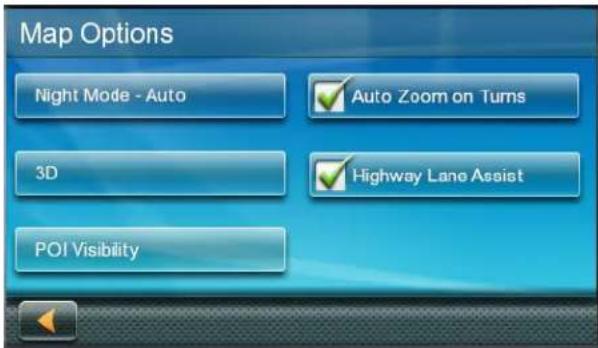
Setting the Map Options
You can customize your map display preferences in Settings.
- Tap Menu from the Map screen.
- Tap .
- Tap the Map button.
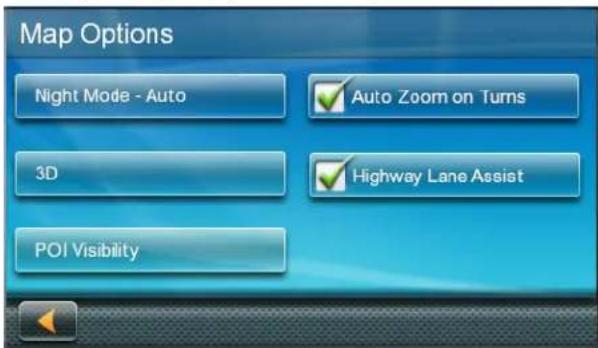
- Use the Map Options screen to customize your map/display preferences.
Setting the Map Modes (2D or 3D)
The map is normally displayed in 3D mode. To set the map to 2D mode:
- Tap anywhere on the Map screen. Additional controls appear.
- Tap 2D to switch the map to 2D mode from 3D mode, or tap 3D to switch the map to 3D mode from 2D mode.
- Tap
3D Landmarks
3D Landmarks offer visualization for architectural landmarks.
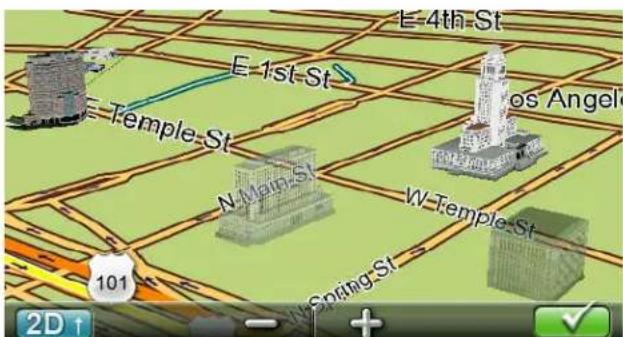
Setting Zoom Levels
As you zoom out in 3D, the display will switch to 2D at higher zoom levels.
Tap + or - at the bottom of the Map screen to set the desired zoom level.
Note: Zoom levels are limited in 3D mode.
Panning on the Map
- Slide your finger or a stylus across the Map screen. The map screen changes to Pan mode.
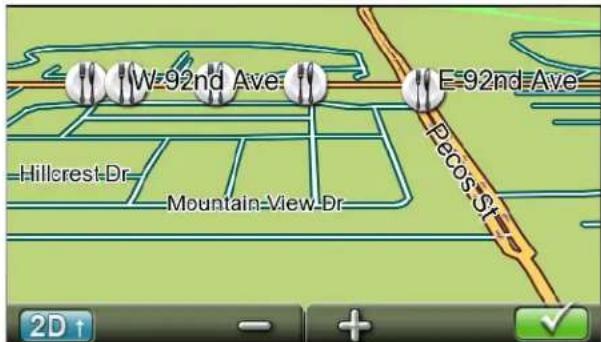
- Tap when you're finished, and the map returns to your current position.
Routing to a Panned Position
- Pan the map until the location you want to route to is displayed.
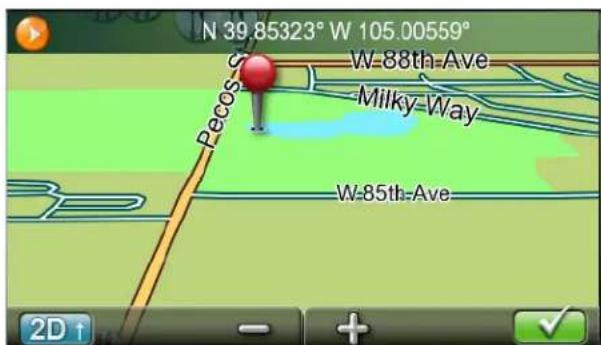
- Tap on the map at the point you want to go to. A red push pin, along with information about the point chosen, will be displayed at the top of the screen.
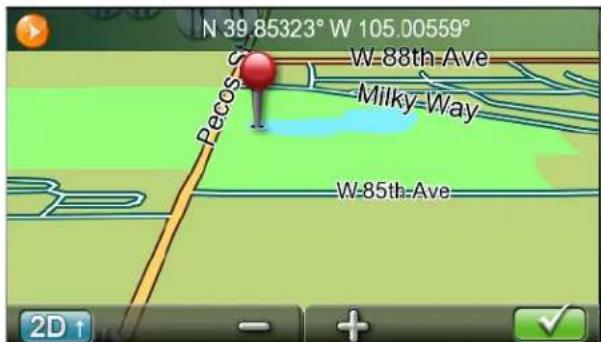
- Tap

top left corner.
- Define what to do with this new route point if an active route already exists:
Replace Destination: The next destination is cleared and replaced with the one selected from the Pan screen.
Go There Now: The selected location is inserted in the route as an intermediate destination before the next destination.
Add To Trip: the selected destination is added to the end of the current trip.
- Tap to return to the Map screen and begin navigating.
Note: If the selected position doesn't match an existing street address (i.e. the destination is not along a road or street that is stored in the map database), you will be stopped on the road closest to your destination, and a dashed line to your final destination will be displayed on the map.
Current Location Screen
The Current Location screen displays the approximate address of your current position, the next and previous intersections, your latitude, longitude, heading and elevation.
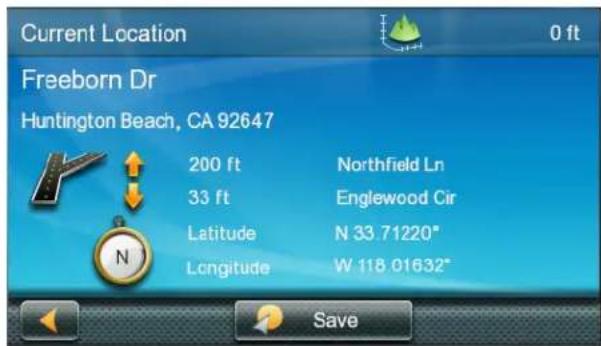
Accessing the Current Location Screen
Tap the Current Position icon from the Map screen.
Saving Your Current Location to Your Address Book
- Tap on the Current Position icon from the Map screen.
- Tap Save.
- Edit information.
Note: If you want to save this location to the OneTouch menu and the address book, check the Add to OneTouch box.
- Tap the Name field and use the keypad to enter a name for the Address Book entry.
Note: Tap List Categories to select a category for this address. New categories can be added from the Select Category from List screen by tapping +Add.
- Tap to confirm address details.
- Assign this entry to a button for your OneTouch menu if you saved this point to the OneTouch menu.
Maneuver List (Itinerary)
The Maneuver List is accessed from the Map screen, and is available only when routing.
Each line in the Maneuver List provides details about the maneuvers in the order that they are to be made, with the next maneuver at the top.
Accessing the Maneuver List
Tap the Maneuver icon in the top left corner of the Map screen when actively on a route.
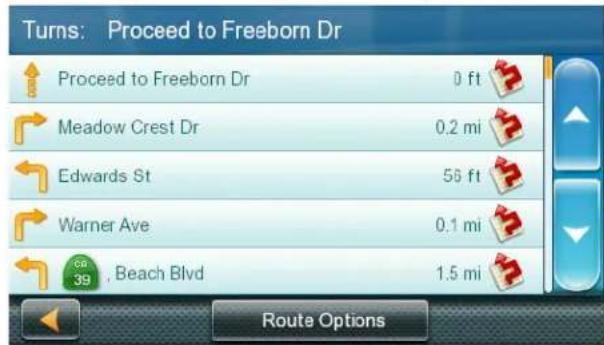
Avoiding a Maneuver
This feature modifies the route to possibly avoid a particular maneuver.
- Access the Maneuver List.
- Tap next to the maneuver you want to avoid.
- Tap Yes to confirm. The Magellan RoadMate receiver recalculates the route and returns you to the Map screen.
Changing Route Options
You can change how a route is computed by Fastest Time, Shortest Distance, Mostly Freeways, or Least Use of Freeways.
- Access the Maneuver List.
- Tap Route Options. The four types of routes are displayed with the computed time.
- Tap on the desired route option.
- Tap to begin routing.
Volume
You can adjust or mute the volume from the Map screen or from >Sound.
Changing the Volume from the Map Screen
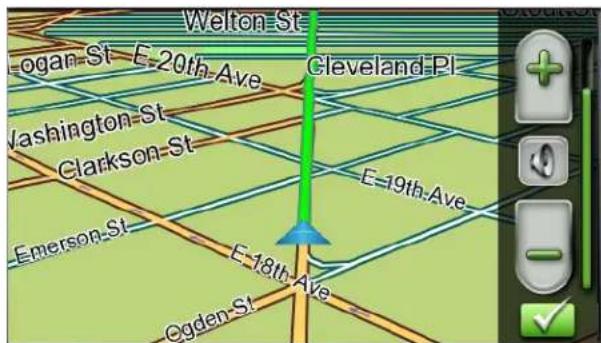
- Tap Additional controls appear.
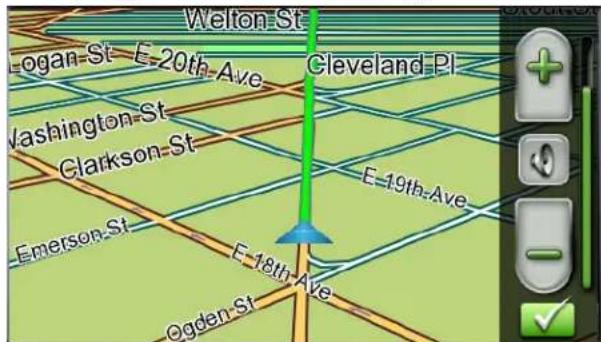
- Tap on the Speaker button to mute the volume, or tap + or - icons to change the volume levels.
- Tap
When muted, a red line appears across the speaker icon. Tap again to unmute the volume.
Selecting a Destination 4
Creating a Destination to an Address
To begin creating an address, enter the city by:
entering the name of the city
entering the ZIP code for the city
- selecting a previously used city.
-
Tap from the Main Menu.
-
Enter City:
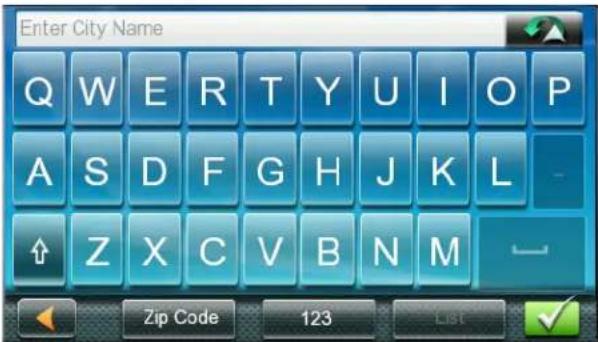
You can do this in three ways:
Tap to select the city from the list of previous cities.
Use the keyboard to enter the first few characters of any significant word in the city name to select a new city. If the city you're searching for appears in the top field, tap on the city name or
Tap List button to bring up a list of cities that begin with the characters you entered. Tap to select the city from the list.
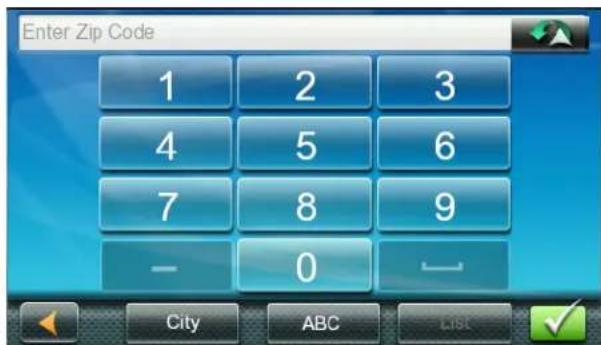
Tap Zip Code to switch to the numeric keyboard and enter the ZIP code. Tap to bring up a list of cities with the zip code entered.
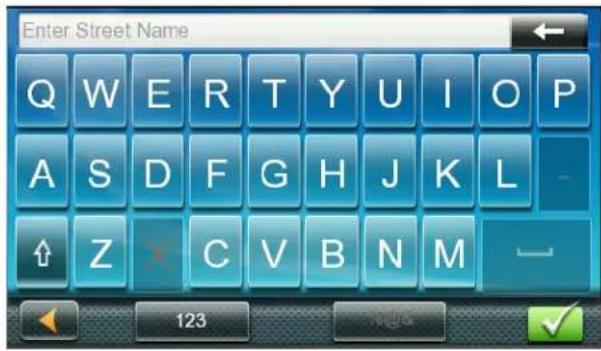
- Enter the Street name.
With the city selected, the keyboard will be displayed, prompting you for the street name.
Use the keyboard to enter the street name. Enter the first few characters of any word in the street name, and tap or continue entering characters until the list of streets is displayed.
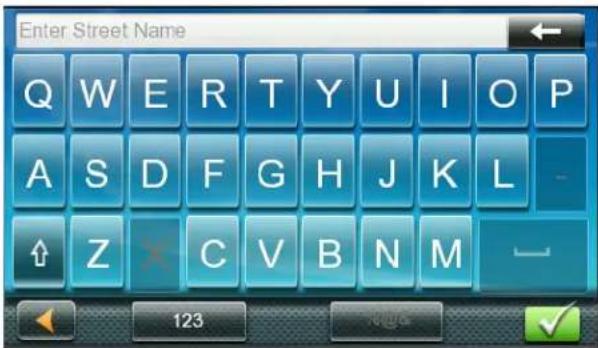
Note: You do not need to enter accented characters.
- Tap on the street name from the list.
- Enter Street number:
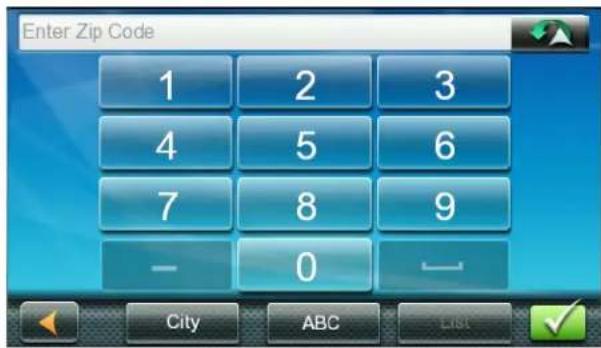
Use the keyboard to enter the street number for the address. The range of acceptable street numbers is displayed before you start typing. Tap when the street number is complete.
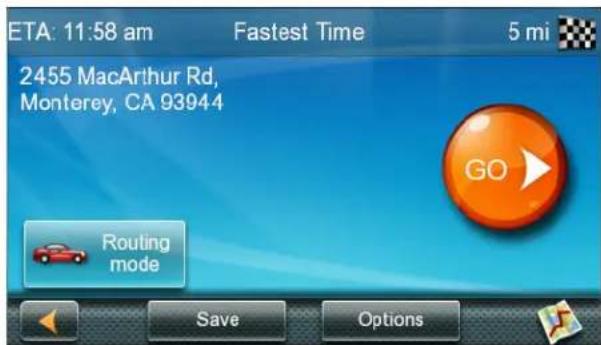
The GO screen appears with:
- address of the selected location
the estimated time of arrival (ETA) distance to travel - routing method (e.g. Fastest Time).
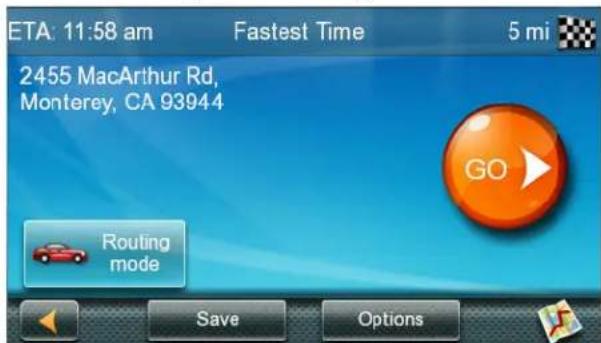
Tap Options to change routing method.
Tap to preview the route.
- Tap to begin routing on the Map screen.
Note: To use a destination later, tap Save (before tapping GO) to save it in your Address Book or in the OneTouch menu.
Tips on Entering Addresses Quickly
- When you are entering the name of a city or a street, only characters that appear in possible search results are displayed. The other characters are grayed out.
- Tap List after a couple of letters when entering city names or street names, as items that contain the specified characters are listed.
- Search by ZIP codes to narrow the number of matching cities to [usually] four or fewer.
Intersections
Creating a Destination to an Intersection
An intersecting street can pinpoint the location when you don't know the street number.
- Tap

-
Enter City. To do this:
-
Use the keyboard to enter the first few characters of any significant word in the city name to enter a new city. Tap on the city name or if the city you are searching for appears in the top field.
- Tap Previous to select the city from the list of previous cities.
- Tap List to display a list of cities that begin with the characters you entered. Tap to select the city from the list.
-
Tap Zip Code to switch to the numeric keyboard and enter the ZIP code. Tap to bring up a list of cities with this zip code.
-
Enter the Street name:
With the city selected, the keyboard will be displayed, prompting you to enter the street name.
Use the keyboard to enter the street name. Enter the first few characters of any word in the street name and tap or continue entering characters until the list of streets is displayed.
Note: You do not need to enter accented characters.
Tap on the street name from the list.
- Enter the second street name the same way as you entered the first street.
A screen appears with:
- address of the selected location
estimated time of arrival (ETA)
distance to travel - routing method (e.g. Fastest Time).
Note: Tap Options to change the routing method.
- Tap

screen.
to begin routing on the Map of Green.
City Centers
Creating a Destination to a City Center
City Center lets you select any city on the map as your destination, which is useful when you want to go to a city without selecting any specific address.
Note: A route to a city center uses the geographical center of the city as the destination point.
- Tap from the Main Menu.
- Enter City:
Tap Previous to select the city from the list of previous cities.
Use the keyboard to enter the first few characters of any significant word in the city name to select a new city. If the city you are searching for appears in the top field, tap on the city name or
Tap on the List button to access a list of cities that begin with the characters you entered. Tap to select a city from the list.
Tap the Zip Code button to switch to the numeric keyboard and enter the ZIP code. Tap to bring up a list of cities with the zip code entered.
A screen appears with:
- address of the selected location
estimated time of arrival (ETA)
distance to travel - routing method (e.g. Fastest Time).
Note: Tap Options to change the routing method.
- Tap to begin navigating on the Map screen.
Previous Destinations
Routing to a Previous Destination
- Tap from the Main Menu.
- Select a destination from the list of previous destinations.
A screen appears with:
- address of the selected location
estimated time of arrival (ETA)
distance to travel - routing method [e.g. Fastest].
Note: Tap Options to change the routing method.
- Tap to begin navigating on the Map screen.
Clearing the list of Previous Destinations
- Access the list of Previous Destinations.
- Tap Delete All.
- Tap Yes to confirm the deletion and clear the list.
Address Book
Saving a Destination to Your Address Book
Whenever you create a destination, you can save the destination to your address book before beginning the route.
- Tap Save on the Go screen.
- Select Add to OneTouch when the Edit Information screen is displayed to save this location to the OneTouch menu.
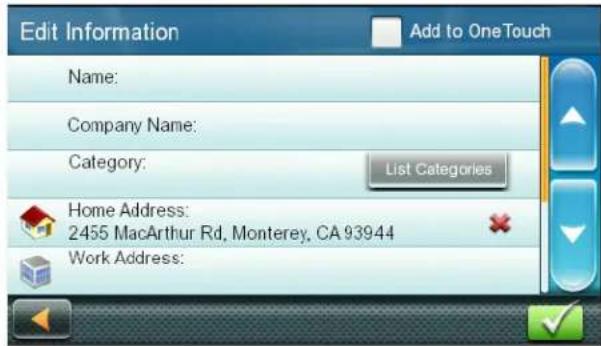
Edit information:
Tap the Name field and use the keyboard to enter a name for the address book entry.
Tap Work, Cell or Home phone to specify a phone number for the address book entry.
Tap List Categories to display a list of categories you've created for your address book. If necessary, create a new category by tapping ^+ Add at the bottom of the screen.
- Tap to confirm the details for this address.
To save this to the OneTouch menu, you will be asked to assign it to a OneTouch button.
Accessing an Address in Your Address Book
- Tap from the Main Menu.
- Tap the top left corner of the screen to easily find the desired address by narrowing the list by the first letter of the address book entries.
Routing to an Address in Your Address Book
- Access the address record from your address book.
-
Tap on the desired address book entry. A screen appears with:
-
address of the selected location
estimated time of arrival (ETA)
distance to travel - routing method (e.g. Fastest Time).
Note: Tap Options to change the routing method.
- Tap to begin navigating on the Map screen.
Points of Interest (POI) 5
The RoadMate receiver has preloaded POIs, such as restaurants and gas stations, that can be used as destinations for routes.
Creating a Route to a POI by Category
POIs are categorized into unique categories like gas stations and tourist attractions.
Most categories are further organized into subcategories. Restaurants, for example, have several subcategories for Chinese food, fast food, or other favorites.
- Tap

the Main Menu.
- Tap one of the POI categories in the list.
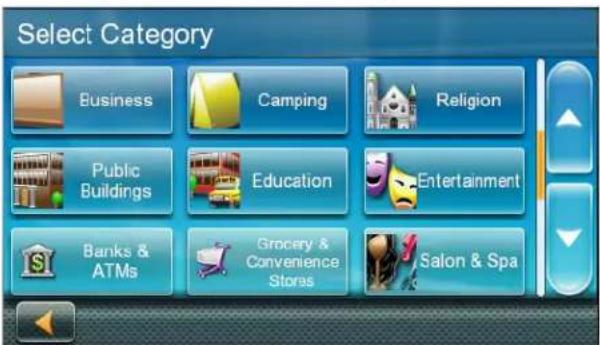
- Tap one of the POI subcategories (if any) in the list to narrow the search. POIs near your current position are displayed.
- Tap Near... for different search criteria (Near Current Position, City, or Address). Enter city or address information when you select Near City or Near Address.
- Select the desired POI from the POIs list.
The GO screen appears with:
- address of the selected location
estimated time of arrival (ETA)
distance to travel -
routing method (e.g. Fastest Time).
-
Tap Options to change the routing method (Fastest Time, Shortest Distance, Mostly Freeways, or Least Use of Freeways).
-
Tap to begin navigating to the selected POI on the Map screen.
Creating a Route to a POI by Name

the Main Menu.
- Tap Search By Name.
- Enter the name of the POI to be used as the destination and tap POIs near your current position are displayed
Note: Enter as many characters as possible to make it easier to find the exact POI you are searching for.
- Tap Near for different search criteria (Near Current Position, City, or Address). Enter city or address information when you select Near City or Near Address.
- Select the desired POI from the POIs list.
The GO screen appears with
- address of the selected location
estimated time of arrival (ETA)
distance to travel -
routing method (e.g. Fastest Time).
-
Tap Options to change the routing method.
-
Tap to begin navigating on the Map screen.
Creating a Route to a Highway Exit POI
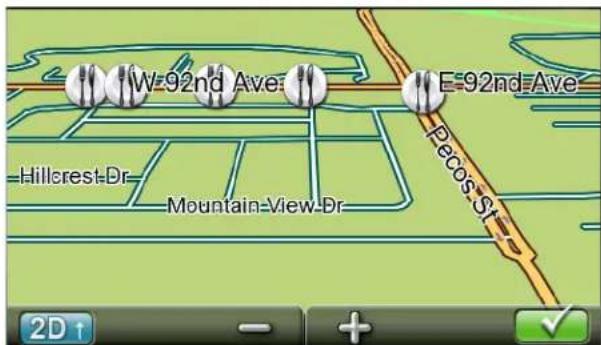
The Highway Exit POIs function lets you access commonly used POIs near an exit you're approaching while travelling on a highway, such as restaurants, gas stations, car repair facilities and hotels.
Freeway Exit POIs can be accessed while on a route or just driving, as long as you are on a freeway.
- Tap Highway Exit POIs when it appears on the Map screen. A list of upcoming freeway exits and their distance from your current position appears.
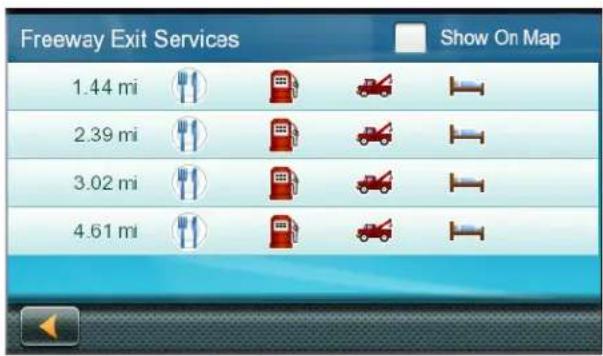
Symbols represent service POIs near the exits:

Restaurants

Gas Stations

Car Repair

Accommodations
-
Tap a symbol to get a list of related POIs near the exit.
-
Select a POI from the list, and tap

The GO screen appears with
- address of the selected POI
estimated time of arrival (ETA)
distance to travel -
routing method.
-
Tap Options to change the routing method.
-
Tap to begin navigating to the selected POI on the Map screen.
Traveling on a Route 6
Map Screen
A route is displayed on the Map screen in green with small arrows indicating direction of travel once the route has been calculated.
The name of the next street in your Turn List as well as its distance is displayed on the top of the screen. If you are not in the same city as the next street, the name of that city is displayed instead.
As the route progresses, voice alerts will be used to prompt you of upcoming maneuvers.
Maneuver List
The Maneuver List displays all maneuvers along your route until your chosen destination.
Tap on the Maneuver icon in the top left corner of the Map screen to view the Maneuver List.
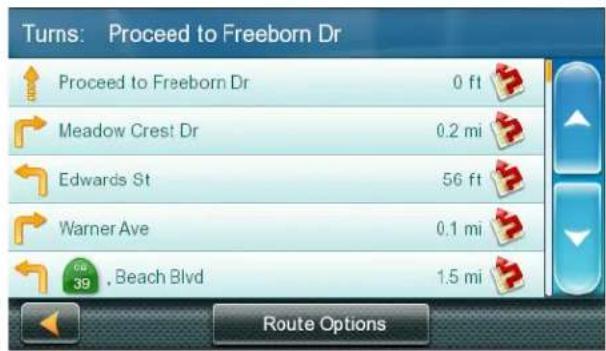
Accessing the Maneuver List
Tap the Maneuver icon in the top left corner of the Map screen when you're actively following a route.
Excluding a Maneuver
You can modify the route to possibly avoid a particular maneuver.
- Access the Maneuver List.
- Tap for the maneuver you want to avoid.
- Tap Yes to confirm.
The RoadMate receiver recalculates the route and returns you to the Map screen.
Types of Routes
You can use a wide variety of methods to create a route.
Routing Method
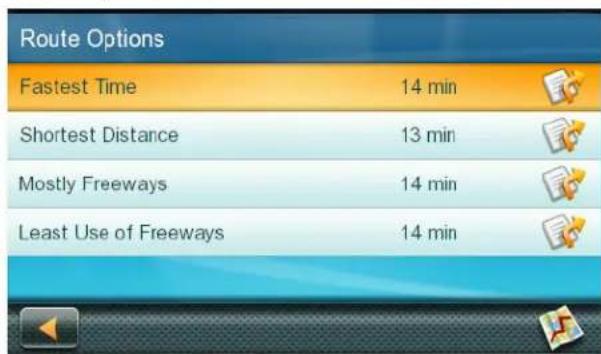
Fastest Time (Fast): the fastest possible route provided the vehicle is able to travel at or near the speed limit.
Shortest Distance (Short): the shortest possible route.
Mostly Freeways: the route that uses freeways whenever possible.
Least Use of Freeways: the route that avoids freeways whenever possible.
When a destination is selected, the RoadMate offers the route with the default selected routing method first.
Changing the Routing Method
To change the routing method, tap Options on the GO screen. The RoadMate calculates the route with different methods.
- Tap on the Maneuver List for the route method desired.
- Tap the desired routing method in the list, and the previous screen returns with the new calculation.
To Change the Default Routing Method
- Tap

2.
Cap Navigation Preference
- Select a default routing method using the Route Method drop-down menu.
Special Routing Functions
Cancelling a Route
- Tap Menu from the Map screen.
- Tap Cancel Trip on the Main Menu.
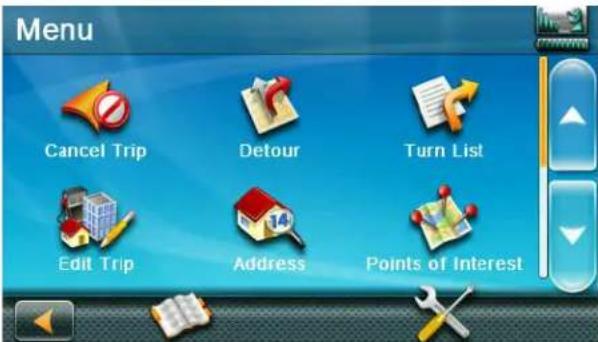
- Tap Yes to confirm that you want to cancel the route.
OR
- Tap the OneTouch icon from the Map screen to display the OneTouch menu.
- Tap Cancel Trip.
- Tap Yes to confirm that you want to cancel the route.
Detouring off a Route
- Tap Menu from the Map screen.
- Tap
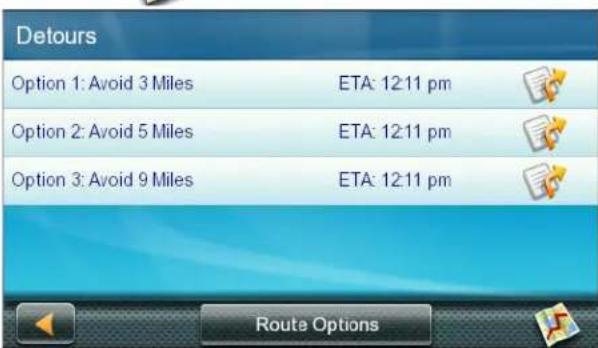
Different detours are calculated using the same routing method that was used to create the route. The list of alternate routes is displayed.
- Tap the button on the right to check the Maneuver List of an alternate route.
- Tap the desired alternate route.
OneTouch Menu 7
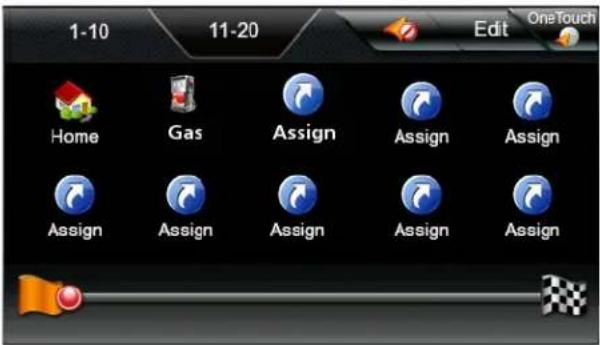
The OneTouchTM menu provides quick access to your home address, emergency services, gas stations, and addresses or searches stored in the OneTouch menu.
Accessing the OneTouch Menu
Tap the OneTouch icon in the upper right corner of the Map screen.
The Home Button
Tap the Home icon.
If you have a Home Address saved, the receiver will give you information to navigate to your home.
If you do not have a Home Address saved, you will be prompted to enter one:
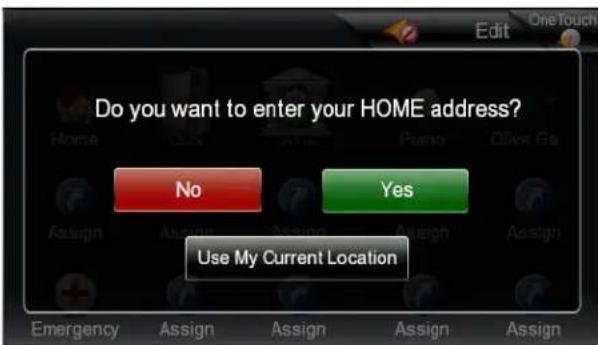
Tap Yes to enter your home address using the Enter Address keyboard.
Tap Use My Current Location to make your current location your Home.
Note: To edit or delete your Home address, go to the Address Book in the Main menu and edit the Home entry.
Saving an Address to a OneTouch Icon
- Tap in the top right corner of the Map screen. The OneTouch menu appears.
- Tap an Assign icon.
- Tap Location.
- Enter the address (city, street and number) for the OneTouch icon using the keypad. When the address is complete, you are prompted to enter a name for the button.
- Enter a name for the button using the keypad and tap
- Go to the Map screen and access the OneTouch menu to verify that the address has been added.
Changing the Address or Search of a One-Touch Icon
- Tap in the top right corner of the Map screen. The OneTouch menu appears.
- Tap Edit.
- Tap on the OneTouch button you want to edit.
- Tap the Re-assign button.
- Tap Yes to confirm.
- Follow OneTouch instructions.
Saving a POI Search Criteria to a OneTouch Icon
You can also save POI search criteria to a OneTouch button for later use, as you may frequently search for coffee shops near your location or gas stations along your route.
- Tap in the upper right corner of the Map screen.
- Tap one of the Assign buttons.
- Tap Search.
-
Tap one of the POI categories in the list.
-
Tap one of the POI subcategories (if any) in the list to further narrow the search, or tap All Subcategories to select all the subcategories or continue defining your search criteria.
- Enter a name for the button using the keypad and tap
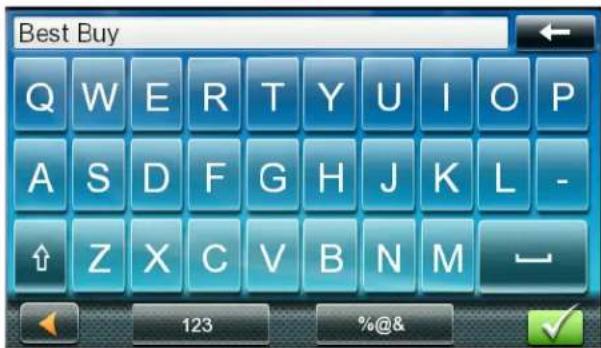
Setting a Route to a OneTouch Icon
Once you've set up the OneTouch menu, you can go to a saved address or search.
- Tap the OneTouch icon in the top right corner of the Map screen.
- Tap one of the assigned OneTouch buttons
- Tap on the desired POI if the assigned button is for a search and POIs are displayed.
The Preview icon at the bottom of the display allows you to step through the available POIs while viewing their location on the map.
The Near... button allows you to select how the list is sorted:
near your current position
- near a city you define
- near an address you enter.
- Tap to begin the route.
Note: The GO screen appears whether the destination was chosen from a list of POIs or by an address.
Traffic 8
Traffic features are only available on select RoadMate models.
Glossary
RDS: Radio Data System. Infrastructure that broadcasts digital information on the FM band.
TMC: Traffic Message Channel. Type of information broadcast by a Radio Data System.
Public TMC Service: In some countries, there is at least one TMC service provider that broadcasts Traffic information free of charge. The RoadMate automatically receives public TMC services no matter which country you're in.
For an updated list of countries and providers, visit www.magellangps.com.
Traffic Message: A message received by the RoadMate containing the description of a Traffic event.
Traffic Event: An event liable to disturb the flow of traffic.
Traffic Incidents
When routing, if a traffic event (e.g. incident(s), slow traffic) will delay your arrival, the traffic icon on the Map screen will display the computed traffic delay (in minutes) in the red box below the traffic icon.
| Traffic signals being received and no delay found on route. |
| Delay is less than 15% of entire route. |
| Delay is more than 15% of entire route. |
| No Signal indicator. Device is searching for signal. |
Avoiding Traffic Incidents
You can choose to avoid traffic incidents along your route during a delay.
- Tap on the Traffic icon while traveling on a route. The Avoid Traffic screen is displayed.
Note: The Avoid Traffic screen displays automatically when the computed delay is greater than 20% of the entire trip.
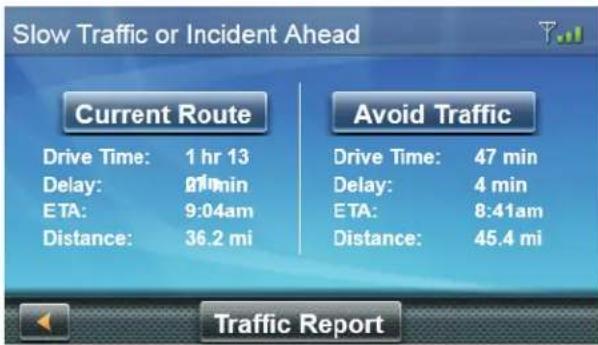
The Avoid Traffic button is active when an alternative route is available. The button is grayed out and says No Alt Route when there is no alternate route.
- Tap Avoid Traffic. The route will be changed and the Map screen displayed.
Settings 9
User Settings allow you to customize your RoadMate receiver to your personal needs.
Note: Tapping the Back arrow from a Settings screen saves any changes you've made.
Accessing System Settings
Tap from the Main Menu.
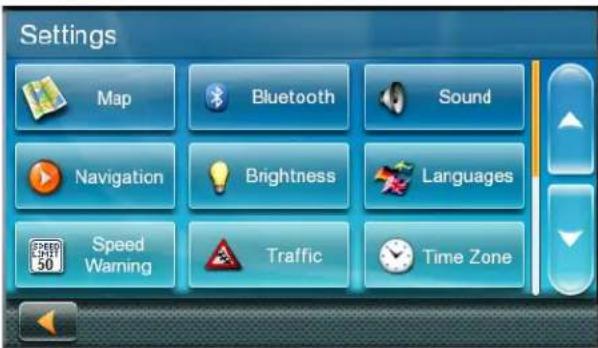
Map Options
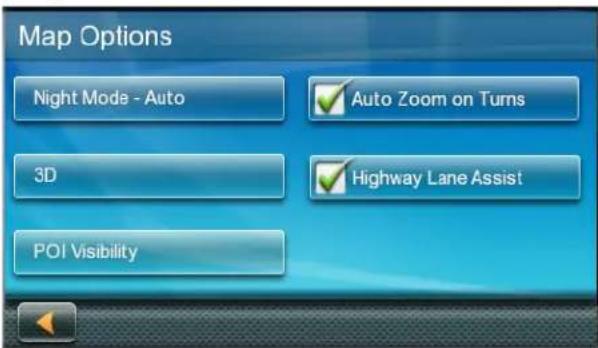
Setting Auto Night Map Display
The map is normally displayed in vivid colors for daytime use, and with dark tints for night use. You can choose whether to always use daytime colors, night colors, or let the RoadMate receiver automatically switch between them right before sunrise and right after sunset.
- Tap from the Main Menu.
- Tap Map.
- Tap Night Mode to select Automatic for timed adjustment, on always, or off always.
Setting Heading Up or North Up in 2D Mode
- Tap from the Main Menu.
- Tap Map.
- Tap 3D, 2D Heading Up, or 2D North Up to toggle between settings.
Assigning Visible POIs
POI icons displayed on the map can be turned on or off to avoid visual clutter.
- Tap from the Main Menu.
- Tap Map.
- Tap POI Visibility.
- Check POIs you want shown and unchecked POIs you want hidden on the POI Selection screen.
Setting Auto Zoom on Turns
You can set the map to automatically zoom in to the lowest level when approaching a turn.
- Tap From the Main Menu.
- Tap Map.
- Check Auto Zoom on Turns.
Setting Highway Lane Assist
When Highway Lane Assist is checked, the map displays highway signs as you approach a highway interchange, visual indicating which lane you should be in.
- Tap from the Main Menu.
- Tap Map.
- Check Highway Lane Assist.
Setting 3D Building Display
- Tap from the Main Menu.
- Tap Map.
- Check 3D Building Display.
Sound
Setting Volume from Settings
- Tap from the Main Menu.
- Tap Sound.
- Slide the volume slider bar to the desired volume level.
Turning Button Sounds On/Off
- Tap from the Main Menu.
- Tap Sound.
- Tap Button Sounds to activate (checked) or de-activate (unchecked) audible sounds when a button is tapped.
Turning Smart Volume On/Off
Smart Volume adjusts sound levels based on road noise caused by vehicle speed, which can make the speaker harder to hear.
- Tap from the Main Menu.
- Tap Sound.
- Tap Smart Volume to activate [checked] or de-activate (unchecked) Smart Volume.
Navigation
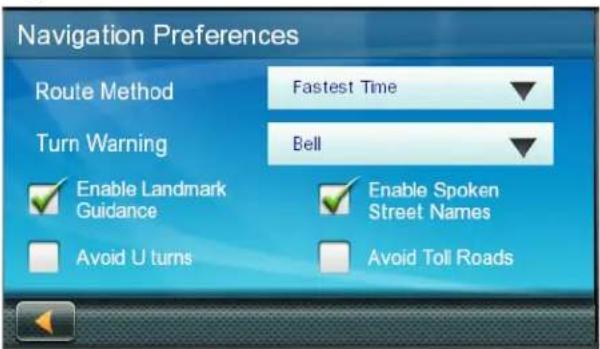
Setting The Default Route Method
- Tap from the Main Menu.
- Tap Navigation Preferences.
- Select a default routing method from the drop-down menu.
Setting The Turn Warning Alert Sounds
- Tap from the Main Menu.
- Tap Navigation Preferences.
- Select a default Turn Warning Alert sound from the drop-down menu.
Enabling Landmark Guidance
Landmark Guidance uses common landmarks when available to help you identify streets requiring a maneuver.
- Tap from the Main Menu.
- Tap Navigation Preferences.
- Check Enable Landmark Guidance to turn Landmark Guidance on.
Enabling Spoken Street Names
- Tap from the Main Menu.
- Tap Navigation Preferences.
- Check Enable Spoken Street Names to allows audible street names during navigation.
Enabling U Turn Guidance
- Tap from the Main Menu.
- Tap Navigation Preferences.
- Check Enable U Turns to allow the receiver to use U-turns during your route.
Avoiding Toll Roads
- Tap from the Main Menu.
- Tap Navigation Preferences.
- Check Avoid Toll Roads to tell the receiver to avoid toll roads whenever possible.
Safe-Driving Mode
Safe-Driving Mode is designed to encourage a safer driving experience by disabling access to high-involvement activities while you're driving over 10 MPH. Safe-Driving Mode is automatically enabled on your receiver.
- Tap from the Main Menu.
-
Tap Navigation Preferences.
-
Tap Safe-Driving Mode to activate (checked) or de-activate (unchecked) Safe-Driving Mode.
Note: When you're driving over 10 MPH while Safe-Driving Mode is enabled, the Menu button is disabled, but other features on the Map screen, such as Traffic, OneTouch, etc., are accessible.
If you attempt to access a disabled feature, a pop-up message briefly appears on your screen, reminding you to find a safe place to stop before accessing that feature.
Headlight Reminder
The Headlight Reminder alerts you to turn on your vehicle's headlights when the receiver switches to Night Mode around sunset. The Headlight Reminder is automatically enabled on your receiver.

- Tap
m the Main Menu. - Tap Navigation Preferences.
- Tap Headlight Reminder to activate (checked) or de-activate (unchecked) the Headlight Reminder.
When the Headlight Reminder is activated, the icon appears for 15 seconds when the receiver switches to Night Mode.
You will also hear an audible alert that says "Remember to turn on your headlights!"
Note: The Headlight Reminder notification only occurs when the receiver switches from Day Mode to Night Mode.
Driving Break Reminder
The Driving Break Reminder option enables your receiver to alert you when you may need to pause after a long drive.
- Tap

m the Main Menu.
- Tap Navigation Preferences.
- Move the Driving Break Reminder slider from Off (no reminder) to:
1 (reminder after 1 hour of driving)
2 (reminder after 2 hours of driving)
3 (reminder after 3 hours of driving)
4 (reminder after 4 hours of driving)
5 (reminder after 5 hours of driving)
Note: The default Driving Break Reminder option is 2 hours.
While driving, you will see the on for 15 seconds after your selected reminder time has elapsed from the time you turned on your receiver in your vehicle, even if you didn't select a route.
You will also hear an audible alert saying "You have been driving for 1,2,3,4,5) hours. Consider taking a driving break."
Note: The Driving Break Reminder countdown will restart once the icon has been displayed for 15 seconds or after turning the receiver back on from being turned off.
Brightness
Setting Brightness
- Access the System Settings menu (above).
- Tap Brightness.
- Slide the Brightness slider to set the brightness of the display.
- Tap the Back arrow.
- Check Dim on Battery Power to dim the display while using internal battery power.
Languages
Setting Languages
- Access the System Settings menu.
- Tap Languages.
- Tap the desired language.
- Confirm the change.
- Tap the back arrow.
SpeedWarnings
Setting Speed Warning Options
- Tap from the Main Menu.
- Tap Speed Warning.
- Set Audible Warning on or off.
- Set Visible Warning on or off. This determines if the speed limit icon is displayed on the screen.
- Set the number of miles above the speed limit you want to receive the warnings.
Viewing the GPS Status
- Tap from the Main Menu.
- Tap GPS.
- Tap Status.
Note: You can also access the GPS Status screen by tapping on the satellite signal indicator in the upper right corner of the OneTouch screen.
Auto Power Off
Setting Auto Power Off
Auto Power is the duration of time that the Magellan RoadMate receiver automatically turns off after remaining idle.
- Access the System Settings menu.
- Tap Auto-Off.
- Tap on the desired duration.
- Tap the back arrow.
Default System Settings
Restoring All Default System Settings
- Access the System Settings menu.
- Tap Restore Default.
- Confirm that you want to proceed in restoring all the system defaults.
Route Area Avoidance
Route Area Avoidance allows you to manually select an area to avoid along your route.
- Tap from the Main Menu.
- Tap Route Area Avoidance.
- Tap Add to select a new area to avoid.
Note: If you haven't yet added any areas to avoid, Add is the only accessible option.
- Pan around and zoom in and out of the map to select an area within the red box to avoid.
- Tap Select to choose the areas you want to avoid, or the Back icon to cancel the action.
- Tap Confirm on the message that appears, Cancel Area Avoidance to cancel the selection, or the Back icon to select a different area.
The area you selected is now accessible from your Route Area Avoidance list.
Note: Your route will still include freeways and highways in the areas that you choose to avoid.
Once you've created one or more areas to avoid, you can:
- Edit the details of these areas.
- Add new areas to avoid.
- Select one or more areas to avoid during a route.
- Remove any of these areas from your list.
Note: You can only edit one area at a time. When you select multiple areas, the Edit function is disabled.
Product Information
Viewing Product Information
- Tap from the Main Menu.
- Tap Product Information.
- Scroll down the page to view the Serial Number and Software Version.
Magellan Limited Warranty
All Magellan global positioning system (GPS) receivers are navigation aids, and are not intended to replace other methods of navigation. The purchaser is advised to perform careful position charting and use good judgment. READ THE USER GUIDE CAREFULLY BEFORE USING THE PRODUCT.
1. MAGELLAN WARRANTY
(a) MiTAC Digital Corp. ("Magellan") warrants its GPS receivers and hardware accessories to be free from defects in material and workmanship and will conform to its published specifications for the product for a period of one year from the date of original purchase. THIS WARRANTY APPLIES ONLY TO THE ORIGINAL CONSUMER PURCHASER OF THIS PRODUCT.
(b) In the event of a defect, Magellan will, at its discretion, repair or replace the hardware product with a product of like kind or quality, which may be new or reconditioned, with no charge to the purchaser for parts or labor. Magellan's limit of liability under the limited warranty shall be the actual cash value of the product at the time the purchaser returns the product to Magellan for repair less a reasonable amount for usage, as determined by Magellan in its sole discretion. The repaired or replaced product will be warranted for 90 days from the date of return shipment, or for the balance of the original warranty, whichever is longer.
(c) Magellan warrants that software products or software included in hardware products will be free from defects in the media for a period of 30 days from the date of shipment and will substantially conform to the then current user documentation provided with the software (including updates thereto). Magellan's sole obligation shall be the correction or replacement of the media or the software so that it will substantially conform to the then-current user documentation. Magellan does not warrant the software will meet purchaser's requirements or that its operation will be uninterrupted, error-free or virus-free. The purchaser assumes the entire risk of using the software.
2. PURCHASER'S REMEDY
PURCHASER'S EXCLUSIVE REMEDY UNDER THIS WRITTEN WARRANTY OR ANY IMPLIED WARRANTY SHALL BE LIMITED TO THE REPAIR OR REPLACEMENT, AT MAGELLAN'S OPTION, OF ANY DEFECTIVE PART OF THE RECEIVER OR ACCESSORIES WHICH ARE COVERED BY THIS WARRANTY. REPAIRS UNDER THIS WARRANTY SHALL ONLY BE MADE AT AN AUTHORIZED MAGELLAN SERVICE CENTER. ANY REPAIRS BY A SERVICE CENTER NOT AUTHORIZATION BY MAGELLAN WILL Void THIS WARRANTY.
3. PURCHASER'S DUTIES
For repair or replacement on a Magellan product the purchaser must obtain a Return Materials Authorization (RMA) number from Magellan Technical Support or by
submitting a repair request through our website at www. magellanGPS.com, prior to shipping. The purchaser must return the product postpaid with a copy of the original sales receipt, purchaser's return address and the RMA number clearly printed on the outside of the package to the Authorized Magellan Service Center address provided by Magellan with the RMA number. Magellan reserves the right to refuse to provide service free-of-charge if the sales receipt is not provided or if the information contained in it is incomplete or illegible or if the serial number has been altered or removed. Magellan will not be responsible for any losses or damage to the product incurred while the product is in transit or is being shipped for repair. Insurance is recommended. Magellan recommends the use of a trackable shipping method such as UPS or FedEx when returning a product for service.
4. LIMITATION OF IMPLIED WARRANTYES
Except as set forth in item 1 above, all other expressed or implied warranties, including those of fitness for any particular purpose or merchantability, are hereby disclaimed AND IF APPLICABLE, IMPLIED WARRANTY UNDER ARTICLE 35 OF THE UNITED NATIONS CONVENTION ON CONTRACTS FOR THE INTERNATIONAL SALE OF GOODS. Some national, state, or local laws do not allow limitations on implied warranty on how long an implied warranty lasts, so the above limitation may not apply to you.
5. EXCLUSIONS
The following are excluded from the warranty coverage:
[a] periodic maintenance and repair or replacement of parts due to normal wear and tear;
(b) batteries;
[c] finishes;
(d) installations or defects resulting from installation;
(e) any damage caused by (i) shipping, misuse, abuse, negligence, tampering, moisture, liquids, proximity or exposure to heat, or improper use; (ii) disasters such as fire, flood, wind, and lightning; (iii) unauthorized attachments or modification;
[f] service performed or attempted by anyone other than an authorized Magellan Service Center;
(g) any product, components or parts not manufactured by Magellan,
[h] that the receiver will be free from any claim for infringement of any patent, trademark, copyright or other proprietary right, including trade secrets.
(i) any damage due to accident, resulting from inaccurate satellite transmissions. Inaccurate transmissions can occur due to changes in the position, health or geometry of a satellite or modifications to the receiver that may be required due to any change in the GPS.
[Note: Magellan GPS receivers use GPS or GPS + GLONASS to obtain position, velocity and time information. GPS is operated by the U.S. Government and GLONASS is the Global Navigation Satellite System of the Russian Federation, which are solely responsible for the accuracy and maintenance of their systems. Certain conditions can cause inaccuracies which could require modifications to the receiver. Examples of such conditions include but are not limited to changes in the GPS or GLONASS transmission.]
The opening, dismantling or repairing of this product by anyone other than an authorized Magellan Service Center will void this warranty.
6. EXCLUSION OF INCIDENTAL OR CONSEQUENTIAL DAMAGES
(a) MAGELLAN SHALL NOT BE LIABLE TO PURCHASER
(b) OR ANY OTHER PERSON FOR ANY INDIRECT, INCIDENTAL OR CONSEQUENTIAL DAMAGES WHATSOEVER, INCLUDING BUT NOT LIMITED TO LOST PROFITS, DAMAGES ARISING FROM A DELAY OR LOSS OF USE, OR OUT OF THE BREACH OF THIS WARRANTY OR ANY IMPLIED WARRANTY EVEN IF CAUSED BY THE NEGLIGENCE OR ANOTHER FAULT OF MAGELLAN OR OUT OF THE NEGLIGENT USAGE OF THE PRODUCT. IN NO EVENT WILL MAGELLAN BE HELD RESPONSIBLE FOR SUCH DAMAGES, EVEN IF MAGELLAN HAS BEEN ADVISED OF THE POSSIBILITY OF SUCH DAMAGES.
c) Some national, state, or local laws do not allow the exclusion or limitation of incidental or consequential damages, so the above limitation or exclusion may not apply to you.
7. COMPLETE AGREEMENT
(a) This written warranty is the complete, final and exclusive agreement between Magellan and the purchaser with respect to the quality of performance of the goods and any and all warranties and representations. THIS WARRANTY SETS FORTH ALL OF MAGELLAN'S RESPONSIBILITIES REGARDING THIS PRODUCT. THIS WARRANTY GIVES YOU SPECIFIC RIGHTS. YOU MAY HAVE OTHER RIGHTS WHICH VARY FROM LOCALITY TO LOCALITY AND CERTAIN LIMITATIONS CONTAINED IN THIS WARRANTY MAY NOT APPLY TO YOU.
(b) If any part of this limited warranty is held to be invalid or unenforceable, the remainder of the limited warranty shall nonetheless remain in full force and effect.
This limited warranty is governed by the laws of the State of California, without reference to its conflict of law provisions.
or the U.N. Convention on Contracts for the International Sale of Goods, and shall benefit Magellan, its successors and assigns. This warranty does not affect the consumer's statutory rights under applicable laws in force in their locality, nor the customer's rights against the dealer arising from their sales/purchase contract.
For further information concerning this limited warranty, please visit Magellan's website at magellangps.com or contact:
MiTAC Digital Corp. 279 E Arrow Hwy, San Dimas, CA 91773, USA
USA & Canada: 800-707-9971
Mexico:866-310-7223
Need Technical Support?
If you need technical support for your Magellan receiver you should first go to www MAGELLANGPS.com/support for answers to most questions. If you can't find a solution there, you can contact Magellan Technical Support directly by e-mail at support.us@cs.magellangps.com or call 800-707-9971.
Connect with us @MagellanGPS




MAGELLAN®
MiTAC Digital Corporation 279 E Arrow Hwy, San Dimas, CA 91773 USA
www.magellanGPS.com
Magellan RoadMate
Tested To Comply With FCC Standards
FOR HOME OR OFFICE USE
Tested To Comply With FCC Standards
FOR HOME OR OFFICE USE
- Acceda al menu principal.
- Pulse
- Pulse Brightness.
Note: Alternatively, you can use the button on the left of the GPS. This is a useful tool for all users who want to get a better look at the GPS.
Apagado automatico
Tested To Comply With FCC Standards
FOR HOME OR OFFICE USE
Tested To Comply With FCC Standards
FOR HOME OR OFFICE USE
Tested To Comply With FCC Standards
FOR HOME OR OFFICE USE
A tela GO saree com:
endereco do local selectionado
- horario de chegada estimado (ETA)
distência de viagem
F Acessar Menu Principal
Definindo as Opçoes do Mapa
Tela Current Location
A tela GO saree com:
Será exhibida umaanela com:
Será exhibida umaanela com:
Será exhibida umaanela com:
JaHbI nepeaTnK He doJxKeH pacNoIarTaBcR nn pa6oTaB B coeTaHn C dpYrIMN aHTeHHAMn nn nepeaTnKaMn.
Дя co6JIIODeHn Tpe6OBAHn HOpMaTINBOB FCC C daHHbIM np6OpOM CneDyeET NcNoIb3OBaTb 3KpaHnpOBaHHbIe Ka6eJI. 3KcnIyataunr HecepTnФuNpOBaHHoro O6OpUdoBaHn IIN He3KpaHnpOBaHHbIX Ka6eJIe MoXeT npVBecTN K nomexam Pn npIeMe TeIeBn3NOHHbIX n paDNOCnIHJIoB. HAcToaUM NOIb3OBaTeJIb yBeOMJRETCr O TOM, YTO n3MeHeHn, BblONJIHeHHbIe 6e3 pa3peUWeHn IpOn3BOdnteJI, MOryt NOBNeYb 3a CO6oAHHynpOBaHne npaba NOIb3OBaTeJIHa 3KcnIyatauIO O6OpUdoBaHn.

MagellanRoadMate
Tested To Comply With FCC Standards
FOR HOME OR OFFICE USE
PpneMHnK Magellan RoadMate OJKeH 6bITb yCTaHOBHeH Ha pacCToHnH He MeHee 20 cm (8 IIOHMOB)OT NOb3ObaTeIra.
DAnHbI cnpoBo np6op KnaCCa B OTeBaet BCem Tpe6oBaHnM KaHaDCkNx HopMaTnBOB nIy o6OpyDoBaHn, CO3daIOUeO NOMEXN.
CoOTBeTCTBne Tpe6oBaHnM MnHnCtepCTBa npomblJeHHocTn KaHaDbI (IC)
DaHHbI npH6Op COOTBeTCTByeT cTaHApTHbIM CneUΦnKaunm paAnoo6OpyDoBaHn
MHHnCTepCTBa npomblIeHHoCTNaHaIbI.
3Kcnnyaataa daHoro np6opa donyckaetc npn co6nIOeHNn CneDyUOx nBvX ycNoBn:
1)Даньи пибор He Должень CO3даВаТБ Врдьхnomex;
2) daHHbI np6Op DoJKeH npHnMaTb BCE NOMEXN, BKJIIOUaY Te, KOToPbIE MOryT ppeTCTBOBaTb erO HopMaJIbHOJ 3KcIIpyatau.
BAXKHOE INPIMEYAHNE
COOTBeTCTBHe Tpe6oBaHnM IC K BO3eIcTBnIO n3JyueHnA
Даньnpбop cootBeTCTByet yctahOBneHbIM IC orpaHnueHnma H a Bo3deIcTBne n3nyeHnna HeKoHTpoJIpyeMbIX ycNoBn. KoHeuHbIe noJIb3ObaTeI NOnJXhbl Co6IIOaTb OcO6bIe IHCTpyKunno 3Kcnnyataunn ДЯ obecneueHnca COOTBeTCTBn Tpe6oBaHnM K BbICOKOyAcToTHOMy n3nyeHnIO.
IaHHbI nepeDaTcHk He dOnJKeH pacNoJaTaBcR uN pa6oTaB B coYeTaHn C dpYrMn aHTeHHamu nnnepeDaTcKAMN.
Ondha nIIN HeCKoJIbKO φOpMyI N3O6peTeHnR CJIeNyHOuNX NaTeHTOB MOKeT paCnPoCTpaHrTbcR Ha daHHbI np6op: naTeHT CUSA No 5,544,060, naTeHT CUSA No 5,654,892, naTeHT CUSA No 5,832,408, naTeHT CUSA No 5,987,375
HOpMaun, npedTabnHeHHa B HactoIeM DOKyMeHTe, MoKeT 6bITb N3MeHeHa 6e3 yBeDOMJeHn. UnyuHnnaBHO rOyOBepHcTBOBaHn DaHHoro npnbopa MOrY 6bITb BblONHeHb 6e3 KaKoro-Jn60 oOnnauNbHoro yBeDOMHeHn. DOnONHnteJbHbIe CBeDeHn n O6HOBNeHn N3dEInr cM. Ha Be6-caTe KomnAHn Magellan (www.magellanGPS.com/support).
Canada, vis d'Industry Canada (IC)
Bknoyehne n OTKnoyehne aBTOMaTHuecko nperynpOBKn rpomKocTn
Функця abTomatuecko peRyIpOBKn rPOMKocTn abTomatueckn n3MeHReT yPoBeHr pOMKOCTn npEmHKa no Mepe n3MeHeHnCKOpOCTn DBNXeHn DJI KOMNeHcauN DoPOXHOro Wyma.
- Bb3OBtTe rnaBHOe MeHIO.
- HaxmTe KhoNky
- HaxmTe KhoNky Sound.
- YcTaHOBnTe UIN CHIMnTe pJaxKoSMart Volume, yTO6bl BKNIOHTb INN OTKIOHTb 3Ty cyHKUIO.
ApKocTb
PerynipOBka npKocTn
- Bb3OBtTe TJIaBHOe MeHIO.
- HaxmTe KhoNky
- HaxmTe KhoNky Brightness.
4.ПеремаразуларркocTN,ycTaHOBNTe Tpe6yemyoRPKoCTb.
PpmeHne. Ecn yctaHOBt b fnaKok Dim on Battery Power, npKOCTb 3kpaHa 6ydt CHNkaTbcn np paOte npemHnKa TOnbKO OT 6atapeu, ecn Bbl He KacaTeCb 3kpaHa B TeueHne HcckOJIbKnx cekHyd. 3To npoDnBeAET Bpem Pa60TbI npemHnKa OT 6atapeu.
TnaBHOe MeHIO
IJIaBHOe MeHIO -3TO CEHTpaJIbHbI NpIbT RoadMate, rIe OTo6paXaIOTc3HaUKN BCEx OCHOBHbIX FyHKnI npIeMHnKa.
Bb3OB rnaBHoro MeHIO.
Haxmnte KhoNky Menu Ha KapTe dIa DoCTyna KepeuNCJIeHHbIM HIXe yHKUaM.
Ecn He ydaetc noyntb OxnaeMbIe pe3yNbTaTb, BOCNoNb3yIITecb npNBedeHHbIMN Hxke peKOMeHnauaMn.
- PpOBepeTe, He coOpEpkT Jn Ha3BaHne MeCTa anocTpOphi N dephiNcbl, ecIn B cNtcke Het NCKOMOro Ha3BaHnra ObkeKa Tnn yIuIcbl.
- Yem 60JIbIe CmBBOIOB Bbl BBeJeTe, TEM MeHbIe CNICOK BapnaHTOB dIy BbIbopa.
- PnBBOeHa3BaHnYJINCbI INI IropoJa HeJIb3r NcNOJIb3OBaTb 6yKBbl C
DnakpnTneckmN 3HaKaMn. Ha3BaHnra TPOIOB N yIuM MOXHO BBOINr ToJIbKO C NOMOUICtAHdAPThbIX CIMBOJIOB.
Функця QuickSpell
PnBBOe 6yKB Ha3BaHnra rOpoa nnn yNtcbI
fynKuNa QuickSpell nueT B 6a3e daHHbIX rOpoa
n yNtcbI,Ha3BaHnra KOTOpbIX HaunHaOTcA C
BBeDeHHbIX 6yKB.JIIObIE 6yKbI, KOTOpbIE HeNb3r
NCNoB3OBaTb dnn BBOda Ha3BaHnra rOpoa nnn
yNtcbI,3aTeHnIOTcR.
HInTeJIeKtuaJIbHbI nonck ropoJa
Функци ИNTeJIneKtyaJIbHOrO noncKa rOpoda nbIaTeCnIporHO3nIPOBaTb NCKOMbI rOpOd Ha OCHOBAHN BaWeRo MeCTOnOLOXKeHn I paHee NOCEUeHHbIX rOpOdB.
Kakdbi pa3 npn BBOde nJIN noncke aadpeca chauana oTo6paxaetcKnaBnataype BA0da Ha3BaHnra toroJa.
IIO Mepe BBOda 6yKBФyHKnua QuickSpell nucet B 6a3e DaHHbIX rOPOda,Ha3BaHnRA KOTOpbIX HaunHauTcB C BBeDeHHbIX 6yKB. ByKbbl, He COCTabJIauOuNe Ha3BaHnE rOPOda n3 6a3bl daHHbIX, 3aTeHJrTOc, IФyHKnra INTeJIneKtYaIbHoro NONCA rOPOda OTo6paXaET npedNoXeHHoe Ha3BaHnE rOPOda B TEKCTOBOM nOJe.
HaxmTe KhoNky yTo6bl npOJnxTb,ecn npEnIOxKe HpaBnIbHbI rOpOd.
HaxmTe KhoNky nPoCmOTpeTb cncocK rOpOob,KOTopblcHaunHaOTcB C BBeDeHHbIX 6yKB.
Kapta 3
KapTa qacto nCNoJIb3YeTcA, KOrDa Bbl DnBIXeTecb no MapuTy Nn npocTo nepemeuaeTecb No rOpoNy, n ObIyHO OTobpaXaETcB OdHOM n3 DByX pexIMOB: «ObIyHbI» I «DnBXeHne IIO mapuTy>.
A BaWe Tekyuue MeCToNoIOnKeHne
B Yka3aHnI IOBOPoTa dIg CJIeDyIOUcero MaHeBpa
HaxMITE dIy OTObpaXeHHcNcKa MaHeBPOB (DOCTyneH TOIbKO npi DVBXeHHn No MapuTy). PacToHne Hn Ha3BaHne yIuCbl nra cNeDyUoJero MaHeBpa. HaxMITE dIy NOBTopa NocpeHne rOLOCOBOH INCHpyKcHn.
OrpaHnueHne ckopocTn
CBeDHeH
3decb OTo6paKaHOTcKOpocTb, BpeM cyTOK, BbICota, HAnpaBHeHne NO KOMnacy. PpN DnHexeHn No MapuTy 3decb TaKKe MOryT OTo6paKaTbcr pacCToHne Do NHyKTA Ha3HaueHnOxNdaemoe BpeM np6bITn (OBI) n OCTaBWeecr BpeM. HaxMaTe aTO noJe dJa nepeKnUoyehn CBeDeHn.
E MacstTa6npoBaHne
F BbI3OB IJIaBHorO MeHIO
G NepexoK cnNCKy oBekTob Ha cbe3de c aBTOMarntpaH
3Ta KhoNka OTo6paKaeTcra ToJIbKO npn DBrXKeHn nO abTomarncItpaNN nn CKOpocTHoA bTOcTpape.
H Bb3OB peryIaTopa rpoMkoCTn
Bb3OB MeHIO One Touch
MrHOBeHHbI DoCTyn K COxpaHeHHbIM KpNTepnAMNONCKA N36paHHbIM NyHKTaM Ha3HaueHn.
Bahe MeCTOnOLOXeHne N BpEm OTo6paKaIOTcHa KaPte.BoBpeM Noe3dkn BaWe MeCTOnOLOXeHne 0bHOBnIeTcR, YTO DaET YeTKoe IpeDCTaBHeHne O BaIeM MeCTOHaxOXJdEHnn I 6JIHXuX yIucaX.
HactpoKa npaMeTpOB KapTbI
HacptponTb npaMeTpbl OTo6paXeHnKaPbIMoKHO Ha CtpaHnue HAcTpoek.

- Haxmnte KhoNky Menu Ha KapTe.
- Haxmnte KhoNky
- HaxmTe KhoNky Map.
- Ha ctpaHnue NapameTpbl KapTbI HacTpOInTe napameTpbl KapTbI N OTo6paXeHHN.
Bb6op pexnMa KapTbI (2D nn 3D)
KapTa 06bIuHo OTo6paXaETcB pexIme 3D. IpeeknUoyHe nE KapTbI B peXm 2D
- Haxmte B IIO6om MeCTe KApTbI. OTo6pa3rTcI dONOHnHTeJIbHbIe KHOJKN.
- Haxmte KhoNky 2D nI nepeKnOueHn KaPTbB peKm 2D n3 peKmTa 3D nI IN KHOKy 3D nI nepeKnOueHn KaPTb B peKm 3D n3 peKmTa 2D.
- HaxmTe KONky
3D-DOCTONpHMeaTeIbHOCTN
+N-B H N K H E Y qaCTN KaPTbl.
PpimmeHne. YpoBn MacuTa6a orpaHueHbI BpeXmE 3D.
PpokpyTka KapTbI
- PpOBeIte nIaIbIe mIIN CTnIyCOM no KapTe. KapTa nepeKJIIOuHTcB peXIM npOKpyTKN.
2.По OkOHuaHn npOKpyTKn HaxKMnte KHOInKy,И KapTa BepHeTcR KaWEmy TeKyuEmy MECTONOJOKeHHIO.
PpoknaKa MappyTa K MecTy, OTo6paKaHoueMycs npn npokpyTke KapTbI
- PpokpyTne KapTy, YTo6bI OTo6pa3nocb MecTo, Do KOToporo Heo6xOdImo IpoJoxKntb MapuPyT.
- Haxmte Ha KapTe nyHKT Ha3NaueHnB B BepxHeu qactn 3KpaHa OTo6pa3ntc KpacHn Ka C INHΦOpMaUnei O BbIbpaHHoTouKe.
-
Haxmte KHONky B BePxHem IeBOM yrJy 3KpaHa.
-
Yukknte DeiCTBne c 3ToHOBo MapwpyTHOHTouKO,ecnI yKe cyueCTByeT aKTHBbIMapwpyT:
Replace Destination: CNeDyUOuN nyHKT Ha3HaueHn 6yDeT ydaJIeH n 3aMeHn BbIpaHHbIM npn npOKpyTke KapTbl.
Go There Now: BBb6paHHoe MeCTO 6yJeT DoabNeHO Ha MapuPT B KaueCTBe IpomExyTOUHorO NyHKTa NepeD CJIeDyUOM NYHKTOM.
Add To Trip: BBbpaHHbI NyHKT Ha3HaueHn Do6aBnIeTCB KOHeU TeKUeN POe3dkn.

- Haxmte Khony, TcobI BepHyTbcK KapTe N HaaytB HaburaNo.
PnmeHne. EcnBb6paHoe MeTo He COBnadaet C cyueCTbyUoHm aDpeCOM (HaNPmep, NyHKT Ha3NayeHn HaxOHTcRe He Ha yNtue n He Ha Dopore, XpaHnSeicB KAPTorpaHuecko 6a3e daHHbIX), OCTaHOBka ByedT cdeNaHa DOpore, 6nKaiWei K nyHKTu Ha3NaYeHn, n Ha KapTe OTO6pa3ntcA NyHKTpHa JINHn DO KOHeuHOro NyHKTa.
CtpaHua Tekyuero MecTOnoJoxeHH
Ha ctpaHnue Tekyuero MeCTOnoNoXeHnna OTO6paXaETCn npMepHbI aDpec BaUero TeKyuero MeCTOnoNoXeHnna, CNeDuOuN n npdeBldUuN nepeKpeCTKn, Unpota, DOnrToA, HAnpabHeHne N BbICota.
IepexoHa ctpaHnuy Tekyuero MecTONOJNOKeHH
HaKMnte 3Haoyok Tekyuero MeCTOnoJIOKeHnHa KapTe.
CoxpaheHne Tekyuero MeCTOnOJIOXeHNB aDpeCHoN Knre
- HaxMMTe 3HaQok Current Position Ha KapTe.
- Haxmte KhoNky Save.
3.ИЗмЕнтЕ Инфорmaию.
PnmeHne. To6bI COxpaHntb 3To MeTOJIOXeHne B MeHIO OneTouch n aDpeCHO KHIre, yCTaHOBNTe pnaKoK Add to OneTouch.
- HaxMnte noJe Ha3BaHne nncnoJb3yIte KnaBnAtpy, YTO6bI BBecTu Ha3BaHne dnyHKta aDpeCHO KNrN.
PnmeaHne. HaxMnte KhoNky Cnncok KaTEROpn, YTO6bI Bb16paTb KaTEROpnIO dA toro aDpeca.Ha ctpaHnue Bb16op KaTEROpn n3 CNnCKa MOxHO Do6abNTb HOBbIe KaTEROpn, HAXAB KhoNky +Add.
- Haxmte KhONky nnoTBepeHn CbeHn 6 apece.
- Ha3NaBte 3ToI 3aINc KHOKNy B MeHIO OneTouch, cIn BBi COxpaHJN INyHKT B MeHIO OneTouch.
Bb6op BapnaHToB MapwpyTa
BbMOKeTe BbIbpaTb CnOc6 npOKnadkn MapuTy: MHHMaJIbHoe BpeM, MHHMaJIbHoe pacCToHHe, IIO CKOpocTHbIM ABTOcTpadam NII BHe ckOpocTHbIX ABTOcTpad.
1.ПершдenteКспuckуMaHEВров.
2. Haxmte KhoNky Route Options. OTo6pa3rTcYeTbpe BapnaHTa MappyTa c paChyTHbIM BpEmHeM.
3. HaxmTe Heo6xOdmbi BapnaHT MapspyTa.
4. Haxmte KhoNky,HTobbHaaytbpoknady Mappyta.
PpOMKOCTb
Moxho OtperynupoBaTb rpoMKocTb NIN OTKIOUHTb 3Byk Ha KapTe, Jn6o Haxab KONKn >Sound.
PerynnpOBKa rpoMkoCTHa KapTe
- Haxmnte KhONky TO6pa3rTcA DOnOHnHTeJIbHbIe KHONK.
- HaxMITE KONky DnHaMnka, yTo6bl OTKJHouNTb 3Byk NnOtpeRyIpyuTe rPOMKOCTb npN NOMOUs KHOIOK + n -
- HaxmTe KhoNky
Ecnn 3Byk OTKnHoye, 3HaQOK dNHaMka nepeuepKHyT KpaCHOI Hnne.ДЯ BKIOUcHnna 3ByKa CHOBA HaXmTe KhONky

Bb6op nyHKta Ha3NaueHn 4
Co3daHHe nyHKTa Ha3HaueHnNo aDpecy
Yto6bl yka3aTb aDPEC, CHaJaB BBeINTe Ha3BaHne roPOna ODNIM N3 CJIeNyUOxN CNOCo6OB:
- BVeIte Ha3BaHne rOpOda;
-
BVEIHTe NOUTOBbI INDEK TOpOda;
BbI6epnte pahee nCNoIb3ObaHHbI rOpO. -
HaxmTe KONky BabHOM MeHIO.
-
BBeInTe Ha3BaHne roPOda.
To moxho cJeIaTb Tpemcno6amn, nepeuNCHeHHbIMHHe.
HaKmTe KhONky Bb6opa ropoa n3 cnNcKa npeBblDyuixrropoDob.
C nOMOuKnaBnAtpyb BBeDnTe nepBbIe HeCKoNbKO 6yKB JIO6OTo 3HaunMoTO CNOBa B Ha3BaHnI rOpOa, YTo6bl Bb6paTb HOBBI rOpOd. Ecnn NcKombI rOpO d OTo6paXaetcB B BepxHem Ione, HaxMnTe Ha3BaHne rOpOda INN KHOJky
Haxmnte KhoNky List nI npocmoTpa cnNcKa ropoOB, KOToPbIE HauHnHaOTc C BBeJeHHbIX 6yKB. Haxmnte Ha3BaHne rpoDa, yTo6bl BbI6paTb erO n3 cnNcKa.
HaKMTe KhoNky Zip Code nIpeKIOUeHn Ha cIpOByIO KnaBnAtpy n BBOda NOrTOBOrO uHKeCa. HaxMnte dIOn OTo6paXeHn CnUcKa rOpOBoC BBeDeHHbIM NooTOBbIM NHKeKCom.
- BBeINTe Ha3BaHne yInuIbI.
Iocne Bb6opa ropoa oTo6pa3ntcKnaBnataypac 3anpocom Ha BBOd Ha3BaHnnyuNcbl.
BVeIte Ha3BaHne yIuIcI c nOMOJIbIO KnaBnATypbl. BVeIte nepBbIe HeCKoJIbKO CmBONOB IIO6Oro cNoBa B Ha3BaHIn yIuIcI b HAnKMTe KHOKNy IN npOdoJXaTIe BBOINTB CmBOnbl Do OTO6paXeHnCnNcKa yIuIc.
PnmeHHe BBOInTe 6yKbIC nAkpntuyeckm3HaKaMn.
- Haxmnte Ha3BaHne yInuIи 3 CNsKa.
- BBeIte Homep doma.
BVeIte HOMeP Doma C NOMOu bIO KnaBnAtypb.IIana3OH DOnyctmblX HOMePOB DOMOB OTo6paXaETcpeI NaHauJOM BBOda. HaxMnte KHOJky 0ocne BBOda HOMepa Doma.
OTo6pa3ntcraTpaHnua Go co CneIyUoIIMN CBeDeHnA M:
aDpeCBbIbpaHHoro MeCtTa;
- Oxndaemoe Bpem np6bItn (OB) npacctoHne;
cnooc6 npokn MappyTa, Hanpimep, MnHmAbHoe BpeM.
HaKMTe KHONky Options, TTo6bI N3MeHHTb cnoco6 npokn Mapwpyta.
HaxmTe KhOnKy IpyI npedBapntbHoro npocMToPa MapwpyTa.
- HaxmTe KhoNky, YTo6bI Haayatb HABnraCuHIO NO KapTe.
PnmeaHne. Ecn Bbl XOTte
NCIOb3OBA Tb NyHKT Ha3HaueHnna NO3dHee,
HaxMnte KhoNky Save, npexJe cem
HaxmAtb KhoNky GO,TO6bI COxpaHtB erO
BaDpeCHO KNHrE mN B MeH ONeTouch.
CobetbI no 6bICTpomy BBOy aDpecoB
- PnBBOe Ha3BaHnra TropoHa yuNcbl OTo6paXaHTc TaIbKO Te CmBOJIbI, KOTOpbIE npCytCTByIOT B BO3MOxHbIX pe3yJIbTaTAX noncka. IpOvne CmBOJIbI 3aTeHeHbI.
HaKMTe KhoNky List nocNe BBOda napbl 6yKB Ha3BaHnra ropoda nnu yInu, Korda oTo6pa3nTcra CnncOK nyHKTOB, coepkaunx BBeDeHHbI cIMBOJbI. - Nsnte no noTOBOMy INHeKcy, yTo6bl COKpaTnTB KOJIuYeCTBO NOJXOJaIUX rOpOIOB Do YcTbIpex n MeHee (06bIuHO).
IpeekpecTk
Co3daHHe nyHKTa Ha3HaueHnHa nepeKpeCTke
IpeekpctOK yInu nomoraet onpeJeNTb MeCTOnoJIOXeHne, KOrDa Bbl He 3HaTe HOMep Doma.
- HaxmTe KhONky B INaBHom MeHIO.
- BBeInTe Ha3BaHnE rOpOa.ДЯ 3ToR O BbINOJNHTe yKa3aHHbIe HIXe DeiCTBnIa.
C NOMObHKO KlaBnAtypbl BeDnTe nepBbIe HeCKoJIbKO 6yKB IIObOro 3HaUmOro CLOBa B Ha3BaHnI rOpOda, YTObbl BBecTn HOBoe Ha3BaHne rOpOda. HaxMnte Ha3BaHne rOpOda nIIIN KHOJKy ECnn NCKOMbI rOpOd OTo6paXaETcB B BepxHem IONE.
- Haxmte KhoNky Previous InBb6opa ropa n3 cnncKa npdebyuixr ropdoB.
- Haxmnte KhoNky List nI npocMToPa cnNcKa rOpOIOB, KOtOpbIe HaunHaOTcra C BBeDeHHbIX 6yKB. Haxmnte Ha3BaHne rOpOda, YTO6bl BBb6paTb erO n3 cnNcKa.
- Haxmnte KhoNky Zip Code nIpekeKIOUeHnHa uOfoBvIO KnaBnAtypu N BBeINTe NOyTObBIn INHeKc. Haxmnte dIra OTo6paXeHn CnNcKa rOpOOB C yKa3aHHbIM NOyTObBIM INHeKCOM.
- BBeIDTe Ha3BaHne yIiNciI.
Iocne BbIbopa ropoa oTo6pa3ntcKnaBnatapca C 3anpocOM Ha BBOd Ha3BaHnryuNtbl.
BVeIte Ha3BaHHe yIuCbI c NOMOu bIO KnaBnATpybI. BVeIte nepBbIe HeCKoJIbKO CmMBOJOB IIO6Oro CNoBa B Ha3BaHIn yIuCbI N HaxMMTe KHOKNy IIN IPOdoJnxaIte BBOIDNTb CmMBOnbl Do OTO6paJxHnra CnNcKa yIuC.
PnmeaHne.He BBOJTe 6yKBblc DnaKpNTUeCKMn 3HaKaMn. HaxmTe Ha3BaHne yIuZbI n3 cNncka.
- BBeInTe Ha3BaHne BToPoY yInuZbI TaK Je, KaK BBeJn Ha3BaHne NepBoY yInuZbl.
OTo6pa3ntc8 cTpaHnca co cNeDyUoIIMN CBeDeHnAMy:
aDpeCBbIbpaHHoro MeCTa;
- Oxuaemoe Bpem np6bItna (OBI);
pacctOHHne;
cnooc6 npoknaKn MapuPyTa, HapnpMep, MHHMaJIbHOe Bpem.
PpmeaHne. HaxMITE KHOIky Options, UTo6bI N3MeHnTb CnOcO6 npokJaKn MapwpyTa.
- HaxmTe KhoNky, YTo6bI HaaTaB HABnraCnIO no KapTe.
UeHTpbI ropodOB
Co3dahne nyHKta Ha3HaueHnB ueHTpe ropoDa
Функця «Lentp ropoDA» NO3BONET BbI6paTb
Пюбои ropod Ha KapTe B KaueCTBe nyHKTa
Ha3HaueHn, YTO ydoHo, KOrda Bbl XOTnTe
NoexaTB B ropod, He yka3bIBaR KOHKpeTHbI aDPEC.
PpmeaHne. MapuTy npoknaDbBaetcB reorpaqueckn ceHTp ropoDa B KaueCTBe NyHKTa Ha3HaueHnA.
- HaxmTe KhoNky BTHABHOM MeHIO.
- BBeInTe Ha3BaHne roPOda.
HaKmTe KHONky Previous nIy Bb6opa roPoda n3 cnNcKa npEdbNyuxr rOPOOB.
C nOMOuKnaBnAtpyB BBeDnTe nepBbIe HeckoBko 6yKB JIO60rO 3HaunMo rO CnoBa B Ha3BaHnn rOpOa, YTO6bI Bb6paTb HOBBI rOpOd. EcIn NCKombl rOpO OTO6paxKaetcB B BepxHem NOle, HAXMnTe Ha3BaHne rOpOa INN KHOINK
HaxmTe KhoNky List nI npocMoTpa cnicka
ropoOB, KOToPbIe HaunHaOTc C BBeJeHHbIX 6yKB. HaxMnte Ha3BaHHe ropoa, yTo6bl BbI6paTb erO n3 cnNcKa.
Haxmte KhoNky Zip Code nna nepeknueHnHa u npObyu knaBnatpy n BBeNTe noTobbIn nHeek.C HaxmTe nTo6paXeHn CnCKa TpOoB C BBeDeHHbIM NoTOBbIM NHKeKCOM.
OTo6pa3ntcA cTpaHnua co CneDyUoIIMN CBeDeHnMn:
- aDpeC BblbpaHHoro MeCTa;
- OxNJaemoe BpeM npnbTna (OBI);
pacctoHne;
Cnoc06 npoknaKn MappyTa, HapnMep, MHHMaJIbHOe Bpemr.
PnmeaHne. HaxMnte KhoNky Options, TTo6bI n3MeHnTb cnOc6 npoknadkn MapwpyTa.
- Haxmnte KhoNky

HABINARUHO NO KapTe.
PpebIyuue nyHKtbHa3NaeHn
PpoknaKa MappyTa B npdeBdyuyn NyHKT Ha3HaueHn.
- Haxmte KhoNky

- Bb6epnte NyHKT Ha3HaueHnI 3 cncKa npdeBdyuNX NyHKTOB Ha3HaueHnI.
OTo6pa3ntc8 cTpaHnua co cJeDyIOUIMM CBeDeHnAIM:
- aDpeC BblbpaHHoro MeCTa;
- OxNJaemoe BpeM npnbTna (OBI);
pacctoHne;
Cnoc06 npoknaKn MapuPyTa, HapnpMeP, MHHMaJIbHOe Bpemr.
PnmeaHne. HaxMnte KhoNky Options, TTo6bI n3MeHntb cnoc6 npoknadkm MapuTa.
- HaxMnTe KhoNky

HabiragunnoKapTe.
OuNCTKa cnncka npedbIyux nyHKTOB Ha3HaueHn
- Ipeennte K cncky npedbyuix nyKTOB Ha3NaueHna.
- Haxmte KhoNky Delete All.
- Haxmte KhoNky Yes, yTo6bI noTBePdntb ydaJIeHne n OuHCTnTB CnncOK.
Adepehna Knra
CoxpaHHeNHe NyHKTa Ha3HaueHnB aDpeChOH KHNRE
KaJdbi pa3 npn co3daHnn nyHKta Ha3HaueHna ero MoKHO coXpaHHTb B aApceCHOn KHNre nepeD Hauanom Haburauu.
- HaxmTe KhoNky Save Ha cTpaHnCe Poexan.
- YctaHOBnteФJaXoK Add to OneTouch Ha CTpaHnue N3MeHeHn INΦOpMaun, YTO6bI COxpaHnTb 3TO MeCTO B MeHIO OneTouch.
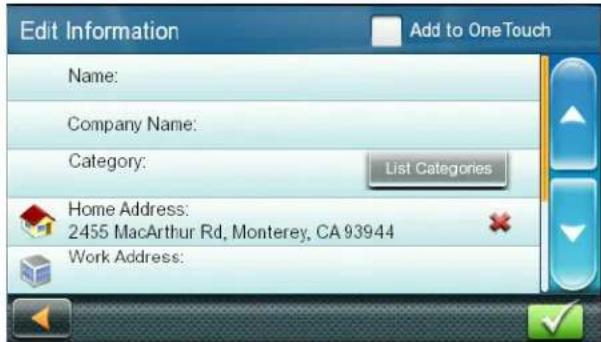
I3meneHne HhOpMaun
HaxmTe noIe Name nncnoB3ynte KJIaBnAtypy, yTO6bI BBecTu Ha3BaHne dIa 3aIncu B aDpeCHOn KNHe.
HaxmTe Work, Cell or Home phone, yTo6bI yka3aTb Homep TelefoHa dIra 3anCn B aDpeChoi KHIre.
Haxmte KhoNky List Categories nTo6paKeHnca cnNcKa KaTeOpn, co3daHnHO dna BaWe aDpeChOn KNr. PnHeo6xOdMocTn CO3aIe HOByIO KaTeOpnIO, Haxab KhoNky +Add B HIXKHeuacTn CTpaHnCbl.
- HaxmTe KhoNky

ΦbI NpOITBepDnTbAapeca.
Для coхраненя pyнкта B MeHIO OneTouch Bam 6удET пpeДLOжЕно Ha3HaunTb aDPEC KHonke OneTouch.
Ppocmpt apeca n3 apechON KHNr
- HaxmTe KhoNky

HOM MEHIO.
- HaxmTe BepxHn JEByI yroI cTpaHnCbI DnI npocToI noncKa Heo6xoJIMoro aDpeCa nyTem orpaHnueHn CnNcKa nepBoI 6yKBOI 3aInCeB aDpeCHO KnRE.
IpoKlaKa MapuPyTa Do apeca n3 apechoi KNHn
- OtkpoIte 3aIncb aIpeca n3 aIpechoi KNHn.
- Haxmte KhoNky y Heo6xOuMOn 3aHnCn B aDpeChoi KNHe. OTo6pa3ntc TcpaHnca CO CJeNyUOuIMN CBeDeHnA M:
- aDpeC BbIbpaHHoro MeCTa;
- OxNJaemoe BpeM npnbTn (OBI);
pacctoHne;
Cnoc06 npoknaKn MapuPyTa, HapnMpE, MInHmajbHoe Bpemr.
PnmeaHne. HaxMnte KhoNky Options, TTo6bl N3MeHnTb cnoc6 npoknadkm MapwpyTa.
- Haxmte KhoNky ,TobbHaayatb HABnraUIO NO KapTe.
Habiracnno mapsputy
6
CtpaHua KapTbI
PpONoXeHbI M aMpUy OTo6paXaE Tc H KaTe 3eJIeHbIM LBeTOM C He6oJbUHM CTpeJIkAMn, Yka3bIbAIOUHMn HAnpaBJeHne DmIXeHn.
B BepxHe yactn ctpaHnCbI OTo6paXaOTc H3BaHHe n pacCToRnHe Do CneDyUOeYnUcBi B CnNcKe NOBopoTob. EcnBbI HaxOnTeCb He B TOM Ke rOpOe, YTO IN CneDyUOaYnUca, TO BMeCTO 3TOrO OTo6paXaETc H3BaHHe rOpOda, Tpe paCNoJoxKeHaYnUca.
IIO Mepe DnBxKeHnno MapuTy 3ByuAT rOIOCOBbIe yBeDOMNeHnro npeDCToRux MaHeBpax.
Cnncok MaHeBpoB
B cnncke MaheBpOB OTo6paKaIOTc Bce MaHeBpyI no XoNy MapuPyTa Do BbIbpaHHoro NyHKTa Ha3HaueHn.
Haxmte 3haok Maneuver B Bepxhem JieBOM yrny KapTbI dI npocMOTpa cnNcKa MaHeBPOB.
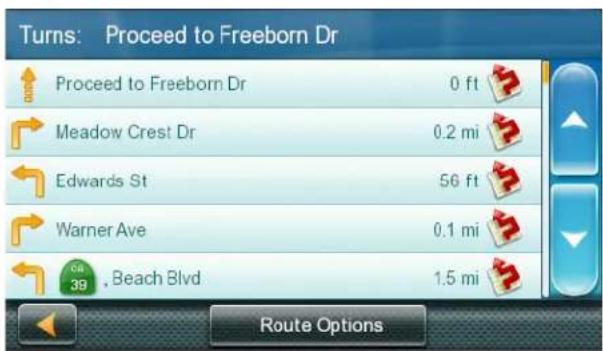
Ppocmotp cnncka MaheBpoB
Haxmnte 3HaQOK Maneuver B BepxHem JIeBOM yrny KapTbI npn DnBKeHN No MapwpyTy.
UcknoueHne MaHeBpa
BbMOKTe N3MeHnTb MapuTy TaK, YTo6bI NO BO3MOXHOCTN NCKJIIOHTb ONpeJeJIeHHbIMaHEbp.
- Перейдente К сиcke MaHeBpoB.
- Haxmte KhoNky yMaHeBpa, KOtOpbI Tpe6yeTcNCKIOuHTb.
- HaxmTe KhONky Yes nnoTbePckdHnA.
PpneMHnk RoadMate 3aHOBO npoJoxnT Mapwpyt n ChOba OTo6pa3nT KapTy.
Tnbl MappyTOB
IpeynCMoTeHO HeckOJIbKO cnoocob npoknaKIMapwpya.
Cnocob npoknadkn Mapwpyta
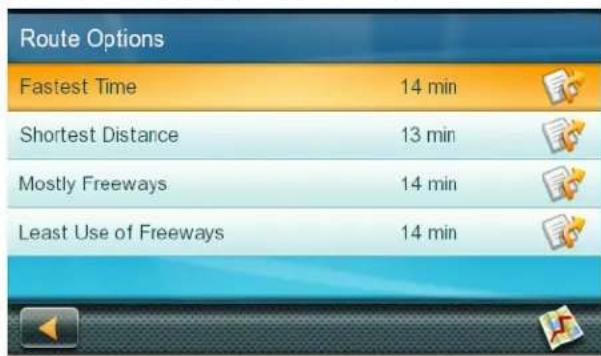
Fastest Time (6bictpbin): cambl 6bictpbin BO3MOXHbIM MapIpyT npn ycIOBn, YTO aBTOMO6NJb MOKeT DnIRaTbcra NOHTN c MaKcImaJIbHO pa3peWHeHHo CKOpocTbIO.
Shortest Distance (kopotkn): kpaTcuuHm MapwpyT.
Mostly Freeways: Mapspyt NO BO3MOXHOCTN npokJaDbIbAeTcno CKOPoCTHbIM aBTOCTpaJam.
Least Use of Freeways: MapUpyT no BO3MOXHOCTn npOKJaIbIbAETCa BHe CKOpOCTHbIX aBTOCTpaI.
Iocne Bb6opa NyHKta Ha3haeHna RoadMate npednaraet cchaana MappyT, npoloxeHHbI cnocobom no ymonuHIO.
U3MeHeHHe cNooc6a npoknadku MapspyTa
YTo6bI CMeHnTb CnOc06 npokJaKn MappyTa, HaxMMte KHOKNy Options Ha cTpaHnue GO. RoadMate npokJaNbBaet Mappy Ta3HbIMn cnOco6amn.
- Haxmte cncock MaheBpOB dIy JeNaemoro cnoc6a npoknMapupyta.
- HaxmTe Heo6xOdmbi cnoc6 npoknAkn MapuTa B cncke, n OTo6pa3ntc npdeIyua CtpaHua C HOBbIM mappyTom.
CmeHa cnocoba npoknaikn MapupyTa no yMOnuHHIO
- HaxMMTe KONky BINaBHOM MeHIO.
- Haxmte KhoNky Navigation Preferences.
- BbIbepnTe cnoc6 npoknaKn MappyTa BpackpbBaIOeMcMeHcNoc6 npoknaKnMappyTa.
DOnoHnTeJIbHbIe yHKcHn npokJaKn MapuTa
Otmeha Mapwpyta
- HaxMnte KhONky Menu Ha KapTe.
- HaxMMTe KHOKNy Cancel Trip B TnabHOM MEHIO.
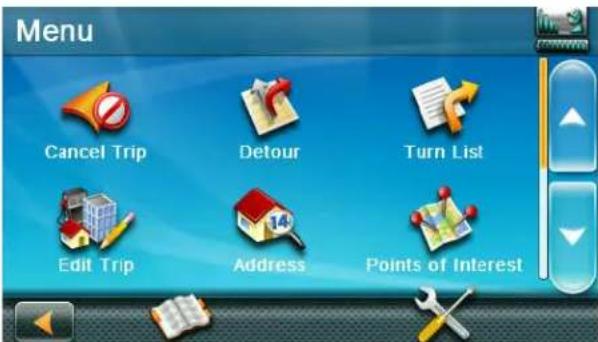
- HaxMMTe KhoNky Yes, yTo6bI NOdTBePdntb OTMeHy MapuPyTa. IIN...
- HaxMMTe 3Haayok OneTouch Ha KapTe, YTo6bI Bbl3BaTb MeHIO OneTouch.
- Haxmte KhoNky Cancel Trip.
- Haxmnte KhoNky Yes, YTo6bI NOITBepnTb OTMeHy MapuPyTa.
06be3d Mapwpyra
- HaxMnte KhONky Menu Ha KapTe.
- HaxmTe KhoNky
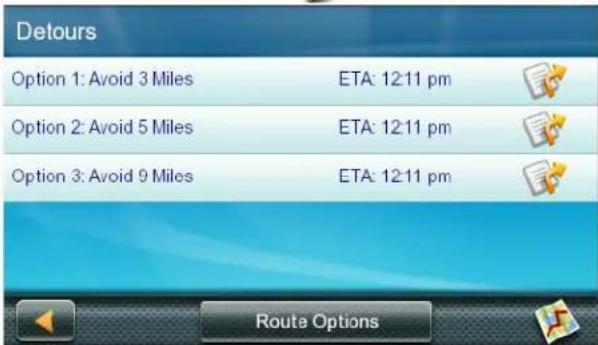
Pa3nHbIe 6be3dbI 6dyT paccuTaHbIC nOmoBTO TOrO JKe cNoCOba npokJaKnMappyTa, KOTOpBInNCNoB3oBaNc dIra co3dAHaMa MappyTa. OTo6pa3ntc cncocKaJIbTePHTaNHBix MappyTOB.
- Haxmte KhONky cnpBa dIpyPOcMoTpa cnNcKa MaHeBPOB aJIbTePHaTINBHOrO mapuPyTa.
- HaxMnte Heo6xOuMbI aIbTePHaTnBHyI MapwpyT.
MeHIO OneTouch 7
MeHIO OneTouchTM npedocTabniet 6bictpbI IOCTyn K DOMaHEmy aDpeCy, abapnHBIM cnyk6am, A3C n aDpecam nn pe3yNbTaTAM noncka, coxpaHeHHbIM B MeHIO OneTouch.
Bb13OB MeH0 OneTouch
HaxMMTe 3HaQOK OneTouch B BepXHEm npabOM yTJy CtpaHnUbl KapTbI.
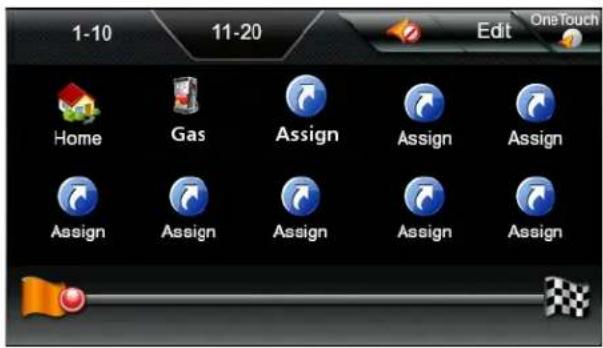
Khonka Dom
Hakmnte KhONKy Home.
EcnBb coxpaHnI DOMaHn aDpec, npneMHN KpOIOKNT MapwpyT K BaWemy DOMy.
EcnI DOMaHn aIpec He coXpaHe, Bydet npednoxKeHO BBeCTn erO.
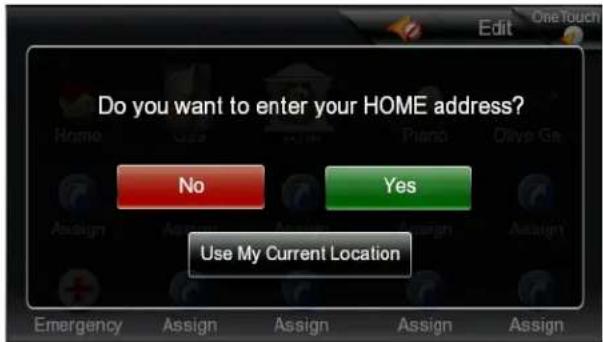
Haxmnte KhONky Yes IJRA BBOda DOMaUHeRo aDpeca c nOMOuBIO KnaBnAtypb I BBOda aDpeca.
HaKMMTe KhoNky Use My Current Location nIcNoJIb3OBAHnIa TeKUeIero MeCTOnoJIOKeHnB KaueCTBe DoMaIhEro aAppeca.
PnmeaHne. nIaN3MeHeHnaIydaJeHnAOMaUHero aDpeca nepeiNTe B aDpeCHyIO KHyrN3 rIbHO rMoHIO n3MeHHTe 3aNNcB Home.
Ha3NaeHne aDpeca Knonke OneTouch
- Haxmnte KhoNky B BOM BepxHem yrny KapTbI. OTo6pa3ntc MeHIO OneTouch.
- HaxmTe KhONKy Assign.
- HαχΜιTe KΗΟΝΚy Location.
4.C nomoiKnaBnAtypB BBeDnte aDpec (ropoi, yniuy, Homep Doma) IJRA KHOKN OneTouch. Nocne BBOda aDpeca 6ydet npedIOxKeHO BBecTN Ha3BaHHe KHOKN.
5.BBeHnTe Ha3BaHHe KHOHKn C NOMOsbIO KNaBnAtypbI HauKMnTe KHOKNy - OtkpoTe KapTu N BbI3OBITE MeHIO OneTouch dIra npoBepKn Do6abNeHna aDpeca.
N3MeHeHne aApEca Hnn nonCKOBoro 3anpoca, Na3NaueHHoro KnonKe OneTouch.
- Haxmte KhoNky B BOM BepxHem yIy KapTbI. OTo6pa3ntc MeHIO OneTouch.
- HaxmTe KhoNky Edit.
- Haxmnte KhoNky OneTouch, KoTopyH Heo6xOdmo N3MeHnTb.
- HaxMMTe KHOKNy Re-assign.
- HaxmTe KhoNky Yes nIy noTbeXdHnA.
- Cnéduynteyka3aHnmaHa cTpaHnue OneTouch.
Ha3haueHne nonCKOBoro 3anpoca KhoNke OneTouch
KhoNKe OneTouch taKxe MoXHo Ha3HaunTb
nonckobbl 3anpoc dIra nocJeDyUoJero
ncnoIb3OBAHn. 3To moKet npiroDntbcR,
ecnBbl qacto nuTe KaPe pAOM C BaWIM
MectonoJIOxKeHem nn A3C Ha mapspyuTe.
- Haxmte KhoNky BApBOM Bepxhem yrny KapTbi.
- HακMιTe ΜΟύHγ ΜΙΝΟΝΑK Assign.
- HaxmTe KHONky Search.
-
Haxmte OndHy n3 KaTeOpn o6BeKToB BCnICKe.
-
Haxmte OndHy n3 NOkateropn oBbekTOB (ecnn NMeetc) B cncke dny yToCHHeHnI ONCKa NN HaxmTe KHOKN All Subcategories, TTo6bl BB6paTb BCE NOkateropn nn 3aDaTb CO6CTBeHHbIe Kpntepn NiOnCa.
- BBeiTe Ha3BaHne KhoNkC nOMOoiKnabNaTpybI HαKMITE KHOKNy
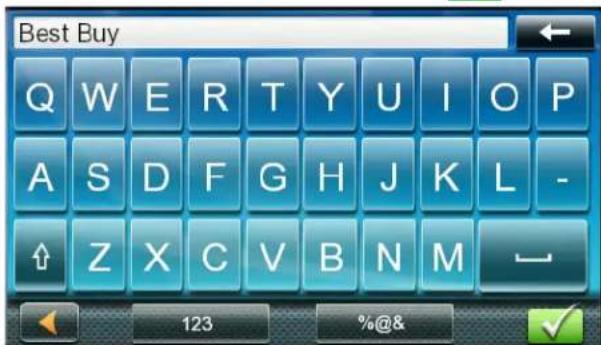
KhoNka Near... no3BOJareT BbI6paTb cnoc6 copTnpOBKn cnNcKa:
- PRADOM C TEKUVUH M ECTOJIOXeHHEM:
-
PяDOM C yka3aHHbIM rOPODOM;
PRADOM C BBEeEHHbIM aDpeCOM. -
HaxMNTe KHOKNy

Habiragau no MapwpyTy.
PnmeaHne. Ha cTpaHnce GO yka3aHo, 6blnn BbIbpaH nyHKT Ha3HaueHn I3 CnNcKa o6BeKTOB nIN C NOMOu bIO aDpeca.
Дорожнaya обстановka 8
- HaxmTe KhoNky BnabHOM MeHIO.
- HaxmTe KhoNky Map.
- YcTaHOBnTeФлaxKoHghway Lane Assist.
Hactpoika oTo6paxeHn3D-3daHn
- HaxmTe KhoNky BnabHOM MeHIO.
- Haxmte KhONky KapTa.
- YcTaHOBInTeФJaXOK 3D Building Display.
3ByK
Hactpoika rponkoctn 3Byka c nomoou MeHIO Hactpoek.
- HaxMMTe KHOPIK BYIaBHom MeHIO.
- HaxMMTe KhoNky Sound.
- C nOMOJIbIOp peryIaTOpa rpoMkoCTn yCTaHOBInTe Heo6XoIIMbI yPoBeHb rpoMkoCTn.
BknHoyehne n OTKnHoyehne 3Byka KHOONK
- HaxmTe KhoNky BnabHOM MeHIO.
- HaxMMTe KhoNky Sound.
- YCTaHOBnTe Hn CHmnte QJnAKOK 3ByK KHOJOK, YTO6bI BKIOUHTb Hn OTKIOUHTb 3BYK KHOJOK.
Bknouehne n OTKIOueHne aBTOMaTHuecko nperynnpOBKn rpomKocTn
Функця АВТOMATичecкая PerулірOBka ГРОКоCTN yCTaHABINBAET rPOMKOCTb B 3aBnCIMOCTN OT CKOPOCTN, YTO6bl Wym OT DBHXKeHЯ ABTOMOBUNA He 3aRnyuAn 3Byk n3ДИнHaMnKa.
- Haxmnte KhoNky BnabHOM MeHIO.
- HaxmTe KhoNky Sound.
- YctaHOBnTe Hn CHmnte fJaxok Smart Volume (ABTomatuecka peryInpobka rPOMKoCTn),YTObI BKIOHTb Hn OTKIOHTb 3Ty cyHKUIO.
Habiragua
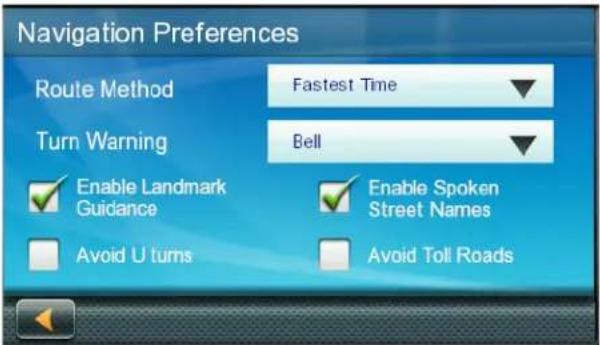
Bb6op cnocoba npoknadkn MappyTa no ymonuHHIO
- Haxmte KhoNky BnabHOM MeHIO.
- HaxMMTe KHONKy Navigation Preferences.
- BbIbepeTc cnooc npoknMappyta no yMOJUaHIO n3 packpbBaIOUeOra MeHIO.
Hactpoika 3BykoB npedynpejdeHn o nobopotax.
- Haxmnte KhoNky BnabHOM MeHIO.
- Haxmte KhoNky Navigation Preferences.
- Bb6epnte 3Byk npdeynpejckdHn o nobopoTAX NO yMOJuaHIO n3 packpbBaIOUceroA MeHIO.
Bknquehne habnraun no opneHTnpam
B pexnme Habiracnn no opneHTnpam nCNOJb3yOTcra o6uEoCTynHbIe opneHTnpbl, TTo6bl nomOy onpeJeNTb yNtU, Ha KOTopbIX Tpe6yOTcMaHeBpbl.
- HaxmTe KhoNky BcJNaBHOM MeHIO.
- Haxmte KhoNky Navigation Preferences.
- YctaHOBtE cnaKcEnable Landmark Guidance BkHoueHn 3ToN yHKnN.
BknoueHne roIocobbIX coo6ueHn Ha3BaHn ynnu
- Haxmnte KhoNky BrtnaBHom MeHIO.
- Haxmte KhoNky Navigation Preferences.
- YctaHOBnTe 0nKOK Enable Spoken Street Names,TO6bI BO BpeM HaBnraCn INPNEMHnK PON3HOCNJ Ha3BaHnYyNtU.
Bknquehne Habnraun no pa3bopoTaM
- Haxmnte KhoNky BnabHOM MeHIO.
- Haxmte KhoNky Navigation Preferences.
- YCTAHOBNTeФлжok Enable U Turns,чTO6b npHEMHK INCNoJIb3OBAJ pa3BOPOTbI Ha MapuPyTe.
06be3nnaTHbIX dopor
- Haxmnte KhoNky BnabHOM MeHIO.
- Haxmte KhoNky Navigation Preferences.
- YcTaHOBIneФJaXoK Avoid Toll Roads, 1TO6bI pnpemHnK IO BO3MOxHocTn NCKJIHOaN I3 MapuPyTa nLaTHbIe DOpOrn.
Pekm6e3oNaCHoro BoXdHnA
Bpekime 6e3oNaCHOro BOXKeHnO tKnIOuAeTcra DocTyN K Tpe6yIoUm Oco6oro BHNMaHnny HKzIaM npN cKOpocTN BbIe 16 km/4 (10 mJIb/y). Pekim 6e3oNaCHOrO BoXKeHnAr ABTomAtNuCeCK N BKNIOuAeTcRa Ha npneMHnke.
- Haxmnte KhoNky BnnaBHOM MeHIO.
- HaxMMTe KhoNky Navigation Preferences.
3.YCTaHOBNTe HIN CHIMNTE pnaXOK SafeDriving Mode,TO6bI BKNIOHTb HIN OTKNIOHHTb 3TуФyHKUHO.
PnmeHne. Pn DnHexeHn Ha CKOpOCTn Bblue 16 km/y (10 MmIb/y) n BKIOUcEHHom pexime 6e3oNaChoro BoXdEHHa KHONKa MeHIO He DeNCTByeT, Ho dpyrne fynKcHn Ha KapTe, HAnpImep, Traffic (DopoxHa o6ctAHOBka), OneTouch n npouhe, doctynbl.
Ipn nonbITke DoCTyna K OTKNIOUeHHO fynKcHn Ha 3kpaHe KpaTkoBpeMeHHO OTO6pa3ntc HAnOMHaHne O Heo6xoDmOCTN OCTaHOBHTbcra B 6e30nacHom MeCTe dIy DoCTyna K DaHHo fynKcHn.
HanomnHaHne o qapax
Функця HanOMHaHЯ O φapax onObeuaet O Heo6xOДmOCTN BKIOHTb φapbl aBTOMO6nIpy NepeKJIQUeHn IpnEeMHnKa B HocHOI pexIM NocIe 3aKaT.Функця HanOMHaHЯ O φapax aBTOMaTueCKn BKIOUcaETc Ha npEeMHKe.

- HaxmTe KhoNky
ABHOM MEHIO. - HaxmTe KhoNky Navigation Preferences.
- YCTaHOBnTe HnN CHmNte FnaXOK Headlight Reminder,TO6bI BKJIIOHTb NIN OTKIIIOHTb 3Ty yHKUIO.
EcnnФyHKnnaHanOMHaHnOΦapax BKNIOyeHa, npnpeeknOueHn nPnemHnKaB HocHO peKIM B TeueHne 15 ckynd OTo6paXaetc3NaQOK
Takke Bby ycbblnte 3BykoBoe npedynpexJeHne He 3a6ydbTe BKnIOuNTb apbl!.
PpmeHHe. HanomHaHne o apax cpa6aTbIbAeT ToIbKO npn NepeKIOUeHnnpEmHKa n3 DHEBHO B HOUHON pEXIM.
HanomnHaHne O nepepbBe B BoXdEHH
Функци HanOMHaHnO npepebIbe B BoKdEHH No3BOJareT npneMnky HanOMHaTb BOINTeJIIO, UTO emy, BO3MOxHO, Tpe6yeTc8 ocTaHOBKa NocNe ynpaBHeHnA bTOMo6nEm B TeueHne DInTeJbHOrO BpemHn.
- HaxmTe KhoNky BnabHOM MeHIO.
- HαχΜιTe KΗΟΝΚγ Navigation Preferences.
3.Перемecnte perynayTop Driving Break Reminder n3 noJoxehn Off (6e3 HAnOMHaHnB) B OndHO n3 CNeDyUOuNX noJoxeHn:
1 (hanomnHaHne nocne 1 yaca ynpabJeHHn aBTOMo6nIeM);
2 (HANOMHaHHe NocJe 2 yacob ynpaBneHn aBTOMo6nem);
3 (HANOMHaHne nocJe 3 yacOB ynpaBHeNn aBTOMo6nem);
4 (HaHOMnHaHne nocJe 4 yacOB ynpaBneHn aBTOMo6nIeM);
5 (HANOMUNAHHe nocJe 5 yacOB ynpabJIeHNABTOMO6nEM);
PnmeaHne. No yMOJIyAHnHO HAnOMHaHHe o nepepbBe B BoXdEHN Cpa6aTbIbAe TYepe3 2 Yaca.
B npoecce DnHexeHn ABTOMO6nI 3HaQOK 6ydet OTo6paKaTbCn B TeueHne 15 cekHy nocne nCTeueHn Bbl6paHHoro BpeMeHN HAnOMnHaHn C MOMeHTa BKIOUeHn IpNEMHnKa B aBTOMo6nIe, daXe ecnn Bb He Bbl6paIi MapuPyT.
Takke Bby ycblbnte 3BykoBoe npedynpexdHne «Bby ynpabJareTe aBTOMo6nIem B TeueHne (1,2,3,4,5) yacOB. Bo3MOxHo, Bam Tpe6yeTc nepepbIB B BOXKeHnn.>
PpmeHne.CeTnK HAnOMHaHnO nepepbBe B BoXdEHN Npe3anyCTnTcN oocJe 15-ceKyHdHoro OTo6paKeHn 3HaU Ka IIN NOcNe BKIOueHn paHee BbIKIOUeHHOrO pInEMHnKa.
ApKocTb
Hactpoika npkoctn
- Bbl0BHTe MeHIO HAcTpoE KcCTeMbI (CM. Bblwe).
- HaxmTe KhONKy Brightness.
- HactpoTe npKocTb 3KpaHa c nOmoIbIO peryIaTopa Brightness.
- Haxmnte ctpeIky «Ha3aI>.
- YctaHOBnTe cnaKoK Dim on Battery Power, yTo6bI rpkocTb 3KpaHa cHxKaJnacb npN pHTAHn nPnEMHnka OT BHyTpEHHe 6atapen.
3bIKN
Bb6op 3bika
- Bbl3OBnTe MeHIO HacTpoE KcNCTeMbI.
- HαχΜιTe ΚΚΟΝΙΚγ Languages.
- BbI6epnTe Heo6xOДmblЯ3bIk.
4.ПодтвердпгеИЗмehени. - Haxmte CTpeJIky «Ha3aI>.
PpeynpekdeHn o ckopoctn
Hactpoika napametpoB npedynpekdeHn ockopoctn
- HaxmTe KhONky BnabHOM MeHIO.
- HaxmTe KhoNky Speed Warning.
- BkIIOUHTe nII N OTKIOUHTe 0yHKuH Audible Warning.
- BkIIOUHTe HIN OTKIOUHTe cyHKcHIO Visible Warning.Ecnn 3Ta cyHKcNBAKIOUeHa, Ha 3KpaHe 6yJeT OTObpaKaTbc8 3HaOcK orpaHnueHnckOpocTn.
- YctaHOBInTe OrpaHnueHne ckOpocTn, npu KOTOpOM BbI 6yJeTe nOlyuHaTb npedynpeKdEHHa.
PpocmOt p coctoHn cntembl GPS
- HαχmTe KhONkY BπaBbHOM MeHIO.
- HaxmTe KhoNky GPS.
- HακMιTe ΚΚΟΝΚy Status.
PpmeaHne. TaKke moXHO nepeHTn Ha cTpaHcy cTaTyCa GPS, HaxKaB INDnKaTop CNYTHNKOBbIX CNHaIOB B BepxHem npabOM yrIy MeHIO OneTouch.
ABTomatnueckoe BbIKJIIOyeHne
Hactpoika cyHKunn aBtOMaTnueckoro BBIKNUOeHHN
6.NCKIIOUeHnCJyAHbIX ININ KOCBEHHbIX Y5bITKOB
(a) KOMNAHIA MAGELLAN HE HECET OTBETCTBEHHOCTNIPEPEDOKYNATEJIEM
(b) INIJIIOBbIM DpyTIM JINLcOM 3A JIOBbIE CNYAHbIE INI KOCBEHHbIE YbblTKN, BKNIOUAYAR, B TOM YNCIE, YNUJEHHYIO PPINbIB, YbblTKN B PE3yJbTATE 3ADEPJKN INI INPEKPAUeHnRA NCNOJIb3OBAHnRA, JINBO B PE3yJbTATE HAPUWeHnRA HACTOUIE IAPAHTNI INI KAKOI-JINBO NOIDPA3yMEBAEMOI IAPAHTNI, IAXE ECIN 3TO O5UCNIOBJIeHO HE6PEXKHOCtBu INI INI DpyTIM HAPUWeHnEM KOMIIAHmMAGELLAN, JINBO H6PEXKHbIM O5PAUeHnEM C DAHNbIM N3DEJIeM. HIN IPIKAKNX OBCTOTIELCBAX KOMIIAHnMAGELLAN HE HECET OTBETCTBEHHOCTn 3A YKA3AHhBi YE bblTKN, IAXE ECIN KOMIIAHnRA MAGELLAN bblJa YBEJOMNEHA O BO3MOXHOCTn IX BO3HNIKHOBEHnR.
(c) B HeKoTOpbIX CtpaHax, pernoHax n WtTaXe Ha pa3peHo NCKIIOUcHHeN e INI OrpaHnueHne OTBeCTBHeHOCIn 3a CnyaHbIE INI KocBeHHbIe y6bITKn, I03TOMy BblEweKa3aHHOe ORpaHnueHne INI NCKJIIOUcHHeN K Bam MoXeT He OTHOCINbCra.
7. NOJHOTA COJIAAWEHNA
(a) HactoiaaIncbMeHHa rapaHTnraBIAeTc noJIbIM, OKOHateNbHbIM n NCKJIIOHTeNbHbIM cOrJaIeHneM Mekdy KOMnAHeiM Magellan n NOKyNaTeJeM B OTHoWeHn KaYeCTBa cyHKUHOHPOBaHnra TObApOB n abCoJIIOTHo BCE rapaHTn n 3aBHeHn. B HACTOUIE I RAPAHTN YKA3AHbI BCE CInyAN OTBETCTBEHHOCTN KOMnAHn MAGELLAN B OTHoWEHn DAHHOTo N3DEJN. HACTOUIA RAPAHTu I PEOIOCTABJIARET NOJIb3OBATEIIIO ONPEDELEEHbIE IPIPABA. IOnJIb3OBATEJIb MOKET IMETb DpyIe IPIPABA B 3ABNCIMOCTn OT MECTA HAXOXJEHnA OIPDELEEHbIE OTRPAHUnEHN, YKA3AHHbIE B HACTOUIE I RAPAHTN, MOYt KBAM HE OTHOCITC.
(b) Ecnn B kaon-ny6o qactnn Hactoaa rapaHTna 6ydt np3HaHa HeOnyctmmo nHn HeDenCTBnteNbHO, octaHna Yacb HacToaue OrpaHueHHo rapaHTn 6ydt DeCTBnteNbHa B NOJHOM o6beMe.
Hactoiaar opaHueHHa rapaHTnpeynpyetc 3aKoHOaTeIbCTBOM Wtata KaIINΦOpHN6e3 yUeTa noIOXeHm O KOHΦNkTe npABOBbIX HOpM no KOnBHeuO OH o DorOBopax MExdyHapODHO KyIIN-NpOdaXn TObApO, N DeiCByET B 3aUHTy KOMNaHIM Magellan, ee npeemHKOB u npaONpEeMHNKOB. Hactoiaar rapaHTn He HApUaet Hn npab Notpe6ntene, ycTAHOJIeHHbIX npImeHMbIM DeiCCTBYUOUMN 3aKOHaMn IX cTpaH, Hn npab Notpe6nteB B OTHOWeHm npOdaUa, BO3NHKAIOUX np3 aKIIIOUeHN CdeIKN KyIIN-NpOdaXn.
IopnbIe cBeHn, KacaUnciec HacToaIe orpaHueHHo rapaHTm, CM. Na Be6-caTe kOMnaHnn Magellan no aDpecy magellangps.com nIu oBauaTecb:
MiTAC Digital Corp. 279 E Arrow Hwy, San Dimas, CA 91773, USA (CLUA)
CUSA n KaHada: 800-707-9971
Mekcika: 866-310-7223
Tpe6yeTeTcayTexHnuecka noDepkka?
EcnBam Tpe6yeTcayTexHnuecka NOpDepKka npneMnka Magellan, cHaJana nepeiDnte Ha Be6-CTpaHnUy www.magellangps.com/support, Ha KOtopoJ npedctaBHeHb OTBeTb Ha 6oJbShnHCTBO BONpOCOB.
EcnBbHe CMOKeTe HaHTn peWeHne, oBaaIaTecb HEnocpeDCTBeHHO B OTdEn TexHuecko NOpDepKKn KOMpaHmN Magellan Ha aDpc 3JeKtpOHNoTbI support.us@cs.magellangps.com nHn no TeNefoHy 800-707-9971.
CbXnTeCb C HAM
@MagellanGPS




MAGELLAN®
MiTAC Digital Corporation
279 E Arrow Hwy, San Dimas, CA 91773 USA (CLJA)
www.magellanGPS.com
© MiTAC International Corporation, 2016-2017. Ilorotin Magellan n Magellan yBJIOTc 3aperncpupOBaHbIMn TOBaphIMN 3HaKAMn KOMNaHm NiTAC International Corporation, a OneTouch YBJIeTc TOBAPbIM 3HaKOM KOMNaHm MiTAC International Corporation n NcNoIb3yETc no JInueH3nn KOMNaHnei MiTAC Digital Corporation. Bce npaba 3aunuhebl.
Bce npouhe ToBapHbIe 3HaKn I 3apeRnCTpnpoBaHHbIe ToBapHbIe 3HaKn RbLnHOcTc CO6CTBeHHOCbIO COOTBeTcTBYIOx npaboo5naDatenei.
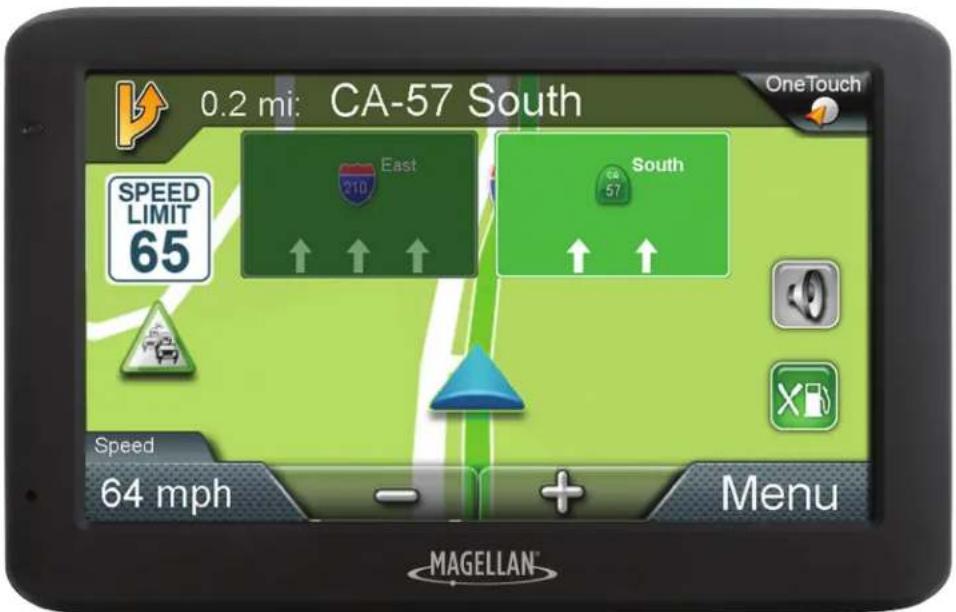
Magellan RoadMate
用户手册
2016-2017
重要安全警告
Tested To Comply With FCC Standards
FOR HOME OR OFFICE USE
Tested To Comply With FCC Standards
FOR HOME OR OFFICE USE
設定 Highway Lane Assist

- Temperature
- Battery
- Charging the Magellan RoadMate
- Federal Communication Commission Interference Statement
- IMPORTANT NOTE:
- FCC Radiation Exposure Statement:
- IC statement
- IC Radiation Exposure Statement:
- Table of Contents
- Other Languages
- Magellan RoadMate GPS Receiver
- Reset
- Getting Started 2
- Powering on the Magellan RoadMate receiver
- Turning the Magellan RoadMate receiver On
- Turning the Magellan RoadMate receiver Off
- Battery Levels
- Viewing the Battery Level Indicator
- Speaker Volume
- Changing the Volume from the Map Screen
- Changing the Volume from Settings
- Setting Button Sounds On or Off
- Setting Smart Volume On or Off
- Brightness
- Accessing the Brightness Control
- Main Menu
- Accessing the Main Menu
- Keypad
- Selecting From List
- Selecting QWERTY or ABC Keyboard
- Notes on Entering Data
- QuickSpell
- Smart City Search
- Map Screen 3
- Setting the Map Options
- Setting the Map Modes (2D or 3D)
- 3D Landmarks
- Setting Zoom Levels
- Panning on the Map
- Routing to a Panned Position
- Current Location Screen
- Accessing the Current Location Screen
- Saving Your Current Location to Your Address Book
- Maneuver List (Itinerary)
- Accessing the Maneuver List
- Avoiding a Maneuver
- Changing Route Options
- Volume
- Selecting a Destination 4
- Creating a Destination to an Address
- Tips on Entering Addresses Quickly
- Intersections
- Creating a Destination to an Intersection
- City Centers
- Creating a Destination to a City Center
- Previous Destinations
- Routing to a Previous Destination
- Clearing the list of Previous Destinations
- Address Book
- Saving a Destination to Your Address Book
- Accessing an Address in Your Address Book
- Routing to an Address in Your Address Book
- Points of Interest (POI) 5
- Creating a Route to a POI by Category
- Creating a Route to a POI by Name
- Creating a Route to a Highway Exit POI
- Traveling on a Route 6
- Map Screen
- Maneuver List
- Excluding a Maneuver
- Types of Routes
- Routing Method
- Changing the Routing Method
- To Change the Default Routing Method
- Special Routing Functions
- Cancelling a Route
- Detouring off a Route
- OneTouch Menu 7
- Accessing the OneTouch Menu
- The Home Button
- Saving an Address to a OneTouch Icon
- Changing the Address or Search of a One-Touch Icon
- Saving a POI Search Criteria to a OneTouch Icon
- Setting a Route to a OneTouch Icon
- Traffic 8
- Glossary
- Traffic Incidents
- Avoiding Traffic Incidents
- Settings 9
- Accessing System Settings
- Map Options
- Setting Auto Night Map Display
- Setting Heading Up or North Up in 2D Mode
- Assigning Visible POIs
- Setting Auto Zoom on Turns
- Setting Highway Lane Assist
- Setting 3D Building Display
- Sound
- Setting Volume from Settings
- Turning Button Sounds On/Off
- Turning Smart Volume On/Off
- Navigation
- Setting The Default Route Method
- Setting The Turn Warning Alert Sounds
- Enabling Landmark Guidance
- Enabling Spoken Street Names
- Enabling U Turn Guidance
- Avoiding Toll Roads
- Safe-Driving Mode
- Headlight Reminder
- Driving Break Reminder
- Setting Brightness
- Languages
- Setting Languages
- SpeedWarnings
- Setting Speed Warning Options
- Viewing the GPS Status
- Auto Power Off
- Setting Auto Power Off
- Default System Settings
- Restoring All Default System Settings
- Route Area Avoidance
- Product Information
- Viewing Product Information
- Magellan Limited Warranty
- MAGELLAN WARRANTY
- PURCHASER'S REMEDY
- PURCHASER'S DUTIES
- LIMITATION OF IMPLIED WARRANTYES
- EXCLUSIONS
- EXCLUSION OF INCIDENTAL OR CONSEQUENTIAL DAMAGES
- COMPLETE AGREEMENT
- Need Technical Support?
- MAGELLAN®
- Magellan RoadMate
- Apagado automatico
- Definindo as Opçoes do Mapa
- Tela Current Location
- CoOTBeTCTBne Tpe6oBaHnM MnHnCtepCTBa npomblJeHHocTn KaHaDbI (IC)
- BAXKHOE INPIMEYAHNE
- COOTBeTCTBHe Tpe6oBaHnM IC K BO3eIcTBnIO n3JyueHnA
- Canada, vis d'Industry Canada (IC)
- Bknoyehne n OTKnoyehne aBTOMaTHuecko nperynpOBKn rpomKocTn
- ApKocTb
- PerynipOBka npKocTn
- TnaBHOe MeHIO
- Bb3OB rnaBHoro MeHIO.
- Функця QuickSpell
- HInTeJIeKtuaJIbHbI nonck ropoJa
- Kapta 3
- HactpoKa npaMeTpOB KapTbI
- Bb6op pexnMa KapTbI (2D nn 3D)
- 3D-DOCTONpHMeaTeIbHOCTN
- PpokpyTka KapTbI
- PpoknaKa MappyTa K MecTy, OTo6paKaHoueMycs npn npokpyTke KapTbI
- CtpaHua Tekyuero MecTOnoJoxeHH
- IepexoHa ctpaHnuy Tekyuero MecTONOJNOKeHH
- CoxpaheHne Tekyuero MeCTOnOJIOXeHNB aDpeCHoN Knre
- Bb6op BapnaHToB MapwpyTa
- PpOMKOCTb
- PerynnpOBKa rpoMkoCTHa KapTe
- Bb6op nyHKta Ha3NaueHn 4
- Co3daHHe nyHKTa Ha3HaueHnNo aDpecy
- CobetbI no 6bICTpomy BBOy aDpecoB
- IpeekpecTk
- Co3daHHe nyHKTa Ha3HaueHnHa nepeKpeCTke
- UeHTpbI ropodOB
- Co3dahne nyHKta Ha3HaueHnB ueHTpe ropoDa
- PpebIyuue nyHKtbHa3NaeHn
- PpoknaKa MappyTa B npdeBdyuyn NyHKT Ha3HaueHn.
- OuNCTKa cnncka npedbIyux nyHKTOB Ha3HaueHn
- Adepehna Knra
- CoxpaHHeNHe NyHKTa Ha3HaueHnB aDpeChOH KHNRE
- Ppocmpt apeca n3 apechON KHNr
- IpoKlaKa MapuPyTa Do apeca n3 apechoi KNHn
- Habiracnno mapsputy
- 6
- CtpaHua KapTbI
- Cnncok MaHeBpoB
- Ppocmotp cnncka MaheBpoB
- UcknoueHne MaHeBpa
- Tnbl MappyTOB
- Cnocob npoknadkn Mapwpyta
- U3MeHeHHe cNooc6a npoknadku MapspyTa
- CmeHa cnocoba npoknaikn MapupyTa no yMOnuHHIO
- DOnoHnTeJIbHbIe yHKcHn npokJaKn MapuTa
- Otmeha Mapwpyta
- 06be3d Mapwpyra
- MeHIO OneTouch 7
- Bb13OB MeH0 OneTouch
- Khonka Dom
- Ha3NaeHne aDpeca Knonke OneTouch
- N3MeHeHne aApEca Hnn nonCKOBoro 3anpoca, Na3NaueHHoro KnonKe OneTouch.
- Ha3haueHne nonCKOBoro 3anpoca KhoNke OneTouch
- Дорожнaya обстановka 8
- Hactpoika oTo6paxeHn3D-3daHn
- 3ByK
- Hactpoika rponkoctn 3Byka c nomoou MeHIO Hactpoek.
- BknHoyehne n OTKnHoyehne 3Byka KHOONK
- Bknouehne n OTKIOueHne aBTOMaTHuecko nperynnpOBKn rpomKocTn
- Habiragua
- Bb6op cnocoba npoknadkn MappyTa no ymonuHHIO
- Hactpoika 3BykoB npedynpejdeHn o nobopotax.
- Bknquehne habnraun no opneHTnpam
- BknoueHne roIocobbIX coo6ueHn Ha3BaHn ynnu
- Bknquehne Habnraun no pa3bopoTaM
- 06be3nnaTHbIX dopor
- Pekm6e3oNaCHoro BoXdHnA
- HanomnHaHne o qapax
- HanomnHaHne O nepepbBe B BoXdEHH
- Hactpoika npkoctn
- 3bIKN
- Bb6op 3bika
- PpeynpekdeHn o ckopoctn
- Hactpoika napametpoB npedynpekdeHn ockopoctn
- PpocmOt p coctoHn cntembl GPS
- ABTomatnueckoe BbIKJIIOyeHne
- Hactpoika cyHKunn aBtOMaTnueckoro BBIKNUOeHHN
- 6.NCKIIOUeHnCJyAHbIX ININ KOCBEHHbIX Y5bITKOB
- NOJHOTA COJIAAWEHNA
- Tpe6yeTeTcayTexHnuecka noDepkka?
- 重要安全警告
- FOR HOME OR OFFICE USE
- 設定 Highway Lane Assist
Brand : MAGELLAN
Model : RoadMate 5630TLM
Category : Browser