
TRX Mobile App - Browser MAGELLAN - Free user manual and instructions
Find the device manual for free TRX Mobile App MAGELLAN in PDF.


| Product Type | Mobile Navigation Browser App |
| Brand | Magellan |
| Model | TRX Mobile App |
| Category | Browser (GPS/Navigation) |
| Platform | iOS and Android |
| Language Support | Multiple languages (Arabic, English, French, etc.) |
| Main Functions | GPS navigation, route planning, real-time traffic, points of interest, voice guidance |
| Map Updates | Via in-app download or Wi-Fi |
| Power Source | Device battery (no external power required) |
| Dimensions | Software only; varies by device |
| Weight | Not applicable (digital product) |
| Storage Requirement | Approximately 500 MB for maps and app |
| Internet Connection | Required for traffic updates and map downloads |
| Safety Features | Hands-free operation, speed limit alerts |
| Maintenance | Keep app updated via official app store |
| Cleaning | Not applicable; ensure device screen is clean |
| Spare Parts / Repairability | Not applicable; contact Magellan support for issues |
| Warranty | Standard 1-year manufacturer warranty |
| User Manual | Downloadable PDF from notice-facile.com |
Frequently Asked Questions - TRX Mobile App MAGELLAN
User questions about TRX Mobile App MAGELLAN
0 question about this device. Answer the ones you know or ask your own.
Ask a new question about this device
Download the instructions for your Browser in PDF format for free! Find your manual TRX Mobile App - MAGELLAN and take your electronic device back in hand. On this page are published all the documents necessary for the use of your device. TRX Mobile App by MAGELLAN.
USER MANUAL TRX Mobile App MAGELLAN
App Quick Start Guide.

Welcome to the Magellan TRX Nation!
This Quick Start Guide to the TRX Mobile App briefly describes how to:
• Create your TRX Account
• Track and record your adventures
- Add Waypoints to Tracks
- Search for Trails
- Use your Journal (Log and Wish List)
• Publish Tracks on TRX Web
You can also synchronize your TRX App with:
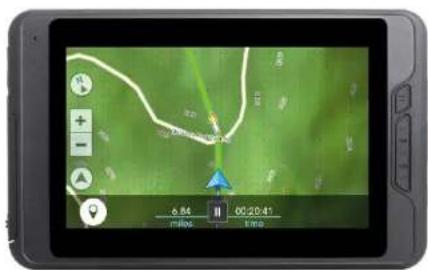
Magellan eXplorist TRX7.
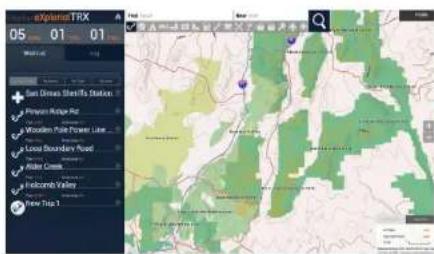
TRX Web.
Note: For the best experience while getting started, make sure you have a Wi-Fi signal or good cellular data connection, and that Location Services is ON before setting up your TRX App. Your carrier's rates apply to your data usage with this app.
Visit Magellan Outdoor Navigation for more information about TRX products as well as Magellan's complete line of outdoor navigation products.
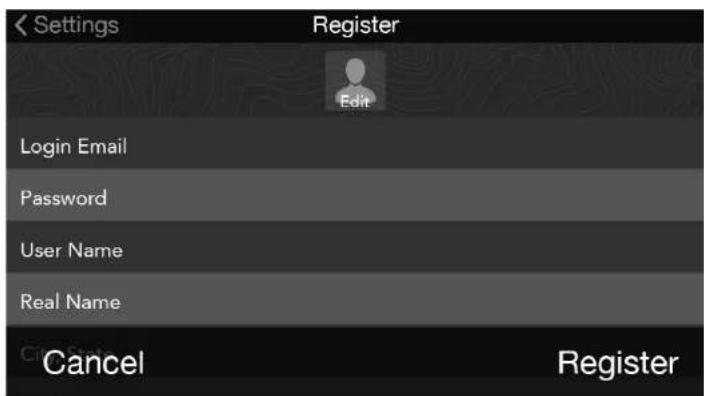
Create Your TRount.
- Tap Settings TRX Dashboard.
- Tap Account Profile
-
Tap Register New Account
-
Enter account details.
-
Tap Register rm your account.
-
Tap to complete registration.
TRX Tip: Tap Sign Out Count Profile page to log out of your TRX account at any time.
TRX Tip: Log in to TRX Web with the account you create on the TRX App.

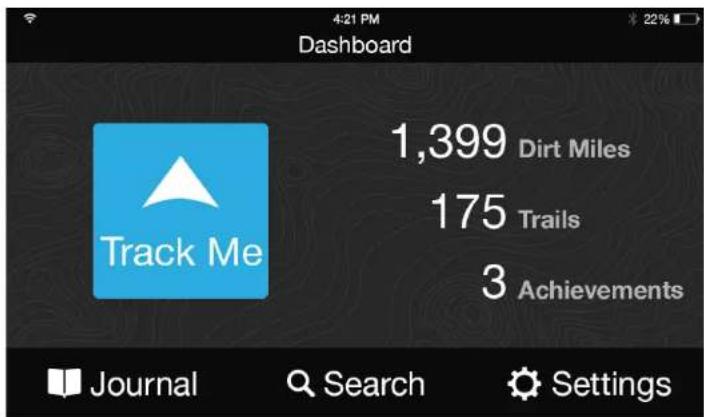

App Overview: Dashboard & Map Screen.

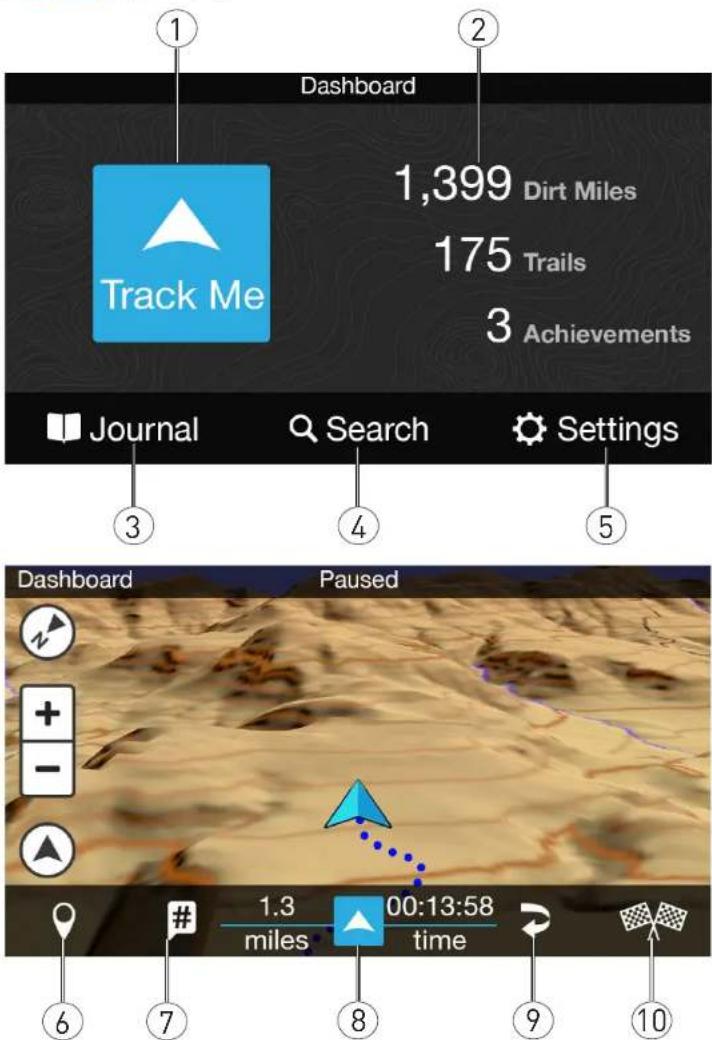
① Track Me button: Tap to begin tracking your route right away.
Dirt Miles traveled, Trails traveled, and
② Achievements earned are accumulated by the TRX App.
③ Journal: Contains Log of user tracks and Wish List of saved Trails.
④ Search: Search for trails, tracks, and POIs around you or in a specific area.
⑤ Settings: Edit your user account, vehicle profiles, and connectivity.
Detail Waypoint: Mark a Quick
⑥ Waypoint or pause tracking to add a Detail Waypoint.
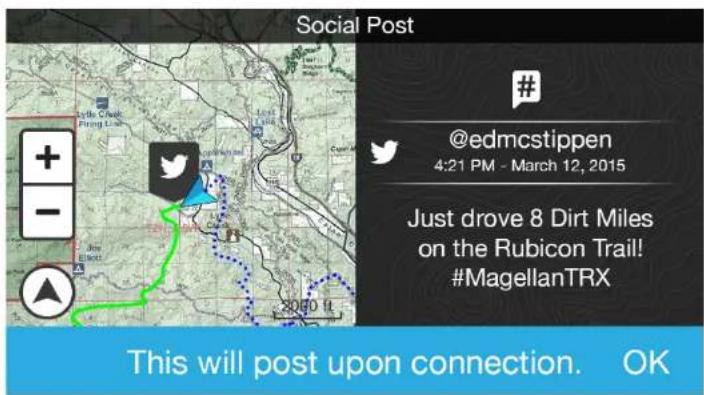
⑦ Social Post: Share your adventures with friends with an automatic Tweet.
⑧ Start/Pause: Tap to pause tracking or resume tracking.
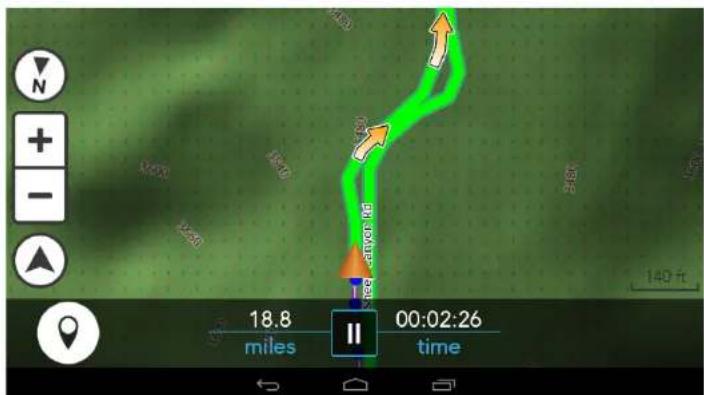
⑨ Backtrack: Follow your active Track back to your starting point.
⑩ Finish: Save your Track with detailed terrain and rating information.
Tracking & Saving.


-
Tap on the TRX Dashboard to start riding!
-
Tap to stop tracking.
-
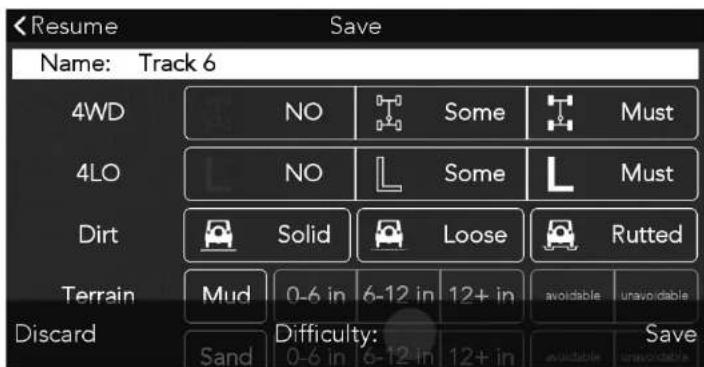
Enter the Terrain Spec details to create an User Difficulty Rating, then rate the overall experience on the Track.
-
Tap Save the Track to your Log, or Discard to delete your track.
TRX
Tips:
- Tap to add a Quick Waypoint to your Track.
- Tap to toggle between North Up and Course Up views and, when the map is not facing North, to snap your map view back to North Up.
- Tap re-center the map to your current location after panning around the map (and toggle 2D/3D map views with a TRX App premium subscription).
Pausing and Resuming Tracking.

-
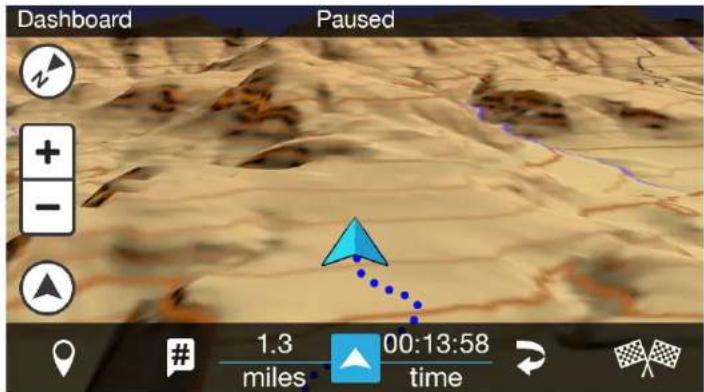
Tap to pause tracking.
-
Tap to resume tracking.
While paused, you can:

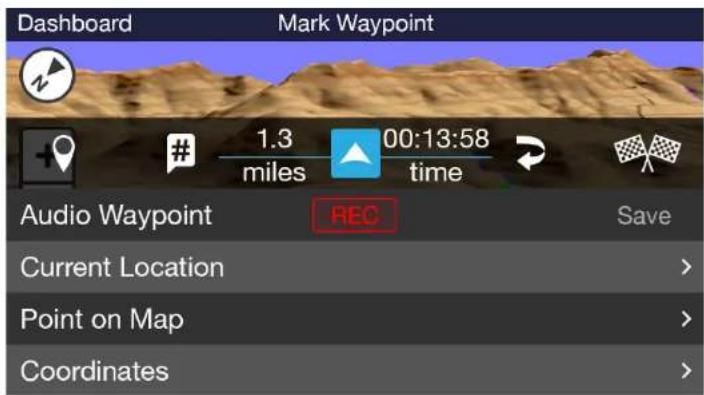
Add a Detail Waypoint.
Follow prompts for each waypoint to add detail, then save the waypoint to your Track.
TRX Tip: Refer to Detail Waypoints for more information about these Waypoints.

Post a Tweet.
TRX Tip: This button automatically generates a Tweet indicating how many Dirt Miles you've driven with the hashtag #MagellanTRX.
Backtracking.


Backtrack to the beginning of your Track.

Tip: Use caution when backtracking. Route ty varies with direction of travel.

Finish and save your Track.

Tip: All of your saved Tracks are stored in og. Refer to Using your Journal for more ation about your Log and your Wish List.
Quick Waypoints.

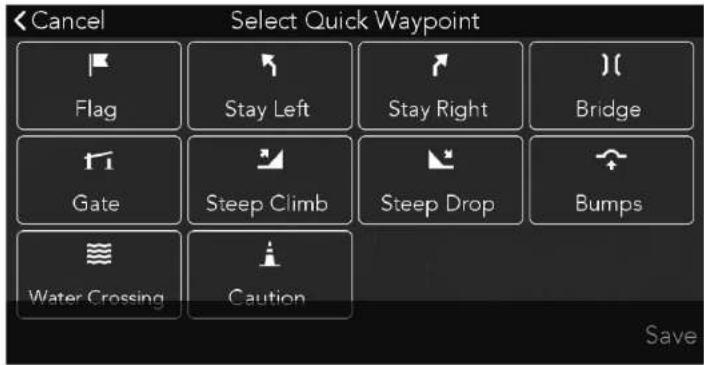
To add a Quick Waypoint:
-
Tap ☐ while tracking or routing.
-
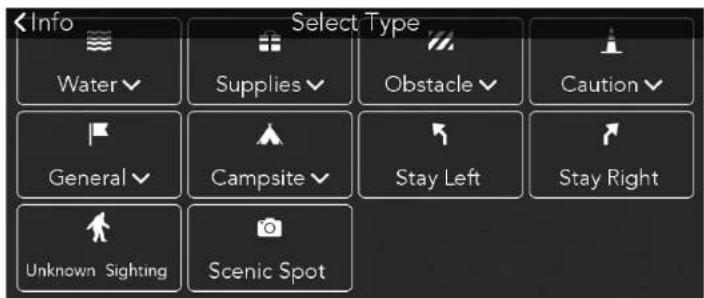
Select a waypoint type.
-
Tap Save
TRX Tip: Many Quick Waypoint options are also available as Detail Waypoints. Refer to Detail Waypoints for more information.
TRX Tip: Edit Quick Waypoints later when you view your saved Tracks in your Journal or on TRX Web.
Detail Waypoints.

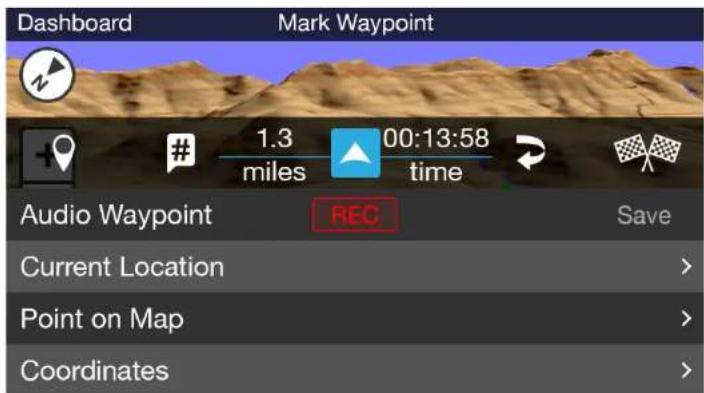
To select a Detail Waypoint type:
-
Tap while tracking is paused.
-
Choose a Waypoint option:
Audio Waypoint: Record audio waypoint.
Current Location: Pick waypoint type and add detail.
Point on Map: Add waypoint anywhere on the map.
Coordinates: Define waypoint using latitude/longitude.
- Follow the prompts to add waypoint detail.
To add a Current Location Waypoint:
-
Tap Current Location
-
Select a Waypoint type and sub-type (if applicable).
-
Tap Next
Viewing and Saving Searched Features.
Map View
3. Tap a Marker Label for a Trail or POI on the map to view details about the item. 4. Tap Save the item to your Wish List.  List View
5. Tap a List item to view detail. 6. Tap travel the item to your Wish List.  Using Your Journal.
 The TRX Journal contains your Wish-Listed Trails and POIs as well as the Log of your recorded Tracks and Waypoints. To use your Journal: 1. Tap from Journal Dashboard. 2. Tap or vis from the Journal. 3. Tap on an item from the List. You'll see basic details about the list item. 4. Tap Attributes detail about the item. 5. Tap  or   to ride a Track or Trail. TRX Tip: You'll receive audio guidance when you follow an official basemap Trail, but not when you follow an user-generated Track.  Using Your Journal.
 6. Follow the arrows to ride along the Track or Trail. Tips:
- If desired, the TRX App can also provides audible off-track alerts. - When you ride Tracks you have previously ridden and waypointed, the waypoints will pop up as you ride. - If you need to backtrack, pause tracking and tap to backtrack to the beginning of your Track.  To delete items from your Journal: 1. Tap from your or . Wish List Log 2. Tap the check box to the right of the item. 3. Tap 4. Tap to delete the entry, or to stop the action.  Using Your Journal.
 To create a new Trip from your own Tracks or from Trails saved to your Wish List: 1. Tap from the Log screen. 2. Tap + New Trip 3. Enter a name for the new Trip and tap  4. Tap the check box to the right of each item you want to add to the Trip. 5. Tap by and the new Trip to your Log.  Publishing Your Tracks on TRX Web.
 To publish your Track on TRX Web once you've saved a Track from your TRX App: 1. Go to TRX Web. 2. Sign in with your account details. 3. Tap Log select your Track from the list. 4. Tap and review your Track details for accuracy. 5. Tap P again to publish the Track to TRX Nation, or to stop publishing the Track. TRX Tip: You can also search for Trails, edit your Log and Wish List, upload GPX files, create Trips, and more on TRX Web. Refer to the Magellan eXplorist TRX7 User Manual for details about TRX Web.  Need Technical Support?
If you need technical support for your Magellan product, go to www.magellangps.com/support for answers to most questions. If you can't find a solution there, you can contact Magellan Technical Support directly by e-mail at support.us@cs.magellangps.com or call 800-707-9971. Connect with us @MagellanGPS   YouTube  MAGELLAN® MiTAC Digital Corporation 471 El Camino Real, Santa Clara, CA 95050 USA www.magellanGPS.com 112-0094-001 © 2016 MiTAC International Corporation. The Magellan logo and Magellan are registered trademarks of MiTAC International Corporation, and OneTouch is a trademark of MiTAC International Corporation and are used under license by MiTAC Digital Corporation. All rights reserved. All other trademarks and registered trademarks are property of their respective owners.- App Quick Start Guide.
- Create Your TRount.
- App Overview: Dashboard & Map Screen.
- Tracking & Saving.
- TRX
- Tips:
- Pausing and Resuming Tracking.
- Backtracking.
- Quick Waypoints.
- Detail Waypoints.
- Searching.
- Viewing and Saving Searched Features.
- Map View
- List View
- Using Your Journal.
- Publishing Your Tracks on TRX Web.
- Need Technical Support?
Brand : MAGELLAN
Model : TRX Mobile App
Category : Browser