
TLWPA8630 - Powerline Adapter TP-LINK - Free user manual and instructions
Find the device manual for free TLWPA8630 TP-LINK in PDF.
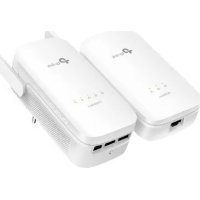


| Product Type | Powerline Adapter with Wi-Fi Access Point |
| Brand | TP-Link |
| Model | TLWPA8630 |
| Powerline Standard | HomePlug AV2 (up to 1200 Mbps) |
| Wi-Fi | Dual-band 2.4 GHz + 5 GHz (up to 300 + 867 Mbps) |
| Ethernet Ports | 1 Gigabit RJ45 port (adapter), 1 Gigabit RJ45 port (extender) |
| Pass-through Outlet | Yes (integrated female socket on extender) |
| Buttons | Pair, Wi-Fi, Reset (recessed) |
| Power Supply | Integrated (direct wall plug) |
| Dimensions (L x W x H) | Approximately 110 x 66 x 43 mm |
| Weight | Approximately 220 g (unit) |
| Operating Temperature | 0 °C to 40 °C |
| Operating Humidity | 10% to 90% (non-condensing) |
| Wireless Security | WPA/WPA2-PSK, WPS (copy router settings) |
| Management | Web interface, tpPLC app (iOS/Android) |
| Compliance | Directives 2014/53/EU, 2009/125/EC, 2011/65/EU |
| Warranty | 3-year limited TP-Link |
| Package Contents | XL8630 (adapter + extender), Ethernet cables, quick installation guide |
| Care and Cleaning | Clean with a dry, soft cloth. Do not use chemical products. |
| Spare Parts and Repairability | Not disassembleable. No spare parts available. Repair by customer service only. |
Frequently Asked Questions - TLWPA8630 TP-LINK
User questions about TLWPA8630 TP-LINK
0 question about this device. Answer the ones you know or ask your own.
Ask a new question about this device
Download the instructions for your Powerline Adapter in PDF format for free! Find your manual TLWPA8630 - TP-LINK and take your electronic device back in hand. On this page are published all the documents necessary for the use of your device. TLWPA8630 by TP-LINK.
USER MANUAL TLWPA8630 TP-LINK
TP-Link Technologies Co., Ltd. South Building (floors 1, 3, 4, 5) and 28 (floors 1-4), Central Science & Technology Park, Shennan Rd, Nanshan, Shenzhen, China
& Technology Park, Shennan Rd, Nanshan, Shenzhen, China
TP-Link UK Limited Unit 2 & 3 Riverview (142-144), Cardiff Road, Reading, RG1 8EW
Specifications are subject to change without notice. TP-Link is a registered trademark of TP-Link Technologies Co., Ltd. Other brands and product names are trademarks or registered trademarks of their respective holders.
No part of the specifications may be reproduced in any form or by any means or used to make any derivative such as transition, transformation, or adaptation without permission from TP-Link Technologies Co. Ltd. Copyright © 2018 TP-Link Technologies Co. Ltd. All rights reserved.
Technologies Co., Ltd. Other brands and product names are trademarks or registered trademarks of their respective holders.
No part of the specifications may be reproduced in any form or by any means or used to make any
derivative such as transition, transformation, or adaptation without permission from IP-Link Technologies Co. Ltd. Copyright © 2018 IP-Link Technologies Co. Ltd. All rights reserved.
Quick Installation Guide
Powerline Extender

CONTENTS
01 / Deutsch 05 / English 09 / Español 13 / Ελληνικά 17 / Français 21 / Italiano 25 / Português 29 / Suomi 33 / Nederlands 37 / Svenska 41 / Norsk 45 / Dansk
Powerline Extender
CONTENTS
01 / German 05 / English 09 / Spanish 13 / Greek 17 / French 21 / Italian 25 / Portuguese 29 / Finnish 33 / Dutch 37 / Swedish 41 / Norwegian 45 / Danish
![graph LR A["Internet"] --> B["WAN LAN"] B --> C["Adapter Extender A"] C --> D["Powerline"] D --> E["Adapter Extender B"] E --> F["Powerline"]](/content/2026/02/423344/images/45bd9d95dc681ffc94b5c621fbe33977c19f1c428ab3183b7152511c9f090aaa.jpg)
- Connect the adapter to a LAN port of your router using an Ethernet cable.
- Plug the powerline devices into the wall outlets near each other and on the same electrical circuit.
- Pair the powerline devices.
A. Press the Pair button on the powerline adapter for 1 second. The Power LED starts blinking.
* If the Power LED does not blink, press the Pair button again.
B. Within 2 minutes, press the Pair button on the powerline extender for 1 second. The Power LED starts blinking. When the Powerline LED turns on, it's done.
- Relocate the powerline extender to a new location. Connect to the Wi-Fi using the SSID and password on the product label.
* A blinking or red Powerline LED indicates poor signal strength. Move the extender to another location.
- Enjoy!
Tips: You can add more powerline devices to the existing powerline network by pairing these devices.
Attention
- Plug the powerline devices directly into the wall outlets but not the power strips.
- For passthrough powerline devices, plug the power strips into the integrated electrical sockets of the powerline devices.
Copy Wi-Fi Settings from Router to Extender
If your router supports WPS, you can follow the steps below to automatically copy the router's Wi-Fi settings (SSID and password) to the powerline extender.
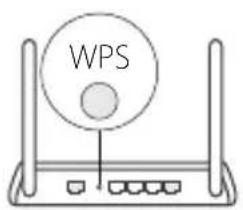
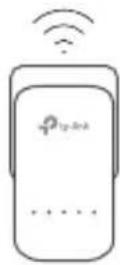
- Plug in the powerline extender near your router. Press the WPS button on your router.
- Within 2 minutes, press the Wi-Fi button on the extender for 1 second.
- When the 2.4GHz Wi-Fi LED and 5GHz Wi-Fi LED on the extender blink quickly for 3 seconds, and then stay on, it's done!
* 5GHz Wi-Fi is not available on single-band products. For multiple-band products, the powerline extender copies by default both 2.4GHz and 5GHz wireless settings at the same time. If it fails to copy both, your router may be only able to clone one band at a time. Please check your router's manual for support.
Note: The wireless settings can also be configured through the powerline extender's web interface or through the tpPLC app. You can download the app from the App Store or Google Play, or simply scan the QR code.

FAQ (Frequently Asked Questions)
Q1. How do I reset my powerline extender?
A. With the extender powered on, press and hold the Reset button (use a pin if it is a hole) until all LEDs turn off. When all LEDs turn on again, the reset process is complete.
Q2. How to troubleshoot if there is no internet connection in my powerline network?
A1. Make sure all adapters and extenders are on the same electrical circuit.
A2. Make sure all Powerline LEDs are on. If not, pair your adapters and extenders again.
A3. Make sure all hardware connections are correctly and securely connected.
A4. Check if you have an internet connection by connecting the computer directly to the modem or router.
Q3. What can I do if a successfully-paired extender does not reconnect after being relocated?
A1. Make sure all powerline devices are on the same electrical circuit.
A2. Pair it again with another adapter or extender, and make sure the Powerline LED is on before relocating it.
A3. Check for possible interference, such as washers, air conditioners or other household appliances that may be too close to one of the powerline adapters or extenders.
TP-Link hereby declares that the device is in compliance with the essential requirements and other relevant provisions of directives 2014/53/EU, 2009/125/EC and 2011/65/EU.
The original EU declaration of conformity may be found at http://www.tp-link.com/en/ce.
- Keep the device away from water, fire, humidity or hot environments.
- Do not attempt to disassemble, repair, or modify the device.
- Do not use the device where wireless devices are not allowed.
- The socket-outlet shall be installed near the equipment and shall be easily accessible.
- For passthrough devices, plug the power strips into the integrated electrical sockets of the devices, but devices of the same or another type not be stacked in normal use.
- Plug the powerline devices directly into the wall outlets but not the power strips.
Please read and follow the above safety information when operating the device. We cannot guarantee that no accidents or damage will occur due to improper use of the device. Please use this product with care and operate at your own risk.

TP-Link Three Years Limited Product Warranty
For TP-Link Branded Products Only.
THIS WARRANTY GIVES YOU SPECIFIC LEGAL RIGHTS, AND YOU MAY HAVE OTHER RIGHTS THAT VARY FROM STATE TO STATE (OR BY COUNTRY OR PROVINCE).
TO THE EXTENT ALLOWED BY LOCAL LAW, THIS WARRANTY AND THE REMEDIES SET FORTH ARE EXCLUSIVE AND IN LIEU OF ALL OTHER WARRANTIES, REMEDIES AND CONDITIONS.
TP-Link warrants the TP-Link branded hardware product contained in the original packaging against defects in materials and workmanship when used normally in accordance with TP-Link's guidelines for a period of THREE YEARS from the date of original retail purchase by the end-user purchaser.
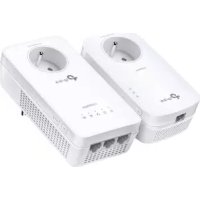
Brand : TP-LINK
Model : TLWPA8630
Category : Powerline Adapter