
TLPA7017P - Powerline Adapter TP-LINK - Free user manual and instructions
Find the device manual for free TLPA7017P TP-LINK in PDF.
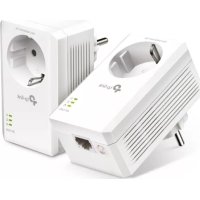



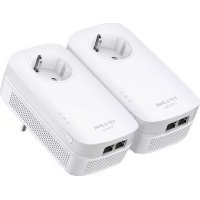
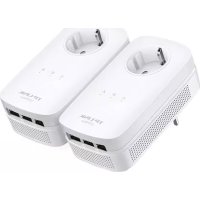
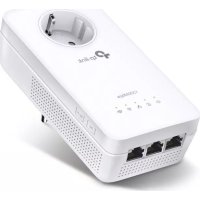
| Product Type | Powerline PLC Adapter |
| Model | TL-PA7017P |
| Brand | TP-Link |
| Dimensions (L x W x H) | 95 x 58 x 42 mm |
| Weight | Approximately 200 g |
| Power Supply | Electrical outlet 100-240 V, 50/60 Hz |
| PLC Standard | HomePlug AV2 |
| Theoretical Maximum Speed | Up to 1000 Mbps |
| Ethernet Port | 1 Gigabit RJ45 port |
| Passthrough socket | Yes, built-in |
| Pair Button | To secure the PLC network |
| Indicator LEDs | Power, PLC, Ethernet |
| Range on electrical circuit | Up to 300 meters |
| Operating Temperature | 0°C to 40°C |
| Operating Humidity | 10% to 90% (non-condensing) |
| Maintenance and Cleaning | Clean with a dry cloth, do not use liquid products |
| Safety | Do not plug into a power strip; use a direct wall outlet |
| Spare Parts and Repairability | No spare parts available; device not user-serviceable |
| Box Contents | Adapter, RJ45 Ethernet cable, quick installation guide |
| Warranty | 2 years (depending on country) |
Frequently Asked Questions - TLPA7017P TP-LINK
User questions about TLPA7017P TP-LINK
0 question about this device. Answer the ones you know or ask your own.
Ask a new question about this device
Download the instructions for your Powerline Adapter in PDF format for free! Find your manual TLPA7017P - TP-LINK and take your electronic device back in hand. On this page are published all the documents necessary for the use of your device. TLPA7017P by TP-LINK.
USER MANUAL TLPA7017P TP-LINK
For technical support, replacement services, user guides and other information, please visit https://www.tp-link.com/support, or simply scan the QR code.
© 2021 TP-Link 7106509436 REV2.0.2

Images may differ from your actual products.
CONTENTS
1 / English 5 / Español 9 / Français 13 / Português
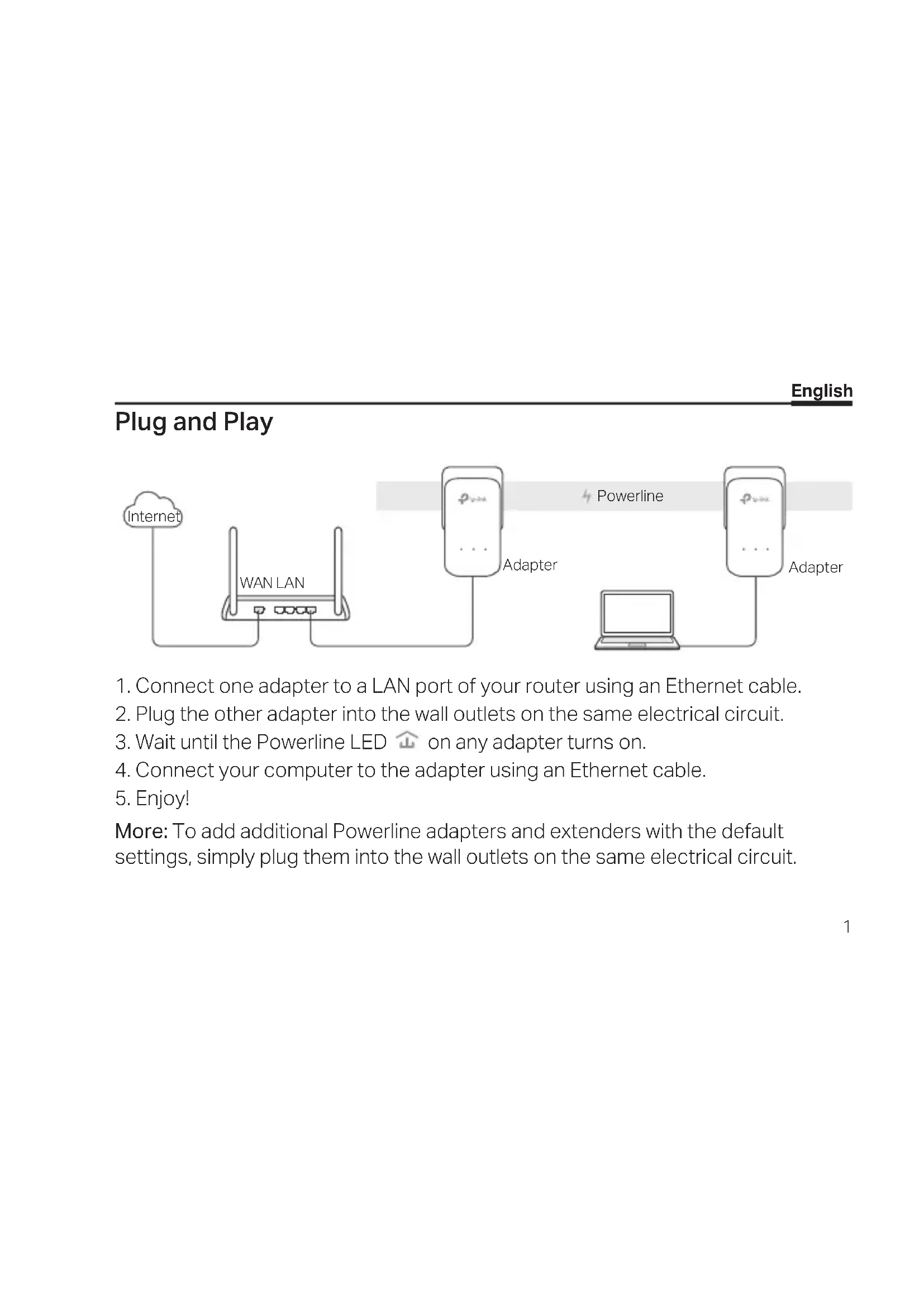
Plug and Play
![graph LR A["Internet"] --> B["WAN LAN"] B --> C["Powerline"] C --> D["Adapter 1"] C --> E["Adapter 2"] D --> F["Laptop"] E --> F style A fill:#f9f,stroke:#333 style B fill:#ccf,stroke:#333 style C fill:#cfc,stroke:#333 style D fill:#fcc,stroke:#333 style E fill:#cff,stroke:#333](/content/2026/03/500547/images/d90046f70aa4d6a89ba145224a99f362f481199e048cbffd5aa68d1eb8c08ea2.jpg)
- Connect one adapter to a LAN port of your router using an Ethernet cable.
- Plug the other adapter into the wall outlets on the same electrical circuit.
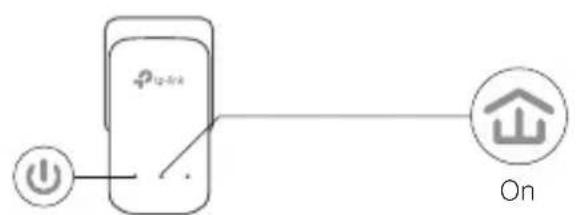
- Wait until the Powerline LED ⏚ on any adapter turns on.
- Connect your computer to the adapter using an Ethernet cable.
- Enjoy!
More: To add additional Powerline adapters and extenders with the default settings, simply plug them into the wall outlets on the same electrical circuit.
English
Attention
- Plug the powerline devices directly into the wall outlets but not the power strips.
- For passthrough powerline devices, plug the power strips into the integrated electrical sockets of the powerline devices.
Secure the Powerline Network with the Pair Button
Tips: We recommend that you plug in the powerline devices near each other when pairing.
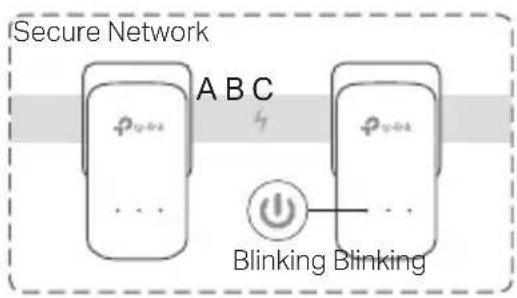
Set up a secure network:
1 Press the Pair button for 1 second on one adapter.
2 Within 2 minutes, press the Pair button for 1 second on another adapter.
3 Done.
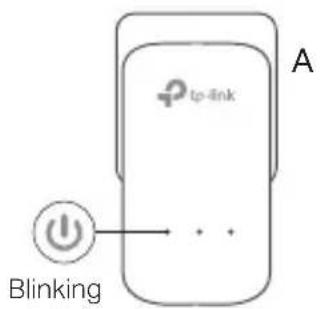
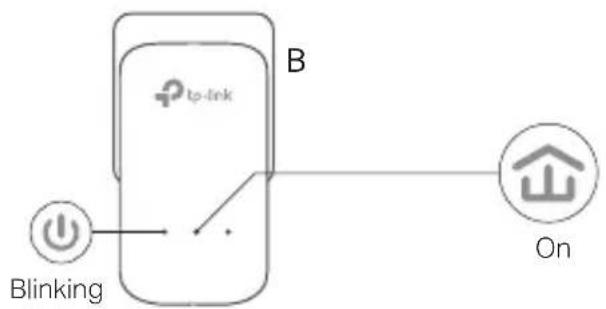
If you have more than 2 powerline devices, repeat the steps below on each additional device to be configured:
1 Press the Pair button for 1 second on any powerline device in the secure network.
2 Within 2 minutes, press the Pair button for 1 second on the additional powerline device.
3 Done.
FAQ (Frequently Asked Questions)
Q1. How do I reset my powerline adapter?
A1. With the powerline adapter plugged into the electrical outlet, press and hold the Pair button until the Power LED ⏻ goes off momentarily and comes back on.
A2. Use the tpPLC Utility to reset the powerline adapter.
English
Q2. How to troubleshoot if there is no internet connection in my powerline network?
A1. Make sure all powerline devices are on the same electrical circuit.
A2. Make sure all Powerline LEDs are on. If not, pair your adapters and extenders again.
A3. Make sure all hardware connections are correctly and securely connected.
A4. Check if you have an internet connection by connecting the computer directly to the modem or router.
A5. Make sure your computer's IP address is in the same segment as your router's.
Q3. What can I do if a successfully-paired powerline device does not reconnect after it has been moved to a new location?
A1. Try another socket and make sure it is on the same electrical circuit.
A2. Try to pair it again, and make sure the Powerline LED is on.
A3. Check for possible interference, such as a washer, air conditioner or other household appliances that may be too close to one of the powerline devices. Plug the appliance into the integrated electrical socket (if the powerline device has one) to remove some electrical noise.
More advanced configurations, such as firmware upgrade and QoS configuration, can be accessed through the tpPLC Utility. You can install the tpPLC Utility from the TP-Link official website.
Connect and Use
![graph LR A["Internet"] --> B["WAN LAN"] B --> C["Adaptador"] C --> D["Línea eléctrica"] D --> E["Adaptador"] E --> F["Adaptador"]](/content/2026/03/500547/images/645c79e5b8694c9b3a9020458aeca4deac610583c8eca83876544ae2ca5fa60c.jpg)
Brand : TP-LINK
Model : TLPA7017P
Category : Powerline Adapter