
MDSPC3 - Dictaphone SONY - Free user manual and instructions
Find the device manual for free MDSPC3 SONY in PDF.



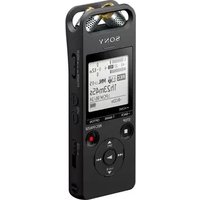
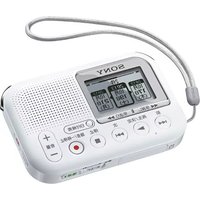
| Product type | MiniDisc Digital Dictaphone |
| Brand | Sony |
| Model | MDSPC3 |
| Dimensions (approx.) | 125 × 45 × 20 mm |
| Weight (approx.) | 150 g |
| Power supply | Rechargeable lithium-ion battery (via USB) |
| Recording medium | MiniDisc (MD) |
| Connectivity | USB 1.1 for data transfer and PC control |
| Supported audio formats | ATRAC (MiniDisc), WAV, MP3 (via conversion) |
| Provided software | M-crew 2.0E, LabelMaker 5.1 |
| Compatible operating system | Windows 98/98SE/2000/Me/XP |
| Minimum configuration | Pentium II 266 MHz, 64 MB RAM, USB port, SVGA 800×600 |
| Main functions | MD recording and playback, PC control, title editing, CD-MD synchronization, radio (depending on component), timer |
| Maintenance and cleaning | Clean with a soft, dry cloth. Avoid water and solvents. |
| Safety | Do not expose to moisture, extreme temperatures, or shocks. Keep out of reach of children. |
| Spare parts and repairability | Contact Sony service or an authorized dealer. Parts: USB cable, AC adapter. |
| General information | User manual available online. Uninstall the software via Control Panel. |
Frequently Asked Questions - MDSPC3 SONY
User questions about MDSPC3 SONY
0 question about this device. Answer the ones you know or ask your own.
Ask a new question about this device
Download the instructions for your Dictaphone in PDF format for free! Find your manual MDSPC3 - SONY and take your electronic device back in hand. On this page are published all the documents necessary for the use of your device. MDSPC3 by SONY.
USER MANUAL MDSPC3 SONY
- Duplication of any or all of the contents of this software and instruction manual or lending of this software to third parties without the express permission of the copyright holder is strictly prohibited by copyright law.
- Sony cannot be held liable in any way for monetary losses, lost profits or claims from third parties arising from the use of this software.
- Should any manufacturing defects occur, Sony's responsibility shall be limited solely to replacing said defective merchandise.
- This software is approved for use only with the specified equipment.
- Sony reserves the right to change software specifications without prior notice. Other related software and services provided are also subject to change without prior notice.
Program © 1997-2001 Sony Corporation Documentation © 2001 Sony Corporation
© 2001 Sony Corporation All rights reserved.
- M-crew, LabelMaker and website registered trademarks of Sony Corporation.
- Microsoft, MS-DOS and Windows are the registered trademarks of Microsoft Corporation.
- IBM and PC/AT are the registered trademarks of International Business Machines Corporation.
- Macintosh is the registered trademark of Apple Computer Inc.
- Gracenote CDDB® or Gracenote CDDB® Music Recognition Service™
- Powered by Gracenote CDDB®
- Other companies and product names are the trademarks or the registered trademarks of each company.
Table of contents
Getting started
Overview 4
System requirements 6
Preparation
1: Installing M-crew 7 2: Connections 11 3: Setup procedure for your computer system 11
Setting up for Windows 98/ 98SE 12
Setting up for Windows 2000/Windows Me/Windows XP 14
When no sound comes out of the computer 17
Installing LabelMaker 5.1 18
Uninstalling the software 19
Basic Operations
Starting up M-crew. 20 Using M-crew 21
Main bar 21 Tool bar 23 Operation windows 24 Easy Mode window 24
Quitting the software 25
Additional Information
Using Help 26
Troubleshooting 27
About this manual
This manual shows how to install the M-crew software and how to use the Help.
For the latest information, refer to the
"Readme.txt" file in the Start menu.
The "Readme.txt" file is in the folder which the M-crew software is installed in.
Overview
M-crew (ver. 2.0E) allows you to control Sony system stereo components. Through M-crew, you can perform the functions listed below.
Playback
- Use the computer to operate the playback function on CD, MD and DVD decks.
- Enjoy audio files stored on the computer.
- Tune in radio stations using the computer.
Recording/editing
- Input disc and track names from the computer keyboard.
- Edit MDs on the computer screen.
- Record from a CD to an MD through easy drag-and-drop operations.
- Record easily from a radio to an MD.
- Organize tracks on an MD into groups of your choice.
- Access CDDB2 from your computer to label albums and tracks automatically (only for the components supporting this feature).
Other operations
- Create virtual media for the management of audio files.
- Keep track of played and recorded tracks through a Disc Library.
- Access related websites while enjoying tracks.
- Register images to attach them to a track and view them while listening to the track (CLIP function).
- Access related websites while enjoying radio programs.
- Set playback and recording timers.
- Use the Easy Mode window to access easily to the basic functions of M-crew.
- Print out MD labels.
Notes
- In this manual, the term "system stereo component" refers specifically to component stereo systems (incorporating CD and MD decks) and discrete CD, MD, and DVD decks.
- The M-crew functions that operate on your computer will depend on the system stereo component connected to your computer.
- You can use this software to operate only system stereo components connected directly to the computer.
Music recognition technology and related data are provided by Gracenote and the Gracenote CDDB® Music Recognition Service™. Gracenote is the industry standard in music recognition technology and related content delivery. For more information go to www.gracenote.com.
Gracenote is CDDB, Inc. d/b/a "Gracenote." CD and music related data from Gracenote CDDB® Music Recognition Service™ © 2000, 2001 Gracenote.
Gracenote CDDB Client Software © 2000, 2001 Gracenote. U.S. Patents Numbers #5,987,525; #6,061,680; #6,154,773, and other patents issued or pending.
CDDB is a registered trademark of Gracenote. CDDB-Enabled, the Gracenote logo, the CDDB Logo, and the "Powered by Gracenote CDDB" logo are trademarks of Gracenote. Music Recognition Service and MRS are service marks of Gracenote.
System requirements
The following hardware and software are necessary to use the M-crew (ver. 2.0E) software.
□IBM PC/AT or compatible (This software does not run on the Apple Macintosh.) □CPU 1: Intel Pentium II 266 MHz/Celeron 333 MHz or higher □Video board and display driver: SVGA (800×600 pixels), 65,536 colors or more. Hard disk space: 30 MB 2 or more □USB port: 1 or more □OS: Windows 98/Windows 98SE/Windows 2000*3/Windows Me/Windows XP*3 (This software does not run on Microsoft Windows 3.1, Windows 95 or Windows NT.) □Media player: Windows Media Player 6.4 or higher is required in order to play music files on the computer. Video monitor: SVGA (800×600 pixels), 65,536 colors or more.
1 The operation of M-crew is not guaranteed on some computers with Pentium-compatible CPU chips, such as the AMD K6 (e.g., sound skipping may occur during playing of an audio file). 2 Another 20 MB of hard disk space is required to install LabelMaker 5.1. *3 Be sure to log on through the administrator's account to install the software and setup devices on a computer running Windows 2000 or Windows XP.
Notes
- The proper operation of M-crew is not guaranteed on some computers even if they meet the requirements above.
- The proper operation of M-crew is not guaranteed on computers that you constructed yourself or on computers with an operating system that you upgraded yourself.
- Do not use a USB hub. If multiple USB devices are connected to the hub, M-crew may not operate the system stereo component connected to the computer properly.
- This software can be used only with an English-language operating system. If used in a different language environment, it may not function properly or text may not be correctly displayed.
1: Installing M-crew
Use this procedure to install the M-crew software onto your computer's hard disk. Be sure to start up Windows in advance.
Notes
- Be sure to install this software before connecting the system stereo component to your computer. If not, this software may not function properly.
- Be sure to log on through the administrator's account to install this software (for Windows2000/Windows XP).
1 Load the supplied M-crew CD-ROM into the CD-ROM drive of your computer.
The window will open with the (InstallDlg.exe) icon displayed.
Note
If the window does not open, use Windows Explorer to open the window by double-clicking the M-crew CD-ROM icon.
2 Double-click the installDlg.exe) icon.
The setup window appears.
- If you are using the PCLK-MN10/MN10A and you have already installed PCLK USB driver onto your computer, go to step 4.
- If you are installing M-crew onto the computer with the CMT-C7NT connected, proceed the procedure from step 3 even if you are using the PCLK-MN10/MN10A. Be sure not to skip step 3.
3 Click "1. Setting up PCLK-USB Driver" in the setup window.
The installation of the driver starts. When the dialog box indicating the completion of the installation appears, click "Finish."
4 Click "2. Setting up M-crew" in the setup window.
The setup program starts up.
(continued)
Note
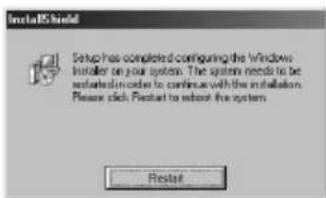
The Windows Installer is necessary to install M-crew. If the Windows Installer is not installed on your computer, the following window appears. If this happens, click "Restart" to restart your computer. When you restart your computer, do not remove the CD-ROM.
5 Click "Next."
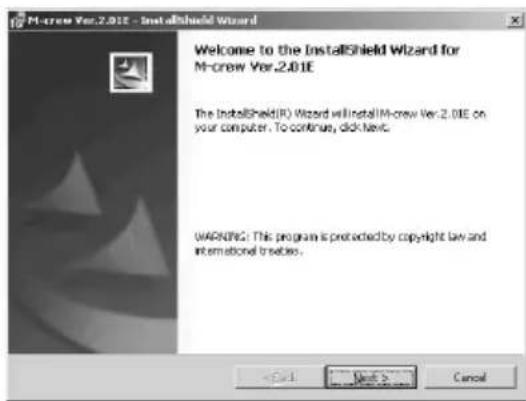
6 Select one of the setup type options, and then click "Next."
Complete: All the M-crew files on the CD-ROM will be installed. This option does not allow you to specify the folder to which the M-crew files are installed. (Normally the files are installed in "C:\Program Files\M_crew" folder.)
Custom: You can specify the folder to which the M-crew files are installed.
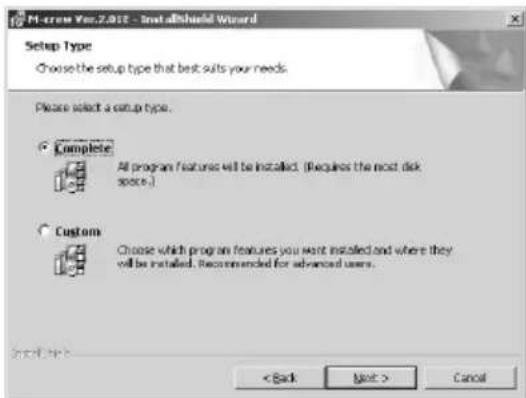
7 If you selected "Complete" in step 6, click "Install." The installation starts.
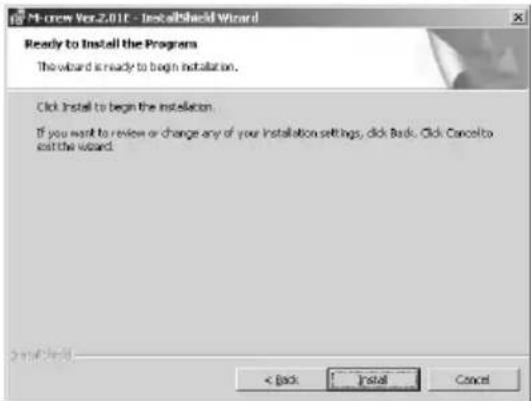
If you selected "Custom" in step 6, click "Next."
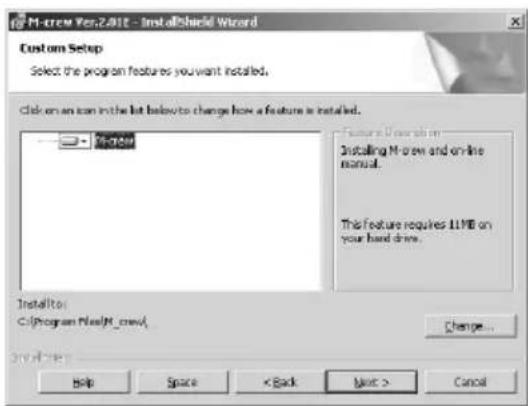
To change the folder to which to install M-crew, click "Change" to open the dialog box, click "Next" after specifying the folder, and then click "Install."
(continued)
8 When the dialog box indicating the completion of the installation appears, click "Finish."
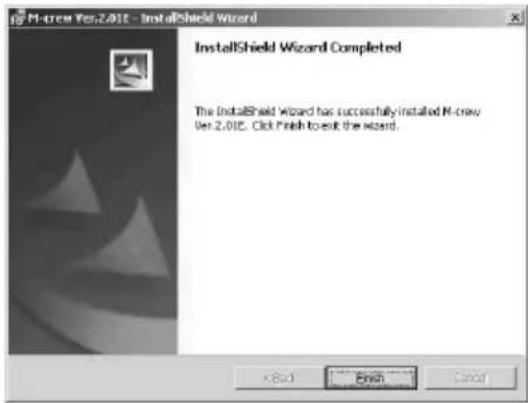
This completes the setup process.
Be sure to restart the computer. If not, the software will not function properly.
Be sure to close the dialog box activated by executing InstallDlg.exe before connecting the system stereo component to the computer.
Now, you can proceed to the next preparation steps: connecting the system stereo component to the computer, installing the USB drivers, and then verifying the status of the installed devices according to the procedures described on the following pages.
Before starting M-crew
Open the "Readme" file and read it.
To open the "Readme" file, go to the Start menu and select "Programs" and "M-crew," and then click "Readme."
Notes
- A folder is created as a result of the installation. This folder is used by the software. Do not erase, move, or change its contents.
- If the required driver and other items have already been installed, a dialog box for your confirmation will appear during the installation.
2: Connections
For information on connecting the system stereo component to the computer, refer to the operating instructions for the system stereo component or the PCLK-MN20 PC connecting adaptor.
3: Setup procedure for your computer system
Be sure to check the status of the installed devices before you start up M-crew.
The following procedure is for Windows 98/98SE. Some parts of the procedure may differ depending on which operating system you have installed the software in. See page 14 for Windows 2000/Windows Me/Windows XP.
Note
Some illustrations included in the following procedures may differ partly depending on which operating system your computer is running.
Setting up for Windows 98/98SE
Installing the USB driver
1 Connect the system stereo component to the computer directly or via the PC connecting adaptor, and then start up the computer.
"Add New Hardware Wizard" appears.
Quit any applications that are active.
2 Click "Next." 3 Select "Search for the best driver for your device.
(Recommended)."(For the computer system with the CMT-C7NT connected to it, refer to the operating instructions for that system stereo component.)
Load the Windows 98/98SE CD-ROM into the CD-ROM drive of the computer if the wizard requests it, and then install the drivers.
Installation procedure will be repeated for each of the following devices.
- USB audio device
- USB composite device
- Generic USB hub
Verifying the status of the installed devices
Be sure to check the status of the installed devices after you have installed their drivers.
1. Open the Control Panel.
In the Start menu, point to "Settings" and click "Control Panel".
2. Double-click the System icon.
The "System Properties" dialog box appears.
3. Click the "Device Manager" tab. (For the computer system with the CMT-C7NT connected to it, refer to the operating instructions for that system stereo component.)
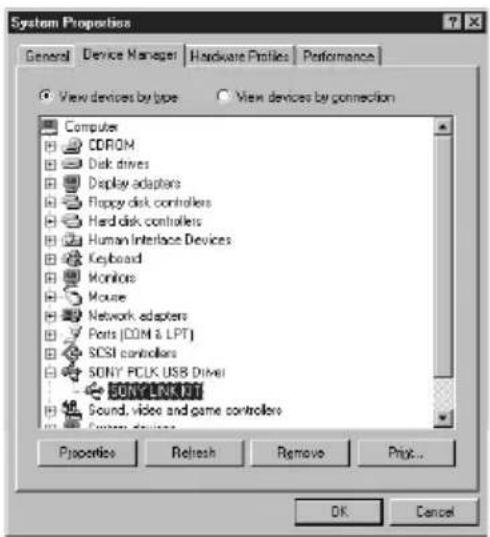
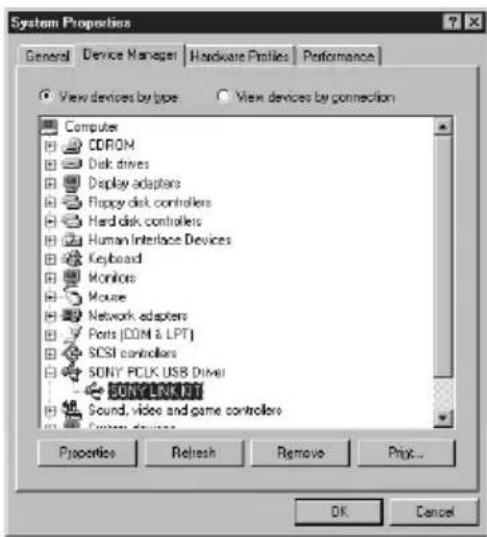
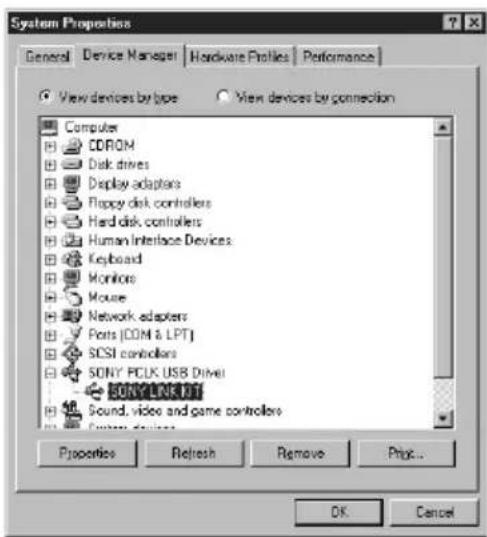
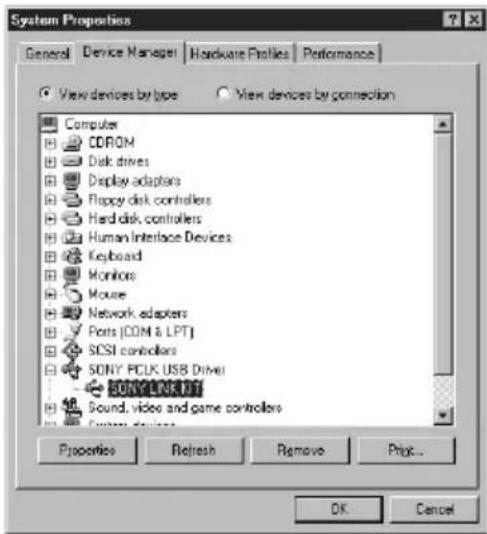
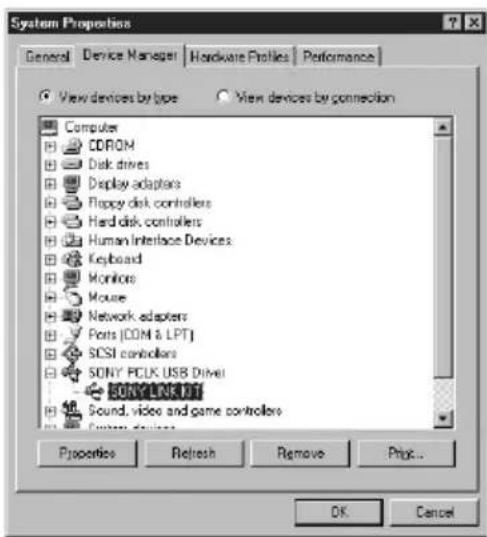
Make sure that the following items are listed in the "Device Manager" dialog box.
- "SONY PCLK USB Driver"
- "USB Audio Device" under "Sound, video and game controllers"
- "USB Composite Device" and "Generic USB Hub" under "Universal Serial Bus controllers"
4. Click "OK" to close the "System Properties" dialog box.
Setting up for Windows 2000/Windows Me/Windows XP
Installing the USB driver (Windows 2000)
1 Connect the system stereo component to the computer directly or via the PC connecting adaptor, and then start up the computer. "Found New Hardware Wizard" appears. Quit any applications that are active.
2 Click "Next."
3 Select "Search for a suitable driver for my device (recommended)." (For the computer system with the CMT-C7NT connected to it, refer to the operating instructions for that system stereo component.) Load the Windows 2000 CD-ROM into the CD-ROM drive of the computer if the wizard requests it, and then install the drivers. Installation procedure will be repeated for each of the following devices.
- USB audio device
- USB composite device
- Generic USB hub
Installing the USB driver (Windows Me)
1 Connect the system stereo component to the computer directly or via the PC connecting adaptor, and then start up the computer. "Add New Hardware Wizard" appears. Quit any applications that are active.
2 Select "Search for the best driver for your device.
(Recommended)." (For the computer system with the CMT-C7NT connected to it, refer to the operating instructions for that system stereo component.)
Load the Windows Me CD-ROM into the CD-ROM drive of the computer if the wizard requests it, and then install the drivers. Installation procedure will be repeated for each of the following devices.
- USB audio device
- USB composite device
- Generic USB hub
Installing the USB drivers (Windows XP)
1 Quit any applications that are active. 2 Connect the system stereo component to the computer directly or via the PC connecting adaptor, and then start up the computer. Installation of the drivers starts automatically, and will be terminated after completing installation.
If "Found New Hardware Wizard" should appear, go to step 3.
3 Select "Install the software automatically [Recommended]" after confirming that the name of the device for which the drivers are to be installed is "SONY LINK KIT."
Verifying the status of the installed devices (Windows 2000/ Windows Me/Windows XP)
Be sure to check the status of the installed devices after you have installed their drivers.
1 Open the Control Panel.
In the Start menu, point to "Settings" and click "Control Panel". (For Windows XP) In the Start menu, click "Control Panel," and then click "Switch to Classic View" on the left pane of the window.
(continued)
2 Double-click the "System" icon.
The "System Properties" dialog box appears.
Note
If you cannot find the "System" icon, click "View all Control Panel options" (in the case of Windows Me).
3 (For Windows 2000/Windows XP only) Click the "Hardware" tab.
4 Click the "Device Manager" tab. (For Windows 2000/Windows XP, click the "Device Manager" button, instead) (For the computer system with the CMT-C7NT connected to it, refer to the operating instructions for that system stereo component.)
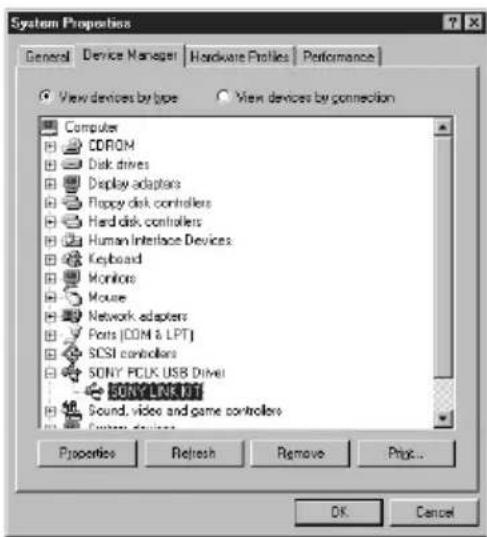
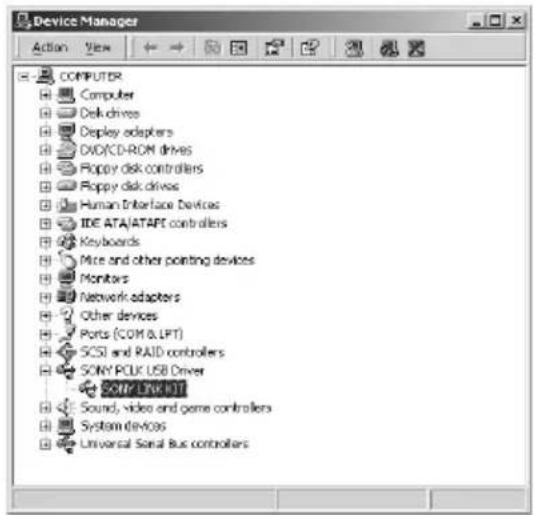
Make sure that the following items are listed in the "Device Manager" dialog box.
- "SONY PCLK USB Driver" (This item may be found under "Universal Serial Bus controllers.")
- "USB Audio Device" under "Sound, video and game controllers"
- "USB Composite Device" and "Generic USB Hub" under "Universal Serial Bus controllers"
Example: Window for Windows 2000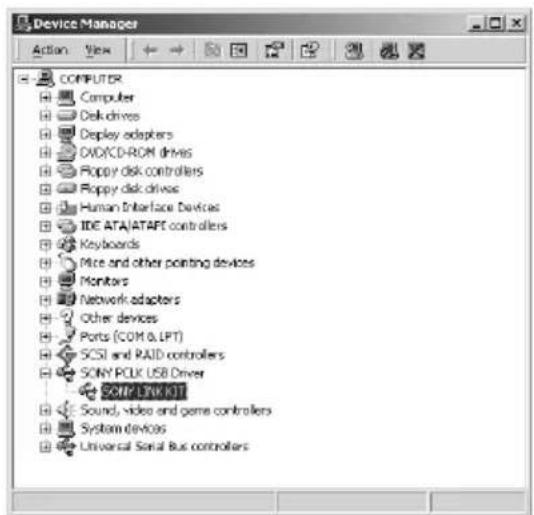
Note (for Windows Me only)
Depending on the configuration of your computer, may appear before the listed device. This, however, does not affect the operation of the system (the computer and system stereo component).
5 Click "OK" to close the "System Properties" dialog box.
When no sound comes out of the computer
M-crew uses the USB audio device for sound playback and recording. When you start up the computer with a system stereo component connected, the USB audio device will be enabled in place of the standard audio device. As a result, no sound will come out of the built-in or external speakers of the computer, because all sounds will be output to the USB audio device via the USB cable. To allow sounds to come out of the computer, remove the USB cable from the computer.
To enable the speakers of the computer with a system stereo component connected to it, do the following procedure.
1 Open the Control Panel. In the Start menu, point to "Setting" and click "Control Panel." (For Windows XP) In the start menu, click "Control Panel," and then click "Switch to Classic View" on the left pain of the window. 2 Double-click the "Sounds and Multimedia" (or "Multimedia" for Windows 98/98SE or "Sounds and Audio Devices" for Windows XP) icon to open the "Sounds and Multimedia Properties" (or "Multimedia Properties" for Windows 98/98SE or "Sounds and Audio Devices Properties" for Windows XP) dialog box. 3 Click the "Audio" tab, and then select the standard audio device for each "Preferred device:" (or "Default Device:" for Windows XP) of the "Sound Playback" (or "Playback" for Windows 98/98SE) and "Sound Recording" (or "Recording" for Windows 98/98SE) group boxes. 4 Click the "Use only preferred devices" (or "Use only default devices" for Windows XP) option to enable it. 5 Click "OK."
Note
Be sure to select "USB Audio Device" for each "Preferred device:" (or "Default Device:" for Windows XP) in step 3 above before you start recording to an MD.
Installing LabelMaker 5.1
Please note that if you install LabelMaker 5.1 onto the Windows XP
preinstalled VAIO computer, LabelMaker 5.0 installed on it may be
overwritten by the new version.
Installing LabelMaker 5.1 will not overwrite any version of LabelMaker
older than 5.0 such as included in PictureGear 4.x.
1. Click "Setting up LabelMaker 5.1" in the setup window (see step 2 on page 7). 2. Follow the instructions that appear to install the application.
Uninstalling the software
When you no longer require M-crew or LabelMaker 5.1, uninstall the programs as follows:
1. Open the Control Panel.
In the Start menu, point to "Settings" and click "Control Panel".
2. Double-click the "Add/Remove Programs" icon.
The "Add/Remove Programs Properties" window appears.
3. Select and click "M-crew" or "LabelMaker 5.1" in the program list. 4. Click "Add/Remove".
Uninstaller is activated and the software selected in step 3 is deleted automatically.
Notes
- After uninstalling M-crew, the "Database" and "Jacket" folders created under the M-crew folder (usually C:\Program Files\M_crew) and their files still remain on the hard disk. Delete them manually, if there is no more need for them.
- If you select LabelMaker 5.1 in step 3 above and uninstall it, not only LabelMaker 5.1 installed through M-crew but also any other copy of LabelMaker 5.1 that you may have installed separately from M-crew will be removed.
- Similarly, if you uninstall LabelMaker 5.1 that has been installed separately from M-crew, the label printing function will be no longer available also in M-crew.
Starting up M-crew
In the Start menu, point to "Programs" and "M-crew", and then click "M-crew."
The software starts up and the M-crew Main bar appears.
The bar below is displayed immediately after M-crew is started up. The following description assumes that M-crew is running on the computer to which the CMT-C7NT is connected as a system stereo component.

Notes
- During MD recording, a dialog box appears to prompt you to stop recording or to start up M-crew.
- M-crew (ver. 2.0E) and Net MD-enabled OpenMG Jukebox cannot be active simultaneously.
Using M-crew
This section provides a short description of basic functionality and usage of bars and windows available in M-crew.
For more information on using M-crew, refer to the Help (page 26).
Main bar
The Main bar provides basic functions for playing a CD/MD and operating the tuner.

ASONY logo
Drag the logo with the left mouse button to move the Main bar up or down.
Right-click the logo to display a pop-up menu.
B Function Name display
Click to display and select a function (CD, MD, TUNER, etc).
C Disk Information (Radio Band) display
Displays the name of the selected CD/MD or the selected radio band depending on which function of CD/MD or TUNER is selected in the Function name display.
D Track Number/Track Name (Preset Number/Broadcasting Station Name) display
Displays the track number/track name or the preset number/broadcasting station name depending on which function of CD/MD or TUNER is selected in the Function name display.
(continued)
E Timer (Frequency) display
Displays time information such as total playing time and elapsed playing time while you are playing a CD/MD. Clicking on it allows you to select a display mode. It also displays the frequency of the selected station while you are listening to the radio.
F Operation buttons
Buttons displayed in this area appear as the CD/MD operation buttons or the tuner operation buttons depending on which function of CD/MD or TUNER is selected in the Function name display. The CD/MD operation buttons allow you to play, pause, stop, and locate a track on a CD/MD. The tuner operation buttons provide such functions as those for selecting a radio band and locating the preset number.
G Easy Mode button
Opens the Easy Mode window that provides easy access to the basic functions for playing a CD/MD, recording to an MD.
Volume control
Adjusts the volume of the system stereo component connected to the computer.
Tool bar switch
Click to show or hide the Tool bar.
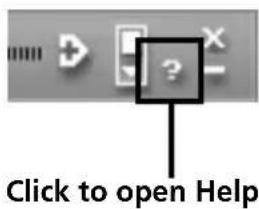
Help button
Click to open Help.
Minimize button
Click to reduce the size of the window.
Close button
Click to exit M-crew.
Tool bar
To view the Tool bar, click the Tool bar switch in the Main bar.
When you click a function icon in the Tool bar, the system switches to the selected function and the corresponding window appears. Note that only one window can be opened at a time.

CD icon
Click to display the CD window.
BMD icon
Click to display the MD window.
CTUNER icon
Click to display the TUNER window.
OTHERS icon
Click to display the OTHERS window.
ETIMER icon
Click to display the Timer window.
F File icon
Click to display the File window. Use this window to play the music files stored on your computer's hard disk.
G Disc Library icon
Click to display the Disc Library window. Use this window to view or reuse data on the media that were played at least once before.
H Rec Window icon
Click to display the Rec window. Use this window to record to an MD from the CD player, tuner, or other sources. Rec window has two different recording modes: synchro recording mode and manual recording mode.
Option icon
Click to display the "Option" dialog box. Use this dialog box to enter miscellaneous settings.
Operation windows
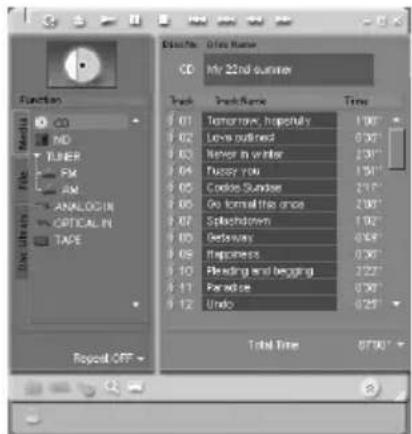
When you click a function icon in the Tool bar, a window corresponding to the selected function appears. Operation windows provide different sets of functions according to the function selected in the Tool bar, such as those for selecting a play mode and editing disc names.
Easy Mode window
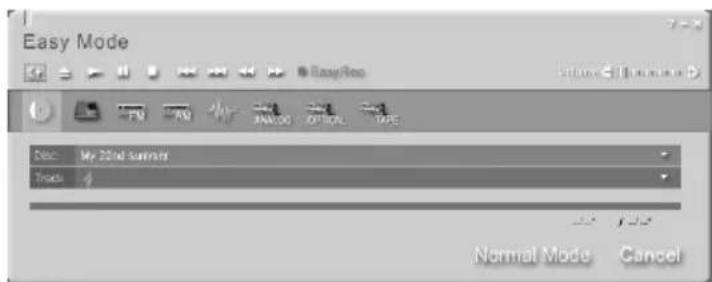
When you click the Easy Mode button in the Main bar, the Easy Mode window appears. The Easy Mode window allows you to use basic functions of M-crew from within the window, such as those for playing a CD/MD and recording to an MD.
To return to the normal window, click the Normal Mode button in the window.
Quitting the software
1 Click in the Main bar.
A dialog box for quitting the software appears.
2 Click "Do not turn off power."
M-crew ends.
If you want to turn off the system stereo component as well, click "Turn off power."
Using Help
Opening the Help table of contents
Click the Help button on the Main bar. The M-crew table of contents will appear.
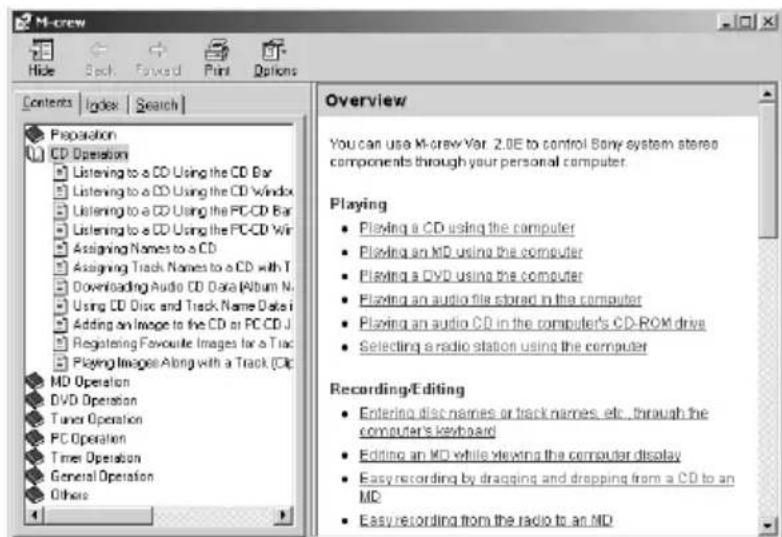
- Double-click to display the topics within.
- Click to display an explanation of the given item.
- Click an underlined item in an explanation to display a related explanation on another page.
Searching by Keyword
1 Click the "Index" tab in the above topic search dialog box. 2 Enter a word or phrase that you want to search for or select the keyword by scrolling the list of keywords. 3 Click "Display."
A topic containing the selected keyword appears in the right frame of the dialog box.
If the "Topics Found" dialog box appears, select the appropriate topic and click "Display."
Finding topics with a certain word or phrase
1 Click the "Search" tab in the above topic search dialog box. 2 Enter a word or phrase that is related to the desired topic, and then click "List Topics." The topics that are found appear in the "Select Topics to display:" list box. 3 Select the appropriate entry and click "Display." A topic corresponding to the selected entry appears in the right frame of the dialog box.
Troubleshooting
If you experience any of the following difficulties while using this software, use this troubleshooting guide to remedy the problem.
Should any problem persist, consult your nearest Sony dealer.
Please also refer to your computer's manual, as well as the
"Readme.txt" file installed on the hard disk with the software.
To open the "Readme" file, go to the Start menu and select "Programs" and "M-crew," and then click "View Readme."
Problem Cause/countermeasure
M-crew aborts automatically. OpenMG Jukebox is started.
M-crew and OpenMG Jukebox cannot be active simultaneously. Therefore, starting OpenMG Jukebox while M-crew is active may cause M-crew to abort. To restart M-crew, quit OpenMG Jukebox, and then double-click the M-crew icon in the task tray on the Desktop. You can also select "Restart M-crew" from the menu that can be opened by right-clicking on the Desktop.
The message "Equipment does not respond. Check connections." appears.
The USB cable is not properly connected to the USB port on the computer.
Check the USB connector connection. Try disconnecting the USB cable from the computer, and then connecting it again.
The USB cable is not properly connected to the system stereo component.
Check the USB connector connection. Check that the AC power cord of the system stereo component is connected to an AC outlet.
(continued)
| Problem Cause/countermeasure | |
| No screen response or screen error. | →Turn the power of the system stereo component off and on, and then restart M-crew. →Try disconnecting the USB cable from the system stereo component and from the computer, and then connecting it again. →Start up another often-used application and verify that the computer functions properly. →After uninstalling the M-crew software (page 19), try re-installing it (page 7). |
| Text input, recording, editing etc., cannot be done. | The disc's protect tab may be set to write-protect. →Slide the tab so that recording is possible. The MD may be a commercial playback-only MD (an MD with prerecorded tracks). →Text input, recording, editing, etc., are not possible on commercial playback-only MDs. |
| The system stereo component does not respond. | →Check that the connections have been made properly (page 11). →Disconnect the connecting cables and then reconnect them. →Try disconnecting the USB cable from the system stereo component and from the computer, and then connecting it again. |
| The displayed name of the MD or CD does not match the disc's contents. | →Click the Reload button. →Restart M-crew. Should the problem persist, the data in the Disc Library may be corrupted. Enter the names again. |
| The installed devices are not set properly. | →Refer to the “Readme.txt” file in the Start menu. The “Readme.txt” file is in the folder which the M-crew software is installed in. |
| No sound comes out of the built-in or external speakers of the computer. | The USB audio device is preferred on the computer that has a USB connection to a system stereo component. →Select the standard audio device (usually the built-in sound card of the computer) for the preferred device in the “Sounds and Multimedia Properties” dialog box (page 17). |
| No sound from the system stereo component comes out of the built-in or external speakers of the computer. | →Connect the analog output terminal on the system stereo component and the line-in terminal on the computer with an audio cable, and then uncheck the “Mute” check box under the “Line In Balance:” section in Volume Control. |
| The message “Could not connect to the CDDB.” appears. | →Check that you are successfully connected to the Internet. →If you have access to the Internet through a proxy server, check the proxy settings in the “Option” dialog box. |
| The system sounds (warning alarm/email arrival notice) are not heard. | →The system sounds have been specified not to sound during M-crew startup, or the setting may have changed to OFF when M-crew was abnormally ended. To restore the sounds, restart M-crew and then quit the program normally. Or double-click the backup file (reg0.reg to reg3.reg) in the M-crew folder and follow the instructions to set up the program again (except for Windows XP). |
Programme © 1997-2001 Sony
Corporation
Documentation © 2001 Sony
Corporation © 2001 Sony Corporation -
Music recognition technology and related data are provided by Gracenote and the Gracenote CDDB® Music Recognition Service™. Gracenote is the industry standard in music recognition technology and related content delivery. For more information go to www.gracenote.com.
Gracenote is CDDB, Inc. d/b/a "Gracenote." CD and music related data from Gracenote CDDB® Music Recognition Service™ © 2000, 2001 Gracenote.
Gracenote CDDB Client Software © 2000, 2001 Gracenote. U.S. Patents Numbers #5,987,525; #6,061,680; #6,154,773, and other patents issued or pending.
CDDB is a registered trademark of Gracenote. CDDB-Enabled, the Gracenote logo, the CDDB Logo, and the "Powered by Gracenote CDDB" logo are trademarks of Gracenote. Music Recognition Service and MRS are service marks of Gracenote.
- "SONY PCLK USB Driver"
- "USB Audio Device" under "Sound, video and game controllers"
- "USB Composite Device" and "Generic USB Hub" under "Universal Serial Bus controllers"
3 Select "Search for a suitable driver for my device."
2 Select "Search for the best driver for your device."
The message "Equipment does not respond. Check connections." appears.
Music recognition technology and related data are provided by Gracenote and the Gracenote CDDB Music Recognition Service. Gracenote is the industry standard in music recognition technology and related content delivery. For more information go to www.gracenote.com.
Gracenote is CDDB, Inc. d/b/a "Gracenote." CD and music related data from Gracenote CDDB® Music Recognition Service™ © 2000, 2001 Gracenote.
Gracenote CDDB Client Software © 2000, 2001 Gracenote. U.S. Patents Numbers #5,987,525; #6,061,680; #6,154,773, and other patents issued or pending.
CDDB is a registered trademark of Gracenote. CDDB-Enabled, the Gracenote logo, the CDDB Logo, and the "Powered by Gracenote CDDB" logo are trademarks of Gracenote. Music Recognition Service and MRS are service marks of Gracenote.
Music recognition technology and related data are provided by Gracenote and the Gracenote CDDB® Music Recognition Service™. Gracenote is the industry standard in music recognition technology and related content delivery. For more information go to www.gracenote.com.
Gracenote is CDDB, Inc. d/b/a "Gracenote." CD and music related data from Gracenote CDDB® Music Recognition Service™ © 2000, 2001 Gracenote.
Gracenote CDDB Client Software © 2000, 2001 Gracenote. U.S. Patents Numbers #5,987,525; #6,061,680; #6,154,773, and other patents issued or pending.
CDDB is a registered trademark of Gracenote. CDDB-Enabled, the Gracenote logo, the CDDB Logo, and the "Powered by Gracenote CDDB" logo are trademarks of Gracenote. Music Recognition Service and MRS are service marks of Gracenote.
- "SONY PCLK USB Driver"
- "USB Composite Driver" under "Sound, video and game controllers"
- "USB Composite Device" and "Generic USB Hub" under "Universal Serial Bus controllers"
2 Select "Search for the best driver for your device."
Music recognition technology and related data are provided by Gracenote and the Gracenote CDDB® Music Recognition Service™. Gracenote is the industry standard in music recognition technology and related content delivery. For more information go to www.gracenote.com.
Gracenote is CDDB, Inc. d/b/a "Gracenote." CD and music related data from Gracenote CDDB® Music Recognition Service™ © 2000, 2001 Gracenote.
Gracenote CDDB Client Software © 2000, 2001 Gracenote. U.S. Patents Numbers #5,987,525; #6,061,680; #6,154,773, and other patents issued or pending.
CDDB is a registered trademark of Gracenote. CDDB-Enabled, the Gracenote logo, the CDDB Logo, and the "Powered by Gracenote CDDB" logo are trademarks of Gracenote. Music Recognition Service and MRS are service marks of Gracenote.
System requirements
- "SONY PCLK USB Driver"
- "USB Audio Device" under "Sound, video and game controllers"
- "USB Composite Device" and "Generic USB Hub" under "Universal Serial Bus controllers"
OpenMG Jukebox is started.
Program © 1997-2001 Sony Corporation
Documentation © 2001 Sony
Corporation
© 2001 Sony Corporation. All rights reserved.
All rights reserved.
Music recognition technology and related data are provided by Gracenote and the Gracenote CDDB® Music Recognition Service™. Gracenote is the industry standard in music recognition technology and related content delivery. For more information go to www.gracenote.com.
Gracenote is CDDB, Inc. d/b/a "Gracenote." CD and music related data from Gracenote CDDB® Music Recognition Service™ © 2000, 2001 Gracenote.
Gracenote CDDB Client Software © 2000, 2001 Gracenote. U.S. Patents Numbers #5,987,525; #6,061,680; #6,154,773, and other patents issued or pending.
CDDB is a registered trademark of Gracenote. CDDB-Enabled, the Gracenote logo, the CDDB Logo, and the "Powered by Gracenote CDDB" logo are trademarks of Gracenote. Music Recognition Service and MRS are service marks of Gracenote.
System Requirements
- "SONY PCLK USB Driver"
- "USB Audio Device" under "Sound, video and game controllers"
- "USB Composite Device" and "Generic USB Hub" under "Universal Serial Bus controllers"
"Found New Hardware Wizard" starts.
- "SONY PCLK USB Driver" (This detail may be found under "Universal Serial Bus controllers".)
- "USB Audio Device" under "Sound, video and game controllers"
- "USB Composite Device" and "Generic USB Hub" under "Universal Serial Bus controllers"
Example: Window for Windows 2000
The message "Equipment does not respond. Check connections." lights up.
Music recognition technology and related data are provided by Gracenote and the Gracenote CDDB® Music Recognition Service™. Gracenote is the industry standard in music recognition technology and related content delivery. For more information go to www.gracenote.com.
Gracenote is CDDB, Inc. d/b/a "Gracenote." CD and music related data from Gracenote CDDB® Music Recognition Service™ © 2000, 2001 Gracenote.
Gracenote CDDB Client Software © 2000, 2001 Gracenote. U.S. Patents Numbers #5,987,525; #6,061,680; #6,154,773, and other patents issued or pending.
CDDB is a registered trademark of Gracenote. CDDB-Enabled, the Gracenote logo, the CDDB Logo, and the "Powered by Gracenote CDDB" logo are trademarks of Gracenote. Music Recognition Service and MRS are service marks of Gracenote.
3 Select "Search for the best driver for your device."
- "SONY PCLK USB Driver"
- "USB Audio Device" under "Sound, video and game controllers"
- "USB Composite Device" and "Generic USB Hub" under "Universal Serial Bus controllers"
The "Found New Hardware Wizard" appears.
2 Select "Search for the best driver for your device."
The message "Equipment does not respond. Check connections." appears.
Program © 1997-2001 Sony
© 2001 Sony Corporation. All rights reserved.
Music recognition technology and related data are provided by Gracenote and the Gracenote CDDB® Music Recognition Service™. Gracenote is the industry standard in music recognition technology and related content delivery. For more information go to www.gracenote.com.
Gracenote is CDDB, Inc. d/b/a "Gracenote." CD and music related data from Gracenote CDDB® Music Recognition Service™ © 2000, 2001 Gracenote.
Gracenote CDDB Client Software © 2000, 2001 Gracenote. U.S. Patents Numbers #5,987,525; #6,061,680; #6,154,773, and other patents issued or pending.
CDDB is a registered trademark of Gracenote. CDDB-Enabled, the Gracenote logo, the CDDB Logo, and the "Powered by Gracenote CDDB" logo are trademarks of Gracenote. Music Recognition Service and MRS are service marks of Gracenote.
3. Select "Search for the best driver for your device."
Music recognition technology and related data are provided by Gracenote and the Gracenote CDDB® Music Recognition Service™. Gracenote is the industry standard in music recognition technology and related content delivery. For more information go to www.gracenote.com.
Gracenote is CDDB, Inc. d/b/a "Gracenote." CD and music related data from Gracenote CDDB® Music Recognition Service™ © 2000, 2001 Gracenote.
Gracenote CDDB Client Software © 2000, 2001 Gracenote. U.S. Patents Numbers #5,987,525; #6,061,680; #6,154,773, and other patents issued or pending.
CDDB is a registered trademark of Gracenote. CDDB-Enabled, the Gracenote logo, the CDDB Logo, and the "Powered by Gracenote CDDB" logo are trademarks of Gracenote. Music Recognition Service and MRS are service marks of Gracenote.
System Requirements
2. Select "Search for the best driver for your device (Recommended)."
DTrack Number/Track Name (Preset Number/Broadcasting Station)
- TABLE OF CONTENTS
- GETTING STARTED
- PREPARATION
- BASIC OPERATIONS
- ADDITIONAL INFORMATION
- ABOUT THIS MANUAL
- OVERVIEW
- PLAYBACK
- RECORDING/EDITING
- OTHER OPERATIONS
- NOTES
- SYSTEM REQUIREMENTS
- INSTALLING M-CREW
- NOTE
- CLICK "NEXT
- IF YOU SELECTED "COMPLETE" IN STEP 6, CLICK "INSTALL." THE INSTALLATION STARTS
- BEFORE STARTING M-CREW
- CONNECTIONS
- SETUP PROCEDURE FOR YOUR COMPUTER SYSTEM
- SETTING UP FOR WINDOWS 98/98SE
- INSTALLING THE USB DRIVER
- VERIFYING THE STATUS OF THE INSTALLED DEVICES
- SETTING UP FOR WINDOWS 2000/WINDOWS ME/WINDOWS XP
- INSTALLING THE USB DRIVER (WINDOWS 2000)
- INSTALLING THE USB DRIVER (WINDOWS ME)
- INSTALLING THE USB DRIVERS (WINDOWS XP)
- VERIFYING THE STATUS OF THE INSTALLED DEVICES (WINDOWS 2000/ WINDOWS ME/WINDOWS XP)
- NOTE (FOR WINDOWS ME ONLY)
- WHEN NO SOUND COMES OUT OF THE COMPUTER
- INSTALLING LABELMAKER
- UNINSTALLING THE SOFTWARE
- STARTING UP M-CREW
- USING M-CREW
- MAIN BAR
- ASONY LOGO
- B FUNCTION NAME DISPLAY
- C DISK INFORMATION (RADIO BAND) DISPLAY
- D TRACK NUMBER/TRACK NAME (PRESET NUMBER/BROADCASTING STATION NAME) DISPLAY
- E TIMER (FREQUENCY) DISPLAY
- F OPERATION BUTTONS
- G EASY MODE BUTTON
- VOLUME CONTROL
- TOOL BAR SWITCH
- HELP BUTTON
- MINIMIZE BUTTON
- CLOSE BUTTON
- TOOL BAR
- OPERATION WINDOWS
- EASY MODE WINDOW
- QUITTING THE SOFTWARE
- USING HELP
- OPENING THE HELP TABLE OF CONTENTS
- SEARCHING BY KEYWORD
- FINDING TOPICS WITH A CERTAIN WORD OR PHRASE
- TROUBLESHOOTING
- PROBLEM CAUSE/COUNTERMEASURE
- DTRACK NUMBER/TRACK NAME (PRESET NUMBER/BROADCASTING STATION)
Brand : SONY
Model : MDSPC3
Category : Dictaphone