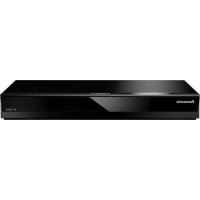
DPUB420 - Blu-ray player PANASONIC - Free user manual and instructions
Find the device manual for free DPUB420 PANASONIC in PDF.



Frequently Asked Questions - DPUB420 PANASONIC
User questions about DPUB420 PANASONIC
0 question about this device. Answer the ones you know or ask your own.
Ask a new question about this device
Download the instructions for your Blu-ray player in PDF format for free! Find your manual DPUB420 - PANASONIC and take your electronic device back in hand. On this page are published all the documents necessary for the use of your device. DPUB420 by PANASONIC.
USER MANUAL DPUB420 PANASONIC
Basic Operating Instructions
Blu-ray Disc™ Player
Thank you for purchasing this product. Please read these instructions carefully before using this product, and save this manual for future use.
Precautions
WARNING
Unit
To reduce the risk of fire, electric shock or product damage,
- Do not expose this unit to rain, moisture, dripping or splashing.
- Do not place objects filled with liquids, such as vases, on this unit.
- Use the recommended accessories.
- Do not remove covers.
- Do not repair this unit by yourself. Refer servicing to qualified service personnel.
- Do not let metal objects fall inside this unit.
- Do not place heavy items on this unit.
AC mains lead
To reduce the risk of fire, electric shock or product damage,
- Ensure that the power supply voltage corresponds to the voltage printed on this unit.
- Insert the mains plug fully into the socket outlet.
- Do not pull, bend, or place heavy items on the lead.
- Do not handle the plug with wet hands.
- Hold onto the mains plug body when disconnecting the plug.
- Do not use a damaged mains plug or socket outlet.
The mains plug is the disconnecting device. Install this unit so that the mains plug can be unplugged from the socket outlet immediately.
CAUTION
Unit
This unit utilizes a laser. Use of controls or adjustments or performance of procedures other than those specified herein may result in hazardous radiation exposure.
- Do not place sources of naked flames, such as lighted candles, on this unit.
- This unit may receive radio interference caused by mobile telephones during use. If such interference occurs, please increase separation between this unit and the mobile telephone.
This unit is intended for use in moderate climates.
- Some portions of this unit may become hot during use. When moving or cleaning this unit, disconnect the AC mains lead and wait for 3 minutes or longer.
Placement
Place this unit on an even surface.
To reduce the risk of fire, electric shock or product damage,
- Do not install or place this unit in a bookcase, built-in cabinet or in another confined space. Ensure this unit is well ventilated.
- Do not obstruct this unit's ventilation openings with newspapers, tablecloths, curtains, and similar items.
- Do not place the unit on amplifiers/receivers or equipment that may become hot. The heat can damage the unit.
- Do not expose this unit to direct sunlight, high temperatures, high humidity, and excessive vibration.
Batteries
Mishandling of batteries can cause electrolyte leakage and may cause a fire.
- Danger of explosion if battery is incorrectly replaced. Replace only with the type recommended by the manufacturer.
- When disposing of the batteries, please contact your local authorities or dealer and ask for the correct method of disposal.
- Do not mix old and new batteries or different types at the same time.
- Do not heat or expose to flame.
- Do not leave the battery(ies) in a car exposed to direct sunlight for a long period of time with doors and windows closed.
- Do not take apart or short circuit.
- Do not recharge alkaline or manganese batteries.
- Do not use batteries if the covering has been peeled off.
Remove batteries if you do not intend to use the remote control for a long period of time. Store in a cool, dark place.
UB420
Wireless LAN connection
The following limits are in place regarding the usage of this unit. You must be aware of these limits before using this unit. Panasonic will in no way be responsible for any incidental damage which may arise due to a failure to obey these limits, or to any condition of use or disuse of this unit.
Data transmitted and received over radio waves may be intercepted and monitored.
-
This unit contains delicate electronic components. Please use this unit in the manner in which it was intended and follow the following points:
-
Do not expose this unit to high temperatures or direct sunlight.
- Do not bend, or subject this unit to strong impacts.
- Keep this unit away from moisture.
- Do not disassemble or alter this unit in any way.
UB420
Declaration of Conformity (DoC)
Hereby, "Panasonic Corporation" declares that this product is in compliance with the essential requirements and other relevant provisions of Directive 2014/53/EU.
Customers can download a copy of the original DoC to our RE products from our DoC server:
http://www.ptc.panasonic.eu
Contact to Authorised Representative:
Panasonic Marketing Europe GmbH, Panasonic Testing Centre, Winsberging 15, 22525 Hamburg, Germany
5.15 - 5.35 GHz band is restricted to indoor operations only in the following countries.
| AT | BE | BG | CZ | DK | EE | FR | DE | IS | IE | IT |
| EL | ES | CY | LV | LI | LT | LU | HU | MT | NL | NO |
| PL | PT | RO | SI | SK | TR | FI | SE | CH | UK | HR |
| Type of wireless | Frequency band | Maximum power (dBm e.i.r.p.) |
| WLAN | 2412-2472 MHz | 20 dBm |
| 5180-5320 MHz | 23 dBm | |
| 5500-5700 MHz | 23 dBm |
Disposal of Old Equipment and Batteries Only for European Union and countries with recycling systems

These symbols on the products, packaging, and/or accompanying documents mean that used electrical and electronic products and batteries must not be mixed with general household waste. For proper treatment, recovery and recycling of old products and used batteries, please take them to applicable collection points in accordance with your national legislation.
By disposing of them correctly, you will help to save valuable resources and prevent any potential negative effects on human health and the environment.
For more information about collection and recycling, please contact your local municipality. Penalties may be applicable for incorrect disposal of this waste, in accordance with national legislation.

Note for the battery symbol (bottom symbol):
This symbol might be used in combination with a chemical symbol. In this case it complies with the requirement set by the Directive for the chemical involved.
Table of contents
Precautions 2
Accessories 3
Control reference guide 4
Quick Start Guide. 6
Specifications 8
Licenses 9
Accessories
Check the supplied accessories before using this unit.
1 Remote control
(N2QAYB001185)
2 Batteries for remote control
1 AC mains lead

- Product numbers are provided in these operating instructions correct as of February 2018. These may be subject to change.
- Do not use AC mains lead with other equipment.
Using the remote control
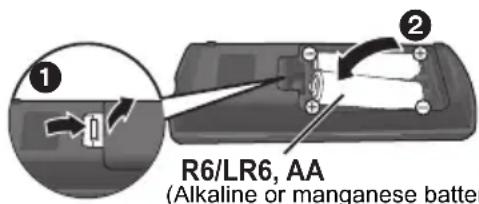
- Insert the batteries to the terminal so that it (+ and -) matches those in the remote control.
A more detailed operating instruction is available in "Operating Instructions (PDF format)". To read it, download it from the website.
http://panasonic.jp/support/global/cs/bd/oi/index.html
You will need Adobe Reader to browse or print the Operating Instructions (PDF format).
You can download and install a version of Adobe Reader that you can use with your OS from the following website. (As of February 2018)
http://www.adobe.com/products/acrobat/readstep2.html

Firmware updates
Panasonic is constantly improving the unit's firmware to ensure that our customers are enjoying the latest technology.
Panasonic recommends updating your firmware as soon as you are notified.
For details, refer to "Firmware updates" (→ 8).
To dispose or transfer this unit
The unit may keep the user settings information in the unit. If you discard this unit either by disposal or transfer, then follow the procedure to return all the settings to the factory presets to delete the user settings.
① Turn the unit on.
② Press and hold [OK], the yellow button and the blue button on the remote control at the same time for more than 5 seconds.
POWER LED starts to flash, and "00 RET" is displayed on the screen.
③ Press [▶] (right) repeatedly on the remote control until "08 FIN" is displayed on the screen.
④ Press and hold [OK] for more than 5 seconds.
- The operation history may be recorded in the memory of this unit.
Control reference guide
Remote control
When other Panasonic devices respond to the remote control of the unit, change the remote control code.
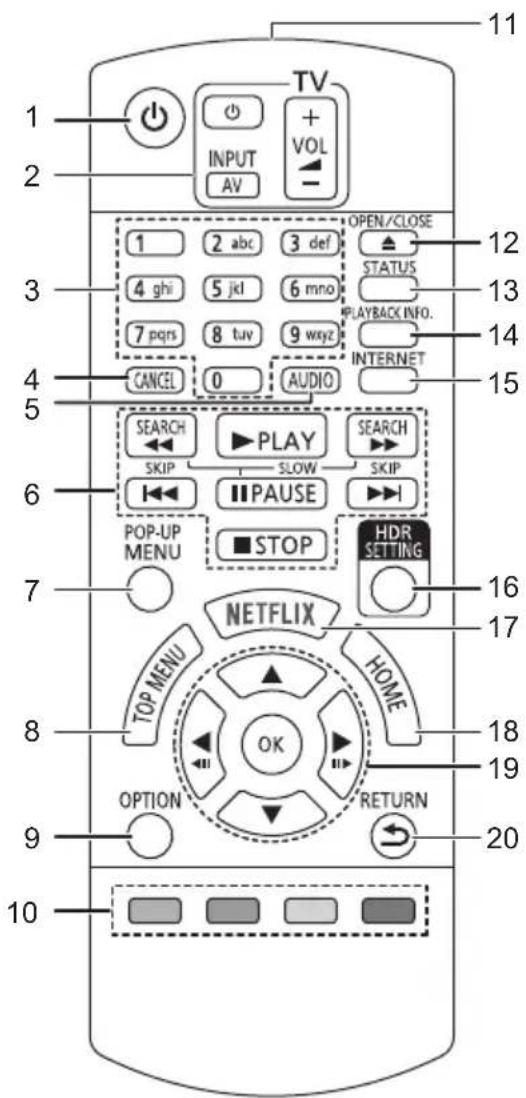
1 Turn the unit on and off
2 TV operation buttons
You can operate the Panasonic TV using this unit's remote control. Some buttons may not work depending on the TV.
3 Select title numbers, etc./Enter numbers or characters
4 Cancel
Clear the currently selected character. (when entering a password for "Ratings" in the Setup menu, for example)
5 Change soundtrack
6 Basic playback control buttons
7 Show Pop-up menu
8 Show Top menu
9 Show Option menu
10 Coloured buttons (red, green, yellow, blue) Used for various purposes depending on the screen
11 Transmit the remote control signal
12 Open or close the disc tray
13 Show the status messages
14 Show "Playback Information Window"
15 Show the Home screen of the Network Service
16 Show "HDR Setting"
17 Show NETFLIX screen
18 Show HOME menu
19 [▲,▼,▲,▶]: Move the highlight for selection
[OK]: Confirm the selection
(II)(II) : Frame-by-frame
20 Return to previous screen
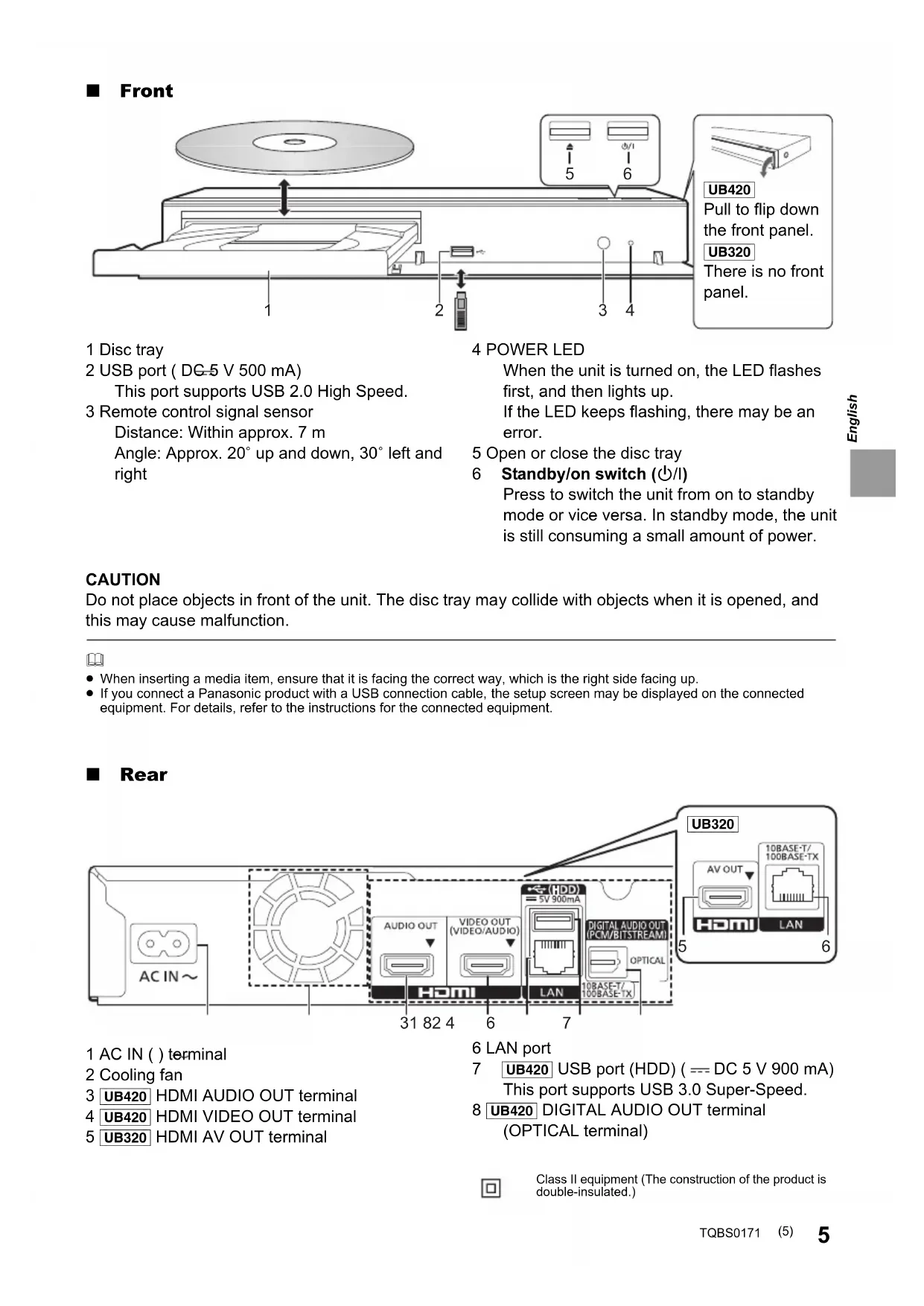
Front
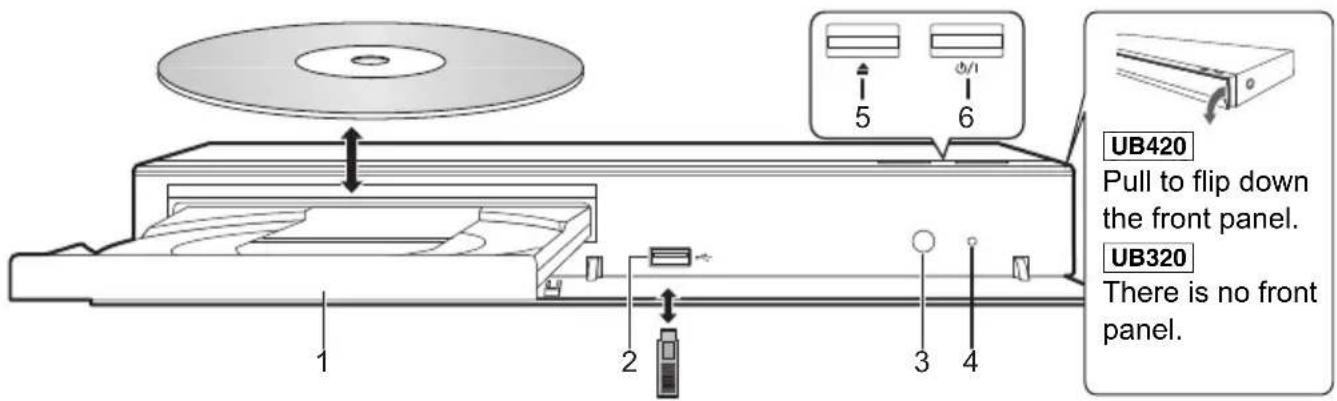
1 Disc tray
2 USB port ( DG-5 V 500 mA)
This port supports USB 2.0 High Speed.
3 Remote control signal sensor Distance: Within approx. 7m Angle: Approx. 20^ up and down, 30^ left and right
4 POWER LED
When the unit is turned on, the LED flashes first, and then lights up.
If the LED keeps flashing, there may be an error.
5 Open or close the disc tray
6 Standby/on switch ( / ) Press to switch the unit from on to standby mode or vice versa. In standby mode, the unit is still consuming a small amount of power.
CAUTION
Do not place objects in front of the unit. The disc tray may collide with objects when it is opened, and this may cause malfunction.

- When inserting a media item, ensure that it is facing the correct way, which is the right side facing up.
- If you connect a Panasonic product with a USB connection cable, the setup screen may be displayed on the connected equipment. For details, refer to the instructions for the connected equipment.
Rear
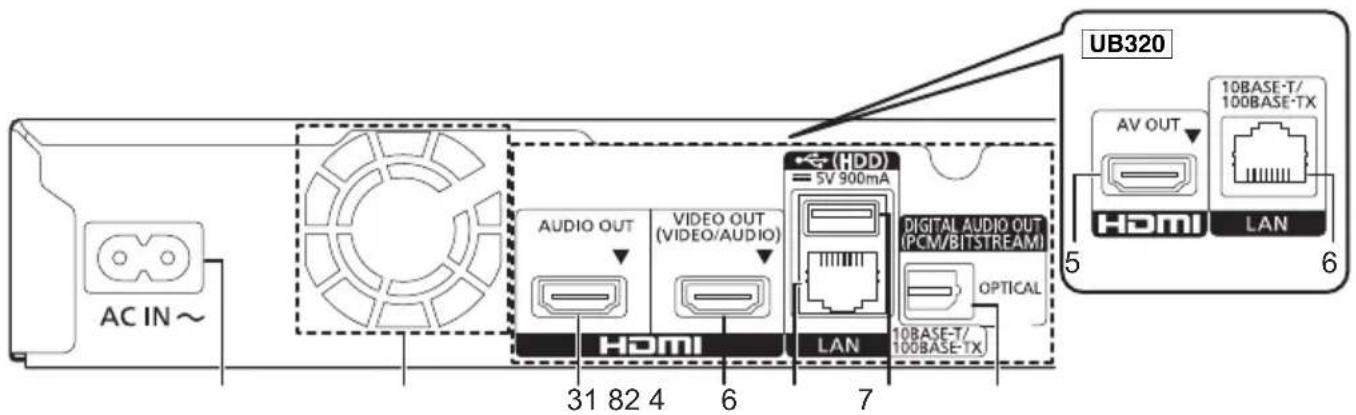
1 AC IN ( ) terminal
2 Cooling fan
3 UB420 HDMI AUDIO OUT terminal
4 UB420 HDMI VIDEO OUT terminal
5 UB320 HDMI AV OUT terminal
6 LAN port
7 UB420 USB port (HDD) (= = DC 5 V 900 mA) This port supports USB 3.0 Super-Speed.
8 UB420 DIGITAL AUDIO OUT terminal (OPTICAL terminal)

Class II equipment (The construction of the product is double-insulated.)
Quick Start Guide
STEP 1: Connecting to a TV
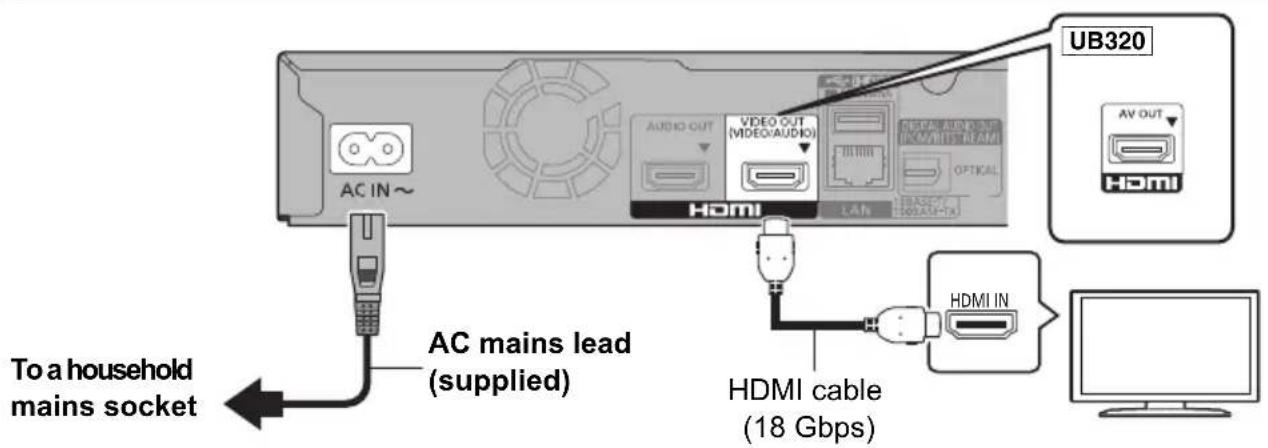
- To enjoy 4K output, you need to connect this unit to a 4K compatible TV.
- To enjoy images in 4K (50p/60p), you need an HDMI cable that supports 18 Gbps. When outputting 1080p or 24p (4K) signal, please use HDMI cables 5.0 meters or less. It is recommended that you use Panasonic's HDMI cable.
- If you connect this unit to a 4K-compatible TV and perform "Easy Settings", 4K (50p/60p) will be automatically selected.
- To view Ultra HD Blu-ray content in 4K/HDR format, connect to the HDMI terminal of a device that supports HDCP2.2, 4K (50p/60p) 4:4:4, and HDR signals that meet Ultra HD Blu-ray standards.
- This unit consumes a small amount of AC power ( 8) even when turned off in standby mode. For the purpose of energy conservation, the unit should be disconnected if you will not be using it for extended period of time.
STEP 2: Connecting to the network
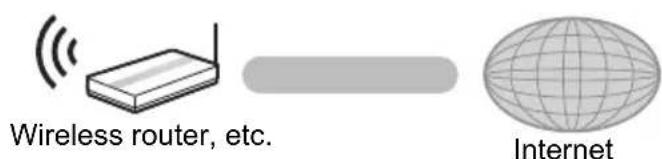
UB420 Wireless LAN connection

LAN cable connection
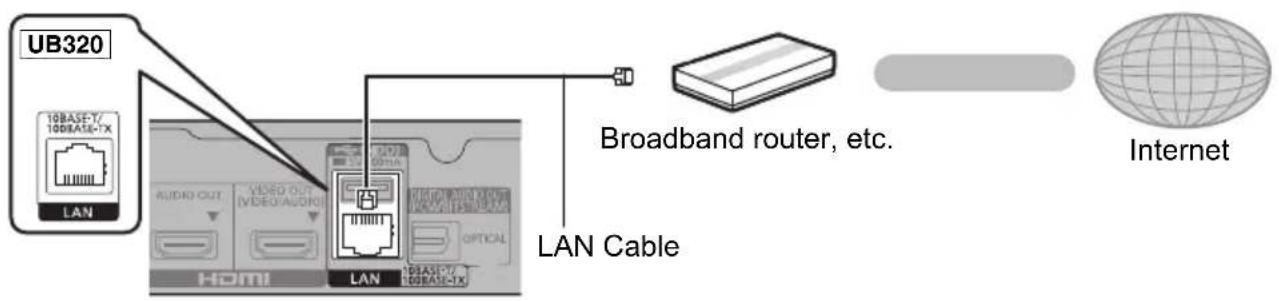
Use category 5 or above straight LAN cables (STP) when connecting to peripheral devices.
STEP 3: Settings
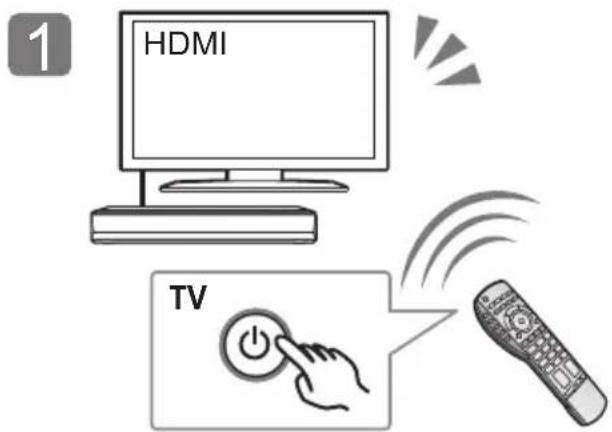
Turn on the TV and select the appropriate video input.
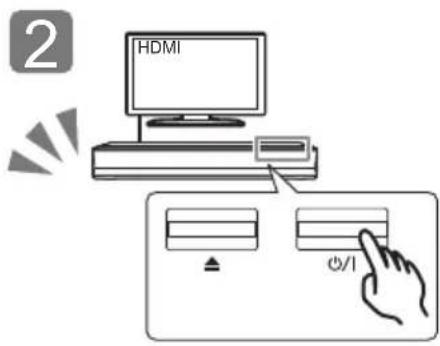
Press [O/I].
Follow the on-screen instructions to continue with the settings.
STEP 4 : Playing a disc
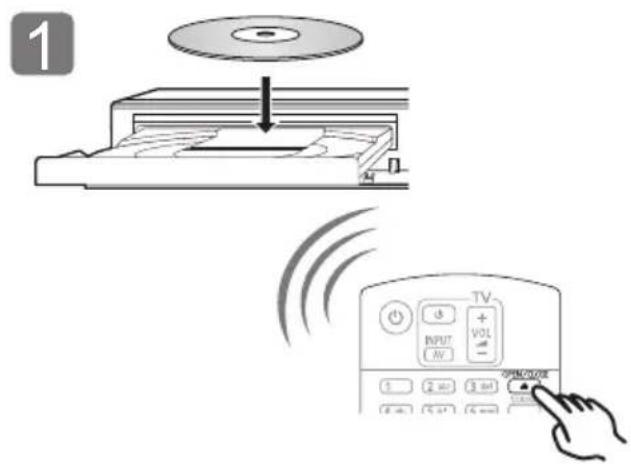
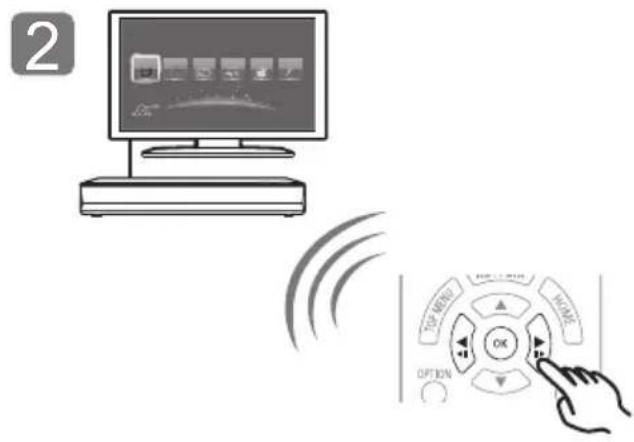
Insert the disc. Select the item to play and press [OK].
Operating during playback
Following functions may not work depending on the media and contents.
| Stop Press [■STOP]. | The stopping point is memorized. Resume play function Press [▶PLAY] to restart from this point. ● The point is cleared if the media is removed. | |
| Pause Press [■PAUSE]. | Press [■PAUSE] again or [▶PLAY] to restart play. | |
| Search | While playing, press [SEARCH←] or [SEARCH▶]. | The speed increases up to 5 steps. ● Press [▶PLAY] to revert to normal playback speed. |
| Slow motion | While paused, press [SEARCH←] or [SEARCH▶]. | |
| Skip | While playing or paused, press [▶] or [▶]. | Skip to the title, chapter or track. |
Playable media
Ultra HD Blu-ray: Video
BD-Video: Video
BD-RE/BD-REDL: Video, JPEG, MPO
BD-R/BD-R DL: Video, MKV, JPEG, MPO
DVD-Video: Video
DVD-R/DVD-R DL: Video, AVCHD, MKV, JPEG,
MPO, AAC, AIFF, ALAC, DSD (DFF, DSF), FLAC,
MP3, WAV, WMA
DVD-RW/+R/+RW/+R DL: Video, AVCHD
Music CD: Music [CD-DA]
CD-R/CD-RW: MKV, JPEG, MPO, AAC, AIFF, ALAC, FLAC, MP3, Music [CD-DA], WAV, WMA
USB devices (up to 4 TB): AVCHD, AVCHD 3D,
MKV, MP4, MPEG2, JPEG, MPO, AAC, AIFF,
ALAC, DSD (DFF, DSF), FLAC, MP3, WAV, WMA
Region management information
The unit can play back BD-Video/DVD-Video discs of the following regions codes, including
"ALL":
Example: BD-Video DVD-Video


Firmware updates
Occasionally, Panasonic may release updated firmware for this unit that may add or improve the way a feature operates. These updates are available free of charge.
This unit is capable of checking the firmware automatically when connected to the Internet via a broadband connection.*1
When a new firmware version is available, the following message is displayed.
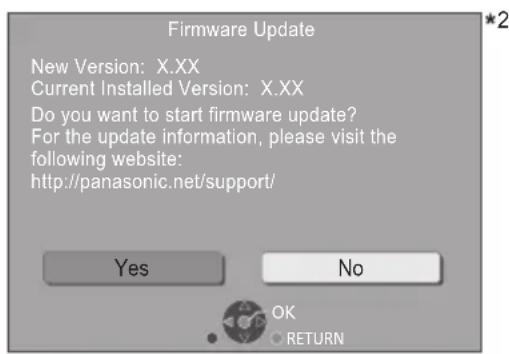
Select "Yes" to start downloading the firmware. When the firmware update starts after the downloading is finished, a black screen is displayed and the POWER LED flashes rapidly.
Specifications
| Power supply AC 220 V to 240 V, 50 Hz | |
| Power consumption | UB420 Approx. 29 W UB320 Approx. 21 W |
| UB420 Power consumption in networked standby mode | Approx. 1 W (Quick Start: Off, Networked Standby: On) |
| Power consumption in standby mode | Approx. 0.3 W (Quick Start: Off, UB420 Networked Standby: Off) |
| Dimensions (W×H×D) Including the projecting parts | UB420 320 mm×45 mm×199 mm UB320 320 mm×45 mm×193 mm |
| Mass | UB420 Approx. 1.4 kg UB320 Approx. 1.3 kg |
You cannot operate the unit until the update is complete. Don't remove the AC mains lead during the update. Removing the AC mains lead while the update is in progress may damage the unit.
After the firmware is installed, unit will restart and the following screen will be displayed.


-
You can also download the latest firmware from the following website and store it to a USB device to update the firmware. http://panasonic.jp/support/global/cs/ (This site is in English only.) When the update is complete the POWER LED will stop rapid flashings and start flashing in a repeating pattern of three flashes. Turn off and on the unit.
-
To show the firmware version on this unit; [HOME] "Setup" "Player Settings" "System" "System Information" "Firmware Version Information"
- Downloading will require several minutes. It may take longer or may not work properly depending on the connection environment.
You must agree to the terms of use for the Internet function and the privacy policy. [HOME] "Setup" "Player Settings" "Network" "Legal Notices"
^2 "X.XX" represents the firmware version number.
Licenses
This product uses Cinavia technology to limit the use of unauthorized copies of some commercially-produced film and videos and their soundtracks. For details, refer to the operating instructions (PDF format).
"AVCHD", "AVCHD 3D", "AVCHD Progressive" and "AVCHD 3D/Progressive" are trademarks of Panasonic Corporation and Sony Corporation.
Java is a registered trademark of Oracle and/or its affiliates.
Dolby, Dolby Audio, and the double-D symbol are trademarks of Dolby Laboratories.
For DTS patents, see http://patents.dts.com.
Manufactured under license from DTS, Inc.
DTS, the Symbol, DTS and the Symbol together, DTS-HD, and the DTS-HD logo are registered trademarks and/or trademarks of DTS, Inc. in the United States and/or other countries. © DTS, Inc. All Rights Reserved.
The product with Hi-Res AUDIO logo is conformed to High-Resolution Audio standard defined by Japan Audio Society. This logo is used under license from Japan Audio Society.
The terms HDMI and HDMI High-Definition Multimedia Interface, and the HDMI Logo are trademarks or registered trademarks of HDMI Licensing Administrator, Inc. in the United States and other countries.
This product is licensed under the AVC Patent Portfolio License for the personal use of a consumer or other uses in which it does not receive remuneration to (i) encode video in compliance with the AVC Standard ("AVC Video") and/or (ii) decode AVC Video that was encoded by a consumer engaged in a personal activity and/or was obtained from a video provider licensed to provide AVC Video. No license is granted or shall be implied for any other use. Additional information may be obtained from MPEG LA, L.L.C. See http://www.mpegla.com
This product is licensed under the VC-1 Patent Portfolio License for the personal and non-commercial use of a consumer to (i) encode video in compliance with the VC-1 Standard ("VC-1 Video") and/or (ii) decode VC-1 Video that was encoded by a consumer engaged in a personal and non-commercial activity and/or was obtained from a video provider licensed to provide VC-1 Video. No license is granted or shall be implied for any other use. Additional information may be obtained from MPEG LA, L.L.C.
See http://www.mpegla.com
"DVD Logo" is a trademark of DVD Format/Logo Licensing Corporation.
"Wi-Fi", "Miracast", and "Wi-Fi Direct" are registered trademarks of Wi-Fi Alliance. "Wi-Fi Protected SetupTM" and "WPA™" are trademarks of Wi-Fi Alliance.
Windows is a trademark or a registered trademark of Microsoft Corporation in the United States and other countries.
Android is a trademark of Google Inc.
Adobe is a trademark or registered trademark of Adobe Systems Incorporated in the United States and/or other countries.
Copyright 2004-2014 Verance Corporation. Cinavia™ is a Verance Corporation trademark. Protected by U.S. Patent 7,369,677 and worldwide patents issued and pending under license from Verance Corporation. All rights reserved.
This product incorporates the following software:
(1) the software developed independently by or for Panasonic Corporation,
(2) the software owned by third party and licensed to Panasonic Corporation,
(3) the software licensed under the GNU General Public License, Version 2.0 (GPL V2.0),
(4) the software licensed under the GNU LESSER General Public License, Version 2.1 (LGPL V2.1), and/or
(5) open source software other than the software licensed under the GPL V2.0 and/or LGPL V2.1.
The software categorized as (3) - (5) are distributed in the hope that it will be useful, but WITHOUT ANY WARRANTY, without even the implied warranty of MERCHANTABILITY or FITNESS FOR A PARTICULAR PURPOSE.
Please refer to the detailed terms and conditions thereof shown in the Player Settings menu.
At least three (3) years from delivery of this product, Panasonic will give to any third party who contacts us at the contact information provided below, for a charge no more than our cost of physically performing source code distribution, a complete machine-readable copy of the corresponding source code covered under GPL V2.0, LGPL V2.1 or the other licenses with the obligation to do so, as well as the respective copyright notice thereof.
Contact Information: oss-cd-request@gg.jp.panasonic.com
The source code and the copyright notice are also available for free in our website below.
https://panasonic.net/cns/oss/
(1) MS/WMA
This product is protected by certain intellectual property rights of Microsoft Corporation and third parties. Use or distribution of such technology outside of this product is prohibited without a license from Microsoft or an authorized Microsoft subsidiary and third parties.
(2) MS/PlayReady/Final Product Labeling This product contains technology subject to certain intellectual property rights of Microsoft. Use or distribution of this technology outside of this product is prohibited without the appropriate license(s) from Microsoft.
(3) MS/PlayReady/End User Notices Content owners use Microsoft PlayReady™ content access technology to protect their intellectual property, including copyrighted content. This device uses PlayReady technology to access PlayReady-protected content and/or WMDRM-protected content. If the device fails to properly enforce restrictions on content usage, content owners may require Microsoft to revoke the device's ability to consume PlayReady-protected content. Revocation should not affect unprotected content or content protected by other content access technologies. Content owners may require you to upgrade PlayReady to access their content. If you decline an upgrade, you will not be able to access content that requires the upgrade.
(4) Vorbis, FLAC, UB420 WPA Suppliant The software licenses are displayed when "Software Licence" in the Setup menu is selected.
[HOME] ⇒ “Setup” ⇒ “Player Settings” ⇒ “System” ⇒ “System Information”
8 UB420 Prise DIGITAL AUDIO OUT
(Prise OPTICAL)

The product with Hi-Res AUDIO logo is conformed to High-Resolution Audio standard defined by Japan Audio Society. This logo is used under license from Japan Audio Society.
https://panasonic.net/cns/oss/
(1) MS/WMA
Router Wireless, ecc.
The product with Hi-Res AUDIO logo is conformed to High-Resolution Audio standard defined by Japan Audio Society. This logo is used under license from Japan Audio Society.
http://www.adobe.com/products/acrobat/readstep2.html


8 UB420 Terminal DIGITAL AUDIO OUT
(Terminal OPTICAL)

MKV, MP4, MPEG2, JPEG, MPO, AAC, AIFF, ALAC,
DSD (DFF, DSF), FLAC, MP3, WAV, WMA
The product with Hi-Res AUDIO logo is conformed to High-Resolution Audio standard defined by Japan Audio Society. This logo is used under license from Japan Audio Society.
http://www.adobe.com/products/acrobat/readstep2.html


The product with Hi-Res AUDIO logo is conformed to High-Resolution Audio standard defined by Japan Audio Society. This logo is used under license from Japan Audio Society.
http://www.adobe.com/products/acrobat/readstep2.html


The product with Hi-Res AUDIO logo is conformed to High-Resolution Audio standard defined by Japan Audio Society. This logo is used under license from Japan Audio Society.
https://panasonic.net/cns/oss/
http://www.adobe.com/products/acrobat/readstep2.html


Firmware-updatering
Panasonic forbedrer Iobende enhedens firmware for at sikre, at vores kunder alto dan faglaede af den sidstenye tekologi.
Panasonic anbefaler, at du opdaterer firmwaren, sa snart du fär meddeelse herom.
Se "Firmware-updatering" ( 8) for yderligere oplysninger.
The product with Hi-Res AUDIO logo is conformed to High-Resolution Audio standard defined by Japan Audio Society. This logo is used under license from Japan Audio Society.
http://www.adobe.com/products/acrobat/readstep2.html


Tento port USB 2.0 High Speed.
3 Cidlo signalu dalkovoho ovladace Vzdalenost: Priblznv rozsahu 7 m Uhel: Priblzn 20^ nahoru a dolu, 30^ doleva a doprava
4 LED POWER
The product with Hi-Res AUDIO logo is conformed to High-Resolution Audio standard defined by Japan Audio Society. This logo is used under license from Japan Audio Society.
http://www.adobe.com/products/acrobat/readstep2.html


A firmware frissité
The product with Hi-Res AUDIO logo is conformed to High-Resolution Audio standard defined by Japan Audio Society. This logo is used under license from Japan Audio Society.
https://panasonic.net/cns/oss/
The product with Hi-Res AUDIO logo is conformed to High-Resolution Audio standard defined by Japan Audio Society. This logo is used under license from Japan Audio Society.
USB-laite (jopa 4Tt): AVCHD, AVCHD 3D, MKV, MP4, MPEG2, JPEG, MPO, AAC, AIFF, ALAC, DSD (DFF, DSF), FLAC, MP3, WAV, WMA
The product with Hi-Res AUDIO logo is conformed to High-Resolution Audio standard defined by Japan Audio Society. This logo is used under license from Japan Audio Society.
Kadoma, Osaka, Japan
Importer for Europe:
Panasonic Marketing Europe GmbH
Panasonic Testing Centre
Winsbergring 15, 22525 Hamburg, Germany
Panasonic Corporation
Web Site: http://www.panasonic.com

LUOKAN 1 LASERLAITE
KCLASS 1 LASER APPARAT

En Fr It Sp
Du Sw Da Cz
HuPo Fi
TQBS0171
F0218HA0