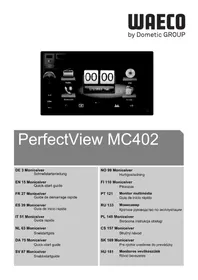
USER MANUAL PerfectView MC402 WAECO
PerfectView MC402
DE 3 Moniceiver
Please read this instruction manual carefully before first use, and store it in a safe place. If you pass on the product to another person, hand over this instruction manual along with it.
Notes on safety, installation and operation can be found in this comprehensive installation and operating manual on our website at www.dometic.com
The manufacturer accepts no liability for damage in the following cases:
● Damage to the product resulting from mechanical influences
- Alterations to the product without express permission from the manufacturer
● Use for purposes other than those described in the operating manual
1.1 Operating the device safely

WARNING!
- Never play videos while you are driving to avoid dangerous situations in road traffic. Adhere to the country-specific laws and regulations.
- Only use the device in its function as a reversing video system while driving. The driver must not look at the monitor under any circumstances while driving along. This could distract the driver and lead to a serious accident.
- Adjust the volume of the device so that noise from traffic, particularly horns and beeps, are still able to be heard.
- Protect the device from humidity and moisture to prevent sparks, fire or electric shocks.
- Switch off the power immediately if water gets into the device, if smoke is coming out of the device or if it is emitting an unusual smell. Contact the manufacturer (see addresses on the back of the operating manual).
- This reader is certified according to the laser protection class 1. The accessible laser radiation is safe under reasonably foreseeable conditions. Avoid looking directly into the laser beam. Never open the housing of the device. Do not make any repairs to the device. Contact the manufacturer (see addresses on the back of the operating manual).

NOTICE!
- If you use the monitor in vehicles, the vehicle should be running during operation to prevent the vehicle battery from discharging.
● Only insert round discs into the device.
Do not use any other shaped discs.
- Only clean the discs with a soft dry cloth from the middle to the outer edge. To remove dirt, use a mild cleaning agent.
- New discs may have flaking on the edges. Remove these by carefully running the side of a ballpoint pen around the edge.
2 Overview
2.1 Control elements on the monicever
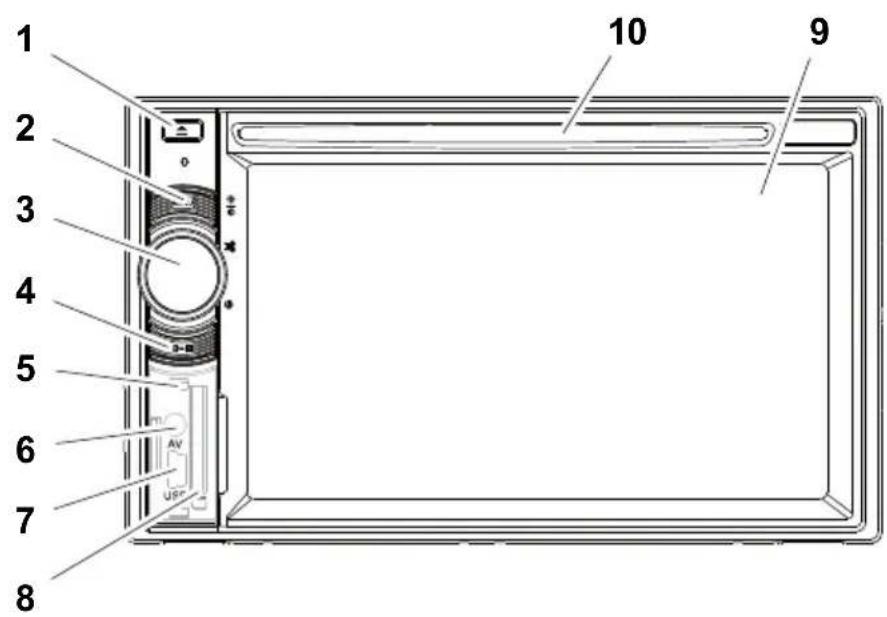
No. Description
| 1 EJECT button Ejects the disc from the disc compartment |
| 2 MENU button – Switches between the main menu and the audio/video source menu |
| 3 ON/OFF/VOLUME knob – Switches the device on and off – Controls the volume – Switches to mute – Controls the brightness |
| 4 BRIGHTNESS button Activates the setup mode for the brightness of the display |
| 5 RESET button Resets the device |
| 6 AV input Audio/video input for external device, 3.5 mm stereo jack |
| 7 USB port Port for USB flash drive |
| 8 Slot for SD or MMC memory card | Slot for memory cards |
| 9 Touchscreen | Display with touch input |
| 10 | Disc compartment Slot for CDs, VDCs and DVDs |
2.2 Remote control for the moniceiver

1 SRC Selects the audio/video source
- Radio
- Disc
- SD/MMC memory card
- USB
- AV-IN 1 (audio input on the front of the device)
- AV-IN 2 (audio input on the back of the device)
- Bluetooth
2 EJECT Ejects the disc
3 MENU Displays the DVD menu
4 TITLE Opens the title and chapter list of a DVD
5 ZOOM Zooms (DVD/VCD)
6 BAND Selects the frequency band
7 SEL Opens the EQ SETTINGS menu
8 DIM
Sets the brightness
9

Fast search forwards/backwards
10

Making/receiving a call
| No. | Description |
| 11 OK Enter |
| 12 Navigate on the display ▲/▼ |
| 13 – Stops play– B a c k |
| 14 0–9, 10+ Number pad |
| 15 MODE Displays the SOURCE menu |
| 16 POWER Switches on and off |
| 17 ANGLE Selects the viewing angle for a DVD |
| 18 SUBTITLE Displays the subtitles on a DVD |
| 19 REPT A–B | Repeats from A – B of a title |
| 20 REPT | Plays again |
| 21 SLO | Plays slowly |
| 22 RDM | Plays tracks in a random order |
| 23 – Set the radio station– Skip/select track (CD/DVD/VCD) |
| 24 Hangs up/cancels a call |
| 25 VOL +/- | Adjust the volume |
| 26 Starts/interrupts playback |
| 27 MUTE | Switches the sound off |
| 28 AUDIO | Sets the language (DVD) |

NOTE
The moniceiver can be operated using the buttons on the device display or using the remote control.
The remote control has an operating range of 3 to 5 metres.
2.3 Initial settings
The moniceiver functions can be opened on three menu pages.
▶ Scroll back and forth on the display with or. The following functions are available:
- Radio
- Disc
- Bluetooth
- R - U S B
- USB/iPod
- AV-IN1
- AV-IN 2
- SD
- DAB
- SWC
- Settings
▶Press the symbol to select the required moniceiver function.
Setting the language
▶ Press SETTINGS to view the settings menu.
▶ Press GENERAL to define the language.
Setting the date and time
▶Press the time twice on the display to change the display.
You select one of two displays:
▶ Press SETTINGS to view the settings menu.
▶ Press TIME to make the settings for the date and time.
▶ Press 📁 on the display or the SEL button on the remote control to set the equalizer.
You can define the EQ mode using parameters such as Bass, Mid, Treble and settings for Fader/Balance.
3 Operating the moniceiver

NOTE
- The moniceiver can be operated using the buttons on the device display or using the remote control.
- An acoustic signal acknowledges the function that is selected. The acoustic signal can be deactivated using the SETTINGS menu. You can find additional information on the settings for this device in the installation and operating manual.
Switching the device on and off
▶ Press the ON/OFF/VOLUME knob or the POWER button on the remote control to switch on the device.
√ The device switches on with the settings which were activated the last time it was used.
▶ Press and hold down the ON/OFF/VOLUME knob for two seconds or press the POWER button on the remote control to switch off the device.
Selecting the audio/video source
▶ Press the MENU button on the device.
√The menu for the required source appears on the display.
You can also select the audio/video source via the remote control. To do this, press the SRC button on the remote control until you have selected the required source.
You can also select the audio/video source via the display. To do this, touch the required source on the display.

NOTE
A source cannot be selected if it is not ready to play. After inserting the storage medium, wait a few seconds until the device has read the available files automatically and shows it on the display.
3.1 Inserting and ejecting a disc
Inserting a disc

NOTE
- The device immediately switches to the correct audio/video source when you insert a disc.
- For discs which contain MP3 or other file formats, it can take a bit longer than a minute to read.
▶Insert the disc into the disc compartment.
√ LOADING appears on the display while the device is automatically reading the files available on the storage medium.
√ ERROR appears on the display if the disc cannot be played or if an error has occurred when trying to read it.
√The menu of the respective audio/video source is shown on the display.
Ejecting a disc

NOTE
- You can eject a disc once the device has been switched off.
- The device automatically switches to the previous input source once the disc is ejected.
▶Press the button.
√The disc is ejected from the disc compartment.
√If the disc is not removed from the device within 10 seconds, it is drawn back into the disc compartment again automatically.
3.2 Inserting and removing a storage medium
Inserting a memory card
▶Open the cover and insert an SD or MMC memory card into the slot until it clicks into place.
√The device reads the files on the memory card and shows them on the display.
Removing a memory card
▶Change the audio/video source.
▶Press the memory card in and release it again.
▶Take the memory card out of the slot and close the cover.
Inserting a USB flash drive
You can connect a USB flash drive to the device.

NOTE
The device can play MP3 files which are stored on a USB flash drive.
▶Open the cover and plug the USB flash drive into the USB port.
√ The device reads the files on the USB flash drive and shows them on the display.
Removing a USB flash drive
▶Change the audio/video source.
▶ Take the USB flash drive out of the slot and close the cover.
4 Listening to the radio
The radio has the FM1, FM2, FM3, AM1 and AM2 frequency bands. Six pre-sets are available for each frequency band.
Selecting the radio as audio/video source
▶ Select the audio/video source, see chapter “Selecting the audio/video source” on page 21.
Selecting the radio station
▶ Touch one of the P1 to P6 station presets on the display to select the required station.
Searching for a radio station
You can set a radio station manually by using the cursor keys or via the number pad to set the required frequency.
▶Press the button to search for a station manually.
▶Hold down the button for 2 seconds to search for a station automatically.
▶ Press SELECT to enter a radio frequency via the number pad.
Saving the radio station
▶ Press MEMORY to save the currently set station.
▶ Press the SCAN button to search for, and then save, the stations with the strongest signals for the 6 presets of the activated frequency band.
√The station list is displayed.
▶Press the preset for the station to be saved on.
Changing frequency
▶ Press the BAND button to change the frequency band.
5 Coupling Bluetooth devices
The coupling establishes the Bluetooth connection between your Bluetooth device (e.g. mobile phone or audio/video device) and the moniceiver.
▶ Press the SRC button on the remote control until you have selected Bluetooth.
or
▶ Open the SOURCE menu on the display and select Bluetooth.
▶ Switch on the Bluetooth function on your Bluetooth device.
▶ Start searching for available Bluetooth devices by pressing +.
√ The moniceiver starts searching for Bluetooth devices automatically and shows the available devices in a list.

NOTE
Refer to the operating manual of your Bluetooth device.
√At the same time, your Bluetooth device shows the monoceiver as available in the settings for Bluetooth.
▶Select the moniceiver in the event list on your Bluetooth device.
√ The code for the coupling (factory setting: 0000) is requested.
▶Enter the code in your Bluetooth device.
√The connection is made.
√The Bluetooth symbol lights up.

NOTE
Some mobile phones need to be preset for the Bluetooth connection to be made automatically or not. You need to set your mobile phone so that it connects automatically.
This is how to disconnect Bluetooth connection:
▶ Hold down the Bluetooth button.
√The connection is disconnected.
6 Technical data

NOTE
You can find additional technical data on the individual functions of the moniceiver in the installation and operating manual on our website at www.dometic.com
| PerfectView MC402 |
| Item no.: 9102100024 | |
| Operating voltage: | 12 V--- (10.5 V-15.8 V) |
| Maximum output power: 40 W x 4 channels | |
| Constant output power: 25 W x 4 channels | |
| Fuse: 15 A | |
| Dimensions (W x H x D): 178 x 101.5 x 169 mm | |
| Weight: Approx. 1.9 kg | |
Approvals
The device has E4 certification.
16 POWER Activation/désactivation
- Memory card SD/MMC
- USB
Nr. Betegnelse
23 – Ställa in station (radio)
- Radio
- P I a t e
- Bluetooth
- R - U S B
- USB/iPod
- AV-IN1
- AV-IN 2
- SD
- DAB
- SWC
- Settings
3 Betjene Moniceiver

MERK
- Moniceiver kan betjenes med knappene, på displayet eller med fjernkontrollen.
- Et akustisk signal kvitterer for valg av ønsket funksjon. Det akustiske signalet kan deaktiveres i menyen SETTINGS. Mer informasjon om innstillingene du kan foreta for enheten, finner du i monterings- og bruksanvisningen.
Nro Nimitys
Dometic Australia Pty. Ltd.
1 John Duncan Court
Varsity Lakes QLD 4227
+61 7 55076000
+61 7 55076001
Mail: sales@dometic-waeco.com.au
AUSTRIA
Dometic Austria GmbH
Commercial : info@dometic.fr
SAV/Technique : service@dometic.fr
HONG KONG
WAECO Impex Ltd.
Suites 2207-2211 · 22/F · Tower 1
The Gateway · 25 Canton Road,
Tsim Sha Tsui · Kowloon
Hong Kong
+852 24611386
吕 +852 24665553
Mail: info@dometic-waeco.com.hk
HUNGARY
Dometic Plc. Sales Office
Kerékgyártó u. 5.
H-1147 Budapest
+36 1 468 4400
+36 1 468 4401
Dometic Italy S.r.l.
Via Virgilio, 3
I-47100 Forli
+39 0543 754901
+39 0543 756631
Mail: info@dometic.it
NORWAY
Dometic Norway AS
Skolmar 24
N-3232 Sandefjord
+47 33428450
吕 +47 33428459
Mail: firmapost@waeco.no
POLAND
Dometic Poland Sp. z o.o.
Ul. Puławska 435A
02-801 Warszawa
Poland
+48 22 414 32 00
+48 22 414 32 01
Mail: info@dometic.pl
RUSSIA
Dometic RUS LLC
Komsomolskaya square 6-1
107140 Moscow
Russia
+7 495 780 79 39
+7 495 916 56 53
Mail: info@dometic.ru
SLOVAKIA
Dometic Slovakia s.r.o.
Tehelná 8
SK-98601 Fil'akovo
+421 47 4319 107
+421 47 4319 166
Mail: info@dometic.sk
SPAIN
Dometic Spain S.L.
Avda. Sierra del Guadarrama, 16
E-28691 Villanueva de la Cañada
Madrid
+34 902 111 042
+34 900 100 245
Mail: info@dometic.es
SWEDEN
Dometic Scandinavia AB
Gustaf Melins gata 7
Dometic Switzerland AG
Riedackerstrasse 7a
CH-8153 Rümlang (Zürich)
+41 44 8187171
+41 44 8187191
Mail: info@dometic-waeco.ch
TAIWAN
WAECO Impex Ltd.
Taipei Office
2 FL-3 · No. 56 Tunhua South Rd, Sec 2
Taipei 106, Taiwan
+886 2 27014090
昌 +886 2 27060119
Mail: marketing@dometic-waeco.com.tw
UNITED KINGDOM
Dometic UK Ltd.
Dometic House · The Brewery
Blandford St. Mary
Dorset DT11 9LS
+44 844 626 0133
昌 +44 844 626 0143
Mail: sales@dometic.co.uk
UNITED ARAB STATES
Dometic Middle East FZCO
P. O. Box 17860
S-D 6, Jebel Ali Freezone
Dubai, United Arab Emirates
+971 4 883 3858
+971 4 883 3868
Mail: info@dometic.ae
UNITED STATES OF AMERICA
Dometic Marine Division
2000 N. Andrews Ave. Extension
Pompano Beach, FL 33069 USA
+1 954 973 2477
+1 954 979 4414
Mail: marinesales@dometicusa.com