GXT 320 19670 - Headphones TRUST - Free user manual and instructions
Find the device manual for free GXT 320 19670 TRUST in PDF.



Frequently Asked Questions - GXT 320 19670 TRUST
User questions about GXT 320 19670 TRUST
0 question about this device. Answer the ones you know or ask your own.
Ask a new question about this device
Download the instructions for your Headphones in PDF format for free! Find your manual GXT 320 19670 - TRUST and take your electronic device back in hand. On this page are published all the documents necessary for the use of your device. GXT 320 19670 by TRUST.
USER MANUAL GXT 320 19670 TRUST
GXT 320 Bluetooth Headset - user's manual
Trust
Index
| Language | page |
| english | 2 |
| Deutsch | 3 |
| français | 3 |
| italiano | L1 |
| spanoIol | L4 |
| portugués | L7 |
| lederlands | 20 |
| dansk | 23 |
| jUomi | 26 |
| Iorsk | 29 |
| ivenska | 32 |
| jolski | 35 |
| jesky | 38 |
| slovenčina | 41 |
| lagyar | 44 |
| komǎnă | 47 |
| íbólçapěnci | 50 |
| ýsccký | 53 |
| íληνικá | 56 |
| Türkce | 59 |
| Irvatski | 52 |
| Slovenski | 55 |
| Cрпскý | 58 |
| Brasiliero | 71 |
| äüjöll | 74 |
GXT 320 Bluetooth Headset - user's manual
Trust
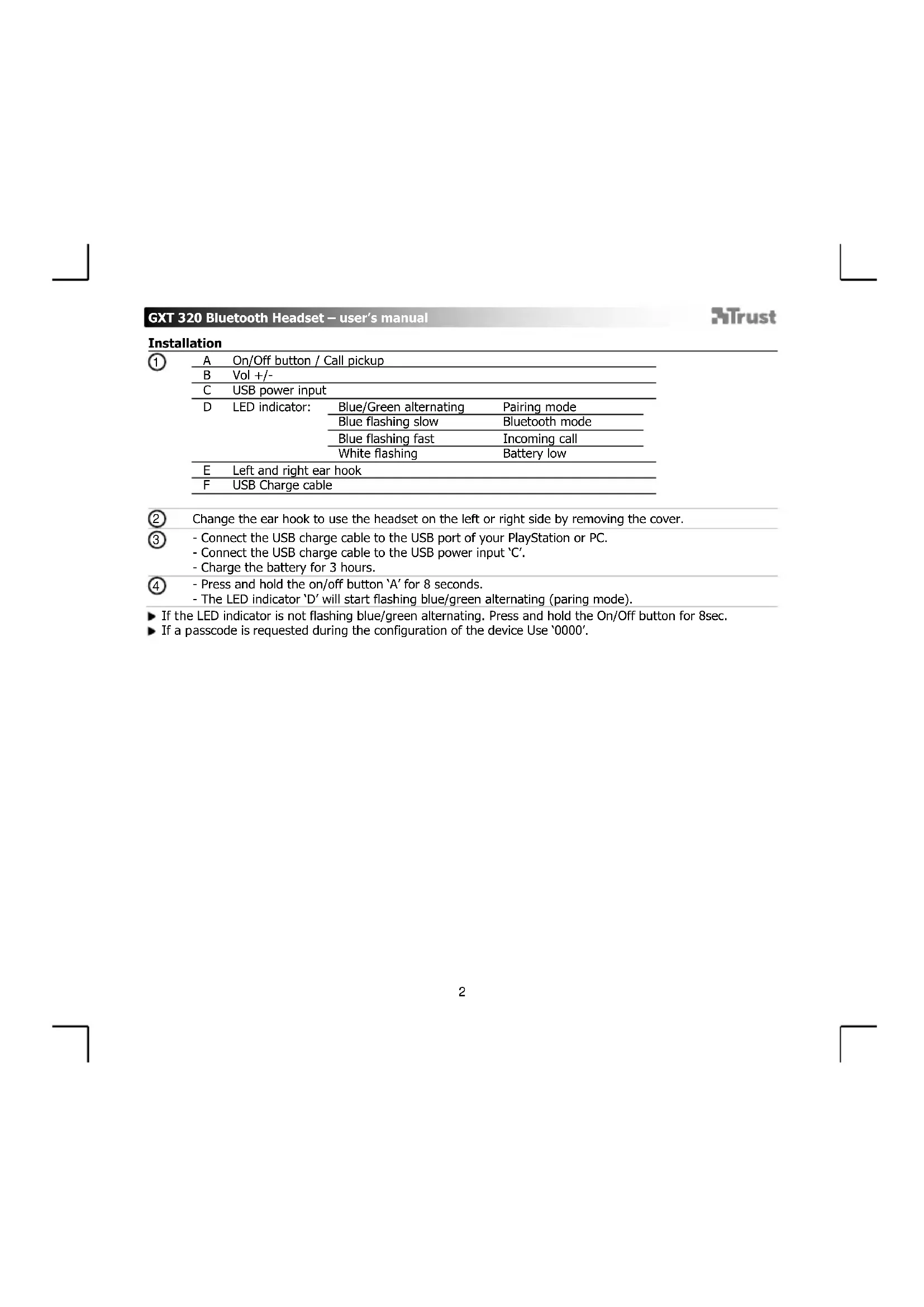
Installation
①
A On/Off button / Call pickup
B Vol+/-
C USB power input
D LED indicator:
Blue/Green alternating Pairing mode
Blue flashing slow Bluetooth mode
Blue flashing fast Incoming call
White flashing Battery low
E Left and right ear hook
F USB Charge cable
② Change the ear hook to use the headset on the left or right side by removing the cover.
- Connect the USB charge cable to the USB port of your PlayStation or PC.
- Connect the USB charge cable to the USB power input 'C'.
-
Charge the battery for 3 hours.
-
Press and hold the on/off button 'A' for 8 seconds.
-
The LED indicator 'D' will start flashing blue/green alternating (paring mode).
If the LED indicator is not flashing blue/green alternating. Press and hold the On/Off button for 8sec.
If a passcode is requested during the configuration of the device Use '0000'.
GXT 320 Bluetooth Headset - user's manual
Trust
PlayStation
5
- Go to 'Settings'.
- Go to the 'Accessory Settings'.
- Go to 'Manage Bluetooth Devices'.
6
- Select 'Trust HS-05' in the list of Bluetooth devices. (make sure the headset is in pairing mode)
- Enter the Pass Key.
- The default Pass Key is 0000
- Go to 'Audio Device Settings'
- Select the 'Trust HS-05' for Input and Output Device
Phone
8
- Go to 'Settings'.
- Go to 'Bluetooth'. (make sure Bluetooth is enabled)
- Search for Bluetooth devices and select the 'Trust HS-05'
If the headset cannot be found. Make sure that the headset is in pairing mode. (LED flashing Blue/Green)
Press and hold the on/off button for 8 sec.
PC
9
A. Open the taskbar icons.
B. Click on the Bluetooth icon.
C. Click on 'Add a device'.
10
- Select 'Trust HS-05' in the list of Bluetooth devices (make sure the headset is in pairing mode).
When the device is successfully added, your device is ready to use.
11
- Right click the speaker icon in the taskbar.
- Open 'Playback Devices'.
- Set the 'Trust HS-05' device as your default device for 'Playback' and 'Recording'
GXT 320 Bluetooth Headset - user's manual
Trust
Trouble shooting
| Problem | Solution |
| Can't connect the BT Headset to my device | - Make sure that the BT headset is powered on and in pairing mode. See step 4. - Move the BT headset closer to your audio source (maximum distance 10m under ideal circumstances) - Repeat the standard configuration steps for your device (PlayStation, Phone or PC). - The headset can only be paired with one device simultaneously. - If a passcode is requested. Use '0000'. |
| No Sound Distorted Sound | - Make sure that Bluetooth is enabled on your device. - Repeat the standard configuration steps for your device. (PlayStation, Phone or PC) - Your BT headset is too far from your device (maximum distance 10m under ideal circumstances). - Charge the headset. - If you are using the product around large metal surfaces, remove the metal surface or move you product away from the metal surface. - Walls and Floors drastically reduce the range of the product. Move the BT headset closer to your device. - Move the BT headset away from other wireless devices (like Wireless network routers, mouse and keyboard). |
| Sound volume is low | - Check the volume setting of your device. (PlayStation, Phone or PC) |
If your problem is not solved, please contact the helpdesk at www.trust.com/19670/faq
GXT 320 Bluetooth Headset - user's manual
Trust
Installation
1
B CnHa Ha 3ByKa +/
C USB cnloB BXoD
D CBeToAnoDeHnDnKaTOp:
www.trust.com/19670/fag
yCTaHOBka
Ecnr raphnIpy HauTn He ydaIocb, y6eIITbcra, YTO OHa HaxoITcB P eKIMe NODJIIOUeHIN. (CBeToNDHbINHdNKaTOP Muaet CINHM/3eJeHbIM CBETOM)
HaKMTe n yIepKnBaIte KHOKNy BkN./BbIK. B TeueHne 8 cekHyd.
#
A. OTKpbItb 3HaChn NaHEni 3aDaU.
B. WJekHyTb 3Haayok Bluetooth.
C. LJIKNHyTb «Add a device» [«ДобаиьустpoCTBO»].
- Bb6epnte «Trust HS-05» n3 cnNcKa Bluetooth-ycTpoNCTB (y6eNTecb, yTO rAPHNTypa HaxoNTcB peKIMpeNKIOHeHn).
Ecn yctponctBO yceewho do6abneHO, OHO rTOBO K IcnoIb3OBAHHIO.
11 -LcIKNHyTb npaBOK HONKO MblIN 3HaOOK KOLOHOK Ha naHeJI 3aJaU.
-OTKpbIbTb «Playback Devices» [«Устpoитва Воронпундевеля»].
- YctaHOBIne «Trust HS-05» B KaueCTBe yCtpoiCTBa No yMOnuHaHIO dIa «Playback» («BocnpoIN3BeDeHnra») u «Recording» («3aIncu»).
UctpaHHeH HeCnpaBHOCTe