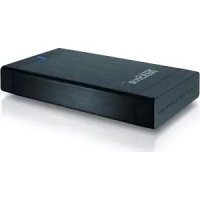
DataStation maxi g.u - Hard Drive TrekStor - Free user manual and instructions
Find the device manual for free DataStation maxi g.u TrekStor in PDF.


| Product type | External hard drive |
| Brand | TrekStor |
| Model | DataStation maxi g.u |
| Interface | USB 2.0 (backward compatible with USB 1.1) |
| Power supply | External via included power adapter |
| Supported operating systems | Windows Vista/XP/2000 (SP4 for 2000, SP2 for XP), Mac OS X |
| Capacity | Varies by model (not specified in the manual) |
| Operating temperature | 10 °C to 40 °C |
| Humidity | Avoid humidity, condensation, and rain |
| Cleaning | Soft dry cloth or soft brush, without solvents |
| Initial setup | Connect power, connect USB cable, turn on device |
| Formatting | Possible on Windows and Mac OS X (via Disk Utility) |
| Safety | Do not open, do not modify, for qualified personnel only |
| Recommended USB cable length | Maximum 3 meters |
| Safe disconnection | Use the safely remove hardware icon on Windows, drag to trash on Mac |
| Warranty | Functionality guaranteed for intended use, no liability for data loss |
| Spare parts / Repairability | No user-serviceable parts, opening prohibited |
| General information | Manual available in multiple languages, support via TrekStor website |
Frequently Asked Questions - DataStation maxi g.u TrekStor
User questions about DataStation maxi g.u TrekStor
0 question about this device. Answer the ones you know or ask your own.
Ask a new question about this device
Download the instructions for your Hard Drive in PDF format for free! Find your manual DataStation maxi g.u - TrekStor and take your electronic device back in hand. On this page are published all the documents necessary for the use of your device. DataStation maxi g.u by TrekStor.
USER MANUAL DataStation maxi g.u TrekStor
Note: If you have problems with this product, you can quickly get assistance. Only in extremely rare cases will you need to bring this product to your distributor. You can find answers to the most frequently asked questions at our website, www.trekstor.de, under "SERVICE" "SUPPORT". You can of course also contact our award-winning support team by filling out the support form on our website, or by e-mail or telephone (see the back of these instructions). You will be surprised at how quickly we can help you.
Thank you for buying the TrekStor DataStation. We are confident that this product will be the source of much enjoyment.
System requirements
Windows Vista/XP/2000, Mac OS X:
No additional drivers are necessary for these operating systems. If you use Windows® 2000, make sure that you have installed at least service pack 4; Windows® XP requires service pack 2 or above.
1) Startup
- Connect the provided power cable (if available) to the power supply, and plug the power supply into a socket. Connect the power supply to the "Power" connection of the DataStation.
- Only use the provided USB connection cable to connect the device to a USB port in your PC.
- Turn on the DataStation by briefly pressing the on/off button or by actuating the on/off switch. Your operating system will automatically recognize the DataStation, and add the DataStation as a "LOCAL DISK" (or "LOCAL DRIVE") to "MY COMPUTER"/"COMPUTER" (Microsoft Windows) or the "DESKTOP" (Mac OS X and Linux).
- Hold down the on/off button or actuate the on/off switch to turn off the DataStation.
2) Data exchange
After a successful startup of the device, a local disk "TREKSTOR" appears under "MY COMPUTER"/"COMPUTER" (Windows®) or on your "DESKTOP" (Mac® OS X).
- Select the desired files or folders with your mouse.
- Position the mouse pointer over the selected files or folders, and press the right mouse button. Select "Cof" from the context menu that appears.
- Under "MY COMPUTER"/"COMPUTER"/"DESKTOP", select the desired target (such as the "TREKSTOR" drive).
- Click it with your right mouse button, and select "P ASTE" to start copying. After copying is completed, the data will be available on the target drive.
3) Logging off and disconnecting the TrekStor DataStation from the PC
Windows® Vista/XP/2000: At the bottom right on the task bar, left-click on the icon "SAFELY REMOVE HARDWARE". In the context menu that appears, left-click on "SAFELY REMOVE MASS STORAGE DEVICE - DRIVE" to select it. This removes the DataStation from the operating system of your computer. You can now disconnect the DataStation from your PC.
Mac® OS X: You need to remove the drive from the Desktop before you disconnect it or turn it off. Click on the relevant drive icon, and drag it to the trash icon.
Note: Please follow the recommended logoff procedure to prevent damage to the device or data loss.
4) Formatting the hard disk
Important: Back up all the data on your hard disk before formatting it.
Note: ALL the data on the disk will be deleted when you format it.
Windows® 2000/XP/Vista
The DataStation can be formatted like any other hard disk in Windows.
- Under "MYCOMPUTER"/"COMPUTER", right-click on the local disk "TREKSTOR".
- Select "F" from the context menu that appears.
- Left-click on the "S TART" button, and confirm that you want to format by clicking the "OK" button.
Mac OS X from 10.3
To format the DataStation in Mac OS X, proceed as follows:
- Select "FINDER" → "UTILITIES" and open "DISK UTILITY".
- Click on the DataStation which is listed with its model number. Select the hard disk or partition that you want to format.
From the right window, select the option "E" - Use the drop-down list to determine the file system for the hard disk/partition to be formatted, and enter the name in the provided field.
Instructions for the Mac OS X Leopard: The file system "HFS+ ("(MAC OS EXTENDED") allows you to use the "TIME MACHINE".
- Click on the "E" button to start the formatting.
Instructions for safety and use:


Only qualified persons may perform technical work on the product.
The product may not be opened or changed. The components cannot be serviced by the user.
- Never expose the device to moisture, condensation and liquids. Protect the device from extremely high and low temperatures and temperature fluctuations. Use the device within an ambient temperature of 10^ to 40^ .
Never place the device close to a source of heat, and protect it from direct sunlight.
Make sure that the surroundings are as dust-free as possible when you use and store the device. - Never clean the surface of the device with solvents, paint thinners, cleansers or other chemical products. Instead, use a soft, dry cloth or soft brush.
Note:
Do not use USB cables longer than 3 meters.
In certain circumstances, exposing the device to an electrostatic discharge may interrupt the data transfer between the device and the computer and impair the functions of the device. If this occurs, the device should be unplugged from the USB port and then plugged in again.
The manufacturer retains the right to continually improve the product. These changes may be made without being directly described in these operating instructions. For this reason, the information provided in these operating instructions may not reflect the current state of the art.
The manufacturer only guarantees suitability for the product's intended purpose. In addition, the manufacturer is not responsible for damages or loss of data and subsequent consequences.
Copyright © 2008 TrekStor GmbH & Co. KG. All rights reserved. Other cited product or company names may be trademarks or brand names of the respective owner.

NOTICE D'UTILISATION
Iicra ycniunHO BBIMKHeHH npnay Ha "MI KOMI'OTEP"/"KOMI'OTEP"(Windows®) Hn Ha "DEsKTOp" (Mac OS X) 3'ABNTbcMlCJIeBm Hocin daHnx "TSo
-Помитыnotpiбифайни Каталоги Мшкою.
- Po3MiCTb KypCop Ha nomiueHux faaiJax qHaTaNorax i HaTNCHTb npaBy KHOIky MmUKn. Bn6epiB i3 cnJIIBaIOUO MeHIO nyHKT "K..
Bn6epiB B"MI KOMNIOTEP"/KOMNIOTEP"/"DEsTOp"notpiHy nIb (Hanp, DnCKOBoD "TREKSTOR").
HaTnCHiB npaby KhONky Mmuk i Bn6epiB onuio "D, uo6 noaTu npouec konIOBaHH. Nicra 3abepweHH npoccy KonIOBaHH daHI 3haxOyTBc Ha ciNbOBOMy dNCKOBODi.
3) Buxid i3 cnctemn i BiD'eHaHnra TrekStor DataStation BiD PK
Windows Vista/XP/2000: HATNCHTb IIBOIO KHOIKOIO MUNIKBHN3y Cnpaba Ha naHeni 3aBdaHb CMBON "BIDANITN CH BINHATN ANAPATHNI PNPCTPI". Bn6epiTB 3 KOHTeKCTHO RMO HeIO, IO 3'BBNTBCR, NHYKT "BiDcHATN USB-HAKONYBAH - DICKOBOD" HA TNCKaHHAM JIBIOIO KHOIKOIO MUNIK. TaKIM YIHOM DataStation BIDaJIeCTbcra 3 ONEpauiHoiCICTeM NOMIOTepa. TeNep DataStation MOKHABiDcHATN BiJ PIK.
Mac OS X:ДИСКOBOD NOTPI6H BИДАЛNTI 3 Desktop,ЛИWE NOTIM NOrO MOxHa BiID'cHbATN QI BIMnKaT.ДЯ LbOro HATNCHTB BiINOBiH N CIMBOI DICKOBODY i nepetarHITb IORO HA CIMBOI KOWnka dIЯ napeipB.
Bkaizeka: Byob lacka, dompumyimebc pekomehdoaba0n npouecy buxody 3 cucmemu, wob 3anobizmu wkodu npulady u empami dahux!
4)ΦOpMaTyBaHHЯЖОрСТКОТДИСКУ
Baxnubo:36epeximb cdi dani 3 kopcmko2o ducky i nuue nicna ubozo fopmamyume uoz.
Yeasa: Iioac fopmamybaHHBudaiyombcbBCi dahi Ha Hocii daHux.
Windows® 2000/XP/Vista
DataStation MOke oopMaTyBaTnCRAk i 6ydb-RAKIN IHsN JxOpCTKN DnCK B Windows
- Hatncihb "M IN KOMN'OTEP"/KOMN'OTEP npaboIO KHONKOIO MUNKIN MICUEBNI HOCIN daHnX "TREKSTOR".
Bn6epiB i3 cnIINBAIOO MOHeIO NyHKT"Φ CMN. - Hatncihb iBOK KOHNKOIO MmIK KHOKNy "3 AYCK" i nITBepdiTb fOpMaTyBaHHaHTNCKOM KHOKN "OK".
Mac OS X nouHaoun 3 Bepcii 10.3
Uo6 biΦopMaTyBaTn DataStation nI Mac* OS X, notpi6Ho 3pO6nTuHacTyHne:
BikpnTepe3 nporpamy "F INDER" "CJyXBOBI IPOPAMN""CJyXBOBYIPOPTPAMY JOPCTKIN AXCKIB."
HaTnCHiB DataStation,BOHa HabeJeHa 3 HomepOM MoJeni.Bu6epitb JopctKn DnCK qN po3noJIn,AKN noTpi6HO BIDOpMaTyBaTu.
Bn6epitb 3 npaboro BikoHua onuio "B
3aDionomoroCnIINBaHOrO MeHIO BN3HaUTe faiIOBy CnCTeMy IJIg FOpmAtyBaHHr XOpCTKOrO DnCKy/po3noiIy i 3aHeciB imB nepe6auehe nla cbo r o none.
Bka3iBkda nMa MCOSXLeopard:3a08rku cucmemi qauinie HFS+("MAC OS EXTENDED") 8 po3nopraxehhi e yHKuJ "TME MACHNE"
KlkiHItb KhONkY "B AIN, IIO6 NOaTH FOpmAtyBaHHA.
Bka3iaku no 6e3neui eukopumahHIO:


TexhiHpiobomHaBupoMoKbBuKohyamucuLwueCunAmuBiodoiHOKeaniifkoBaHozo nepcohany.
Bup6 He moxha biokpuamu yu bukyama 3miu Ha hby. Kopucmyaue He moke bukyama mexiHne ocbnyoeyaHHKOMnoHeHmie.
Hikou He donyckaume, uo6 Ha bupi6 diru Bono2, KOHeCBOHa 80a i cupicmb. 3axuuaime npulad biEckpmalnoBho bucoux i Husbkux memnepamyp i konubahmemnpamypu. Excnnyamyute oo zuue npu memnpampyi hakolunuhbozo cepedosuza biD 10^ do 40^
Hikono He cmae npuna od nobnuy dkepen menna I 3axuuaame ooo biid npamoo coaayno npomHHA.
Ipnad nompi6n bukopucmobyamu i3epizam nu mo kubocmi ha micui 63 nuy.
Yucmka noeepxhi npunady hikou He noeunna bukohyamuc poohuhukamu, poohuhukamu dpa6, ucmu3acobmu 1HUMnpodykmamu.3aekoukopucmyumecbMkoIO,cyxocepeemKOuMkoKIO
Bka3i8ku:
BiodukopucmaHH USB-kaBenie 0obxuHIO 6inbwo 3M mpe6a Bidmoumcra.
KIO 3 npunady 3Himaemcb enekmpocammuu 3apd, 3a nebHex o6cmaun MOx e BuHKymu nepepuahn nepeayi daHX mix npunadom i KOM'omepom 4u fynkuiohanbcmb npunady mox 6ymu npuyueHa. B ubomy bunadky npunad nompiibho iid'edhamu biD USB-nopma, a nomim 3HOy niOEdHamu.
Bipob6Hn npnna 3a napno npno noctno po3BnBaTnpnna dani. Li 3mHn moKybpean3oByBaTnc be3 npamoro oncy Bcbomy KepiBnTuTo. ToTo IhOpmaia B cboMy kepBnTuHe NobHHaBnOBAtn HaocHaHlWOMy CTayTexHNoHOTMQnFikaii.
Bipo6HnK Niwe rapaHTyE BIDNOBIDHCTb 3 npn3HaueHHAM CboT O npOdykTy. Kpim TOrO, Bnpo6HnK He Hece BiINOBiDaIbHicTB 3a NOnKoJKeHHN BTPaTy daHnx i WKOdy BHacIIOK UBOrO.
Copyright © 2008 TrekStor GmbH & Co. KG. Bci npaba zactepexei. B pa3i 3 iHmmn 3raaHmN H3BaMn Bnpo6i i pim po trobi Mapkn H3Bn Mapok BiinobiHnx Blachnkib.

NAVODILA ZA UPORABO
Cestitamo vam za nakup enote TrekStor DataStation. Prepričani smo, da boste ta izdelek z veseljem uporabljali.
Sistemske zahteve
Windows Vista/XP/2000, Mac OS X:
Za te operacijski除去 codatni gonilniki niso potrebni. Upostevalte, da mora biti za operacijski system Windows 2000 namescen majmanj Service Pack 4, za systemd Windows XP pa majmanj Service Pack 2.
1) Zagon
- Omrežni kabel (ce je priložen) prikljucite na napajalnik in napajalnik prikljucite v omrežno vticnico. Napajalnik povežite s prikljuckom "Pna enoti DataStation.
- Za povezavo naprave z USB priključkom na osebnem računalniku lahko uporabite samo prilozhen USB priključni kabel.
- Enoto DataStation vklopite s katkm pritiskom na tipko za vklop/izklop 包 oz. s stikalom za vklop/izklop . Operacjski system samodejno prepozna enoto DataStation ter v "MOJ RACUNALNIK"/"RACUNALNIK" (Microsoft Windows) oz. na "NAMIZE" (Mac OS X in Linux) vnese enoto DataStation kot "LOKALNI DISK" (oz. "LOKALNI POGON").
Z daljsim pritiskom na tipko za vklop/izklop oz. s stikalom za vklop/izklop izklopite enoto DataStation.
2) Izmenjava podatkov
Po uspešnem zagonu naprave se v oknu "MoJ RACUNALNIK"/"RACUNALNIK" (Windows®) oz. na vašem "NAMIZU" (Mac® OS X) prikaže lokalni disk "TmS".
Z misko označite Želene datoteke oz. mape.
- Prek označene datoteke oz. mape postavite miškin kazalec in nato kliknite na desno miškino tipko. Odpre se priročni meni, v katerem izberite točko "K".
Voknu "MOJ RACUNALNIK"/"RACUNALNIK"/"NAMIZJE" izberite zeelen cilj (npr. pogon "TREKSTOR").
- Kliknite na desno miškino tipko in za začetak postopka kopiranja izberite možnost "P". Po zakljucenem postopku kopiranja so podatki prisotni na ciljinem pogonu.