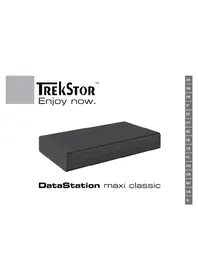
DataStation pocket Xpress - Hard Drive TrekStor - Free user manual and instructions
Find the device manual for free DataStation pocket Xpress TrekStor in PDF.


User questions about DataStation pocket Xpress TrekStor
0 question about this device. Answer the ones you know or ask your own.
Ask a new question about this device
Download the instructions for your Hard Drive in PDF format for free! Find your manual DataStation pocket Xpress - TrekStor and take your electronic device back in hand. On this page are published all the documents necessary for the use of your device. DataStation pocket Xpress by TrekStor.
USER MANUAL DataStation pocket Xpress TrekStor
text_image
W. Xpress Xpress Xpress Xpress XpressDataStation® pocket Xpress

BEDIENUNGSANLEITUNG
text_image
Diagram showing a laptop connected to a device via three labeled cable links, with numbered annotations pointing to each connection.2) Datenaustausch
If you have problems with this product, you can quickly get assistance. Only in extremely rare cases will you need to return this product to your dealer. You can find answers to the most frequently asked questions at our website, www.trekstor.de, under "SERVICE" → "SUPPORT". You can of course also contact our award-winning support team by filling out the support form on our website, or by e-mail or telephone (see the back of these instructions). You will be surprised at how quickly we can help you.
Thank you for buying the TrekStor DataStation. We are confident that this product will be the source of much enjoyment.
System requirements
Windows® Vista/XP/2000, Mac® OS X:
No additional drivers are necessary for these operating systems. If you use Windows® 2000, make sure that you have installed at least service pack 4; Windows® XP requires service pack 2 or above.
EN 10
1) Startup
Use the provided USB Y-connection cable to connect the DataStation to your PC. Connect both USB A-plugs to the USB ports of your PC and then the mini-USB A-plug to the DataStation. Your operating system will automatically recognize the DataStation, and add the DataStation as a "LOCAL DISK" (or "LOCAL DRIVE") to "MY COMPUTER"/"COMPUTER" (Microsoft® Windows) or the "DESKTOP" (Mac® OS X and Linux®).
In order to ensure a convenient supply of power to the ultra-mobile DataStation pocket without having to carry an external power supply unit, all DataStation pocket are delivered with a lightweight and space-saving USB Y-connection cable. Please always insert both USB A-plugs and make sure that your computer or notebook offers sufficient power (500 mA) at both USB ports. Insufficient power, which may occur when only one plug is inserted or when a passive USB hub is used, can in rare cases cause data loss or even mechanical failure of the hard disk. TrekStor assumes no liability or warranty for damage to the DataStation arising from insufficient power.
i If only one free USB port is available in your PC or notebook, please proceed as follows:
1) Connect the USB plug (1) to the power supply with a USB charger (such as a TrekStor USB charger e.f. which can be purchased separately) or an active USB hub.
2) Next, insert the USB plug (2) for data transmission into your PC or notebook.
3) Plug the mini-USB plug (3) into the DataStation.

text_image
Diagram showing a laptop connected to a power adapter and a USB flash card, with numbered labels indicating components.2) Data exchange
After a successful startup of the device, a local disk "TREKSTOR" appears under "MY COMPUTER"/"COMPUTER" (Windows®) or on your "DRO" (Mac® OS X).
Windows® Vista/XP/2000
Select the desired files or folders with your mouse.
- Position the mouse pointer over the selected files or folders, and press the right mouse button. Select "Co" from the context menu that appears.
Under "• Y dMMPUTER"/"COMPUTER", select the desired target (such as the "TREKSTOR" drive).
Click it with your right mouse button, and select "• A" to start copying. After copying is completed, the data will be available on the target drive.
Mac® OS X from 10.3
Select the desired files with your mouse. Drag and drop the files in the "FINDER" to the drive symbol of your DataStation.
3) Logging off and disconnecting the TrekStor DataStation from the PC
Windows® Vista/XP/2000: At the bottom right on the task bar, left-click on the icon "SAFELY REMOVE HARDWARE". In the context menu that appears, left-click on "SAFELY REMOVE MASS STORAGE DEVICE - DRIVE" to select it. This removes the DataStation from the operating system of your computer. You can now disconnect the DataStation from your PC.
EN 12
Mac® OS X: You need to remove the drive from the Desktop before you disconnect it or turn it off. Click on the relevant drive icon, and drag it to the trash icon.
Note: Please follow the recommended logoff procedure to prevent damage to the device or data loss.
4) Formatting the hard disk
⚠️ Important: Back up all the data on your hard disk before formatting it.
Note: ALL the data on the disk will be deleted when you format it.
To ensure the best possible compatibility with different operating systems, this device was formatted with the FAT32 file system. Please note that FAT32 has a size limit for files. FAT32 only supports files with a file size up to a maximum of 4 GB.
Windows® Vista/XP/2000
The DataStation can be formatted like any other hard disk in Windows®.
Under "• Y COMPUTER"/"COMPUTER", right-click on the local disk "TREKSTOR".
Select "• B.A.F." from the context menu that appears.
Left-click on the "• TARS" button, and confirm that you want to format by clicking the "OK" button.
Mac ^® OS X from 10.4
To format the DataStation in Mac® OS X, please proceed as follows:
Select "·INDER" → "PROGRAMS" → "UTILITIES" and open "DISK UTILITY".
Click on the DataStation to select it. It is listed under its model number.
In the right side of the window, select "• ARTBN".
Use the drop-down list under "• OLUME SCHEME" to select the number of partitions you want to create.
Formatting with the file system HFS+
To format the DataStation in Mac® OS X with the file format "HFS+" ("MAC OS EXTENDED") please proceed as follows:
Click on the • PTONS" button and select the partition scheme "MASTER BOOT RECORD" and confirm your selection with "OK".
- Use the drop-down list to select the "MS-DOS"/"MS-DOS (FAT)" file system for the hard disk/ partition to be formatted, and enter the name in the provided field.
i Instructions for the Mac® OS X Leopard: The file system "HFS+" ("MAC OS EXTENDED") allows you to use the "TIME MACHINE".
- To start the formatting of the DataStation, click on the "APP" button and confirm this by clicking on "PARTITION" in the window that appears.
EN 14
Formatting with the file system FAT32
The file system"FAT32" offers the maximum compatibility with different operating systems. Unfortunately, FAT32 is limited with respect to the maximum possible size of a file (max. 4 GB). To format the DataStation in Mac® OS X with the file format "FAT32" please proceed as follows:
Click on the • PTONS" button and select the partition scheme "MASTER BOOT RECORD" and confirm your selection with "OK".
• Use the drop-down list to select the "MS-DOS"/"MS-DOS (FAT)" file system for the hard disk/partition to be formatted, and enter the name in the provided field.
i Please wait until the formatting of your DataStation has been completed. Please note that formatting in Mac® OS X 10.4.x takes a long time.
- To start the formatting of the DataStation, click on the "APL" button and confirm this by clicking on "PARTITION" in the window that appears.
Instructions for safety and use:

Only qualified persons may perform technical work on the product. The product may not be opened or changed. The components cannot be serviced by the user.

Never expose the device to moisture, condensation and liquids.

Protect the device from extremely high and low temperatures and temperature fluctuations. Use the device within an ambient temperature of 10^ C to 40^ C.

Never place the device close to a source of heat, and protect it from direct sunlight.

Make sure that the surroundings are as dust-free as possible when you use and store the device.

Never clean the surface of the device with solvents, paint thinners, cleansers or other chemical products. Instead, use a soft, dry cloth or soft brush.

Do not use USB cables longer than 3 meters.

In certain circumstances, exposing the device to an electrostatic discharge may interrupt the data transfer between the device and the computer and impair the functions of the device. If this occurs, the device should be unplugged from the USB port and then plugged in again.

The capacity indicated by your operating system can be different than the actual capacity of your external hard drive. Like most manufacturers of computer hardware, TrekStor uses the prefixes for units (e.g. 1 GB = 1.000.000.000 bytes) as prescribed by the International System of Units (SI). Unfortunately, many operating systems do not comply with this norm and display a lower capacity because they base their calculations on the assumption that 1 GB = 2^30 bytes = 1.073.741.824 bytes.
The manufacturer retains the right to continually improve the product. These changes may be made without being directly described in these operating instructions. For this reason, the information provided in these operating instructions may not reflect the current state of the art.
The manufacturer only guarantees suitability for the product's intended purpose. In addition, the manufacturer is not responsible for damages or loss of data and subsequent consequences.
Copyright © 2009 TrekStor GmbH & Co. KG. All rights reserved. Other cited product or company names may be trademarks or brand names of the respective owner.

NOTICE D'UTILISATION
text_image
Diagram showing a laptop connected to a device via three labeled cable links (1, 2, 3) with an attached plug.text_image
Diagram showing a laptop connected to a device via three labeled cable links (1, 2, 3) with an attached plug.2) Scambio di dati
text_image
Diagram showing a laptop connected to a power adapter and a USB drive, with numbered labels indicating connection points.MANUAL DE INSTRUÇÕES
text_image
Diagram showing a laptop connected to a device via three labeled cable links, with a power outlet nearby.2) Troca de dados
text_image
Diagram showing a laptop connected to a device via three labeled cable links (1, 2, 3) with an attached plug.2) Gegevensuitwisseling
text_image
Diagram showing a laptop connected to a power adapter and a USB flash drive, with numbered labels indicating components.text_image
Diagram showing a laptop connected to a device via three labeled cable links, with numbered annotations pointing to each connection.2) Veri alışverişi
text_image
Diagram showing a laptop connected to a device via three labeled cable links, with a power plug and a battery nearby.text_image
Diagram showing a laptop connected to a device via three labeled cable links (1, 2, 3) with a power plug attached.2) Adatcsere
text_image
Diagram showing a laptop connected to a device via three labeled cable links, with numbered annotations pointing to each connection.2) Обмен данными
text_image
Diagram showing a laptop connected to a device via three labeled cable links (1, 2, 3) with an attached plug.text_image
Diagram showing a laptop connected to a power adapter and a USB flash device, with numbered labels indicating components.2) Izmenjava podatkov
Po uspešnem zagonu naprave se v oknu "MOJ RAČUNALNIK"/"RAČUNALNIK" (Windows®) oz. na vašem "NAMIZJU" (Mac® OS X) prikaže lokalni disk "TREKSTOR".
Windows® Vista/XP/2000
Z miško označite želene datoteke oz. mape.
- Prek označene datoteke oz. mape postavite miškin kazalec in nato kliknite na desno miškino tipko. Odpre se priročni meni, v katerem izberite točko "KoL"
V oknu "OJMAČUNALNIK"/"RAČUNALNIK" izberite želen cilj (npr. pogon "TREKSTOR").
As manufacturer and importer respectively:
D-64653 Lorsch, Germany
-
Product: DataStation pocket Xpress
Type: External hard disk drive
comply with the following directive(s):
.2004/108/EC EMC Directive: Electromagnetic Compatibility
.2006/95/EC Low Voltage Directive
The following norms were consulted to assess conformity:
. EN 55022:2006 + A1:2000 + A2:2003
EMC: Information technology equipment – Radio disturbance characteristics – Limits and methods
of measurement
. EN 55024:1998 + A1:2001 + A2:2003
EMC: Information technology equipment – Immunity characteristics – Limits and methods of measurement
. EN 60950-1:2006
Information technology equipment – Safety – Part 1: General requirements
. EN 61000-3-2:2006
EMC: Part 3-2: Limits – Limits for harmonic current emissions (equipment input current 16 A per phase)
. EN 61000-3-3:1995 + A1:2001 + A2:2005
EMC: Part 3-3: Limits – Limitation of voltage changes, voltage fluctuations and flicker in public
low-voltage supply systems, for equipment with rated current 16 A per phase and not subjected
to conditional connection
The 65.12.18 of the three products from which the operational product is
The CE symbol confirms that this product conforms with the above mentioned norms and regulations.
The manufacturer also declares the conformity of the product according to the following directives:
.2001/95/EC General Product Safety
.2002/95/EC RoHS: Hazardous substances in electrical and electronic equipment
(1) 本说明仅供参考。
[Non-Text]
[Non-Text]
Aaron Taylor, SPM

Support
| AT |
| BE |
| CH |
| DE |
Hotline E-Mail Language
| +49 431 - 24 89 45 70** | support.at@trekstor.de German |
| +49 431 - 24 89 45 80** | support.en@trekstor.de English |
| +49 431 - 24 89 45 73** | support.ch@trekstor.de German |
01805 - TREKSTOR*
01805 - 87 35 78 67* support.de@trekstor.de German
ES
| FR |
| HU |
| IT |
| LU |
+49 431 - 24 89 45 76** support.es@trekstor.de Spanish
+49 431 - 24 89 45 74** support.fr@trekstor.de French
+49 431 - 24 89 45 79** support.en@trekstor.de English
+49 431 - 24 89 45 75** support.it@trekstor.de Italian
+49 431 - 24 89 45 72** support.lu@trekstor.de German, French
+49 431 - 24 89 45 81** support.en@trekstor.de English
PL
| PT |
| UK |
| GR |
| TR |
+49 431 - 24 89 45 77** support.pl@trekstor.de Polish
+49 431 - 24 89 45 78** support.en@trekstor.de English
UK
| GR |
| TR |
+49 431 - 24 89 45 71** support.uk@trekstor.de English
+49 431 - 24 89 45 82** support.en@trekstor.de English
+49 431 - 24 89 45 83** support.en@trekstor.de English
RU
| SE |
| UA |
| SI |
| CA |
+49 431 - 24 89 45 84** support.en@trekstor.de English
+49 431 - 24 89 45 92** support.en@trekstor.de English
+49 431 - 24 89 45 93** support.en@trekstor.de English
+49 431 - 24 89 45 94** support.en@trekstor.de English
+49 431 - 24 89 45 95** support.en@trekstor.de English
+49 431 - 24 89 45 96** support.fr@trekstor.de French
+49 431 - 24 89 45 99** support.en@trekstor.de English
** Please check with your local telephone provider for connection costs.