
RD64 - Numeric keypad ROLAND - Free user manual and instructions
Find the device manual for free RD64 ROLAND in PDF.



| Product Type | Digital keyboard (stage digital piano) |
| Brand | Roland |
| Model | RD-64 |
| Keyboard | 64 keys, Ivory Feel-G keyboard with escapement |
| Touch sensitivity | 5 types (SUPER LIGHT, LIGHT, MEDIUM, HEAVY, SUPER HEAVY) |
| Polyphony | 128 voices |
| Number of sounds | 12 sounds divided into 4 groups (Piano, E.Piano, Clav, Organ) |
| Sound generator | SuperNATURAL Piano, SuperNATURAL E.Piano, Virtual Tone Wheel Organ |
| Effects | EFX1, EFX2, REVERB; 2-band digital equalizer |
| Controllers | Pitch Bend/Modulation wheel, D-BEAM controller, OCTAVE/TRANSPOSE buttons |
| Operating modes | Piano mode (default), MIDI Controller mode (holding [A.PIANO] while powering on) |
| Connectors | OUTPUT L/MONO, R jacks (6.35 mm); INPUT L, R jacks (RCA); Headphone jack (stereo 6.35 mm); USB COMPUTER port (type B); MIDI OUT; DAMPER, FC1, FC2 jacks (TRS 6.35 mm) |
| Power supply | AC adaptor (DC IN); Power consumption 4 W |
| Dimensions (W×D×H) | 1114 × 273 × 116 mm |
| Weight | 12.8 kg |
| Included accessories | AC adaptor with cord, damper pedal (continuous detection), owner's manual |
| Options (sold separately) | KS-18Z or KS-12 stands, RPU-3 pedal, DP-10 damper pedal, DP-2 switch, EV-5/EV-7 expression pedal |
| Maintenance and cleaning | Use a soft, dry or slightly damp cloth; never use benzene, thinner, or alcohol |
| Safety | Do not open or modify; use only the supplied adaptor; follow voltage and ventilation instructions |
| Repairability and spare parts | No user-serviceable parts; contact an authorized Roland service center |
Frequently Asked Questions - RD64 ROLAND
User questions about RD64 ROLAND
0 question about this device. Answer the ones you know or ask your own.
Ask a new question about this device
Download the instructions for your Numeric keypad in PDF format for free! Find your manual RD64 - ROLAND and take your electronic device back in hand. On this page are published all the documents necessary for the use of your device. RD64 by ROLAND.
USER MANUAL RD64 ROLAND
Using the RD-64 as a Piano (Piano Mode)
The RD-64 inherits the SuperNATURAL Piano sounds from the immensely popular RD series of stage pianos. Carefully selected acoustic and electric sounds are built-in, allowing richly expressive performances. Also featured is the RD series' acclaimed ivory-feel keyboard. With an expressive key action and excellent response to rapidly repeated strikes, the RD-64 is nonetheless lightweight and compact.
The RD-64 is highly portable, and can easily be carried to the studio or your performance venue.

Using the RD-64 in Piano mode
When you turn on the power, the RD-64 will start up in Piano mode.
About the owner's manual
Read this document.
Using the RD-64 as a MIDI Controller Keyboard (Controller Mode)
If you hold down the [A. PIANO] button while turning the power on, the RD-64 will operate as a MIDI controller keyboard with the same functionality*1 as the A-88. Connect it to your computer using a commercially available USB cable, and use it with your DAW software for music production.
- In Controller mode, no sound is produced from the RD-64's internal sound generator. Also, nothing will happen when you press the [TONE SELECT], [TONE VARIATION], or [REVERB] buttons.
Using the RD-64 in Controller mode
Hold down the [A. PIANO] button and turn on the power; the RD-64 will start up in Controller mode.
About the owner's manual
For details on using the RD-64 as a MIDI controller keyboard, refer to the PDF manual for the A-88.

To obtain the PDF manual
- Enter the following URL in your computer. http://www.roland.com/manuals/
- Choose "A-88" as the product name.
^*1 Differences between the RD-64's Controller mode and the A-88
The RD-64's Controller mode differs from the A-88 in the following ways. When reading the A-88 Owner's Manual (PDF manual), please be aware of the following points.
- Since the RD-64 uses the USB driver provided by the computer (GENERIC), you don't need to install the USB driver (the chapter "Installing the Driver" in the A-88 Owner's Manual). Simply connect it to your computer using a commercially available USB cable, and it's ready to use. "Roland Digital Piano" will be displayed for the MIDI port name.
The RD-64 does not have the A-88's "UPPER," "LOWER," "DUAL" and "SPLIT" functionality (the chapter "Layering Two Parts" in the A-88 Owner's Manual).
Before using this unit, carefully read the sections entitled: "USING THE UNIT SAFELY" (p. 10) and "IMPORTANT NOTES" (p. 12). These sections provide important information concerning the proper operation of the unit. Additionally, in order to feel assured that you have gained a good grasp of every feature provided by your new unit, Owner's manual should be read in its entirety. The manual should be saved and kept on hand as a convenient reference.
The RD-64's Two Modes 2
Using the RD-64 as a Piano (Piano Mode). 2
Using the RD-64 as a MIDI Controller Keyboard (Controller Mode). 2
Placing the RD-64 on a Stand 3
Panel Descriptions 4
Connecting. 6
Changing Settings (FUNCTION Mode) 7
Restoring the Factory Settings (FACT RESET) 7
Changing the Key Touch (VELO CURVE) 7
Specifying the Keyboard Velocity Value (KEY VEO) 7
Tuning to Other Instruments' Pitches (Master Tune). 8
Making the Power Automatically Turn Off After a Time (Auto Off) 8
Selecting the Dedicated Driver (ADVANCED) or the GENERIC Driver 8
Troubleshooting 9
USING THE UNIT SAFELY. 10
IMPORTANT NOTES 12
About the Ivory Feel Keyboard. 13
Controlling an External MIDI Sound Module in Piano Mode 13
Effect List. 13
Main Specifications 14
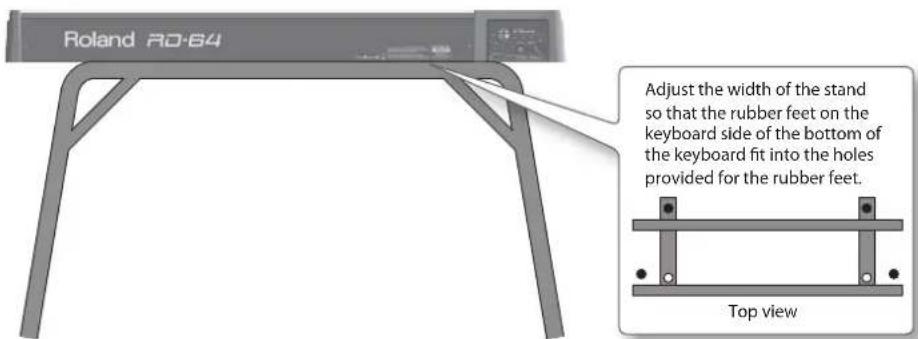
Placing the RD-64 on a Stand
If you want to place the RD-64 on a stand, use the Roland KS-18Z or KS-12.
Place the instrument on the stand as follows.
Be careful not to pinch your fingers when setting up the stand.
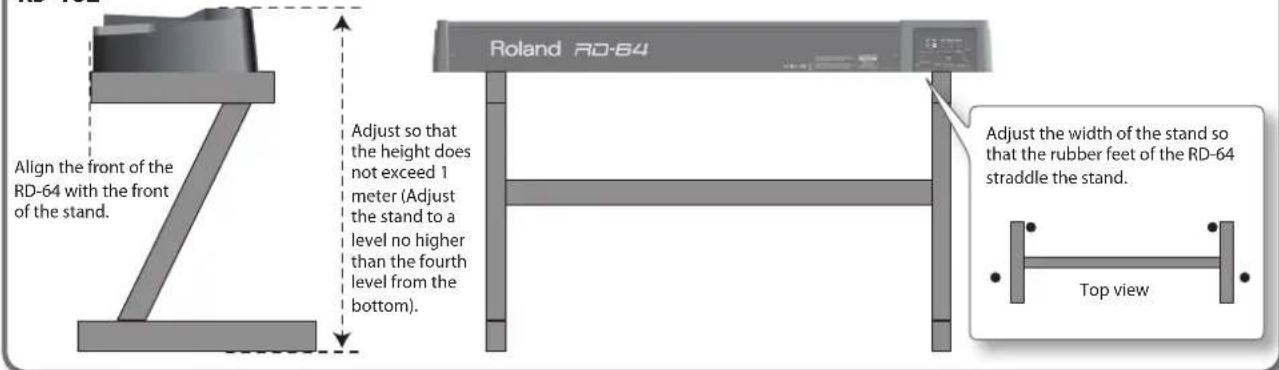
KS-18Z
KS-12
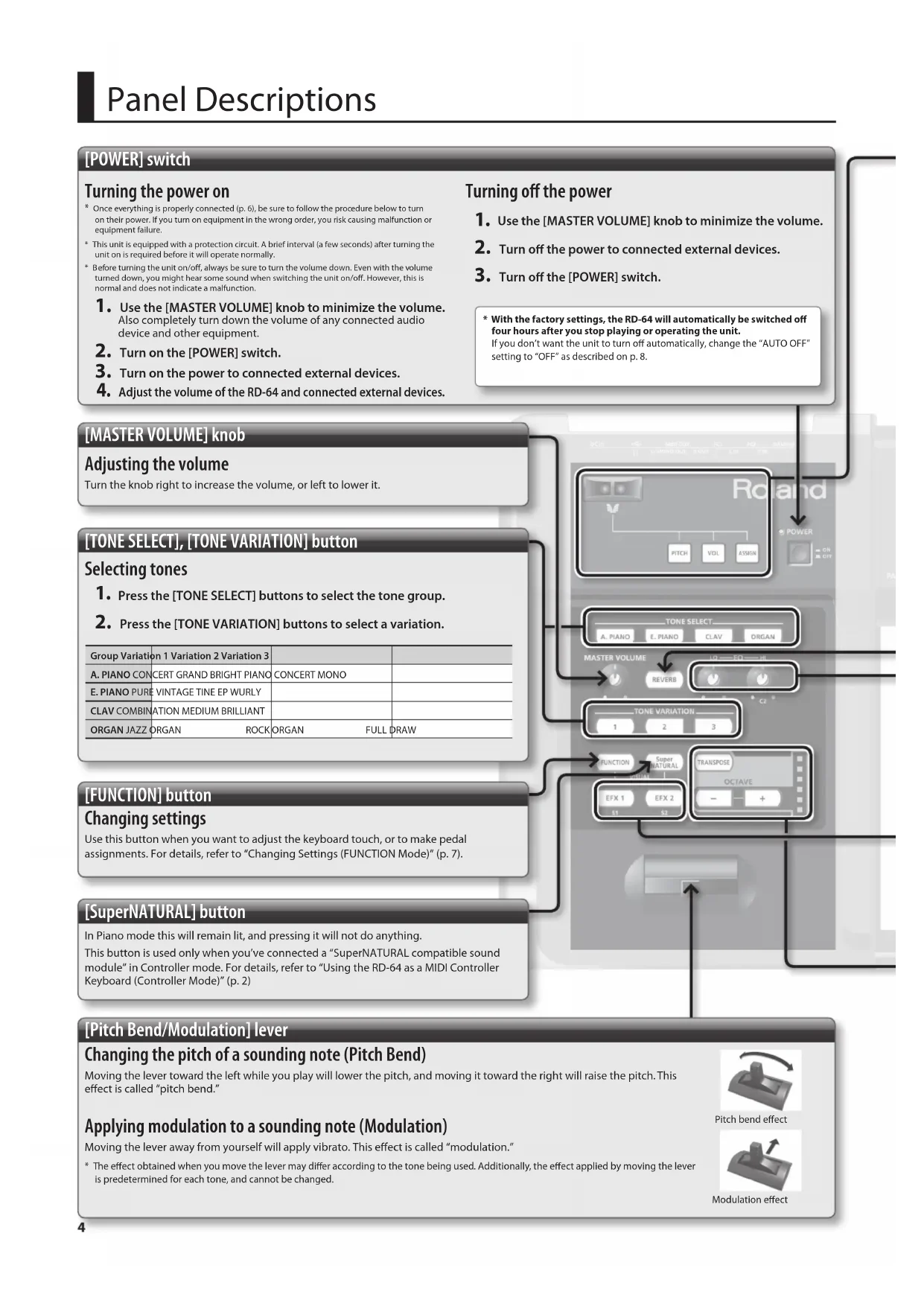
[POWER] switch
Turning the power on
Once everything is properly connected (p. 6), be sure to follow the procedure below to turn on their power. If you turn on equipment in the wrong order, you risk causing malfunction or equipment failure.
This unit is equipped with a protection circuit. A brief interval (a few seconds) after turning the unit on is required before it will operate normally.
Before turning the unit on/off, always be sure to turn the volume down. Even with the volume turned down, you might hear some sound when switching the unit on/off. However, this is normal and does not indicate a malfunction.
- Use the [MASTER VOLUME] knob to minimize the volume. Also completely turn down the volume of any connected audio device and other equipment.
- Turn on the [POWER] switch.
- Turn on the power to connected external devices.
- Adjust the volume of the RD-64 and connected external devices.
Turning off the power
- Use the [MASTER VOLUME] knob to minimize the volume.
- Turn off the power to connected external devices.
-
Turn off the [POWER] switch.
-
With the factory settings, the RD-64 will automatically be switched off four hours after you stop playing or operating the unit. If you don't want the unit to turn off automatically, change the "AUTO OFF" setting to "OFF" as described on p. 8.
[MASTER VOLUME] knob
Adjusting the volume
Turn the knob right to increase the volume, or left to lower it.
[TONE SELECT], [TONE VARIATION] button
Selecting tones
- Press the [TONE SELECT] buttons to select the tone group.
- Press the [TONE VARIATION] buttons to select a variation.
| Group Variation 1 Variation 2 Variation 3 | |||
| A. PIANO CONCERT GRAND BRIGHT PIANO | CONCERT MONO | ||
| E. PIANO PURE VINTAGE TINE EP WURLY | |||
| CLAV COMBINATION MEDIUM BRILLIANT | |||
| ORGAN JAZZ ORGAN ROCK ORGAN FULL DRAW | |||
[FUNCTION] button
Changing settings
Use this button when you want to adjust the keyboard touch, or to make pedal assignments. For details, refer to "Changing Settings (FUNCTION Mode)" (p. 7).
[SuperNATURAL] button
In Piano mode this will remain lit, and pressing it will not do anything.
This button is used only when you've connected a "SuperNATURAL compatible sound module" in Controller mode. For details, refer to "Using the RD-64 as a MIDI Controller Keyboard (Controller Mode)" (p. 2)
[Pitch Bend/Modulation] lever
Changing the pitch of a sounding note (Pitch Bend)
Moving the lever toward the left while you play will lower the pitch, and moving it toward the right will raise the pitch. This effect is called "pitch bend."
Applying modulation to a sounding note (Modulation)
Moving the lever away from yourself will apply vibrato. This effect is called "modulation."
The effect obtained when you move the lever may differ according to the tone being used. Additionally, the effect applied by moving the lever is predetermined for each tone, and cannot be changed.
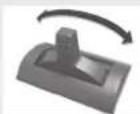
Pitch bend effect
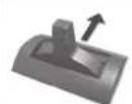
Modulation effect
D-BEAM controller
Moving your hand to apply various effects to the sound
To turn on the D-BEAM controller, press the button so it's lit.
Button Function
[PITCH] The pitch will change as you move your hand above the D-BEAM controller.
[VOL] The volume will change, allowing you to add expression to your performance.
[ASSIGN] The aftertouch effect will be applied.
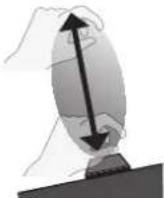
Effective range of the D-BEAM
controller
This illustration shows the effective range of the D-BEAM controller. No effect will be obtained if you position your hand outside the effective range.
- The effective range of the
D-BEAM controller will
change depending on the lighting conditions.
[REVERB] button
Adding reverberation to the sound (Reverb)
By pressing the [REVERB] button so it's lit, you can apply a reverb effect (reverberation) to the sound you're playing from the keyboard.
Applying the reverb effect will produce the spacious ambience that is typically heard when performing in a concert hall.
- You cannot adjust the amount of the reverb effect.
EQ [LOW], [HIGH] knob
Adjusting the upper and lower ranges (Equalizer)
The RD-64 is equipped with a two-band equalizer.
You can adjust the level of the low-frequency range and high-frequency range for each tone.
* The equalizer settings are stored (Hold down the [SuperNATURAL] button, and press [A. PIANO] and [ORGAN] buttons simultaneously to store all 12 tones).
[EFX1],[EFX2] button
Applying effects to the sound
By pressing the [EFX 1] or [EFX 2] button so it's lit, you can apply an effect to the sound you're playing from the keyboard.
The following effects are applied for each tone group.
| Group EFX 1 | EFX 2 | |
| A. PIANO | ENHANCER | DAMPER RESONANCE |
| E. PIANO | TREMOLO | PHASER |
| CLAV | AUTO WAH | OVERDRIVE |
| ORGAN | ROTARY | SPEED |
For details of each effects, refer to "Effect List" (p. 13)
- The on/off statuses of [EFX 1] and [EFX 2] are stored (Hold down the [SuperNATURAL] button, and press [A. PIANO] and [ORGAN] buttons simultaneously to store all 12 tones).
OCTAVE[-],[+],[TRANSPOSE] button
Changing the octave (Octave Shift)
You can raise or lower the pitch range of the keyboard (Octave Shift) by using the [+] [-] buttons.
- You can change this setting in the range of -4 to 5 octaves.
- If you press the [+] button and [-] button simultaneously, this setting will be reset to 0.
Changing the pitch (Transpose)
You can transpose the pitch in semitone step by using the [+] [−] buttons while holding down the [TRANSPOSE] button.
- You can change this setting in the range of -6 to 5.
- When the [TRANSPOSE] button is turned on, the transposition setting is enabled. When the [TRANSPOSE] button is turned off, the transposition setting is disabled.
- If you press the [TRANSPOSE] button, the [+] button, and the [-] button simultaneously, this setting will be reset to 0.
Indicator and the setting it shows
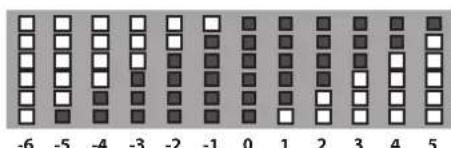
Unlit
Lit
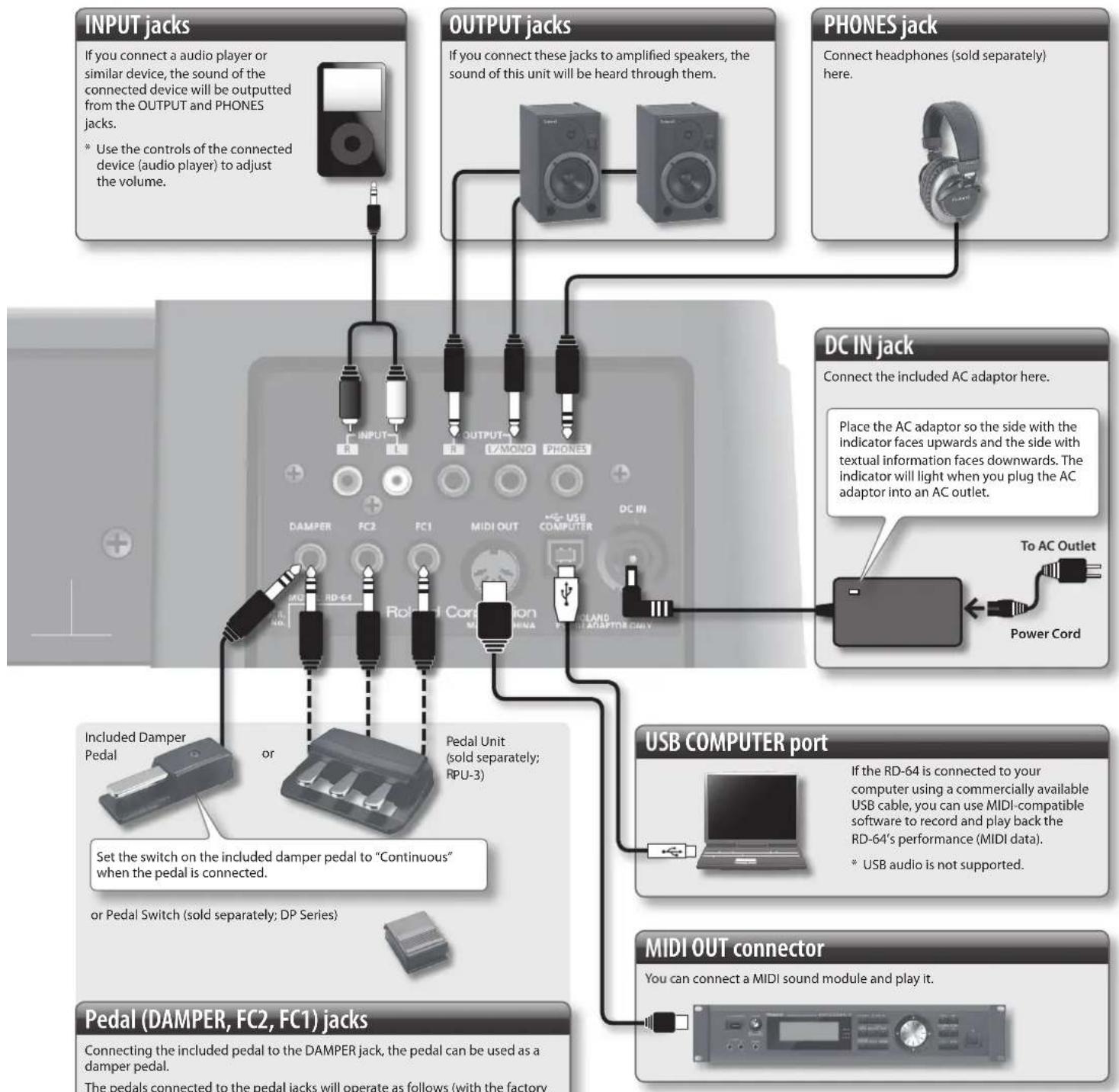
Pedal (DAMPER, FC2, FC1) jacks
Connecting the included pedal to the DAMPER jack, the pedal can be used as a damper pedal.
The pedals connected to the pedal jacks will operate as follows (with the factory settings).
| Jack Explanation | ||
| DAMPER Damper Pedal | Use this pedal to sustain the sound. While this pedal is held down, notes will be sustained for an extended time even if you release your fingers from the keyboard. | |
| FC2 Sostenuto Pedal | This pedal sustains only the notes of the keys that were already pressed when you pressed the pedal. | |
| FC1 Soft Pedal This pedal is used to make the sound softer. | ||
NOTE
- To prevent malfunction and equipment failure, always turn down the volume, and turn off all the units before making any connections.
- Use only the specified expression pedal (EV-5, EV-7; sold separately). By connecting any other expression pedals, you risk causing malfunction and/or damage to the unit (Only controller mode).
Changing Settings (FUNCTION Mode)
In FUNCTION mode, you can adjust the keyboard touch.
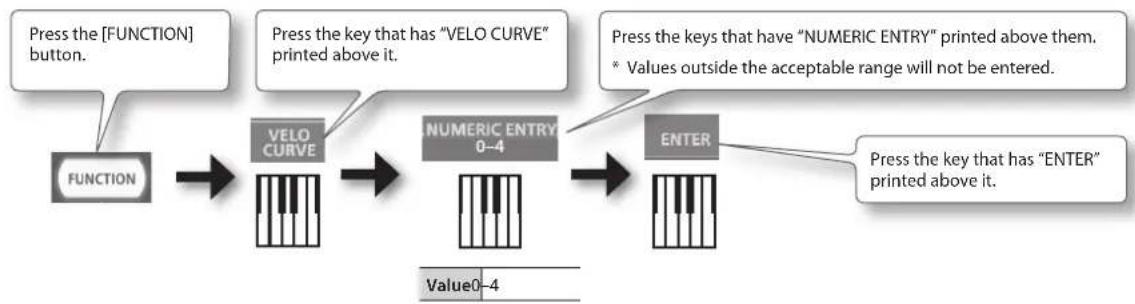
How to read the procedural explanations
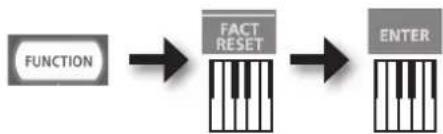
Restoring the Factory Settings (FACT RESET)
Changing the Key Touch (VELO CURVE)
You can adjust the touch sensitivity of the keyboard.
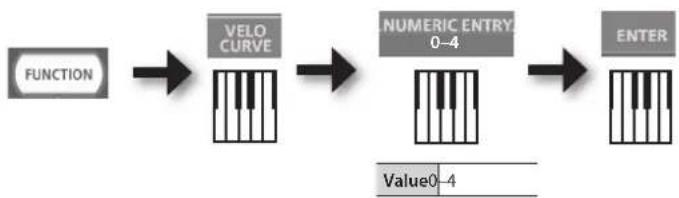
| Value\SettingExplanation | ||
| 0SUPER LIGHT An even light | hter setting than LIGHT. | |
| 1LIGHT | This sets the keyboard to a light touch. You can achieve fortissimo (ff) play with a less forceful touch than usual, so the keyboard feels lighter. This setting makes it easy to play, even for children. | |
| 2 | MEDIUM (default) | This sets the keyboard to the standard touch. You can play with the most natural touch. This is the closest to the touch of an acoustic piano. |
| 3HEAVY | This sets the keyboard to a heavy touch. You have to finger the keyboard more forcefully than usual in order to play fortissimo (ff), so the keyboard touch feels heavier. Dynamic fingering adds even more feeling to what you play. | |
| 4SUPER HEAVY An even heavier setting than HEAVY. | ||

Specifying the Keyboard Velocity Value (KEY VEL0)
| Value\(settingExplanation\) | ||
| 0 | TOUCH(default) | The velocity value that's transmitted will depend on the keyboard sensitivity and change curve you specify in "Changing the Key Touch (VELO CURVE)" (p. 7). |
| 1 | FIXED VALUE | The velocity value you specify here will be transmitted regardless of how strongly you play the keyboard. |
Tuning to Other Instruments' Pitches (Master Tune)
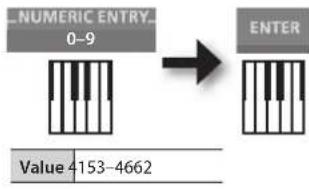
For a cleaner ensemble sound while performing with one or more other instruments, ensure that each instrument's basic pitch is in tune with that of the other instruments. In general, the tuning of an instrument is indicated by the pitch in Hertz (Hz) of the middle "A" note.
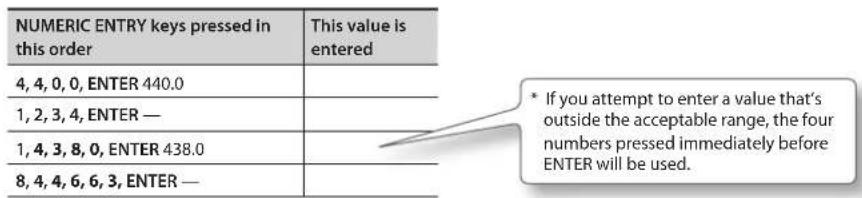
The range of the pitch is 415.3-440.0-466.2 Hz (default: 440.0 Hz).

Using NUMERIC ENTRY to enter a value
Making the Power Automatically Turn Off After a Time (Auto Off)
WARNING
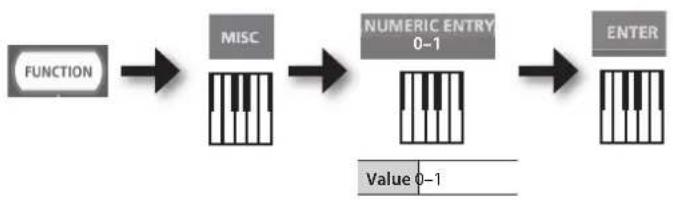
With the factory settings, the RD-64 will automatically be switched off four hours after you stop playing or operating the unit. If you don't want the unit to turn off automatically, change the "AUTO OFF" setting to "OFF" as described below.
| Value | Setting Explanation | |
| 0 OFF | The power will not turn off automatically. | |
| 1 | ON (default) | The power will automatically turn off when 240 minutes (four hours) have passed since you last played or operated the unit. |
Selecting the Dedicated Driver (ADVANCED) or the GENERIC Driver
Normally, you don't need to install a driver in order to connect the RD-64 to your computer. However, if some problem occurs, or if the performance is poor, using the Roland original driver may solve the problem.
In this case, setting the USB Driver to "ADVANCED" on the RD-64 as described below, then install the USB driver on your computer.
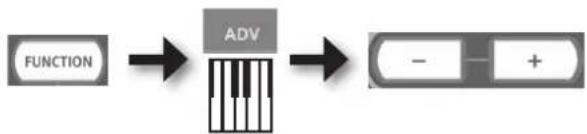
After changing this setting, you need to turn off the RD-64, then turn it back on again.
Normally, you can leave this set to "GENERIC."
How to install the USB driver
For details on downloading and installing the Roland original driver, refer to the Roland website.
Roland Website
http://www.roland.com/support/
| Button | Setting | Explanation |
| [+] button | ADVANCED | Choose this if you want to use a USB driver downloaded from the Roland website. |
| [-] button | GENERIC (default) | Choose this if you want to use the generic USB driver that was included with your computer. Normally, you should use this mode. |
If the RD-64 does not function in the way you expect, first check the following points. If this does not resolve the problem, consult your dealer or a nearby Roland Service Station.
| Problem Check/Solution Page | ||
| Power won't turn on | Are the RD-64's AC adaptor and power cord properly plugged into a power source as well as connected to the RD-64? | p. 6 |
| No sound | Is the power for connected amps and speakers turned on? Is the volume turned all the way down? | p. 4 |
| Is the [MASTER VOLUME] knob turned all the way down? p. 4 | ||
| Are speakers correctly connected? Connect amplified speakers or headphones. | p. 6 | |
| Are sounds audible with headphones connected? If sounds are audible through headphones, it may indicate that there is a short in an audio cable or some sort of amp or mixer problem. Check the cables and equipment once again. | - | |
| Could the volume have been lowered by operating a pedal or the D-BEAM controller? Depress the pedal or position your hand above the D-BEAM controller. | - | |
| Could the RD-64 have been started up in Controller mode (by turning on the power while holding down the [A. PIANO] button)? The RD-64 will not produce sound in Controller mode. | p. 2 | |
| The volume level of the instrument connected to INPUT jack is too low. | Could the volume of the connected device have been turned down? Adjust the volume of the connected device. | - |
| Could you be using a connection cable that contains a resistor? Use a connection cable that does not contain a resistor. | - | |
| Tones are altered | Could the pitch have been changed by operating a pedal or the D-BEAM controller? Depress the pedal or position your hand above the D-BEAM controller. | - |
| When a mono connection is used, the tone quality can vary depending on the tone selected and the register in which it is used. For optimal listening quality, connecting in stereo is recommended. | - | |
| Pitch is odd | Depending on the Tone selected, pitches played in certain registers will be changed and played at other pitches. | - |
| Have you set Octave/Transpose? p. 5 | ||
| Could the pitch have been changed by operating a pedal or the D-BEAM controller? Depress the pedal or position your hand above the D-BEAM controller. | - | |
| Sound is cut off | When you try playing more than the maximum 128 voices simultaneously, sounds currently being played may be cut out. | - |
| Duplicate notes sound | Is the unit connected to the computer and the DAW software's THRU function turned on? Turn off the DAW software's THRU function. | - |
| Pedal does not work, or is "stuck"/Pedal does not operate correctly | Is the pedal connected correctly? Plug the cord firmly into the pedal jack. | p. 6 |
| Are you using a pedal made by another manufacturer? Use the included damper pedal or an optional RPU-3, DP, EV Series or similar pedal. | p. 6 | |
| Reverberation remains even if you defeat the Reverb effect | The RD-64's piano sound faithfully simulates the depth and resonance of an acoustic piano, and this may give the impression of reverberation even if you've defeated the Reverb effect. | - |
| The sound of the higher notes suddenly changes from a certain key | On an acoustic piano, the top of the keyboard will continue sounding regardless of the damper pedal. These notes also have a somewhat different tonal character. RD-64 faithfully simulate this characteristic of acoustic pianos. On the RD-64, the range that is unaffected by the damper pedal will change according to the Octave/Transpose setting. | - |
| High-pitched ringing is heard | Piano sounds that have a brilliant and crisp character contain substantial high-frequency components that may sound as though a metallic ringing has been added. This is because the character of an actual piano is being faithfully reproduced, and is not a malfunction. | - |
| Low notes sound wrong, or are buzzy | With certain tones, the sounds may seem to be distorted. Turn down the volume. Alternatively, lower the master gain setting. | - |
INSTRUCTIONS FOR THE PREVENTION OF FIRE, ELECTRIC SHOCK, OR INJURY TO PERSONS
ALWAYS OBSERVE THE FOLLOWING
| ▲WARNING | Used for instructions intended to alert the user to the risk of death or severe injury should the unit be used improperly. |
| ▲CAUTION | Used for instructions intended to alert the user to the risk of Injury or material damage should the unit be used improperly. *Material damage refers to damage or other adverse effects caused with respect to the home and all its furnishings, as well to domestic animals or pets. |
WARNING Do not disassemble or modify by yourself Do not open (or modify in any way) the unit or its AC adaptor.
Do not attempt to repair the unit, or replace parts within it (except when this manual provides specific instructions directing you to do so). Refer all servicing to your retailer, the nearest Roland Service Center, or an authorized Roland distributor, as listed on the "Information" page.

Do not use or store in the following types of locations
- Subject to temperature extremes (e.g., direct sunlight in an enclosed vehicle, near a heating duct, on top of heat-generating equipment); or are
- Damp (e.g., baths, washrooms, on wet floors); or are
- Exposed to steam or smoke; or are
- Subject to salt exposure; or are
- Humid; or are
- Exposed to rain; or are
Dusty or sandy; or are - Subject to high levels of vibration and shakiness.
Use only the stand that is recommended
This unit should be used only with a stand that is recommended by Roland.


Do not place in an unstable location
When using the unit with a rack or stand recommended by Roland, the rack or stand must be carefully placed so it is level and sure to remain stable. If not using a rack or stand, you still need to make sure that any location you choose for placing the unit provides a level surface that will properly support the unit, and keep it from wobbling.

Precautions regarding placement of this unit on a stand
Be sure to follow the instructions in the Owner's Manual carefully when placing this unit on a stand (p. 3).

If it is not set up properly, you risk creating an unstable situation which could lead to the unit falling or the stand toppling, and may result in injury.
WARNING
Use only the supplied AC adaptor and the correct voltage
Be sure to use only the AC adaptor supplied with the unit. Also, make sure the line voltage at the installation matches the input voltage specified on the AC adaptor's body. Other AC adaptors may use a different polarity, or be designed for a different voltage, so their use could result in damage, malfunction, or electric shock.

Use only the included power cord
Use only the attached power-supply cord. Also, the supplied power cord must not be used with any other device.

Do not bend the power cord or place heavy objects on it
Do not excessively twist or bend the power cord, nor place heavy objects on it. Doing so can damage the cord, producing severed elements and short circuits. Damaged cords are fire and shock hazards!

Avoid extended use at high volume
This unit, either alone or in combination with an amplifier and headphones or speakers, may be capable of producing sound levels that could cause permanent hearing loss. Do not operate for a long period of time at a high volume level, or at a level that is uncomfortable. If you experience any hearing loss or ringing in the ears, you should immediately stop using the unit, and consult an audiologist.

Don't allow foreign objects or liquids to enter unit; never place containers with liquid on unit
Do not place containers containing liquid on this product. Never allow foreign objects (e.g., flammable objects, coins, wires) or liquids (e.g., water or juice) to enter this product. Doing so may cause short circuits, faulty operation, or other malfunctions.


WARNING
Turn off the unit if an abnormality or malfunction occurs
Immediately turn the unit off, remove the AC adaptor from the outlet, and request servicing by your retailer, the nearest Roland Service Center, or an authorized Roland distributor, as listed on the "Information" page when:

The AC adaptor, the power-supply cord, or the plug has been damaged; or
If smoke or unusual odor occurs; or
- Objects have fallen into, or liquid has been spilled onto the unit; or
The unit has been exposed to rain (or otherwise has become wet); or
The unit does not appear to operate normally or exhibits a marked change in performance.
Adults must provide supervision in places where children are present
When using the unit in locations where children are present, be careful so no mishandling of the unit can take place. An adult should always be on hand to provide supervision and guidance.

Do not drop or subject to strong impact
Protect the unit from strong impact. (Do not drop it!)

Do not share an outlet with an unreasonable number of other devices
Do not force the unit's power-supply cord to share an outlet with an unreasonable number of other devices. Be especially careful when using extension cords—the total power used by all devices you have connected to the extension cord's outlet must never exceed the power rating (watts/ amperes) for the extension cord. Excessive loads can cause the insulation on the cord to heat up and eventually melt through.

Do not use overseas
Before using the unit in a foreign country, consult with your retailer, the nearest Roland Service Center, or an authorized Roland distributor, as listed on the "Information" page.


CAUTION
Place in a well ventilated location
The unit and the AC adaptor should be located so their location or position does not interfere with their proper ventilation.

Use only the specified stand (s)
This unit is designed to be used in combination with specific stands (KS-12, KS-18Z) manufactured by Roland. If used in combination with other stands, you risk sustaining injuries as the result of this product dropping down or toppling over due to a lack of stability.

Evaluate safety issues before using stands
Even if you observe the cautions given in the owner's manual, certain types of handling may allow this product to fall from the stand, or cause the stand to overturn. Please be mindful of any safety issues before using this product.

Grasp the plug when connecting or disconnecting the AC adaptor
Always grasp only the plug on the AC adaptor cord when plugging into, or unplugging from, an outlet or this unit.

Periodically clean the AC adaptor's plug
At regular intervals, you should unplug the AC adaptor and clean it by using a dry cloth to wipe all dust and other accumulations away from its prongs. Also, disconnect the power plug from the power outlet whenever the unit is to remain unused for an extended period of time. Any accumulation of dust between the power plug and the power outlet can result in poor insulation and lead to fire.

Manage cables for safety
Try to prevent cords and cables from becoming entangled. Also, all cords and cables should be placed so they are out of the reach of children.

Avoid climbing on top of the unit, or placing heavy objects on it
Never climb on top of, nor place heavy objects on the unit.

Do not connect or disconnect the AC adaptor with wet hands
Never handle the AC adaptor or its plugs with wet hands when plugging into, or unplugging from, an outlet or this unit.

Disconnect everything before moving the unit
Before moving the unit, disconnect the AC adaptor and all cords coming from external devices.

Unplug the AC adaptor from the outlet before cleaning
Before cleaning the unit, turn it off and unplug the AC adaptor from the outlet (p.6)

Power Supply
- Do not connect this unit to same electrical outlet that is being used by an electrical appliance that is controlled by an inverter or a motor (such as a refrigerator, washing machine, microwave oven, or air conditioner). Depending on the way in which the electrical appliance is used, power supply noise may cause this unit to malfunction or may produce audible noise. If it is not practical to use a separate electrical outlet, connect a power supply noise filter between this unit and the electrical outlet.
- The AC adaptor will begin to generate heat after long hours of consecutive use. This is normal, and is not a cause for concern.
- To prevent malfunction and equipment failure, always make sure to turn off the power on all your equipment before you make any connections.
With the factory settings, the RD-64 will automatically be switched off four hours after you stop playing or operating the unit. If you don't want the unit to turn off automatically, change the "AUTO OFF" setting to "OFF" as described on p. 8.
Placement
- Using the unit near power amplifiers (or other equipment containing large power transformers) may induce hum. To alleviate the problem, change the orientation of this unit; or move it farther away from the source of interference.
- This device may interfere with radio and television reception. Do not use this device in the vicinity of such receivers.
- Noise may be produced if wireless communications devices, such as cell phones, are operated in the vicinity of this unit. Such noise could occur when receiving or initiating a call, or while conversing. Should you experience such problems, you should relocate such wireless devices so they are at a greater distance from this unit, or switch them off.
- Do not expose the unit to direct sunlight, place it near devices that radiate heat, leave it inside an enclosed vehicle, or otherwise subject it to temperature extremes. Also, do not allow lighting devices that normally are used while their light source is very close to the unit (such as a piano light), or powerful spotlights to shine upon the same area of the unit for extended periods of time. Excessive heat can deform or discolor the unit.
- When moved from one location to another where the temperature and/or humidity is very different, water droplets (condensation) may form inside the unit. Damage or malfunction may result if you attempt to use the unit in this condition. Therefore, before using the unit, you must allow it to stand for several hours, until the condensation has completely evaporated.
- Do not allow rubber, vinyl, or similar materials to remain on this unit for long periods of time. Such objects can discolor or otherwise harmfully affect the finish.
- Do not allow objects to remain on top of the keyboard. This can be the cause of malfunction, such as keys ceasing to produce sound.
-
Do not paste stickers, decals, or the like to this instrument. Peeling such matter off the instrument may damage the exterior finish.
-
Depending on the material and temperature of the surface on which you place the unit, its rubber feet may discolor or mar the surface. You can place a piece of felt or cloth under the rubber feet to prevent this from happening. If you do so, please make sure that the unit will not slip or move accidentally.
- Do not put anything that contains water on this unit. Also, avoid the use of insecticides, perfumes, alcohol, nail polish, spray cans, etc., near the unit. Swiftly wipe away any liquid that spills on the unit using a dry, soft cloth.
Maintenance
- To clean the unit, use a dry, soft cloth; or one that is slightly dampened. Try to wipe the entire surface using an equal amount of strength moving the cloth. Rubbing too hard in the same area can damage the finish.
- Never use benzine, thinners, alcohol or solvents of any kind, to avoid the possibility of discoloration and/or deformation.
Repairs and Data
- Please be aware that all data contained in this unit's memory may be initialized to the factory settings when it is sent for repairs.
Additional Precautions
- Roland assumes no liability concerning such loss of data, nor any obligation to recover it.
- Use a reasonable amount of care when using the unit's buttons, sliders, or other controls; and when using its jacks and connectors. Rough handling can lead to malfunctions.
- When disconnecting all cables, grasp the connector itself—never pull on the cable. This way you will avoid causing shorts, or damage to the cable's internal elements.
- To avoid disturbing others nearby, try to keep the unit's volume at reasonable levels. You may prefer to use headphones, so you do not need to be concerned about those around you.
The sound of keys being struck and vibrations produced by playing an instrument can be transmitted through a floor or wall to an unexpected extent. Please take care not to cause annoyance to others nearby. - When you need to transport the unit, package it in the box (including padding) that it came in, if possible. Otherwise, you will need to use equivalent packaging materials.
- Use only the specified expression pedal (EV-5, EV-7; sold separately). By connecting any other expression pedals, you risk causing malfunction and/or damage to the unit.
- Some connection cables contain resistors. Do not use cables that incorporate resistors for connecting to this unit. The use of such cables can cause the sound level to be extremely low, or impossible to hear. For information on cable specifications, contact the manufacturer of the cable.
- The usable range of D-BEAM controller will become extremely small when used under strong direct sunlight. Please be aware of this when using the D-BEAM controller outside.
Copyrights/Licences/Trademarks
- The copyright of content in this product (the sound waveform data, style data, accompaniment patterns, phrase data, audio loops and image data) is reserved by Roland Corporation.
- Purchasers of this product are permitted to utilize said content for the creating, performing, recording and distributing original musical works.
- Purchasers of this product are NOT permitted to extract said content in original or modified form, for the purpose of distributing recorded medium of said content or making them available on a computer network.
- MMP (Moore Microprocessor Portfolio) refers to a patent portfolio concerned with microprocessor architecture, which was developed by Technology Properties Limited (TPL). Roland has licensed this technology from the TPL Group.
- Roland, SuperNATURAL are either registered trademarks or trademarks of Roland Corporation in the United States and/or other countries.
- Company names and product names appearing in this document are registered trademarks or trademarks of their respective owners.
Features of an ivory feel keyboard
Traditional piano keys are made from the best materials-ivory (for white keys) and ebony (for black keys). The Ivory Feel keyboard uses the latest in technology to reproduce the touch and feel of these materials.
An Ivory Feel keyboard offers the following features.
We're sure you'll develop a fondness for the distinctive texture of these keys, which feels better the more you play them.
- Surfaces incorporate stripes of moisture-absorbing material for improved touch and playability.
- The keys feature subtle gloss and understated coloring, enhancing the look and elegance.
The white keys are finished with a slight yellowish tinge for the look of real ivory.
Handling
- Do not write on the keyboard with any pen or other implement, and do not stamp or place any marking on the instrument. Ink will seep into the surface lines and become unremovable.
- Do not affix stickers on the keyboard. You may be unable to remove stickers that use strong adhesives, and the adhesive may cause discoloration.
Care and maintenance
Please note the following points. Failure to do so may result in scratches on the surface finish, damaged gloss, or other discoloration or deformation.
- To remove dirt, use a soft cloth.
Using a moistened and tightly wrung-out cloth, gently wipe off any dirt.
Do not rub the surface vigorously. - To remove stubborn dirt, use a commercially available keyboard cleaner that does not contain abrasives.
Start by wiping lightly. If the dirt does not come off, wipe using gradually increasing amounts of pressure while taking care not to scratch the keys. - Do not use benzene, paint thinner, or alcohol on the instrument.
Controlling an External MIDI Sound Module in Piano Mode
In the RD-64's Piano mode you can specify the MIDI channel and transmit MIDI messages such as bank select, program change, and aftertouch to an external MIDI sound module. For details, refer to the A-88 owner's manual sections "Setting the MIDI Transmit Channel (MIDI CHANNEL),"Switching Sounds," and "Using the D-BEAM to Modify the Sound."
If you experience problems such as stuck notes or unexpected sound on your external MIDI sound module, you can send a reset message to solve the problem. For details, refer to the A-88 owner's manual section "Halting Stuck Notes (PANIC)."
Effect List
| Group EFX 1 EFX 2 | ||
| A. PIANO | ENHANCER:Controls the overtone structure of the high frequencies, adding sparkle and tightness to the sound. | DAMPER RESONANCE:On an acoustic piano, holding down the damper pedal allows other strings to resonate in sympathy with the notes you play, creating rich and spacious resonances. This effect simulates these sympathetic resonances. |
| E. PIANO | TREMOLO:Cyclically modulates the volume to add tremolo effect to the sound. | PHASER:A phase-shifted sound is added to the original sound and modulated. |
| CLAV | AUTO WAH:Cyclically controls a filter to create cyclic change in timbre. | OVERDRIVE:Creates a soft distortion similar to that produced by vacuum tube amplifiers. |
| ORGAN | ROTARY:The Rotary effect simulates the sound of the rotary speakers often used with the electric organs of the past. | SPEED:Simultaneously switch the rotational speed of the low frequency rotor and high frequency rotor. |
Roland RD-64: Digital Piano
| Keyboard | |
| Keyboard 64 keys (livery Feel-G keyboard with Escapement) | |
| Touch Sensitivity Key Touch: 5 types | |
| Sound Generator | |
| Sound Generator | SuperNATURAL Piano SuperNATURAL (E. Piano) Virtual Tone Wheel Organ |
| Max. Polyphony 128 voices | |
| Tones 12 tones | |
| Master Tuning 415.3 Hz-466.2 Hz (adjustable in increments of 0.1 Hz) | |
| Transpose Key Transpose: -6+5 (in semitones) | |
| Effects EFX 1, EFX 2, REVERB | |
| Equalizer 2-band Digital Equalizer | |
| Others | |
| Controllers | Knobs: [MASTER VOLUME], EQ [LOW], [HIGH] [Pitch Bend/Modulation] lever D-BEAM Controller |
| Buttons | [A. PIANO] button, [E. PIANO] button, [CLAV] button, [ORGAN] button, TONE VARIATION [1] [2] [3] buttons, [FUNCTION] button, [SuperNATURAL] button, OCTAVE [+] [-] buttons, [TRANSPOSE] button [EFX 1], [EFX 2] buttons, [REVERB] button |
| Switches [POWER] switch | |
| Display Power indicator LED, Octave indicator LED | |
| Connectors | DAMPER jack: 1/4-inch TRS phone type FC1, FC2 jacks: 1/4-inch TRS phone type MIDI OUT connector USB COMPUTER port (USB Type B) OUTPUT jacks (L/MONO, R): 1/4-inch phone type INPUT jacks (L, R): RCA Phono type PHONES jack: Stereo 1/4-inch phone type DC IN jack |
| Power Supply AC adaptor | |
| Power Consumption 4 W | |
| Dimensions | 1,114 (W) x 273 (D) x 116 (H) mm 43-7/8 (W) x 10-3/4 (D) x 4-5/8 (H) inches |
| Weight 12.8 kg/28 lbs 4 oz | |
| Accessories | Owner's Manual Damper Pedal (capable of continuous detection) AC Adaptor, Power Cord (for AC Adaptor) |
| Options (sold separately) | Headphones Keyboard Stand (KS-18Z, KS-12) Pedal Unit (RPU-3) Damper Pedal (DP-10) Pedal Switch (DP-2) Expression Pedal (EV-5, EV-7) |
- In the interest of product improvement, the specifications and/or appearance of this unit are subject to change without prior notice.
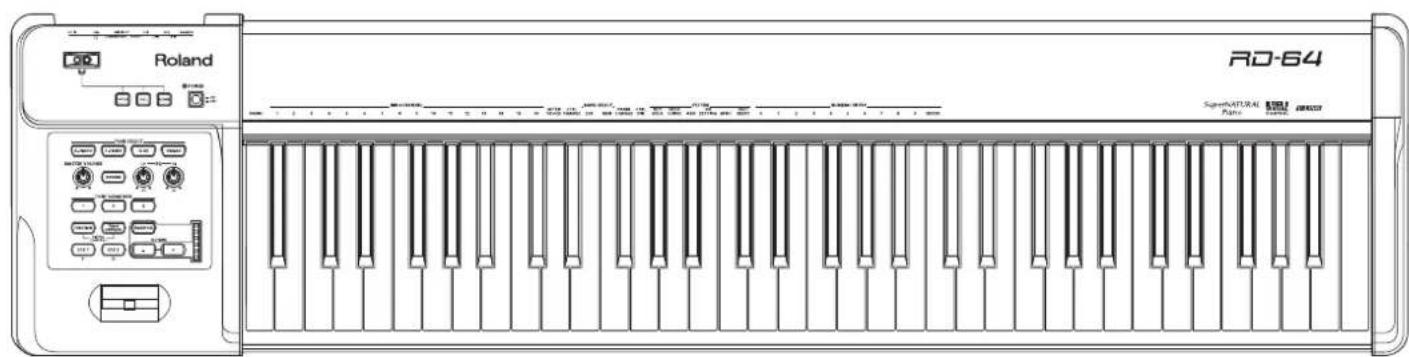
RD-64
Digital Piano
Levier [Pitch Bend/Modulation]
Manopole EQ [LOW], [HIGH]
OCTAVE[-],[+],boton [TRANSPOSE]
Alavanca [Pitch Bend/Modulation]
[Pitch Bend/Modulation]-hendel
This symbol indicates that in EU countries, this product must be collected separately from household waste, as defined in each region. Products bearing this symbol must not be discarded together with household waste.
![ROLAND RD64 - [Pitch Bend/Modulation]-hendel - 1](/content/2026/02/389666/images/73dab666a66ae2997bdfd434dbec77d716721ec04fe186d59e10aaa202208781.jpg)
DECLARATION OF CONFORMITY Compliance Information Statement
Model Name: RD-64
Type of Equipment : Digital Piano
Responsible Party: Roland Corporation U.S.
Address: 5100 S. Eastern Avenue, Los Angeles, CA 90040-2938
Telephone: (323) 890-3700

-For EU Countries
This product complies with the requirements of EMC Directive 2004/108/EC.
For the USA
FEDERAL COMMUNICATIONS COMMISSION RADIO FREQUENCY INTERFERENCE STATEMENT
This equipment has been tested and found to comply with the limits for a Class B digital device, pursuant to Part 15 of the FCC Rules. These limits are designed to provide reasonable protection against harmful interference in a residential installation. This equipment generates, uses, and can radiate radio frequency energy and, if not installed and used in accordance with the instructions, may cause harmful interference to radio communications. However, there is no guarantee that interference will not occur in a particular installation. If this equipment does cause harmful interference to radio or television reception, which can be determined by turning the equipment off and on, the user is encouraged to try to correct the interference by one or more of the following measures:
Reorient or relocate the receiving antenna.
- Increase the separation between the equipment and receiver
Connect the equipment into an outlet on a circuit different from that to which the receiver is connected.
- Consult the dealer or an experienced radio/TV technician for help.
This device complies with Part 15 of the FCC Rules. Operation is subject to the following two conditions:
(1) this device may not cause harmful interference, and
(2) this device must accept any interference received, including interference that may cause undesired operation.
This equipment requires shielded interface cables in order to meet FCC class B limit.
Any unauthorized changes or modifications not expressly approved by the party responsible for compliance could void the user's authority to operate the equipment.
For Canada
NOTICE
This Class B digital apparatus meets all requirements of the Canadian Interference-Causing Equipment Regulations.
AVIS
This product contains chemicals known to cause cancer, birth defects and other reproductive harm, including lead.
For the U.K.
IMPORTANT: THE WIRES IN THIS MAINS LEAD ARE COLOURED IN ACCORDANCE WITH THE FOLLOWING CODE.
BLUE: NEUTRAL
BROWN: LIVE
As the colours of the wires in the mains lead of this apparatus may not correspond with the coloured markings identifying the terminals in your plug, proceed as follows:
The wire which is coloured BLUE must be connected to the terminal which is marked with the letter N or coloured BLACK.
The wire which is coloured BROWN must be connected to the terminal which is marked with the letter L or coloured RED.
Under no circumstances must either of the above wires be connected to the earth terminal of a three pin plug.
AFRICA
EGYPT
A Fanny Trading Office 9, EBN Hagar Al Askalany Street, ARD E1 Golf, Heliopolis, Cairo 11341,EGYPT TEL: (022)-417-1828
REUNION
MARCEL FO-YAM Sari 25 Rue Jules Hermann, Chaudron-BP797 9491 St Clotilde Cedex, REUNION ISLAND TEL: (0262) 218-429
SOUTH AFRICA
Paul Bothner(PTY)Ltd.
Royal Cape Park, Unit 24
Londonderry Road, Ottery 7800
Cape Town, SOUTH AFRICA
TEL: (021) 799 4900
ASIA
CHINA
Roland Shanghai Electronics Co., Ltd.
SF. No.1500 Pingliang Road
Shanghai 200090, CHINA
TEL: (021) 5580-0800
Roland Shanghai Electronics Co., Ltd. (BEIJING OFFICE) 3F, Soluxe Fortune Building 63 West Dawang Road, Chaoyang District, Beijing, CHINA TEL: (010) 5960-2565
HONG KONG
Tom Lee Music
11/F Silvercord Tower 1
30 Canton Rd
Tsimshatsui, Kowloon,
HONG KONG
TEL: 852-2737-7688
Parsons Music Ltd.
8th Floor, Railway Plaza, 39
Chatham Road South, T.S.T.,
Kowloon, HONG KONG
TEL: 852-2333-1863
INDIA
Rivera Digitec (India) Pvt. Ltd. 411, Mirnan Kendra Mahalaxmi Flats Compound Off.Dr. Edwin Moses Road,Mumbai-400011, INDIA TEL: (022)2493 9051
INDONESIA
PT. Citra Intirama
Ruko Garden Shopping Arcade
Unit 8 CR, Podomoro City
JI. Letjetel. S.Parman Kav 28
Jakarta Barat 11470, INDONESIA
TEL: (021) 5698-5519/5520
KAZAKHSTAN
Alatau Dybystary
141 Abylai-Khan ave, 1st floor, 050000 Almaty, KAZAKHSTAN
TEL: (727) 2725477
FAX: (727) 2720730
KOREA
Cosmos Corporation 1461-9, Seocho-Dong, Seocho Ku, Seoul, KOREA TEL: (02) 3486-8855
MALAYSIA/
SINGAPORE
Roland Asia Pacific Sdn.
45-1, Block C2, Jalan PJU
Dataran Prima, 47301 Pet
Jaya, Selangor, MALAYSIA
TEL: (03) 7805-3263
PHILIPPINES
G.A. Yuapango & Co. Inc. 339 Gill J. Puyat Avenue Makati, Metro Manila 1200, PHILIPPINES TEL: (02)8999801
TAIWAN
ROLAND TAIWAN ENTERPRISE CO., LTD.
9F-5, No. 112 Chung Shan
North Road Sec. 2 Taipei 104, TAIWAN R.O.C.
TEL: (02) 2561 3339
THAILAND
Theera Music Co., Ltd. 100-108 Soli Verng Nakornkasem, New Road.Sumpantawong, Bangkok 10100, THALAND
TEL: (02) 224-8821
VIET NAM
VIETHUONG CORPORATION
386 CACH MANG THANG TAM ST.
DIST.3, HO CHI MINH CITY,
VIET NAM
TEL: (08) 9316540
OCEANIA
AUSTRALIA/ NEW ZEALAND Roland Corporation
Australia Pty., Ltd.
38 Campbell Avenue
Dee Why West, NSW 2099, AUSTRALIA
For Australia
TEL: (02) 9982 8266
For New Zealand
TEL: (09) 3098 715
CENTRAL/LATIN AMERICA
ARGENTINA
Instrumentos Musicales S.A. Av.Santa Fe 2055 (1123) Buenos Aires, ARGENTINA; TEL: (011)4508-2700
BARBADOS
A&B Music Supplies LTD 12 Webster Industrial Park Wildley,St.Michael, BARBADOS TEL:246)430-1100
BRAZIL
Roland Brasil Ltda.
Rua San Jose, 211
Parque Industrial San Jose
Cotaio - São Paulo - SP, BRAZIL
TEL: (011) 4615 5666
CHILE
Comercial Fancy II S.A.
Rut: 96 919-420-1
Nataniel Cox #739, 4th Floor
Santiago - Centro, CHILE
TEL: (02) 384-2180
COLOMBIA
Centro Musical Ltda.
Cra 43 B No 25 A 41 Bodogede 9
Medellin, COLOMBIA
TEL: (574) 3812529
COSTA RICA
JUAN Bansbach Instrumentos Musicales
Ave.1.Calle 11, Apartado 10237, San Jose, COSTA RICA
TEL: 258-0211
CURACAO
Zeelandia Music Center Inc.
Orionweg 30
Curacao, Netherland Antilles
TEL: (305) 5926866
DOMINICAN REPUBLIC Instrumentos Fernando Giraldez Calle Roberto Pastoriza #325 Sanchez Naco C.
Santo Domingo, DOMINICAN REPUBLIC TEL: (809) 683 0305
ECUADOR
Mas Musika Rumichaca 822 y Zaruma Guayaqull - ECUADOR TEL: (593-4) 2302364 ELLAMAD
EL SALVADOR
OMNI MUSIC
75 Avenida Norte y Final Alameda
Juan Pablo II,
Edificio No.4010 San Salvador,
EL SALVADOR
TEL: 262-0788
GUATEMALA
Casa Instrumental Calzada Roosevelt 34-01,2s Ciudad de Guatemala, GUATEMALA TEL:502)599-2888
HONDURAS
Almacen Pajaro Azul S.A.de C.V. BO.Paz Barahona 3Ave.11 Calle S.O San Pedro Sula, HONDURAS TEL: (504) 553-2029
MARTINIQUE
Musique & Son
Z.Lles Mangle
97232 Le Lamentin, MARTINIQUE F.W.L.
TEL: 596 596 426860
MEXICO
Roland Ireland
E2 Calmont Park, Calmont Avenue, Dublin 12, Republic of IRELAND
TEL: (01) 4294444
ITALY
Roland Systems Group EMEA, S.L.
Branch Office
Edificio Tower Plaza
Rotunda Eng. Edgar 4-8
4400-676 Villa Nova do PORTUGAL
TEL: (+351) 22 608 00
RUSSIA
Roland Music LLC
Dorozhnya ul3.korp.6
117 545 Moscow, RUSSIA
TEL: (495) 981-4967
SERBIA
Music AP
Sutjeska br. 5 XS - 24413 PALIC, SERBIA
027-6802-257
SLOVAKIA
DAN Acoustics s.r.o.
Povzaská 18.
SK - 940 01 Nové Z#
SLOVAKIA
TEL: (035) 6424 330
SPAIN
Roland Systems Group EMEA, S.L.
Paseo Garcia Faria, 33-35
08005 Barcelona, SPAIN
TEL: 93 493 91 00
SWEDEN
Roland Scandinavia A/S
SWEDISH SALES OFFICE
Marbackagatan 31, 4tr.
SE-123 43 Farsta, SWEDEN
TEL: (0) 8683 04 30
SWITZERLAND
Roland (Switzerland) AG
Landstrasse 5, Postfach, CH-4452 Ittingen, SWITZERLAND
TEL: (061) 975-9987
UKRAINE
EURYTHMICS Ltd.
P.O.Box:37-a
Nedecey Str. 30
UA-89600 Mukachevo, UKRAINE
TEL: (03131) 414-40
UNITED KINGDOM
Roland (U.K.) Ltd.
Atlantic Close, SWANSEA SA7 9FJ, UNITED KINGDOM
TEL: (01792) 702701
MIDDLE EAST
BAHRAIN
Moon Stores No.1231&1249 Rumaytha Building Road 3931, Manama 339,BAHRAIN TEL:17813942 IRAN
MOCO INC.
Jadeh Maknsous Karaj (K-9), Nakhe Zarin Ave. Jalal Street, Reza Alley No.4 Tehran 1389716791, IRAN TEL: (021)-44545370-5
ISRAEL
Hailit P. Greenspoon & Sons Ltd.
8 Retzif Ha'aliy Hashnla St.
Tel-Avi-Yav-IA 1SRAEL
TEL: (03)6823666
JORDAN
MUSIC CO. LTD. FREDDY FOR MUSIC P.O.Box 922846 Amman 11192, JORDAN TEL: (06)5692696
KUWAIT
EASA HUSAIN AL-YOUSIFI & SONS CO.
Al-Yousif Service Center P.O.Box 126 (Safat) 13002 KUWAIT TEL:00965802929
LEBANON
Chahine S.A.L.
George Zeidan St, Chahine Bldg.,
Achrafeeh, PO.Box: 16-5857
Beirut, LEANON
TEL: (01) 20-1441
OMAN
TALENTZ CENTRE L.L.C.
Malatlan House No.1
Al Noor Street, Ruwi
SULTANATE OF OMAN
TEL: 2478/3443
QATAR
AL-EMADITRADING& CONTRACTING CO. PO.Box 62, Doha, QATI TEL:4423-554
SAUDI ARABIA
Adawiah Universal Electronics
APL
Behind Pizza Inn
Prince Turkey Street
Adawiah Building, PO BOX 2154, Al Khoabar 31952, SAUDI ARABIA
TEL: (03) 8643601
SYRIA
Technical Light & Sound Center PO Box 13520 Bldg No.49 Knaled Abn Alwalid St. Damascus, SYRIA TEL: (011) 223-5384
TURKEY
ZUHAL DIS TICARET A.S. Galip Dede Cod No.33 Beyoglu, Istanbul, TURKEY TEL: (0212) 249 85 10 UAF
Adawliah Universal Electronics
APL
Omar bin alkhattab street, fish round about, nayef area, deira, Dubai, U.A.E.
TEL: (04) 2340442
NORTH AMERICA
CANADA
Roland Canada Ltd.
(Head Office)
5480 Parkwood Way Richmond B.C., V6V 2M4, CANADA
TEL: (604) 270 6626
Roland Canada Ltd. (Toronto Office) 170 Admiral Boulevard Mississauga ON LST 2 CANADA TEL: (905) 362 9707
U.S.A.
Roland Corporation U.S.
5100 S. Eastern Avenue
Los Angeles, CA 90040-2938, U.S.A.
TEL: (323) 890 3700
