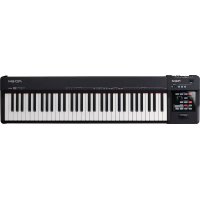
VR-700 - Numeric keypad ROLAND - Free user manual and instructions
Find the device manual for free VR-700 ROLAND in PDF.


| Brand | Roland |
| Model | VR-700 |
| Category | Digital Keyboard |
| Keyboard Type | Weighted 88 keys with counterweight |
| Maximum Polyphony | 128 voices |
| Number of Tones | Over 300 (orchestral, piano, organ, etc.) |
| Built-in Effects | Reverb, chorus, modulation, equalizer |
| Connectivity | USB Type-B, MIDI In/Out, headphone jack, audio outputs (6.35mm jack), pedal |
| Dimensions (W x D x H) | 1400 x 380 x 130 mm |
| Weight | 16.5 kg |
| Power Supply | 12V DC power adapter included |
| Power Consumption | 12W |
| Included Accessories | Music stand, sustain pedal, power adapter, USB cable |
| Care and Cleaning | Wipe with a soft dry cloth; avoid solvents and moisture |
| Safety | Use original adapter; do not open the device; avoid shocks |
| Spare Parts and Repairability | Contact an authorized Roland center; some parts available under reference |
| General Information | Compliant with WEEE directive; Class B (Canada) |
Frequently Asked Questions - VR-700 ROLAND
User questions about VR-700 ROLAND
0 question about this device. Answer the ones you know or ask your own.
Ask a new question about this device
Download the instructions for your Numeric keypad in PDF format for free! Find your manual VR-700 - ROLAND and take your electronic device back in hand. On this page are published all the documents necessary for the use of your device. VR-700 by ROLAND.
USER MANUAL VR-700 ROLAND
The lightning flash with arrowhead symbol, within an equilateral triangle, is intended to alert the user to the presence of uninsulated "dangerous voltage" within the product's enclosure that may be of sufficient magnitude to constitute a risk of electric shock to persons.

The exclamation point within an equilateral triangle is intended to alert the user to the presence of important operating and maintenance (servicing) instructions in the literature accompanying the product.
INSTRUCTIONS PERTAINING TO A RISK OF FIRE, ELECTRIC SHOCK, OR INJURY TO PERSONS.
IMPORTANT SAFETY INSTRUCTIONS SAVE THESE INSTRUCTIONS
WARNING - When using electric products, basic precautions should always be followed, including the following:
- Read these instructions.
- Keep these instructions.
- Heed all warnings.
- Follow all instructions.
- Do not use this apparatus near water.
- Clean only with a dry cloth.
- Do not block any of the ventilation openings. Install in accordance with the manufacturers instructions.
- Do not install near any heat sources such as radiators, heat registers, stoves, or other apparatus (including amplifiers) that produce heat.
-
Do not defeat the safety purpose of the polarized or grounding-type plug. A polarized plug has two blades with one wider than the other. A grounding type plug has two blades and a third grounding prong. The wide blade or the third prong are provided for your safety. If the provided plug does not fit into your outlet, consult an electrician for replacement of the obsolete outlet.
-
Protect the power cord from being walked on or pinched particularly at plugs, convenience receptacles, and the point where they exit from the apparatus.
- Only use attachments/accessories specified by the manufacturer.
- Use only with the cart, stand, tripod, bracket, or table specified by the manufacturer, or sold with the apparatus. When a cart is used, use caution when moving the cart/apparatus combination to avoid injury from tip-over.
- Unplug this apparatus during lightning storms or when unused for long periods of time.
- Refer all servicing to qualified service personnel. Servicing is required when the apparatus has been damaged in any way, such as power-supply cord or plug is damaged, liquid has been spilled or objects have fallen into the apparatus, the apparatus has been exposed to rain or moisture, does not operate normally, or has been dropped.

For the U.K.
WARNING: THIS APPARATUS MUST BE EARTHED
IMPORTANT: THE WIRES IN THIS MAINS LEAD ARE COLOURED IN ACCORDANCE WITH THE FOLLOWING CODE. GREEN-AND-YELLOW: EARTH, BLUE: NEUTRAL, BROWN: LIVE
As the colours of the wires in the mains lead of this apparatus may not correspond with the coloured markings identifying the terminals in your plug, proceed as follows:
The wire which is coloured GREEN-AND-YELLOW must be connected to the terminal in the plug which is marked by the letter E or by the safety earth symbol 山 or coloured GREEN or GREEN-AND-YELLOW.
The wire which is coloured BLUE must be connected to the terminal which is marked with the letter N or coloured BLACK.
The wire which is coloured BROWN must be connected to the terminal which is marked with the letter L or coloured RED.
Before using this unit, carefully read the sections entitled: "IMPORTANT SAFETY INSTRUCTIONS", "USING THE UNIT SAFELY" (p. 4), and "IMPORTANT NOTES" (p. 6). These sections provide important information concerning the proper operation of the unit. Additionally, in order to feel assured that you have gained a good grasp of every feature provided by your new unit, this owner's manual should be read in its entirety. The manual should be saved and kept on hand as a convenient reference.
INSTRUCTIONS FOR THE PREVENTION OF FIRE, ELECTRIC SHOCK, OR INJURY TO PERSONS
About WARNING and CAUTION Notices
| ▲WARNING | Used for instructions intended to alert the user to the risk of death or severe injury should the unit be used improperly. |
| ▲CAUTION | Used for instructions intended to alert the user to the risk of injury or material damage should the unit be used improperly. * Material damage refers to damage or other adverse effects caused with respect to the home and all its furnishings, as well to domestic animals or pets. |
About the Symbols
| ! | The △symbol alerts the user to important instructions or warnings.The specific meaning of the symbol is determined by the design contained within the triangle.In the case of the symbol at left, it is used for general cautions, warnings, or alerts to danger. |
| ® | The ⊙symbol alerts the user to items that must never be carried out (are forbidden). The specific thing that must not be done is indicated by the design contained within the circle. In the case of the symbol at left, it means that the unit must never be disassembled. |
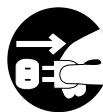
| ◆ | The ●symbol alerts the user to things that must be carried out. The specific thing that must be done is indicated by the design contained within the circle. In the case of the symbol at left, it means that the power-cord plug must be unplugged from the outlet. |
ALWAYS OBSERVE THE FOLLOWING
WARNING
- Connect mains plug of this model to a mains socket outlet with a protective earthing connection.

- Do not open or perform any internal modifications on the unit.
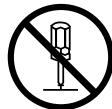
- Do not attempt to repair the unit, or replace parts within it (except when this manual provides specific instructions directing you to do so). Refer all servicing to your retailer, the nearest Roland Service Center, or an authorized Roland distributor, as listed on the "Information" page.

-
Never install the unit in any of the following locations.
-
Subject to temperature extremes (e.g., direct sunlight in an enclosed vehicle, near a heating duct, on top of heat-generating equipment); or are
- Damp (e.g., baths, washrooms, on wet floors); or are
- Exposed to steam or smoke; or are
- Subject to salt exposure; or are
- Humid; or are
- Exposed to rain; or are
- Dusty or sandy; or are
-
Subject to high levels of vibration and shakiness.
-
This unit should be used only with a stand that is recommended by Roland.

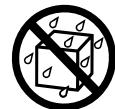
- The unit should be connected to a power supply only of the type described as marked on the rear side of unit.


WARNING
- When using the unit with a stand recommended by Roland, the rack or stand must be carefully placed so it is level and sure to remain stable. If not using a rack or stand, you still need to make sure that any location you choose for placing the unit provides a level surface that will properly support the unit, and keep it from wobbling.

- Use only the attached power-supply cord. Also, the supplied power cord must not be used with any other device.

- Do not excessively twist or bend the power cord, nor place heavy objects on it. Doing so can damage the cord, producing severed elements and short circuits. Damaged cords are fire and shock hazards!

- This unit, either alone or in combination with an amplifier and headphones or speakers, may be capable of producing sound levels that could cause permanent hearing loss. Do not operate for a long period of time at a high volume level, or at a level that is uncomfortable. If you experience any hearing loss or ringing in the ears, you should immediately stop using the unit, and consult an audiologist.

- In households with small children, an adult should provide supervision until the child is capable of following all the rules essential for the safe operation of the unit.

- Protect the unit from strong impact. (Do not drop it!)

WARNING
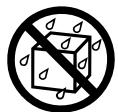
- Do not allow any objects (e.g., flammable material, coins, pins); or liquids of any kind (water, soft drinks, etc.) to penetrate the unit.

-
Immediately turn the power off, remove the power cord from the outlet, and request servicing by your retailer, the nearest Roland Service Center, or an authorized Roland distributor, as listed on the "Information" page when:
-
The power-supply cord or the plug has been damaged; or
If smoke or unusual odor occurs - Objects have fallen into, or liquid has been spilled onto the unit; or
- The unit has been exposed to rain (or otherwise has become wet); or
- The unit does not appear to operate normally or exhibits a marked change in performance.

- Do not force the unit's power-supply cord to share an outlet with an unreasonable number of other devices. Be especially careful when using extension cords—the total power used by all devices you have connected to the extension cord's outlet must never exceed the power rating (watts/amperes) for the extension cord. Excessive loads can cause the insulation on the cord to heat up and eventually melt through.

- Before using the unit in a foreign country, consult with your retailer, the nearest Roland Service Center, or an authorized Roland distributor, as listed on the "Information" page.

- Do not put anything that contains water (e.g., flower vases) on this unit. Also, avoid the use of insecticides, perfumes, alcohol, nail polish, spray cans, etc., near the unit. Swiftly wipe away any liquid that spills on the unit using a dry, soft cloth.

CAUTION
- The unit should be located so that its location or position does not interfere with its proper ventilation.

- This (VR-700) for use only with Roland stand KS-G8. Use with other stands is capable of resulting in instability causing possible injury.

- Always grasp only the plug on the power-supply cord when plugging into, or unplugging from, an outlet or this unit.

CAUTION
- Please be sure to read and adhere to the cautionary notices contained in the instructions that came with this product.
Please note that, depending on the manner in which keyboard performances are carried out, you may encounter situations where the keyboard falls off the stand or the stand topples over, even though you have followed all of the instructions and advice contained within the product's manual. For this reason, you should always perform a safety check each time you use the stand.

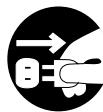
- At regular intervals, you should unplug the power plug and clean it by using a dry cloth to wipe all dust and other accumulations away from its prongs. Also, disconnect the power plug from the power outlet whenever the unit is to remain unused for an extended period of time. Any accumulation of dust between the power plug and the power outlet can result in poor insulation and lead to fire.
- Try to prevent cords and cables from becoming entangled. Also, all cords and cables should be placed so they are out of the reach of children.

- Never climb on top of, nor place heavy objects on the unit.

- Never handle the power cord or its plugs with wet hands when plugging into, or unplugging from, an outlet or this unit.

- If you need to move the instrument, disconnect the power cord and all cords coming from external devices. At least two persons are required to safely lift and move the unit. It should be handled carefully, all the while keeping it level. Make sure to have a firm grip, to protect yourself from injury and the instrument from damage.
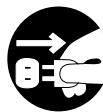
- Before cleaning the unit, turn off the power and unplug the power cord from the outlet (p. 18).
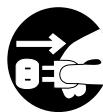
- Whenever you suspect the possibility of lightning in your area, pull the plug on the power cord out of the outlet.
- Should you remove music rest attachment screws, keep them in a safe place out of children's reach, so there is no chance of them being swallowed accidentally.

Power Supply
- Do not connect this unit to same electrical outlet that is being used by an electrical appliance that is controlled by an inverter (such as a refrigerator, washing machine, microwave oven, or air conditioner), or that contains a motor. Depending on the way in which the electrical appliance is used, power supply noise may cause this unit to malfunction or may produce audible noise. If it is not practical to use a separate electrical outlet, connect a power supply noise filter between this unit and the electrical outlet.
- Before connecting this unit to other devices, turn off the power to all units. This will help prevent malfunctions and/or damage to speakers or other devices.
- Although the LEDs are switched off when the POWER switch is switched off, this does not mean that the unit has been completely disconnected from the source of power. If you need to turn off the power completely, first turn off the POWER switch, then unplug the power cord from the power outlet. For this reason, the outlet into which you choose to connect the power cord's plug should be one that is within easy reach and readily accessible.
Placement
- Using the unit near power amplifiers (or other equipment containing large power transformers) may induce hum. To alleviate the problem, change the orientation of this unit; or move it farther away from the source of interference.
- This device may interfere with radio and television reception. Do not use this device in the vicinity of such receivers.
- Noise may be produced if wireless communications devices, such as cell phones, are operated in the vicinity of this unit. Such noise could occur when receiving or initiating a call, or while conversing. Should you experience such problems, you should relocate such wireless devices so they are at a greater distance from this unit, or switch them off.
- Do not expose the unit to direct sunlight, place it near devices that radiate heat, leave it inside an enclosed vehicle, or otherwise subject it to temperature extremes. Also, do not allow lighting devices that normally are used while their light source is very close to the unit (such as a piano light), or powerful spotlights to shine upon the same area of the unit for extended periods of time. Excessive heat can deform or discolor the unit.
- When moved from one location to another where the temperature and/or humidity is very different, water droplets (condensation) may form inside the unit. Damage or malfunction may result if you attempt to use the unit in this condition. Therefore, before using the unit, you must allow it to stand for several hours, until the condensation has completely evaporated.
- Do not allow rubber, vinyl, or similar materials to remain on the unit for long periods of time. Such objects can discolor or otherwise harmfully affect the finish.
- Do not allow objects to remain on top of the keyboard. This can be the cause of malfunction, such as keys ceasing to produce sound.
- Do not paste stickers, decals, or the like to this instrument. Peeling such matter off the instrument may damage the exterior finish.
- Depending on the material and temperature of the surface on which you place the unit, its rubber feet may discolor or mar the surface. You can place a piece of felt or cloth under the rubber feet to prevent this from happening. If you do so, please make sure that the unit will not slip or move accidentally.
Maintenance
- To clean the unit, use a dry, soft cloth; or one that is slightly dampened. Try to wipe the entire surface using an equal amount of strength, moving the cloth along with the grain of the wood. Rubbing too hard in the same area can damage the finish.
- Never use benzine, thinners, alcohol or solvents of any kind, to avoid the possibility of discoloration and/or deformation.
Repairs and Data
- Please be aware that all data contained in the unit's memory may be lost when the unit is sent for repairs. Important data should always be backed up on a USB memory, or written down on paper (when possible). During repairs, due care is taken to avoid the loss of data. However, in certain cases (such as when circuitry related to memory itself is out of order), we regret that it may not be possible to restore the data, and Roland assumes no liability concerning such loss of data.
Before Using USB Memories
- Carefully insert the USB memory all the way in—until it is firmly in place.
- Never touch the terminals of the USB memory. Also, avoid getting the terminals dirty.
-
USB memories are constructed using precision components; handle the USB memories carefully, paying particular note to the following.
-
To prevent damage to the USB memories from static electricity, be sure to discharge any static electricity from your own body before handling the USB memories.
- Do not touch or allow metal to come into contact with the contact portion of the USB memories.
- Do not bend, drop, or subject USB memories to strong shock or vibration.
- Do not keep USB memories in direct sunlight, in closed vehicles, or other such locations.
- Do not allow USB memories to become wet.
- Do not disassemble or modify the USB memories.
Additional Precautions
- Please be aware that the contents of memory can be irretrievably lost as a result of a malfunction, or the improper operation of the unit. To protect yourself against the risk of loosing important data, we recommend that you periodically save a backup copy of important data you have stored in the unit's memory on a USB memory.
- Unfortunately, it may be impossible to restore the contents of data that was stored on a USB memory, or in the unit's memory once it has been lost. Roland Corporation assumes no liability concerning such loss of data.
- Use a reasonable amount of care when using the unit's buttons, sliders, or other controls; and when using its jacks and connectors. Rough handling can lead to malfunctions.
- When connecting / disconnecting all cables, grasp the connector itself—never pull on the cable. This way you will avoid causing shorts, or damage to the cable's internal elements.
- A small amount of heat will radiate from the unit during normal operation.
- To avoid disturbing your neighbors, try to keep the unit's volume at reasonable levels. You may prefer to use headphones, so you do not need to be concerned about those around you (especially when it is late at night).
- When you need to transport the unit, package it in the box (including padding) that it came in, if possible. Otherwise, you will need to use equivalent packaging materials.
- Do not apply undue force to the music stand while it is in use.
- Use only the specified expression pedal (EV-5 or EV-7; sold separately). By connecting any other expression pedals, you risk causing malfunction and/or damage to the unit.
- The usable range of D Beam controller will become extremely small when used under strong direct sunlight. Please be aware of this when using the D Beam controller outside.
-
The sensitivity of the D Beam controller will change depending on the amount of light in the vicinity of the unit. If it does not function as you expect, adjust the sensitivity as appropriate for the brightness of your location.
-
is either registered trademark or trademark of Roland Corporation in the United States and/or other countries.
- MPEG Layer-3 audio compression technology is licensed from Fraunhofer IIS Corporation and THOMSON Multimedia Corporation.
- MMP (Moore Microprocessor Portfolio) refers to a patent portfolio concerned with microprocessor architecture, which was developed by Technology Properties Limited (TPL). Roland has licensed this technology from the TPL Group.
- All product names mentioned in this document are trademarks or registered trademarks of their respective owners.
USING THE UNIT SAFELY 4
IMPORTANT NOTES 6
Features of the VR-700 12
Names of Things and What They Do 14
Top Panel 14
Rear Panel 17
Getting Ready 18
Placing the VR-700 on the KS-G8 Stand 18
Connecting the Power Cord 18
Turning the Power On/Off 19
Turning the Power On. 19
Turning the Power Off. 19
Connecting Pedals 20
Connecting a Pedal Keyboard 20
Connecting an Expression Pedal and Damper Pedal 20
ConnectingPlaybackEquipment 21
Connecting an Amp and Speakers 21
Connecting Headphones 21
Connecting USB Memory 22
Attaching the Music Rest 22
Adjusting the Volume 23
Listening to the Demo Songs. 23
Indications in the Display 24
Disabling Panel Operations (Lock Function) 25
Controls That can be Operated Even While Locked. 25
Turning the Lock Function On/Off 25
Restoring the Factory Settings (Factory Reset) 26
Playing the VR-700 27
About the VR-700's Parts 27
Upper Part 27
Lower Part. 27
Pedal Part. 28
Organ Sounds and Ensemble Sounds 28
Playing Organ Sounds and Ensemble Sounds Together (Layer) 29
Layering Ensemble Sounds 29
Layering Two Ensemble Sounds 30
Playing Organ Sounds or Ensemble Sounds Individually 33
Playing Only an Ensemble Sound 33
Playing Only the Organ Sound 33
Playing the Sounds of Two Parts on the Keyboard (Split) 34
Boundary Between Upper and Lower Parts (Split Point) 35
Using the D Beam Controller to Modify the Sound 36
D Beam Effects 36
Creating Organ Sounds 38
About Virtual Tonewheel Sound Generators 38
Varying the Sound in Real Time (Harmonic Bars) 38
Using the Harmonic Bars to Create Sounds 39
Harmonic Bars and Overtones 39
Using Percussion to add a Sense of Attack 41
Adding Modulation to the Sound (Vibrato and Chorus) 42
Turning on Vibrato or Chorus. 42
Changing the Vibrato or Chorus Type 42
Adding Rotary Speaker Modulation 43
Making the Sound Distort. 44
Adding Reverberation (Reverb) 44
Changing the Reverb Type 44
Using a Pedal to Adjust the Volume 45
Playing Ensemble Sounds 46
Selecting an Ensemble Sound 46
Octave Shift 46
Effects for the Ensemble Sound 46
Storing Your Favorite Settings (Favorites) 47
Selecting a Favorite 47
Saving the Current Settings as a Favorite 47
Initializing the Favorites 47
Backing up Favorites to USB Memory 48
Restoring from USB Memory 48
Playing Rhythms and Songs (Player Functions) 49
Playing Internal Rhythms. 49
Playing Songs from USB Memory 50
Changing the Tempo 50
Various Settings (Function mode) 51
Operations in Function Mode 51
Editing Parameter Values 51
Confirming System Parameters. 51
Parameter List 52
Organ Sound Parameters. 52
Percussion Parameters. 52
Rotary Parameters 53
Ensemble Sound Parameters 53
Equalizer Settings 54
Pedal, Bend Lever, and Foot Controller Settings. 54
Player Parameters 56
MIDI Input/Output Settings 57
System Settings 59
V-LINK Settings 60
Deleting Favorite Sets, Formatting USB Memory, Initializing the System 60
Deleting a Favorite Backup 61
Formatting USB Memory 62
Appendix 63
Using V-LINK to Control Video Equipment 64
Connection Example 64
Turning V-LINK On/Off 64
Connecting MIDI Equipment 65
The VR-700's Internal Structure 65
Sound Generator Section 65
MIDI Routing. 65
Connecting an External MIDI Keyboard 66
Playing a Desired Part (Factory Settings) 66
Playing the Upper Part or Lower Part 66
Connecting an External MIDI Sequencer 66
Local Control Setting 66
Connecting your Computer 67
Local Control Setting. 67
Ensemble Sound List 68
Internal Rhythm Pattern List 71
List of Effects for the Ensemble Sounds 72
List of the Factory Installed Favorites 75
Troubleshooting 77
Error Messages. 79
Specifications 80
Index 82
Information 86
- The MIDI implementation is available on Roland's website.
http://www.roland.com/products/en/
From the above page, proceed to the VR-700 page and download the MIDI implementation.
Convention used in this manual
- Text enclosed in square brackets [ ] indicates the name of a button, such as the [UPPER] button.
- Lines that begin with NOTE or an asterisk * are cautionary statements that you must be sure to read.
(p. **) indicates a reference page. - The explanations in this manual include illustrations that depict what should typically be shown by the display. Note, however, that your unit may incorporate a newer, enhanced version of the system (e.g., includes newer sounds), so what you actually see in the display may not always match what appears in the manual.
The Pursuit of Excellence—Redefining the Basic Stage Keyboard
An organ, piano, and synthesizer all condensed into a single instrument
A full-fledged organ, high-quality piano, and a synthesizer equipped with all the standard sounds—all of this and more contained in one easy-to-use, light, compact package. This one instrument is just about all you need for most any live performance; and since it's highly portable, you save on the amount of time it takes to get set up for a performance.
cf.
- Creating Organ Sounds. p. 38
- Selecting an Ensemble Sound . p. 46
- Ensemble Sound List. p.68
A total organ sound-from sound generation to sound reinforcement
Equipped with a virtual tone wheel sound generator, which forms the core of the Roland organ sound. In addition, the VR-700 offers a completely realistic and expressive organ experience, including the characteristic effects and sound reproduction methods of vintage organs.
cf.
About Virtual Tonewheel Sound Generators .p.38
Rotary sound
What would an organ performance be without rotary speakers? The VR-700 faithfully re-creates the sound of rotating speakers, including the acoustical characteristics of the tweeter (which change depending on the angle), and the way that changes in the speed of the rotation occur. To enjoy a realistic, rotary sound that is filled with a sense of presence, all you need to do is connect a keyboard amplifier or powered monitor.
cf.
- Adding Rotary Speaker Modulation . p. 43
Overdriven sound
Whether it be the unique characteristics of the vacuum-tube circuitry that was at the heart of the original rotary speakers, the acoustical properties of the speaker cabinets, or the frequency responses of a variety of amplifiers—all these and more are faithfully simulated by the VR-700. Simply by switching the amp type, you can enjoy a variety of sounds for your performances—from a warm, deeply resonating sound to a fat, overdriven sound typical of rock. In addition, for each amp type, you can select from a number of variations for the drive sound.
cf.
Making the Sound Distort . p. 44
Enhanced playability thanks to 76-key waterfall keyboard and harmonic bars
With a waterfall keyboard and fast-firing algorithms, the VR-700 is capable of a wide variety of performance techniques, from delicate glissandos to fast, successive notes. And, it is equipped with nine harmonic bars, which are essential when you want to control the sound in real time. Thanks to this, a wide variety of organ sounds can be controlled at will. In addition, the VR-700 can essentially be turned into a two-manual + pedalboard organ—all you need to do is split the keyboard into two zones using the Split function, then add on an optional PK-25A/7A pedalboard.
cf.
Varying the Sound in Real Time (Harmonic Bars) . p. 38
- Playing the Sounds of Two Parts on the Keyboard (Split) ..... p. 34
- Connecting a Pedal Keyboard. p. 20
Ensemble section offers high-quality piano and synth sounds
Comes with a stringently selected collection of sounds geared for ensembles. Thanks to the adoption of "88-key multisampling," which results in very realistic sounds, you'll be able to richly express every nuance of your music. Moreover, a wide variety of acoustic sounds, including analog synthesizers and other electronic musical instruments, and realistic string sounds have also been included, making it easy for you to contribute a wealth of sounds when playing in a band.

- Ensemble Sound List. p. 68
Easy operation—geared for live performances
We've placed buttons or knobs right there on the panel for most of functions that a performer needs access to when playing live. And, since everything has been grouped together according to function, the VR-700 can be controlled simply and logically. Additionally, we've made the buttons self-illuminating, so you don't need to worry about finding things when you're on a dark stage. Together, this means that even the first-time user should experience no problems when using the VR-700, since it's operation is intuitive.
And, once you have a certain combination of sounds you like, and have made a whole range of detailed settings, you can store your efforts as a "Favorite," and have instant access to it later simply by pressing a button.

Names of Things and What They Do. p. 14
- Storing Your Favorite Settings (Favorites) . p. 47
Equipped with player feature
The instrument comes stocked with a variety of rhythm patterns, which can be used as a "rhythm guide." Thanks to this, you can gain practice along more musical lines, when compared to simply using a metronome.
In addition, the inclusion of a USB memory connector allows you to make use of SMF, WAV, AIFF, and MP3 files stored on USB flash drives. Such files can be played back when practicing or be used as backing while performing.

- Playing Rhythms and Songs (Player Functions) ..... p. 49
Beautifully refined design
The VR-700's metallic-colored body presents a striking image on stage. And, the distinctive quality of it's real wood side panels can only get better with age.
- Like all fine products made of wood, the wooden side panels can be easily scratched. Please treat them with the care they deserve.
Top Panel
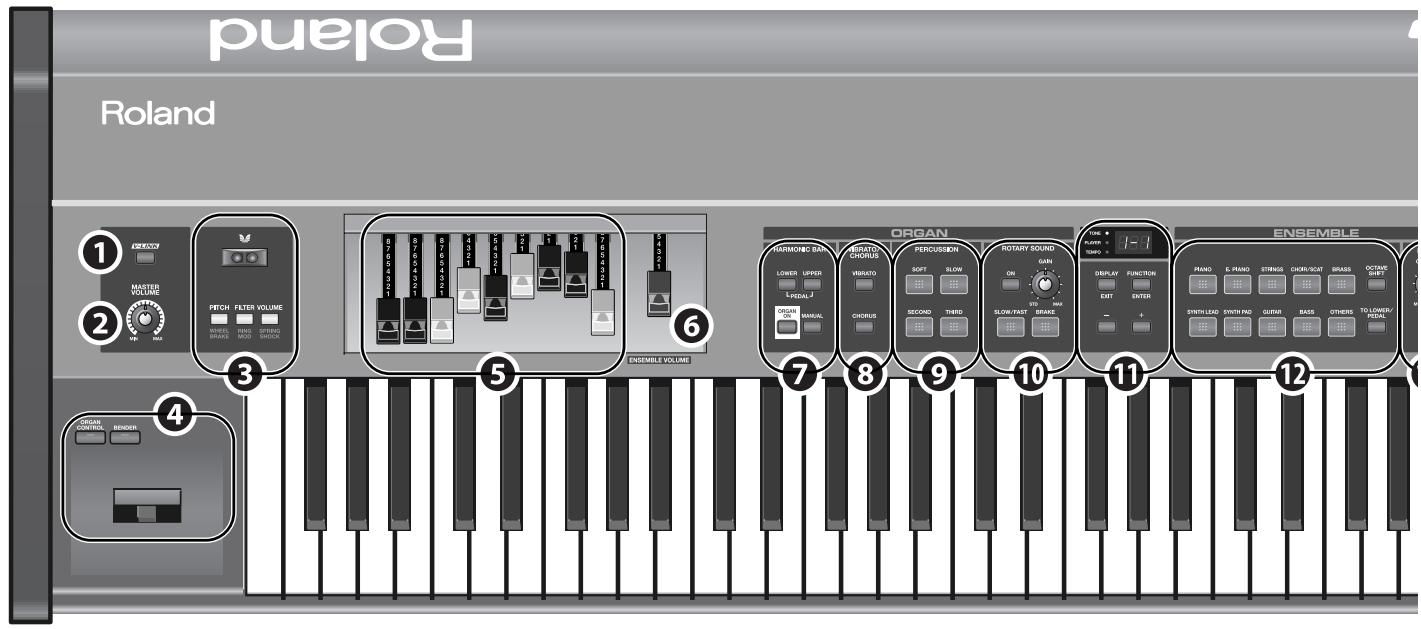
[V-LINK] button
This button turns V-LINK on/off (p. 64).
When this is on, the VR-700 can be used to control a V-LINK compatible video device connected to the VR-700.
2 [MASTER VOLUME] knob
This knob adjusts the volume of the output from the OUTPUT connectors on the rear panel and the PHONES jack (p. 23).
D Beam
You can vary the organ sound or ensemble sound by moving your hand above the D Beam controller (p. 36).
4 Organ control/Bender lever
You can use the lever to vary the sound in real time.
- The [ORGAN CONTROL] button and [BENDER] button cannot be turned on simultaneously.
| Control | Function |
| [ORGANCONTROL] button * Only organ sounds will be affected. | When this button is pressed to turn it on, the lever will control the organ sound (p. 43). Pitch up Change speed of speaker rotation Pitch up Change speed of speaker rotation |
| [BENDER] button * Only ensemble sounds will be affected. | If this button is pressed to turn it on, the lever will vary the pitch of the sound or apply vibrato. Modulation Pitch down Pitch up |
Harmonic bars
Use these to create the organ sound. You can adjust the tone in real time while you perform (p. 38).
6 [ENSEMBLE VOLUME] bar
This adjusts the volume of the ensemble sound (p. 29).
![ROLAND VR-700 - [ENSEMBLE VOLUME] bar - 1](/content/2025/01/130976/images/f77664ac6894d69f3e3c15d4e9263fe035328d361233054269f61dc8f7e161d5.jpg)
ORGAN section
HARMONIC BAR
Here you can select the part that will reflect the settings of the harmonic bars (p. 39).
| Control | Function |
| [LOWER] button, [UPPER] button | These buttons select the part to which the organ sound settings of the harmonic bars will apply. If you press both buttons simultaneously, the harmonic bars will be assigned to the pedal part. |
| [ORGAN ON] button | Switches on/off the production of the organ sound for all parts. |
| [MANUAL] button | For the part selected by the [LOWER] button or [UPPER] button, this button updates the organ sound of that part to the current state of the harmonic bars. |
3 VIBRATO/CHORUS
These buttons turn the vibrato and chorus effects on/off for the organ sound (p. 42).
9 PERCUSSION
These buttons specify the organ sound's percussion (the attack heard when you press a key) (p. 41).
10 ROTARY SOUND
Here you can specify the rotary effect (the modulation produced by a rotating speaker) (p. 43).
Display section
1 Display
| Control | Function |
| Display | This indicates the state of the VR-700 or the current value of a setting (p. 24). Indicators for TONE, PLAYER, and TEMPO are located at the left of the display. |
| [DISPLAY/EXIT] button | This button changes the content shown in the display (p. 24). In Function mode, this button operates as the [EXIT] button to exit Function mode. |
| [FUNCTION/ENTER] button | Press this button to switch to Function mode. In Function mode, this button serves for the [ENTER] button to execute an operation. |
| [+] button, [-] button | Use these buttons to edit a value. |
ENSEMBLE section
Tone buttons
EFFECT
| Control | Function |
| Tone buttons | These buttons select the category of ensemble sounds (p. 46). |
| [OCTAVE SHIFT] button | This button sounds the selected ensemble sound at a higher or lower octave (p. 46). |
| [TO LOWER/PEDAL] button | This sounds the selected ensemble sound in the lower part or pedal part (p. 29). |
| Control | Function |
| [CONTROL] knob | This knob adjusts the effect that's applied to the ensemble sound (p. 46). |
| [ON] button | This button turns the effect on/off for the ensemble sound (p. 46). |
16 REVERB section
Here you can apply reverberation to the organ sounds and ensemble sounds.
| Control | Function |
| [LEVEL] knob | Adjusts the depth of the revert effect (p. 44). |
| [TYPE] button | Selects the type of revert effect (p. 44). |
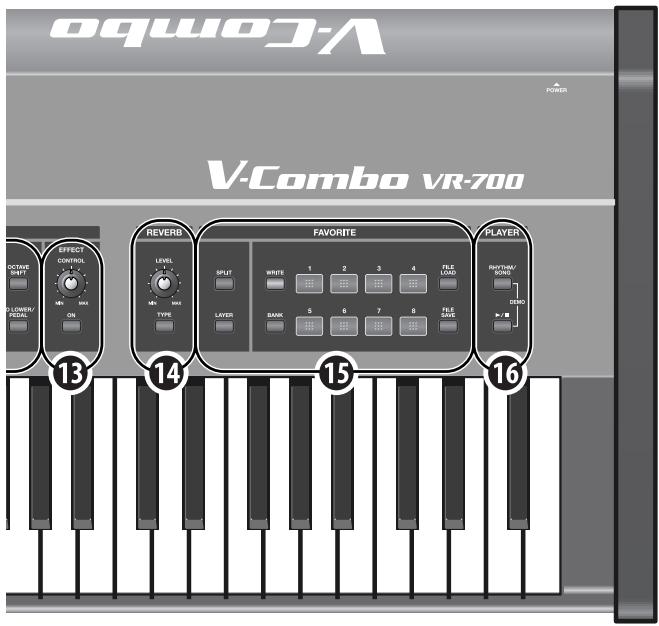
FAVORITE section
15 FAVORITE
The organ sounds and ensemble sounds that you use frequently, together with their state, can be registered as Favorites. Once you've registered your favorite settings, you'll be able to call them up simply by pressing one of the [FAVORITE] buttons.
| Control | Function |
| [SPLIT] button | This button divides the keyboard into two zones, allowing you to play a different tone in each zone (p. 34). |
| [LAYER] button | This button allows you to play the ensemble sound and the organ sound together (p. 29). |
| [WRITE] button | Use this button to register the organ sounds, ensemble sound, and other panel settings as favorite settings. For details refer to “Saving the Current Settings as a Favorite” (p. 47). |
| [BANK] button | Use this button to select a bank of favorites (p. 46). |
| FAVORITE buttons: [1]–[8] | Use these to callback favorite settings you've registered (p. 46). |
| [FILE LOAD] button [FILE SAVE] button | These buttons allow you to save or load all the favorite settings in the VR-700's internal memory to or from USB memory connected to the USB MEMORY connector (p. 48). |
PLAYER section
Here you can play back internal rhythm patterns, or MIDI files and audio files saved on external memory connected to the USB MEMORY connector.
16 PLAYER
| Control | Function |
| [RHYTHM/SONG] button | Use this button to specify playback of either internal rhythm patterns or files stored on external memory. |
| [▶/■] (Play/Stop) button | This button plays the file.During playback, pressing this button will stop playback. |
Rear Panel
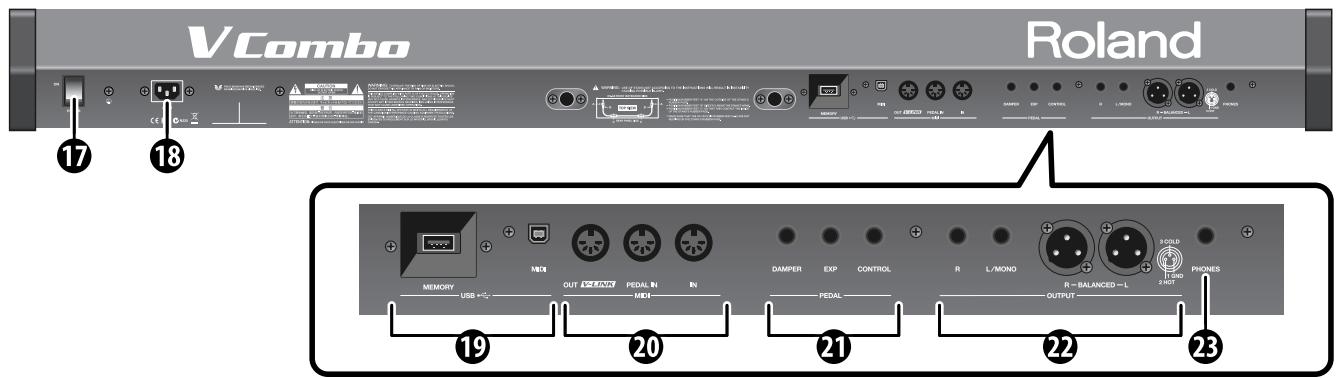
[POWER] switch
Turns the power on/off (p. 19).
- If you need to turn off the power completely, first turn off the [POWER] switch, then unplug the power cord from the power outlet. Refer to "Power Supply" (p. 6).
13 AC IN (AC inlet)
Connect the included power cord here (p. 18).
USB connectors
| Connector | Function |
| USB MEMORY connector | Connect USB memory (sold separately) here (p. 22). |
| USB MIDI connector | You can use a USB cable (sold separately) to connect this to your computer so that MIDI messages can be transmitted and received (p. 67). |
20 MIDI connectors
| Connector | Function |
| MIDI OUT/V-LINK connector | You can use a MIDI cable (sold separately) to connect this to a MIDI sound module or other MIDI device, and transmit performance data from the VR-700 to that device (p. 65).If you connect this to a V-LINK compatible video device, your performance on the VR-700 can control the video device (p. 64). |
| MIDI PEDAL IN connector | You can connect a pedal keyboard here, and perform using the pedals (p. 20). |
| MIDI IN connector | You can use a MIDI cable (sold separately) to connect a MIDI keyboard or other MIDI device here, and use that MIDI device to play the VR-700 (p. 65). |
PEDAL connectors
| Connector | Function |
| DAMPER PEDAL connector | Connect a damper pedal here (p. 20). Even after you take your fingers off the keyboard, notes will be sustained as long as you hold down the pedal. |
| EXP PEDAL connector | Connect an expression pedal here. You can use this pedal to adjust the volume (p. 20). |
| CONTROL PEDAL connector | Connect an expression pedal or damper pedal here (p. 20). You can use this pedal to control various functions of the VR-700 (p. 55). |
2 OUTPUT connectors
These are stereo output connectors for the audio signal. The same signal is output from the XLR connectors (L, R) and from the phone jacks (L/MONO, R).
About the phone jacks
If you connect a cable only to the L/MONO jacks of the phone jacks, the sound of the left and right channels will be mixed and output in monaural.
- The stereo signal will be output from the XLR connectors.
- We recommend that you use stereo output. If you use monaural output, the quality and character of the sound may be affected, but this does not indicate a malfunction.
PHONESjack
Connect headphones here (p. 21). Even if headphones are connected, the audio signal will still be output from the OUTPUT connectors.
Placing the VR-700 on the KS-G8 Stand
If you place the VR-700 on a stand, you must use the KS-G8 (sold separately).
NOTE
- When placing the VR-700 on the stand, be careful not to pinch your fingers between the instrument and the stand.
- When lifting the VR-700 onto the stand, make sure to enlist the help of at least one other person.
- Using the VR-700 with any other stand may produce an unstable situation, possibly causing the instrument to fall or overturn, and resulting in injury or damage.
- For details on how to assemble the stand, refer to the owner's manual that accompanied the stand.
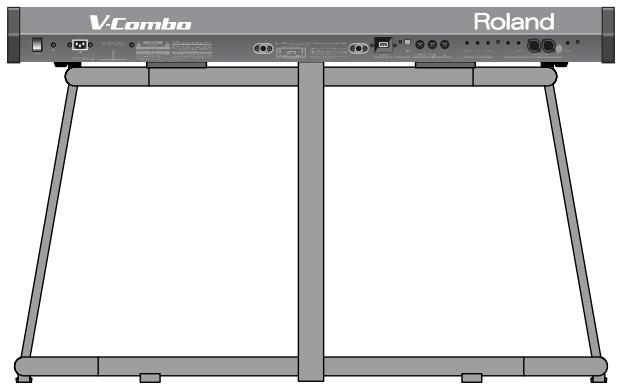
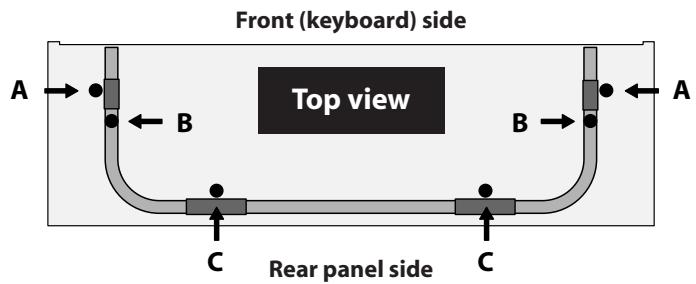
-
Place the VR-700 in the position shown in the illustration.
-
Position rubber feet "A" on the outside of the stand's rubber pads.
- Position rubber feet "B" directly above the stand's arms.
- Position rubber feet "C" so that they contact the inside of the stand's rubber pads.
- Make sure that the VR-700's six rubber feet (A-C) are not resting on the stand's rubber pads.
Connecting the Power Cord
-
Before you begin making connections, confirm the following.
-
Is the volume level of the VR-700 or connected amp turned all the way down?
Is the power to the VR-700 or connected amp turned off? -
Connect the supplied power cord to the AC Inlet of the VR-700, and plug the other end into an AC outlet.
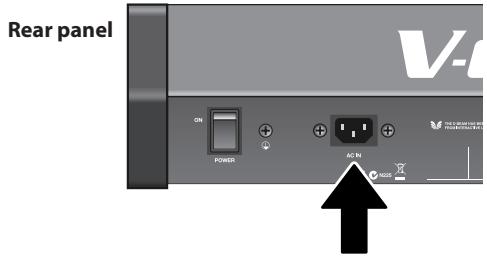
Turning the Power On/Off
Turning the Power On
NOTE
Once the connections have been completed, turn on power to your various devices in the order specified. By turning on devices in the wrong order, you risk causing malfunction and/ or damage to speakers and other devices.
1. Before you turn on the power, make sure that the [VOLUME] knob is turned all the way down.
Also minimize the volume of any connected external audio equipment.
![ROLAND VR-700 - Before you turn on the power, make sure that the [VOLUME] knob is turned all the way down. - 1](/content/2025/01/130976/images/71221189639db721b4921db291e0db7df227d91b9ef12d29ebc35f1afb590b0f.jpg)
2. To turn the power on, press the upper part of the [POWER] switch located on the VR-700's rear panel.
![ROLAND VR-700 - To turn the power on, press the upper part of the [POWER] switch located on the VR-700's rear panel. - 1](/content/2025/01/130976/images/52083ab4d85aa5fcba0322e0e6bbe3a1745a7ecd64dc646f41e01d42dbe8071b.jpg)
The power will turn on, and the display will light up.
- Minimize the volume before you turn on the power. Even if the volume is minimized, you may hear sound when turning on the power, but this does not indicate a malfunction.
- Due to a circuitry-protection feature, this unit requires a few moments after it has been powered up before it is ready for normal operation.
- If the power is turned off while a Factory Reset is being executed (p. 26), the internal data will be lost, and it may take some time to start up the next time you switch on the VR-700's power.
3. Switch on the power to any external equipment that is connected.
4. Adjust the volume of any external equipment that is connected.
5. Adjust the VR-700's volume to an appropriate level.
Turning the Power Off
1. Turn the [VOLUME] knob to the minimum position before you turn off the power.
Also minimize the volume of any connected external equipment.
![ROLAND VR-700 - Turn the [VOLUME] knob to the minimum position before you turn off the power. - 1](/content/2025/01/130976/images/f517df857d792d5280a38719a9fe85c10ed338d3e3ddc9d62c5744fb8c262586.jpg)
2. Switch off the power to any connected external equipment.
3. To turn the power off, press the lower part of the [POWER] switch located on the VR-700's rear panel.
- If you need to turn off the power completely, first turn off the POWER switch, then unplug the power cord from the power outlet. Refer to "Power Supply" (p. 6).
Connecting Pedals
Connecting a Pedal Keyboard
Connect your pedal keyboard (PK-25A or PK-7A; sold separately) to the MIDI PEDAL IN connector on the rear panel.
- When making connections, be sure to refer to the PK-25A or PK-7A owner's manual as well.
- There's no need to set the MIDI channel for the PK-25A and PK-7A.
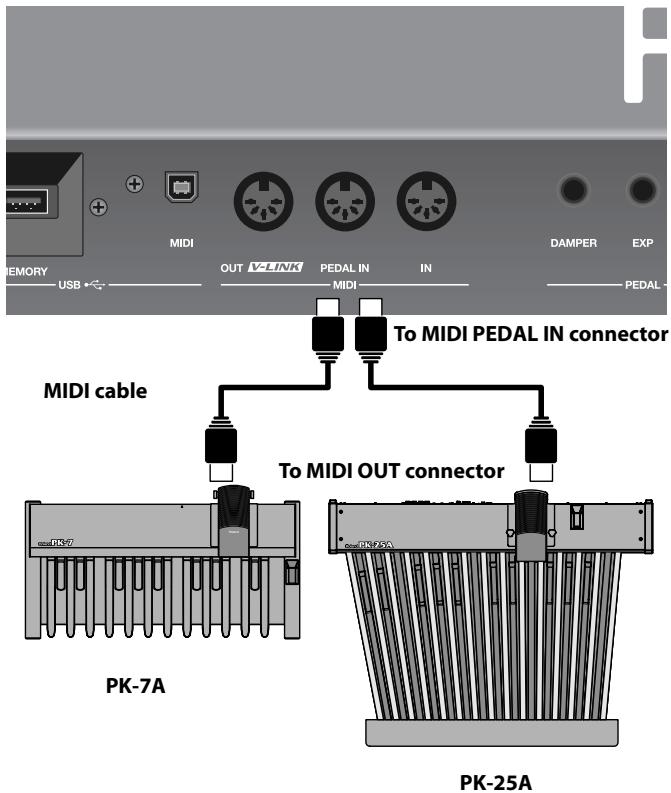
- Make sure that the VR-700 and the pedal you'll be connecting are turned off.
-
Use a MIDI cable (sold separately) to connect the MIDI OUT connector of the PK-25A or PK-7A to the VR-700's MIDI PEDAL IN connector. (The PK OUT connector is not used.)
-
If desired, connect the FOOT SW OUT connector of the PK-25A or PK-7A to the VR-700's CONTROL PEDAL connector.
-
For details on the functions that can be controlled by a foot switch connected to the VR-700's CONTROL connector, refer to "Functions that can be assigned to the control pedal" (p. 55).
- There's no need to make a connection between the EXPRESSION OUT connector of the PK-25A or PK-7A and the VR-700.
Connecting an Expression Pedal and Damper Pedal
- When making connections, please refer also to the owner's manual for the pedals you're using.
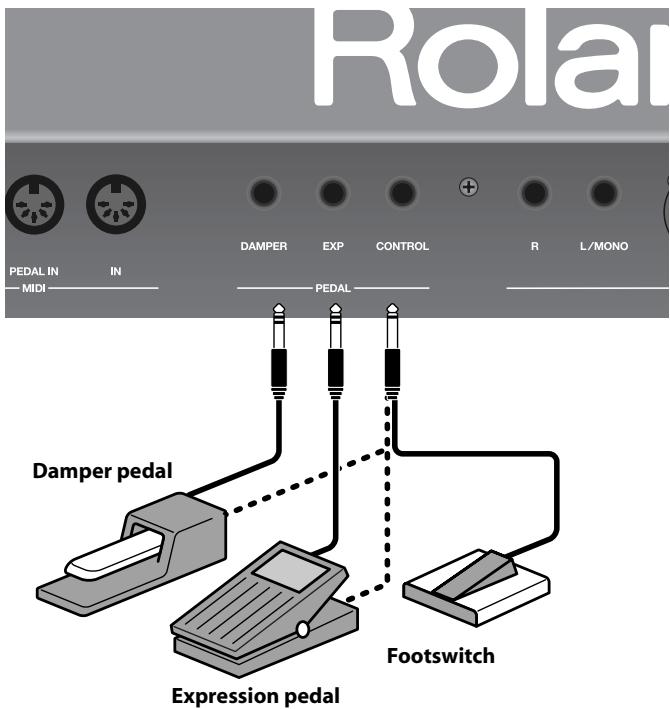
- Make sure that the VR-700's power is turned off.
- Connect your damper pedal to the DAMPER PEDAL connector on the rear panel.
- Connect your expression pedal to the EXP PEDAL connector on the rear panel.
-
Connect your damper pedal, expression pedal, or foot switch to the CONTROL PEDAL connector on the rear panel.
-
An expression pedal, damper pedal, and foot switch are not included. For details on the types of pedals that can be connected to the VR-700, refer to "Specifications" (p. 80). If you want to purchase these items, please contact the dealer where you purchased the VR-700.
- Use only the specified expression pedal (EV-5 or EV-7; sold separately). By connecting any other expression pedal, you risk causing malfunction and/or damage to the unit.
ConnectingPlayback Equipment
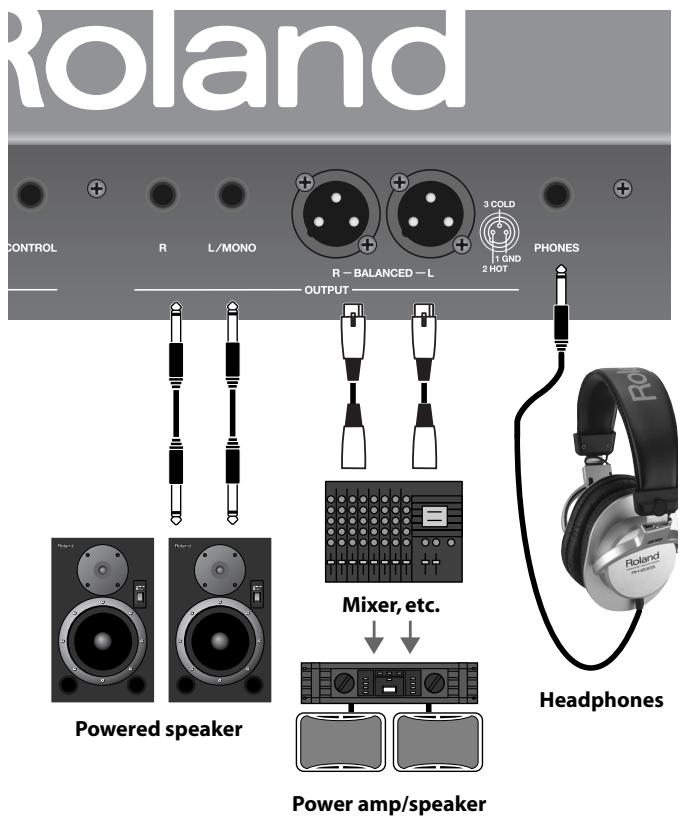
About the XLR connector OUTPUT connectors
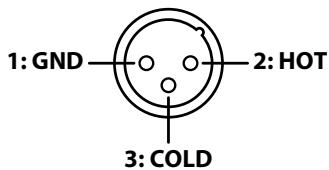
The XLR connectors are wired as shown in the illustration. Before you make connections, check the wiring of the equipment you intend to connect.
About the 1/4" phone jack OUTPUT connectors
If you connect a cable only to the L/MONO jack of the phone jacks, the sound of the left and right channels will be mixed and output in monaural.
- The stereo signal will be output from the XLR connectors.
- We recommend that you use stereo output. If you use monaural output, the quality and character of the sound may be affected, but this does not indicate a malfunction.
Connecting an Amp and Speakers
- Make sure that both the VR-700 and the equipment you intend to connect are switched off.
NOTE
To prevent malfunction and/or damage to speakers or other devices, always turn down the volume, and turn off the power on all devices before making any connections.
-
Use audio cables to connect the VR-700's rear panel OUTPUT connectors to your playback equipment (amplified speakers, mixer, etc.).
-
Audio cables are not included. If you want to purchase these items, please contact the dealer where you purchased the VR-700.
Connecting Headphones
-
Connect your headphones to the PHONES jack on the VR-700's rear panel.
-
Use headphones that have a 1/4" stereo plug.
Connecting USB Memory
- Make sure that the VR-700's power is switched off.
- Connect your USB memory to the VR-700's rear panel USB MEMORY connector.
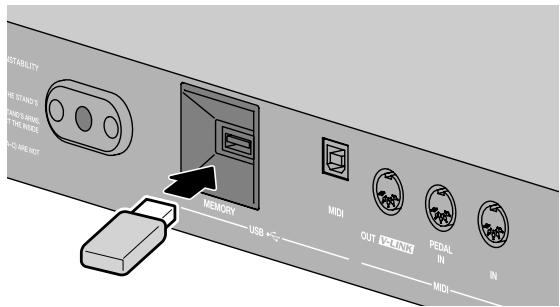
NOTE
- Never insert or remove a USB memory device while this unit's power is on. Doing so may corrupt the unit's data or the data on the USB memory.
- Carefully insert the USB memory all the way in—until it is firmly in place.
- If you're using new USB memory, you must first initialize (format) it on the VR-700, refer to " Formatting USB Memory" (p. 62).
- For details on USB memory device that can be used with the VR-700, refer to "Specifications" (p. 80). If you want to purchase USB memory, please contact the retailer from whom you purchased the VR-700.
Attaching the Music Rest
Here's how to attach the included music rest.
- Remove the two music rest fastening screws from the rear panel.
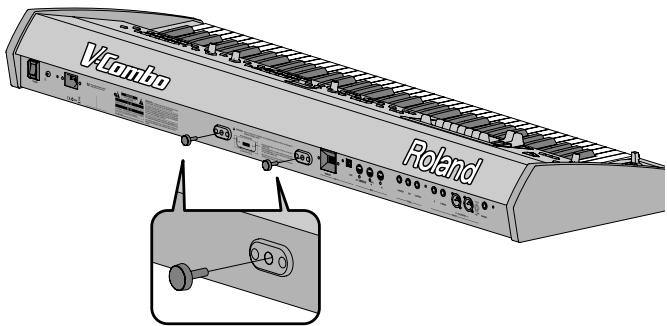
- Tighten the two screws to fasten the music rest in place.
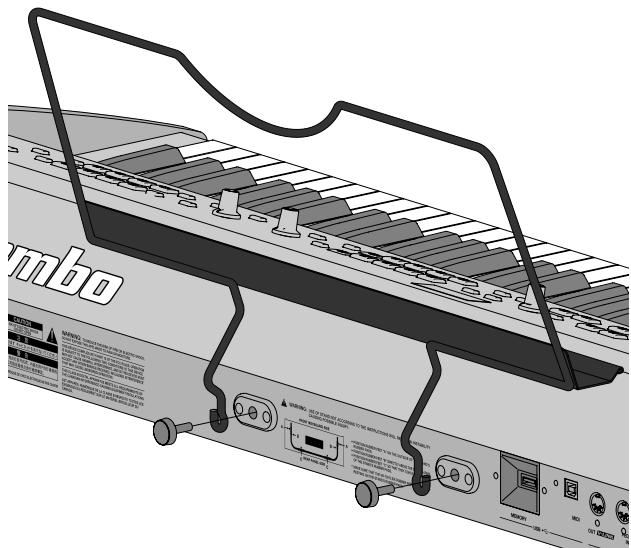
NOTE
- When attaching the music rest, support it securely with your hand so that it does not fall.
- Be careful not to pinch your hand or fingers when attaching the music rest.
- Use only the included screws.
- To detach the music rest, support it with your hand and slowly remove the screws. After detaching the music rest, firmly tighten the fastening screws.
- The music rest fastening screws you remove must be kept out of the reach of small children so that they will not be swallowed accidentally.
Adjusting the Volume
1. Use the [VOLUME] knob to adjust the volume.
Turning the knob toward the right will increase the volume, and turning it toward the left will decrease the volume.
You'll also need to make appropriate volume adjustments on the connected equipment.
![ROLAND VR-700 - Use the [VOLUME] knob to adjust the volume. - 1](/content/2025/01/130976/images/b59411f867e65b31f1a80307076a6683abb57951fc896d7e29ad424a2c747681.jpg)
Listening to the Demo Songs
The VR-700 contains 3 demo songs.
| No. | Song Title | Composer/ Performer | Copyright |
| 1 | Desert Stroll | Mano Hanes | © 2010 Roland Corporation |
| 2 | The Odd Mistress | Kiyomi Otaka | © 2010 Roland Corporation |
| 3 | 7th Dance on a Sun Ray | Ralf Schink | © 2010 Roland Corporation |
- All rights reserved. Unauthorized use of this material for purposes other than private, personal enjoyment is a violation of applicable laws.
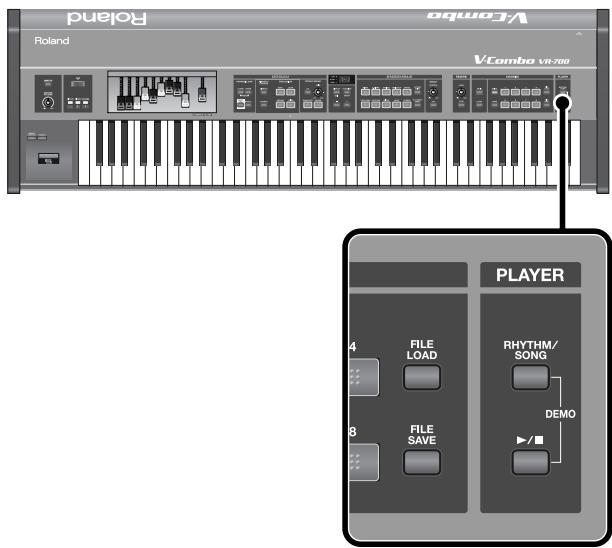
1. Simultaneously press the [RHYTHM/SONG] button and the [▶/■] (Play/Stop) button.
- The VR-700 will enter Demo mode, and the display will indicate E .
- The FAVORITE [1]-[3] buttons will blink.
- In Demo mode, you can't edit the organ sound, choose ensemble sounds, or perform.
2. The blinking FAVORITE [1]–[3] buttons correspond to the four demo songs. When you press one of the buttons, the corresponding demo song will begin playing.
When the demo song has finished playing, the next demo song will play.
3. To stop demo song playback, press the [▶/■] (Play/Stop) button.
4. To exit Demo mode, press the [DISPLAY/EXIT] button.
- No data for the music that is played will be output from the MIDI OUT connector and USB MIDI connector.
Indications in the Display
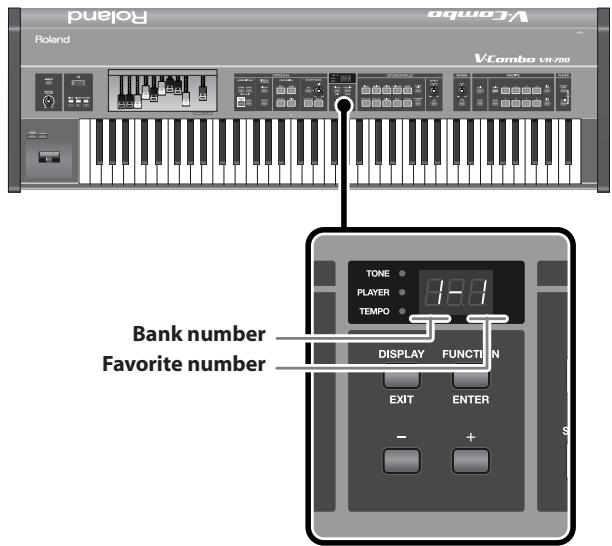
When you switch on the VR-700's power, the current favorite number is shown in the display.
Pressing the [DISPLAY/EXIT] button cycles you through the following choices for what is displayed.
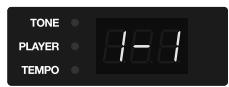
Normal state
(indicates the favorite number)
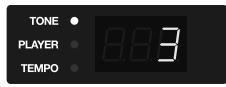
Tone number of the ensemble sound
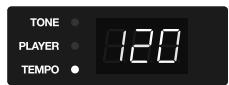
Tempo of the internal rhythm or song (p. 50)
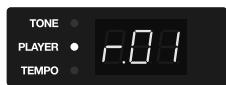
Player function's rhythm and song selection (p.49)
Indications when editing settings
When you're changing the reverb or chorus type, the display will indicate the respective type.
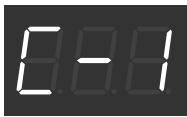
From this state, you can press the [DISPLAY/EXIT] button to return to the previous display.
Indications in Function mode
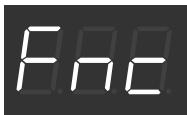
When you press the [FUNCTION/ENTER] button, the VR-700 will enter Function mode. In Function mode you can specify Favorites and make detailed settings for the VR-700 (p. 51).
Disabling Panel Operations (Lock Function)
Lock function is a function that disables operation of the panel's buttons, and knobs. By locking the panel, you can prevent settings from being inadvertently changed while you're on stage.
Controls That can be Operated Even While Locked
The following top panel controls can be operated even if the Lock function is turned on. This allows you to control the sound of the organ in real time even when the Lock function is on.
Harmonic bars (see illustration)
- Some buttons and knobs of the organ section (see illustration)
D Beam controller
Organ control/Bender lever
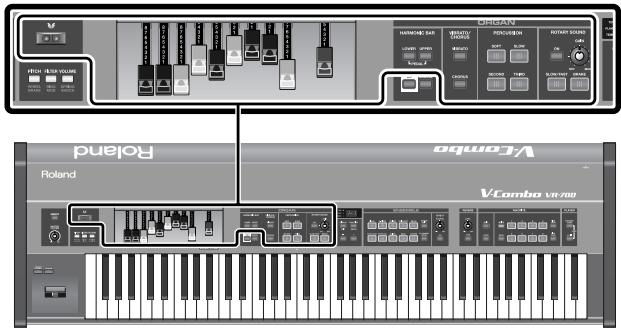
Turning the Lock Function On/Off
1. Hold down the HARMONIC BAR [LOWER] button and press the PLAYER [RHYTHM/SONG] button.
When the panel has been locked, the VR-700 will be in the following state.
- Song playback will stop.
- The following will be shown in the display.
![ROLAND VR-700 - Hold down the HARMONIC BAR [LOWER] button and press the PLAYER [RHYTHM/SONG] button. - 1](/content/2025/01/130976/images/bedc40b6718c6ccffc87046e4d03fe8b4c2e9fb1db52fc453f348072da3441f9.jpg)
2. To turn off the Lock function, press the [DISPLAY/EXIT] button.
Alternatively, you can turn off the Lock function by repeating the action of step 1.
Restoring the Factory Settings (Factory Reset)
When you execute the Factory Reset operation, all Favorite settings in the VR-700 and the values of the system parameters that can be edited in Function mode will all be returned to their factory-set condition.
NOTE
If you want to keep the Favorite settings that are stored in the VR-700 and the values of the system parameters, back them up to USB memory as described in "Backing up Favorites to USB Memory" (p. 48).
- Press the [FUNCTION/ENTER] button.
The VR-700 will enter Function mode, and the display will indicate F_ . - Use the [-] button or [+] button to make the display indicate L L .
- Press the [STRINGS] button.
The display will indicate F E .
- Press the [FUNCTION/ENTER] button.
The display will indicate _
- To execute the Factory Reset, press the [FUNCTION/ENTER] button.
The display will indicate - - - while the Factory Reset is being executed.
NOTE
Never turn off the VR-700's power while the Factory Reset is being executed.
-
If you decide not to execute the Factory Reset, press the [DISPLAY/EXIT] button.
-
When the Factory Reset is completed, the display will indicate E D .
Turn the VR-700's power off, then on again.
About the VR-700's Parts
The VR-700 has three parts: Upper part, Lower part, and Pedal part. You can play a different sound in each of the three parts.
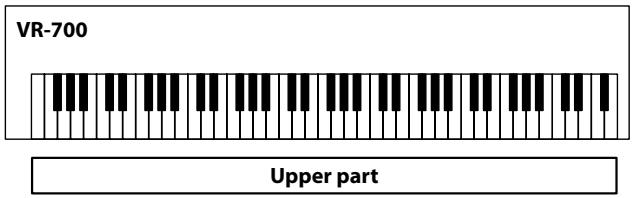
Upper Part
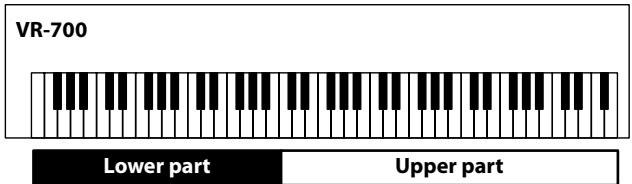
When the Split function (p. 34) is off, the Upper part will sound when you play the keyboard.
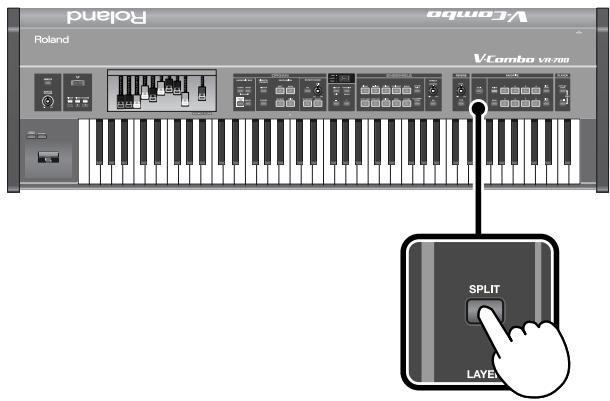
Lower Part
If you turn on the Split function, the higher range of the keyboard will play the upper part and the lower range will play the lower part.
MEMO
For more about the Split function, refer to "Playing the Sounds of Two Parts on the Keyboard (Split)" (p. 34).
When using an external MIDI keyboard
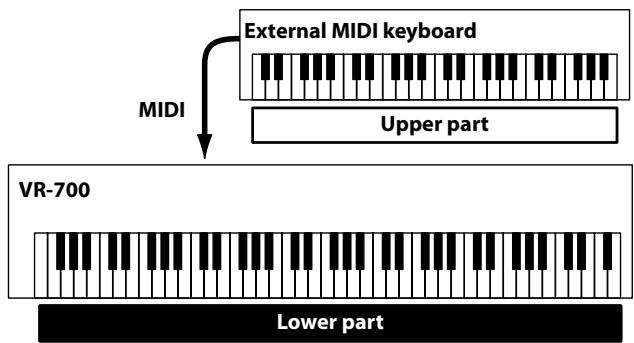
If you connect an external MIDI keyboard to the MIDI IN connector on the rear panel, you can use your external MIDI keyboard to play the upper part while using the VR-700's keyboard to play the lower part (or vice versa).
MEMO
- If you're using an external MIDI keyboard, change the Function mode setting Sub Keyboard Function to upper (or lower). For more about the Sub Keyboard Function setting, refer to "Various Settings (Function mode)" (p. 51) and "Sub Keyboard Function" (p. 57).
- For details on connecting your external MIDI keyboard, refer to "Connecting an External MIDI Keyboard" (p. 66).
Pedal Part
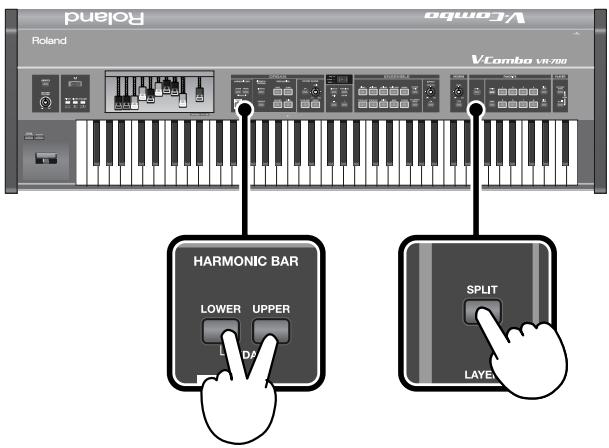
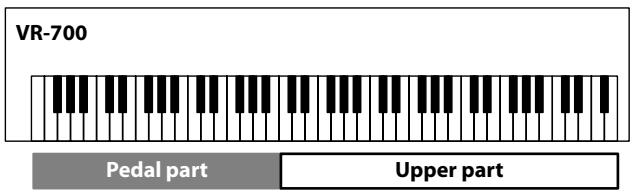
To turn on the Split function, hold down the [LOWER] and [UPPER] buttons, and press the [SPLIT] button; the higher range of the keyboard will play the upper part, and the lower range of the keyboard will play the pedal part.
MEMO
If you hold down the [LOWER] button and press the [SPLIT] button, the higher range of the keyboard will play the upper part, and the lower range of the keyboard will play the lower part.
When using a pedal keyboard
If you connect a pedal keyboard to the rear panel MIDI PEDAL IN connector, you can use your pedal keyboard to play the pedal part.
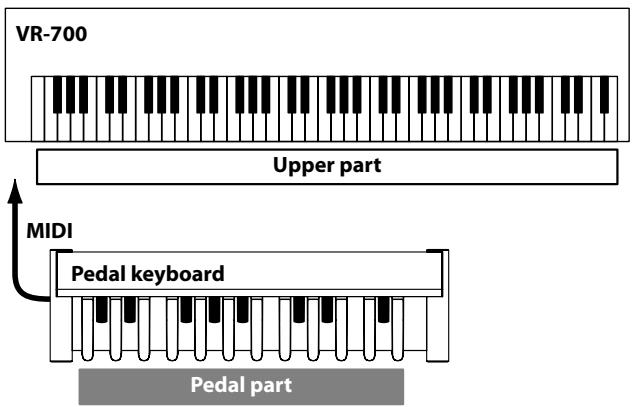
MEMO
For details on connecting your pedal keyboard, refer to "Connecting a Pedal Keyboard" (p. 20).
Organ Sounds and Ensemble Sounds
Organ sounds
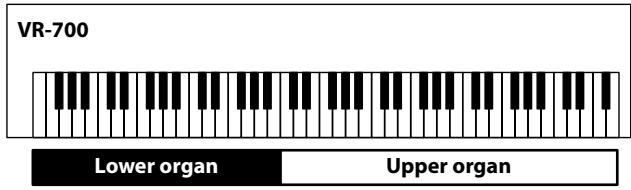
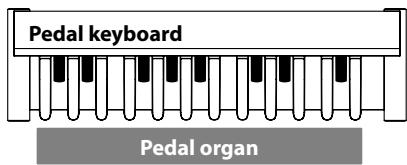
You can play different organ sounds from each of the VR-700's three parts.
The upper, lower, and pedal parts correspond to the upper organ, lower organ, and pedal organ sounds, respectively.
Ensemble sounds
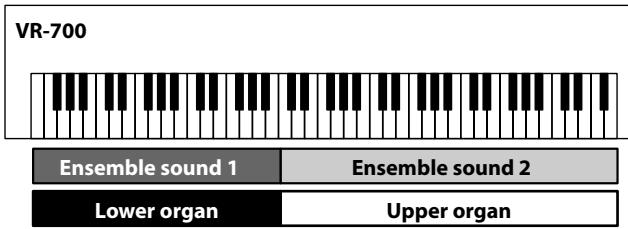
In addition to organ sounds, you can also play ensemble sounds (p. 46). The VR-700 contains various ensemble sounds. You can play two ensemble sounds simultaneously.
The two ensemble sounds can be assigned to any desired parts.
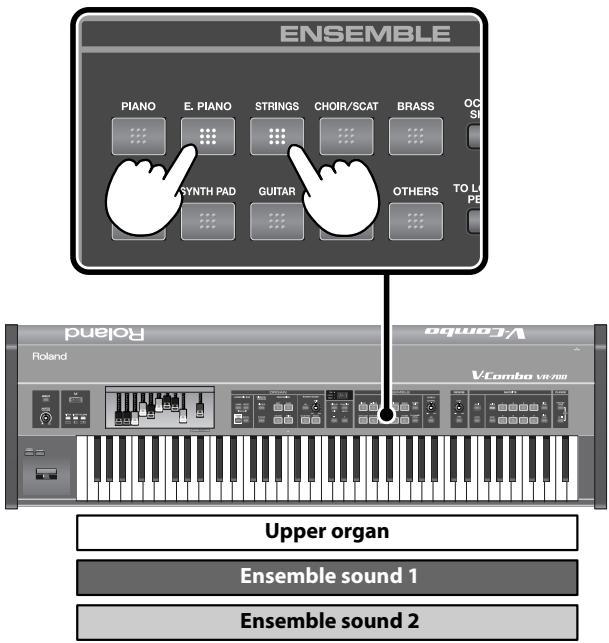
The illustration below is a conceptual diagram of sounds assigned to the upper part and lower part.
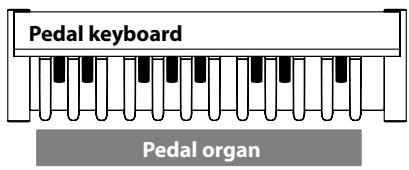
Playing Organ Sounds and Ensemble Sounds Together (Layer)
Layering Ensemble Sounds
You can assign an ensemble sound to a desired part, and play it together with an organ sound.
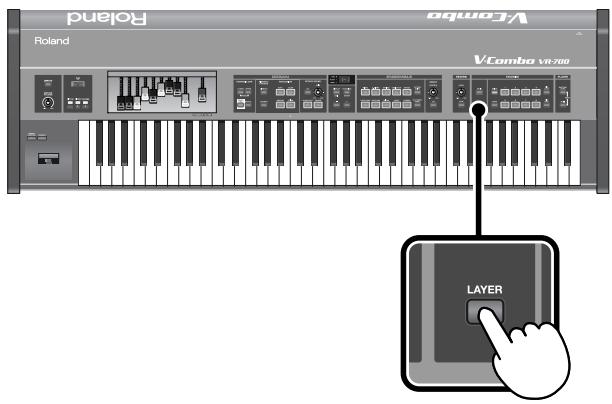
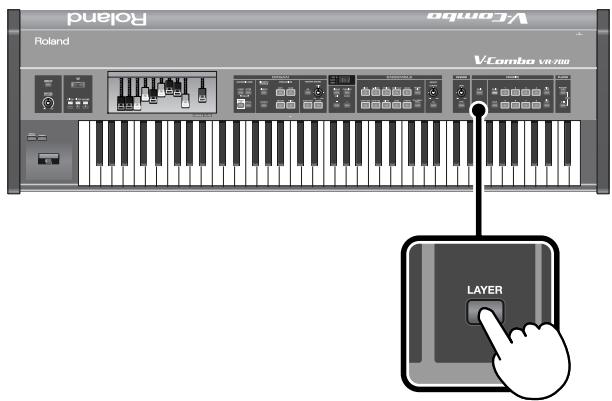
- Press the [LAYER] button to turn it on; layering is now enabled.
- Press one of the ensemble sound buttons.
The ensemble sound will be assigned to the upper part; when you play the keyboard, you'll hear the upper organ and the ensemble sound together.
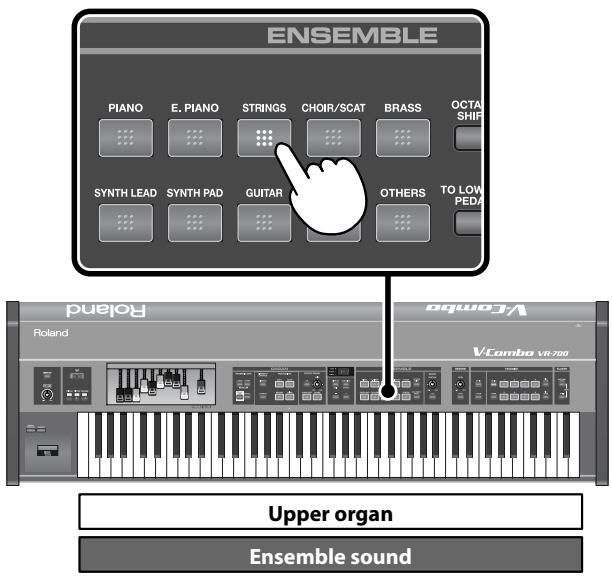
MEMO
- The display will indicate the ensemble sound's tone number (p. 24).
- If you press an ensemble sound button without pressing the [LAYER] button, only the ensemble sound will be heard (p. 33).
1. Changing the ensemble sound's variation
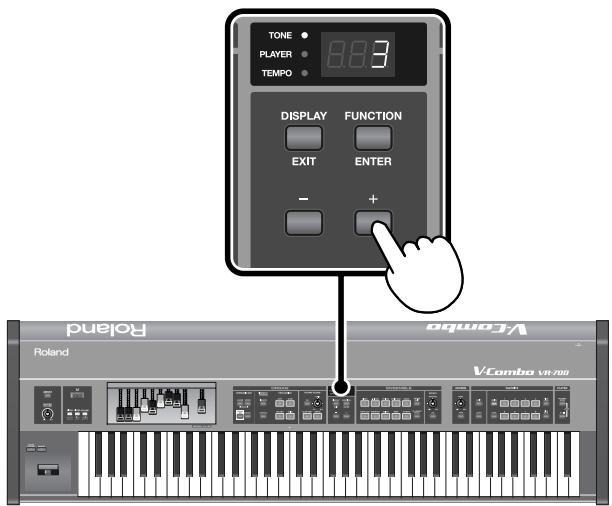
When the TONE indicator is lit, you can use the [+] button or [-] button to select variations of the ensemble sound.
2. Adjusting the ensemble sound's volume
Use the [ENSEMBLE VOLUME] bar to adjust the volume of the ensemble sound.
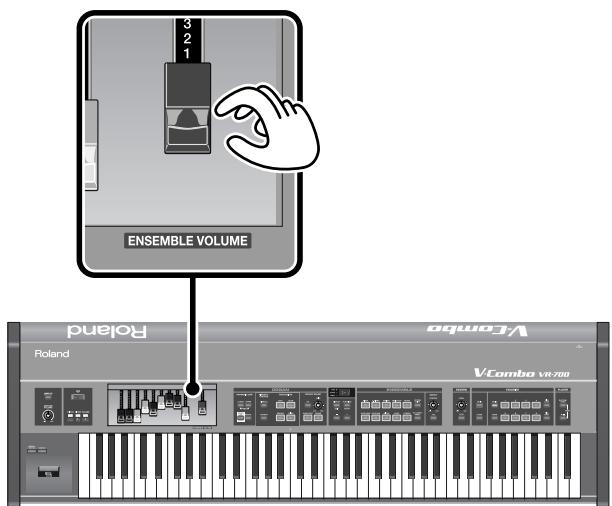
3. Assigning an ensemble sound to the lower part
To assign the ensemble sound to the Lower part, press the [TOLower/PEDAL] button.
The [TO LOWER/PEDAL] button will light and "Lo" will be shown in the display.
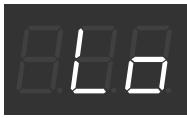
At the same time, Split (p. 34) will turn on, allowing you to play the upper organ sound in the upper part.
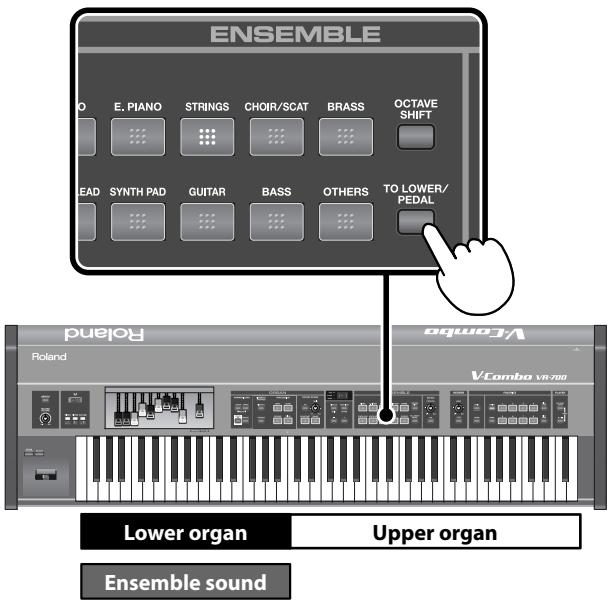
4. Assigning an ensemble sound to the pedal part
To assign the ensemble sound to the Pedal part, hold down the [TO LOWER/PEDAL] button while you press the [-] button.
The [TO LOWER/PEDAL] button will light and "Pd" will be shown in the display.
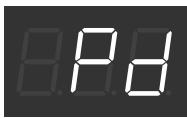
MEMO
When you press the [SPLIT], [LOWER], and [UPPER] buttons simultaneously, the Split function will turn on; the higher range of the keyboard will play the upper part, and the lower range of the keyboard will play the pedal part (p. 28).
Layering Two Ensemble Sounds
- Press the [LAYER] button to turn it on; layering is now enabled.
-
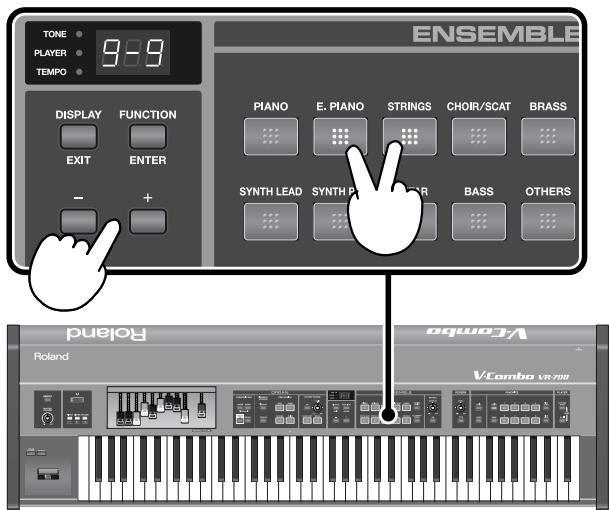
While holding down an ensemble sound button, press the button of another ensemble sound.
-
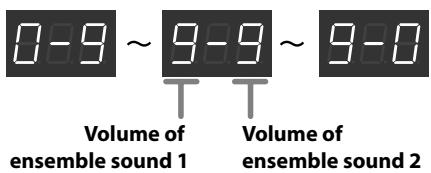
While you hold down the two sound buttons, the display will indicate the volume balance between the two ensemble sounds (p. 31).
- When you play the upper part, you'll hear the upper organ and the two ensemble sounds together.
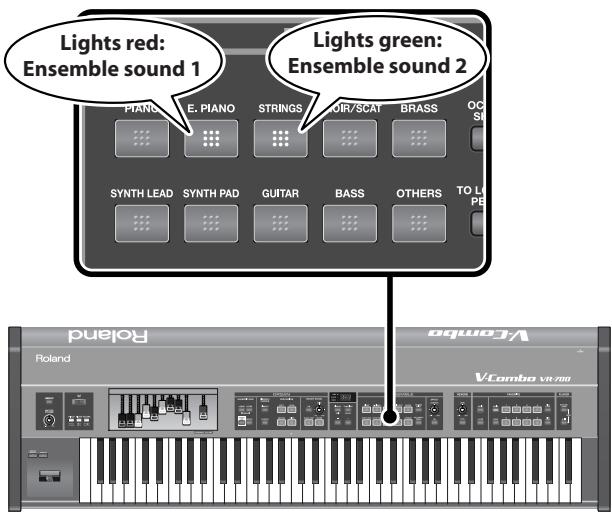
The ensemble sound button you pressed first will light red, and the ensemble sound button you pressed second will light green.
The ensemble sound whose button is lit red is called "ensemble sound 1," and the ensemble sound whose button is lit green is called "ensemble sound 2."
1. Changing the ensemble sound's variation
For ensemble sound 1
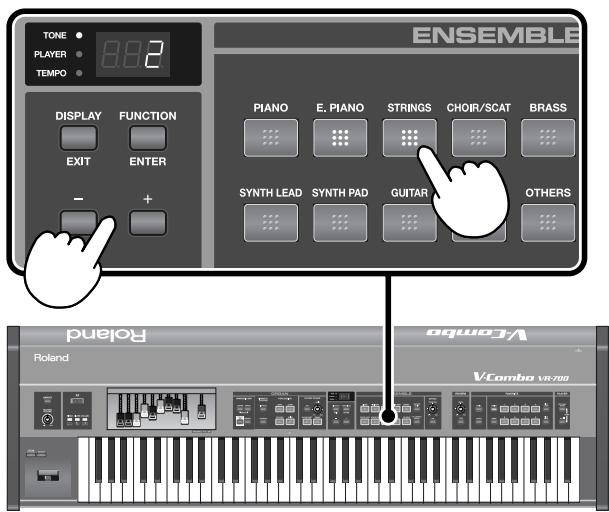
In the same way as when using only one ensemble sound (p. 46), the variation of ensemble sound 1 can be changed by using the ([+] button or ([-]) button when the TONE indicator is lit.
For ensemble sound 2
To change the variation of ensemble sound 2, hold down the button of ensemble sound 2, and use the [+] button or [-] button.
2. Adjusting the volume balance of the ensemble sounds
While holding down the buttons of ensemble sound 1 and ensemble sound 2, press the [+] button or [-] button to change the volume balance of the ensemble sounds.
3. Assigning an ensemble sound to the lower part
For ensemble sound 1
In the same way as when using just one ensemble sound (p. 30), press the [TO LOWER/PEDAL] button; the lower part will switch to ensemble sound 1, and the [TO LOWER/PEDAL] button will light.
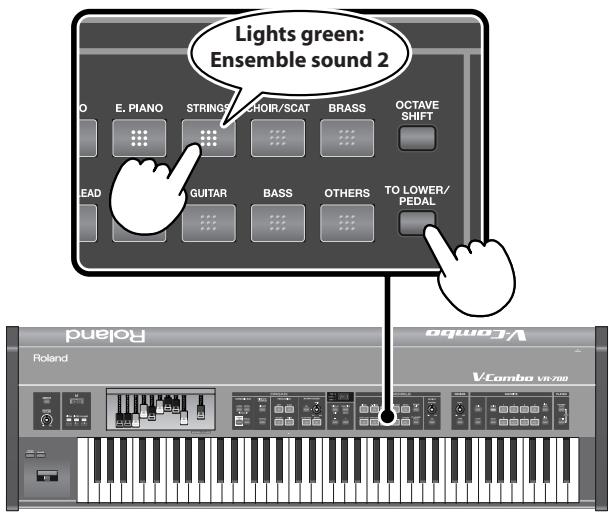
For ensemble sound 2
Hold down the button of ensemble sound 2 and press the [TO LOWER/PEDAL] button; the lower part will switch to ensemble sound 2.
MEMO
The [TO LOWER/PEDAL] button indicates the status of ensemble sound 1. If you hold down the button of ensemble sound 2, the [TO LOWER/PEDAL] button will instead indicate the status of ensemble sound 2.
4. Assigning an ensemble sound to the pedal part
For ensemble sound 1
In the same way as when using just one ensemble sound (p. 30), the ensemble sound is assigned to the Pedal part by holding down the [TO LOWER/PEDAL] button and pressing the [-] button.
The [TO LOWER/PEDAL] button will light and "Pd" will be shown in the display.
For ensemble sound 2
To assign the Ensemble 2 sound to the Pedal part, hold down both the Ensemble 2 button and the [TO LOWER/PEDAL] button while you press the [-] button.
MEMO
If you hold down the [LOWER] and [UPPER] buttons and press the [SPLIT] button, the Split function will turn on, allowing you to play the upper part in the higher range of the keyboard and the pedal part in the lower range of the keyboard (p. 28).
Playing Organ Sounds or Ensemble Sounds Individually
Playing Only an Ensemble Sound
1. Turn off the Split function.
If the Split function is on, press the [SPLIT] button so it's turned off.
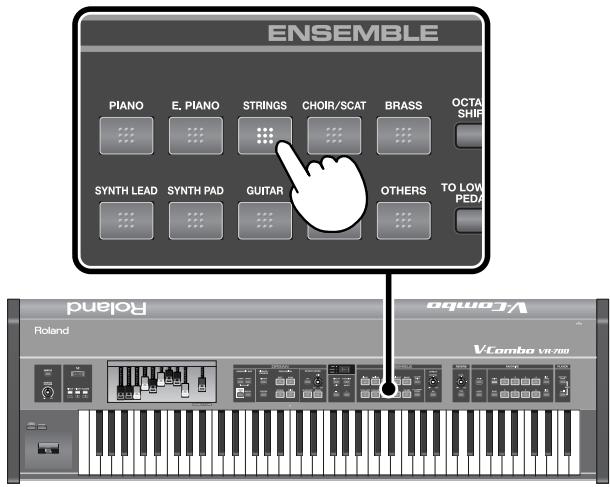
2. Press the ensemble sound button.
The ensemble sound will be assigned to the upper part.
The organ sound will be muted.
MEMO
- You can switch variations of the ensemble sound, adjust its volume, and assign it to the lower part or pedal part in the same way as when Layer is turned on. For details, refer to "Playing Organ Sounds and Ensemble Sounds Together (Layer)" (p. 29).
- Operation when playing two ensemble sounds is the same as when Layer is on. For details, refer to "Layering Two Ensemble Sounds" (p. 30).
Switching a layered part to only the ensemble sound
1. Press the [LAYER] button to turn it off.
The [ORGAN ON] button will go out, and the organ sound will be muted.
MEMO
If you've layered the organ sound and ensemble sound for more than one part, the organ sound will be muted for both parts. It's not possible to mute the organ sound for just one of the parts.
Playing Only the Organ Sound
1. Press the [ORGAN ON] button.
The [ORGAN ON] button will light, and all parts will play the organ sound.
NOTE
The ensemble sound selection will be cleared. If you want to play ensemble sounds again, you'll need to re-select the ensemble sound.
Changing a layered part to play only the organ sound
1. Press the [LAYER] button to turn it off
2. Press the [ORGAN ON] button.
The [ORGAN ON] button will light, and all parts will play the organ sound.
NOTE
The ensemble sound selection will be cleared. If you want to layer ensemble sounds again, enable layering as described in "Playing Organ Sounds and Ensemble Sounds Together (Layer)" (p. 29).
Playing the Sounds of Two Parts on the Keyboard (Split)
Playing the upper part and lower part
Press the [SPLIT] button; the upper part will be assigned to the upper zone of the keyboard, and the lower part to the lower zone of the keyboard.
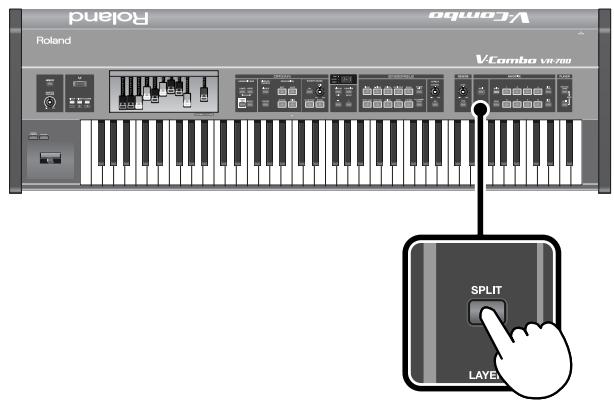
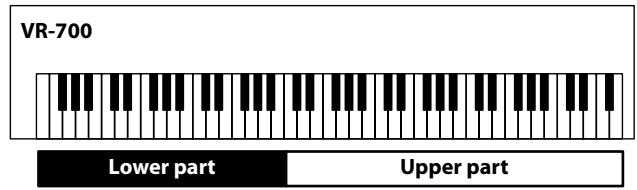

Split will automatically be turned on when you assign an ensemble sound to the lower part (p. 30).
Playing the upper part and pedal part
To turn on the Split function, hold down the [LOWER] and [UPPER] buttons, and press the [SPLIT] button; the higher range of the keyboard will play the upper part, and the lower range of the keyboard will play the pedal part.
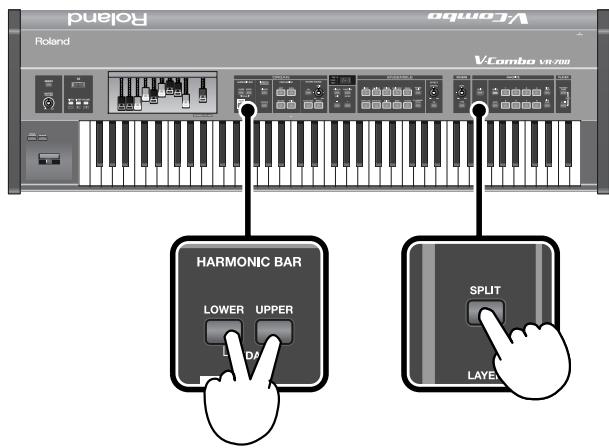
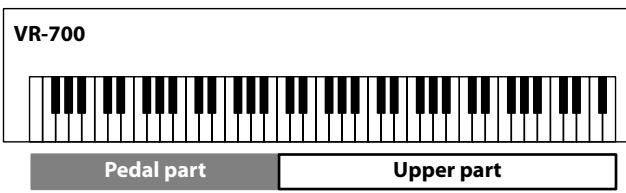
MEMO
If you hold down the [LOWER] button and press the [SPLIT] button, the higher range of the keyboard will play the upper part, and the lower range of the keyboard will play the lower part.
Boundary Between Upper and Lower Parts (Split Point)
The VR-700 has a printed symbol to indicate the boundary (the split point) between the upper part and lower part.
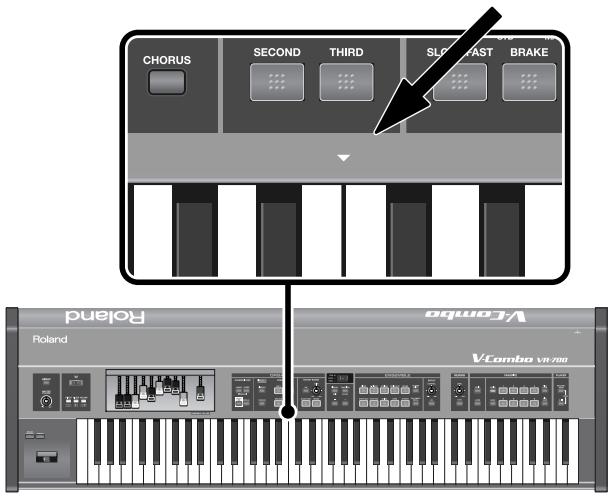
When you press the [SPLIT] button to turn Split on, the display will indicate the split point.
MEMO
The split point is indicated as the highest key of the lower part (or the pedal part.)
Changing the split point
You can use either of the following two ways to change the split point.
- Hold down the [SPLIT] button and press the key of the desired split point.
- Hold down the [SPLIT] button and use the [+] button or [-] button to specify the desired split point.
How the Split Point Is Shown
When indicating the key that is the Split Point, the display shows the note name followed by a number that signifies the octave.
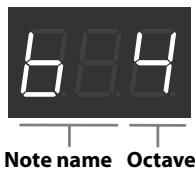
| Display | Note name | Display | Note name |
| C | F# | ||
| C# | G | ||
| D | A, | ||
| E, | A | ||
| E | B, | ||
| F | B |
Using the D Beam Controller to Modify the Sound
By moving your hand above the D Beam controller you can apply a variety of effects to the VR-700's sound.
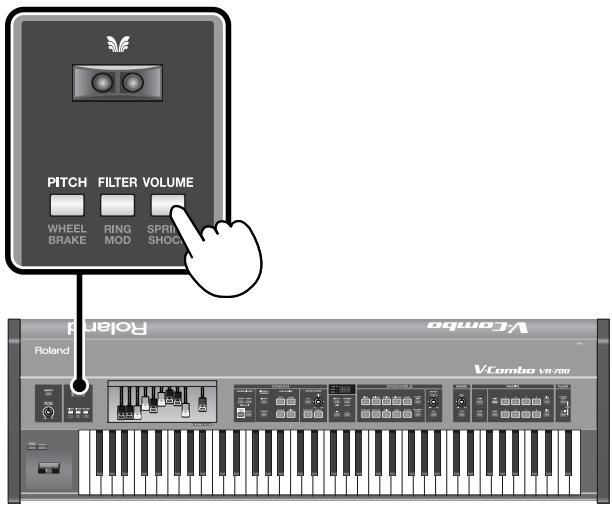
1. Press a button to select the D Beam effect.
The button will light, and the D Beam effect will be selected.
Press the lit button a number of times until its light goes out; the D beam will be turned off.
2. While you play, place your hand above the D Beam controller and slowly move it up and down.
The effect will be applied when you move your hand near the D Beam controller, and will return to its original state when you move your hand away. The button will blink when the D Beam controller is responding.
The usable range of the D Beam controller
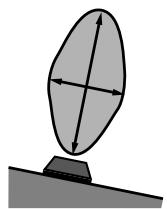
The diagram shows the usable range of the D Beam controller. Moving your hand outside this range will produce no effect.
- The sensitivity of the D Beam controller will change depending on the amount of light in the vicinity of the unit. If it does not function as you expect, adjust the sensitivity as appropriate for the brightness of your location (p. 54).
D Beam Effects
Effects applied to ensemble sounds
When you press a button, it will light red, and the D Beam effect will be applied to ensemble sounds.
- For details on how to assign an ensemble sound, refer to "Playing Organ Sounds and Ensemble Sounds Together (Layer)" (p. 29).
| Button (lights red) | Effect |
| [PITCH] button | The pitch will fall as you move your hand closer to the D Beam controller. The maximum amount of pitch change depends on the Function mode “Bend Range” setting (p. 54). |
| [FILTER] button | The high-frequency range will be diminished as you move your hand closer to the D Beam controller, producing a more muffled sound. |
| [VOLUME] button | The volume will decrease as you move your hand closer to the D Beam controller. |
- The D Beam effect will apply to all ensemble sounds.
Effects applied to organ sounds
When you press a button twice, it will light green, and the D Beam effect will be applied to organ sounds.
| Button (lights green) | Effect |
| [WHEEL BRAKE] button | The Wheel Brake (p. 37) will be applied as you move your hand closer to the D Beam controller. The Wheel Brake will turn off when you move your hand away from the D Beam controller. |
| [RING MOD] button | The Ring Modulator (p. 37) will be applied when you move your hand close to the D Beam controller. The closer your hand is to the D Beam controller, the stronger the Ring Modulator will be. |
| [SPRING SHOCK] button | A spring reverb shock sound (p. 37) will be heard when you move your hand close to the D Beam controller. |
- The volume of the spring reverb shock sound can be adjusted by the REVERB [LEVEL] knob. The spring shock will be more effective if you choose "SPRING" as the reverb type (p. 44).
MEMO
What is the Wheel Brake?
This simulates the way in which the tonewheels stop rotating when you switch off the power on a tonewheel organ. Since the amplifier of a tonewheel organ consisted of analog circuits using vacuum tubes, it would continue to produce sound for a short time even after the power was turned off. However, since the organ's tonewheels would start slowing down as soon as the power was turned off, this would make the pitch drop. The technique of stopping the tonewheels was sometimes used on tonewheel organs. A skilled performer could use this effect within their music.
MEMO
What is a Ring Modulator?
This simulates a circuit that produces an unpitched metallic sound by varying the frequency of the ring modulator's internal oscillator. In hard rock of the past, some organ players applied aggressive effects such as a ring modulator to their organ in order to compete with the aggressive playing of the electric guitarist. A ring modulator is an effect that generates complex overtones that are not found in the original sound. These complex overtones create a metallic-sounding resonance. The word "ring" comes from the ring-shaped circuit that is formed when a ring modulator is constructed using analog components.
MEMO
What is a Spring Reverb?
In the days when analog circuits were used, some reverb units produced their reverb effects by using a spring. This was the Spring Reverb. When physical impact is applied to a spring reverb unit, the springs bounce against each other, producing a distinctive clashing sound. Some performers used this sound intentionally.
About Virtual Tonewheel Sound Generators
Tonewheel organs are a type of organ that produce their sound by means of toothed wheels called "tonewheels."
Tonewheel organs contain numerous tonewheels, with each wheel corresponding to a key. The tonewheels are rotated by a motor. When a key is pressed, a pickup detects the motion of that wheel's teeth as they rotate past a pickup, and converts this motion into sound. Because of this method of producing sound, tonewheel organs are able to produce sounds with a rapid (strong) attack, and came to be used in a wide range of musical styles.
The VR-700 contains a "virtual tonewheel sound generator," which uses digital technology to faithfully simulate the sound-generating methods of a tonewheel organ. In the same way as a traditional tonewheel organ, the VR-700 lets you use harmonic bars to create the basic sound of the organ.
It also uses digital technology to faithfully simulate various distinctive characteristics of the tonewheel organ, and allows you to freely vary these.
Ordinarily, the tone wheels revolve at a fixed speed. However, some performers have been known to use a technique whereby they raise the pitch by pushing the start switch while they're performing, which increases the speed of the tone wheels' revolution. You can re-create this effect by turning on the [ORGAN CONTROL] button, then pushing the bend lever away from yourself.
In addition, it digitally recreates the vibrato, chorus, and rotary speaker sounds that are indispensable to an organ sound, giving you a great deal of freedom to create the sound you want.
Varying the Sound in Real Time (Harmonic Bars)
The harmonic bars are controllers that create the basic framework of the organ sound. By sliding the nine bars in or out, you can vary the organ sound in real time.
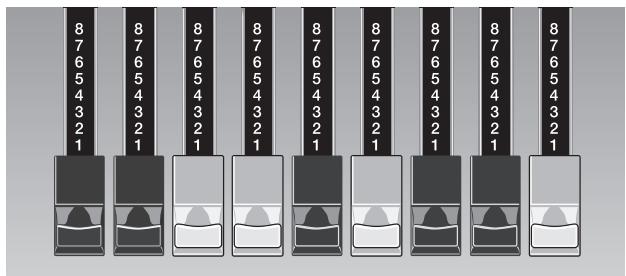
An overtone of a different pitch is assigned to each harmonic bar, and you can create the organ sound by combining these overtones. If you push a harmonic bar inward until none of the numerals printed on it are visible, the overtone corresponding to that harmonic bar will not be heard. If the harmonic bar is pulled outward all the way, its volume will be at the maximum.
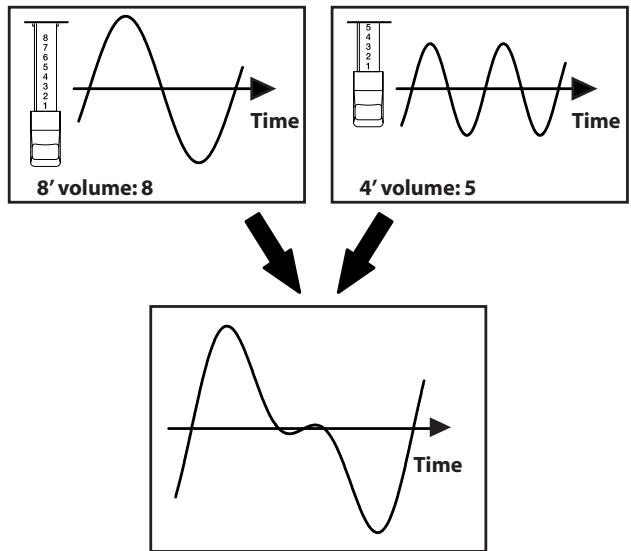
Using the Harmonic Bars to Create Sounds
- Press either the HARMONIC BAR [UPPER] button or the [LOWER] button to select the part whose sound you want to create.
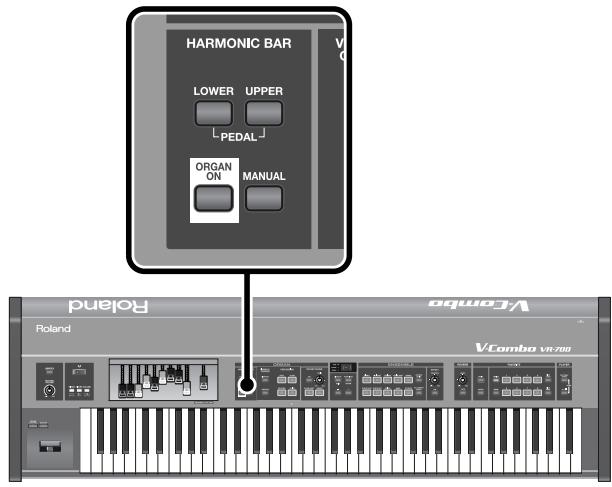
| Part | Operation |
| Upper part | Press the [Upper] button |
| Lower part | Press the [Lower] button |
| Pedal part | Press the [Upper] button and [Lower] button simultaneously |
cf.
"About the VR-700's Parts" (p. 27)
- Press the [MANUAL] button.
When you press the [MANUAL] button so it's lit, the organ sound will reflect the current settings of the harmonic bars.
- Move the harmonic bars to modify the sound.
MEMO
- The sound you create can be saved as a Favorite (p. 47).
- If percussion is turned on, the 1^ sound will not be heard (p. 41).
- For the Pedal part, only the 16^ and 8^ sounds will speak.
- To hear the sound of the lower part, turn Split on, and then use the left range of the keyboard to play the sound of the lower part (p. 34) or connect an external MIDI keyboard (p. 66). To hear the sound of the pedal part, turn Split on, and then use the left range of the keyboard to play the sound of the pedal part (p. 34) or connect an external pedal keyboard (p. 20).
Harmonic Bars and Overtones
The numbers (16', 5 - 1/3', etc.) printed on each harmonic bar are the "footage" (a number of feet). The footage plays an important role in determining the tonal character. 8' is the basic footage (pitch); you'll be creating the sound around this basic pitch.
If you play the middle 'C' note (C4), the harmonic bars will be sounding the following pitches.
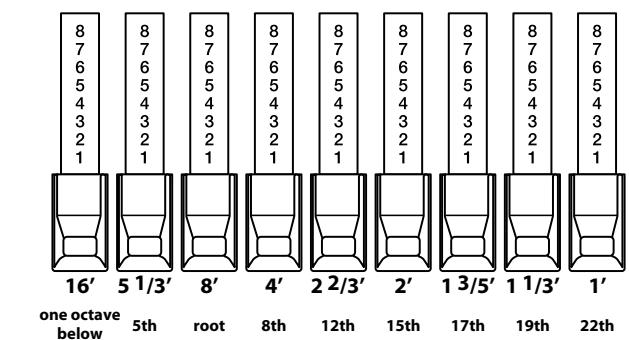
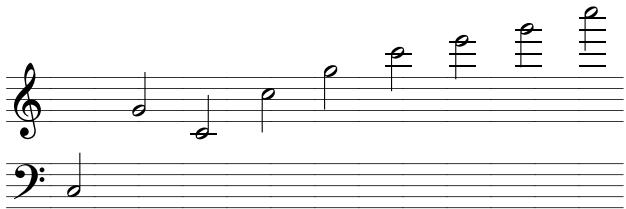
There are three colors of harmonic bars. Those that are in octave multiples of 8' are white, those that are not octave multiples are black, and the lower-pitched bars are brown.
What is footage?
This comes from the length of pipes in a pipe organ. On a pipe organ, the pipes that sound the fundamental pitch of each key are considered by convention to have a length of eight feet (8'). A pipe that is half this length will produce a pitch that is one octave higher, and a pipe that is double this length will produce a pitch that is one octave lower. Thus, the sixteen-foot (16') pipe is one octave lower, and the four-foot (4') pipe is one octave higher.
A tonewheel organ's overtone structure
In certain regions of a tonewheel organ's keyboard, the overtones will not correspond to the configuration of the harmonic bars. In order to prevent unpleasantly high or low pitches, the high footage is "folded back down" in one-octave units for the high range, while the low footage is "folded back up" in one-octave units for the low range. The VR-700 faithfully reproduces this characteristic of tonewheel organs.
How the harmonic bars are arranged
If you take a look at how the harmonic bars are arranged, you'll notice that the 5 - 1 / 3^ footage alone is not located in the order of its pitch. This is because the 5 - 1 / 3^ pitch is not a multiple of the 8^ pitch, but a multiple (the third harmonic) of the 16^ pitch. In general, sounds consisting only of overtones that are integer multiples will sound consonant, while sounds that contain non-integer multiples will sound muddy. Since the 5 - 1 / 3^ pitch is more easily understood as an overtone of a 16^ fundamental, the 5 - 1 / 3^ harmonic bar is placed beside the 16^ harmonic bar.
Using Percussion to add a Sense of Attack
Percussion adds a sharply decaying component to the beginning of the sound, giving the sound more crispness. When you play legato, percussion is added only to the first note you play. When you play staccato, percussion is added to each note.
- Percussion can be added only to the upper part's organ sound.
Percussion cannot be added to the lower part, the pedal part, or to ensemble sounds.
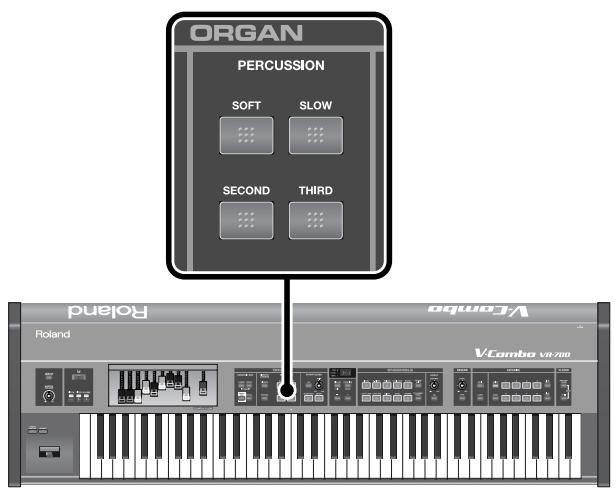
| Button | ON | OFF |
| [SOFT] button | The percussion sound will be decreased, and the harmonic bars will have their usual volume. Volume Percussion sound will decay Volume of the harmonic bar Time * The volume when percussion is softened can be adjusted by the Function mode setting “Percussion Soft Level” (p. 52). | The percussion sound will be at its normal volume, and the sound of the harmonic bars will be decreased. Volume Percussion Volume of the harmonic bars will decreases Time * The volume when percussion is normal can be adjusted by the Function mode setting “Percussion Normal Level” (p. 52). |
| [SLOW] button | The percussion sound will decay more slowly, producing a gentler attack. Volume Long decay time Percussion Volume of the harmonic bars Time * The percussion decay time can be adjusted by the Function mode setting “Percussion Slow Time” (p. 52). | The percussion sound will decay quickly, producing a sharper attack. Volume Short decay time Percussion Time * The percussion decay time can be adjusted by the Function mode setting “Percussion Fast Time” (p. 52). |
| [SECOND] button | Percussion of the same pitch as the 4' harmonic bar will be heard | Percussion will not sound. |
| [THIRD] button | Percussion of the same pitch as the 2-2/3' harmonic bar will be heard. | Percussion will not sound. |
MEMO
- If percussion is on, the 1^ harmonic bar will not sound.
- The [SECOND] button and [THIRD] button cannot be turned on simultaneously.
- If you turn the [SOFT] button off, the organ sound specified by the harmonic bars will decrease. This reproduces the characteristics of a tonewheel organ. The Function mode setting "Percussion H-Bar Level" lets you specify how much the organ volume will decrease when the [SOFT] button is turned off (p. 52).
About percussion on a tonewheel organ
The percussion sound on a tonewheel organ does not apply to all the keys you play. Percussion will apply only to those keys that are simultaneously pressed from a state of no keys being pressed.
If you play legato, percussion will apply only to the first note you play. If you play staccato, percussion will apply to every note. This is called the "single-trigger algorithm," and is an indispensable part of organ performance expression.
On a tonewheel organ, the percussion is created by analog circuitry. For this reason, the percussion circuit may not have enough time to recharge if there is only an extremely brief interval between the releasing of a key to the pressing of the next key, causing the percussion to sound at a lower volume.
The VR-700 reproduces this characteristic of the circuit's recharge time, and provides a Function mode setting "Percussion Recharge Time" that lets you adjust it (p. 52).
Adding Modulation to the Sound (Vibrato and Chorus)
By pressing the [VIBRATO] button or [CHORUS] button to turn it on, you can apply vibrato or chorus to the organ sound.
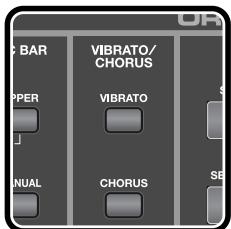
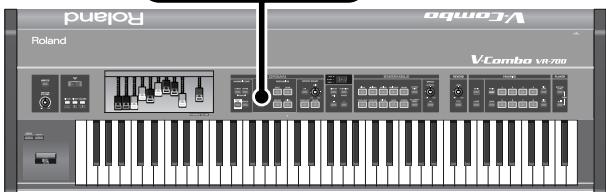
- You can't apply vibrato and chorus simultaneously. Nor can you apply vibrato or chorus with differing settings to the upper part, lower part, and pedal part.
- Vibrato and chorus will not apply to the percussion sound.
Turning on Vibrato or Chorus
1. Press the [VIBRATO] button or the [CHORUS] button.
The button you pressed will light, and the vibrato or chorus effect will be applied to the organ sound.
Changing the Vibrato or Chorus Type
The vibrato and chorus effects can each be switched between three types.
- You can't switch the vibrato or chorus type when vibrato or chorus is on.
1. Verify that vibrato or chorus is off, and press the [VIBRATO] button or [CHORUS] button.
The display will indicate the current vibrato type (V-1, V-2, V-3) or chorus type (C-1, C-2, C-3).
2. Use the [-] button or [+] button to change the vibrato or chorus type.
MEMO
The effect will intensify as the vibrato type (V-1, V-2, V-3) or chorus type (C-1, C-2, C-3) moves to a higher number.
Adding Rotary Speaker Modulation
You can add the modulating sound that is typical of an organ with a rotary speaker connected.
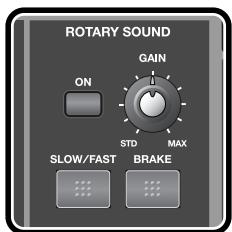
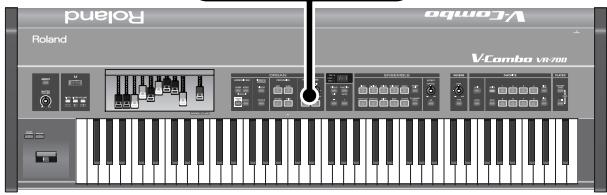
The most typical rotary speaker unit contained a high-frequency speaker (tweeter) and a low-frequency speaker (woofer), each of which rotated at a different speed. The VR-700 simulates the effect produced by a rotary speaker.
You can use the buttons in the rotary sound section to control the operation of the rotary speaker.
| Button | Description |
| [ON] button | Turns on the rotary speaker effect. |
| [SLOW/FAST] button | Switches the rotational speed of the rotary speaker. Press the [SLOW/FAST] button to toggle between FAST and SLOW. FAST is selected when the indicator is blinking rapidly, and SLOW is selected when the indicator is blinking slowly. |
| [BRAKE] button | When you turn this on (lit), the rotational speed of the speaker will slow down and eventually stop completely. * The function mode setting “Rotary Brake Position” lets you specify whether the speaker will come to rest at a random angle or at the same angle each time when the rotation is stopped completely (p. 52). |
MEMO
You can also use the bender lever (p. 14) or foot pedal to control the operation of the [SLOW/FAST] button and [BRAKE] button (p. 55).
Detailed settings for the rotary speaker
In Function mode you can make detailed settings for the rotary speaker (p. 53).
Speaker volume
You can specify the volumes of the tweeter and the woofer.
Volume of the tweeter: Rotary Tweeter Level
Volume of the woofer: Rotary Woofer Level
Rotational speed switching time
You can specify whether the rotational speed will change slowly or quickly.
The higher the value, the faster the change.
Changing from SLOW to FAST
- Woofer: Rotary Woofer Rise Time
- Tweeter: Rotary Tweeter Rise Time
Changing from FAST to SLOW
- Woofer: Rotary Woofer Rise Time
- Tweeter: Rotary Tweeter Rise Time
Spread
You can specify the amount by which the sound will appear to be spread to left and right by the rotation of the speaker.
- Woofer: Rotary Woofer Spread
- Tweeter: Rotary Tweeter Spread
Rotational speed
You can specify the speeds of the SLOW and the FAST rotation.
SLOW rotational speed
- Woofer: Rotary Woofer Slow Speed
- Tweeter: Rotary Tweeter Slow Speed
FAST rotational speed
- Woofer: Rotary Woofer Fast Speed
- Tweeter: Rotary Tweeter Fast Speed
Distance between speaker and microphone
The distance between the speaker and the microphone will affect the depth of the modulation.
Rotary Mic Distance
Inconsistency of the speaker's rotation
Depending on the condition of the rotary speaker, the speaker's rotation might not be perfectly consistent, and this can create distinctive sounds.
- Rotary Speed Randomize
Making the Sound Distort
1. Turn the Rotary Sound section's [GAIN] knob toward the right.
Turning the knob toward the right will raise the gain, adding distortion to the sound.
About the amp types
The VR-700 also faithfully simulates the amp that is combined with the rotary speaker. The VR-700 simulates five different amp types, allowing you to produce various kinds of distortion.
You can change the amp type by editing the Function mode setting "Amp Type" (p. 52).
From a jazzy sound to a heavily overdriven sound suitable for rock, you can change the amp type to enjoy sounds suitable for a variety of musical styles.
About the Active Amp Enhancer
Emphasizes the peculiarities of a particular amp's distortion. When turned on, the sound is modified in a way that makes the lower range thicker while producing characteristic distortion in the middle to upper ranges; this modification takes into account the settings for the amp type and the current statuses of the expression pedal and harmonic bars.
Turning the [GAIN] knob clockwise makes the effect stronger. Changes can be made by means of the Function mode's "Active Amp Enhancer" (p. 52).
Adding Reverberation (Reverb)
The reverb effect adds reverberation to the sound.
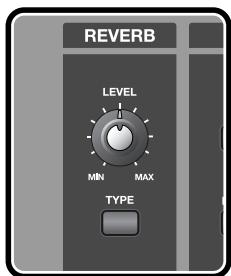
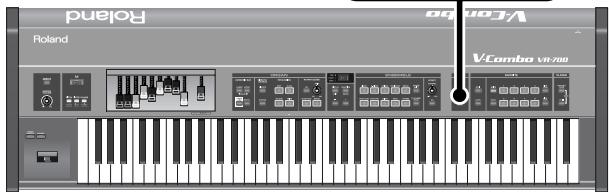
1. Turn the REVERB [LEVEL] knob to adjust the reverb depth.
Turning the knob toward the right will increase the reverb. If you turn the knob all the way to the left, there will be no reverb.
MEMO
Reverberation will be applied both to the organ sound and the ensemble sounds. You can adjust the reverb balance between the organ sounds and ensemble sounds. For details, refer to Function mode "Reverb Send Level" (p. 52, p. 53).
Changing the Reverb Type
By changing the reverb type you can experience the sensation of performing in a variety of locations.
1. Press the REVERB [TYPE] button.
The reverb type will change each time you press the [REVERB] button, and the display will indicate the reverb type.
| Display | Reverb type | Character |
| Room | The reverberation of a room | |
| Hall | The reverberation of a large hall | |
| Cathedral | The reverberation of a cathedral | |
| Spring reverb | The reverberation of a spring reverb unit |
2. Use the [-] button or [+] button to change the reverb type.
Using a Pedal to Adjust the Volume
If you connect an expression pedal, you'll be able to use the pedal to adjust the volume of the organ sound and ensemble sound.
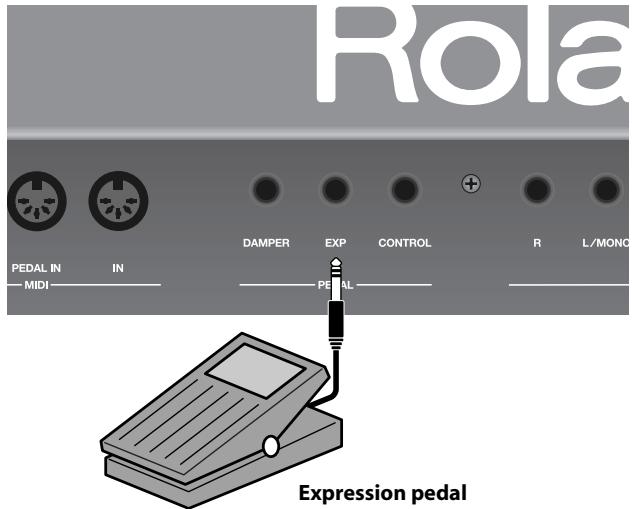
Stepping on the pedal will increase the volume, while releasing the pedal will decrease the volume.
- The organ volume will not reach 0 even if you completely release expression pedal.
MEMO
For details on connecting an expression pedal, refer to "Connecting an Expression Pedal and Damper Pedal" (p. 20).
Other settings for the organ sound
In Function mode you can make additional detailed settings for the tonewheel organ.
Type of tonewheel
Due to the manufacturing precision of the tonewheels and the performance of the analog circuitry, the sounds produced by the tonewheels will not be perfect sine waves. This contributes to the distinctive character of a tonewheel organ. The VR-700 can simulate the sounds of four different types of tonewheels.
The tonewheel type can be changed by the Function mode setting "Wheel Type" (p. 52).
Leakage noise
On a tonewheel organ, a small amount of the signal from tonewheels unrelated to the keys you pressed will leak into the sound of the keys you pressed. This "leakage noise" is considered a drawback of tonewheel organs, but some people feel it to be an important distinctive element of these organ sounds.
You can adjust the level of the leakage noise by using the Function mode setting "Leakage Level" (p. 52).
Key click
This is the click noise heard when you press or release a key. On the earliest traditional tonewheel organs, a "click" noise occurred when you pressed or released a key. This was initially considered a problem, but blues and rock performers began to take advantage of it in their performances, and it is now considered a distinctive aspect of some jazz sounds.
The noise that is heard when you press or release a key can be adjusted in Function mode (p. 52).
Volume of noise when you press a key:
Key On Click Level
Volume of noise when you release a key:
Key OFF Click Level
The VR-700 provides ensemble sounds such as piano and strings.
You can play two ensemble sounds simultaneously, and assign them to the desired parts (p. 28). You can also play ensemble sounds layered with organ sounds (p. 29).
By combining these sounds with the organ you can make your performances even more expressive.
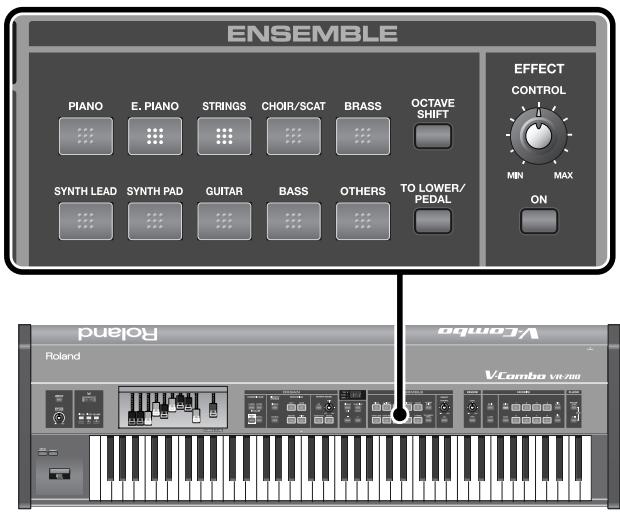
Selecting an Ensemble Sound
cf.
"Ensemble Sound List" (p. 68)
- Press an ensemble sound button; the upper part will switch to that ensemble sound.
The display will indicate the tone number of that category of sound. - Use the [+] button or [-] button to select variations of that category of sound.
Octave Shift
You can shift the pitch of the ensemble sound in steps of an octave.
-
Hold down the [OCTAVE SHIFT] button and use the [+] button or [-] button.
-
You can shift the pitch in a range from -2 octaves to +2 octaves.
Effects for the Ensemble Sound
An effect suitable for the character of each ensemble sound can be applied to the ensemble sound.
* The type of effect will differ depending on the category and variation of the ensemble sound. You can't change the type of effect.
Turning the effect on/off
- Press the EFFECT [ON] button.
The button will light, and the effect will turn on.
Changing the amount of effect
- Turn the EFFECT [CONTROL] knob.
Turning the knob toward the right will make the effect stronger.
The organ sound settings and ensemble sound settings for the three parts, along with the Layer and Split status, can be saved as a "favorite" in the VR-700's internal memory.
The VR-700's internal memory can store 64 favorites.
A set of these 64 favorites can also be backed up to USB memory (sold separately) connected to the USB MEMORY connector.
- Some parameters of Function mode are stored independently for each favorite. For details on the parameters stored for each favorite, refer to "Parameter List" (p. 52).
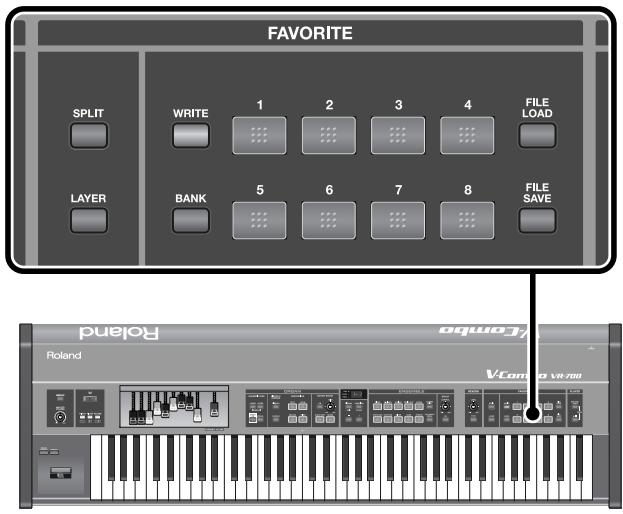
Selecting a Favorite
When the VR-700 is shipped from the factory, the 64 favorites contain various sounds and settings.
Try selecting the factory-set favorites, and listen to their sounds.
- Hold down the [BANK] button and press one of the [1]–[8] buttons to select a bank.
MEMO
While you hold down the [BANK] button, the button corresponding to the currently selected bank will light.
- Press one of the [1]–[8] buttons to select a favorite.
The selected button will light.
- Play the keyboard and try out the sound.
MEMO
If you're selecting a different favorite within the same bank, there's no need to re-specify the bank.
Saving the Current Settings as a Favorite
- While holding down the [WRITE] button and [BANK] button, press one of the FAVORITE [1]-[8] buttons to specify the save-destination bank.
The display will indicate the number of the bank you specified.
MEMO
You don't need to specify the bank over again if you intend to save the Favorite in the current bank.
- Hold down the [WRITE] button and press one of the FAVORITE [1]-[8] buttons to specify the save-destination favorite number.
The display will indicate the favorite number you specified, and the current settings will be saved as a favorite.
Initializing the Favorites
If you want to erase the 64 favorites stored in internal memory, returning them to their factory settings, execute the Factory Reset operation (p. 26).
Backing up Favorites to USB Memory
When you execute this operation, all favorites stored in the VR-700 and the values of system parameters that can be edited in Function mode will be backed up to USB memory.
- Connect your USB memory to the rear panel USB MEMORY connector (p. 22).
- Press the FAVORITE [FILE SAVE] button.
- Use the [+] button or [-] button to specify the backup number.
You can create up to 99 backups (numbered 01-99) on a single USB memory device.
- If you specify a number for which a backup already exists, the decimal point at the right edge of the display will light.
-
If USB memory is not correctly inserted, the display will indicate
-
When you've specified the backup number, press the [FUNCTION/ENTER] button.
Backup to USB memory will begin.
- If you decide not to execute the Backup operation, press the [DISPLAY/EXIT] button.
- If a backup already exists at the number you've specified, _ I will appear in the display. If you're sure that you don't mind overwriting the existing backup, press the [FUNCTION/ENTER] button.
If instead you want to select a different number, press the [DISPLAY/EXIT] button.
NOTE
Do not switch off the VR-700's power while the backup is being executed.
- When the backup is completed, the display will return to its previous state.
Restoring from USB Memory
When you execute this operation, the 64 favorites and the system parameters will be restored into the VR-700's memory from the USB backup.
You can choose whether to restore the 64 favorites and system parameters together, or to restore only the 64 favorites and leave the system parameters as they were.
NOTE
When you execute this operation to restore from USB memory, the 64 favorites currently in the VR-700's internal memory and its Function mode system parameters will be erased (overwritten by the restored data). This data cannot be recovered, so we recommend that you back it up before you proceed (p. 48).
- Connect your USB memory to the rear panel USB MEMORY connector (p. 22).
- Press the FAVORITE [FILE LOAD] button.
-
Use the [+] button or [-] button to select the desired backup number.
-
If USB memory is not correctly inserted, the display will indicate
-
If you want to restore both the favorites and the system parameters, press the [FUNCTION/ENTER] button. If you want to restore only the favorites, hold down the [BANK] button and press the [FUNCTION/ENTER] button.
- If you decide not to execute the Restore operation, press the [DISPLAY/EXIT] button.
NOTE
Do not switch off the VR-700's power while the restoration is being executed.
- When the restoration is completed, the display will return to its previous state.
The VR-700 contains 51 rhythm patterns.
It can also play back SMF music data or audio data stored on USB memory.
Playing Internal Rhythms
1. Press the PLAYER [RHYTHM/SONG] button.
![ROLAND VR-700 - Press the PLAYER [RHYTHM/SONG] button. - 1](/content/2025/01/130976/images/96971992040fcbb70c3b2e9b1ceb292c45c9be7263884499ab4b198c6393cb20.jpg)
The display will indicate
If the display does not indicate / , try pressing the [RHYTHM/SONG] button once again.
MEMO
Each time you press the [RHYTHM/SONG] button, you'll alternate between selecting internal rhythms and selecting songs from USB memory (p. 49).
2. Use the [+] button or [-] button to select the rhythm that you want to play.
cf.
"Internal Rhythm Pattern List" (p. 71)
3. Press the [▶/■] (Play/Stop) button; the rhythm will play.
4. To stop, press the [▶/■] (Play/Stop) button once again.
5. To stop rhythm playback and return to the previous display, press the [DISPLAY/EXIT] button.
- No data for the music that is played will be output from MIDI OUT and USB MIDI.
Button operations for the Player function
You can use the following buttons to perform operations such as Play and Stop for the internal rhythms, or for SMF music data or audio filea stored on USB memory.
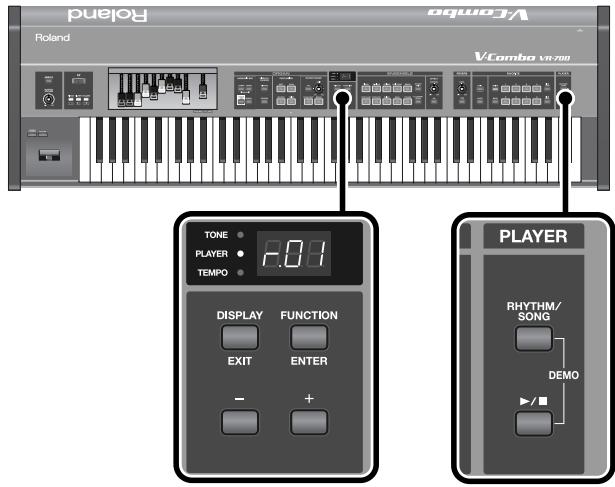
| Action | Operation |
| Play | Press the [▶/■] (Play/Stop) button |
| Stop | Press the [▶/■] (Play/Stop) button during playback |
| Return to the beginning of the song | Press the [−] button |
| Rewind | Hold down the [−] button for several seconds during playback |
| Fast-forward | Hold down the [+] button for several seconds during playback |
| Advance to the beginning of the next song | Press the [+] button |
Selecting the rhythm or song to play
Each time you press the PLAYER [RHYTHM/SONG] button, you'll switch between selecting internal rhythms or songs from USB memory.
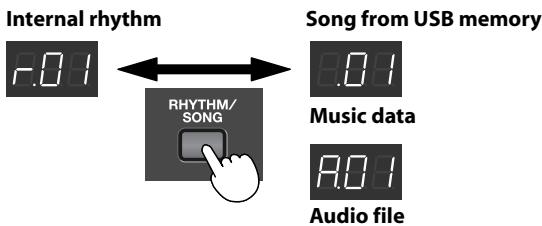
Playing Songs from USB Memory
- Press the PLAYER [RHYTHM/SONG] button a number of times to access the screen for selecting a song from USB memory (p. 49).
- Use the [+] button or [-] button to select the song number that you want to play.
- Press the [▶/■] (Play/Stop) button to play back the song.
- To stop, press the [▶/■] (Play/Stop) button once again.
- To end song playback and return to the previous screen, press the [DISPLAY/EXIT] button.
Changing the Tempo
Internal rhythm patterns or music data stored in USB memory can be played back at the desired tempo.
Audio data stored on USB memory can also be played back at a different speed without changing its pitch.
- Press the [DISPLAY/EXIT] button a number of times until the TEMPO indicator lights.
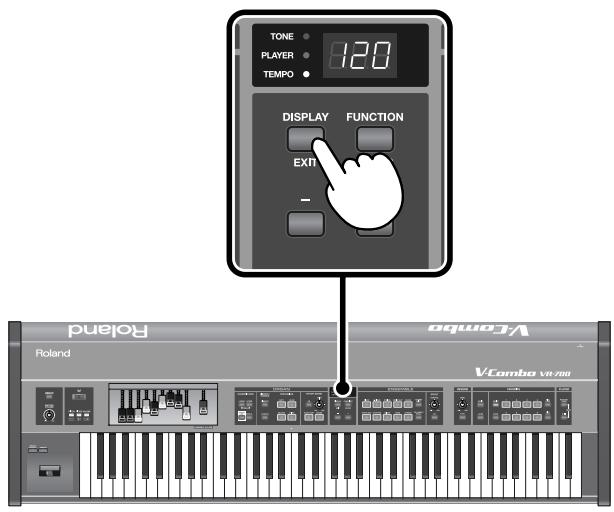
-
Use the [+] button or [-] button to change the tempo.
-
For rhythm patterns or for music data stored on USB memory, the tempo can be adjusted in a range of 10-500 (BPM).
- For audio data, the playback speed can be adjusted in a range of 75–125 (%) .
Songs inside a folder
Folders in USB memory are shown as follows in the display.

- Press the [▶/■] (Play/Stop) button to see the songs in the folder.
- To return to the next higher folder, press the ([+] button or ([-]) button until the screen shown in the illustration appears, and then press the [▶/■] (Play/Stop) button.

Caution when using USB memory
- If you're using new USB memory, you must first format it on the VR-700. For the procedure, refer to " Formatting USB Memory" (p. 62).
- USB memory that was formatted on a computer cannot be used by the VR-700. USB memory that you want to use with the VR-700 must be formatted by the VR-700.
- For details on the USB memory that can be used with the VR-700, refer to "Specifications" (p. 80). To purchase USB memory, contact the dealer where you purchased the VR-700.
- For details on the format of songs that can be played back by the VR-700, refer to "Specifications" (p. 80).
- On the VR-700, all songs are indicated by a number. Be aware that these will differ from the file names shown when the USB memory is connected to a computer.
- If a folder contains more than 100 songs, it may not be possible to select songs correctly. Take care that there are no more than 100 songs in a folder.
Operations in Function Mode
1. Press the [FUNCTION/ENTER] button.
The VR-700 will enter Function mode, and the display will indicate F_ C .
2. Use the [+] button or [-] button to select the group containing the parameter you want to edit.
The sound buttons will blink.
| Display | Group | Refer to... |
| BAC | Organ sound parameters | p. 52 |
| PAC | Percussion parameters | p. 52 |
| Rt | Rotary parameters | p. 53 |
| EAS | Ensemble sound parameters | p. 53 |
| EE | Equalizer settings | p. 54 |
| CEL | Pedal, bend lever, and foot controller settings | p. 54 |
| PLY | Player parameters | p. 56 |
| AID | MIDI input/output settings | p. 57 |
| SYS | System settings | p. 59 |
| LA | V-LINK settings | p. 60 |
| UCL | Deleting favorite sets, formatting USB memory, initializing the system | p. 60 |
3. After you've selected the group, press the sound button that corresponds to the parameter that you want to edit.
For the correspondence between parameters and sound buttons, refer to the pages listed above.
4. Use the [+] button or [-] button to edit the value of the parameter.
5. When you've finished editing, press the [DISPLAY/EXIT] button to return to the state of selecting a group.
6. Press the [DISPLAY/EXIT] button once again to exit Function mode.
Editing Parameter Values
You can edit the value of a parameter by using the [-] button or [+] button.
Depending on how you press these buttons, the value will change as follows.
| Operation | Change in value |
| Press the [+] button | Value increases |
| Press the [−] button | Value decreases |
| Hold down the [+] button | Value continues increasing |
| Hold down the [−] button | Value continues decreasing |
| Hold down the [+] button and press the [−] button | Value increases rapidly |
| Hold down the [−] button and press the [+] button | Value decreases rapidly |
| Press the [+] button and [−] button simultaneously | Value is reset to the factory-set value |
- The factory settings of the system parameters are listed in the table on the next and following pages.
- In the case of parameters stored as a Favorite, pressing the [-] button and [+] button simultaneously will reset the parameter to a certain value, but please be aware that this is not the value stored in the Favorite settings.
Confirming System Parameters
Of the parameters that can be set in Function mode, some parameters are stored as part of the system. The setting changes you make for such system parameters can be stored by carrying out the following procedure.
1. Edit the value of the parameter.
2. Press the [WRITE] button.
The display will indicate _
3. To write the edited value into memory, press the [FUNCTION/ENTER] button.
If you decide not to write the edited value, press [DISPLAY/EXIT].
Parameter List
Organ Sound Parameters
With the Group already selected, press the [+] button or [-] button until _ - _ is shown in the display.
- Settings for the following parameters are stored separately for each favorite.
| Button | Parameter | Value |
| [PIANO] | Wheel Type (p. 45) 1 (VINTAGE 1): Tonewheel used in tonewheel organs of the 1970's. 2 (VINTAGE 2): Tonewheel used in tonewheel organs of the 1960's. 3 (SOLID): Boosts the low range by adding low frequencies to the VINTAGE 1 tonewheel. 4 (CLEAN): Tonewheel with no leakage noise. | 1-4 |
| [E.PIANO] | Amp Type (p. 44) 1: A rotary speaker often used in jazz performance. 2: A large stack-type vacuum tube amp often used in British hard rock of the 1970's and still used by hard rock guitarists today. 3: A rotary speaker often used in rock performance. 4: A rotary speaker with distortion that can be changed significantly using the [GAIN] knob. 5: A rotary speaker for which the volume cannot be changed significantly using the [GAIN] knob, making it easier to adjust the level. | 1-5 |
| [STRINGS] | Organ Fine Tune | -50- +50 (cent) |
| [CHOIR/SCAT] | Leakage Level (p. 45) | 0-127 |
| [BRASS] | Key On Click Level (p. 45) | 0-31 |
| [SYNTH LEAD] | Key Off Click Level (p. 45) | 0-31 |
| [SYNTH PAD] | Reverb Send Level (p. 44) | 0-127 |
| [GUITAR] | Active Amp Enhancer (p. 44) | OFF, ON |
NOTE
If the Wheel Type is set to 1 (VINTAGE 1), 2 (VINTAGE 2), or 3 (SOLID), the leakage noise will not disappear even if you minimize the Leakage Level.
Percussion Parameters
With the Group already selected, press the [+] button or [-] button until P_ C is shown in the display.
- For details for each parameter, refer to "Using Percussion to add a Sense of Attack" (p. 41)
- Settings for the following parameters are stored separately for each favorite.
| Button | Parameter | Value |
| [PIANO] | Percussion Soft Level | 0–15 |
| [E.PIANO] | Percussion Normal Level | 0–15 |
| [STRINGS] | Percussion Slow Time | 0–127 |
| [CHOIR/SCAT] | Percussion Fast Time | 0–127 |
| [BRASS] | Percussion Recharge Time | 0–10 |
| [SYNTH LEAD] | Percussion H-Bar Level | 0–127 |
Rotary Parameters
With the Group already selected, press the [+] button or [-] button until is shown in the display.
- For details for each parameter, refer to "Adding Rotary Speaker Modulation" (p. 43)
- Settings for the following parameters are stored separately for each favorite.
| Button | Parameter | Value |
| [PIANO] | Rotary Woofer Level | 0–127 |
| [E.PIANO] | Rotary Tweeter Level | 0–127 |
| [STRINGS] | Rotary Woofer Rise Time | 0–127 |
| [CHOIR/SCAT] | Rotary Tweeter Rise Time | 0–127 |
| [BRASS] | Rotary Woofer Fall Time | 0–127 |
| [SYNTH LEAD] | Rotary Tweeter Fall Time | 0–127 |
| [SYNTH PAD] | Rotary Woofer Spread | 0–10 |
| [GUITAR] | Rotary Tweeter Spread | 0–10 |
| [BASS] | Rotary Woofer Slow Speed | 0–127 |
| [OTHERS] | Rotary Tweeter Slow Speed | 0–127 |
When you press the [TO LOWER/PEDAL] button, the sound button will blink green, allowing you to edit the following parameters.
| Button | Parameter | Value |
| [TO LOWER/PEDAL] → [PIANO] | Rotary Woofer Fast Speed | 0–127 |
| [TO LOWER/PEDAL] → [E.PIANO] | Rotary Tweeter Fast Speed | 0–127 |
| [TO LOWER/PEDAL] → [STRINGS] | Rotary Mic Distance | 0–10 |
| [TO LOWER/PEDAL] → [CHOIR/SCAT] | Rotary Speed Randomize | 0–10 |
| [TO LOWER/PEDAL] → [BRASS] | Rotary Brake Position (Position at which the speaker will be stopped by the ROTARY [BRAKE] button) | : Stop at a random position (Free) :EHH: Always stop at the same position (Fix) |
Ensemble Sound Parameters
With the Group already selected, press the [+] button or [-] button until E S is shown in the display.
- Settings for the following parameters are stored separately for each favorite.
| Button | Parameter | Value |
| [PIANO] | Ensemble 1 Expression Switch | OFF, ON |
| [E.PIANO] | Ensemble 2 Expression Switch | OFF, ON |
| [STRINGS] | Ensemble Fine Tune | -50→+50 (cents) |
| [CHOIR/SCAT] | Reverb Send Level | 0–127 |
Equalizer Settings
The VR-700 contains a three-band equalizer. When you turn on the EQ Switch (equalizer switch), the equalizer will apply to all organ sounds, ensemble sounds, and the playback of the player.
With the Group already selected, press the [+] button or [-] button until E is shown in the display.
- Settings for the following parameters are saved in system memory. After editing these, press the [WRITE] button to save the settings in system memory (p. 51).
| Button | Parameter | Value | Factory setting |
| [PIANO] | EQ Switch | OFF, ON | OFF |
| [E.PIANO] | EQ Input Gain | -15–0–+3 (dB) | 0 (dB) |
| [STRINGS] | EQ Low Gain | -12–0–+12 (dB) | 0 (dB) |
| [CHOIR/SCAT] | EQ Mid Freq | 200, 250, 315, 400, 500, 630, 800 (Hz) 1.00, 1.25, 1.60, 2.00, 2.50, 3.15, 4.00, 5.00, 6.30, 8.00 (kHz) | 800 (Hz) |
| [BRASS] | EQ Mid Gain | -12–0–+12 (dB) | 0 (dB) |
| [SYNTH LEAD] | EQ High Gain | -12–0–+12 (dB) | 0 (dB) |
- The shaded parameters are stored in system memory.
Pedal, Bend Lever, and Foot Controller Settings
With the Group already selected, press the [+] button or [-] button until is shown in the display.
- Settings for parameters other than Bend Range are saved in system memory. After editing these, press the [WRITE] button to save the settings in system memory (p. 51).
- The Bend Range setting is saved separately for each favorite.
| Button | Parameter | Value | Factory setting |
| [PIANO] | Damper Pedal Polarity | SED : Normal | Normal |
| [E.PIANO] | Control Pedal Polarity | ED : Reverse | Normal |
| [STRINGS] | Control Pedal Assign | Refer to “Functions that can be assigned to the control pedal” (p. 55) | Rotary speed |
| [CHOIR/SCAT] | Bender Range | 0–24 (semitones) | - |
| [BRASS] | D Beam Sensitivity | 1–127 | 127 |
- The shaded parameters are stored in system memory.
Functions that can be assigned to the control pedal
| Function | Display |
| No assign | OFF |
| Switch the rotational speed of the rotary speaker: Turn the ROTARY [SLOW/FAST] button on/off (p. 43). | F5F |
| Rotational speed of the rotary speaker: If an expression pedal is connected, control the speed of the rotating speaker between FAST and SLOW. | F5P |
| Stop the rotary speaker: Turn the ROTARY [BRAKE] button on/off (p. 43). | F6F |
| ROTARY [GAIN] knob: If an expression pedal is connected, use the pedal to control the setting of the ROTARY [GAIN] knob (p. 44). | F8n |
| Wheel brake: Stop the tone wheels (p. 43). | F8F |
| Crescendo: If an expression pedal is connected, the pedal will produce the same result as adjusting all of the harmonic bars simultaneously. If you step all the way down on the pedal, the harmonic bars will be at maximum volume and the rotary will be in the FAST state. The volume will decrease as you lift up on the pedal, and when you completely release the expression pedal, the volume will return to the settings of the harmonic bars. | C-F5 |
| Soft pedal: Playing with the pedal held down will soften the tonal character. The soft pedal effect applies only to piano sounds. | SFT |
| Sostenuto pedal: Notes that you play with the pedal already pressed will continue sounding even after you release the key. The sostenuto pedal effect applies only to ensemble sounds. | S8H |
| Turn the effect on/off for the ensemble sound: Turns the ensemble section's EFFECT [ON] button on/off (p. 46). | EFS |
| Adjust the amount of effect for the ensemble sound: If an expression pedal is connected, the pedal will control the ensemble section's EFFECT [CONTROL] knob. | EFC |
| Raise the pitch (bend up): If an expression pedal is connected, the pedal will raise the pitch of the ensemble sound. | B&U |
| Lower the pitch (bend down): If an expression pedal is connected, the pedal will lower the pitch of the ensemble sound. | B&J |
| Start/stop the player: The pedal will control the play/stop button. | PLY |
| Player's tap tempo: The playback tempo of the rhythm will synchronize to the timing at which you press the pedal. | B3P |
| Call up the next favorite. | FUU |
| Call up the preceding favorite. | FUU |
Player Parameters
With the Group already selected, press the [+ button or [-] button until PL is shown in the display.
- The Audio Volume setting is saved in system memory. After editing the setting, press the [WRITE] button to save the setting in system memory (p. 51).
- The Rhythm Reverb Send Level setting is saved separately for each favorite.
- It is not possible to save the settings of the Rhythm Volume, Song Volume, Song Transpose, Song Play Mode, and Center Cancel parameters. When you turn on the VR-700's power, these parameters will automatically return to the values listed below.
| Button | Parameter | Value | Factory setting |
| [PIANO] | Rhythm Volume | 0–127 | 100 (at power-up) |
| [E.PIANO] | Rhythm Reverb Send Level | 0–127 | - |
| [STRINGS] | Song Volume | 0–127 | 127 (at power-up) |
| [CHOIR/SCAT] | Audio Volume | 0–127 | 64 |
| [BRASS] | Song Transpose | -6–0–+5 (semitones) | 0 (at power-up) |
| [SYNTH LEAD] | Song Play Mode | ONE : Play a single song ALL : Play all songs | Play a single song (at power-up) |
| [SYNTH PAD] | Center Cancel | OFF, ON | OFF (at power-up) |
- The shaded parameters are stored in system memory.
- Center Cancel is a function that minimizes the sound of the vocals when playing back an audio file. However, depending on the song, the vocal sound might not be eliminated completely.
MIDI Input/Output Settings
With the Group already selected, press the [+ button or [-] button until is shown in the display.
- Settings for parameters other than Local Control are saved in system memory. After editing these, press the [WRITE] button to save the settings in system memory (p. 51).
| Button | Parameter | Value | Factory setting |
| [PIANO] | Local Control Internally connects (ON) or disconnects (OFF) the sound generator of the organ sounds and ensemble sounds with the keyboard and other controllers (p. 65). * To prevent problems such as there being no sound, the Local Control setting is automatically turned on when you turn on the power. * If you turn Local Control off, the keyboard unit connected to the MIDI PEDAL IN connector will be disconnected from the sound generator. | OFF, ON | ON (at power-up) |
| [E.PIANO] | Device ID Specifies the ID number used to identify units when using system exclusive messages to change the VR-700's settings. | 17-32 | 17 |
| [STRINGS] | Sub Keyboard Function Specifies the part that will be played by a keyboard connected to the MIDI IN connector (p. 66). | OFF, -U-(UPPER), -L-(LOWER) | OFF |
| [CHOIR/SCAT] | MIDI Thru Switch Specifies whether messages received at the MIDI IN connector will be transmitted from the MIDI OUT connector (p. 66). | OFF, ON | ON |
| [BRASS] | USB MIDI Thru Switch Specifies whether MIDI Thru will be used on the computer when the USB MIDI connector is connected to your computer (p. 67). | OFF, ON | OFF |
| [SYNTH LEAD] | Transmit Program Change Switch Specifies whether the corresponding MIDI message will be transmitted when you switch Favorites. | OFF, ON | ON |
| [SYNTH PAD] | Receive Program Change Switch Specifies whether incoming program change messages will switch Favorites. | OFF, ON | ON |
| [GUITAR] | Upper Organ MIDI Channel Specifies the MIDI transmit/receive channel for the upper organ (p. 65). | 1-16 | 1 |
| [BASS] | Lower Organ MIDI Channel Specifies the MIDI transmit/receive channel for the lower organ (p. 65). | 1-16 | 3 |
| [OTHERS] | Pedal Organ MIDI Channel Specifies the MIDI transmit/receive channel for the pedal organ (p. 65). | 1-16 | 2 |
- The shaded parameters are stored in system memory.
When you press the [TO LOWER/PEDAL] button, the sound button will blink green, allowing you to edit the following parameters.
| Button | Parameter | Value | Factory setting |
| [TO LOWER/PEDAL] → [PIANO] | Ensemble 1 MIDI Channel Specifies the MIDI transmit/receive channel for the ensemble part 1 (p. 65). | 1-16 | 4 |
| [TO LOWER/PEDAL] → [E.PIANO] | Ensemble 2 MIDI Channel Specifies the MIDI transmit/receive channel for the ensemble part 2 (p. 65). | 1-16 | 5 |
| [TO LOWER/PEDAL] → [STRINGS] | Rhythm MIDI Channel Specifies the MIDI transmit/receive channel for the Internal rhythm part (p. 65). | 1-16 | 10 |
| [TO LOWER/PEDAL] → [CHOIR/SCAT] | Spring MIDI Channel Specifies the MIDI transmit/receive channel for the spring shock part (p. 65). | 1-16 | 9 |
| [TO LOWER/PEDAL] → [BRASS] | Control MIDI Channel Specifies the MIDI transmit/receive channel used to control the VR-700. This channel is used to switch Favorites and to control expression. | 1-16 | 16 |
| [TO LOWER/PEDAL] → [SYNTH LEAD] | MIDI Sound Controllers Switch Specifies whether harmonic bar data will be received as MIDI messages. | OFF, ON | ON |
| [TO LOWER/PEDAL] → [SYNTH PAD] | MIDI General Controllers Switch Specifies whether wheel brake, rotary speed, and rotary brake data will be transmitted and received as MIDI messages. | OFF, ON | ON |
| [TO LOWER/PEDAL] → [GUITAR] | MIDI/PLAYER Mode Specifies the internal sound generator used for the MIDI IN connector, USB MIDI connector, and song playback. For details, refer to “The VR-700's Internal Structure” (p. 65). | -1-(Mode 1), -2-(Mode 2), -3-(Mode 3), -4-(Mode 4) | -1-(Mode 1) |
- The shaded parameters are stored in system memory.
-
The MIDI channels specified for each of the following parameters must all be different MIDI channels. The same MIDI channel cannot be shared by more than one parameter.
-
Upper Organ MIDI Channel
Lower Organ MIDI Channel - Pedal Organ MIDI Channel
- Ensemble 1 MIDI Channel
-
Ensemble 2 MIDI Channel
Spring MIDI Channel -
The Control MIDI channel must be set to a MIDI channel that is different than that of the following parameters.
Rhythm MIDI Channel
- Ensemble 1 MIDI Channel
- Ensemble 2 MIDI Channel
Spring MIDI Channel
System Settings
With the Group already selected, press the [+] button or [-] button until 545 is shown in the display.
- Settings for parameters other than Key Transpose are saved in system memory. After editing these, press the [WRITE] button to save the settings in system memory (p. 51).
- The Key Transpose setting is saved separately for each favorite.
| Button | Parameter | Value | Factory setting | |
| [PIANO] | Master Tune | 415.3-466.2 (Hz) | 440.0 (Hz) | |
| [E.PIANO] | Key Transpose | -6-5 (semitone) | - | |
| [STRINGS] | Key Touch | OFF | Notes will sound at a fixed loudness regardless of how strongly you play | Normal |
| L | Lighter-feeling keyboard touch | |||
| - | Normal | |||
| -H | Heavier-feeling keyboard touch | |||
| [CHOIR/SCAT] | Key Touch Velocity Specifies the strength of the notes when Key Touch is turned OFF. | 1-127 | 100 | |
| [BRASS] | Quick Firing Enables the Quick Firing function for the organ. Turning this OFF will make the keyboard less responsive for glissandi or repeated notes, but will reduce rebounding (bouncing) when you release a key. | OFF, ON | ON | |
| [SYNTH LEAD] | Clock Source | Internal clock | Internal clock | |
| MIDI clock | ||||
| [SYNTH PAD] | Clock Out | OFF, ON | OFF | |
| [GUITAR] | USB Driver | GEN | Use the computer's standard driver (Generic) | Generic |
| ORG | Use the dedicated driver software (Original) | |||
| [BASS] | USB Memory Mode | -1-, -2- | -2- | |
- The shaded parameters are stored in system memory.
MEMO
About master tune
This adjusts the basic pitch of the entire VR-700. The display will show the numerical value of the reference pitch (Hz) with the 100's place omitted. For example, if the display indicates "38.5," the reference pitch is 438.5 (Hz).
MEMO
USB Driver
Specifies the USB driver to use when you connect your computer via the USB MIDI connector. Leave the USB Driver at the "Generic" setting. If you change this to "Original," you'll need dedicated drive software in order to connect the VR-700 to your computer. For more about the dedicated driver software, refer to the Roland website.
Roland website: http://www.roland.com/
MEMO
USB Memory Mode
In certain cases, data reading may be slow or unsuccessful when you connect USB memory to the USB MEMORY connector. If so, you may be able to solve the problem by switching this setting.
V-LINK Settings
With the Group already selected, press the [+ ] button or [-] button until _i^L is shown in the display.
- Settings for the following parameters are saved in system memory. After editing these, press the [WRITE] button to save the settings in system memory (p. 51).
| Button | Parameter | Value | Factory setting |
| [PIANO] | Transmit Channel | 1–16 | 10 |
- The shaded parameters are stored in system memory.
Deleting Favorite Sets, Formatting USB Memory, Initializing the System
With the Group already selected, press the [+] button or [-] button until L L is shown in the display.
| Button | Parameter | Operation |
| [PIANO] | Delete Favorite Delete a favorite backup from USB memory | p. 61 |
| [E.PIANO] | Format Format USB memory | p. 62 |
| [STRINGS] | Factory Reset Initialize the VR-700's internal memory to the factory-set state | p. 26 |
Deleting a Favorite Backup
Here's how to delete a specific backup of favorite settings stored on USB memory.
- Press the [FUNCTION/ENTER] button.
The VR-700 will enter Function mode, and the display will indicate F_ . - Hold down the [+] button until the display indicates L E L
- Press the [PIANO] button.
The display will indicate · F
- Press the [FUNCTION/ENTER] button.
The display shows the number of the backup to be deleted.
- Use the [+] button or [-] button to specify the number of the backup that you want to delete.
- When you've selected the number of the backup that you want to delete, press the [FUNCTION/ENTER] button.
The display will indicate _
- To execute the Delete operation, press the [FUNCTION/ENTER] button.
The specified backup of favorites will be deleted from USB memory.
If you decide not to execute the Delete operation, press [DISPLAY/EXIT].
- When deletion has been completed, the Function mode screen will reappear.
Formatting USB Memory
Here's how to format USB memory. Before newly purchased USB memory or USB memory that was used with another product can be used with the VR-700, that USB memory must be formatted using the following procedure.
- USB memory that was formatted by a computer cannot be used by the VR-700. USB memory to be used by the VR-700 must be formatted by the VR-700.
NOTE
When you format USB memory, all data stored on that USB memory will be deleted. Be sure to back up any important data to your computer before you proceed.
- Press the [FUNCTION/ENTER] button.
The VR-700 will enter Function mode, and the display will indicate F_ . - Press the ([+] button until the display indicates ( \text{LEL} ).
- Press the [E.PIANO] button.
The display will indicate
- Press the [FUNCTION/ENTER] button.
The display will indicate _
- To execute the Format operation, press the [FUNCTION/ENTER] button.
During formatting the display will indicate
NOTE
Never switch off the VR-700's power while formatting is being performed.
MEMO
If you decide not to execute the Format operation, press [DISPLAY/EXIT].
- When formatting is completed, the Function mode screen will reappear.
Appendix
V-LINK ( V-LINK ) is a function that allows you to perform music and video together. By using a V-LINK compatible video device, you can easily enjoy a variety of video effects that are linked with your performance.
For example, by using the VR-700 in conjunction with the EDIROL Visual Sampler P-10, you can do the following things.
- Use the VR-700's keys (the leftmost octave) to switch images.
- Use the VR-700's bend lever to control the image playback speed.
- Use the VR-700's D Beam controller to control the brightness or hue of the image.
- In order to take advantage of V-LINK between the VR-700 and the P-10, you'll need to make connections using MIDI cables (sold separately).
Connection Example
This example explains connections with the EDIROL P-10.
Use a MIDI cable to connect the VR-700's MIDI OUT connector to the P-10's MIDI IN connector.
- When making connections, you must first minimize the volume on all devices and turn off their power to prevent malfunctions or speaker damage.
- Set the Function mode setting "Transmit Channel" (p. 60) to match the MIDI receive channel of your video device.
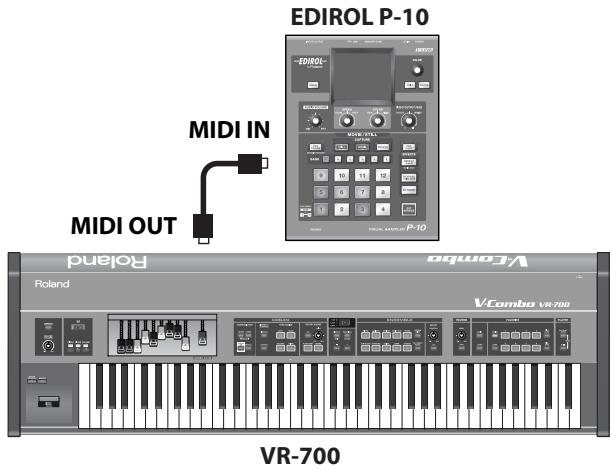
Turning V-LINK On/Off
1. Press the [V-LINK] button.
The V-LINK function will be turned on, and the [V-LINK] button will light.
Operations on the VR-700
Operating the VR-700's keyboard and controllers will control the image accordingly.
| Keyboard/Controller | V-LINK function | Transmitted MIDI message | Description | |
| Keys (leftmost octave) | Clip (1–12) | Program Change | Switch images. | |
| Bender lever | [BENDER] on | Playback Speed | Pitch Bend | Controls the playback speed. |
| D Beam controller | [PITCH] on | Playback Speed | Pitch Bend | Controls the playback speed. |
| [FILTER] on | Color Cb | CC #74 | Controls the hue and brightness. | |
| [VOLUME] on | Video Fader | CC #11 | Controls the video fader. | |
- When V-LINK is on, the lowest 12 keys (one octave) will not produce sound.
2. To turn V-LINK off, press the [VLINK] button once again.
The V-LINK function will turn off, and the [V-LINK] button will go out.
- To prevent malfunction and/or damage to speakers or other devices, always turn down the volume, and turn off the power on all devices before making any connections.
The VR-700's Internal Structure
Sound Generator Section
The VR-700 contains a sound generator for organ sounds and ensemble sounds, and a sound generator for song playback. The organ/ensemble sound generator is a multi-part sound generator; with the factory settings, each part is assigned to the following MIDI channels.
| Organ/ensemble sound generator parts | MIDI channel (factory setting) |
| Upper organ | 1 |
| Lower organ | 3 |
| Pedal organ | 2 |
| Ensemble 1 | 4 |
| Ensemble 2 | 5 |
| Internal rhythm | 10 |
| Spring shock | 9 |
- MIDI messages received at the MIDI PEDAL IN connector are automatically converted to the MIDI channel specified by "Pedal Organ MIDI Channel" (p. 57).
MIDI Routing
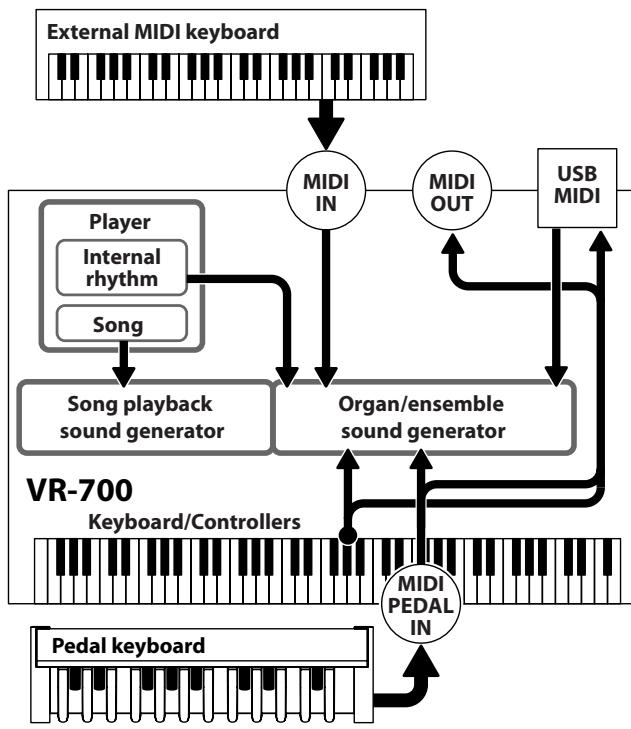
Inside the VR-700, MIDI connections are routed as shown in the illustration.
With the factory settings, MIDI messages received at the MIDI IN connector or USB MIDI connector will play the corresponding part of the organ/ensemble sound generator. When a song is played back on the internal player, it will be sounded by the song playback sound generator.
- MIDI messages received at the MIDI PEDAL IN connector are automatically converted to the MIDI channel specified by "Pedal Organ MIDI Channel" (p. 57).
You can change the MIDI routing by changing the Function mode setting "MIDI/Player Mode" (p. 57).
| MIDI/Player Mode | Received at the MIDI IN connector or USB MIDI connector | Song playback |
| Mode 1 (factory setting) | Organ/ensemble sound generator | Song playback sound generator |
| Mode 2 | Song playback sound generator | Song playback sound generator |
| Mode 3 | Organ/ensemble sound generator | Organ/ensemble sound generator |
| Mode 4 | Song playback sound generator | Song playback sound generator |
Connecting an External MIDI Keyboard
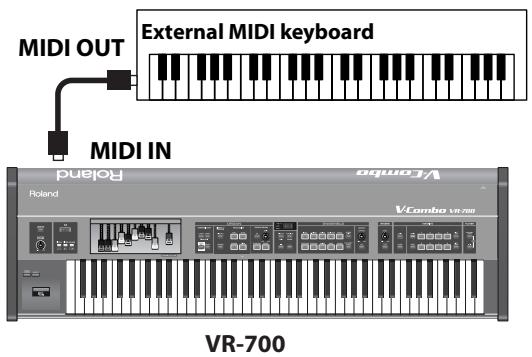
Playing a Desired Part (Factory Settings)
Turn the Function mode setting "Sub Keyboard Function" OFF.
* If "Sub Keyboard Function" is OFF, you can play any desired part of the organ/ensemble sound generator by setting your MIDI keyboard to the appropriate MIDI transmit channel (p. 57).
Playing the Upper Part or Lower Part
Set the Function mode "Sub Keyboard Function" to Upper (to play the upper part) or Lower (to play the lower part).
* If "Sub Keyboard Function" (p. 57) is set to Upper (or Lower), MIDI messages received at the MIDI IN connector will automatically be converted to the MIDI channel specified for "Upper Organ MIDI Channel" (or "Lower Organ MIDI Channel"). The routing will be the same as for the MIDI PEDAL IN connector (p. 65).
Connecting an External MIDI Sequencer
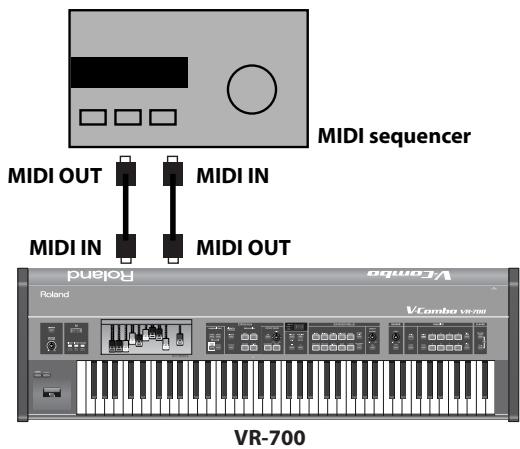
You can use a MIDI cable (sold separately) to connect a MIDI sequencer to the VR-700; the sequencer can record your performance on the VR-700, and the VR-700 can sound the playback from the sequencer.
Local Control Setting
If your external MIDI sequencer's MIDI Thru function is enabled, change the following Function mode parameters as follows.
- Set "Local Control" to OFF (it will be ON when the power is turned on)
- Set "MIDI Thru Switch" to OFF (factory setting is ON)
- The "Local Control" setting is not remembered by the VR-700. It will be ON when you turn on the power.
- If "Sub Keyboard Function" (p. 57) is set to Upper (or Lower), MIDI messages received at the MIDI IN connector will automatically be converted to the MIDI channel specified by "Upper Organ MIDI Channel" (or "Lower Organ MIDI Channel"). The routing will be the same as for the MIDI PEDAL IN connector (p. 65).
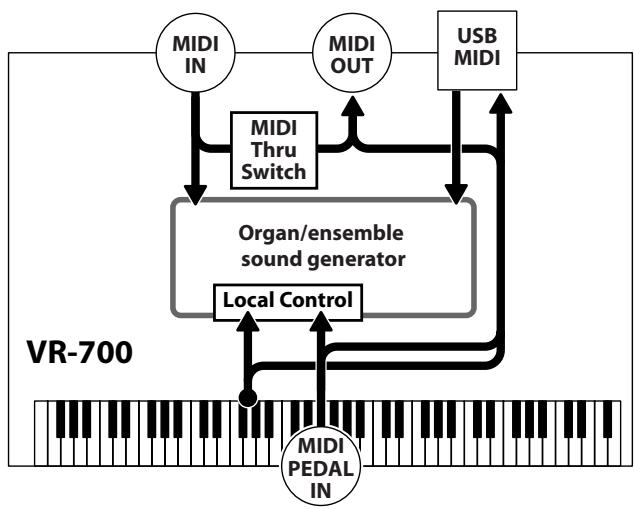
Connecting your Computer
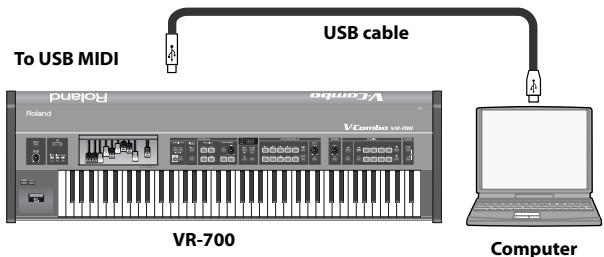
You can use a USB cable (sold separately) to connect the VR-700 to your computer.
If the VR-700 is connected to a computer in which sequencer software is installed, the playback from the software can be sounded by the VR-700, and your performance on the VR-700 can be recorded by your software.
Local Control Setting
If you are using sequencer software on your computer, and your sequencer software's MIDI Thru function is enabled, change the following Function mode parameters as follows.
- Set "Local Control" to OFF (it will be ON when the power is turned on)
-
Set "USB MIDI Thru Switch" to ON (factory setting is OFF)
-
If your sequencer software's MIDI Thru function is not enabled, there's no need to change these settings.
- The "Local Control" setting is not remembered by the VR-700. It will be ON when you turn on the power.
- If "Sub Keyboard Function" (p. 57) is set to Upper (or Lower), MIDI messages received at the MIDI IN connector will automatically be converted to the MIDI channel specified by "Upper Organ MIDI Channel" (or "Lower Organ MIDI Channel"). The routing will be the same as for the MIDI PEDAL IN connector (p. 65).
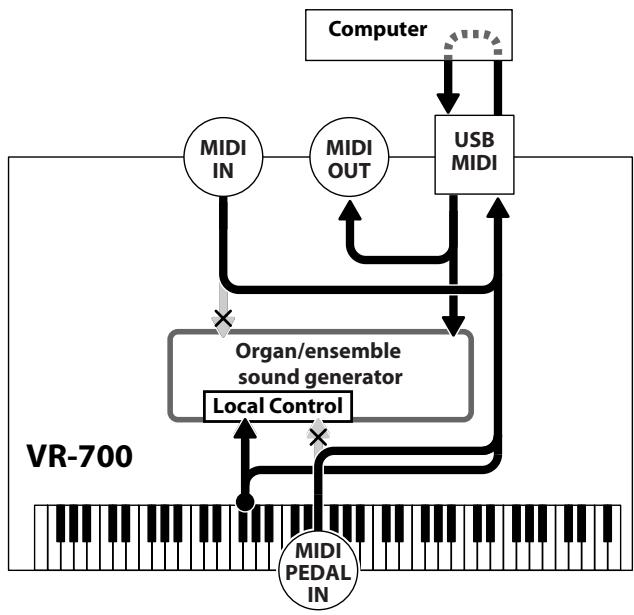
Routing when USB MIDI Thru Switch=ON
| No. | Tone Name | MSB | LSB | PC |
| 1 | Real Choir | 87 | 67 | 1 |
| 2 | Jazz Scat | 87 | 67 | 2 |
| 3 | Aerial Choir | 87 | 67 | 3 |
| 4 | Female Vox | 87 | 67 | 4 |
| 5 | Female Aahs | 87 | 67 | 5 |
BRASS group
SYNTH LEAD group
| No. | Tone Name | MSB | LSB | PC |
| 1 | Ac.Brass | 87 | 72 | 1 |
| 2 | R&R Brass | 87 | 72 | 2 |
| 3 | Bigband Sax | 87 | 72 | 3 |
| 4 | VoyagerBrass | 87 | 72 | 4 |
| 5 | Jump For KY | 87 | 72 | 5 |
SYNTH PAD group
| No. | Tone Name | MSB | LSB | PC |
| 1 | Vintage Lead | 87 | 68 | 1 |
| 2 | Dual Lead | 87 | 68 | 2 |
| 3 | Saw Lead | 87 | 68 | 3 |
| 4 | SuperSawSlow | 87 | 68 | 4 |
| 5 | Jupiter Lead | 87 | 68 | 5 |
| 6 | Square Lead | 87 | 68 | 6 |
| 7 | BrightSquare | 87 | 68 | 7 |
| 8 | Sine Lead | 87 | 68 | 8 |
| 9 | Syn.Calliope | 87 | 68 | 9 |
| 10 | Doctor Solo | 87 | 68 | 10 |

GUITAR group
| No. | Tone Name | MSB | LSB | PC |
| 1 | Soft Pad | 87 | 69 | 1 |
| 2 | Silky Way | 87 | 69 | 2 |
| 3 | Nu Epic Pad | 87 | 69 | 3 |
| 4 | Strings Pad | 87 | 69 | 4 |
| 5 | Glass Organ | 87 | 69 | 5 |
| No. | Tone Name | MSB | LSB | PC |
| 1 | Dyna Nylon | 87 | 70 | 1 |
| 2 | Steel Gtr | 87 | 70 | 2 |
| 3 | Jz Gtr Hall | 87 | 70 | 3 |
| 4 | JC Strat | 87 | 70 | 4 |
| 5 | Blusey OD | 87 | 70 | 5 |
BASS group
OTHERS/GM2 group
| No. | Tone Name | MSB | LSB | PC |
| 1 | AcousticBass | 87 | 71 | 1 |
| 2 | FingerMaster | 87 | 71 | 2 |
| 3 | Pick Bass | 87 | 71 | 3 |
| 4 | 101 Bass | 87 | 71 | 4 |
| 5 | Punch MG | 87 | 71 | 5 |
| No. | Tone Name | MSB | LSB | PC |
| 1 | Piano+Str. | 87 | 73 | 1 |
| 2 | Piano+Pad | 87 | 73 | 2 |
| 3 | E.Piano+Str. | 87 | 73 | 3 |
| 4 | E.Piano+Pad | 87 | 73 | 4 |
| 5 | Bass+RideCym | 87 | 73 | 5 |
VR Drum Sets
| 6 | VR Pop Kit | 86 | 64 | 1 |
| 7 | VR Rock Kit | 86 | 64 | 2 |
| 8 | VR Jazz Kit | 86 | 64 | 3 |
| 9 | VR R&B Kit | 86 | 64 | 4 |
| 10 | VR House Kit | 86 | 64 | 5 |
GM2 Drum Sets
| 11 | STANDARD Set | 120 | 0 | 1 |
| 12 | ROOM Set | 120 | 0 | 9 |
| 13 | POWER Set | 120 | 0 | 17 |
| 14 | ELEC.Set | 120 | 0 | 25 |
| 15 | ANALOG Set | 120 | 0 | 26 |
| 16 | JAZZ Set | 120 | 0 | 33 |
| 17 | BRUSH Set | 120 | 0 | 41 |
| 18 | ORCH.Set | 120 | 0 | 49 |
| 19 | SFX Set | 120 | 0 | 57 |
GM2 Tones
| 20 | Piano 1 | 121 | 0 | 1 |
| 21 | Piano 1w | 121 | 1 | 1 |
| 22 | Piano 1d | 121 | 2 | 1 |
| 23 | Piano 2 | 121 | 0 | 2 |
| 24 | Piano 2w | 121 | 1 | 2 |
| 25 | Piano 3 | 121 | 0 | 3 |
| 26 | Piano 3w | 121 | 1 | 3 |
| 27 | Honky-tonk | 121 | 0 | 4 |
| 28 | Honky-tonk w | 121 | 1 | 4 |
| 29 | E.Piano 1 | 121 | 0 | 5 |
| 30 | Detuned EP 1 | 121 | 1 | 5 |
| 31 | Vintage EP | 121 | 2 | 5 |
| No. | Tone Name | MSB | LSB | PC |
| 32 | ‘60s E.Piano | 121 | 3 | 5 |
| 33 | E.Piano 2 | 121 | 0 | 6 |
| 34 | Detuned EP 2 | 121 | 1 | 6 |
| 35 | St.FM EP | 121 | 2 | 6 |
| 36 | EP Legend | 121 | 3 | 6 |
| 37 | EP Phase | 121 | 4 | 6 |
| 38 | Harpsichord | 121 | 0 | 7 |
| 39 | Coupled Hps. | 121 | 1 | 7 |
| 40 | Harpsi.w | 121 | 2 | 7 |
| 41 | Harpsi.o | 121 | 3 | 7 |
| 42 | Clav. | 121 | 0 | 8 |
| 43 | Pulse Clav. | 121 | 1 | 8 |
| 44 | Celesta | 121 | 0 | 9 |
| 45 | Glockenspiel | 121 | 0 | 10 |
| 46 | Music Box | 121 | 0 | 11 |
| 47 | Vibraphone | 121 | 0 | 12 |
| 48 | Vibraphone w | 121 | 1 | 12 |
| 49 | Marimba | 121 | 0 | 13 |
| 50 | Marimba w | 121 | 1 | 13 |
| 51 | Xylophone | 121 | 0 | 14 |
| 52 | TubularBells | 121 | 0 | 15 |
| 53 | Church Bell | 121 | 1 | 15 |
| 54 | Carillon | 121 | 2 | 15 |
| 55 | Santur | 121 | 0 | 16 |
| 56 | Organ 1 | 121 | 0 | 17 |
| 57 | TremoloOrgan | 121 | 1 | 17 |
| 58 | ‘60s Organ | 121 | 2 | 17 |
| 59 | Organ 2 | 121 | 3 | 17 |
| 60 | Perc.Organ 1 | 121 | 0 | 18 |
| 61 | Chorus Organ | 121 | 1 | 18 |
| 62 | Perc.Organ 2 | 121 | 2 | 18 |
| 63 | Rock Organ | 121 | 0 | 19 |
| 64 | Church Org.1 | 121 | 0 | 20 |
| 65 | Church Org.2 | 121 | 1 | 20 |
| 66 | Church Org.3 | 121 | 2 | 20 |
| 67 | Reed Organ | 121 | 0 | 21 |
| 68 | Puff Organ | 121 | 1 | 21 |
| 69 | Accordion 1 | 121 | 0 | 22 |
| 70 | Accordion 2 | 121 | 1 | 22 |
| 71 | Harmonica | 121 | 0 | 23 |
| 72 | Bandoneon | 121 | 0 | 24 |
| 73 | Nylon-str.Gt | 121 | 0 | 25 |
| 74 | Ukulele | 121 | 1 | 25 |
| 75 | Nylon Gt o | 121 | 2 | 25 |
| 76 | Nylon Gt 2 | 121 | 3 | 25 |
| 77 | Steel-str.Gt | 121 | 0 | 26 |
| No. | Tone Name | MSB | LSB | PC |
| 78 | 12-str.Gt | 121 | 1 | 26 |
| 79 | Mandolin | 121 | 2 | 26 |
| 80 | Steel+Body | 121 | 3 | 26 |
| 81 | Jazz Guitar | 121 | 0 | 27 |
| 82 | Hawaiian Gt | 121 | 1 | 27 |
| 83 | Clean Guitar | 121 | 0 | 28 |
| 84 | Chorus Gt 1 | 121 | 1 | 28 |
| 85 | Mid Tone Gt | 121 | 2 | 28 |
| 86 | Muted Guitar | 121 | 0 | 29 |
| 87 | Funk Guitar1 | 121 | 1 | 29 |
| 88 | Funk Guitar2 | 121 | 2 | 29 |
| 89 | Chorus Gt 2 | 121 | 3 | 29 |
| 90 | Overdrive Gt | 121 | 0 | 30 |
| 91 | Guitar Pinch | 121 | 1 | 30 |
| 92 | DistortionGt | 121 | 0 | 31 |
| 93 | Gt Feedback1 | 121 | 1 | 31 |
| 94 | Dist.Rtm Gt | 121 | 2 | 31 |
| 95 | Gt Harmonics | 121 | 0 | 32 |
| 96 | Gt Feedback2 | 121 | 1 | 32 |
| 97 | AcousticBass | 121 | 0 | 33 |
| 98 | FingeredBass | 121 | 0 | 34 |
| 99 | Finger Slap | 121 | 1 | 34 |
| 100 | Picked Bass | 121 | 0 | 35 |
| 101 | FretlessBass | 121 | 0 | 36 |
| 102 | Slap Bass 1 | 121 | 0 | 37 |
| 103 | Slap Bass 2 | 121 | 0 | 38 |
| 104 | Synth Bass 1 | 121 | 0 | 39 |
| 105 | WarmSyn.Bass | 121 | 1 | 39 |
| 106 | Synth Bass 3 | 121 | 2 | 39 |
| 107 | Clav.Bass | 121 | 3 | 39 |
| 108 | Hammer | 121 | 4 | 39 |
| 109 | Synth Bass 2 | 121 | 0 | 40 |
| 110 | Synth Bass 4 | 121 | 1 | 40 |
| 111 | RubberSyn.Bs | 121 | 2 | 40 |
| 112 | Attack Pulse | 121 | 3 | 40 |
| 113 | Violin | 121 | 0 | 41 |
| 114 | Slow Violin | 121 | 1 | 41 |
| 115 | Viola | 121 | 0 | 42 |
| 116 | Cello | 121 | 0 | 43 |
| 117 | Contrabass | 121 | 0 | 44 |
| 118 | Tremolo Str. | 121 | 0 | 45 |
| 119 | PizzicatoStr | 121 | 0 | 46 |
| 120 | Harp | 121 | 0 | 47 |
| 121 | Yang Qin | 121 | 1 | 47 |
| 122 | Timpani | 121 | 0 | 48 |
| 123 | Strings | 121 | 0 | 49 |
| No. | Tone Name | MSB | LSB | PC |
| 124 | Orchestra | 121 | 1 | 49 |
| 125 | ‘60s Strings | 121 | 2 | 49 |
| 126 | Slow Strings | 121 | 0 | 50 |
| 127 | Syn Strings1 | 121 | 0 | 51 |
| 128 | Syn Strings3 | 121 | 1 | 51 |
| 129 | Syn Strings2 | 121 | 0 | 52 |
| 130 | Choir 1 | 121 | 0 | 53 |
| 131 | Choir 2 | 121 | 1 | 53 |
| 132 | Voice | 121 | 0 | 54 |
| 133 | Humming | 121 | 1 | 54 |
| 134 | Synth Voice | 121 | 0 | 55 |
| 135 | Analog Voice | 121 | 1 | 55 |
| 136 | OrchestraHit | 121 | 0 | 56 |
| 137 | Bass Hit | 121 | 1 | 56 |
| 138 | 6th Hit | 121 | 2 | 56 |
| 139 | Euro Hit | 121 | 3 | 56 |
| 140 | Trumpet | 121 | 0 | 57 |
| 141 | Dark Trumpet | 121 | 1 | 57 |
| 142 | Trombone 1 | 121 | 0 | 58 |
| 143 | Trombone 2 | 121 | 1 | 58 |
| 144 | Bright Tb | 121 | 2 | 58 |
| 145 | Tuba | 121 | 0 | 59 |
| 146 | MuteTrumpet1 | 121 | 0 | 60 |
| 147 | MuteTrumpet2 | 121 | 1 | 60 |
| 148 | French Horn1 | 121 | 0 | 61 |
| 149 | French Horn2 | 121 | 1 | 61 |
| 150 | Brass 1 | 121 | 0 | 62 |
| 151 | Brass 2 | 121 | 1 | 62 |
| 152 | Synth Brass1 | 121 | 0 | 63 |
| 153 | Synth Brass3 | 121 | 1 | 63 |
| 154 | AnalogBrass1 | 121 | 2 | 63 |
| 155 | Jump Brass | 121 | 3 | 63 |
| 156 | Synth Brass2 | 121 | 0 | 64 |
| 157 | Synth Brass4 | 121 | 1 | 64 |
| 158 | AnalogBrass2 | 121 | 2 | 64 |
| 159 | Soprano Sax | 121 | 0 | 65 |
| 160 | Alto Sax | 121 | 0 | 66 |
| 161 | Tenor Sax | 121 | 0 | 67 |
| 162 | Baritone Sax | 121 | 0 | 68 |
| 163 | Oboe | 121 | 0 | 69 |
| 164 | English Horn | 121 | 0 | 70 |
| 165 | Bassoon | 121 | 0 | 71 |
| 166 | Clarinet | 121 | 0 | 72 |
| 167 | Piccolo | 121 | 0 | 73 |
| 168 | Flute | 121 | 0 | 74 |
| 169 | Recorder | 121 | 0 | 75 |
| 170 | Pan Flute | 121 | 0 | 76 |
| 171 | Bottle Blow | 121 | 0 | 77 |
| 172 | Shakuhachi | 121 | 0 | 78 |
| 173 | Whistle | 121 | 0 | 79 |
| 174 | Ocarina | 121 | 0 | 80 |
| 175 | Square Lead1 | 121 | 0 | 81 |
| 176 | Square Lead2 | 121 | 1 | 81 |
| 177 | Sine Lead | 121 | 2 | 81 |
| 178 | Saw Lead 1 | 121 | 0 | 82 |
| 179 | Saw Lead 2 | 121 | 1 | 82 |
| 180 | Doctor Solo | 121 | 2 | 82 |
| 181 | Natural Lead | 121 | 3 | 82 |
| 182 | SequencedSaw | 121 | 4 | 82 |
| 183 | Syn.Calliope | 121 | 0 | 83 |
| 184 | Chiffer Lead | 121 | 0 | 84 |
| 185 | Charang | 121 | 0 | 85 |
| 186 | Wire Lead | 121 | 1 | 85 |
| 187 | Solo Vox | 121 | 0 | 86 |
| 188 | 5th Saw Lead | 121 | 0 | 87 |
| 189 | Bass+Lead | 121 | 0 | 88 |
| 190 | Delayed Lead | 121 | 1 | 88 |
| 191 | Fantasia | 121 | 0 | 89 |
| 192 | Warm Pad | 121 | 0 | 90 |
| 193 | Sine Pad | 121 | 1 | 90 |
| 194 | Polysynth | 121 | 0 | 91 |
| 195 | Space Voice | 121 | 0 | 92 |
| 196 | Itopia | 121 | 1 | 92 |
| 197 | Bowed Glass | 121 | 0 | 93 |
| 198 | Metallic Pad | 121 | 0 | 94 |
| 199 | Halo Pad | 121 | 0 | 95 |
| 200 | Sweep Pad | 121 | 0 | 96 |
| 201 | Ice Rain | 121 | 0 | 97 |
| 202 | Soundtrack | 121 | 0 | 98 |
| 203 | Crystal | 121 | 0 | 99 |
| 204 | Synth Mallet | 121 | 1 | 99 |
| 205 | Atmosphere | 121 | 0 | 100 |
| 206 | Brightness | 121 | 0 | 101 |
| 207 | Goblins | 121 | 0 | 102 |
| 208 | Echo Drops | 121 | 0 | 103 |
| 209 | Echo Bell | 121 | 1 | 103 |
| 210 | Echo Pan | 121 | 2 | 103 |
| 211 | Star Theme | 121 | 0 | 104 |
| 212 | Sitar 1 | 121 | 0 | 105 |
| 213 | Sitar 2 | 121 | 1 | 105 |
| 214 | Banjo | 121 | 0 | 106 |
| 215 | Shamisen | 121 | 0 | 107 |
| No. | Tone Name | MSB | LSB | PC |
| 216 | Koto | 121 | 0 | 108 |
| 217 | Taisho Koto | 121 | 1 | 108 |
| 218 | Kalimba | 121 | 0 | 109 |
| 219 | Bagpipe | 121 | 0 | 110 |
| 220 | Fiddle | 121 | 0 | 111 |
| 221 | Shanai | 121 | 0 | 112 |
| 222 | Tinkle Bell | 121 | 0 | 113 |
| 223 | Agogo | 121 | 0 | 114 |
| 224 | Steel Drums | 121 | 0 | 115 |
| 225 | Woodblock | 121 | 0 | 116 |
| 226 | Castanets | 121 | 1 | 116 |
| 227 | Taiko | 121 | 0 | 117 |
| 228 | Concert BD | 121 | 1 | 117 |
| 229 | Melodic Tom1 | 121 | 0 | 118 |
| 230 | Melodic Tom2 | 121 | 1 | 118 |
| 231 | Synth Drum | 121 | 0 | 119 |
| 232 | TR-808 Tom | 121 | 1 | 119 |
| 233 | Elec.Perc. | 121 | 2 | 119 |
| 234 | Reverse Cym. | 121 | 0 | 120 |
| 235 | Gt FretNoise | 121 | 0 | 121 |
| 236 | Gt Cut Noise | 121 | 1 | 121 |
| 237 | BsStringSlap | 121 | 2 | 121 |
| 238 | Breath Noise | 121 | 0 | 122 |
| 239 | Fl.Key Click | 121 | 1 | 122 |
| 240 | Seashore | 121 | 0 | 123 |
| 241 | Rain | 121 | 1 | 123 |
| 242 | Thunder | 121 | 2 | 123 |
| 243 | Wind | 121 | 3 | 123 |
| 244 | Stream | 121 | 4 | 123 |
| 245 | Bubble | 121 | 5 | 123 |
| 246 | Bird 1 | 121 | 0 | 124 |
| 247 | Dog | 121 | 1 | 124 |
| 248 | Horse Gallop | 121 | 2 | 124 |
| 249 | Bird 2 | 121 | 3 | 124 |
| 250 | Telephone 1 | 121 | 0 | 125 |
| 251 | Telephone 2 | 121 | 1 | 125 |
| 252 | DoorCreaking | 121 | 2 | 125 |
| 253 | Door | 121 | 3 | 125 |
| 254 | Scratch | 121 | 4 | 125 |
| 255 | Wind Chimes | 121 | 5 | 125 |
| 256 | Helicopter | 121 | 0 | 126 |
| 257 | Car Engine | 121 | 1 | 126 |
| 258 | Car Stop | 121 | 2 | 126 |
| 259 | Car Pass | 121 | 3 | 126 |
| 260 | Car Crash | 121 | 4 | 126 |
| 261 | Siren | 121 | 5 | 126 |
| No. | Tone Name | MSB | LSB | PC |
| 262 | Train | 121 | 6 | 126 |
| 263 | Jetplane | 121 | 7 | 126 |
| 264 | Starship | 121 | 8 | 126 |
| 265 | Burst Noise | 121 | 9 | 126 |
| 266 | Applause | 121 | 0 | 127 |
| 267 | Laughing | 121 | 1 | 127 |
| 268 | Screaming | 121 | 2 | 127 |
| 269 | Punch | 121 | 3 | 127 |
| 270 | Heart Beat | 121 | 4 | 127 |
| 271 | Footsteps | 121 | 5 | 127 |
| 272 | Gun Shot | 121 | 0 | 128 |
| 273 | Machine Gun | 121 | 1 | 128 |
| 274 | Laser Gun | 121 | 2 | 128 |
| 275 | Explosion | 121 | 3 | 128 |
| No. | Name |
| 01 | 8-Beat Pop |
| 02 | 16-Beat Pop |
| 03 | Shuffle Pop 1 |
| 04 | Shuffle Pop 2 |
| 05 | 8-Beat Funk |
| 06 | 16-Beat Funk |
| 07 | 8-Beat Rock 1 |
| 08 | 8-Beat Rock 2 |
| 09 | 8-Beat Rock 3 |
| 10 | 16-Beat Rock |
| 11 | Rock 1 |
| 12 | Rock 2 |
| 13 | Rock 3 |
| 14 | Powerful Rock |
| 15 | Progressive Rock |
| 16 | R&B Pop |
| 17 | R&B |
| 18 | Ballad 1 |
| 19 | Ballad 2 |
| 20 | Fusion |
| 21 | West Coast |
| 22 | Motown |
| 23 | Bluegrass |
| 24 | Swing 1 |
| 25 | Swing 2 |
| No. | Name |
| 26 | Fast Swing 1 |
| 27 | Fast Swing 2 |
| 28 | Jazz Brush 1 |
| 29 | Jazz Brush 2 |
| 30 | Jazz Waltz |
| 31 | 5/4 Swing |
| 32 | 7/4 Swing |
| 33 | Afro-Cuban |
| 34 | Blues 1 |
| 35 | Blues 2 |
| 36 | Gospel 1 |
| 37 | Gospel 2 |
| 38 | Latin Pop 1 |
| 39 | Latin Pop 2 |
| 40 | Latin Fusion |
| 41 | Bossa Nova 1 |
| 42 | Bossa Nova 2 |
| 43 | Bossa Nova 3 |
| 44 | Salsa |
| 45 | Samba |
| 46 | Slow Beat |
| 47 | Back Beat |
| 48 | Hip'n'Hop |
| 49 | Elec Dance |
| 50 | Acid Jazz |
| 51 | Hi-Hat Count |
| Piano group | ||||
| No.: Name | Default | Effect name | Parameters assigned to the Knobs | Description |
| 1: Superior Grd | On | SYMPATHETIC RESONANCE | Depth | On an acoustic piano, holding down the damper pedal allows other strings to resonate in sympathy with the notes you play, creating rich and spacious resonances. This effect simulates these sympathetic resonances. |
| 2: Ultimate Pno | ||||
| 3: Grand VR | ||||
| 4: Pure Grand | ||||
| 5: Mellow Piano | ||||
| 6: Pure Mellow | ||||
| 7: Rock Piano | Off | ENHANCED | Sens | Controls the overtone structure of the high frequencies, adding sparkle and tightness to the sound. |
| 8: Honky-tonk | On | SYMPATHETIC RESONANCE | Depth | On an acoustic piano, holding down the damper pedal allows other strings to resonate in sympathy with the notes you play, creating rich and spacious resonances. This effect simulates these sympathetic resonances. |
| 9: SuperiorMono | ||||
| 10: GrandVR Mono | ||||
| E.PIANO group | ||||
| No.: Name | Default | Effect name | Parameters assigned to the Knobs | Description |
| 1: VR E.Piano | On | TREMOLO | Rate | Cyclically modulates the volume to add tremolo effect to the sound. |
| 2: Stage Phazer | On | PHASER | Rate | This is a stereo phaser. A phase-shifted sound is added to the original sound and modulated. |
| 3: 70's E.Piano | On | MODULATION DELAY | Balance | Adds modulation to the delayed sound. |
| 4: 60's E.Piano | Off | AUTO PAN | Rate | Cyclically modulates the stereo location of the sound. |
| 5: FM E.Piano | On | MODULATION DELAY | Balance | Adds modulation to the delayed sound. |
| 6: S.A.E.P. | On | ENHANCER˨CHORUS | Chorus Balance | This effect connects an enhancer and a chorus in series. |
| 7: E.Grand | Off | TREMOLO CHORUS | Depth | This is a chorus effect with added Tremolo (cyclic modulation of volume). |
| 8: Clav | Off | MULTI STAGE PHASER | Rate | Extremely high settings of the phase difference produce a deep phaser effect. |
| 9: Wah Wah Clav | On | AUTO WAH | Manual | Cyclically controls a filter to create cyclic change in timbre. |
| 10: Natural Hps | Off | CHORUS | Depth | This is a stereo chorus. |
| STRINGS group | ||||
| No.: Name | Default | Effect name | Parameters assigned to the Knobs | Description |
| 1: VR Strings | Off | ENHANCED | Sens | Controls the overtone structure of the high frequencies, adding sparkle and tightness to the sound. |
| 2: Warm Strings | Off | EQUALIZER | Low Gain | This is a low frequency stereo equalizer. |
| 3: Studio Sect. | Off | MULTI TAP DELAY | Delay Time | This effect provides four delays. |
| 4: ChmbrStrings | Off | ENHANCED | Sens | Controls the overtone structure of the high frequencies, adding sparkle and tightness to the sound. |
| 5: JP Strings | Off | EQUALIZER | Low Gain | This is a low frequency stereo equalizer. |
| CHOIR/SCAT group | ||||
| No.: Name | Default | Effect name | Parameters assigned to the Knobs | Description |
| 1: Real Choir | Off | ISOLATOR | Boost/Cut High | This is an equalizer which cuts the volume greatly, allowing you to add a special effect to the sound by cutting the volume in high range. |
| 2: Jazz Scat | Off | 3D CHORUS | Depth | This applies a 3D effect to the chorus sound. The chorus sound will be positioned 90 degrees left and 90 degrees right. |
| 3: Aerial Choir | Off | LONG DELAY | Delay Time | A delay that provides a long delay time. |
| 4: Female Vox | Off | SPACE-D | Depth | This is a multiple chorus that applies two-phase modulation in stereo. It gives no impression of modulation, but produces a transparent chorus effect. |
| 5: Female Aahs | Off | MULTI TAP DELAY | Delay Time | This effect provides four delays. |
| BRASS group | ||||
| No.: Name | Default | Effect name | Parameters assigned to the Knobs | Description |
| 1: Ac.Brass | Off | ISOLATOR | Boost/Cut High | This is an equalizer which cuts the volume greatly, allowing you to add a special effect to the sound by cutting the volume in high range. |
| 2: R&R Brass | Off | EQUALIZER | High Gain | This is a high frequency stereo equalizer. |
| 3: Bigband Sax | ||||
| 4: VoyagerBrass | Off | ISOLATOR | Boost/Cut Mid | This is an equalizer which cuts the volume greatly, allowing you to add a special effect to the sound by cutting the volume in mid range. |
| 5: Jump For KY | Off | LONG DELAY | Delay Time | A delay that provides a long delay time. |
| SYNTH LEAD group | ||||
| No.: Name | Default | Effect name | Parameters assigned to the Knobs | Description |
| 1: Vintage Lead | On | DELAY | Balance | This is a stereo delay. |
| 2: Dual Lead | On | 3TAP PAN DELAY | Balance | Produces three delay sounds; center, left and right. |
| 3: Saw Lead | On | EQUALIZER | Low Gain | This is a low frequency stereo equalizer. |
| 4: SuperSawSlow | On | STEP PAN | Rate | This uses a 16-step sequence to vary the panning of the sound. |
| 5: Jupiter Lead | On | 3D CHORUS | Depth | This applies a 3D effect to the chorus sound. The chorus sound will be positioned 90 degrees left and 90 degrees right. |
| 6: Square Lead | On | LONG DELAY | Delay Time | A delay that provides a long delay time. |
| 7: BrightSquare | On | SERIAL DELAY | Delay Time | This delay connects two delay units in series. |
| 8: Sine Lead | On | TREMOLO CHORUS | Depth | This is a chorus effect with added Tremolo (cyclic modulation of volume). |
| 9: Syn.Calliope | On | MULTI TAP DELAY | Delay Time | This effect provides four delays. |
| 10: Doctor Solo | On | SERIAL DELAY | Delay Time | This delay connects two delay units in series. |
| SYNTH PAD group | ||||
| No.: Name | Default | Effect name | Parameters assigned to the Knobs | Description |
| 1: Soft Pad | On | EQUALIZER | High Gain | This is a high frequency stereo equalizer. |
| 2: Silky Way | On | ISOLATOR | Boost/Cut Mid | This is an equalizer which cuts the volume greatly, allowing you to add a special effect to the sound by cutting the volume in mid range. |
| 3: Nu Epic Pad | On | MODULATION DELAY | Balance | Adds modulation to the delayed sound. |
| 4: Strings Pad | On | AUTO PAN | Rate | Cyclically modulates the stereo location of the sound. |
| 5: Glass Organ | On | 3D CHORUS | Depth | This applies a 3D effect to the chorus sound. The chorus sound will be positioned 90 degrees left and 90 degrees right. |
| GUITAR group | ||||
| No.: Name | Default | Effect name | Parameters assigned to the Knobs | Description |
| 1: Dyna Nylon | Off | LONG DELAY | Delay Time | A delay that provides a long delay time. |
| 2: Steel Gtr | Off | CHORUS | Depth | This is a stereo chorus. |
| 3: Jz Gtr Hall | Off | 3D CHORUS | Depth | This applies a 3D effect to the chorus sound. The chorus sound will be positioned 90 degrees left and 90 degrees right. |
| 4: JC Strat | On | CHORUS→DELAY | Delay Balance | This effect connects a chorus and a delay in series. |
| 5: Blusey OD | On | OVERDRIVE | Level | Creates a soft distortion similar to that produced by vacuum tube amplifiers. |
| BASS group | ||||
| No.: Name | Default | Effect name | The parameter assigned to the [CONTROL] knob | Description |
| 1: AcousticBass | Off | EQUALIZER | Low Gain | This is a low frequency stereo equalizer. |
| 2: FingerMaster | Off | 3D CHORUS | Depth | This applies a 3D effect to the chorus sound. The chorus sound will be positioned 90 degrees left and 90 degrees right. |
| 3: Pick Bass | On | EQUALIZER | Low Gain | This is a low frequency stereo equalizer. |
| 4: 101 Bass | Off | ISOLATOR | Boost/Cut Mid | This is an equalizer which cuts the volume greatly, allowing you to add a special effect to the sound by cutting the volume in mid range. |
| 5: Punch MG | Off | HEXA-CHORUS | Depth | Uses a six-phase chorus (six layers of chorused sound) to give richness and spatial spread to the sound. |
| OTHERS/GM2 group | ||||
| No.: Name | Default | Effect name | The parameter assigned to the [CONTROL] knob | Description |
| 1: Piano+Str. | On | SYMPATHETIC RESONANCE | Depth | On an acoustic piano, holding down the damper pedal allows other strings to resonate in sympathy with the notes you play, creating rich and spacious resonances. This effect simulates these sympathetic resonances. |
| 2: Piano+Pad | ||||
| 3: E.Piano+Str. | On | PHASER | Rate | This is a stereo phaser. A phase-shifted sound is added to the original sound and modulated. |
| 4: E.Piano+Pad | On | MODULATION DELAY | Balance | Adds modulation to the delayed sound. |
| 5: Bass+RideCym | Off | EQUALIZER | Low Gain | This is a low frequency stereo equalizer. |
| 6–10: (VR Drum Sets) | ||||
| 11–: (GM2 Tones) | ||||
- Items appearing in parentheses within the harmonic bar and percussion columns do not provide for the immediate production of sound after the Favorite has been selected, due to the fact that the [ORGAN ON] button is extinguished, or that Split or Layer is turned off.
| No. | HARMONIC BAR Upper Lower Pedal | VIBRATO/ CHORUS | PERCUSSION | ROTARY SOUND | WHEEL TYPE | AMP TYPE | ENSEMBLE | SPLIT/ LAYER | Description | |
| 1 | 2 | |||||||||
Bank 1: This is a collection of the most representative organ settings and ensemble sounds; they've been set up so they can be accessed simply by pressing a single button.
| 1-1 | 88 8800 000 (83 8000 000) 8 0 | - | THIRD SOFT FAST | SLOW | SOLID | TYPE 4 | - | - | - | Rock organ with overdrive. |
| 1-2 | 88 8000 000 83 8000 000 8 0 | - | THIRD SOFT FAST | SLOW | VINTAGE 2 | TYPE 1 | - | - | SPLIT | Orthodox settings for a percussive jazz organ. |
| 1-3 | 88 8000 008 (83 8000 000) 8 0 | - | - | FAST | VINTAGE 1 | TYPE 1 | - | - | - | Funk organ with a piercing metallic reverberation. |
| 1-4 | 00 8888 888 00 0806 000 8 0 | - | - | SLOW | VINTAGE 2 | TYPE 1 | - | - | SPLIT | Gospel organ with a bright, solemn tone. |
| 1-5 | (88 8800 000) (83 8000 000) 8 0 | - | (THIRD) (SOFT) (FAST) | SLOW | SOLID | TYPE 4 | Superior Grd | - | - | Grand piano that delivers a full range of expression—from weak notes to strong ones. |
| 1-6 | (88 8800 000) (83 8000 000) 8 0 | - | (THIRD) (SOFT) (FAST) | SLOW | SOLID | TYPE 4 | VR E.PIANO | - | - | Standard electric piano with tremolo. |
| 1-7 | (88 8800 000) (83 8000 000) 8 0 | - | (THIRD) (SOFT) (FAST) | SLOW | SOLID | TYPE 4 | Vintage Lead | - | - | Synth lead sound that is fat and has lots of presence. |
| 1-8 | 88 8800 000 00 0000 000 8 0 | - | THIRD SOFT FAST | FAST | SOLID | TYPE 4 | Superior Grd | Silky Way | SPLIT LAYER TO LOWER | Keyboard divided into two—right-hand side has organ and pad sounds layered together, while grand piano is assigned to the left-hand side. |
Bank 2: Settings for a Variety of Organs
| 2-1 | 88 8000 000 (83 8000 000) 8 0 | - | SECOND SOFT FAST | SLOW | SOLID | TYPE 2 | - | - | - | Progressive rock organ with a generous amount of overdrive. |
| 2-2 | 88 8080 880 (83 8000 000) 8 4 | - | - | FAST | SOLID | TYPE 4 | - | - | - | Rock organ with enhancement applied to the overtones of the harmonic bars. |
| 2-3 | 80 0000 888 83 8000 000 8 0 | C-3 | - | SLOW | VINTAGE 2 | TYPE 1 | - | - | SPLIT | Jazz organ with settings geared towards ballads. |
| 2-4 | 88 8888 888 83 8000 000 8 0 | C-3 | - | FAST | VINTAGE 2 | TYPE 1 | - | - | SPLIT | Full drawbar settings for adding excitement. |
| 2-5 | 80 0800 020 00 0608 022 0 8 | - | SECOND SOFT FAST | SLOW | VINTAGE 2 | TYPE 1 | - | - | SPLIT | Light-hearted organ sound suited for Latin music. |
| 2-6 | 86 0000 068 00 0606 000 0 8 | V-1 | - | SLOW | VINTAGE 2 | TYPE 1 | - | - | SPLIT | An organ evocative of classic pop songs from the fifties and earlier. |
| 2-7 | 80 0000 008 00 0804 000 8 0 | - | - | FAST | VINTAGE 2 | TYPE 1 | - | - | SPLIT | A retro organ that simulates the sound of the accompaniment to silent movies. |
| 2-8 | 80 8808 008 00 8808 000 8 0 | - | - | SLOW | VINTAGE 2 | TYPE 1 | - | - | SPLIT | Settings for simulating the pipe organ of a church. |
| No. | HARMONIC BAR Upper Lower Pedal | VIBRATO/ CHORUS | PERCUSSION | ROTARY SOUND | WHEEL TYPE | AMP TYPE | ENSEMBLE | SPLIT/ LAYER | Description | |
| 1 | 2 | |||||||||
| Bank 3: The settings here focus mainly on ensemble sounds, and allow for different sounds to be played from separate zones, by making use of the Split function. | ||||||||||
| 3-1 | (88 8800 000) (83 8000 000) 8 0 | - | (THIRD) (SOFT) (FAST) | SLOW | SOLID | TYPE 4 | Bass+RideCy m | Superior Grd | SPLIT TO LOWER | Evocative of a piano trio, with a grand piano and acoustic bass with cymbals. |
| 3-2 | (88 8800 000) (83 8000 000) 8 0 | - | (THIRD) (SOFT) (FAST) | SLOW | SOLID | TYPE 4 | FingerMaster | VR E.Piano | SPLIT TO LOWER | Simulates plugged jazz, with electric piano and electric bass. |
| 3-3 | (88 8800 000) (83 8000 000) 8 0 | - | (THIRD) (SOFT) (FAST) | SLOW | SOLID | TYPE 4 | Syn Strings1 | Warm Strings | SPLIT TO LOWER | Strings ensemble that combines sounds with a fast attack with those having a slow attack. |
| 3-4 | 80 8808 008 (83 8000 000) 8 0 | - | - | SLOW | CLEAN | TYPE 1 | Real Choir | - | SPLIT TO LOWER | Settings for a spiritual sound evocative of a pipe organ and choir. |
| 3-5 | (88 8800 000) (83 8000 000) 8 0 | - | (THIRD) (SOFT) (FAST) | SLOW | SOLID | TYPE 4 | Voice | Jazz Scat | SPLIT TO LOWER | Evocative of jazz vocals, scat and chorus are combined; they change in accord with your playing dynamics. |
| 3-6 | (88 8800 000) (83 8000 000) 8 0 | - | (THIRD) (SOFT) (FAST) | SLOW | SOLID | TYPE 4 | FingerMaster | Ac.Brass | SPLIT TO LOWER | Settings suitable for pops or rock combining clean, expressive brass sounds with electric bass. |
| 3-7 | (88 8800 000) (83 8000 000) 8 0 | - | (THIRD) (SOFT) (FAST) | SLOW | SOLID | TYPE 4 | Pick Bass | Blusey OD | SPLIT TO LOWER | Combination of lead guitar that has a pleasant overdrive and picking bass with well-defined notes. |
| 3-8 | 88 8800 000 (83 8000 000) 8 0 | - | THIRD SOFT FAST | SLOW | SOLID | TYPE 4 | VR Pop Kit | - | SPLIT TO LOWER | Drum set combined with an organ. Allows you to play drum solos on the keyboard. |
| Bank 4: In this bank, the harmonic bars and percussion remain the same, while changes have been made in the parameter settings for a variety of organs. You may want to use these settings as templates when creating your own original organ sounds. | ||||||||||
| 4-1 | 88 8800 000(83 8000 000)8 0 | - | THIRDSOFTFAST | SLOW | SOLID | TYPE 4 | - | - | - | Rock organ with overdrive applied to it. |
| 4-2 | 88 8800 000(83 8000 000)8 0 | - | THIRDSOFTFAST | SLOW | VINTAGE 2 | TYPE 1 | - | - | - | Emphasizes the cabinet resonance of rotary speakers; the wheel type is VINTAGE 2 and the amp type is type 1. |
| 4-3 | 88 8800 000(83 8000 000)8 0 | - | THIRDSOFTFAST | SLOW | VINTAGE 1 | TYPE 3 | - | - | - | Emphasizes the overdrive's distortion; the wheel type is VINTAGE 1 and the amp type is type 3. |
| 4-4 | 88 8800 000(83 8000 000)8 0 | - | THIRDSOFTFAST | SLOW | CLEAN | TYPE 1 | - | - | - | With a wheel type of CLEAN, these settings keep leakage noise and click noise at a minimum. |
| 4-5 | 88 8800 000(83 8000 000)8 0 | - | THIRDSOFTFAST | SLOW | SOLID | TYPE 4 | - | - | - | With these settings, the rotational speed of the rotary speakers will seem even slower when set to SLOW, and even faster when set to FAST. |
| 4-6 | 88 8800 000(83 8000 000)8 0 | - | THIRDSOFTFAST | SLOW | SOLID | TYPE 4 | - | - | - | With these settings, the transition time between SLOW and FAST with the rotary effect is made shorter. |
| 4-7 | 88 8800 000(83 8000 000)8 0 | - | THIRDSOFTFAST | SLOW | SOLID | TYPE 4 | - | - | - | With these settings, the sense of rotational speed for the rotary effect will be at its greatest. |
| 4-8 | 88 8800 000(83 8000 000)8 0 | - | THIRDSOFTFAST | SLOW | SOLID | TYPE 4 | - | - | - | These settings place emphasis on the volume of organ percussion and the ability to produce rapid, consecutive notes. |
| Bank 5: Same settings as the Bank 1 |
| Bank 6: Same settings as the Bank 2 |
| Bank 7: Same settings as the Bank 3 |
| Bank 8: Same settings as the Bank 4 |
If you think there's a problem, read this first.
| Symptom | Cause/Action | Page |
| Power will not turn on | Is the power cord correctly connected to the VR-700 and to an AC outlet? | p. 18 |
| Buttons don't work | Could Panel Lock be enabled?Hold down the HARMONIC BAR [LOWER] button and press the PLAYER [RHYTHM] button to release Panel Lock. | p. 25 |
| Could the VR-700 be in Demo mode?Press the [DISPLAY/EXIT] button to exit Demo mode. | p. 23 | |
| No sound/Insufficient volume | Is your playback equipment (amp and speaker) powered up? | p. 19 |
| Could the volume of your playback system (amp and speaker) have been lowered?Check the volume of your playback system. | p. 19 | |
| Are your amp, speakers, or headphones connected correctly? | p. 21 | |
| Could the VR-700's volume be lowered?Check the setting of the [MASTER VOLUME] knob and the [ENSEMBLE VOLUME] bar. | p. 14p. 23 | |
| Could the expression pedal have been used to adjust the volume?While being careful about the volume depress, step on the pedal. | p. 45 | |
| Could the Local Control setting be off?Turn the Local Control setting on again, or turn the VR-700's power off, then on again. | p. 57 | |
| Organ sound is not heard | Could all of the harmonic bars be pushed in?Pull the harmonic bars toward yourself. | p. 38 |
| Could the wheel brake key be applied?Use the foot switch or D Beam to release the wheel brake. | p. 43 | |
| Ensemble sound is inaudible or not loud enough | Pull out the [ENSEMBLE VOLUME] lever to increase the volume of the ensemble sound. | p. 14 |
| Could the volume have been adjusted by the expression pedal?If the Ensemble Expression Switch is on, the volume of the ensemble sound will be controlled by the expression pedal. While being careful about the volume, depress the expression pedal. | p. 54 | |
| Noise is heard when you press or release a key | This is not a malfunction.The VR-700 reproduces the noise that is heard when a key of a tonewheel organ is turned on/off. You can eliminate this noise by setting the Function mode Key On Click Level and Key Off Click Level settings to 0. | p. 45 |
| Pitch is incorrect | Could the tuning be incorrect?The pitch of the organ sounds can be adjusted by the Function mode setting "Organ Fine Tune" (p. 52), and the pitch of the ensemble sounds can be adjusted by the "Ensemble Fine Tune" setting (p. 53) The overall pitch is adjusted by "Master Tune" (p. 59). Check these settings. | - |
| Could the VR-700 be transposed?Either disable the transpose setting, or re-specify it. | p. 59 | |
| Could the wheel brake have been left on?Operate the foot switch or D Beam, to release the wheel brake. | p. 43 | |
| Harmonic bar 1' is not heard | Could percussion be on?If percussion is on, the 1' harmonic bar will not sound. | p. 41 |
| MIDI messages are not transmitted/received correctly | Is each part's MIDI channel set correctly?In the Function mode MIDI group of settings, specify the correct MIDI transmit/receive channel for each part. | p. 57 |
| Pedal doesn't work, or is stuck | Is the pedal connected correctly?Check the pedal connections. | p. 20 |
| Is the pedal polarity set correctly?Set the Function mode parameters "Damper Pedal Polarity" and "Control Pedal Polarity" appropriately for the polarity of the pedal you are using. | p. 54 | |
| If you connect a pedal while the power is on, the pedal effect may be "stuck." Make sure that you connect pedals after you've switched off the VR-700's power. | - | |
| Have you assigned a function to the pedal?A variety of functions can be assigned to the pedal connected to the CONTROL PEDAL connector. Check the Function mode setting "Control Pedal Assign." | p. 54 | |
| Can't read/write USB memory | Are you using USB memory (sold separately) made by Roland?We cannot guarantee operation if other USB memory is used. | - |
| If you're unable to read or write USB memory, try changing the Function mode setting "USB Memory Mode." | p. 59 | |
| A buzzing sound is heard from external equipment | Could external devices be connected to more than one AC outlet?If you've connected the VR-700 to external equipment, you must connect all equipment to the same AC power outlet. | p. 18 |
| No sound when using the player to play rhythm or a file | Could the Local Control setting be Off?Turn the Local Control setting On, or turn the VR-700's power off, then on again. | p. 57 |
| No sound when you play keys in the lower region | Could V-LINK be turned on?When V-LINK is on, the bottom octave of keys are assigned to control an external video device; they will not produce sound. | p. 64 |
| Indication | Situation | Action |
| E.02 | An error occurred during writing. | The external media may not yet be initialized. |
| E.10 | No external media is inserted. | Insert the external media and try again. |
| E.11 | Not enough free space at the save destination. | Insert other external media or delete unneeded files, and try again. |
| E.14 | An error occurred during writing. | The external media may be corrupted. Insert other external media and try again. Alternatively, you can initialize the external media. |
| E.15 | The file is unreadable. | The data format is not compatible with the VR-700. |
| E.16 | Data was not called up in time for playback of the song. | You may be able to play the song after waiting a few seconds. |
| E.18 | This audio format is not supported. | For details on the format of songs that can be played back by the VR-700, refer to “Specifications” (p. 80). |
| E.30 | The internal memory of the VR-700 is full. | - |
| E.40 | The VR-700 cannot deal with the excessive MIDI data sent from the external MIDI device. | Reduce the amount of MIDI data sent to the VR-700. |
| E.41 | A MIDI cable has been disconnected. | Connect it properly and securely. |
| E.43 | A MIDI transmission error has occurred. | Check the MIDI cable and connected MIDI device. |
| E.51 | There may be a problem with the system. | Repeat the procedure from the beginning. If it is not solved after you have tried several times, contact the nearest Roland service center. |
| E.65 | The USB MEMORY connector was subjected to excessive current. | Make sure that there is no problem with the external media, then turn the power off, then on again. |
VR-700: V-Combo
| Keyboard | |
| Keyboard | Waterfall 76 keys (with velocity) |
| Tone Generator | |
| Organ Part | Virtual Tonewheel |
| Ensemble Part and Player Section | PCM |
| Part | |
| Organ | Upper, Lower, Pedal |
| Ensemble | 2 parts |
| Player | Rhythm/SMF playback/Audio playback |
| Max. Polyphony | |
| Organ Part | Full Polyphony |
| Ensemble Part and Player Part | 128 voices |
| Wave Memory | 128M bytes (in 16-bit linear) |
| Organ Part | |
| Harmonic Bar | 16', 5-1/3', 8', 4', 2-2/3', 2', 1-3/5', 1-1/3', 1' |
| Vibrato/Chorus | V-1/V-2/V-3/C-1/C-2/C-3 |
| Percussion | SECOND/THIRD, SOFT, SLOW |
| Rotary Sound | SLOW/FAST, BRAKE, ROTARY GAIN |
| Tone Wheel Type | VINTAGE 1/VINTAGE 2/SOLID/CLEAN |
| Amplifier Type | TYPE 1/TYPE 2/TYPE 3/TYPE 4/TYPE 5 |
| Ensemble Part | |
| Tones | 65 tones 5 rhythm sets 256 GM2 tones 9 GM2 rhythm sets (includes SFX set) |
| Effect | ON/OFF, CONTROL |
| Function | OCTAVE SHIFT, TO LOWER/PEDAL, ENSEMBLE VOLUME |
| Player section | |
| Rhythm | 51 patterns |
| Playable format | Standard MIDI File format 0, 1 Audio File WAV/AIFF (44.1 kHz, 16-bit linear), MP3 |
| Others | |
| Favorite | 64 settings |
| Function | SPLIT, LAYER, V-LINK |
| D Beam | PITCH/FILTER/VOLUME/WHEEL BRAKE/RING MOD/SPRING SHOCK |
| Reverb | ROOM/HALL/CATHEDRAL/SPRING, LEVEL |
| External Memory | USB Memory Key |
| Display | 7 segment with 3 digits |
| Connectors | OUTPUT connectors: XLR (L, R), 1/4" Phone type (L/MONO, R) PHONES connector: Stereo 1/4" Phone type CONTROL PEDAL connector EXPRESSION PEDAL connector DAMPER PEDAL connector MIDI connectors: IN, PEDAL IN, OUT USB Connectors: MIDI, Memory AC Inlet |
| Power Consumption | 13 W |
| Dimensions (not includes Music Rest) | 1,260 (W) x 395 (D) x 128 (H) mm 49-5/8 (W) x 15-9/16 (D) x 5-1/16 (H) inches |
| Weight (not includes Music Rest) | 16.0 kg35 lbs 5 oz | |
| Accessories | Music RestPower CordOwner's Manual | |
| Options | Damper Pedal: DP-10, DP-2, BOSS FS-5UExpression Pedal: EV-7, EV-5, BOSS FV-500LStereo Headphones: RH-300, RH-A30, RH-D30Pedalboard: PK-25A, PK-7AKeyboard Stand: KS-G8Bench: BNC-88, BNC-15-DRUSB Memory Key: M-UF2G |
- In the interest of product improvement, the specifications and/or appearance of this unit are subject to change without prior notice.
A
AC inlet 17
Audio data 49
B
Backup Delete 61 Favorite 48
BANK button 16,47
BENDER button 14
Bender lever 14
BRAKE button 43
C
Center Cancel 56
Chorus 42
CHORUS button 42
Clock Source 59
Computer 67
CONTROL PEDAL connector 17
D
D Beam 14,36
Damper pedal 20
DAMPER PEDAL connector 17
Delete Backup 61
Demo song 23
Device ID 57
Distortion 44
E
EFFECT CONTROL knob 15,46
EFFECT ON button 15,46
Ensemble sounds 28
ENSEMBLE VOLUME bar 14
Equalizer 54
EXP PEDAL connector 17
Expression pedal 20
External MIDI keyboard 27
F
Factory Reset 26
Fast-forward 49
Favorite Save 47
FAVORITE button 16
FAVORITE section 16
FILE LOAD button 16
FILE SAVE button 16
FILTER button 36
Foot switch 20
H
HARMONIC BAR 15
Harmonic Bar 38
Headphones 21
1
Initialize Factory setting 26
Favorites .47
USB memory .62
K
Key click 45
Key Touch 59
Key Transpose 59
KS-G8 18
L
Layer 29
LAYER button 16
Leakage noise 45
Lock function 25
LOWER button 15
Lower part 27
M
MANUAL button 15
MASTER VOLUME knob 14
MIDI IN connector 17
MIDI keyboard 66
MIDI OUT/V-LINK connector 17
MIDI PEDAL IN connector 17
MIDI sequencer 66
Music rest 22
0
OCTAVE SHIFT button 15,46
ON button 43
ORGAN CONTROL button 14
ORGAN ON button 15
Organ sounds 28
OUTPUT connector 17
P
Part 27
Pedal 20
Pedal keyboard 20, 28
Pedal part 28
PERCUSSION 15
Percussion 41
PHONES jack 17
Pitch
Bender Range 54
Ensemble 53
Master Tune 59
Organ 52
PITCH button 36
Play 49
Playback speed 50
Player 49
PLAYER section 16
Polarity 54
Power cord 18
POWER switch 19
R
Restore 48
Reverb 44
This equipment has been tested and found to comply with the limits for a Class B digital device, pursuant to Part 15 of the FCC Rules. These limits are designed to provide reasonable protection against harmful interference in a residential installation. This equipment generates, uses, and can radiate radio frequency energy and, if not installed and used in accordance with the instructions, may cause harmful interference to radio communications. However, there is no guarantee that interference will not occur in a particular installation. If this equipment does cause harmful interference to radio or television reception, which can be determined by turning the equipment off and on, the user is encouraged to try to correct the interference by one or more of the following measures:
Reorient or relocate the receiving antenna.
- Increase the separation between the equipment and receiver.
- Connect the equipment into an outlet on a circuit different from that to which the receiver is connected.
- Consult the dealer or an experienced radio/TV technician for help.
This device complies with Part 15 of the FCC Rules. Operation is subject to the following two conditions:
(1) this device may not cause harmful interference, and
(2) this device must accept any interference received, including interference that may cause undesired operation.
Unauthorized changes or modification to this system can void the users authority to operate this equipment.
This equipment requires shielded interface cables in order to meet FCC class B Limit.
For Canada
NOTICE
This Class B digital apparatus meets all requirements of the Canadian Interference-Caising Equipment Regulations.
AVIS
This product contains chemicals known to cause cancer, birth defects and other reproductive harm, including lead.
-For the USA
DECLARATION OF CONFORMITY Compliance Information Statement
Model Name: VR-700
Type of Equipment : Digital Organ
Responsible Party: Roland Corporation U.S.
Address: 5100 S. Eastern Avenue, Los Angeles, CA 90040-2938
Telephone: (323) 890-3700
For EU Countries

This symbol indicates that in EU countries, this product must be collected separately from household waste, as defined in each region. Products bearing this symbol must not be discarded together with household waste.
When you need repair service, call your nearest Roland Service Center or authorized Roland distributor in your country as shown below.
AFRICA
EGYPT
AI Fanny Trading Office
9, EBN Hagar Al Askalany Street, APPD 51 C6 K.H. Nagar, India
ARD Et Gof, Heliopolis, Cairo 11341, EGYRT
Cano 11341, LUTI
TEL: (022) 417-1828
REUNION
MARCEL FO-YAM Sarl
25 Rue Jules Hermann, 41 07307, France
Chaudron-BP79 97 491
St Clotilde Cedex
REUNION ISLAND
TEL: (0262) 218-429
SOUTH AFRICA
T.O.M.S. Sound & Music (Pty)Ltd.
2 ASTRON ROAD DENVER
OUAMNNEVERD 31-01-01
JOHANNEBURGZA 2195, SOUTH AFRICA
TEL: (011)417 3400
Paul Bothner(PTY)Ltd.
Royal Cape Park, Unit 24
Londonderry Road, Ottery 7800 Cape Town, SOUTH AFRICA
Cape Town, SOUTH APACHE TEL: (021) 799 4900
ASIA
CHINA
Roland Shanghai Electronics
Co.,Ltd.
SF.5.No.15000 Pingliang Road Shenzhen 50000, CUNHA
Shanghai 200090, CHINA
TEL: (021) 5580-0800
Roland Shanghai Electronics
Co.,Ltd.
(BELJING OFFICE)
10F. No.18 3 Section Anhuxaili
Chongqing District Police 100011
Chaoyang District Beijing 100011 CHINA
TEL: (010) 6426-5050
HONG KONG
Tom Lee Music Co., Ltd.
Service Division
22-32 Pun Shan Street, Tsuen
WANG, New Territories, HONG KONG
HONG KONG
TEL: 2415 0991
Parsons Music Ltd.
8th Floor, Railway Plaza, 39 Chatham Road South, T.S.T.
Chatham Road South, 1S1T, Kowloon, HONG KONG
TEL: 2333 1863
INDIA
Rivera Digitec (India) Pvt. Ltd.
411, Nirman Kendra Mahalaxm
E-mail: k.Offi.D.edu
Hats Compound Off. Dr. Edwin Moses Road, Mumbai-400011.
INDIA
TEL: (022) 2493 9051
INDONESIA
PT Citra IntiRama
JI. Cideng Timur No. 15J-15O
Jakarta Pusat
INDONESIA TEL: (021) 61
KOREA
Cosmos Corporation
1461-9, Seocho-Dong,
Seocho Ku, Seoul, KOREA
TEL: (02) 3486-0055
MALAYSIA
Roland Asia Pacific Sdn. Bhd.
45-1, Block C2, Jalan PJU 1/39
Dataran Prima, 47301 Petaling
Jaya, Selangor, MALAYSIA
TFI: (03) 7805-3263
VIET NAM
VIET THUONG CORPORATION
386 CACH MANG THANG TAM ST.
DIST.3,
HO CHI MINH CITY WENJIA
VIETNAM
TEL: 9316540
PHILIPPINES
G.A. Yupangco & Co. Inc.
339 Gil J. Puyat Avenue
Makati, Metro Manila 1200,
PHILIPINES
TEL: (02) 899 9801
SINGAPORE
Theera Music Co., Ltd.
100-108 Soi Verng Nakornkasem,
New Road, Sumpantawongs
Bangkok 10100 THAILAND
TEL: (03) 224-8831
OCEANIA
AUSTRALIA/
NEW ZEALAND
Roland Corporation
Australia Pty.,Ltd.
38 Campbell Avenue
Dee Why West, NSW 2099 AUSTELIA
For Australia
Tel: (02) 9982 8266
For New Zealand
Tel: (09) 3098 715
CENTRAL/LATIN AMERICA
ARGENTINA
Instrumentos Musicales S.A.
Av.Santa Fe 2055
(1123) Buenos Aires
ARGENTINA
ARGENTINA TEL: (011) 45
TEL.(011)4308-2700
BARBADOS
A&B Music Supplies LTD
12 Webster Industrial Park
Wildey,St.Michael,Barbados TEL:2346430-1100
BRAZIL
Roland Brasil Ltda.
Rua San Jose, 211
Parque Industrial San Jose 1, Parque de la Sapienza, Spain
Cotia - Sao Paulo - SP, BRAZIL
TEL: (+1) 4615 5666
CHILE
Comercial Fancy II S.A.
Rut.: 96.919.420-1
Nataniel Cox #739, 4th Floor
Santiago - Centro, CHILE
TEL: (03) 602-8510
TEL: (02) 688-9540
COLOMBIA
Centro Musical Ltda.
Cra 43 B No 25 A 41 Bododega 9
Medellin, Colombia
TEL: (571)2012839
TEL: (574)3812529
COSTA RICA
JUAN Bansbach Instrumentos
Musicales
Altamira D'Este Calle Principal
Lal. Ester, 1st Ave., Paris
de la Farmacia St.Ave 1.Cuadra a Largo #503
Cauda at Lago,#305
Mapana, Nicaragua
Wanggao, Wenqiu TEL: (505)227-2557
PANAMA
SUPROMUNDIAL,S.A.
Boulevard Andrews, Albrook,
Panama City, REP. DE PANAMA
TEL: 315-0101
PARAGUAY
155, New National Road
Patras 26442, GREECE
TEL: 2610 435400
HUNGARY
Roland East Europe Ltd.
2045 Torokbalint, FSD Park
building 3.
TEL: (23) 51101
IRELAND
Roland Ireland
G2 Calmount Park, Calmonth
Avenue, Dublin 12
Republic of IRELAI
TEL: (01) 4294444
ITALY
Roland Italy S. p. A
Rotunda Eng. Edgar Cardoso
23,9oG
4400-676 VILA NOVA DE GAIA PORTUGAL
PORTUGAL
TEL:(+351)226080060
ROMANIA
FBS LINES
Piata Libertatii 1
535500 Georpheni, ROMANIA
TEL: (266) 361600
TEL: (266) 364 609
RUSSIA
MuTek
Dorozhnaya ul3,korp.6
117 545 Moscow, RUSSIA
TEL: (095) 981-4967
SLOVAKIA
DAN Acoustic s.r.o.
Povazska 18.
SK-940 01 Nové Zámky
TEL: (035) 6424 330
SPAIN
Roland Iberia, S.L.
Paseo Garcia Faria, 33-35
08005 Barcelona SPAIN
TEL: 934939100
SWEDEN
Roland Scandinavia A/S
SWEDISH SALES OFFICE
Danvik Center 28, 2 tr.
S-131 30 Nacka SWEDEN
TEL: (0)8 702 00 20
SWITZERLAND
Roland (Switzerland) AG
Atlantic Close, Swansea
Enterprise Park, SWANSEA
SA7 9FJ
UNITED KINGDOM
TEL: (01792) 702701
JORDAN
AI-Yousifi Service Center
P.O.Box 126 (Safat) 13002
KUWAIT
TEL: 00 965 802929
LEBANON
Chahine S.A.L
George Zeidan St., Chahine Bldg.
Achrafieh, P.O.Box: 16-5857
Beirut, LEBANON
TEL: (01) 20-1441
OMAN
TALENTZ CENTRE L.L.C.
Malatan House No.1
AI Noor Street,
SULTANATE OF OMAN
TEL:24783443
QATAR
AI Emadi Co. (Badie Studio
& Stores)
P.O.Box 62, Doha, QATAR
TEL:4423-554
SAUDI ARABIA
aDawliah Universal Electronics
APL
Behind Pizza Inn
Prince Turkey Street
aDawiah Building,
POBOX2154,
Alkhobar 31952
SAUDI ARABIA
TEL: (03) 8643601
SYRIA
Technical Light & Sound
PO BOX 13520 BLDG No
ABDUL WAHAB KANAWATI.ST PAWDA DAMASG CYRIPA
RAWDA DAMACOS, SYRIA
TEL: (011) 223-5384
TURKEY
ZUHAL DIS TICARET A.S.
Galip Dede Cad. No.37
Beyoglu- Istanbul/TURKEY
TEF (2010) 2:00-05:00
TEL: (0212) 249-3567
U.A.E.
Zak Electronics & Musical
Instruments Co. L.L.C.
Zabeel Road, Al Sheroq Bldg.
No.14, Ground Floor
U.A.E.
TEL: (04) 3360715
#
NORTH AMERICA
CANADA
Roland Canada Ltd.
(Head Office)
5480 Parkwood Way Richmond B.
C., V6V 2M4 CANADA
TEL: (604) 270 6626
Roland Canada Ltd.
(Toronto Office)
170 Admiral Boulevard
Mississauga On LST 2N6 CANADA
TEL: (905) 362 9707
U.S.A.
Roland Corporation U.S.
5100 S. Eastern Avenue
600 2nd Ave. 31, 00000
Los Angeles, CA 90040-2938, U.S.A.
U.S.A.
TEL: (323) 890 3700