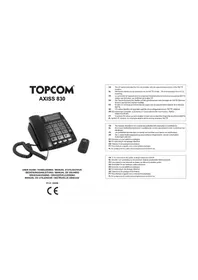
Axiss 830 - Phone TOPCOM - Free user manual and instructions
Find the device manual for free Axiss 830 TOPCOM in PDF.


User questions about Axiss 830 TOPCOM
0 question about this device. Answer the ones you know or ask your own.
Ask a new question about this device
Download the instructions for your Phone in PDF format for free! Find your manual Axiss 830 - TOPCOM and take your electronic device back in hand. On this page are published all the documents necessary for the use of your device. Axiss 830 by TOPCOM.
USER MANUAL Axiss 830 TOPCOM
UK The CE symbol indicates that the unit complies with the essential requirements of the R&TTE directive.
UK The features described in this manual are published with reservation to modifications.
UK To be connected to the public analogue telephone network.
Thank you for purchasing this high featured telephone.
1.1 Intended purpose
This product is intended to be connected indoor to an analogue PSTN telephone line.
This model is specially designed for elderly people :
- It comes with a pendant that can be used in case of an emergency.
- It has big buttons for better visibility.
11 selectable display languages : English, Dutch, French, German, Spanish, Italian, Polish, Portuguese, Danish, Swedish and Finish.
Voice guidance in 6 languages : English, Dutch, French, German, Spanish and Swedish. - Talking Caller ID
Large display - Hearing aid compatible
High volume ringer
High quality hands-free operation - Two direct memory keys
Phonebook for 30 entries - Caller ID list
The emergency feature will operate as follow :
- To activate an emergency call, someone presses the SOS key on the wireless pendant or the SOS key on the phone.
- A loud local alarm will go off during 15 seconds.
- If no one arrives to deactivate the alarm, the phone will dial the first pre-programmed emergency number from the phonebook.
- The receiving party of this emergency call will hear a recorded voice message indicating that there is an emergency.
If the receiving party does not answer or ignores the emergency call, the phone will call the next pre-programmed emergency number 3 minutes later.
- The receiver who answers the emergency call will press "0" to accept the call.
- Now a speakerphone conversation will be activated.
- After 3 minutes the call will be disconnected and the phone will dial the next emergency number unless the receiving party presses "15" to continue the conversation and to deactivate the emergency feature.
Each time the phone dials an emergency number, the telephone line will be occupied for at least 3 minutes, even when the receiving party hung up the call.
1.2 Caller ID
To use 'Caller ID' (display caller), this service has to be activated on your phone line. Normally you need a separate subscription from your telephone company to activate this function. If you don't have the Caller ID function on your phone line, the incoming telephone numbers will NOT be shown on the display of your telephone.
1.3 Connection
The CE symbol indicates that the unit complies with the essential requirements of the R&TTE directive.
This device has been designed and manufactured to comply with the 98/482/EC rule, referent to the Pan European connection of a terminal to the Public Switching Telephone Network (PSTN) and following the established guidelines by the 1999/5/EC Directive about radio electric equipments and the reciprocal acknowledge of their conformity. However, due to the fact that there are some differences in the PSTNs from one country to another, the verifying measurements by themselves do not set up an unconditional guarantee for an optimal working in every connection point to the PSTN of any country. If any problem comes up, get in touch firstly with the distributor.
In any case, use conditions for which the product has been created should be respected as well as avoid its use in public or private networks with technical requirements clearly different to those established in the EU.
2 Safety instructions
The following safety advice must always be followed before using electrical equipment. Please read carefully through the following information concerning safety and proper use. Make yourself familiar with all the functions of the equipment. Be careful to keep these advice notes and if necessary pass them on to a third party.
Electrical safety and protection :
- Do not operate the equipment if the mains plug, cable or the equipment itself is damaged.
- If the equipment is dropped, then it must be checked by an electrician before further use.
- Dangerous voltages are present inside the equipment. Never open the housing or insert objects through the ventilation holes.
- Do not allow liquids to get into the equipment. In case of emergency, pull out the plug from the socket.
- Similarly, if a fault develops during use or before you start to clean the equipment, pull the plug out if the socket.
- Do not touch the charger and plug contacts with sharp or metal objects.
- Do not carry out any modifications or repairs to the equipment yourself. Have repairs done to the equipment or the mains cable only by a specialist service centre. Unsatisfactory repairs can lead to considerable danger for the user.
Children frequently underestimate the dangers associated with electrical equipment. Therefore you must never leave children unsupervised in the vicinity of electrical equipment. -
The equipment is not to be used in a damp room (e.g. bathrooms) or rooms where there is a lot of dust.
-
Equipment connected to the mains during a thunderstorm can be damaged by lightning. Therefore you should pull the plug out of the mains socket during a storm.
- To completely disconnect the equipment from the electricity supply, the plug must be removed from the socket. When doing this always pull on the plug itself and never on the cable.
- Protect the mains cable from hot surfaces or other sources of damage and do not allow it to become constrained.
- Check the mains cable regularly for any damage.
- Unwind the mains cable completely before use.
- Make sure that the mains cable does not represent a trip hazard.
The operation of some medical devices may be affected. - Only pass the telephone on to third with the user guide.
Fire safety :
- The heat accumulated inside the equipment can lead to the defect and/or to the fire of the equipment. Do not expose this equipment therefore to extreme temperature like:
- direct sun exposure and heater warmth
- ventilation holes may not be covered
Danger of explosion :
- Never throw batteries in fire.
Poisoning danger :
- Keep batteries away from small children.
3 Cleaning
Clean the telephone with a slightly damp cloth or with an anti-static cloth. Never use cleaning agents or abrasive solvents.
4 Disposal of the device (environment)

At the end of the product lifecycle, you should not throw this product into the normal household garbage but bring the product to a collection point for the recycling of electrical and electronic equipments. The
symbol on the product, user guide and/or box indicate this.
Some of the product materials can be re-used if you bring them to a recycling point. By re-using some parts or raw materials from used products you make an important contribution to the protection of the environment.
Please contact your local authorities in case you need more information on the collection points in your area.
5 Buttons / connections
(See picture on folded cover page)
1. LCD display
2. Direct memory keys M1, M2
3. OK/dial key
4. Up key
5. Down key
6. Program key
7. Delete key
8. Phonebook/Caller ID list select key
9. Handsfree volume
10. Handsfree key
11. Redial/Pause -key
12. Ringer LED
13. Flash key
14. Mute key
15. Curl cord connector (RJ9)
16. Numeric keypad
17. SOS key
18. Low battery/No battery LED
19. Hook key
20. In-use LED
21. Ringer volume switch
22. Line connection (RJ11)
23. Power adapter connection
24. Curl cord connection (RJ9)
25. Handset volume switch
- Wireless pendant
- Pendant SOS button
- Pendant transmission LED
6 l n s t a l l a t i o n
Put batteries in the battery compartment to activate the display :
- Open the battery compartment at the bottom of the unit. Use a screw driver to remove the screw first.
- Insert 4 Alkaline AA (LR06, 1.5V) batteries.
- Close the battery compartment.
- Connect one end of the line cord to the telephone line wall socket and the other end to the backside of the telephone.
- Connect the power adapter to the connection at the back panel and to an available power socket.
The telephone line needs to be disconnected prior to opening the battery door!
7 Axis830 settings
7.1 Language setting
The Axiass 830 has eleven display languages: English, French, German, Spanish, Swedish, Dutch, Italian, Finnish, Danish, Polish and Portuguese.
To select the language please go through the following steps :
·Pret
- Press 6 x to select "LCD LANGUAGE".
Preok
- Now use and to navigate through all different languages.
- Choose your language and press OK/OK confirm.
- Press to leave the menu.
7.2 Voice guidance
The Axis 830 has a voice guided menu and will also repeat every dialed digit by voice.
You can select out of six different voice languages (English, French, German, Spanish, Swedish, Dutch) or you can disable the voice.
Press
- Press 7 x t▲select "VOICE".
P
Now use and to navigate through all different languages.
Choose the language and press OK/confirm.
If you don't want voice guidance you can select "VOICE NO".
- Press to leave the menu.
7.3 LCD contrast
You can set the LCD display contrast to 5 different levels :
Press
- Press Select "LCD CONTRAST".
Now use and to select the best level.
Press to confirm.
- Press to leave the menu.
7.4 Enter the time and date
When you have a subscription to the Caller ID service and your telephone provider sends the date and time together with the telephone number, the phone's clock will be set automatically.
Press
- Press 1 x t-select "ENTER TIME/DATE".
F
Now use and to change the hour.
Press to confirm.
Use and to change the minutes.
Press to confirm.
Use and to change the month.
Press to confirm.
Now use and to change the date.
Press to confirm.
- Press to leave the menu.
7.5 Set the area code
When you have a subscription to the Caller ID service it can be necessary in some countries to enter your area code. When the telephone receives a Caller ID it will remove the entered area code from the incoming number.
You can set up to 5 digits for the area code.
Preps
- Press 1 x to select "LOCAL AREA CODE".
- Press to enter the settings.
Now use and to change the digit.
- Press to move to the next digit.
- Repeat this sequence until all digits are set. Leave unused digits as “-”.
- Press to leave the menu.
7.6 Set the dial mode - Pulse or Tone (DTMF)
The Axis 830 can dial in Tone (DTMF) or Pulse mode. By default the telephone is set to Tone (DTMF) mode.
Preps
- Press 3 x to select "SET DIAL MODE".
- Press to enter the settings.
Now use to toggle between "PULSE" and "TONE".
Press to confirm.
- Press to leave the menu.
7.7 Set the flash time
The R-key (flash) is used for services like 'Call waiting' (if this service is provided by your telephone company) or to transfer calls when the telephone is connected to a PBX-system.
Depending on the country, this flash-time can be different. The telephone supports 3 possibilities: 100, 300, 600 msec.
PreS
- Press 4 x to select "SET FLASH TIME".
- Press to enter the settings.
Now use to select the desired flash time.
Press to confirm.
- Press to leave the menu.
7.8 Store telephone numbers
7.8.1 Store phonebook numbers
You can store up to 30 phone numbers/names in the Axis 830. Each number can be set as an emergency number.
- Press

- Press 2 x t-select "STORE NUMBER".
Press to her. - Now enter the telephone number to be stored. Press delete a wrong entered digit.
Use and to move back and forward through the number.
Press to confirm.
- Now enter the name using characters on the numeric keypad.
Press delete a wrong entered character.
Use and to move back and forward through the entered characters.
Press to confirm.
- Now select "EMERGENCY OFF" "EMERGENCY ON".
In case of "EMERGENCY ON" you need to select the position of this number.
- Use to select the position.
- Press confirm.
In case you want to overwrite an existing position you will have to confirm
"OVERWRITE?" by pressing OK/
"MEMORY FULL" will appear when the maximum of 30 records has been reached.
When the number is saved the menu will automatically go to "NAME RECORDING"
- Press and hold and wait for the beep.
After the beep, please say the name of the stored contact.
Now release the button to finish the recording.
- Press to leave the menu.
The maximum length of this recording is 3 seconds.
7.8.2 Store a number in the direct memory keys (M1, M2)
PreS
- Press 2 x to select "STORE NUMBER".
- Press to Enter.
- Now enter the telephone number to be stored. Press delete a wrong entered digit.
Use and to move back and forward through the number.
Press to confirm.
- Press M1 or M2.
Press to save.
- Press to leave the menu.
7.9 Name recording
Once a number/name is stored in the Axis 830 you can record the name.
You can change the name you have recorded while storing a number/name in previous chapter.
Preps
or Press 3 x toselect "NAME RECORDING".
- Press token.
Now use to navigate through all stored numbers/names.
You will hear the recorded name while navigating through the stored contacts.
Press erase the recording.
- When you have selected the contact, press and hold and wait for the beep.
After the beep, please say the name of the stored contact.
Now release the Dkton to finish the recording.
- Press to leave the menu.
The maximum length of this recording is 3 seconds.
7.10 Record message
For SOS calls, the Axis 830 will broadcast a standard pre-recorded message unless you record your own message.
Press
- Press 4 x t▲select "RECORDMESSAGE".
Press and hold and wait for the beep. After the beep, please say the message. Now release the button to finish the recording.
- Press to leave the menu.
The maximum length of this recording is 20 seconds.
The default message is : "THIS IS AN EMERGENCY CALL, TO ACCEPT THIS CALL PRESS ZERO"
7.11 Check message
The message you recorded in previous chapter can be verified.
Press
- Press 5 x t-select "CHECKMESSAGE".
- Press to listen to the recorded message.
- Press to leave the menu.
To erase the recording, press Ouring playback.
7.12 Pair new pendant / Remove pendant
The pendant is registered in the Axis 830 by its ID code. In case of repair or other reasons it can be necessary to register the pendant to the telephone. The pendant can also be deleted from the Axis 830.
To pair a pendant :
Pres
- Press 2 x to select "PAIR NEW PENDANT".
F
- Press to start the pairing process. Now press the button on the pendant. "DONE" will appear if the pairing is successful.
- Press to leave the menu.
To remove a pendant :
Pre s - Press 2 x to select "PAIR NEW PENDANT".
- Preok/
- Press to select "DELETE?"
- Press to delete the pendant.
- Press to leave the menu.
8 Using the Axis 830
8.1 Making a call
- Enter the telephone number.
- Press to delete a wrongly entered digit.
Pick up the handset or press OK make a hands-free call.
The volume of the handset can be set to HI or LO by using switch 25
During a call made with the handset you can switch to hands-free by pressing and hanging up the handset. The hands-free volume can be adjusted using the volume button
In case the telephone is connected to a PBX system it might be necessary to add a pause after the PBX access code. The phone can generate a 4 second pause time.
Example: 0 P 012345678 Press enter a pause.
The call duration timer will start in the display 4 seconds after the number was dialed.
8.2 Receiving a call
- When a call comes in, the phone will ring and the ringer LED will blink.
Pick up the handset or press the pendant button to take the call hands-free.
Use switch do set the ringer volume.
A call that has been accepted by use of the pendant button can also be terminated by pressing the pendant button again.
8.3 Deactivating the microphone
During a call you can deactivate the microphone and talk freely without the caller hearing you.
- Press and hold to mute the microphone.
8.4 Last number redial
The Axiass 830 will remember the last dialed number.
- Pickup the handset or press hands-free.
Now press to radial last number.
8.5 Incoming Caller ID list
The Axis 830 can store up to 64 calls in the caller ID list.
To review the incoming calls, press to make sure "CLIP" is displayed next to the date.
The display will show the number of total calls and the number of new calls.
- Use and to navigate through the incoming calls.
8.5.1 Making a call from the caller ID list
- Select a number from the caller ID list.
- Press to the number.
8.5.2 Copy a number from the caller ID list to the phonebook
- Select a number from the caller ID list.
- Press and hold for 3 seconds. "COPY TO MEMORY" will be displayed.
- Press to locate the number.
8.5.3 Delete a number from the caller ID list
- Select a number from the caller ID list.
- P r e s . " DELETE?" will appear display.
- Press and hold for 4 seconds. The number will be deleted.
8.6 Using the phonebook
- To go to phonebook mode, press make sure " is displayed next to the date.
- Use and to navigate through the phonebook.
SOS will appear in front of the clock in the display for emergency numbers.
8.6.1 Making a call from the phonebook
- Select a number from the phonebook.
- Press to the number.
8.6.2 Edit a number/name in the phonebook
- Select a number from the phonebook.
- Press and hold until "EDIT?" appears on the display.
Preok/
Now start modifying the name, number and emergency type according chapter "7.8 Store telephone numbers".
Refer to chapter "7.9 Name recording" to record a name.
8.6.3 Delete a number from the phonebook
- Select a number from the phonebook.
- P r e s . " DELETE?" will appear in the display.
- Press and hold for 4 seconds. The number will be deleted.
8.7 Using the direct memory keys M1, M2
- Press M1 or M2.
Now Press to the number. Or - Pickup the handset or press hands-free mode
- Press M1 or M2 to dial the direct memory number.
9 The SOS function
Please read carefully how the SOS scenario works in chapter "1.1 Intended purpose".
It is important that the receiving party of an emergency call presses "0" to accept the call.
If the emergency call is not accepted, the Axisss 830 will call the next number from the emergency number list.
After 3 minutes a beep tone will indicate that the emergency call will be terminated. The receiving party should press "15" to add an extra 3 minutes to the emergency call.
Once the receiving party has pressed "15" during the emergency call (or after 3 minutes to extend the call for another 3 minutes), the SOS function will be deactivated.
If the receiving party did not press "15" during the emergency or after the 3 minutes to extend the call, the SOS function will not be deactivated and the Axisss 830 will call the next number from the emergency number list.
Each time the phone dials an emergency number, the telephone line will be occupied for at least 3 minutes, even when the receiving party hung up the call.
9.1 Activate the SOS function
- Press the pendant button.
Or - Press and hold the SOS key of the Axis 830 for at least 4 seconds.
9.2 Deactivate the SOS function
- Press the pendant button.
Or - Press the SOS key of the Axis 830.
10 Technical specifications
Dialing mode : Tone dial (DTMF) / Pulse dial Flash-time : 100/300/600 ms
External power: 9V DC - 300mA
Battery: 4 × AA Alkaline LR03 (not included)
Pendant battery : 23A 12V Alkaline (included)
Pendant operating frequency : 433.92 MHz
Ambient temperature: +5 °C to +45 °C
Permitted relative air humidity : 25 to 85 %
11 Topcom warranty
11.1 Warranty period
The Topcom units have a 24-month warranty period. The warranty period starts on the day the new unit is purchased. There is no warranty on standard or rechargeable batteries (AA/AAA type). Consumables or defects causing a negligible effect on operation or value of the equipment are not covered. The warranty has to be proven by presentation of the original or copy of the purchase receipt, on which the date of purchase and the unit-model are indicated.
11.2 Warranty handling
A faulty unit needs to be returned to a Topcom service centre including a valid purchase note and a filled in service card. If the unit develops a fault during the warranty period, Topcom or its officially appointed service center will repair any defects caused by material or manufacturing faults free of charge, by either repairing or exchanging the faulty units or parts of the faulty units. In case of replacement, colour and model can be different from the original purchased unit.
The initial purchase date shall determine the start of the warranty period. The warranty period is not extended if the unit is exchanged or repaired by Topcom or its appointed service centre.
11.3 Warranty exclusions
Damage or defects caused by incorrect treatment or operation and damage resulting from use of non-original parts or accessories are not covered by the warranty. The warranty does not cover damage caused by outside factors, such as lightning, water and fire, nor any damage caused during transportation. No warranty can be claimed if the serial number on the units has been changed, removed or rendered illegible.
Any warranty claims will be invalid if the unit has been repaired, altered or modified by the buyer.
Risk for explosion :
- Kastainte batterierna i eld.
Förgiftningsfara :
DECLARATION OF CONFORMITY
We, Topcom Europe Nv, Grauwmeer 17, 3001 Heverlee, Belgium, declare that our product:
Model type: Axis 830
is in compliance with the essential requirements and other relevant provisions of the R&TTE directive 1999/5/EC and carries the CE mark accordingly.
Supplementary information:
The product complies with the requirements of:
EN60950-1:2006
EN 301 489-3 v 1.4.1
EN 55024:1998+A1+A2
EN 300 220-2 v 2.1.2
Date: 20/02/2009
Place: Heverlee, Belgium
Name: Verheyden Geert
Function: Technical Director
Signature:
European contact: Topcom Europe Nv, R&D department, Research Park, Grauwmeer 17, 3001 Heverlee, Belgium. Tel: +32 16 398920, Fax: +32 16 398939
DEKLARACJA ZGODNOSCI
My TOPCOM EUROPE Nv, Grauwmeer 17, 3001 Heverlee, Belgia,
visit our website www.topcom.net