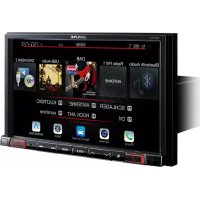
X802DU - Browser ALPINE - Free user manual and instructions
Find the device manual for free X802DU ALPINE in PDF.



| Product type | GPS navigator with multimedia receiver |
| Brand and model | Alpine X802DU |
| Dimensions (L x H x D) | 198 mm x 125 mm x (depth not specified) |
| Weight | 1.54 kg |
| Power supply | 14.4 V DC (11-16 V allowed) |
| Screen size | 7 inches (LCD TFT screen) |
| Screen resolution | 800 x 480 pixels |
| Navigation functions | Mapping, multi-point route, address search, points of interest, history |
| Smartphone connectivity | Android Auto, Apple CarPlay (via USB cable or Bluetooth) |
| Bluetooth connectivity | Hands-free, audio streaming, phonebook |
| Audio/video inputs | USB (playback MP3/WMA/AAC/FLAC/AVI/MKV/MP4), HDMI, iPod/iPhone via Lightning cable |
| Radio tuner | FM (RDS), AM (MW/LW), DAB/DAB+/DMB |
| Audio output power | Front/rear pre-out: 2 V/10 kΩ, subwoofer: 2 V/10 kΩ |
| Safety | Do not watch video while driving; installation by a professional; use appropriate fuses |
| Maintenance and cleaning | Wipe with a soft dry cloth; do not use solvents |
| Spare parts and repairability | Contact an authorized Alpine dealer for any repairs; CD-ROM provided with full manual |
| Included accessories | CD-ROM containing detailed user manual |
| Operating temperature | -20°C to +60°C |
Frequently Asked Questions - X802DU ALPINE
User questions about X802DU ALPINE
0 question about this device. Answer the ones you know or ask your own.
Ask a new question about this device
Download the instructions for your Browser in PDF format for free! Find your manual X802DU - ALPINE and take your electronic device back in hand. On this page are published all the documents necessary for the use of your device. X802DU by ALPINE.
USER MANUAL X802DU ALPINE
KPATKOE CIPABOCHOE PYKOBOCTBO
SKROCONAINSTRUKKCJADLAUZYTKOWNIKA
EN
DE
FR
ES
IT
SE
NL
RU
PL
Made for

PodiPhone

Works with
Apple CarPlay

Bluetooth
androidauto
HOMI
HIGH-DEFINITION MULTIMEDIA INTERFACE

Digital Audio Broadcasting

Spotify

(X902D/X802D-U/INE-W710D Only)
MP3
AAC

Contents
WARNING 2
CAUTION 3
Getting Started 4
Favourite Function. 6
Registering Items 6
Android Auto (Optional) 7
Apple CarPlay (Optional) 7
Alpine Connect App (Optional) (X902D/X802D-U/INE-W710D only) 7
Radio/RDS Operation 8
DAB/DAB+/DMB Operation 9
USB Flash drive Operation (Optional) 10
HDMI Device (DVD Player) Operation (Optional) 11
iPod/iPhone Operation (Optional) 12
Hands-Free Phone Control 13
Map Functions (X902D/X802D-U/INE-W710D only) 14
Navigation Menu (X902D/X802D-U/INE-W710D only) 15
Setting a Destination (X902D/X802D-U/INE-W710D only) 16
Specifications 17
IMPORTANT
Please record the serial number of your unit in the space provided below and keep it as a permanent record.
SERIAL NUMBER:
ISO SERIAL NUMBER: AL
INSTALLATION DATE:
INSTALLATION TECHNICIAN:
PLACE OF PURCHASE:
For details on all functions, refer to the Owner's Manual stored in the supplied CD-ROM. (As it is data CD, the CD cannot be used for playing back music and images on the player.) If required, an ALPINE dealer will readily provide you with a print out of the Owner's Manual contained in the CD-ROM.
WARNING

This symbol means important instructions. Failure to heed them can result in serious injury or death.
INSTALL THE PRODUCT CORRECTLY SO THAT THE DRIVER CANNOT WATCH TV/VIDEO UNLESS THE VEHICLE IS STOPPED AND THE EMERGENCY BRAKE IS APPLIED.
It is dangerous for the driver to watch TV/Video while driving a vehicle. Installing this product incorrectly enables the driver to watch TV/Video while driving. This may cause a distraction, preventing the driver from looking ahead, thus causing an accident. The driver or other people could be severely injured.
DO NOT WATCHVIDEOWHILEDRIVING.
Watching the video may distract the driver from looking ahead of the vehicle and cause an accident.
DO NOT OPERATE ANY FUNCTION THAT TAKES YOUR ATTENTION AWAY FROM SAFELY DRIVING YOUR VEHICLE.
Any function that requires your prolonged attention should only be performed after coming to a complete stop. Always stop the vehicle in a safe location before performing these functions. Failure to do so may result in an accident.
DO NOT FOLLOW ROUTE SUGGESTIONS IF THE NAVIGATION SYSTEM INSTRUCTS YOU TO PERFORM AN UNSAFE OR ILLEGAL MANEUVER, OR PLACES YOU IN AN UNSAFE SITUATION OR AREA.
This product is not a substitute for your personal judgement. Any route suggestions by this system should never supersede any local traffic regulations or your personal judgement or knowledge of safe driving practice.
KEEP THE VOLUME AT A LEVEL WHERE YOU CAN STILL HEAR OUTSIDE NOISES WHILE DRIVING.
Excessive volume levels that obscure sounds such as emergency vehicle sirens or road warning signals (train crossings, etc.) can be dangerous and may result in an accident. LISTENING AT LOUD VOLUME LEVELS IN A CAR MAY ALSO CAUSE HEARING DAMAGE.
MINIMIZE DISPLAY VIEWING WHILE DRIVING.
Viewing the display may distract the driver from looking ahead of the vehicle and cause an accident.
DO NOT DISASSEMBLE OR ALTER.
Doing so may result in an accident, fire or electric shock.
USE ONLY IN CARS WITH A 12 VOLT NEGATIVE GROUND.
(Check with your dealer if you are not sure.) Failure to do so may result in fire, etc.
KEEP SMALL OBJECTS SUCH AS SCREWS OUT OF THE REACH OF CHILDREN.
Swallowing them may result in serious injury. If swallowed, consult a physician immediately.
USE THE CORRECT AMPERE RATING WHEN REPLACING FUSES.
Failure to do so may result in fire or electric shock.
DO NOT BLOCK VENTS OR RADIATOR PANELS.
Doing so may cause heat to build up inside and may result in fire.
USE THIS PRODUCT FOR MOBILE 12V APPLICATIONS.
Use for other than its designed application may result in fire, electric shock or other injury.
MAKE THE CORRECT CONNECTIONS.
Failure to make the proper connections may result in fire or product damage.
BEFORE WIRING, DISCONNECT THE CABLE FROM THE NEGATIVE BATTERY TERMINAL.
Failure to do so may result in electric shock or injury due to electrical shorts.
DO NOT ALLOW CABLES TO BECOME ENTANGLED IN SURROUNDING OBJECTS.
Arrange wiring and cables in compliance with the manual to prevent obstructions when driving. Cables or wiring that obstruct or hang up on places such as the steering wheel, shift lever, brake pedals, etc. can be extremely hazardous.
DO NOT SPLICE INTO ELECTRICAL CABLES.
Never cut away cable insulation to supply power to other equipment.
Doing so will exceed the current carrying capacity of the wire and result in fire or electric shock.
DO NOT DAMAGE PIPE OR WIRING WHEN DRILLING HOLES.
When drilling holes in the chassis for installation, take precautions so as not to contact, damage or obstruct pipes, fuel lines, tanks or electrical wiring. Failure to take such precautions may result in fire.
DO NOT USE BOLTS OR NUTS IN THE BRAKE OR STEERING SYSTEMS TO MAKE GROUND CONNECTIONS.
Bolts or nuts used for the brake or steering systems (or any other safety-related system), or tanks should NEVER be used for installations or ground connections. Using such parts could disable control of the vehicle and cause fire etc.
DO NOT INSTALL IN LOCATIONS WHICH MIGHT HINDER VEHICLE OPERATION, SUCH AS THE STEERING WHEEL OR SHIFT LEVER.
Doing so may obstruct forward vision or hamper movement etc. and results in serious accident.

This syi to heed proper!
HALT USE Failure to d Return it to Centre for 1
HAVETHHE The wiring; and experiepurchased 4
USE SPEC SECURE BYe sure to u designated 1 install the u in hazards c
ARRANGE BY A SHAH Route the c or sharp or wiring. If w to prevent t hole.
DO NOT DUST. Avoid install dust. Moist product fail
The foll They m
CAUTION
This symbol means important instructions. Failure to heed them can result in injury or material property damage.
HALT USE IMMEDIATELY IF A PROBLEM APPEARS.
Failure to do so may cause personal injury or damage to the product. Return it to your authorized Alpine dealer or the nearest Alpine Service Centre for repairing.
HAVETHE WIRING AND INSTALLATIONDONE BY EXPERTS.
The wiring and installation of this unit requires special technical skill and experience. To ensure safety, always contact the dealer where you purchased this product to have the work done.
USE SPECIFIED ACCESSORY PARTS AND INSTALL THEM SECURELY.
Be sure to use only the specified accessory parts. Use of other than designated parts may damage this unit internally or may not securely install the unit in place. This may cause parts to become loose resulting in hazards or product failure.
ARRANGE THE WIRING SO IT IS NOT CRIMPED OR PINCHED BY A SHARP METAL EDGE.
Route the cables and wiring away from moving parts (like the seat rails) or sharp or pointed edges. This will prevent crimping and damage to the wiring. If wiring passes through a hole in metal, use a rubber grommet to prevent the wire's insulation from being cut by the metal edge of the hole.
DO NOT INSTALL IN LOCATIONS WITH HIGH MOISTURE OR DUST.
Avoid installing the unit in locations with high incidence of moisture or dust. Moisture or dust that penetrates into this unit may result in product failure.
- The following screen examples of X902D/X802D-U/INE-W710D used in this manual are for reference only. They may differ from the actual screen displays.
Getting Started
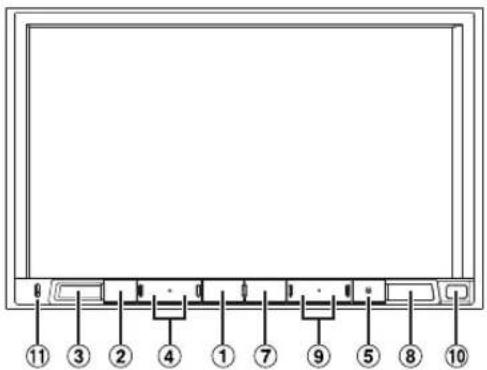
Location of Controls
The screen design used in the Owner's Manual may differ from the actual screen.
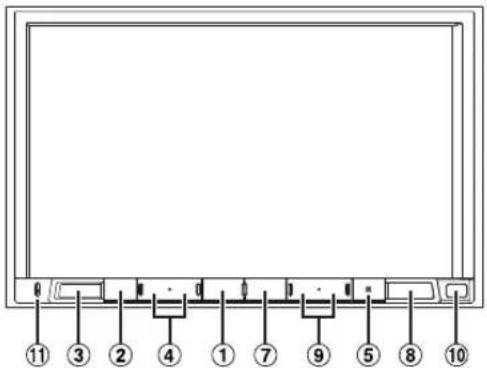
For X902D/i902D
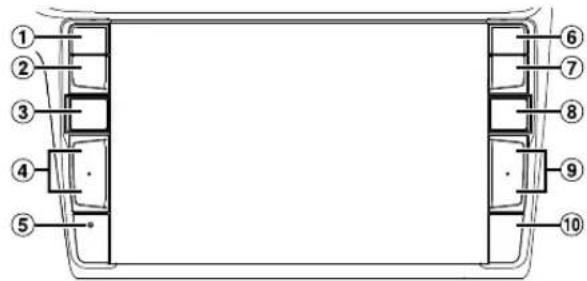
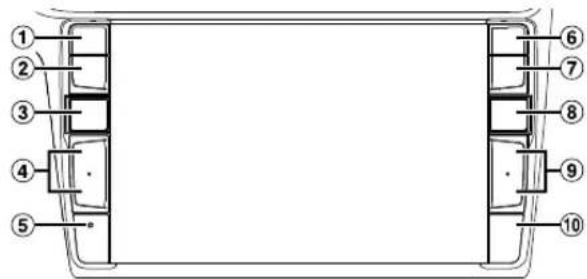
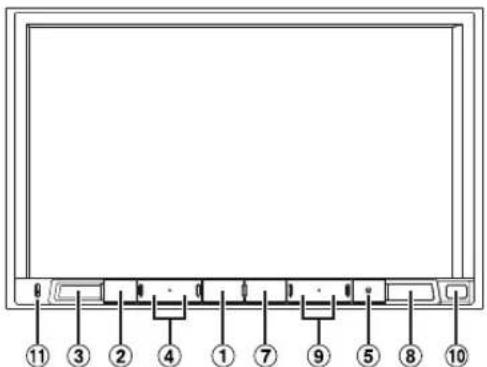
For X802D-U/INE-W710D/jLX-702D
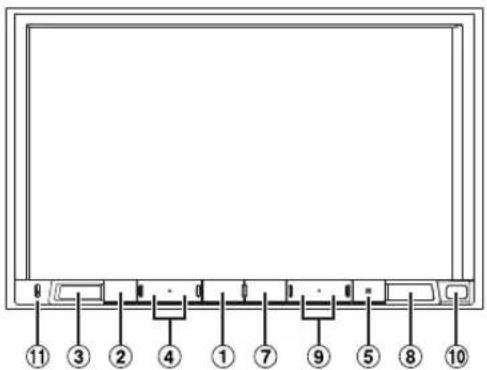
① orOICE button
Depending on the connected smartphone, press to recall Siri function or voice recognition mode.
② (MATE) button
Press to activate/deactivate the mute mode.
③ (AUDIO)/(Favourite) button
Displays the Audio/Visual screen. If the Audio/Visual screen is already displayed, changes the source. Press and hold for at least 2 seconds to recall the Favourite screen.
4/df-(UP/DOWN)button
Press to adjust the volume.
⑤ RESET switch
The system of this unit is reset.
⑥ (PONE) button (X902D/i902D only)
Recalls the Phone Menu screen. Press to start a conversation when a call is incoming.
⑦ MENU/(Power Off) button
Recalls the Menu screen. Press and hold this button for at least 5 seconds to turn the power off.
⑧ (N) button
For X902D/X802D-U/INE-W710D:
Recalls the navigation map screen. Press again to switch to Navigation menu screen. Press and hold this button for at least 2 seconds to change to Go Home route screen. (If Home is not set yet, it will change to the Home setting screen.) For details of navigation operations, refer to "Navigation System OM" in the CD-ROM.
For i902D/iLX-702D:
Recalls the connected smartphone's map screen. Depending on the smartphone, this function may not available.
9 1 button
Press to seek up/down a station in radio mode or up/ down a track, chapter, etc., In other audio/visual sources.
Remote Sensor
Point the remote control transmitter towards the remote sensor within a range of 2 metres.
11 Microphone (X802D-U/INE-W710D/iLX702D only)
Used for Hands-free or Voice Control modes.
Turning Power On or Off
1 Turn the ignition key to the ACC or ON position.
The system is turned on.
2 Press and hold the MENU button for at least 5 seconds to turn the power off.
Switching the Audio Sources Screen to a Dedicated Screen
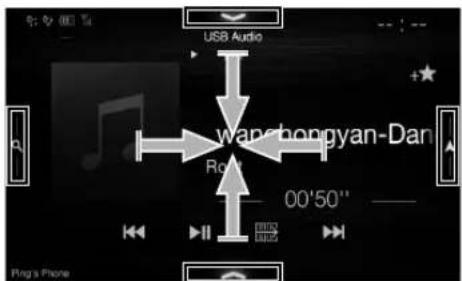
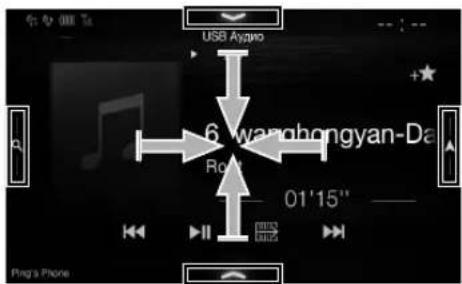
You can switch the Audio Sources screen to a dedicated screen by touching the icon on one of the four edges of the screen, or by swiping vertically or horizontally.
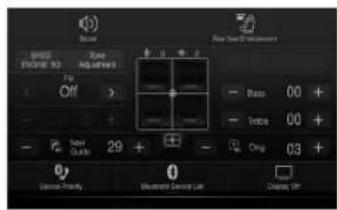
Shortcut Setup Screen
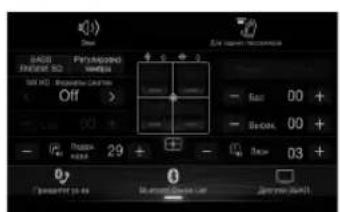
You can set the Sound Setup or Rear Seat Entertainment System.
(X902D/X802D-U/INE-W710D only)
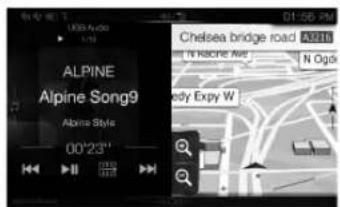
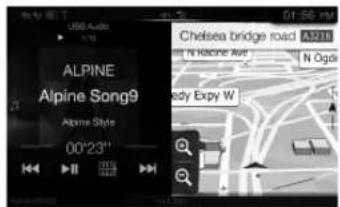
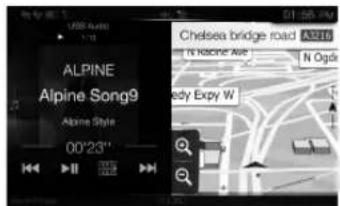
Dual Screen
You can switch between the displayed screens on the Dual Screen.
(USB Audio)

Audio Sources Screen
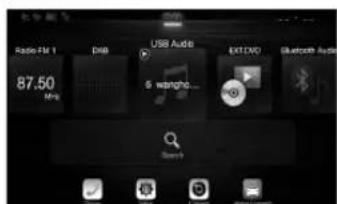
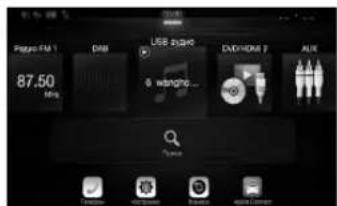
Menu Screen
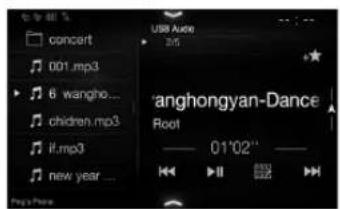
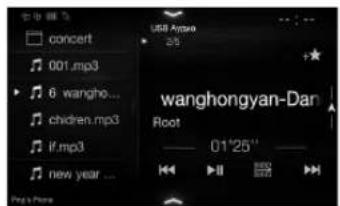
Preset button or Quick Search mode Screen*
You can make settings on the Menu Screen.
- The Search mode differs depending on the audio source. For details, see the operating instructions of the audio source.
Favourite Function
This unit enables you to recall functions easily by registering frequently used items such as the Audio source, the navigation search function, etc. to the Favourite screen. You can recall any of these items easily.
1 Press and hold the / ( Favourite) button for at least 2 seconds.
The Favourite screen is displayed.
Favourite screen example
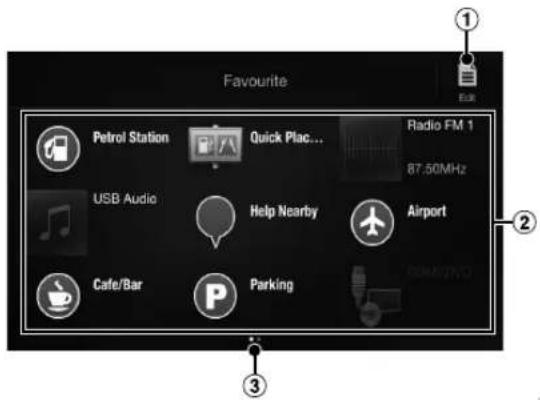
Changes to the Edit screen used for registering items or changing names.
Favourite registration item
3 Indicates the location of the currently displayed Favourite screen.
Swipe to the left and right to change the pages. You can add up to 6 pages.
Owner's manual Registering Items
Registering Items
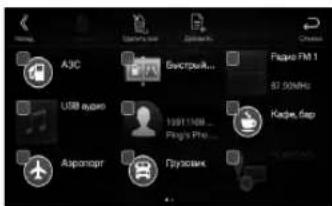
1 Touch [] (Edit).
A checkbox is displayed on the upper left area of the registration icon and it changes to Edit mode.
![ALPINE X802DU - Touch [] (Edit). - 1](/content/2026/02/385195/images/13d6f0f7f5814d19b7619440a39e11af64723f5a54d08f562e9528564dea7939.jpg)
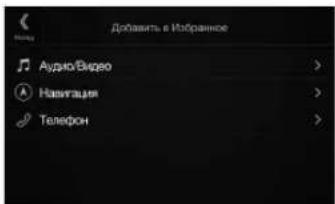
2 Touch [] (Add).
The items to be added (categories) are displayed.
3 Touch the desired item to be added (category).
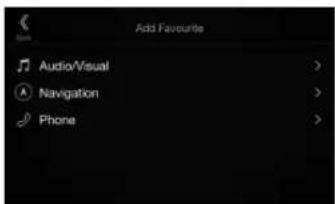
4 Choose the desired item to be added.
For details on the items to be added, refer to "Editing the Favourite Screen" in the Owner's Manual.
- You can add up to 54 items.
- You cannot register an item more than once.
5 After editing is complete, touch [ ] (back).
6 After the caption for the confirmation is displayed, touch [OK].
7 Editing is complete and the screen switches to the Favourite screen.
- If you touch [Ctrl] (Cancel) while editing, the screen switches to the previous Favourite Edit screen.
Android Auto (Optional)
ice, the
tering
played
es.You
Android Auto is designed to make it easier to use apps from your phone while you're on the road. Navigate with Google Maps, listen to playlists or podcasts from your favourite apps, and more. Download the Android Auto App from the Google Play store before continuing. Connect your Android compatible Phone to begin using Android Auto.
1 Press the MENU button.
The Menu screen is displayed.
2 Touch [Android Auto].
The Android Auto screen is displayed.
- For details operation of Android Auto, refer to "Android Auto" in the Owner's Manual (CD-ROM).
Owner's manual Apple CarPlay (Optional)
Apple CarPlay (Optional)
Apple CarPlay is a smarter, safer way to use your iPhone in the car. Apple CarPlay takes the things you want to do with your iPhone while driving and puts them right on this unit. You can get directions, make calls, send and receive messages, and listen to music, all in a way that allows you to stay focused on the road. Just plug in your iPhone to this unit and go.
For details, refer to Owner's Manual (CD-ROM).
Press for VOICE to activate Siri function of the iPhone.
You can make a call, play music, etc., by using Siri function of the iPhone.
You can also control Apple CarPlay on touchscreen.
Owner's manual Alpine Connect App (Optional) (X902D/X802D-U/INE-W710D only)
Alpine Connect App (Optional) (X902D/X802D-U/INE-W710D only)
Download an app that supports Alpine Connect to your smartphone, and you can operate it from the unit. Alpine Connect App is downloadable from Apple's App Store; the Android user can download it from Google Play. For details, consult your Alpine dealer.
Before these operations, set Connectivity Setting or Alpine Connect to USB (iPhone) or Bluetooth (Android) depending on the connected Smartphone.
1 Launch Alpine Connect App.
2 Then connect the smartphone to this unit.
3 Press the MENU button.
The Menu screen is displayed.
4 Touch [Alpine Connect].
The Alpine Connect App select screen is displayed.
5 Select the desired App.
The selected App screen is displayed.
Spotify®
Spotify is a music streaming distribution service not affiliated with Alpine. More information is available at http://www.spotify.com.
The Spotify application is available for iPhone and Android phones, please visit https://support.spotify.com/ for the latest compatibility information.
To enjoy Spotify as you drive, first download the Spotify app to your iPhone or Android device. You can download it on the iTunes App Store or Google Play™. Choose a free account or a paid Premium account, either in the app or at Spotify.com. A Premium account gives you more features, like offline listening.
- This product incorporates Spotify software which is subject to 3rd party licenses found here: www.spotify.com/connect/third-party-licenses.
- For information on the countries and regions where Spotify can be used, take a look at https://www.spotify.com/us/select-your-country/.
Owner's manual Radio/RDS
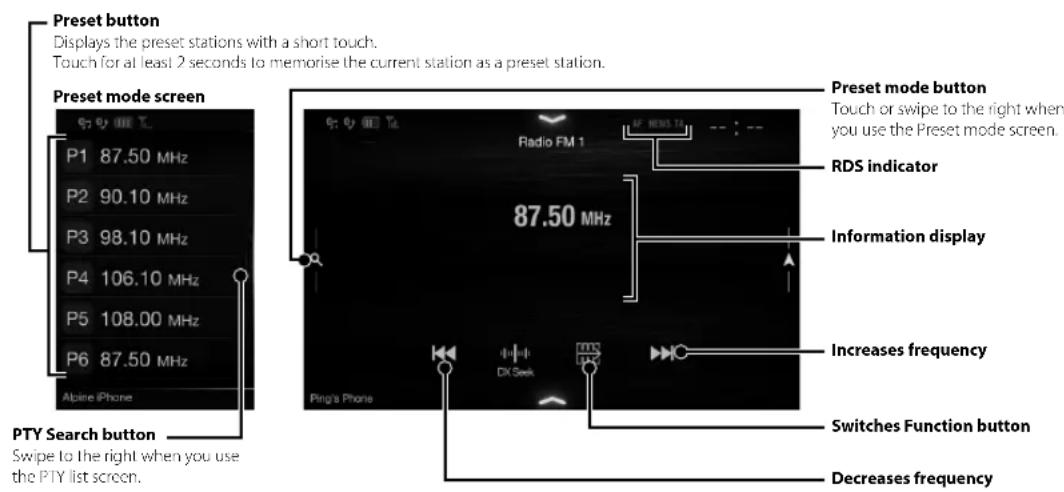
Radio/RDS Operation
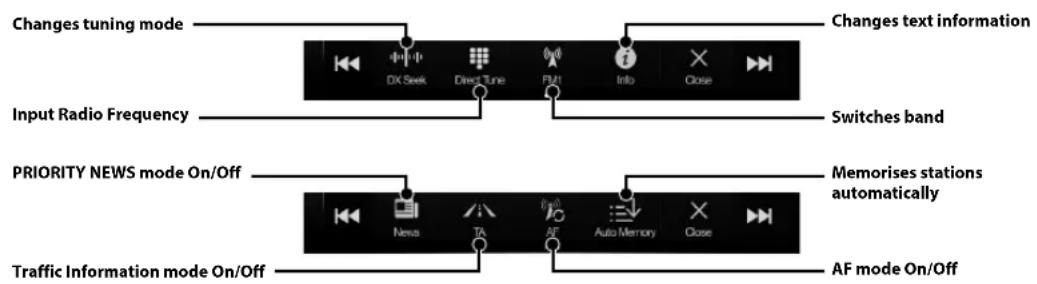
Owner's manual DAB/DAB+/DMB
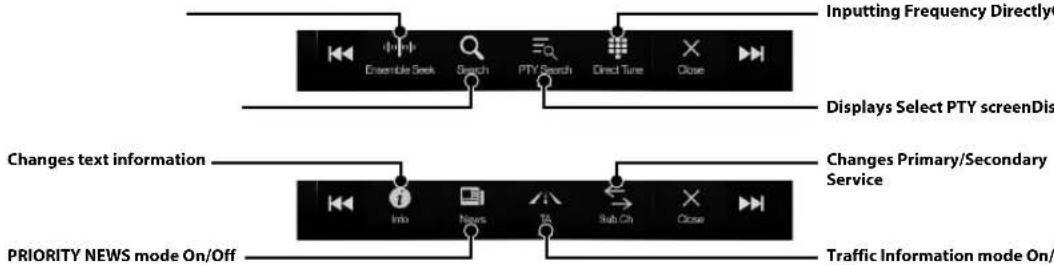
DAB/DAB+/DMB Operation
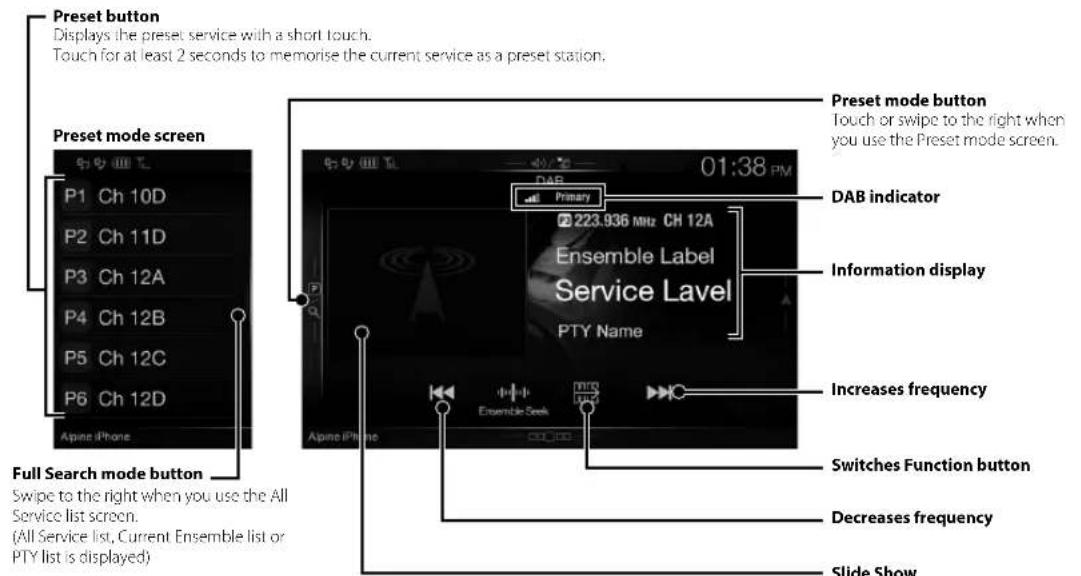
Slide Show
Displays the program information, artist photos, and advertisements that are synchronised with the Service component currently being received.*
- They may not be displayed, depending on the Service component currently being received.
USB Flash drive Operation (Optional)
You can play back music files (MP3/WMA/AAC/FLAC) and video files (AVI/MKV/MP4) stored in a USB flash drive on the internal player of this system.
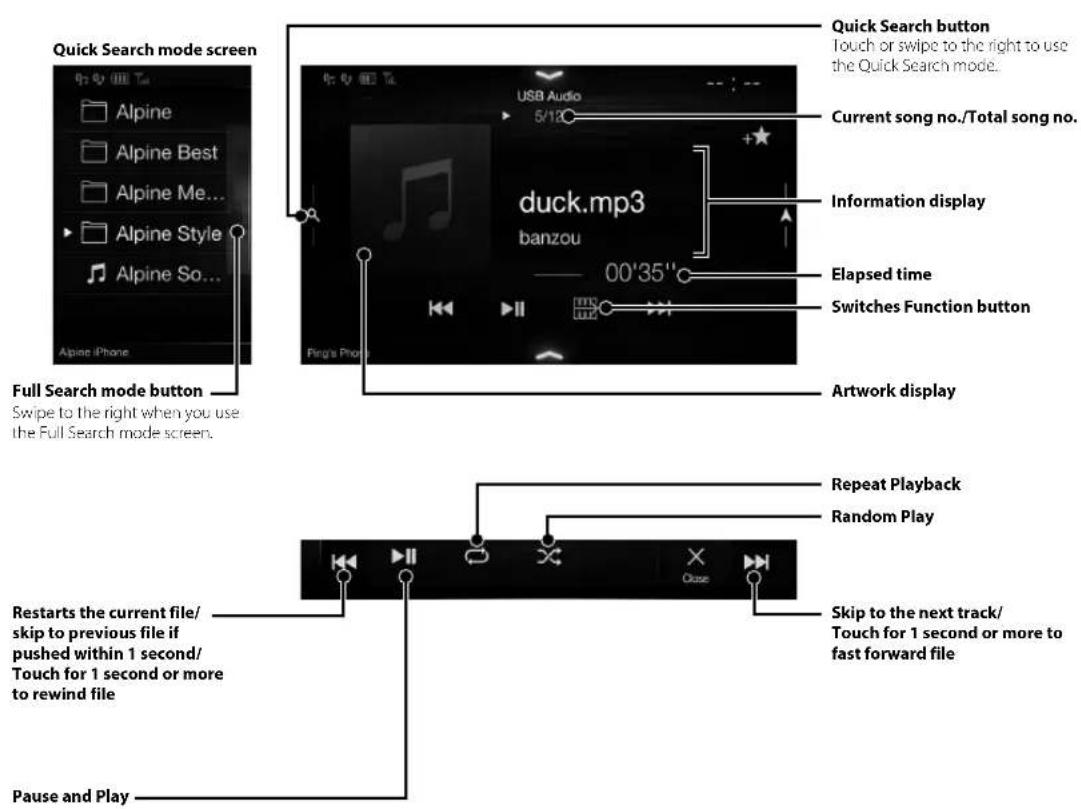
USB Audio main screen example
drive on
ight to use e
al song no.
u tton
k/ r more to
Owner's manual HDMI (Option) DVD
HDMI Device (DVD Player) Operation (Optional)
When you connect an optional DVE-5300 (DVD Player), you can operate it from the unit.
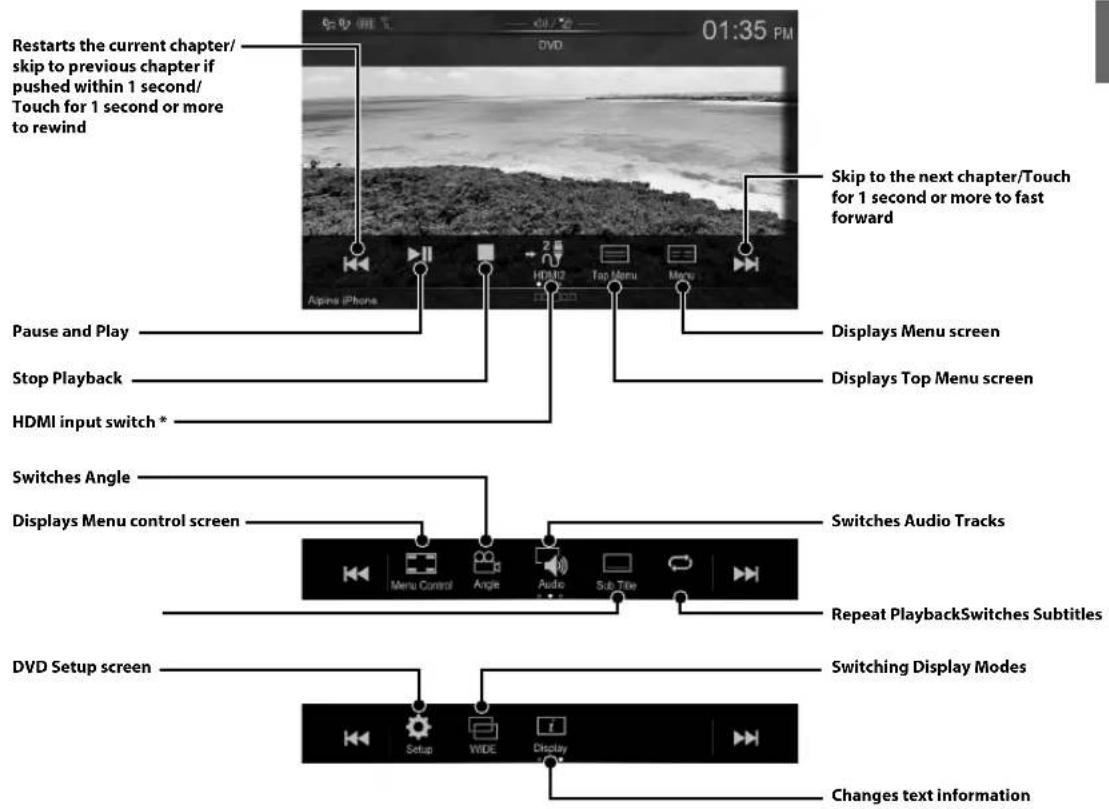
- If you connect an optional HDMI selector module, you can connect two HDMI devices. If the HDMI selector is set to "On" when two HDMI devices are connected, the HDMI input switch button is displayed. The displayed button differs depending on the settings and the HDMI input currently selected. For details, refer to "HDMI Setup" and "Setting the HDMI Selector On/Off" in the OWNER'S MANUAL (CD-ROM).
EN
DE
FR
ES
IT
SE
NL
RU
PL
11-EN
iPod/iPhone Operation (Optional)
A separately sold Lightning to USB cable (KCU-471i), etc., is required depending on the type of iPod/Phone.
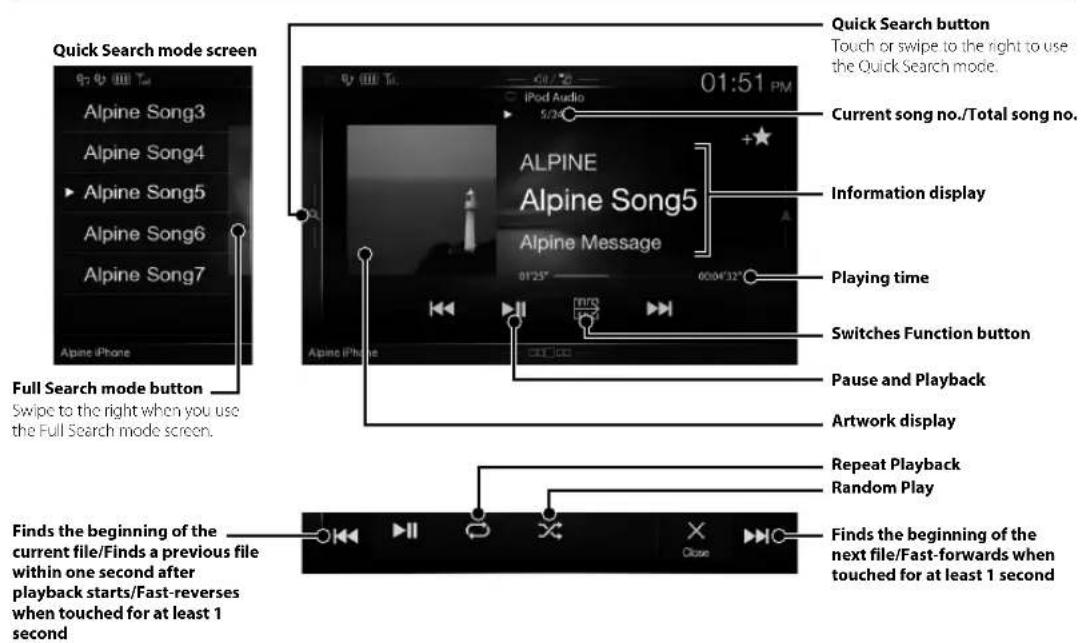
Audio mode
Searching for a Music File (Full Search Mode)
For example: Searching by Artist name
1 Touch [Artists] in the Full Search mode screen.
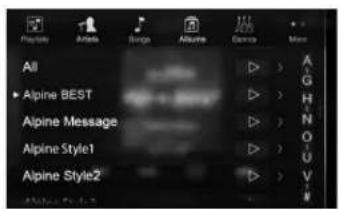
2 Touch the desired artist's name.
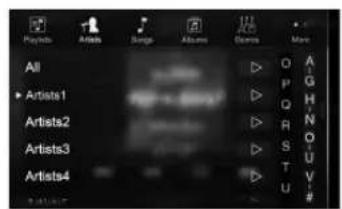
The Albuims search screen of the selected artist is displayed.
Touching of the desired artist will play back all songs of the selected artist.
3 Touch the desired album's name.
All songs of the selected album are displayed.
Touching of the desired album will play back all songs of the selected album.
4 Touch the desired song's name.
The selected song is played back.
Hands-Free Phone Control
The unit can connect with up to two hands-free phones. If you connect two hands-free phones to the unit, select "Hands-free Device Priority" in "Bluetooth Setup" to set the order of precedence. For details, refer to OWNER'S MANUAL in the AUDIO VISUAL SECTION (CD-ROM).
How to connect to a Bluetooth compatible device (Pairing)
1 Touch [Setup] button on the Menu screen.
![ALPINE X802DU - Touch [Setup] button on the Menu screen. - 1](/content/2026/02/385195/images/efc7b1df05f8fb8e5d467f0d880b68e0104a0f3ab518476da97c55e244b87a24.jpg)
2 Touch [Bluetooth].
3 Touch [Set Bluetooth Device].
![ALPINE X802DU - Touch [Set Bluetooth Device]. - 1](/content/2026/02/385195/images/9cdb01b2d56ab2603d7df92adfc86793f3f7730d9e7c3f464ee168733009c4a6.jpg)
4 Touch[] to search for a new device.
![ALPINE X802DU - Touch[] to search for a new device. - 1](/content/2026/02/385195/images/26fa4fdb26be39528dffd9902662aa468f8f78c57dc7c7973a242e0fe5b28382.jpg)
5 Touch [ ] (Audio), [ ] (Hands-free) or [H]h) for the device you want to connect from the list.
Audio: Sets for use as an Audio device.
Hands-free: Sets for use as a Hands Free Device.
Both: Sets for use as both an Audio device and Hands Free Device.
6 When the device registration is complete, a message appears and the device returns to normal mode.
- You can register up to 5 Bluetooth compatible mobile phones.
- The Bluetooth registration process differs depending on the device version and SSP (Simple Secure Pairing). If a 4 or 6 character Passcode appears on this device, enter the Passcode using the Bluetooth compatible device. If a 6 character Passkey appears on this device, make sure the same passkey is displayed on the Bluetooth compatible device and touch "Yes."
Answering a Call
1 An incoming call triggers the ringtone and an incoming call display.
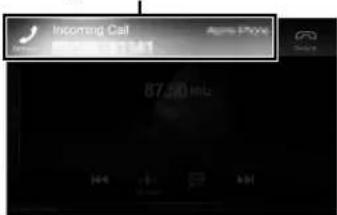
Incoming call notification screen
2 Touch incoming call notification screen.
The call starts.
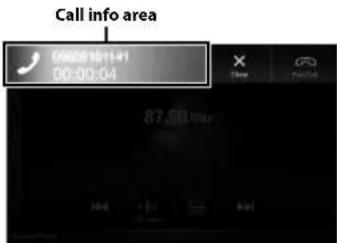
Touch the call info area during a call changes to the Phone Operation screen. Use this screen to adjust the speech volume, etc.
Hanging up the Telephone
1 Touch [ ] (End Call).
The call finishes.
Map Functions (X902D/X802D-U/INE-W710D only)
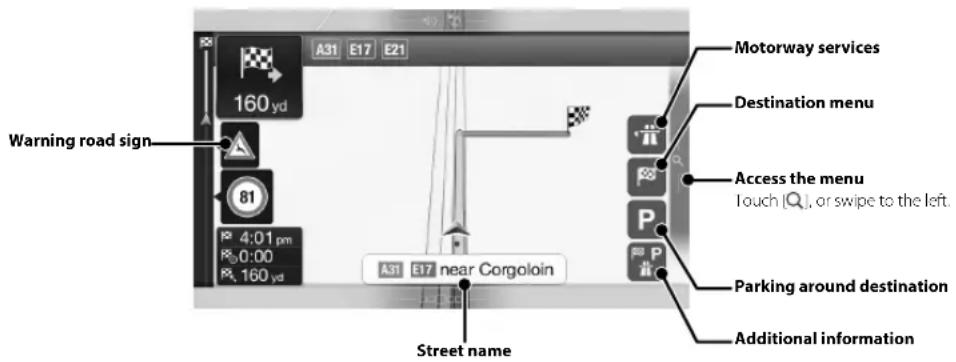
Below is an overview of different buttons and icons on the map display. For more detailed information about this screen, please see the Owner's Manual.
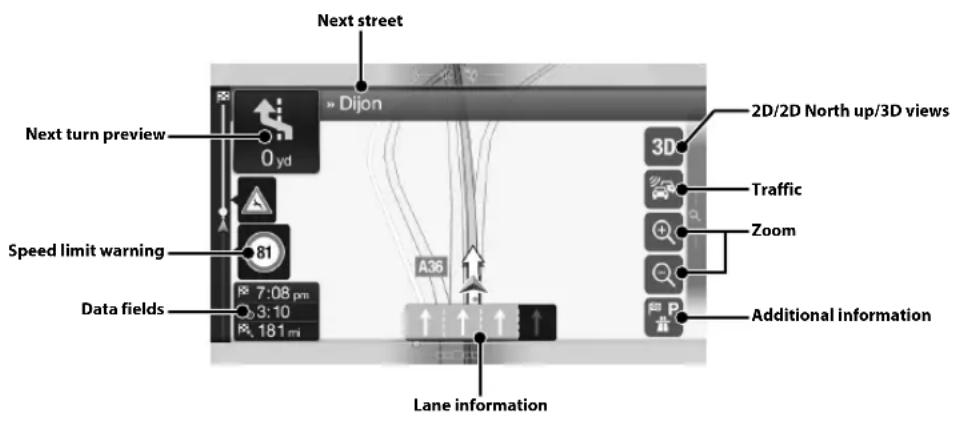
Nav
To access press the
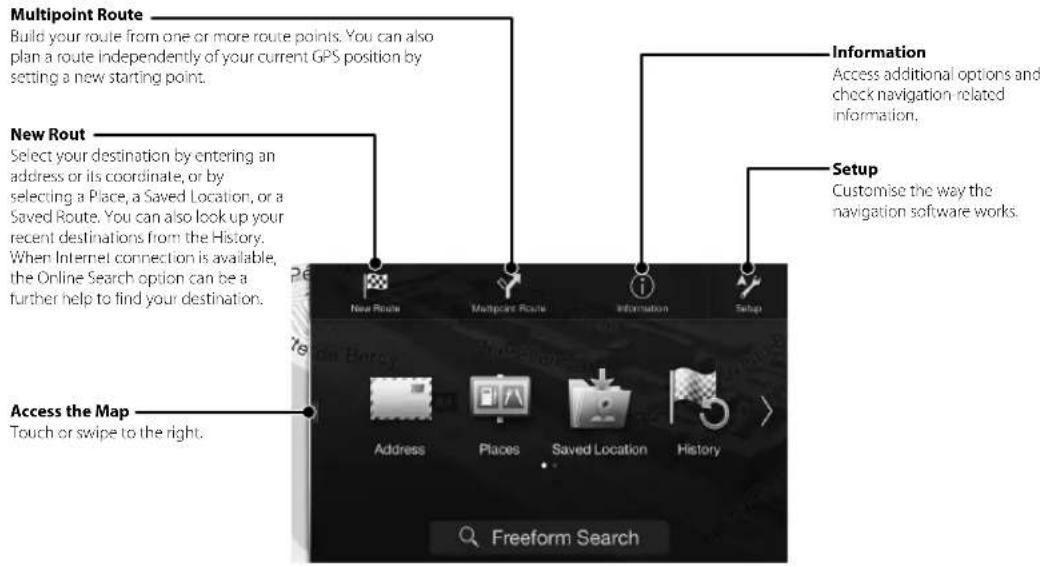
Multipoint Build your e plan a route setting a net
New Rout Select your address or i selecting a Saved Rout recent diesti When Inter the Online s further help
Access the Touch or set
Navigation Menu (X902D/X802D-U/INE-W710D only)
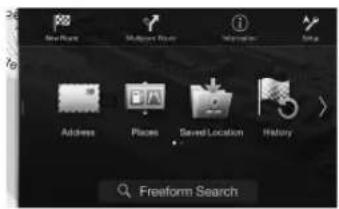
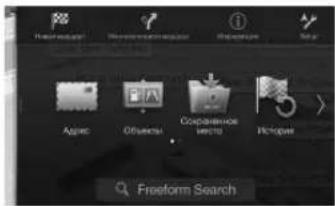
To access the Navigation Menu, touch on the right edge of the map screen or swipe to the left. Alternatively, press the button.
Setting a Destination (X902D/X802D-U/INE-W710D only)
The following example describes how to search for a destination when choosing [Town/Postcode] from [Address].
- You can search and narrow down the Country/State by starting from [Country/State].
1 Touch [New Route] from the Navigation Menu.
2 Touch [Address].
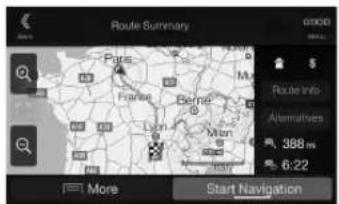
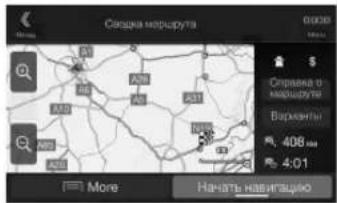
7 Touch [More] to modify the route parameters, or touch [Start Navigation] to start your journey.
3 Touch [Town/Postcode].
4 Enter the town name or postcode.
- Touch play the candidate list.
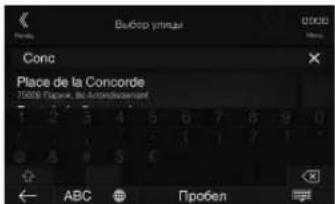
5 Enter the desired street name.
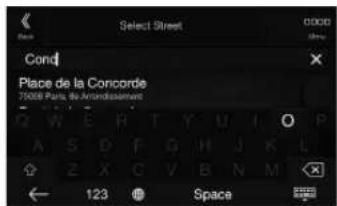
- Touch play the candidate list.
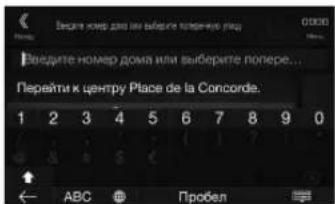
6 Enter the house number or crossing street.
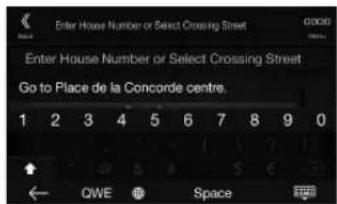
The route is calculated, and a map appears, showing the entire route. Here you can check route information and route alternatives.
Owner's manual Specifications
Specifications
MONITOR SECTION
Screen Size 9" (X902D/j902D)
8" (X802D U)
7" (INE-W710D/ILX-702D)
LCDType Transparent typeTNLCD
Operation System TFT active matrix
Number of Picture Elements 1,152,000 pcs.
(800× 480× 3 RGB)
Effective Number of Picture Elements
99% or more
Illumination System LED
Bluetooth SECTION
Bluetooth Specification
Frequency band
Output Power
Profile
Bluetooth v3.0
2,402-2,480MHz
+4 dBm Max. (Power class 2)
HFP (Hands-Free Profile)
OPP (Object Push Profile)
PBAP (Phone Book Access Profile)
A2DP (Advanced Audio
Distribution Profile)
AVRCP (Audio/Video Remote)
Control Profile)
SPP (Serial Port Profile)
FM TUNER SECTION
Tuning Range 87.5-108.0 MHz
Mono Usable Sensitivity 8.1 dBi (0.7 V/75 ohms)
50 dB Quieting Sensitivity 12 dBi (1.1 μV/7 ohms)
Alternate Channel Selectivity 80 dB
Signal-to-Noise Ratio 65 dB
Stereo Separation 35 dB
Capture Ratio
2.0dB
MW TUNER SECTION
Tuning Range 531-1,602 kHz
Usable Sensitivity
25.1 V / 28dBf
LWTUNERSECTION
Tuning Range 153-281 kHz
Sensitivity (IEC Standard)
31.6 V / 30 dBi
DAB SECTION
Tuning Range BAND III
Tuning Range L-BAND
174.93-239.2MHz
Usable Sensitivity
1,452.96 1,490.6 MHz
Signal-to-Noise Ratio 95 dB
-103 dBm
Stereo Separation 85 dB
USB SECTION
USB requirements USB 2.0
Max. Power Consumption
USB Class
1,500 mA (CDP Support)
USB (Mass Storage Class)
File System FAT16/32
Number of Channels
2-Channels (Stereo)
Frequency Response*
5-20,000 Hz (±1 dB)
Total Harmonic Distortion
0.008% (at 1 kHz)
Dynamic Range
95 dB (at 1 kHz)
Signal-to-Noise Ratio 100 dB
Channel Separation 85 dB (at 1 kHz)
*1 Frequency response may differ depending on the encoder software/bit rate.
HDMI SECTION
Input Format
720p/480p/480i/VGA
Output Format
480p
GPS SECTION
GPS Reception frequency
1,575.42±1MHz
GPS Reception sensitivity
130 dB max.
GENERAL
Power Requirement
Operating temperature
Maximum Power Output
Audio output level
Preout (Front, Rear):
Preout (Subwoofer):
Weight
14.4VDC
(11-16 Allowable)
-4°F to +140°F
(-20^ to +60^)
50W×4
2V/10k ohms (max.)
2V/10k ohms (max.)
1.54 kg (3 lbs. 6 oz) (X802D-U) 1.41
kg (3 lbs. 2 oz) (INE-W710D/
(LX-702D)
CHASSIS SIZE
Width
198 mm (7-13/16" (X802D-U) 1/8
mm (7) (INW710D/ILX-702D) 125
mm (4-15/16) (X802D-U) 100 mm
(3-15/16) (INCE-W710D/ILX-702D)
14/mm(5-3/4")
Depth
NOSE SIZE
Width
191 mm (7-1/2°) (X802D-U)
171 mm (6-3/4") (INW/10D/
(LX-702D)
121 mm (4-3/4" (X802D-U)
96 mm (3-3/4") (INE-W710D/
Height
(X-702D)
19mm(3/4")
Depth
X902D/i902D is sized exclusively for a certain car model.
Due to continuous product improvement, specifications
and design are subject to change without notice.
- The LCD panel is manufactured using an extremely high precision manufacturing technology. Its effective pixel ratio is over 99.99% . This means that there is a possibility that 0.01% of the pixels could be either always ON or OFF.
- Windows Media, and the Windows logo are trademarks, or registered trademarks of Microsoft Corporation in the United States and/or other countries.
- Apple, iPhone, iPod, and iPod touch are trademarks of Apple Inc., registered in the U.S. and other countries. Apple CarPlay is a trademark of Apple Inc.
- Use of the Apple CarPlay logo means that a vehicle user interface meets Apple performance standards. Apple is not responsible for the operation of this vehicle or its compliance with safety and regulatory standards. Please note that the use of this product with iPhone, or iPod may affect wireless performance.
- "Made for iPod," and "Made for iPhone," mean that an electronic accessory has been designed to connect specifically to iPod, or iPhone, respectively, and has been certified by the developer to meet Apple performance standards. Apple is not responsible for the operation of this device or its compliance with safety and regulatory standards. Please note that the use of this accessory with iPod, or iPhone may affect wireless performance.
Android is a trademark of Google Inc.
The Android robot is reproduced or modified from work created and shared by Google and used according to terms described in the Creative Commons 3.0 Attribution License. - SPOTIFY and the Spotify logo are among registered trademarks of Spotify AB.
The Bluetooth® word mark and logos are registered trademarks owned by the Bluetooth SIG, Inc. and any use of such marks by Alpine Electronics, Inc. is under licence. - The terms HDMI and HDMI High-Definition Multimedia Interface, and the HDMI Logo are trademarks or registered trademarks of HDMI Licensing, LLC in the United States and other countries.
- MPEG Layer-3 audio coding technology licensed from Fraunhofer IIS and Thomson. Supply of this product only conveys a licence for private, non-commercial use and does not convey a licence nor imply any right to use this product in any commercial (i.e. revenue-generation) real time broadcasting (terrestrial, satellite, cable and/or any other media), broadcasting/streaming via internet, intranets and/or other networks or in other electronic content distribution systems, such as pay-audio or audio-on-demand applications. An independent licence for such use is required. For details, please visit http://www.mp3licensing.com
- ©2006-2016 TomTom. All rights reserved. This material is proprietary and the subject of copyright protection, database right protection and other intellectual property rights owned by TomTom or its suppliers. The use of this material is subject to the terms of a license agreement. Any unauthorized copying or disclosure of this material will lead to criminal and civil liabilities.
About the Rules of Bluetooth Electromagnetic Radiation Regulation

Declaration of Conformity
Inhalt
Alpine Connect App (Option) (nur X902D/X802D-U/INE-W710D)
PBAP (Phone Book Access Profile)
A2DP (Advanced Audio
Distribution Profile)
AVRCP (Audio/Video Remote
Control Profile
SPP (Serial Port Profile)
ALLGEMEINES
About the Rules of Bluetooth Electromagnetic Radiation Regulation

Declaration of Conformity
Table des matieres
DATE D'INSTALLATION:
TECHNICIEN D'INSTALLATION:
LIEU D'ACHAT:
L'application Spotify est disponible pour les iPhones et les téléphones Android, veillez consulter la page https://support).(https://support).(https://support).(https://support).(https://support).(https://support).(https://support).(https://support).(https://support).(https://support).(https://support).(https://support).(https://support).(https://support).(https://support).(https://support.(https://support.(https://support.(https://support.(https://support.(https://support.(https://support.(https://support.(https://support.(https://support.(https://support.(https://support.(https://support.(https://support.(https://support.(https://support.(https://support.(https://support.(https://support.(https://support.(https://support.(https://support.(https://support.(https://support.(https://support.(https://support.https://support.https://support.https://support.https://support.https://support.https://support.https://support.https://support.https://support.https://support.https://support.https://support.https://support.https://support.https://support.https://support.https://support.https://support.https://support.https://support.https://support.https://support.https://support.https://support.https://support.(https:/support.(https:/support.(https:/support.(https:/support.(https:/support.(https:/support.(https:/support.(https:/support.(https:/support.(https:/support.(https:/support.(https:/support.(https:/support.(https:/support.(https:/support.(https:/support.(https:/support.(https:/support.(https:/support.(https:/support.(https:/support.(https:/support.(https:/support.(https:/support.(https:/support.(https://support.(https:/support.(https:/support.(https:/support.(https:/support.(https:/support.(https:/support.(https:/support.(https:/support.(https:/support.(https:/support.(https:/support.(https:/support.(https:/support.(https:/support. https://support. https://support. https://support. https://support. https://support. https://support. https://support. https://support. https://support. https://support. https://support. https://support. https://support. https://support. https://support. https://support. https://support. https://support. https://support. https://support. https://support. https://support. https://support. https://support. https://support. https:/supp#t.&r/2019-03-04/2019-03-04/2019-03-04/2019-03-04/2019-03-04/2019-03-04/2019-03-04/2019-03-04/2019-03-04/2019-03-04
Specification Bluetooth
Camme de fréquences
Puisance de sortie
Profit
Bluetooth v3.0
2.402-2.480MHz
+4 dBm Max. (classe 2)
HFP (profil mains libres)
CPP(profildepushd'objets)
1,41 kg (3 lbs. 2 oz) (INL-W710D/
LX-/02D)
DIMENSIONS DU CHASSIS
100 mm (3-15/16) (INE-W710D/
(LX-702D)
Profondeur
147 mm (5-3/4")
DIMENSIONS DU NEZ
Largcur 191 mm (7-1/2") (X802D-U)
96 mm (3-3/4") (INE-W710D/
(LX-702D)
Profondeur 19 mm (3/4")
About the Rules of Bluetooth Electromagnetic Radiation Regulation

Declaration of Conformity
Contenido
ADVERTENCIA 2
PRUDENCIA 3
Primeros pasos. 4
Funcion Favoritos. 6
Registrar de elementos 6
Android Auto (optional) 7
Apple CarPlay (optional) 7
Alpine Connect App (optional) (X902D/X802D-U/INE-W710D solo)
Funcionamento de radio/RDS. 8
Funcionamento de DAB/DAB+/DMB. 9
Funcionamento de unidad flash USB (Optional) 10
Funcionamento del dispositivo HDMI (reprodctor de DVD) (Optional) 11
Funcionamento de iPod/Phone (Optional) 12
Control del téléphone manos libres 13
Funciones de mapas (X902D/X802D-U/INE-W710D solo) 14
Menu de navigation (X902D/X802D-U/INE-W710D solo) 15
Establecer un destino (X902D/X802D-U/INE-W710D solo) 16
Especificaciones. 17
IMPORTANT
Para X802D-U/INE-W710D/iLX-702D
Para X902D/X802D-U/INE-W710D:
Pantalla dual (X902D/X802D-U/ INE-W710D solo)
Alpine Connect App (optional) (X902D/X802D-U/INE-W710D solo)
USB (Mass Storage Class)
PBAP (Phone Book Access Profile)
A2DP (Advanced Audio
Distribution Profile
AVRCP (Audio/Video Remote
Control Profile
SPP (Serial Port Profile)
GENERAL
Alimentación
14.4VCC
(11-16V margen permissible)
Temperatura de funccionamento
About the Rules of Bluetooth Electromagnetic Radiation Regulation

Declaration of Conformity
Sommario
Per X802D-U/INE-W710D/iLX-702D
PBAP (Phone Book Access Profile)
A2DP (Advanced Audio
Distribution Profile)
AVRCP (Audio/Video Remote
Control Profile
SPP (Serial Port Profile)
SPECIFICHE GENERALI
96 mm (INC-W710D/ILX-702D)
Profondita
19 mm
About the Rules of Bluetooth Electromagnetic Radiation Regulation

Declaration of Conformity
Innehäll
Knappen+ + eller/ (NPP/NER)
Enhetens system aterstalls.
6 Knappen (PHONE) (endast X902D/i902D)
For X902D/X802D-U/INE-W710D:
Visa navigationskartan.
Bruksanvising DAB/DAB+/DMB
About the Rules of Bluetooth Electromagnetic Radiation Regulation

Declaration of Conformity
Inhoud
+/ef//OMHOOG/OMLAAG-knop
(6) (PHONE)(alleen X902D/i902D)-knop
1st
2
3 Dr
He
4 He
5 se He
-ML
Alpine Connect App (Optioneel) (alleen X902D/X802D-U/INE-W710D)
7" (INF-W710D/LX-702D)
Type LCD Transparant type TNLCD
Besturingsystem TFT active matrix
Aantal bcldelementcn 1.152.000
(800×480×3(RGB))
USB (Mass Storage Class)
Bestandsystem
FAT6/32
Aantal kanalen
2kanalen(stereo)
Frequenclerspors*
5-20.000 Hz (±1 dB)
PBAP (Phone Book Access Profile)
A2DP (Advanced Audio
Distribution Profile)
AVRCP(Audio/Video Remote)
Control Profile
SPP (Serial Port Profile)
ALGEMEEN
Stroomvereiste
14.4VDC
Bedrijsttemperatuur
-20°C tot +60°C
Maximaal uItgangsvermogen
50W×4
Audio-uitvoerniveau
Pre-out (voor,chter):
2 V/10 kilo-ohm (max.)
About the Rules of Bluetooth Electromagnetic Radiation Regulation

Declaration of Conformity
Copepkxahanie
PPEyIpyKJHNE 2
BHIMAHNE 3
PpncTynpaK pa6ote 4
Функцу "ИЗбранhoe" 6
Добавлиеные лементов 6
Android Auto (npno6peTaTcra donoHnHteIbHo) 7
Apple CarPlay (npno6peTaetcdoonolntelbHo) 7
PpnoJoxeHne Alpine Connect (npno6peTaetcIdoonHnTeIbHo) (Tolbko X902D/X802D-U/ INE-W710D)
Pa6ota c paio/RDS. 8
Pa6ota c DAB/DAB+/DMB. 9
Pa6oTa c Φn3u-HaKoHnteNm USB (npno6peTaetcdoonHnteBHo) 10
Pa60a c yctpoiCTBOM HDMI (DVD-npOurpblBaTeJeM) (npno6peTaetc
dOnoHnHTeJbHo) 11
Pa6ota c iPod/iPhone (npno6peTaetcdoonHnTeBHo) 12
Функця телефona"Свобонье рук" 13
Функцин KapT (ToIbko X902D/X802D-U/INE-W710D) 14
Mehno hauiraqn (ToIbKO X902D/X802D-U/INE-W710D) 15
UcTaHOBKa nyHKta Ha3HaueHnra (Tolbko X902D/X802D-U/INE-W710D) 16
Texnueckne xapaKTepeNtIKn 17
BAKHO
3aHHTe cepHHb HOMep cboero yctpoCTBA B IpeoctabneHOM daee Mece n coxpaHrte erO 1nlaBHeIero hIOJIb3OBAHIN.
CEPNHbH HOMEP:
CEPNHNIH HOMEP ISO: AL
IATA YCTAHOBKU:
KTO YCTAHABJIIMBAJI:
MECTO IIPNOBPEHIN:
IopnoHyIO INHOpMaUIO O BcEx FyHKUx CM. BPyKOBoCTBe NOnb3OBATeNA, 3aNCAHHOM Ha npnlaerom KOMNaKT-DnCKe.(Tak KaK 3TO INHOpMaUHOHH CD-DnCK,ero HeJIb3r NcNoB3OBaTB nIra BOCpOnu3BeHeHMy3bIKu HnN3o6paXeHn Ha npOnrPbBaTeNE.) Ppi Heo6xoDmOCTn dIlep ALPINE Bcerda CMOKeT IpepocTabt BaM neaTHyo BercnIO PykoBOCTBa NOnb3OBaTeJRA, 3aNCAHHOro HA KOMNaKT-DnCKe.
PPEyINPEXKeHNE
!PPEyPExKDEHNE
3TOT CMBON 6o3Haaye TaKHbIe HNCTpyKcMn.
IX Heco6JIIOJeHne MoKeT npNBecTu K TpaBMe nn
CmeptelbHomy nCXOy.
YCTAHABINBAITE DAHHbI IPOJyKT TAKIM O6P3OM, YTObI BODInTeJIb HE MOr BVIEb TkPAH, ECJN ABTOMOBILbe HECTAHOBLEH IN HE 3AIDCTBOBAH CTORHOCHbI TOPMO3.
IipocmotBoiHTeIeMTeBHeH3HOHHxIiporpaMMnHnBIOeB Iipooceccc BoKdHnOIIaCHe.I HeipabHbNbYcTaanHOKa 3IoTO IpoJyTkAIOBOJIeR BoIHTeIOIPOcMaTpHBaTbTIeTEBnHOHHoe IiporpaMMn HnHbEOe B Iipooceccc BoKdHnE.3To MOKetOTbJIeBb BOIHTeOr TYPaPBeHHN ABtOMo6HMe N pIpyBcTH K HeecactHomy CnyaKo.BoIHTeNbHnPiaccKaHmPoMyrTIOyHtBcpeBzHMe TpaBBMb
HE IPOCMATPUBAITE BUNDEO BO BPEM YIPABJIENNABTOMOBNIEM.
IpocMOTBnEOMOKETOBNEBBOHTEONOTYnpABHeHH ABTOMO6HcEM INPbEeTIN K HccuactHOMy CnyAIO.
HE IPEIINPHIMMAITE HNKAKNX DEICTBNI, KOTOPbIE MOYT OTBJIeB BAC OT BE3OPIACHORO BOXJEHNA BBTOMOBII.
JIIObIc dCCTBnH,OTBIKcBAOHHc BHHMaHHe HA IPOIOJIaIKTCbHbIb CpoK,IOJIaHbIbHIHOHTbCt ToIbKO IOcNE IOIOHO OctaHOHK. IIpeE BIIOIOHEHMe TaKHX NcEChTBn BCEITa OCTaHaBIMBaTe aBTOMo6HbIB B 6eO3aHOM McCTc.HccOIOIOHcNc 3TO10 PC6ObaHHM oKcET pINBeCTN K aBAPHN.
HE CNEUYTE PEPIOXEHNAM MAPUPYTA, ECINHABWRAUONHHA CNCTEMA PEPIOXKNT BblIOJNHtB HEBE3OJACHBI INI 3ANPEUEHHBIM AHEBP, A TAKOKE BCNYJAX, ECINI PEPIOXEHHBIM MAPPYT OKAKETCNOTEHUNbHO ONACHbIM INI INPBEDET BOIACHYIO3OHY.
Ie cneyET POIOHOCTbO IOIaTbC Ha DaHHOc YcTPOcTB0,3aMeHra Hm CO6CTBHeHHe pemeHH. JIO6Be IpeNIOKeHn MapiPyTa JAnHOH CnCTEMn He JOtKn 3aMeHn Ta IIIO6Be MeCTHme IpabHa NOpOkoHOro ABHXeHHn Hn CO6CTBHeHHe pemeHH n Hn 6eOnaChHy Mohepy BoXqEHHn.
IIOIIEPKINBAITE IPOPMKOCTb HA YPOBHE, IO3BOJIAIOUcEM CJIbIaTb BHEUHHe 3BYKn BO BPEM JIBNXEHN.
Ype3MepHO BmCOKnI yPOBHe I pOMKcTH, 3aTTMaIOIOH TAKHe 3bYKn, KAK CHPeHN ABTOMOBNEFte ABAPHHOHN CYK6bH NTOPOKHHe
PpeynpTeHbme CnHnH (INp NEpeceEHn HJNyTeH nT.) MOKET bbl OAnCHM INpueCTN K abpHn. HCIOJIb3OBAHVE
BbICKOKO YPOBHE I POMKOCTN B ABTOMOBUIE MOKET
TAKKE BblIBATB JDEPEKT CIIYXA.
KAKMOXHO MEHbIE OTBIEKAITECb HA IPOCMOTP DCNPIEBO BPEM BOXDEHNA.
IPOCMOTKpKaHMOKETOBTBbBOHTeTOrYPiPABHeHHA BANTOMOBHEM HINPBECTN KHeCuaTHOMy CnyaIO.
HE PA36NPA1b N HE U3MEHARb.
3TO MOKCT BBMBATb ABAPHIIyO CHTyaIHHIO, BOSOTPAHHe Hm yap 3NEKTPHueckHM TOKOM.
UCIOJIb3OBATb TOJbKO B ABTOMOBJNIX C NITAHNEB OBTTOBOI CETN+10 BOJtN 3A3EMJIHNEO TOPNIATEJIbHOIPOJIOCA HA KY3OB ABTOMOBJNJ.
(B Cnyae comHHeH npOKoHcybTHpyTcB cy cBOIO, HnIepa.) Heco6JIIOHeHE 3TOr Tpe6OBAHm MOKeT pINBeCTN K BO3HNKHObeHIO OTHA H. T.I.
XPAHNTE HEBONBUNE OBEKTB, TAKNE KAK BATAPEN, B HEIOCTYINbIX DIA DETEN MECTAX.
IITaTae TAKHX 6bKETOB MOKeT HaneCTH cep3Hy ToPAMy. EeTH pe6cHOK IPOrOToTH IOo6HbN IO6BcKT, HcMeIiCHeHO OopATHTCCb K bpaY.
PPI 3AMEHE PIPEDOXPAHNTJEI NCIIOJIb3YJTE TOJIbKO AHAJIOTUNHBE IIO HOMIHAIY.
IIEc0b0JIeHene3TOrTeP6oBAHnMoKetIPIBcEHTN KBO3ROpaHnIO IIOpAKeHHIO 3NeKTHPrECHKM TOKOM.
HE 3AKPbIBAHTE BEHTNIAUHOHHBIE OTBEPCTNAI PAADNATOPA.
BnpoTHHbOMcYyaeBO3MOKeHHarpeBNHTpeHHXJetaneH, KOTOpbM MoKCTUPNBCTN KBO3IOpaHHO.
IICIOJIb3yIe 3OT IPOdyKT TOnIbKO IJN ABTOMO6JIe C BoPTOBO CETbHO HAPRAKeHEm 12 B.
He npabnHbne HcnoB3oBaHne MooK TnpBecTH K B03rpaHnHO,
IopaKeHHIO 3eKTPueckHM TOKOM HpyTM TpaBMAM.
BbINOJIHAIte IPIPABUNIbHbIE IOKJIIOUeyHIA.
HePpABHbHoe NOKIOueHne MoKeT pNBecTH K Bo3ropaHIO HnHOBpeKcHIO npOyKaT.
IPEEDIOIKJIOUHEMIPOBOIDOBOTCOEIMHITKA6EBOTOTPNUATEHBNOIIOCA BATAPEN.
Hec6bnoeHNE 3TOI Tpe6oAHN MoKET npHeCTN K HOPaXeHHO 3JKeTPHcckHM TKOM HIN K TpaBME BCJeCTBHe KOpOTKO 3aMbKaHHn.
HE DONYCKAITE CNIJETEHNA KABEJIEN C HAXOJIAUIMMCRA JDOM PIPEDMETAMN.
IpoBIOky H Ka6eHN Heo6xOIMHO pa3MeCTHb B COOTBeTcTBn C yka3aHHMn BY KYBOO4CTBE, YTObI H36CKATb BO3MOKHIbX
IpeNATcBN H IOMEX BO BPMe BOKKeHHa. Ka6eHN H POBOkA,
KOTOPa 6uOKNpyct DoCTy K PcyEBOMY KOICCY, PbUAYI UePKKIOUCHHN
pePaeH, PeJAH TopMO3a T.I., MOrYT cTaB, PpNHHOH ONACHO
chTyaiHH a pyiEM.
HE CPALINBAITE C 3JNEKTPNUECKIMN KABELAMN.
HnKorda He cpeaTe Ka6eBHyIO H03NIO IOIIOKnIOeHN HnIaIIH KpyTOMy O6OpYOBaIHHO B IpOTHHOM Cnyae 6yET IpeBbIHeHaOnyCTHMar HArp3Ka HO TOky INaHNOr POBoBa, H bpeyIbTaTOBMOKHO BOSOPaHHe N IopApXcHHe 3ckTpUccKm TOKOM.
HEIOBPEIUTETPY6KNIINIIPOBODKYIPN CBEPJIEHMOTBEPCTNI.
Ipn CbepeHnYcTaHoBnHbX OTBepCTn B Kopnye IpnMHTe MePn IpeoTOpOHOKHeT, TIO6b H36eKaTb KOtAKTA, IIOpeKeHN Hn 3aynOpOBHaHH ty60k tonHnBOHPOBOJ nH 3aeKToPONBOJKN. Heco6oHneH 3TOrO Tpe6oBaHN MoKet pNBeCt K BoSTopAHNo.
HEICIOJIb3yIe BOJITbI INI TAIKN TOPMO3HOI CNTEMBIIINCCTEMBI PYNEBOTOYIPABLEHIA 3A3EMJEHUA.
BOITM HAI RAIKH N3 TOPMOHOH CNTEMBA HIN CHCTEMBy pyeBoro yipaaBHeHH (mHIO60 npTOyTOCB3A3HOH c 6eOaCHOCTbO CHTEMBA) HIN 6AKOB HNKOTJA HE CNHYET HCNOBaoBH pN YCTAHOBKE HIN 3AAEMTeHH. HcnoIbaOnaHHe TAKHX JATEe MeKer 6BOKPOBaBtYpuaBHeHnE AROMo6HcM CTAt BpHnnHO B010paHH.
HEYCTAHABUNBAITE YCTPOICTBO B MECTAX,ΓE OHO MOKET MEUATb PABOTE ABOTMOBNIJ, HAPPMEP, PADOM C PYNEBIM KOJECOM NIN PbIYAFOM PEKEJIQUEHNCKOPOCTEN.
B HIOHBO CHYIe YcPOIcIbO MOKcI COaITbHOMCXn Dnepenio 063o4aHTpydHHTbDHNKHe, TTO MOKET PINBecTH KcebpEHO ABAPN.

BHIMAHHE
3TOT CMBON 6Oo3Naaet BaXHbIe HNCTpyKuIN.
IX Heco6nOJeHne MoKeT npNBecTu K TpaBMe NNN BixOyU3 CTPO npOdyKTa.
PPI BO3HMKHOBEHM NPOBJIEM HEMEJIENHHO PKEPATNE IICIOJIb3OBAHNE IPOJYKTA.
BipotnHbOM Cyaue 3IO MOKET IIpHBECTN KIOUYCHINIO TpaBbH NnOBpeKAnHIO IpOyKTa. BepHITE IpOyKT CBOeMY ABTOPHoBAHOMYIlepy Alpine KIN B6IIkaJIHH cepBcHbN IeHTP Alpine Ia pemOHrA.
PPOKIAIKA PIOBOIOB N UCTAHOBKA IOJXHbI BbITb BbINOHEbI CNEUANICTAMN.
Ipi npoknKn npobOBn yctahOBKn daHnHOy cTpoCTBa
Ipe6yOHTcNn CnHnBHe TnxuNCHE KABMNn OHnB. BcHNs
0e6cehneH 63oJnACnTH n nnBnONnnHepaobTb NceTa
0paasieKtckk DnLncy, y kOtporo 6blnpOpTeH tOt npOdyKT.
NCOJIb3VITE TOJbKO CNEIJAUN3NPOBAHbIE YCTAHOBOuHbIE KOMTOHEHTbI N TLIATEJIbHO INX 3AKPENJIYTE.
IcnoB3yTeToBkoCteHnHPOBaHHeBCNOMoTaBHe KOMHOENTB. IcNOB3OBaHHe HENPeyCMOTpEBHXKOMIOEHOT BMOKT B3BATBHYPTeHHNE IOBpeKHeHN YCTPOCTBA HIN CTb HUPHNOO HcHdckHOYCTAHOBKN.BPCyIbTArc MOKET HAPyHtBcKPenJIeNA TAKHX KOMTOHEHTOB,IPHBONK BOHHKHOBEHHIO ONAChOCTHN HIN C60BOIPOGYKA.
PAPBUNHOIPOJIOXEHHARIPOBOJKAHEJOJIKHNAH3NIMBATcR NIN3AUEMJIYTBcOCTPbIMM METAJIIMNECKIMN KPAIMI.
PpoknAimnaTkeKaenHNPoBOkyNaTeKoOTNBKyUHHxCaeTRe (Haapmep,HaippaBHOuHXCNcEh)NOCtpxHNNsOCTpcHHbX kpaes.3rno3BOHNETpejOHTpAPHTbSAHMeENHe HNN3aKaTHe PPOBOIOB.EcIMnpoBOaIpoXoINTupez3MetALINHECKOeOTBepCTNE, HCHOByTEPCNHOBOCYHOTHTCNbHOCKOIBa,YTO6bI pPeD0TBAITPBpEKeJHHeH3OJIIMMMeTALINHECKHM KpaEM OTBepCTHA
HEYCTAHABJIBAHTEYCTPOICTBOBMECTAX C BbICOKM YPOBHEB BJAXHOCTN NIN 3ANBJIEHOOCTM. H36eTteYCTAHABJIIBaTbYCTPOICTBO BMeCTX CBIOKHM yPOBEM BJIAXHOCTN NIN 3ANBJIEHOOCTN.IPOHNIKAIOUcB YCPTPOICTBO BIAIa IIMII,MOYr BImBAITb erO HeCNTPABHOCTb.
- Chmkn 3kpaHOB X902D/X802D-U/INE-W710D B 3TOM pyKOBOCTBE INCNOHBYIOCTc NCKNIOHTeHbDOI INIOCTpauIN. IV Bn MOKeT OTNuaTbca OT fKaTHueCKOBO BnA 3KpaHa.
3-RU
Ppucstynna Kpa6oTe
PacnoIoxKeHne 3IeMeHTOB ynpaBHeHn
BHeuHn BnD 3KpaHOB,NCIOINb3yEmbix BY PYKOBOIDCTBE IOJIb3OBaTeN,MOXET OTNIUaTbCHOTpeJIbHbIX 3KpaHOB.
Mogenb X902D/i902D
Moienb X802D-U/INE-W710D/iLX-702D
① KhoNka mnu VOICE
B3aHCMOCTNOTPOKIOHOHOROMAPTOHACHMATE 3NY KONIKIy DnBa30BAo fyHKUNSiri NnNEPEXOda BPEXIM PACNO3HABAHINRONCA.
② KHONKa (MUTE)
HAXMITE, YTO6B BKNIOHTb/BKIOHTb peKMOTKIOHEHIN3BYKA.
③ KhoNka (AUDIO)/(U36paHHoe)
OToBpaKeHne 3KpaHa ayDnAo/BnDeo. [Cnn 3KpaH ayDnO/BnDeo yXcO OToBpaKaAeTCH, ByET BnONHeCA mCHA VCTOuHnKa.
Hakmte u npdEHXBaIe Tcy KHOJky He MeHee 2 cekHy, UTObI NpeHIn KxpaHny "VbpaHnHe."
④ Khonka+nnn/N(NP/DOWN)
PerynnpoBka rpoMkOCTN.
⑤ KhonKa RESET
BocTaHOBneHMe CnCTembl 2TOrO yCTpOJaCTBa.
Khonka (PHONE) (Tolbko Дли моden X902D/ i902D)
OTo6paKaTe3KpaH MeHO TeneΦoHa.
HaKMnTe nna hauana pa3roBaopa np Noctynchnn
Bb30Ba.
7 KhoNkA MENU/ (otKHOueHne nTahn)
IpeeknueHHe Ha kpaH MeHc. HAnMNTuNpyCnBnAeTbAaHKnKHy He MeHcEe 5 cekHy,OTbObTOKKnKnTb NITAHc.
⑧ Khonka (NAV)
MoeBbX902D/X802D-U/INE-W710D:
OtKpTHe 3KpHa C KAPToH HABATALIN. HAKMTe eue pa3, Tc06b NepeynK KpAhy HABATALIN.
HaxMMTe NdyepKBAe Tsy KhoNky He MeHee 2 CekyH, YTO6bI NpePnHa AekpA HmApUpyo8 "DomOn
(EdnnapaTeP"Dm"cui He yctahOBnCH, OTObpaNTCRKPAH YCTAHOBINnapaMetpa"Dom") IIOIyEHNEI DNOHNHTBHOH NHPoPMauN O paboC CTEMb HauRauCN CM."PykoBDCTBO NOnbObaTeR CNTEMb HauRauCN Ha DnDCke CD-ROM.
Mogenb i902D/iLX-702D:
Bb3OB KaTbI cNoKIOHHeHHOro CMaTfOHa. IOCTYINHOCTb EToN cyHKUIM 3ABMCNTOT CMJ
KhonKa/
HaKMMTe, qTO6bI nepeHTn no cNCKy paNIOCTAHUH BHN3/BBExP B PEXNME PAJNO HIN qTO6bI nepeHTn BHIN3/BBExp No CNTCKy DOPOKCK, IJIAB N T. N. B.DpyrOM INTOCHIKKE ayDINO/BNDEC.
10 DaTnK Dy
HaPabBte NpCpaTnK nyIbTa DcCTAHIOHOHOrO ynpaBHeHn Ha daTnK paccctoHndo 2 metpoB.
11 MmKpOoHnTOnbKO nJa MoJeNe X802D-U/ INE-W710D/ILX-702D)
VcnoBcyTbpeKmMax"Cb60HHe pyKn"nnrOncoboro ynpabneHn.
BkIOueHne (On) n BbIKIOueHne (Off) nNTaHn
1 NobeprnTe KIOU 3aXnraHnB nOIOKeHne ACC mnn ON.
CnCTema BKNIOUHTCA.
2 Haxmte n ydepknae KhoNky MEnu B TeueHne He MeHee 5 cekynd, YTO6bl BBKIOHTb yCTpoiCTBO.
IpeeknIOueHne 3KpaHa nCTOuHKnOB 3Byka Ha Heo6xOaMbn 3KpaH
MokHO nepeKIOUHTb 3kpaH NCTOCHNKOB 3ByKa Ha Heo6xOIMMbI 3kpaH, KOCHYINcB 3HaYKa H OJHOM I3. 4TbIeX KpaEB 3kpaHa INI NPeTaUNB 3kpaH NO BEPTUKaIN INI TOpN3OTaIN.
3KpaH hactpoKn 6bictporo Bbl30Ba
MOxHO yCTaHOBtB HAcTPOMy 3ByKa
mN CNTeMy DnBaHnX
NaCCaxnPoB.

Двовен Экран (Толбко X902D/X802D-U/INE-W710D)
HaIBOHOM3KpaHeMOxHo nepeKeIOuOaTbCmMeKdy OTo6paKaemEhMn3KpaHaMM.
(USB Aγdino)
3KpaH nCTOuHHKO B 3Byka
3KpaH MeHIO
Ha3KpaHE MeHO MOXHO BbIOJIHHTb HAcTPOIKI.
Khonka npedbapntelbHoi NaCTPOKN NIN 3KpaH peXUMa 6bICTPoro noncKa*
- Pekum noucka pa3nuaemc e 3abucumocmu om ucmouhka 3byka. /nna nonyehra dononhumenbhoi unfopmauu cm. uncmpykuu no 3knayamaauu umouhka 3byka.
Функця"ИЗбразнhoe"
JaHHoe yCTPOICTBO NO3BONJET NOYUaTb IpOCTOINoCTyN KΦyHKJIMM,IO6aBnH RA 3KpaH "I36paHoe" aacto IcNoIb3yeMbte 3eMeHTb, HApPIMep INTOCHNK 3ByKa, FyHKuIO NOnCKa HABIRaUN IN T.D. 3TO NO3BONET BbCTpo BBpaTB HyXhBI 3eMeHT.
1 HaxmTe n ydepXnBaIte KhoNky /(U36paHHe) He Mehee 2 cekyHd.
OTo6pa3nTcKpAn "M36paHHe.
PpMep 3KpaHa "U36paHHe"
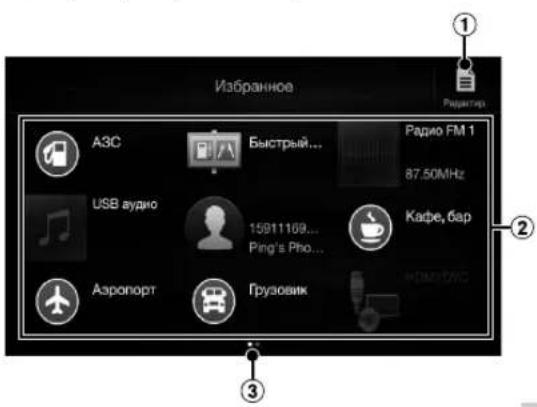
① NepexoHa 3KpaH "Peaktp."Jndo6aBHeHn 3MeHTOB HnN H3MeHeHn Ha3BaHn.
② 3nemeHbI,do6abHeHbHe Ha 3KpaH "V36paHHoe"
③ Yka3aHHe NONOKeHHa OTo6paXaemoro B HAcTOraIIMoMeHTkPaHa "U36paHHOe".
PpOBCDNTBNOHNBnPABO,YTO6bHCMCHNTB CTpaHHu. MoKHOo6aBHTIO6CTPAHt.
PykoOIOCTBO nonb3oBataa Do6abHnCnE nmcHTOB
D06aBnEHe 3JeMeHToB
1KoCHnTEcB []EpaKTmP.).
OTo6pa3NTc fIaJKO B BepxHeN JIeBOI ObnaCTn 3HaUka IobabEnHn IN pOn3oJETpeKKnueHne BpeKIM "PeJaKTnp."
2KoCHNTecb [] (Ro6abntb).
OTo6pa3TcI Do6abJIeMbe 3JIeMeHbI (KaTeOpun).
3 KocHTecb Tpe6yemoro 3neMeHTo, yTo6bldo6aBntb ero (kateropn).
4 BbI6epnte Tpe6yEmbI 3JemeHr, 4TO6bI do6aBtB erO.
ДяпolyeHЯДОПONHITeHbHINHΦOmaUH OdoabnembIX OneMeHTax CM. p3dE"PeJaTnIpoBaHHe ekpHa "N36paHHoe"ВpykoBODCTBe NOnb3ObaTeHЯ
MozHOo6aBnTb 54 5neMeHTCB.
-06abntbIeMeHt 601ee cHoro pa3a He ydaCTCA.
5 NocJIe 3aBepWeHnpeaKTHnpOBaHn KocHTecb [Ha3aI].
6 Nocne oTo6paKeHnNoTBepeKdaIoUeHnHaIINcN KocHNTecb [OK].
7 PedaKtnpObaHne 6yTeT 3aBepSeHo npOn3oJTe T nepeXoJ K 3KpaHy "M36paHoe".
Ecnu 60 epmra pedakmuobua kochymbcr [P (Ommena), npouoiedem nepexod K npedbyemy kpany pedakmuobua 3lemehmo8kpana "M36paHHoe".
Pykoobocbo nolb0batei Android Auto (npno6pctaetcdoonnHtncbho)
Android Auto (npno6petaetcdoonnntelbho)
Android Auto nomoraert nonb30aBtcb npnloxehmHa Tepehe, KOrDa BvB dopore. OpneHTnpyItecb no KapTAM GoogBe, BKnOaHTe CnCKn BocPOn3BedeHn, CnyaTe NOKAcTb T.D. PpeJe Yem npoJnxTb, 3arpy3nte npnloxehme Android Auto n3 Mara3nHa Google Play. POnkNIOHTe TeneOH Android, Uro6b NcNOB3OBaTb Android Auto.
1 HaxmiteKhonky MENU.
OTo6paNTcTgKpAH MeHIO.
2 KocHTecb [Android Auto].
OTo6pa3nTc8KpaH Android Auto.
-Дя nonyueyHЯ nOONHnTeBnOH nHΦopMauH O pa6ote npInoXeHry Android Auto cm. pa3den"Android Auto" B pykoBDCTBe noIb3OBaTeHry (CD-ROM).
PykoBocTBO noIb3oBaTeaAppleCarPlay (pnpo6petae ton dononnntibio)
Apple CarPlay (npno6peTaetcyaDonoJHnTeJbHo)
PpIIOXeHne Apple CarPlay denaet 6oJee 300KtNBHM n 63oNaChbIM npImHeHne yCTpoiCTBa IPhone B aTOMObnle. C nmoosbo npioxehnA Apple CarPlay BO BPem BoXdEHNMAOHO BVbpaT hco6xOIMbc 3JIeMeHTb cYcTPOiCTBa IPhone n nepeDaTB nHEnocpeDCTBeHHo Ha daHHoe yCTpoiCTBO. MoHNO pOKlaBbATb MappyT, delaT TeneoHHbe 3BOHKn, nocblaT b n NOnyauTb COO6ueHN, a TaKke CNyTaMb My3bky n npn 3Tom OCTaBaTbca CcpcedToOHbHM ha dopore. PpOTo noKnquHte CBoi IPhone K daHHOMy yCTpoiCTBy OTnpabIraTEcb B nyTb.
TnpbHbceBedeHnCM.BcnpaBOOHKe BnaJeNbHa KOMNaKT-DNCke.
Haxmte VOICE IaakTBAunn yHKunSiri yctpoiCTba iPhone.
IcnoB3y4 yHKuio Siri Ha iPhone, moxho ocyueCTbAHTb 3BOHNK, cnywaTb My3bIKy MHoroe dpyroec. CyHKnne Apple CarPlay moxHO taKxe ynpaBnTb uepe3 ceHCOPHbE kpaH.
PykoBODCTBO nonb3OBaTeN
Ppnooxene Alpine Connect (npno6peTaetc
DIOONIHHTeBHO)(T0BkoX902D/X802D-U/INE-W710D)
OTo6pa3ntcKpHaMeHIO.
4 KochuTecb [Alpine Connect].
OTo6pa3ntcKpAan Bb6opa npnOKeHnAlpine Connect App.
5 Bb6epnte tpe6yemoe npnnoxehne.
OTo6pa3NTcA KpaHb6paHHOro npINIOKeHn.
Spotify
CepBnC nOTOKOBORO BOCPON3BedeHMy3bIKn SpOtfy He CBA3aH c KOMNaHne Alpine. DononHnteBhble CBedeHn CM. Ha Be6-caTe http://www.spotify.com.
Диусюпгь iPhone n Android pa3pa6oTaHo npuOnKeHne Spoty. CbeHnO O COBmecTmocTn CM. H aBe6-caiTe https://support.spotify.com/.
Hro6bl nonb30BaTcBc cepBncom Spoty, Bhaane 3aRpy3nte Ha cBoe yctpoCTBO iPhone nn Android npinnoxhenepoity n3 OHnaH-Mara3nHaiTunes App Store nN Google PlayTM. B npinnoxhenn nn npmaHoBe6-caTe spotfly.com BB6epNTe 6ecnNaTHyo nn pEmnaIbHyO (nlaTHyo) yUcTHyO 3aNNbc. IpemnaIbHaayeha 3aNNb noDnepKnBaet dononHHTeBhie fHKun, HanpImep npocnyuBAHne 6e3 noKnIOueHn K CETn.
- 3mo u3dene codepncum npoqamnnoe o6ecneuenie Spotify, o omnoenu komopzo decmbyom npedcmaenbtempembmu cmopohamu nuehnu. OshaKOMumcbc c hmu moKnho ha cledyoue cmpaunue:www.spotify.com/connect/third-party-licenses.
- Cmpanu u peunu, 2e moxno uonb3oamb npozpamnue oeceneuie Spoty, nepeucenbu na be6-cmpanuhttps://www.spotify.com/us/select-your-country/.
Pykoobctbo nonb0aTePApO/RDS
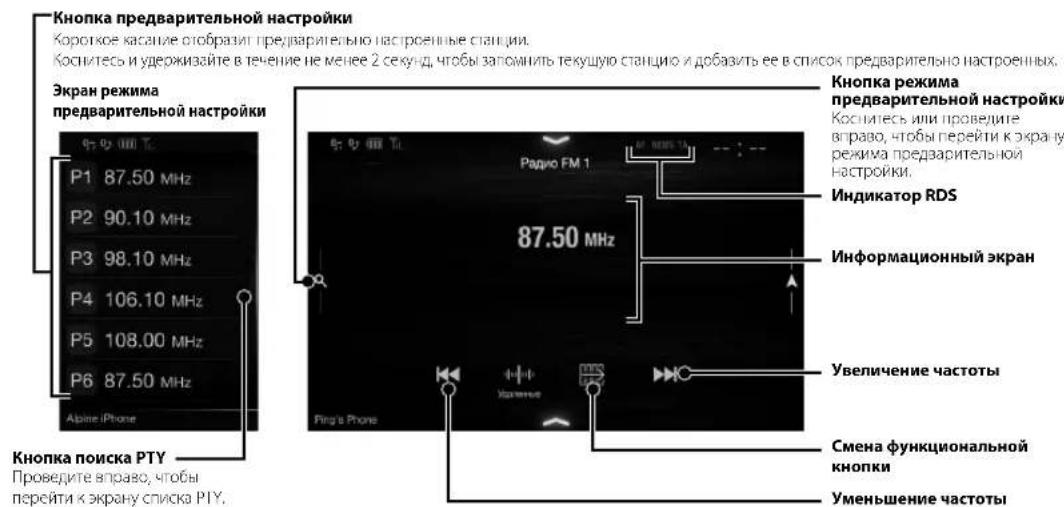
Pa6ota c paamno/RDS
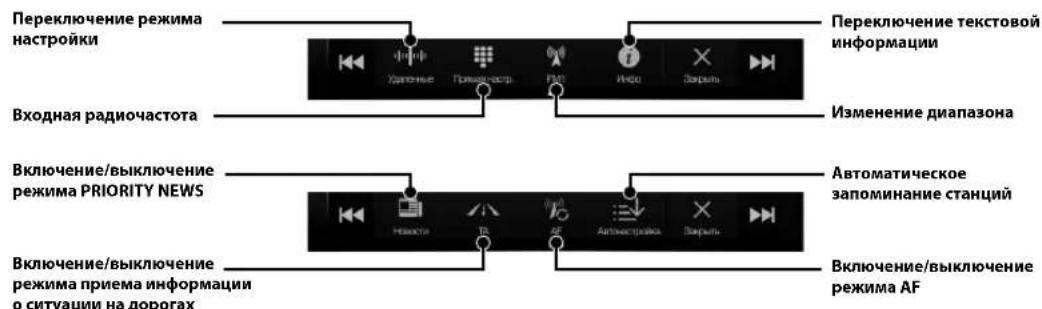
Pykoocctno nonb0eaeiDB/DAB/DM8
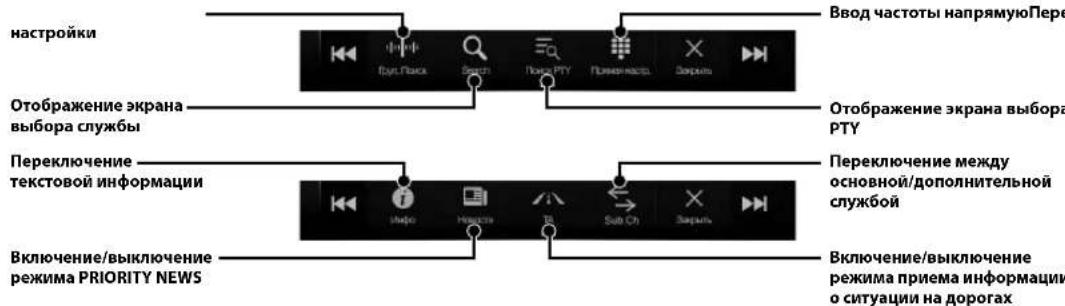
Pa6oTa C DAB/DAB+/DMB
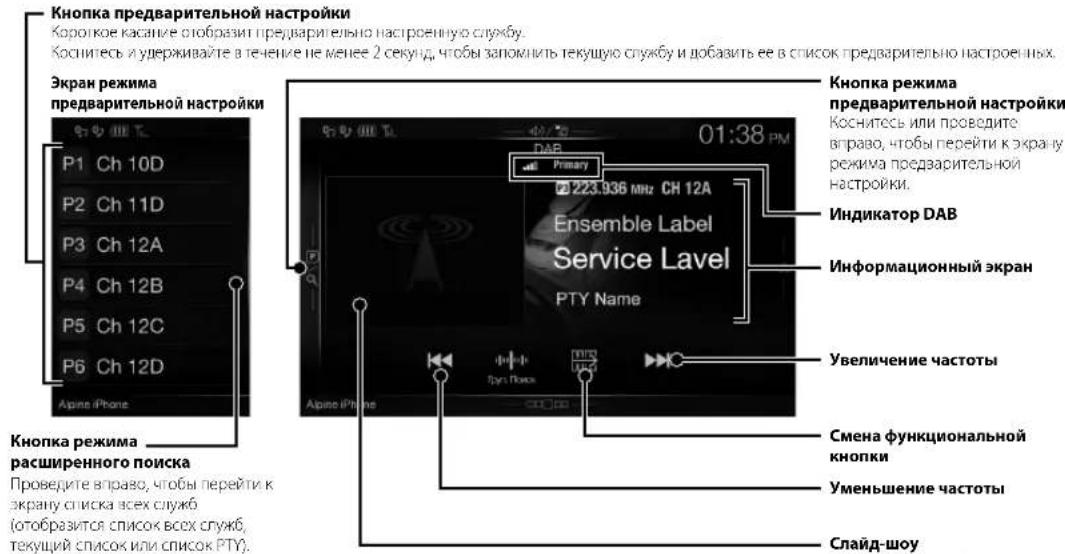
CnaiD-woy
OoBpaAeHbOpMaJn o npOrpMaC,ΦoTOrpAcm
VcNFOTHCMN aPcKpAMHe
OobABNeHn, CmXPOnHvPyEmBe
CO CryKe6HbM KOMnOHeHtOM
PnHmACMb M HactoAaM
MOCHNT.
- Onu mozym He omobpaqkamcbg 3abucumocmu om cnyykebho2o kmo nnoehma, npunumaemoo b hacmouu MOMehm.
Y6eINTeBc,TOI INI napaMeTp a "Bluetooth" yCTaHOBHeHO 3NaueHne "On"
3 KocHTecb [HactpoiKa Bluetooth-ycTp.].
![ALPINE X802DU - KocHTecb [HactpoiKa Bluetooth-ycTp.]. - 1](/content/2026/02/385195/images/3e204558401e4e7755731ea38d32c0ec9bfae0f902b1f3c02188b2346e0e251f.jpg)
4 KocHTecb [QyTo6bI BbINONHHTb NOUCK HOBORO yctpoCTBa.
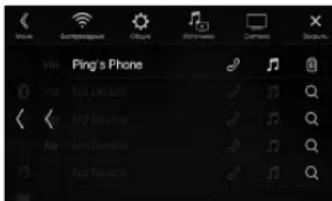
5 KocHTecb [3Byk], [Cbo6oHbIe pyKn) nnn [OpyHKn] dny yctpoiCTBa B cnncke, KOtOpoe HxKHO NOkKnIOHTb.
3Byk: INCnOJIb3OBAHHe B KaueCTBe ayDIOyCTpoICTBa.
Cbo6oHbIe nCOnJIb3OBAHHe B KaueCTBe pyKn: ycTPOINCTBa"Cbo6oHbIe pyKn".
06e nCnOJIb3OBAHHe B KaYeCTBe
fYHKUIM: ayDIOyOCTpoICTBa N yCTpoICTBa "CBo6oDbIbe pyKn"
6 Nocle 3aBepueHnpeuCTpaunnyctpoiCTBa noaBntc coo6uHne uyctpoiCTBO nepeIeT bObuiHb peXm.
- MoXho 3apeZucmpupoBam do 5 Mo6uNbIbx meEfoHOb c noDepKko Bluetooth.
Ipoucepezumpauiu Bluetooth pa3nuaemcn 6 3aebucmcmu om cepcuu ycmpoicmba u SSP (Simple Secure Pairing).Ecn na ycmpoicmbe nonbnemcn napob 134 uu6 cumboioe, beedime napoi h na ycmpoicme c nodepkko Blteoth. Ecn na ycmpoicmbe nonbnemcn napob 136 cumboioe, yedumecb, mno makoi xe napoi b omobpaekmaen na ycmpoicmbc e nodepkkoi Bluetooth, u konchumecb "Yes".
PnEM BbI3Oba
1 BxodyuiBbI3OBcnpoBoKdaeTcPnHrTOHOM nOTo6paxKeHmE BxodyIeRo 3BOHka.
3KpaH yBedeomnneH O BxOJaem 3BOHKe
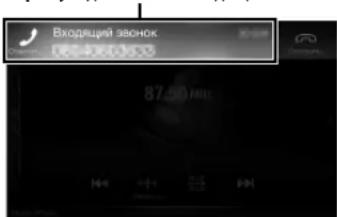
2 Kocnntecb ekpana yBedomleHn o BXOJrueM 3BOHKe.
Bb3OB 6yJeT npHnT.
06naactbHΦopMaunO BvI3OBe
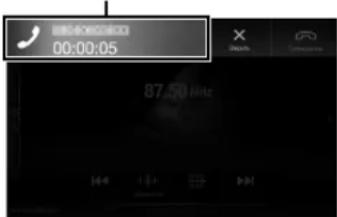
BoBpemBaBb3OBAKochITcBobNaCTnHfOpMaun O Bb3OBeIINepexoHaHaKpaHynpaBneHnI TepeOHOM.3deCbMOxHOHAcTPOBtPOMKocTbN T.
3aBepWeHMe Bbl3Oba
1KochnTecb [] (3aBepwntb).
Bb30B 6ydt3aBepuhen.
Функцин Kapт (ToIbko X902D/X802D-U/INE-W710D)
HnKc npCCTaBnCH 063Op pa3nnuHbIX KHOON K 3HaKOB Ha 3KpaHe KapTbI. IINa NOyueHna DOnonHHTeBHO HΦopMaun O daHHOM 3KpaHe CM. pyKOBOCTBO NOL3OBATEJ.
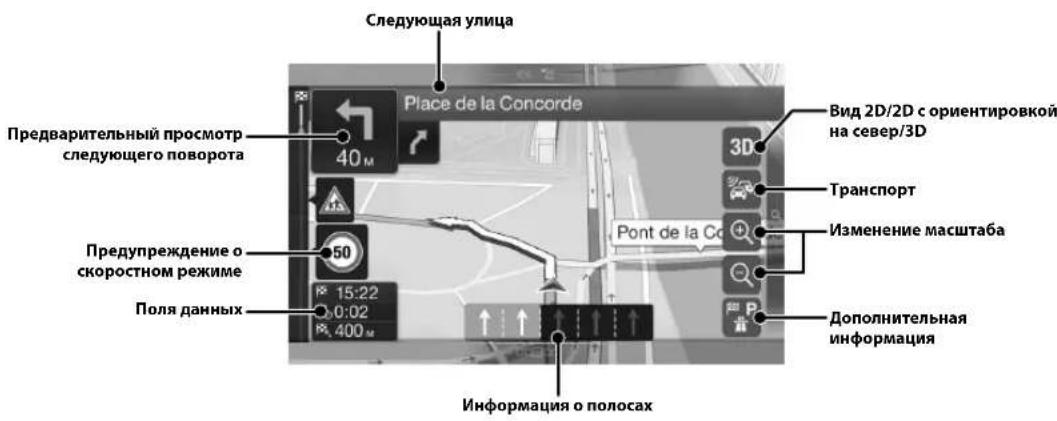
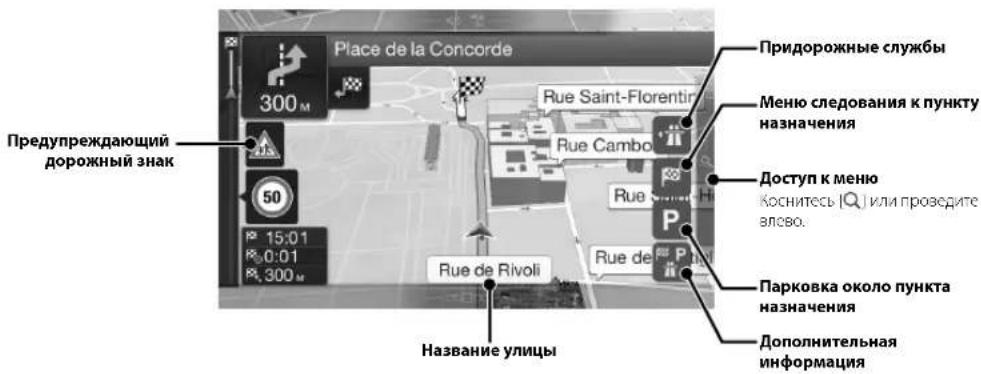
Me
DnA DOC
TaKKe Ha
Mhoronyh
Mapuyut M Mapuyut M Tekyütero NC TOC4U.
Hobbi Maj
BbOpPnHbAppeaHm HnHaaHaeHH CoXpaHeHH CoXpaHeHH MoKHO PPb HnHaHaeHH PpHnHaHaeHH NHePheHa 6bnHnTu3 HnHaueHH NHePheHa
DoctynK
KocntecbBnpaBO.
MeHIO HABNrau (ToIbko X902D/X802D-U/INE-W710D)
HOH
ДяdoctyaB MCHko HabrauKocHntecb [Q] y npaboro kpar ekpaHa Kaptbi uNn npoBcnte BneBO.Moxho TaKke HkaTb KHONky A
图pOBKo
PIMcHKe ONcBbAcET PPOCCC NOnCKa NYHKTa Ha3HaChEny NTcM BbOpa MeHIO [TopoD/VnHeKc] B MeHIO [AApec].
- Bbnoaumnb nouck u cysumb nouck cmpanb/uimama moHIO, naab c meio [Cmpana/uimam].
1 KocHTecb [Hobbl MappyT] B MeHIO HABURAUN.
2 KocHTecb [Aapec].
7 KocHTecb [More], yTo6bI n3MeHnTb napaMeTpbl Mapupyta, nn [Haatab Haburaun], yTo6bI hauatb noe3ky.
3Kochntecb [Topo/HHneKc].
4 BBeNTe Ha3BaHne ropoda mnn nHndekc.
KoCHNTecb 10TO6pa3ntb CnncOK NOxOJHIX Ha3BaHn.
5 BBeHTe HxHoe Ha3BaHne ynnubl.
KoCHInTeCb 0TO6pa3NTb CnMCOK NOxOJaXH3BaHN.
6 BBeHnTe Hmep doma nnnepecekaioyuyu ynu.
Mappy6bIETBbHcNEn, nOTo6pa3ntcKaPata, nokaaBbAouaBecb Mappy. Tocne 3TOrO MoXHO bIET PPOeepbHnHfOpMauHcMappyTa n aJIbTePHaNBHe MauPyTb.
TexHnueckne XapaKTepeMCTMKN
MOHHTOP
Pa3Mep 3KpaHa 9x(902D/902D)
8" (X802D-U)
TnLCD npo3paHbTnTNLCD
7" (INE-W710D/ILX-702D)
CnCTema pa6oTb aKTHBHaH MaPua TFT
KoJIueCTBO 3eMeHToB HIOOpaKeHHa
1152000 nukceen
(800×480×3(RGB))
DAKTINHECKOE KONNUHCTBO ANEMHTOB 306paXeHN
HC MCHC99%
CTEMNOBcETKLED
FM-TIOHEP
Hnana3oHnactpOKn 87,5-108,O M
Ioporobaa yyBCTbTeNbHOCTb ODHORO KaHana
8.1BΦBΓ(0/ MKB/5Ov)
Noorbaa yBCTbntbHoctb 50 dB
12dΦBT(1,1MKB/75OM)
H36npateIbHOCTb aJIbTePHaTHBHO KaHaTa
80dB
OTHOUJHNE CnR Han/65dB
IpepxoHoe 3aTyxAHne MeXy KaHanaM Stereo
35dB
Ko3ΦOuNCHT3aXbTa2,0dB
MW-TIOHEP
Hana3OH HactponK 531-1602K
Npororbaa yyeBtBnBHOCTb 25,1 MKB/28 dΦBT
LW-TIOHEP
Hnanaohnactpon153-281K
YyBCTBATEbHOCTb(CTaHdapt IEC)
31,6MK8/30D5ΦB8T
DAB
Hnana30HnactpouBnBAND 174,93-239,2M
Hnana30H HacpOyKu L BAND 1452.96-1490.6 M
Noporobaa yBCTBNTbHOCTb-103dM
OTHOUHNE CnHAN/uym 95
PepexoHoe 3atyxaHne 85
MEXNYCTepeOKaHaNAMY
USB
Tpc6cbHKH USB 2.0
Makcunanbian notpebnemn Mounioctb
1500MA (nondepckka CDP)
Knacc USB USB (knacc maccoBo narn)
DaiNoBaa CnCTema FAT16/32
KoHueCTBO KaHAnOB 2 KaHana (Ctepeo)
YacToTHaXapakTepeuKnKa*15-200001u(±1dB)
CymMnHbN KOaΦmUeHTrAPMOHcECKHX NcKaXCHN
0.008% (npn1Kf)
HnHnHecknn nnanaa9 95 dB (npn1Ku)
OTHOENHcHn/WM 100 dB
PaaneneHnKaHAnOB 85dB(np1Ku)
1* JACTOTHAH XAPAKTEPCHTKAKMOKCT OTINHATbCB 8AIBHCIMoCTH OITpORpAMMHOOeBCIEeHHaYcTPOHCTBa KOIIHPoBAc/koCPoCTH HepeaHn 6INT.
HDMI
BxHCHOPM
/20p/480p/480i/VGA
BbXoHNo fOpMaT
480p
GPS
Yactota npema GPS 157542 ±1Mi
yBCTBNTeHIOCTb npMea GPS
MAKC-130dB
Bluetooth
TexHHueckx xapakpcnKn Blcctoth
Bluetooth bpcnn 2.1+EDR
HaaonHacto 2.402-2.480M
BbIXOHHMOLHQCTb 14dMMAKc.(KJBCMOHOCHTN2)
HFP (npoepnbpapntpb)
OPP(npocnblgnaepeda
aaino8)
PBAP (npocpinb nna ombena
3aHRCMnB TeneoHHbIX KHnax)
A2DP(pacupeHHn npofo
paonpoctpaeHnayno
AVRCP (npoФиь диctaHIOHHO
ynpabnnaayno/Bndeo)
SPP (npocnnoocnogobatenbHoro
nopta)
OBLIHE
Iotpe6nemARMOHOCtB 14,4 B noctoHHORO TOKa
(ionyckaeTcN 11-16B)
Pabovay temnepaTypa 20o+60C
MaKcMaJIbHaB BIXOHaR MOUHOCTE
50Bt×4
YpOeBbXoDHOaynocnHa
PepnBapuTebnBn BHXoA (cabbypep):
2 B/10 kOM (makiC)
Bec
1.54 kr (X802D-U)
1.41KRINEW710D/ILX-702D)
PA3MEP KOPNYCA
山mna 198mm(X802D-U)
178 mm (INE-W/10D/ILX-702D)
Bbicora 125 mm (X802D-U)
100 mm (NE-W/10D/ILX-702D)
147mm
PA3MEP BbICTYNAIOUEN YACTN
LipuHa 191 mm (X802D-U)
171 mm (INE-W710D/ILX-702D)
BbCota 121mm(X802D-U)
96 mm (INE-W/10D/ILX-/02D)
19mm
Cpok cnjk6a-3r0na
Iocoupa3mepamX902D/iroxodum monko dn onpeeneuou modenu aemomobua.
H3-3aHenpebnozo coepuiencmboan npodykma e0 mexnueckue xapakmepucmu u duazain moym u3menmbcae3 npedapumelhnozo yebodmienu.
IaenebLCD u3zomobena no ceepxmoohou mexnoo2u. Konuecmeo 6fkekmuehux nukeceu npebuaaem 99,99%. 3mo o3naaem, umo cyuecmeyem bepomnocmb hauun 0,01% nukecei, komopbe bcde aokluoyen uuu cceda bkiouehn.
Windows Media n norotin Windows raBnIOCTO BApHbIMN 3HaKaAMN INI 3apeINCTpPPOBaHHbIMN TOBAPbIMN 3HaKaAMN Microsoft Corporation B CIIA n/ IINI dpynx cTpaHax.
Apple, iPhone, iPod and iPod touch ABHIOCTOBaHPbIMN 3HaKaMn Kopnpaunn Apple Inc. 3aperncpPOBaHHbIMN B CUSA n npyrrnx cpaHax. Apple CarPlay ABHnetc TobaHPbIM 3HaKOM Kopnpaunn Apple Inc.
IpnmeHnne IorOtnna Apple CarPlay 03HaaeT,TO INHepeC NoB3oBaTeN A BtOMoBnA COOTBeCTByeT EKnnyataOnOHbIM CTAHapTAM Apple.KopnpaAa NApple He Hecet OTBeCTCBHeHOCT 3a paBOTy DAHHORo ABtOMoBnI INrero COOTBeCTBNE CTAnpTaM 6eONACHOIT INpeYJIHTNBHM HopMaM.IMEteB B BNDy, YTO NCNoB3oBAHne DaHHoro yCTpoCTBa C IPhone INu IPod MoKet NOBnIraTb Ha paBOTy BEcnpOBDoH CB3N.
"Made for iPod" "Made for iPhone" 03haaiot,уTo
aIEKtpoHbI akceccyap pa3pa6OtaH cneuaJIbHO dIIN
noKKnIOeHn K yCtpoCTBy iPod nII iPhone
COOTBeTCTBHeHNo, n cepTNfNcIupOBaH pa3pa6OtuNKOM
KAK yOBOBTBOPHOUAn N KCIUYaTAUNOHbIM
CTAHApTaM Apple. KopnapaUina Apple He Hecet
OTBetCTBHeHocTn 3a pa6Oby daHHoro yCTpoiCTBa nII
ero COOTBeTCTBne CTaHdapt M Be3ONaCHOCTHn
perYJATNBbIM HopMaM. ImMeTe B BVdy,уTO
ICNOlb3OBAHne DaHHoro akceccyaap c iPod nII
iPhone MoKet NOBnIaTB Ha pa6Oty BecnpoBoDHOH
CB3N.
Android ABNETCA TOBAPHBIM 3HAKOM Google Inc.
P60T Android Bocnpn3BedeH nnn 3MeHeH n3 coaHaHHo paobTo, npedocTaBnErc GoogLe nCnoJIb3yETc B COOTBeCTBnC ycnOBnMn NnueHn atpN6byu Creative Commons 3.0.
- SPOTIFY IN IOROTIN SpOytify ABNIAOTCA 3apeHnCTpvPoBaHHbIM TopRoBbIM MapKAMN SpOytify AB.
CnoBechni 3HaK n IoroTnbluBleothoA BAnHOTc3apeHnCTpnuPoBaHHbIMTOBaPbHMn 3HaKaMn Kopnpaunm Bluetooth SIC, Inc. n cNoIb3yOITcKopnpaunm Alpine Electronics, Inc. no mueHm
- TepMHH HDMI n HDMl High-Definition Multimedia Interface, a Takke Iorotn HDMI ABnIOCT TOBAPbIMN 3HaKaMn KOMNaHm HDMl Licensing LLC, 3apernctpupoBaHHbIMn B CIIIA n npyux ctpaHax.
JINUENHNA HA TEXHOLONIO KOINPOBAHNA 3Bya MPGE Layer-3 NOnyeha ot Fraunhofer IIS u Thomson. PnnoocTabke 3TOro npOyKaTn ppeOCTabIraTeCn NcEHNHa HaacThoe, HeKOMMepueckoe ICNoIb3OBaHHe u He npOeOCTABIReTc NcEHNHa Hne NOpa3yMeBaOTcR KaKv-e-Ni6 O npaba Ha NCNoIb3OBaHHe DaHHoro npOyKaT B cENHX KOMpeCCKORo (t.e. nnnnnyehnnp6blu) paNIOBeuaHnB peAIBHom BpeMeHn (Ha3eMHoro, CNTNHKOBOrO, KAcBbHOrO u/INn INHOro), IIpOKoRo BEaHnHn Nn NOTOKOBn nepeaun daHHbx Uepez INTEpHET, INTPacETn u/INn INhie CETn INn Dpyrncce Tn pacPpeDeneHn ENEKTPOHOro CoepxAHn, TaKe KAp npiNOXeHn 3BykOBOCpnON3BeDeHn 3a nnTyNn No Tpe6OBaHn. DnA tAKoRn NCNOB3OBaHn Tpe6yeTcR OTdEnbHa NIneHm. DnN noNpyeHn DononHntbHn INfOpMaun nocetnte Be6-cain http://www.mp3licensing.com
- ©2006-2016 TomTom. All rights reserved. This material is proprietary and the subject of copyright protection, database right protection and other intellectual property rights owned by TomTom or its suppliers. The use of this material is subject to the terms of a license agreement. Any unauthorized copying or disclosure of this material will lead to criminal and civil liabilities.
OOO《KoMaHb0HaH3a》
HΦopMaUgO cepBnChbIXJeHTpax
dOCTyNHa Ha caTWe www.alpine.ru
About the Rules of Bluetooth Electromagnetic Radiation Regulation

Declaration of Conformity
CenanaHOBAnOHN

Spistresci
Dla X902D/X802D-U/INE-W710D:
Obsluga DAB/DAB+/DMB
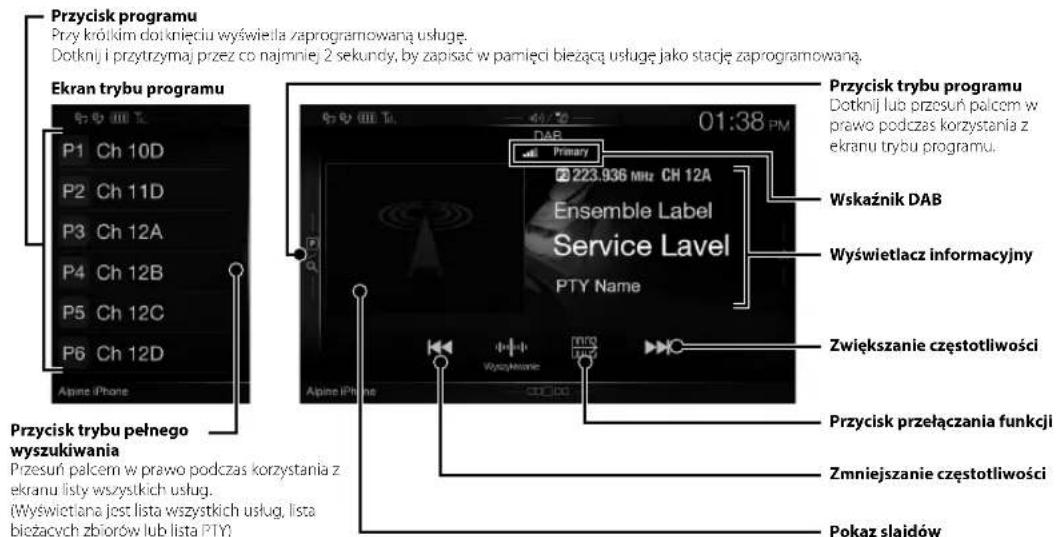
Pokaz slajdow
7 cali (INE-W710D/ILX-702D)
14.4 VDC (prad staly)
100 mm (NE-W710D/dLX-702D)
WYMIARY PLYTY CZOLOWEJ
Szerokosc
191 mm (X802D-U)
Wysokość
171 mm (INE W/10D/ILX 702D)
Glebokosc
121 mm (X802D-U)
About the Rules of Bluetooth Electromagnetic Radiation Regulation

Declaration of Conformity
ALPINE
ALPINE ELECTRONICS MARKETING, INC.
1-7, Yukigaya-Otsukamachi, Ota-ku,
Tokyo 145-0067, JAPAN
Phone: 03-5499-4531
ALPINE ELECTRONICS OF AMERICA, INC.
19145 Gramercy Place, Torrance,
California 90501, U.S.A.
Phone 1-800-ALPINE-1 (1-800-257-4631)
ALPINE ELECTRONICS OF AUSTRALIA PTY. LTD.
161-165 Princes High
Hallam Victoria 3803, Australia
Phone 03-8787-1200
ALPINE ELECTRONICS GmbH
Alpine House Fletchamstead Highway,
Coventry CV4 9TW, U.K.
www.alpine.co.uk
ALPINE ELECTRONICS France S.A.R.L.
2-6-34, Takashima, Nishi-ku, Yokohama,
Kanagawa, Japan
Printed in Japan