
INE-Z928E - Browser ALPINE - Free user manual and instructions
Find the device manual for free INE-Z928E ALPINE in PDF.


| Product Type | Car Navigation/Infotainment System |
| Brand | Alpine |
| Model | INE-Z928E |
| Display Size | 7 inches |
| Dimensions (W x H x D) | 178 x 100 x 160 mm |
| Weight | 1.1 kg |
| Power Supply | 12V DC (vehicle battery) |
| GPS Navigation | Yes, with voice guidance and traffic updates |
| Bluetooth Connectivity | Yes, for hands-free calling and audio streaming |
| Audio Playback | CD, DVD, USB, AUX, Bluetooth audio |
| Video Playback | DVD, USB, Bluetooth (if supported) |
| Touchscreen | Yes, resistive touchscreen |
| Operating System | Proprietary Alpine system |
| Map Storage | Internal memory with SD card slot for updates |
| Language Support | Multiple languages (including English) |
| Rear View Camera Input | Yes |
| Microphone | Built-in |
| Cleaning & Maintenance | Wipe with a soft, dry cloth. Avoid harsh chemicals. |
| Safety | Only use when vehicle is parked; do not distract while driving. |
| Spare Parts & Repairability | Contact authorized Alpine dealer for replacement parts and service. |
| General Information | Designed for in-car use. Includes user manual in PDF format. |
Frequently Asked Questions - INE-Z928E ALPINE
User questions about INE-Z928E ALPINE
0 question about this device. Answer the ones you know or ask your own.
Ask a new question about this device
Download the instructions for your Browser in PDF format for free! Find your manual INE-Z928E - ALPINE and take your electronic device back in hand. On this page are published all the documents necessary for the use of your device. INE-Z928E by ALPINE.
USER MANUAL INE-Z928E ALPINE
ENABLED BY CONNECTIVITY FUNCTIONS OF THE MOBILE PHONE, THE MOBILE PHONE'S USER INTERFACES FOR MUSIC OR DRIVE ARE DISPLAYED DIRECTLY ON OUR HEAD UNIT WITH NO ALTERATION. ALPINE SHALL NOT BE RESPONSIBLE OR LIABLE TO USERS FOR ANY DAMAGES, LOSSES OR COSTS RELATED TO OR ARISING OUT OF THESE MOBILE PHONE INTERFACES.
Using MirrorLink™
MirrorLink is a standard for connecting between this unit and a mobile phone. Using MirrorLink, you can display a mobile phone screen and operate your mobile phone applications via this unit.
- Some applications may not be displayed or operated, depending on the connected mobile phone.
- If the mobile phone is locked, it cannot be operated from the unit.
- For details on compatible phones, refer to the Alpine website.
When using MirrorLink, we recommend that you connect your mobile phone via both USB and BLUETOOTH.
- For details on BLUETOOTH connection, refer to Owners Manual "Registering the BLUETOOTH Device."
- If your mobile phone is connected via USB only, some functions may not operate normally. Make sure you also connect via BLUETOOTH.
1 Press the 🎨(AUDIO) button.
2 Touch [Mirror Mode] or [Car Mode] of Top banner.
The screen for the selected mode is displayed.
• After connecting to a mobile phone that is compatible with this unit, source icons will appear on the Top banner.
- Mirror Mode or Car Mode may be automatically selected on this unit without performing step 2, depending on the connected mobile phone.
3 Press the ★(My Favorites) button after the Top banner disappears.
The Media Control button will be displayed on the bottom of the screen.
- The Top banner disappears if no operation is performed for at least 5 seconds or the centre of the screen is touched.

- If the Media Control buttons are not operated for at least 5 seconds, the display will disappear. Each time you press the My
Favorites) button, you can set the Media Control button display to On/Off. - Touch [ ] to switch the mode of Media Control button operation.
- Touch [ % ] to display the Media Control button Setup screen.
- Touch [ ] to display the Top Banner.
Mirror Mode
Applications in a mobile phone can be displayed on this unit's screen. Some applications may not be displayed, depending on the connected mobile phone.
- You cannot operate the Mirror Mode while driving.
Car Mode
All automotive applications in a mobile phone are displayed on this unit.
- If the connected mobile phone displays a screen other than Car mode, “Please select Car Mode source again” is displayed on this unit.
Switching the mode of Media Control button operation
Touch the Media Control button (7) select the operation mode.
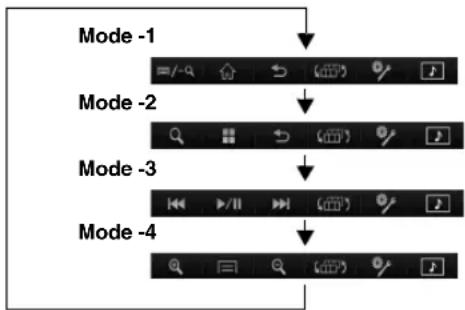
flowchart
graph TD
    A["Mode -1"] --> B["/"]
    C["Mode -2"] --> D["Q"]
    E["Mode -3"] --> F["<<"]
    G["Mode -4"] --> H["O"]
    B --> I["Home Icon"]
    D --> J["Home Icon"]
    F --> K["Home Icon"]
    H --> L["Home Icon"]
- In the Mirror Mode/Car Mode, you can change four patterns.
- A function that has been set to "OFF" in the Media Control button Setup, is not displayed.
■ Mode -1 (Android mobile phones)
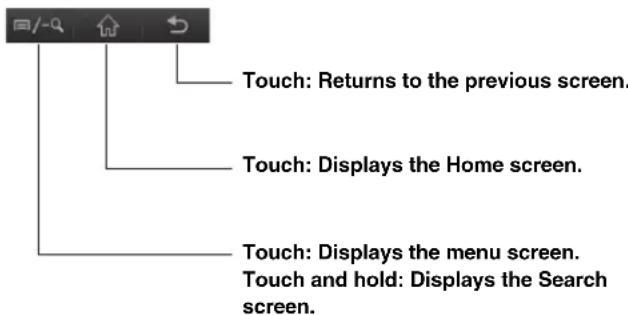
■ Mode -2 (Nokia phones)
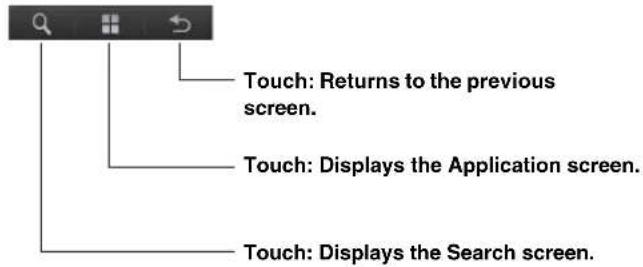
■ Mode -3 (Music Application Mode)
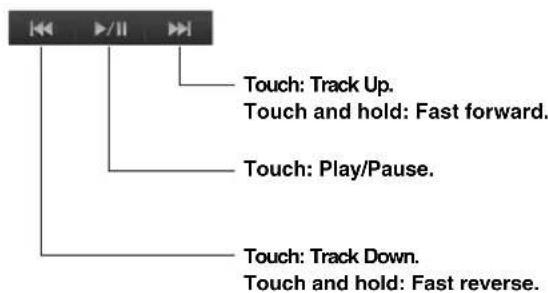
■ Mode -4 (Navigation Mode)
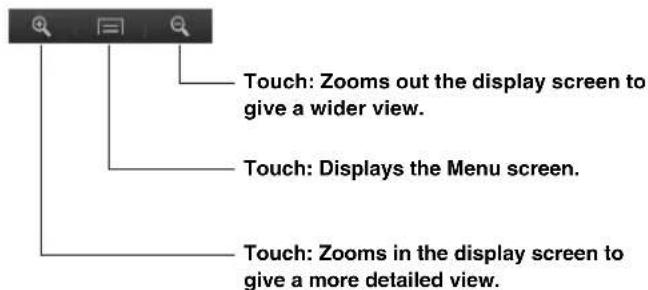
- Operable modes on this unit may differ from operations on your mobile phone, depending on the connected mobile phone.
MirrorLink™ Setup (Optional)
Media Control button Setup
Media Control button setup is performed for the Mirror Mode/Car Mode. Set "ON" to enable the Media Control buttons.
Setting item: Media Control button Setup Setting contents: OFF / ON (Initial setting)
1 Touch [%] of Media Control buttons.
2 Touch [ON] or [OFF].
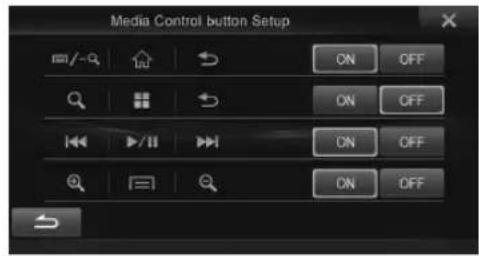
- The Media Control buttons of a mode set to "OFF," is not displayed.
About Other Settings
Media Xpander and Source Volume Setup of MirrorLink are applied to Compress Media.
- Using MirrorLink™
- When using MirrorLink, we recommend that you connect your mobile phone via both USB and BLUETOOTH.
- Press the 🎨(AUDIO) button.
- Touch [Mirror Mode] or [Car Mode] of Top banner.
- Press the ★(My Favorites) button after the Top banner disappears.
- Mirror Mode
- Car Mode
- Switching the mode of Media Control button operation
- ■ Mode -1 (Android mobile phones)
- MirrorLink™ Setup (Optional)
- Media Control button Setup
- About Other Settings
Brand : ALPINE
Model : INE-Z928E
Category : Browser