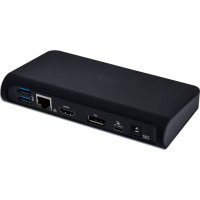
C31DUALDOCKPD - Other computer accessories i-TEC - Free user manual and instructions
Find the device manual for free C31DUALDOCKPD i-TEC in PDF.



| Product type | USB-C Dual Display MST Docking Station |
| Brand | i-TEC |
| Model | C31DUALDOCKPD |
| Dimensions (L x W x H) | 155 x 85 x 27 mm |
| Weight | 172 g |
| Power supply | External power adapter: input 100-240V AC, output 20V / 5A (100W max.) |
| Video ports | 1x HDMI (3840x2160 @ 30Hz), 1x DisplayPort (3840x2160 @ 30Hz); two displays (MST): 1920x1200 @ 60Hz |
| USB ports | 1x USB-C 3.1 Gen 1 upstream (data + PD 60W), 1x USB-C 3.1 Gen 1 downstream data, 3x USB-A 3.0 (including 1 with fast charging BC 1.2) |
| Ethernet port | 1x RJ-45 Gigabit LAN (10/100/1000 Mbps) |
| Audio port | 1x 3.5 mm combo audio/microphone jack |
| Power button | Yes, on the front panel |
| Supported display modes | Extend, Mirror, Main screen (16/32 bit color) |
| System requirements | USB-C port with DisplayPort Alternate Mode and Power Delivery support, or Thunderbolt 3; Windows 10, macOS X, Chrome OS, Android 6+ |
| Driver installation | Automatic via Windows Update or macOS; LAN drivers downloadable from i-tec website |
| Maintenance and cleaning | Clean with a soft, dry cloth; do not use abrasive products |
| Safety | Do not expose to water, excessive humidity, or extreme temperatures; use on a flat, stable surface |
| Spare parts and repairability | Spare parts not supplied; contact technical support in case of malfunction |
| General information | Docking station with MST function for two displays under Windows; not compatible with Mac for dual extended display mode; requires USB 3.0 adapter for a third display |
Frequently Asked Questions - C31DUALDOCKPD i-TEC
User questions about C31DUALDOCKPD i-TEC
0 question about this device. Answer the ones you know or ask your own.
Ask a new question about this device
Download the instructions for your Other computer accessories in PDF format for free! Find your manual C31DUALDOCKPD - i-TEC and take your electronic device back in hand. On this page are published all the documents necessary for the use of your device. C31DUALDOCKPD by i-TEC.
USER MANUAL C31DUALDOCKPD i-TEC
i-tec USB-C Dual Display MST Docking Station
(GB) User's manual
natural_image
Black wireless router device with ports labeled (no visible text or symbols beyond branding)INTRODUCTION
Thank you for purchasing the i-tec USB-C Dual Display MST Docking Station that will allow you to connect your favourite devices via single USB-C connector to a notebook, a tablet, a PC or a smartphone with a USB-C port. It offers 1x HDMI port, 1x Display Port, 1x Ethernet GLAN RJ-45 port, 3x USB-A 3.0 port, 1x USB-C 3.1 (Gen. 1) port with Power Delivery (upstream), 1x USB-C 3.1 (Gen. 1) port (downstream), 1x Audio port and 1x and 1x DC power supply input.
Notice:
For Apple users: This docking station has the MST function (2 monitors in extended mode), which is not supported by the operating system Mac OS currently. No USB-C docking station supports transmission of 2 monitors in Mac OS. Dual Display transmission to be supported by Thunderbolt 3 docking station only. However, the second external monitor can be connected using i-tec USB 3.0 graphics adapter.
For Windows users: MST technology in the Windows OS allows connecting two monitors simultaneously - in the advanced mode (different content on connected monitors) and in the mirroring mode (same content on connected monitors). To set up two monitors, setting of the MST mode in some hardware combinations requires using of both the Windows control utility and the control panel for the Intel HD Graphics. Another external monitor can be connected using i-tec USB 3.0 graphics adapter.
TERMINOLOGY
- Interface / port / connector / input / slot – a place where two devices are physically connected.
- Chipset – a semiconductor device in a notebook, tablet, PC, controlling the function of a port.
- USB-C / USB Type-C – is a new symmetric connector and standard, introduced by USB-IF in their specification USB 3.1. Windows 10 (Microsoft), Mac OS X (Apple) and Chrome OS and Android (Google) have introduced native support for this connector. It allows faster charging, energizing, double-function (a host but also a guest), support for alternative modes (DisplayPort, MHL, Thunderbolt) and error messaging using Billboard equipment.
- Alternative modes (Alt modes) – special modes for USB-C connector, which can be supported. Currently the most popular ones include DisplayPort / DockPort, MHL, Thunderbolt. Devices with this feature of the connector and the cable allow transmission of images and at the same time preserve other functions of a connector (for data transfers and charging).
- DisplayPort /DockPort Alt mode – this mode allows transmission of images over USB-C connector and a cable.
- USB Power Delivery (USB PD) – optional property of the USB-C connector. A connector with this support can charge and be charged at the same time and it supports loads from 10W to 100W (depending on profiles 1-5). In Windows 10 USB PD cannot be applied to older USB A, B and micro B ports.
- USB 3.1 / 3.0 / 2.0 – a standard for USB interface / port for connection of various USB devices. Various USB devices can be connected to the docking station or adapter using the USB interface type A. USB type B is used for connecting the docking station or adapter to notebook, tablet, PC.
- HDMI – a standard for digital graphical interface / port for connection of monitors and other graphical display devices.
- Audio – designation for audio input (microphone) or output (earphones / loudspeakers) devices.
Please carefully read the entire manual before starting work with the docking station. More information can be found in the manual on our website www.i-tec-europe.eu in the tab "Download" for this product.
SPECIFICATION
- 1x USB-C 3.1 (Gen. 1) port for data transfer, transfer rate up to 5 Gbps; connecting another monitor using this port is not supported, this can be achieved using Thunderbolt 3 docking station.
- 3x USB-A 3.0 port, transfer rate up to 5 Gbps; USB 3.0 port on front panel is with BC 1.2 specification
• 1x USB-C Power Delivery with profile 4 (max. 60 W) for connecting to your laptop or tablet
• 1x Ethernet GLAN RJ-45 port, 10/100/1000 Mbps
- Graphic interface: One monitor: 1x HDMI max. resolution 3840x2160/30Hz or 1x Display Port max. resolution 3840x2160/30Hz Two monitors (MST): supports up to 1920x1200/60Hz
• 1x Audio/Microphone 2.1 Jack
• Mode: Extend, Mirror and Primary Display
• Supported colors 16 / 32 bit
- Power supply from external power adapter – output: DC 20V/5A
- OS: Requires USB-C interface with "DisplayPort Alternate Mode" and „Power Delivery" support (not all devices / systems with USB-C interface support the standard) or Thunderbolt 3 port – Windows 10 32/64bit, Mac OS X, Chrome OS and Android 6 (Google) with Intel Broadwell Processor and R51 and higher
• Product dimensions: 155 x 85 x 27 mm
• Product weight: 172 g
PACKAGE CONTENTS
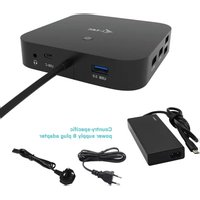
• i-tec USB-C MST docking station
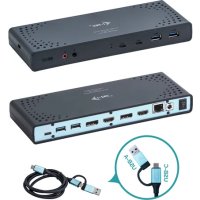
- USB-C cable (100 cm)
• Power adapter (output: DC 20V/5A, max.100W, DC cable 200 cm + network cable 200 cm)
- Quick Start

DOCKING STATION DESCRIPTION / SPECIFICATION
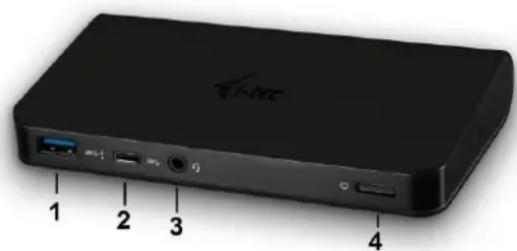
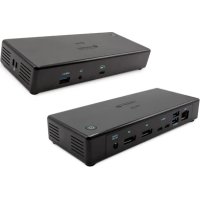
Front panel:
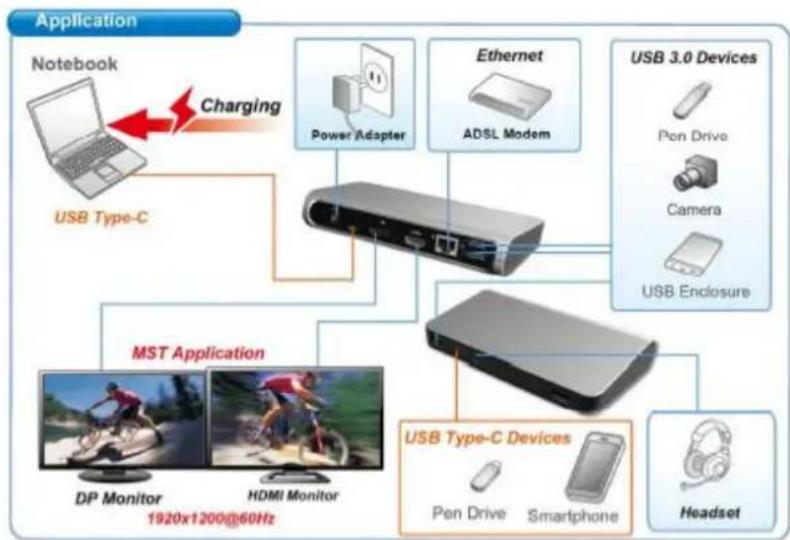
- 1x USB-A 3.0 port (data transfer rate up to 5 Gbps) with fast charging according to spec. BC 1.2 – for connecting and rapid charging of USB devices
-
1x USB-C 3.1 (Gen. 1) port – for connecting of USB-C devices and data transfer (e.g. HDD, flash drive)
-
1x Audio 3.5 mm Jack – for headphones and microphone 2.1
- ON / OFF switch – for the docking station switching on/off
Rear panel:
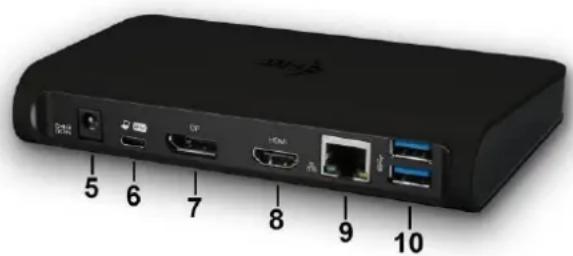
- Power supply input (DC 20V/5A, max. 100W) – power from an external power adapter
- 1x USB-C (support for data, Display Port Alt mode, Power Delivery Alt mode) - for connecting of the docking station to notebooks, tablets, PCs or smartphones with the USB-C port; Power Delivery with profile 4 (max. 60 W)
- 1x Display port (DP) – for connecting of the monitor with a DP input
- 1x HDMI port – for connecting of the monitor with a HDMI input
Note to the graphical interface:
One monitor: 1x HDMI max. resolution 3840x2160 / 30Hz or 1x Display Port max. resolution 3840x2160 / 30Hz. Two monitors (MST): supports up to 1920x1200 / 60Hz. Modes: Extend, Mirror and Primary monitor. 16 / 32 bit colour support.
- 1x Ethernet GLAN RJ-45 port – for connecting to an Ethernet network / router / switch / hub and the Internet
- 2x USB-A 3.0 port (data transfer rate up to 5 Gbps) – for connecting of USB devices
flowchart
graph TD
    A["Application"] --> B["Notebook"]
    B --> C["USB Type-C"]
    C --> D["Charging"]
    D --> E["Power Adapter"]
    D --> F["Ethernet"]
    D --> G["ADSL Modem"]
    E --> H["USB 3.0 Devices"]
    F --> H
    G --> H
    H --> I["Pen Drive"]
    H --> J["Camera"]
    H --> K["USB Enclosure"]
    L["MST Application"] --> M["DP Monitor"]
    L --> N["HDMI Monitor"]
    O["USB Type-C Devices"] --> P["Pen Drive"]
    O --> Q["Smartphone"]
    R["Headset"] --> S["Phone Icon"]
    R --> T["Headset Icon"]
    style A fill:#f9f,stroke:#333
    style B fill:#ccf,stroke:#333
    style C fill:#cfc,stroke:#333
    style D fill:#fcc,stroke:#333
    style E fill:#cff,stroke:#333
    style F fill:#ffc,stroke:#333
    style G fill:#ffc,stroke:#333
    style H fill:#cfc,stroke:#333
    style I fill:#fcc,stroke:#333
    style J fill:#fcc,stroke:#333
    style K fill:#fcc,stroke:#333
    style L fill:#ffc,stroke:#333
    style M fill:#cfc,stroke:#333
    style N fill:#cfc,stroke:#333
    style O fill:#cfc,stroke:#333
    style P fill:#fcc,stroke:#333
    style Q fill:#fcc,stroke:#333
    style R fill:#fcc,stroke:#333
SYSTEM REQUIREMENTS
Hardware requirements: Requires a USB-C interface with support for the "DisplayPort Alternate Mode" and "Power Delivery" (not all devices/systems with USB-C have this standard) or Thunderbolt 3 port – now Windows 10 32/64bit, Mac OS X, Chrome OS and Android 6 (Google) with Intel Broadwell Processors and R51 and higher
Operating system: Windows 10, Mac OS X, Google (Chrome OS and Android 6) with latest updates
Note: Mac OS does not support MST (2 monitors in the extended mode). No USB-C docking station supports transmission of 2 monitors in Mac OS. Dual Display transmission to be supported by Thunderbolt 3 docking station only.
INSTALLING DRIVERS
Once connected, the drivers for the docking station are automatically installed from the system. In the case of the need to install LAN, download the latest drivers from our web site www.i-tec-europe.eu in the tab "Download" for this product.
Notice: Before installing, make sure that the latest drivers for your device and updated BIOS are installed in your system.
CONNECTING A DISPLAY PORT / HDMI MONITOR
The docking station is equipped with 1x Display Port 4K and 1x HDMI 4K port for connecting an external monitor or projector with Display Port / HDMI interface. As imaging equipment, advanced plasma and LCD monitors and TVs can be used. Graphics chips, that are the "heart" of the docking station, support up to 1x 4K (Ultra HD) resolution 3840 x 2160 pixels. To connect the monitor to the docking station, use a high quality DP / HDMI cable. During the additional monitor installation, the screen of the laptop, Mac, tablet or PC can blink, this is normal state.
Windows OS: Setting of the MST mode with two connected monitors (HDMI and Display port) is always dependent on the internal graphics card and hardware specifications of the notebook / tablet (must support dual monitor set-up). To set up two monitors, using of both the Windows control utility and the “Control panel for the Intel HD Graphics” is required in some hardware combinations (e.g. http://www.intel.com/content/www/us/en/support/graphicsdrivers/000005540.html?wapkw=settings+for+hd+graphics – item Display-Multiple monitors – description see below). For the corresponding resolution, we also recommend setting of the same refresh rate on both connected monitors. The third external 4K monitor can be connected using i-tec USB 3.0 adapter (e.g. U3DP4K or U3HDMI4K) or the FullHD+ monitor with other video adapters.
USING THE USB-C DOCKING STATION IN WINDOWS OS
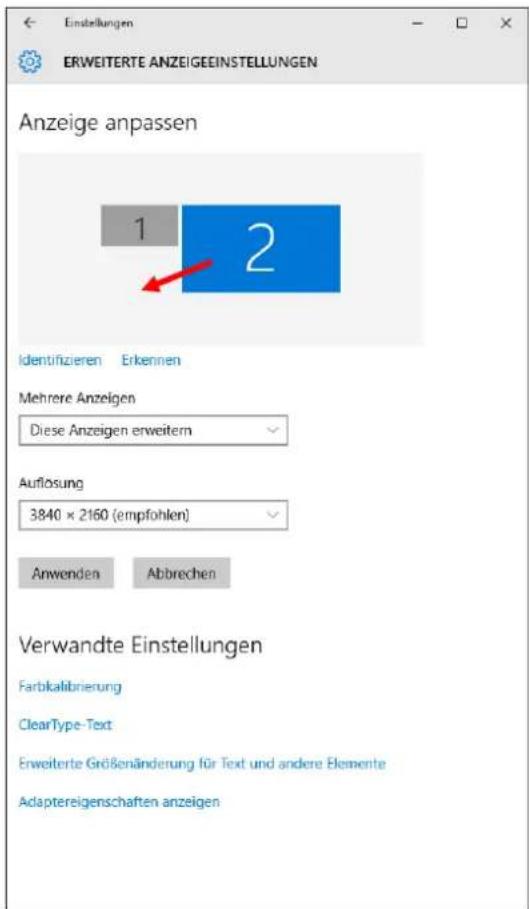
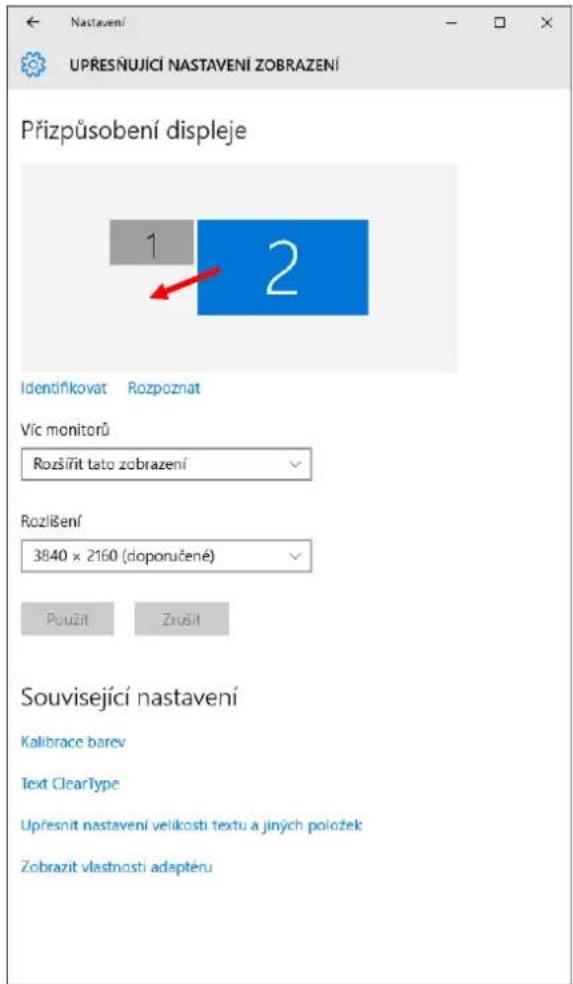
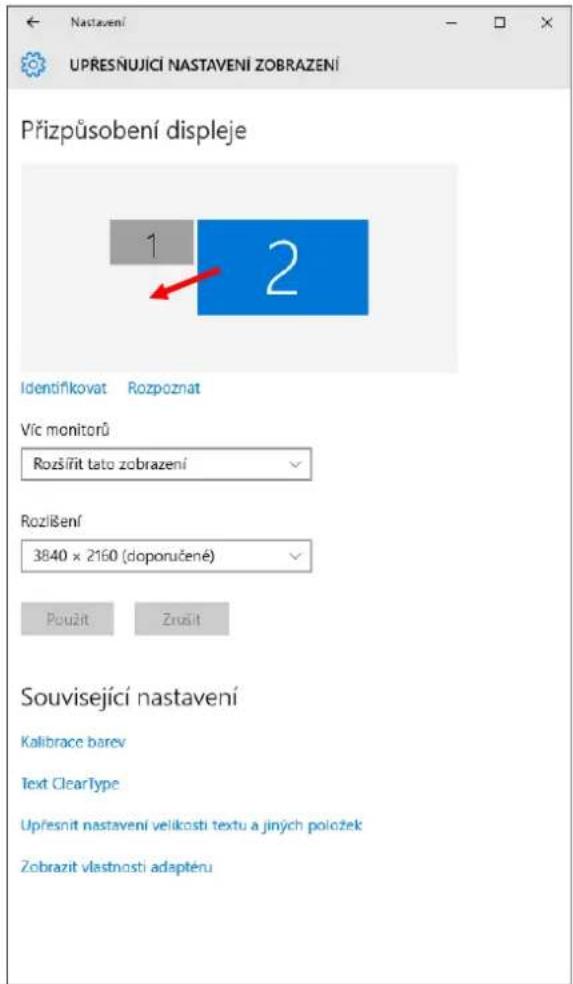
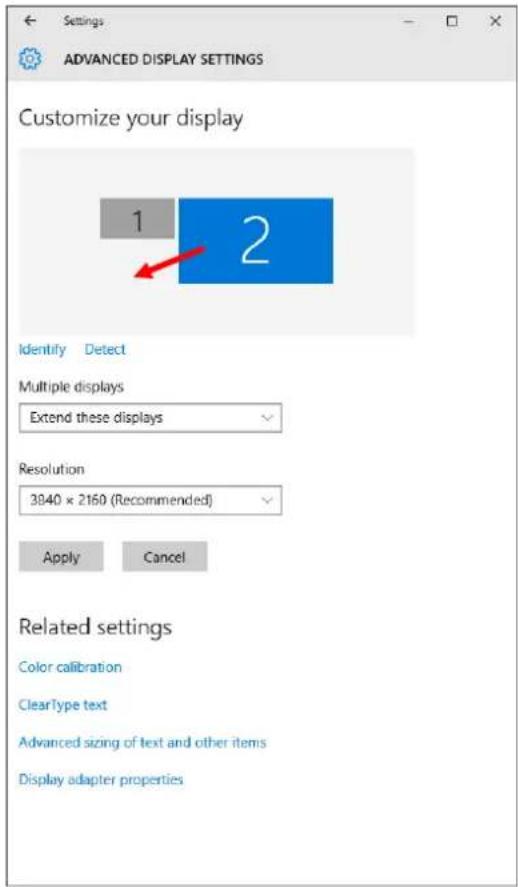
Advanced configuration for the graphics – after connecting the monitor and after clicking on the settings for "Image Resolution" in Windows you can select the monitor you want to use.
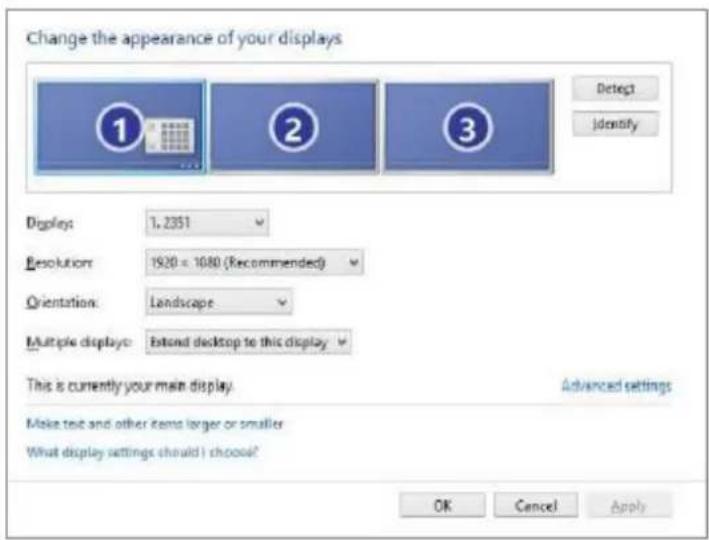
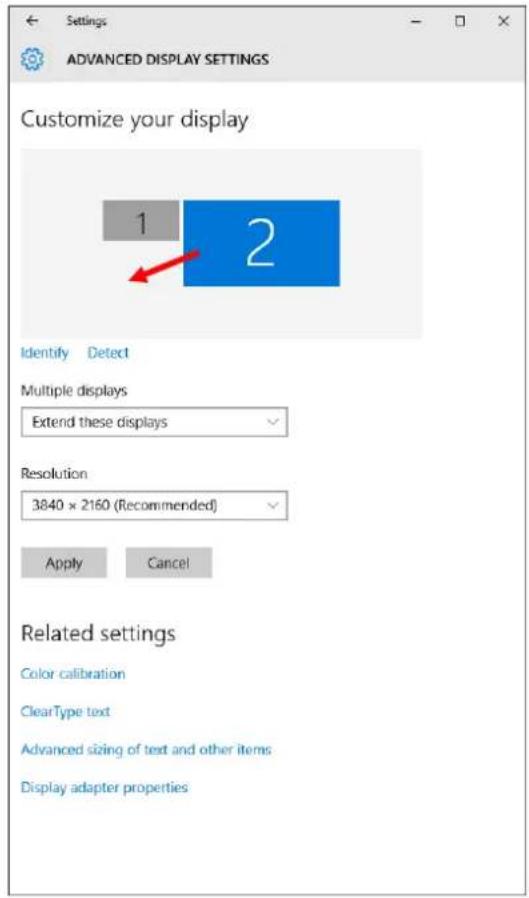
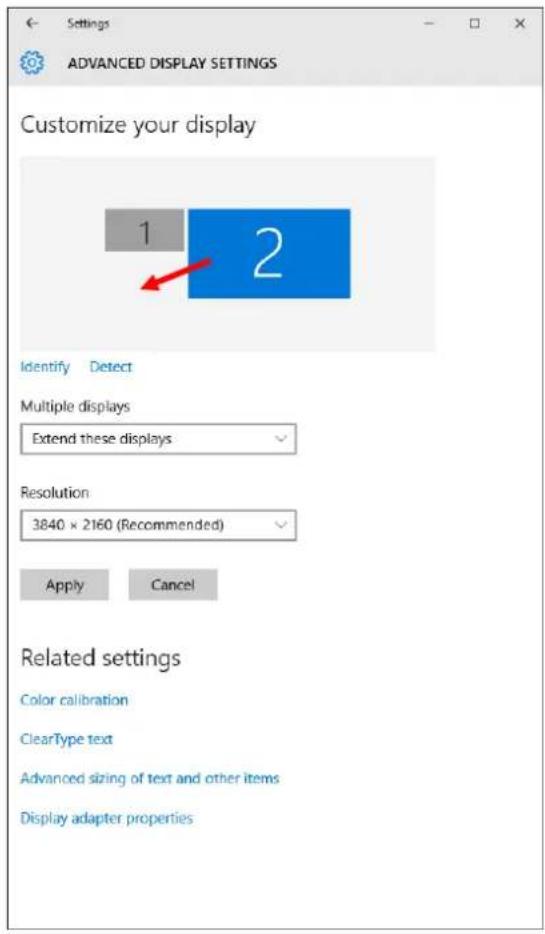
Note: By clicking on the second monitor and moving it you can position this monitor as required relative to the original monitor of your notebook / tablet / PC.
Now you can set Extend and Mirror mode:
a) for the Mirror mode: on the monitor select the 2nd Monitor, select Several monitors → Mirror this display → OK.
b) for the Extend mode: on the monitor select the 2nd Monitor, select Several monitors → Extend this display → OK.
Important note for using and configuring the Intel HD graphics on notebook or tablet (pictures and settings may differ per driver version of Intel HD graphics):
Some configurations can be set using primary graphics only – Intel HD graphics. Select Intel HD graphics control panel → graphics adapter properties → Display → Multiple display.
Only one connected monitor:
You can choose from display mode and settings for primary and secondary display
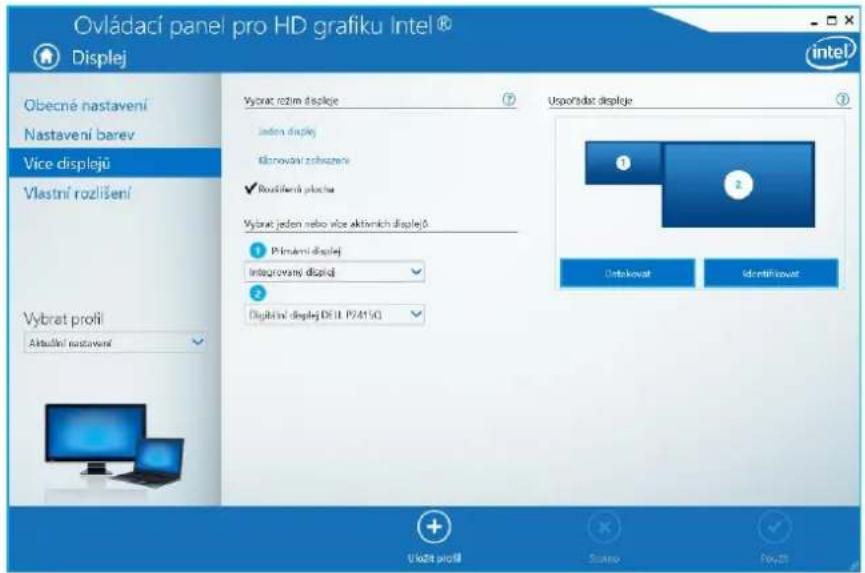
Then go to general settings – here you can adjust resolution and refresh rate for the primary display.
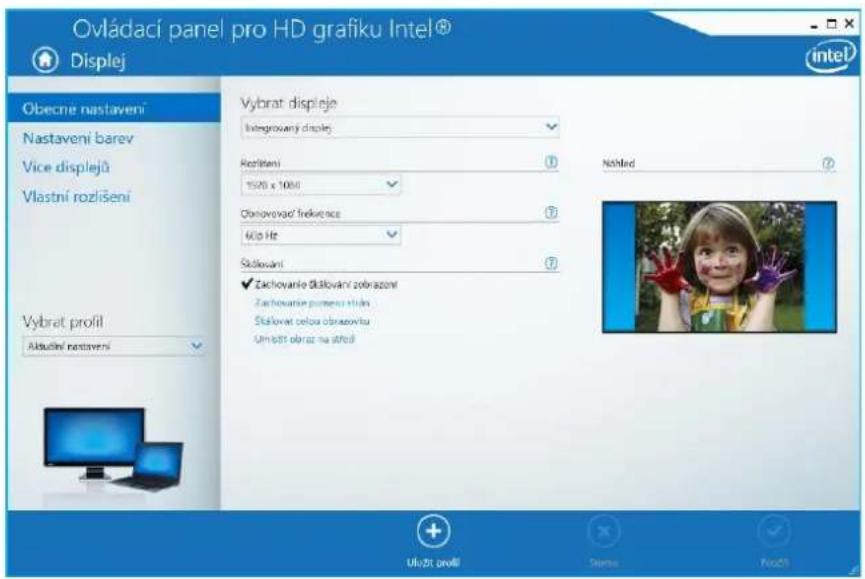
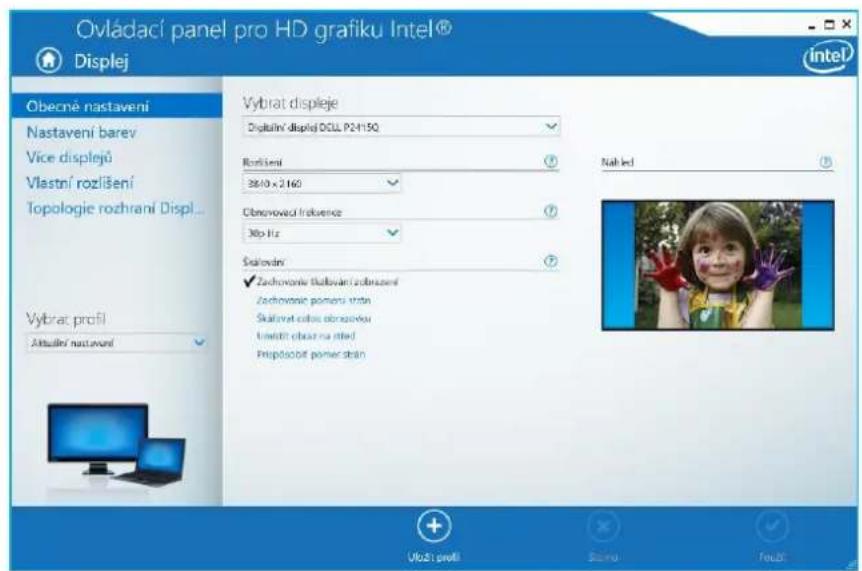
If you select digital display from the drop down menu – you can adjust the resolution and refresh rate of digital display.
2 external monitors (one connected through DP and the other through HDMI).
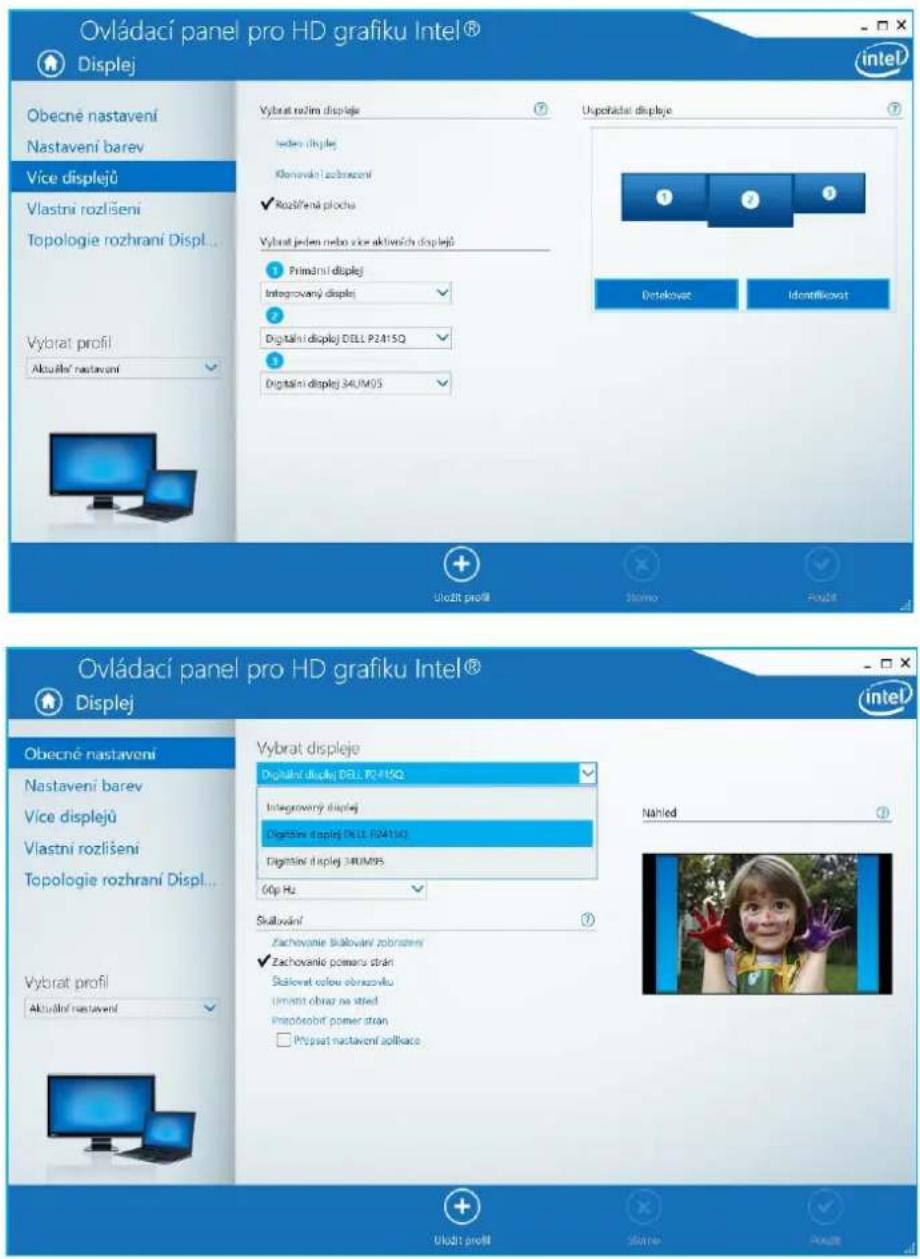
We recommend to use same refresh rate on both monitors.
Audio settings – this will allow audio settings in the Control Panels → Sound (USB Audio Device).
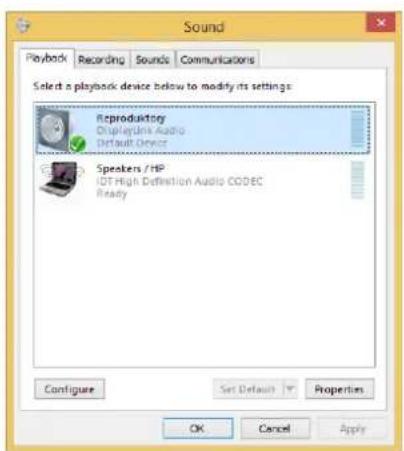
Notes on using:
The Standby / Hibernate mode and the Video port – after the activation of the notebook / tablet / PC from the Standby / Hibernate mode the primary (original) monitor is displayed, for this reason we recommend using the monitor that is integrated with the notebook / tablet / PC as the primary monitor so that you can log on to the system again.
The Mirror mode – the additional monitor takes on the parameters of the original monitor in the system, i.e., if you select the Mirror mode and the original monitor resolution is 1280x1024 then the screen will be displayed on the additional monitor with a resolution of max. 1280x1024 (even if you set a higher resolution).
Use and set the monitors in accordance with the user manual, i.e., using a monitor with the resolution lower than the settings on the HDMI port can damage the monitor (e.g., for a monitor with max. resolution 1024x768 do not set the resolution value 1280x960 and higher on the HDMI port)!
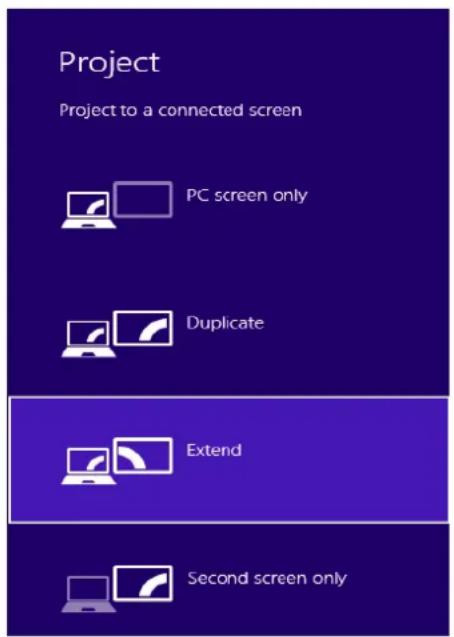
Pressing the keys „Windows“ + P you can also easily control the monitors – for using a monitor in Win 10 you can select: Computer screen only, Mirror, Extend, Second screen only.
USING THE USB-C DOCKING STATION IN MAC OS X
Installation of the drivers in Mac OS X is automatic.
Mac OS does not support MST (2 monitors in the extended mode). No USB-C docking station supports transmission of 2 monitors in Mac OS). Dual Display transmission to be supported by Thunderbolt 3 docking station only. The second external 4K monitor can be connected using i-tec USB 3.0 adapter (e.g. U3DP4K or U3HDMI4K) or the FullHD+ monitor with other video adapters. For the corresponding resolution for internal graphics card, we recommend to select “Default for Monitor”, set resolution on the second external monitor and restart your Mac device.
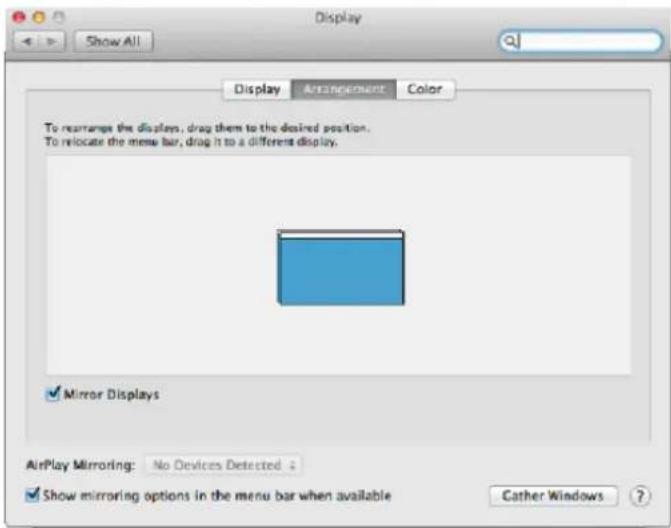
After connecting the monitor the screen on your Mac will glimmer, which is a standard condition, and after stabilization it is possible to perform standard setting of the monitor here: System Preferences-Displays.
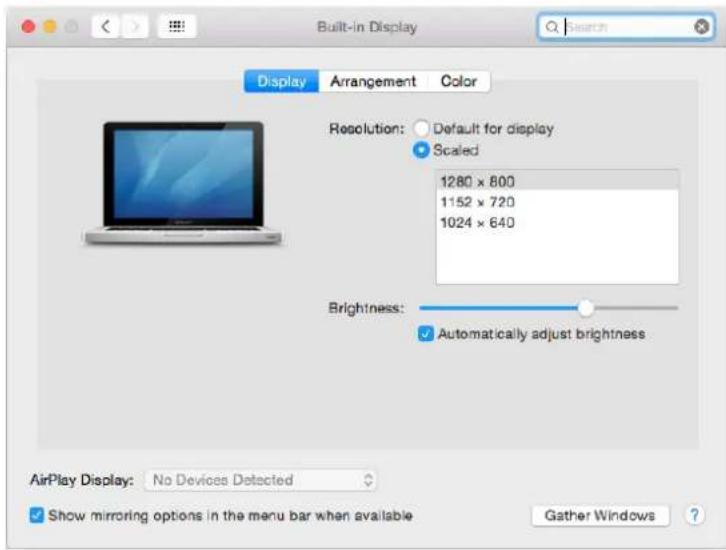
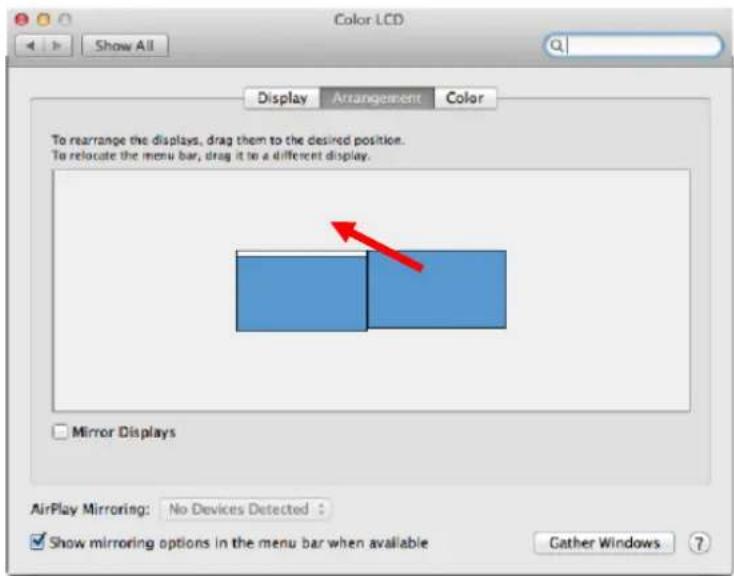
Click on Arrangement and in the default mode (Expanded desktop) click on the new monitor and drag it as necessary vis-à-vis the Mac monitor. If you select Mirror displays the mode will change to Mirror (the resolution of the monitors will be automatically adjusted according to their parameters and the highest possible resolution will be set on both monitors). By cancelling the Mirror displays option you will return to the Expanded desktop mode.
Expanded desktop mode: The arrow indicates the possible position of the connected monitor vis-à-vis the Mac monitor.
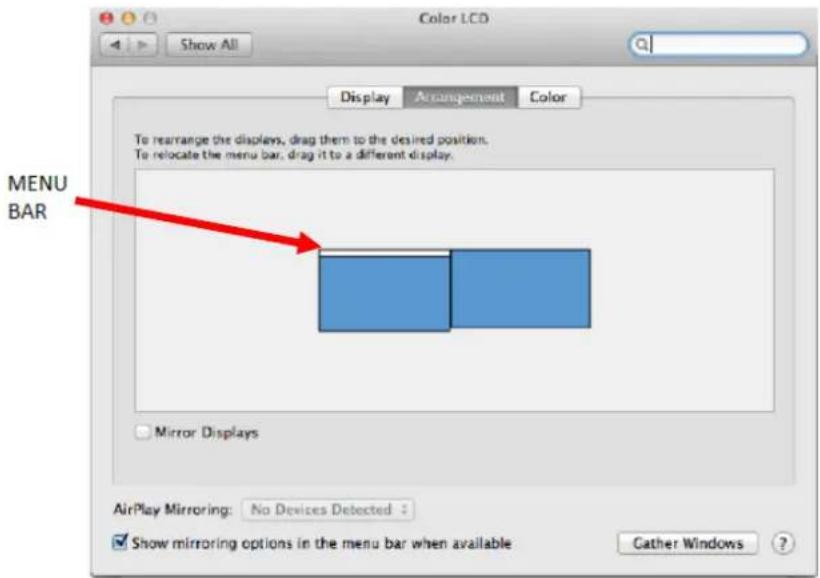
In the Expanded desktop mode you can choose the Main monitor by dragging the Menu Bar.
Mirror mode: This mode can only be used if supported by the Mac.
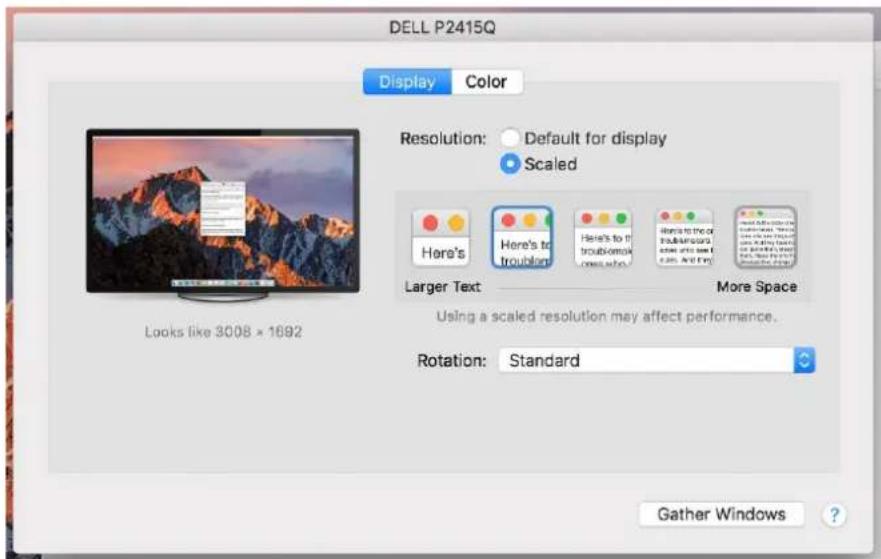
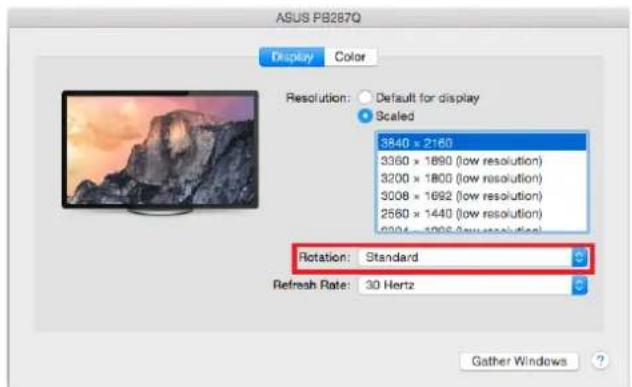
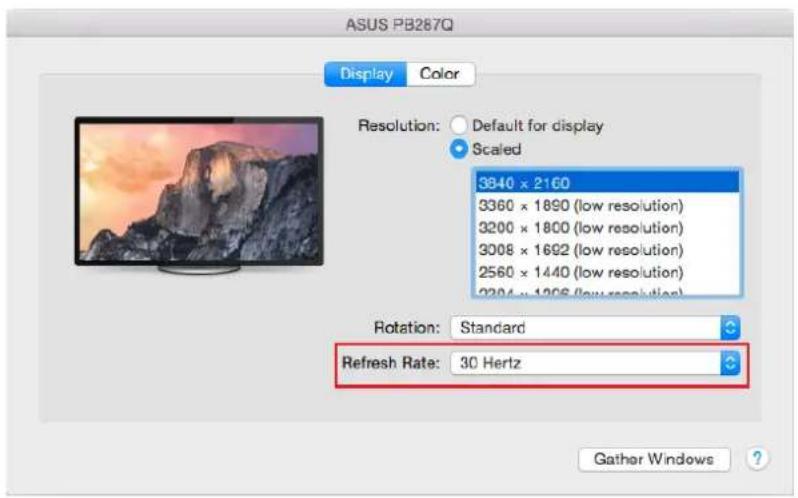
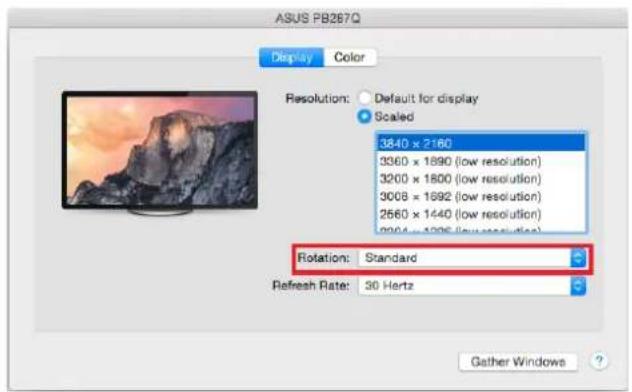
Click on Gather Windows: using this option you can choose the settings of the corresponding monitor – Scaled (offers available resolutions), Rotation (Standard, 90°, 180° and 270°) and Refresh rate (if offered).
Depending on your monitor there are these options for settings: Option number 1:
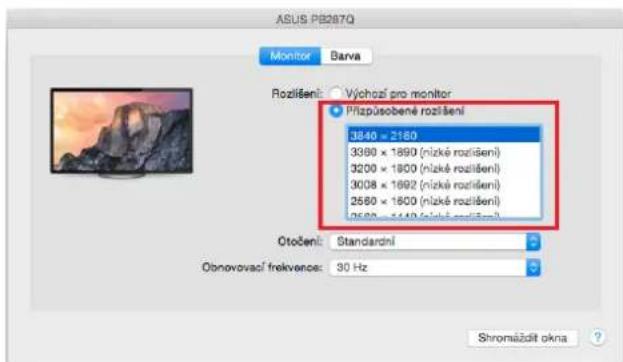
Here you can choose the resolution by clicking on selected icon (the resolution can be found under the screen – in this case 3008x1692 = 4K@30Hz)
Working on the connected monitor when the Mac monitor is closed is possible with the power supply from the grid (there are some limitations when using a HDMI monitor on older versions of Mac).
Most problems with renewing the screen on the connected monitor after hibernation of the Mac, after using screensaver, after restarting the Mac, after turning the Mac OFF / ON can be solved by disconnecting the USB-C cable of the docking station from the USB-C port on the Mac and reconnecting it after approximately 10 s. Please wait for completion of connection of all peripherals.
CONNECTING USB DEVICES
After connecting USB device (USB external HDD, USB keyboard, USB mouse, USB Hub, USB graphics adapter) via the docking stations USB 3.0 port, these devices are used in a standard way. Docking station supports charging of connected USB mobile devices (smartphones, e-book readers, multimedia players, navigations and tablets. You should just connect the charged device to the docking stations USB port using original cable.
AUDIO
- Audio output devices, for listening through HDMI, need to be set / verified here: System Preferences-Sound-Output – select HDMI Audio Device.
- Setting the audio output device to both the earphones and the monitor simultaneously can be done in Open-Applications-Utilities-Audio settings MIDI.app – click on „+“ on the left at the bottom – Create device with multiple outputs and select the desired outputs from the offered options on the Device with multiple outputs.
Most problems with the docking station and the connected peripherals can be solved by using the ON/OFF switch or disconnecting the USB-C cable of the docking station from the USB-C port on the PC / Mac / smartphone / tablet and its reconnecting after about 10 seconds.
In case of problems with the USB-C docking station, contact our technical support: support@itecproduct.com.
SAFETY INSTRUCTIONS
- Do not expose to extreme temperatures and air humidity.
- Use the equipment on flat surfaces – it will help avoid slipping and falling on the ground.
- Keep this manual for future reference.
In cooperation with the service department:
- Verify functionality after falling into water or on the ground.
- Verify functionality after the cover cracking.
- Claim malfunctioning equipment according to the manual.
EINLEITUNG
POPIS DOKOVACÍ STANICE / SPECIFIKACE
Přední panel:
flowchart
graph TD
    A["USB Type-C"] -->|Charging| B["USB 3.0 Devices"]
    B --> C["USB Enclosure"]
    B --> D["USB Type-C Devices"]
    D --> E["Headset"]
    D --> F["Smartphone"]
    D --> G[" pen Drive "]
    D --> H[" camera "]
    D --> I[" Pen Drive "]
    D --> J[" Ethernet "]
    D --> K[" Power Adapter "]
    D --> L[" ADSL Modem "]
    D --> M[" DP Monitor "]
    D --> N[" HDMI Monitor "]
    D --> O[" MST Application "]
    A --> P["Notebook"]
Pastabos dèl naudojimo:
USB-C DOKO STOTELÈ NAUDOJIMAS MAC OS
Vaizdo variantas 2:
UTILISATION DE LA STATION D'ACCEUIL SOUS SYSTEME D'EXPLOITATION MAC X
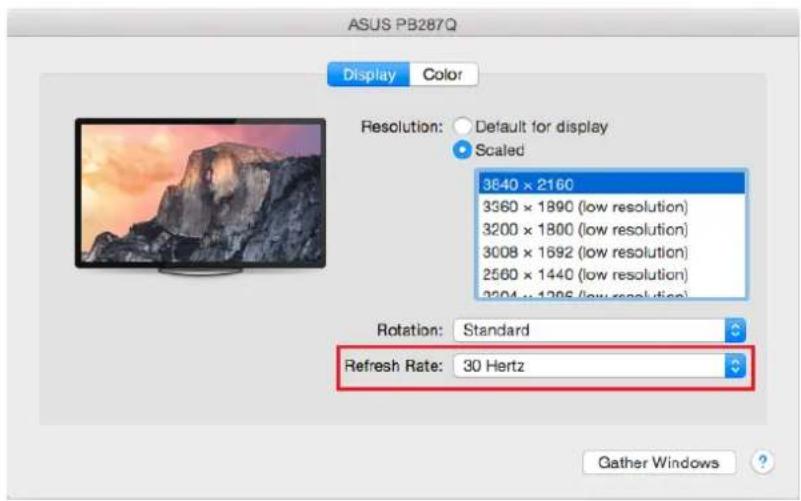
Option 2:
- i-tec USB-C Dual Display MST Docking Station
- INTRODUCTION
- Notice:
- TERMINOLOGY
- SPECIFICATION
- PACKAGE CONTENTS
- DOCKING STATION DESCRIPTION / SPECIFICATION
- Front panel:
- Rear panel:
- SYSTEM REQUIREMENTS
- INSTALLING DRIVERS
- CONNECTING A DISPLAY PORT / HDMI MONITOR
- USING THE USB-C DOCKING STATION IN WINDOWS OS
- Important note for using and configuring the Intel HD graphics on notebook or tablet (pictures and settings may differ per driver version of Intel HD graphics):
- Notes on using:
- USING THE USB-C DOCKING STATION IN MAC OS X
- CONNECTING USB DEVICES
- AUDIO
- SAFETY INSTRUCTIONS
- EINLEITUNG
- POPIS DOKOVACÍ STANICE / SPECIFIKACE
- Přední panel:
- Pastabos dèl naudojimo:
- Vaizdo variantas 2:
- UTILISATION DE LA STATION D'ACCEUIL SOUS SYSTEME D'EXPLOITATION MAC X
- Option 2:
Brand : i-TEC
Model : C31DUALDOCKPD
Category : Other computer accessories