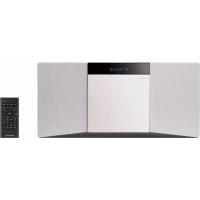
XSMC02D - Audio System PIONEER - Free user manual and instructions
Find the device manual for free XSMC02D PIONEER in PDF.



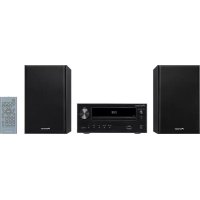
| Product type | Stereo audio system with CD player, DAB+/FM tuner, Bluetooth and USB port |
| Brand / Model | Pioneer XSMC02D |
| Dimensions (W × H × D) | 451 mm × 215 mm × 132 mm |
| Weight (without packaging) | 3.0 kg |
| Power supply | 220-240 V AC, 50/60 Hz |
| Power consumption (operation) | 15 W |
| Power consumption (standby) | 0.5 W max. |
| RMS output power | 2 × 10 W (1 kHz, 10% THD, 8 Ω) |
| Disc player | CD, CD-R/RW (CD-DA and MP3) |
| Supported audio formats | MP3 (32-48 kHz, 32-320 kbps) via CD and USB |
| USB port | 5 V / 0.5 A, FAT16/FAT32 compatible, USB flash drives and portable audio players |
| FM tuner | 87.5 - 108 MHz, RDS, 30 presettable stations |
| DAB+ tuner (XSMC02D model only) | Band III (174.928 - 239.200 MHz), 100 stations, presets |
| Bluetooth | Version 4.1 + EDR, profiles A2DP/AVRCP, codec SBC, range ~10 m |
| Auxiliary audio input | 3.5 mm mini-jack (AUDIO IN) on front panel |
| Special functions | Alarm timer (ONCE/DAILY), sleep timer, auto power off, equalizer, P.BASS, BASS/TREBLE adjustments, wall-mountable |
| Included accessories | Remote control, 2 AAA batteries, wired FM antenna, wired DAB/FM antenna (for XSMC02D), warranty card, quick start guide |
| Care and cleaning | Disconnect before cleaning; use a soft cloth, possibly with diluted neutral detergent; avoid alcohol, thinner, benzene; for the lens, contact an authorized service center |
| Safety | Do not block ventilation openings; do not expose to heat, moisture, direct sunlight; for wall mounting, check wall strength and use appropriate screws |
| Repairability | In case of malfunction, unplug then plug the device again; if the problem persists, contact an authorized Pioneer service center |
Frequently Asked Questions - XSMC02D PIONEER
User questions about XSMC02D PIONEER
0 question about this device. Answer the ones you know or ask your own.
Ask a new question about this device
Download the instructions for your Audio System in PDF format for free! Find your manual XSMC02D - PIONEER and take your electronic device back in hand. On this page are published all the documents necessary for the use of your device. XSMC02D by PIONEER.
USER MANUAL XSMC02D PIONEER
Operating Instructions
Mode d'emploi
Thank you for buying this Pioneer product.
Please read through these operating instructions so that you will know how to operate your model properly.
Contents
01 Before you start
What's in the box 3
Loading the batteries in the remote control 3
Using the remote control 3
Hang from the wall to use 3
02 Part names and functions
Remote control 5
Top panel/Front panel 6
Rear panel 7
03 Connections
Connecting antennas 8
Using external antennas 8
Plugging in 8
04 Getting started
Setting the clock 9
Sound controls 9
Equalizer 9
P.BASS control 9
BASS/TREBLE control. 9
Using the wake-up timer 10
Setting 10
Switching the wake-up timer ON/OFF 10
Using the sleep timer 10
Auto power off setting 10
05 Disc playback
Playing discs or files 11
Load the disc 11
Play tracks on a CD 11
Play MP3 music files 11
Advanced CD or MP3 disc playback 12
Repeat play 12
Random play 12
Programmed play (CD) 13
Switch the display contents 13
06 USB playback
Playing USB storage devices 14
Repeat play 14
Random play 14
Switch the display contents 15
07 Using the tuner
Listening to FM 16
Tuning. 16
Saving station presets. 16
Using the Radio Data System (RDS) 17
Listening to the DAB+ (X-SMC02D only) 19
Tuning. 19
Changing the information display 20
Memorising a station. 20
DAB Frequency table (BAND III) 20
08 Other connections
Connecting auxiliary components 21
Automatic switching to Audio In input
(Audio In Detect) 21
09 Bluetooth® Audio playback
Pairing with the unit 22
Playing Back 22
BT STANDBY 22
Remote control operation 23
Radio wave caution 23
Scope of operation 24
Radio wave reflections 24
Precautions regarding connections to products
supported by this unit 24
10 Additional information
Troubleshooting 25
Playable discs and formats 28
Regarding copy protected CDs. 28
Supported audio file formats 28
Cautions on use 28
When moving this unit. 28
Place of installation. 28
Do not place objects on this unit 29
About condensation 29
Cleaning the product. 29
Cleaning the lens 29
Handling discs 29
Storing. 29
Cleaning discs. 29
About specially shaped discs 29
Restoring all the settings to the defaults 30
Specifications 31
License and Trademark 31
Chapter 1:
Before you start
What's in the box
Please confirm that the following accessories are in the box when you open it.
Remote Control
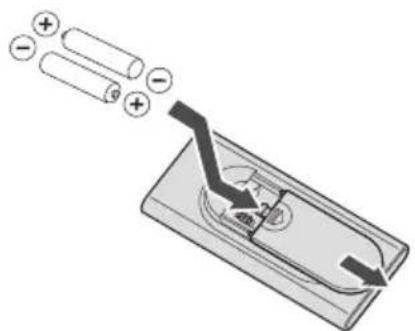
- AAA batteries (R03) × 2
FM wire antenna*
DAB/FM wire antenna* 2
Warranty card
Quick Start Guide
1 X-SMC02 only
2 X-SMC02D only
*This document is an online instruction manual. It is not included as an accessory.
Loading the batteries in the remote control
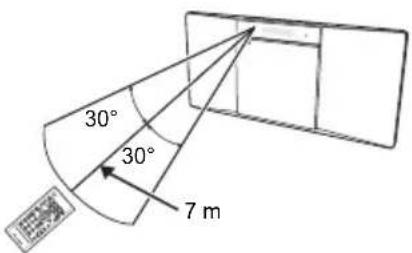
Using the remote control
The remote has a range of about 7m at an angle of about 30^ from the remote sensor.
Hang from the wall to use
When hanging the unit from a wall, firmly screw the wall hanging screws (sold separately) into the wall, and confirm that the wall is capable of holding the unit safely. If the materials or strength of the wall cannot support the weight of the unit, then there is the possibility of the unit falling off.
1 Screw the wall hanging screws into the wall, putting them the specified attachment measurement (172 mm) apart.
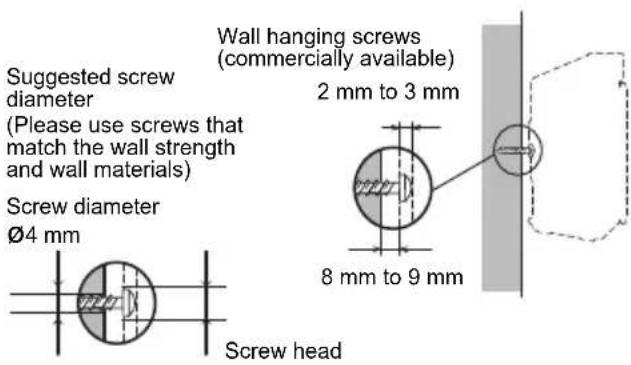
9 mm to 12 mm
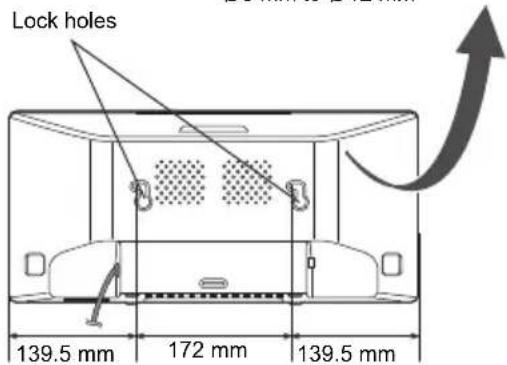
Attachment measurement for wall hanging screws
Before you start
2 Insert the wall hanging screws into the lock holes.
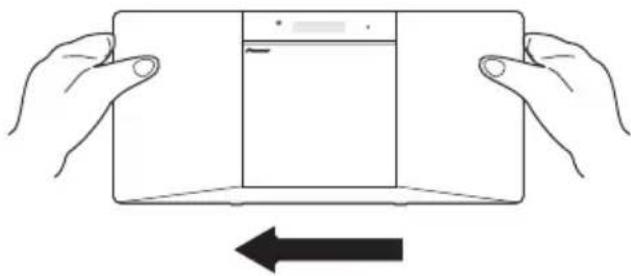
3 Slide to the left to secure in place. (Slide distance is around 10mm )

Note
- When attaching the unit to the wall, there is the possibility of it falling depending on how it is attached. Take due care to avoid any accidents.
- Select a location for the placement/installation of unit that is sufficiently strong enough to hold the weight of the unit. If you do not know the strength etc. of the wall, then consult with a professional.
- The company bears no responsibility for accidents or damages caused by inadequate installation/ attachment, incorrect use, modifications, natural disasters etc.
- Place all cables along the wall to prevent anyone from tripping over them.

WARNING
Wall mounting
- A mounting screw's ability to support a unit depends on the material and the position of studs of the wall (We recommend that you consult a home installation professional).
Chapter 2:
Part names and functions
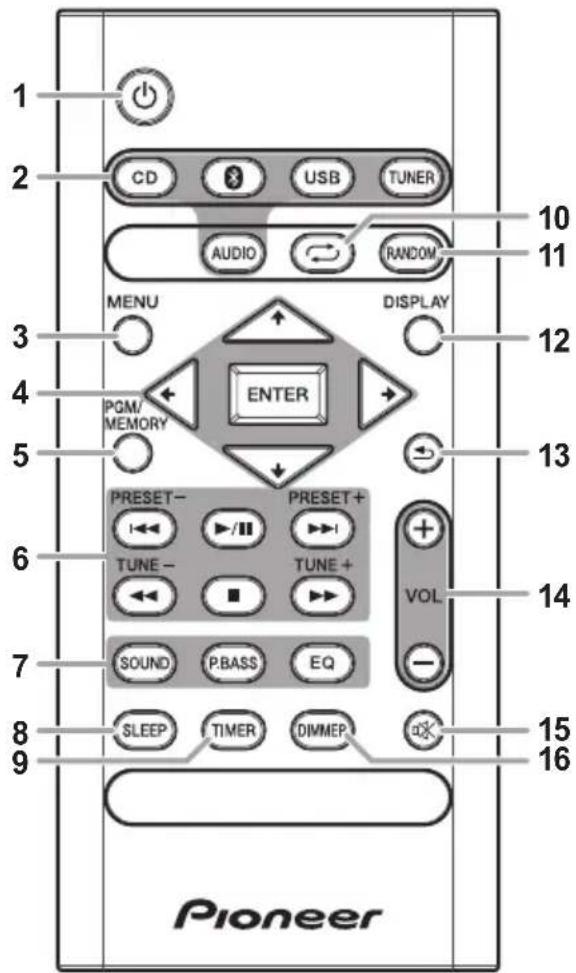
Remote control
10
Switches the unit between standby and on.
2 Input function buttons
Use to select the input source to this unit.

Use to set up or play the audio file using the Bluetooth network (page 22).
3 M E N U
Use to access the menu.
4 / / / ,ENTER
Use to select/switch system settings and modes, and to confirm actions.
5 PGM / MEMO RY
- Use to memory or program the CD (page 13).
- Use to store FM (page 16) or DAB (page 20) stations in memory.
6Playback control buttons
Use to control each function after you have selected it using the input function buttons (page 12).
TUNE + / -
Use to find radio frequencies (page 16).
PRESET +/-
Use to select preset radio stations (page 16).
7 Sound control buttons
Adjust the sound quality.
8 SLEEP
See Using the sleep timer on page 10.
9 T I M E R
Use for setting the clock, as well as for setting and checking the timers (page 9).
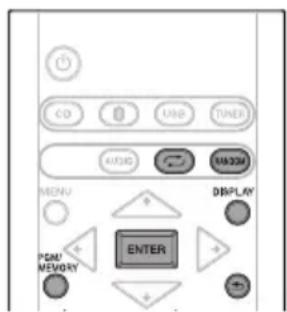
10 C
Press to change the repeat play setting from a CD (page 12) or USB (page 14).
11 RANDOM
Press to randomize order play setting from a CD (page 12) or USB (page 14).
12 DISPLAY
Press to change the display for MP3 (page 13), RDS (page 17) or DAB (page 20) information.
13

Press to return to the previous display.
14 VOLUME control buttons
Use to set the listening volume.
15 味

Mutes/unmates the sound.
16 DIMMER
Dims or brightens the display. The brightness can be controlled in four steps.
Top panel/Front panel
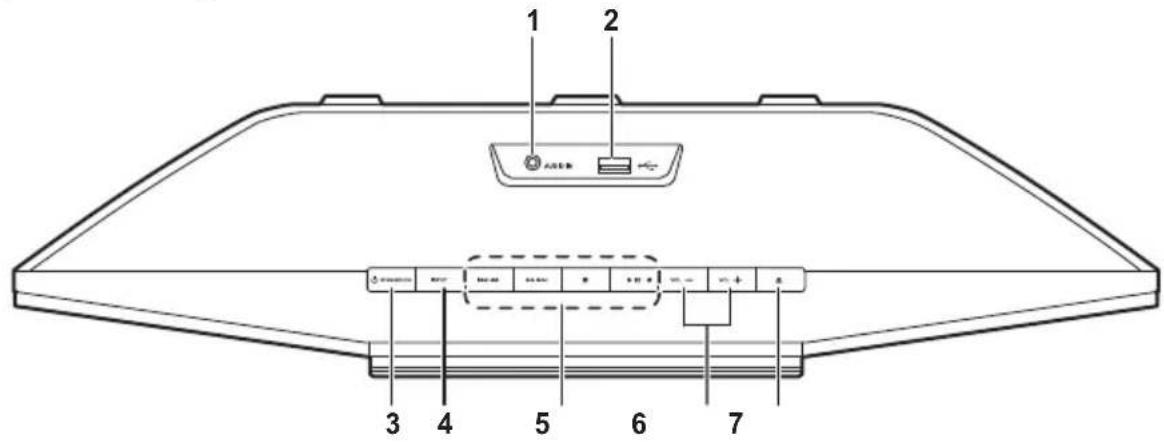
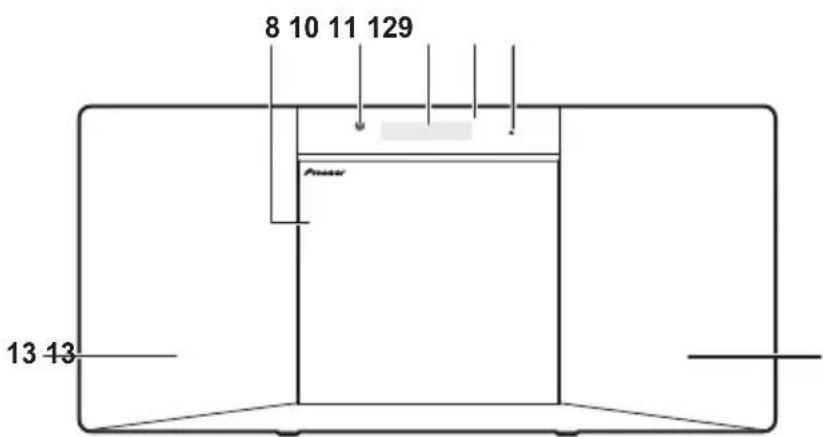
1 AUDIO IN socket
Use to connect an auxiliary component using a stereo minijack cable (page 21).
2 U S B t e r m i n a l
Use to connect your USB mass storage device (page 14).
3 STANDBY/ON button
Switches the unit between standby and on.
4 INPUT button
Selects the input source.
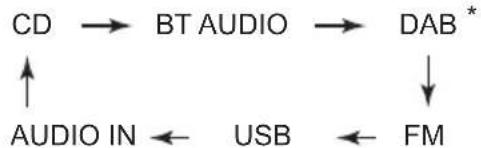
- X-SMC02D only
5Playbackcontrolbuttons
Use to control each function after you have selected it using the input function buttons.
6 V O L -/ +
Use to set the listening volume.
7 Electric slide CD door open/close button
Use to open or close the electric slide CD door (page 11).
Receives the signals from the remote control.
10 Main display
11 Display panel
12 TIMER indicator
Lit when the unit power is off but when the timer setting is activated.
13 Speaker
Rear panel
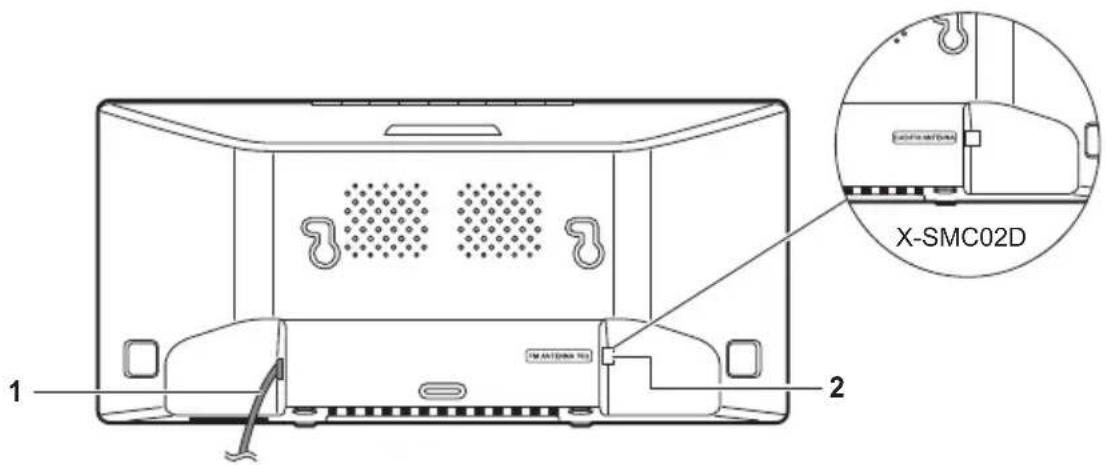
1 Pow e r c o r d
2 (X-SMC02): FM antenna socket
(X-SMC02D): DAB/FM antenna socket
(X-SMC02): Connect provided FM wire antenna here
(page 8).
(X-SMC02D): Connect provided DAB/FM wire antenna here
(page 8).
Chapter 3:
Connections

CAUTION
- Be sure to turn off the power and unplug the power cord from the power outlet whenever making or changing connections.
- Connect the power cord after all the connections between devices have been completed.
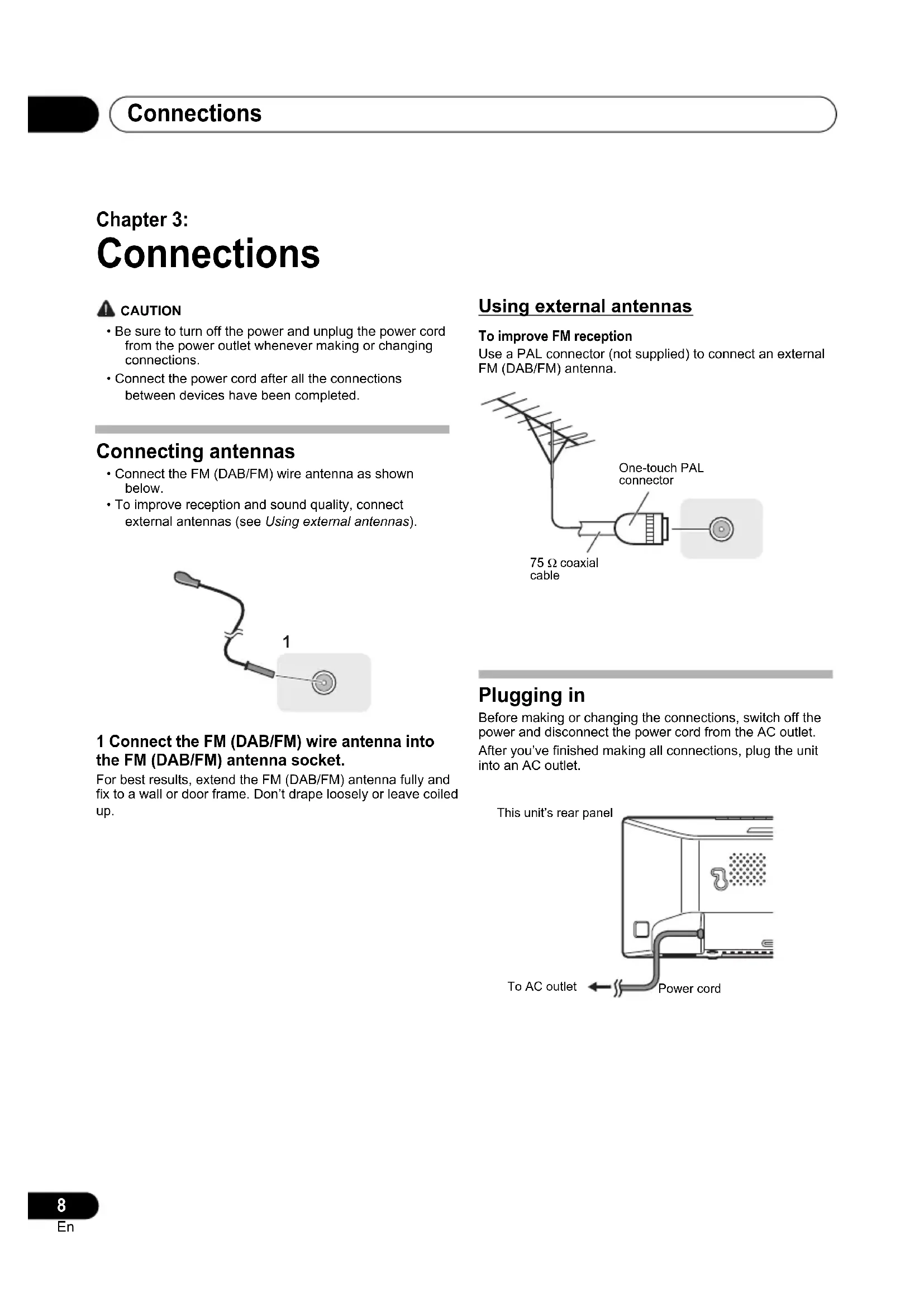
Connecting antennas
- Connect the FM (DAB/FM) wire antenna as shown below.
To improve reception and sound quality, connect external antennas (see Using external antennas).
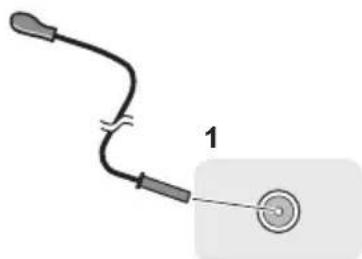
1 Connect the FM (DAB/FM) wire antenna into the FM (DAB/FM) antenna socket.
For best results, extend the FM (DAB/FM) antenna fully and fix to a wall or door frame. Don't drape loosely or leave coiled up.
Using external antennas
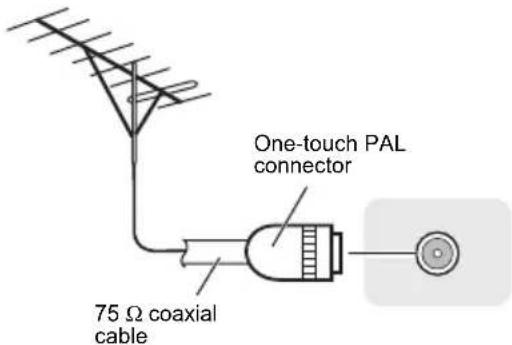
To improve FM reception
Use a PAL connector (not supplied) to connect an external FM (DAB/FM) antenna.
Plugging in
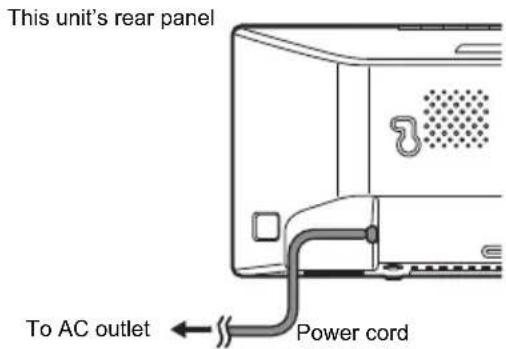
Before making or changing the connections, switch off the power and disconnect the power cord from the AC outlet. After you've finished making all connections, plug the unit into an AC outlet.
Chapter 4:
Getting started
Setting the clock
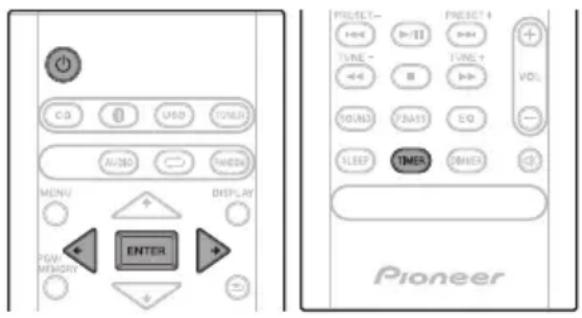
1 Press to turn the power on.
2 Press TIMER on the remote control. "CLOCK" is shown on the main display.
3 Press ENTER.
4 Press / to set the day, then press ENTER.
5 Press / to set the hour, then press ENTER.
6 Press / to set the minute, then press ENTER to confirm.
7 Press ENTER.
To confirm the time display:
Press the TIMER. The time display will appear for about 10 seconds.
To readjust the clock:
Perform "Setting the clock" from step 1.

Note
- When power supply is restored after unit is plugged in again or after a power failure, reset the clock.
Sound controls
Equalizer
When the EQ is pressed, the current mode setting will be displayed. To change to a different mode, press the EQ repeatedly until the desired sound mode appears.
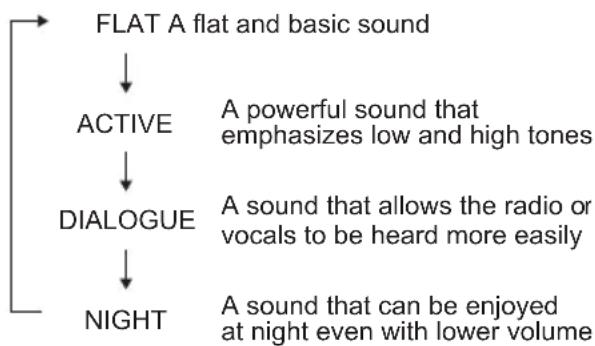
P.BASS control
When the power is first turned on, the unit will enter the P.bass mode which emphasises the bass frequencies. To cancel the P.bass mode, press the P.BASS on the remote control.
BASS/TREBLE control
Press the SOUND to select "BASS" or "TREBLE", then press to adjust the bass or treble.

Note
The EQ and P.BASS cannot operate simultaneously. The most recently selected of these two functions will be the one used.
- SOUND can operate alongside either the EQ or P.BASS.
When one of the above two functions is selected, the function that is not selected will be displayed as follows.
1 When P.BASS setting (ON/OFF) is changed
- EQ:FLAT
2 When EQ setting is changed
P.BASS: OFF
Using the wake-up timer
Setting
1 Press to turn the power on.
2 Press and hold TIMER on the remote control.
3 Press / to select "ONCE" or "DAILY", then press ENTER.
ONCE - Once timer play works for one time only at a preset time.
DAILY - Daily timer play works at the same preset time and days of week.
- You can make one timer setting with ONCE and one timer setting with DAILY. Note that if the start time is set to the same day of the week and time for both the ONCE timer and DAILY timer, priority is given to the ONCE.
4 Press / to select "TIMERSET", then press ENTER.
5 Press / to select the timer playback source, then press ENTER.
- CD, DAB (X-SMC02D only), FM and USB can be selected as the playback source.
- Some discs may not be played automatically at the wake-up time.
- When DAB or FM is selected as the source, the station received before setting the timer is played.
6 Press / to select the timer day, then press ENTER.
7 Press / to set the hour, then press ENTER.
8 Press / to set the minute, then press ENTER.
Set the time to finish as in steps 7 and 8 above. If you set the timer, take one minute or more between the start and end time.
9 Adjust the volume press VOL + / - , then press ENTER.
"SAVE" appears on the display.
10 Press to enter the power standby mode.
The TIMER indicator lights up.
Switching the wake-up timer ON/OFF
If the timer is already set, you can turn the function ON or OFF.
- When the ONCE timer finishes, the timer automatically turns off. To use the same settings again, set "TIMER ON". Even when the DAILY timer finishes, the timer does not automatically turn off. To cancel, set "TIMEROFF".
1 As well as steps 1 through 3 in "Setting".
2 P r s o s e lct "TIMER ON" or "TIMEROFF", then press ENTER.
3 To use the timer, press 和 and set the unit to standby.
Using the sleep timer
The sleep timer switches off the unit after a specified time so you can fall asleep without worrying about it.
1 Press SLEEP repeatedly to select a switch off time.
Choose between 10 min, 20 min, 30 min, 60 min, 90 min, 120 min, 150 min, 180 min or OFF. The newly set value displays for 3 seconds, and then the setting is completed.

Note
- The sleep timer can be set by pressing SLEEP while the remaining time is displayed.
Auto power off setting
This setting places the unit on standby automatically for more than 20 minutes of inactivity without any audio input.
1 Press MENU on the remote control.
"APD" will be displayed on the main display.
2 Press ENTER on the remote control.
3 P r tsswitch auto power off setting ON/OFF.
- Initial setting is set to ON.

Note
- When the auto power off is set to ON, "APD ON" will be displayed on the main display.
- When the auto power off is set to OFF, "APD OFF" will be displayed on the main display.
Chapter 5:
Disc playback
This system can play back a standard CD, CD-R/RW in the CD format and CD-R/RW with MP3 files, but cannot record on them. Some audio CD-R and CD-RW discs may not be playable due to the state of the disc or the device that was used for recording.
- For details about MP3, see page 28.
Playing discs or files
Load the disc
1 Press to turn the power on.
2 Press CD on the remote control or INPUT repeatedly on the main unit to select CD input.
3 P r on the main unit to open the electric slide CD door.
4 Insert the disc.
Inset the disc with the printed label facing outward (you can see it).
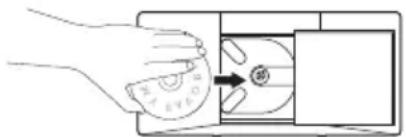
5 Press on the main unit to close the electric slide CD door.
Play tracks on a CD
1 When the recognition is completed, press
After the last track is played, the unit will stop automatically.
Play MP3 music files
MP3 track data is called "music file" and the location they are stored is called a "folder" in this document.
e.g.,
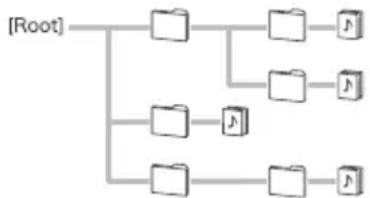
1 When the recognition is completed, press / to select the folder where the music file is stored ([F_]), then press or ENTER.
-
Repeat this step if there are other folders inside the selected folder.
-
To return to the previous folder, press

2 Press / to select the music file, and then press or ENTER.
- Once play starts, only music files inside the same folder can be played continuously.
CAUTION
- Do not touch the lens.
- Be careful not to get your hand caught when opening and closing the slide door.
- Do not place two discs in one disc tray.
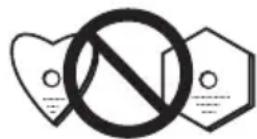
- Do not play discs of special shapes (heart, octagon, etc). It may cause malfunctions.
- Do not touch the electric slide CD door when it is moving.
- If power is lost while the electric slide CD door is open, wait until the power is restored.
Note
- Due to the structure of the disc information, it takes longer to read an MP3 disc than a normal CD (approximately 20 to 90 seconds).
- When the beginning of the first track is reached during fast reverse, the unit will enter the playback mode (only for CD).
- If TV or radio interference occurs during CD operation, move the unit away from the TV or radio.
Tip
- When no operation has done in CD mode and the audio file is not played for more than 20 minutes, the power will automatically turn off. In this case it is required that the Auto power off is switched to ON.
- Auto power off can be switched to ON/OFF (page 10).
Basic operations
| Function | Main unit | Remote control | Operation |
| Play | Press in the stop mode. | ||
| Stop | Press in the playback mode.(when playing a CD)“RESUME” is displayed and the place where you stopped play is memorized.Press again and the memorized position is cleared. | ||
| Pause | Press in the playback mode.Press▶■ to resume playback from the paused point. | ||
| Track up/down | Press in the playback or stop mode.If you press the button in the stop mode,press▶■ to start the desired track.(when playing MP3)You can only skip forward or back to music files inside the same folder. | ||
| Fast forward/reverse | Press and hold down in the playback modeRelease the button to resume playback. |
Advanced CD or MP3 disc playback
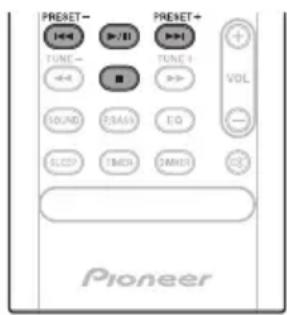
Repeat play
Repeat play can play one track, all tracks or a programmed sequence continuously.
To repeat one track:
Press repeatedly until "RPT ONE" appears. Press ENTER.
To repeat all tracks:
Press repeatedly until "RPT ALL" appears. Press ENTER.
To repeat desired tracks:
Perform steps 1 - 5 in "Programmed play (CD)" section (page 13) and then press repeatedly until "RPT ALL" appears. Press ENTER.
To cancel repeat play:
Press repeatedly until "RPT OFF" appears. Press ENTER.

Note
After performing repeat play, be sure to press Otherwise, the disc will play continuously.
- During repeat play, random play is not possible.
Random play
The tracks on the disc can be played in random order automatically.
To random play all tracks:
Press RANDOM repeatedly until "RDM ON" appears. Press ENTER.
To cancel random play:
Press RANDOM repeatedly until "RDM OFF" appears. Press ENTER.

Note
-
If you press the during random play, you can move to the track selected next by the random operation. Play returns to the beginning of the track when is pressed (you cannot return to the previous track).
-
In random play, the unit will select and play tracks automatically. (You cannot select the order of the tracks.)
- During random play, repeat play is not possible.
Programmed play (CD)
You can choose up to 24 selections for playback in the order you like.
1 Whilst in the stop mode, press PGM/ MEMORY on the remote control to enter the programming save mode.
2 Press / to select the desired tracks.
3 Press ENTER to save track number.
4 Repeat steps 2 - 3 for other tracks. Up to 24 tracks can be programmed.
- If you want to check the programmed tracks, press PGM/MEMORY.
- If you make a mistake, the last programmed tracks will be canceled by pressing
5 Press to start playback.
To cancel the programmed play mode:
To cancel the programmed play, press twice on the remote control. The display will show "PRG CLR" and all the programmed contents will be cleared.
Adding tracks to the program:
Press the PGM/MEMORY. Then follow steps 2 - 3 to add tracks.

Note
- When a disc is ejected, the program is automatically cancelled.
If you press the to enter the standby mode or change the function from CD to another, the programmed selections will be cleared. - During the program operation, random play is not possible.
Switch the display contents
1 Press DISPLAY during playback.
If the title, artist and album name has been written to the file, that information will be displayed. (The unit can only display alphanumeric characters. Non-alphanumeric character are displayed in the **.
Number of the track, title Title display display
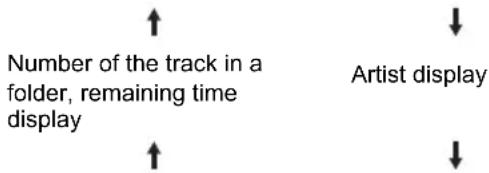
Number of the track in a folder, playback time display

Note
Not supported playback file can not be playback. In this case, will be skipped automatically.
- There may be cases where no information can be displayed.
- Displaying title, artist, and albums is only supported with ID3 Version 1 (1.0 or 1.1).
Chapter 6:
USB playback
Playing USB storage devices
It is possible to listen to two-channel audio using the USB interface with MP3 files on the top of this unit.
- Pioneer does not guarantee that any file recorded on a USB storage device will play or that power will be supplied to a USB storage device. Also note that Pioneer will accept no responsibility whatsoever for loss of files on USB storage devices caused by connection to this unit.
- For details about MP3, see page 28.
1 Press USB as the input source.
"USB" is shown on the main display.
2 Connect the USB storage device.
- This unit does not support a USB hub.

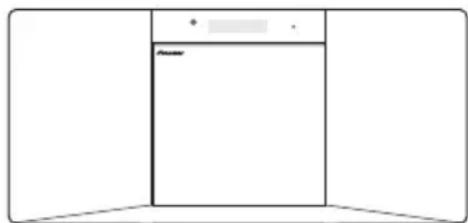
3 When the recognition is completed, press / to select the folder where the music file is stored ([F]), then press or ENTER.
- MP3 track data is called "music file" and the location they are stored is called a "folder" in this document.
- Repeat this step if there are other folders inside the selected folder.
To return to the previous folder, press or
4 Press / to select the music file, and then press or ENTER.
- Once play starts, only music files inside the same folder can be played continuously.
-
For details about the basic operations, see page 12.
-
When changing to a different input source, stop the USB memory playback first, before changing.
- Turn the power off before removing the USB storage device.

Note
- This unit may not recognize a USB storage device, play files or supply power to a USB storage device. For details, see When a USB storage device is connected on page 26.
- When a USB storage device is not playing and the unit has not been operated for 20 minutes or more, the power will automatically turn off. In this case it is required that the Auto power off is switched to ON (page 10).
Repeat play
Repeat play can play one track or all tracks continuously.
To repeat one track:
Press repeatedly until "RPT ONE" appears. Press ENTER.
To repeat all tracks:
Press repeatedly until "RPT ALL" appears. Press ENTER.
To cancel repeat play:
Press repeatedly until "RPT OFF" appears. Press ENTER.

Note
- After performing repeat play, be sure to press. Otherwise, the file of USB storage device will play continuously.
- During repeat play, random play is not possible.
Random play
The file of USB storage device can be played in random order automatically.
To random play all tracks:
Press RANDOM repeatedly until "RDM ON" appears. Press ENTER.
To cancel random play:
Press RANDOM repeatedly until "RDM OFF" appears. Press ENTER.

Note
-
If you press the during random play, you can move to the track selected next by the random operation.
-
In random play, the unit will select and play tracks automatically. (You cannot select the order of the tracks.)
- During random play, repeat play is not possible.
Switch the display contents
This unit can switch the information recorded in the USB storage device. For details, see Switch the display contents on page 13.
Chapter 7:
Using the tuner
Listening to FM
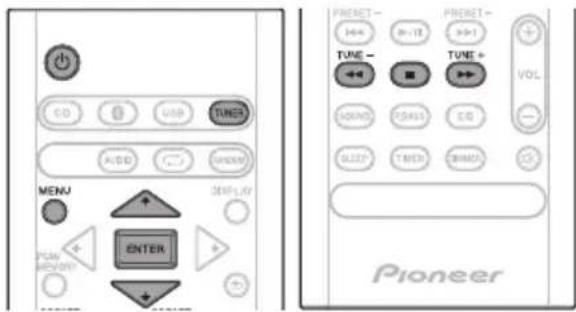
Tuning
1 Press the to turn the power on.
2 Press TUNER repeatedly to select FM.
3 Press TUNE + / - on the remote control to tune in to the desired station.
Automatic tuning:
Press and hold TUNE +/- , scanning will start automatically and the tuner will stop at the first receivable broadcast station.
Manual tuning:
Press the TUNE + / - repeatedly to tune in to the desired station.

Note
- When radio interference occurs, automatic tuning may stop automatically at that point.
Automatic tuning will skip weak signal stations. - To stop the automatic tuning, press
- When an RDS (Radio Data System) station is tuned in, the frequency will be displayed first. Finally, the station name will appear.
Full auto tuning can be achieved for RDS stations using Auto Station Program Memory (ASPM) mode, see page 18.
To receive an FM stereo transmission:
1 Press TUNER until "FM" appears on the display.
2 Press MENU and then press / until "ST/MONO" appears on the display.
3 Press ENTER and then press / until "AUTO" appears on the display.
Improving poor FM reception:
After performing the above steps 1 - 2, press ENTER and then press / until "MONO" appears on the display.
This will change the tuner from stereo to mono and usually improve the reception.
Saving station presets
This unit can memorize up to 30 stations.
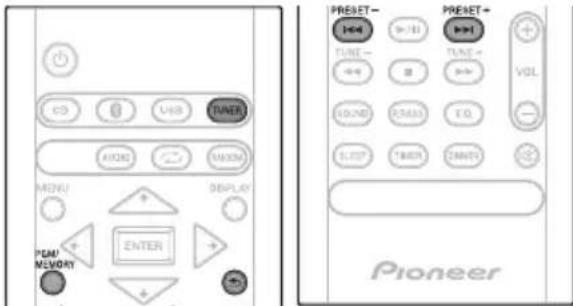
1 Tune to a station you want to memorize.
2 Press PGM/MEMORY.
The preset number will flash.
3 Press PRESET + / - to select the preset channel number.
4 Press PGM/MEMORY to store that station in memory.
If the preset number has changed from flashing to lighting, before the station is memorised, repeat the operation from step 2.
- Repeat steps 1 - 4 to set other stations, or to change a preset station. When a new station is stored in the memory, the station previously memorised for that preset channel number will be erased.

Note
- The backup function protects the memorised stations for a few hours should there be a power failure or the AC power cord become disconnected.
To recall a memorised station
Press PRESET +I- to select the desired station.
To scan the preset stations
The stations saved in the memory can be scanned automatically. (Preset memory scan)
1 Press and hold PRESET +/-
The preset number will appear and the programmed stations will be tuned in sequentially, for 5 seconds each.
2 Press PRESET +/- again when the desired station is located.
To erase entire preset memory
1 Press TUNER on the remote control.
2 Press until "MEM CLR" appears.

Note
- All stations will be erased.
Using the Radio Data System (RDS)
Radio Data System (RDS) is a system used by most FM radio stations to provide listeners with various kinds of information—the name of the station and the kind of show they're broadcasting, for example.
Information provided by RDS
1 Press TUNER until "FM" appears on the display.
2 Press DISPLAY repeatedly.
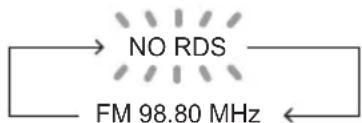
Each time the DISPLAY is pressed, the display will switch as follows:

- When tuning in to a station other than an RDS station or to an RDS station which sends weak signal, the display will change in the following order:
Search for stations by Program Type
1 Press TUNER until "FM" appears on the display.
2 Press MENU and then press / until "FM RDS" appears on the display.
3 Press ENTER and then press / until "PTY" appears on the display.
4 Press ENTER.
"SELECT" will appear for about 5 seconds.
5 Press to select the program type you want to hear. Each time the button is pressed, the program type will appear. If the button is held down, the program type will appear continuously.
6 Whilst the selected program type is displayed (within 5 seconds), press ENTER.
After the selected program type has been lit for 2 seconds,
"SEARCH" will appear, and the search operation will start.
The Program Types displayed are as follows:
NEWS - News
AFFAIRS - Current Affairs INFO - General Information
SPORT - Sport
EDUCATE - Educational DRAMA - Radio plays, etc.
CULTURE - National or regional culture, theater, etc.
SCIENCE - Science and technology
VARIED - Usually talk-based material, such as quiz shows or interviews.
POP M - Pop music
ROCK M - Rock music
EASY M - Easy listening
LIGHT M - 'Light' classical music
CLASSICS - 'Serious' classical music
OTHER M - Music not fitting above categories
WEATHER - Weather reports FINANCE - Stock market reports, commerce, trading, etc
CHILDREN - Programs for children
SOCIAL - Social affairs
RELIGION - Programs concerning religion
PHONE IN - Public expressing their views by Phone
TRAVEL - Holiday-type travel rather than traffic announcements
LEISURE - Leisure interests and hobbies
JAZZ-Jazz
COUNTRY - Country music
NATION M - Popular music in a language other than English
OLDIES M - Popular music from the '50s and '60s
FOLK M - Folk music
DOCUMENT - Documentary
TEST - Broadcasting when testing emergency broadcast equipment or receivers.
ALARM - Emergency announcement made under exceptional circumstances to give warning of events causing danger of a general nature.
- If the display has stopped flashing, start again from step 2. If the unit finds a desired program type, the corresponding channel number will lit for about 8 seconds, and then the station name will be displayed.
- If you want to listen to the same program type of another station, repeat steps 2 - 6. The unit will look for the next station.
- If no station can be found, "NO FOUND" will appear for 5 seconds.
Using the Auto Station program Memory (ASPM)
Whilst in the ASPM operation mode, the tuner will automatically search for new RDS stations. Up to 30 stations can be stored.
If you have already stored some stations in memory, the number of new stations you can store will be less.
1 Press TUNER until "FM" appears on the display.
2 Press MENU and then press / until "FM RDS" appears on the display.
3 Press ENTER and then press / until "ASPM" appears on the display.
4 Press ENTER.
After "ASPM" has flashed for about 4 seconds, scanning will start (87.5 - 108 MHz).
After scanning, the number of stations stored in memory will be displayed for 4 seconds, and then "END" will appear for 4 seconds.
- To stop the ASPM operation before it is complete: Press whilst it is scanning for stations. The stations which are already stored in memory will be kept there.
- If the same station is broadcasting on different frequencies, the strongest frequency will be stored in memory.
- Any station which has the same frequency as the one stored in memory will not be stored.
- If 30 stations have already been stored in memory, the scan will be aborted. If you want to redo the ASPM operation, erase the preset memory.
- If no station have been stored in memory, "NO FOUND" will appear for about 5 seconds.
- If the RDS signals are very weak, station names may not be stored in memory.
The same station name can be stored in different channels. - In a certain area or during certain time periods, the station names may temporarily be different.

Note
-
If any of the following events occur, it does not mean that the unit is faulty:
-
"PS", "NO PS" and a station name appear alternately, and properly.
- If a particular station is not broadcasting properly or a station is conducting tests, the RDS reception function may not work properly.
- When you receive an RDS station whose signal is too weak, information like the station name may not be displayed.
- "NO PS", "NO PTY" or "NO RT" will flash for about 5 seconds, and then the frequency will be displayed.
Notes for radio text:
- The first 8 characters of the radio text will appear and then they will scroll across the display.
- If you tune in to an RDS station which is not broadcasting any radio text, "NO RT" will be displayed when you switch to the radio text position.
- Whilst radio text data is received or when the text contents change, "RT" will be displayed.
Listening to the DAB+ (X-SMC02D only)
Tuning
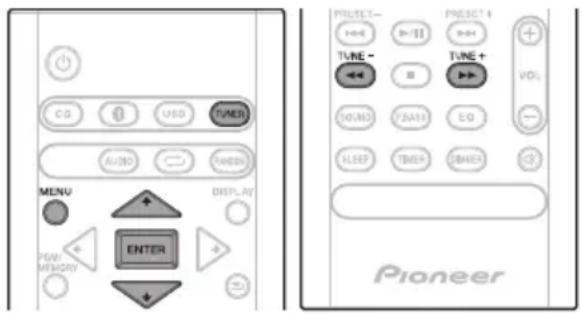
1 Press the TUNER until "DAB" appears on the display.
When turned on for the first time, the unit scans radio stations automatically to create a station list.
The stations will be stored in alphanumeric order and the first station on the list will be selected and you will hear it through the speakers.
2 Press the TUNE + / - to select the desired station.
3 Within 10 seconds, press the ENTER on the remote control to tune into the desired station.
If no station is found, "NO SIG" appears.
- Up to 100 appears for total received stations.
Auto Scan
You can make the auto scan again when you move the unit to other areas or add multiplex channels to the station list.
1 Press the TUNER until "DAB" appears on the display.
2 Press MENU and then press / until "DAB SCAN" appears on the display.
3 Press ENTER and then press / until "AUTO" appears on the display.
4 Press ENTER.
Auto Scan scanning begins.
After the scanning process is complete, the first station that was detected is selected.
Manual tune
You can manually store stations which Auto Scan cannot find. If reception is poor, you can adjust the sensitivity. Manual tune is only available after Auto tune. Perform Auto Scan first.
1 Press the TUNER until "DAB" appears on the display.
2 Press MENU and then press / until "DAB SCAN" appears on the display.
3 Press ENTER and then press / until "MANUAL" appears on the display.
4 Press ENTER.
5 Within 10 seconds, press the TUNE +/- to select the DAB+ frequency.
6 Within 10 seconds, press the ENTER.
- If the level is too low, move the aerial or unit to improve reception.
Changing the information display
You can switch DAB+ display information.
Press the DISPLAY button.
Each time the button is pressed, the information display changes in the following order.
When "NO SIG" appears, the DISPLAY button does not allow you to change the display.
[Programme Name]
Station name is displayed. (set by default)
[Scrolling text]
Information scrolls across the display when sent from the station.
[Program type]
A description of the type of content being broadcast by the station.
[Multiplex name]
The name of the multiplex (ensemble) which provides the current service.
[Frequency]
The DAB+ frequency for the station.
[Stereo mode]
Display stereo mode.
[Transfer speed]
The data transfer speed.
[Signal quality]
The signal quality is displayed as a number (0 - 100).
[85-100: Good, 70-84: Fair, 0-69: Poor]
Memoiring a station
You can store 10 DAB stations in memory and recall them at the push of a button. (Preset tuning)
1 Tune to the desired DAB station.
2 Press the PGM/MEMORY.
The preset number will flash.
3 Within 10 seconds, press the PRESET + / - to select the preset channel number.
Store the stations in memory, in order, starting with preset channel 1.
4 Within 10 seconds, press the PGM/ MEMORY to store that station in memory.
If the preset number indicators disappear before the station is memorised, repeat the operation from step 2.
5 Repeat steps 1 - 4 to set other stations, or to change a preset station.
When a new station is stored in the memory, the station previously memorised for that preset channel number will be erased.
DAB Frequency table (BAND III)
| Frequency Label Frequenc y Label | |
| 174.928 MHz 5A 208.064 | MHz 9D |
| 176.640 MHz 5B 209.936 | MHz 10A |
| 178.352 MHz 5C 211.648 | MHz 10B |
| 180.064 MHz 5D 213.360 | MHz 10C |
| 181.936 MHz 6A 215.072 | MHz 10D |
| 183.648 MHz 6B 216.928 | MHz 11A |
| 185.360 MHz 6C 218.640 | MHz 11B |
| 187.072 MHz 6D 220.352 | MHz 11C |
| 188.928 MHz 7A 222.064 | MHz 11D |
| 190.640 MHz 7B 223.936 | MHz 12A |
| 192.352 MHz 7C 225.648 | MHz 12B |
| 194.064 MHz 7D 227.360 | MHz 12C |
| 195.936 MHz 8A 229.072 | MHz 12D |
| 197.648 MHz 8B 230.784 | MHz 13A |
| 199.360 MHz 8C 232.496 | MHz 13B |
| 201.072 MHz 8D 234.208 | MHz 13C |
| 202.928 MHz 9A 235.776 | MHz 13D |
| 204.640 MHz 9B 237.488 | MHz 13E |
| 206.352 MHz 9C 239.200 | MHz 13F |

Note
- Label is not displayed on the main display. Will displayed only frequency.
Chapter 8:
Other connections

CAUTION
- Before making or changing the connections, switch off the power and disconnect the power cord from the AC outlet.
- We will not accept responsibility for damage arising from the connection of equipment manufactured by other companies.
Connecting auxiliary components
Connect your auxiliary playback component using the AUDIO IN input on the top of this unit.
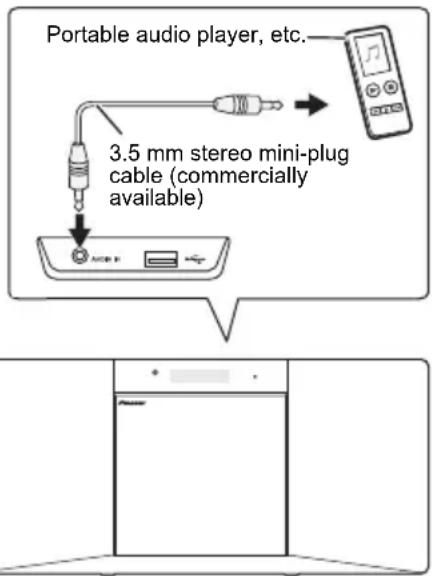
1 Press AUDIO as the input source.
When AUDIO IN is selected, "AUDIO IN" is displayed on the main display.

Note
- If the AUDIO IN miniplug jack is connected to auxiliary phones jack, the volume of the unit will be adjusted by the volume on the playback component. If the sound is distorted after you lower the volume of the unit, try lowering the volume on the auxiliary playback component.
Automatic switching to Audio In input (Audio In Detect)
This function automatically switches to "AUDIO IN" when there is audio input to the AUDIO IN jack.
1 Press MENU and then press / until "AUD DETE" appears on the display.
2 Press ENTER and then press / to switch AUD DETE ON/OFF.
- It is set to OFF in the factory setting.

Note
- When the AUD DETE is ON, "DETE ON" is displayed on the main display.
- When the AUD DETE is OFF, "DETE OFF" is displayed on the main display.
Chapter 9:
Bluetooth® Audio playback

Note
- The Bluetooth wireless technology enabled device must support A2DP profiles.
- Connection is not always guaranteed with all Bluetooth-enabled devices.
Pairing with the unit
1 Press the and turn the power to the unit on.
2 When you press the button on the remote controller, [PAIRING] is displayed on this unit's display, and the pairing mode is enabled.
3 Enable (turn on) the Bluetooth function of the Bluetooth capable device, then select this unit from amongst the devices displayed. If a password is requested, enter "0000".
- This unit will be displayed as "Pioneer X-SMC02" on all Bluetooth capable devices that you have.
- Please refer to the user's manual for your Bluetooth capable device for details on when pairing can be performed and the procedures required for pairing.
4 The name of the Bluetooth capable device will be displayed on the front panel of the unit.
- Only single-byte alphanumeric characters can be displayed. Any character that cannot be displayed will be indicated by a “*”.
Playing Back
1 Press the .
The unit will switch to BT AUDIO input.
2 A Bluetooth connection will be created between the Bluetooth capable device and the unit.
Procedures for connecting to the unit should be performed from the Bluetooth capable device. Please refer to the user's manual for your Bluetooth capable device for details of the connection procedures.
3 Playback music from the Bluetooth capable device. Increase the volume of the Bluetooth capable device to an appropriate level.
- Due to the characteristics of Bluetooth wireless technology, the sound produced on this unit may slightly be behind the sound played on the Bluetooth capable device.

Note
- When Bluetooth capable devise is not connected and no operations have been performed for more than 20 minutes, the unit will automatically power off. In this case it is required that the Auto power off is switched to ON.
- Auto power off can be switched to ON/OFF (page 10).
BT STANDBY
The following can be done when the unit is on standby with the BT STANDBY switched ON.
- By selecting a Bluetooth capable device that already has a connection history (pairing has already been conducted) with this unit, this unit will automatically turn on with the BT AUDIO function.
BT STANDBY settings
1 Press the . 8
2 Press MENU and then press / until "BT STY" appears on the display.
3 Press ENTER and then press / to switch BT STANDBY ON/OFF.
- It is set to OFF in the factory setting.

Note
- When the BT STANDBY is ON, "STY ON" is displayed on the main display.
- When the BT STANDBY is OFF, "STY OFF" is displayed on the main display.
Even devices that have already been paired with this unit will not connect during BT STANDBY in the following cases. In such cases, delete pairing history from the Bluetooth wireless technology device and perform pairing again.
- This unit can store a maximum of 8 units in the pairing history.
- If the settings are reset to the factory setting, all pairing history will be deleted.
Remote control operation
The remote control supplied with this unit allows you to play and stop media, and perform other operations.

Note
- The Bluetooth wireless technology enabled device must support AVRCP profiles.
- Remote control operations cannot be guaranteed for all Bluetooth wireless technology enabled devices.
Radio wave caution
This unit uses a 2.4 GHz radio wave frequency, which is a band used by other wireless systems (see list below). To prevent noise or interrupted communication, do not use this unit nearby such devices, or make sure these devices are switched off during use.
- Cordless phones
- Cordless facsimiles
- Microwave ovens
- Wireless LAN devices (IEEE802.11b/g)
- Wireless AV equipment
- Wireless controllers for game systems
- Microwave-based health aids
- Some baby monitors
Other, less common, equipment that may operate on the same frequency:
- Anti-theft systems
- Amateur radio stations (HAM)
- Warehouse logistic management systems
- Discrimination systems for train or emergency vehicles

Note
- In the event noise appears in your television image, there is the possibility that a Bluetooth wireless technology enabled device or this unit (including products supported by this unit) are causing signal interference with the antenna input connector of your television, video, satellite tuner, etc. In this event, increase the distance between the antenna input connector and the Bluetooth wireless technology enabled device or this unit (including products supported by this unit).
- If there is something obstructing the path between this unit (including devices supported by this unit) and the device equipped with Bluetooth wireless technology (such as a metal door, concrete wall, or insulation containing tinfoil), you may need to change the location of your system to prevent signal noise and interruptions.
Scope of operation
Use of this unit is limited to home use. (Transmission distances may be reduced depending on communication environment).
In the following locations, poor condition or inability to receive radio waves may cause the audio to be interrupted or stopped:
- In reinforced concrete buildings or steel framed or iron-framed buildings.
- Near large metallic furniture.
- In a crowd of people or near a building or obstacle.
- In a location exposed to the magnetic field, static electricity or radio wave interference from radio communication equipment using the same frequency band (2.4 GHz) as this unit, such as a 2.4 GHz wireless LAN device (IEEE802.11b/g) or microwave oven.
- If you live in a heavily populated residential area (apartment, townhouse, etc.) and if your neighbor's microwave is placed near your system, you may experience radio wave interference. If this occurs, move your unit to a different place. When the microwave is not in use, there will be no radio wave interference.
Radio wave reflections
The radio waves received by this unit include the radio wave coming directly from the device equipped with Bluetooth wireless technology (direct wave) and waves coming from various directions due to reflections by walls, furniture and building (reflected waves). The reflected waves (due to obstacles and reflecting objects) further produce a variety of reflected waves as well as variation in reception condition depending on locations. If the audio cannot be received properly due to this phenomenon, try moving the location of the device equipped with Bluetooth wireless technology a little. Also note that audio may be interrupted due to the reflected waves when a person crosses or approaches the space between this unit and the device equipped with Bluetooth wireless technology.
Precautions regarding connections to products supported by this unit
- Complete connections for all devices supported by this unit, including all audio cords and power cables before connecting them to this unit.
- After completing connections to this unit, check the audio and power cables to confirm that they not twisted together.
- When disconnecting this unit, confirm that you have sufficient working space in the surrounding area.
- When changing connections of audio or other cables for products supported by this unit, confirm that you have sufficient working space in the surrounding area.
Chapter 10:
Additional information
Troubleshooting
Incorrect operations are often mistaken for trouble and malfunctions. If you think that there is something wrong with this component, check the points below. Sometimes the trouble may lie in another component. Investigate the other components and electrical appliances being used. If the trouble cannot be rectified even after exercising the checks listed below, ask your nearest Pioneer authorized service center or your dealer to carry out repair work.
- If the unit does not operate normally due to external effects such as static electricity disconnect the power plug from the outlet and insert again to return to normal operating conditions.
General problem
| Problem Check Remedy | ||
| Settings you have made have been cleared. | Was the power cord unplugged? When power cord is unplugged, the settings you have made is cleared. Please set the clock again. If you do not want to clear the settings, do not unplug the power cord. | |
| Difference in volume between CDs, MP3, Tuner, and AUDIO IN. | This is not a problem with this unit. | The volume may sound differently depending on the input source and recording format. |
| Disc cannot be played. Is the disc scratched? Scratched discs may not play. | ||
| Is the disc dirty? Wipe the dirt off the disc (page 29). | ||
| Is the disc inserted correctly? | Make sure that the printed label is facing outward, visible to you (page 11). | |
| Is this unit placed in a humid location? | There could be condensation inside. Wait a while for the condensation to evaporate. Do not place this unit near an air-conditioner, etc. (page 29). | |
| Sound skips when the disc is played back. | Is the playback volume too loud? | If the sound skips when played back at a loud volume, reduce the playback volume. |
| Folder or file names are not recognized. | Have you exceeded the maximum number of folder or file names this unit can recognize? | The unit can recognize up to 999 files on a single disc or on a single USB memory device. The number of folders is up to 255. Depending on the folder structure, there may be folders or files that the unit cannot recognize. |
| Only single-byte alphanumeric characters can be displayed. Any character that cannot be displayed will be indicated by a“*”. | ||
| Folder or file names are not displayed in alphabetical order. | This is not a problem with this unit. | The order of the folder and file names displayed depends on the order in which the folders or files were recorded on the USB storage device. |
| The unit turns off automatically. | If no play back and no operation has done for 20 minutes or more, the unit turns off automatically. In this case it is required that the Auto power off is switched to ON (page 10). | |
When a USB storage device is connected
| Problem Check Remedy | ||
| USB storage device is not recognized. | Is the USB storage device properly connected? | Connect the device securely (all the way in). |
| Is the USB storage device connected via a USB hub? | This unit does not support USB hubs. Connect the USB storage device directly. | |
| Is the USB storage device supported by this unit? | This unit only supports USB mass storage class devices. | |
| This unit supports portable flash memory and digital audio playback devices. | ||
| Only the FAT16 and FAT32 file systems are supported. Other file systems (exFAT, NTFS, HFS etc.) are not supported. | ||
| This device does not support the use of external hard disc drives. | ||
| This is not a problem with this unit. Turn the power off then back on. | ||
| Some USB storage devices may not be recognized properly. | ||
| File cannot be played. Is the file copyright-protected (by DRM)? | Copyright-protected files cannot be played. | |
| This is not a problem with this unit. It may not be possible to play some files. | ||
| Much time is required to recognize the USB storage device. | What is the USB storage devices capacity? | Some time may be required to load the data when large capacity USB storage devices are connected (this could take several minutes). |
When the Bluetooth wireless technology device is connected or operated
Problem Remedy
The Bluetooth wireless technology device cannot be connected or operated.
Sound from the Bluetooth wireless technology device is not emitted or the sound is interrupted.
Check that no object that emits electromagnetic waves in the 2.4 GHz band (microwave oven, wireless LAN device or Bluetooth wireless technology apparatus) is near the unit. If such an object is near the unit, set the unit far from it. Or, stop using the object emitting the electromagnetic waves.
Check that the Bluetooth wireless technology device is not too far from the unit and that obstructions are not set between the Bluetooth wireless technology device and the unit. Set the Bluetooth wireless technology device and the unit so that the distance between them is less than about 10m^* and no obstructions exist between them.
- The distance given is to be used as a rough guide. The actual allowable distance between devices may vary depending on conditions in the surrounding environment.
The Bluetooth wireless technology device may not be set to the communication mode supporting the Bluetooth wireless technology. Check the setting of the Bluetooth wireless technology device.
Pairing may not have been done properly or the pairing setting may have been deleted on either this unit or on the Bluetooth wireless technology enabled device. Perform pairing again.
Check whether the device you are trying to connect supports the profile. Use a Bluetooth wireless technology enabled device that supports A2DP.
Check if this unit is connected with a Bluetooth wireless technology device with an input source other than BT AUDIO selected. Perform paring procedure after selecting BT AUDIO as the input source.
Playable discs and formats
| Audio CD | ·Commercially available audio CDs ·CD-R/ -RW discs containing music recorded in the CD-DA format |
| MP3 | MP3 files recorded on CD-R/ -RW discs or USB storage devices |
- Only the discs that have been finalized can be played.
- Discs recorded in packet write mode (UDF format) are not compatible with this unit.
- Only discs recorded in ISO9660 Level1, Level2 and Joliet can be played.
- Files protected by DRM (Digital Rights Management) cannot be played.
MP3:
- This system supports MPEG-1/2 Audio Layer 3 (Sampling rates: 32kHz to 48kHz ; Bit rates: 32 kbps to 320 kbps).
- During VBR file playback, time counter in the display may differ from its actual playback time.
- The folder and file order information which is recorded on the media depends on the writing software. There may be possibilities that this unit will playback the files not according to our expected playback order.
- From a media with MP3 files up to 255 folders and 999 files (including non playable files) can be read.

Note
- This unit does not support multisession discs or multiborder recording.
- Multisession/multiborder recording is a method in which data is recorded on a single disc in two or more sessions/borders. A "session" or "border" is one recording unit, consisting of a complete set of data from lead-in to lead-out.
Regarding copy protected CDs
This unit is designed to conform to the specifications of the audio CD format. This unit does not support the playback or function of discs that do not conform to these specifications.
Supported audio file formats
This unit does not support lossless encoding.
Cautions on use
When moving this unit
When moving this unit, be sure to first check that there is no disc loaded and disconnect the USB storage device. Then press , wait for "STAND BY" disappears on main display to turn off, then unplug the power cord. Damage may occur if the unit is transported or moved with a disc inserted, or when another device is connected to the USB terminal, or AUDIO IN mini-plug jack.
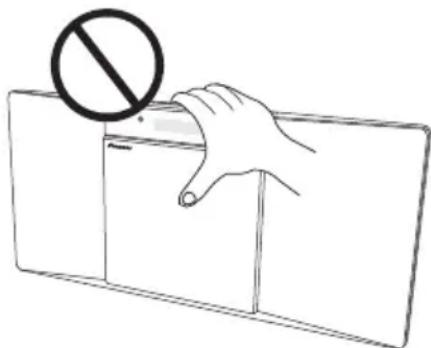
Do not hold the unit by the electric slide CD door when carrying the unit. It could damage the unit.
Place of installation
- Choose a stable place near the TV or stereo system being used with this unit.
- Do not place this unit on top of a TV or color monitor. Also install it away from cassette decks and other devices easily affected by magnetic forces.
Avoid the following locations:
- Places exposed to direct sunlight
- Humid or poorly ventilated places
- Extremely hot places
- Places exposed to vibrations
- Places in which there is much dust or cigarette smoke
- Places exposed to soot, steam or heat (kitchens, etc.)
Do not place objects on this unit
Do not place any objects on top of this unit.
Do not obstruct the ventilation holes.
Do not use this unit on shaggy rugs, beds, sofas, etc., or wrapped in cloth, etc. Doing so will prevent the heat from dispersing, leading to damage.
Do not expose to heat.
Do not place this unit on top of an amplifier or other component that generates heat. When rack mounting it, to avoid the heat given off by the amplifier or other audio component, place it on a shelf below the amplifier.
- Turn off the unit's power when not using it.
- Depending on signal conditions, striped patterns may appear on a TV screen and noise may enter the sound of radio broadcasts when the unit's power is on. If this happens, turn the unit's power off.
About condensation
If this unit is moved suddenly from a cold place into a warm room (in winter, for example) or if the temperature in the room in which this unit is installed rises suddenly due to heater operation, etc., water droplets (condensation) may form inside (on operating parts and the lens). When condensation is present, this unit will not operate properly and playback is not possible. Let this unit stand at room temperature for 1 or 2 hours with the power turned on (the time depends on the extent of condensation). The water droplets will dissipate and playback will become possible. Condensation can also occur in the summer if this unit is directly exposed to the air flow from an air-conditioner. If this happens, move this unit to a different place.
Cleaning the product
- Unplug the power cord from the power outlet when cleaning this unit.
- Clean this unit using a soft cloth. For tough dirt, apply some neutral detergent diluted in 5 to 6 parts water to a soft cloth, wring out thoroughly, wipe off the dirt, then wipe again with a soft, dry cloth.
- Alcohol, thinner, benzene, insecticides, etc., could cause the print or paint to peel off. Also, leaving rubber or vinyl products in contact with this unit for long periods of time could mar the cabinet.
- When using chemical-impregnated wipes, etc., read the cautions included with the wipes carefully.
Cleaning the lens
This unit's lens should not become dirty in normal use, but if for some reason it should malfunction due to dust or dirt, consult your nearest Pioneer authorized service center. Although lens cleaners for players are commercially available, we advise against using them since some may damage the lens.
Handling discs
Storing
- Always place discs in their cases and store them vertically, avoiding hot, humid places, places exposed to direct sunlight and extremely cold places.
- Be sure to read the cautions included with the disc.
Cleaning discs
- Discs may not play if there are fingerprints or dust on them. In this case, use a cleaning cloth, etc., to gently wipe the disc from the inside towards the outside. Do not use dirty cleaning cloths.
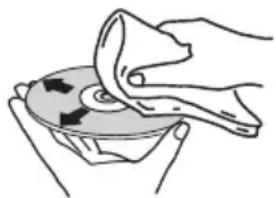
- Do not use benzene, thinner or other volatile chemicals. Also do not use record spray or antistatic agents.
- For tough dirt, apply some water to a soft cloth, wring out thoroughly, wipe off the dirt, then wipe off the moisture with a dry cloth.
- Do not use damaged (cracked or warped) discs.
- Do not let the signal surface of discs get scratched or dirty.
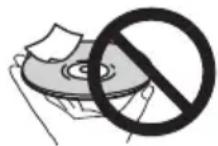
- Do not attach pieces of paper or stickers to discs. Doing so could warp discs, making it impossible to play them. Also note that rental discs often have labels attached to them, and the label's glue may have oozed out. Check that there is no glue around the edges of such labels before using rented discs.
About specially shaped discs
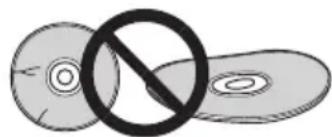
Specially shaped discs (heart-shaped, hexagonal, etc.) cannot be played on this unit. Do not attempt to play such discs, as they could damage this unit.
Restoring all the settings to the defaults
Use the steps below to restore the all settings to their defaults.
1 Press to turn the power on.
2 Press MENU and then press / until "RESET" appears on the display.
3 Press ENTER.
"OK?" will appear.
4 Press ENTER.
- "RESETING" is displayed while the settings are being restored. Power is turned off.
Specifications
- Amplifier section
RMS Power Output: 10 W + 10 W (1 kHz, 10 %, T.H.D., 8 Ω)
- Tuner section
Frequency Range (FM) .87.5 MHz to 108 MHz
Antenna Input (FM) 75Ω unbalanced
(X-SMC02D only)
DAB Tuning Frequency Range
174.928 MHz to 239.200 MHz
B I u e t o o t h
Version. . . . . . . . . . . . . . . . . . . . . . . . . . . . . . . . . . . . . . . . . . . . . . . . . . . Bluetooth Specification Ver. 4.1 + EDR
OutputBluetooth Specification Class 2
Estimated line-of-sight transmission distance*
About 10 m
Frequency range 2.4 GHz
Modulation
FH-SS (Frequency Hopping Spread Spectrum)
Supported Bluetooth profiles .A2DP,AVRCP
Supported Codec. SBC (Subband Codec)
Supported contents protection. .SCMS-T
PIN code 0000
- The line-of-sight transmission distance is an estimate.
Actual transmission distances supported may differ depending on surrounding conditions.
Miscellaneous
USB terminal 5V,0.5A
Power source. AC 220 V to 240 V, 50 Hz/60 Hz
Power consumption
Power on. 15 W
Power stand-by .0.5 W or less
Power stand-by (BT STANDBY ON). . . . . . . . . . . . . . . . . . . . . . . . . . . . . . . . . . . . . . . . . . . . . . . . . . . . . . . . . . . . . . . . . . . . . . . . . . . . . .
Dimensions . . . 451 mm (W) × 215 mm (H) × 132 mm (D)
Weight (without package) 3.0 kg
- Speaker
Type. Bass-reflex
Full-range. 3.0 inch cone type
Frequency range. 75 Hz to 20 kHz
(Maximum sound pressure level: 100 dB/M)
- Accessories
Remote control 1
AAA batteries (R03) 2
FM wire antenna*1 1
DAB/FM wire antenna*2 1
Warranty card 1
Quick Start Guide 1
*1 X-SMC02 only
*2 X-SMC02D only

Note
- The specifications are applicable when the power supply is 230V .
- Specifications and the design are subject to possible modifications without notice, due to improvements.
License and Trademark


Bluetooth
The Bluetooth® word mark and logos are registered trademarks owned by the Bluetooth SIG, Inc.
All other trademarks are the property of their respective owners.
The Bluetooth® word mark and logos are registered trademarks owned by the Bluetooth SIG, Inc.
All other trademarks are the property of their respective owners.
5 P G M / M E M O R Y
Mikrozelle (R03, GröBe "AAA"). 2
The Bluetooth® word mark and logos are registered trademarks owned by the Bluetooth SIG, Inc.
All other trademarks are the property of their respective owners.
Auto Power Off-installing 10
05 Disc-weergave
5 P G M / M E M O R Y
Auto Power Off-installing
- De fabrieksinstellung is OFF.
Opmerking
Full-range. 3,0 inch conus-type
Frequentiebereik .75 Hz tot 20 kHz
The Bluetooth® word mark and logos are registered trademarks owned by the Bluetooth SIG, Inc.
All other trademarks are the property of their respective owners.
Toppnel/Frontpanel 6
bakpanel 7
03 Anslutningar
FH-SS (Frequency Hopping Spread Spectrum) Bluetooth-profilersomstods A2DP,AVRCP
Komprimeringsformat som stöds . . . SBC (Subband Codec)
Innehalsskydd som stods. SCMS-T
Pinkod 0000
Usb-uttag . 5 V,0.5 A
Strömkälla . . . . . . . . . . . . . . . . AC 220 V till 240 V, 50 Hz/60 Hz
The Bluetooth® word mark and logos are registered trademarks owned by the Bluetooth SIG, Inc.
All other trademarks are the property of their respective owners.
Tel: +49(0)8142 4208 188 (Product Support)
Anteros Building, Odyssey Business Park, West End Road, South Ruislip, Middlesex, HA4 6QQ United Kingdom
Tel: +44(0)208 836 3612
6, Avenue de Marais F - 95816 Argenteuil Cedex FRANCE
Tel:+33(0)969368050
Kopnpaia O 3Hn
2-3-12, Acy, Yyo-Ky, r. Tokno, 104-0028, RIOHnI
© 2017 Onkyo & Pioneer Corporation. All rights reserved.
"Pioneer" is a trademark of Pioneer Corporation, and is used under license.
SN 29403174
F1705-0
- Thank you for buying this Pioneer product.
- Contents
- Before you start
- Part names and functions
- Connections
- Getting started
- Disc playback
- USB playback
- Using the tuner
- Other connections
- Bluetooth® Audio playback
- Additional information
- Chapter 1:
- Before you start
- What's in the box
- Loading the batteries in the remote control
- Using the remote control
- Hang from the wall to use
- Screw the wall hanging screws into the wall, putting them the specified attachment measurement (172 mm) apart.
- Note
- WARNING
- Wall mounting
- Chapter 2:
- Part names and functions
- 10
- Input function buttons
- M E N U
- / / / ,ENTER
- PGM / MEMO RY
- 6Playback control buttons
- Sound control buttons
- SLEEP
- T I M E R
- C
- RANDOM
- DISPLAY
- 13
- VOLUME control buttons
- 味
- DIMMER
- Top panel/Front panel
- AUDIO IN socket
- STANDBY/ON button
- INPUT button
- 5Playbackcontrolbuttons
- Electric slide CD door open/close button
- Main display
- Display panel
- TIMER indicator
- Speaker
- Rear panel
- Chapter 3:
- Connections
- CAUTION
- Connecting antennas
- Connect the FM (DAB/FM) wire antenna into the FM (DAB/FM) antenna socket.
- Using external antennas
- To improve FM reception
- Plugging in
- Getting started
- Setting the clock
- Sound controls
- Equalizer
- P.BASS control
- BASS/TREBLE control
- Using the wake-up timer
- Setting
- Switching the wake-up timer ON/OFF
- Using the sleep timer
- Auto power off setting
- Chapter 5:
- Disc playback
- Playing discs or files
- Load the disc
- Play tracks on a CD
- Play MP3 music files
- Tip
- Advanced CD or MP3 disc playback
- Repeat play
- To repeat one track:
- To repeat all tracks:
- To repeat desired tracks:
- To cancel repeat play:
- Random play
- To random play all tracks:
- To cancel random play:
- Programmed play (CD)
- Switch the display contents
- Press DISPLAY during playback.
- Chapter 6:
- USB playback
- Playing USB storage devices
- Press USB as the input source.
- Connect the USB storage device.
- When the recognition is completed, press / to select the folder where the music file is stored ([F]), then press → or ENTER.
- Press / to select the music file, and then press or ENTER.
- Chapter 7:
- Using the tuner
- Listening to FM
- Tuning
- Automatic tuning:
- Manual tuning:
- To receive an FM stereo transmission:
- Improving poor FM reception:
- Saving station presets
- Press PGM/MEMORY.
- Press PRESET + / - to select the preset channel number.
- Press PGM/MEMORY to store that station in memory.
- To recall a memorised station
- To scan the preset stations
- To erase entire preset memory
- Using the Radio Data System (RDS)
- Information provided by RDS
- Search for stations by Program Type
- Press ENTER.
- Using the Auto Station program Memory (ASPM)
- Listening to the DAB+ (X-SMC02D only)
- Press the TUNER until "DAB" appears on the display.
- Press the TUNE + / - to select the desired station.
- Within 10 seconds, press the ENTER on the remote control to tune into the desired station.
- Auto Scan
- Manual tune
- Changing the information display
- [Programme Name]
- [Scrolling text]
- [Program type]
- [Multiplex name]
- [Frequency]
- [Stereo mode]
- [Transfer speed]
- [Signal quality]
- Memoiring a station
- Tune to the desired DAB station.
- Press the PGM/MEMORY.
- Within 10 seconds, press the PRESET + / - to select the preset channel number.
- Within 10 seconds, press the PGM/ MEMORY to store that station in memory.
- Repeat steps 1 - 4 to set other stations, or to change a preset station.
- Chapter 8:
- Other connections
- Connecting auxiliary components
- Press AUDIO as the input source.
- Automatic switching to Audio In input (Audio In Detect)
- Press ENTER and then press / to switch AUD DETE ON/OFF.
- Chapter 9:
- Bluetooth® Audio playback
- Pairing with the unit
- Playing Back
- Press the .
- BT STANDBY
- BT STANDBY settings
- Press the . 8
- Remote control operation
- Radio wave caution
- Scope of operation
- Radio wave reflections
- Precautions regarding connections to products supported by this unit
- Chapter 10:
- Additional information
- Troubleshooting
- General problem
- When the Bluetooth wireless technology device is connected or operated
- Problem Remedy
- Playable discs and formats
- MP3:
- Regarding copy protected CDs
- Supported audio file formats
- Cautions on use
- When moving this unit
- Place of installation
- Avoid the following locations:
- Do not place objects on this unit
- Do not obstruct the ventilation holes.
- Do not expose to heat.
- About condensation
- Cleaning the product
- Cleaning the lens
- Handling discs
- Storing
- Cleaning discs
- About specially shaped discs
- Restoring all the settings to the defaults
- Specifications
- - Amplifier section
- - Tuner section
- Miscellaneous
- - Speaker
- - Accessories
- License and Trademark
- Bluetooth
- P G M / M E M O R Y
- Disc-weergave
- Auto Power Off-installing
- Opmerking
- Anslutningar
Brand : PIONEER
Model : XSMC02D
Category : Audio System