XNM1 - Audio System PIONEER - Free user manual and instructions
Find the device manual for free XNM1 PIONEER in PDF.


| Product type | Compact audio system with CD player, cassette deck and FM/AM tuner |
| Brand | Pioneer |
| Model | XNM1 |
| Main unit dimensions (W x H x D) | 166 x 243 x 315 mm |
| Main unit weight | 6 kg |
| Speaker dimensions (W x H x D) | 130 x 240 x 235 mm |
| Speaker weight | 1.9 kg each |
| Output power | 25 W + 25 W RMS (1 kHz, 10% THD, 6 Ω) |
| Power supply | 230 V AC, 50 Hz (UK); 220-230 V, 50/60 Hz (Europe); 240 V AC, 50/60 Hz (Australia/New Zealand) |
| Power consumption | 75 W (Europe/UK models); 140 W (Australia/New Zealand models) |
| Standby power consumption | 1 W |
| FM tuner | 87.5 – 108 MHz, 75 Ω unbalanced antenna |
| AM tuner | 531 – 1602 kHz (9 kHz steps) or 530 – 1700 kHz (10 kHz steps) depending on region |
| CD player | Audio compact discs (12 cm or 8 cm) |
| Cassette deck | 4-track, 2-channel stereo, compatible with Type I (normal) cassettes |
| Main functions | Programmed, random, repeat playback; RDS; wake-up, sleep, timed recording timers; sound modes (POP, VOCAL, LIVE, FLAT) |
| Supplied accessories | Remote control, 2 AA/R6P batteries, FM wire antenna, AM loop antenna, power cord, user manual, warranty card |
| Maintenance and cleaning | Wipe with a soft cloth; for stubborn dirt, use a soft cloth slightly moistened with a mild detergent solution (1:5 or 1:6) |
| Safety | Class 1 laser; do not open the casing; disconnect the device if not used for an extended period; do not obstruct ventilation openings |
| Repairability | Entrust any repairs to qualified personnel |
Frequently Asked Questions - XNM1 PIONEER
User questions about XNM1 PIONEER
0 question about this device. Answer the ones you know or ask your own.
Ask a new question about this device
Download the instructions for your Audio System in PDF format for free! Find your manual XNM1 - PIONEER and take your electronic device back in hand. On this page are published all the documents necessary for the use of your device. XNM1 by PIONEER.
USER MANUAL XNM1 PIONEER
COMPACT MINI COMPONENT MINI CHAÎNE COMPACTE
X-NM1 X-NM10
WARNING: THE APPARATUS IS NOT WATERPROOF, TO PREVENT FIRE OR SHOCK HAZARD, DO NOT EXPOSE THIS APPARATUS TO RAIN OR MOISTURE AND DO NOT PUT ANY WATER SOURCE NEAR THIS APPARATUS, SUCH AS VASE, FLOWER POT, COSMETICS CONTAINER AND MEDICINE BOTTLE ETC. H001AEn
This product complies with the Low Voltage Directive (73/23/EEC, amended by 93/68/EEC), EMC Directives (89/336/EEC, amended by 92/31/EEC and 93/68/EEC). H015AEn
CAUTION:
THE STANDBY/ON BUTTON IS SECONDARY CONNECTED AND THEREFORE DOES NOT SEPARATE THE UNIT FROM MAINS POWER IN STANDBY POSITION. THEREFORE INSTALL THE UNIT SUITABLE PLACES EASY TO DISCONNECT THE MAINS PLUG IN CASE OF THE ACCIDENT. THE MAINS PLUG OF UNIT SHOULD BE UNPLUGGED FROM THE WALL SOCKET WHEN LEFT UNUSED FOR A LONG PERIOD OF TIME. H017BEn
WARNING: BEFORE PLUGGING IN THE UNIT FOR THE FIRST TIME, READ THE FOLLOWING SECTION CAREFULLY. THE VOLTAGE OF THE AVAILABLE POWER SUPPLY DIFFERS ACCORDING TO COUNTRY OR REGION, BE SURE THAT THE POWER SUPPLY VOLTAGE OF THE AREA WHERE THIS UNIT WILL BE USED MEETS THE REQUIRED VOLTAGE (E.G., 230V OR 120V) WRITTEN ON THE REAR PANEL. H041 En
When disposing of used batteries, please comply with governmental regulations or environmental public instruction's rules that apply in your country or area. H048 En
WARNING: NO NAKED FLAME SOURCES, SUCH AS LIGHTED CANDLE, SHOULD BE PLACED ON THE APPARATUS. IF NAKED FLAME SOURCES ACCIDENTALLY FALL DOWN, FIRE SPREAD OVER THE APPARATUS THEN MAY CAUSE FIRE.
H044 En
CAUTION: These speaker terminals can be under HAZARDOUS VOLTAGE. When you connect or disconnect the speaker cables, to prevent the risk of electric shock, do not touch uninsulated parts before disconnecting the power cord. H047 En
CAUTION
This product contains a laser diode of higher class than 1. To ensure continued safety, do not remove any covers or attempt to gain access to the inside of the product.
Refer all servicing to qualified personnel.
The following caution label appears on your unit.
Location: rear of the unit (Australia and NZ model) underneath the unit (European model)
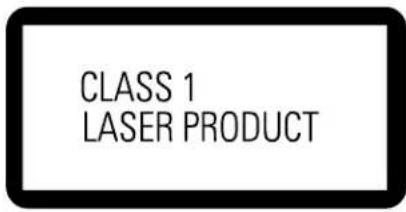
H018A_En
Operating Environment H045 En
Operating environment temperature and humidity:
-5°C - +45°C (+23°F - +113°F); less than 85%RH (cooling vents not blocked)
Do not install in the following locations
- Location exposed to direct sunlight or strong artificial light
- Location exposed to high humidity, or poorly ventilated location
VENTILATION: When installing this unit, make sure to leave space around the unit for ventilation to improve heat radiation (at least 30 cm at top, 30 cm at rear, and 30 cm at each side).
WARNING: Slots and openings in the cabinet are provided for ventilation and to ensure reliable operation of the product and to protect it from overheating, to prevent fire hazard, the openings should never be blocked and covered with items, such as newspapers, table-cloths, curtains, etc. Also do not put the apparatus on the thick carpet, bed, sofa, or fabric having a thick pile. H040 En
IMPORTANT

The lightning flash with arrowhead symbol, within an equilateral triangle, is intended to alert the user to the presence of uninsulated 'dangerous voltage' within the product's enclosure that may be of sufficient magnitude to constitute a risk of electric shock to persons.
CAUTION
RISK OF ELECTRIC SHOCK DO NOT OPEN
CAUTION:
TO PREVENT THE RISK OF ELECTRIC SHOCK, DO NOT REMOVE COVER (OR BACK). NO USER-SERVICEABLE PARTS INSIDE. REFER SERVICING TO QUALIFIED SERVICE PERSONNEL.

The exclamation point within an equilateral triangle is intended to alert the user to the presence of important operating and maintenance (servicing) instructions in the literature accompanying the appliance. H002_En
IMPORTANT
FOR USE IN THE UNITED KINGDOM
The wires in this mains lead are coloured in accordance with the following code :
If the plug provided is unsuitable for your socket outlets, the plug must be cut off and a suitable plug fitted.
The cut-off plug should be disposed of and must not be inserted into any 13 amp socket as this can result in electric shock. The plug or adaptor or the distribution panel should be provided with 5 A fuse. As the colours of the wires in the mains lead of this appliance may not correspond with coloured markings identifying the terminals in your plug, proceed as follows;
The wire which is coloured blue must be connected to the terminal which is marked with the letter N or coloured black.
The wire which is coloured brown must be connected to the terminal which is marked with the letter L or coloured red.
Do not connect either wire to the earth terminal of a three pin plug.
NOTE
After replacing or changing a fuse, the fuse cover in the plug must be replaced with a fuse cover which corresponds to the colour of the insert in the base of the plug or the word that is embossed on the base of the plug, and the appliance must not be used without a fuse cover. If lost replacement fuse covers can be obtained from: your dealer.
Only 5 A fuses approved by B.S.I. or A.S.T.A to B.S. 1362 should be used. H005BEn
Thank you for buying this Pioneer product.
Please read through these operating instructions so you will know how to operate your model properly. After you have finished reading the instructions, put them away in a safe place for future reference.
In some countries or regions, the shape of the power plug and power outlet may sometimes differ from that shown in the explanatory drawings. However, the method of connecting and operating the unit is the same.
These Operating Instructions are written for the XR-NM1 stereo CD cassette deck receiver and S-NM1/S-NM5-LR speaker system.
Contents
1 Before You Start
Checking what's in the box 4
Using this manual 4
Putting the batteries in the remote 4
Using the remote control 4
Finding a suitable location 5
Avoiding condensation problems 5
Proper ventilation for the unit 5
Discs compatible with this system.... 5
2 Connecting up
Connecting the system 6
Connecting the speakers 7
Connecting the radio antennas 8
Connecting external antennas 9
Connecting other components 9
Connecting the power 9
3 Controls and displays
Front panel 10
Remote control 11
Display 12
4 Getting started
Switching on and setting the clock 13
Changing the clock format 13
Automatic power on buttons 13
Playing CDs 14
Basic playback controls 14
Listening to the radio 15
Improving FM stereo sound 15
Playing tapes 16
Setting the reverse mode 17
Playing other connected components .... 17
Using Sound Modes 17
5 More CD playback features
Programming the track order 18
Checking the playlist order 18
Adding tracks to the playlist 18
Deleting tracks from the playlist 18
Using repeat play 19
Using random play 19
Changing the display 20
Location
Install the unit in a well-ventilated location where it will not be exposed to high temperatures or humidity.
Do not install the unit in a location which is exposed to direct rays of the sun, or near stoves or radiators. Excessive heat can adversely affect the cabinet and internal components. Installation of the unit in a damp or dusty environment may also result in a malfunction or an accident (avoid installation near cookers, etc., where the unit may be exposed to oily smoke, steam or heat).
6 More tuner features
Manually saving station presets 21
Automatically selecting station presets 21
Listening to station presets 22
Naming station presets 22
Editing a station preset name 23
Using RDS (European and UK model only) ..... 24
RDS Program types 24
Displaying RDS information 25
Searching for a program type 25
7 Making tape recordings
Introduction to tape recordings 26
Automatically recording from a CD 27
Recording from any point on a CD 28
Recording over unwanted material.... 28
Recording from the tuner or an auxiliary component 29
Improving AM tape recordings 29
Reducing the auxiliary input level 29
8 Using the timer
Using the wake up timer 30
Using the sleep timer 31
Using the record timer 32
Activating/deactivating the timers 33
9 Additional information
Demo display 34
Changing the brightness level 34
Changing the frequency step 34
Taking care of your system 35
Disc lens cleaner 35
Taking care of your discs 35
Storing discs 35
Discs to avoid 35
Using cassette tapes 36
Tapes you should avoid 36
Protecting your recordings 36
Understanding error messages 36
Troubleshooting.... 37
Specifications 39
Precautions regarding installation
●Placing and using the unit for long periods on heat-generating sources will affect performance. Avoid placing the unit on heat-generating sources.
●Install the unit as far away as possible from your TV. Installation in close proximity to such equipment may cause noise or degradation of the picture.
●Such noise may be particularly noticeable when an indoor antenna is used. In such cases, make use of an outdoor antenna, or turn off the power to the unit.
●Please place this unit on a level surface.
Checking what's in the box
Thank you for buying this Pioneer product. Before starting to set up your new system, please check that you have received the following supplied accessories:
- Remote control unit
- AA/R6P batteries (x2)
- FM wire antenna
- AM loop antenna
- AC power cord
• These operating instructions - Warranty Card
Using this manual
This manual is for the X-NM1/X-NM10 compact mini component. It is split into three sections: setting up (chapters 1 and 2); using the system (chapters 3 to 8), and additional information (chapter 9). This last chapter contains care information for the unit and discs, a troubleshooting section and specifications.
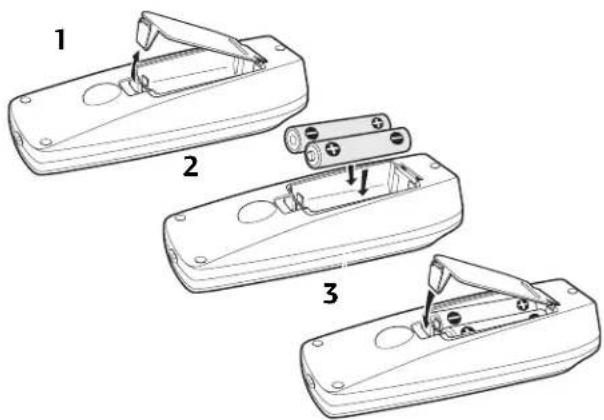
Putting the batteries in the remote
1 Turn over the remote control and release the battery cover catch to open the compartment.
2 Insert two AA/R6P batteries.
Take care to put it in the right way up, matching and as shown below.
3 Close the battery compartment, and your remote is ready for use.
Caution
- Make sure not to damage the controller by inserting the battery holder incorrectly (check the diagram above).
- Make sure that the plus and minus sides of the battery match the indications on the battery compartment.
- Remove batteries from equipment that isn't going to be used for a month or more.
- When disposing of used batteries, please comply with governmental regulations or environmental public instruction's rules that apply in your country or area. H048 En
- Keep the lithium battery out of reach of children.
- If somebody swallows the lithium battery, immediately call your doctor.
Using the remote control
The diagram below shows the operating range of the remote control.
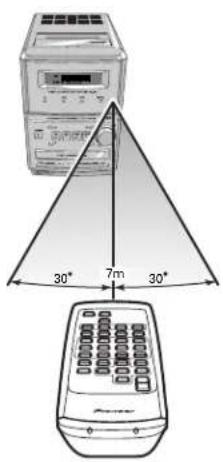
Keep in mind the following when using the remote control:
- Make sure that nothing is blocking the remote sensor on the unit.
-
Remote operation may become unreliable if direct sunlight or fluorescent light is shining onto the remote sensor. Make sure you place the unit in a suitable location.
-
Remotes for different devices can interfere with each other. Avoid using remotes for other equipment located nearby this unit.
- Replace the battery when you notice a fall off in the operating range of the remote.
Finding a suitable location
We want you to enjoy using your new stereo system for years to come, so please bear in mind the following points when choosing a suitable location for the system components and speakers:
Do...
√ Use in a well-ventilated room.
√ Place on a solid, flat, level surface, such as a table, shelf or stereo rack.
Don't...
Use in a place exposed to high temperatures or humidity, including near radiators and other heat-generating appliances.
✗Place on a window sill or other place where any of the components or speakers will be exposed to direct sunlight.
✗Use in an excessively dusty or damp environment.
✗Place directly on top of any appliance which becomes hot in use.
Use near a television or monitor as you may experience interference—especially if the television uses an indoor antenna.
✗ Use in a kitchen or other room where the unit may be exposed to smoke or steam.
XPlace on an unstable surface, or one that is not large enough to support all four of the unit's feet, or the whole footprint of each speaker.
✗Block the cooling vents on the rear and top side of the unit. Don't cover the unit with cloth, or use on thick carpet, etc.
✗Put objects above or on top of the system or speakers.
Avoiding condensation problems
Condensation may form inside the unit if it is brought into a warm room from outside, or if the temperature of the room rises quickly. Although the condensation won't damage the unit, it may temporarily impair its performance. For this reason you should leave it to adjust to the warmer temperature for about an hour before switching on and using.
Proper ventilation for the unit
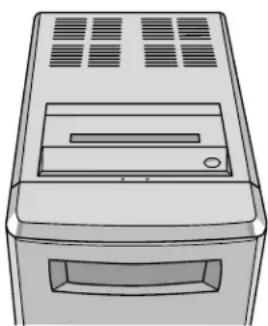
When installing, make sure to leave space around the unit for ventilation to improve heat radiation (at least 30 cm at top, 30 cm at
rear, and 30 cm at each side). If there isn't enough space between the unit and walls or other equipment, heat will build up inside, interfering with performance or causing malfunctions
natural_image
Line drawing of a desktop computer tower with ventilation grilles and ventilation slots (no text or symbols)For this reason, don't place the unit on a thick carpet, bed, sofa, or a pile of fabric. Also make sure not to cover the unit with fabric or any other covering. Anything that blocks ventilation will cause internal temperature to rise, which may lead to breakdown or a fire hazard.
Discs compatible with this system
Any disc that displays the following logo should play in this system. Other discs (such as CD-ROMs) will not play in this unit.

Single sided / Single layer. 12 cm or 8 cm (5" or 3") discs. Linear PCM digital audio.
Connecting up2
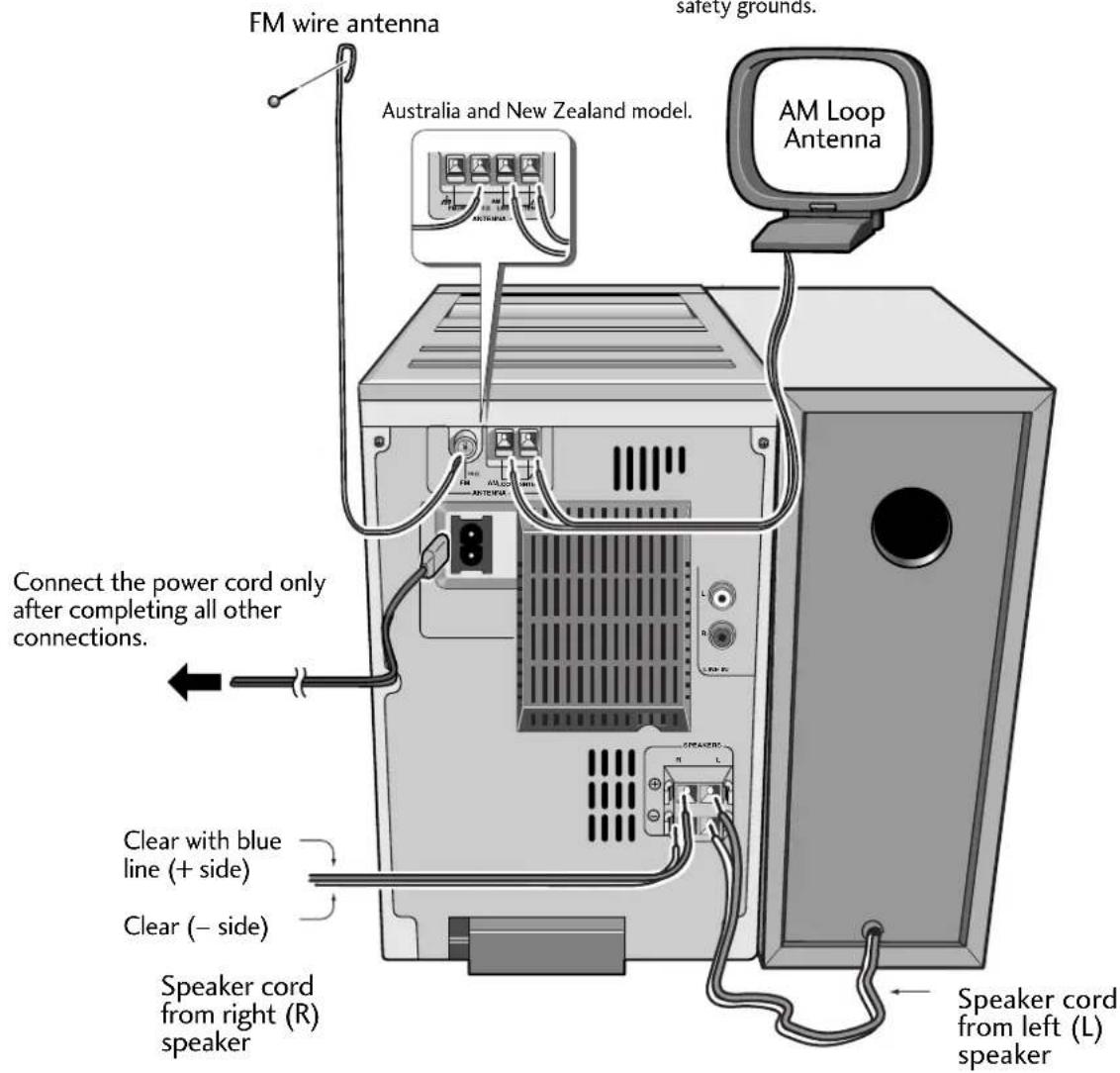
Connecting the system

Important
Before making or changing any rear panel connections, make sure that all the components are switched off and unplugged from the power supply.

Caution
Do not connect any of the supplied speakers to any other amplifier. This may result in malfunction or fire. These speakers are magnetically shielded, however, color distortion may occur if the speaker system is installed extremely close to the screen of a television set. If this happens, turn off the television set, then turn it on after 15 to 30 minutes. If the problem persists, place the speaker system away from the television set.
About antenna connections:
The antenna terminal ground symbols ( ) indicate only that the terminals have been designed to reduce noise when antennas are connected; they are not safety grounds.
Connecting the speakers
Use the supplied speaker cords to connect the speakers to the amplifier. To get the best sound from the system, it's important that you connect the two strands of speaker cord for each speaker to the correct speaker terminal. The terminals and cords are color-coded to help you match them up.

Important
Make sure that the bare speaker wires cannot touch each other, or come into contact with other metal parts once the unit is switched on.
To connect a speaker cord to a terminal
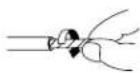
1 Pull off the protective covers on the ends of each cord, then twist the exposed wire strands together.
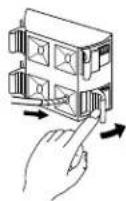
2 Push the tab to open, then insert the twisted wire fully into the terminal.
Insert the wire with the blue stripe into the red (⊕) terminal and the other wire into the black (⊖) terminal.
3 Release the tab to secure the speaker cord.
Tug the wire lightly to make sure it's secure.
1
2
3
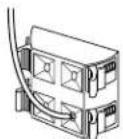
Connecting a speaker cord to a terminal
CAUTION: These speaker terminals can be under HAZARDOUS VOLTAGE. When you connect or disconnect the speaker cables, to prevent the risk of electric shock, do not touch uninsulated parts before disconnecting the power cord. H047 En
Connecting up2
Connecting the radio antennas
Connecting the supplied antennas will allow you to listen to both AM and FM radio broadcasts. If you find that reception quality is poor, an outdoor antenna should give you better sound quality—see Connecting external antennas below for more on how to do this.

Important
Before making or changing antenna connections, make sure that the power is switched off and the unit disconnected from the wall power outlet.
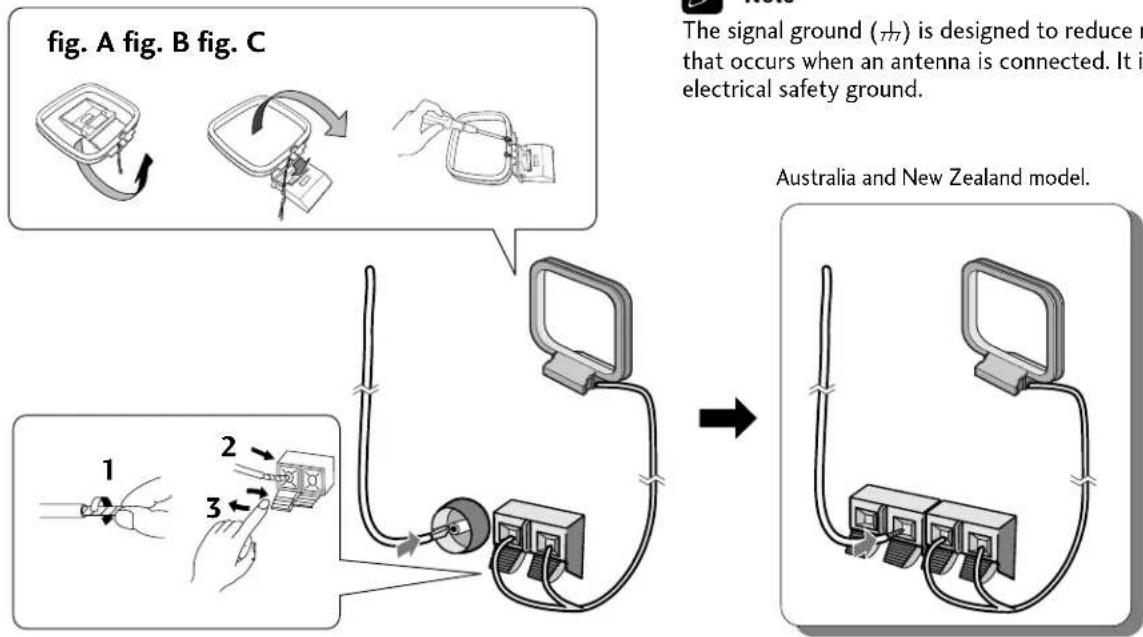
1 Pull off the protective shields of both AM antenna wires.
2 Push open the tabs, then insert one wire fully into each terminal.
3 Release the tabs to secure the AM antenna wires.
4 Fix the AM loop antenna to the attached stand.
To fix the stand to the antenna, bend in the direction indicated by the arrow (fig. A) then clip the loop onto the stand (fig. B).
Note
If you plan to mount the AM antenna to a wall or other surface, secure the stand with screws (fig. C) before clipping the loop to the stand. Make sure the reception is clear.
5 Place the AM antenna on a flat surface and point in the direction giving the best reception.
Avoid placing near computers, television sets or other electrical appliances and do not let it come into contact with metal objects.
6 Connect the FM wire antenna in the same way as the AM loop antenna.
For best results, extend the FM antenna fully and fix to a wall or door frame. Don't drape loosely or leave coiled up. You can use thumbtacks to hold the antenna arms extended widely.
The supplied FM antenna is a simple means of receiving FM stations; using a dedicated, outdoor FM antenna will usually give you better reception and sound quality. See Connecting external antennas on the next page for connection details.

Note
The signal ground ( ) is designed to reduce noise that occurs when an antenna is connected. It is not an electrical safety ground.
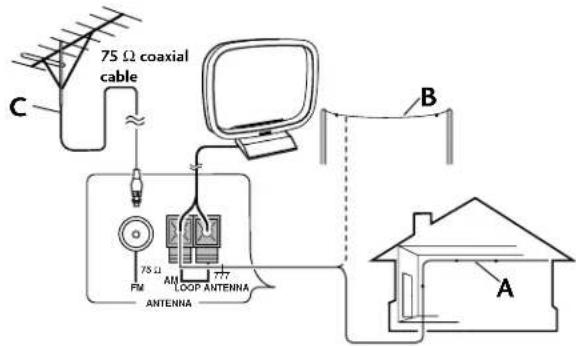
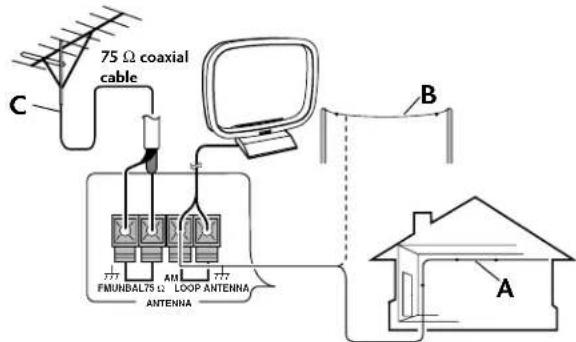
Connecting external antennas
External AM antenna
Use 5–6 meters of vinyl-insulated wire and set up either indoors (A) or outdoors (B). Leave the AM loop antenna connected.
External FM antenna
Use 75Ω coaxial cable to hook up an external FM antenna(C).
UK and European model.
Australia and New Zealand model.
Connecting other components
- Use a stereo RCA cord to connect the analog outputs of an external component to the LINE IN jacks on the back of this unit.
This will allow you to play the component through this system.
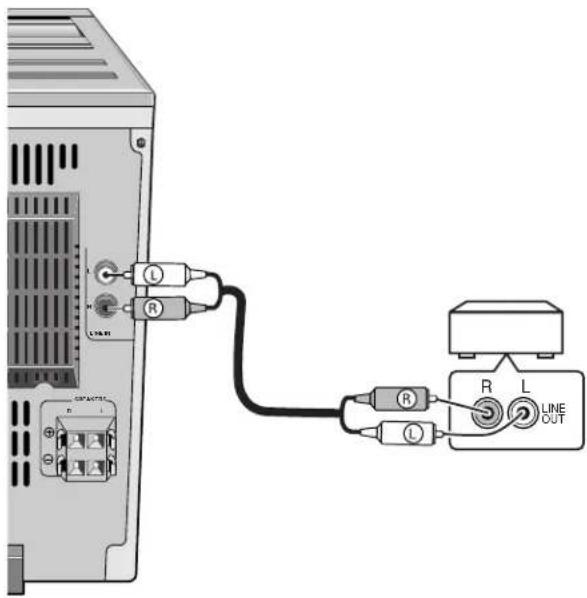
Connecting the power
Before connecting the power and switching on for the first time make sure that everything is connected up properly.
1 Plug one end of the supplied power cord into the AC INLET.
2 Plug the other end into a household power outlet.
Controls and Displays3
Front panel
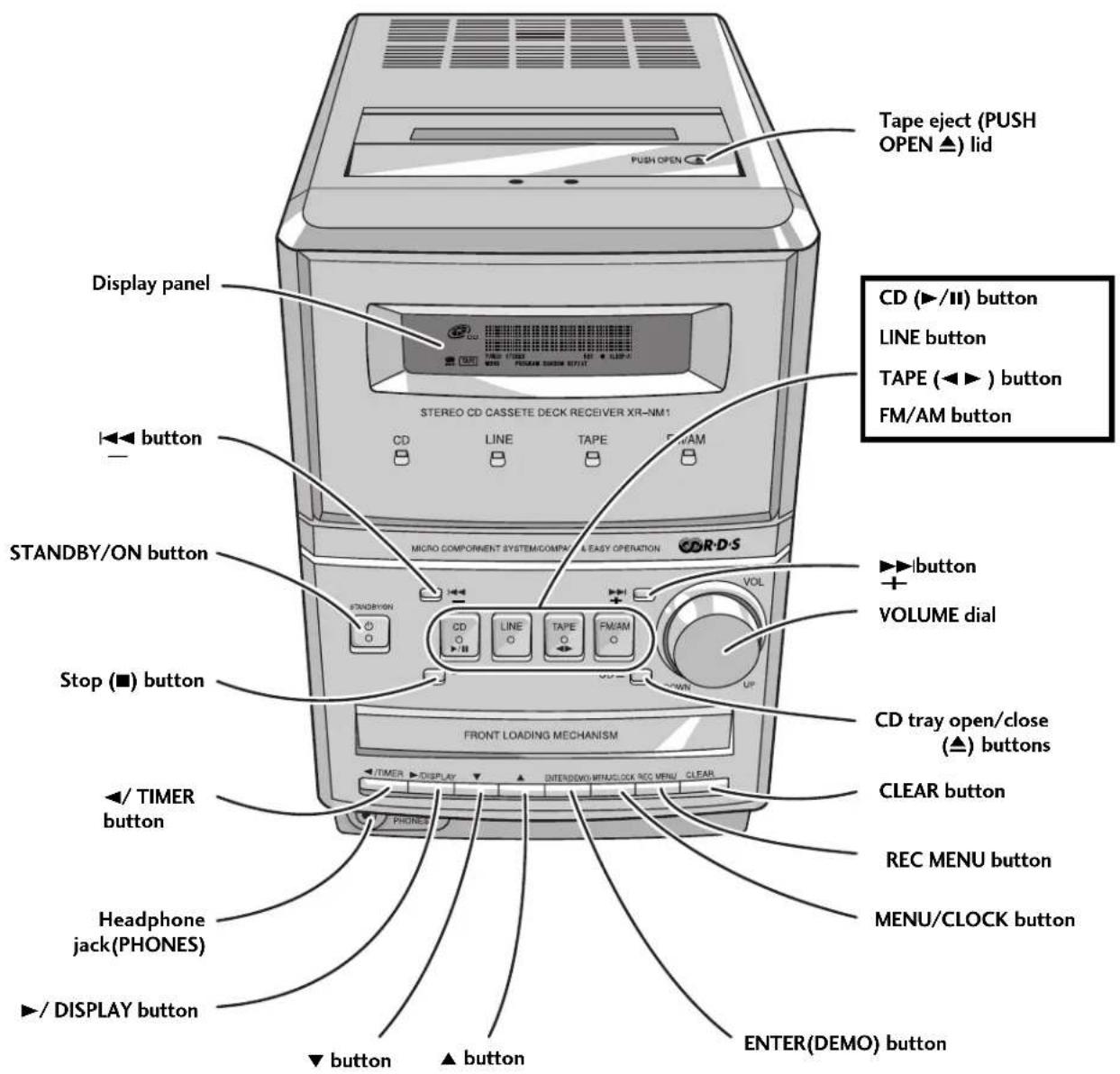

Note
This illustration is for the UK and European model only.
Controls and Displays 3
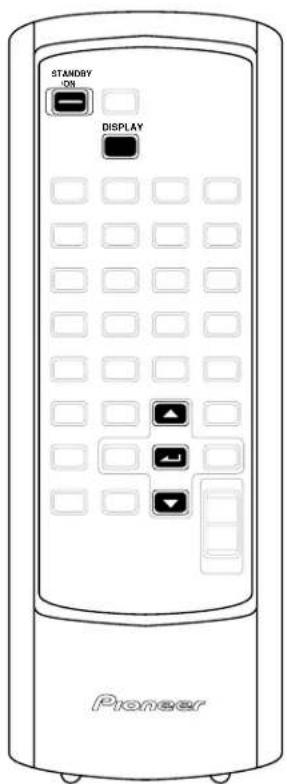
Remote control
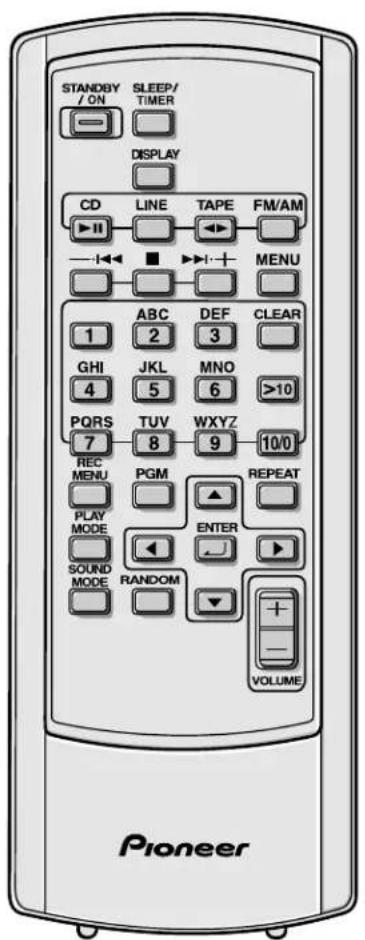
1 STANDBY/ON p. 13, 14, 29, 30, 32–34
2 SLEEP/TIMER p. 30–33
3 DISPLAY p. 13, 20, 25
4 CD ▶II p. 13, 14, 18, 19
5 LINE p. 13, 17, 29
6 TAPE ◀▶ p. 13, 16, 27, 28
7 FM/AM p. 13, 15, 21–25
8 —·◀◀ p. 14, 16, 18, 21–23, 30, 32
9 ■ p. 14–16, 18, 19, 21, 22, 25, 27–30, 32, 34
10▶▶+ p. 14, 16, 18, 21–23, 30, 32
11 MENU p. 15, 21–23, 29
12 Number buttons p. 14, 18, 22, 23
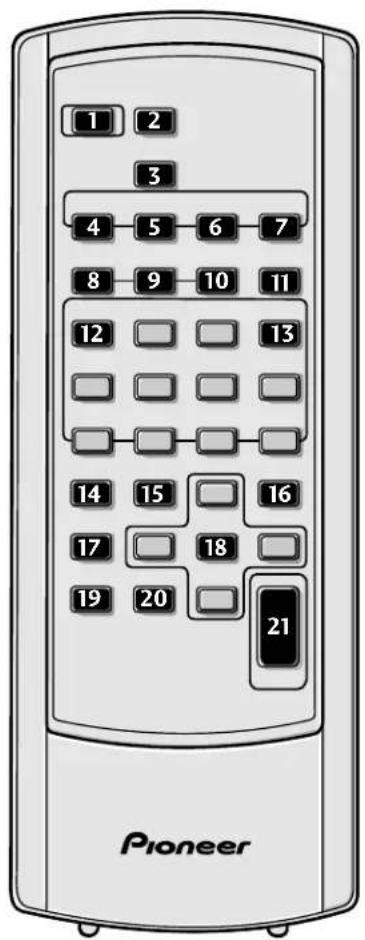
13 CLEAR p. 18, 21–23, 34
14 REC MENU p. 27–29
15 PGM p. 18
16 REPEAT p. 19
17 PLAY MODE p. 17
18 ▲▼◀▶ ENTER (_) p. 13, 15, 17, 21–23, 25, 27–30, 32, 34
19 SOUND MODE p. 17
20 RANDOM p. 19
21 VOLUME +/— p. 14
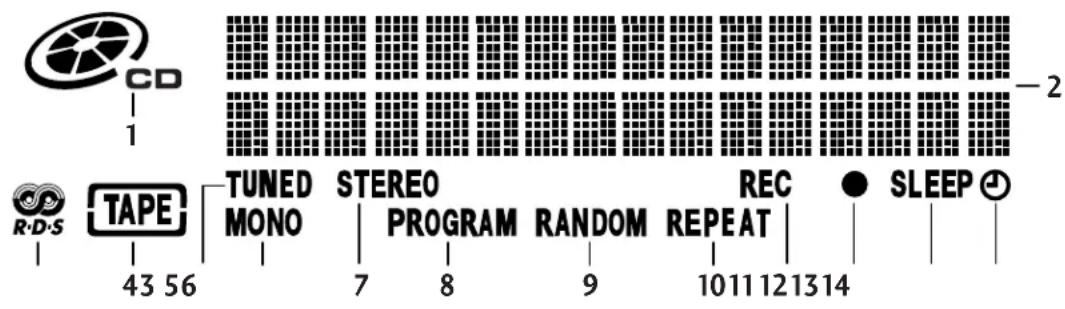
Display
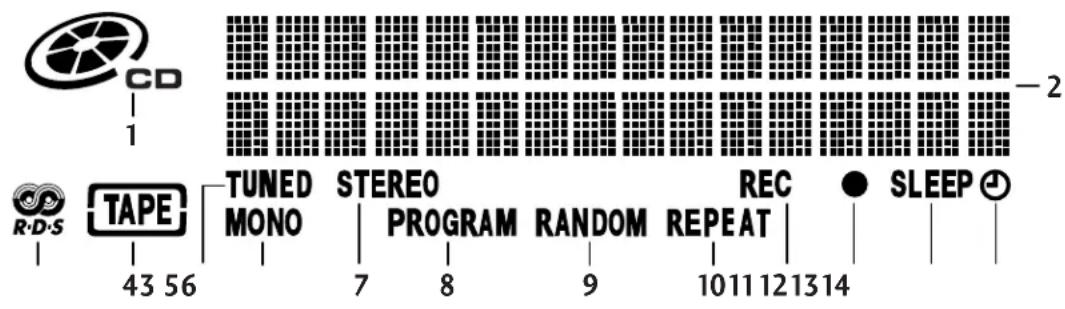
1 Lights when a CD is loaded in the CD player and blinks during CD play-pause
2 Character display
3 Lights when in one of the RDS display or search modes (UK and European model only)
4 Lights when a tape is loaded in the deck
5 TUNED Lights when tuned to a radio station
6 MONO Lights when you are listening to an FM radio broadcast in mono - page 15
7 STEREO Lights when you are listening to an FM radio broadcast in stereo
8 PROGRAM Lights when using program play – page 18
9 RANDOM Lights during random play – page 19
10 REPEAT Blinks during 1 track repeat play, lights during all track repeat play – page 19
11 REC Lights when recording a CD or external source
12 ● Lights when the record timer is set, blinks when in use—page 32–33
13 SLEEP Lights when the sleep timer is set – page 31
14 ⏻ Timer – Lights when the wake up timer is set, blinks when in use— pages 30, 33
Switching on and setting the clock
This system has a built-in clock, which needs to be set to be able to use the timer features.

Note
The clock can't be set when the demonstration mode is active. See page 34 to cancel the demo mode.
1 Press STANDBY/ON to switch the system to standby.
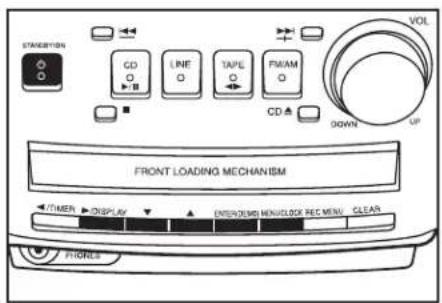
2 Press and hold the MENU/CLOCK button (front panel only) for about two seconds.
AM
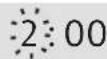
3 Use ▼ and ▲ to set the hour, then press ENTER.
AM
4 Use ▼ and ▲ to set the minute, then press ENTER.
AM
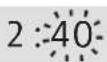
After pressing ENTER, the display shows the new time briefly, then returns to standby.
AM
2:40

Tip
- When the system is on, press and hold DISPLAY (about three seconds) anytime to see the clock. In standby, pressing DISPLAY will switch on the display backlight and briefly show the current time.

Note
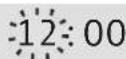
If the AC power is cut (blackout, accidentally unplugging the power cord), the system will return to the 12:00 display and you will have to set it again to show the proper time.
Changing the clock format
You can choose either a 12 or 24 hour format for the clock. The default is 12 hour display.
1 Switch the system into standby.
2 Press and hold DISPLAY for about 3 seconds.
The format is changed and the new clock format is shown in the display.
Automatic power on buttons
There are a number of buttons other than STANDBY/ON which will switch the unit on.
- CD, LINE, TAPE, and FM/AM switch the unit on directly in to that function. (In the case of CD and TAPE, if there is a disc/tape loaded it will start playing.)
- CD ▲ on the front panel switches the unit on and opens the disc cover.
Getting Started4
Playing CDs
The basic controls for playing discs are covered here. Further functions are detailed in the next chapter.
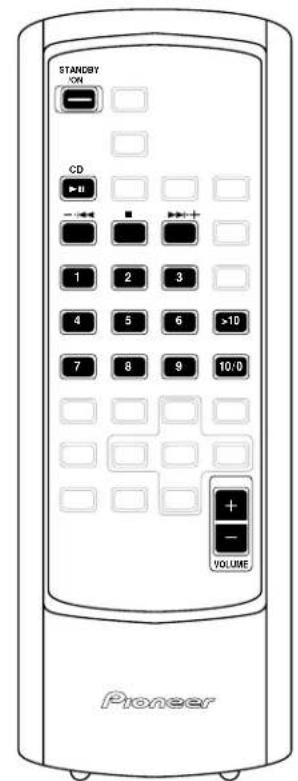
1 Press STANDBY/ON (remote or front panel) to turn on the system.
2 Press CD ▲ (front panel only) to open the disc tray.
3 Load a disc.
Load a disc with the label side facing up, using the disc tray guide to align the disc.
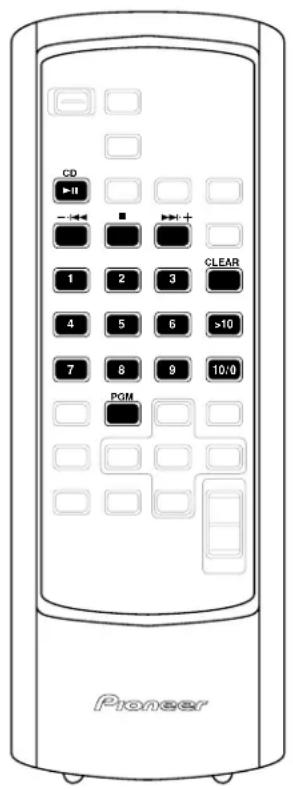
4 Press CD (▶/II) to start playback of the disc just loaded.

Caution
- Make sure to put only one disc in the player at a time. Placing anything other than compact discs inside the player can seriously damage the unit.
- Don't use a 8 cm CD adapter because it can damage the unit.
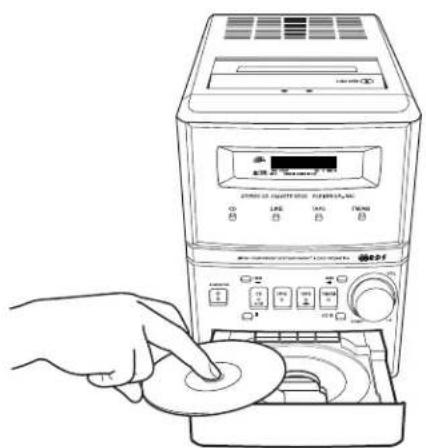

Note
This illustration is for the UK and European model only.
Basic playback controls
| Button | What it does |
| CD (▶/II) | Starts playback or pauses a disc that's playing. |
| ■ | Stops playback. |
| —·|◀◀ | Press & hold for fast reverse scanning. Pressing once briefly skips to the start of the current track; repeated presses will skip to previous tracks. |
| ▶▶|·+ | Press & hold for fast forward scanning. Pressing once briefly skips to the next track. |
| CD ▲ | Ejects the disc. |
| VOLUME +/- (UP/DOWN) | Increases/lowers the volume. |
You can also use the number buttons to select tracks directly:
For track numbers 1 to 10, use the corresponding number button.
For track numbers over 10, use the >10 button to select the track. For example, to select track 18:


or to select track 20:


Likewise, to select track 36:


Note
You can't choose tracks directly during programmed playback.
Listening to the radio
The following steps show you how to tune in to FM and AM radio broadcasts using the automatic and manual tuning functions. Once you are tuned to a station you can memorize the frequency for recall later—see More tuner features on page 21 for how to do this.

Note
Make sure you have hooked up the AM and FM antennas. If you haven't, see pages 8–9 for how to do it.
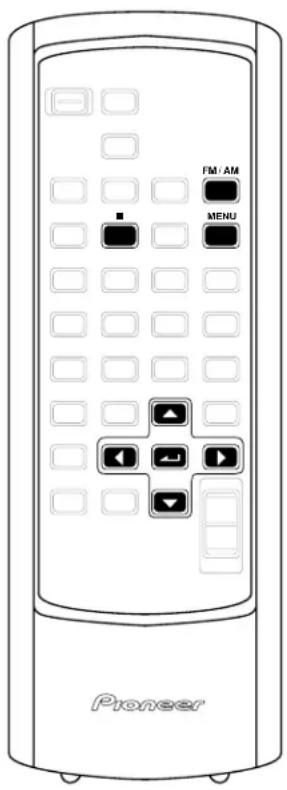
1 Press FM/AM to select the tuner.
Press repeatedly to switch between FM and AM bands.
| FM | 87.50MHz |
| AM | 531kHz |
2 Tune to a station.
There are two ways to do this:
- Automatic tuning
To search for stations in the currently selected band, press and hold either the
▼ or ▲ button for about a second. The system will start searching for the next station, stopping when it has found one. Repeat this step to search for other stations. Press ■ at anytime to stop the search.
- Manual tuning
To change the frequency one step at a time, press the ▼/▲ buttons.
Improving FM stereo sound
If you're listening to a stereo FM broadcast, but find that there is a lot of noise because of a weak signal, try switching to mono.
1 Press FM/AM to select the tuner.
Press repeatedly to switch between FM and AM bands.
TUNER FM 87.50MHz
2 Press MENU and use ▲ and ▼ to select the AUTO / MONO display.
AUTO / MONO

Remember
Use the ▲ and ▼ buttons to change the currently displayed option in the menu. Press ENTER to select. Press ■ anytime to cancel and exit the menu.
3 Use ◀ and ▶ to switch between AUTO (stereo) and MONO reception.
4 Press ENTER to confirm your selection.
When you choose MONO, the STEREO indicator disappears and MONO lights in the display.
Getting Started4

Note
This illustration is for the UK and European model only.
Playing tapes
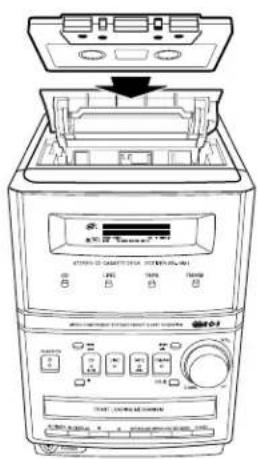
The tape deck lets you play or record both sides of the tape without physically taking it out and turning it over (auto-reverse). If you're planning on recording right away, note that the tape deck can only record on Type I (normal) tapes. See Making tape recordings on page 26 for more on this.
1 Load a cassette tape
On the top panel, press down the corner of the cassette deck marked PUSH OPEN (▲) to open the cover and insert a tape. Press down again to close.
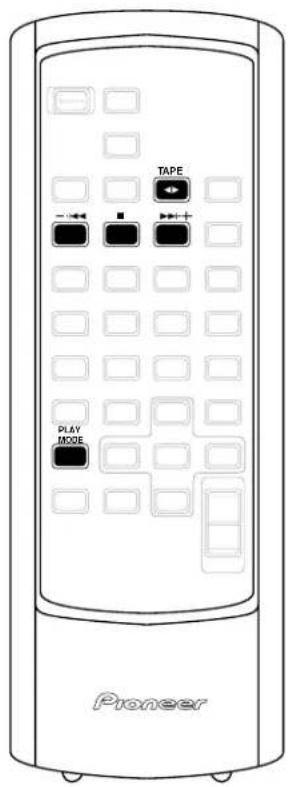
2 Press TAPE (◀▶) to start playback.
The side of the tape you'll hear is whichever is facing toward you when you load it. This is the 'forward' (▶) direction, while the other side is 'reverse' (◀). The forward indicator is shown in the display.

Tip
If there's already a tape in the deck, then pressing the TAPE button—even when the system is in standby mode—will switch the system on and start the tape playing.
3 To play the other side of the tape, press TAPE (◀▶).
Each time you press TAPE (◀▶) during playback, the other side of the tape starts playing. Pressing TAPE (◀▶) when the tape is stopped starts playback on the side it was playing previously.
The current tape direction is indicated in the display.
4 To skip back or forward a track on the tape, press — · |◀◀ or ▶▶| · +.
▶▶1·+ searches for the next blank space between tracks on the side currently playing (in other words, to the start of the next track), then resumes playback.
—. |◀◀ searches for the previous blank space between tracks on the side currently playing (in other words, to the start of the current track), then resumes playback.
By pressing — ·|◀◀ or ▶▶| · + more than once, the tape deck will skip several tracks at once (up to a maximum of 15). For example, press ▶▶| · + twice to skip forward two tracks.
TAPE
MS+02

Note
Track search is unlikely to work reliably in the following cases:
- if the space between tracks is less than about 4 seconds
- if the recording is particularly noisy so the spaces are not recognized
- if the recording contains frequent silences, such as a language study tape.
- if the recording contains sections of very quiet material, such as some classical music recordings
5 To rewind or fast forward the tape, press —·|◀◀ or ▶▶|·+ with the tape stopped.
6 To stop the tape, press ■.
On the top panel, press down the corner of the cassette deck marked PUSH OPEN (▲) to eject the tape.
Setting the reverse mode
The tape deck can play both sides of a tape without you having to take the cassette out and turning it over by hand.
The reverse mode tells the deck what to do when it reaches the end of the tape on the side it's playing. There are three modes: endless, reverse and one-way.
1 Press PLAY MODE (remote) repeatedly to cycle through the reverse modes.
If you're using the front panel, press MENU/CLOCK then select PLAY MODE (use ▲ and ▼ to change the displayed option in the menu; press ENTER to select).
Use ▼ and ▲ to choose the reverse mode.
There are three reverse modes:
- - Plays one side then stops.
- Stops after the end of the tape has been reached in the reverse direction.
- Plays the tape round and round continuously.

Note
In endless mode, the deck will only play the tape through 16 times before it stops automatically.
Playing other connected components
You may have connected various other components to your system. These include a VCR, TV, MD player, another tape, etc.
1 Press LINE.
2 Start playback on the connected component.
You can adjust the sound level using the VOLUME dial on the main unit.
Using Sound Modes
Depending on what you are listening to, you may want to change the sound quality to emphasize instruments or vocals, or to create a live atmosphere.
- Press SOUND MODE (remote) repeatedly to cycle through the Sound Modes.
The current Sound Mode is displayed, and with each press you can select one of the four modes in the following order:
• POP: High and low range sounds are emphasized
• VOCAL: Mid-range sounds are emphasized
- LIVE: The sound is given extra breadth to simulate a live performance
• FLAT: No effect on the sound
Programming the track order
You can program a sequence (a playlist) of up to 32 tracks. The order can be anything you choose. Tracks can appear more than once in the playlist, or can be left out entirely. The playlist applies only to the disc in the player at the time. Once you take the disc out the playlist is lost. Use the remote control to program the track order.
1 Press CD (▶/Ⅲ), then stop playback.
2 With the disc stopped, press PGM (remote control) twice.
PROGRAM
P01- 0:00
3 Select a track to add to the playlist using the number buttons.
See page 14 if you're unsure how to enter track numbers.
PROGRAM
P01-06 5:01
4 Repeat step 3 to continue adding tracks to the playlist.
- If you make a mistake, press CLEAR to delete the last (most recent) track programmed. (Remove multiple tracks by pressing CLEAR repeatedly.)
5 When you're done, press CD (▶/II) to start programmed playback.
Checking the playlist order
You can only check the playlist order when the disc is stopped. Once stopped, you can step through the playlist using the — · |◀◀ and ▶▶▶| · + buttons. Each track number in the playlist is displayed.
Adding tracks to the playlist
1 Stop program play, then press PGM (remote control) twice.
2 Select a track to add to the playlist using the number buttons.
See page 14 if you're unsure how to enter track numbers.
3 When you've completed editing the playlist, press CD (▶/II) to start programmed playback.
Deleting tracks from the playlist
1 With the disc stopped, use — ·|◀◀ and ▶▶|·+ to find the track you want to delete.
2 Press CLEAR to remove the song from the playlist.
- If you want to delete the entire playlist without removing the disc, press ■ with the disc stopped.

Note
- If you press CD ▲ during program playback of a CD, the playlist is canceled and normal playback resumes.
- Pressing RANDOM twice during program playback cancels the playlist and starts random playback.
Using repeat play
You can repeat either a single track over and over or the whole disc. Use the remote control to select repeat play.
1 If you haven't already selected the CD player, press CD (▶/Ⅲ).
2 Press REPEAT repeatedly to cycle through the repeat options.
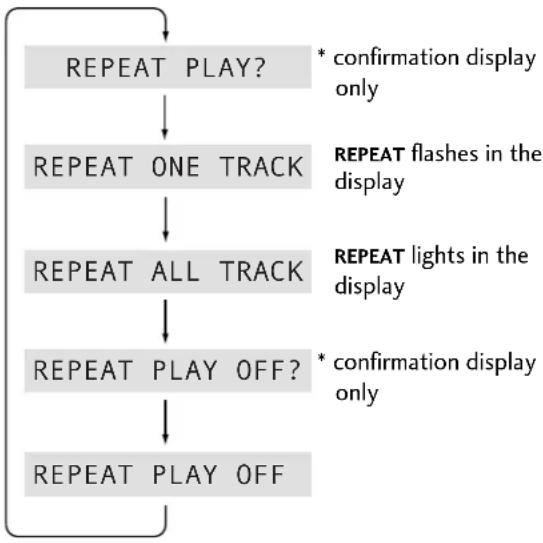
flowchart
graph TD
    A["REPEAT PLAY?"] --> B["REPEAT ONE TRACK"]
    B --> C["REPEAT ALL TRACK"]
    C --> D["REPEAT PLAY OFF?"]
    D --> E["REPEAT PLAY OFF"]
    style A fill:#f9f,stroke:#333
    style B fill:#ccf,stroke:#333
    style C fill:#cfc,stroke:#333
    style D fill:#fcc,stroke:#333
    style E fill:#cff,stroke:#333
    note1["* confirmation display only"]
    note2["REPEAT flashes in the display"]
    note3["REPEAT lights in the display"]
    note4["* confirmation display only"]
In one track repeat mode, any track you choose will repeat. If you jump to another track using track skip (or the number buttons), then the new track will start repeating.
In all track repeat mode, whenever the end of the disc is reached, the player will jump back to the first track and continue playback. You're still free to skip tracks and use manual search.
Repeat play stays active until you:
- select another repeat mode.
- eject the disc.
- switch to standby mode.

Tip
- You can use either of the repeat modes together with the program play mode. Setting repeat play to the
REPEAT ALL TRACK option plays the tracks in the playlist over and over (PROGRAM REPEAT ALL TRACK). Setting repeat play to the single track option starts PROGRAM REPEAT ONE TRACK playback, where just the current track in the playlist repeats. - Pressing RANDOM twice during REPEAT ONE TRACK playback cancels repeat play and starts random playback.
Using random play
To play tracks in a different order each time you play a disc, use the random play feature. Each track will play just once, but the order will be random. When all tracks have been played, the disc stops. Use the remote control to select random play.
1 If you haven't already selected the CD player, press CD (▶/Ⅲ).
2 Press RANDOM twice to start random playback.
RANDOM PLAY?
- During playback, pressing RANDOM twice again cancels random play and resumes normal playback.
- Pressing ■ during random play stops playback and cancels random play.

Tip
By pressing REPEAT twice during random playback, you can use RANDOM REPEAT ALL TRACK playback. All the tracks on the disc will be played at random endlessly.
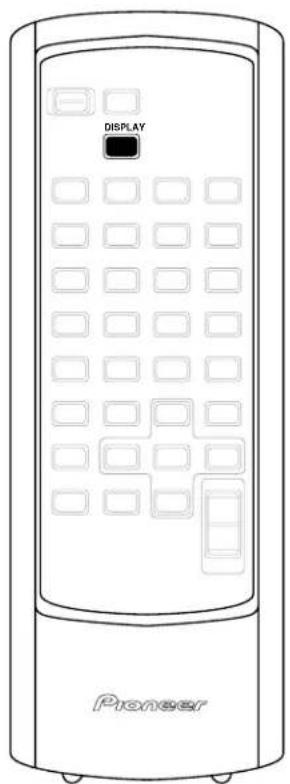
Changing the display
You can choose to display various kinds of information during playback and play-pause. Switch between them by pressing the DISPLAY button.
During CD playback/play- pause:
ELAPSED TRACK TIME (default)
– displays the track number and the time elapsed
Tr 06 0:28
TRACK REMAIN – displays the track number and track time still remaining
Tr 06 R 4:28
ALL REMAIN – displays the disc time still remaining on the disc (or playlist during program play)
Tr 06 T23:45
DISC TOTAL – displays the total playing time of the disc (or playlist during program play)
Tr 06 t40:57

Note
- In random play mode, the ALL REMAIN and DISC TOTAL displays aren't available.
Manually saving station presets
If you often listen to a particular radio station, it's convenient to have the receiver store the frequency for easy recall whenever you want to listen to that station. This saves the effort of manually tuning in each time. This system can save up to 24 station presets. When saving FM frequencies, the receiver also saves the mono setting (see page 15).
1 Tune to a station you want to memorize.
See Listening to the radio on page 15 for more on how to do this.
TUNER FM
87.50MHz
2 Press MENU and use ▲ and ▼ to select MEMORY.
MEMORY

Remember
Use the ▲ and ▼ buttons to change the currently displayed option in the menu. Press ENTER to select. Press ■ anytime to cancel and exit the menu.
3 Use — ·|◀◀ and ▶▶|·+ to select a station preset number.
4 Press ENTER to save the station preset.
This will overwrite an existing station preset if it has been assigned to the same preset number. Press CLEAR to cancel the preset and exit. Repeat these steps to save up to 24 station presets.
ST-02 FM
87.50MHz
The station is saved under preset ST-02.
Automatically selecting station presets
If you don't want to go to the trouble of saving each preset individually, you can automatically select up to 24 station presets while the receiver tunes into stations. When saving FM frequencies, the receiver also saves the mono setting (see page 15).
1 Press FM/AM to select FM or AM.
Press repeatedly to switch between FM and AM bands.
TUNER FM
87.50MHz
2 Press MENU and use ▲ and ▼ to select AUTO ST.MEMORY.
AUTO ST.MEMORY
As soon as you have pressed ENTER, automatic tuning starts, stopping on the next available station broadcast.
3 When you see the preset number flashing, press ENTER to save the station preset or press CLEAR to cancel the preset and continue searching.
Continue searching and selecting presets to save up to 24 station presets. Press ■ anytime to quit the search.
ST-02 FM
87.50MHz
The station is saved under preset ST-02.
Listening to station presets
Having saved up to 24 station presets (previous page), you can be listening to a station with a couple of button presses.
1 Press FM/AM to select the tuner.
2 Use — ·◀◀ and ▶▶|·+ or the number buttons to select the station preset you want to listen to.
For presets 1 to 10, use the corresponding number button.
To select preset numbers over 10, use the >10 button. For example, to select preset 18:
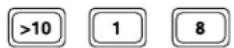
or to select preset 20:
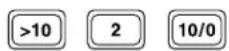
Note
- If the tuning frequency step is changed (p. 34), or if the system is left disconnected from the AC power outlet for over 4 hours, the station presets will be lost and will have to be reprogrammed.
Naming station presets
For easier identification, you can name your station presets.
1 Recall the station preset you want to name.
See Listening to station presets on this page for how to do this.
2 Press MENU and select STATION NAME.
STATION NAME
Remember
Use the ▲ and ▼ buttons to change the currently displayed option in the menu. Press ENTER to select. Press ■ anytime to cancel and exit the menu.
3 Enter a name for the preset.
Names can be up to 12 characters long and can contain letters (upper and lower case), numbers, spaces and other symbols.
ABCDEFGHIJKLMNOPQRSTUVWXYZ
Display shows a underbar where the first character will go. The cursor over the character being selected flashes.
Use numbers keys 1-9 for the corresponding number and the letters shown above each key below. Press a key repeatedly to cycle through the letters (or symbols) on that key. Move the cursor backwards or forwards along the list using ◀ and ▶.
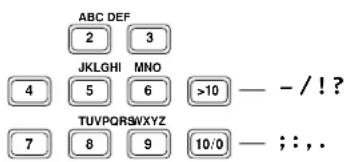
Use the ▲ and ▼ buttons to switch between character lists:
Alphabet (uppercase) - Alphabet (lowercase) - numbers (0-9) - symbols
4 Confirm the character and move the underbar to the next character position by pressing ENTER.
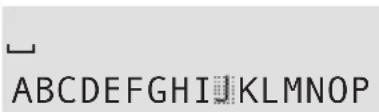
The character being selected flashes...

...until you press ENTER, then the underbar moves to the next position
- Move the underbar backwards or forwards along the display using —. I◀◀ and ▶▶▶. +
- Erase the character one position before the flashing cursor by pressing CLEAR
5 When you've finished naming the station preset, press MENU to exit.
Editing a station preset name
You can edit preset names after they have been set, or you can erase them completely.
1 Select the preset you want to edit.
See Listening to station presets on the previous page for how to do this.
2 Press MENU and use ▲ and ▼ to select STATION NAME.
STATION NAME
3 Press ENTER.
The name is displayed.
4 Edit the name as necessary.
The input method is exactly the same as for naming station presets.

Remember
- Move the cursor along the list using ◀ and ▶
- Move the underbar backwards or forwards along the display using —. |◀◀ and ▶▶| . +
- Erase the character one position before the flashing cursor by pressing CLEAR
5 When you've finished editing the name, press MENU to exit.
Using RDS (European and UK model only)
Radio Data System, or RDS as it's usually known, is a system used by FM radio stations to provide listeners with various information—the name of the station and what kind of show they're broadcasting, for example. RDS allows you to search through stations automatically using this information. It shows up as text on the display, and you can switch between the type of information shown. Although you don't get RDS information from all FM radio stations, you do with most.
This unit lets you display three different kinds of RDS information: Radio Text, Program Service Name, and Program Type.
Radio Text (RT) is a message sent by the radio station. It can be anything the broadcaster chooses—a talk radio station might give out its telephone number as RT, for example.
Program Service Name (PS) is the name of the radio station.
Program Type (PTY) indicates the kind of program currently being broadcast.
RDS Program types
News News
Affairs Current affairs
Info General information
Sport Sports
Educate Educational material
Drama Radio drama
Culture Arts and culture
Science Science and technology
Varied Usually talk-based material, such as quiz shows or interviews.
Pop M Pop music
Rock M Rock music
M.O.R. M "Middle of the road" music
Light M 'Light' classical music
Classics 'Serious' classical music
Jazz Jazz music
Country Country music
Nation M Popular music in a language other than English
Oldies Popular music from the '50s
Folk M Folk music
Other M Other music not fitting any of the above categories
Weather Weather reports
Finance Finance and business
Children Children's entertainment
Social A Social affairs
Religion Religious programming
Phone in Phone in talk show
Travel Holiday-type travel rather than traffic announcements, etc.
Leisure Leisure interests and hobbies
Document Documentaries
In addition, there are program types, ALARM and
TEST, used for exceptional emergency announcements.
The tuner will switch automatically to that station if it picks up either of these RDS signals.
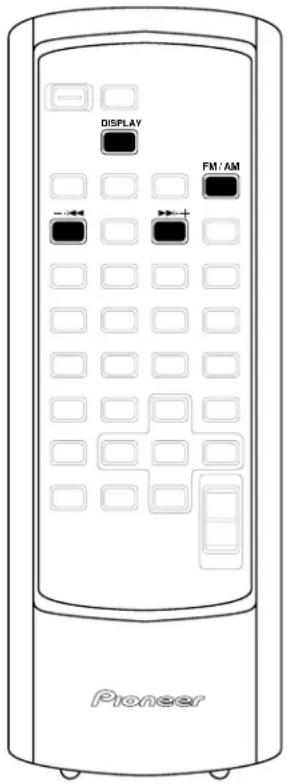
Displaying RDS information
When the tuner is receiving on the FM band, the RDS displays become available.
1 Press DISPLAY repeatedly to select an RDS display.
Choose between:
- RT – Radio Text
• PS – Program Service name
• PTY – Program Type
2 Stop on the one you want and after a few seconds the RDS information will appear.
NEWS

Note
- The RDS indicator ( ) light in the RDS mode.
- If no RDS signal can be received, NO DATA is displayed.
- Radio Text data longer than 16 characters scrolls across the display. If there is noise during the RT scroll display, some characters may be temporarily displayed incorrectly.
- If there is no Program Type data being broadcast, the display reverts to Program Service name.
Searching for a program type
You can search for a station that is broadcasting any program type from the list on the previous page.
1 Press FM/AM to select FM.
Press repeatedly to switch between FM and AM bands.
2 Press DISPLAY repeatedly until PTY SEARCH appears in the display.
PTY SEARCH
3 Press ENTER.
4 Use ▲ and ▼ to choose a program type, then press ENTER.
AFFAIRS
You can search for any of the program types listed on the previous page.
After pressing ENTER, the system starts searching through the station presets for a match. When it finds one, the search stops and the station plays for 5 seconds.
The display shows the preset station number, the frequency, then the program type.
5 If you want to keep listening to the station, press ENTER within the 5 seconds.
If you don't press ENTER, searching resumes. Press ■ at any time to stop the search.
Introduction to tape recordings
You can make tape recordings from the radio or a disc loaded in the player, or from an external component connected to the auxiliary inputs. If you're recording from CD it may be more convenient to use synchro recording—see Automatically recording from a CD starting on the following page.
Once recording has started, you can't switch to another component until recording has stopped. So, for example, you can't switch over to the tuner while you're recording a CD.
Unlike some tape decks, there's no need to set recording levels; the deck sets the level automatically. When recording, the volume and sound settings have no effect on the recording. This means that you can record something with the volume turned right down, if you want.
Before recording, check that the cassette erase-protect tabs have not been broken, and that the tape is Type I (normal position); you can't record on Type II (high position/ CrO_2 ) or Type IV (metal) tapes using this deck. If you're recording from the start of a tape, it's a good idea to wind the tape on a little so that you don't accidentally start recording over the leader tape. You can either do this by hand, or load the tape into the deck and play the tape for 5–6 seconds.
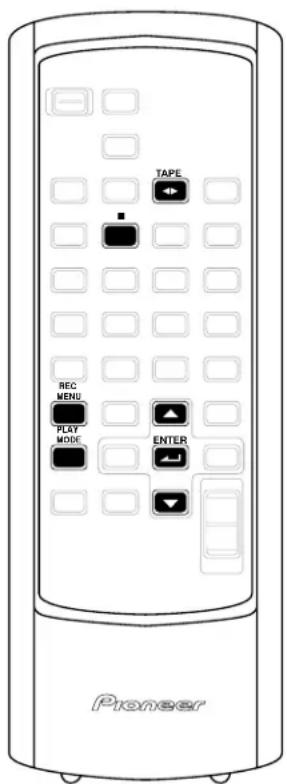
Automatically recording from a CD
This feature makes recording a CD as simple as possible by automatically starting and stopping the disc and tape together. You can choose to record the whole disc or a set playlist of your choice.
1 Press TAPE ( ◀▶) then load a cassette into the tape deck.
In order to follow these instructions more easily, load the cassette with side A face-up.
2 Check the recording direction.
If you start recording in the ▶ direction, both sides of the tape will be recorded (unless the erase protect tab for side B is missing). If you switch sides and start recording in the ◀ direction, then recording will start from side B and stop when the end of the tape is reached.
If you need to change the direction, press TAPE (◀▶) twice, then ■.
3 Set the reverse mode (p. 17)
- Record one side only
• or — Record both sides if recording starts in the ▶ (forward)
direction, or one side when it starts in the ◀ (reverse) direction
4 Load the disc you want to record.
Press ■ to make sure the disc is stopped.
Tr12 t55:57
The CD display showing a disc with 12 tracks and a total playing time of 55:57.
5 If you want to record a programmed playlist, enter the track order here.
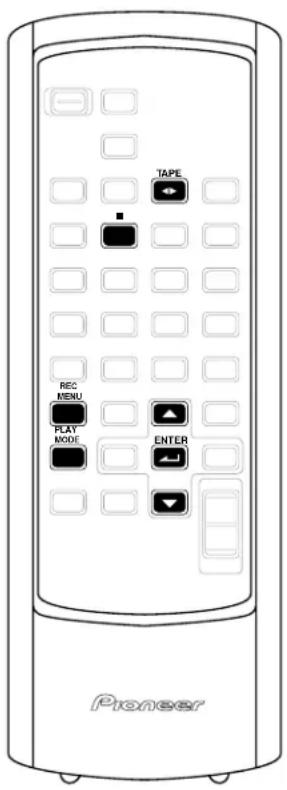
See Programming the track order on page 18 for more on how to do this. Playback must be stopped before going to the next step.
6 Press REC MENU and choose SYNCHRO REC using the ▲ and ▼ buttons.
Press ■ anytime to cancel and exit the menu.
7 Press ENTER
Recording starts automatically after pressing ENTER.
Tr01 0:02
Once recording starts, the REC indicator remains lit.
Should you want to stop recording before the track/disc has finished playing, simply press ■ any time during the recording

If a track is interrupted when the tape switches sides, the same track will be recorded again in its entirety from the beginning of the next side.
Recording from any point on a CD
It is also possible to start recording at any point on the disc, but you will have to stop the recording manually.
1 Press TAPE ( ◀▶) then load a cassette into the tape deck.
In order to follow these instructions more easily, load the cassette with side A face-up.
2 Check the recording direction.
If you start recording in the ▶ direction, both sides of the tape will be recorded (unless the erase protect tab for side B is missing). If you switch sides and start recording in the ◀ direction, then recording will start from side B and stop when the end of the tape is reached.
If you need to change the direction, press TAPE (◀▶) twice, then ■.
3 Set the reverse mode (p. 17)
- Record one side only
- or Record both sides if recording starts in the ▶ (forward) direction, or one side when it starts in the ◀ (reverse) direction
4 Load the CD you want to record.
Tr12 t55:57
The CD display showing a disc with 12 tracks and a total playing time of 55:57.
5 If you want to record a programmed playlist, enter the track order here.
See Programming the track order on page 18 for more on how to do this.
6 Pause the disc at that point you want to start recording.
Since recording starts at any point you pause playback, make sure the display shows 0:00 if you plan to start from the beginning of a track on the disc.
7 Press REC MENU and select TAPE REC to start recording.

Remember
Use the ▲ and ▼ buttons to change the currently displayed option in the menu. Press ENTER to select. Press ■ anytime to cancel and exit the menu.
Tr01 0:02
Once recording starts, the REC indicator remains lit. Should you want to stop recording before the track/disc has finished playing, simply press ■ any time during the recording.

Note
The recording may be briefly interrupted when the tape switches sides.
Recording over unwanted material
There are times when you've recorded over another recording but still have some of the last recording left over on the tail end of the new one. You can erase this by recording blank space.
1 Select the TAPE function and find the place from which you want to record blank space.
2 Press REC MENU and select TAPE REC (see step 7 above).
Make sure that the recording direction is set to record one side only ( ) or you will record over the material on the other side of the tape too!
Recording from the tuner or an auxiliary component
On pages 27 and 28 we covered recording from a CD. Here's how to record from the tuner or a component connected via the LINE inputs.
1 Prepare for recording.
- load a tape
- check the recording direction
- set the reverse mode (p. 17)
2 Switch to the source you're going to record.
Press FM/AM to select FM or AM. To record from the auxiliary input, press the LINE button.
LINE
Recording will be from the auxiliary inputs
3 Prepare the source for recording.
For the tuner, select the radio station broadcast you want to record (see page 15 if you're unsure how to do this). For a line component, switch it on and load the source material, etc.
4 Press REC MENU and select the recording mode.
Select TAPE REC from the menu. Once you press ENTER, recording starts automatically. Press ■ any time during the recording to finish the session.

Remember
Use the ▲ and ▼ buttons to change the currently displayed option in the menu. Press ENTER to select. Press ■ anytime to cancel and exit the menu.
5 Playback the source (if necessary).
6 When you're done, press ■ on the front panel to stop recording.
Improving AM tape recordings
Recording AM broadcasts on cassette tape can result in noisy recordings. If you experience this, turn the beat cut filter on.
1 Switch the system into standby.
2 Press MENU to select the TUNER BEAT CUT.
3 Use ◀ and ▶ to switch the beat cut filter ON or OFF.
4 Press ENTER.
The system returns to standby. The beat cut indicator (■) will flash in the character display when the beat cut filter is switched on.
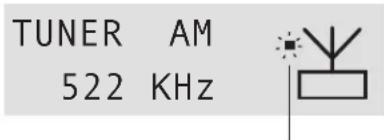
beat cut indicator
Reducing the auxiliary input level
If the component you connected to the analog inputs causes the sound to distort, the input level is probably too high. You can reduce it by turning on the auxiliary attenuator.
1 Make sure the LINE function is selected.
2 Press MENU.
3 Use ◀ and ▶ to switch LINE ATT ON or LINE ATT OFF as required.
4 Press ENTER.
Using the timer8
Using the wake up timer
You can use the timer as an alarm clock to wake up to the sound of a CD, the radio, or the tape deck.
Once the timer is active, it will switch the system on everyday at the set time. Unlike an ordinary alarm clock, you need to set a system switch off time as well as a switch on time.
1 Prepare the source that you want to wake up to.
For a CD, load the disc and pause playback on the track you want to wake up to. For tapes, load the tape and press
■ to stop the tape at the point you want it to start playback. For the tuner, select a radio station to wake up to.
2 Check the volume.
The wake up timer volume will be the last level you set.
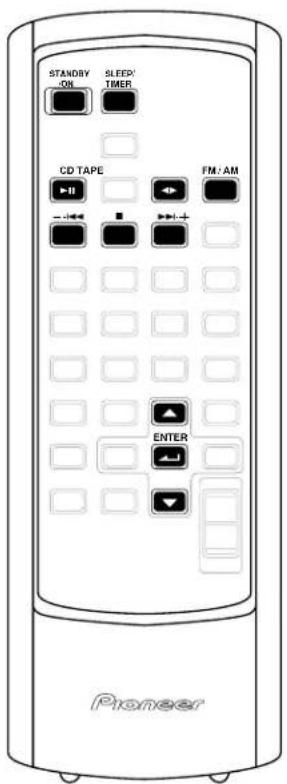
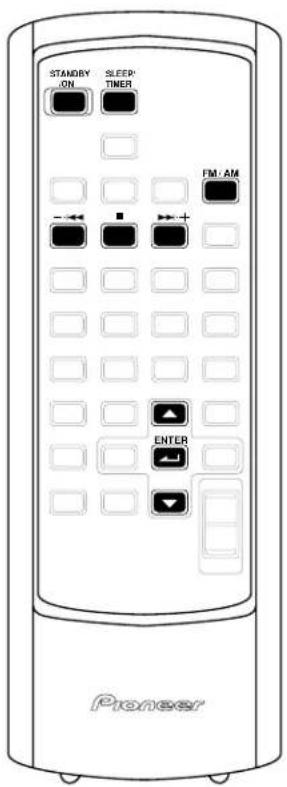
3 Press TIMER (SLEEP/TIMER) repeatedly until you see WAKE UP/REC (TIMER SET UP?) then press ENTER.
WAKE UP / REC TIMER SET UP ?
4 Use ▼ and ▲ to select WAKE UP TIMER then press ENTER.
WAKE UP TIMER
Press ■ anytime to cancel and exit the timer menu.
5 Set the wake up time:
First, set the hour:
Use — · |◀◀ and ▶▶▶|· + (or ▼ and ▲) to change the flashing hour display, then press ENTER.
ON AM
7:00
Next, set the minute:
Use —•|◀◀ and ▶▶▶|•+ (or ▼ and ▲) to change the flashing minute display, then press ENTER.
ON AM
7:30
6 Set the switch off time:
First, set the hour:
Use —•|◀◀ and ▶▶▶|•+ (or ▼ and ▲) to change the flashing hour display, then press ENTER.
OFF AM
8:00
Next, set the minute:
Use — · |◀◀ and ▶▶|·+ (or ▼ and ▲) to change the flashing minute display, then press ENTER.
OFF AM
8:15
After pressing ENTER, the display shows you the settings you've just made, including the switch on and off times, the playback source, and the volume.
7 Switch the system into standby mode before the wake up start time.
The wake up timer indicator (②) in the display indicates that the wake up timer is set.

Note
- If the record timer has been set, see Activating/deactivating the timers on page 33 for limitations with using the timers concurrently.
- After setting the timer, playback starts according to the most recent changes to the CD play mode or the tape direction.
- Repeat and random playback can't be used with the wake up timer.
- If the AC power is cut (blackout, accidentally unplugging the power cord), the system will return to the 12:00 clock display and both the timer and clock will have to be set again for the timer to work.
- The timer won't work if the clock isn't set!
flowchart
graph TD
    A["SLEEP TIMER ?"] --> B["SLEEP TIMER AUTO"]
    B --> C["SLEEP TIMER 90"]
    C --> D["SLEEP TIMER 60"]
    D --> E["SLEEP TIMER 30"]
    E --> F["SLEEP TIMER OFF"]
    F --> G["WAKE UP / REC TIMER SET UP ?"]
    H["* confirmation display only"] --> A
    I["Switch off after the source (CD or tape) has played out"] --> B
    J["Switch off after 90 minutes"] --> C
    K["Switch off after 60 minutes"] --> D
    L["Switch off after 30 minutes"] --> E
    M[" Cancels the sleep timer "] --> F
    N["Wake up and record timers (see pages 30 and 32 for more)"] --> G
English
Using the sleep timer
The sleep timer switches the system into standby after a specified amount of time so that you can fall asleep without worrying about the stereo being left on all night. If you've also set the wake up timer this is important, since the wake up timer will only work if the system is in standby.
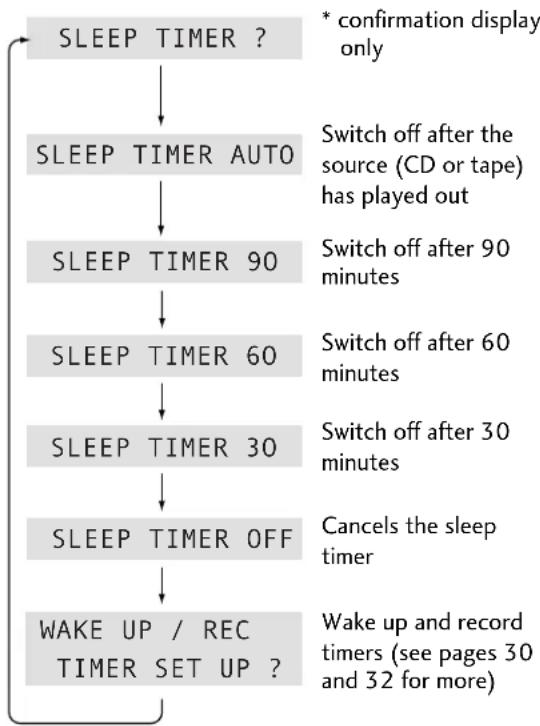
- During playback or recording, press TIMER (SLEEP/TIMER) repeatedly to cycle through the sleep timer options.
While the sleep timer is in operation, press TIMER (SLEEP/TIMER) to see the remaining time until the system shuts off.
To cancel the sleep timer, switch the system into standby, or select SLEEP OFF (as described above).

Note
- If you are recording a radio broadcast to the tape recorder, the SLEEP AUTO option can be selected.
- The SLEEP AUTO option is not available if you're playing a CD in repeat mode. When is set for the tape reverse mode, playback stops after 2 sides.
- The sleep timer won't work if the clock isn't set.
Using the timer8
Using the record timer
You can set the timer to record something from the tuner at a time when you may not be around. For example, you might want to record a program on the radio that is broadcast while you're at work. During the actual recording, the volume is automatically set to minimum until you change it again. Once the recording is finished, the timer is switched off, and has to be reset if you plan to record another broadcast while you're out.
1 Prepare the tape deck for recording.
- load a tape
- check the recording direction
- set the reverse mode (p. 17)
2 Set up the tuner.
Switch to the tuner, and tune into the station (see page 15 for more detailed instructions on this).
3 Press TIMER (SLEEP/TIMER) repeatedly until you see WAKE UP/REC (TIMER SET UP?) then press ENTER.
WAKE UP / REC TIMER SET UP ?
4 Use ▼ and ▲ to select REC TIMER then press ENTER.
REC. TIMER

Remember
Use the ▲ and ▼ buttons to change the currently displayed option in the menu. Press ENTER to select. Press ■ anytime to cancel and exit the menu.
5 Set the recording start time:
First, set the hour:
Use — ·|◀◀ and ▶▶▶|·+ (or ▼ and ▲) to change the flashing hour display, then press ENTER.
ON AM 7:00
Next, set the minute:
Use — •|◀◀ and ▶▶|•+ (or ▼ and ▲) to change the flashing minute display, then press ENTER.
ON AM 7:30
6 Set the recording end time:
First, set the hour:
Use — ·|◀◀ and ▶▶▶ | + (or ▼ and ▲) to change the flashing hour display, then press ENTER.
OFF AM 8:00
Next, set the minute:
Use — •◀◀ and ▶▶▶•+ (or ▼ and ▲) to change the flashing minute display, then press ENTER.
OFF AM 8:15
After pressing ENTER, the display shows you the settings you've just made, including the switch on and off times and the station frequency.
7 Switch the system into standby mode before timer recording starts.
The record timer indicator (●) in the display indicates that the record timer is set.
After the recording has finished, the record timer is automatically canceled. See the following section, Activating/deactivating the timers, to cancel before recording, or to recall the timer settings after recording has finished.

Note
- If the wake up timer has been set, see the following section, Activating/deactivating the timers, for limitations with using the timers concurrently.
• After setting the timer, playback starts according to the most recent changes to the tape direction. - If the AC power is cut (blackout, accidentally unplugging the power cord), the system will return to the 12:00 clock display and both the timer and clock will have to be set again for the timer to work.
- The timer won't work if the clock isn't set!
Activating/deactivating the timers
You might choose to cancel the wake up timer, but keep the settings for a later time. You can also set the record timer and still keep your wake up timer settings.
1 Switch the system to standby.
2 Press TIMER repeatedly to cycle through the timer options.
Choose TIMER OFF to deactivate all timer settings. To reset the wake up timer, or the record timer (or both), select the corresponding TIMER CHECK option.
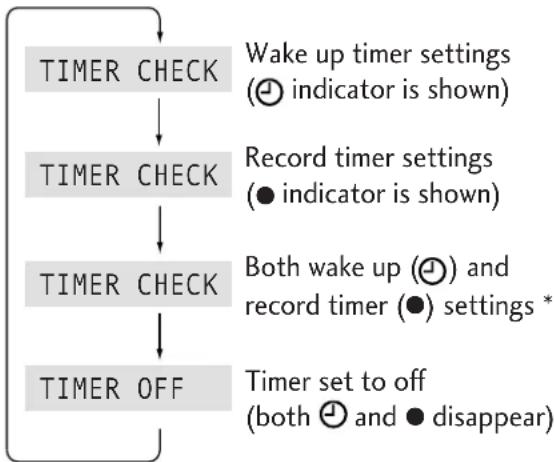
flowchart
graph TD
    A["TIMER CHECK"] --> B["TIMER CHECK"]
    B --> C["TIMER CHECK"]
    C --> D["TIMER OFF"]
    style A fill:#f9f,stroke:#333
    style B fill:#f9f,stroke:#333
    style C fill:#f9f,stroke:#333
    style D fill:#f9f,stroke:#333
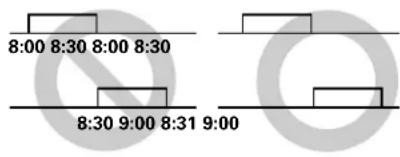
* When the wake up and record timers are both set, make sure the end time of one timer does not overlap with the start time of the other. Leave at least a minute between the two settings (see below).
Demo display
This system features a demonstration display. When the demo mode is on, the demo display automatically starts after the system is inactive for several minutes.
1 Switch the system into standby.
2 Press ENTER for about three seconds.
The demonstration mode will be displayed.
3 While the demostration mode is displayed, press ENTER again for about three seconds.
The demonstration mode is switched off and the system returns to standby. If the demo mode has been switched off already, this will turn it back on.

Note
If the AC power is cut (blackout, accidentally unplugging the power cord) for over 4 hours, the system will default to the demo mode.
Changing the brightness level
- Press CLEAR for about three seconds to change the brightness level.
The display shows either DIMMER ON or DIMMER OFF.
Changing the frequency step
If you find that you can't tune in to stations successfully, the frequency step might not be suitable to your country/region. Here's how to switch the setting:
1 Switch the power into standby.
2 Press and hold ■ for about four seconds.
3 Use ▼ and ▲ to choose a new frequency step.
Switch between 9 kHz/50 kHz and 10 kHz/100 kHz settings. Press ■ at any time to cancel and exit the menu.
4 Press ENTER twice to confirm the setting.

Important
Changing the frequency step will delete all of your station presets.
Taking care of your system
To clean this unit, wipe with a soft, dry cloth. For stubborn dirt, wet a soft cloth with a mild detergent solution made by diluting one part detergent to 5 or 6 parts water, wring well, then wipe off the dirt. Use a dry cloth to wipe the surface dry. Do not use volatile liquids such as benzene and thinner which may damage the surfaces.
Disc lens cleaner
The disc pickup lens should not become dirty in normal use, but if for some reason it should malfunction due to dirt or dust, consult your nearest Pioneer authorized service center. Although lens cleaners for CD players are commercially available, we do not recommend using them since some may damage the lens.
Taking care of your discs
When holding discs, take care not to leave fingerprints, dirt or scratches on the disc surface. Hold the disc by its edge or by the center hole and edge. Damaged or dirty discs can affect playback performance. Take care also not to scratch the label side of the disc. Although not as fragile as the recorded side, scratches can still result in a disc becoming unusable.
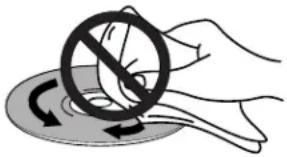
Should a disc become marked with fingerprints, dust, etc., clean using a soft, dry cloth, wiping the disc lightly from the center to the outside edge as shown on the next page. If necessary, use a cloth soaked in alcohol, or a commercially available CD cleaning kit to clean a disc more thoroughly. Never use benzine, thinner or other cleaning agents, including products designed for cleaning vinyl records.
natural_image
Illustration of a hand holding a circular object with a prohibition symbol, no text or symbols present- Don't wipe the disc surface using circular strokes.
- Wipe lightly from the center of the disc using straight strokes.
Storing discs
Although CDs are more durable than vinyl records, you should still take care to handle and store discs correctly. When you're not using a disc, return it to its case and store upright. Avoid leaving discs in excessively cold, humid, or hot environments (including under direct sunlight).
Don't glue paper or put stickers on discs, or write on them using a pencil, ball-point pen or other sharp-tipped writing instrument.
Discs to avoid
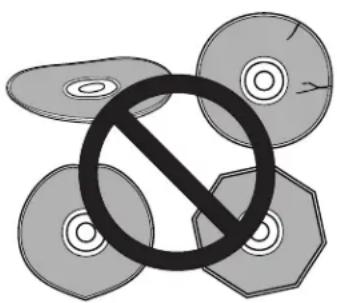
Discs spin at high speed inside the player during playback. If you can see that a disc is cracked, chipped, warped, or otherwise damaged, don't risk using it—you could end up damaging the unit.
This system is designed for use with conventional, fully circular CDs only. Use of shaped discs is not recommended. Pioneer disclaims all liability arising in connection with the use of shaped discs.
natural_image
Symbolic illustration of three CD or DVD discs with a prohibition symbol overlay (no text or labels)Using cassette tapes
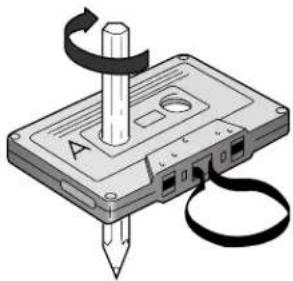
The tape of a cassette is quite easily damaged and loose tape can jam in the tape deck mechanism. If the tape has become unwound, use a pen or pencil to wind it back on to the spool.
natural_image
Illustration of a cassette tape with a pencil and scroll, no text or symbols presentWhen not using cassettes, always store in the case. Store cassettes away from magnetic fields, excessive heat, humidity, dust or oil.
Before recording on a tape, wind the tape on past the leader tape (about the first 3 or 4 seconds of each side).
Tapes you should avoid
Since tapes longer than 90 minutes are so thin, they are more susceptible to jamming in the tape deck mechanism and other trouble such as irregular winding. Avoid using cassette tapes longer than 90 minutes.
Understanding error messages
| Message | Description | Action |
| NO DISC | CD is not loaded. | Load a disc |
| The CD data can't be read. | Reload the disc | |
| Can't REC | There is no CD loaded in the CD tray. | Load a CD in the CD player |
| TEMP OVER | The temperature is too high. | Turn power off and leave to cool |
| MECHA ERROR | The CD player is not functioning properly. | Turn power off then on again |
| CD PLEASE RETRY | The CD player is not functioning properly. | Press the play (▶II) buttonTurn power off then on againUnplug/reconnect the power cord |
| TIMER ERROR | An attempt is made to set the timer before setting the clock.Timed recording can't be set without a recordable tape. | Set the clockLoad a recordable tape |
Protecting your recordings
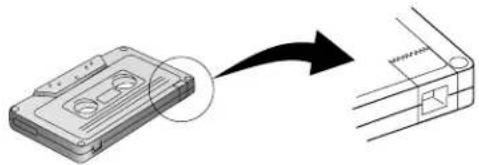
You can protect an important recording against accidental erasure by breaking the erase-protect tab(s) with a small screwdriver.
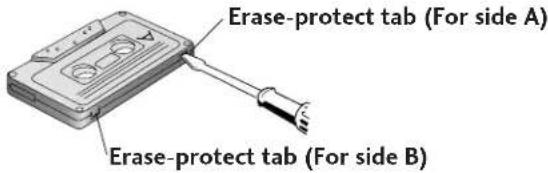
If you want to re-record on an erase-protected cassette, cover the space left by the broken tab with self-adhesive tape.
natural_image
Diagram showing a cassette tape being inserted into a connector (no text or symbols present)Troubleshooting
Incorrect operation is often mistaken for trouble or malfunction. If you think that there is something wrong with this component, check the points below. Sometimes the trouble may lie in another component. Inspect the other components and electrical appliances being used. If the trouble cannot be rectified after checking the items below, ask your nearest Pioneer authorized service center or your dealer to carry out repair work.
The disc is ejected automatically after loading.
• Disc not seated properly in the disc guide.
Align the disc properly.
- Condensation inside the player.
Allow time for condensation to evaporate. Avoid using the player near an air-conditioning unit.
Playback is not possible.
- Disc is loaded upside down.
Reload the disc with the label side face up.
No audio, or audio is distorted.
- Dirt, dust, etc. on the disc.
Clean the disc (p. 35).
• The disc is paused.
Press ◆/■ to exit the pause mode. - Incorrect system settings.
Check that the volume is turned up, that the speakers are on, the input function set correctly, etc.
Auto tuning does not pick up some stations.
• The radio signal is weak.
Auto tuning will only detect radio stations with a good signal. For more sensitive tuning, connect an outdoor antenna.
Sound is mono only.
- Check that the tuner is not in FM mono mode (p.15).
Noisy radio reception.
• The frequency is incorrect.
Check the radio frequency.
• The radio signal is weak.
If the radio signal is weak, an outdoor antenna will usually give better results than the supplied indoor types.
- Other electrical equipment is causing interference.
Other electrical equipment, such as TVs, fluorescent lamps and motors can cause interference.
Try switching off or moving the equipment, or moving the antenna(s).
- Antennas are not connected properly.
Check the connections. For FM, make sure that the antenna is fully extended and positioned to give the best reception (p. 8).
For AM, make sure that the loop antenna is pointing in the best direction (p. 8).
- The tuning interval is incorrect for your country or region.
Try switching the frequency step (p. 34).
Cannot record.
- Check that the cassette still has its erase-protect tabs intact, or that they are covered with self-adhesive tape, etc. (p. 36)
Sound is muffled or previous recording is still audible underneath the new one.
• The tape heads may be dirty.
Clean the tape heads using a head-cleaning cassette or cleaning kit.
- Check that you're using a Type I (normal) tape. Do not use Type II (high/CrO2) or Type IV (metal) tapes.
Music search does not work.
- The spaces between songs may be too short for music search to work (p. 16).
- Make sure that the tape is playing when using music search—it will not work if the tape is stopped.
Recordings made from the LINE input are distorted.
- Set the LINE input level to LINE ATT ON (p. 29).
Recordings made from the LINE input are very quiet.
- Set the LINE input level to LINE ATT OFF (p. 29).
No audio, or audio is distorted.
- Interconnects are not fully inserted into the terminals (or are not connected).
Check that all interconnects are firmly inserted. - Dirty or oxidized plugs/terminals.
Clean the plugs/terminals.
The remote control doesn't seem to work.
- The remote control is too far from the player, or the angle with the remote sensor is too wide.
Use the remote within its operating range (p. 4). - The batteries are exhausted.
Put in new batteries (p. 4). - The remote control is too close to fluorescent lighting.
Move the remote control out of direct exposure to the fluorescent light (p. 4).
Timer doesn't work.
- Check that the time has been set (p.13).

Note
- Static electricity or other external influences may cause malfunctioning of this unit. In this case, unplug the power cord and then plug back in. This will usually reset the unit for proper operation. If this does not correct the problem, please consult your nearest Pioneer service center.
- It is possible that this unit will cause interference on nearby television sets, especially if you're using a TV with an indoor antenna. If you experience this problem, either use an outdoor television antenna, or move the unit away from the television.
Specifications
Receiver section
Amplifier
Continuous Power Output (RMS) 1 kHz, 10%, 6 Ω.... 25 W + 25 W

Note
The above specifications are for when the power supply is 230V.
FM tuner
Reception frequency 87.5 - 108 MHz Antenna 75 Ω unbalanced type
AM tuner
Reception frequency ..... 531 kHz - 1,602 kHz (9 kHz step) 530 kHz - 1,700 kHz (10 kHz step) Australia and NZ Antenna..... Loop antenna (furnished accessory)
Compact disc player
Type Compact Disc digital audio system Usable discs .... Compact Discs Channels .... 2 (stereo)
Cassette tape deck
Track type .... 4-track, 2-channel stereo Recording/playback heads .... 1 Erase head.... 1
Power section
Power requirements: UK Model .... AC 230 V, 50 Hz European Model .... AC 220-230 V, 50/60 Hz Australia and New Zealand Model .... AC 240V, 50/60 Hz Power consumption European and UK Model .... 75 W Australia and New Zealand Model .... 140 W Standby power consumption .... 1 W
Miscellaneous section
External dimensions ..... 166 (W) × 243 (H) × 315 (D) mm Weight (main unit) ..... 6 kg
Speakers
Type Bass-reflex bookshelf speaker Speaker elements (2-way type) Woofer .... 10 cm cone type Tweeter .... 2 cm dome type Nominal impedance .... 6 Ω Frequency range .... 55 - 20,000 Hz Maximum input .... 25 W External dimensions .... 130 (W) × 240 (H) × 235 (D) mm Weight .... 1.9 kg
Accessories
Operating Instructions .... 1 FM wire antenna .... 1 AM loop antenna .... 1 Remote control unit .... 1 AA/R6P batteries .... 2 Power cord .... 1 Warranty card .... 1

Note
Specifications and appearance are subject to change without notice.
POWER-CORD CAUTION
S002 En
Handle the power cord by the plug. Do not pull out the plug by tugging the cord and never touch the power cord when your hands are wet as this could cause a short circuit or electric shock. Do not place the unit, a piece of furniture, etc., on the power cord, or pinch the cord. Never make a knot in the cord or tie it with other cords. The power cords should be routed such that they are not likely to be stepped on. A damaged power cord can cause a fire or give you an electrical shock. Check the power cord once in a while. When you find it damaged, ask your nearest PIONEER authorized service center or your dealer for a replacement.
Published by Pioneer Corporation. Copyright © 2001 Pioneer Corporation. All rights reserved.
ATTENTION: CET APPAREIL N'EST PAS IMPERMEABLE, AFIN DE PREVENIR TOUT RISQUE DE CHOC ELECTRIQUE OU DE DEBUT D'ENCENDIE, NE PAS EXPOSER CET APPAREIL A L'HUMIDITE OU A LA PLUIE ET NE PLACER AUPRES DE LUI AUCUNE SOURCE D'EAU, TELS QUE VASES, POTS DE FLEUR, COSMETIQUES, FLACONS DE MEDICAMENTS, ETC. H001AFr

Précaution
natural_image
Line drawing of a desktop computer tower with ventilation grilles and control panel (no text or symbols)1 STANDBY/ON p. 13, 14, 29, 30, 32–34
2 SLEEP/TIMER p. 30–33
3 DISPLAY p. 13, 20, 25
4 CD ▶ II p. 13, 14, 18, 19
5 LINE p. 13, 17, 29
6 TAPE ◀▶ p. 13, 16, 27, 28
7 FM/AM p. 13, 15, 21–25
8 —·◀◀ p. 14, 16, 18, 21–23, 30, 32
9 ■ p. 14–16, 18, 19, 21, 22, 25, 27–30, 32, 34
10▶▶+ p. 14, 16, 18, 21–23, 30, 32
11 MENU p. 15, 21–23, 29
13 CLEAR p. 18, 21–23, 34
14 REC MENU p. 27–29
15 PGM p. 18
16 REPEAT p. 19
17 PLAY MODE p. 17
18 ▲▼◀▶ ENTER (◀) p. 13, 15, 17, 21–23, 25, 27–30, 32, 34
19 SOUND MODE p. 17
20 RANDOM p. 19
21 VOLUME +/- p. 14
Afficheur
Lecture des CD

Remarque
| FM | 87.50MHz |
| AM | 531kHz |

Remarque
natural_image
Illustration of a hand holding a circular object with a diagonal line and arrow, no text or symbols present.natural_image
Symbolic illustration of a crossed-out circle with a diagonal line crossing through it, representing prohibition or suppression (no text present)natural_image
Illustration of a cassette tape with a screw and eraser, no text or symbols presentnatural_image
Diagram showing a cassette tape being inserted into a connector (no text or symbols present)Section alimentation
Published by Pioneer Corporation. Copyright © 2001 Pioneer Corporation. All rights reserved.
PIONEER CORPORATION
4-1, Meguro 1-Chome, Meguro-ku, Tokyo 153-8654, Japan
PIONEER ELECTRONICS [USA] INC.
P.O. BOX 1540, Long Beach, California 90801-1540, U.S.A.
PIONEER ELECTRONICS OF CANADA, INC.
300 Allstate Parkway, Markham, Ontario L3R OP2, Canada
PIONEER EUROPE NV
Haven 1087, Keetberglaan 1, B-9120 Melsele, Belgium TEL: 03/570.05.11
PIONEER ELECTRONICS AUSTRALIA PTY. LTD.
178-184 Boundary Road, Braeside, Victoria 3195, Australia, TEL: [03] 9586-6300
PIONEER ELECTRONICS DE MEXICO S.A. DE C.V.
San Lorenzo 1009 3er Piso Desp. 302 Col. Del Valle Mexico D.F. C.P. 03100
TEL: 5-688-52-90
Printed in China/Imprimé en Chine
<152-60010-0297>
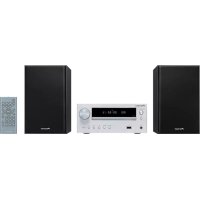
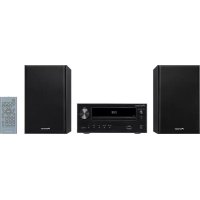
- COMPACT MINI COMPONENT MINI CHAÎNE COMPACTE
- X-NM1 X-NM10
- CAUTION:
- CAUTION
- Operating Environment H045 En
- IMPORTANT
- RISK OF ELECTRIC SHOCK DO NOT OPEN
- FOR USE IN THE UNITED KINGDOM
- NOTE
- Contents
- Before You Start
- Connecting up
- Controls and displays
- Getting started
- More CD playback features
- Location
- More tuner features
- Making tape recordings
- Using the timer
- Additional information
- Precautions regarding installation
- Checking what's in the box
- Using this manual
- Putting the batteries in the remote
- Using the remote control
- Finding a suitable location
- Do...
- Don't...
- Avoiding condensation problems
- Proper ventilation for the unit
- Discs compatible with this system
- Connecting up2
- Connecting the system
- About antenna connections:
- Connecting the speakers
- To connect a speaker cord to a terminal
- Connecting the radio antennas
- Connecting external antennas
- External AM antenna
- External FM antenna
- Connecting other components
- Connecting the power
- Controls and Displays3
- Front panel
- Controls and Displays 3
- Remote control
- Switching on and setting the clock
- Tip
- Changing the clock format
- Automatic power on buttons
- Getting Started4
- Playing CDs
- Listening to the radio
- Press FM/AM to select the tuner.
- Tune to a station.
- - Automatic tuning
- - Manual tuning
- Improving FM stereo sound
- Press MENU and use ▲ and ▼ to select the AUTO / MONO display.
- Remember
- Use ◀ and ▶ to switch between AUTO (stereo) and MONO reception.
- Press ENTER to confirm your selection.
- Playing tapes
- Load a cassette tape
- Press TAPE (◀▶) to start playback.
- To play the other side of the tape, press TAPE (◀▶).
- To skip back or forward a track on the tape, press — · |◀◀ or ▶▶| · +.
- To rewind or fast forward the tape, press —·|◀◀ or ▶▶|·+ with the tape stopped.
- To stop the tape, press ■.
- Setting the reverse mode
- Press PLAY MODE (remote) repeatedly to cycle through the reverse modes.
- Playing other connected components
- Press LINE.
- Start playback on the connected component.
- Using Sound Modes
- - Press SOUND MODE (remote) repeatedly to cycle through the Sound Modes.
- Programming the track order
- Checking the playlist order
- Adding tracks to the playlist
- Deleting tracks from the playlist
- Using repeat play
- If you haven't already selected the CD player, press CD (▶/Ⅲ).
- Press REPEAT repeatedly to cycle through the repeat options.
- Using random play
- Press RANDOM twice to start random playback.
- RANDOM PLAY?
- Changing the display
- During CD playback/play- pause:
- ELAPSED TRACK TIME (default)
- Manually saving station presets
- Tune to a station you want to memorize.
- Press MENU and use ▲ and ▼ to select MEMORY.
- Use — ·|◀◀ and ▶▶|·+ to select a station preset number.
- Press ENTER to save the station preset.
- Automatically selecting station presets
- Press FM/AM to select FM or AM.
- Press MENU and use ▲ and ▼ to select AUTO ST.MEMORY.
- When you see the preset number flashing, press ENTER to save the station preset or press CLEAR to cancel the preset and continue searching.
- Listening to station presets
- Use — ·◀◀ and ▶▶|·+ or the number buttons to select the station preset you want to listen to.
- Naming station presets
- Recall the station preset you want to name.
- Press MENU and select STATION NAME.
- STATION NAME
- Enter a name for the preset.
- ABCDEFGHIJKLMNOPQRSTUVWXYZ
- Editing a station preset name
- Select the preset you want to edit.
- Press MENU and use ▲ and ▼ to select STATION NAME.
- Press ENTER.
- Edit the name as necessary.
- Using RDS (European and UK model only)
- RDS Program types
- Displaying RDS information
- Press DISPLAY repeatedly to select an RDS display.
- Stop on the one you want and after a few seconds the RDS information will appear.
- Searching for a program type
- Use ▲ and ▼ to choose a program type, then press ENTER.
- AFFAIRS
- If you want to keep listening to the station, press ENTER within the 5 seconds.
- Introduction to tape recordings
- Automatically recording from a CD
- Press TAPE ( ◀▶) then load a cassette into the tape deck.
- Check the recording direction.
- Set the reverse mode (p. 17)
- Load the disc you want to record.
- If you want to record a programmed playlist, enter the track order here.
- Press REC MENU and choose SYNCHRO REC using the ▲ and ▼ buttons.
- Press ENTER
- Recording from any point on a CD
- Load the CD you want to record.
- Pause the disc at that point you want to start recording.
- Press REC MENU and select TAPE REC to start recording.
- Recording over unwanted material
- Select the TAPE function and find the place from which you want to record blank space.
- Press REC MENU and select TAPE REC (see step 7 above).
- Recording from the tuner or an auxiliary component
- Prepare for recording.
- Switch to the source you're going to record.
- LINE
- Prepare the source for recording.
- Press REC MENU and select the recording mode.
- Playback the source (if necessary).
- When you're done, press ■ on the front panel to stop recording.
- Improving AM tape recordings
- Press ENTER.
- Reducing the auxiliary input level
- Using the timer8
- Using the wake up timer
- Prepare the source that you want to wake up to.
- Check the volume.
- Press TIMER (SLEEP/TIMER) repeatedly until you see WAKE UP/REC (TIMER SET UP?) then press ENTER.
- Use ▼ and ▲ to select WAKE UP TIMER then press ENTER.
- Set the wake up time:
- Set the switch off time:
- Switch the system into standby mode before the wake up start time.
- Using the sleep timer
- Using the record timer
- Prepare the tape deck for recording.
- Set up the tuner.
- Use ▼ and ▲ to select REC TIMER then press ENTER.
- Set the recording start time:
- Set the recording end time:
- Switch the system into standby mode before timer recording starts.
- Activating/deactivating the timers
- Switch the system to standby.
- Press TIMER repeatedly to cycle through the timer options.
- Demo display
- Changing the brightness level
- Changing the frequency step
- Taking care of your system
- Disc lens cleaner
- Taking care of your discs
- Storing discs
- Discs to avoid
- Using cassette tapes
- Tapes you should avoid
- Protecting your recordings
- Troubleshooting
- The disc is ejected automatically after loading.
- Playback is not possible.
- No audio, or audio is distorted.
- Auto tuning does not pick up some stations.
- Sound is mono only.
- Noisy radio reception.
- Cannot record.
- Sound is muffled or previous recording is still audible underneath the new one.
- Music search does not work.
- Recordings made from the LINE input are distorted.
- Recordings made from the LINE input are very quiet.
- The remote control doesn't seem to work.
- Timer doesn't work.
- Specifications
- Receiver section
- Amplifier
- FM tuner
- AM tuner
- Compact disc player
- Cassette tape deck
- Power section
- Miscellaneous section
- Speakers
- Accessories
- POWER-CORD CAUTION
- Précaution
- Lecture des CD
- Remarque
- Section alimentation
Brand : PIONEER
Model : XNM1
Category : Audio System