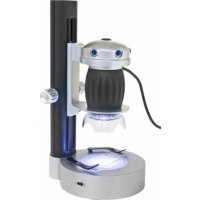
USB Universal Microscope - Microscope BRESSER - Free user manual and instructions
Find the device manual for free USB Universal Microscope BRESSER in PDF.



| Product type | USB digital microscope |
| Brand | Bresser |
| Model | USB Universal Microscope |
| Magnification | 20x and 200x (two positions) |
| Lighting | 12 LED, 4 modes (white, white+red, white+yellow, white+red+yellow) |
| Power supply | USB (cable included) and power adapter included |
| Dimensions (L x W x H) | 54 x 54 x 104 mm |
| Weight | 144 g |
| PC connection | USB 2.0 |
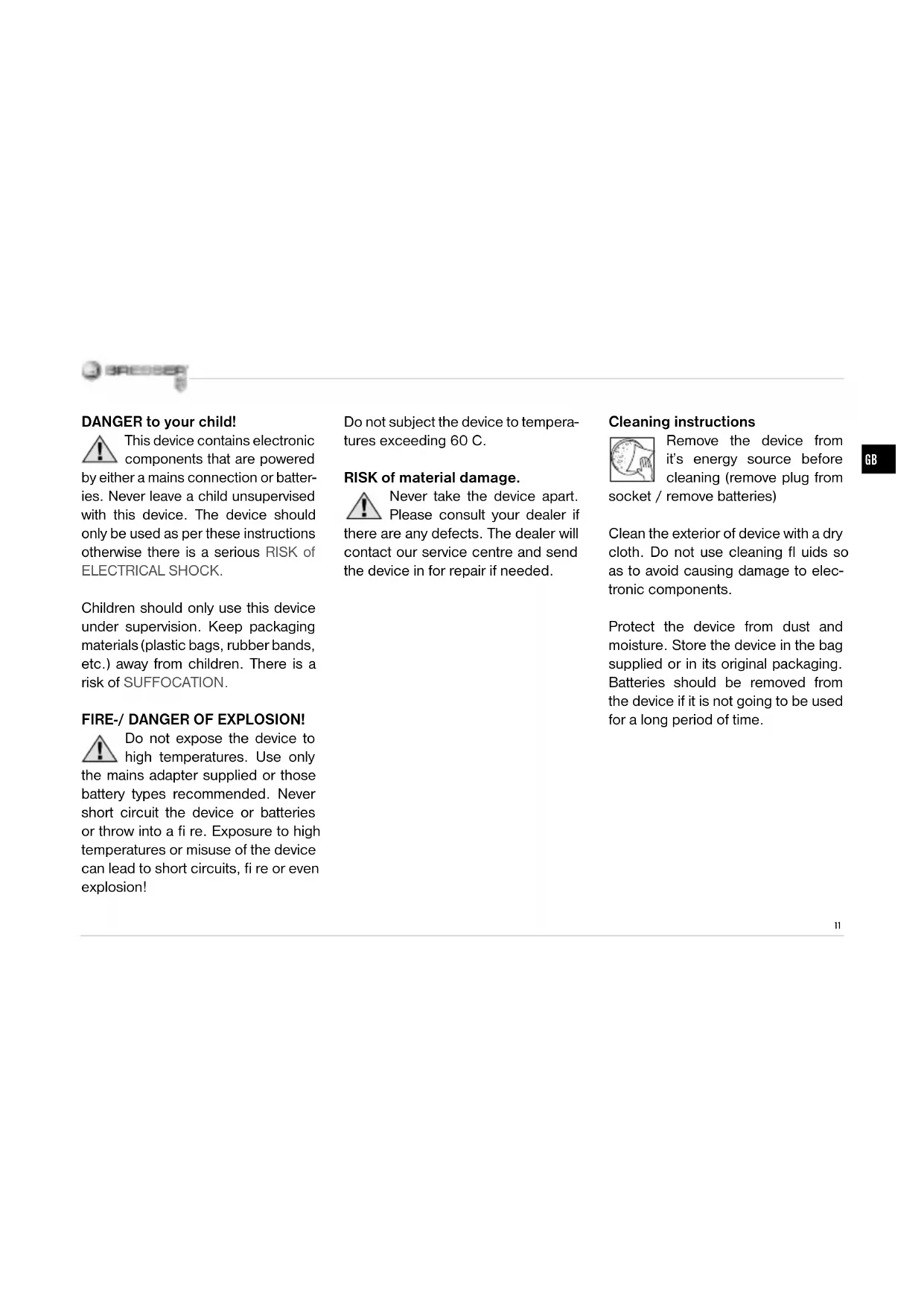
| Included software | AMCAP (on CD) |
| System compatibility | Windows XP SP3, Vista, 7; DirectX 9.x; 1 GB RAM |
| Image capture | BMP format via trigger |
| Video recording | AVI format via software |
| Focusing | Focus ring with two sharpness positions |
| Controls | Trigger, +/- buttons, MODE button (light) |
| Supplied accessories | CD, USB cable, stand, box with slide, coverslip, adhesive labels |
| Safety | Do not expose to >60°C; do not disassemble; use recommended power adapter or batteries; choking hazard (packaging) |
| Maintenance and cleaning | Clean exterior with dry cloth; remove batteries if not used for long periods; store away from dust and moisture |
| Disposal | Do not dispose of with household waste; WEEE recycling; used batteries in specific container |
| Spare parts and repairability | In case of damage, contact retailer; repairs by authorized service only |
| Intended use | Observation of flat objects (leaves, insects, skin, etc.) in real time on PC |
Frequently Asked Questions - USB Universal Microscope BRESSER
User questions about USB Universal Microscope BRESSER
0 question about this device. Answer the ones you know or ask your own.
Ask a new question about this device
Download the instructions for your Microscope in PDF format for free! Find your manual USB Universal Microscope - BRESSER and take your electronic device back in hand. On this page are published all the documents necessary for the use of your device. USB Universal Microscope by BRESSER.
USER MANUAL USB Universal Microscope BRESSER
DANGER to your child!
This device contains electronic components that are powered by either a mains connection or batteries. Never leave a child unsupervised with this device. The device should only be used as per these instructions otherwise there is a serious RISK of ELECTRICAL SHOCK.
Children should only use this device under supervision. Keep packaging materials (plastic bags, rubber bands, etc.) away from children. There is a risk of SUFFOCATION.
FIRE-/- DANGER OF EXPLOSION!
Do not expose the device to high temperatures. Use only the mains adapter supplied or those battery types recommended. Never short circuit the device or batteries or throw into a fire. Exposure to high temperatures or misuse of the device can lead to short circuits, fire or even explosion!
Do not subject the device to temperatures exceeding 60 C.
RISK of material damage.
Never take the device apart. Please consult your dealer if there are any defects. The dealer will contact our service centre and send the device in for repair if needed.
Cleaning instructions

Remove the device from it's energy source before cleaning (remove plug from remove batteries)
Clean the exterior of device with a dry cloth. Do not use cleaning fluids so as to avoid causing damage to electronic components.
Protect the device from dust and moisture. Store the device in the bag supplied or in its original packaging. Batteries should be removed from the device if it is not going to be used for a long period of time.
DISPOSAL
Dispos of the packaging material/s as legally required. Consult the local authority on the matter if necessary.
Do not dispose of electrical equipment in your ordinary refuse. The European guideline 2002/96/EU on Electronic and Electrical Equipment Waste and relevant laws applying to it require such used equipment to be separately collected and recycled in an environment-friendly manner.
Empty batteries and accumulators must be disposed of separately. Information on disposing of all such equipment made after 01 June 2006 can be obtained from your local authority.
Declaration of Conformity
Meade Instruments Europe GmbH & Co KG, resident in 46414 Rhede/Westf., Gutenbergstr. 2, Germany, explains the agreement with in the following specified guidelines for this product:
EN 55022:2006+A1:2007
EN 61000-3-2:2006
EN 61000-3-3:2008
EN 55024:1998+A2:2003
Product description: USB Universal Microscope
Model/Description:
Digital Microscope
Rhede, 08-01-2010
Meade Instruments Europe GmbH & Co. KG
Helmut Ebbert Managing director
All parts:
1 Camera shutter
2 Reduce brightness (-)
3 Increase brightness (+)
4 Set light mode / light off
5 Focus Ring
6 Attachment Piece
7 Illuminator (12 LED Lights)
8 Lens
9 USB Cable
10 USB Connector
11 Stand
12 Focusing knob
13 Illuminated table
14 Preparation holders
15 Box with Object holder, glass covers and Adhesive labels
General
This is a digital reflected light microscope. You hold it in your hand and can place the bottom section (attachment piece) on all kinds of things in order to look at them. Observe, for example, leaves, microorganisms, your skin or hair, and much more. It
works best when the thing that you're looking at (also called the "object") is fl at. You can also view the enlarged pictures on your computer, as well as take and save them there.
Installation
Insert the product CD into your PC's DVD/CD drive. The driver installation starts automatically. Plug the hand microscope's USB connector (10) into your computer's USB slot. The lighting (7) turns on and your PC detects the hardware, which is then installed. Soon, the "AMCAP" icon appears on the desktop. Now you can use the hand microscope.
Live Observation
Press the camera shutter (1) for your hand microscope. A (in general blurry) live image is displayed on the monitor.
Hold the hand microscope by the casing and place the attachment
piece (6) on an object, for example a piece of paper with writing on it. Turn the focus ring (5) to make the live picture sharper (this is called focusing). For a fl at object, there are two focus settings with sharp images, which correspond to two different magnifi cations. For low-power magnifi cation, the lens (8) is positioned high, away from the object. For highpower magnifi cation, it is positioned lower, closer to the object. You can adjust the magnifi cation from low to high by turning the focus ring clockwise. To turn it from low magnifi cation to high, turn the focus ring counterclockwise. You'll only know when you have the exact measurement value when you've achieved a clear picture of an object (e.g., as shown on your computer screen or printed out on a piece of paper).
Turn the microscope until you have a picture that is straight and right side up.
Light Mode Settings:
You can select from 4 different light settings with "MODE":
- white light
- white and red light
- white and yellow light
- white, red and yellow light
The light can be shut off altogether using the "MODE" key as well. Regulate the brightness using the "+" and "-" keys on the device. (Press and hold the keys!)
Taking Pictures
Using the camera shutter (1), you can take a picture and save it as a BMP file.
- Press the camera shutter (1).
- The "SnapShotView" window appears on the screen with a picture.
- To save the image, click "File" and "Save".
Making Movies
The "AMCAP" program allows you to make movies with the hand microscope and save them as AVI files.
- Click on "File" and "Set Capture File..."; specify the name of the AVI file with the file extension ".avi". For example: "experiment1.avi".
- The "Set File Size" window appears on the screen. Here, specify the maximum file size.
- You can prepare to fi lm with "Capture" and "Start Capture" in the menu.
- Start filming with "OK" in "Ready to Capture" window.
- Under the "Capture" menu, you can end your fi lming with "Stop Capture".
- If you want to record a new film, follow Step 1 and specify a new AVI file with a new name. Otherwise, the file will overwrite your film.
- You can watch your fi lm using a playback program for multimedia files.
Magnifications
In the lower magnifi cation, a picture includes about 10.5mm× 14mm of the object. The higher magnifi cation includes about 1mm× 1.4mm . In this way, the higher magnifi cation is about five times stronger than the lower one. When, for example, you print a picture that is 28~cm wide on a piece of paper, the magnifi cation is about 20x (low) or 200x (high).
Deactivation and Storage
Close the "AMCAP" window on your thePC screen. Now, you can remove the USB connector (10) from your computer's USB port. You can store your hand microscope in the storage case until the next time you want to use it. This will protect it from dust.
Technical Information
- Digital hand microscope with computer connection (USB)
Magnification: 20x & 200x
Bright illumination via 12 LEDs
Power supply via USB - Image preview: 15 fps (USGA: 1.280x1.024) 30 fps (GUXGA: 800x600)
Size: 54× 54× 104mm
Weight: 144g
System Requirements
Windows XP with Service Pack 3 (on CD-ROM), Windows Vista, Windows 7 - with DirectX 9.x (on CD-ROM), a minimum of 1 GB RAM, free USB 2.0 port.
Photomizer SE Software
Photomizer SE Software can be downloaded free of charge from: http://www.bresser.de/downloads/support/software/photomizer.zip
Experiments with the Handheld Digital Microscope
Experiment No. 1: Black and White Print
Objects:
- a small piece of paper from a newspaper with a black and white picture and some text,
- a similar piece of paper from a magazine.
Place both pieces of paper next to each other on a table. Set your microscope to the lowest magnifi cation and place it on the pieces of paper, first on the newspaper and then on the magazine.
Compare: The letters on the newspaper look frayed and broken, since they are printed on raw, low-quality paper. The letters on the magazine look smoother and more complete. The pictures in the newspaper are made up of many tiny dots, which appear slightly smudgy. The pixels (half
tone dots) of the magazine picture are clearly defi ned.
Experiment No. 2: Color Print
Objects:
- a small piece of color printed newspaper,
- a similar piece of paper from a magazine.
Place both pieces of paper next to each other on a table. Set your microscope to the lowest magnificatior and place it on the pieces of paper, fi rst on the newspaper and then on the magazine.
Compare: The colored pixels of the newspaper often overlap. Sometimes, you'll even notice two colors in one pixel. In the magazine, the dots appear clear and rich in contrast. Look at the different sizes of the pixels.
Experiment No. 3: Textile fibers
Objects and accessories:
- threads from various fabrics (e.g. cotton, linen, sheep's wool, silk, rayon, etc.).
- two needles.
Place the different threads on a table and use the needles to fray them a bit. Dampen the threads with a little water. Set your microscope to the lowest magnifi cation and place it on the threads, one at a time.
Compare: Cotton fi bers come from a plant, and look like a fl at, twisted ribbon under the microscope. The fi bers are thicker and rounder at the edges than in the middle. Cotton fi bers are basically long, collapsed tubes. Linen fi bers also come from a plant, and they are round and run in one direction. The fi bers shine like silk and exhibit countless bulges on the thread. Silk comes from an animal and is made up of solid fi bers that are small in diameter, in contrast to
the hollow plant-based fi bers. Each fi ber is smooth and even and looks like a tiny glass tube. The fi bers of the sheep's wool also come from an animal. The surface is made of overlapping sleeves that look broken and wavy. If possible, compare sheep's wool from different weaving mills. In doing so, take a look at the different appearance of the fi bers. Experts can determine which country the wool came from by doing this. Rayon is a synthetic material that is produced by a long chemical process. All the fi bers have solid, dark lines on the smooth, shiny surface. After drying, the fi bers curl into the same position. Observe the differences and the similarities.
Experiment No. 4: Table Salt
Object: normal table salt.
Place a sheet of black paper on a desk. Sprinkle a few grains of salt on the paper and place the microscope
on top of them. Look at the salt crystals using the lowest magnifi cation of your microscope.
Observe: The crystals look like tiny dice and all have the same shape.
Experiment No. 5:
Leaves and Needles
Object: 3-4 different leaves or needles from deciduous trees or fir trees.
When you go for a walk in the forest with your parents, you can collect different types of leaves and needles.
At home, place them next to each other on a white sheet of paper. Place your microscope on top of them and look at the different leaves and needles with the lowest magnifi cation.
Observe: The leaves of the deciduous trees have different but more or less regular sections that are separated by lines. These are called "cells."
Most often, the underside of the leaf looks different than the top, and the
color is brighter. The stalk of the leaf runs through the middle. At its thicker end, there is a "lump" with a bulge. That is the part that connected the leaf to the tree, before it fell away. Some leaves also have a stalk upon which multiple leaves grow from other stalks.
Fir needles are long, thin and round. Like the leaves of deciduous trees, they have a light bulge on one side, where they grew from the tree. They do not have individual "cells," however, but look like they grew in one part. However, when you look more closely, you can see that the needle has many sections. These sections come from the step-by-step growth of the needles.
In this way, you can look at many more objects, such as small organisms (flies, spiders, etc.) or other things from your daily life. Simply put everything on a fl at surface (a desk) and place the microscope on top.
Or have you already looked at the hair on your head? No? Than run the hand microscope through your hair. It's quite funny and surprising, what can be hidden in there.
You can discover so many things that you did not know before. Just give it a try!
Meade Instruments Europe
GmbH & Co. KG
Alle onderdelen:
1 Camera-ontspanner
2 Helderheid verminderen (-)
3 Helderheid vergroten (-)
4 Licht-modus instellen /lichtuit
5 FOCUSSEERRING
6 Opzetstuk
7 Verlichting
(12 LED's opvalend Licht)
Meade Instruments Europe
GmbH & Co. KG

Helmut Ebbert
Meade Instruments Europe
GmbH & Co. KG

Helmut Ebbert
Gerente
Components:
Meade Instruments Europe
GmbH & Co. KG
Gutenbergstr. 2
DE-46414 Rhede
Germany
www.bresser-junior.de

- DANGER to your child!
- FIRE-/- DANGER OF EXPLOSION!
- RISK of material damage.
- Cleaning instructions
- DISPOSAL
- Declaration of Conformity
- All parts:
- General
- Installation
- Live Observation
- Light Mode Settings:
- Taking Pictures
- Making Movies
- Magnifications
- Deactivation and Storage
- Technical Information
- System Requirements
- Photomizer SE Software
- Experiments with the Handheld Digital Microscope
- Experiment No. 1: Black and White Print
- Experiment No. 2: Color Print
- Experiment No. 3: Textile fibers
- Experiment No. 4: Table Salt
- Experiment No. 5:
- Leaves and Needles
- Alle onderdelen:
- Components:
Brand : BRESSER
Model : USB Universal Microscope
Category : Microscope