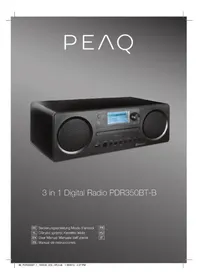
PDR350BT - Radio PEAQ - Free user manual and instructions
Find the device manual for free PDR350BT PEAQ in PDF.


| Product type | Internet Radio / DAB+ / FM / CD / Bluetooth |
| Dimensions (W x D x H) | 350 mm x 210 mm x 120 mm |
| Weight | Approx. 2.6 kg |
| Power supply | Mains (230 V~, 50 Hz) - Consumption: 28 W (on), <1 W (standby) |
| Remote control batteries | 1 x AA battery (not included) |
| Output power | 2 x 5 W RMS (stereo) |
| Connectivity | WiFi (WLAN), LAN (Ethernet), Bluetooth 3.0+EDR (max. range 8 m), USB 2.0/3.0 (max. 32 GB), AUX input (3.5 mm) |
| Supported audio formats | CD, CD-R, CD-RW, MP3, WMA (non-DRM protected) |
| Radio | FM (87.5 - 108 MHz, step 0.05 MHz), DAB/DAB+ (Band III 174-240 MHz), Internet Radio (via WiFi or LAN) |
| Main functions | CD/USB playback, FM/DAB/Internet radio, Bluetooth streaming, AUX IN, UPnP/DLNA media player, Presets (10 per source), Sleep timer, Alarm, Equalizer (Flat, Classic, Rock, Pop, Jazz) |
| Display | LCD screen with adjustable backlight |
| USB charging port | 5 V / 1 A (for charging external devices) |
| Safety | Double insulation, overvoltage protection, safety instructions included |
| Maintenance and cleaning | Unplug before cleaning; use a dry, soft cloth; do not use solvents or abrasive products |
| Repairability and spare parts | Repair by authorized professional only; no user-accessible detachable parts |
| Operating temperature | Moderate climate, indoor, avoid excessive humidity |
Frequently Asked Questions - PDR350BT PEAQ
User questions about PDR350BT PEAQ
0 question about this device. Answer the ones you know or ask your own.
Ask a new question about this device
Download the instructions for your Radio in PDF format for free! Find your manual PDR350BT - PEAQ and take your electronic device back in hand. On this page are published all the documents necessary for the use of your device. PDR350BT by PEAQ.
USER MANUAL PDR350BT PEAQ
3 in 1 Digital Radio PDR350BT-B
DE Bedienungsanleitung Mode d'emploi
EL Odyiec xponc Kezelisi lefras
EN User Manual Manuale dell'utente
ES Manual de instrucciones
FR
HU
IT
Deutsch 4 - 25
Eληνικα 26-47
English 48 - 69
Espanol 70 - 91
Français 92 - 113
Magyar 114 - 135
Italiano 136 - 157
DEUTSCH
Sicherheitshinweise
Last listened
Station list
System settings
- Main menu
- Scan setting:
Audio setting
System settings - Main menu
Alarm 1: Off [00:00]
Alarm 2: Off [00:00]
Last listed
Station list
System settings
- Main menu
TeLeuTaia akpaon
PiEoT PRESET va va eupavioTei TO IOTopiKO Twv OtaMuV.
PiEOT ENTER ia va eIeBaaowoe Tnv EIIoyn.
AioTa OaOuV
PiEOTe PRESET va va EπλεEETε μia aTIO TIC akolouθες επλογες. EπβεβaiωTε TNV έπλογη σας πεσοντac ENTER.
PiEOTe PRESETVia va eIaeEeTe pia anto tic akolouthetac EIIoyec. EIIeBaaote Tnv EIIoyn oac nieovtac ENTER.
SETTING ALARM (Póθμiαn αφύπνιοης)
Important Safety Instructions. Please read the instructions carefully and keep them for later use.

DANGER! Invisible laser radiation when open and safety interlock failed or defeated. Avoid direct exposure to the beam. Do not touch the lens.


The lightning flash with arrow head within an equilateral triangle is intended to alert the user to the use of uninsulated "dangerousvoltage" the product's endosure that may be bent magnitude to constitute a risk of shock to persons and animals.

The exclamation point within an equilateral triangle is intended to alert the user to the presence of an operating and maintenance ins in the literature accompanying the
- For household use only. Do not use outdoors.
Danger! Excessive sound pressure from earphones and headphones can cause hearing loss. If you listen to loud music for a long time, your hearing may be impaired. Set it to a moderate volume.
Danger of suffocation: Keep all packaging material away from children.
Only use under normal room temperature and humidity conditions.
The product is only suitable for use at moderate degrees of latitude. Do not use in the tropics or in particularly humid climates. - Do not move the product from cold into warm places and vice versa. Condensation can cause damage to the product and electrical parts.
- Do not use attachments or accessories other than recommended by the manufacturer or sold with this product. Install in accordance with this user manual.
- Do not install near any heat sources such as radiators, heat registers, stoves or other products (including amplifiers) that produce heat.
- Do not shift or move the product when powered on.
way, such as the supply cord or plug are damaged, liquid has been spilled, objects have fallen into the product, the enclosure is damaged, the product has been exposed to rain or moisture, does not operate normally, or has been dropped.
- Before connecting the product to a socket outlet, make sure the voltage indicated on the product corresponds to your local mains.
- If the supply cord is damaged, it must be replaced by the manufacturer or its service agent or similarly qualified person in order to avoid hazard.
- Regularly check if the supply cord, product or extension cable is defective. If found defective, do not put the product into operation. Immediately pull the plug.
- Place the supply cord and, if necessary, an appropriate extension cable in such away that pulling or tripping over it is impossible. Do not allow the supply cord to hang down within easy reach.
- Do not jam, bend or pull the supply cord over sharp edges.
- The power plug is used as the disconnect device; the disconnect device shall remain readily operable. To completely disconnect the power input, disconnect the mains plug.
- The product may not function properly or not react to the operation of any control due to electrostatic discharge. Switch off and disconnect the product; reconnect after a few seconds.
- Protect the supply cord from being walked on or pinched particularly at the plug, convenience receptacles and the point where it exits from the product.
- Never pull the plug by the supply cord or with wet hands.
- Disconnect the power plug in case of faults during use, during lightening storms, before cleaning and when not using the product for a longer period of time.
- Danger! Before cleaning, switch the product off and disconnect the power plug from the socket.
- When the product has reached the end of its service life, make it defective by disconnecting the plug from the socket and cutting the cord in two.
- Caution! There is danger of explosion from improper replacement of the batteries. Replace batteries only with the same or equivalent type of battery.
- Always change the entire battery pack. Do not mix old and new batteries, or batteries with different charge state.
- Make sure the batteries are correctly inserted. Observe the polarity (+) plus / (-) negative on the battery and the housing. Improperly inserted batteries can lead to leakage or, in extreme cases, a fire or an explosion.
- Remove used batteries. Remove the batteries if you know that the product will not be used for a longer period of time. Otherwise, the batteries could leak and cause damage.
- If the batteries leak, remove them with a cloth and dispose of them accordingly. Prevent battery acid from coming into contact with skin and eyes. If you do get battery acid in your eyes, flush them thoroughly with lots of water and consult a physician immediately. If battery acid comes into contact with your skin, wash the affected area with lots of water and soap.
- When installing the device, leave sufficient space for ventilation. Do not install in bookcases, built-in cabinets or the like.
- Do not impede ventilation by covering the ventilation openings with items, such as newspapers, table-cloths, curtains, etc. Do not insert any objects.
- Never expose batteries to excessive heat (e.g. bright sun, fire), and never throw them into fire. The batteries could explode.
Intended Use
This product is intended for audio playback via Internet Radio, Bluetooth® DAB-Radio FM-Radio, Audio input (AUDIO IN), USB-memory stick or CD. Any other use may result in damage to product or injuries. This product is designed for household use only and not intended for commercial use.
The Imtron GmbH assumes no liability for damage to the product, for property damage or for personal injury due to careless or improper usage of the product, or usage of product which does not meet the manufacturer's specified purpose.
Components
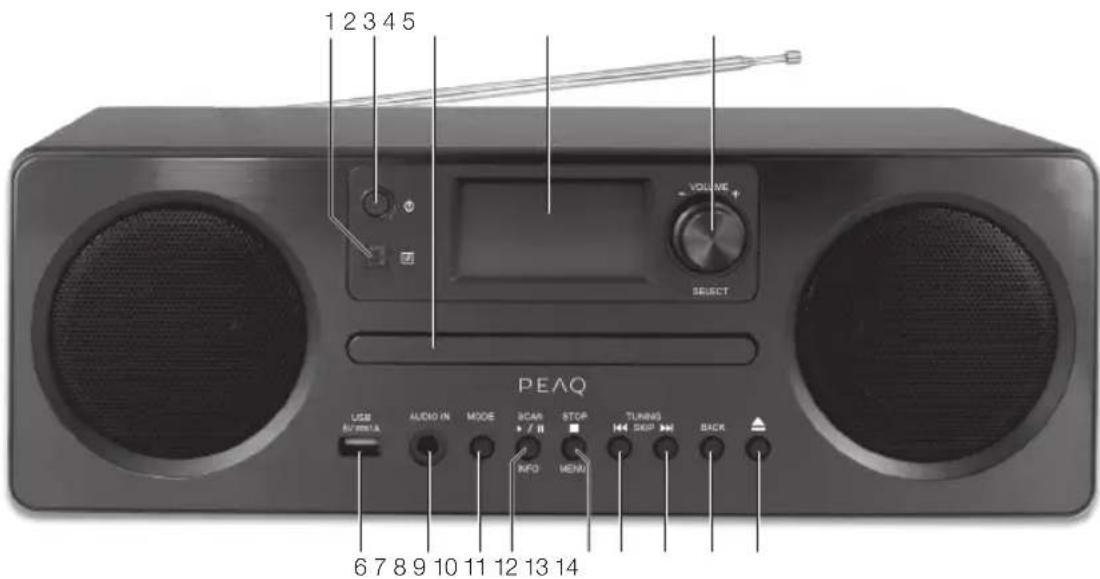
Front view
1 Remote Control Sensor
2 STANDBY Button
3 Disk tray
4 Display
5 VOLUME +/- Dial/ SELECT Button
6 USB 5 V 1 A Charging Port
7 AUDIO IN Socket
8 MODE Button
9 SCAN / INFO Button
10 STOP / MENU Button
11 TUNING/SKIP Click
12 TUNING/SKIP▶■ Button
13 BACK Button
14 Open/Close Disk Button
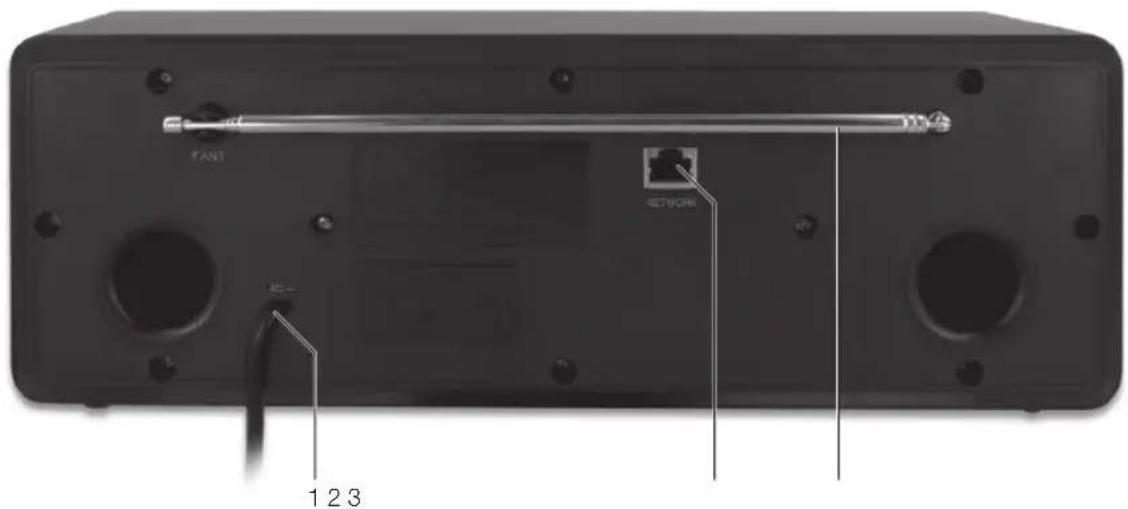
Back view
1 Mains Cable
2 NETWORK port
3 ROD Aerial
Remote control
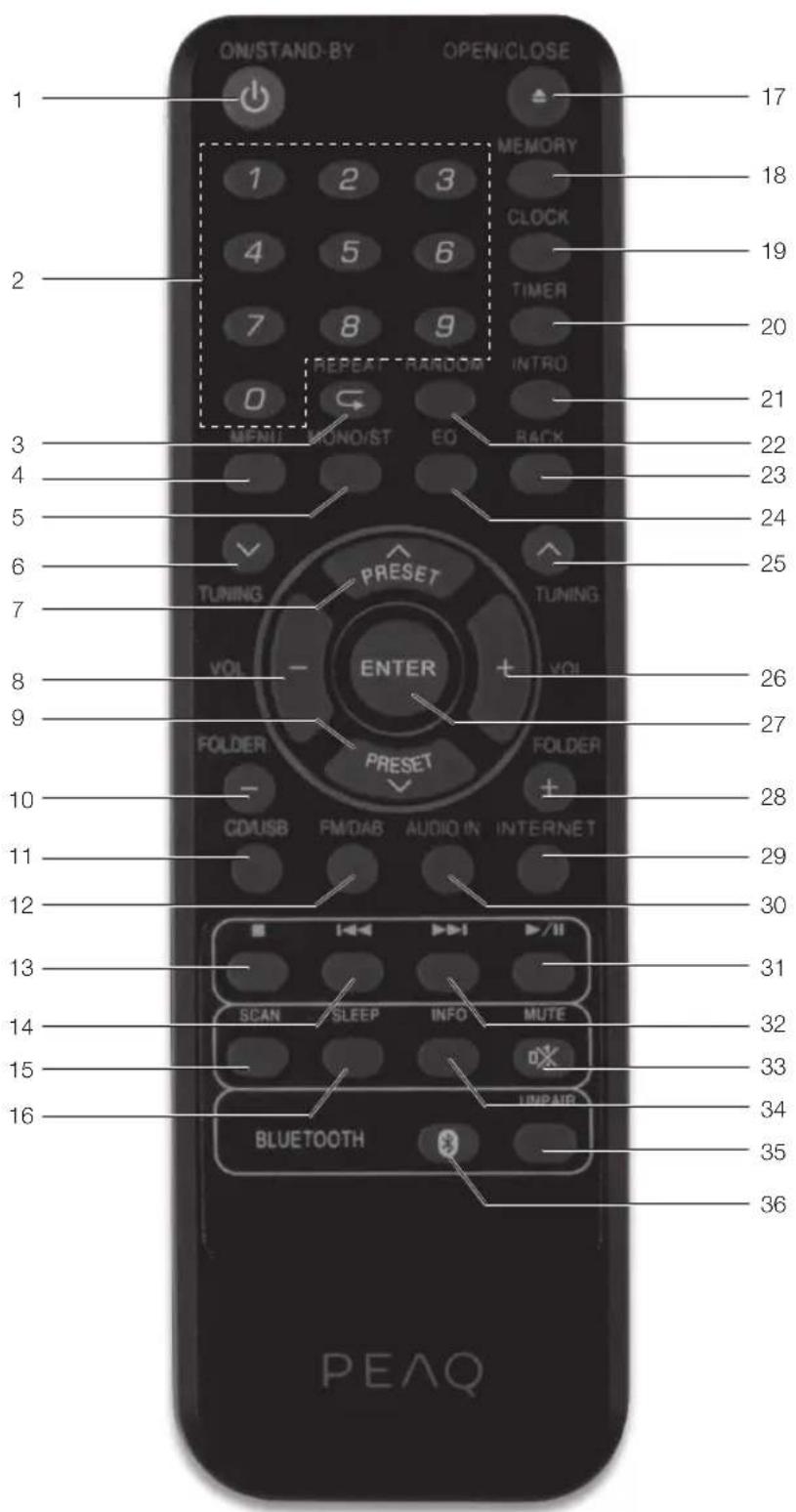
1 ON/STANDBY Button
2 Number Buttons
3 REPEAT Button
4 MENU Button
5 MONO/ST. Button
6 TUNING Button
7 PRESET Button
8 VOLUME - Button
9 PRESET Button
10 FOLDER - Button
11 CD/USB Button
12 FM/DAB Button
13 TOP Button
14 Backward Button
15 SCAN Button
16 SLEEP Button
17 OPEN/CLOSE▲Button
18 MEMORY Button
19 CLOCK Button
20 TIMER Button
21 INTRO Button
22 RANDOM Button
23 BACK Button
24 EQ Button
25 TUNING Button
26 VOLUME + Button
27 ENTER Button
28 FOLDER + Button
29 INTERNET Button
30 AUDIO IN Button
31 Playback/Pause Button
32 Forward Button
33 MUTE Button
34 INFO Button
35 UNPAIR Button
36 BLEUETOOTH 假 Button
Note:
The keys on the remote control function the same way as the keys on the device. All main functions can be accessed with the remote control. If the remote control does not work, please check the followings:
If there any object between the product and remote control causing obstruction.
Try to darken the room or to reduce the distance between device and remote control.
Setup
Select a stable, level and clean surface to place the product. Route cables so that they do not become a trip hazard and do not place heavy or sharp objects on the cables or units. Leave about 10cm for ventilation around the product.
Power supply
MAIN UNIT
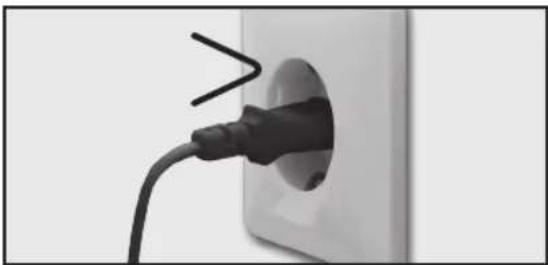
Connect the power plug to a suitable power outlet.
Remote control
INSERT BATTERY
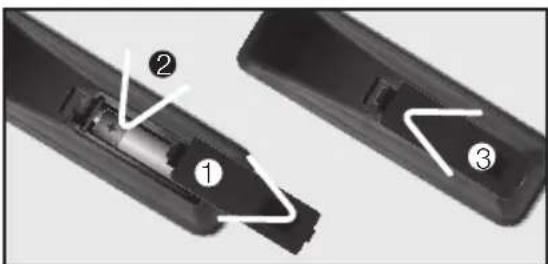
- Open the battery compartment cover.
- Insert 1pc AA battery into the battery compartment while paying attention to the correct polarity.
- Close the battery compartment cover.
Connections
AUDIO-IN
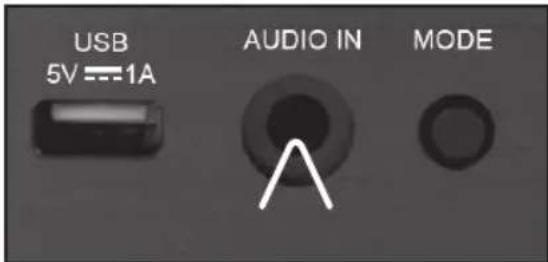
You can also listen to external audio devices by connecting the cable (not included) to the AUDIO-IN jack at the back of the product.
USB CONNECTION
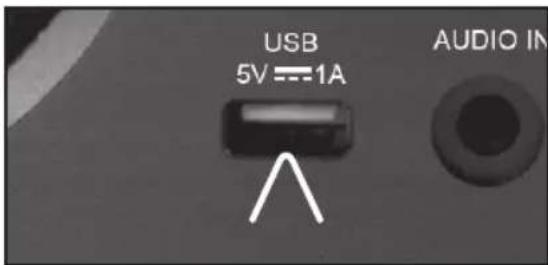
Playback of music files
You can playback music files which are saved on an USB stick by plug in the USB stick.
Note:
Support USB drive up to max. 32 GB.
Charging external devices
External devices can be charged via USB with this speaker. Connect the device to the USB port (output: 5 V / 1000 mA).
LAN CONNECTION
Socket of LAN / Ethernet cable connection for the cable connection of the device with the cable-connected home network.
ADJUSTING ANTENNA
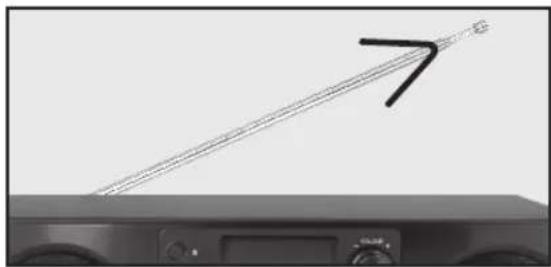
For optimal reception, extend the antenna, move to fully extend and adjust it.
Internet-radio configuration
There are two ways to connect the radio to the internet using an access point:
- Wireless in WLAN-Mode
The WiFi-antenna of the radio receives your DSL router signals.
- With cable using the radio's LAN connection in LAN-Mode provided an ethernet network is available.
WLAN-MODE CONFIGURATION
If you have a wireless network, the WLAN mode is the direct way to connect your radio to the Internet:
-
Simply switch the radio on and, as a cable-free network client, it automatically searches all available APs (Access Points).
-
When switching on for the first time, you must confirm the AP and perhaps enter the key. After that, the radio will always access this AP. If the AP can no longer be found, it will be registered accordingly.
LAN-CONFIGURATION
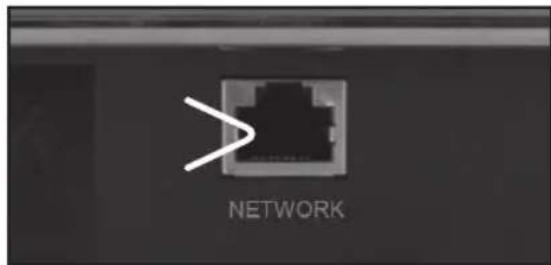
If you do not have a wireless network but do have a cabled network, you can connect the Internet radio with a network.
- Switch the radio off.
- Connect an Ethernet cable to the LAN socket. Once switched on and choose wired. The radio will automatically be recognized as a cable client.
Operation
ON AND STANDBY
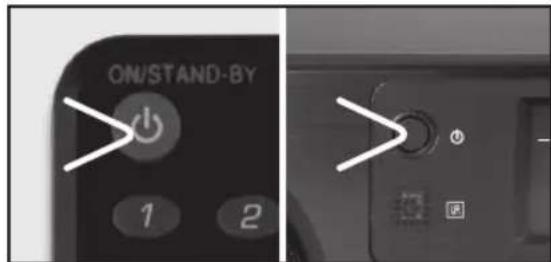
Press the button on the product or on the remote control to switch on the product or to standby mode.
When you connect the power plug to a power outlet, the product will switch to standby after showing "Welcome to Internet Radio STARTING..."
Note: The Time/Date will be automatically set, once it has been connected to Internet, DAB or FM radio station, with time/date information.
VOLUME
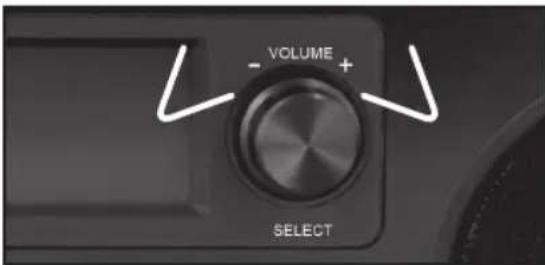
Adjust the volume with the volume knob or the buttons VOL+/- on the remote control.
MUTE
Press MUTE on the remote control to turn off the volume temporarily. The × symbol appears on the display. Press MUTE again to deactivate.
MODES
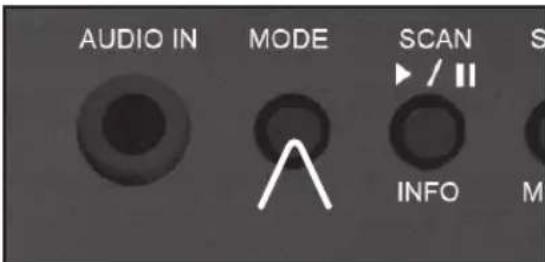
Press the MODE button to select the following modes: CD > Media Player > AUX > TUNER (RADIO) > Internet Radio > DAB Radio > BT (Bluetooth®).
Alternatively you can select the modes by pressing the buttons CD/USB, FM/DAB, AUDIO, INTERNET und BLUETOOTH on the remote control.
Internet radio
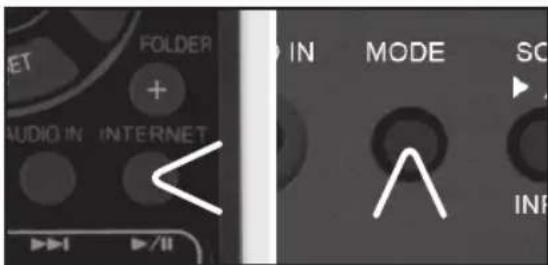
Press the MODE button on the product or the button INTERNET on the remote control to select Internet radio.
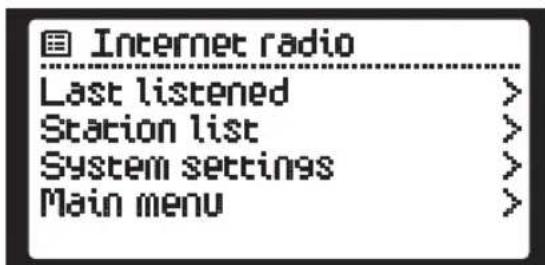
INTERNET RADIO MENU
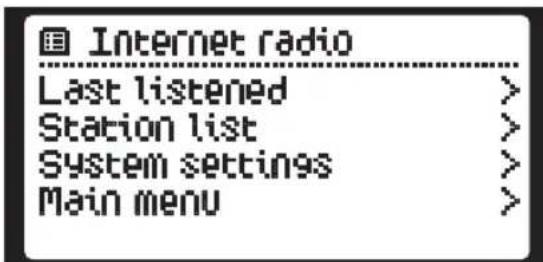
Press MENU to select the Internet radio menu. Following options are available:
Last listed
Station list
System settings
- Main menu
Last listed
Press PRESET to show the history of the stations.
Press ENTER to confirm the selection.
Station list
Press PRESET to select one of the following options. Confirm the selection by pressing ENTER.
Press PRESET to select one of the following options. Confirm the selection by pressing ENTER.
| Options Functions | |
| My Favourites | ·Favourites are stored in the Internet radio portal and are available to all Internet radios that are registered with the same account. You must register the radio in the Internet radio portal before making use of the favourites. ·To register your radio with the portal (www.wifiradio-frontier.com) To obtain an account by entering: Access code, Email address, password and Wi-Fi radio model (Radio ID). ·To store a favourite station, press and hold the ENTER button until the display shows “Favourite added”. The station will then save in the list of favourites. |
| Local “Country” Here all stations from the selected region are listed according to genre. | |
| Stations You can see all available stations by country (Location), popularity (Popular stations) or timeliness list (New stations). 1. Select Stations 2. Now you can select your station under the specified options. | |
| Podcasts Here you can list all Podcasts according to genre and country. 1. Select Podcast and press ENTER in order to confirm the selection 2. Select a desired subfolder. | |
| My added stations If you have saved Podcasts via the website http://www.wifiradio-frontier.com, you can call them up here. | |
| Help Select this entry to receive the access code for your Internet radio with which you can register yourself on the website http://www.wifiradio-frontier.com. | |
PRESET STATIONS
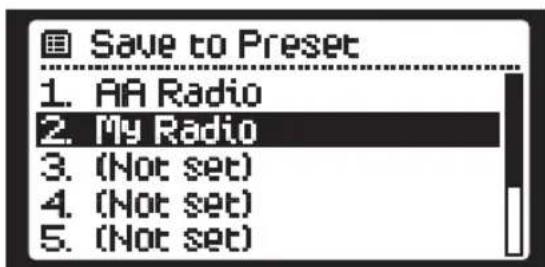
Note: The preset Internet radio stations are stored in the radio and cannot be accessed from other radios.
You can preset up to max. 10 stations.
- Select a desired station.
- To store an Internet radio preset, press and hold MEMORY until the display shows the "Save to Preset".
- Select one of the 10 presets and press ENTER to confirm.
- Repeat steps 1-3 to store further stations.
RECALLING A STORED STATION
- Press MEMORY to open the preset menu.
- Press PRESET to select a preset station and confirm the selection by pressing ENTER.
DAB Radio
Press the MODE button on the product or the button FM/DAB on the remote control to select DAB radio.
When the radio is switched on for the first time, it will automatically do a full scan of DAB/DAB+stations. The list of stations is then stored, eliminating the need for another full scan when the radio is turned on next time.
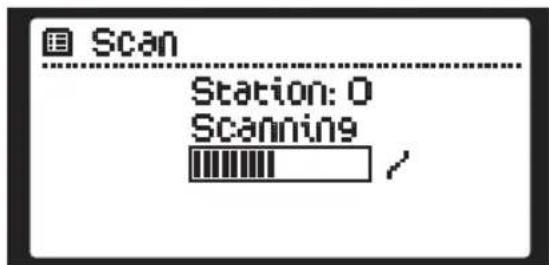
When the scan is complete, the stations are stored in alphabetical order. The first available station will be played back.
Note:
If there is no DAB reception at any time, change the position of the unit or adjust the antenna. Press SCAN to start a new search.
DAB MENU
Press MENU to select the DAB radio menu. Following options are available:
Station list
Scan
- Manual Tune
- Prune invalid
DRC
Station order
System settings
- Main menu
Station List
- Press PRESET 空 to select „Station list" and confirm the selection by pressing ENTER. The available stations will be listed.
- Select a station by pressing PRESET and confirm with ENTER.
Scan (automatically scan)
Press SCAN on the product to start the station search.
Alternative:
- Press PRESET to select "Scan" and confirm by pressing ENTER. The station search will be started.
Manual Tune (Manual station search)
- Press PRESET to select "Manual Tune" and confirm the selection by pressing ENTER. On the display the frequencies will be shown.
- Select a frequency by pressing PRESET and confirm with ENTER.
Prune invalid
Removes all invalid stations from the station list.
- Press PRESET to select Prune invalid and confirm by pressing ENTER.
- Select Yes (Yes) by pressing PRESET and confirm with ENTER. Or choose No (No) to cancel.
DRC (DYNAMIC RANGE CONTROL)
Dynamic Range Control removes or adds the degree of adaptation, required for the differences in dynamic range between stations.
-
Press PRESET to select "DRC" and confirm by pressing ENTER. Following options are available:
-
DRC high: DRC turned on; default setting recommended for noisy environments.
- DRC low: DRC is set to half the normal level.
-
DRC off: DRC is turned off.
-
Select with PRESET and confirm selection by pressing ENTER.
Station order
You can adjust the order of the stations.
-
Press PRESET to select "Station order" and confirm by pressing ENTER. Following options are available:
-
Alphanumeric (alphanumeric),
-
Ensemble (ensemble),
Valid (Valid) -
Select with PRESET and confirm selection by pressing ENTER.
STORING DAB STATIONS
You can store up to 10 preset DAB/DAB+ stations.
- Select the desired station.
- Press and hold MEMORY until "Save to Preset" appears on the display.
- Select a preset number from 1 - 10 and confirm by pressing ENTER.
- The preset number of the stored station is displayed.
- Repeat steps 1 to 4 to store more DAB/ DAB+ stations.
SELECTING PRESET DAB STATIONS
- Press MEMORY to access the preset menu.
- Press PRESET to select a preset number and confirm by pressing ENTER.
FM Radio
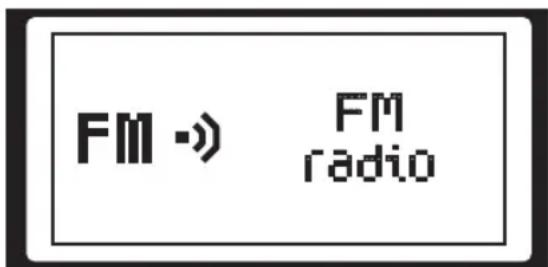
- Press the MODE button on the product or the button FM/DAB on the remote control to select FM radio.
- The radio plays the last station selected. Note:
When the radio is switched on for the first time, it will automatically do a full scan of FM stations.
SELECTING FM STATION FREQUENCIES
- Select a FM station.
- Manual frequency selection.
Press Tuning to change the frequency at intervals of 0.05 MHz
- Automatic frequency selection
Press SCAN and the radio will stop searching once an active station has been found.
FM MENU
Press MENU to select the FM radio menu. Following options are available:
- Scan setting
Audio setting
System settings - Main menu
SCAN SETTING
- Press PRESET to select "Scan setting" and confirm by pressing ENTER. Following options are available:
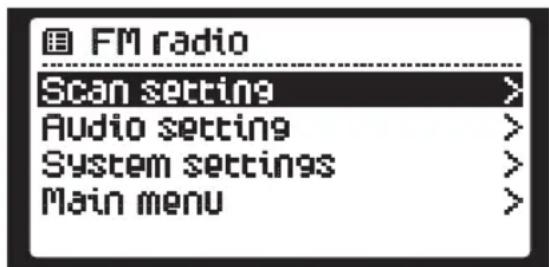
- Press PRESET to select and confirm by pressing ENTER.
AUDIO SETTING
Selecting Mono or Stereo mode.
- Press PRESET to select "Audio setting" and confirm by pressing ENTER. Following options are available:
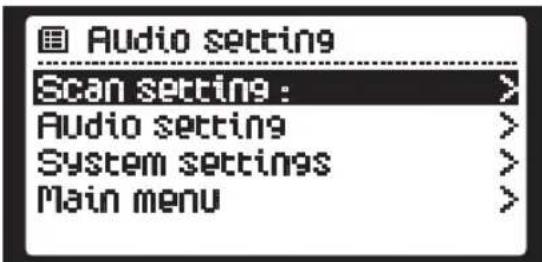
- Press PRESET to select and confirm by pressing ENTER.
Alternative the audio setting can be set with by pressing MONO/ST. on the remote control.
STORE FM STATIONS
You can store up to 10 preset FM stations.
1. Select the desired FM station.
2. Press and hold MEMORY until "Save to Preset" appears on the display.
3. Select a preset number from 1 - 10 and confirm by pressing ENTER.
4. The preset number of the stored station is displayed.
5. Repeat steps 1 to 4 to store more FM stations.
SELECTING PRESET FM STATIONS
- Press MEMORY to access the preset menu.
- Press PRESET to select a preset number and confirm by pressing ENTER.
AUDIO IN
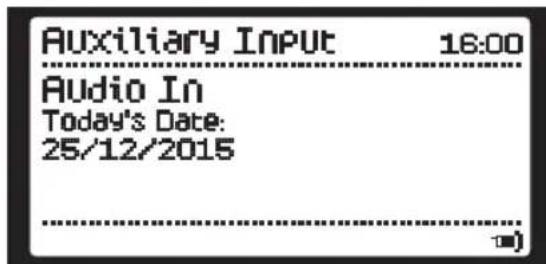
- Connect the audio cable (not included) into the AUDIO IN jack (3.5mm) at the rear side of the device.
- Press MODE to select AUX IN as a source.
- Start playing from the device.
Attention:
Check the safety and user instruction of the external device before connection.
CD-Mode
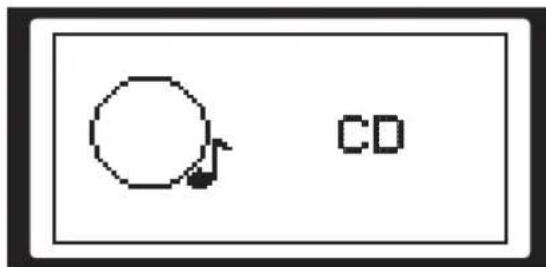
Press MODE to select CD as a source.
CD PLAYBACK
- Open the CD tray by pressing . Remove the transport safeguard when opening the CD tray for the first time.
- Put one CD into the CD tray with the label side facing up.
- Press to close the CD tray. The CD will be read.
- The total number of tracks on the CD is displayed on the screen and will play the first track automatically.
Note: Before you open the CD tray again, always press first to stop the CD from spinning. To remove the CD, place one finger in the middle of the CD and the other finger on the edge of the CD. Carefully pull the CD out of the tray.
| Button | Function |
| ▶/II | Playback/Pause |
| ■ | Stop playback |
| ▶ | Track forward |
| ■ | Track backward |
REPEAT FUNCTION
Press REPEAT to select the following repeat modes:
Repeat current track
Repeat all files in the current folder (for data CDs only)
Repeat all tracks
Press REPEAT again to cancel the repeat function.
RANDOM PLAYING
- Press RANDOM on the remote control to play all tracks in random order × will be appeared on the display.
- Press to playback the next random track.
- Press RANDOM again to cancel random function.
Note: RANDOM is only available in mode USB and CD.
INTRO PLAYBACK
- Press INTRO on the remote control to playback the first 10 seconds of each track. INTR appears on the display.
- Press INTRO again to resume normal playback.
Note: INTRO is only available in mode USB and CD
PROGRAMME SETTING
The playback list can only be programmed in stop mode. Up to 20 tracks can be programmed.
- Press MEMORY to enter programming mode and the track number 00 starts flashing.
- Press the remote control to select a track and confirm by pressing ENTER.
- Press to playback the first track of the set program.
- Repeat steps 1 to 3 to set more tracks.
In stop mode, press to cancel the program or open the CD tray by pressing
USB Mode
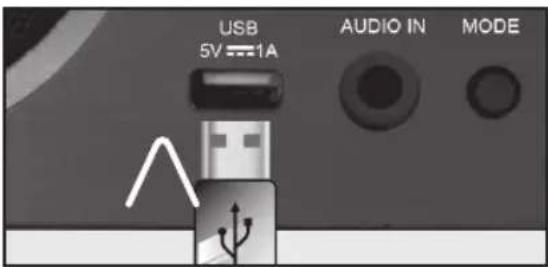
- Press MODE on the product or CD/USB on the remote control to access the Media Player.
- Insert a USB Stick with MP3/WMA music files into the USB port.
- Select USB playback and choose open USB folder.
- For playback music track refer to chapter CD Playback. If there is no USB device connected, the message No USB found will be displayed on the screen.
Note:
Support USB drive up to max. 32 GB.
- Connect the USB device directly to the USB port of your product. The usage of an extension cord is not recommended and may cause radio interference and faulty data transfer. This product supports USB 2.0 and 3.0
CHARGING EXTERNAL DEVICE
External devices can be charged via USB with this speaker. Connect the device to the USB port (output: 5 V / 1 A).
The USB charging is only supported during ON mode.
Note: USB charging cable is not included (please use cable provided with your external device, if any)
Media Player
Your Internet radio supports the UPnP-Protocol "Universal Plug-and-Play" and DLNA (Digital Living Network Alliance). You can transfer audio files to your PC wirelessly to your Internet radio if a UPnP software is installed. Using the UPnP / DLNA protocol, the Internet radio can be used as Digital Media Renderer (DMR). So you can play music files from UPnP / DLNA compliant devices on the Internet and radio, and, for example, adjust the volume from the computer.
- Press MODE on the product or CD/USB on the remote control to select the Media player.
- Select Shared media to start the music selection.
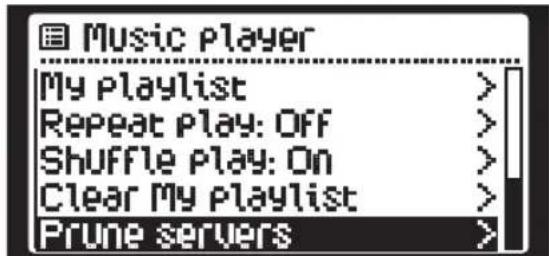
Repeat Mode
During Music Player mode, press PRESET to select Repeat play and press ENTER button repeatedly to turn repeat play on/off.
Shuffle Mode
During Music Player mode, press PRESET to select Shuffle play and press ENTER button repeatedly to turn shuffle play on/off.
Prune servers
During Music Player mode, press PRESET button to select Prune servers and press ENTER button to confirm.
Press PRESET to select YES to remove servers that are no longer available. Press ENTER button to confirm. Or select NO to cancel.
Bluetooth®
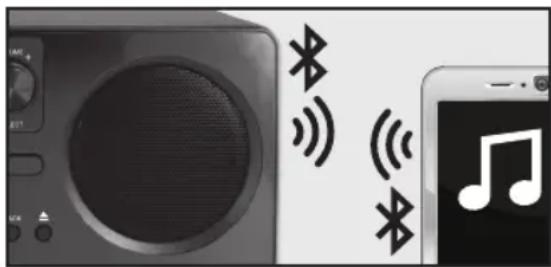
This mode allows you to use the radio as a speaker for an external device (e.g. mobile phone or MP3 player). The signal is transmitted wirelessly via Bluetooth®.
Note: Before playback, you must pair the radio (in this case the Bluetooth receiver) and the device (transmitter). The Bluetooth ID is PDR350.
COMPATIBILITY
This product is compatible with Bluetooth® enabled mobile phones and music devices. It features Bluetooth® version 3.0+EDR. It also works with devices featuring other Bluetooth® versions that support e.g.
- Wireless stereo listening
A2DP (Advanced Audio Distribution Profile)
- Wireless music control
AVRCP (Audio/Video Remote Control Profile)
Note:
- Keep the range of 8 meters when pairing.
- Before pairing a Bluetooth AV source, refer to the AV source user guide regarding safety instructions and use with other devices.
PAIRING
- Press MODE and select he option BT. is flashing on the display.
- Activate the Bluetooth® function on the playback device.
- Pair your playback device with PDR350.
- stops flashing, when the devices are connected.
- Now you can start the playback on the Bluetooth® music device.
UNPAIR
To unpair the Bluetooth connection, press UNPAIR on the remote control.
BLUETOOTH®-PLAYBACK
- Start the music playback on the audio device or press /II on the product (if supported).
- Press the buttons shortly to skip title forward or backward.
- Adjust the volume with Vol -/+
Snoopze Setting
Select Sleep in the main menu or press SLEEP button repeatedly on the remote control.
- Press SLEEP to select a period:
OFF
[15 MINS]
[30 MINS]
[45 MINS]
[60 MINS]
-
On the display the symbol ^2 .
-
To turn off SLEEP function, press SLEEP repeatedly to select "SLEEP OFF". The symbol disappears from the display.
Note: If the sleep timer is not pre-selected, the default setting is OFF.
Alarm Set System settings
SETTING ALARM (Setting Alarm)
- Press TIMER on the remote control. On the display appears:
Alarm 1: Off [00:00]
Alarm 2: Off [00:00]
-
Press PRESET to select Alarm 1 or 2 and confirm with ENTER. Following options are available:
-
Enable: Off/Daily/Once/Weekends/ Weekdays
Time: Alarm on time
Mode: Buzzer/Internet-radio/DAB/FM/CD - Preset: Last Listened/ (Preset statio)
Volume: Muted / 1-31 -
Save: Save and confirm the alarm setting
-
After alarm is set, the alarm icon will appear on the display during standby mode.
- To turn off the alarm, press TIMER.
Note: If no button is pressed for approx. 15 seconds, the product exits timer setting mode automatically.
- Press MENU to enter the menu.
- Press PRESET to select "System settings" and confirm by pressing ENTER. Following options are available:
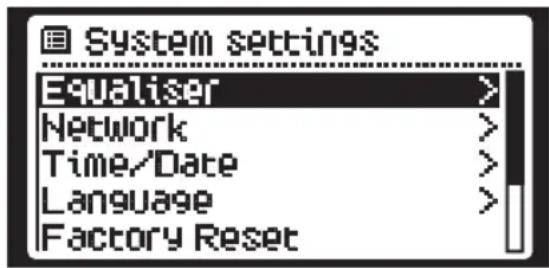
EQUALISER
Here you can select pre-set sound formats or create one of your own.
Select a sound format:
FLAT, CLASSIC, ROCK, POP, JAZZ
The sound setting is accepted right away.
Alternative you can adjust the sound setting directly with the button EQ on the remote control.
NETWORK
Select this entry to display the list of networks with which the Internet radio can establish an automatic connection or select the entry network assistant to search available networks.
- Press PRESET to select "Network" and confirm by pressing ENTER. Following options are available:
Network wizard (Netzwerkassistenten) SSID - select the desire wireless network. Rescan - Scan for available networks. Wired - select wired network. Manual config - select wired/wireless network with DHCP enable/disable. PBC WLAN set up Select PBC on the unit and press the PBC button on the modem device that you wish to connect with. Press the EN-TER button to continue.
View settings Display the setting on the unit.
- Manual settings
- Select wired/wireless network with DHCP enable/disable.
- WLAN region
- Select a country of your choice.
- NetRemote PIN Setup
- To define a PIN number to be entered before being able to connect to the unit remotely over a network
- Clear network settings: To delete the connected network memory in Network profile.
- Keep network connected: To define whether remains connected to its network in Standby mode and when not in Network radio mode. This is necessary for remote operation and audio streaming in Music Player mode.
TIME AND DATE
-
Press PRESET select "Time/ Date" and confirm by pressing ENTER. Following options are available:
-
Auto update: Update from DAB / FM / Network.
- Set format: 12/24 hour format.
- Set time zone: Select a time zone. (Only available when Auto update from Network is on.)
Daylight savings: Select daylight savings. (Only available when Auto update from Network is on.)
You may also adjust the Time/Date manually.
- Press CLOCK to access set Time/date.
- The date digits flash on the display. Set the date/month/year/hour/minute by pressing PRESET and confirm with ENTER.
Note: The default auto time update setting is "Update from Network". If you would like to manual set the time, it is recommended to turn the Auto update function off.
INACTIVE STANDBY
Use the Inactive Standby to turn on the unit after a certain time in play mode.
-
Press PRESET to select "Inactive Standby" and confirm by pressing ENTER. Following options are available:
-
Off (Off)
2 Hours
4 Hours
5 Hours
6 Hours -
Select by pressing PRESET and confirm with ENTER.
LANGUAGE
- Press PRESET to select "Language" and confirm by pressing ENTER. Several languages are available on the display for your selection.
- Select by pressing PRESET and confirm with ENTER.
FACTORY RESET
Here you can reset the product to factory default setting.
- Press PRESET to select "Factory reset" and confirm with ENTER.
- Select Yes (Yes) by pressing PRESET and confirm with ENTER. Or choose No (No) to cancel.
SOFTWARE UPDATE
You can search software updates with the product. Once you have accepted the conditions for use, the download and installation procedure for the new software updates begins automatically
Note: Make sure that the product is connected to the Internet.
SETUP WIZARD
Press MENU and enter System settings to select thesubmenu SETUP WIZARD. You can set up all settings important for bringing radio into operation.
INFO
Here you can find the version number of the currently used software.
BACKLIGHT
Here you can set the backlight of the display:
Operation mode: High/Medium/Low Standby-Mode:
Time out: Off/10 sec/30 sec/60sec
Standby:Medium/Low/Off
Cleaning and care
- Unplug the adaptor from the socket before cleaning the unit.
- Attention! Do not let water penetrate into the unit.
- Clean the housing with a lightly dampened cloth.
- Do not use sharp, scouring or aggressive cleaners.
- Do not use chemicals (such as gasoline or alcohol) to clean the housing.
Disposal

Do not dispose of this appliance as unsorted municipal waste. Return it to a designated collection point for
the recycling of WEEE. By doing so, you will help to conserve resources and protect the environment. Contact your retailer or local authorities for more information.

Please dispose of batteries in an environmentally friendly manner. Do not put batteries into the household
waste. Please use the return and collection systems in your community or contact the dealer where you purchased the product.
Troubleshooting
If there are any problems during operation, please refer to the following table. If problems cannot be solved as indicated under Solution, please contact your manufacturer.
| Problem Possible causes | Solution | |
| Product does not function | Interrupted power supply | Check the power supply |
| NO Sound • Volume | is very low External device is muted | Adjust the volume Check and turn off mute on the external device. |
| Poor audio quality with Bluetooth® connection | PoorBluetooth® reception | Move both devices closer together or remove any obstacles between. |
| No Bluetooth® connection | The external device does not support the profiles for this product Bluetooth® function is disable | Try to pair with another external device. Enable the Bluetooth® function. |
| USB drive can't be read | USB drive defect Data format not support. | Insert a new USB drive Check the data format |
| Poor radio reception quality | Poor radio reception • Place the product to another place and adjust the antenna again. | |
| Remote control does not function | Battery in remote control empty | Replace battery in remote control |
Technical data
POWER SUPPLY
Input: 230 - 240 V~, 50 Hz
Operation power consumption : 28 W
Standby power consumption: <1 W
Batteries (Remote control) : 1 x 1.5 V
= = = 1xAAnotincluded)
USB port charging : 5 V / 1000 mA
RADIO
Internet radio
Frequency range : Band III (174 - 240 MHz)
FM-TUNER
Tuning range:87.5-108MHz
Tuning grid:0.05MHz
CD PLAYBACK
Frequency response : 20 Hz - 20 KHz
Compatibility : CD/CDR/CDRW/MP3/WMA
SPEAKER
Output power: 2 × 5 W RMS
Sound system : Stereo
CONNECTION
USB:Yes(max.32GB)
AUDIO IN : Yes
WLAN :Yes
BLUETOOTH
Bluetooth® Profile : A2DP and AVRCP
Bluetooth® Range : Max. 8 M
Bluetooth® Version : 3.0 agreement+EDR
Dimension (W× D× H) :350mm×210mm×120mm
Weight : approx. 2.6 kg
Note: WMA protected DRM FILE is not supported on this product.
ESPANOL
Last listed
Station list
System settings
- Main menu
- Scan setting
Audio setting
System settings - Main menu
AJUSTES DE BUSQUEDA
Alarm 1: Off [00:00]
Alarm 2: Off [00:00]
Operation mode: Alta/Media/Baja Standby-Mode:
Intervalo Off/10 sec/30 sec/60sec
- Modo en espera: Media/Baja/Apagado
Limpieza y cuidados
Last listed
Station list
System settings
- Main menu
Dernières écoutes
Alphanumeric (alphanumeric),
- Ensemble (ensemble),
- Valide (Valide)
- Scan setting:
Audio setting
System settings - Main menu
RéGLAGE DE RECHERCHE
REPEAT (FONCTION DE REPÉTITION)
Alarm 1: Off [00:00]
Alarm 2: Off [00:00]
Entree:230-240V\~,50Hz
Last listed
Station list
System settings
Main menu
Utoljára listázott
- Scan setting:
Audio setting
System settings - Main menu
Keresési beallitas
Alarm 1: Off [00:00]
Alarm 2: Off [00:00]
Last listed
Station list
System settings
- Main menu
- Scan setting
Audio setting
System settings - Main menu
Alarm 1: Off [00:00]
Alarm 2: Off [00:00]
SETUP WIZARD (CONFIGURAZIONE GUIDATA)
Time out: Off/10 sec/30 sec/60sec
- Standby: Medium/Low/Off (medio/basso/spento)
Pulizia e cura
is in conformity with the following directives:
Subsidiary of Media-Saturn Group


- DEUTSCH
- Sicherheitshinweise
- TeLeuTaia akpaon
- AioTa OaOuV
- SETTING ALARM (Póθμiαn αφύπνιοης)
- Intended Use
- Components
- Remote control
- Note:
- Setup
- Power supply
- MAIN UNIT
- INSERT BATTERY
- Connections
- AUDIO-IN
- USB CONNECTION
- Playback of music files
- Charging external devices
- LAN CONNECTION
- ADJUSTING ANTENNA
- Internet-radio configuration
- WLAN-MODE CONFIGURATION
- LAN-CONFIGURATION
- Operation
- ON AND STANDBY
- VOLUME
- MUTE
- MODES
- Internet radio
- INTERNET RADIO MENU
- Last listed
- Station list
- PRESET STATIONS
- RECALLING A STORED STATION
- DAB Radio
- DAB MENU
- Scan (automatically scan)
- Manual Tune (Manual station search)
- Prune invalid
- DRC (DYNAMIC RANGE CONTROL)
- Station order
- STORING DAB STATIONS
- SELECTING PRESET DAB STATIONS
- FM Radio
- SELECTING FM STATION FREQUENCIES
- FM MENU
- SCAN SETTING
- AUDIO SETTING
- STORE FM STATIONS
- SELECTING PRESET FM STATIONS
- AUDIO IN
- Attention:
- CD-Mode
- CD PLAYBACK
- REPEAT FUNCTION
- RANDOM PLAYING
- INTRO PLAYBACK
- PROGRAMME SETTING
- USB Mode
- CHARGING EXTERNAL DEVICE
- Media Player
- Repeat Mode
- Shuffle Mode
- Prune servers
- Bluetooth®
- COMPATIBILITY
- PAIRING
- UNPAIR
- BLUETOOTH®-PLAYBACK
- Snoopze Setting
- Alarm Set System settings
- SETTING ALARM (Setting Alarm)
- EQUALISER
- FLAT, CLASSIC, ROCK, POP, JAZZ
- NETWORK
- TIME AND DATE
- INACTIVE STANDBY
- LANGUAGE
- FACTORY RESET
- SOFTWARE UPDATE
- SETUP WIZARD
- INFO
- BACKLIGHT
- Operation mode: High/Medium/Low Standby-Mode:
- Cleaning and care
- Disposal
- Troubleshooting
- Technical data
- RADIO
- FM-TUNER
- SPEAKER
- CONNECTION
- BLUETOOTH
- ESPANOL
- AJUSTES DE BUSQUEDA
- Operation mode: Alta/Media/Baja Standby-Mode:
- Limpieza y cuidados
- Dernières écoutes
- RéGLAGE DE RECHERCHE
- REPEAT (FONCTION DE REPÉTITION)
- Utoljára listázott
- Keresési beallitas
- SETUP WIZARD (CONFIGURAZIONE GUIDATA)
- Pulizia e cura
Brand : PEAQ
Model : PDR350BT
Category : Radio