M5L - Monitor WAECO - Free user manual and instructions
Find the device manual for free M5L WAECO in PDF.



User questions about M5L WAECO
0 question about this device. Answer the ones you know or ask your own.
Ask a new question about this device
Download the instructions for your Monitor in PDF format for free! Find your manual M5L - WAECO and take your electronic device back in hand. On this page are published all the documents necessary for the use of your device. M5L by WAECO.
USER MANUAL M5L WAECO
natural_image
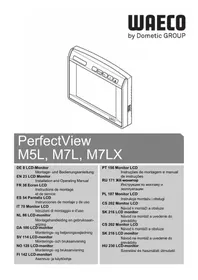
Line drawing of a device casing with labeled buttons (MENU, CL, +, -) and 'UJAECO' branding at bottom (no other text or symbols)WAECO PerfectView M5L, M7L, M7LX
DE 8 LCD-Monitor
Installation and Operating Manual
FR 37 Ecran LCD
natural_image
Line drawing of a mechanical tool or connector with no visible text or symbols1

natural_image
Line drawing of a digital multimeter with two connected probes (no text or symbols)
natural_image
Diagram of a mechanical device with intersecting lines and labeled section 3 (no text or symbols on the diagram itself)4

natural_image
Technical line drawing of a mechanical component with evenly spaced slots and a circular end (no text or symbols)5

6

natural_image
Simple line drawing of a hammer with a handle and base (no text or symbols)7

8

natural_image
Line drawing of a mechanical device with a cylindrical component and housing (no text or symbols)9

natural_image
Three different screwdriver tips shown in line drawings (no text or symbols)10

11

natural_image
Line drawing of a handheld electric shaver with ventilation slots (no text or symbols)12 13 14

natural_image
Line drawing of a pair of pliers with coiled wire and end caps (no text or symbols)
natural_image
Line drawing of a soldering iron with a terminal plug and power outlet (no text or symbols)


natural_image
Technical diagram showing a mechanical assembly with intersecting lines and arrows indicating motion (no text or symbols)
text_image
3
natural_image
Line drawing of a hand holding a device with a crossed-out black line crossing over a damaged TV (no text or symbols)
natural_image
Illustration of a submerged object with hands reaching out from a surface, crossed by two diagonal lines (no text or symbols)
natural_image
Line drawing of a person inside a car with a steering wheel, showing a light path and body part (no text or symbols)
natural_image
Line drawing of a person observing through a rectangular prism, with no text or symbols present


PerfectView M5L, M7L, M7LX
8

natural_image
Line drawing of a train interior showing dashboard, seatbelt, and passenger seat (no text or symbols)9

natural_image
Line drawing of a device casing with labeled buttons and ports (no text or symbols beyond labels)2

text_image
JAECO3

natural_image
Technical line drawing of a mechanical component with a central cylindrical assembly and mounting flanges (no text or symbols)


text_image
Diagram of a truck showing two labeled components: one with a cargo box and another with a trailer.


Please read this instruction manual carefully before installation and first use, and store it in a safe place. If you pass on the product to another person, hand over this instruction manual along with it.
Contents
1 Explanation of symbols 23
2 Safety and installation instructions.... 24
3 Scope of delivery 26
4 Accessories 27
5 Intended use.... 27
6 Technical description 27
7 Mounting the LCD monitor 29
8 Using the LCD monitor 33
9 Cleaning and caring for the LCD monitor 35
10 Guarantee 35
11 Disposal 36
12 Technical data 36
1 Explanation of symbols

CAUTION!
Safety instruction: Failure to observe this instruction can lead to injury.

NOTICE!
Failure to observe this instruction can cause material damage and impair the function of the product.

NOTE
Supplementary information for operating the product.
▶ Action: This symbol indicates that action is required on your part. The required action is described step-by-step.
√This symbol describes the result of an action.
fig. 1 5, page 3: This refers to an element in an illustration. In this case, item 5 in figure 1 on page 3.

EN

Safety and installation instructions PerfectView M5L, M7L, M7LX
2 Safety and installation instructions
Please observe the prescribed safety instructions and stipulations from the vehicle manufacturer and service workshops.
The manufacturer accepts no liability for damage in the following cases:
● Faulty assembly or connection
● Damage to the product resulting from mechanical influences and excess voltage
● Alterations to the product without express permission from the manufacturer
● Use for purposes other than those described in the operating manual

NOTICE! Risk of damage!
● To prevent short circuits, always disconnect the negative terminal of the electrical system before working on the vehicle.
If the vehicle has an additional battery, its negative terminal should also be disconnected.
- Inadequate supply cable connections could result in short circuits which:
- Cause cable fires
- Trigger the airbag
– Damage electronic control devices
– Cause electric functions to fail (indicators, brake light, horn, ignition, lights)
Please observe the following instructions:
- When working on the following cables, only use insulated cable lugs, plugs and tab sleeves:
- 30 (direct supply from positive battery terminal)
- 15 (connected positive terminal, behind the battery)
- 31 (return cable from the battery, earth)
- 58 (reversing light)
Do not use plastic terminal strips.
- Use a crimping tool (fig. 1 11, page 2) to connect the cables.
- When connecting to supply cable 31 (earth), screw the cable - To the vehicle's earth bolt with a cable lug and a gear disc or - To the sheet metal body work with a cable lug and a self-tapping screw
Ensure that there is a good earth connection.
When the negative terminal of the battery is disconnected, all data stored in the volatile memories will be lost.
● The following data must be set again, depending on the vehicle equipment options:
- Radio code
- Vehicle clock
- T i m e r
- On-board computer
- Seat position
You can find instructions for making these settings in the appropriate operating instructions.


PerfectView M5L, M7L, M7LX Safety and installation instructions
Observe the following installation instructions:

CAUTION!
- Secure the monitor in such a way that it cannot become loose under any circumstances (sudden braking, accidents) and cause injuries to the occupants of the vehicle.
- Do not attach the monitor in the area that may be used by an airbag, as this could cause injury if the airbags are triggered.
Observe the following instructions when working with electrical parts:
- When testing the voltage in electrical cables, only use a diode test lamp (fig. 1 1, page 2) or a voltmeter (fig. 1 2, page 2).
Test lamps with an illuminant (fig. 1 3, page 2) take up voltages which are too high and which can damage the vehicle's electronic system.
- When making electrical connections, ensure that
– They are not kinked or twisted
– They do not rub on edges
– They are not laid in sharp edged ducts without protection (fig. 3, page 3).
● Insulate all connections.
- Secure the cables against mechanical wear with cable binders or insulating tape, for example to existing cables.
Observe the following instructions when handling the LCD monitor:

CAUTION!
● People (including children) whose physical, sensory or mental capacities or whose lack of experience or knowledge prevent them from using this product safely should not use it without the supervision or instruction of a responsible person.
- Do not open the monitor (fig. 4, page 3).
- Do not submerge the monitor in water (fig. 5, page 3); the monitor is not waterproof.
● The monitor may not impair your vision when driving (fig. 8, page 4).
- Do not operate the monitor with wet hands.
- Do not operate the monitor if the housing has been damaged.


EN


Scope of delivery PerfectView M5L, M7L, M7LX

NOTICE!
- Connect it to the correct voltage.
-
Do not use the monitor in areas which
-
are subjected to direct sunlight,
- are subject to strong temperature fluctuations,
– have high levels of humidity, - are poorly ventilated,
-
are dusty or oily.
-
Do not press the LCD display.
- Do not drop the monitor.
- If you use the monitor in vehicles, the vehicle should be running during operation to prevent the vehicle battery from becoming fully discharged.
- The picture quality can be impaired in the vicinity of electromagnetic fields. For this reason do not mount the monitor near loudspeakers.
3 Scope of delivery
No. in
fig. 9, Quantity Designation
page 4
Item no.
M5L M7L
1 1 Monitor 9102100006 9102100007
2 1 Monitor bracket 9102200052 9102200053
3 1 Support base 9102200054
- 1 Connection cable 9102200055
-- Fastening material
No. in
fig. 9, Quantity Designation
page 4
Item no.
M7LX
1 1 Monitor 9102100008
2 1 Monitor bracket 9102200053
3 1 Support base 9102200054
- 1 Connection cable 9102200056
-- Fastening material
EN

PerfectView M5L, M7L, M7LX Accessories
4 Accessories
Available as accessory (not included in scope of delivery):
Designation Item no.
Monitor bracket with support for M5L 9102200049
Monitor bracket with support for M7L 9102200050
5 Intended use
The LCD monitors PerfectView M5L, M7L and M7LX are monitors which are primarily intended for use in vehicles. They can be used together with cameras
(e.g. a reversing video system) or other video sources.
The LCD monitors are designed for use in all vehicles.
6 Technical description
6.1 Function description
The LCD monitor is a monitor for the connection of cameras (e. g. reversing video systems) or other video sources (e. g. TV set). It is possible to switch back and forth between video sources.
The monitor features control cables which allow the cameras to be activated automatically.
To secure it and connect the power, slide it onto the monitor bracket. The Easylink system allows the monitor to be easily removed from the monitor bracket. It can therefore be removed to protect it from theft, or for use in several trucks in a fleet (fleet solution).
The monitors M5L and M7L can operate up to two cameras.
The monitor M7LX can operate up to three cameras. Alongside the usual controls, the three cameras can be switched consecutively in automatic mode. This monitor also features a distance indicator in the display which is activated automatically when the reverse gear is engaged.
A further video source can also be connected to the monitors, e.g. a reversing camera on the trailer (trailer operation). This additional video input has signal detection: when a video source is connected to this video input, video input C1 is automatically deactivated (e.g. the reversing camera on the tractor) and the image from the additional video input is displayed instead.
The brightness of the monitor adapts automatically to the ambient light.


EN


Technical description PerfectView M5L, M7L, M7LX
6.2 Control elements
The following control elements are located on the monitor:
No. in fig. 10 page 5
Designation Description
1 Sensor window for the dimmer function.
The brightness of the display is automatically adapted to the ambient light.
2 C1/C2 1. Switches from video source 1 to video source 2 (C1 and C2) and vice-versa.
-
Switches the menu off.
-
M7LX: Switches the automatic camera panning on (the cameras are activated in preset time intervals, e.g. for horse transporters with multi-box monitoring).
3 MENU 1. Switches the menu on.
- Calls up the parameters for setting.
The parameters are distributed over two screen pages in the following order:
Page 1
- Brightness
- Contrast
- C o l o u r
Page 2
– Language: "English" or "German"
- Reset ("Default"): Default setting for all parameters
- Camera1/Camera2: "Normal" or "Mirrored"
- M7LX: Camera3: "Normal" or "Mirrored"
- M7LX: Distance: Distance marker setting
4 – Decreases the value of the selected parameter.
5 + Increases the value of the selected parameter.
6 ⏻ Switches the monitor on and off.
7 USB charger output (5 V, 500 mA)
8 Monitor bracket
9 Loudspeaker
EN

PerfectView M5L, M7L, M7LX Mounting the LCD monitor
7 Mounting the LCD monitor
7.1 Tools required (fig. 1, page 2)
For installation and assembly you will require the following tools:
● Measuring ruler (4)
- Centre punch (5)
- Hammer (6)
- Drill bit set (7)
- Drill (8)
- Screwdriver (9)
To make and test the electrical connection, the following tools are required:
● Diode test lamp (1) or voltmeter (2)
● Insulating tape (10)
● Heat shrinking sleeve
● Hot air blower (11)
- Crimping tool (12)
● Soldering iron, if required (13)
● Solder, if required (14)
● Cable bushing sleeves, if necessary
To fasten the cables, you may require additional cable binders.
7.2 Installing the monitor

CAUTION! Risk of injury!
Select the location of the monitor so that it cannot injure anybody in the vehicle under any circumstances (e.g. sudden braking, road traffic accidents).
Observe the following installation instructions:
- Select an installation location that provides an unobstructed view of the monitor (fig. 6, page 3 and fig. 7, page 3).
● Never install the monitor in areas where your head may impact or in the area that would be filled by an expanding airbag. This could cause injury if the airbag opens.
● The monitor may not impair your vision when driving (fig. 8, page 4).
● The installation location should be flat. - Check that there is sufficient room underneath the installation location to attach the washers and nuts.
- Check beforehand that there is sufficient room for the drill head to come out on the other side (fig. 2, page 3).
- Bear in mind the weight of the monitor. Provide reinforcement if necessary (larger washers or plates).
- Ensure that you can lay the connection cables to the monitor.


EN


Mounting the LCD monitor PerfectView M5L, M7L, M7LX
Choosing the installation location
Place the monitor and the mounting rail on the monitor bracket (fig. 11 A, page 6).
▶Place the monitor bracket and the mounting rail onto the support base and secure it using the knurled nuts (fig. 11 B, page 6).
▶Position the monitor and the attached monitor bracket provisionally.
▶Mark the outlines of the corners of the support base on the dashboard.
▶Unscrew the support base from the monitor holder.

NOTE
You can fasten the support base using adhesive or screws.
Sticking the monitor bracket onto the dashboard (fig. 12 A, page 6)
▶Remove the film from under the support base.
▶Stick the support base to the position of your choice.
Screwing the monitor bracket onto the dashboard (fig. 12 B, page 6)
▶Hold the support base within the outlines marked beforehand.
▶Mark four different drilling points.
▶ Drill a hole of ∅ 2 mm at each of the points marked beforehand.
▶ Screw the support base on using 4 x 20 mm self-tapping screws.
Fastening the monitor
Place the monitor and the mounting rail onto the support base and secure it using the knurled nuts (fig. 11, page 6).


PerfectView M5L, M7L, M7LX Mounting the LCD monitor
7.3 Connecting the monitor electrically
The circuit diagram for the LCD monitor can be found in fig. 14, page 7.
| No. in fig. 14, page 7 Designation | |
| 1 Monitor | |
| 2 20-pin socket | |
| 3 Monitor line | |
| 4 20-pin plug | |
| 5 12–24 V positive cable (red): connected to the positive pole of the ignition (connected positive, terminal 15) or the positive pole of the battery (terminal 30). | |
| 6 Earth cable (black): connected to the negative pole of the voltage source. | |
| 7 Cable (green): control input for video input C1,e. g. for connection to the reversing light. | |
| 8 Cable (white): control input for video input C2,e. g. side camera. | |
| 9 6 pin socket C1 (connection to video source 1) | |
| 10 6 pin socket C2 (connection to video source 2) | |
| 11 6 pin socket C3 (connection to video source 3)M5L, M7L only: with video signal recognition) | |
| 12 | M7LX only: 6 pin socket C4 (connection to video source 4,with video signal recognition). |
| 13 | M7LX only: Cable (blue): Control input for video input C3. |

NOTICE!
Cables and connections that are not properly installed will cause malfunctions or damage to components. Correct installation of cables and connections ensures lasting and trouble-free operation of the retrofitted components.


Mounting the LCD monitor PerfectView M5L, M7L, M7LX
Observe the following instructions when laying the connection cable:
- Feed the connection cable through existing ducts or other openings where possible, e. g. ventilation grilles. If no suitable ducts or openings are available you will need to drill a hole of ∅ 20 mm. Check beforehand that there is sufficient space on the other side for the drill head to emerge (fig. 2, page 3).
- To prevent damage to the cables, when laying them ensure that there is always a sufficient interval to vehicle components which can become hot (lights, heaters, ventilators etc.).
● Wrap insulating tape around every connection on the cable (even inside the vehicle). - When laying the cables, make sure:
– they are not kinked or twisted
– they do not rub on edges
– they are not laid in sharp-edged ducts without protection (fig. 3, page 3).
Connecting the monitor as a reversing video system (fig. 14, page 7)
▶Lay the connection cable for the monitor bracket on the dashboard.
▶ Insert the plug of the monitor cable (2) into the socket (4) of the connection cable (3).

NOTICE! Risk of damage
Make sure the polarity is correct when connecting to a voltage source.
▶Connect the red and black cables of the connection cable to a suitable voltage supply:
- Connect the red cable (5) to terminal 15 (ignition).
- Connect the black cable (6) to terminal 31 (earth).
If the monitor is to be activated when reverse gear is selected, connect the green cable (8) to the positive cable of the reversing light.

NOTE
If voltage is present in the green cable (8), the reversing camera will be activated automatically. The reversing camera has priority.
If the monitor is to be activated e. g. when the indicator is flashing, connect the following control cable to a positive cable of the indicator:
- M5L, M7L: white cable (8)
- M7LX: white cable (8), blue cable (13)

NOTE
If voltage is present in this control cable, the following video input will be activated:
● M5L, M7L: video input C2
● M7LX: video input C2, video input C3
This control cable is used as a signal cable for the activation e. g. of a side camera when an indicator is flashing.


PerfectView M5L, M7L, M7LX Using the LCD monitor
If necessary, connect the socket C1 (9) of the connection cable to the plug of the video source 1 (e.g. camera).
If necessary, connect the socket C2 (10) of the connection cable to the plug of the video source 2 (e. g. side camera).
M7LX only: If necessary, connect the socket C3 (11) of the connection cable to the plug of the video source 3 (e. g. reversing camera).

NOTE
Observe the power consumption of the video system. The cameras are equipped with heaters. A maximum current of 1.5 A can flow (three cameras in heating mode). Use a disconnector switch for direct connection to the battery. This allows you to disconnect the video system from the battery easily if you are no longer using the vehicle.
Connecting an additional reversing camera (trailer operation)
M5L, M7L: If necessary, connect socket C3 (11) of the connection cable to the plug of the additional reversing camera.
M7LX: If necessary, connect socket C4 (12) of the connection cable to the plug of the additional reversing camera.
8 Using the LCD monitor
8.1 Switching on the monitor
If the monitor is switched off, press the "⏻" button (fig. 10 6, page 5) to switch the monitor on.
√The picture appears.
8.2 Switching off the monitor
▶ Press the “⏻” (fig. 10 6, page 5) button to switch off the monitor.
√The picture disappears.
8.3 Adjusting the monitor (fig. 10, page 5)
To set the monitor to suit your requirements, proceed as follows:
▶ Press the "MENU" button (3) to call up the required parameter.
√The parameters to be set appear in the following order:
EN


Using the LCD monitor PerfectView M5L, M7L, M7LX
Page 2:
– Language: “English” or “German”
- Reset ("Default"): Default setting for all parameters
- Camera1/Camera2: "Normal" or "Mirrored"
- M7LX: Camera3: "Normal" or "Mirrored"
- M7LX: Distance: Distance markers ("Setting distance markers (M7LX) (fig. 0, page 5)" on page 35)
▶ Press the “−” button (4) or “+” button (5) to set the parameter of your choice.
▶ Press the “-” button (4) to reduce the value of the selected parameter.
▶ Press the “+” button (5) to increase the value of the selected parameter.
8.4 Setting the video source (fig. 10, page 5)

NOTE
If you have connected the green cable to the reversing light and voltage is present, reversing camera V1 is activated automatically (see "Using the monitor with two reversing cameras (trailer operation) (fig. c, page 6)" on page 35).
M5L, M7L
If you wish to switch to a different video source (from camera 1 to camera 2), press the "C1/C2" button (1).
√ The monitor switches from camera 1 to camera 2 or vice-versa.
M7LX
If you would like to switch to a different video source, press the "C1/C2/C3" button (1).
√ The monitor changes the camera in the order "camera 1 – camera 2 – camera 3".
If you wish the cameras to run automatically, press and hold the "C1/C2/C3" button (1) for at least three seconds.
√The monitor display the "AUTO" mode.
√ The monitor changes the cameras in the order "camera 1 – camera 2 – camera 3" automatically in the preset time intervals. No sound is available in this operating mode.
If you wish to set the display time (2 s to 16 s): Press the “−” button (4) to reduce the camera display time. Press the “+” button (5) to increase the camera display time.
To end the automatic function, press the "C1/C2/C3" button (1) again.
√The monitor displays the "MANUAL" mode.


PerfectView M5L, M7L, M7LX Cleaning and caring for the LCD monitor
8.5 Using the monitor with two reversing cameras (trailer operation) (fig. 13, page 6)
You do not need to make any settings to the monitor during operation. The monitor automatically detects whether one or two cameras are connected (e.g. to a truck-trailer combination).
● One camera connected (e.g. tractor or trailer): the camera connected to C1 (1) is activated.
● Two cameras connected (e. g. tractor with trailer):
- M5L, M7L only: the camera connected to C3 (2) is activated.
(C1 is inactive).
- M7LX only: the camera connected to C4 (2) is activated.
(C1 is inactive).
8.6 Setting distance markers (M7LX) (fig. 10, page 5)
To set the distance markers, proceed as follows:
▶ Press the "MENU" button (3) to call up the required parameter.
√The parameters to be set appear.
▶ Press the "MENU" button (3) again to select the parameter "Set distance markers".
▶ Press the “-” button (4) to display the distance markers.
▶ Press the “-” button (4) again to select the parts to be set.
√The parts to be set are highlighted in red.
▶ Press the “+” button (5) to set the part highlighted in red.
You can slide each distance marker to one of three positions.
The first time you press, the side marker will be activated, the second time the upper distance marker, the third time the middle, the fourth time the lower, etc.
▶ Press the "MENU" button (3) to exit the settings.
9 Cleaning and caring for the LCD monitor

NOTICE! Risk of damage
- Do not use sharp or hard objects for cleaning as these may damage the monitor.
- Remove the cable before cleaning the monitor to prevent short circuiting.
▶Clean the monitor with a soft, damp cloth from time to time.
10 Guarantee
The statutory warranty period applies. If the product is defective, please contact the manufacturer's branch in your country (see the back of the instruction manual for the addresses) or your retailer.
For repair and guarantee processing, please send the following items:
- Defect components
● A copy of the receipt with purchasing date
● A reason for the claim or description of the fault
EN


Disposal PerfectView M5L, M7L, M7LX
11 Disposal
▶Place the packaging material in the appropriate recycling waste bins wherever possible.

If you wish to finally dispose of the product, ask your local recycling centre or specialist dealer for details about how to do this in accordance with the applicable disposal regulations.
12 Technical data
| PerfectView M5L PerfectView M7L PerfectView M7LX | |
| Item no.: 9102100006 9102100007 9102100008 | |
| Type: Colour TFT LCD | |
| Display size: 5" (12.7 cm) 7" (17.8 cm) | |
| Brightness: Approx. 300 cd/m2 Approx. 300 cd/m2 | |
| Display resolution, H x V: | 337000 pixels 337000 pixels |
| Video standard: | PAL/NTSC (automatic switching) |
| Operating voltage: | 12-24 V DC |
| Power: | Max. 10 W |
| USB charger output: | 5 V, 500 mA |
| Operating temperature: | -10 °C to 60 °C |
| Storage temperature: | -25 °C to 80 °C |
| Relative humidity: | Max. 85 % |
| Vibration resistance: | 4 g |
| Dimensions in mmW x H x D (with bracket): | 144 x 145 x 118 186 x 145 x 118 |
| Weight: | 350 g 400 g |
Versions, technical modifications and delivery options reserved.
Certifications
The appliance has E11 certification.

36
EN


PerfectView M5L, M7L, M7LX Explication des symboles
6 Description technique
Overseas + Middle East
(AUS) Dometic Australia
1 John Duncan Court
Varsity Lakes QLD 4227
+61 7 55076000
+61 7 55076001
Mail: sales@dometic-waeco.com.au
CH Dometic Switzerland AG
Riedackerstrasse 7a
CH-8153 Rümlang (Zürich)
+41 44 8187171
+41 44 8187191
Mail: info@dometic-waeco.ch
NL Dometic Benelux B.V.
Ecustraat 3
NL-4879 NP Etten-Leur
+31 76 5029000
+31 76 5029090
Mail: info@dometic.nl
HK WAECO Impex Ltd.
Suites 2207-2211 · 22/F · Tower 1
The Gateway · 25 Canton Road,
Tsim Sha Tsui · Kowloon
Hong Kong
+852 24611386
+852 24665553
Mail: info@dometic-waeco.com.hk
DK Dometic Denmark A/S
Nordensvej 15, Taulov
DK-7000 Fredericia
+45 75585966
+45 75586307
Mail: info@waeco.dk
PL Dometic Poland Sp. z o.o.
Ul. Puławska 435A
02-801 Warszawa
Poland
+48 22 414 32 00
吕+48224143201
Mail: info@dometic.pl
ROC WAECO Impex Ltd.
Taipei Office
2 FL-3 · No. 56 Tunhua South Rd, Sec 2
Taipei 106, Taiwan
+886 2 27014090
+886 2 27060119
Mail: marketing@dometic-waeco.com.tw
E Dometic Spain S.L.
Avda. Sierra del Guadarrama, 16
E-28691 Villanueva de la
Cañada
Madrid
+34 902 111 042
+34 900 100 245
Mail: info@dometic.es
RUS Dometic RUS LLC
Komsomolskaya square 6-1
107140 Moscow
Russia
+7 495 780 79 39
+7 495 916 56 53
Mail: info@dometic.ru
UAE Dometic AB
Regional Office Middle East
P O Box 74775
Dubai, United Arab Emirates
+971 4 321 2160
+971 4 321 2170
Mail: info@dometic.ae
F Dometic S.N.C.
USA Dometic Marine Division
2000 N. Andrews Ave. Extension
Pompano Beach, FL 33069 USA
+1 954 973 2477
+1 954 979 4414
Mail: marinesales@dometicusa.com
3.03.19.01731 05/2012
FIN Dometic Finland OY
Mestarintie 4
FIN-01730 Vantaa
+358 20 7413220
+358 9 7593700
Mail: info@dometic.fi
SK Dometic Slovakia s.r.o.
Tehelná 8
SK-98601 Fil'akovo
+421 47 4319 107
+421 47 4319 166
Mail: info@dometic.sk
①Domettic Italy S.p.A.
Via Virgilio, 3
I-47100 Forli
+39 0543 754901
+39 0543 756631
Mail: info@dometic.it
UK Dometic UK Ltd.
Dometic House · The Brewery
Blandford St. Mary
Dorset DT11 9LS
+44 844 626 0133
+44 844 626 0143
Mail: sales@dometic.co.uk
www.dometic-waeco.com