ManualGo.com
RXV520RDS - Receiver YAMAHA - Free user manual and instructions
Find the device manual for free RXV520RDS YAMAHA in PDF.



Download the instructions for your Receiver in PDF format for free! Find your manual RXV520RDS - YAMAHA and take your electronic device back in hand. On this page are published all the documents necessary for the use of your device. RXV520RDS by YAMAHA.
USER MANUAL RXV520RDS YAMAHA
GEBRUIKSAANWIJZING RX-V520RDS Printed in Malaysia ID V723020 00RX-V520RDS(ML)-cv1/4 2/1/1, 4:41 PM1CAUTION CAUTION: READ THIS BEFORE OPERATING YOUR UNIT. 1 To assure the finest performance, please read this manual carefully. Keep it in a safe place for future reference. 2 Install this unit in a well ventilated, cool, dry, clean place with at least 30 cm on the top, 20 cm on the right and left, and 10 cm at the back of this unit for ventilation space — away from direct sunlight, heat sources, vibration, dust, moisture, and/or cold. 3 Locate this unit away from other electrical appliances, motors, or transformers to avoid humming sounds. To prevent fire or electrical shock, do not place this unit where it may get exposed to rain, water, and/or any type of liquid. 4 Do not expose this unit to sudden temperature changes from cold to hot, and do not locate this unit in a environment with high humidity (i.e. a room with a humidifier) to prevent condensation inside this unit, which may cause an electrical shock, fire, damage to this unit, and/or personal injury. 5 On the top of this unit, do not place: – Other components, as they may cause damage and/or discoloration on the surface of this unit. – Burning objects (i.e. candles), as they may cause fire, damage to this unit, and/or personal injury. – Containers with liquid in them, as they may cause electrical shock to the user and/or damage to this unit. 6 Do not cover this unit with a newspaper, tablecloth, curtain, etc. in order not to obstruct heat radiation. If the temperature inside this unit rises, it may cause fire, damage to this unit, and/or personal injury. 7 Do not plug in this unit to a wall outlet until all connections are complete. 8 Do not operate this unit upside-down. It may overheat, possibly causing damage. 9 Do not use force on switches, knobs and/or cords. 10 When disconnecting the power cord from the wall outlet, grasp the plug; do not pull the cord. 11 Do not clean this unit with chemical solvents; this might damage the finish. Use a clean, dry cloth. 12 Only voltage specified on this unit must be used. Using this unit with a higher voltage than specified is dangerous and may cause fire, damage to this unit, and/or personal injury. YAMAHA will not be held responsible for any damage resulting from use of this unit with a voltage other than specified. 13 To prevent damage by lightning, disconnect the power cord from the wall outlet during an electrical storm. 14 Take care of this unit so that no foreign objects and/ or liquid drops inside this unit. 15 Do not attempt to modify or fix this unit. Contact qualified YAMAHA service personnel when any service is needed. The cabinet should never be opened for any reasons. 16 When not planning to use this unit for long periods of time (i.e. vacation), disconnect the AC power plug from the wall outlet. 17 Be sure to read the “TROUBLESHOOTING” section on common operating errors before concluding that this unit is faulty. 18 Before moving this unit, press STANDBY/ON to set this unit in the standby mode, and disconnect the AC power plug from the wall outlet. This unit is not disconnected from the AC power source as long as it is connected to the wall outlet, even if this unit itself is turned off. This state is called the standby mode. In this state, this unit is designed to consume a very small quantity of power. ■ For U.K. customers If the socket outlets in the home are not suitable for the plug supplied with this appliance, it should be cut off and an appropriate 3 pin plug fitted. For details, refer to the instructions described below. Note
- The plug severed from the mains lead must be destroyed, as a plug with bared flexible cord is hazardous if engaged in a live socket outlet. ■ Special Instructions for U.K. Model IMPORTANT THE WIRES IN MAINS LEAD ARE COLOURED IN ACCORDANCE WITH THE FOLLOWING CODE: Blue: NEUTRAL Brown: LIVE As the colours of the wires in the mains lead of this apparatus may not correspond with the coloured markings identifying the terminals in your plug, proceed as follows: The wire which is coloured BLUE must be connected to the terminal which is marked with the letter N or coloured BLACK. The wire which is coloured BROWN must be connected to the terminal which is marked with the letter L or coloured RED. Making sure that neither core is connected to the earth terminal of the three pin plug. 0101V520RDS_caution_EN 1/31/1, 4:20 PM211 English BASIC OPERATION ADVANCED OPERA TION APPENDIX PREPARATION INTRODUCTION INTRODUCTION CONTENTS INTRODUCTION FEATURES .......................................................... 2 GETTING STARTED ......................................... 3 Checking the Package Contents ............................. 3 Battery Installation in the Remote Control ............ 3 Battery Replacement .............................................. 3
0102V520RDS01-09_EN 1/31/1, 4:20 PM12
Manufactured under license from Dolby Laboratories. “Dolby”, “AC-3”, “Pro Logic” and the double-D symbol are trademarks of Dolby Laboratories.Confidential Unpublished Works. ©1992-1997 Dolby Laboratories,Inc. All rights reserved.Manufactured under license from Digital Theater Systems, Inc. USPat. No. 5,451,942 and other world-wide patents issued and pending. “DTS” and “DTS Digital Surround” are trademarks of Digital Theater Systems, Inc. Copyright 1996 Digital TheaterSystems, Inc. All Rights Reserved.• y indicates a tip for your operation.
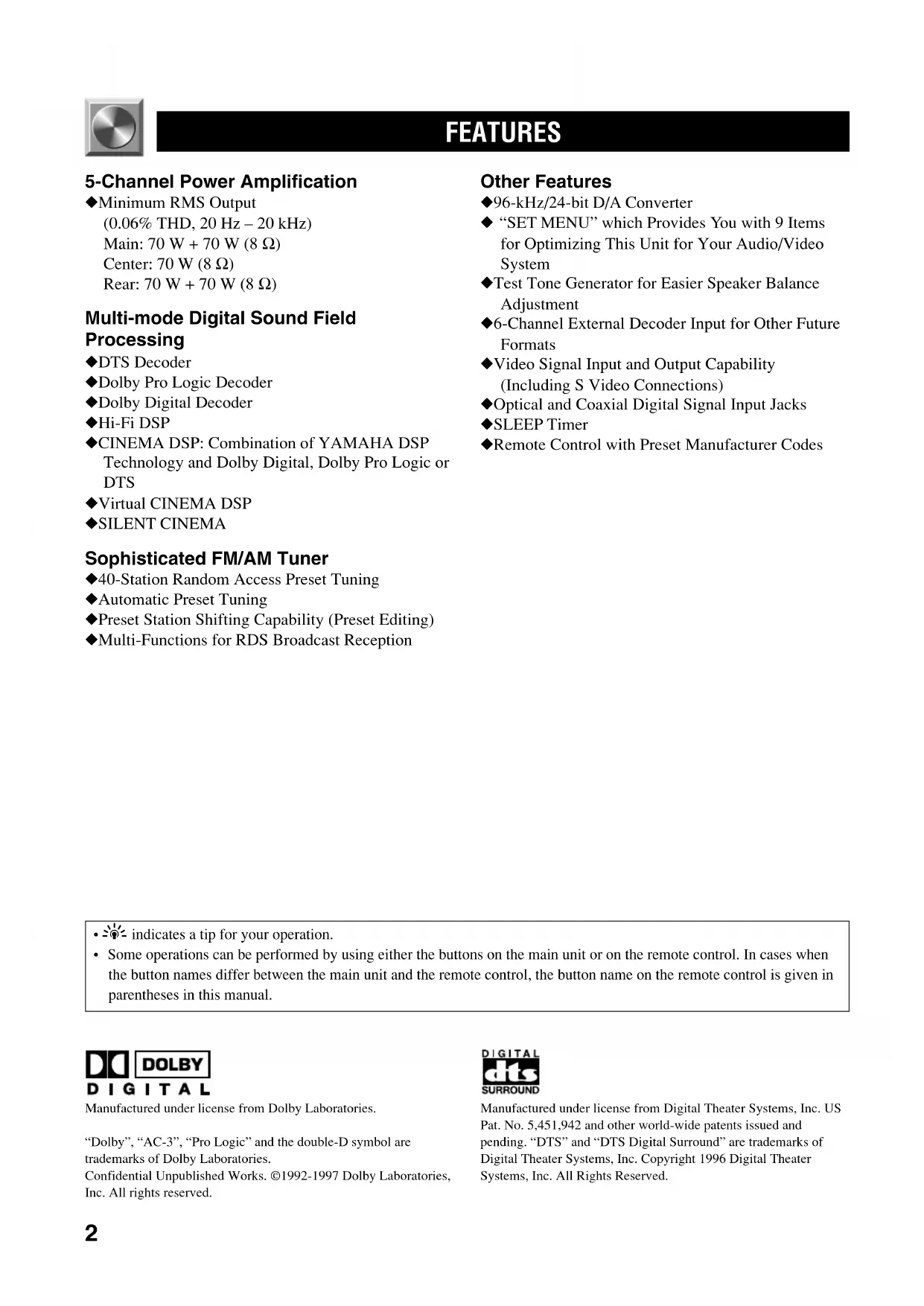
- Some operations can be performed by using either the buttons on the main unit or on the remote control. In cases when the button names differ between the main unit and the remote control, the button name on the remote control is given inparentheses in this manual. 5-Channel Power Amplification ◆ Minimum RMS Output (0.06% THD, 20 Hz – 20 kHz) Main: 70 W + 70 W (8 Ω) Center: 70 W (8 Ω) Rear: 70 W + 70 W (8 Ω) Multi-mode Digital Sound Field Processing ◆ DTS Decoder ◆ Dolby Pro Logic Decoder ◆ Dolby Digital Decoder ◆ Hi-Fi DSP ◆ CINEMA DSP: Combination of YAMAHA DSP Technology and Dolby Digital, Dolby Pro Logic or DTS ◆ Virtual CINEMA DSP ◆ SILENT CINEMA Sophisticated FM/AM Tuner ◆ 40-Station Random Access Preset Tuning ◆ Automatic Preset Tuning ◆ Preset Station Shifting Capability (Preset Editing) ◆ Multi-Functions for RDS Broadcast Reception Other Features ◆ 96-kHz/24-bit D/A Converter ◆ “SET MENU” which Provides You with 9 Items for Optimizing This Unit for Your Audio/Video System ◆ Test Tone Generator for Easier Speaker Balance Adjustment ◆ 6-Channel External Decoder Input for Other Future Formats ◆ Video Signal Input and Output Capability (Including S Video Connections) ◆ Optical and Coaxial Digital Signal Input Jacks ◆ SLEEP Timer ◆ Remote Control with Preset Manufacturer Codes FEATURES
0102V520RDS01-09_EN 1/31/1, 4:20 PM23
EnglishBASIC OPERATIONADVANCED OPERA TION APPENDIXINTRODUCTIONPREPARATION GETTING STARTED Checking the Package Contents Check that the following items are included in your package.
Remote control Batteries (AAA, R03, UM-4 type) AM loop antennaIndoor FM antenna75-ohm/300-ohm antenna adapter(U.K. model only) Battery Installation in the Remote Control 1 Turn the remote control over and slide the battery compartment cover in the direction ofthe arrow. 2 Insert the batteries (AAA, R03 or UM-4 type) according to the polarity markings on theinside of the battery compartment. 3 Close the battery compartment cover. Battery Replacement If the remote control operates only when it is close to theunit, the batteries are weak. Replace all the batteries withnew ones.Be sure to replace the batteries within about two minutes.If it takes longer than two minutes, the codes preset forthe remote control will return to the factory settings. Notes
- Use only AAA, R03 or UM-4 batteries for replacement.• Be sure the battery polarity is correct. (See the illustration insidethe battery compartment.)• Remove the batteries if the remote control will not be used for anextended period of time.• If the batteries have leaked, dispose of them immediately. Avoidtouching the leaked material or letting it come into contact withclothing, etc. Clean the battery compartment thoroughly beforeinstalling new batteries.Quick reference cardConnection guide
0102V520RDS01-09_EN 2/1/1, 2:24 PM34
6 EON Press this button to select the desired program type (NEWS, INFO, AFFAIRS, SPORT) when you want to tune in to a radio program of that type automatically.
Press this button to begin searching for a station after the desired program type has been selected in the PTY SEEK mode. 8 INPUT MODE Press this button to select the input mode among AUTO, DTS and ANALOG for the sources that send two or more types of signals to this unit. 9 VOLUME Turn this control to turn up or down the volume. 0 6CH INPUT Press this button to select the source connected to the 6CH INPUT jacks. The source selected by pressing 6CH INPUT takes priority over the source selected with INPUT l / h (or the input selector buttons on the remote control).
CONTROLS AND FUNCTIONS
Front Panel 1 STANDBY/ON Press this switch to turn on the power of this unit or to set this unit in the standby mode. Before turning the power on, set the volume at the minimum level. Standby mode In this mode, this unit consumes a very small quantity of power to receive infrared-signals from the remote control. 2 Remote control sensor This receives signals from the remote control. 3 Display This shows various information.
Press this button to set the unit in the PTY SEEK mode.
When an RDS station is received, press this button to change the display mode among the PS mode, PTY mode, RT mode, CT mode (if the station offers those RDS data services) and/or frequency display mode in turn.
0102V520RDS01-09_EN 1/31/1, 4:20 PM45
English BASIC OPERATION ADVANCED OPERA TION APPENDIX INTRODUCTION PREPARATION q BASS Turn this control clockwise to increase or counterclockwise to decrease the low-frequency response. w TREBLE Turn this control clockwise to increase or counterclockwise to decrease the high-frequency response. Note
- If you increase or decrease the high-frequency or the low- frequency sound to an extreme level, the tonal quality from the center and rear speakers may not match that of the left and right main speakers. e BALANCE This control is only effective for the sound from the main speakers. Turn the control to adjust the balance of the output volume from the right and left main speakers to compensate for sound imbalance caused by the speaker location or listening room conditions. r SPEAKERS A/B Set A or B (or both A and B) to the ON position for the main speaker system (connected to this unit) that you want to use. Set the button(s) to the OFF position for the main speaker system that you don’t want to use. t PROGRAM l / h Press l or h to select a DSP program when the effect speakers (center and rear) are turned on. The name of the selected program appears on the display. y EFFECT Press this button to turn on or off the effect speakers (center and rear). If you turn them off, all Dolby Digital and DTS audio signals except for the LFE channel are directed to the right and left main speakers. In that case, the output levels of the right and left speakers may not match. u PHONES jack Connect the headphones to the PHONES jack so that this unit outputs audio signals for private listening. When listening with headphones privately, set both SPEAKERS A/B to the OFF position. i VIDEO AUX jacks Connect an auxiliary audio or video input source such as a game console to these jacks. To reproduce source signals from these jacks, select V-AUX as the input source. o PRESET/TUNING l / h When “ z ” appears on the display: This button is used to select a preset station number (1 to 8). Press l to select a lower and h to select a higher preset station number. When “ z ” goes off from the display: This button is used for tuning. Press l to tune in to lower frequencies, and h to tune in to higher frequencies. When this unit is in the PTY SEEK mode, press this button to select a program type. p A/B/C/D/E Press this button to select one of 5 preset station groups (A to E). a PRESET/TUNING (EDIT) Press this button to turn on or off “ z ” on the display and switch the function between for storing a broadcasting station (preset tuning) and for tuning. This button is also used to exchange the assignment of two preset stations with each other. s MEMORY (MAN’L/AUTO FM) Press this button to store the broadcasting stations. Hold down this button for more than 3 seconds to begin automatic preset tuning (for FM stations only). d TUNING MODE (AUTO/MAN’L MONO) Press this button to switch the tuning mode between automatic and manual. To use the automatic tuning method, press this button so that the “AUTO” indicator lights up on the display. To use the manual tuning method, press this button so that the “AUTO” indicator goes off. f FM/AM Press this button to switch the reception band between FM and AM. g INPUT l / h Press these buttons to select the input source (DVD, AUX, MD/CD-R, TUNER, CD, V-AUX, VCR, D-TV/CBL) that you want to listen to or watch. The name of the selected input source appears on the display.
CONTROLS AND FUNCTIONS
0102V520RDS01-09_EN 1/31/1, 4:20 PM56
Remote Control 1 Indicator This flashes in red when pressing a button on the remote control. If it flashes rapidly several times, press the selected button again. 2 Component selector buttons Press one of these buttons which corresponds to the component you want to control with the remote control. (The proper code must be set for your component. Refer to “Setting the Manufacturer Code”.) When the component selector button has been pressed, the remote control is set to that component operation mode. 3 POWER Each time you press this button, the unit switches between the power on and standby mode. 4 TEST Press this button to output the test tone for each speaker.
5 A/B/C/D/E, PRESET –/+
These buttons are used to select a preset station. A/B/C/D/E: To select one of a group (A to E) of preset stations PRESET –/+: To select a preset station number (1 to 8) 6 MUTE Press this button to mute the sound. To cancel mute, press this button again. 7 VOLUME These buttons are used to adjust the volume level. u: To turn up the volume d: To turn down the volume 8 SLEEP Press this button to set the SLEEP timer. 9 –/+ These buttons adjust the settings of the SET MENU and TIME/LEVEL mode. 0 TIME/LEVEL Press this button to select the items in the TIME/LEVEL mode. q Input selector buttons These buttons select the input source. CD: To play a CD TUNER: To listen to an FM (RDS) or AM broadcast MD/CD-R: To play an MD or CD recorder (or tape deck) DVD: To play a DVD D-TV/CBL: To watch a TV/digital TV or cable TV VCR: To play a video cassette AUX: To use another audio component V-AUX: To use another audio/video component w 6CH INPUT Press this button to play a source connected to the 6CH INPUT jacks.
TV VOLUMETV INPUTPressAMP(TUNER). This section describes basic operation of this unit with the remote control. First, press AMP(TUNER) on the component selector. Refer to “PRESET REMOTE CONTROL” for full details.
0102V520RDS01-09_EN 1/31/1, 4:20 PM67
English BASIC OPERATION ADVANCED OPERA TION APPENDIX INTRODUCTION PREPARATION Using the Remote Control Remote controlsensorWithin approximately 6 m(20 feet) e EFFECT Press this button to turn on or off the effect speakers (center and rear). r PRG+, PRG– Press these buttons to select a DSP program. Once you press SET MENU, these buttons are used for selecting the SET MENU item. t SET MENU Press this button to select the items in the SET MENU.
CONTROLS AND FUNCTIONS
The remote control transmits a directional infrared beam. Be sure to aim the remote control directly at the infrared sensor during operation. When the sensor is covered or there is a large object between the remote control and the sensor, the sensor cannot receive signals. The sensor may not be able to receive signals properly when it is exposed to direct sunlight or a strong artificial light (such as a fluorescent or strobe light). In this case, change the direction of the light or reposition the unit to avoid direct lighting. Notes
- Handle the remote control with care.• Do not spill water, tea or other liquids on the remote control.• Do not drop the remote control.• Do not leave or store the remote control in the followingconditions:– high humidity or temperature such as near a heater, stove orbath;– dusty places; or– extremely low temperature.
0102V520RDS01-09_EN 1/31/1, 4:20 PM78
1 t indicator The “t” indicator lights up when the built-in DTS decoder is turned on. 2 VIRTUAL indicator This lights up when using Virtual CINEMA DSP. 3 g and o indicators “ g ” lights up when the built-in Dolby Digital decoder is on and the signals of the selected source are encoded with Dolby Digital. “ o ” lights up when the built-in Dolby Pro Logic decoder is on. 4 DSP program indicators This indicates the name of the selected DSP program. 5 PTY HOLD indicator This lights up while searching for stations in the PTY SEEK mode. 6 RDS mode indicators The name(s) of the RDS data offered by the currently received RDS station light(s) up. Illumination of the red indicator next to the RDS data name shows that the corresponding RDS mode is now selected. 7 EON indicator This lights up when an RDS station that offers the EON data service is being received. 8 AUTO indicator This lights up when the unit is in the automatic tuning mode. 9 STEREO indicator This lights up when an FM stereo broadcast with sufficient signal strength is being received. 0 x indicator “ x ” lights up when the built-in digital sound field processor is on. q v indicator This lights up when this unit is reproducing PCM (pulse code modulation) digital audio signals. w Headphones indicator This lights up when headphones are connected. e Multi-information display This display shows various information: for example the name of the selected input source and the various settings during adjustment with the SET MENU. The current station frequency and band (FM or AM) also appear when the tuner is selected as the input source. r MEMORY indicator This flashes for about 5 seconds after pressing MEMORY. During this period, the displayed station can be stored in the memory. t Program type name indicators The name of the selected program type lights up when the “EON” indicator lights up. y TUNED indicator This lights up when this unit tunes in to a station. u SLEEP indicator This lights up while the built-in SLEEP timer is on.
English BASIC OPERATION ADVANCED OPERA TION APPENDIX INTRODUCTION PREPARATION Rear Panel 1 DIGITAL OUTPUT jacks 2 DIGITAL INPUT jacks 3 6CH INPUT jacks See pages 12 and 13 for connection information. 4 Antenna input terminals See page 26 for connection information. 5 Video component jacks See pages 14 and 15 for connection information. 6 Speaker terminals See pages 16 and 17 for connection information. 7 AC power cord Connect to a power outlet. CONTROLS AND FUNCTIONSAs this terminal is usedfor an examination in thefactory, do not connectany equipment to thisterminal.
D-TV/CBLD-TV/CBLD-TV/CBL
MAINS 8 AC OUTLET(S) Use these outlets to supply power to your other audio/video components (see page 18). 9 Audio component jacks See pages 12 and 13 for connection information. 0 SUBWOOFER jack See page 17 for connection information. q IMPEDANCE SELECTOR switch Use this switch to match the amplifier output to your speaker impedance. Set this unit in the standby mode before you change the setting of this switch (see page 18). (Europe model)
0102V520RDS01-09_EN 1/31/1, 4:21 PM910
SPEAKER SETUP Speakers to Be Used This unit is designed to provide the best sound-field qualitywith a 5-speaker system, using main speakers, rear speakersand a center speaker. If you use different brands of speakers(with different tonal qualities) in your system, the tone of amoving human voice and other types of sound may not shiftsmoothly. We recommend that you use speakers from thesame manufacture to ensure even tonal quality.The main speakers are used for the main source sound plusthe effect sounds. They will probably be the speakers fromyour present stereo system. The rear speakers are used forthe effect and surround sounds, and the center speaker is forthe center sounds (dialog, vocals, etc.). If for some reason itis not practical to use a center speaker, you can do withoutit. Best results, however, are obtained with the full system.The main speakers should be high-performance models andhave enough power-handling capacity to accept themaximum output of your audio system. The other speakersdo not have to be equal to the main speakers. For precisesound localization, however, it is ideal to use high-performance models that can reproduce sounds over the fullrange for the center speaker and the rear speakers. ■ Use of a subwoofer expands your sound field It is also possible to further expand your system with theaddition of a subwoofer. The use of a subwoofer is effectivenot only for reinforcing bass frequencies from any or allchannels, but also for reproducing the LFE (low frequencyeffect) channel with high fidelity when playing back asource encoded with Dolby Digital or DTS. The YAMAHAActive Servo Processing Subwoofer System is ideal fornatural and lively bass reproduction. Speaker Placement Refer to the following diagram when you place thespeakers.Main speaker (R)Center speaker Main speaker (L)SubwooferRear speaker (L)Rear speaker (R)1.8 m ■ Main speakers Place the right and left main speakers an equal distancefrom the ideal listening position. The distance of eachspeaker from each side of the TV monitor should be thesame. ■ Rear speakers Place these speakers behind your listening position, facingslightly inwards, nearly 1.8 m (approx. 6 feet) above thefloor. ■ Center speaker Align the front face of the center speaker with the front faceof your TV monitor. Place the speaker as close to themonitor as possible, such as directly over or under themonitor and centrally between the main speakers. Note
- If the center speaker is not used, the sound will be heard from theright and left main speakers. In that case, “CENTER SP” in theSET MENU is set to the NON position. ■ Subwoofer The position of the subwoofer is not so critical, because lowbass sounds are not highly directional. But it is better toplace the subwoofer near the main speakers. Turn it slightlytoward the center of the room to reduce the wall reflections. CAUTION Please use magnetically shielded speakers.Sometimes a video monitor may be adversely affectedeven when magnetically shielded speakers are used.Separate the speakers from the monitor if this happens.PREPARATION
0103V520RDS10-20_EN 1/31/1, 4:21 PM1011
English BASIC OPERATION ADVANCED OPERA TION APPENDIX INTRODUCTION PREPARATION CONNECTIONS Before Connecting Components CAUTION Never connect this unit and other components to mains power until all connections between components have been completed. Be sure all connections are made correctly, that is to say L (left) to L, R (right) to R, “+” to “+” and “–” to “–”. Some components require different connection methods and have different terminal names. Refer to the instructions for each component to be connected to this unit. When you connect other YAMAHA audio components (such as a tape deck, MD recorder and CD player or changer), connect it to the jacks with the same number labels as !, #, $ etc. Use RCA-type pin plug cables for connecting audio/video components with the exception described later. The input and output jacks for pin plugs can be distinguished as follows: Yellow video signals (composite)White analog audio signals for the left channelRed analog audio signals for the right channelcoaxial digital signals After completing all connections, check them again to make sure they are correct. V V C C
■ Connecting an MD recorder, CD recorder or tape deck
- When you connect your recording component to both the analogand digital input and output jacks, the priority is given to thedigital signal. Notes
- When you connect a recording component to this unit, keep itspower on while using this unit. If the power is off, this unit maydistort the sound from other components.• Since digital output and analog output (REC OUT) areindependent of each other, the analog signal is output only to theanalog jack, while the digital signal is output only to the digitaljack. Connecting an External Decoder This unit is equipped with 6 additional input jacks (left and right MAIN, CENTER, left and right SURROUND and SUBWOOFER) for discrete multi-channel input from an external decoder, sound processor or pre-amplifier. Connect the output jacks on your external decoder to the 6CH INPUT jacks. Be sure to match the left and right outputs to the left and right input jacks for the main and surround channels. Note
- The following are not applied to the input signal from the 6CHINPUT jacks.– Sound field effects by this unit– Speaker mode setting (“1 SPEAKER SET” (except “MAINLVL”) in the SET MENU)– Level adjustment of the effect speakers (center, rear andsubwoofer)CONNECTIONS Connecting Audio Components ■ Connecting to digital jacks This unit has digital jacks for direct transmission of digital signals through either coaxial or fiber optic cables. You can use the digital jacks to input PCM, Dolby Digital and DTS bitstreams. When you connect components to both the COAXIAL and OPTICAL jacks, priority is given to the input signals from the COAXIAL jack. All digital input jacks are acceptable for 96-kHz sampling digital signals.
- You can designate the input for each digital jack according toyour component by using “3 I/O ASSIGN” in the SET MENU. About the dust protection cap Pull out the cap from the optical jack before you connect the fiber optic cable. Do not discard the cap. When you are not using the optical jack, be sure to put the cap back in place. This cap protects the jack from dust. Note
- The OPTICAL jacks on this unit conform to the EIA standard. Ifyou use a fiber optic cable that does not conform to this standard,this unit may not function properly. ■ Connecting a CD player
- The COAXIAL jack is available for a CD player which hascoaxial digital output jack.• When you connect a CD player to both the analog and digitaljacks, priority is given to the input signals from the digital jack.
D-TV/CBLD-TV/CBLD-TV/CBL
MD recorder or CD recorder CD player External decoder (Europe model) indicates signal direction indicates left analog cables indicates right analog cables indicates optical cables indicates coaxial cables CONNECTIONS Audio component
0103V520RDS10-20_EN 1/31/1, 4:21 PM1314
Connecting Video Components ■ Audio signal jacks Be sure to connect the right channel (R), left channel (L), input (IN) and output (OUT) properly. ■ Video signal jacks Be sure to connect the input (IN) and output (OUT) properly. ■ TV monitor with a 21-pin connector Make a connection as shown on page 15 with a commercially available SCART-plug connector cable. ■ S VIDEO jacks If your video component has “S” (high-resolution) video jacks, they can be connected to this unit’s S VIDEO jacks. Otherwise, connect the composite video jacks of your video component to this unit’s composite video jacks. Notes
- Use a special S VIDEO cable (commercially available) for the SVIDEO connection.• If video signals are input from both the S VIDEO input andcomposite input jacks, the signals will be directed to theirrespective output jacks.AUDIO OUT RAUDIO OUT LVIDEO OUTOPTICAL OUTS VIDEO OUT
DVD player Video monitor S Video signal Signal flow TV/digital TV, cable TV or satellite tuner VCR Game console CONNECTIONS ■ VIDEO AUX jacks (on the front panel) These jacks are used to connect any video input source such as a game console to this unit.
D-TV/CBLD-TV/CBLD-TV/CBL
DVD player Video monitor SCART-plug No connection TV/digital TV or cable TV/satellite tuner VCR indicates signal direction indicates left analog cables indicates right analog cables indicates optical cables indicates video cables indicates S-video cables When using an LD player Connect the LD player output to the DVD jack. If the LD player has an OPTICAL digital output jack, connect it to this unit’s OPTICAL DVD jack. If it has analog jacks, connect it to the analog DVD jacks. If it has an “RF OUTPUT jack” to output a Dolby Digital RF signal (AC-3), use a commercially available RF demoduclator and connect it to the OPTICAL DVD jack. If connecting a DVD player and an LD player, connect the LD player to the digital input jack (ex. D-TV/CBL) or the analog input jack (D-TV/CBL or VCR 1). For details on connections and operations, refer to the operation instructions for the LD player. Note that this unit’s remote control can be used to operate the LD player by setting the corresponding manufacturer code for the DVD/LD mode. CONNECTIONS (Europe model)
0103V520RDS10-20_EN 1/31/1, 4:21 PM1516
Connecting Speakers Be sure to connect the right channel (R), left channel (L), “+” (red) and “–” (black) properly. If the connections are faulty, no sound will be heard from the speakers, and if the polarity of the speaker connections is incorrect, the sound will be unnatural and lack bass.CAUTION• Use speakers with the specified impedance shown on the rear panel of this unit.
- Do not let the bare speaker wires touch each other and do not let them touch any metal part of this unit. This could damage the unit and/or speakers.■ Speaker cables 1 Remove approx. 10 mm (3/8”) of insulation from each of the speaker cables. 2 Twist the exposed wires of the cable together to prevent short circuits.■ Connecting to the MAIN SPEAKERS terminals 1 Unscrew the knob. 2 Insert one bare wire into the hole in the side of each terminal. 3 Tighten the knob to secure the wire. ■ Connecting to the REAR and CENTER SPEAKERS terminals 1 Open the tab. 2 Insert one bare wire into the hole of each terminal. 3 Return the tab to secure the wire.
Red: positive (+)Black: negative (–)Red: positive (+)Black: negative (–)■ Main speaker terminals One or two speaker systems can be connected to these terminals. If you use only one speaker system, connect it to either of the SPEAKERS A or B terminals.■ Rear speaker terminalsA rear speaker system can be connected to these terminals.■ Center speaker terminalsA center speaker can be connected to these terminals.CONNECTIONS
English BASIC OPERATION ADVANCED OPERA TION APPENDIX INTRODUCTION PREPARATION ■ Subwoofer connection When using a subwoofer with built-in amplifier, including the YAMAHA Active Servo Processing Subwoofer System, connect the input jack of the subwoofer system to this jack. Low bass signals distributed from the main, center and/or rear channels are directed to this jack. (The cut-off frequency of this jack is 90 Hz.) The LFE (low-frequency effect) signals generated when Dolby Digital or DTS is decoded are also directed if they are assigned to this jack. Notes
- Adjust the subwoofer volume according to the operation instructions for the subwoofer. (Fine adjustment is possible using this unit’s output level control of the effect speakers.)
- Depending on the settings of “1 SPEAKER SET”, “LFE LEVEL (5 DOLBY D. SET)” and “6 DTS SET” in the SET MENU, some signals may not be output from the SUBWOOFER jack. SWITCHED100W MAX. TOTALAC OUTLETSIMPEDANCE SELECTORSET BEFORE POWER ONMAIN A OR B: 4 MIN. /SPEAKER
IMPEDANCE SELECTOR Switch WARNING Do not change the IMPEDANCE SELECTOR switch setting while the power to this unit is on, otherwise the unit may be damaged. If this unit fails to turn on when STANDBY/ON (or POWER) is pressed, the IMPEDANCE SELECTOR switch may not be fully slid either position. If so, slide the switch to either position fully when this unit is in the standby mode. Select the right or left position according to the impedance of speakers in your system. Be sure to move this switch only when this unit is in the standby mode. SWITCHED100W MAX. TOTALAC OUTLETSIMPEDANCE SELECTORSET BEFORE POWER ONMAIN A OR B: 4 MIN. /SPEAKER
MIN. /SPEAKERMAIN A OR B: 8
MIN. /SPEAKERMAIN A OR B: 8
: 8 MIN. /SPEAKERREAR : 8 MIN. /SPEAKERMAINS Switch position Speaker Impedance level Left Main If you use one set of main speakers, the impedance of each speaker must be 4 Ω or higher. If you use two sets of main speakers, the impedance of each speaker must be 8 Ω or higher. Center The impedance must be 6 Ω or higher. Rear The impedance of each speaker must be 6 Ω or higher. Right Main If you use one set of main speakers, the impedance of each speaker must be 8 Ω or higher. If you use two sets of main speakers, the impedance of each speaker must be 16 Ω or higher. Center The impedance must be 8 Ω or higher. Rear The impedance of each speaker must be 8 Ω or higher. Connecting the Power Supply Cords After completing all connections, connect the AC power cord to an AC power outlet. Disconnect the AC power cord if you will not use this unit for a long period of time. ■ AC OUTLETS (SWITCHED) Europe model .................................................... 2 OUTLETS U.K. model .......................................................... 1 OUTLET Use these outlets to connect the power cords only from your audio/video components to this unit. The power to the AC OUTLET(S) is controlled by this unit’s STANDBY/ON (or POWER). These outlets will supply power to any connected component whenever this unit is turned on. The maximum power (total power consumption of components) that can be connected to the AC OUTLET(S) is 100 W. (Europe model)IMPEDANCESELECTOR(Europe model)To AC outletSWITCHED CONNECTIONS
ADJUSTING THE SPEAKER BALANCE
Using the Test Tone The adjustment of each speaker sound output level shouldbe performed at your listening position with the remotecontrol. 1 Press AMP(TUNER) on the component selector. 2 Press TEST. “TEST LEFT” appears on the display. 3 Turn up the volume. You will hear a test tone (like pink noise) from eachspeaker for about two seconds in following order: leftmain speaker, center speaker, right main speaker, rightrear speaker and left rear speaker. The display changesas shown below. Notes
- If the test tone cannot be heard, turn down the volume, set the unitin the standby mode and check the speaker connections.• If the test tone cannot be heard from the center speaker, check the setting of “CENTER SP” in the SET MENU. This procedure lets you adjust the sound output levelbalance between the main, center and rear speakers by usingthe built-in test tone generator. When this adjustment isperformed, the sound output level heard at the listeningposition will be the same from each speaker. This isimportant for the best performance of the digital sound fieldprocessor, the Dolby Pro Logic decoder, Dolby Digitaldecoder and DTS decoder. Note
- Since this unit cannot enter the test mode while headphones areconnected to this unit, be sure to unplug the headphones from thePHONES jack when using the test tone. Before You Start Adjusting 1 Set the volume at the minimum level. 2 Turn the power on. 3 Press SPEAKERS A or B to select the mainspeakers to be used.If you use two main speakersystems, press both A and B. 4 Set BASS, TREBLE and BALANCE to the center position.SILENT VIDEO AUXPHONES S VIDEO VIDEO L AUDIO R OPTICAL6CH INPUTINPUT MODEINPUTVOLUMERDS MODE/FREQ EON
PTY SEEKMODE STARTTUNING
4 Adjust BALANCE on the front panel so that the sound output level of the right main speaker and the left main speaker is the same. 5 Press –/+ repeatedly to adjust the output level of the speaker currently outputting the test tone so that it becomes almost the same as that of the main speakers. While adjusting, the test tone is heard from the selected speaker. 6 When the adjustment is complete, press TEST. The test tone stops. Notes
- If “CENTER SP” in the SET MENU is set to the NON position, the sound output level of the center speaker cannot be adjusted in step 5. The center channel sound is automatically output from the right and left main speakers.
- For details on adjusting the subwoofer speaker, refer to “DELAY TIME AND SPEAKER OUTPUT LEVELS” on page 40.
- After adjusting with the test tone, it is possible to adjust the speaker level to taste while listening to the playback of an actual source. Refer to “DELAY TIME AND SPEAKER OUTPUT LEVELS” on page 40.
- Once you have completed the adjustments, you can only adjust the overall volume level of your audio system by using VOLUME (or VOLUME (u/d)).
- If there is insufficient sound output from the center and rear speakers, you may decrease the main speaker output level by setting “MAIN LVL” in the SET MENU to “–10 dB”. Front panelBALANCE
ADJUSTING THE SPEAKER BALANCE
English BASIC OPERATION ADVANCED OPERA TION APPENDIX INTRODUCTION PREPARATION When using the remote control, press AMP(TUNER) on the component selector. 1 Set the volume at the minimum level. 2 Turn the power on. 3 Press SPEAKERS A or B to select the main speakers to be used. If you use two main speaker systems, press both A and B.
4 Select the desired input source with INPUT l / h (or the input selector buttons). (Turn on the video monitor for video sources.) The name of the selected input source appears on the display. To select a source connected to the 6CH INPUT jacks Press 6CH INPUT so that “6CH INPUT” appears on the display. Notes
- An audio source can not be played if “6CH INPUT” appears. Press 6CH INPUT to turn off “6CH INPUT”.
- If you select and play a video source when “6CH INPUT” appears, the playback result will be a video image from the video source and the sound from the audio source selected by using “6CH INPUT”.
- The current input mode is also shown. Refer to “Input Modes and Indications” on page 23 for details. SPEAKERS
Front panel VOLUME Front panel Remote control 6CH INPUT Front panel Input source BASIC OPERATION STANDBY /ON Front panel Remote control
Remote control INPUT Front panel
0104V520RDS21-25_EN 1/31/1, 4:22 PM2122
5 Play the source. Refer to the instructions for the source component (and “TUNING” for details). Note
- When controlling an audio/video component (MD recorder, CD player, DVD player, tape deck, etc.) with the remote control, press one of the component selector buttons, (TAPE/MD, CD, DVD/ LD, etc.), which corresponds to the component you want to control. Refer to “PRESET REMOTE CONTROL”. 6 Adjust the volume to the desired output level. If desired, adjust BASS, TREBLE, BALANCE, etc. These controls are only effective for the sound from the main speakers.
- BASS controls the low-frequency response.
- TREBLE controls the high-frequency response.
- BALANCE adjusts the balance of the output volume from the right and left main speakers. 7 Use the digital sound field processor. Refer to “Selecting a DSP Program”. ■ To mute the sound Use this when you want to temporarily mute audio output. Press MUTE on the remote control. To restore the audio output to the previous volume level, press MUTE again. Note
- During muting, “MUTE ON” appears on the display. ■ When you have finished using this unit Press STANDBY/ON (or POWER) to set this unit in the standby mode.
■ Notes on the digital signal The digital input jacks of this unit can also handle 96-kHz sampling digital signals. (To utilize this, use a source that supports 96-kHz sampling digital signals and set the player for digital output. Refer to the operation instructions for the player.) Note the following when a 96-kHz sampling digital signal is input to this unit:
1. The following indication will appear on the display.
2. DSP programs cannot be selected. Sound will be output
as normal 2-channel stereo sound from only the left and right main speakers. Note
- If “MAIN SP” in the SET MENU is set to SMALL and “BASS OUT” is set to SWFR or “BASS OUT” is set to BOTH, the sound is also output from the subwoofer.
3. Adjustment of the speaker output level described on
page 40 cannot be made (except the level of the subwoofer). ■ BGV (background video) function The BGV function allows you to combine a video image from a video source with a sound from an audio source. (For example, you can listen to classical music while you are watching a video.) This function can only be controlled with the remote control. Play a video source, and then select an audio source with the input selector buttons on the remote control. The BGV function does not work if you select the audio source with INPUT l / h on the front panel. PROGRAMFront panelRemote control VOLUMEFront panel Remote control BASS BALANCE
English BASIC OPERATION ADVANCED OPERA TION APPENDIX INTRODUCTION PREPARATION ■ Notes on playing a source encoded with a DTS signal
- If the digital output data of the player has been processed in any way, you may not be able to perform DTS decoding even if you make a digital connection between this unit and the player.
- If you play a source encoded with a DTS signal and set the input mode to ANALOG, this unit reproduces the noise of an unprocessed DTS signal. When you want to play a DTS source, be sure to connect the source to a digital input jack and set the input mode to AUTO or DTS.
- If you switch the input mode to ANALOG while playing a source encoded with a DTS signal, this unit reproduces no sound.
- The following phenomena may occur if the input mode is set to AUTO when playing back a source encoded with DTS: – If you continue to play a source encoded with a DTS signal, this unit automatically switches to the “DTS- decoding” mode to prevent noise from being generated during subsequent operation. (The “t” indicator lights up on the display.) The “t” indicator may flash immediately after playback of a source encoded with a DTS signal has finished. Only a source encoded with a DTS signal can be played back while this indicator is flashing. (The indicator will flash for less than a minute.) If you want to play a normal PCM source soon, set the input mode back to AUTO. – The “t” indicator may flash when a search or skip operation is performed. If this status continues for a certain length of time, the unit will automatically switch from the “DTS-decoding” mode to PCM digital signal input mode and the “t” indicator will go out. Input Modes and Indications When using the remote control, press AMP(TUNER) on the component selector. This unit comes with various input jacks. If your component is connected to more than one type of input jack, you can set the priority of the input signal. Press INPUT MODE (or the input selector button that you have pressed to select the input source on the remote control) repeatedly until the desired input mode is shown on the display. PLAYING A SOURCEFront panel Remote controlInput mode AUTO: In this mode, the input signal is automatically selected in the following order:
DTS: In this mode, only the digital input signal encoded with DTS is selected even if another signal is input at the same time. ANALOG (ANLG): In this mode, only the analog input signal is selected even if a digital signal is input at the same time. Notes
- If digital signals are input from both the COAXIAL andOPTICAL jacks, the digital signal from the COAXIAL jack isselected.• When AUTO is selected, this unit automatically determines thetype of signal. If this unit detects a Dolby Digital or DTS signal,the decoder automatically switches to the appropriate setting andreproduces 5.1 channel source.• The sound output may be interrupted for some LD players andDVD players in the following situation:When the input mode has been set to AUTO and a search isperformed while playing the source encoded with a Dolby Digitalor DTS signal, the sound may delay for a moment when playbackis resumed.• Depending on the LD player, playback may not be made whenplaying an LD that is not digitally recorded with the input modeset to AUTO. If this happens, set the input mode to ANALOG.INPUT MODE
0104V520RDS21-25_EN 1/31/1, 4:22 PM2324
Selecting a DSP Program You can enhance your listening experience by selecting aDSP program. Refer to “SOUND FIELD PROGRAM” fordetails about each program.
- Make sure that the sound effect is turned on (see page 25). ■ On the remote control 1 Press AMP(TUNER) on the component selector. 2 Press PRG+ or PRG– repeatedly to select thedesired program.The name of the selectedprogram appears for a momentand the selected DSP programindicator lights up on thedisplay.
DSP program name ■ On the front panel Press PROGRAM l or hrepeatedly to select thedesired program.The name of the selectedprogram appears for a momentand the selected DSP programindicator lights up on thedisplay.
- If desired, adjust the delay time and the sound output level of eachspeaker. (Refer to “DELAY TIME AND SPEAKER OUTPUTLEVELS” on page 40 for details.) Notes
- Choose a DSP program based on your listening preference, andnot on the name of the program. The acoustics of your listeningroom affect the DSP program. Minimize the sound reflections inyour room to maximize the effect created by the program.• When you select an input source, this unit automatically selectsthe last DSP program used with that source.• When you set this unit in the standby mode, the current sourceand DSP program are memorized and are automatically selectedwhen you turn on the power again.• If a Dolby Digital or DTS signal is input when the input mode isset to AUTO, the DSP program automatically switches to theappropriate decoding program.• When a monaural source is being played with PRO LOGIC/NORMAL or PRO LOGIC/ENHANCED, no sound will be heardfrom the main speakers and the rear speakers. Sound can only beheard from the center speaker. However, if “CENTER SP” in theSET MENU is set to NON, the center channel sound is outputfrom the main speakers.• When a source connected to the 6CH INPUT jack of this unit isselected, the digital sound field processor cannot be used.• When 96-kHz sampling digital signals are input to this unit, theDSP program cannot be selected. In this case, the sound isreproduced as normal 2-channel stereo. DSP DIGITALMOVIE THEATER 1 BASS EXT.
0104V520RDS21-25_EN 1/31/1, 4:22 PM2425
English BASIC OPERATION ADVANCED OPERA TION APPENDIX INTRODUCTION PREPARATION ■ Virtual CINEMA DSP and SILENT CINEMA Virtual CINEMA DSP Virtual CINEMA DSP allows you to enjoy the sound field effects of the DSP program without rear speakers. Using YAMAHA original technology, natural surround reproduction is possible through the generation of a virtual speaker. The sound field processing is changed to the Virtual CINEMA DSP mode by setting “REAR LR SP” on the SET MENU to NON. Virtual CINEMA DSP is performed by using the main speakers. Note
- This unit is not set in the Virtual CINEMA DSP mode even if“REAR LR SP” is set to NON in the following cases:– when the 5CH STEREO, PRO LOGIC/NORMAL, DOLBYDIGITAL/NORMAL or DTS/NORMAL program is selected;– when the sound effect is turned off;– when 6CH INPUT is selected as the input source;– when 96-kHz sampling digital signals are input to this unit;– when the Dolby Digital KARAOKE source is played;– when using the test tone; or– when connecting the headphones (you will hear SILENTCINEMA). SILENT CINEMA SILENT CINEMA allows you to enjoy the realistic feel of the DSP program while using headphones. This feature delivers powerful surround reproduction just as if listening through the speakers. You can listen to SILENT CINEMA by connecting your headphones to the PHONES jack while the effect speakers are on. EFFECTFront panelPLAYING A SOURCE
Canceling the Sound Effect (turning off the effect speakers) Press EFFECT to cancel the sound effect and monitor only the main sound. Press EFFECT again to turn the sound effect back on. Notes
- If the sound effect is canceled when Dolby Digital or DTS isdecoding, the sounds of the center and rear channels are mixedand output from the main speakers.• If you turn off the sound effect when Dolby Digital or DTS isdecoding, it may happen that the sound is output faintly or notoutput normally, depending on the source. In that case, turn backon the sound effect.Remote control
0104V520RDS21-25_EN 1/31/1, 4:22 PM2526
TUNING Connecting the Antennas Both AM and FM indoor antennas are included with this unit. In general, these antennas should provide sufficient signalstrength.Connect each antenna correctly to the designated terminals.Indoor FMantenna(included)AM ANT GNDFM ANT
CoverUnit: mm(inch)Lead wireClamp withpliers.Clamp with pliers.Insert the wireinto the slot.Open the cover of theincluded 75-ohm/300-ohmantenna adapter.Cut the external sleeve ofthe 75-ohm coaxial cableand prepare it forconnection.Cut the lead wire andremove it.Insert the cable wire into theslot, and clamp it withpliers.Snap the cover intoplace.AM loopantenna(included)Ground (GND terminal)For maximum safety andminimum interference, connectthe antenna GND terminal to agood earth ground. A good earthground is a metal stake driveninto moist earth. ■ Connecting the indoor FM antenna Connect the included indoor FM antenna to the FM ANT75Ω UNBAL. terminal. Note
- Do not connect an outdoor FM antenna and the indoor FMantenna at the same time. ■ Connecting the AM loop antenna 1 Press and hold the tab to unlock the terminal hole. 2 Insert the AM loop antenna lead wires into the AM ANT and GND terminals. 3 Release the tab to lock the lead wires. Lightly pull the lead wires to confirm a goodconnection. 4 Attach the loop antenna to the antenna stand. 5 Orient the AM loop antenna so that the best reception is obtained.
- The AM loop antenna can be removed from the stand andattached to a wall, etc. Notes
- The AM loop antenna should be placed away from this unit.• The AM loop antenna should always be connected, even if anoutdoor AM antenna is connected to this unit.A properly installed outdoor antenna provides clearerreception than an indoor one. If you experience poorreception quality, an outdoor antenna may improve thequality. Consult the nearest authorized YAMAHA dealeror service center about the outdoor antennas.
English BASIC OPERATION ADVANCED OPERA TION APPENDIX INTRODUCTION PREPARATION TUNING Automatic Tuning Automatic tuning is effective when station signals are strong and there is no interference. 1 Use INPUT l / h to select TUNER as the input source. 2 Press FM/AM to select the reception band (FM or AM). “FM” or “AM” appears on the display. 3 Press TUNING MODE (AUTO/MAN’L MONO) so that the “AUTO” indicator lights up on the display. If “ z ” appears on the display next to the band indication, press PRESET/TUNING (EDIT) to turn it off. SILENT VIDEO AUXPHONES S VIDEO VIDEO L AUDIO R OPTICAL6CH INPUTINPUT MODEINPUTVOLUMERDS MODE/FREQ EON
PRESET /TUNING EDIT PRESET /TUNING EDIT FM/AM FM/AM 4 Press PRESET/TUNING l once to tune in to a lower frequency and h once to tune in to a higher frequency. Press the button again if the tuning search does not stop at the desired station.
- Use the manual tuning method if the tuning search does not stop at the desired station (because the signal from the station is weak).
- When tuned in to a station, the “TUNED” indicator lights up and the frequency of the received station is shown on the display. If an RDS station that offers the PS data service is being received, the station name is shown instead of the frequency on the display. Manual Tuning If the signal from the station you want to select is weak, you must tune in to it manually. 1 Use INPUT l / h to select TUNER as input source. 2 Press FM/AM to select the reception band (FM or AM). “FM” or “AM” appears on the display. 3 Press TUNING MODE (AUTO/MAN’L MONO) so that the “AUTO” indicator goes off. If “ z ” appears on the display next to the band indication, press PRESET/TUNING (EDIT) to turn it off. 4 Press PRESET/TUNING l or h to tune in to the desired station. To continue the tuning search, hold down the button. Note
- If you tune in manually to an FM station, it will be automatically received in monaural mode to increase the signal quality.
TUNING Automatic Preset Tuning (for RDS stations only) You can make use of the automatic preset tuning function for RDS stations only. This function enables the unit to automatically tune in with strong signals and to sequentially store up to 40 RDS stations (5 groups x 8 stations). 1 Press FM/AM to select the FM band. 2 Press TUNING MODE (AUTO/MAN’L MONO) so that the “AUTO” indicator lights up on the display. 3 Hold down MEMORY (MAN’L/AUTO FM) for about 3 seconds. The preset number, the “MEMORY” and “AUTO” indicators flash. After about 5 seconds, automatic preset tuning begins from the frequency currently displayed toward the higher frequencies. Received stations are sequentially stored as A1, A2 ... A8. If more than 8 stations have been tuned, they are stored as preset station numbers in other groups (B, C, D and E) in that order. ■ Automatic preset tuning options You can select the preset number from which the unit will store RDS stations and/or begin tuning toward lower frequencies. Before automatic preset tuning begins (after pressing MEMORY in step 3),
1. Press A/B/C/D/E and PRESET/TUNING l or h to
select the preset number with which the first station will be stored. The automatic preset tuning will stop when stations have all been stored up to E8.
2. Press PRESET/TUNING (EDIT) to turn “ z ” off and
then press PRESET/TUNING l to begin tuning toward lower frequencies. ■ When automatic preset tuning is completed The display shows the frequency of the last preset station. Check the contents and the number of preset stations by following the procedure in the section “To Recall a Preset Station” on page 29. Notes
- A new setting can be stored in place of the former one.• The reception mode is stored along with the station frequency.• You can manually replace a preset station with another FM or AMstation by simply using the manual preset tuning method.• Automatic preset tuning will be performed for all RDS networkstations until all have been stored up to E8. Even if the number ofreceived stations is not enough to be stored up to E8, automaticpreset tuning is automatically ended after searching for allstations.• Only RDS stations with sufficient signal strength are stored byautomatic preset tuning. If the station you want to store is weak insignal strength, tune in to it manually in monaural mode and storeit by using the manual preset tuning method. (There may be acase that this unit cannot receive a station which could bereceived by using the automatic tuning method. This is becausethis unit receives a large amount of PI (Program Identification)data along with the station.) Memory back-up The memory back-up circuit prevents the stored data from being lost when this unit is set in the standby mode. If, however, the power cord is disconnected from the AC power outlet or the power is cut for more than one week, the memory will be erased. If so, store the stations again by using preset tuning methods. Lights upSILENT VIDEO AUXPHONES S VIDEO VIDEO L AUDIO R OPTICAL6CH INPUTINPUT MODEINPUTVOLUMERDS MODE/FREQ EON
PTY SEEKMODE STARTTUNING
0105V520RDS26-30_EN 1/31/1, 4:22 PM2829
English BASIC OPERATION ADVANCED OPERA TION APPENDIX INTRODUCTION PREPARATION TUNING Manual Preset Tuning You can also store up to 40 stations (5 groups x 8 stations) manually. 1 Tune in to the desired station. Refer to “Automatic/Manual Tuning” for the tuning procedure. 2 Press MEMORY (MAN’L/AUTO FM). The “MEMORY” indicator flashes for about 5 seconds. 3 Press A/B/C/D/E repeatedly to select the desired group (A to E) of preset stations before the “MEMORY” indicator goes off. Make sure that “ z ” appears on the display. The selected group appears on the display. 4 Press PRESET/TUNING l or h to select a preset station number (1 to 8) with which you want to store the station before the “MEMORY” indicator goes off. Press l to select a lower preset station number and h to select a higher preset station number. 5 Press MEMORY (MAN’L/AUTO FM) before the “MEMORY” indicator goes off. The displayed station has been stored as the preset group and number you have selected, and the reception band and frequency appear and the “TUNED” indicator lights up on the display. 6 Repeat steps 1 to 5 to store other stations. Notes
- A new setting can be stored in place of the former one.• The reception mode is stored along with the station frequency. To Recall a Preset Station You can recall any desired station simply by selecting the preset station number with which it was stored. You can also recall a preset station with the remote control. Press AMP(TUNER) on the component selector and press TUNER on the input selector. 1 Press A/B/C/D/E to select the required group of preset stations. Make sure that “ z ” appears on the display. 2 Press PRESET/TUNING l or h (or PRESET –/+) to select a preset station number (1 to 8). The preset group and number appear on the display along with the reception band, frequency, and the “TUNED” indicator lights up. PRESET/TUNINGSILENT VIDEO AUXPHONES S VIDEO VIDEO L AUDIO R OPTICAL6CH INPUTINPUT MODEINPUTVOLUMERDS MODE/FREQ EON
PTY SEEKMODE STARTTUNING
Remote control Front panel
TUNING Exchanging Preset Stations You can exchange the assignment of two preset stations with each other. Example: Exchange preset station “E1” with “A5” 1 Recall preset station “E1”. Refer to the procedure in the section “To Recall a Preset Station” on page 29. 2 Hold down (PRESET/ TUNING) EDIT for about 3 second. “E1” and the “MEMORY” indicator flash. 3 Recall preset station “A5” by using the buttons on the front panel. “A5” and the “MEMORY” indicator flash. 4 Press (PRESET/TUNING) EDIT again. The display shows the exchange of stations has been completed. SILENT VIDEO AUXPHONES S VIDEO VIDEO L AUDIO R OPTICAL6CH INPUTINPUT MODEINPUTVOLUMERDS MODE/FREQ EON
EnglishBASIC OPERATIONADVANCED OPERA TION APPENDIXINTRODUCTION PREPARATION
RECEIVING RDS STATIONS
Radio Data System (RDS) is a data transmission system byFM stations in many countries. Stations using this systemtransmit an inaudible stream of data in addition to thenormal radio signal.RDS data contains various information such as PI (ProgramIdentification), PS (Program Service name), PTY (ProgramType), RT (Radio Text), CT (Clock Time), EON (EnhancedOther Networks), etc. The RDS function is carried outamong the network stations. Description of RDS Data This unit can receive PI, PS, PTY, RT, CT, and EON datawhen receiving RDS broadcasting stations. ■ PS (Program Service name) mode: The name of the RDS station being received is displayed. ■ PTY (Program Type) mode: The program type on the RDS station being received isdisplayed. There are 15 program types to classify RDSstations. You can make this unit search for a station which isbroadcasting a program of the desired type. Refer to “PTYSEEK Function” for details. ■ RT (Radio Text) mode: Information about the program (such as the title of the song,name of the singer, etc.) on the RDS station being receivedis displayed by a maximum of 64 alphanumeric characters,including the umlaut symbol. If other characters are used forRT data, they are displayed with under-bars. ■ CT (Clock Time) mode: The current time is displayed and updated every minute. If the data are accidentally cut off, “CT WAIT” may appear. ■ EON (Enhanced Other Networks): Refer to “EON Function” on page 33. Changing the RDS Mode The four modes are available in this unit for displaying RDSdata. When an RDS station is being received, PS, PTY, RTand/or CT that correspond to the RDS data services offeredby the station light up on the display. Press RDS MODE/FREQ repeatedly to change the display mode among theRDS data offered by the transmitting station in the ordershown below. Illumination of the red indicator next to theRDS mode indicator shows that the corresponding RDSmode is now selected. Notes
- When an RDS station is being received, do not press RDSMODE/FREQ until one or more RDS mode indicators light up onthe display. If you press the button before the indicators light upon the display, the mode cannot be changed. This is because theunit has not yet received all of the RDS data on the station.• RDS data not offered by the station cannot be selected.• The RDS data service cannot be utilized by this unit if thereceived signal is not strong enough. In particular, the RT moderequires a large amount of data to be received, so it is possiblethat the RT mode may not be displayed even if other RDS modes(PS, PTY, etc.) are displayed.• RDS data cannot sometimes be received under poor reception conditions. If so, press TUNING MODE so that the “AUTO” indicator goes off from the display. Although the reception modeis changed to monaural by this operation, when you change thedisplay to RDS mode, RDS data may be displayed.• If the signal strength is weakened by external interference duringthe reception of an RDS station, the RDS data service may be cut off suddenly and “...WAIT” will appear on the display.
PTY SEEK Function If you select the desired program type, the unit automatically searches all preset RDS stations that are broadcasting a program of the required type. 1 Press PTY SEEK MODE to set the unit in the PTY SEEK mode. The program type of the station being received or “NEWS” flashes on the display. 2 Press PRESET/TUNING l or h to select the desired program type. The selected program type flashes on the display. 3 Press PTY SEEK START to begin searching all preset RDS stations. The selected program type flashes and the “PTY HOLD” indicator lights up on the display while searching for stations.
- If a station that is broadcasting a program of the required type is found, the unit stops at that station.
- If the called station is not the desired one, press PTY SEEK START again. The unit begins searching for another station that is broadcasting a program of the same type.
RECEIVING RDS STATIONS
■ To cancel this function Press PTY SEEK MODE twice. ■ Program types in the PTY mode There are 15 program types to classify RDS stations. NEWS NewsAFFAIRS Current affairsINFO General informationSPORT SportsEDUCATE EducationDRAMA DramaCULTURE CultureSCIENCE ScienceVARIED Light entertainmentPOP M PopsROCK M RockM.O.R. M Middle-of-the-road music (easy-listening)LIGHT M Light classicsCLASSICS Serious classicsOTHER M Other musicPTY SEEKMODE STARTFlashesPRESET/TUNINGThe selected program type flashes.Light upPTY SEEKMODE START
PTY HOLD BASS EXT. AUTO
English BASIC OPERATION ADVANCED OPERA TION APPENDIX INTRODUCTION PREPARATION EON Function This function uses the EON data service on the RDS station network. If you simply select the desired program type (NEWS, INFO, AFFAIRS or SPORT), the unit automatically searches for all preset RDS stations that are scheduled to broadcast a program of the required type and switches from the station being currently received to the new station when the broadcasts starts. Note
- This function can only be used when an RDS station that offers the EON data service is being received. When such a station is being received, the “EON” indicator lights up on the display. 1 Make sure that the “EON” indicator lights up on the display. If the “EON” indicator does not light up, tune in to another RDS station so that the “EON” indicator lights up.
2 Press EON repeatedly to select the desired program type (NEWS, INFO, AFFAIRS or SPORT). The selected program type name indicator lights up on the display.
- If a preset RDS station of the selected program type starts broadcasting, the unit will automatically switch from the program being currently received to that program. The program type name indicator flashes.
- When broadcasting of the required program ends, the previously received station (or another program on the same station) is recalled. ■ To cancel this function Press EON repeatedly until no program type name lights up on the display.
RECEIVING RDS STATIONS
1,4 Recording adjustments and other operations are performed from the recording component. Refer to the instructions for these components. 1 Set the volume at the minimum level. 2 Select the source you want to record. 3 Begin recording by the recording component connected to this unit. 4 Play the source and then turn up the volume to confirm the input source. Notes
- Do a test recording before you start an actual recording.
- When this unit is set in the standby mode, you cannot record between other components connected to this unit.
- The DSP program and the setting of VOLUME, BASS, TREBLE and BALANCE have no effect on the material being recorded.
- A source connected to the 6CH INPUT jacks of this unit cannot be recorded.
- Composite video and S video signals pass independently through this unit’s video circuits. Therefore, when recording or dubbing video signals, if your video source component is connected to provide only an S video (or only a composite video) signal, you can record only an S video (or only a composite video) signal by your VCR.
- A given input source is not output on the same REC OUT channel. (For example, the signal input from VCR 1 IN is not output on VCR 1 OUT.)
- Check the copyright laws in your country to record from records, CDs, radio, etc. Recording of copyrighted material may infringe copyright laws. If you play back a video source that uses scrambled or encoded signals to prevent it from being dubbed, the picture itself may be disturbed due to those signals. ■ Special considerations when recording DTS software The DTS signal is a digital bitstream. Attempting to digitally record the DTS bitstream will result in noise being recorded. Therefore, if you want to use this unit to record sources that have DTS signals recorded on them, the following considerations and adjustments need to be made. For DVDs and CDs encoded with DTS Only 2-channel analog audio signals may be recorded. Set the DVD player (or CD player) as described in the player’s operation instructions so that the audio signals are output from the player’s analog outputs.
Remote control INPUT Front panel
VOLUME Front panel VOLUME Front panel
EnglishBASIC OPERATIONADVANCED OPERA TION APPENDIXINTRODUCTIONPREPARATION SET MENU The SET MENU consists of 9 items including the speakermode setting. Use the SET MENU to enjoy the optimumaudio/video playback for your system.
- You can adjust the items on the SET MENU while playing asource.1 SPEAKER SETCENTER SPMAIN SPREAR LR SPBASS OUTMAIN LVL2 HP TONE CTRL3 I/O ASSIGN4 INPUT MODE5 DOLBY D. SETLFE LEVELD-RANGE6 DTS SET7 SP DLY TIME8 DISPLAY SET9 MEM. GUARD Adjusting the Items on the SET MENU Adjustment should be made with the remote control. Note
- Some items require extra steps to change to the desired setting.
ADVANCED OPERATION 1 Press AMP(TUNER) on the component selector. 2 Press SET MENU to enter the SET MENU. 3 Press PRG– (or PRG+) repeatedly to select the item (1 to 9) you want to adjust.
- By pressing SET MENU repeatedly, you can select items in thesame order as when pressing PRG–. 4 Press – or + once to enter the setup mode of the selected item.The last setting you adjusted appears on the display.Depending on the item, press PRG– (or PRG+) toselect a sub item. 5 Press – or + repeatedly to change the setting of the item. 6 Press PRG– (or PRG+) repeatedly until the inputsource name appears toexit from the SET MENU.
0107V520RDS35-42_EN 1/31/1, 4:23 PM3536
■ MAIN SP (main speaker mode) Choices: LARGE, SMALL Initial setting: LARGE LARGE Select this if you have large main speakers. The entire range of the left and right main channel signal is directed to the left and right main speakers. SMALL Select this if you have small main speakers. The low- frequency signals (90 Hz and below) of the main channel are directed to the speakers selected with “BASS OUT”. Note
- When you select MAIN for “BASS OUT”, the low-frequency signals (90 Hz and below) of the main channel are directed to themain speakers even if you select SMALL for the main speakermode. ■ REAR LR SP (rear speaker mode) Choices: LRG (large), SML (small), NON (none) Initial setting: LRG LRG Select this if you have large left and right rear speakers or if a rear subwoofer is connected to the rear speakers. The entire range of the rear channel signal is directed to the left and right rear speakers. SML Select this if you have small left and right rear speakers. The low-frequency signals (90 Hz and below) of the rear channel are directed to the speakers selected with “BASS OUT”. NON Select this if you do not have rear speakers.
- This unit is set in the Virtual CINEMA DSP mode by selectingNON for “REAR LR SP”.SET MENU Memory back-up The memory back-up circuit prevents the stored data from being lost even if this unit is set in the standby mode, the power cord is disconnected from the AC outlet, or the power supply is temporarily cut due to power failure. However, if the power is cut for more than one week, the settings of the SET MENU you adjusted will return to the factory settings. If so, adjust the items again. 1 SPEAKER SET (speaker mode settings) Use this feature to select suitable output modes for your speaker configuration. Notes
- When 96-kHz sampling digital signals are input to this unit, level adjustments in items “MAIN SP”, “BASS OUT” and “MAIN LVL” are possible, but those in items “CENTER SP” and “REAR LR SP” are not affected.• When 6CH INPUT is selected as the input source, leveladjustments in items of “1 SPEAKER SET” are not affected (except “MAIN LVL”). ■ CENTER SP (center speaker mode) By adding a center speaker to your speaker configuration, the unit can provide good dialog localization for many listeners and superior synchronization of sound and images. Choices: LRG (large), SML (small), NON (none) Initial setting: LRG LRG Select this if you have a large center speaker. The entire range of the center channel signal is directed to the center speaker. SML Select this if you have a small center speaker. The low- frequency signals (90 Hz and below) of the center channel are directed to the speakers selected with “BASS OUT”. NON Select this if you do not have a center speaker. All of the center channel signals are directed to the left and right main speakers.
0107V520RDS35-42_EN 1/31/1, 4:23 PM3637
English BASIC OPERATION ADVANCED OPERA TION APPENDIX INTRODUCTION PREPARATION ■ BASS OUT (bass out mode) LFE signals carry low-frequency effects when this unit decodes a Dolby Digital or DTS signal. Low-frequency signals are defined as 90 Hz and below. Choices: SWFR (subwoofer), MAIN, BOTH Initial setting: BOTH SWFR Select this if you use a subwoofer. The LFE signals are directed to the subwoofer. MAIN Select this if you do not use a subwoofer. The LFE signals are directed to the main speakers. BOTH Select this if you use a subwoofer and you want to mix the main channel low-frequency signals with the LFE signals. Notes
- When playing a 2-channel source (CD, MD, tape, video cassetteetc.), select BOTH position to direct low bass signals (below90 Hz) to the SUBWOOFER jack.
- When you select SMALL (SML) for items “CENTER SP”, “MAIN SP” and “REAR LR SP”, the low-frequency signals (90 Hz and below) from those channels are added to the LFE andoutput to the subwoofer. ■ MAIN LVL (main level mode) Change this setting if you cannot match the output level of the center and rear speakers with the main speakers because of the unusually high-efficiency performance of the main speakers. Choices: NORM (normal), –10 dB Initial setting: NORM NORM (normal) Normally select this setting. –10 dB Select this if you cannot match the output level of your effect speakers with that of your main speakers when using the test tone. This setting decreases the main speaker output level to about one-third of the normal level. 2 HP TONE CTRL (headphone tone control) Use this feature to adjust the level of the bass and treble when you use your headphones. Control range (dB): –6 to +3 Initial setting: 0 dB for both BASS and TRBL (treble)
It is possible to assign jacks according to the component to be used if this unit’s DIGITAL INPUT/OUTPUT jack settings (component names for terminals) differ from that component. This makes it possible to change the jack assignment and effectively connect more component. Once you assign, you can select that component with INPUT l / h (or the input selector buttons). ■ 3A (1) (for the OPTICAL OUTPUT jack) Initial setting: (1) MD/CD-R ■ 3B (2) to (4) (for the OPTICAL INPUT jacks) Initial settings: (2) MD/CD-R (3) DVD (4) D-TV/CBL SET MENU
0107V520RDS35-42_EN 1/31/1, 4:23 PM3738
■ 3C (5) (for the COAXIAL INPUT jack) Initial setting: (5) CD Note
- You cannot select an item more than once for the same type ofjack. 4 INPUT MODE (initial input mode) Use this feature to designate the input mode when turning on the power of this unit with the source component connected to more than one type of input jacks. Choices: AUTO, LAST Initial setting: AUTO AUTO Select this to allow this unit to automatically detect the type of input signal and select the appropriate input mode. LAST Select this to set this unit to automatically select the last input mode used for that source. 5 DOLBY D. SET (Dolby Digital set) This setting is effective only when this unit decodes Dolby Digital signals. ■ LFE LEVEL Use this feature to adjust the output level of the LFE (low- frequency effect) channel when playing back a Dolby Digital signal. The LFE signal carries the low-frequency special effect sound which is only added to certain scenes. Control value (dB): –20 to 0 Initial setting: 0 dB Notes
- Adjust the LFE level according to the capacity of your subwoofer.
- Normally, around –6 dB to –8 dB is most suitable for listening at home. ■ D-RANGE (dynamic range) Use this feature to adjust the dynamic range (the difference between the maximum level and the minimum level of sounds). Choices: MAX, STD (standard), MIN Initial setting: MAX
- Select MAX for feature films.
- Select STD for general use.
- Select MIN for listening to sources at an extremely low volume level. SET MENU Input levelInput levelL-LEVEL BSTH-LEVEL CUT
- When you select MIN, the sound output may be faint becausesome Dolby Digital signals are not compatible with theminimum-level dynamic range. In this case, select MAX or STD. 6 DTS SET (DTS LFE level) This setting is effective only when this unit decodes DTS signals. Use this feature to adjust the output level of the LFE (low- frequency effect) channel when playing back a DTS signal. The LFE signal carries the low-frequency special effect sound which is only added to certain scenes. Control range (dB): –10 to +10 Initial setting: 0 dB Note
- Adjust the LFE level according to the capacity of your subwoofer.
0107V520RDS35-42_EN 1/31/1, 4:23 PM3839
English BASIC OPERATION ADVANCED OPERA TION APPENDIX INTRODUCTION PREPARATION SET MENU
7 SP DLY TIME (center delay) Use this feature to adjust the delay of the center channel sound. This feature works when this unit decodes a Dolby Digital or DTS signal. Ideally, the center speaker should be the same distance from the listening position as the left and right main speakers. However, in most home situations, the center speaker is placed in line with the main speakers. By delaying the sound from the center speaker, the apparent distance from the center speaker to the listening position can be adjusted to make it seem the same as the distance between the left and right main speakers to the listening position. Adjusting the delay time for the center speaker is especially important for giving depth to the dialog. Control range (ms): 0 to 5 Initial setting: 0 ms
Center speaker image
- Increasing the delay by 1 ms simulates moving the speakerabout 30 cm (one foot) farther away from the actual position ofthe center speaker. 8 DISPLAY SET ■ DIMMER You can adjust the brightness of the display. Control range : –4 to 0 Initial setting: 0 9 MEM. GUARD (memory guard) Use this feature to prevent accidental changes to the setting of the SET MENU and other settings on this unit. Choices: ON, OFF Initial setting: OFF Select ON to protect the following features:
- Center, rear speakers and subwoofer levels
- Delay time adjusted by using TIME/LEVEL Notes
- When “9 MEM. GUARD” is set to ON, you cannot use the test tone.
- When “9 MEM. GUARD” is set to ON, you cannot select any other SET MENU items.
0107V520RDS35-42_EN 1/31/1, 4:23 PM3940
DELAY TIME AND SPEAKER OUTPUT LEVELS
When using the digital sound field processor with the Dolby Pro Logic decoder, Dolby Digital decoder or DTS decoder, you can adjust the delay time between the main sound and sound effect, and each speaker’s output level as you wish. Delay Time You can adjust the time difference between the beginning of the sound from the main speakers and the beginning of the sound effect from the rear speakers. The larger the value, the later the sound effect is generated. The delay time can be individually adjusted to all DSP programs. Notes
- Adding too much delay will cause an unnatural effect with somesources.• The sound is momentarily interrupted while adjusting the delaytime.Program Preset value (ms)1. CONCERT HALL 452. JAZZ CLUB 303. ROCK CONCERT 154. DISCO 265CH STEREO 2GAME 365. TV SPORTS 106. MONO MOVIE 697. 70 mm SPECTACLE 23DGTL SPECTACLE 13DTS SPECTACLE 1370 mm SCI-FI 20DGTL SCI-FI 16DTS SCI-FI 168. 70 mm ADVENTURE 20DGTL ADVENTURE 15DTS ADVENTURE 1570 mm GENERAL 20DGTL GENERAL 15DTS GENERAL 159. PRO LOGIC/NORMAL 20DOLBY DIGITAL/NORMAL 5DTS DIGITAL SUR./NORMAL 5PRO LOGIC/ENHANCED 20DOLBY DIGITAL/ENHANCED 5DTS DIGITAL SUR./ENHANCED 5 Sound Output Level of the Center, Right Rear and Left Rear Speakers, and Subwoofer If desired, you can adjust the sound output level of each speaker even if it has already been adjusted in “ADJUSTING THE SPEAKER BALANCE” procedure. Notes
- The sound output level of the center speaker cannot be adjusted inthe following cases:– when “CENTER SP” in the SET MENU is set to the NONposition (this is because the center channel sound isautomatically output from the left and right main speakers); or– when you select 6CH INPUT as the input source.• Once the sound output level has been adjusted, the level will bethe same for all DSP programs.Speaker Preset value (dB)Center 0Right rear 0Left rear 0Subwoofer 0
0107V520RDS35-42_EN 7/12/1, 9:46 AM4041
DELAY CENTER R SUR. L SUR. SWFR Adjusting Method Adjustments should be performed with the remote control while watching the information on the display. 1 Press AMP(TUNER) on the component selector. 2 Press TIME/LEVEL repeatedly to select the item you want to adjust. Each time you press TIME/LEVEL, the selected item changes and appears on the display as below. Delay timeCenter speaker output levelRight rear speaker output levelLeft rear speaker output levelSubwoofer output level Note
- Depending on the setting of the SET MENU, you may not be ableto select all these items. 3 Press – or + to adjust the delay time or speaker output levels. 4 Repeat steps 2 and 3 to adjust the settings of any other item. Notes
- If “CENTER SP” or “REAR LR SP” is set to NON, or “BASS OUT” is set to MAIN, the output level of that speaker cannot beadjusted.• When you adjust the output level with TIME/LEVEL, the settingsyou made with the test tone will be changed.• To adjust speakers other than the subwoofer, the adjustingprocedure using test tones on page 19 is recommended. Memory back-up The memory back-up circuit prevents the stored data from being lost when this unit is set in the standby mode. If, however, the power cord is disconnected from the AC power outlet or the power is cut for more than one week, the latest values for the delay time and the center/rear/ subwoofer output levels that were set will automatically return to the preset values. If so, adjust the delay time and output levels again.
0107V520RDS35-42_EN 1/31/1, 4:23 PM4142
SLEEP TIMER The SLEEP timer can be used to automatically set this unitin the standby mode. This timer is useful when you aregoing to sleep while enjoying a broadcast or other desiredinput source. The SLEEP timer can only be set with theremote control. Notes
- First press AMP(TUNER), TAPE/MD, CD or DVD/LD on thecomponent selector to set the SLEEP timer for this unit.• The SLEEP timer is effective for the components connected to theAC OUTLET(S) on the rear panel of this unit. Setting the SLEEP Timer 1 Play a source you want to enjoy when you are going to sleep. 2 Press SLEEP repeatedly to select the desired SLEEPtime.Each time you press SLEEP, theSLEEP time will change asbelow: 3 The “SLEEP” indicator soon lights up on the display after the SLEEP timer has been set.The display returns to the previous indication. Canceling the SLEEP Timer Press SLEEP repeatedly until “SLEEP OFF”appears on the display.It will soon disappear and the “SLEEP” indicator willgo off. Note
- The SLEEP timer can also be canceled by setting the unit in thestandby mode by using POWER on the remote control (orSTANDBY/ON), or by disconnecting the AC power cord fromthe AC power outlet. The SLEEP timer is off(SLEEP OFF).(This is the state beforeSLEEP is pressed.)SLEEPBASS EXT.FlashesSLEEPSTEREO TUNEDLights up
0107V520RDS35-42_EN 1/31/1, 4:23 PM4243
EnglishBASIC OPERATIONADVANCED OPERA TION APPENDIXINTRODUCTIONPREPARATION
It is possible to control this unit and other YAMAHA A/V components using the remote control supplied with this unit. It is also possible to control components from other manufacturers (or some YAMAHA components) by setting the propermanufacturer code (a signal assigned to each manufacturer and component). Note
- For the notes on batteries, operating distance and names and functions of the remote control, refer to each description in this manual. Component Selector Buttons There are eight component selector buttons. Press one of these buttons which corresponds to the component you want to control with the remote control. For example, if you press CD on the component selector, the remote control is set to the CD operation mode, allowing the CD player to be controlled.
AMP(TUNER)You can perform the basic operations of thisunit. The code for a YAMAHA CD player isfactory set.DVD/LD & DVD MENUAn LD player can be controlled inthe DVD/LD mode. A DVD player can becontrolled in the DVD/LD and DVD MENUmodes. The code for a YAMAHA DVDplayer is factory set.TAPE/MDThe code for a YAMAHA MD deck is factoryset. (The code for the YAMAHA CD recorderand tape deck can also be set.) VCR A VCR can be controlled. A TV can be controlled.CBL/SATA cable TV or satellite tuner can be controlled.Notes
- The button functions on the remote control differ depending on the operation mode. Refer to the following pages for details.
- When shipped from the factory, the YAMAHA manufacturer codes listed on page 49 are set for each dial position. If unable to operate your YAMAHA A/V component, please try using another YAMAHA code. Controlling the Components Connected to This Unit ■ Example: To control YAMAHA CD player 1 Make sure that the volume is set at the minimum level. 2 Press AMP(TUNER) on the component selector. 3 Turn on the power. 4 Press CD on the input selector. 5 Press CD on the component selector. 6 Press p. Refer to “Description of EachMode” for the CD playeroperation buttons. 7 Adjust the volume. If you set the remote control with the manufacturer codeslisted from page i at the end of this manual, youcan control other brands of components. Refer to“Setting the Manufacturer Code” for details.
0108V520RDS43-49_EN 1/31/1, 4:23 PM4344
Description of Each Mode
- TV VOLUME functions if you have set the code for your TV.DISPLAY (MD/CD-R)SLEEPEFFECT6CH INPUT MUTE TV VOLUMEVOLUMEPOWERThis button turns this unit on if you have set the codefor a YAMAHA tape deck, MD recorder or CDrecorder. This button turns on the tape deck, MDrecorder or CD recorder that has a remote control witha power button if you have set the code.r REC/PAUSEThis button gives a pause in recording on a tape deckor MD recorder.p PLAYThis button plays a tape, an MD or CD-R.b DIR A (TAPE)This button selects the playing direction of deck A.SKIP– (MD/CD-R)This button skips to the previous track.w REWIND (TAPE)This button rewinds a tape.SEARCH (MD/CD-R)This button initiates a backward search on the trackthat is playing to find the point from which you wantto listen.Press TAPE/MD.Input selector buttonsDECK A/B (TAPE)This button selects deck A or B on a double-cassettetape deck.e PAUSE (MD/CD-R)This button gives a pause in operation.a DIR B (TAPE)This button selects the playing direction of deck B.SKIP+ (MD/CD-R)This button skips to the next track.s STOPThis button stops operation on a tape deck, MDrecorder or CD recorder.f FAST FORWARD (TAPE)This button winds a tape fast forward.SEARCH (MD/CD-R)This button initiates a fast-forward search on thetrack that is playing to find the point from which youwant to listen.
- The dark-shaded buttons do not function even if you have set up the manufacturer code.
- Some of them may not function depending on the component you have. In this case, use the original remote control supplied with your component.
- TV VOLUME and TV INPUT function if you have set the code for your TV.
DISPLAYSLEEPEFFECT6CH INPUT
MUTE TV VOLUMEVOLUMETV INPUTPress CD.POWERThis button turns this unit on if you have set the codefor a YAMAHA CD player. This button turns on the CDplayer that has a remote control with a power button ifyou have set the code.p PLAYThis button plays a CD.b SKIP–This button skips to the beginning of the previoustrack.w SEARCHThis button initiates a backward search on the trackthat is playing to find the point from which you wantto listen.Input selector buttonsDISC SKIP –/+ (for a CD player with CDchanger)These buttons skip to the next or previous CD.e PAUSEThis button gives a pause in operation. Thebutton functions as PAUSE/STOP* for operatinga YAMAHA CD player under factory setting.a SKIP+This button skips to the beginning of the nexttrack.s STOPThis button stops operation. The button functionsas PAUSE/STOP* for operating YAMAHA CDplayers.f SEARCHThis button initiates a fast-forward search on thetrack that is playing to find the point from whichyou want to listen. PAUSE/STOP function Press the button once to give a pause in operation and press once more to stop operation.
- The dark-shaded buttons do not function even if you have set up the manufacturer code.
- Some of them may not function depending on the component you have. In this case, use the original remote control supplied with your component.
- TV VOLUME and TV INPUT function if you have set the code for your TV.
PLAY SEARCHSKIP +Press DVD/LD.POWERThis button turns this unit on if you haveset the code for a YAMAHA DVD or LDplayer. This button turns on the DVD orLD player that has a remote control with apower button if you have set the code.
- TV VOLUME and TV INPUT function if you have set the code for your TV.
- DVD MENU operations cannot be performed for some DVD players. Input selector buttonsPress DVD MENU.POWERThis button turns this unit on if you haveset the code for a YAMAHA DVD or LDplayer. This button turns on the DVD orLD player that has a remote control witha power button if you have set the code.Numeric buttons
- The dark-shaded buttons do not function even if you have set up the manufacturer code.
- Some of them may not function depending on the component you have. In this case, use the original remote control supplied with your component.
- TV VOLUME, TV INPUT and TV SLEEP function if you have set the code for your TV.
- TV VOLUME, TV INPUT and TV SLEEP function if you have set the code for your TV. Press VCR.Press CBL/SAT. ■ TV MODE Note
- You can control your VCR if you have set the code for it. Press TV.VCR RECPress this button twice.
- The dark-shaded buttons do not function even if you have set up the manufacturer code.
- Some of them may not function depending on the component you have. In this case, use the original remote control supplied with your component.
PRESET REMOTE CONTROL
0108V520RDS43-49_EN 1/31/1, 4:24 PM4748
Setting the Manufacturer Code You can set the code for the manufacturer of your component after pressing the component selector buttons other than AMP(TUNER). 1 Turn on your component to be used. 2 Press one of the component selector buttons which corresponds to the component to be controlled. 3 Press both VOLUME buttons (u/d) at the same time for about four seconds. The indicator flashes twice. 4 Use the numeric buttons to enter the four-digit manufacturer code for the component to be used. Make sure that the indicator flashes twice. If the indicator does not flash, repeat step 3 and re-enter the code. 5 Press POWER (or any other button) on the remote control to check if you have set the code correctly. If your component cannot be controlled with the remote control, try setting another code for the same manufacturer. Notes
- You can set only one code for one mode.• In the DVD/LD and DVD MENU modes:Be sure to press DVD/LD on the component selector beforeentering the code for the DVD/LD player. You cannot set the codefor a DVD player after pressing DVD MENU on the componentselector. The code set in the DVD/LD mode is alsosimultaneously set in the DVD MENU mode.• If your component does not respond to any of the codes listed forthe manufacturer, use the original remote control supplied withyour component. ■ To use a second (and third) VCR You can control a second (and third) VCR in the CBL/SAT and DVD MENU modes if a cable TV or satellite tuner, or DVD player is not being used. Note
- In order to set a second (and third) VCR in the DVD MENUmode, it is necessary to first set up the code for an LD player inthe DVD/LD mode. 1 Turn on the VCR to be used. 2 Press CBL/SAT or DVD MENU on the component selector. 3 Press both VOLUME buttons (u/d) at the same time for about four seconds. The indicator flashes twice. 4 Use the numeric buttons to enter the four-digit code for the second (and third) VCR. Make sure that the indicator flashes twice. If the indicator does not flash, repeat step 3 and re-enter the code. 5 Press POWER (or any other button) on the remote control to check if you have set the code correctly. If the VCR cannot be controlled with the remote control, try setting another code for the same manufacturer.
PRESET REMOTE CONTROL
0108V520RDS43-49_EN 1/31/1, 4:24 PM4849
English BASIC OPERATION ADVANCED OPERA TION APPENDIX INTRODUCTION PREPARATION Returning to the Factory Setting ■ To return to the factory-set codes in all modes 1 Press one of the component selector buttons other than AMP(TUNER). 2 Press both VOLUME buttons (u/d) at the same time for about four seconds. The indicator flashes twice. 3 Enter the code number “9990”. Make sure that the indicator flashes twice. ■ To return to the factory-set codes in each mode 1 Press one of the component selector buttons which corresponds to the component to be returned to the factory-set code. 2 Press both VOLUME buttons (u/d) at the same time for about four seconds. The indicator flashes twice. 3 Enter the code number “0000”. Make sure that the indicator flashes twice.
PRESET REMOTE CONTROL
The following codes are factory set. Component selector button Component Code Set component Set code TV TV 0101 CBL/SAT Cable TV 0006 VCR VCR 0002 DVD/LD DVD player 0008 (YAMAHA DVD player) CD CD player 0005 (YAMAHA CD player) TAPE/MD MD recorder 0024 (YAMAHA MD recorder) We recommend that you write all the code numbers you have set on the table above.
A digital sound field processor (DSP) based on the latest YAMAHA technology is built into this unit. It is possible to play back various sound fields for the source you are listening to. Note
- Regardless of the program name and characteristics listed in the table below, select the sound field program that sounds best to you. Hi-Fi DSP Programs ■ For audio sources: Nos. 1 to 4 No. Program (group) Sub-program Features1 CONCERT HALL —Using this program increases the listening position range. This is a sound fieldsuitable for background music at parties. Note
- Reverberations (sound effects) for realizing the sound field and unprocessed stereo from the left and right main speakers is output. The sound is not output from the center speaker. (The sound is output when one of these programs is selected while playing a source encoded with a Dolby Digital or DTS signal. If 5CH STEREO is selected, the sound is output from all speakers regardless of the input source.) This is the sound field at stage front in “The Bottom Line”, a famous New York jazz club. The floor can seat 300 people to the left and right in a sound field offering areal and vibrant sound.A large round concert hall with a rich surround effect. Pronounced reflections fromall directions emphasize the extension of sounds. The sound field has a great deal ofpresence, and your virtual seat is near the center, close to the stage.3 ROCK CONCERT —The ideal program for lively, dynamic rock music. The data for this program was recorded at LA’s “hottest” rock club. The listener’s virtual seat is at the center-left of the hall.4 ENTERTAINMENT DISCOThis program recreates the acoustic environment of a lively disco in the heart of a bigcity. The sound is dense and highly concentrated. It is also characterized by a high-energy, “immediate” sound.5CH STEREO CINEMA DSP Programs ■ For audio-video sources: Nos. 4 to 6 No. Program (group) Sub-program Features4 ENTERTAINMENT GAMEThis program adds a deep and spatial feeling to video game sounds. 5 TV SPORTS — Although the presence sound field is relatively narrow, the surround sound field employs the sound environment of a large concert hall. With this program, you canenjoy watching various TV programs such as news, variety shows, music programsor sports programs. In a stereo broadcast of a sports game, the commentator isoriented at the center position, and the shouts and the atmosphere in the stadiumspread on the surround side, while their spread to the rear is properly restrained.This program is provided for reproducing monaural video sources (such as oldmovies). The program produces the optimum reverberation to create sound depth byusing only the presence sound field.6 MONO MOVIE —
0109V520RDS50-52_EN 1/31/1, 4:24 PM5051
English BASIC OPERATION ADVANCED OPERA TION APPENDIX INTRODUCTION PREPARATION 8 MOVIE THEATER 2 ADVENTURE 70 mm ADVENTURE This program is ideal for precisely reproducing the sound design of the newest 70-mm and multichannel soundtrack films. The sound field is made to be similar to that of the newest movie theaters, so the reverberations of the sound field itself are restrained as much as possible. GENERAL 70 mm GENERAL This program is for reproducing sounds from 70-mm and multichannel soundtrack films, and is characterized by a soft and extensive sound field. The presence sound field is relatively narrow. It spatially spreads all around and toward the screen, restraining the echo effect of conversations without losing clarity. For the surround sound field, the harmony of music or chorus sounds beautifully in a wide space at the rear of the sound field. DOLBY DIGITAL/ NORMAL DTS DIGITAL SUR./ ENHANCED Analog, PCM, Dolby Digital in 2-channel DGTL ADVENTURE Dolby Digital (5.1-channel)
NORMAL Analog, PCM, Dolby Digital in 2-channel Dolby Digital (5.1-channel) DTS DIGITAL SUR./NORMAL DTS The built-in decoder precisely reproduces sounds and sound effects from sources. The highly efficient decoding process improves crosstalk and channel separation, and makes sound positioning smoother and more precise. In this program, the digital sound field processor is not turned on.
ENHANCED Analog, PCM, Dolby Digital in 2-channel DOLBY DIGITAL/ ENHANCED Dolby Digital (5.1-channel) DTS This program ideally simulates the multi-surround speaker systems of the 35-mm film theaters. Dolby Pro Logic decoding, Dolby Digital decoding or DTS decoding and digital sound field processing create precise effects without altering the original sound orientation. The surround effects produced by this sound field wrap around the viewer naturally from the back to the left and right, and toward the screen. ■ For movie programs: Nos. 7 to 9 No. Program (group) Sub-program Input source Features 7 MOVIE THEATER 1 SPECTACLE 70 mm SPECTACLE This program creates the extremely wide sound field of a 70-mm movie theater. It precisely reproduces the source sound in detail, making both the video and the sound field incredibly real. This is ideal for any kind of video source encoded with Dolby Surround, Dolby Digital or DTS (especially large-scale movie productions).
SCI-FI 70 mm SCI-FI Analog, PCM, Dolby Digital in 2-channel This program clearly reproduces dialog and sound effects in the latest sound form of science fiction films, thus creating a broad and expansive cinematic space amid the silence. You can enjoy science fiction films in a virtual-space sound field that includes Dolby Surround, Dolby Digital and DTS-encoded software employing the most advanced techniques. DGTL SCI-FI Dolby Digital (5.1-channel)
- The “ x ” indicator does not light up when selecting the sub-program “NORMAL” of the q/DTS SURROUND program.
- If “CENTER SP” in the SET MENU is set to NON, no sound is output from the center speaker.
- The effect sound is output from the main speakers when a monaural source is played with CINEMA DSP program groups 4 (GAME) and 5 to 8.
0109V520RDS50-52_EN 1/31/1, 4:24 PM5152
Presence DSP sound field Surround DSP sound field ■ MOVIE THEATER 1 and 2 Most commercially available movie software has 4-channel (left, center, right and surround) sound information encoded by Dolby Surround matrix processing and stored on the left and right tracks. These signals are processed by the Dolby Pro Logic decoder. The MOVIE THEATER programs are designed to recreate the spaciousness and delicate nuances of sound that tend to be lost in the encoding and decoding processes. The 6-channel soundtracks found on 70-mm film produce precise sound field localization and rich, deep sound without using matrix processing. This unit’s MOVIE THEATER 70 mm programs provide the same quality of sound and sound localization that 6-channel soundtracks do. When the input source is analog, PCM or encoded with Dolby Digital in 2-channel These programs express an immense sound field and a large surround effect. They also give depth to the sound from the main speakers to recreate the realistic sound of a Dolby Stereo theater. 70 mm SPECTACLE 70 mm SCI-FI 70 mm ADVENTURE 70 mm GENERAL The built-in Dolby Digital or DTS decoder brings the professional-quality sound designed for movie theaters into your home. With the unit’s MOVIE THEATER programs, you can recreate a dynamic sound that gives you the feeling of being at a public theater in your listening room by using Dolby Digital or DTS technology. When the input source is encoded with Dolby Digital (5.1-channel) or DTS (Tri-Field CINEMA DSP) These programs use YAMAHA’s tri-field DSP processing on each of the Dolby Digital or DTS signals for the front, left surround and right surround channels. This processing enables this unit to reproduce the immense sound field and surround expression of a Dolby Digital- or DTS-equipped movie theater without sacrificing the clear separation of all channels. DGTL SPECTACLE DTS SPECTACLE DGTL SCI-FI DTS SCI-FI DGTL ADVENTURE DTS ADVENTURE DGTL GENERAL DTS GENERAL Presence DSP sound field Right surround DSP sound field Left surround DSP sound field
- If a Dolby Digital signal or DTS signal is input when the input mode is set to AUTO, the DSP program will be automatically switched to the Dolby Digital playback sound field or DTS playback sound field.
0109V520RDS50-52_EN 1/31/1, 4:24 PM5253
English BASIC OPERATION ADVANCED OPERA TION APPENDIX INTRODUCTION PREPARATION TROUBLESHOOTING Refer to the chart below when the unit does not function properly. If the problem you are experiencing is not listed below or if the instruction below does not help, set this unit in the standby mode, disconnect the power cord and contact the nearest authorized YAMAHA dealer or service center. ■ General Problem Cause Remedy APPENDIX Refer to page The unit fails to turn onwhen STANDBY/ON (orPOWER) is pressed, orenters in the standbymode soon after thepower has been turned on. The power cord is not connected or the plug isnot completely inserted.Firmly connect the power cord.The IMPEDANCE SELECTOR switch on therear panel is not fully set to the left or rightposition.Set the switch fully to the left or right positionwhen the unit is in the standby mode.The protection circuit has been activated.Make sure all speaker wire connections on thisunit and on all speakers are secure and that thewire for each connection does not touchanything other than its respective connection.No sound and/or nopicture.Incorrect input or output cable connections. Connect the cables properly. If the problempersists, the cables may be defective.An appropriate input source has not beenselected.Select an appropriate input source with INPUTl / h or 6CH INPUT (or the input selectorbuttons).The speaker connections are not secure. Secure the connections.The main speakers to be used have not beenselected properly.Select the main speakers with SPEAKERS Aand/or B.The volume is turned down. Turn up the volume.The sound is muted.Press MUTE or any operation buttons to cancela mute and adjust the volume.Digital signals other than PCM audio, DolbyDigital or DTS signal which this unit cannotreproduce are being input to this unit by playinga CD-ROM, etc.Play a source whose signals this unit canreproduce.The picture does notappear.The output and input for the video areconnected to different types of video jacks.Make connections using the same type of jack(between composites, S-VIDEOs, orcomponents) for both the input and output.The sound suddenlygoes off.Check the IMPEDANCE SELECTOR switch isset to the appropriate position and then turn theunit back on.The protection circuit has been activatedbecause of a short circuit, etc.Check the speaker wires are not touching eachother and then turn the unit back on.The sleep timer has functioned.Turn on the power, and play the source again.The sound is muted.Press MUTE or any operation buttons to cancela mute and adjust the volume.Only the speaker on oneside can be heard.Incorrect cable connections. Connect the cables properly. If the problempersists, the cables may be defective.
16, 1712 – 15 16, 17
Problem Cause Remedy Refer to page TROUBLESHOOTING No sound from the effect speakers. The sound effect is off. Press EFFECT to turn it on. A Dolby Surround, Dolby Digital or DTS decoding DSP program is being used with material not encoded with Dolby Surround, Dolby Digital or DTS. Select another DSP program. A 96-kHz sampling digital signal is being input to this unit. No sound from the center speaker. The output level of the center speaker is set to minimum. Raise the level of the center speaker. “CENTER SP” in the SET MENU is set to NON. Select the appropriate mode for your center speaker. One of the Hi-Fi DSP programs (1 to 4) has been selected. Select another DSP program. The source encoded with a Dolby Digital or DTS signal does not have a center channel signal. No sound from the rear speakers. The output level of the rear speakers is set to minimum. Raise the output level of the rear speakers. A monaural source is being played with the program 9. Select another DSP program. No sound from the subwoofer. “BASS OUT” in the SET MENU is set to MAIN when a Dolby Digital or DTS signal is being played. Select SWFR or BOTH. “BASS OUT” in the SET MENU is set to SWFR or MAIN when a 2-channel source is being played. Select BOTH. The source does not contain low bass signals (90 Hz and below). Poor bass reproduction. “BASS OUT” in the SET MENU is set to SWFR or BOTH and your system does not include a subwoofer. Select MAIN. The output mode for each speaker (main, center or rear) in the SET MENU does not match your speaker configuration. Select the appropriate output mode for each speaker based on the size of the speakers in your configuration. A “humming” sound can be heard. Incorrect cable connections. Firmly connect the audio plugs. If the problem persists, the cables may be defective.
English BASIC OPERATION ADVANCED OPERA TION APPENDIX INTRODUCTION PREPARATION TROUBLESHOOTING 12 – 15 The volume level cannot be increased, or the sound is distorted. The component connected to the REC OUT jacks of this unit is turned off. Turn on the power to the component. The effect and surround sounds cannot be recorded. It is not possible to record the effect and surround sounds by a recording component. A source cannot be recorded by a digital recording component connected to the DIGITAL OUTPUT jack of this unit. A source component is only connected to the analog input jacks of this unit. Connect the source component to the digital input jacks of this unit. The settings of the SET MENU and some other settings on this unit cannot be changed. “9 MEM. GUARD” in the SET MENU is set to ON. Select OFF. This unit does not operate properly. The internal microcomputer has been frozen by an external electric shock (such as lightning or excessive static electricity) or by a power supply with low voltage. Disconnect the AC power cord from the outlet and then plug it in again after about 30 seconds. The sound is degraded when listening with headphones connected to a tape deck or CD player that is connected to this unit. This unit is in the standby mode. Turn on the power of the unit. There is noise interference from digital or high-frequency equipment, or the unit. Move the unit further away from such equipment.
Refer to page The unit is too close to the digital or high- frequency equipment. Problem Cause Remedy
After this unit has been exposed to a strong external electric shock (such as lightning and strong static electricity) or if you mishandle the operation of this unit, it may not function properly. In these cases, set this unit in the standby mode, disconnect the power cord, plug it back in after 30 seconds, and start operating. TROUBLESHOOTING
■ Tuner Problem FM stereo reception is noisy. The characteristics of FM stereo broadcasts may cause this problem when the transmitter is too far away or the antenna input is poor. Check the antenna connections. Try using a high-quality directional FM antenna. There is distortion, and clear reception cannot be obtained even with a good FM antenna. There is multipath interference. Adjust the antenna position to eliminate multipath interference. The desired station cannot be tuned in with the automatic tuning method. The station is too weak. Use the manual tuning method. Previously preset stations can no longer be tuned in. The unit has been disconnected for a long period. Re-store the stations. The desired station cannot be tuned in with the automatic tuning method. The signal is weak or the antenna connections are loose. Tighten the AM loop antenna connections and orient it for best reception. There are continuous crackling and hissing noises. There are buzzing and whining noises (especially in the evening). Cause Remedy Refer to page Use an outdoor antenna and a ground wire. This will help somewhat, but it is difficult to eliminate all noise. Noises result from lightning, fluorescent lamps, motors, thermostats and other electrical equipment. A TV set is being used nearby. Move this unit away from the TV. Problem Cause Remedy Refer to page The remote control does not work nor function properly. Wrong distance or angle. The remote control will function within a maximum range of 6 m (20 feet) and no more than 30 degrees off-axis from the front panel. Direct sunlight or lighting (from an inverter type of fluorescent lamp, etc.) is striking the remote control sensor of this unit. Reposition the unit. The batteries are weak. Replace all batteries with new ones. The unit or other component cannot be controlled. The component to be controlled has not been selected. Press one of the component selector buttons, corresponding to the component to be controlled. The remote control cannot control system components. The manufacturer code has not been set up properly. Enter the code again. Try setting another code for the same manufacturer. Depending on the manufacturer or the model, some components cannot be controlled with this unit’s remote control even though the code has been set up properly. Use the original remote control supplied with your component.
Use the manual tuning method. 27 Use a high-quality directional FM antenna.
- Frequency Response ............................ 20 Hz to 15 kHz, +0.5, –2.0 dB AM SECTION
- Specifications are subject to change without notice.
0110V520RDS53-62_EN 7/12/1, 9:47 AM5758
GLOSSARY ■ Dolby Surround Dolby Surround uses a four analog channel recording system to reproduce realistic and dynamic sound effects: two left and right main channels (stereo), a center channel for dialog (monaural), and a rear channel for special sound effects (monaural). The rear channel reproduces sound within a narrow frequency range. Dolby Surround is widely used with nearly all video tapes and laser discs, and in many TV and cable broadcasts as well. The Dolby Pro Logic decoder built into this unit employs a digital signal processing system that automatically stabilizes the volume on each channel to enhance moving sound effects and directionality. ■ Dolby Digital Dolby Digital is a digital surround sound system that gives you completely independent multi-channel audio. With three front channels (left, center and right), and two rear stereo channels, Dolby Digital provides five full-range audio channels. With an additional channel especially for bass effects, called LFE (low frequency effect), the system has a total of 5.1 channels (LFE is counted as 0.1 channel). Using two-channel stereo for the rear speakers, more accurate moving sound effects and surround sound environment are possible than with Dolby Surround. The wide dynamic range (from maximum to minimum volume) reproduced by the five full-range channels and the precise sound orientation generated using digital sound processing provide listeners with previously unheard of excitement and realism. With this unit, any sound environment from monaural up to a 5.1-channel configuration can be freely selected for your enjoyment. ■ DTS (Digital Theater Systems) Digital Surround DTS digital surround was developed to replace the analog soundtracks of movies with a six-channel digital sound track, and is now rapidly gaining popularity in movie theaters around the world. Digital Theater Systems Inc. has developed a home theater system so that you can enjoy the depth of sound and natural spatial representation of DTS digital surround in your home. This system is practically distortion-free, clear 6-channel sound (technically, a left, right and center channels, two rear channels, plus an LFE
0.1 channel as a subwoofer, for a total of 5.1 channels).
■ LFE 0.1 channel This channel is for the reproduction of low bass signals. The frequency range for this channel is 20 Hz to 120 Hz. This channel is counted as 0.1 because it only enforces a low frequency range compared to the full-range reproduced by the other 5 channels in a Dolby Digital or DTS 5.1 channel systems. ■ CINEMA DSP DIGITAL Since the Dolby Surround and DTS systems were originally designed for use in movie theaters, their effect is best felt in a theater having many speakers and designed for acoustic effects. Since home conditions, such as room size, wall material, number of speakers, and so on, can differ so widely, it’s inevitable that there are differences in the sound heard as well. Based on a wealth of actually measured data, YAMAHA CINEMA DSP uses YAMAHA original sound field technology to combine Dolby Pro Logic, Dolby Digital and DTS systems to provide the visual and audio experience of movie theater in the listening room of your own home. ■ SILENT CINEMA YAMAHA has developed a natural, realistic sound effect DSP algorithm for headphones. Parameters for headphones have been set for each sound field so that accurate representations of all the sound field programs can be enjoyed on headphones. ■ Virtual CINEMA DSP YAMAHA has developed a virtual CINEMA DSP algorithm that allows you to enjoy DSP sound field surround effects even without any rear speakers by using virtual rear speakers. It is even possible to enjoy virtual CINEMA DSP in a minimum two-speaker system that does not include a center speaker.
0110V520RDS53-62_EN 1/31/1, 4:24 PM5859
English BASIC OPERATION ADVANCED OPERA TION APPENDIX INTRODUCTION PREPARATION ■ S VIDEO signal With S VIDEO signal system, the video signal normally transmitted using a pin cable is separated and transmitted as the Y signal for the luminance and the C signal for the chrominance through the S VIDEO cable. Using the S VIDEO jack eliminates video signal transmission loss and allows recording and playback of even more beautiful images. ■ PCM (Linear PCM) Linear PCM is a signal format under which an analog audio signal is digitized, recorded and transmitted without using any compression. This is used as a method of recording CDs and DVD audio. The PCM system uses a technique for sampling the size of the analog signal per very small unit of time. Standing for “pulse code modulation”, the analog signal is encoded as pulses and then modulated for recording. ■ Sampling frequency and number of quantized bits When digitizing an analog audio signal, the number of times the signal is sampled per second is called the sampling frequency, while the degree of fineness when converting the sound level into a numeric value is called the number of quantized bits. The range of rates that can be played back is determined based on the sampling rate, while the dynamic range representing the sound level difference is determined by the number of quantized bits. In principle, the higher the sampling frequency, the wider the range of frequencies that can be played back, and the higher the number of quantized bits, the more finely the sound level can be reproduced. ■ I/O ASSIGN (SET MENU) Although component is normally connected according to jack names shown on the rear panel, this unit includes a function that assigns jacks according to the component being connected. If the component being used differs from the component name shown for this unit’s digital input/ output jacks, it is possible to assign jacks according to the component being connected. This makes it possible to change the jack assignment and effectively connect more component. GLOSSARY
D-TV/CBLD-TV/CBLD-TV/CBL
D-TV/CBLD-TV/CBLD-TV/CBL
D-TV/CBLD-TV/CBLD-TV/CBL
MIN. /SPEAKERMAIN A OR B: 8
MIN. /SPEAKERMAIN A OR B: 8
RÉCEPTION DES STATIONS RDS
RÉCEPTION DES STATIONS RDS
■ Pour annuler cette fonction Appuyer deux fois sur PTY SEEK MODE. ■ Types de programmes du mode PTY Les stations RDS sont classées selon 15 types de programmes : NEWS NouvellesAFFAIRS Sujets d’actualitéINFO InformationsSPORT Émissions sportivesEDUCATE Émissions éducativesDRAMA Pièces radiophoniquesCULTURE Émissions culturellesSCIENCE Émissions scientifiquesVARIED Émissions de divertissementPOP M Musique popROCK M Musique rockM.O.R. M Musique de détente — “Middle Of theRoad Music”LIGHT M Musique classique légèreCLASSICS Œuvres importantes de musique classiqueOTHER M Autre musiqueClignoteLe type de programme sélectionnéclignote.S’allumePTY SEEKMODE STARTPRESET/TUNINGPTY SEEKMODE START
PTY HOLD BASS EXT. AUTO
D-TV/CBLD-TV/CBLD-TV/CBL
D-TV/CBLD-TV/CBLD-TV/CBL
D-TV/CBLD-TV/CBLD-TV/CBL
MIN. /SPEAKERMAIN A OR B: 8
MIN. /SPEAKERMAIN A OR B: 8
16, 1712 – 15 16, 17
D-TV/CBLD-TV/CBLD-TV/CBL
D-TV/CBLD-TV/CBLD-TV/CBL
D-TV/CBLD-TV/CBLD-TV/CBL
MIN. /SPEAKERMAIN A OR B: 8
MIN. /SPEAKERMAIN A OR B: 8
OCH HÖGTALARNAS UTNIVÅER
PTY HOLD BASS EXT. AUTO
Utnivå L-LEVEL BST H-LEVEL CUT
16, 1712 – 15 16, 17
D-TV/CBLD-TV/CBLD-TV/CBL
D-TV/CBLD-TV/CBLD-TV/CBL
D-TV/CBLD-TV/CBLD-TV/CBL
MIN. /SPEAKERMAIN A OR B: 8
MIN. /SPEAKERMAIN A OR B: 8
D-TV/CBLD-TV/CBLD-TV/CBL
D-TV/CBLD-TV/CBLD-TV/CBL
D-TV/CBLD-TV/CBLD-TV/CBL
MIN. /SPEAKERMAIN A OR B: 8
MIN. /SPEAKERMAIN A OR B: 8
PRESET /TUNING EDIT FM/AM
PTY HOLD BASS EXT. AUTO
L-LEVEL BSTH-LEVEL CUT
D-TV/CBLD-TV/CBLD-TV/CBL
D-TV/CBLD-TV/CBLD-TV/CBL
D-TV/CBLD-TV/CBLD-TV/CBL
MIN. /SPEAKERMAIN A OR B: 8
MIN. /SPEAKERMAIN A OR B: 8
PTY HOLD BASS EXT. AUTO Knippert
L-LEVEL BSTH-LEVEL CUT
TV VOLUMEVOLUMETV INPUT
D-TV/CBLD-TV/CBLD-TV/CBL
VIDEO IN S VIDEO OUT VIDEO OUT OPTICAL OUT RLRL DVD player Main speakers A Main speakers B
Rear speakers Video signal Optical signal Signal flow Center speaker Subwoofer system Video Monitor Connection Guide (when listening to a digital 5.1-channel source)
Analog signal (U.S.A. model) S Video signal L R