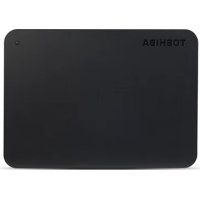
StorE Alu - External hard drive TOSHIBA - Free user manual and instructions
Find the device manual for free StorE Alu TOSHIBA in PDF.


| Product type | External hard drive |
| Brand | Toshiba |
| Model | StorE Alu |
| Dimensions (L x H x D) | 74 x 14 x 123 mm |
| Weight | 176 g |
| Interface | Hi-Speed USB 2.0 (compatible with USB 1.1) |
| Maximum transfer rate | 480 Mbps (USB 2.0) |
| Cache memory | 2 MB |
| Power supply | USB bus powered (sometimes requires 2 ports) |
| Maximum power consumption | 4.75 W |
| Operating temperature | 5°C to 40°C |
| Operating humidity | 8% to 90% (non-condensing) |
| Compatible operating systems | Windows Vista, XP SP1+, 2000 SP4+ |
| Package contents | Hard drive, USB cable, quick start guide, warranty certificate |
| Key features | Plug & Play, hot swapping, fanless design, silent operation |
| Maintenance and cleaning | Unplug before cleaning; use a soft dry cloth; for stubborn dirt, slightly damp cloth with diluted neutral detergent; do not use alcohol or solvents |
| Safety precautions | Do not open or disassemble; avoid moisture; do not expose to extreme temperatures; do not shake or drop; disconnect before unplugging |
| Warranty and compliance | CE certified, WEEE |
Frequently Asked Questions - StorE Alu TOSHIBA
User questions about StorE Alu TOSHIBA
0 question about this device. Answer the ones you know or ask your own.
Ask a new question about this device
Download the instructions for your External hard drive in PDF format for free! Find your manual StorE Alu - TOSHIBA and take your electronic device back in hand. On this page are published all the documents necessary for the use of your device. StorE Alu by TOSHIBA.
USER MANUAL StorE Alu TOSHIBA
5 Welcome
6 Precautions
7 Package contents
8 System requirements
Getting to know your Toshiba Mini Hard Drive
10 Toshiba Mini Hard Drive at a glance
11 Toshiba Mini Hard Drive in-depth
11 About Hi-Speed USB 2.0
13 Bus-Powered Operation
14 Hot-Pluggable
14 Fanless Design
15 Technical specifications
Drive Installation & Setup
17 Installing the Drive
18 Connecting the Drive to your computer
20 Naming your Drive
21 Re-formatting the Drive
Using the Drive
24 Performing routine tasks
25 How to unmount and disconnect the Drive
Maintenance, Help & Other Information
27 Maintaining your Drive
28 Examining and Repairing a Hard Drive
29 Protecting Your Data from Viruses
29 Cleaning the Drive Case
30 Frequently Asked Questions
33 Troubleshooting
36 Regulatory Information
36 CE compliance
36 Working Environment
37 Additional environments not related to EMC
38 Following information is only valid for EU-member States:
39 Disposal of products
40 Notices
Getting Started
Welcome
Welcome, and thank you for choosing a Toshiba Mini Hard Drive.
Your Toshiba Drive features high-quality construction, advanced engineering, and state-of-the-art data storage technology, designed to provide years of reliable, user-friendly performance.
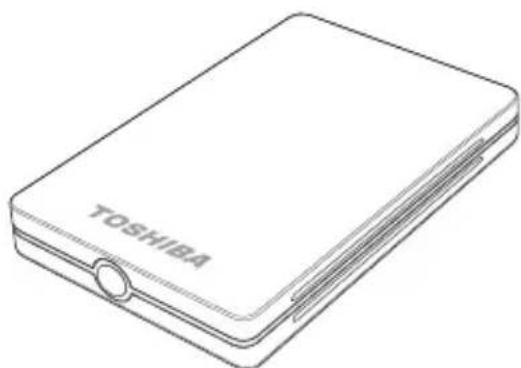
This guide contains important information for the proper installation, use, and care of your Toshiba Drive. Please read this guide carefully and retain it for future reference.
Symbols used in this guide:

THIS SYMBOL ALERTS THE READER TO A WARNING OR TO SOME VERY IMPORTANT

THIS SYMBOL ALERTS THE READER TO HELPFUL TIPS AND OTHER USEFUL INFORMATION.

THE USB LOGO ALERTS THE READER TO IMPORTANT INFORMATION SPECIFICALLY ABOUT USB-RELATED ISSUES.
Precautions

Please follow the precautions listed below. Failure to so do may result in damage to the device, loss of data, and voiding of the warranty.
- We strongly recommend that you backup the files stored on the device. Toshiba is not responsible for data loss or corruption; nor will Toshiba perform recovery of lost data or files.
- Do not attempt to open, disassemble, or modify the device.
- Do not expose the device to damp or wet conditions.
- Never place containers of liquids on the device. This can damage the device and increase the risk of electric shock, short-circuiting, fire, or personal injury.
- Do not expose this device to temperatures outside the range of 5^ to 40^ when the device is in operation, and -20^ to 60^ when not in operation.
- Do not bump, jar or drop the device.
- Do not stand the device in a way not described in this guide.
- Do not disconnect any cables, while the device is powered on, without first unmounting the device.
- Do not plug the Drive into a USB port on a keyboard or hub that does not have its own power supply.
Package contents
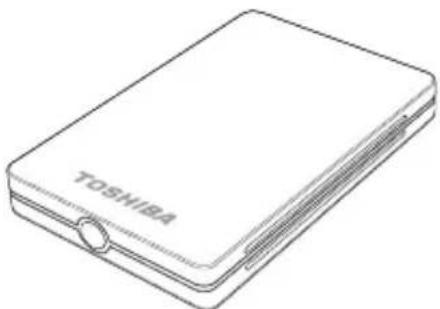
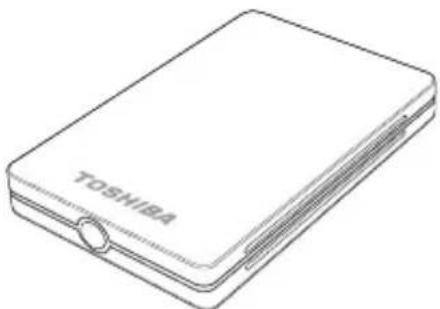
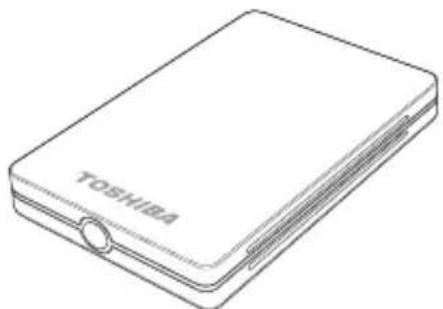
Toshiba Mini Hard Drive
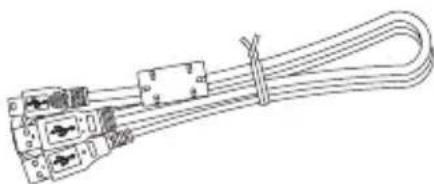
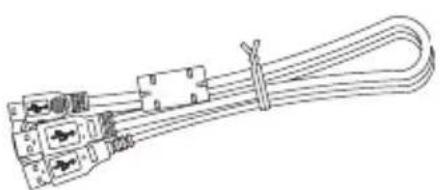
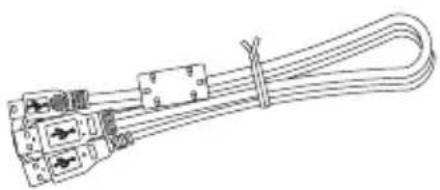
USB Cable
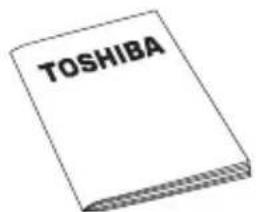
QuickStart Guide
Warranty Leaflet
The User's Guide is uploaded on the drive itself. We recommend to backup the User's Guide onto a CD or your local drive, directly after the drive being installed.
System requirements
What you need:
- Minimum 233 MHz processor (Pentium, Celeron, AMD, etc.)
- One of the following Windows operating systems:
-Windows Vista
(Ultimate, Home Basic, Home Premium, Business)
- Windows XP with Service Pack 1 or later
(Home, Professional, Professional x64, Media Center Edition)
- Windows 2000 with Service Pack 4 or later
Available USB 2.0 or USB 1.1 port
To get Windows updates go to www.microsoft.com and click on the Microsoft Update link.

If connecting to a USB 1.1 port on your computer or hub, the Drive will operate at USB 1.1 speeds (up to 12 Mbps).
Getting to know your Toshiba Mini Hard Drive
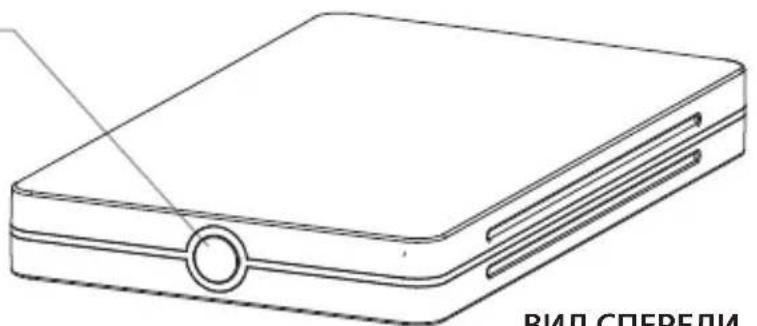
Toshiba Mini Hard Drive at a glance
POWER/DATA INDICATOR
LIGHTS UP WHEN THE DRIVE IS POWERED ON.
FLashes when reading or writing data.
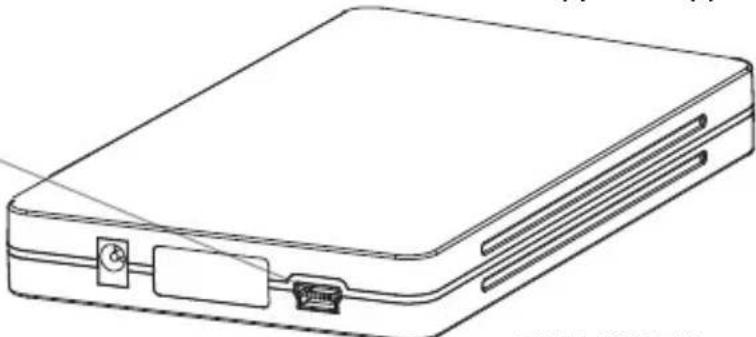
USB 2.0 P
THE DRIVE HAS A MINI-USB PORT, AND YOUR COMPUTER HAS A TYPE A USB PORT, WHICH CORRESPOND TO THE CONNECTORS ON THE SUPPLIED USB CABLE. THE DRIVE IS ALSO COMPATIBLE WITH USB 1.1.
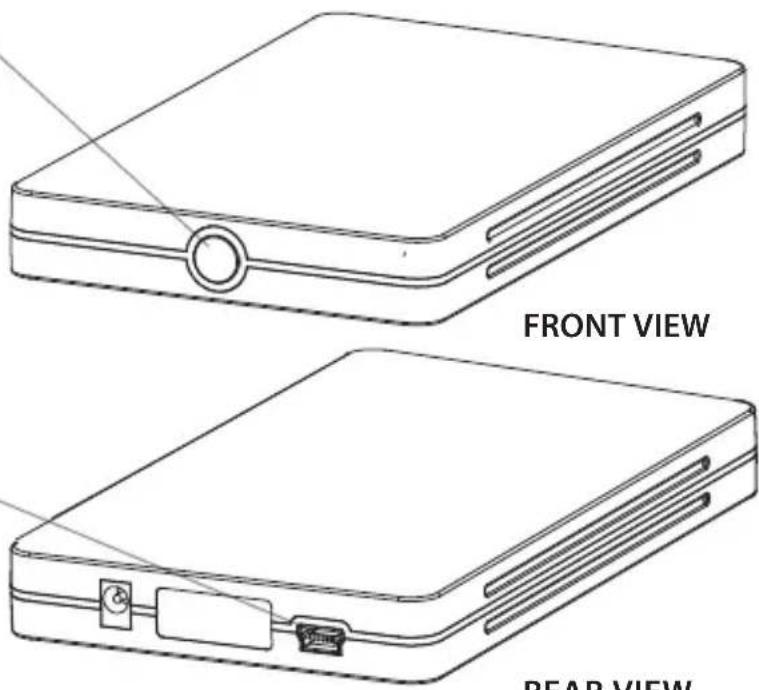
REAR VIEW
Toshiba Mini Hard Drive in-depth
With a host of highly advanced features, your Toshiba Mini Hard Drive is much more than high-performance data storage. It's a truly powerful data management system that can greatly simplify how you access, organize, and safeguard your data.
About Hi-Speed USB 2.0
Your Toshiba Drive is equipped with a Hi-Speed USB 2.0 interface. USB (Universal Serial Bus) is serial data transmission technology. The original standard (USB 1) could transmit data at speeds of up to 12 Mbps (Megabits per second). USB 2.0 has a maximum throughput of 480 Mbps—that's up to 40 times faster than USB 1.
Interface transfer rates up to 480 Mbps
USB 2.0 can transfer data at speeds of up to 480 Mbps. However, data transfer rates will depend on a number of factors, including available CPU resources, and the number of USB devices attached to your computer. Also, as with any data I/O (input/output) technology, some bandwidth is taken up by the data protocols that structure and govern data transmissions. In day-to-day use, you can expect maximum sustained transfer rates in the low to mid-30s MB/s (Megabytes per second).
Supports up to 127 devices
A single USB bus can support up to 127 USB devices. However, connecting more than one or two USB devices to a computer usually requires the use of one or more USB-equipped hubs. A typical USB hub can accommodate several USB devices.
Master-slave architecture
The computer (the "master") dictates data flow to, from, and between attached USB devices (the "slaves").
Cable length up to 5m (16.4 ft.)
On-bus power
USB can supply enough electricity to run many low-power devices—such as keyboards, scanners, and memory card readers—eliminating the need for an electrical outlet in many cases.
Plug & Play
USB does not require ID numbers or terminators. On most operating systems you do not need to install drivers.
Hot-Pluggable
You can add/remove devices while the computer is running. Always unmount a hard drive before turning it off or disconnecting it.
Bus-Powered Operation
Some I/O technologies, such as USB, are able to conduct electricity as well as data to power peripheral devices. This is referred to as "on-bus power". (A "bus" is an electronic pathway or channel that conveys data between digital devices in the form of electrical impulses.)
The electricity to power the device comes from the power supply of the computer or hub to which the device is attached. As such, a bus-powered device, such as your Toshiba Mini Hard Drive, does not need to be plugged into an AC outlet. This allows for easier portability, requires potentially fewer cables, and affords greater freedom of movement.
Bus-powered operation is especially beneficial to laptop users who often find themselves in locations where access to an AC outlet is unavailable—and besides, who doesn't appreciate fewer cables?
In all but a few cases, only one USB port is needed to power your Toshiba Drive. However, a few laptops, some hubs, and even a small number of desktop systems, limit bus power. In these few cases, two USB ports are required. The supplied USB cable has an extra USB connector that can be plugged into a second USB port if needed.
The USB electrical specifications of the myriad models of
computers on the market are not typically published. Therefore, the only way to know for sure if you will need to use two USB ports is to actually connect the Drive to your computer and see if it mounts. Details and instructions are given in the chapter "Connecting the Drive to Your Computer."
Hot-Pluggable
You can connect and disconnect the Drive while your computer is running. This makes portability much easier, allows you to use the Drive only when you need it, and saves electricity/battery power. Always unmount the Drive or turn off your computer before disconnecting the Drive. See "Unmounting and Disconnecting the Drive" for details.
Fanless Design
All hard drives generate some heat during normal operation. However, your Toshiba Drive was engineered to dissipate heat so efficiently it doesn't need a fan. The result is near-silent operation.
Technical specifications
Dimensions (mm): W74 x H14 x D 123 (MM)
Weight 176g
Interface: Hi-Speed USB 2.0
Interface transfer rate (max.): 480 Mbps
Data buffer (cache) 2 MB
Power requirement (max.) 4.75 W
Ambient operating temperature 5°C - 40°C (41°F - 104°F)
Operating humidity (RH non-condensing) .8%-90%
Chassis (approved/recognized) CE/WEEE
Drive Installation & Setup
Installing the Drive
Important information about
bus-powered operation and the supplied USB cable:
- Your Toshiba Mini Hard Drive is bus-powered. This means the Drive gets the power it needs to run via the USB interface on your computer or hub, and does not need to be plugged into an AC outlet. In a few cases you may need to use two USB ports to power the Drive. There is no way to know for certain until you connect the Drive.
- Do not plug the Drive into a USB port on a keyboard or hub that does not have its own power supply.
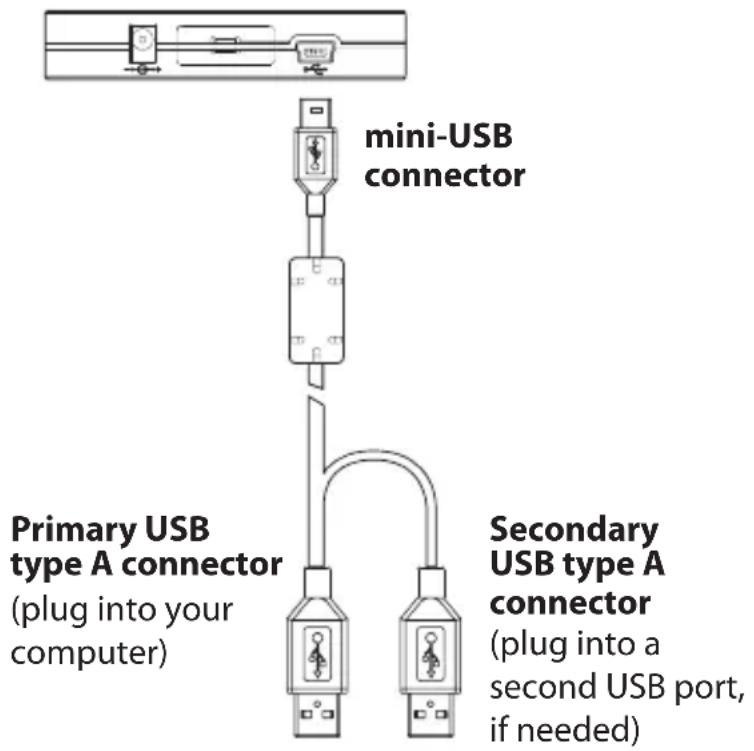
- The supplied USB cable has two type A connectors and a mini-USB connector. The secondary type A connector will only be needed if you find you require two USB ports to power the Drive, as explained in "Connecting the Drive to your computer", next page.
- USB connectors can only be inserted one way. Be sure to correctly insert the connectors, or you may damage the Drive and void the warranty.
Connecting the Drive to your computer
- With your computer powered on and fully booted up, plug the primary USB type A connector into a USB port (preferably USB 2.0) on your computer or USB hub.
Leave the secondary USB type A connector free. You will only use it if needed, which will be determined after step 2.
- Plug the mini-USB connector into the mini-USB port on the Drive.
After the Drive has been connected:
- the Power/Data Indicator will illuminate;
- the Drive should power up, and;
- the Drive should mount (a new drive icon should appear in My Computer).
If the Drive does not mount...
If the Drive does not mount after several seconds, the Drive is not receiving sufficient electrical current to power up—even though the Power/Data Indicator may be illuminated. In this case you will need to use a second USB port for additional power. Follow the instructions below:
- Unplug the mini-USB connector from the Drive.
- Plug the secondary USB type A connector into a second USB port on your computer or hub.
Because this second port will supply power only, it does not matter if the port is USB 1.1 or USB 2.0.
- Plug the mini-USB connector back into the Drive.
After the Drive powers up, the Drive should mount.
Naming your Drive
Now that your Drive has been connected and mounted, you should give it a unique name (label) to distinguish it from other storage devices/volumes connected to your computer.
Follow these instructions to name your Drive:
- Double-click on My Computer.
- In My Computer click the drive icon for your Toshiba Drive.
- In the File menu, select Properties.
- Under the General tab of the Properties window, type a name in the text field beside the Drive icon.
Re-formatting the Drive

Formatting a hard disk erases all data stored on the disk! Before you re-format or partition your Drive, be sure to save a copy of any files you wish to keep to another storage device.
Your Toshiba Drive was formatted at the factory...
You do NOT need to format the Drive. We recommend that you only re-format or partition the Drive if absolutely necessary.
How to re-format the Drive
- Disable any anti-virus software you may have running.
- Double-click on My Computer. In My Computer, right-click the Toshiba Drive icon and select Format... in the pop-up menu. The Format dialog box will appear.
- Under Capacity, verify the Drive capacity. It should be close to the stated capacity of your Drive in gigabytes.
- In the File System pop-up menu, select the file system.
- In the Allocation unit size pop up, select "Default allocation size."
- In the Volume label field, type in a name for the Drive.
- Under Format options you can check Quick Format.
If you leave it unchecked Windows will run a Full format. A Full format will take about 30-90 minutes. A Quick format will take just a few minutes, but will do less verifying of the Drive.
- Click Start. Once the format process is complete, the Drive will be ready to use.
Using the Drive
Performing routine tasks
Opening files and folders
- Double-click on the Drive icon. A window showing the files and folders stored on the Drive will appear.
- Double-click on the file or folder that you want to open.
Copying files and folders to your Drive
- Click on the file or folder you want to copy.
- With the file/folder highlighted, go to Edit --> Copy.
- Double-click on the Drive icon to open it. If you want to copy the file or folder to a specific folder on the Drive, double-click that folder to open it.
- Go to Edit--> Paste. The file or folder will copy over.
How to unmount and disconnect the Drive
When a device, such as a hard drive, is "mounted" to a computer, that means the computer has established a communications link with it. When you unmount a device, the communications link is severed and the computer can no longer access it.

Never disconnect any cables while the Drive is mounted. You may lose data or damage the Drive.
- In the system tray at the bottom of your screen, click the safely remove/icon (the icon with the green arrow). A pop-up message will appear with a list of devices connected to your computer.
- Select the Toshiba Drive. After a few seconds the Drive will unmount and Windows will give you a message that it is safe to remove the device.
- Click OK. You can then safely disconnect the Drive.
If you disconnect the Drive after you shut down your computer, you do not need to manually unmount it. The Drive will unmount automatically when the computer shuts down.
Maintenance, Help & Other Information
Maintaining your Drive
Defragmenting and Optimizing a Hard Drive
A hard drive stores data on disks called platters. Each platter surface is divided into concentric tracks. Each track is divided into sections called sectors. A group of sectors, called a cluster, is the smallest unit of data storage space on a platter.
When data is saved to a new hard drive, it is written to the disk(s) contiguously, one cluster after another. As old files are erased, clusters that were previously occupied become available for new data. However, there may not be enough space for the drive to write a new file in a contiguous set of clusters. The drive uses the clusters it can; if more are needed it searches for empty clusters in other locations on the disk(s). The result is a fragmented file.
Over time, as more and more files are erased and new files are written, the data on the disk(s) becomes increasingly fragmented. The more fragmented a disk becomes, the longer it takes to read and write data because the Drive's read/write mechanism spends more time moving back and forth over the platter searching for fragmented data or free clusters.
We recommend using defragmentation and optimization software to maximize storage efficiency and optimize performance. Optimization software re-organizes files so that the files you
use most often can be accessed more quickly. Defragmentation (defragging) software consolidates file fragments into more efficient contiguous clusters.
Quite often, defragging and optimization functions will be included in one software package, such that both operations are performed at the same time.
Examining and Repairing a Hard Drive
There are a number of reasons why a hard drive may become damaged or the data may become corrupted. Regular examination of your Toshiba Drive with a quality diagnostic and repair utility is the best way to prevent irreparable disk damage and avoid data loss.
There are several software packages available that offer a suite of disk management and repair utilities, including defragmentation, optimization, repair, erased file recovery and more. How often you should perform maintenance depends on how much you use the Drive. Generally speaking, it's a good idea to examine a hard drive for damage at least once a month.
Some maintenance and repair operations can take quite some time, so it's wise to perform hard drive maintenance at times when you don't need to use your computer. The good news is that, for the most part, you won't need to tend to the computer while the software performs these operations.
Protecting Your Data from Viruses
One of the greatest threats to your data comes from viruses. These nasty-sounding creatures are insidious programs created by malefactors. Some viruses are designed to render your computer inoperable; others will erase files. The worst part is you may not be aware that your system has been infected until it's too late.
The most common way computers catch viruses is by downloading and sharing infected files via e-mail and other Internet services. You can protect your data against viruses by using ant-virus software. These programs are designed to seek out and eradicate or quarantine viruses before they can cause damage. There are a number of good anti-virus programs on the market.
Cleaning the Drive Case
Always unplug all cables from the Drive before cleaning it. Clean the Drive using a soft, dry cloth. For tough dirt, dampen a soft cloth with some neutral detergent diluted in 5 to 6 parts water; wipe off the dirt, then wipe off the Drive with a dry cloth. Do not use alcohol, paint thinner, or other chemicals; they may damage the case materials.
Frequently Asked Questions
Q: Can I use my Drive on two computers at the same time?
A: No. If you connect the Drive to two computers at the same time, you may damage the Drive and the computers.
Q: Do I have to format my Toshiba Drive prior to using it?
A: No, the Drive was formatted at the factory.
Q: What is the difference between FAT32 and NTFS?
A: FAT32 is an older and more compatible file system but it has certain limitations, such as file size (maximum 4 GB). NTFS is more secure and has fewer limitations.
Q; Where are the USB drivers for Windows Vista, XP, 2000?
A: They are built into the respective operating systems. However, you may need to upgrade your Windows OS. See "System Requirements."
Q: Can I connect the Drive to a USB expansion card?
A: Yes, but you may need to update the software/firmware for the card. We recommend you check with the card's manufacturer for the latest updates.
Q: What is the cache (buffer) size of my Toshiba Mini Drive?
A:2 MB.
Q: Can you make the Drive bootable?
A: No. Windows does not support the use of external hard drives as boot volumes.
Q: Why doesn't the Drive need a fan?
A: Heat generation can be an issue with some hard drives, which is why they often have big, noisy fans. Toshiba Drives are engineered to be more efficient and to generate so little heat that they do not need fans. The result is near-silent operation.
Q: Why is the capacity of my Drive as shown in Windows lower than the Drive's actual stated capacity?
A: The difference is mostly due to the way operating systems measure disk capacity, as compared to the method used by hard drive manufacturers. Hard Drive manufacturers have always used the decimal (base 10) method, where 1GB = 1,000MB = 1,000,000KB = 1,000,000,000 bytes. Operating systems use the binary (base 2) method, where 1GB = 1,024MB = 1,048,576KB = 1,073,741,824 bytes. For this reason, a hard drive with a capacity of 120 GB (decimal) will appear in Windows with a capacity of around 112 GB (binary). It must also be noted that operating systems reserve a portion of
hard disk space for their own purposes. The actual amount can vary, depending on the operating system.
Hard Drive manufacturers use the decimal method because it is simpler and less confusing to consumers who may not be familiar with the base 2 number system. Manufacturers of operating systems do not need to concern themselves with this issue, so they use the more traditional binary method.
Q: Can I use my Toshiba Drive to copy an operating system from one computer to another?
A: You cannot transfer an installed operating system to another computer or hard drive simply by copying the operating system's files. In order to install an operating system you'll need to follow the manufacturer's installation procedure. If you wish to transfer the contents of one startup (boot) disk to another, you will first need to properly install the operating system on the target disk. You can then use your Toshiba Drive to transfer your files (except the operating system).
Q: Does Toshiba provide data recovery services?
A: Toshiba does not provide data recovery services.
Troubleshooting
My computer does not recognize the Drive.
A: This could be due to several reasons:
- Make sure all of your connections are secure;
- If you are attempting to run the Drive off of bus power, you may need to use two USB ports. See the chapter "Installing the Drive" for details and instructions;
- If using an add-on card, make sure it is working properly, and update the software/firmware;
- If using Windows XP, make sure you have Service Pack 1 or later.
If using Windows 2000, make sure you have Service Pack 4 or later.
When I leave my computer idle for a while and come back, the Drive won't work properly.
A: The most likely cause is that your computer is going into Sleep mode. The immediate solution is to restart your computer. To prevent this problem from re-occurring, go into your Power Settings/Energy Saver and set it to where it never goes into Sleep mode.
The Drive feels warm when powered on. Is this dangerous?
A: When in operation, the Drive may feel quite warm to the touch. This is normal.
The Drive gives me a "Device cannot start. Code (10)."
A: This is a power issue. Make sure your connections are secure. The other possibility is that the Drive has malfunctioned and requires service.
I don't see my Toshiba Drive in My Computer, but it does appear in Device Manager.
A: Right-click on My Computer. Select Manage in the pop-up menu. In the Computer Management window, select Storage, then select Disk Management. In the Disk Management window, you should see a list of available storage devices. Look for the disk that has a capacity closest to your Toshiba Drive. Right-click on the right-hand box; in the pop-up menu select Delete Partition. Once you do this, it will say "Online" & "Unallocated." Right-click on the box and select Create New Partition in the pop-up menu. When the Partition Wizard appears, select Primary Partition and click on Next. You will see a default value for the Toshiba Drive; click Next. You will then see a Drive letter (you can change this Drive letter if you wish); click Next. You will then be asked to format the Toshiba Drive.
When I try to format my Drive I get the message: "Could not complete format."
A: This problem can occur if you are using an expansion card to connect the Toshiba Drive. Plug the Drive into a data port on your
computer and try the format again. You may also come across this error if you try to format the Drive using the FAT32 file system.
After I connected the Drive to my PC, I got the following alert message: "Hi-Speed USB device plugged into non-Hi-Speed USB Hub." What does this mean?
A: You will get this alert message if you plugged the Drive into a USB port that only support USB 1.1. This is fine, except your Toshiba Drive will operate USB 1.1 speeds (up to 12 Mbps).
The Drive seems to be operating slower than 480 Mbps.
A: First, in order to reach USB 2.0 speeds, you need a connection that supports USB 2.0. If the connection only supports USB 1.1 the Drive will operate at USB 1.1 speeds (up to 12 Mbps). The Drive will auto-sense the speed of your USB port and adjust between USB 1.1 and USB 2.0. Second, 480 Mbps is the maximum speed of USB 2.0 devices. Actual data transfer rates will vary depending on a number of factors, including available CPU resources.
Regulatory Information
CE compliance

This product is CE marked in accordance with the requirements of the applicable EU GmbH, Hammfelddamm 8, 41460 Neuss, Germany. A copy of the official Declaration of Conformity can be obtained from following website: http://epps.toshiba-tec.com.
Working Environment
The Electromagnetic Compliance (EMC) of this product has been verified typically for this product category for a so called Residential, Commercial & Light Industry Environment. Any other working environment has not been verified by Toshiba and the use of this product in these working environments is maybe restricted or cannot be recommended. Possible consequences of the use of this product in non verified working environments can be: Disturbances of other products or of this product in the nearby surrounding area with temporarily malfunction or data loss/corruption as result. Example of non verified working environments and related advices:
Industrial environment (e.g. where a mains voltage of 380V
three-phase is being used mainly): Danger of disturbances of this product due to possible strong electromagnetic fields especially near to big machinery or power units.
Medical environment: The compliance to the Medical Product Directive has not been verified by Toshiba; therefore this product cannot be used as a medical product without further verification. The use in usual office environments e.g. in hospitals should be no problem if there is no restriction by the responsible administration.
Automotive environment: Please search the owner instructions of the related vehicle for advices regarding the use of this product (category).
Aviation environment: Please follow the instructions of the flight personnel regarding restrictions of use.
Additional environments not related to EMC
Outdoor use: As a typical home/office equipment this product has no special resistance against ingress of moisture and is not strong shock proofed.
Explosive atmosphere: The use of this product in such special working environment (Ex) is not allowed.
Following information is only valid for EU-member States:
REACH — Compliance Statement
The new European Union (EU) chemical regulation, REACH (Registration, Evaluation, Authorization and Restriction of Chemicals), entered into force on 1 June 2007.
Toshiba will meet all REACH requirements and is committed to provide our customers with information about the chemical substances in our products according to REACH regulation.
Please consult the following website www.toshiba-europe.com/computers/info/reach for information about the presence in our articles of substances included on the candidate list according to article 59(1) of Regulation (EC) No 1907/2006 ("REACH") in a concentration above 0.1% weight by weight.
Disposal of products
The crossed out wheeled dust bin symbol indicates that products must be collected and disposed of separately from household waste.
The black bar indicates that the product was placed on the market after August 13, 2005.
By participating in separate collection of products, you will help to assure the proper disposal of products and thus help to prevent potential negative consequences for the environment and human health.
For more detailed information about the collection and recycling programmes available in your country, please visit our website (http://eu.computers.toshiba-europe.com) or contact your local city office or the shop where you purchased the product.
Notices
C0
COPYRIGHT © 2009 TOSHIBA. ALL RIGHTS RESERVED. NO PART OF THIS PUBLICATION MAY BE REPRODUCED STORED IN A RETRIEVAL SYSTEM, OR TRANSMITTED IN ANY FORM OR BY ANY MEANS, ELECTRONIC, MECHANICAL, PHOTOCOPYING, RECORDING OR OTHERWISE, WITHOUT THE PRIOR WRITTEN CONSENT OF TOSHIBA.
TRIVARS
THE TOSHIBA NAME AND ITS LOGOS ARE REGISTERED TRADEMARKS OF TOSHIBA. ALL OTHER TRADEMARKS MENTIONED OR APPEARING IN THIS DOCUMENT ARE THE PROPERTY OF THEIR RESPECTIVE OWNERS.
CHNCS
THE MATERIAL IN THIS DOCUMENT IS FOR INFORMATION ONLY AND SUBJECT TO CHANGE WITHOUT NOTICE. WHILE REASONABLE EFFORTS HAVE BEEN MADE IN THE PREPARATION OF THIS DOCUMENT TO ASSURE ITS ACCURACY, TOSHIBA ASSUMES NO LIABILITY RESULTING FROM ERRORS OR OMISSIONS IN THIS DOCUMENT, OR FROM THE USE OF THE INFORMATION CONTAINED HEREIN. TOSHIBA RESERVES THE RIGHT TO MAKE CHANGES OR REVISIONS IN THE PRODUCT DESIGN OR THE PRODUCT MANUAL WITHOUT RESERVATION AND WITHOUT OBLIGATION TO NOTIFY ANY PERSON OF SUCH REVISIONS AND CHANGES.
StoreAlu2.5-UM-V2/0409
TOSHIBA
Leading Innovation
BENUTZERHANDBUCH
STORE
alu
Lüfter losses Design
Sigma npn, BoonEia kai loinec nnpopopiec
(Ultimate, Home Basic, Home Premium, Business)
(Home, Professional, Professional x64, Media Center Edition)
-
Windows 2000 con Service Pack 4 o superiore
-
Porta USB 2.0 o USB 1.1
Mini hard disk Toshiba in breve
Toshiba mini-hdd-drive
USB-kabel
(Ultimate, Home Basic, Home Premium, Business)
(Home, Professional, Professional x64, Media Center Edition)
Toshiba mini-hdd-drive in detail
Interface: High-speed USB 2.0
(Ultimate, Home Basic, Home Premium, Business)
Interface: Hi-Speed USB 2.0
Vel. de transf. da interface (max.): 480 Mbps
MepbI npeOCTOpOXHOCTN

Co6IouaTe MepbI npedocTopoXHoctn, npBedeHHbIe HnKe. HeBbIOJIHeHne 3Tnx yka3aHm MOxet npNBecTn K NOBpeKdEHNIO yCTpoIcTBa, nOtepe daHHbIX n PpeKpaUeHNIO DeiCTBna rapaHTnn.
HaCToTeIbHO peKOMeHnyETcC O3dAbaTb pe3epBhble KOnnI
faiIOB, xpaHЯUnxcra Ha yctpoiCtBe. KomnaHna Toshiba He Hecet
OTBeTCTBeHHOCTn 3a NOTepIO NII NOBpeJxHeNne DaHHbIX, a TaKxe He
6yDet BblONHrTb BOCCTaHOBJIeHne NOTepaHHbIX DaHHbIX NII faiIOB.
He nItaTeCb OTKpbIBaTb, pa36npaTb nn N3MeHrTb yCTPOIcTBO.
He nomeuTe yCTPOCTBO B 3aIbIeHHbIe MeCTa IIN B MeCTa C NOBblEHHOIBlaJXHOCTbIO.
- Hn B KOem Cnyae He CTaBbTe COcyIbIC XnIDKOCTbHO Ha yCTPOINCTBO. 3TO MOKET PnIBeCTN K NOBpeJdeHIO YCTPOINCTBa N IOBbICNTb PnCK IopaxeHn EJIeKTPnuecknM TOKOM, KOPOTKOrO 3aMbIkaHn, Noxapa nII NOnyueHn TpaBMbl.
He noDBepraTe yCTPOBCTBO BO3dEINCTBnIO Tempeatyp, He BXOJaX B Dnana3OH ot 5 ^ C do 40^, KOrda OHO pa6oTaET, IN Tempeatyp ot -20^ do 60^, KOrda OHO BbIKJUoyeHo.
He ydapnTe, He cotpcaIte n He 6pocaiTe yctpoiCTBO.
He cTaBbTe yCTpoiCTBO nHaue, Yem 3TO OnncAo B daHHOM pyKOBoDCTBe.
He oTcoeHnIte Hn Odn H3 Ka6eNei BkIIOueHHOrO yCTpoiCTBa, noka OHO He 6yTeYdaJeHO n3 CNCTembl.
He nodklouaTe dinck K nopTy USB Ha knabnaType nIKNcHTpaTOpy,Ha KOtOpbI nITaHne He nOdaetcra OTdelenbHO.
KoMnJIeKT nOcTaBKn
MHHaTOpHbI JxecTkN Dnck Toshiba
Ka6eIb USB
KpaTkoe pyKOBOcTBO
TapaHTnHbI TaHO
PykoBODCTBO NOIb3OBaTeJIaRpyJKeHO Ha cAm dNcK. PeKOMeHnyeTcra 3aIIncatb pe3epBHyO KOJIIO pyKOBoDCTBa NOJIb3OBaTeJIa Ha KOMNaKT- dNcK nIi Ha IOKaJIbHbI dNcK cpa3y NocJe yCTaHOBKn dNcKa.
Tpe6obHnK cnCTeme
Heo6xodmoe o6opudobHne nporpaMMhoe o6ecneueHne
- Прочescop с частор 233 Мц пльболес (Pentium, Celeron, AMDиТ.Д.)
-
Onda n3 cIeDyUoIx onepaunOHbIX cnCTem Windows:
-
Windows Vista
(Ultimate, Home Basic, Home Premium, Business)
- Windows XP с пакетом обновленя 1 полесу подунх Версан (Home, Professional, Professional x64, Media Center Edition)
-Windows2000cnakeTom6HOBHeHn4nn6OJeeNo3dHnxBepn
-Достуньий пот USB 2.0 ви USB 1.1
Для noлусанься обнонелейд Windows nocemume be6-y3eI www.microsoft.com u uekenhume ccbiKny Microsoft Update.

Ipu noodKluoyehuu K nopmy USB 1.1 Ha komnbomepe uu KaHueHmpamope Jecmkuu duck 6ydem pa6omamb Ha ckopocmu USB 1.1 (do 12 M6um/c).
3HaKOMCTBO C MInHaTIOpHbIM JKeCTKIM Dnckom Toshiba
O63op MnHnatauphoJxecTKoro Dncka Toshiba
INHINKATOPIITAHNA/DAHHbIX
3AROPAETCA, KOITDA NICK BKJIOUHEH.
MNAETBOBPEMYTEHNYIIN3AINCN
USB 2.0
XECTKIN DICK IMEET MHHIOPT USB, A KOMIbIOTEP -NOPT USB TnA A, KOTOPB COOTBETCTBYET PA3bEMAM IPINATAEMOTO KABELA USB. XECTKIN DICK TAKKE COBMECTIM C NOPTOM USB 1.1.
BnD CNEPEDN
BIVC3A
YcTaHOBka JKeCTKOrO dNcKa
Baxkhbie cbedeHua o pa6ome c numaHuem om uuHbI u npulazaemom ka6ene USB:
- Numahue MuHuamOpHoZo JecmKoZo dUcKa Toshiba OcyuecmBnaemc no uune. 3mo o3Haayem, ymo duck noLyuaem Heo6xodumoe da pa6ombl numahue uepe3 unHmepeuc USB KOMnbIomepa uLU KOHeHmpamopa, u e2o He HJxho nOdKnIOuyamb K 3JIeKmpopOzemke. B HekomopbIX clyuayx da nodaTu numaHua Ha Jecmkuu duck, Bo3MoJxho, nompe6yIomc da ba nopma USB. 3mo MoJxho onpeDeIumb moIbKO nocJe nOdKnIOueHua dUcKa.
He nodkIouaume ducK K nopmy USB Ha kIabuamype uuu KOHueHmpamopy,Ha komopbiu numaHue He nodaemc omdeJbHo. - П汞лэь KMбь USB umeem dba pa3bema muna A umuHupa3bem USB. BmopoJ pa3bem muna A mpe6yemcra, moIbko ecnU dna numanur ducka Heo6xodmbi dba nopma USB, kaK onucano b pa3deJe «Поdkиюehue Jecmko2O ducka K KomnbIomepy» Ha cneedyiouecmpaHue.
Pa3bEmbl USB moKHO noDKIIOUumb moIbKO OOHUM cnocobom. Heo6xodumo BcmaBnMb pa3bEmbl npabunbHo, B npomubHom clyae BO3MOJHO nobpejdeHue jeemko2O ducka u deucmbue zapahmuu 6ydem npekpaueho.
Подкlioочи ќесTKОТ диска К кOMпьЮТepy
Ecnn XeCTKn DnCK He yctaHaBnBaetc...
EcnJxecTKn DnCK He 6yJeT yCTaHOBLeH B TeueHne HeckOJIbKnx CeKyHd, 3TO O3Haayet, YTO NOLyuaembl NJIeKTPnueckn TOK He oBeCneuBaET Heo6XoDmOe dIpa6Otbl NITaHne, DaJke ecN rOpNT INHdkatop nITaHn/daHHbIX. B 3TOM clyuae dJa DOONHHTeHBHO rITaHn POtpe6yeTcB TOpOJ nopT USB.
CneyuTe npuBeHbIM Hxke INHCTpyKcIaM:
IpeopMaTnpOBaHne JeCTKOrO dNcKa
-
Великий Се сандровные порогаммь, КOTOPБЕ мORУТ 6ыТь 3апуншени.
2.ДвждыцелкнITE 3нauOK Mou komnbomep.В OkHe Mou Komnbomep целкнITE npaBOI KHONKOI Mbln 3HaOK JecTKOTo DnCKa Toshiba n Bb6epnteФopmamupobamb...B paACKpbBaHOSeMcЯ MeHIO.OTo6pa3NTcI dnaIoroBoe OKHOФopmam.
3.В полЕ EmKocmb ykaЖNTe emKOCTb JceCTKOFOДИСKa.ОндоЛжнa 6ыТь пиблnteJBHO paBHa 3aЯВлeHHOJ emKOCTN JceCTKOFOДИСKa n yka3aHa B rɪra6aɪtax. -
BpackpbbIbaIOUeMcMeHIO «ФaIIOBaaCnCTema» Bbl6epnte aINOByIO CNCTemy.
- B paackpbiauouemcmeHIO Pa3Mep Klaemepa BbI6epnTe nyHKT «CTaHapTbI pa3Mep Klaactepa».
6.Вполe Memka moma Habepnte IMЯжecTKOToДИСКа. - B oblaactn Cnoocobi fopmamupobahu moXHO yCTaHOBNTb fnaKOK «BbICTpoe fopMaTnpOBaHne».
Ecnu He ycmaHOBumb fnaKo, 6ydem bInolHeNo nIHOe fopmamupobAHue. IOnHoe fopmamupobAHue 3aMem OkOIO 30-90 MuHym. Bicmpoe fopmamupobAHue 3aMem BCE2O HeckoJIbKO MuHym, Ho npu 3om npOBepka Jecmko2O ducka 6ydem bInolHeHa He noIINOCmbio.
- Haxmte KhoNky «Iyck». Nocle 3aBepWeHnna npocecca fOpMaTnpOBaHnna JecTkni DnCK bUeT rOToB K pa6ote.
HEnCnPaBHOCTbIO, 3a NCKJIIOUeHNEm TORO, YTO DNCK ToshiBa 6yudet pa6oTaTb Ha cKOpocTN, COOTBeTcTBYIOUeI USB 1.1 (do 12 M6nt/c).
Kaketc, yTo dnck pa6oTaet co ckopocbIO Mehbue 480 M6nt/c. O. Bo-nerBbIX, yTo6bl cKopocb COOTBeTCTBOBaJa USB 2.0, Tpe6yeTcnoKnIouHne, noDnepKnBaIOOe USB 2.0. Ecnn noDknIouHne noDnepKnBaEt ToIbKO USB 1.1, nck 6yJeT pa6oTaTB co ckopoctbIO USB 1.1 (do 12 M6nt/c). Dnck aBTOMaTnueckn onpeJeNT cKopoctb npTa USB n yctahOBt, kaKo npT nCpO3yETc: USB 1.1 nIIu USB 2.0. Bo-BTopbIX, 480 M6nt/c - 3TO MaKcumalbHaNCKOpocb yCTpoiCTB USB 2.0. PeaNbHaN cKopocb IpepaUn DaHHbIX MoKeT MeHartbcB V 3aBnCIMOCTHn OT MHOrnx fakTopOB, BKlUoya JDOCTynHbIe pecypcbI ueHTpaJbHoro npOceccopa.
Информация O COOTBETCTBи CTaHДapTaM
CoOTBeTCTBnE Tpe6ObaHnIe C
Данhoe устюпбо IMeET OTMeTKy CEВ COOTBeTCTBnC Tpe6OBaHЯМN COOTBeTCTByUOxN XIupeKTHB EC. OTBetCTBeHNo3a МаркИровКY «CE»ЯВЯЕТСя КOMпаня TOSHIBA Europe GmbH, Hammfelddamm 8,41460 Neuss, Germany.KoПио оФиц�ьно3aЯВLEня O COOTBeTCTBnCE мОжно пolyuHTb Ha следуюшem Be6-y3ne: http://epps.toshiba-teg.com.
Pa6o7a cpe7a
3JIeKTPOMaHHTHa COBMeCTIMOCTb DaHHoro yCTpOiCTBa 6bla
PPOBepHa B CTaHdapTHbIX YCNOBnX DIA DaHHoN KaTeOpn
PPOyKTOB, IJI TaK Ha3bIBaEMOro «DOMaShHeRo, KOMMepueckOro
INcNoIb3OBaHnI IN PrIMeHnI B IeKoI PpOMbIshJeHHocTn>.Pa6Ota
B DpyrOcpe He PPOBepaIacb KOMpaHnei TOSHIBA, NOaTomy
NCIOb3OBaHnE DaHHoro yCTpOiCTBa B dpyrIX Cpeax MoKeT
6bITb OgraHnueHo I He peKOMeHdyetc. Bo3MOxHbIe NocJeDCTBnI
NCIOb3OBaHnI DaHHoro yCTpOiCTBa B HeNPoBepEHbIX pa6OuHX
Cpeax: POMexn DIA npRnx yCTpOiCTB nII NaHHoro yCTpOiCTBa
B 6bn3JeeKaaSeI oBlaCTN, C BpeMeHHoN HePpABInbHOJ pa6OTOn IINI
NOTepe/IOBpeJdeHnem daHHbIX. PpIMep HnpoBepEHbIX pa6OuHX
CpeI N COOTBeTCTByUoUsx peKOMeHdaIzNI: