ManualGo.com
DSPE800 - Receiver YAMAHA - Free user manual and instructions
Find the device manual for free DSPE800 YAMAHA in PDF.



Download the instructions for your Receiver in PDF format for free! Find your manual DSPE800 - YAMAHA and take your electronic device back in hand. On this page are published all the documents necessary for the use of your device. DSPE800 by YAMAHA.
USER MANUAL DSPE800 YAMAHA
1. To assure the finest performance, please read this
manual carefully. Keep it in a safe place for future reference.
2. Install this unit in a cool, dry, clean place — away
from windows, heat sources, sources of excessive vibration, dust, moisture and cold. Avoid sources of humming (transformers, motors). To prevent fire or electrical shock, do not expose the unit to rain or water.
3. Never open the cabinet. If something drops into the
unit, contact your dealer.
4. Do not use force on switches, controls or connection
wires. When moving the unit, first disconnect the power cord and then the wires connected to other component. Never pull the wires themselves.
5. The openings on the cover assure proper ventilation
of the unit. If these openings are obstructed, the temperature inside the unit will rise rapidly. Therefore, avoid placing objects against these openings, and install the unit in a well-ventilated area to prevent fire and damage. Be sure to allow a space of at least 20 cm behind, 20 cm on both sides and 30 cm above the top panel of the unit to prevent fire and damage.
6. The voltage used must be the same as that specified
on this unit. Using this unit with a higher voltage than specified is dangerous and may result in fire or other accidents. YAMAHA will not be held responsible for any damage resulting from the use of this unit with a voltage other than that specified.
7. Digital signals generated by this unit may interfere
with other component such as tuners, receivers and TVs. Move this unit farther away from such component if interference is observed.
8. Always set VOLUME to the “m” position before
starting the audio source play. Increase the volume gradually to an appropriate level after playback has been started.
9. Do not attempt to clean the unit with chemical
solvents; this might damage the finish. Use a clean, dry cloth.
10. Be sure to read the “TROUBLESHOOTING” section
regarding common operating errors before concluding that the unit is faulty.
11. When not planning to use this unit for a long period
of time (e.g., a vacation), disconnect the AC power cord from the wall outlet.
12. To prevent lightning damage, disconnect the AC
power cord when there is an electrical storm.
13. Grounding or polarization — Precautions should be
taken so that the grounding or polarization of the unit is not defeated.
14. AC outlet — Do not connect audio component to the
AC outlet on the rear panel if that component requires more power than the outlet is rated to provide. This unit is not disconnected from the AC power source as long as it is connected to the wall outlet, even if this unit itself is turned off. This state is called the standby mode. In this state, this unit is designed to consume a very small quantity of power. ■ For U.K. customers If the socket outlets in the home are not suitable for the plug supplied with this appliance, it should be cut off and an appropriate 3 pin plug fitted. For details, refer to the instructions described below. Note
- The plug severed from the mains lead must be destroyed, as a plug with bared flexible cord is hazardous if engaged in a live socket outlet. ■ Special Instructions for U.K. Model IMPORTANT THE WIRES IN MAINS LEAD ARE COLOURED IN ACCORDANCE WITH THE FOLLOWING CODE: Blue: NEUTRAL Brown: LIVE As the colours of the wires in the mains lead of this apparatus may not correspond with the coloured markings identifying the terminals in your plug, proceed as follows: The wire which is coloured BLUE must be connected to the terminal which is marked with the letter N or coloured BLACK. The wire which is coloured BROWN must be connected to the terminal which is marked with the letter L or coloured RED. Making sure that neither core is connected to the earth terminal of the three pin plug. 101.E800_Cau(Eng) 5/18/0, 1:36 PM2EnglishBASIC OPERATIONADVANCED OPERATION APPENDIXINTRODUCTION PREPARATION E-1 INTRODUCTIONManufactured under license from Digital Theater Systems,Inc. US Pat. No. 5,451,942 and other world-wide patentsissued and pending. “DTS”, “DTS Digital Surround”, aretrademarks of Digital Theater Systems, Inc. Copyright 1996Digital Theater Systems, Inc. All Rights Reserved. FEATURES The DSP-E800 makes it possible for you to enjoy advancedsurround sound with a 5.1 channel system by connecting itto your present main amplifier. Built-in 3-Channel Power Amplification ◆ Minimum RMS Output (0.06% THD, 20 Hz – 20 kHz) Center: 70 W (8 Ω) Rear: 70 W + 70 W (8 Ω) Multi-Mode Digital Sound Field Processing ◆ Digital Sound Field Processor (DSP) ◆ Dolby Pro Logic Decoder ◆ Dolby Digital Decoder ◆ DTS Decoder ◆ CINEMA DSP: Combination of YAMAHA DSP Technology and Dolby Pro Logic, Dolby Digital or DTS Other Features ◆ 96-kHz/24-bit D/A Converter ◆ “SET MENU” which Provides You with 12 Items for Optimizing This Unit for Your Audio/Video System ◆ Test Tone Generator for Easier Speaker Balance Adjustment ◆ 6-Channel External Decoder Input for Other Future Formats ◆ S Video Signal Input/Output Capability ◆ 3 Optical/2 Coaxial Digital Signal Input Terminals ◆ SLEEP Timer ◆ Remote Control Manufactured under license from DolbyLaboratories. “Dolby”, “Pro Logic” and thedouble-D symbol are trademarks of DolbyLaboratories. Confidential Unpublished Works.©1992 – 1997 Dolby Laboratories, Inc. Allrights reserved. CONTENTS INTRODUCTION FEATURES .................................................................. 1CONTENTS ................................................................. 1GETTING STARTED ................................................. 2CONTROLS AND FUNCTIONS ............................... 4 PREPARATION SPEAKER SETUP....................................................... 7CONNECTIONS.......................................................... 8ADJUSTING THE SPEAKER BALANCE ............ 14 BASIC OPERATION PLAYING A SOURCE .............................................. 16DIGITAL SOUND FIELD PROCESSOR (DSP)EFFECT .................................................................. 20RECORDING A SOURCE ON TAPE, MD ORVIDEO CASSETTE ............................................... 21 ADVANCED OPERATION SOUND FIELD PROGRAM .................................... 22SET MENU................................................................. 25DELAY TIME AND SPEAKEROUTPUT LEVELS ................................................. 29SLEEP TIMER .......................................................... 31 APPENDIX TROUBLESHOOTING ............................................ 32SPECIFICATIONS.................................................... 35 y indicates a tip for your operation.
- When buttons on this unit and the remote control arenoted together in this Owner’s Manual, these buttonnames are in principle noted in the order of “button name(remote control button name)”. 102.E800_01-06(Eng) 5/18/0, 1:36 PM1E-2 POWERPROGRAM /DTS SUR.
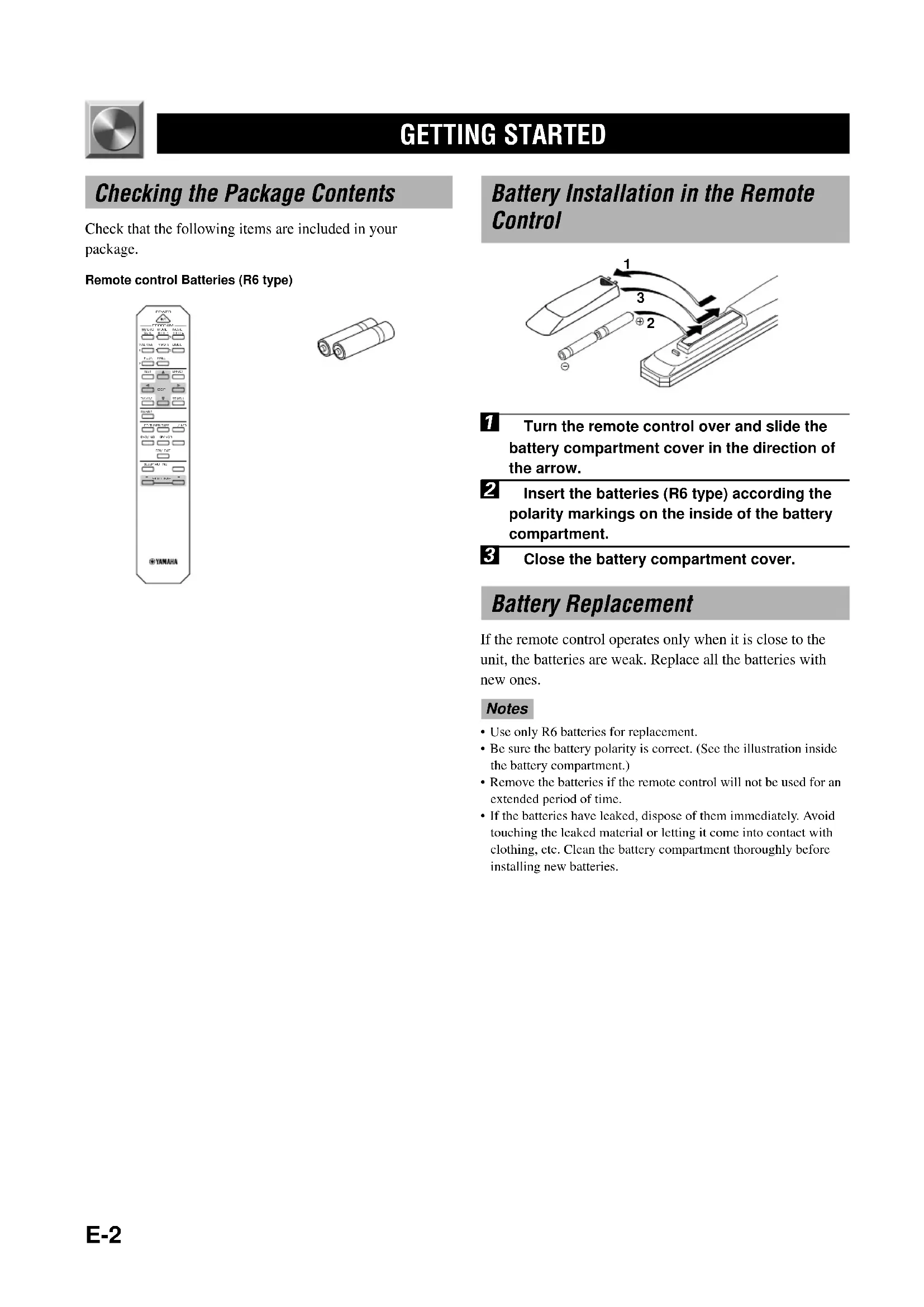
SAT SLEEP MUTING VOLUME Remote control Batteries (R6 type) GETTING STARTED Battery Installation in the Remote Control 1 Turn the remote control over and slide the battery compartment cover in the direction of the arrow. 2 Insert the batteries (R6 type) according the polarity markings on the inside of the battery compartment. 3 Close the battery compartment cover. Battery Replacement If the remote control operates only when it is close to the unit, the batteries are weak. Replace all the batteries with new ones. Notes
- Use only R6 batteries for replacement.
- Be sure the battery polarity is correct. (See the illustration inside the battery compartment.)
- Remove the batteries if the remote control will not be used for an extended period of time.
- If the batteries have leaked, dispose of them immediately. Avoid touching the leaked material or letting it come into contact with clothing, etc. Clean the battery compartment thoroughly before installing new batteries.
Checking the Package Contents Check that the following items are included in your package. 102.E800_01-06(Eng) 5/18/0, 1:36 PM2E-3 EnglishBASIC OPERATION ADVANCED OPERA TION APPENDIX INTRODUCTION PREPARATION
CINEMA DSP DOLBYDIGITALDIGITALSURROUND Using the Remote Control Remote control sensor Within approximately 6 m (20 feet) The remote control transmits a directional infrared beam. Be sure to aim the remote control directly at the infrared sensor during operation. When the sensor is covered or there is a large object between the remote control and the sensor, the sensor cannot receive signals. The sensor may not be able to receive signals properly when it is exposed to direct sunlight or a strong artificial light (such as a fluorescent or strobe light). In this case, change the direction of the light or reposition the unit to avoid direct lighting. Notes
- Handle the remote control with care.
- Do not spill water, tea or other liquids on the remote control.
- Do not drop the remote control.
- Do not leave or store the remote control in the following conditions: – high humidity or temperature such as near a heater, stove or bath; – dusty places; or – extremely low temperature. GETTING STARTED 102.E800_01-06(Eng) 5/18/0, 1:36 PM3E-4
CONTROLS AND FUNCTIONS
Front Panel 1 STANDBY/ON Press this switch to turn on the power of this unit or to set this unit in the standby mode. Before turning the power on, set VOLUME to the “m” position. Standby mode In this mode, this unit consumes a very small quantity of power to receive infrared-signals from the remote control. 2 Remote control sensor This receives signals from the remote control. 3 Display This shows various information. (Refer to page 5 for details.) 4 INPUT MODE Press this button to select the input mode among AUTO, DTS and ANALOG for the DVD/LD, D-TV and CBL/SAT sources. 5 INPUT SELECTOR Turn this selector to select the input source (TUNER, CD, VCR, CBL/SAT, D-TV, DVD/LD) that you want to listen to or watch. The arrow for the selected input source indicator lights up on the display. 6 VOLUME Turn this control to turn up or down the volume. 7 SET MENU +/– Press these buttons to adjust the setting on the SET MENU. 8 NEXT Press this button to select the item on the SET MENU. This button functions like on the remote control when using the SET MENU.
9 TAPE/MD MON / 6CH INPUT
Press this button to select a tape or an MD source. The “TAPE/MD MONITOR” indicator lights up on the display. When you press the button again, the “TAPE/MD MONITOR” indicator goes off, “6CH INPUT” appears on the display and you can listen to a source connected to the 6CH INPUT terminals. 0 EFFECT Press this button to turn on or off the effect speakers (center and rear). If you turn them off, the signals of the center and rear channels are directed to the right and left main speakers when playing a source encoded with Dolby Digital and DTS. In this case, the output levels of the right and left speakers may not match. q PROGRAM selector Press l or h to select a DSP program when the effect speakers (center and rear) are turned on. The name of the selected program appears on the display.
Display 1 t indicator The “t” indicator lights up when the built-in DTS decoder is on. 2 Multi-information display This display shows various information: for example the name of the selected DSP program and the various settings during adjustment with the SET MENU. 3 Input source indicators One of the arrows for these indicators lights up depending on which source is selected. 4 TAPE/MD MONITOR indicator This lights up when the tape deck or MD recorder, etc. is selected as the input source by pressing TAPE/MD MON / 6CH INPUT (or TAPE/MD). 5 g and o indicators “ g ” lights up when the built-in Dolby Digital decoder is on. “ o ” lights up when the built-in Dolby Pro Logic decoder is on. 6 x indicator “ x ” lights up when the built-in digital sound field processor is on. 7 DSP program indicators These indicators light up when DSP program No. 2, 3 or the subprogram “ENHANCED” of No. 1 is selected. 8 SLEEP indicator This lights up while the built-in SLEEP timer is on. DIGITALPRO LOGIC DSP
102.E800_01-06(Eng) 5/18/0, 1:36 PM5E-6 Remote Control 1 POWER Each time you press this button, the unit switches between the power on and standby mode. 2 TEST Press this button to output the test tone for each speaker. 3 l (left), h (right) These buttons adjust the setting of the SET MENU and TIME/LEVEL mode. 4 TIME/LEVEL Press this button to select the items in the TIME/LEVEL mode. 5 6CH INPUT Press this button to select the source connected to the 6CH INPUT terminals. 6 SLEEP Press this button to set the SLEEP timer. 7 PROGRAM selector buttons These buttons select a DSP program. 8 EFFECT Press this button to turn on or off the effect speakers (center and rear). 9 (next), (back) These buttons are used to advance or go back one selection on the SET MENU and TIME/LEVEL mode. 0 SET MENU Press this button to select the items on the SET MENU. q Input selector buttons These buttons select the input source. CD: To play a CD TUNER: To listen to an FM or AM broadcast TAPE/MD: To play a tape or MD DVD/LD: To play a DVD or LD D-TV: To watch a TV VCR: To play a video cassette CBL/SAT: To watch cable TV or satellite broadcast w MUTING Press this button to mute the sound. To cancel mute, press this button again. e VOLUME +/– These buttons are used to adjust the volume level. +: To turn up the volume –: To turn down the volume
SAT SLEEP MUTING VOLUME
102.E800_01-06(Eng) 5/18/0, 1:36 PM6E-7 EnglishBASIC OPERATIONADVANCED OPERATION APPENDIXINTRODUCTIONPREPARATIONPREPARATION SPEAKER SETUP Speaker Placement Refer to the following diagram when you place thespeakers. ■ Main speakers Place the right and left main speakers an equal distancefrom the ideal listening position. The distance of eachspeaker from each side of the TV monitor should be thesame. ■ Rear speakers Place these speakers behind your listening position, facingslightly inwards, nearly 1.8 m (approx. 6 feet) above thefloor. ■ Center speaker Align the front face of the center speaker with the front faceof your TV monitor. Place the speaker as close to themonitor as possible, such as directly over or under themonitor and centrally between the main speakers. Note
- If the center speaker is not used, the center channel sound will beheard from the right and left main speakers. In that case,“CENTER SP” on the SET MENU is set to the NONE position.(Refer to page 26 for details.) ■ Subwoofer The position of the subwoofer is not so critical, because lowbass sounds are not highly directional. But it is better toplace the subwoofer near the main speakers. Turn it slightlytoward the center of the room to reduce the wall reflections. CAUTION Some types of speakers interfere with a TV monitor. Ifthis problem occurs, move the speakers away from themonitor. If you cannot avoid installing the center speakeror subwoofer near the TV monitor, use magneticallyshielded speakers. Speakers to Be Used This unit is designed to provide the best sound-field qualitywith a 5-speaker system, using main speakers, rear speakersand a center speaker. If you use different brands of speakers(with different tonal qualities) in your system, the tone of amoving human voice and other types of sound may not shiftsmoothly. We recommend that you use speakers from thesame manufacture or speakers with the same tonal quality.The main speakers are used for the main source sound plusthe effect sounds. They will probably be the speakers fromyour present stereo system. The rear speakers are used forthe effect and surround sounds, and the center speaker is forthe center sounds (dialog, vocals, etc.). If for some reason itis not practical to use a center speaker, you can do withoutit. Best results, however, are obtained with the full system.The main speakers should be high-performance models andhave enough power-handling capacity to accept themaximum output of your audio system. The other speakersdo not have to be equal to the main speakers. For precisesound localization, however, it is ideal to use high-performance models that can reproduce sounds over the fullrange for the center speaker and the rear speakers. ■ Use of a subwoofer expands your sound field It is also possible to further expand your system with theaddition of a subwoofer. The use of a subwoofer is effectivenot only for reinforcing bass frequencies from any or allchannels, but also for reproducing the LFE (low frequencyeffect) channel with high fidelity when playing back asource encoded with Dolby Digital or DTS. The YAMAHAActive Servo Processing Subwoofer System is ideal fornatural and lively bass reproduction.Subwoofer Main speaker (L)Center speakerRear speaker (L)1.8 mRear speaker (R)Main speaker (R) 103.E800_07-15(Eng) 5/18/0, 1:36 PM7E-8 6CH INPUTEXTERNALDECODERMAIN IN
VCR OUT S VIDEO SIGNALDVD/LD D–TV CBL/SATIN OUT MONITOR OUT VCR
REAR CENTER: 8ΩMIN./SPEAKER: 8ΩMIN./SPEAKERAC OUTLETSWITCHED100W MAX. CONNECTIONS Before Connecting Components CAUTION Never connect this unit and other components to mains power until all connections between components have been completed. Be sure all connections are made correctly, that is to say L (left) to L, R (right) to R, “+” to “+” and “–” to “–”. Some components require different connection methods and have different terminal names. Refer to the instructions for each component to be connected to this unit. When you connect other YAMAHA audio components (such as a tape deck, MD recorder and CD player or changer), connect it to the terminals with the same number labels as !, @, #, $ etc. YAMAHA applies this labeling system to all its products. Use RCA-type pin plug cables for connecting audio/video components with the exception described later. The input and output terminals for pin plugs can be distinguished as follows: Yellow video signals (composite)White analog audio signals for the left channelRed analog audio signals for the right channelcoaxial digital signals After completing all connections, check them again to make sure they are correct. Connecting an Audio Component (page 9)
C C V V IMPEDANCE SELECTOR switch (page 13) Connecting the Power Supply Cords (page 13) Connecting the Speakers (page 11) Connecting to an External Decoder (page 9) Digital signal input terminals (page 10) To AC outlet Connecting the External Amplifier (page 11) Connecting a Video Component (pages 10 and 11) (Europe model) 103.E800_07-15(Eng) 5/18/0, 1:36 PM8E-9 EnglishBASIC OPERATION ADVANCED OPERA TION APPENDIX INTRODUCTION PREPARATION Connecting an Audio Component Be sure to connect the right channel (R), left channel (L), input (IN) and output (OUT) properly. Connecting to an External Decoder This unit has additional 6-channel audio signal input terminals for connecting an external decoder to this unit. Set the EXTERNAL DECODER/MAIN IN switch to the EXTERNAL DECODER position. Connect the 6-channel audio signal output terminals of the decoder to the 6CH INPUT terminals of this unit. CAUTION Be sure to move the EXTERNAL DECODER/MAIN IN switch only when this unit is in the standby mode. Notes
- When a source connected to these terminals is selected, the digital sound field processor cannot be used.
- The settings of “CENTER SP”, “REAR SP”, “MAIN SP” and “BASS OUT” on the SET MENU have no effect on a source connected to these terminals. The setting of “MAIN LVL” is effective. (Refer to pages 26 and 27 for details.)
- Adjustment of the output level of the center speaker, rear speakers and subwoofer is effective when a source connected to these terminals is selected as the input source. (Refer to page 29 for details.) 6CH INPUTEXTERNALDECODERMAIN IN
VCR OUT S VIDEO SIGNALDVD/LD D–TV CBL/SATIN OUT MONITOR OUT VCR
VCR OUT S VIDEO SIGNALDVD/LD D–TV CBL/SATIN OUT MONITOR OUT VCR
LINE INL ROUTPUTL RLINE OUTL ROUTPUTL R CD player Tape deck or MD recorder
VIDEO OUT Connecting a Video Component CONNECTIONS Analog signal Digital signal (optical) Digital signal (coaxial) Signal flow ■ Audio signal terminals Be sure to connect the right channel (R), left channel (L), input (IN) and output (OUT) properly. Note
- Be sure to make the video connections as well. ■ Digital audio signal terminals If your DVD/LD player, TV/digital TV or cable TV/satellite tuner, etc. has coaxial or optical digital signal output terminals, they can be connected to this unit’s COAXIAL and/or OPTICAL digital signal input terminals. To make a connection between the optical digital signal terminals, remove the cover from each terminal, and then connect them by using a commercially available optical fiber cable that conforms to EIA standards. Other cables might not function correctly. When making connections between the digital signal terminals, you should connect the components to the same- named analog audio signal terminals of this unit, because a digital signal cannot be recorded by a tape deck, MD recorder or VCR connected to this unit. Notes
- Be sure to attach the covers when the OPTICAL terminals are not being used in order to protect them from dust.
- If your LD player has a Dolby Digital RF signal output terminal, be sure to use the RF demodulator (separately purchased).
- No sound will be heard when connecting your LD player’s Dolby Digital RF signal output terminal directly to this unit’s COAXIAL DVD/LD digital signal input terminal.
- The input signal from the DVD/LD or CBL/SAT input terminals is selected in the following order of priority with the input mode set to AUTO: COAXIAL terminal → OPTICAL terminal → Analog terminal. Refer to page 18 for details.
- All digital signal input terminals are applicable to sampling frequencies of 32 kHz, 44.1 kHz, 48 kHz and 96 kHz. (Refer to page 19 about 96-kHz sampling 24-bit digital signals.) ■ Video signal terminals (composite) If your video components do not have “S” video terminals, they can be connected to this unit’s VIDEO terminals. Be sure to connect the input (IN) and output (OUT) properly. Notes
- Be sure to make the audio connections as well.
- If video signals are input from both the S VIDEO input and composite input terminals, the signals will be directed to their respective output terminals.
DIGITAL SIGNAL (OPTICAL) DIGITAL SIGNAL (OPTICAL)
L R L RL R ANALOG AUDIO OUT L R
VCR DVD/LD player Cable TV/ satellite tuner TV/Digital TV
L RSubwoofersystemRear speakersMain speakerRight Left RightCenter speaker2-ch power amplifier
■ S VIDEO terminals If your video components have “S” (high-resolution) video terminals, they can be connected to this unit’s S VIDEO terminals. Be sure to connect the input (IN) and output (OUT) properly. Notes
- Use a special S VIDEO cable (commercially available) for the S VIDEO connection.
- If video signals are input from both the S VIDEO input and composite input terminals, the signals will be directed to their respective output terminals. CONNECTIONS DVD/LD playerTV MonitorS Video signalSignal flow VCR TV/Digital TVCable TV/satellite tunerMain speaker Left Connecting the Speakers and the External Amplifier Basic connection It is necessary to connect a 2-channel amplifier to this unit in order to drive main speakers. Be sure to connect the right channel (R), left channel (L), “+” (red) and “–” (black) properly. If the connections are faulty, no sound will be heard from the speakers, and if the polarity of the speaker connections is incorrect, the sound will be unnatural and lack bass. ■ Connecting 2-channel amplifier Connect the input terminals of a 2-ch power amplifier to the MAIN OUTPUT terminals of this unit. If you connect the AUX input terminals of the external amplifier to the MAIN OUTPUT terminals of this unit, be sure to set the volume of the external amplifier around –16 dB to –18 dB. ■ Connecting a rear speaker system Connect a rear speaker system to the REAR SPEAKER (SURROUND) output terminals of this unit. ■ Connecting a center speaker Connect a center speaker to the CENTER SPEAKER output terminals of this unit. ■ Connecting a subwoofer system Connect the input terminal of a subwoofer system to the SUBWOOFER OUTPUT terminal of this unit. CAUTIONS
- Use speakers with the specified impedance shown on the rear panel of this unit.
- Do not let the bare speaker wires touch each other and do not let them touch any metal part of this unit. This could damage the unit and/or speakers. 103.E800_07-15(Eng) 5/18/0, 1:36 PM11E-12 ■ Speaker cables 1 Remove approx. 10 mm (3/8”) of insulation from each of the speaker cables. 2 Twist the exposed wires of the cable together to prevent short circuits. ■ Connecting to the REAR and CENTER SPEAKERS terminals 1 Unscrew the knob. 2 Insert one bare wire into the hole in the side of each terminal. 3 Tighten the knob to secure the wire. CONNECTIONS 10 mm (3/8”)
Red: positive (+)Black: negative (–) Other connections ■ Using this unit as a Dolby Digital or DTS decoder Connect the OUTPUT terminals (MAIN, REAR, CENTERand SUBWOOFER) of this unit to the EXTERNALDECODER or 6 CHANNEL input terminals of the externalamplifier. ■ Receiving the multi-channel signal from other equipment 1 Be sure to move the EXTERNAL DECODER/ MAIN IN switch to the EXTERNAL DECODERposition before you turn on this unit. 2 Connect the OUTPUT terminal of the external amplifier to the 6CH INPUT terminals of thisunit. 3 Press TAPE/MD MON / 6CH INPUT repeatedly (or 6CH INPUT once) until “6CH INPUT”appears on the display.• The signal on the main channel will be output to theMAIN OUTPUT terminals.• The overall volume level will be controlled by DSP-E800. ■ Using this unit as a power amplifier 1 Be sure to move the EXTERNAL DECODER/ MAIN IN switch to the MAIN IN position beforeyou turn on this unit. 2 Press TAPE/MD MON / 6CH INPUT repeatedly (or 6CH INPUT once) until “6CH INPUT”appears on the display.• DSP-E800 is regarded as 3-channel power amplifier.The REAR L, the REAR R, and the CENTERterminals can be used for the connection.• The volume control of this unit will be bypassed. 103.E800_07-15(Eng) 5/18/0, 1:37 PM12E-13 EnglishBASIC OPERATION ADVANCED OPERA TION APPENDIX INTRODUCTION PREPARATION
REAR CENTER: 8ΩMIN./SPEAKER: 8ΩMIN./SPEAKERAC OUTLETSWITCHED100W MAX.IMPEDANCE SELECTOR Connecting the Power Supply Cords After completing all connections, connect the AC power cord to an AC power outlet. Disconnect the AC power cord if you will not use this unit for a long period of time. ■ AC OUTLET (SWITCHED) U.K. and Europe models .................................... 1 OUTLET Use this outlet to connect the power cords from your components to this unit. The power to the AC OUTLET is controlled by this unit’s STANDBY/ON (or POWER). This outlet will supply power to any connected component whenever this unit is turned on. The maximum power (total power consumption of components) that can be connected to the AC OUTLET is 100 W. IMPEDANCE SELECTOR Switch WARNING Do not change the IMPEDANCE SELECTOR switch setting while the power of this unit is on, otherwise the unit may be damaged. If this unit fails to turn on when STANDBY/ON (POWER) is pressed, the IMPEDANCE SELECTOR switch may not be fully slide to either position. If so, slide the switch to either position fully when this unit is in the standby mode. Select the right or left position according to the impedance of speakers in your system. Be sure to move this switch only when this unit is in the standby mode. (Europe model)SET BEFORE POWER ON REAR
CENTER: 4ΩMIN./SPEAKER: 4ΩMIN./SPEAKER
REAR CENTER: 8ΩMIN./SPEAKER: 8ΩMIN./SPEAKERAC OUTLETSWITCHED100W MAX.IMPEDANCE SELECTORSWITCHED(Europe model)To AC outletIMPEDANCESELECTORCONNECTIONS Switch potision Left Right Speakers Impedance level Rear Center Rear The impedance of each speaker must be 4 Ω or higher. The impedance must be 4 Ω or higher. The impedance of each speaker must be 8 Ω or higher. The impedance must be 8 Ω or higher.Center 103.E800_07-15(Eng) 5/18/0, 1:37 PM13E-14 1 Set VOLUME to the “m” position. 2 Turn the power on. 3 Press TEST. “TEST LEFT” appears on the display. 4 Turn up the volume. You will hear a test tone (like pink noise) from each speaker for about two seconds in the following order: left main speaker, center speaker, right main speaker, right rear speaker and left rear speaker. The display changes as shown below. Notes
- If the test tone cannot be heard, turn down the volume, set the unitin the standby mode and check the speaker connections.• If the test tone cannot be heard from the center speaker, check thesetting of “CENTER SP” on the SET MENU. This procedure lets you adjust the sound output level balance between the main, center and rear speakers by using the built-in test tone generator. When this adjustment is performed, the sound output level heard at the listening position will be the same from each speaker. This is important for the best performance of the digital sound field processor, the Dolby Pro Logic decoder, Dolby Digital decoder and DTS decoder. The adjustment of each speaker sound output level should be performed at your listening position with the remote control. After completing the adjustments, use VOLUME +/– at your listening position to check if the adjustments are satisfactory.
LEVEL 5 Press TIME/LEVEL repeatedly to select the speaker to be adjusted. “CENTER”, “R SUR.” or “L SUR.” appears on the display. 6 Press h to raise and l to lower the level.
- Adjust the sound output levels of the center speaker and the rear speakers so that they become almost the same as that of the main speakers.
- While adjusting, the test tone is heard from the selected speaker. 7 When the adjustment is complete, press TEST. “TEST OFF” appears on the display and the test tone stops. Note
- If “CENTER SP” on the SET MENU is set to the NONE position, the sound output level of the center speaker cannot be adjusted in step 6. The center channel sound is automatically output from the right and left main speakers.
- Once you have completed the adjustments, you can only adjust the overall volume level of your audio system by using VOLUME (or VOLUME +/–).
- If there is insufficient sound output from the center and rear speakers, you may decrease the main speaker output level by setting “MAIN LVL” on the SET MENU to “–10 dB”. (Refer to page 27 for details.) DSP TEST
ADJUSTING THE SPEAKER BALANCE
103.E800_07-15(Eng) 5/18/0, 1:37 PM15E-16 1 Set VOLUME to the “m” position. 2 Turn the power on. 3 Select the desired input source with INPUT SELECTOR (or the input selector buttons). (Turn on the TV monitor for video sources.) The name of the selected input source appears for a moment and the arrow for the selected input source indicator lights up on the display.
BASIC OPERATION a. To select a tape or an MD source Press TAPE/MD MON / 6CH INPUT (or TAPE/MD) so that the “TAPE/MD MONITOR” indicator lights up on the display. b. To select a source connected to the 6CH INPUT terminals Press TAPE/MD MON / 6CH INPUT repeatedly (or 6CH INPUT) until “6CH INPUT” appears on the display. Notes
- If the “TAPE/MD MONITOR” indicator lights up or “6CHINPUT” is shown on the display, no other audio source except atape/MD source and a source connected to the 6CH INPUTterminals can be played. To select another input source withINPUT SELECTOR (or the input selector buttons):– Press TAPE/MD MON / 6CH INPUT twice (or TAPE/MDonce) to turn off the “TAPE/MD MONITOR” indicator.– Press TAPE/MD MON / 6CH INPUT once (or 6CH INPUT) toturn off “6CH INPUT”.• If you select and play a video source when the “TAPE/MDMONITOR” indicator lights up, the play back result will be avideo image from the video source and the sound from the audiosource connected to the TAPE/MD IN (PLAY) terminals.• A video source cannot be selected when “6CH INPUT” is shownon the display. If you want to enjoy an audio source connected tothe 6CH INPUT terminals together with a video source, firstselect the video source and then select the source connected to the6CH INPUT terminals. For the DVD/LD, D-TV and CBL/SAT sources, the current inputmode is also shown. Refer to page 18 for details about the inputmode.Front panelFront panel Remote control INPUT SELECTORFront panel
4 Play the source. Refer to the instructions for the source component. 5 Adjust the volume to the desired output level. 6 Use the digital sound field processor. Refer to page 20.
–dB Front panel Remote control
VOLUME PROGRAM Front panel Remote control PROGRAM /DTS SUR.
MUTING ■ To mute the sound Press MUTING on the remote control so that “MUTE ON” appears on the display. To cancel mute, press MUTING again so that “MUTE OFF” appears for a moment on the display. ■ When you have finished using this unit Press STANDBY/ON (or POWER) to set this unit in the standby mode. ■ BGV (background video) function The BGV function allows you to combine a video image from a video source with a sound from an audio source. (For example, you can listen to classical music while you are watching a video.) This function can only be controlled with the remote control. Play a video source, and then select an audio source with the input selector buttons on the remote control. The BGV function does not work if you select the audio source with INPUT SELECTOR on the front panel. 104.E800_16-20(Eng) 5/18/0, 1:37 PM17E-18 ■ Switching the input mode Press INPUT MODE (or the input selector button that you have pressed to select the input source on the remote control) repeatedly until the desired input mode is shown on the display. Notes
- Set the input mode to AUTO to play a DVD/LD source encodedwith Dolby Digital.• If the input mode is set to AUTO for the source, this unitautomatically determines which type of signal the sourcecontains. If this unit detects a Dolby Digital or DTS signal, thedecoder automatically switches to the appropriate setting andreproduces 5.1 channel sound.• The sound output may be interrupted for some LD and DVDplayers in the following situation: The input mode is set to AUTO.A search is performed while playing the disc encoded with DolbyDigital or DTS, and then disc playing is restored. The soundoutput is interrupted for a moment because the digital signal wasselected again.• The input mode cannot be changed for the CD, TUNER, TAPE/MD and VCR sources because only analog signals are used forthese.• The current input mode appears on the display when the DVD/LD, D-TV or CBL/SAT source is selected or the input mode ischanged.INPUT MODEFront panelCD TUNER TAPE
SAT Remote control DVD/LD D–TV VCR TUNER CBL/SAT Input Mode (for the DVD/LD, D-TV and CBL/SAT sources) This unit allows you to switch the input mode for sources that send both digital and analog signals to this unit. The AUTO, DTS and ANALOG input modes are provided. When you turn on the power of this unit, the input mode for the DVD/LD source is always set to AUTO and for D-TV or CBL/SAT source is set according to “TV INPUT” and “CBL INPUT” on the SET MENU. (Refer to page 28 for details.) ■ AUTO In this mode, the input signal is selected in the following order of priority:
1. Digital signal encoded with Dolby Digital or DTS
- If digital signals are input from both the OPTICAL andCOAXIAL terminals, the digital signal from the COAXIALterminal is selected. ■ DTS In this mode, only a digital signal encoded with DTS is selected, even if other signals are being input at the same time. ■ ANALOG In this mode, only an analog signal is selected, even if a digital signal is being input at the same time. Select this mode when you want to use an analog signal instead of a digital signal.
■ Notes on playing a source encoded with DTS
- If “DATA ERROR” appears on the display while playing an LD source encoded with DTS, stop playback and turn the player off and then on again.
- If the digital output data of the player has been processed in any way, you may not be able to perform DTS decoding even if you make a digital connection between this unit and the player.
- If you play an LD source encoded with DTS and set the input mode to ANALOG, there will be the noise of an unprocessed DTS signal. When you want to play a DTS source, be sure to connect the source to the digital input terminal and set the input mode to AUTO or DTS.
- If you play a source encoded with DTS and set the input mode to AUTO, there will be a short noise at first while the unit recognizes the DTS signal and turns on the DTS decoder. This is not a malfunction, and can be avoided by setting the input mode to DTS beforehand. In addition, if you continue to play a source encoded with DTS with the input mode setting left to AUTO, this unit automatically switches to the “DTS-decoding” mode to prevent noise from being generated during subsequent operation. (The “t” indicator lights up on the display.) The “t” indicator will flash immediately after playback of a source encoded with DTS has finished. Only a source encoded with DTS can be played back while this indicator is flashing. If you want to play a normal PCM source soon, set the input mode back to AUTO.
■ Notes on playing an LD source
- Some audio/video component, such as LD player, output different audio signals through their analog and digital terminals. Change the input mode as necessary.
- If the LD player is transmitting signals by a non-normal method, this unit cannot detect the Dolby Digital or DTS signal. In this case, the decoder automatically switches to PCM or analog.
- If the LD source does not contain a digital soundtrack, connect the LD player to the analog terminals and set the input mode to AUTO or ANALOG.
- While you are operating the LD player and playing a disc encoded with Dolby Digital, if you switch from the pause or chapter forwarding function to normal playback, you may hear the PCM or analog sound an instant before the Dolby Digital sound is played. ■ Notes on the digital signal The digital input terminal of this unit can also handle 96-kHz sampling 24-bit digital signals. (To utilize this, use a source that supports 96-kHz sampling 24-bit digital signals and set the player for digital output. Refer to the instructions for the player.) Note the following when a 96-kHz sampling 24-bit digital signal is input to this unit.
1. The following indicator will appear on the display.
2. DSP programs cannot be selected. Sound will be output
as normal 2-channel stereo sound using only the right and left main speakers.
3. Delay time and speaker output level cannot be adjusted.
Selecting a DSP Program You can enhance your listening experience by selecting aDSP program. Refer to pages 22 to 24 for details about eachprogram. 1 Make sure that the effect speakers (center and rear) and subwoofer are turned on. 2 Press PROGRAM l or h repeatedly (or one of the PROGRAM selector buttons) to select thedesired program.The name of the selected program appears on thedisplay. If desired, adjust the delay time and the sound output level of eachspeaker. (Refer to pages 29 and 30 for details.)Notes• You can select a DSP program for each of the input sources. Onceyou select a program, it is linked with the input source selected atthat time. So, when you select the input source next time, thesame program is automatically selected.• When a monaural source is being played with PRO LOGIC/Normal or PRO LOGIC/ENHANCED, no sound will be heardfrom the main speakers and the rear speakers. Sound can only beheard from the center speaker. However, if “CENTER SP” on theSET MENU is set to the NONE position, the center channelsound is output from the main speakers.• When a source connected to the 6CH INPUT terminals of thisunit is selected, the digital sound field processor cannot be used.• When high-rate 96-kHz sampling 24-bit digital signals are inputto this unit, no DSP program can be selected and the sound is onlyoutput from right and left main speakers as a normal 2-channelstereo sound.PROGRAMPRO LOGIC DSP MOVIE THEATER 2 DVD/LD D–TV VCR TUNER
CBL/SAT PROGRAM /DTS SUR.
DISCO Canceling the Sound Effect (turning off the effect speakers) Press EFFECT to cancel the sound effect andmonitor only the main sound.Press EFFECT again to turn the sound effect back on.Notes• If you turn off the sound effect when Dolby Digital or DTS isdecoding, the sounds of the center and rear channels are mixedand output from the main speakers.• If you turn off the sound effect when Dolby Digital or DTS isdecoding, it may happen that the sound is output faintly or notoutput normally, depending on the source. In this case, turn soundeffect back on. EFFECT Front panel EFFECT Remote control STANDBY/ON INPUT MODE INPUT SELECTOR VOLUME
Front panel Remote control
RECORDING A SOURCE ON TAPE, MD OR VIDEO CASSETTE Recording adjustments and other operations are performed from the tape deck, MD recorder or VCR. Refer to the instructions for these components. 1 Set VOLUME to the “m” position. 2 Select the source you want to record. 3 Begin recording by the tape deck, MD recorder or VCR connected to this unit. 4 Play the source and then turn up the volume to confirm the input source. Front panel Front panel
Remote control Remote control
If a tape deck or MD recorder is being used for recording, you can monitor the sounds being recorded by pressing TAPE/MD MON / 6CH INPUT (or TAPE/MD). Notes
- The DSP program and the setting of VOLUME have no effect on the material being recorded.
- Composite video and S video signals pass independently through this unit’s video circuits. Therefore, when recording or dubbing video signals, if your video source component is connected to provide only an S video (or only a composite video) signal, you can record only an S video (or only a composite video) signal by your VCR.
- A source connected to this unit only through the digital terminals cannot be recorded by the tape deck, MD recorder or VCR connected to this unit.
- A source connected to the 6CH INPUT terminals of this unit cannot be recorded.
- Check the copyright laws in your country to record from records, CDs, radio, etc. Recording of copyrighted material may infringe copyright laws. If you play back a video source that uses scrambled or encoded signals to prevent it from being dubbed, the picture itself may be disturbed due to those signals. STANDBY/ON INPUT MODE INPUT SELECTOR VOLUME
This unit incorporates a sophisticated, multi-program digital sound field processor (DSP). This processor allows you to electronically expand and change the shape of the audio sound field from both audio and video sources, creating a theater- like experience in your listening room. You can create outstanding audio sound by selecting a suitable DSP program (this will, of course, depend on what you are listening to). When you select a CINEMA DSP program, one of the built-in decoders (Dolby Pro Logic, Dolby Digital and DTS) is turned on according to which type of signals the source being played contains. The following list gives you a brief description of the sound fields produced by each of the DSP programs. Keep in mind that most of these are precise digital re-creations of actual acoustic environments.
- The input source given in the following table for programs 4 through 8 indicates that input source which each program is best suited for.
- Select the DSP program that you feel sounds best regardless of the name and description given for it below. ■ For movie or audio/video sources (Program No. 1 to No. 5: CINEMA DSP programs) [1] PRO LOGIC/Normal ( o )
- Input source: Dolby Surround 2-ch Dolby Digital
- Output channel: 4 channels
- DSP: — [2] DOLBY DIGITAL/Normal ( g )
- Input source: Dolby Digital
- Output channel: 5.1 channels
- DSP: — [3] DTS DGTL SUR/Normal ( t )
- Output channel: 5.1 channels
- Output channel: 4 channels
- Output channel: 5.1 channels
- DSP: 2 (surround L, R)
- Output channel: 5.1 channels
- DSP: 2 (surround L, R) This program ideally simulates the multi- surround speaker systems of the 35 mm-film movie theater. Dolby Pro Logic decoding, Dolby Digital decoding or DTS decoding and digital sound field processing are precisely performed without altering the original sound orientation. The surround effect produced by the sound field folds around the viewer naturally from the rear to the right and left and toward the screen. The built-in Dolby Pro Logic decoder, Dolby Digital decoder or DTS decoder precisely reproduces the sound and effect of a source encoded with Dolby Surround, Dolby Digital or DTS. The realization of a highly efficient decoding process improves cross talk and channel separation, and makes sound positioning smoother and more precise. In this program, the digital sound field processor is not turned on. 1 q/DTS SURROUND No. PROGRAM SUBPROGRAM FEATURES TEST TIME
This program creates the extremely wide sound field of a movie theater. It precisely reproduces the source sound in detail, giving both the video and the sound field incredible reality. It is ideal for any kind of video source encoded with Dolby Surround, Dolby Digital or DTS (especially large-scale movie productions). [1] 70 mm SPECTACLE ( ox)
- Input source: Dolby Surround 2-ch Dolby Digital
- Output channel: 3 channels
- DSP: 2 (presence & surround) [2] DGTL SPECTACLE ( g x )
- Input source: Dolby Digital
- Output channel: 5.1 channels
- DSP: 3 (presence & surround L, R) [3] DTS SPECTACLE ( tx )
- Output channel: 5.1 channels
- Output channel: 3 channels
- DSP: 2 (presence & surround) [5] DGTL SCI-FI ( g x )
- Input source: Dolby Digital
- Output channel: 5.1 channels
- Output channel: 5.1 channels
- Output channel: 3 channels
- DSP: 2 (presence & surround) [2] DGTL ADVENTURE ( gx)
- Input source: Dolby Digital
- Output channel: 5.1 channels
- DSP: 3 (presence & surround L, R) [3] DTS ADVENTURE ( t x )
- Output channel: 5.1 channels
- Output channel: 3 channels
- DSP: 2 (presence & surround) [5] DGTL GENERAL ( gx )
- Input source: Dolby Digital
- Output channel: 5.1 channels
- Output channel: 5.1 channels
- DSP: 3 (presence & surround L, R) Clearly reproduces dialog and sound effects in the latest sound form of science fiction films, thus creating a broad and expansive cinematic space amid the silence. You can enjoy science fiction films in a virtual-space sound field that includes Dolby Surround, Dolby Digital and DTS-encoded software employing the most advanced techniques. 2 MOVIE THEATER 1 3 MOVIE THEATER 2 Ideal for precisely reproducing the sound of the newest multi-track films. The sound field is made to be similar to that of the newest movie theaters, so the reverberations of the sound field itself are restrained as much as possible. The data for the sound field of an opera house are used for the front presence, so the three- dimensional feeling of the sound field is emphasized, and dialog is precisely oriented on the screen. By using the data for the sound field of a concert hall on the surround sound field, powerful reverberations are generated. You can enjoy watching action, adventure movies, etc. with strong presence. This program is for reproducing sounds on a multi-track film, and is characterized by a soft and extensive sound field. The front presence of the sound field is relatively narrow. It spatially spreads all around and toward the screen, restraining echo effect of conversations without losing clarity. For the surround sound field, the harmony of music or chorus sounds beautifully in a wide space at the rear of the sound field. No. PROGRAM SUBPROGRAM FEATURES 106.E800_22-24(Eng) 5/18/0, 1:37 PM23E-24 CINEMA DSP: Dolby Surround + DSP/Dolby Digital + DSP/DTS + DSP ■ Dolby Pro Logic + 2 digital sound fields Digital sound fields are created in both the presence and rear surround zones of the Dolby Pro Logic-decoded sound field. They create a wide acoustic environment and emphasize the surround effect in the room, letting you feel as much presence as if you were watching a movie in a popular Dolby Stereo theater. ■ Dolby Digital or DTS + 3 digital sound fields Digital sound fields are created in the presence zone and independently on the left and right surround zones of the Dolby Digital-decoded or DTS-decoded sound field. They create a wide acoustic environment and strong surround effect in the room without losing high channel separation. With the wide dynamic range of Dolby Digital or DTS sound, this sound field combination lets you feel as if you were watching a movie in the newest Dolby Digital theater or DTS-installed theater. This is the most ideal home theater sound at the present time.
This program is designed specifically to enhance monaural sources. Compared to a strictly mono setting, the sound image is wider and slightly forward of the speaker pair, lending an immediacy to the overall sound. It is particularly effective for old mono movie, news broadcasts and dialog. 4 MONO MOVIE ( x )
- Input source: Monaural
- Output channel: 1 channel
- DSP: 1 No. PROGRAM FEATURES This program is furnished with a tight sound field in which the sound will not spread excessively at the front, but the rear surround produces dynamic sound expansion. It is the most suitable for sports programs. 5 TV SPORTS ( x )
- Input source: Audio/Video
- Output channel: 2 to 5.1 channels
- DSP: 2 to 3 (presence & surround) ■ For Hi-Fi audio sources No. PROGRAM FEATURES This program creates the expansive ambience of a large concert hall. It is suited for orchestra and opera music. This program simulates the acoustic environment of a disco in the heart of a lively city. The sound is dense and highly concentrated. This program is ideally suited for rock music. You will experience a dynamic and lively sound field. 6 DISCO ( x )
- Input source: 2-ch PCM/Analog audio
- Output channel: 2 channels
- Output channel: 2 channels
- Output channel: 2 channels
DSP This unit provides you with the following items on the SETMENU to maximize the performance of your system andexpand your enjoyment for audio listening and videowatching.
10.MEM. GUARD 11.TV INPUT 12.CBL INPUT Adjusting Items in the SET MENU Adjustments should be performed while watching theinformation on the display. 1 Press NEXT (or SET MENU) repeatedly to select the item you want to adjust.The selected item appears on the display. After pressing NEXT (or SET MENU) once, you can also select theitem by pressing . (Pressing goes back one selection.) 2 Press SET MENU +/– (or l or h) repeatedly to adjust the setting. 3 Repeat steps 1 and 2 to adjust the setting of any other item in the same way.Memory back-upThe memory back-up circuit prevents the stored datafrom being lost when this unit is set in the standby mode.If, however, the power cord is disconnected from the ACpower outlet or the power is cut for more than one week,the settings of the SET MENU will automatically returnto the preset positions and values. If so, adjust thesettings of the SET MENU again.DVD/LD D–TV VCR TUNER CBL/SAT SET MENU STANDBY/ON INPUT MODE INPUT SELECTOR VOLUME
Choices: LRG (Large)/SML (Small)/NONE Preset position: LRG (Large) LRG (Large) Select this position if your center speaker is approximately the same size as the main speakers. In this position, full- range signals on the center channel are directed to the center speaker. SML (Small) Select this position if you use a center speaker that is smaller than the main speakers. In this position, low bass signals (below 90 Hz) on the center channel are distributed to the SUBWOOFER OUTPUT terminal (or to the right and left main speakers if “BASS OUT” is set to the MAIN position). NONE Select this position if you do not have a center speaker (4-speaker system). In this position, full-range signals on the center channel are directed to the right and left main speakers.
Choices: LARGE/SMALL Preset position: LARGE LARGE Select this position if your rear speakers have high ability for bass reproduction, or if a subwoofer is connected in parallel to the rear speaker. In this position, full-range signals on the rear channels are directed to the rear speakers. SMALL Select this position if your rear speakers do not have high ability for bass reproduction. In this position, low bass signals (below 90 Hz) on the rear channels are distributed to the SUBWOOFER OUTPUT terminal (or to the right and left main speakers if “BASS OUT” is set to the MAIN position).
Choices: LARGE/SMALL Preset position: LARGE LARGE Select this position if your main speakers have high ability for bass reproduction. In this position, full-range signals on the main channels are directed to the right and left main speakers. SMALL Select this position if your main speakers do not have high ability for bass reproduction. However, if your system does not include a subwoofer, do not select this position. In this position, low bass signals (below 90 Hz) on the main channels are distributed to the SUBWOOFER OUTPUT terminal if “BASS OUT” is set to the SW position.
Choices: SW/MAIN/BOTH Preset position: BOTH SW/BOTH Select either the SW or BOTH position if your system includes a subwoofer. In either position, signals on the LFE channel and low bass signals (below 90 Hz) on the center and rear channels are directed to the SUBWOOFER OUTPUT terminal if “CENTER SP” is set to the SML or NONE position and “REAR SP” is set to the SMALL position. In the SW position, low bass signals on the main channels are directed to the SUBWOOFER OUTPUT terminal if “MAIN SP” is set to the SMALL position. In the BOTH position, low bass signals on the main channels are directed to both the main speakers and the SUBWOOFER OUTPUT terminal. Note
- When playing a 2-channel source (tape, MD, CD, videocassette etc.), select the BOTH position to direct low bass signals(below 90 Hz) to the SUBWOOFER OUTPUT terminal. MAIN Select this position if your system does not include a subwoofer. In this position, besides full-range signals on the main channels, signals on the LFE channel and other low bass signals (below 90 Hz) that are distributed from other channels are directed to the right and left main speakers. 107.E800_25-31(Eng) 5/18/0, 1:37 PM26E-27 EnglishBASIC OPERATION ADVANCED OPERA
Choices: NORM (Normal)/–10 dB Preset position: NORM (Normal) NORM (Normal) Normally select this position. –10 dB Select this position if the sound output from the main speakers is too loud and cannot be balanced with the sound output from the center and rear speakers. In this position, the sound output from the main speakers is attenuated. Notes
- The setting of “CENTER SP”, “REAR SP”, “MAIN SP” and “BASS OUT” have no effect on a source connected to the 6CH INPUT terminals on the rear of this unit.
- Once you have adjusted appropriately for “CENTER SP”, “REAR SP”, “MAIN SP”, “BASS OUT” and “MAIN LVL”, you do not have to change any settings unless your speaker system is modified.
6. D.D. LFE (Adjusting the output
level of the LFE channel for Dolby Digital) Control range: –20 dB to 0 dB (in 1 dB steps) Preset value: 0 dB Note
- This adjustment is only effective when Dolby Digital is being decoded and the selected source encoded with Dolby Digital contains LFE signals. This adjusts the output level of the LFE channel. If the LFE signals are mixed with signals of other channels and they are directed to the same speakers, the ratio of the LFE signal level to the level of the other signals can be adjusted.
7. D-RANGE (Adjusting the dynamic
range) Choices: MAX/STD (Standard)/MIN Preset position: MAX Note
- This adjustment is only effective when Dolby Digital is being decoded. “Dynamic range” is the difference between the maximum level and the minimum level of sounds. Sounds on a movie originally designed for movie theaters feature a very wide dynamic range. Dolby Digital technology can modify the original sound track into a home audio format with this wide dynamic range unchanged. Powerful sounds of extremely wide dynamic range are not always suitable for home use. Depending on the condition of your listening environment, it may not be possible to increase the sound output to a level as high as that in a movie theater. However, at the normal level suitable for listening in your room, the low-level parts of source sound often cannot be heard well because they will be lost among noise in your environment. Dolby Digital technology has also made it possible to reduce an original sound track’s dynamic range for a home audio format by “compressing” the sound data. MAX In this position, a source encoded with Dolby Digital is reproduced in the original sound track’s wide dynamic range to provide you with powerful sounds just like those in a movie theater. Selecting this position will be even better if you can listen to a source at a high output level in a room specially soundproofed for audio/video enjoyment. STD (Standard) In this position, a source encoded with Dolby Digital is reproduced in the “compressed” dynamic range of the source that is suitable for low-level listening. MIN In this position, the dynamic range is more reduced than in the STD position. Selecting this position will be effective when you must listen to a source at a low level. Note
- It may happen that sound is output faintly or not output normally depending on the source. In that case, select the MAX or STD position. 107.E800_25-31(Eng) 5/18/0, 1:37 PM27E-28 SET MENU
8. DTS LFE (Adjusting the output
level of the LFE channel for DTS) Control range: –10 dB to +10 dB (in 1 dB steps) Preset value: 0 dB Note
- This adjustment is effective only when DTS is being decoded and the selected source encoded with DTS contains LFE signals. This adjusts the output level of the LFE channel. If the LFE signals are mixed with signals of other channels and they are directed to the same speakers, the ratio of the LFE signal level to the level of the other signals can be adjusted.
9. CNTR DELAY (Adjusting the delay
of the sound from the center sound) Control range: 0 ms to 5 ms (in 1 ms steps) Preset value: 0 ms This adjusts the delay between the main sound (on the main channels) and dialog, etc. (on the center channel). The larger the value, the later the dialog, etc. is generated. This makes sounds from the left main, center and right main speakers reach your listening position at the same time. This is achieved by delaying the sound from the center speaker if the distance from the center speaker to your listening position is shorter than the distance from the right and left main speaker to your listening position. 10.MEM. GUARD (Locking the settings) Choices: ON/OFF Preset position: OFF If you wish to prevent accidental alterations to the settings of the SET MENU and other adjustments on this unit, select the ON position. The following settings on this unit can be locked:
- Settings of other items on the SET MENU
- Settings in the TIME/LEVEL mode
- Settings when using TEST 11.TV INPUT (Selecting the initial input mode for a source connected to the D-TV input terminals) Choices: AUTO/LAST Preset position: AUTO The input mode for a source connected to the D-TV input terminals of this unit can be automatically set when the power of this unit is turned on. Refer to page 18 for details about the input mode. AUTO In this position, the input mode is always set to AUTO. LAST In this position, the input mode is automatically set to that selected the last time when the power of this unit was turned on. 12.CBL INPUT (Selecting the initial input mode for a source connected to the CBL/SAT input terminals) Choices: AUTO/LAST Preset position: AUTO The input mode for a source connected to the CBL/SAT input terminals of this unit can be automatically set when the power of this unit is turned on. Refer to page 18 for details about the input mode. AUTO In this position, the input mode is always set to AUTO. LAST In this position, the input mode is automatically set to that selected the last time when the power of this unit was turned on. 107.E800_25-31(Eng) 5/18/0, 1:37 PM28E-29 EnglishBASIC OPERATION ADVANCED OPERA
DELAY TIME AND SPEAKER OUTPUT LEVELS
Speaker Control range (dB) Preset valueCenter MIN, –20 to +10 0Right rear MIN, –20 to +10 0Left rear MIN, –20 to +10 0Subwoofer MIN, –20 to 0 01. PRO LOGIC/Normal 15 to 30 20DOLBY DIGITAL/Normal 0 to 15 5DTS DGTL SUR/Normal 0 to 15 5PRO LOGIC/ENHANCED 15 to 30 20DOLBY DIGITAL/ENHANCED 0 to 15 5DTS DGTL SUR/ENHANCED 0 to 15 52. 70 mm SPECTACLE 15 to 30 23DGTL SPECTACLE 1 to 99 15DTS SPECTACLE 1 to 99 1570 mm SCI-FI 15 to 30 20DGTL SCI-FI 1 to 99 16DTS SCI-FI 1 to 99 163. 70 mm ADVENTURE 15 to 30 20DGTL ADVENTURE 1 to 99 15DTS ADVENTURE 1 to 99 1570 mm GENERAL 15 to 30 20DGTL GENERAL 1 to 99 15DTS GENERAL 1 to 99 154. MONO MOVIE 1 to 99 495. TV SPORTS 1 to 99 96. DISCO 1 to 99 407. ROCK CONCERT 1 to 99 168. CONCERT HALL 1 to 99 44ProgramControlrange (ms)Presetvalue When using the digital sound field processor with the Dolby Pro Logic decoder, Dolby Digital decoder or DTS decoder, you can adjust the delay time between the main sound and sound effect, and each speaker’s output level as you wish. Note
- When high-rate 96-kHz sampling 24-bit digital signals are inputto this unit, the delay time and speaker output levels cannot beadjusted. Delay Time You can adjust the time difference between the beginning of the sound from the main speakers and the beginning of the sound effect from the rear speakers. The larger the value, the later the sound effect is generated. The delay time can be individually adjusted to all DSP programs. Notes
- Adding too much delay will cause an unnatural effect with somesources.• The sound is momentarily interrupted while adjusting the delaytime. Sound Output Level of the Center, Right Rear and Left Rear Speakers, and Subwoofer If desired, you can adjust the sound output level of each speaker even if it has already been adjusted in “ADJUSTING THE SPEAKER BALANCE” on pages 14 and 15. Notes
- The sound output level of the center speaker cannot be adjustedwhen the input signal is analog, PCM audio, or encoded withDolby Digital in 2-channel.• If “CENTER SP” on the SET MENU is set to the NONE position,the sound output level of the center speaker cannot be adjusted.This is because the center channel sound is automatically outputfrom the right and left main speakers.• Once the sound output level has been adjusted, the level will bethe same for all DSP programs. 107.E800_25-31(Eng) 5/18/0, 1:37 PM29E-30
DELAY TIME AND SPEAKER OUTPUT LEVELS
Adjusting Method Adjustments should be performed with the remote control while watching the information on the display. 1 Press TIME/LEVEL repeatedly to select the item you want to adjust. Each time you press TIME/LEVEL, the selected item changes and appears on the display as shown below. Note
- Depending on the setting of the SET MENU, you may not be able to select all these items. 2 Press l or h to adjust the delay time or speaker output levels. 3 Repeat steps 1 and 2 to adjust the settings of any other item. TIME
DELAY CENTER R SUR. L SUR. SWFR DSP Memory back-up The memory back-up circuit prevents the stored data from being lost when this unit is set in the standby mode. If, however, the power cord is disconnected from the AC power outlet or the power is cut for more than one week, the latest values for the delay time and the center/rear/ subwoofer output levels that were set will automatically return to the preset values. If so, adjust the delay time and output levels again. Delay time Center speaker output level Right rear speaker output level Left rear speaker output level Subwoofer output level 107.E800_25-31(Eng) 5/18/0, 1:38 PM30E-31 EnglishBASIC OPERATION ADVANCED OPERA
TION APPENDIXINTRODUCTION PREPARATION
The SLEEP timer can be used to automatically set this unit in the standby mode. This timer is useful when you are going to sleep while enjoying the desired input source. The SLEEP timer can only be set with the remote control. Note
- The SLEEP timer is effective for the components connected to theAC OUTLET on the rear panel of this unit. Setting the SLEEP Timer 1 Play a source you want to enjoy when you are going to sleep. 2 Press SLEEP repeatedly to select the desired SLEEP time. Each time you press SLEEP, the SLEEP time will change as below: 3 The “SLEEP” indicator soon lights up on the display after the SLEEP timer has been set. The display returns to the previous indication. TEST TIME
The SLEEP timer is off (SLEEP OFF). (This is the state before SLEEP is pressed.) SLEEP TIMER SLEEP Flashes Canceling the Selected SLEEP Timer Press SLEEP repeatedly until “SLEEP OFF” appears on the display. It will soon disappear and the “SLEEP” indicator will go off. Note
- The SLEEP timer can also be canceled by setting the unit in thestandby mode by using POWER on the remote control (orSTANDBY/ON on the front panel), or by disconnecting the ACpower cord from the AC power outlet.DVD/LD D–TV VCR TUNER CBL/SATSLEEP Lights up SLEEP 107.E800_25-31(Eng) 5/18/0, 1:38 PM31E-32 APPENDIX TROUBLESHOOTING If the unit fails to operate normally, check the following points to determine whether the fault can be corrected by the simple measures suggested. If it cannot be corrected, or if the fault is not listed in the SYMPTOM column, disconnect the power cord and contact your authorized YAMAHA dealer or service center. ■ General SYMPTOM The unit fails to turn onwhen STANDBY/ON(POWER) is pressed, orenters in the standbymode soon after thepower has been turned on. The unit does not worknormally.No sound and/or nopicture.No picture.The sound suddenlygoes off.Only the speaker on oneside can be heard.No sound from the effectspeakers. CAUSE The power cord is not connected or the plug isnot completely inserted.The IMPEDANCE SELECTOR switch on therear panel is not fully set to the right or leftposition.The internal microcomputer has been frozen byan external electric shock (lightning, excessivestatic electricity, etc.) or by a power supply withlow voltage.Incorrect input or output cable connections.An appropriate input source has not beenselected.The speaker connections are not secure.The sound is muted.Digital signals other than PCM audio and thesignals encoded with Dolby Digital or DTSwhich this unit cannot reproduce are being inputto this unit by a CD-ROM, etc.There is no S VIDEO connection between thisunit and the TV monitor, although S videosignals are being input to this unit.The protection circuit has been activated becauseof a short circuit, etc.The SLEEP timer has functioned.Incorrect cable connections.The sound effect is off.A Dolby Surround, Dolby Digital or DTSdecoding DSP program is being used withmaterial not encoded with Dolby Surround,Dolby Digital or DTS.The 96-kHz sampling 24-bit digital signals areinput to this unit. REMEDY Firmly connect the power cord.Set the switch fully to the right or left positionwhen the unit is in the standby mode.Set the unit in the standby mode and disconnectthe AC power cord from the AC power outlet.After about 30 seconds have passed, connect thepower and operate the unit again.Connect the cables properly. If the problempersists, the cables may be defective.Select an appropriate input source with INPUTSELECTOR or TAPE/MD MON / 6CH INPUT(or the input selector buttons).Secure the connections.Set VOLUME to the “m” position, pressMUTING to cancel a mute and adjust thevolume.Play a source whose signals this unit canreproduce.Connect the monitor’s “S” video input terminalto this unit’s S VIDEO MONITOR OUTterminal.Set the unit in the standby mode and then turnon to reset the protection circuit.Turn on the power, and play the source again.Connect the cables properly. If the problempersists, the cables may be defective.Press EFFECT to turn it on.Select another DSP program. Refer to page
TROUBLESHOOTING SYMPTOM No sound from the main speakers. No sound from the center speaker. No sound from the rear speakers. No sound from the subwoofer. A “humming” sound can be heard. The volume level cannot be increased, or the sound is distorted. The sound effect cannot be recorded. The DVD/LD, D-TV or CBL/SAT source cannot be recorded by tape deck, MD recorder or VCR connected to this unit. Adjusting this unit by using SET MENU, TIME/ LEVEL or TEST cannot be performed. CAUSE Incorrect output connection to the external amplifier. The external amplifier connected to this unit is turned off. The sound output level of the center speaker is set to minimum. “CENTER SP” on the SET MENU is set to the NONE position. Incorrect DSP program is selected. The source encoded with Dolby Digital or DTS does not have a center channel signal. The output level of the rear speakers is set to minimum. A monaural source is being played with the PRO LOGIC/Normal or PRO LOGIC/ENHANCED program. “BASS OUT” on the SET MENU is set to the SW or MAIN position when playing a 2-channel source. The source does not contain low bass signals (below 90 Hz). Incorrect cable connections. The component connected to the TAPE/MD OUT (REC) terminals of this unit is in the standby mode. It is not possible to record the sound effect by a tape deck or MD recorder connected to the TAPE/MD OUT (REC) terminals of this unit. The DVD/LD player, TV/digital TV or cable TV/satellite tuner is connected to the unit only through the digital terminals. “MEM. GUARD” on the SET MENU is set to the ON position. REMEDY Connect the external amplifier correctly. Turn on the power to the external amplifier. Raise the level of the center speaker. Select the LRG or SML position. Select the appropriate program. Raise the output level of the rear speakers. Select another DSP program suitable for the monaural source. Select the BOTH position. Firmly connect the audio plugs. If the problem persists, the cables may be defective. Turn on the power to the component. Make additional connections between the analog terminals. Set “MEM. GUARD” to the OFF position. Refer to page 11, 12 11, 12
108.E800_32-37(Eng) 5/18/0, 1:38 PM33E-34 ■ When playing back a source encoded with DTS SYMPTOM A loud hissing noise is heard when playing back a source encoded with DTS. A percussive noise is heard when playing back a source encoded with DTS. No sound is heard when playing back a source encoded with DTS, even if the input mode is set to AUTO on this unit. No sound is heard when playing back an MD or DAT on which has been recorded a source encoded with DTS. No sound is heard when playing back a source (CD, etc.) even if the currently selected input mode is AUTO. CAUSE The player which plays back the source is not connected to a digital audio signal input terminal of this unit. The input mode is set to ANALOG on this unit. If the input mode is set to AUTO, depending on some sources, there may be a noise heard while this unit is identifying the format of the input signal. The built-in DTS decoder does not function because the player has a digital volume control and it is set at a position other than “maximum,” “neutral” or “ineffective.” A source encoded with DTS cannot be recorded on an MD or DAT. In the AUTO mode, the DTS-decoding mode cannot be automatically changed to the normal (PCM) digital signal input mode. REMEDY The player must be connected to a digital audio signal input terminal of this unit besides the analog audio signal terminal connections. Set a proper input mode to turn on the built-in DTS decoder. Set the input mode of the currently selected input source to DTS. Set the player’s digital volume control at the maximum, neutral or ineffective position. Set the input mode to AUTO again. Refer to page
- It is necessary to use a DTS decoder to play back a source encoded with DTS, so the player which plays back the source must be connected to a digital audio input terminal of this unit in the way described in this manual. If this connection is not made or only a D-to-A converter is being used without using a DTS decoder, only a loud hissing noise will be heard when you play back the source.
- The “t” indicator will flash when the input mode is set to AUTO and a search or skip operation is performed while playing back a source encoded with DTS. If this status continues for 30 or more seconds, the unit will automatically switch from DTS-decoding mode to PCM digital signal input mode and the “t” indicator will go out. ■ Remote control SYMPTOM The remote control does not work. CAUSE Direct sunlight or lighting (from an inverter type of fluorescent lamp, etc.) is striking the remote control sensor of this unit. The batteries are weak. REMEDY Reposition the unit. Replace all batteries with new ones. Refer to page
■ Others Refer to page
REMEDY Turn on the power of the unit. Move the unit further away from such equipment. CAUSE This unit is in the standby mode. The unit is too close to the digital or high- frequency equipment. SYMPTOM The sound is degraded when listening with headphones to a tape deck or CD player connected to this unit. There is noise interference from digital or high-frequency equipment, or the unit. TROUBLESHOOTING 108.E800_32-37(Eng) 5/18/0, 1:38 PM34E-35 EnglishBASIC OPERATION ADVANCED OPERA
- Frequency Response CD etc. to MAIN L/R .............................. 10 Hz to 100 kHz, 0/–3 dB
SAT SLEEP MUTING VOLUME
SAT SLEEP MUTING VOLUME
DVD/LD D–TV CBL/SATIN OUT MONITOR OUT VCR
VCR OUT S VIDEO SIGNALDVD/LD D–TV CBL/SATIN OUT MONITOR OUT VCR
DIGITAL SIGNAL (OPTICAL) DIGITAL SIGNAL (OPTICAL)
L R L RL R ANALOG AUDIO OUT L R
CBL/SATTAPE/MD MON/6CH INPUT
CBL/SAT PROGRAM /DTS SUR.
SAT SLEEP MUTING VOLUME
SAT SLEEP MUTING VOLUME
SAT SLEEP MUTING VOLUME
DVD/LD D–TV CBL/SATIN OUT MONITOR OUT VCR
VCR OUT S VIDEO SIGNALDVD/LD D–TV CBL/SATIN OUT MONITOR OUT VCR
LINE IN L R OUTPUT L R LINE OUT L R OUTPUT L R
DIGITAL SIGNAL(COAXIAL)L R
CBL/SAT PROGRAM /DTS SUR.
SAT SLEEP MUTING VOLUME
- DSP: — [2] DOLBY DIGITAL/Normal ( g )
- DSP: — [3] DTS DGTL SUR/Normal ( t )
SAT SLEEP MUTING VOLUME
SAT SLEEP MUTING VOLUME
DVD/LD D–TV CBL/SATIN OUT MONITOR OUT VCR
VCR OUT S VIDEO SIGNALDVD/LD D–TV CBL/SATIN OUT MONITOR OUT VCR
LINE IN L R OUTPUT L R LINE OUT L R OUTPUT L R
DIGITAL SIGNAL (OPTICAL) DIGITAL SIGNAL (OPTICAL)
L R L RL R ANALOG AUDIO OUT L R
CBL/SATTAPE/MD MON/6CH INPUT
CBL/SAT PROGRAM /DTS SUR.
SAT SLEEP MUTING VOLUME
- DSP: — [2] DOLBY DIGITAL/Normal ( g )
- DSP: — [3] DTS DGTL SUR/Normal ( t )
SAT SLEEP MUTING VOLUME
SAT SLEEP MUTING VOLUME
DVD/LD D–TV CBL/SATIN OUT MONITOR OUT VCR
VCR OUT S VIDEO SIGNALDVD/LD D–TV CBL/SATIN OUT MONITOR OUT VCR
LINE IN L R OUTPUT L R LINE OUT L R OUTPUT L R
DIGITAL SIGNAL (OPTICAL) DIGITAL SIGNAL (OPTICAL)
L R L RL R ANALOG AUDIO OUT L R
DVD/LD D–TV CBL/SAT VCR
CBL/SATTAPE/MD MON/6CH INPUT
CBL/SAT PROGRAM /DTS SUR.
SAT SLEEP MUTING VOLUME
- DSP: 2 (surround L, R)
- DSP: — [2] DOLBY DIGITAL/Normal ( g )
- DSP: — [3] DTS DGTL SUR/Normal ( t )
- DSP: 2 (presenza e surround) [2] DGTL SPECTACLE ( g x )
- DSP: 2 (presenza e surround) [2] DGTL ADVENTURE ( gx)
- DSP: 2 (presenza e surround) [5] DGTL GENERAL ( gx )
- DSP: 2 (presenza e surround) [5] DGTL SCI-FI ( g x )
SAT SLEEP MUTING VOLUME
SAT SLEEP MUTING VOLUME
DVD/LD D–TV CBL/SATIN OUT MONITOR OUT VCR
VCR OUT S VIDEO SIGNALDVD/LD D–TV CBL/SATIN OUT MONITOR OUT VCR
VCR OUT S VIDEO SIGNALDVD/LD D–TV CBL/SATIN OUT MONITOR OUT VCR
DIGITAL SIGNAL (OPTICAL) DIGITAL SIGNAL (OPTICAL)
L R L RL R ANALOG AUDIO OUT L R
CBL/SATTAPE/MD MON/6CH INPUT
CBL/SAT PROGRAM /DTS SUR.
SAT SLEEP MUTING VOLUME
- DSP: — [2] DOLBY DIGITAL/Normal ( g )
- DSP: — [3] DTS DGTL SUR/Normal ( t )
SAT SLEEP MUTING VOLUME
SAT SLEEP MUTING VOLUME
VCR OUT S VIDEO SIGNALDVD/LD D–TV CBL/SATIN OUT MONITOR OUT VCR
VCR OUT S VIDEO SIGNALDVD/LD D–TV CBL/SATIN OUT MONITOR OUT VCR
VCR OUT S VIDEO SIGNALDVD/LD D–TV CBL/SATIN OUT MONITOR OUT VCR
DIGITAL SIGNAL (OPTICAL) DIGITAL SIGNAL (OPTICAL)
L RL RL R ANALOG AUDIO OUT L R
CBL/SATTAPE/MD MON/6CH INPUT
CBL/SATTAPE/MD MON/6CH INPUT
CBL/SAT PROGRAM /DTS SUR.
SAT SLEEP MUTING VOLUME
- DSP: — [2] DOLBY DIGITAL/Normal ( g )
- DSP: — [3] DTS DGTL SUR/Normal ( t )
- DSP: 2 (aanwezigheidseffect + surround) [2] DGTL ADVENTURE (