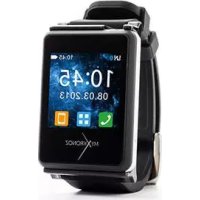
ZeNano - Smartwatch MYKRONOZ - Free user manual and instructions
Find the device manual for free ZeNano MYKRONOZ in PDF.



User questions about ZeNano MYKRONOZ
0 question about this device. Answer the ones you know or ask your own.
Ask a new question about this device
Download the instructions for your Smartwatch in PDF format for free! Find your manual ZeNano - MYKRONOZ and take your electronic device back in hand. On this page are published all the documents necessary for the use of your device. ZeNano by MYKRONOZ.
USER MANUAL ZeNano MYKRONOZ
Bluetooth® Version: V2.1
Talk time : 4 hours
Standby time: 120 hours
Battery Type: Li-ion 300mAh
LCD Size: 1.54 inch - 240*240 pixel
Capacity (Memory): 256 Mb
Video format: AVI/MP4/3GP
Photo format: jpg/gif/bmp
FM Radio
Voice recorder
Bluetooth Headset
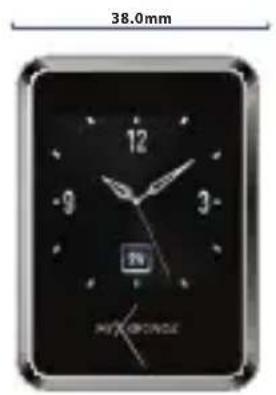
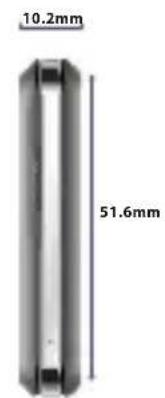
Bluetooth Dialer
Anti-Lost function
Pedometer
Phone book: 1000
Message format: SMS
USB connection: micro 5pin, USB 1.1
Accessories included : clip and intra-auricular earphones
This product is not waterproof
International Warranty: 1 year
ZePlug / AC Charger
Supply voltage:110-220V Frequency: 50/60Hz
Input: 0.15A Output voltage: 5V
Output: 700mA
Warning about operation
This MyKronoz product is designed for receiving calls. We recommend using it for short phone calls to preserve battery charge, as its size and weight are optimised for daily use.
If Bluetooth® fails to work when synchronising, try resetting the product and/or recharging it before trying again.
It is important to remember that the maximum distance for Bluetooth® communication between ZeNano and your phone is ten metres (depending on your environment, with better results in open spaces).
3. TURNING ON/OFF
When using ZeNano for the first time, please connect it to the charger at least one hour to get ZeNano fully charged. The ZeNano software will be updated from time to time. Some new applications will be added or improved, so the manual might be different from the actual functions. This manual is only for reference and main operation available on the ZeNano.
Turning ON
Press and hold the ON/OFF key during 3 seconds
Turning OFF
Once you are on ZeNano homepage (indicated by the 3 icons at the bottom of the screen) it will be possible to turn OFF the product.
Please press and hold the ON/OFF key
4. CHARGING
This ZeNano uses a rechargeable battery. New battery will achieve the best performance after two or three complete charge and discharge cycles. We recommend using the device until the battery is off and automatically shut down. During charging, the device may get warm, this is normal. ZeNano's battery is designed with temperature protection control. Only use the batteries and accessories supplied. Please disconnect the device from the charger when not in use, and unplug the charger from the power outlet.
Do not leave fully charged battery connected to the charger for a long time (no more than 24 hours) as excessive charging will reduce battery life. If the user exposes the battery to extreme temperatures, it will reduce the capacity and lifetime of the battery.
- Plug the charging cable into the micro USB charging hole (on the right side). Connect the charging cable to the power supply.
- After charging, remove the cable from the power supply first, and then remove the micro USB from ZeNano.
- DO NOT remove the charging cable forcibly, or attempt to plug an improper cable to ZeNano as it might cause damage to ZeNano.
The Charging indicator on the screen:
- When charging, the red indicator will be on.
- After charging is complete, the indicator will become green.
Low Battery warning
When battery is low, the indicator on the screen will show that the battery is going off and the ZeNano will alert you. If not connected to a power source, ZeNano will automatically shut down.
5. USB CABLE
- Connect ZeNano data cable to the USB port of the desktop or notebook.
- Connect the other end of the cable to the micro USB port of the ZeNano (on the right side)
- By connecting with USB port, the user can charge or transfer data to other desktop or notebook.
- By connecting ZeNano to a computer, ZeNano will pop up: Mass Storage (as a USB drive) or Com Port.
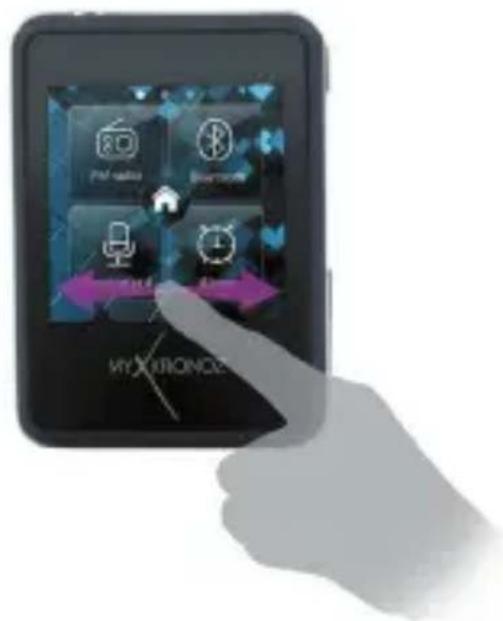
Flick right or left on the bottom of the screen
7. BLUETOOTH PAIRING
When using ZeNano for the first time, you must pair it with your phone as the synchronization of message, call history, audio, phone-book, smart features (Notification of SMS, Calls, Calendar) and the Anti-lost function will work only after ZeNano is paired with your phone.
Note: SMS feature, Gmail and Calendar notifications are only available with Android V2.3 - V4.2 smartphone. Please go to Android Market, download ZeNano APK and install it.
You only need to pair your device once. After the initial pairing, ZeNano will automatically connect to your phone as long as it is turned on and within range. To pair ZeNano to another device, repeat the same steps.
Steps to take:
- Go to the Bluetooth menu in your ZeNano
- Make sure the Bluetooth power is ON (first line of the menu)
- Switch on the Bluetooth function on your phone
- In your phone's Bluetooth settings, look for ZeNano and select it
- If asked enter 0000
- The Bluetooth icon will turn blue on your ZeNano display, and your phone will indicate "Connected" to confirm successful pairing.
8. BLUETOOTH CALLS
After a successful Bluetooth pairing with your phone, Bluetooth call feature is on.
On ZeNano homepage, dial a phone number using your phone or ZeNano dialer, press the Call key to call out.
The user can also make a call from the Phonebook**. On the homepage, press the Phonebook key to find the appropriate contact, press the Call key to dial the corresponding contact.
Added features during a call
Options
Description
Hold
Hold the current call
End single call
End the current call
Mute
Cut the microphone while receiving a call
Dialer pad
Dial the number if needed
9. MAIN FEATURES
- Note: These features are only available with Android V2.3-V4.2 smartphone. Please go to Android Market, download ZeNano APK and install it.
** Note: These features are only available with Android V2.3-V4.2 and iOS 4.0+ smartphone.
9.1MESSAGE\*

Write SMS
In the Write message option, the user can choose to insert contact number or insert bookmark. If the message is not finished or sent, it can be saved as a draft within the option Save Draft.
-
Text input: ZeNano menu interface offers English and Spanish input methods. This device also provides the following input modes : QWERTY keyboard, alphanumeric keyboard, hand writing. In the editing interface, the user can manually switch any input method directly on the virtual keyboard, and select the words on the button.
-
English lowercase: this device provides small letters input method. It can carry out multiple keys to enter the required letters. Enter one character per key once.
- Punctuation: this input method switches to punctuation. Click on the symbol you want to insert.
Inbox
The user can view, reply to the received message, call the sender number, forward, delete, extract, mark as unread, advanced options for action.
Drafts
Store information and confirm the save after editing.
Templates
Text message templates
9.2 CALL HISTORY**

The user can view all the call history (missed, dialed, received calls) and also dial a call or send a message.
9.3 AUDIO

The music in your phone will be synchronized to ZeNano. In the settings list, the user can playback/pause the current audio file, choose the last or next.
9.4 PHONEBOOK\*\*

After Bluetooth connection with your phone, click on Phonebook. Your phonebook will be synchronized to ZeNano.
Once you enter the Phonebook interface, you can enter a name to find a contact.
After pressing Options key, the user can implement the following operations :
View: view the contact information
- Send message : send text messages to the contact number
- Call: call the contact number
9.5 FM RADIO

Use ZeNano to listen to radio, plug the earphone cord into the device's headset jack or use built-in loudspeaker.
- Channel list: displays the list of radio stations saved. The user can select the station of its choice from the list.
- Manual input: enter the radio frequencies manually. The user can then save the channel.
- Automatic search: select Auto search to find radio channels automatically. The user can then save the channel.
9.6 BLUETOOTH

Options
Description
Power on/off
Switch the Bluetooth ON/OFF
Visibility
When visibility is turned on, ZeNano Bluetooth device name can be found by other devices. When turned off, ZeNano cannot be found by other devices.
My Name
Displays the Bluetooth device name ZeNano by default
9.7 VOICE REORDER

Recorded files are saved by default in the root directory «Audio» folder.
In the recording file list interface press Options to select audio, play, rename, attach, forward, delete, delete all files, settings, and other options.
If the recording had been carried out, by pressing Options, the user can implement the following operations:
- New record: Start a new recording.
- Playback: Plays the currently selected recording document.
- Rename: Rename the current recording.
- Delete: Deletes the currently selected recording document.
- List: all the records saved in the list
- Settings: low/high audio quality
- Use as: Use the current audio file as.
9.8 ALARM
You can set up 5 alarm times. The user can choose whether to turn on the alarm, set the alarm time, alarm mode and alarm cycle.
9.9 SETTINGS

Watch settings
- Time and date: Set the time, date, time and date formats.
- Language: the user can use this feature to modify the current display language.
- Preferred input methods : the user can select the input method English, English lowercase, uppercase, numbers, etc.
- Writing settings : the user can set the writing speed and pen color.
- Other settings: the LCD backlight Display settings and versions
Touch screen calibration
Displays
The user can modify the wallpaper, watch face, date and time settings.
Restore factory settings
This feature requires a password support (Initial password is 0000). ZeNano will restore to the factory default state. This operation will remove all information saved in the device.
9.10 ANTI-LOST

When your paired phone leaves the Bluetooth operating range (10 meters) ZeNano will alert you that your phone is away.
9.11 PEDOMETER

Pedometer records the time and the steps the user walks while wearing ZeNano. Once you set the pedometer on, it will record the times the user moves its arms forward and backward while wearing ZeNano.
9.12 REMOTE*
The smart features are listed under this menu.
- Call history notification**
- SMS notification
- Gmail notification
- Calendar notification
10. HOW TO WEAR ZENANO
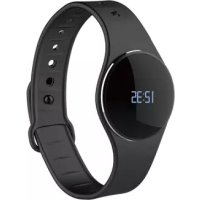
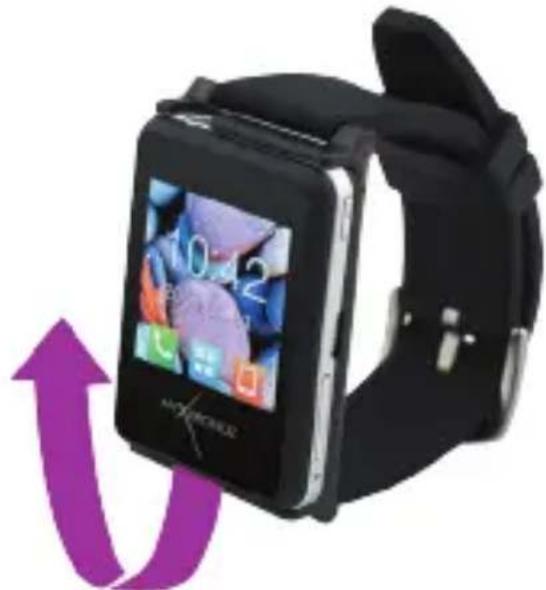
You can unclip ZeNano from the bracelet by grabbing the bottom of the removable screen and pulling it up.
François
ZeNano
GUIDE DE DÉMARRAGE RAPIDE
PRÉSENTATION 34
SPÉCIFICATIONS 36
ALLUMER/ÉTEINDRE 39
CHARGEMENT 40
CABLE USB 42
NAVIQUER SUR L'ECRAN 43
PAIRAGE BLUETOOTH 44
APPELS BLUETOOTH 46
PRINCIPALES FONCTIONNALITÉS 48
COMMENT PORTER ZENANO 59
1. PRÉSENTATION
Pedometer records the time and the steps the user walks while wearing ZeNano. Once you set the pedometer on, it will record the times the user moves its arms forward and backward while wearing ZeNano.
9.12 REMOTE*
NAVIGARE NELLA SCHERMATA 99
ACCOPIAMENTO BLUETOOTH 100
CHIAMATE BLUETOOTH 102
6. NAVIGARE NELLA SCHERMATA
Bluetooth® Version: V2.1
ZePlug / Wisselstroomlader
Voedingsspanning: 110 - 220 V Frequentie: 50 / 60 Hz
Before using the device and charger, read these instructions carefully.
BATTERY
-
ZeNano has one built-in battery. Do not disassemble the battery on your own. KRONOZ is not responsible for any damage or personnel injury caused by the removal of the battery or any component.
-
Charge the battery in a cool, ventilated room. Excessive temperature during charging could cause heat, smoke, fire or deformation of the battery, or even explosion. Avoid excessive temperatures. Do not expose batteries in the sun, excessive smoke or dust.
-
Do not open, crush, bend, deform, puncture or shred secondary cells or batteries. In the event of a battery break or leak, prevent battery liquid contact with skin or eyes. If this happens, immediately flush the areas with water (do not rub the eye), or seek medical help.
-
Do not short-circuit. Short-circuiting can occur when a metallic object, such as coins, causes direct connection of positive and negative terminals of the battery. Short-circuiting may damage the battery.
- Do not use batteries that have been damaged or have been exhausted.
- Keep the batteries out of children's reach and in a safe place to prevent danger.
This device is not waterproof so keep the battery away from all sources of heat or humidity. - Do not place the batteries in the water.
- Do not dispose of batteries in fire as they may cause explosion. Dispose of used batteries in accordance with your local regulations (such as recycling). Do not dispose as household waste.
- Use only the charger or USB cable supplied to charge this battery. Do not charge for more than 24 hours.
CHARGER
- Do not disassemble, modify, or short-circuit the charger.
- Do not subject batteries to mechanical shock.
-
Do not excessively bend or damage the power supply cord.
-
Do no handle the plug or charger with wet hands. Failure to observe this precaution could result in electric shock.
- Avoid extreme temperatures. Do not expose the charger in the sun, excessive smoke or dust.
- The charger is not waterproof so keep it away from all sources of heat or humidity.
- Keep the charger out of children's reach and in a safe place to prevent danger.
CAUTION: This device has a recording function. Please be sure to comply with the relevant laws and regulations on the use of these features. In accordance with relevant regulations, without permission any personal characteristic sound recording being copied and disseminated may be seen as an invasion of privacy. Inappropriate use of photography, video and photo, video, audio recording function records could violate the copyright owner's rights. For this, the user must assume full responsibility. The company is not responsible for any damage caused by improper use of the device.
This product is not waterproof. Do not use it near sink or other wet areas. Do not place it in water.
LEGAL INFORMATION
FCC COMPLIANCE : This device complies with Part 15 of the FCC Rules.
Operation is subject to the following two conditions:
- This device may not cause harmful interference, and
- This device must accept any interference received, including interference that may cause undesired operation.
CAUTIONS : Changes or modifications not expressly approved by the party responsible for compliance could void the user's authority to operate this equipment.
FCC NOTICE : This equipment complies within the limits of a Class B digital device, pursuant to part 15 of the FCC Rules.
These limits are designed to provide reasonable protection against radio and TV interference in residential areas. However, even during normal operation, this equipment may cause TV or radio interference. If this equipment does cause harmful interference to radio or television reception, which can be determined by turning the equipment off and on, the user is encouraged to try one or more of the following corrective measures:
- Reposition the receiving antenna
-
Increase the distance between the equipment and receiver
-
Connect the equipment into an outlet on a circuit different from which the reveiver is connected
- Consult the dealer or an experienced radio/TV technician for help.

This product is compliant with the CE directive.
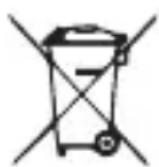
After the implementation of the European Directive 2002/96/EU in the national legal system, the following applies: Electrical and electronic devices may not be disposed of with domestic waste. Consumers are obliged by law to return electrical and electronic devices at the end of their service lives to the public collecting points set up for this purpose or point of sale. Details to this are defined by the national law of the respective country. This symbol on the product, the instruction manual or the package indicates that a product is subject to these regulations.
By recycling, reusing the materials or other forms of utilizing old devices, you are making an important contribution to protecting our environment.
All brands or product names are or may be trademarks of their respective owners. Pictures and specifications are not contractual.