
RVM01 - Mouse SILVERSTONE - Free user manual and instructions
Find the device manual for free RVM01 SILVERSTONE in PDF.



User questions about RVM01 SILVERSTONE
0 question about this device. Answer the ones you know or ask your own.
Ask a new question about this device
Download the instructions for your Mouse in PDF format for free! Find your manual RVM01 - SILVERSTONE and take your electronic device back in hand. On this page are published all the documents necessary for the use of your device. RVM01 by SILVERSTONE.
USER MANUAL RVM01 SILVERSTONE
| Model | SST-RVM01B |
| Material Teflon feet | High-strength plastic with carbon fiber surfacing |
| Application | Windows 2000, XP, Vista |
| Connectivity | USB 2.0 (16-bit data format) |
| Cable length | 180cm |
| Buttons | 11 total, including scroll wheels |
| Programmable profiles | 5 |
| OLED pixel size | 128 x 32 |
| Controller | Freescale MCU MC68H908JW32 |
| Sensor | Philips PLN2030 twin-eye laser |
| DPI range | 400 ~ 3200 |
| Max. acceleration | 50G |
| Dimension | 128mm x 85mm x 45mm |
| Weight | 182g |
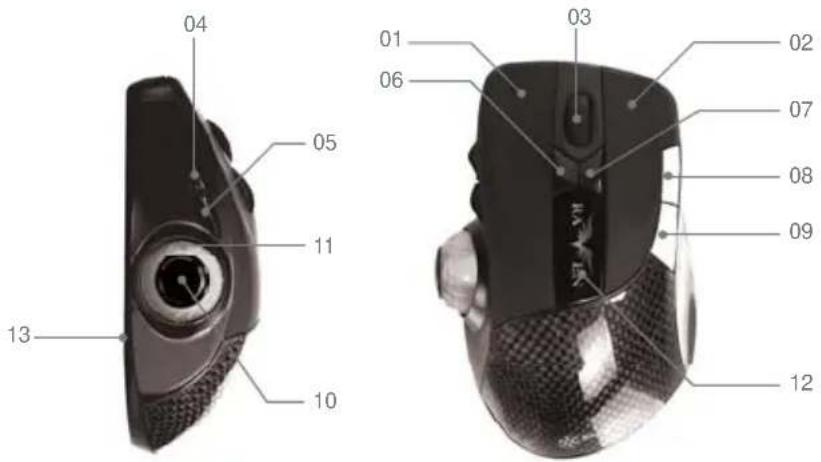
I. Button Assignments
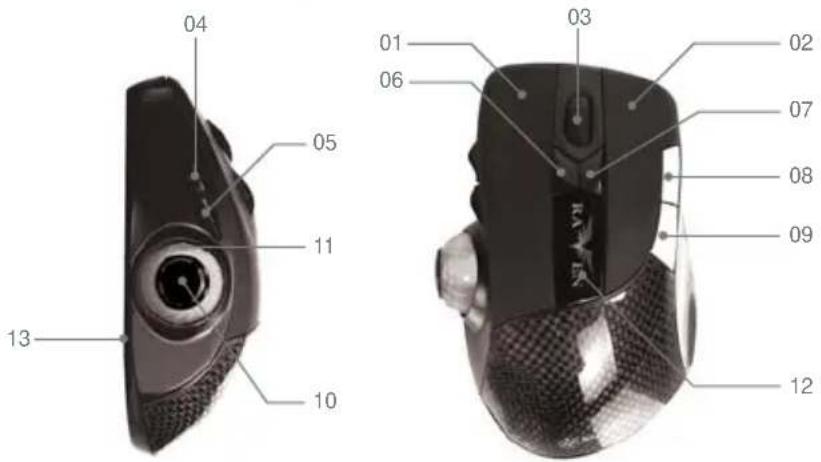
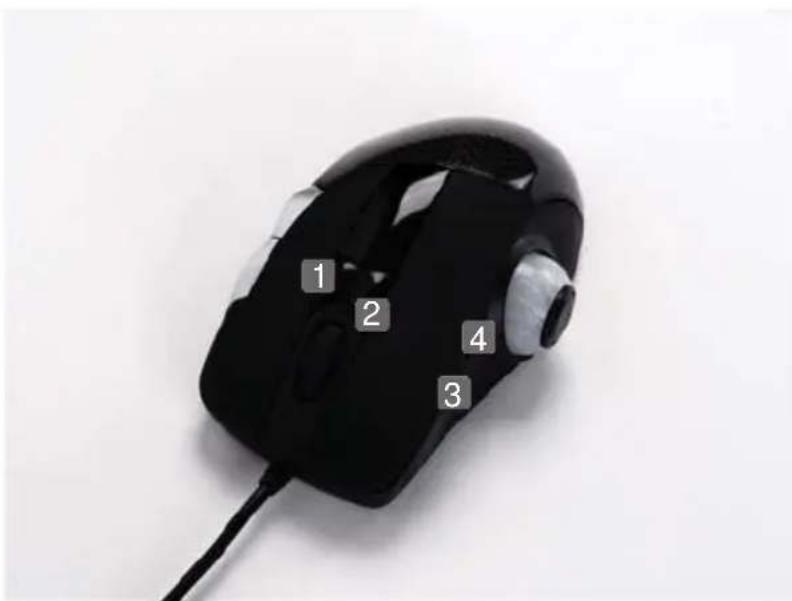
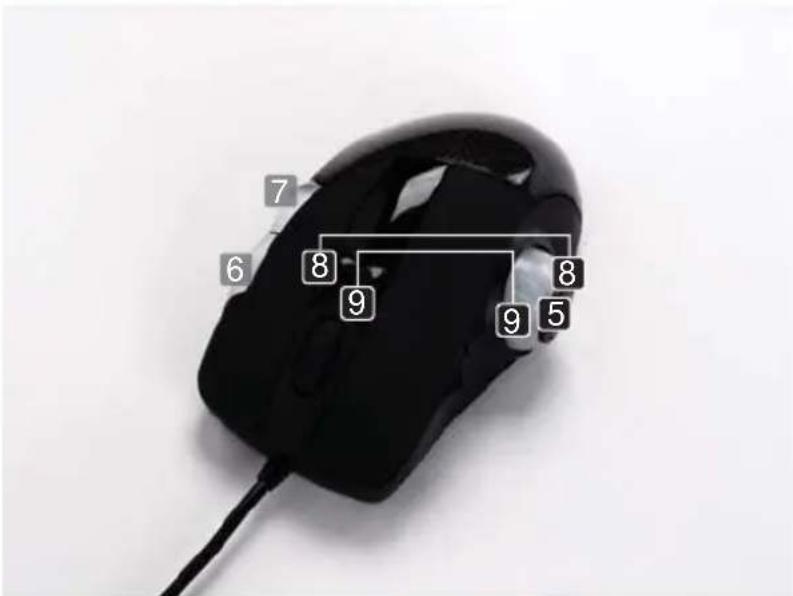
| Key Number | Vista Mode | Game Mode |
| 01 | Left Click | Left Click |
| 02 | Right Click | Right Click |
| 03 | Wheel / Middle Click | Wheel / Middle Click |
| 04 | Forward | Programmable |
| 05 | Back | Programmable |
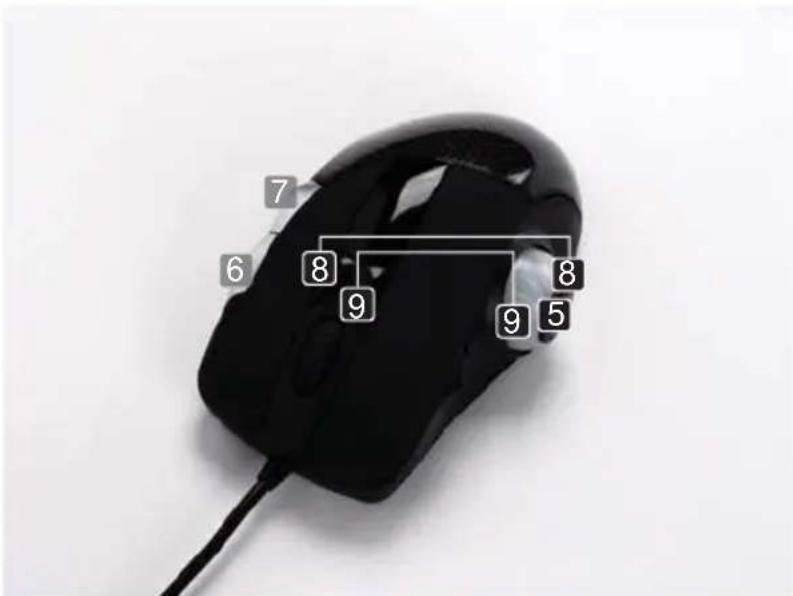
| 06 | Scroll left | Press & hold 6 and scroll 11 for Y axis dpi change/100dpi interval |
| 07 | Scroll right | Press & hold 7 and scroll 11 for X axis dpi change, 100dpi interval |
| 08 | Page up | Programmable |
| 09 | Page down | Programmable |
| 10 | Preset dpi change (cycle through 400/800/1600/3200 dpi) | 5 sets of gaming change mode |
| 11 | Flip 3D | Combination DPI up/down with key 6 & 7 clockwise - Up ,Counterclockwise - Down |
| 12 | DPI display panel | DPI display Panel |
| 13 | MODE CHANGE | MODE CHANGE |
Notes: 1. In Game Mode some keys can be defined by user via "Setting RAVEN" software
2. Mode Change is a switch for changing between Vista Mode and Game Mode
II. Hardware Installation
- Connect your RAVEN gaming mouse to an available USB port on your computer.
- Turn on your computer
Warning: Do not use the mouse on a desk made of glass or mirror.
III. Software Installation
- Make sure the mouse is connected to the computer.
- Insert the included CD into the optical drive
- Follow the instruction on the screen to complete software installation.
IV. Mouse Software Specification
1.Software support
OS : Windows 2000/XP/XP64/Vista/Vista 64
Language: English, Traditional Chinese
2.Software user interface
Vista Mode
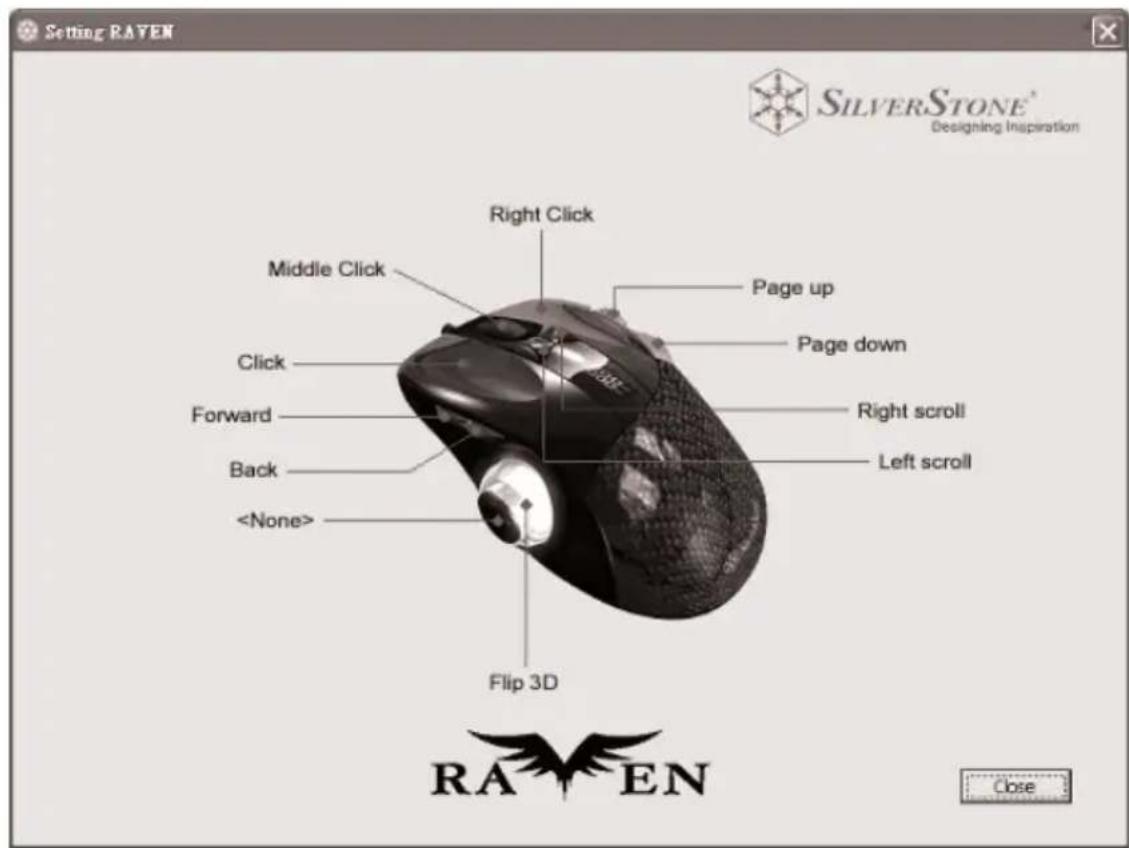
Game Mode
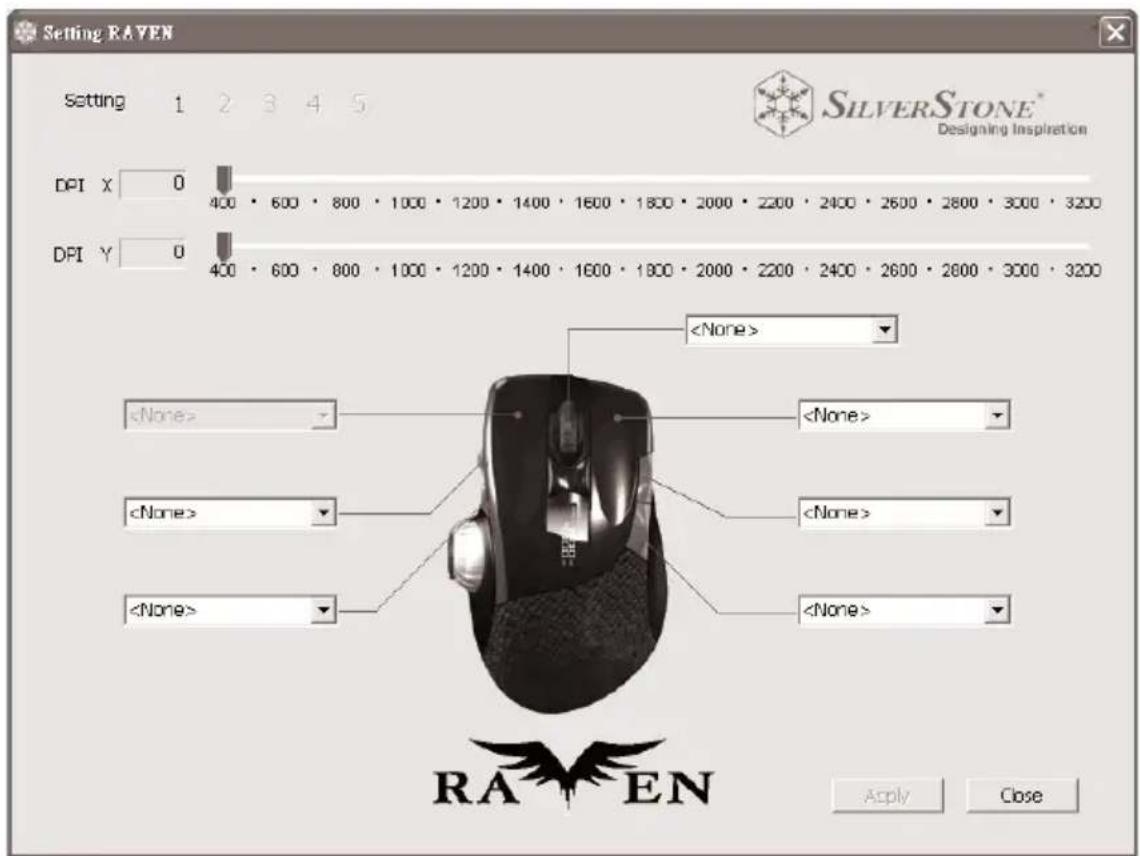
After changing to Game Mode on the mouse, the "Setting RAVEN" software will automatically change to Game mode setting to allow user to change DPI and program Keys.
A.
X and Y axis DPI adjustment: The sliders allow user to set speeds from 400dpi to 3200dpi in both X and Y axis independently and across five different profiles. After adjustments are made, press "Apply" to save.
B.
Programmable keys are button 4, 5, 8, 9 & 11 and you can select the function from the pull-down list. The "Setting RAVEN" requires the Left button to be fixed when programming the buttons for other functions.
3.Software function
(1) Button function
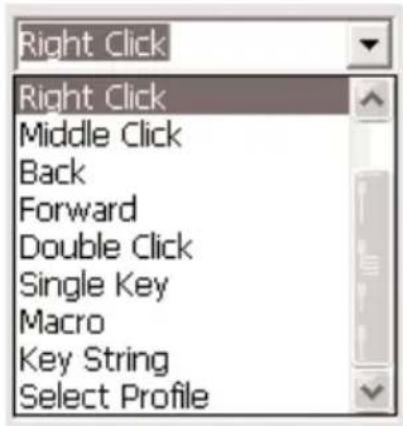
Click
Right Click
Middle Click
Back
Forward
Double Click
Single Key

Macro

Key String

Select Profile

(2) DPI

(3) Select Profile

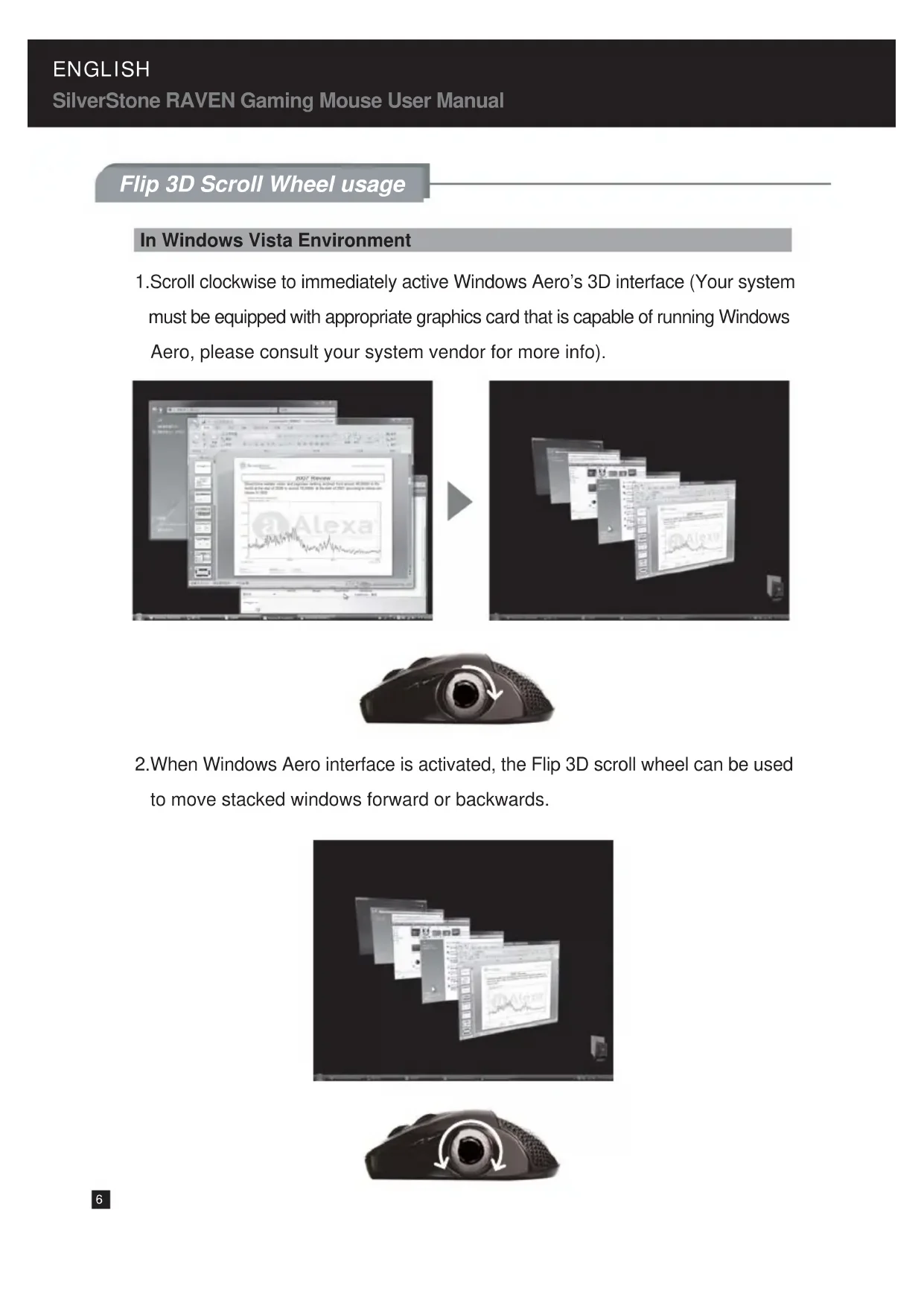
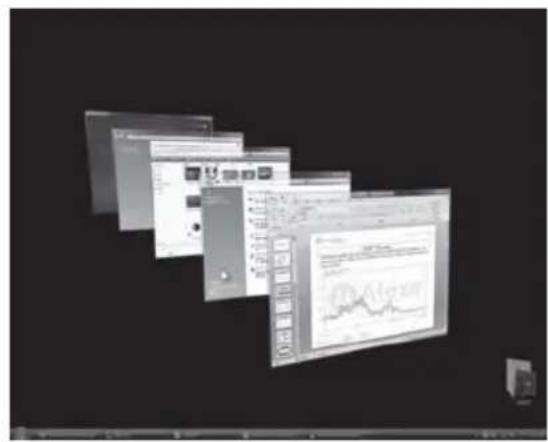
Flip 3D Scroll Wheel usage
In Windows Vista Environment
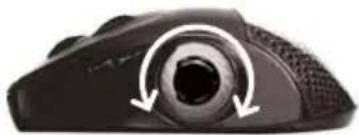
1.Scroll clockwise to immediately active Windows Aero's 3D interface (Your system must be equipped with appropriate graphics card that is capable of running Windows Aero, please consult your system vendor for more info).
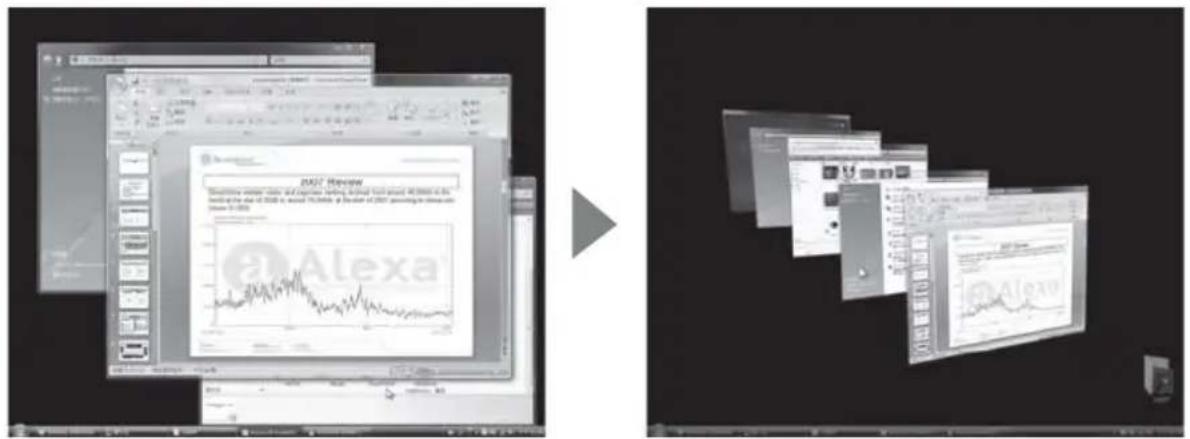

- When Windows Aero interface is activated, the Flip 3D scroll wheel can be used to move stacked windows forward or backwards.

Flip 3D Scroll Wheel usage
In Windows XP Environment
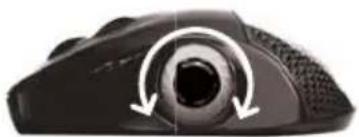
- When using Internet Explorer 7 (and above) or Firefox web browser, the Flip 3D scroll wheel can be used to quickly switch between tabbed pages.
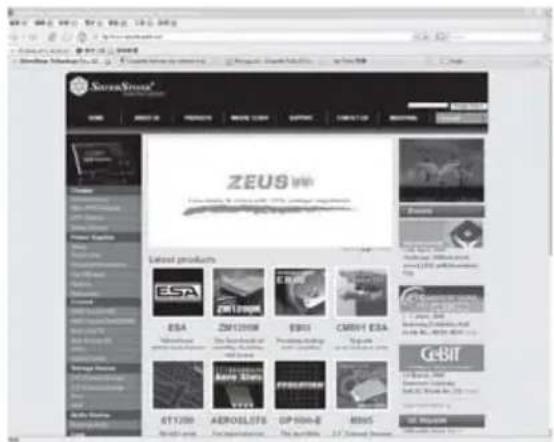
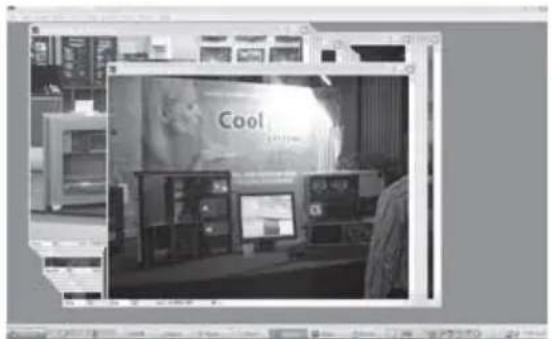
- In applications such as Photoshop, the Flip 3D scroll wheel can be used to quickly select any of the opened file to the foreground.
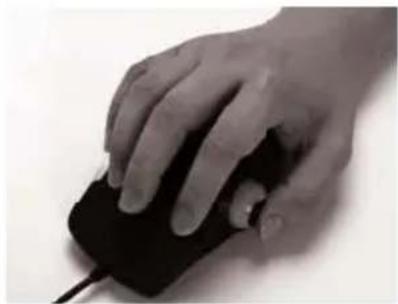
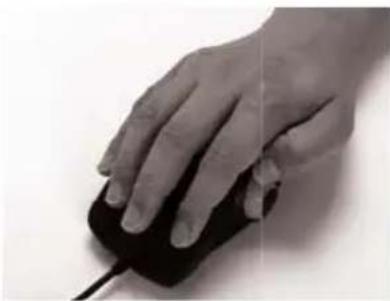
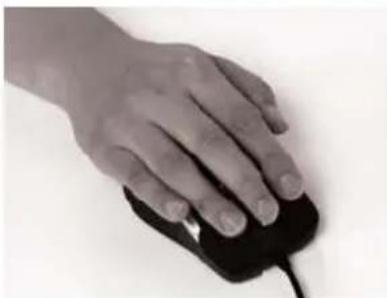
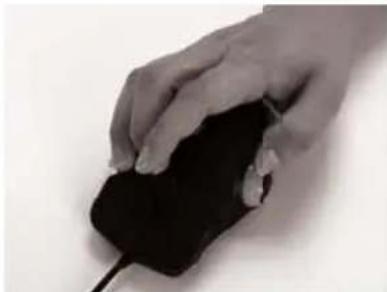
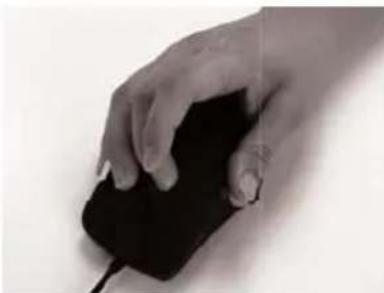
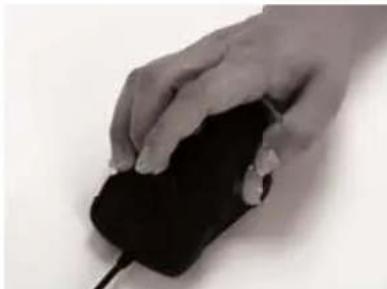
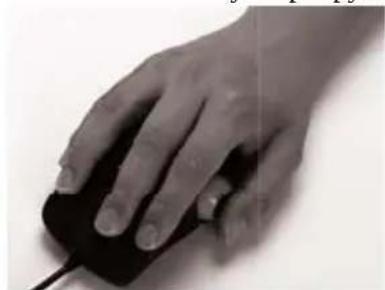
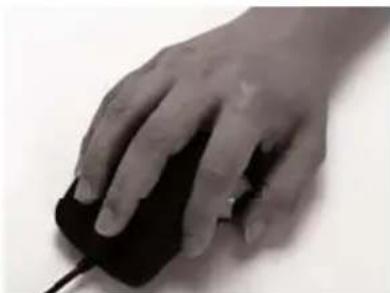
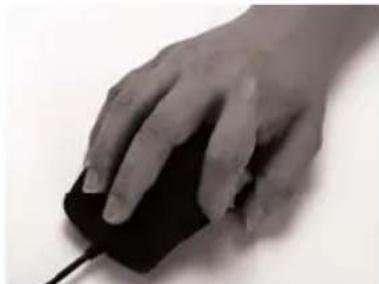
SilverStone recommends the following ways to use the RAVEN Gaming Mouse
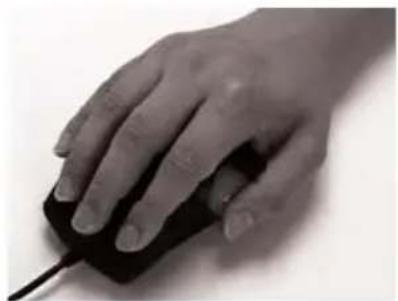
Palming Position
Recommended for RPG or slower paced games
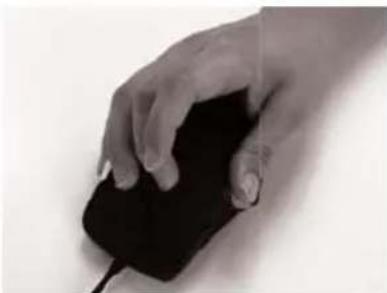
Grip Position
Recommended for 3D shooters or fast paced games
- Pressing Scroll right button

- Pressing Scroll left button

- Pressing Forward button
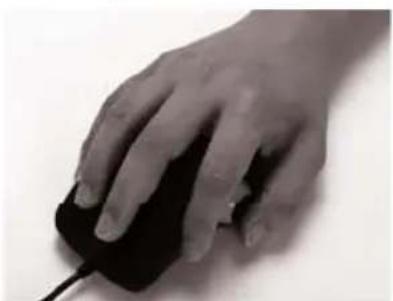
- Pressing Back button
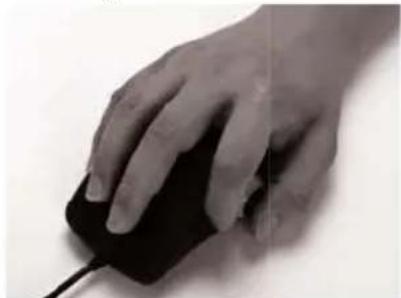
SilverStone recommends the following ways to use the RAVEN Gaming Mouse
- Scrolling Flip 3D
- Pressing page down button
- Decrease dpi in Game Mode
- Pressing page up button

- Increase dpi in Game Mode
I. Tastenbelegung
In Windows Vista Environment
- Decrease dpi in Game Mode
- Pressing page up button

- Increase dpi in Game Mode
- HaKaTHe Ha KhoNkY "IpoKpyTkBa BnpaBO

- HaxaTne Ha KhoNk Ky "IpoKpyTk aBJeBO"
- HαKaTne Ha KHOIIKy "BnpeI"
- HαKaTHe Ha KHOIIKy "Ha3aI"
Kompana "SilverStone" pekomehdyem ucpnoh308amb uapoeyMoIWB RAVEN 8 cneedyouux ueyx
| Key Number | Vista Mode | Game Mode | |
| 01 | 원주목일rik | 원주목일rik | |
| 02 | 오본주목일rik | 오본주목일rik | |
| 03 | WL / 가운대일rik | WL / 가운대일rik | |
| 04 | AML | FRLo그라기能力强 | |
| 05 | 류로 | FRLo그라기能力强 | |
| 06 | 원주목insk阅读全文 | 6을 너무상태에서insk阅读全文을 썼 Y %(DPI 전쟁 / 100 DPI 기재 | |
| 07 | 오본주목insk阅读全文 | 7을 너무상태에서insk阅读全文을 썼 X %(DPI 전쟁 / 100 DPI 기재 | |
| 08 | inea지:wirlo | FRLo그라기能力强 | |
| 09 | inea지:a래로 | FRLo그라기能力强 | |
| 10 | 사전实施方案선DXI단개워크 (400/800/1600/3200 dpi) | 5가지 친이명 majority만들 히다 | |
| 11 | FLIP 3D | 6과 7 키를동시에 키비내이선 DXI 친이 친이 hari 친이 친이 :증가蔺지 친이 친이 hari 친이 친이 :증가 hari 친이 친이 hari 친이 hari 친이 hari hari hari hari hari hari hari hari hari hari hari hari hari hari hari hari hari hari hari hari hari hari hari hari hari hari hari hari hari hari hari hari hari hari hari hari hari hari hari hari hari hari hari hari hari hari hari hari hari hari ARI ARI ARI ARI ARI ARI ARI ARI ARI ARI ARI ARI ARI ARI ARI ARI ARI ARI ARI ARI ARI ARI ARI ARI ARI ARI ARI ARI ARI ARI ARI ARI ARI ARI ARI ARI ARI ARI ARI ARI ARI ARI ARI ARI ARI ARI ARI ARI ARI ARI RI RI RI RI RI RI RI RI RI RI RI RI RI RI RI RI RI RI RI RI RI RI RI RI RI RI RI RI RI RI RI RI RI RI RI RI RI RI RI RI RI RI RI RI RI RI RI RI RI RI RI | |
| 12 | DXI DXI DXI DXI DXI DXI DXI DXI DXI DXI DXI DXI DXI DXI DXI DXI DXI DXI DXI DXI DXI DXI DXI DXI DXI DXI DXI DXI DXI DXI DXI DXI DXI DXI BX BX BX BX BX BX BX BX BX BX BX BX BX BX BX BX BX BX BX BX BX BX BX BX BX BX BX BX BX BX BX BX BX BX BX BX BX BX BX BX BX BX BX BX BX BX BX BX BX BX DX DX DX DX DX DX DX DX DX DX DX DX DX DX DX DX DX DX DX DX DX DX DX DX DX DX DX DX DX DX DX DX DX DX DX DX DX DX DX DX DX DX DX DX DX DX DX DX DX DX BX BX BX BX BX BX BX BX BX BX BX BX BX BX BX BX BX BX BX BX BX BX BX BX BX BX BX BX BX BX BX BX BX BX BX BX BX BX BX BX BX BX BX BX BX BX BX BX BX CX CX CX CX CX CX CX CX CX CX CX CX CX CX CX CX CX CX CX CX CX CX CX CX CX CX CX CX CX CX CX CX CX CX CX CX CX CX CX CX CX CX CX CX CX CX CX CX CX CX BX BX BX BX BX BX BX BX BX BX BX BX BX BX BX BX BX BX BX BX BX BX BX BX BX BX BX BX BX BX BX BX BX BX BX BX BX BX BX BX BX BX BX BX BX BX BX BX BX X X X X X X X X X X X X X X X X X X X X X X X X X X X X X X X X X X X X X X X X X X X X X X X X X X X X X X X X X X X X X X X X X X X X X X X X X X X X X X X X X X X X X X X X X X X X X X X X X X X |
Warranty Information
During the warranty period, assistance for replacement or exchange of defective components is available at the place of purchase. Please bring your receipt and warranty certificate for the proof of purchase. The warranty does not cover repair or exchange of the product resulting from misuse, accident, modification, unsuitable physical or operating environment, improper maintenance by you, or failure caused by a product for which SilverStone is not responsible for. The warranty is voided by removal or alteration of product or parts identification labels.
Warranty period is region specific, please contact your reseller or SilverStone authorized distributor for more information
This instruction will help you to make the most out of your product. Please read through it before installation. Also, please keep your product receipt and this instruction in safe place for the future reference.
We, SilverStone Technology, hope you will enjoy our product. If you have any comment or suggestion, please email to support@silverstonetek.com Thank you for choosing and supporting our product.
To be valid, this sheet must be filled out by your salesperson at the time of purchase.
Store :
Purchaser :
Purchase date :
Model No.:
Serial No.: