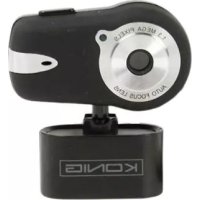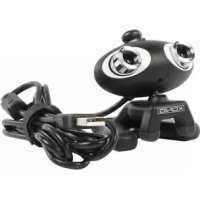
CMPWEBCAM3D10 - Webcam KONIG - Free user manual and instructions
Find the device manual for free CMPWEBCAM3D10 KONIG in PDF.


User questions about CMPWEBCAM3D10 KONIG
0 question about this device. Answer the ones you know or ask your own.
Ask a new question about this device
Download the instructions for your Webcam in PDF format for free! Find your manual CMPWEBCAM3D10 - KONIG and take your electronic device back in hand. On this page are published all the documents necessary for the use of your device. CMPWEBCAM3D10 by KONIG.
USER MANUAL CMPWEBCAM3D10 KONIG
natural_image
Black and white photo of a stylized robot head with large eyes (no text or symbols visible)MANUAL (p. 2)
3D Webcam with 3D glasses
ANLEITUNG (s. 5)
MANUAL DE USO (p. 17)
Webcam 3D con gafas 3D
HASZNÁLATI ÚTMUTATÓ (o. 20.)
Hardware Installation:
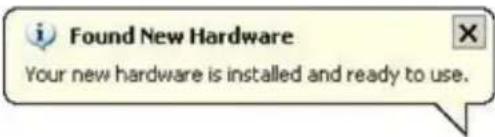
Connect the webcam to your PC using the USB 2.0 port. Place the webcam on your desk or monitor. The best distance is about 1 m/3 ft. After connecting the webcam to your PC, you will see a "Found New Hardware" message as in the picture below. Please wait a few seconds until the hardware installation is finished.
Software installation:
After placing the CD into your CD-rom drive and closing it, wait a few seconds and a screen will appear as in the image below.
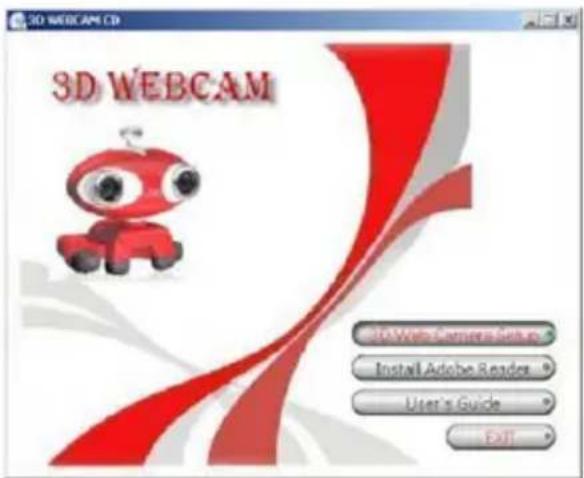
Click the "3D Web Camera Setup" button to install the 3D software and follow these steps: Double click the icon that will appear on your desktop. (see picture below)
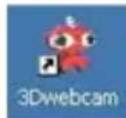
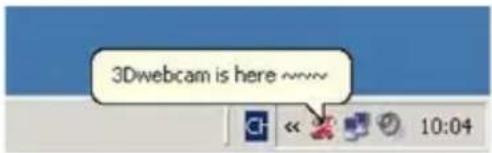
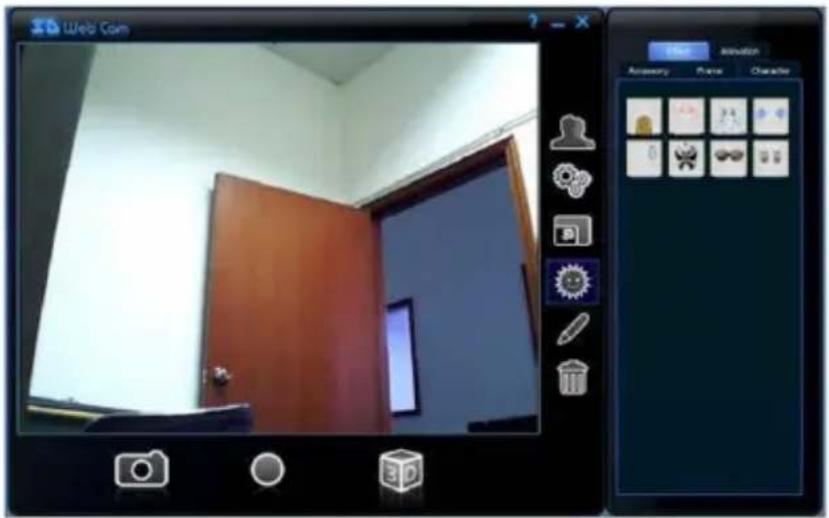
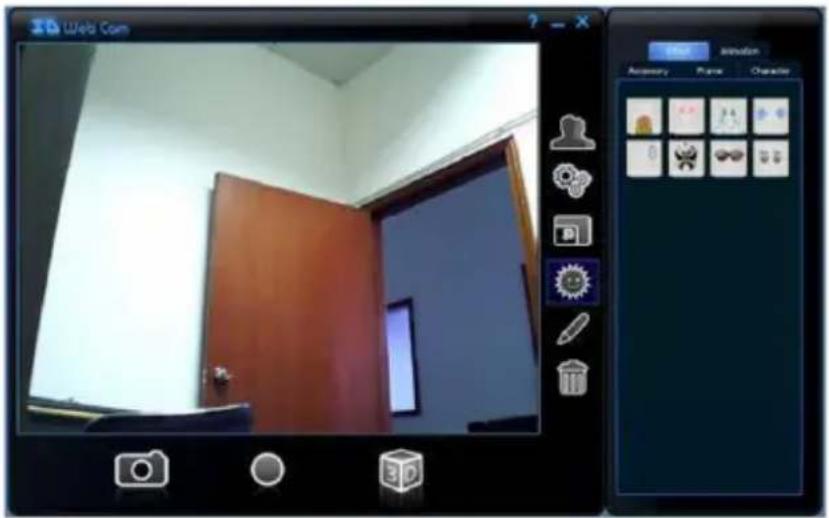
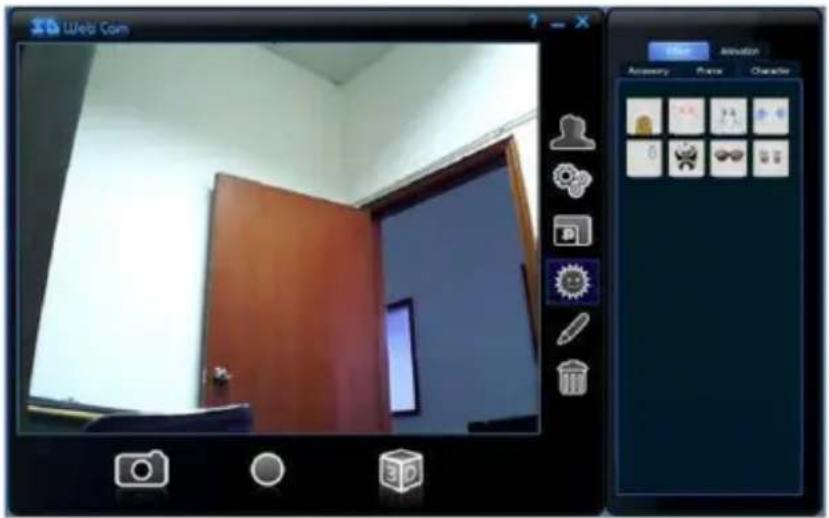
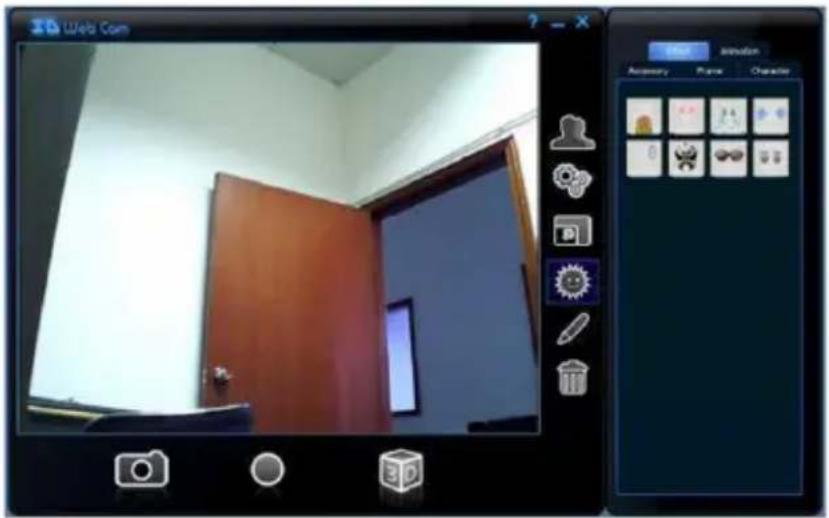
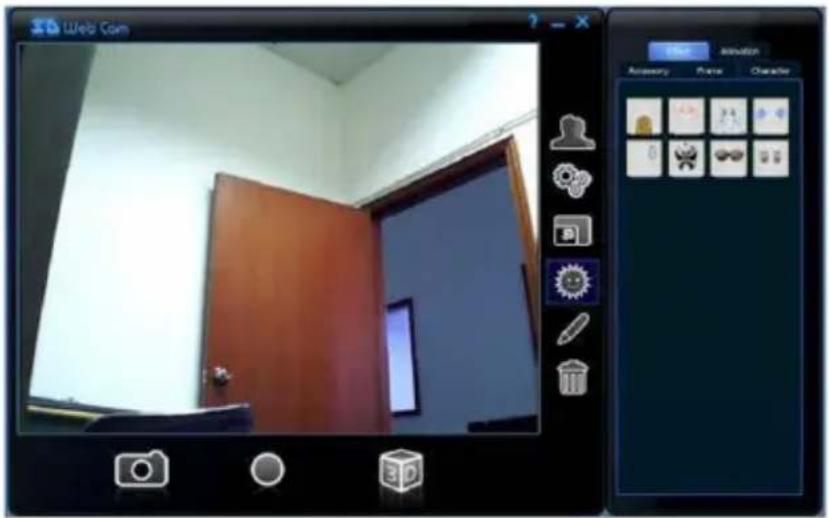
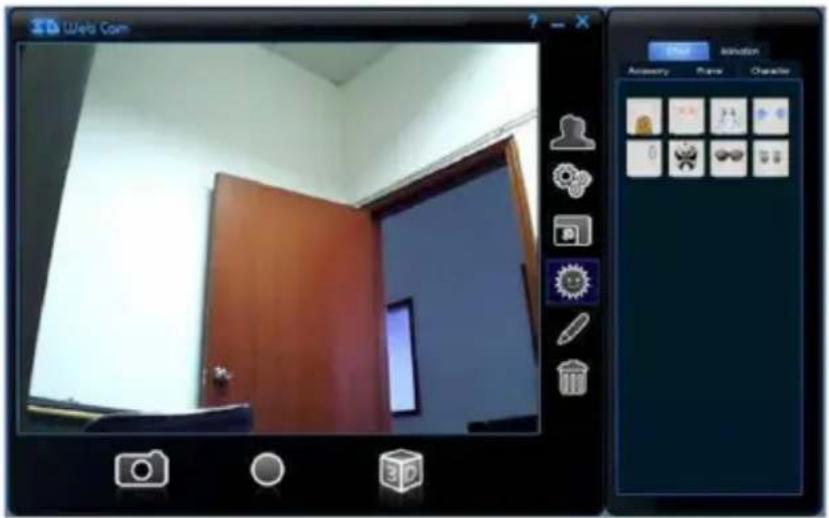
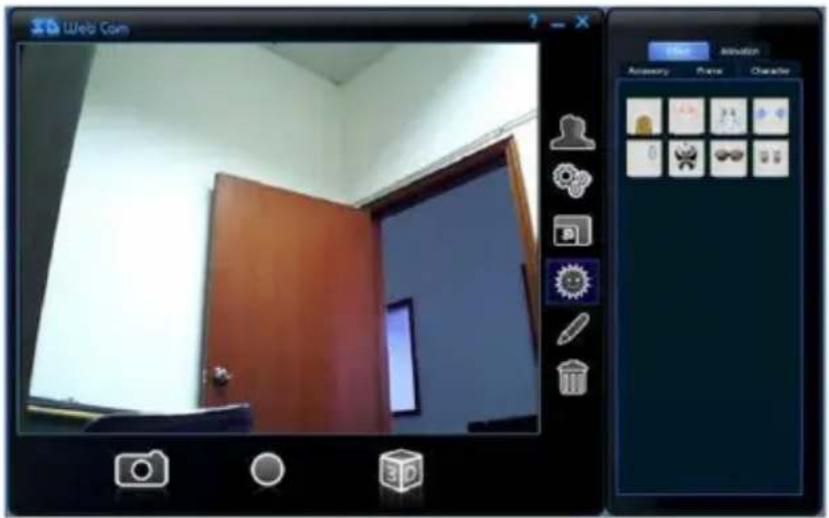
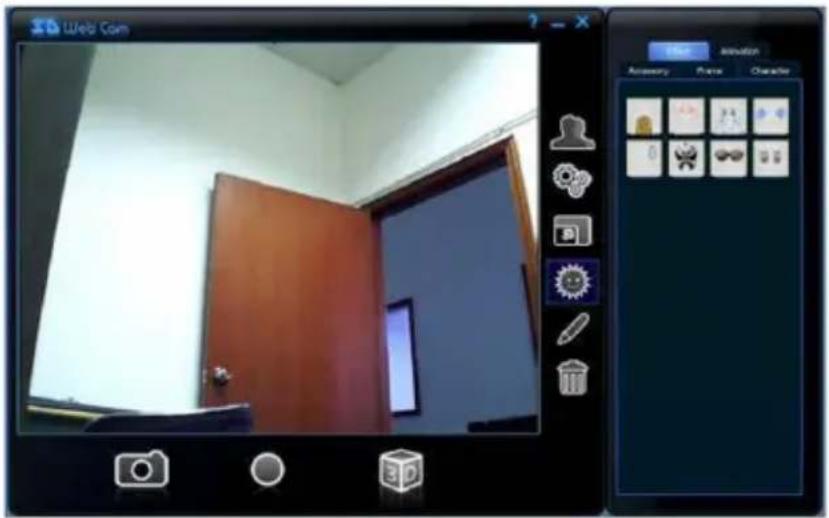
You will see a pop-up in the notification area which indicates that the software is being installed. After a few seconds you will see this screen:
Button functions:
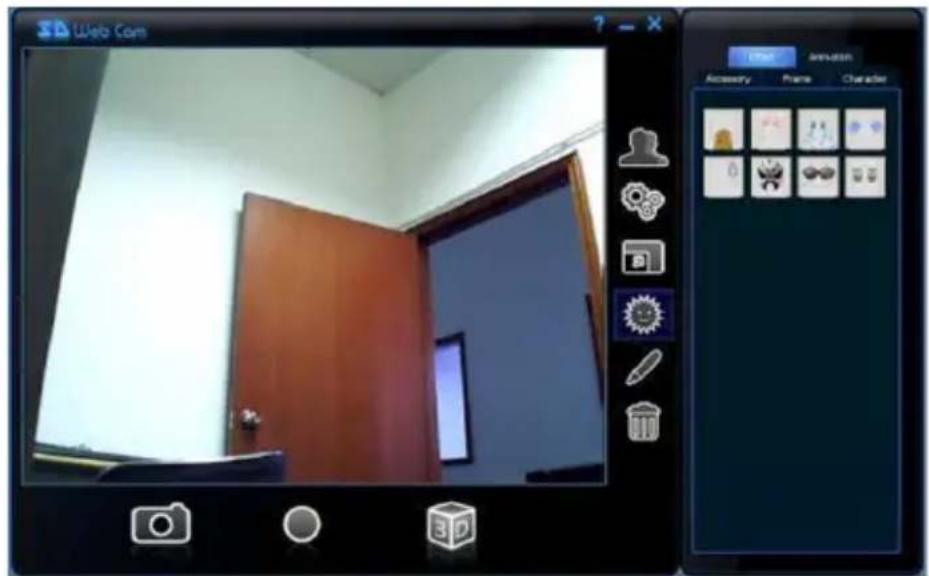
Main window Second window

Snapshot
Record

ode

2D mode
3D adjus

Settings

Full screen
Effects


Erase all


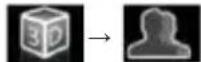
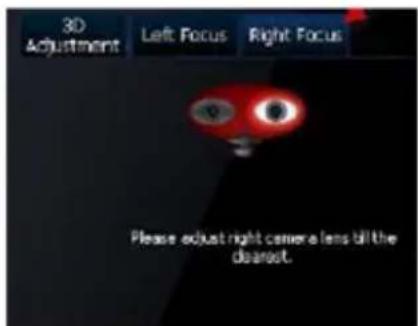
3D Lens focus:
- Click the 3D mode button
- Click the 3D adjustment button
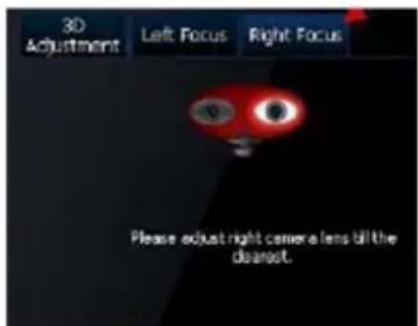
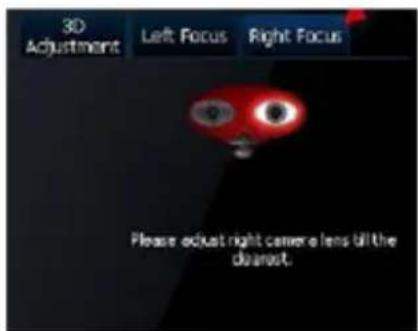
You will find Left Focus and Right Focus in the second window. Please choose an object that is 1m/3ft away as a reference to focus both lenses separately. See pictures below:
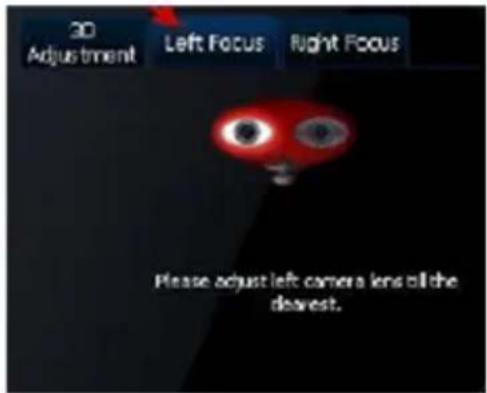
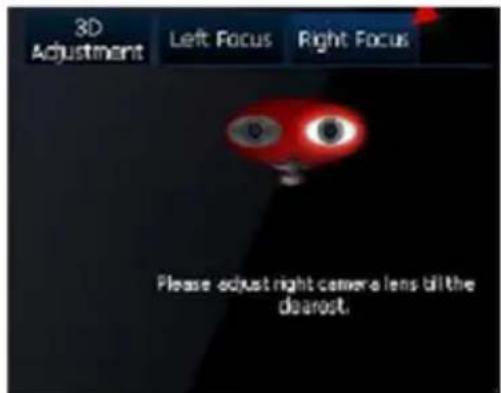
3D adjustment:
Click the 3D adjustment tab to adjust the 3D performance, as shown in the picture below.
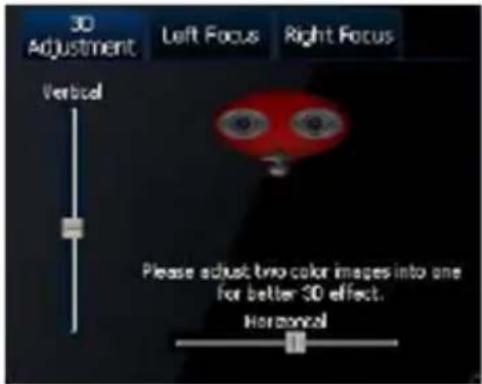
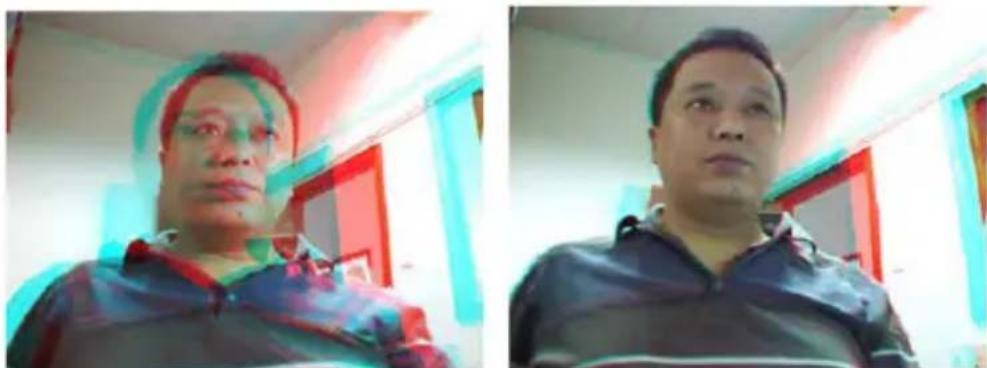
You will see two images in the window, one red and one cyan. You can adjust the picture by sliding the vertical and horizontal bar. Adjust the two color images into one overlapping image as in the picture below:
natural_image
Two side-by-side photos of a man in a red headscarf and hoodie, indoors with no visible text or symbols.It is also possible to use the 3D webcam in online chatting tools.
You can refer to the manual of the chatting program in order to use it in the application.
Safety precautions:

To reduce risk of electric shock, this product should ONLY be opened by an authorized technician when service is required. Disconnect the product from mains and other equipment if a problem should occur. Do not expose the
product to water or moisture.
Maintenance:
Clean only with a dry cloth. Do not use cleaning solvents or abrasives.
Warranty:
No guarantee or liability can be accepted for any changes and modifications of the product or damage caused due to incorrect use of this product.
General:
Designs and specifications are subject to change without notice.
All logos brands and product names are trademarks or registered trademarks of their respective holders and are hereby recognized as such.
Keep this manual for future reference.
Attention:

This product is marked with this symbol. It means that used electrical and electronic products should not be mixed with general household waste. There is a separate collections system for these products.
DEUTSCH
Geräteinstallation:
natural_image
Interior view of a room with a wooden door and wall, displayed in a photo editing interface (no readable text or symbols on the main scene)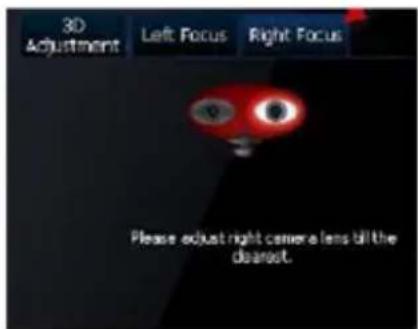
3D Anpassung:
natural_image
Two side-by-side photos of a man in a red headscarf indoors, no visible text or symbolsnatural_image
Interior view of a room with a wooden door and wall, displayed in a photo editing interface (no readable text or symbols on the main scene)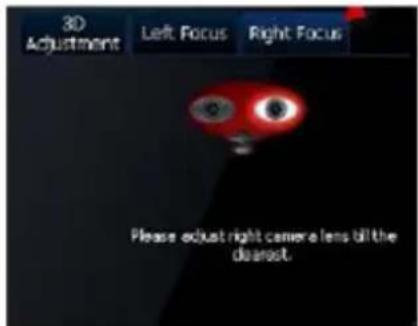
Réglage 3D :
natural_image
Two side-by-side photos of a man in a hoodie, one with red hair and glasses, the other with a neutral expression (no visible text or symbols)Toetsfuncties:
natural_image
Interior view of a room with a wooden door and wall, displayed in a photo editing interface (no readable text or symbols on the main scene)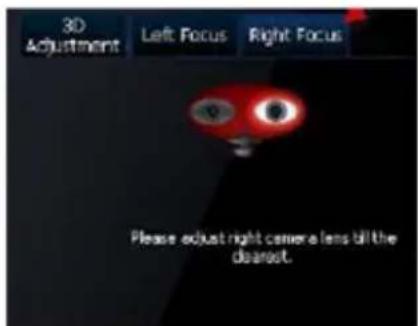
3D-afstelling
natural_image
Two side-by-side photos of a man in a casual indoor setting, no visible text or symbolsFunzioni dei tasti:
natural_image
Interior view of a room with a wooden door and wall, displayed in a photo editing interface (no readable text or symbols on the main scene)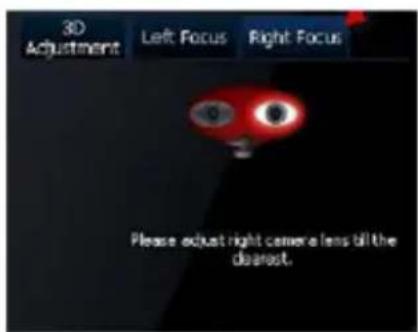
Regolazione 3D:
natural_image
Two side-by-side photos of a man in a hoodie, one with red hair and the other with a dark jacket (no visible text or symbols)natural_image
Interior view of a room with a wooden door and wall, displayed in a photo editing interface (no readable text or symbols on the main scene)Ventana Principal Ventana Secundaria

Instantánea Grabar

Iad 3D

Ajuste 3D:
natural_image
Two side-by-side photos of a man in a hoodie, one with red hair and the other with a dark jacket, against a blurred indoor background (no visible text or symbols)Gombfunkciók:
natural_image
Interior view of a room with wooden doors and wall, displayed in a photo editing interface (no readable text or symbols on main scene)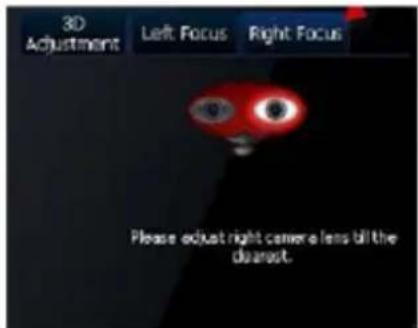
3D beállítás:
natural_image
Portrait of a man with red hair and glasses, wearing a dark jacket (no visible text or symbols)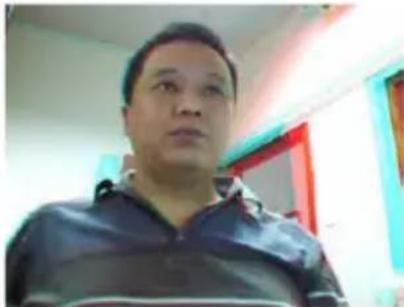
natural_image
Portrait of a man in a dark jacket, indoors with blurred background (no visible text or symbols)Painiketoiminnot:
natural_image
Interior view of a room with wooden doors and wall, displayed in a photo editing interface (no readable text or symbols on main scene)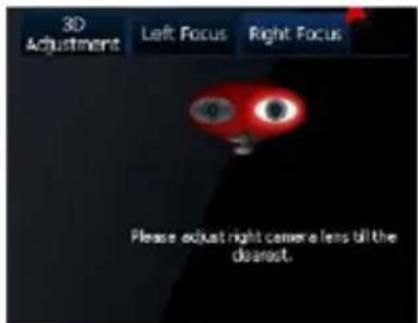
3D-säätö:
natural_image
Two identical photos of a man in a casual jacket, one with red hair and the other with glasses (no visible text or symbols)Knapp-funktioner:
natural_image
Interior view of a room with a wooden door and wall, displayed in a photo editing interface (no readable text or symbols on the main scene)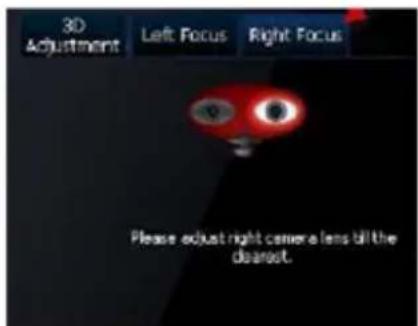
3D-justering:
natural_image
Two identical photos of a man in a casual jacket, one with red hair and the other with glasses (no visible text or symbols)Instalace software:
Funkce tlačítek:
3D adjustment (3D nastavení):
natural_image
Two side-by-side photos of a man in a hoodie, one with red hair and glasses, the other with a dark jacket (no visible text or symbols)Instalare Software:
Funcții butoane:
natural_image
Interior view of a room with wooden doors and wall, displayed in a photo editing interface (no readable text or symbols on main scene)
Full screen (Ecran complet)

Effects (Efecte)

Graffiti (Graffiti)
Reglare 3D:
natural_image
Portrait of a man with red hair and glasses, wearing a blue jacket, indoors with blurred background (no visible text or symbols)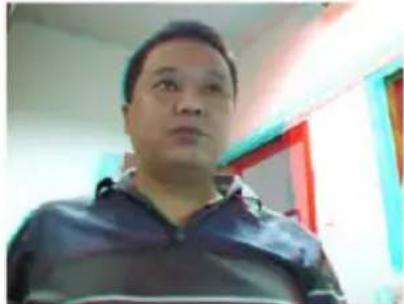
natural_image
Portrait of a man in a dark jacket, indoors with blurred background (no visible text or symbols)natural_image
Interior view of a room with wooden doors and wall panels, displayed in a photo editing interface (no readable text or symbols on main scene)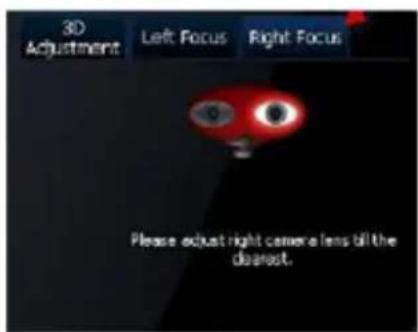
Ρύθμιση 3D:
natural_image
Two side-by-side photos of a man in a hoodie, one with red hair and glasses, the other with a dark shirt (no visible text or symbols)Hardware-installation:
Installation af software:
Knapfunktioner:
natural_image
Interior view of a room with a wooden door and wall, displayed in a photo editing interface (no readable text or symbols on the main scene)Hovedvindue Andet vindue

Snapshot Optag

and

2D tilstand
3D jus

Indstillinger

Fuld skærm
Effek

affiti

Slet alt


3D Linsefokus:
• Klik på 3D tilstand knappen
• Klik på 3D justering knappen
3D justering:
natural_image
Portrait of a man wearing a red cap and blue jacket, indoors with blurred background (no visible text or symbols)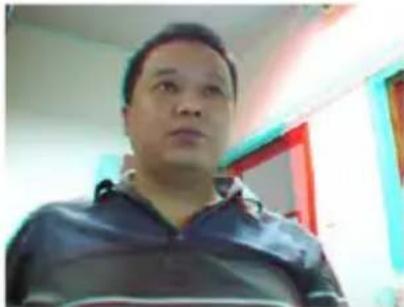
natural_image
Portrait of a man in a dark jacket, indoors with blurred background (no visible text or symbols)Knappefunksjoner:
natural_image
Interior view of a room with a wooden door and wall, displayed in a photo editing interface (no readable text or symbols on the main scene)Hovedvindu Andre vindu

Stillbilde
Opptak

dus

2D-modus
3D-just

Innstillinger

Fullskjerm
Effekte

fiti

Slett alle


3D-linsefokus:
• Klikk på 3D-modus-knappen
• Klikk på 3D-justeringsknappen