Beosound A5 - Wireless Speaker BANG & OLUFSEN - Free user manual and instructions
Find the device manual for free Beosound A5 BANG & OLUFSEN in PDF.



User questions about Beosound A5 BANG & OLUFSEN
0 question about this device. Answer the ones you know or ask your own.
Ask a new question about this device
Download the instructions for your Wireless Speaker in PDF format for free! Find your manual Beosound A5 - BANG & OLUFSEN and take your electronic device back in hand. On this page are published all the documents necessary for the use of your device. Beosound A5 by BANG & OLUFSEN.
USER MANUAL Beosound A5 BANG & OLUFSEN
Svenska (Swedish), 34
Deutsch (German), 49
Français (French), 79
Espanol (Spanish), 94
Italiano (Italian), 109
Portugues (Portuguese), 124
Pycckn (Russian), 139
日本語 (Japanese), 154
Korean), 169
简体中文 (Simplified Chinese), 184
繁體中文(Traditional Chinese),199
Table of Contents
Getting Started, 4
Download the Bang & Olufsen app, 5
Daily Use, 7
Multiroom, 9
Customise your sound, 11
Stereo pairing, 12
Battery life and charging, 13
Qi charging, 15
Status indicator light, 16
Microphone, 17
Reset Beosound A5, 18
GETTING STARTED
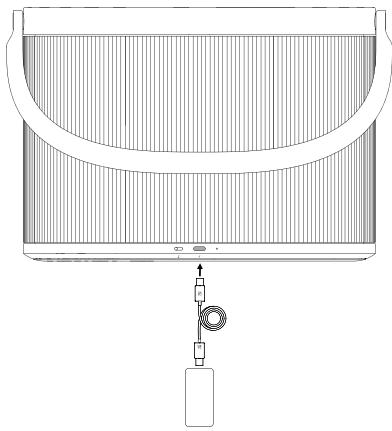
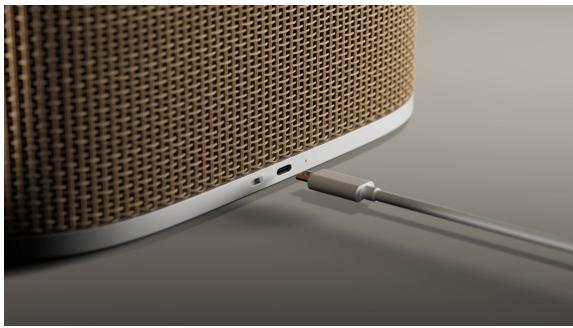
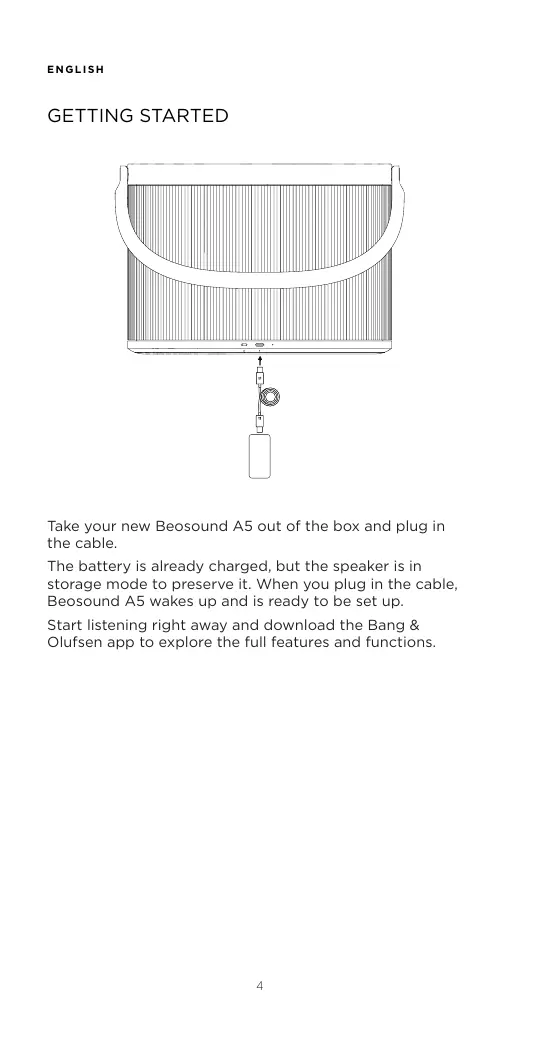
Take your new Beosound A5 out of the box and plug in the cable.
The battery is already charged, but the speaker is in storage mode to preserve it. When you plug in the cable, Beosound A5 wakes up and is ready to be set up.
Start listening right away and download the Bang & Olufsen app to explore the full features and functions.
B


Download on the
App Store


GETITON
Google Play


EXPLORE IT ON
AppGallery



百度
Get the complete experience when you download the Bang & Olufsen app.
Set up your new Beosound A5 and make it your own. Update to the newest functions, find the perfect level with precision volume control, and tailor the sound to your taste with Beosonic Sound Modes.
You can also dive into deep features like the beta tester community and get remote support if you need help.
Connect to Wi-Fi
The easiest way to connect your Beosound A5 to Wi-Fi is via the Bang & Olufsen app. Simply download the app and follow the instructions on screen. You'll be set up in a matter of minutes.
If you don't wish to use the app, you can still connect via the Wi-Fi settings on your device (if you're on iPhone or iPad) or via the Google Home app.
Playing your content
Start playing from the source of your choice and select Beosound A5 as the speaker to listen on. The following streaming features are available when connected to Wi-Fi:
AirPlay 2
- Chromecast built-in
Spotify Connect
- Tidal Connect
- QPlay
DLNA
- Deezer (via the Bang & Olufsen app)
B&O Radio (via the Bang & Olufsen app)
On Wi-Fi, you can enjoy the highest sound quality without interruptions - even if you get a call or your device disconnects. You can also connect several speakers in a multiroom experience (see "Multiroom" for more information).
Additionally, you can stream via Bluetooth. See "Bluetooth" for more information.
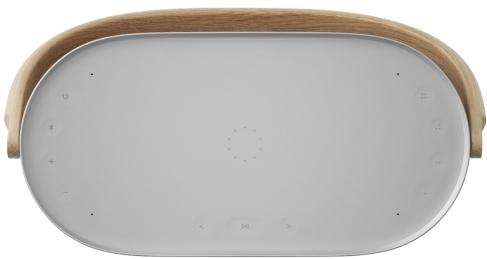
Use the buttons on the top of Beosound A5 to quickly access essential functions:
| Symbol | Function |
| ∅ | Press to switch the speaker on. Press and hold for two seconds to switch it off. |
| * | Press and hold for two seconds to pair to Bluetooth devices. See “Bluetooth” for more information. |
| -+ | Press to turn volume up or down. |
| ▷|| | Press to play or pause content. Press and hold for two seconds to join a Beolink Multiroom experience. See “Multiroom” for more information. |
| < > | Press to skip songs or stations. |
| ○○○○○, ○○, ○○, ○○ | Four Favourite Buttons provide one-touch access to radio stations or playlists. See “Favourites” for more information. |
Other features on the Beosound A5 top panel are:
| A | Indicator light, showing product status. See “Status indicator light” for more information. |
| B | Qi charger. See “Qi charging” for more information. |
| C | Built-in microphones (3). |
Bluetooth
A network connection is required to use the complete features of Beosound A5, but you can listen anywhere with Bluetooth.
To pair a new device, press and hold the Bluetooth button for two seconds. When the light starts pulsing blue, go to the Bluetooth settings on your device and select Beosound A5.
To connect to the last used Bluetooth device, press the Bluetooth button shortly.
Favourites
Get instant access to your favourite content with the four Favourite Buttons. A single press will have you listening right away.
The buttons come pre-populated with the most popular radio stations in your area and can easily be configured to whatever you want: Other stations via B&O Radio or playlists via Spotify Connect and Deezer.
To save a favourite, start playing either radio or a playlist on your device. Then press and hold the selected Favourite Button for two seconds. A sound will play to confirm your choice is saved.
Once saved, a short press on the Favourite Button will start playing your favourite content immediately.
MULTIROOM
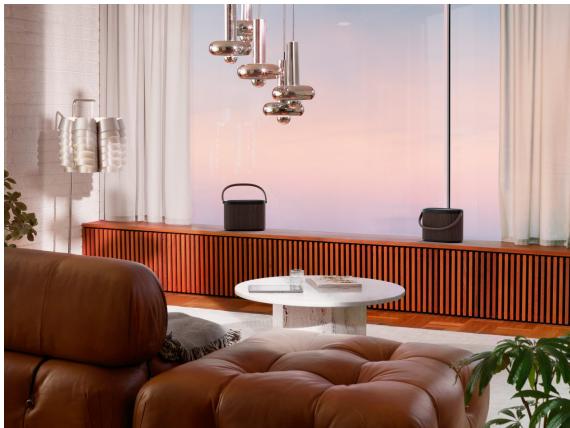
Make the whole house come together in song. Beosound A5 can connect to other speakers in a multiroom system and let multiple speakers across your home play the same content at the same time. You can enjoy multiroom in several different ways:
Beolink Multiroom
Beolink is Bang & Olufsen's own multiroom system. It can distribute anything playing on your Beosound A5 to other Bang & Olufsen speakers and televisions on the same network.
To use Beolink Multiroom, start playing on one speaker and then press and hold [D] on another speaker (for two seconds) to join it - all without a smartphone. You can also use the Bang & Olufsen app to see which products are playing and add more to the ongoing experience without walking to them.
Note: To use Beolink Multiroom and AirPlay together, first open the Bang & Olufsen app and go to Product settings -> Beolink Multiroom -> Enable AirPlay.
Note: Beolink Multiroom can't be used together with Chromecast built-in.
Apple AirPlay
To create a multiroom experience with AirPlay, select multiple speakers from the sound output menu on your Apple device. Beosound A5 can also play together with speakers from other brands that support AirPlay 2.
Chromecast built-in
When casting content to your speakers via Chromecast, you can use the Google Home app on your smartphone to group speakers to play together. In the app, select Media and choose the speakers to add to the experience.
CUSTOMISE YOUR SOUND
Adjust the sound and get the most of your Beosound A5 in the Bang & Olufsen app.
Sound Modes
With Sound Modes, you can curate the sound to your taste and occasion. Choose between the included Sound Modes or create your own with Beosonic.
Custom Sound Modes can be saved for later from Beosonic and activated with one touch. When you save a sound mode, it remembers both Beosonic and sound direction settings.
To reorder or delete Sound Modes, press [≡] next to the Sound mode buttons.
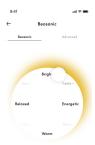
Beosonic
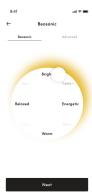
Press [O] to tailor the sound with Beosonic. Move the dot to find your preferred overall sound. Spread or pinch with two fingers to change the immersiveness.

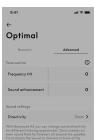
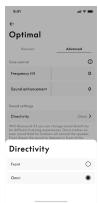
Sound Directivity
Choose between two different directivity modes, depending on the situation:
Front directs the sound to listeners in front of the speaker. This is ideal when the speaker is placed against a wall.
Omni creates an even sound field around the speaker, perfect for the park or a picnic with listeners all over.
RoomSense
With Beosound A5 you can use RoomSense, Bang & Olufsen's proprietary room compensation. It optimises the sound to the speaker's placement in the room.
Activate RoomSense in the Bang & Olufsen app under Sound Settings. The microphones in Beosound A5 must be switched on while RoomSense is being performed.
STEREO PAIRING
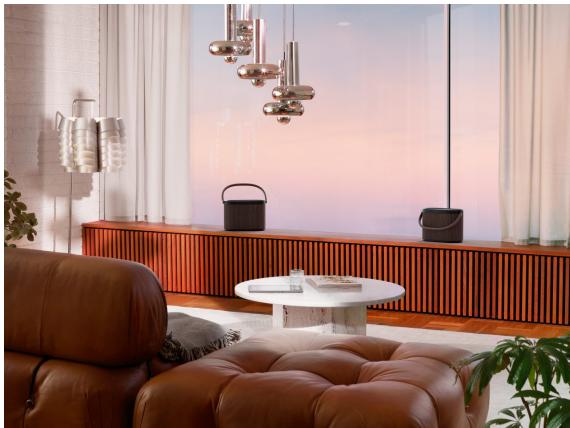
Connect two Beosound A5s as a pair for a full and flexible stereo experience. Stereo pairing is available when both speakers have been set up in the Bang & Olufsen app with the same account and are connected to the same network.
Stereo pair with the Bang & Olufsen app
In the app, select your speaker, then Sound settings -> Create stereo pair. Then choose the other speaker for your stereo pair.
Separating a pair
To separate a pair and use the speakers individually, you can press and hold [< >] buttons at the same time for two seconds on either speaker, or go to Sound settings in the Bang & Olufsen app.
BATTERY LIFE AND CHARGING
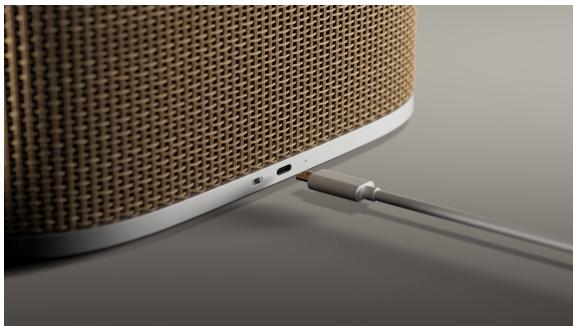
With the built-in battery, Beosound A5 can play more than 12 hours at typical listening levels and up to 4 hours at maximum volume.
When Beosound A5 is not connected to power, the light next to the charging port will briefly show the remaining battery life when you switch it on:
| Colour | Pattern | Meaning |
| Green | Solid | More than 40 % of battery life remaining. |
| Amber | Solid | Less than 40 % of battery life remaining. |
| Red | Solid | Less than 10 % of battery life remaining. |
| Flashing | Less than 1 % of battery life remaining. The speaker will switch off unless connected to power. |
At 10% and 1% you will also hear a notification sound.
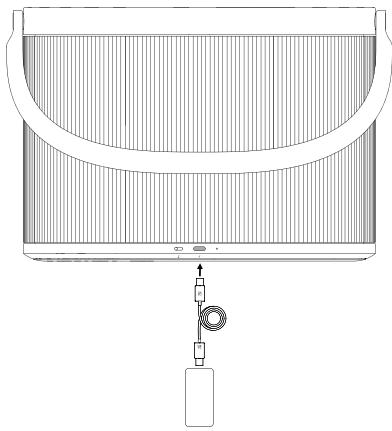
Charge Beosound A5 with the included USB-C power adaptor. Connect it to the charging port at the back of the speaker. The light next to the charging port will indicate charging status:
| Colour | Pattern | Meaning |
| Amber | Pulsing slowly | Charging. |
| Green | Solid | Fully charged. The light will turn off after five minutes. |
Sleep and storage
With a fully charged battery, Beosound A5 can stay in sleep mode for up to 10 days before needing to be charged again. During this time, it will instantly wake up at the press of the power button.
If you plan on not using your Beosound A5 for a long time, you can activate storage mode to preserve battery. When the speaker is switched on, press and hold the power button for eight seconds. You will hear another sound to confirm storage mode.
Note: To switch the speaker back on from storage mode, you must connect it to power with a cable.
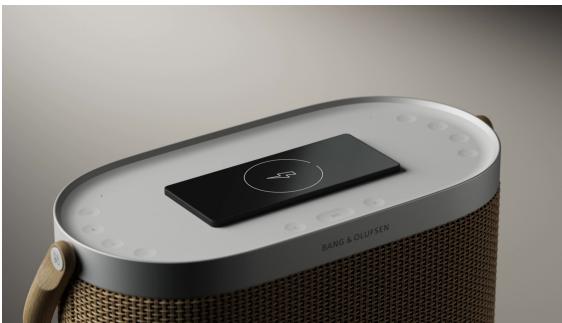
You can charge smartphones and other Qi-compatible devices on top of your Beosound A5. Place your device in or on the dotted circle to start charging.
The light indicator will show the charging status of the device:
| Colour | Pattern | Meaning |
| Amber | Pulsing slowly | Charging. |
| Green | Solid | Fully charged. |
| Red | Flashing | Error, e.g. foreign objects detected on the pad. Remove the device and possible obstructions, then try again. |
Note: Charging other devices while Beosound A5 is not plugged in will shorten battery playtime. You can turn off the Qi charging feature in the Bang & Olufsen app.
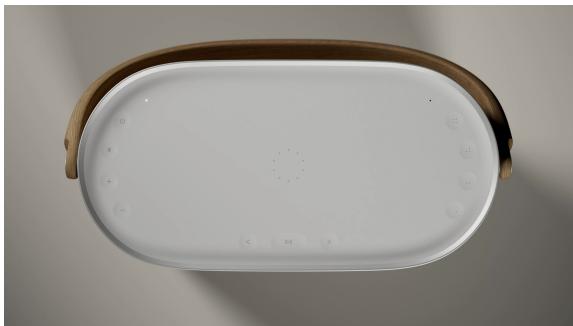
The light indicator is located on the top of Beosound A5, next to the power button, and shows the status of the speaker:
| Colour | Pattern | Meaning |
| White | Solid | The speaker is on and connected to a network and/or a Bluetooth device. |
| Pulsing slowly | Paused, press play to resume playback. | |
| Flashing | Starting up. | |
| Blue | Solid | Bluetooth device connected successfully. |
| Pulsing | Open for Bluetooth pairing. | |
| Amber | Solid | Not connected to network or Bluetooth. |
| Flashing | Ready to connect to Wi-Fi. | |
| Pulsing slowly | Device charging on the Qi charger. | |
| Green | Solid | Device on the Qi charger is fully charged. |
| Pulsing slowly | Software updating - wait until light turns solid white again. | |
| Red | Flashing | Temporary error (e.g. overheating or Qi charging error). |
| Solid | Static error - contact support for assistance. You can also reach support through the Bang & Olufsen app. |
MICROPHONE
Beosound A5 has built-in microphones that are used by RoomSense for optimising the sound of the speaker to its placement.
If you wish to disconnect the microphones, move the slider switch [%] next to the charging port to the leftmost position (switch will show orange). RoomSense can't be set up when the microphones are disconnected.
RESET BEOSOUND A5
Wi-Fi setup mode
To disconnect Beosound A5 from the current Wi-Fi network and connect it to a new one, press and hold [< >] buttons at the same time for two seconds. The indicator light will start flashing orange, and the speaker is ready to be connected via the Bang & Olufsen app.
To cancel Wi-Fi setup and connect back to the previous network, press and hold the buttons again.
Note: If your Beosound A5 is currently stereo paired, pressing and holding the buttons will instead separate the pair. Once the stereo pair has separated, press and hold the buttons again to enter Wi-Fi setup mode.
Hardware reset
If your Beosound A5 becomes unresponsive, press and hold the power button [0] for 20 seconds to reset the hardware and restart the product. This is not a factory reset - your settings will not be erased.
Restore factory settings
To erase all settings and reset Beosound A5 to factory default settings, press and hold [< >] buttons at the same time for 8 seconds. Once the speaker has restarted and the light indicator flashes orange, it is ready to be set up again via the Bang & Olufsen app.
KOMI GANG
AirPlay 2
- Chromecast built-in
- Spotify Connect
- Tidal Connect
- Qplay
DLNA
- Deezer (via Bang & Olufsen-appen)
B&O Radio (via Bang & Olufsen-appen)
NULSTILLING AF BEOSOUND A5
Wi-fi-kconfigurationstilstand
AirPlay 2
- Chromecast built-in
Spotify Connect
- Tidal Connect
- Qplay
DLNA
- Deezer (genom Bang & Olufsen-appen)
B&O Radio (genom Bang & Olufsen-appen)
EXPLORE IT ON AppGallery


Verbindingmakemetwifi

Download on the App Store

GETTON Google Play


EXPLORE IT ON AppGallery

Baidu百度
RéINITIALISER LA BEOSOUND A5
Mode de configuration Wi-Fi

Download on the App Store

GETTON Google Play


EXPLORE IT ON AppGallery

Baidu百度

Download on the App Store

GETTON Google Play


EXPLORE IT ON AppGallery

Baidu百度
Obtenha a experiencia completa ao transferir a aplicacao Bang & Olufsen.
TObbI 3MeHnTb NOPaIOK INIydaJIInb 3ByKOBoIe peXIMbl, HaxMNTe [E] pAOM C KHOPIKaMm 3ByKOBOrO peXIMa.
Beosonic
Haxmnte [c], TTObI hAcTpoNTb 3Byk C NOMOuBbEO Beosonic. NepemecTe TOnK, TObI hAaTIN npEpanOHTaembl o6nn 3Byk. Pa3BeDnTE nIN cBEdnTe Dba panBa, TTObI n3MeHnTb CTeneHb 3ΦΦeKaTaNpRyKeHnIa
HapabJIeHne 3Byka
BbIepeTe OINH 3DByx peKIMMOB HaprabHeHOCTN B3aBNCIMOCTN OT CNTyaUIM:
PepedHeNAHapBHeNbHn HapBnAeT 3yK BHepeDn KOnOHOk. 3To ONTmAbNbHbI pexIM, ecnn KOONHO paCOnOJOKeHbY cTeHbI.
BcehanpabaneHHb coaTaet paBHOmeHoe 3yKOBoe nObe BOKpyr KOJIOHOK, qTOIeAJIbHO IOXoDHT, YTObbl cyuWb My3bIKyB a Napke IINHa NIMKHNIE.
RoomSense
C Beosound A5 Bbl MoKTe IcNoIb3oBaTb RoomSense, 3anaTeHOBAHNHy ToexHONrHiKOMnEhCaunn NOnMeUeHnA OT Bang & Olufsen. OAn OTHmMn3pyet 3Byk B COOTBeTCTBn C pacnONoXKeHnEM KOLNOHK B KOMHATE.
AkhBpyTe RoomSense B npinoKeHn Bang & Olufsen B HactpoHk 3bYka. MKnPofoHb Beosound A5 doJXh6bItb BKIOHeH BO BPema paOToB RoomSense.
CTEPEOCONPJXKEHNE
BbnoHnTe cnpjKeHne DByx yctpoiCTB Beosound A5
dIra nOHOUeHnO rN6KOro CtepeOBocPOn3BeDeHnY.
CtepeOCpJKeHne DoCTynHO, KOrDa oBe KOLOHKn HacTPOeHbI
B pinnIOXeHN Bang & Olufsen c OndNoyuyeho 3aIncBIO u
noDkIIOueHbIK ONDn ceTn.
CtepeocoprajxHne c nOmoaIIO npnIOxHna Bang & Olufsen
B npnloKeHHn BbIepeNTe KOIOHKn, 3aTeM HAcTpoKN 3Byka-> Co3daTb cTepeonapy. 3aTeM BbIepeNTe dpyryIO KOIOHky dJa cTepeonapbl.
OTmeHa cOprrxKeHnA
Tc0b6 OTMeHnBt COnpJxHeHne I NcONb3OaBb KOnOHKn NO OTeJIbHOCTN,ODHOBeMHNO HaxMNTe N yUdepXNBaIte KHOKNI [< >] B TceHne DByC xekyEHN Da OHoN KONoHKe INn nepeiDnte K NahtpoKam 3Bvka B pInnoKeHHn Bang & Olufsen.
CPOK CJnyKbI BATAPEN 3APJKA