
DSL-3782 - DSL Router D-LINK - Free user manual and instructions
Find the device manual for free DSL-3782 D-LINK in PDF.



| Product Type | DSL Router |
| Brand | D-Link |
| Model | DSL-3782 |
| Dimensions (W x D x H) | 200 x 150 x 40 mm |
| Weight | 350 g |
| Power Supply | 12 V / 1 A power adapter |
| Wi-Fi Standards | 802.11 b/g/n, dual band 2.4 and 5 GHz |
| Ethernet Ports | 4 LAN ports 10/100/1000 Mbps, 1 WAN port |
| DSL Ports | 1 RJ-11 port |
| Buttons | Power On/Off, WPS, Reset |
| LED Indicators | Power, DSL, Internet, Wi-Fi, LAN |
| Main Functions | DSL router, Wi-Fi access point, firewall, DHCP, NAT |
| Security | WEP, WPA/WPA2, MAC filtering, integrated firewall |
| Operating Temperature | 0 °C to 40 °C |
| Operating Humidity | 10 % to 90 % non-condensing |
| Maintenance and Cleaning | Unplug before cleaning. Use a soft, dry cloth. Do not use chemicals. |
| Spare Parts and Repairability | Power adapter available. No user-serviceable parts. Contact D-Link support. |
Frequently Asked Questions - DSL-3782 D-LINK
User questions about DSL-3782 D-LINK
0 question about this device. Answer the ones you know or ask your own.
Ask a new question about this device
Download the instructions for your DSL Router in PDF format for free! Find your manual DSL-3782 - D-LINK and take your electronic device back in hand. On this page are published all the documents necessary for the use of your device. DSL-3782 by D-LINK.
USER MANUAL DSL-3782 D-LINK
natural_image
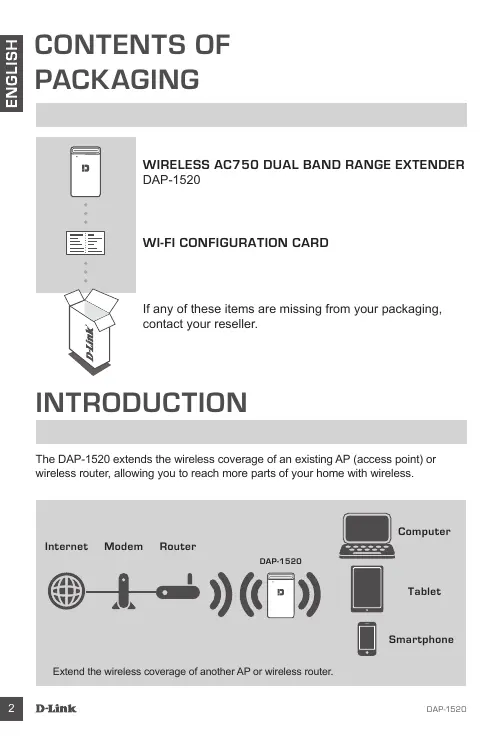
Illustration of a D-Link package with open lid (no text or symbols)WIRELESS AC750 DUAL BAND RANGE EXTENDER DAP-1520
WI-FI CONFIGURATION CARD
If any of these items are missing from your packaging, contact your reseller.
INTRODUCTION
The DAP-1520 extends the wireless coverage of an existing AP (access point) or wireless router, allowing you to reach more parts of your home with wireless.
Internet
Modem
Router


DAP-1520


Computer

Tablet

Smartphone
Extend the wireless coverage of another AP or wireless router.
PRODUCT SETUP
SETUP
SELECT YOUR METHOD
There are three methods available for setting up the DAP-1520 - using Wi-Fi Protected Setup (WPS) (recommended), the QRS Mobile App, or a web browser.
SET UP DAP-1520 USING Wi-Fi PROTECTED SETUP (WPS)
NOTE: To connect to a wireless router or AP and extend the Wi-Fi network in your home, please make sure the source router or AP features a WPS Push Button.
natural_image
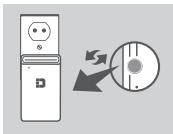
Diagram showing a computer tower next to a CD with an arrow indicating rotation (no text or symbols)Plug the DAP-1520 into a wall outlet and wait until the power LED is blinking amber. Push the WPS button on the source wireless router or AP, and then push the WPS button on the DAP-1520. The LED will start to flash green.
natural_image
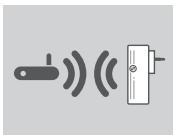
Diagram showing a wireless device emitting sound waves next to a doorbell (no text or symbols)Please allow up to two minutes for the process to finish. The LED will turn solid green when the DAP-1520 has connected successfully to the source wireless router or AP.
natural_image
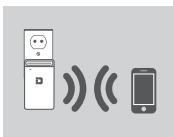
Illustration of a smartphone connected to a mobile phone and wireless signals (no text or symbols)The DAP-1520 is now ready to share the extended Wi-Fi network with your PCs and mobile devices. Connect to the extension created by the DAP-1520 using the following network name (SSID):
• 2.4 GHz: (Your router's SSID)-EXT
- 5 GHz: (Your router's SSID)-EXT5G
5 GHz is recommended for the fastest wireless speeds. Please use your router's usual password.
PRODUCT SETUP
SETUP
SET UP DAP-1520 WITH QRS MOBILE APP
The DAP-1520 can be configured using your smartphone. Search for "D-Link QRS Mobile" on the Apple App Store or Google Play, and download the app. Next, connect your smartphone to the DAP-1520 and follow the helpful in-app prompts, or refer to the product manual for more information.
SET UP DAP-1520 WITH A WEB BROWSER
The DAP-1520 can also be configured using a web browser. Once you have plugged the DAP-1520 into a wall outlet within wireless range of your router, open the wireless utility on your computer, select the name (SSID) of the DAP-1520 network, and enter the password (both of these are found on your Wi-Fi Configuration Card). Next, open a web browser (e.g. Internet Explorer, Firefox, Safari, or Chrome) and enter http://dlinkap.local. Windows XP users should enter http://dlinkap. By default, the username is Admin, and the password field should be left blank. You may now follow the setup wizard to configure your DAP-1520.
Please refer to the product manual for further information on how to configure the extender manually beyond setup wizard.
TROUBLESHOOTING
SETUP AND CONFIGURATION PROBLEMS
1. HOW DO I RESET MY DAP-1520 WIRELESS AC750 DUAL BAND RANGE EXTENDER TO FACTORY DEFAULT SETTINGS?
- Ensure the product is powered on.
- Using a paperclip, press and hold the reset button on the bottom of the device for 5 seconds.
Note: Resetting the product to the factory default will erase the current configuration settings. The default Wi-Fi network name (SSID) and password are printed on the DAP-1520's Wi-Fi Configuration Card.
2. HOW DO I CONNECT A PC OR OTHER DEVICE TO THE DAP-1520 IF I HAVE FORGOTTEN MY WI-FI NETWORK NAME (SSID) OR WI-FI PASSWORD?
- If you haven't changed the extended Wi-Fi network's settings, you can use the network name (SSID) and Wi-Fi password on the Wi-Fi Configuration Card.
- If you did change the network name (SSID) or Wi-Fi password and you did not record this information on the Wi-Fi Configuration Card or somewhere else, you must reset the device as described in Question 1 above.
- It is recommended that you make a record of this information so that you can easily connect additional wireless devices in the future. You can use the included Wi-Fi Configuration Card to record this important information for future use.
TECHNICAL SUPPORT
United Kingdom (Mon-Fri), Website: http://www.dlink.com
Home Wireless/Broadband 0871 873 3000 (9.00am–06.00pm, Sat 10.00am-02.00pm)
Managed, Smart, & Wireless Switches, or Firewalls 0871 873 0909 (09.00am- 05.30pm)
(BT 10ppm, other carriers may vary.)
Ireland (Mon-Fri), Website: http://www.dlink.com
All Products 1890 886 899 (09.00am-06.00pm, Sat 10.00am-02.00pm)
Phone rates: €0.05ppm peak, €0.045ppm off peak times
PACKUNGSINHALT


natural_image
Illustration of a D-Link package with open lid (no text or symbols)WIRELESS AC750 DUAL BAND RANGE EXTENDER DAP-1520
WI-FI-KONFIGURATIONSKARTE
natural_image
Diagram showing a computer tower next to a CD with an arrow indicating rotation (no text or symbols)natural_image
Diagram showing a USB flash unit emitting sound waves, next to a wall-mounted switch (no text or symbols)natural_image
Illustration of a refrigerator, a smartphone, and sound waves (no text or symbols)natural_image
Illustration of an open D-Link package with no text or symbols on the box itselfPROLONGATEUR DE PORTÉE BI-BANDE SANS FIL AC750
DAP-1520
CARTE DE CONFIGURATION DU Wi-Fi
INSTALLATION DU PRODUIT
DU Wi-Fi
SÉLECTION DE VOTRE MÉTHODE
natural_image
Diagram showing a computer tower next to a CD with an arrow indicating rotation (no text or symbols)natural_image
Diagram showing a device emitting sound waves next to a doorbell (no text or symbols)natural_image
Illustration of a smartphone, a mobile phone, and a speaker emitting sound waves (no text or symbols)INSTALLATION DU PRODUIT
DU Wi-Fi
CONFIGURATION DU DAP-1520 À L'AIDE DE L'APPLICATION QRS MOBILE
natural_image
Illustration of an open D-Link package with no text or symbols on the box itselfWIRELESS AC750 DUAL BAND RANGE EXTENDER DAP-1520
natural_image
Diagram showing a computer tower next to a CD/DVD disc with an arrow indicating rotation (no text or symbols)natural_image
Diagram showing a device emitting sound waves to a wall-mounted device (no text or symbols)natural_image
Illustration of a smartphone, a mobile phone, and a speaker emitting sound waves (no text or symbols)DUAL BAND RANGE EXTENDER AC750 WIRELESS DAP-1520
natural_image
Diagram showing a device next to a CD with an arrow indicating rotation or change (no text or symbols present)natural_image
Diagram showing a device emitting sound waves to a wall-mounted switch (no text or symbols)natural_image
Illustration of a smartphone, a washing machine, and a smartphone emitting sound waves (no text or symbols)natural_image
Illustration of an open D-Link package with no text or symbols on the box itselfDRAADLOZE AC750 DUBBELE BAND BEREIK UITBREIDER
DAP-1520
WI-FI CONFIGURATIEKAART
natural_image
Diagram showing a computer tower next to a CD/DVD disc with an arrow indicating rotation (no text or symbols)natural_image
Diagram of a wireless device with signal waves and a switch (no text or symbols)natural_image
Illustration of a smartphone connected to a mobile phone and wireless signals (no text or symbols)natural_image
Illustration of an open D-Link package with no text or symbols on the box itselfWZMACNIACZ SIECI BEZPRZEWODOWYCH AC750 DUAL BAND RANGE EXTENDER
DAP-1520
KARTA KONFIGURACJI WI-FI
natural_image
Diagram showing a device next to a CD with an arrow indicating rotation or change (no text or symbols present)natural_image
Diagram showing a wireless device emitting sound waves next to a doorbell (no text or symbols)natural_image
Illustration of a smartphone, a mobile phone, and a speaker emitting sound waves (no text or symbols)natural_image
Illustration of a D-Link package with open lid (no text or symbols)DVOUPÁSMOVÝ EXTENDÉR BEZDRÁTOVÉ SÍTĚ AC750 DAP-1520
KARTIČKA S KONFIGURACÍ SÍTĚ WI-FI
natural_image
Illustration of a desktop computer next to a CD with an arrow indicating rotation (no text or symbols)natural_image
Diagram showing a device emitting sound waves next to a doorbell (no text or symbols)natural_image
Illustration of a smartphone, a mobile phone, and a smartphone with sound waves (no text or symbols)natural_image
Illustration of a D-Link package with open lid (no text or symbols)WIRELESS AC750 KÉTSÁVOS TARTOMÁNYBŐVÍTŐ DAP-1520
WI-FI KONFIGURÁCIÓS KÁRTYA
natural_image
Diagram showing a device next to a CD with an arrow indicating rotation or change (no text or symbols present)natural_image
Diagram showing a device emitting sound waves to a wall-mounted device (no text or symbols)natural_image
Illustration of a smartphone, a refrigerator, and a smartphone emitting sound waves (no text or symbols)natural_image
Illustration of a D-Link package with open lid (no text or symbols)WIRELESS AC750 DUAL BAND-REKKEVIDDEFORLENGER
DAP-1520
WiFi-KONFIGURERINGSKORT
natural_image
Diagram showing a computer tower next to a CD with an arrow indicating rotation (no text or symbols)natural_image
Diagram showing a wireless device emitting sound waves next to a wall-mounted device (no text or symbols)natural_image
Illustration of a smartphone, a mobile phone, and a Wi-Fi signal icon (no text or symbols)natural_image
Illustration of a D-Link package with open lid (no text or symbols)TRÅDL∅S AC750 DUAL BAND RANGE EXTENDER
DAP-1520
WiFi-KONFIGURATIONSKORT
INDSTILLING AF PRODUKTET
INDSTILLING
VÆLG METODE
natural_image
Diagram showing a computer tower next to a CD with an arrow indicating rotation (no text or symbols)natural_image
Diagram showing a device emitting sound waves to a screen, no text or symbols presentnatural_image
Illustration of a smartphone, a mobile phone, and a Wi-Fi signal icon (no text or symbols)INDSTILLING AF PRODUKTET
INDSTILLING
INDSTILLING AF DAP-1520 MED QRS MOBILE APP
natural_image
Illustration of a D-Link package with open lid (no text or symbols)LANGATON AC750-KAKSOISKAISTANLAAJENNIN
DAP-1520
WI-FI-MÄÄRITYSKORTTI
natural_image
Diagram showing a device next to a CD with an arrow indicating rotation or change (no text or symbols present)natural_image
Diagram showing a USB flash unit emitting sound waves, next to a wall-mounted switch (no text or symbols)natural_image
Illustration of a refrigerator, a smartphone, and sound waves (no text or symbols)natural_image
Illustration of a D-Link package with open lid (no text or symbols)WIRELESS AC750 DUAL BAND RANGE EXTENDER DAP-1520
WI-FI-KONFIGURATIONSKORT
natural_image
Illustration of a desktop computer next to a CD with an arrow indicating rotation (no text or symbols)natural_image
Diagram showing a device emitting sound waves next to a doorbell (no text or symbols)natural_image
Illustration of a smartphone, a mobile phone, and a smartphone with sound waves (no text or symbols)AMPLIFICADOR DE ALCANCE DE BANDA DUPLA SEM FIOS AC750
DAP-1520
natural_image
Diagram showing a server tower next to a CD with an arrow indicating rotation (no text or symbols)natural_image
Diagram showing a wireless device emitting sound waves next to a doorbell (no text or symbols)natural_image
Illustration of a refrigerator, wireless signals from a smartphone and a mobile phone (no text or symbols)natural_image
Illustration of a D-Link package with open lid (no text or symbols)natural_image
Diagram showing a computer tower next to a CD/DVD disc with an arrow indicating rotation (no text or symbols)natural_image
Diagram showing a wireless signal transmission from a device to a doorbell (no text or symbols)natural_image
Illustration of a smartphone, a mobile phone, and a Wi-Fi signal icon (no text or symbols)D-Link Hellas Support Center
http://www.dlink.com
BEŽIČNI AC750 DVOPOJASNI EKSTENDER BEŽIČNOG DOMETA
DAP-1520
KARTICA ZA WI-FI KONFIGURACIJU
natural_image
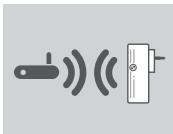
Diagram showing a computer tower next to a CD with an arrow indicating rotation (no text or symbols)Ukopčajte DAP-1520 u zidnu utičnicu i pričekajte da LED indikator počne bljeskati žuto. Pritisnite tipku WPS na izvornom bežičnom usmjerniku ili AP-u, a zatim pritisnite tipku WPS na uređaju DAP-1520. LED indikator počet će bljeskati zeleno.
natural_image
Diagram showing a wireless device emitting sound waves next to a doorbell (no text or symbols)natural_image
Illustration of a smartphone, a mobile phone, and a Wi-Fi signal icon (no text or symbols)DAP-1520 je sada spreman za dijeljenje proširene Wi-Fi mreže s vašim računalima i mobilnim uređajima. Povežite se s proširenom mrežom koju ste formirali s DAP-1520 uz pomoć sljedećeg naziva mreže (SSID):
natural_image
Illustration of an open D-Link package with no text or symbols on the box itselfBREZŽIČNI AC750 DVOPASOVNI RAZŠIRJEVALEC DOMETA
DAP-1520
WI-FI KONFIGURACIJSKA KARTICA
Če kateri koli izmed teh predmetov manjka, kontaktirajte svojega trgovca.
UVOD
natural_image
Diagram showing a computer tower next to a CD with an arrow indicating rotation (no text or symbols)natural_image
Diagram showing a device emitting sound waves to a wall-mounted device (no text or symbols)natural_image
Illustration of a mobile device with speech bubble, wireless signal waves, and smartphone (no text or symbols)natural_image
Illustration of an open D-Link package with no text or symbols on the box itselfDISPOZITIV AC750 ÎN BANDĂ DUALĂ DE EXTINDERE A RAZEI DE ACOPERIRE WIRELESS
DAP-1520
CARTELĂ DE CONFIGURARE WI-FI
natural_image
Diagram showing a computer tower next to a CD with an arrow indicating rotation (no text or symbols)natural_image
Diagram showing a device emitting sound waves next to a switch (no text or symbols)natural_image
Illustration of a refrigerator, a smartphone, and sound waves (no text or symbols)Wireless Network Name (SSID)
Wireless Network Password
TECHNICAL SUPPORT
| UK | www.dlink.com |
| IRELAND | www.dlink.com |
| GERMANY | www.dlink.com |
| FRANCE | www.dlink.com |
| SPAIN | www.dlink.com |
| ITALY | www.dlink.com |
| NETHERLANDS | www.dlink.com |
| BELGIUM | www.dlink.com |
| LUXEMBURG | www.dlink.com |
| POLAND | www.dlink.com |
| CZECH | www.dlink.com |
| HUNGARY | www.dlink.com |
| NORWAY | www.dlink.com |
| DENMARK | www.dlink.com |
| FINLAND | www.dlink.com |
| SWEDEN | www.dlink.com |
| GREECE | www.dlink.com |
| PORTUGAL | www.dlink.com |