
CSACWG100 - Compact Camera KONIG - Free user manual and instructions
Find the device manual for free CSACWG100 KONIG in PDF.


| Product Type | Compact Camera |
| Brand | KONIG |
| Model | CSACWG100 |
| Power | Built-in rechargeable lithium battery via micro USB |
| Video battery life | Approximately 29 minutes of continuous recording |
| Charging time | 2 to 4 hours |
| Storage | Micro SD card (not included, no internal memory) |
| Max video resolution | FHD 1080p at 60 fps |
| Available video resolutions | FHD 1080p (60/30 fps), HD 720p (120/60/30 fps) |
| Max photo resolution | 16 MP |
| Available photo resolutions | 5M, 8M, 12M, 16M |
| Connectivity | Wi-Fi, HDMI, micro USB |
| Built-in GPS | Yes, records time, distance, altitude, calories, speed |
| Remote control | Infrared included |
| Mobile app | Konig Action Cam 2 (Android and iOS) |
| Operating modes | Video, photo, playback |
| Special functions | Time-lapse, slow motion, photo capture during video |
| Care and cleaning | Use a soft, dry cloth to clean the screen and housing |
| Safety | Do not disassemble, avoid shocks and moisture |
| General information | Brand KONIG, model CSACWG100, category compact camera |
Frequently Asked Questions - CSACWG100 KONIG
User questions about CSACWG100 KONIG
0 question about this device. Answer the ones you know or ask your own.
Ask a new question about this device
Download the instructions for your Compact Camera in PDF format for free! Find your manual CSACWG100 - KONIG and take your electronic device back in hand. On this page are published all the documents necessary for the use of your device. CSACWG100 by KONIG.
USER MANUAL CSACWG100 KONIG
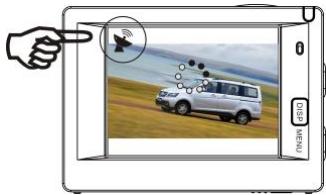
Soger after GPS-signal
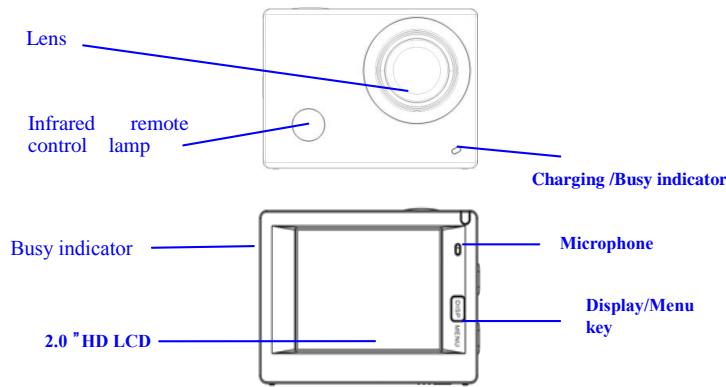
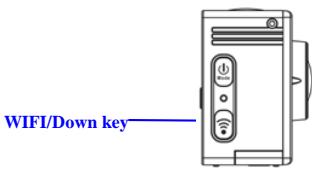
Introduction to appearance and keys
PC software:
http://www.konigelectronic.com
ENG1
König CSACWG100 Quick Start Guide
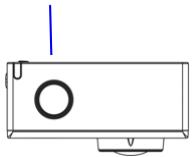
Shutter/OK key
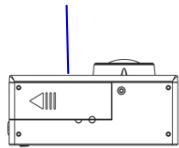
Battery door
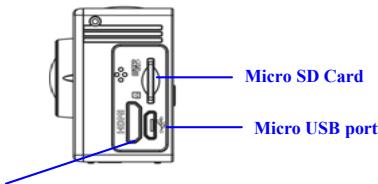
HDMI port
ENG2
Start using
- Charge the built-in lithium battery
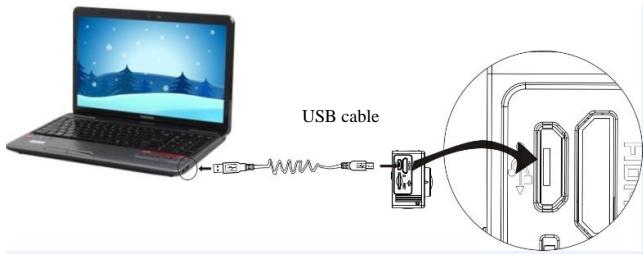
Connect the camera to the computer for charging, at this time, the charging indicator will be in blue, and it will be off after charging. Generally, it takes 2-4 hours to charge the battery.
- Use the storage card
König CSACWG100 Quick Start Guide
2.1. Push the Micro SD card into the slot till it is in place as per the instruction in concavely engraved words by the storage card slot.
2.2. To take out the Micro SD card, press the tail of the storage card inwardly softly and it will be popped out.
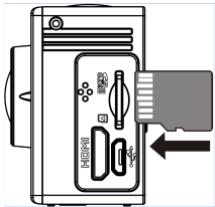
Please notice: UHS (Ultra High Speed) cards doesn't work, as they are not 100% backward compatible
Note: There's no built-in memory unit in the camera, so make sure to insert a storage card into it prior to use (it is recommended that a Micro SD card of better quality be used).
- Power on/off
3.1 Power on: Press Power key for 3 seconds, the screen will be on and the camera will be started.
König CSACWG100 Quick Start Guide
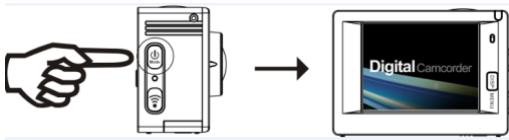
3.2. Power off: Hold on Power key for 3 seconds when the camera is in the idle state to turn it off.
3.3. Auto screen off: The screen will be turned off automatically when the time that the camera is in the idle state for automatic screen off to save power. After that, the lamp for screen off will be on.
3.4. Power off when the camera is lack of electricity. When electrical quantity of the battery is very low, an icon of will be displayed on the LCD screen, prompting you to charge it in time. When the icon turns red and flickers, the camera will be turned off automatically.
4. Shift among functional modes
The camera has 3 modes, namely video recording mode, shooting mode and replay mode. After power is on, press Power key to shift among them.
König CSACWG100 Quick Start Guide
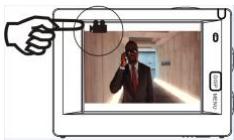
Video recording mode
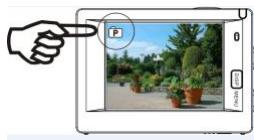
Shooting mode
5. Indicator
Busy indicator (red): When the camera is busy such as recording videos, shooting photos and turning off screen automatically, the work indicator will flicker.
Charging indicator (blue): When it is on, the user is prompted that the camera is being charged and it will be off after charging is completed.
6. Video recording mode
After power is on, the video camera will enter video recording mode directly and in preview mode, press Shutter key to start video recording; Press it again to stop shooting. If the memory card is full or electrical quantity is low, it will also stop shooting:
König CSACWG100 Quick Start Guide
Taking a photo while recording: press the Power button during recording to take a photo. When a photo is taken, the texts "CAPTURE DONE" will display
on the screen.
- Icon of mode, indicating video recording mode;
-
Indicate quality of video;
-
Indicate size of video, and FHD 1080P (60FPS)
/FHD 1080P (30FPS) / HD 720P (120FPS)
- Recording time, indicating recordable length of time;
- Icon of battery, indicating current electrical quantity;
( With maximum 29 minutes video recording and then stop. Must be started manually on the camera again.)
7. Shooting mode
After power is on, press Power key twice to enter shooting mode, and in preview state, press Shutter key to take a photo:
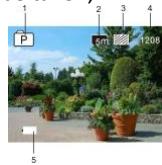
- Icon of mode, indicating the current is shooting mode;
König CSACWG100 Quick Start Guide
- Size of video, and 5M/8M//12M/16MP is optional;
- Icon of quality of pictures;
-
Counter, indicating number of photos to be taken;
-
Icon of electrical quantity of battery.
8.GPS Mode ( ) use introductions:
PC software:
http://www.konigelectronic.com
When start GPS function, all the video will include GPS information: shooting time and date, move distance, local altitude information, calorie data, active speed, you can see all this information by playback on your PC. You can also see location in the GPS PC Player including Google Maps. This function works only for video.
8.1 Enter GPS mode
When you power on camera it will automatically start searching for GPS signal..()
König CSACWG100 Quick Start Guide
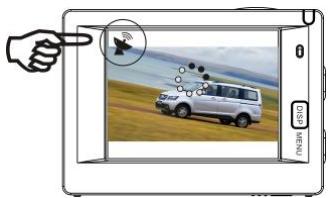
GPS signal searching
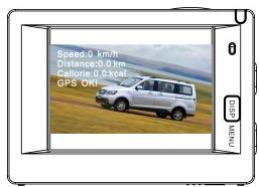
Finish GPS signal search
If the camera cannot find GPS signal, please press Shutter button, you can see the screen show "GPS OFF".
8.2 Recording and view
When GPS OK, press shutter button to start recording. Now you can see the timer will start work in the top right screen(As below picture).If you need to
stop recording please press shutter again.
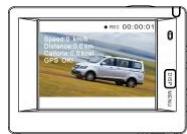
ENG9
König CSACWG100 Quick Start Guide
After finishing recording, all the GPS information will be saved into your SD card, You can view this by GPS PC Player.
If GPS OFF, your recording files will not include GPS information.
To view GPS info on camera, Please press DISP/MENU, then choose "Sport info", press Shutter key :
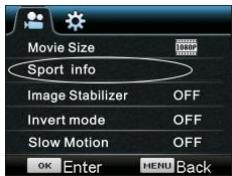
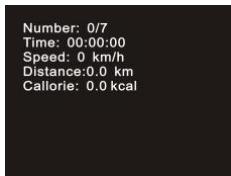
Number: Files quantities;
Time: Recording time;
Speed: Recording speed
König CSACWG100 Quick Start Guide
Distance: Active distance
Calorie: Active expend energy data.
View video from computer.
After recording, connect camera to PC, it will enter MSDC mode, then turn on GPS player(Please download and setup this firmware to PC from website first)as below picture:
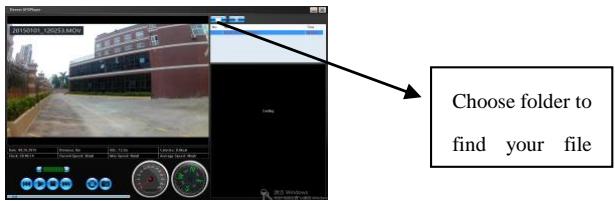
Note: GPS satellites is easiest to find under open sky with no tall trees or buildings around you.
König CSACWG100 Quick Start Guide
9.Menu operation
There is a different menu in each working mode as shown in the following figures:
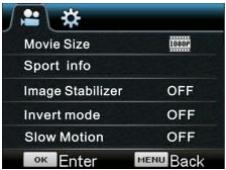
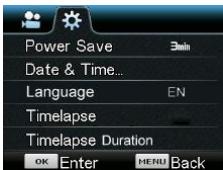
Menu for video recording
Menu for setting mode
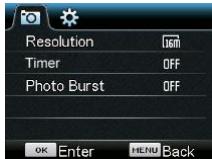
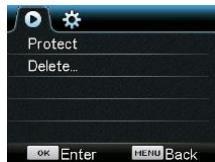
Menu for shooting mode
Menu for replay mode
Operation: Press Menu key, the menu for this mode will be displayed on the LCD. At this time, press Power
König CSACWG100 Quick Start Guide
key to move the cursor leftward or rightward and select on the menu, and press WIFI key to move the cursor upward or downward and select on the menu in a circulating way. Press OK key to confirm and press Menu key to return or exit from menu mode.
Description of "Slow Motion" function
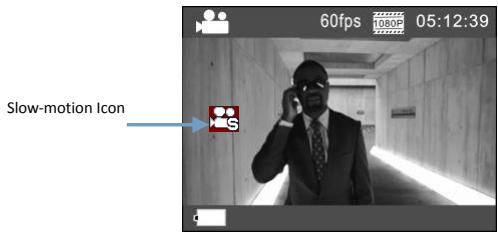
Slow-Motion refers to record at normal FPS and play at lower down FPS. For example, to record a video at 60fps, and then play the video at 30fps, you will see a slow motion.
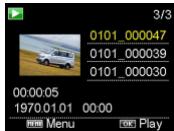
Operation: in the menu, select "Slow Motion" and press OK to enter the sub-menu, move the cursor to select On, then press OK to conform. You will see the following display:
ENG13
König CSACWG100 Quick Start Guide
Press the Shutter to start recording, and press Shutter again to stop; Play the slow-motion video:
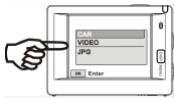
Press the Power button to switch to Playback mode; select Video
Press OK to play the video in a slow-motion effect, as shown in the right picture.
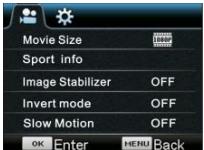
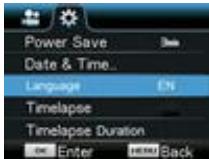
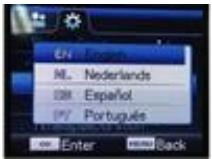
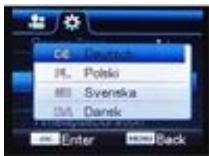
10, How to change the language?
Please press the "menu" button, and then press the "power" button, you will go into the menu for setting mode, please press "WiFi" button and then choose the "Language", click "ok
ENG14
König CSACWG100 Quick Start Guide
Description of "time-lapse" function
Time Lapse function is mainly used to shoot cityscape, natural scenery, astronomical phenomena, and biological evolution. This function allows the device to take a photo automatically according to the pre-set time interval, then create a video by collecting, analyzing the processing these taken photos; the playing speed of the video is adjustable through changing the interval of the frames (photos), thus to finally create a special video effect.
Operation:
1 In the menu, select "Time-lapse" and press OK to enter the sub-menu, then move the cursor to select time interval among 3s/5s10s30s/1min, and then press OK to confirm.
2 In the menu, select "Time-lapse Duration" and press OK to enter the sub-menu, then move the cursor to select
König CSACWG100 Quick Start Guide
the duration among 5min/10min/15min/20min/30min/60min/Unlimited, and the press OK to confirm. You will see the following display:
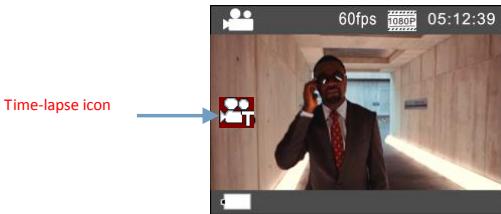
Press the Shutter to start the Time-lapse recording, and press Shutter again to stop;
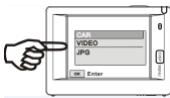
Play the recorded video: press the Power button to switch to Playback mode; select Video
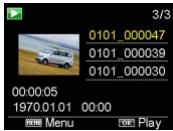
Press OK to play the video in a time-lapse effect, as shown in the right picture.
König CSACWG100 Quick Start Guide
Note: If Time-lapse function is activated under Photo mode, the device will only take photos according to the pre-set time interval, and will stop when reaching the set duration. The operation is similar to Video mode.
Application of remote controller
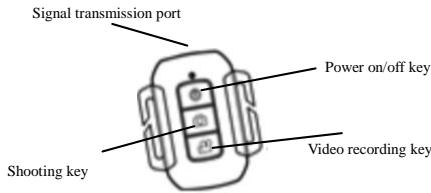
- Definition of keys of remote controller
Keys of remote controller are as shown in the right figure:
- Use of remote controller:
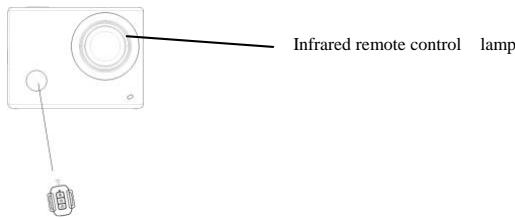
Using the remote controller, you can achieve functions of power on, video recording, shooting and power off without operating on the camera. Just point the signal transmission port of the remote controller at IR signal receiving lamp of the camera, and press corresponding keys to achieve functions of power on, video recording, shooting and power off.
ENG17
König CSACWG100 Quick Start Guide
Connect device to HDTV:
Connect the video camera to an HDTV with a HD cable as shown in the following figure, display signals in the camera will be output into the HDTV automatically, and you can browse HD videos and photos that are recorded or taken in the HDTV.
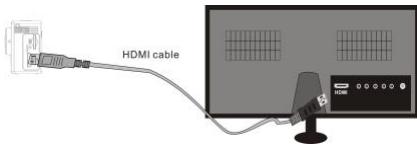
Diagram of connection
ENG18
König CSACWG100 Quick Start Guide
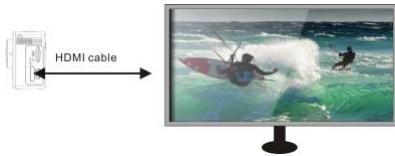
Signal transmission
APP (for Android and iOS System)
I. How to Obtain the APP Installation Program
1. For the Android System, you can search "Konig Action Cam 2" in the Play Store to obtain corresponding installation programs, and then you can install them according to the indicated steps.
2. For the IOS System, you can search "Konig Action Cam 2" in the APP Store to obtain corresponding installation programs, and then you can install them according to the indicated steps.
II. Camera WIFI and System Applications
König CSACWG100 Quick Start Guide
Android Applications
- Please install the "Konig Action Cam 2" application program (provided by the Supplier or the Internet) for
the Android mobile phone or tablet PC, and then the Display Screen will show the Icon
2. Insert a Storage Card into the Camera and then power it on. Press the WIFI key to conduct WIFI connection, and the Screen of the Camera will show the WIFI signal Icon with the external screen revealing WIFI Connecting.
3. Enable the WIFI function of the Android mobile phone or tablet PC, and try to find the AP Name CSACWG100; please conduct connection between them till the system reveals a successful connection; if you are conducting WIFI connection for the first time, please input the password: 1234567890.
König CSACWG100 Quick Start Guide
- Tap and enable the Application Program Icon

on the Android mobile phone or tablet PC; you can
directly view the preview picture transmitted by the Camera (see the following picture), and then conduct
relevant operations.
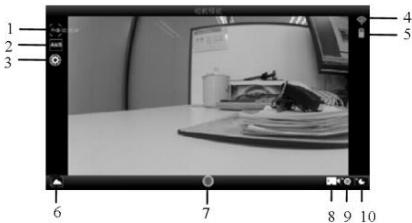
IOS Applications
- Resolution
- White Balance
- Settings (Enter Settings Menu)
- Wi-Fi Signal Icon
- Camera's Battery Status Icon
- Enter the Playback Mode
7.Shutter Button - Video Mode
- Photo Mode
-
Time-lapse Mode
-
Please install the "König Action Cam 2" application program (provided by the Supplier or the Internet) for
the IOS mobile phone or tablet PC, and then the Display Screen will show the Icon
- Insert a Storage Card into the Camera and then power it on. Press the WIFI key to conduct WIFI connection, and the Screen of the Camera will show the WIFI signal Icon with the external screen revealing WIFI Connecting.
König CSACWG100 Quick Start Guide
-
Enable the WIFI function of the IOS mobile phone or tablet PC, and try to find the AP Name CSACWG100; please conduct connection between them till the system reveals a successful connection; if you are conducting WIFI connection for the first time, please input the password: 1234567890.
-
Tap and enable the Application Program Icon on the iOS mobile phone or tablet PC; you can directly view the preview picture transmitted by the Camera (see the following picture), and then conduct relevant operations.
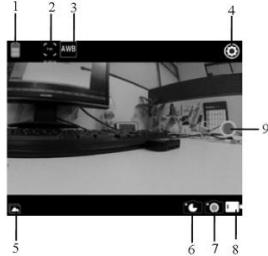
- DV battery icon
- Video resolution
- White balance
- Setup (enter setup menu)
- Enter Playback mode
- Timelapse Mode
- Photo mode
- Video mode
9.Shutter button
König CSACWG100 Quick Start Guide

König
http://www.konigelectronic.com