
D41 - Cordless phone ASCOM - Free user manual and instructions
Find the device manual for free D41 ASCOM in PDF.

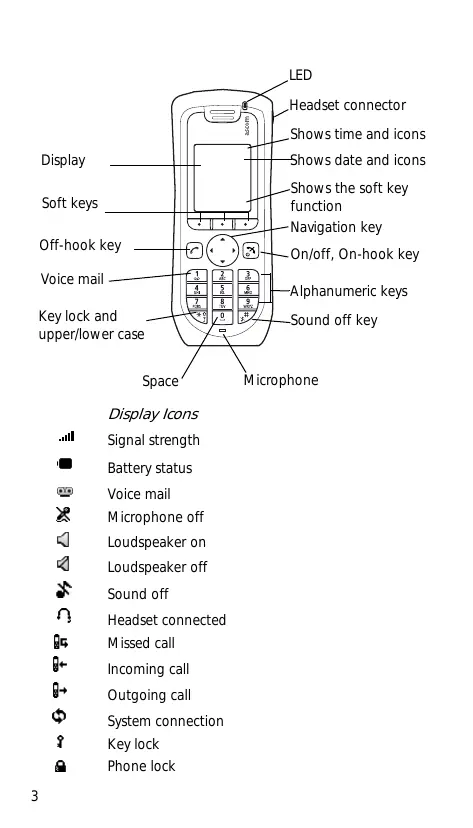


| Product Type | Cordless Phone |
| Brand | ASCOM |
| Model | D41 |
| Dimensions (approx.) | 15 x 5 x 3 cm |
| Weight (with battery) | 150 g |
| Power supply | Rechargeable battery (ref. 660177) |
| Charger | Desktop charger or charging rack, DC3/DC4 power adapter (5V DC) |
| Local directory | 250 contacts |
| Centralized directory | Yes (Advanced version) |
| Corporate directory | 500 contacts (Advanced version) |
| Voicemail | Yes, with direct access key 1 |
| Vibrator | Yes |
| Headset jack | Yes |
| Built-in speaker | Yes |
| Mini-messaging (12 char.) | Yes (Advanced version) |
| Operating temperature | 0 °C to +40 °C |
| Maintenance | Clean with a soft, dry cloth. Avoid aggressive liquids and vapors. |
| Safety | Do not expose to water or flames. Use only approved accessories. |
| Spare parts | Battery (660177), DC3/DC4 chargers, belt clip, rotating clip, headset with microphone. |
| Repairability | User-replaceable battery. For other repairs, contact customer service. |
| Standards | FCC ID: BXZDH3, IC: 3724B-DH3, Class B |
Frequently Asked Questions - D41 ASCOM
User questions about D41 ASCOM
0 question about this device. Answer the ones you know or ask your own.
Ask a new question about this device
Download the instructions for your Cordless phone in PDF format for free! Find your manual D41 - ASCOM and take your electronic device back in hand. On this page are published all the documents necessary for the use of your device. D41 by ASCOM.
USER MANUAL D41 ASCOM
[ QUICK REFERENCE GUIDE GB|SE|DE|NO|DK|FR|FINL|ES|PTIT]
ASCOM d41 DECT HANDSET
INCLUDING SAFETY INSTRUCTIONS


English 3
Svenska 15
Deutsch 27
Norsk 39
Dansk. 51
Francais 63
Suomi 75
Nederlands 87
Espanol 99
Portugues. 111
Italiano 123
GB
SE
DE
NO
DK
FR
FI
NL
ES
PT
IT
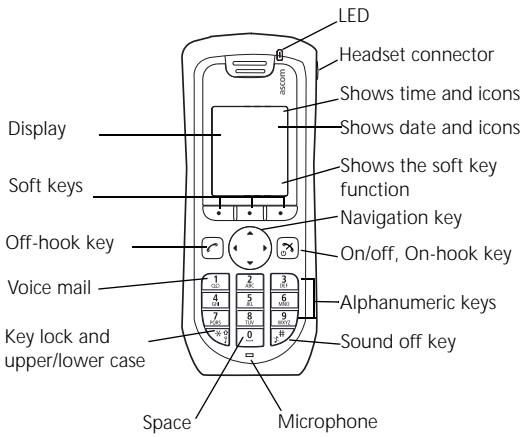
Display Icons

Signal strength

Battery status

Voice mail

Microphone off

Loudspeaker on

Loudspeaker off

Sound off

Headset connected

Missed call

Incoming call

Outgoing call

System connection

Key lock

Phone lock
Product presentation
The d41 Handset is designed to be used in office environment. It is intended for telephony and has high quality voice. For detailed information, see User Manual, Ascom d41, TD92582GB.
| Basic | Advanced | |
| Functions | ||
| Local phonebook (250 contacts) | X | X |
| Central phonebook* | - | X |
| Company phonebook (500 contacts) | - | X |
| Voice mail access* | X | X |
| Vibrator | X | X |
| Headset connector | X | X |
| Microphone on/off during call | X | X |
| Loudspeaking function | X | X |
| Mini messaging* (12 characters) | - | X |
| Centralized management* | - | X |
| Easy replacement | X | X |
- System dependent
Note: Your unit may have more functions than described here, see User Manual, Ascom d41.
Basic functions
Switch the handset on/off
Press and hold the On-Hook key until the dialogue window "Switch on/off?" is displayed, press "Yes" / "No".
Make a call
Dialling can be made in the following ways:
- In standby mode, dial the number and press the Off-hook key or the Soft key "Call".
- Press the Off-hook key and select number from the Call list.
-
Dial a number from the local phonebook. Enter the Contacts menu, select "Call contact" and select the name from the list, press "Call" or the Off-hook key.
-
Dial a number from the Central phonebook*. Enter the Contacts menu, select Central phonebook > search by name/number/last result, and press search. Press Off-hook key l or the Soft key "Call".
-
Advanced only
Answer/End a call
When the ring signal sounds; press the Off-hook key to answer.
To end the call, press the On-hook key
Reject a call
When the ring signal sounds: press the On-hook key. Call information will be stored in the Call list.
Turn loudspeaking function on/off
During a call, press the left Soft key to turn the loudspeaking function on/off.
Turn audio signals on/off
In stand-by mode a long press on the Sound off key , or a press on the mute button changes between audio signals on/ off. The "Sound off" icon indicates a completely silenced handset.
- A short press on the Sound off key or a press on the mute button before answering a call, silences the ring signal.
Lock/Unlock the keypad manually
Press the * -key to lock/unlock and then Soft key "Lock/
Yes". The "Locked keypad" icon indicates a locked keypad.
Change the volume during a call
Use Navigation key to adjust the volume.
Charge the battery
Charging is done in a desktop charger or in a charging rack. Charging is indicated by orange LED. When the battery is fully charged the LED is green and a fully charged "Battery" icon is displayed.
While in a desktop charger the handset is fully operational. The handset does not vibrate in charger.
Note: Charging below 5^ will harm the battery and shorten the lifetime.
Remove the battery
It is recommended to switch off the handset before removing the battery.
Messages
Receive a text message*
The message is displayed at once in a dialogue window.
*Advanced only
Check voice mail
A new voice mail is indicated by a beep sound, the Voice Mail icon , and the message in the dialogue window.
To check the voice mail(s), do the following:
Press "Call" from the dialogue window, or press digit key "1" when in standby mode.
Note: In case the following message is shown: "Voice mail number not defined", the voice mail number needs to be configured to the voice mail button. Contact your system administrator.
Follow the given instruction in the Voice Mail.
Menu
For descriptions of all functions, see User Manual, Ascom d41.
Menu icons
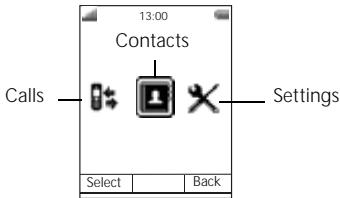
Navigate the menu
Use the Navigation key to move around in the menu structure.
The menus are: "Calls", "Contacts", and "Settings".
The three Soft keys below the display are used for choices in the menu. The function of each Soft key is explained by text in the soft key field in the display.
Use the local phonebook
To find and call a name: Enter "Contacts", step to "Call contact" and press "Select". Enter the first letter in the name or the whole name (will be displayed in Search field while entering text), or step in the contact list. Select the name and press "Call".
To edit the contact: Select "Edit contact", select the name and press "Edit" twice. Make your changes, press "OK" and then press "Save".
To add a contact, select "Add contact", select "New" or "From call list". Press "Add", enter the name and press "OK". Select "Number", enter the number, press "OK" and press "Save".
To delete a contact: select "Delete contact", select the name, press "Delete", and then press "Yes".
Use the central phonebook
Enter "Contacts", and select "Central phonebook". Select "Search by name", "Search by number", or "Last result".
Enter the first letter(s) in the first name, and/or the first letter(s)
in the family name. Press "Search". The Central phonebook will be searched and a list of matching names will be displayed. You can step to the next entry in alphabetic order by pressing the Navigation key. Press "More" to add contact, or press "Call" or the Off-hook key to make the call.
Use the company phonebook
To find and call a name: Enter "Contacts", step to "Call contact" and press "Select". Enter the first letter in the name or the whole name (will be displayed in Search field while entering text), or step in the contact list. A contact from the company phonebook is marked with the symbol, which means that it is not editable. Select the name and press "Call".
Turn the automatic keypad lock on/off
Enter "Settings", and step to "Locks". Select "Automatic key lock Off/On", select "On/Off", and press "Back". A locked keypad is indicated by the "Key lock" icon.
To unlock,press the -key, and then the Softkey "Yes".
Safety Instructions
For safe and efficient operation of the handset, observe the guidelines given in this Quick Reference Guide and all necessary safety precautions when using the handset. Follow the operating instructions and adhere to all warnings and safety precautions located on the product, and the User Manual.
This product shall only be used with the following batteries:
Art.No.: 660177 Battery
Single chargers shall only be connected with power adapters supplied by the manufacturer.
Available power adapters (Suppliers Designation) are:
Art.No.DC3:130160 Power supply unit AC/5V DC/0.65A - Europe
- Art.No.DC3: 130166 Power supply unit AC/5V DC/1A - USA, Canada, AUS, and UK
Art.No.DC4:130161 Power supply unit AC/5V DC/2A
Battery
- Do not immerse the battery into water. This could short-circuit and damage the battery.
- Do not expose a battery to an open flame. This could cause the battery to explode.
- Do not allow the metal contacts on the battery to touch another metal object. This could short-circuit and damage the battery.
- Do not leave a battery where it could be subjected to extremely high temperatures, such as inside a car on a hot day.
- Use the Desktop Charger or the wall mounted Charging Rack for charging. Charge the battery for at least one hour the first time you use the battery.
- For better performance and longer life cycle it is recommended to charge the battery between +5^ (+41^) to +40^ (+104^) . Charging beyond these conditions may impair the battery performance and
shorten the life cycle.
- Do not attempt to take a battery apart.
- It is recommended to power the handset off before removing the battery.
Battery disposal
Defective batteries must be returned to a collection point for chemical waste disposal.
GB
Regulatory compliance statements
Regulatory Compliance Statements (EU/EFTA only)
This equipment is intended to be used in the whole EU & EFTA.
This equipment is in compliance with the essential requirements and other relevant provisions of R&TTE Directive 1999/51/EC. The Declaration of Conformity may be consulted at:
https://www.ascom-ws.com/doc/
The handset is marked with the label C
Regulatory Compliance Statements (USA and Canada only)
FCC compliance statements
This equipment has been tested and found to comply with the limits for a Class B digital device, pursuant to part 15 of the FCC Rules. These limits are designed to provide reasonable protection against harmful interference in a residential installation. This equipment generates, uses and can radiate radio frequency energy and, if not installed and used in accordance with the instructions, may cause harmful interference to radio communications. However, there is no guarantee that interference will not occur in a particular installation. If this equipment does cause harmful interference to radio or television reception, which can be determined by turning the equipment off and on, the user is encouraged to try to correct the interference by one or more of the following measures:
- Reorient or relocate the receiving antenna.
- Increase the separation between the equipment and receiver.
- Connect the equipment into an outlet on a circuit different from that to which the receiver is connected.
- Consult the dealer or an experienced radio/TV technician for help.
Privacy of communications may not be ensured when using this handset.
Exposure to Radio Frequency Signals
This equipment complies with FCC radiation exposure limits set forth for an uncontrolled environment. This device complies with FCC SAR limit of 1.6W / kg . The maximum SAR value measured when used at the ear is 0.104W / kg . The handset has also been tested when worn on the body using belt clip, maximum measured SAR value in this configuration is 0.029W / kg . This device must not be co-located or operating in conjunction with any other antenna or transmitter.
Use of non-Ascom approved accessories may violate the FCC RF exposure guidelines and should be avoided.
Information to user
This device complies with Part 15 of the FCC Rules. Operation is subject to the following two conditions:
(1) this device may not cause harmful interference, and
(2) this device must accept any interference received, including interference that may cause undesired operation.
Modifications
Changes or modifications to the equipment not expressly approved by the party responsible for compliance could void the user's authority to operate the equipment.
IC Requirements for Canada
This Class B digital apparatus complies with Canadian ICES-003.
Environmental Requirements
Cordless Handset
- Only use the handset in temperatures between 0^ to +40^ (32°F to +104°F).
- Avoid exposing the handset for direct sunlight or close to other heat sources.
- Do not expose the handset to open flame.
- Keep the handset away from excessive heat and moisture.
- Avoid sudden temperature changes to prevent condensation in the handset. It is recommended to put the handset into an air tight plastic bag until the temperature is adjusted, for example, when entering or leaving a cold/ heated building on a warm/cold day.
- Protect your handset from aggressive liquids and vapours.
- If the handset has been exposed for water or condense, remove the battery immediately and let it dry completely before re-inserting the battery.
- Keep the handset away from strong electromagnetic fields.
- Do not place a cold handset in a charger.
Accessories
The following accessories for the d41 are available:
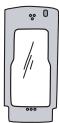
Leather casing incl. belt clip


Belt clip, swivel type

Standard clip
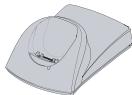

Desktop chargers

Headset with microphone on boom
Also available:
- Headset with microphone integrated in cable
Security string - Charging rack
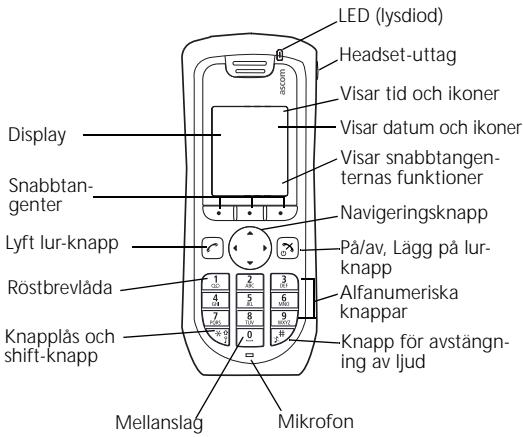
Displaysymboler

Signalstyrka

Batterstatus

Rostbrevlada

Mikrofon av

Högtalare pà

Högtalare av

Ringsignal av

Headset anslutet

Missat smtal

Inkommandesamtal

Utgäende somtal

https://www.ascom-ws.com/doc/
https://www.ascom-ws.com/doc/
https://www.ascom-ws.com/doc/
https://www.ascom-ws.com/doc/
Handaettertemarkeretmedmarket
https://www.ascom-ws.com/doc/
https://www.ascom-ws.com/doc/
Puhelimessa on merkinta C
https://www.ascom-ws.com/doc/
https://www.ascom-ws.com/doc/
O microtelefone está marcado com a etiqueta C∈
https://www.ascom-ws.com/doc/
- ASCOM d41 DECT HANDSET
- Display Icons
- Product presentation
- Basic functions
- Switch the handset on/off
- Make a call
- Answer/End a call
- Reject a call
- Turn loudspeaking function on/off
- Turn audio signals on/off
- Lock/Unlock the keypad manually
- Change the volume during a call
- Charge the battery
- Remove the battery
- Messages
- Receive a text message*
- Check voice mail
- Menu
- Menu icons
- Navigate the menu
- Use the local phonebook
- Use the central phonebook
- Use the company phonebook
- Turn the automatic keypad lock on/off
- Safety Instructions
- Battery
- Battery disposal
- Regulatory compliance statements
- Regulatory Compliance Statements (EU/EFTA only)
- Regulatory Compliance Statements (USA and Canada only)
- FCC compliance statements
- Exposure to Radio Frequency Signals
- Information to user
- Modifications
- IC Requirements for Canada
- Environmental Requirements
- Cordless Handset
- Accessories
- Also available:
- Displaysymboler
Brand : ASCOM
Model : D41
Category : Cordless phone