
TS-IGL-R5 - NAS BUFFALO - Free user manual and instructions
Find the device manual for free TS-IGL-R5 BUFFALO in PDF.



| Product Type | NAS iSCSI TeraStation Pro |
| Brand | Buffalo |
| Model | TS-IGL-R5 |
| Dimensions (W x H x D) | 170 x 235 x 310 mm |
| Weight | 8 kg (varies by size) |
| Power Supply | 100-240 V AC, ~86 W |
| Network Standards | IEEE 802.3u 100BASE-TX, IEEE 802.3 10BASE-T |
| Network Speed | 1000/100/10 Mbit/s |
| Network Interface | RJ-45 |
| USB Ports | 2 USB Type-A ports (USB 2.0) |
| USB Speed | 480 Mbit/s (high speed), 12 Mbit/s (full speed) |
| Operating Temperature | 0-45 °C |
| Operating Humidity | 20-80% non-condensing |
| Package Contents | iSCSI TeraStation Pro unit, Ethernet cable, power cable, installation CD-ROM, quick installation guide, warranty card |
| Main Functions | iSCSI network storage, disk management, volume creation |
| Security | Init button to reset settings |
| Maintenance and Cleaning | Clean with a dry soft cloth. Do not use solvents or abrasive products. |
| Spare Parts and Repairability | No user-serviceable parts. Contact Buffalo technical support. |
| General Information | Class B product. Follow recycling instructions (crossed-out trash bin symbol). |
Frequently Asked Questions - TS-IGL-R5 BUFFALO
User questions about TS-IGL-R5 BUFFALO
0 question about this device. Answer the ones you know or ask your own.
Ask a new question about this device
Download the instructions for your NAS in PDF format for free! Find your manual TS-IGL-R5 - BUFFALO and take your electronic device back in hand. On this page are published all the documents necessary for the use of your device. TS-IGL-R5 by BUFFALO.
USER MANUAL TS-IGL-R5 BUFFALO
Thank you for purchasing a Buffalo iSCSI TeraStation Pro.
Package contents include:
iSCSI TeraStation Pro
- Ethernet Cable
- Power Cable
- TeraStation Installation CD
- Quick Setup Guide
Warranty Statement
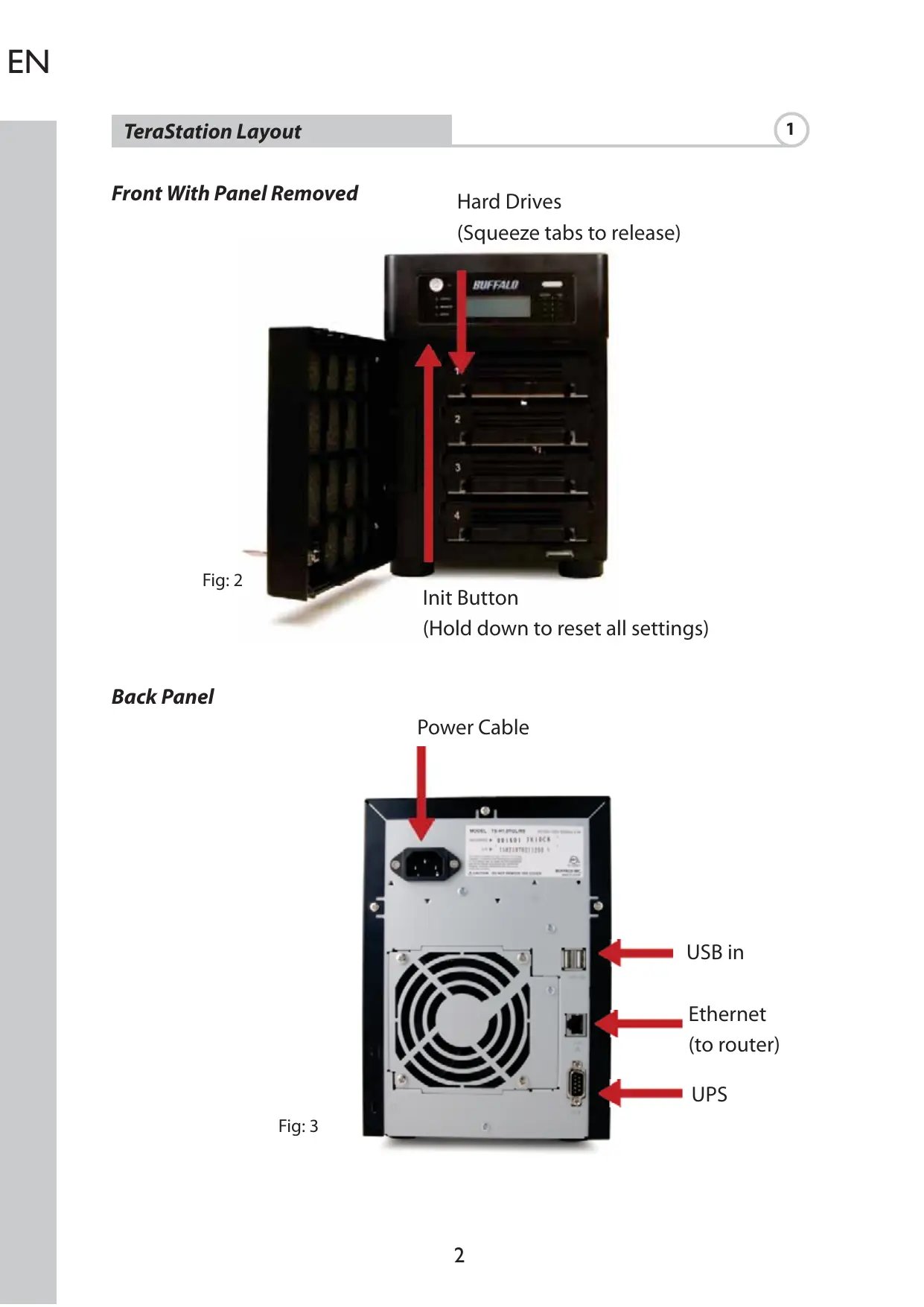
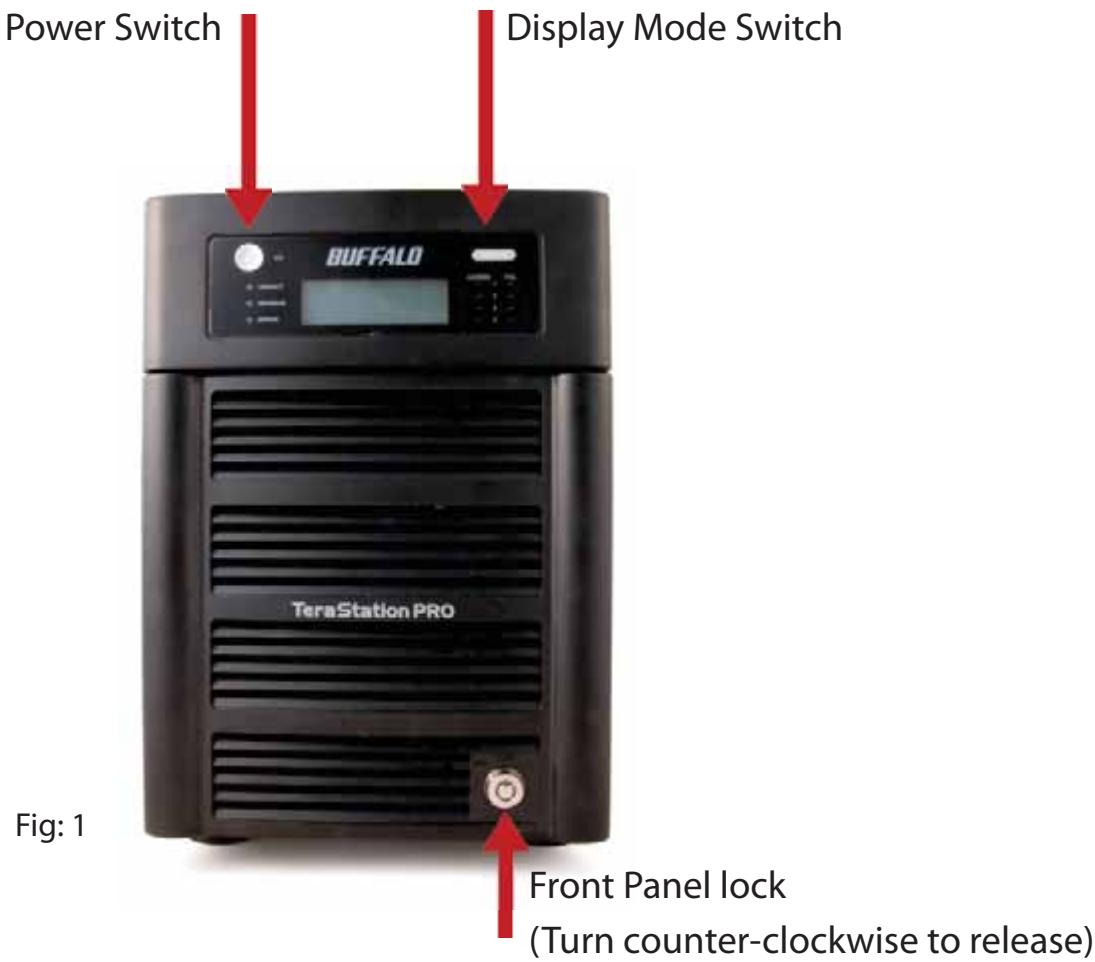
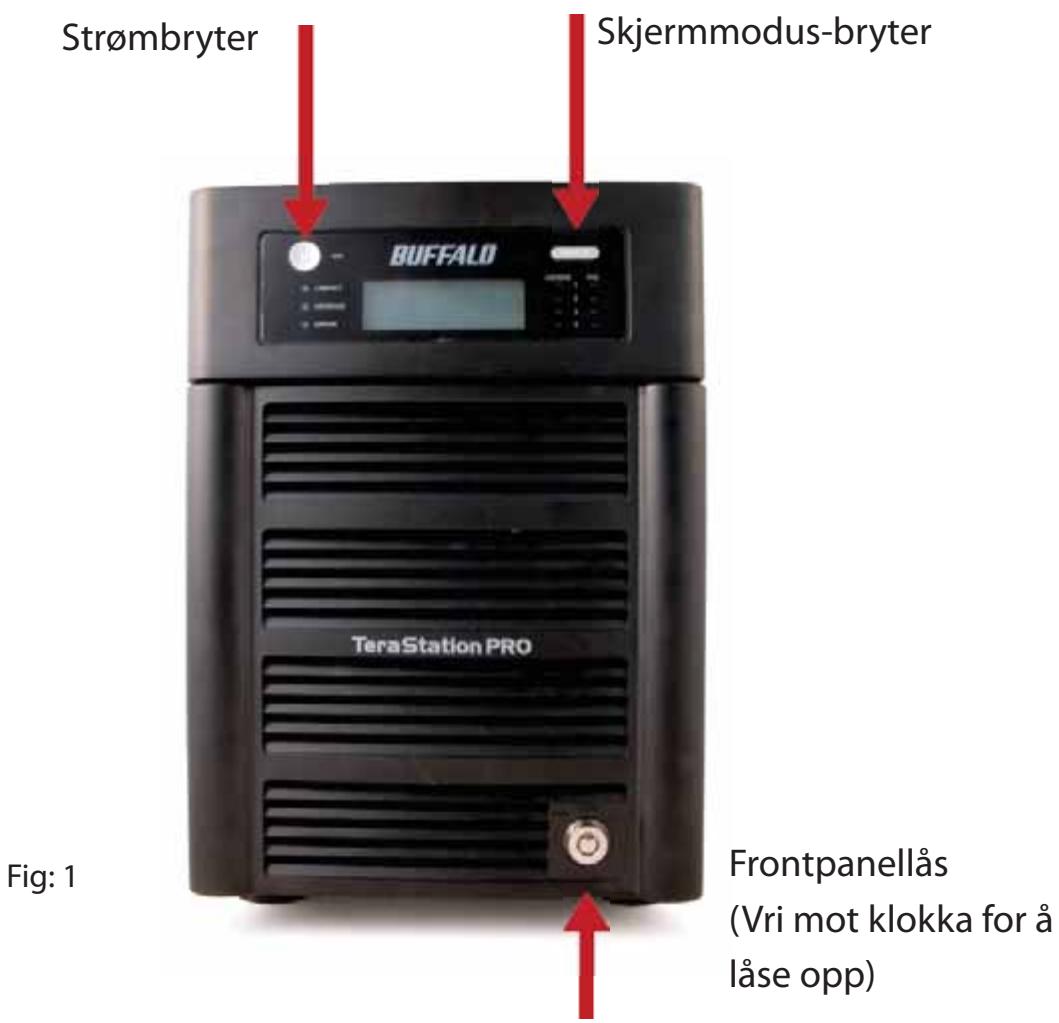
TeraStation Layout
1
Front With Panel Removed
Hard Drives
(Squeeze tabs to release)
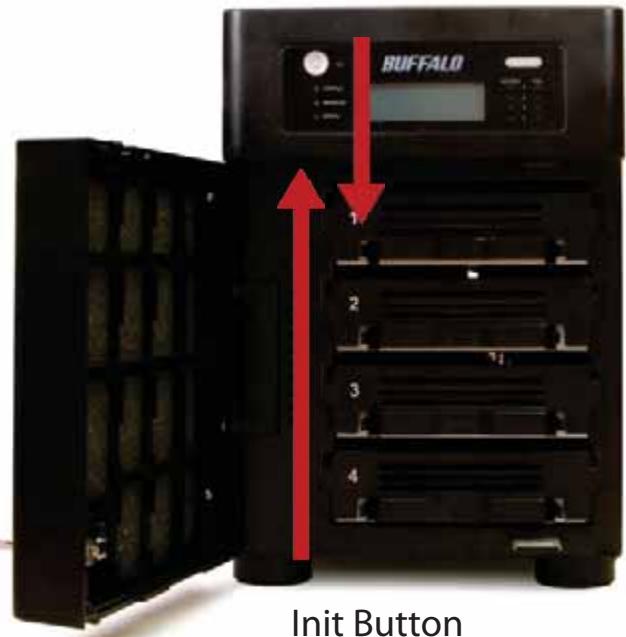
Fig: 2
Init Button
(Hold down to reset all settings)
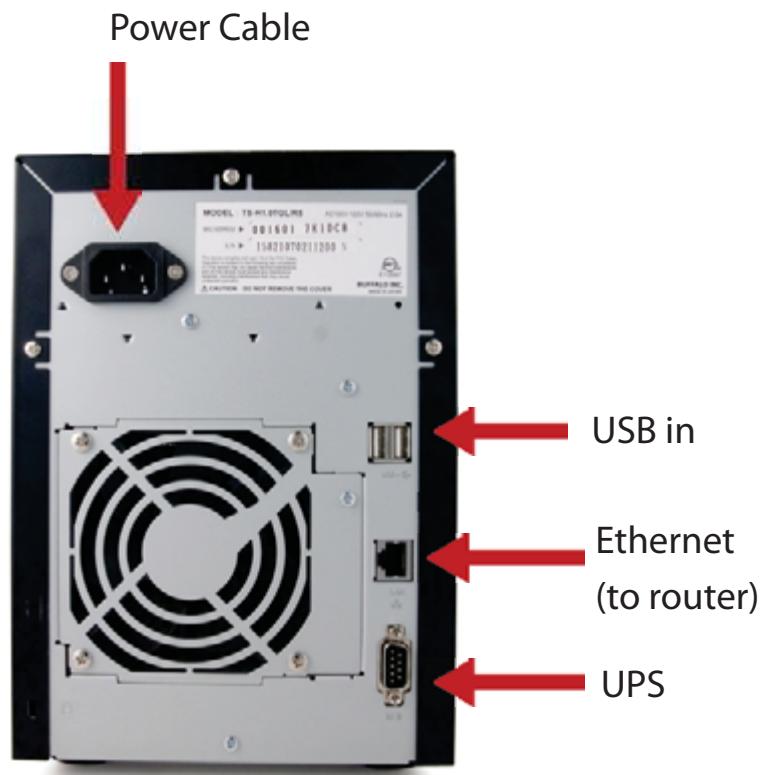
Back Panel
Fig: 3
Insert the TeraNavigator CD into your computer's CD-ROM drive.
On a PC, setup should launch automatically. If it does not, manually launch TSnavi.exe by pressing Start and selecting the Run... option. When the Run dialog opens, type d:\TSnavi.exe (where d is the drive letter of your CD-ROM drive). Press OK to continue. (Fig: 4)
Then press the Begin Installation button to start. (Fig: 5)
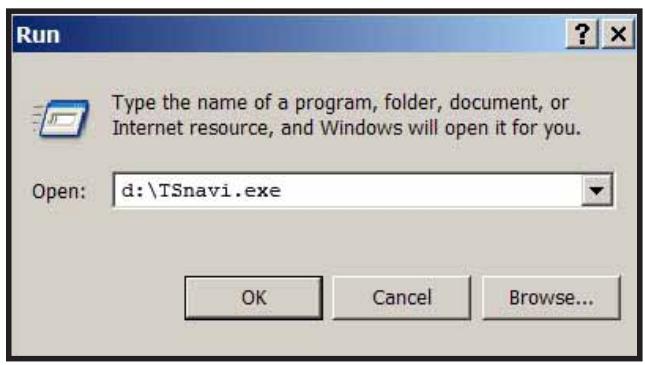
Fig: 4
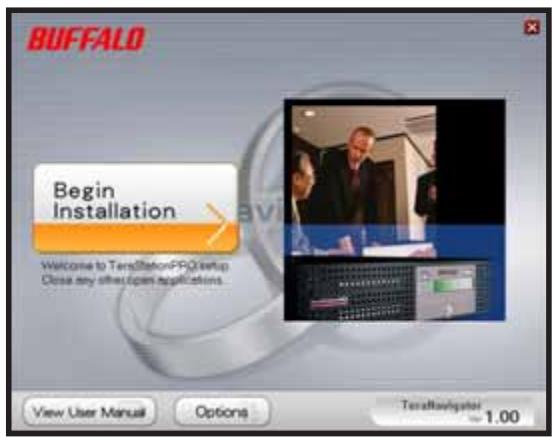
Fig: 5
Easy Setup will step you through physically connecting your TeraStation. It will then install software.
Advanced Setup skips the connection tutorial and goes directly to installing software. (Fig: 6)
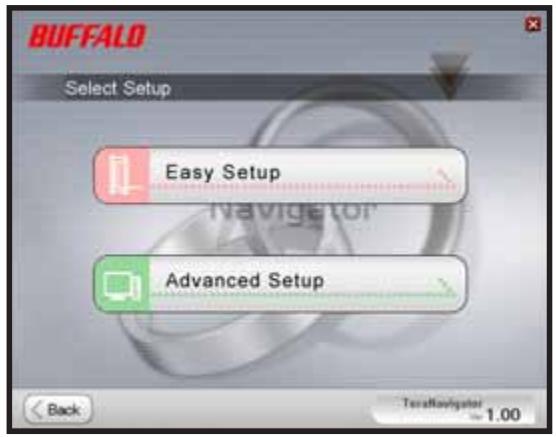
Fig: 6
If your TeraStation is connected correctly, it will be highlighted in the dropdown list. If you have multiple units to set up, select the correct TeraStation from the list. (Fig: 7)
Select First Setup for the initial installation.
To install the software on additional computers, chose Additional Setup. (Fig: 8)
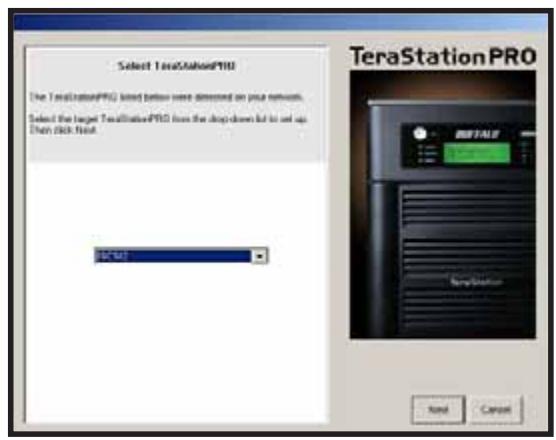
Fig: 7
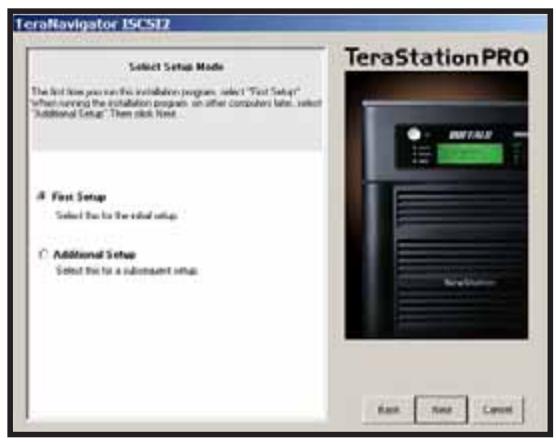
Fig: 8
Once the TeraStation is installed, you'll need to install the iSCSI connection tool. Click Next, and step through the wizard until the iSCSI connection tool is installed. (Fig: 9)
Click Yes to launch the iSCSI connection tool. (Fig: 10)
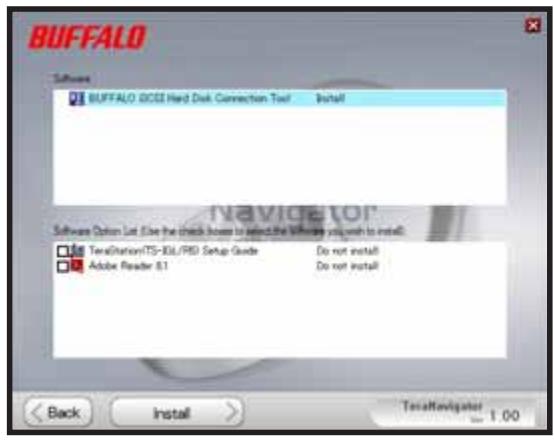
Fig: 9
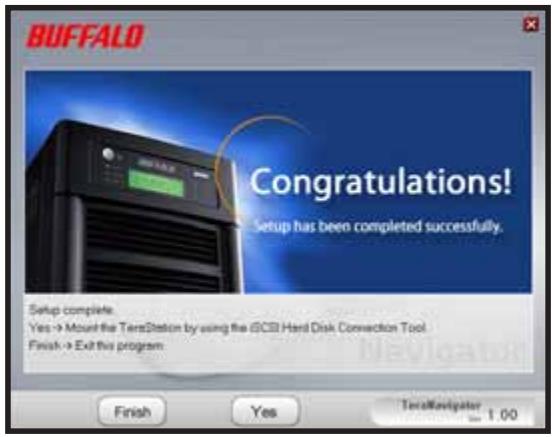
Fig: 10
Click Register the iSCSI Hard Disk, and then OK. (Fig: 11)
Check Resume connection at start up and then click Connect.(Fig: 12)
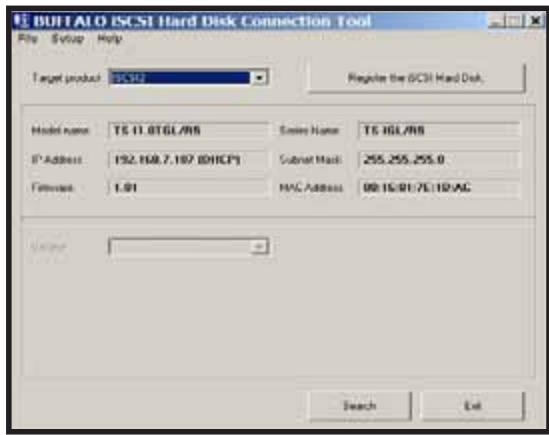
Fig: 11
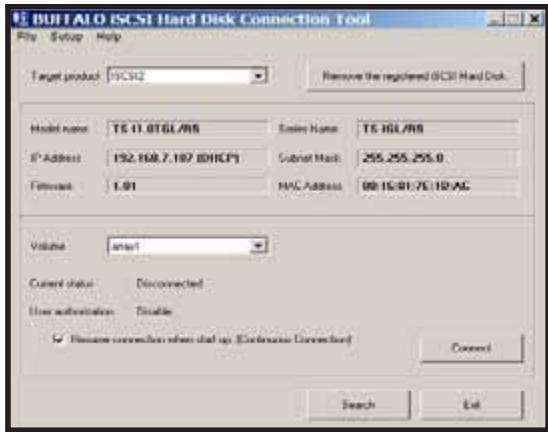
Fig: 12
If Disk Management does not open automatically, you may launch it manually. From the Setup menu at the top of the window, choose Launch Disk Management. (Fig: 13)
Your iSCSI TeraStation now appears as a hard drive in Disk Management. Double-click on the black bar above it. (Fig: 14)
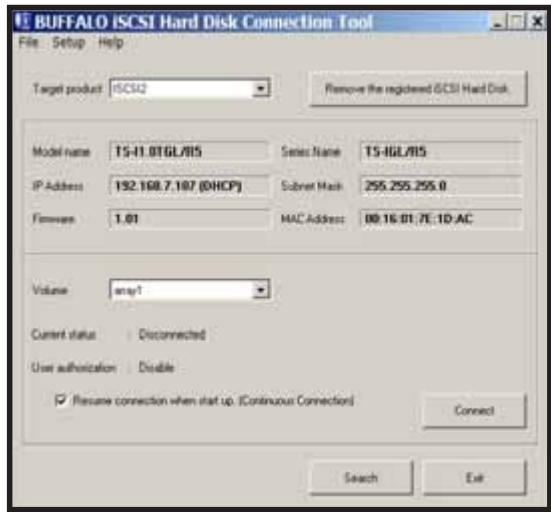
Fig: 13
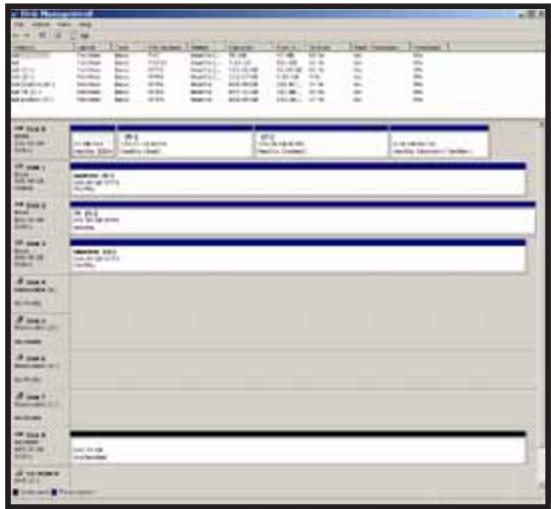
Fig: 14
The New Volume Wizard will open. Click Next. (Fig: 15)
Choose your desired volume type. Click Next. (Fig: 16)
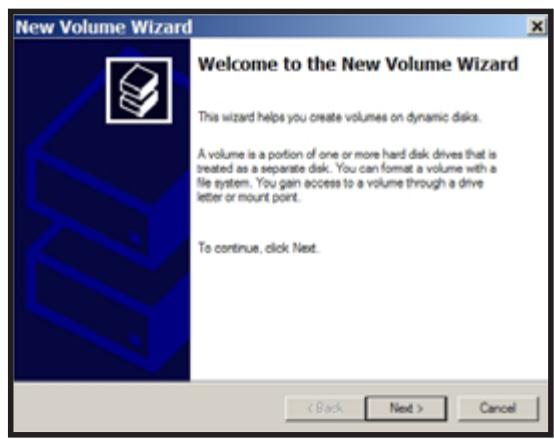
Fig: 15
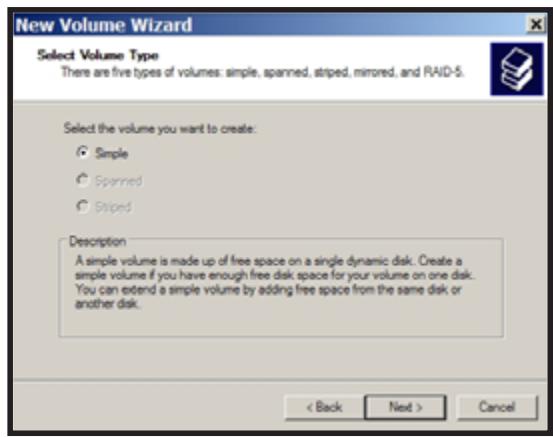
Fig: 16
Add all dynamic disks that will be included in the volume to the Selected column. (Fig: 17)
Choose your desired drive letter. Click Next. (Fig: 18)
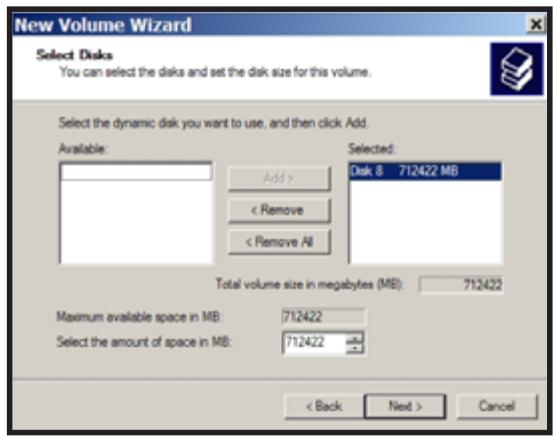
Fig: 17
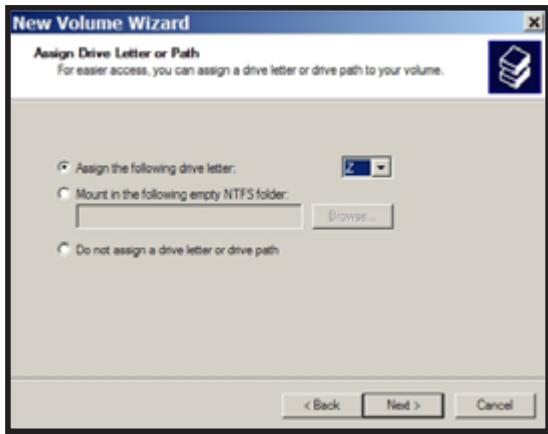
Fig: 18
Choose your desired format and volume label. Click Next. (Fig: 19)
Your new volume is installed and ready to use. (Fig: 20)
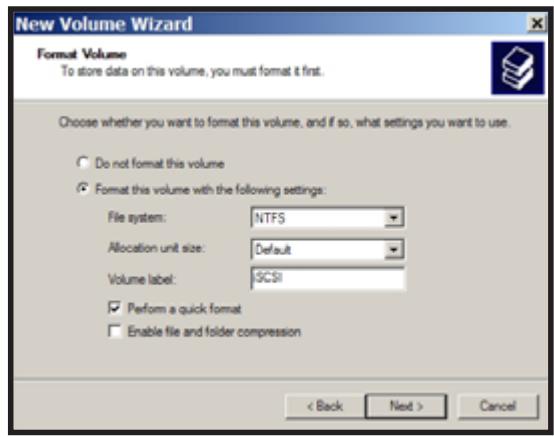
Fig: 19
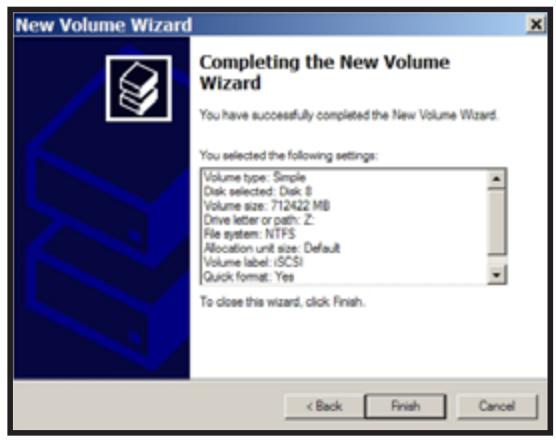
Fig: 20
Technical Specifications
| LAN Standards: | IEEE 802.3u 100BASE-TX; IEEE 802.3 10BASE-T |
| Transmission: | 1000/100Mbps/10 Mbps, 1000BASE-T: 8B1Q4, X 4B/5B, MLT-3; 10BASE-T Manchester Coding |
| Access Media: | CSMA/CD |
| Media Interface: | RJ-45 |
| USB Standard: | USB 2.0Hi-Speed (HS)Full-Speed (FS)Low-Speed (LS) |
| USB Connector: | USB A Connector (2) |
| Data Transmission Speed: | Max: 480 Mbps (HS Mode)Max: 12 Mbps (FS Mode) |
| Electric Current: | 100-240V A/C |
| Power Consumption: | ~86W (Varies with size) |
| Dimensions: | 170 x 235 x 310 mm |
| Weight: | 8 Kg (Weight varies with size) |
| Operating Temperature: | 0-45°C; 20-80% non-condensing |
CE Mark Warning
This is a Class B product. In a domestic environment, this product may cause radio interference, in which case the user may be required to take adequate measures.
Environmental Information
- The equipment that you have purchased has required the extraction and use of natural resources for its production.
- The equipment may contain hazardous substances that could impact health and the environment.
- In order to avoid the dissemination of those substances in our environment and to diminish the pressure on the natural resources, we encourage you to use the appropriate take-back systems.
- The take-back systems will reuse or recycle most of the materials of your end life equipment in a sound way.
- The crossed-out wheeled bin symbol invites you to use those systems.

- If you need more information on the collection, reuse and recycling systems, please contact your local or regional waste administration.
Contact Details
Address:
Buffalo Technology UK Ltd
2 Bracknell Beeches
Old Bracknell Lane
Bracknell
Berkshire
RG127BW
United Kingdom
General Inquiries:
sales@buffalo-technology.com
Technical Support:
Buffalo Technology provide technical support in English, German, French, Italian and Spanish.
For opening hours and relevant telephone numbers, please go to:
http://www.buffalo-technology.com/contact
Buffalo Technology UK Ltd
2 Bracknell Beeches
Old Bracknell Lane
Bracknell
Berkshire
RG127BW
Großbritannien
Allgemeine Fragen:
sales@buffalo-technology.com
Specifications techniques
Buffalo Technology UK Ltd
2 Bracknell Beeches
Old Bracknell Lane
Bracknell
Berkshire
RG127BW
Royaume-Uni
Assistance technique :
A Anything's done, it's been done.
A thing is done, it's been done.
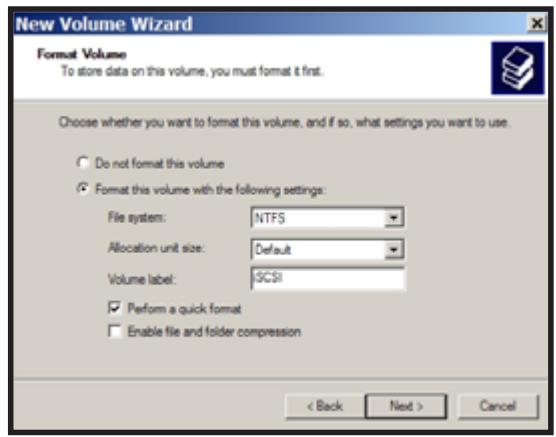
Fig. 19
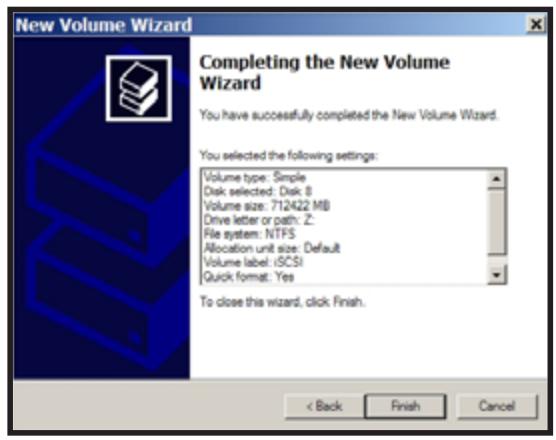
Fig. 20
Specifiche tecniche
Buffalo Technology UK Ltd
2 Bracknell Beeches
Old Bracknell Lane
Bracknell
Berkshire
RG127BW
Regno Unito
Buffalo Technology UK Ltd
2 Bracknell Beeches
Old Bracknell Lane
Bracknell
Berkshire
RG127BW
Reino Unido
Buffalo Technology UK Ltd
2 Bracknell Beeches
Old Bracknell Lane
Bracknell
Berkshire
RG127BW
United Kingdom
Consultas Gerais:
Correio electrónico
sales@buffalo-technology.com
Suporte Técnico:
Adres: Buffalo Technology UK Ltd
2 Bracknell Beeches
Old Bracknell Lane
Bracknell
Berkshire
RG127BW
Verenigd Koninkrijk
Adress: Buffalo Technology UK Ltd
2 Bracknell Beeches
Old Bracknell Lane
Bracknell
Berkshire
RG127BW
Storbritannien
Allmännafragor:
E-post sales@buffalo-technology.com
Teknisk support:
Oversikt over TeraStation
1
Adresse: Buffalo Technology UK Ltd
2 Bracknell Beeches
Old Bracknell Lane
Bracknell
Berkshire
RG127BW
Storbritannia
(drej mod uret for at Iøsne)
Forside.uden panel
Adresse: Buffalo Technology UK Ltd
2 Bracknell Beeches
Old Bracknell Lane
Bracknell
Berkshire
RG127BW
Storbritannien
- PACKAGE CONTENTS INCLUDE
- TERASTATION LAYOUT
- TECHNICAL SPECIFICATIONS
- CE MARK WARNING
- ENVIRONMENTAL INFORMATION
- CONTACT DETAILS
- ADDRESS
- GENERAL INQUIRIES
- TECHNICAL SUPPORT
- ALLGEMEINE FRAGEN
- SPECIFICATIONS TECHNIQUES
- ASSISTANCE TECHNIQUE
- SPECIFICHE TECNICHE
- CONSULTAS GERAIS
- CORREIO ELECTRÓNICO
- SUPORTE TÉCNICO
- ALLMÄNNAFRAGOR
- TEKNISK SUPPORT
- OVERSIKT OVER TERASTATION
- FORSIDE.UDEN PANEL
Brand : BUFFALO
Model : TS-IGL-R5
Category : NAS