BSTK10WH - Keyboard BUFFALO - Free user manual and instructions
Find the device manual for free BSTK10WH BUFFALO in PDF.


Pick your language and provide your email: we'll send you a specifically translated version.
| Product Type | Wired Keyboard |
| Brand | Buffalo |
| Model | BSTK10WH |
| Color | White |
| Interface | USB 2.0 Type-A |
| Compatible Operating Systems | Windows, macOS, Linux |
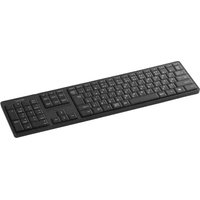
| Keyboard Layout | Full-size (104 keys) |
| Key Type | Membrane keyswitch |
| Key Travel | Low-profile (approx. 3 mm) |
| Cable Length | 1.5 m |
| Power Source | USB bus power (5 V, 100 mA) |
| Dimensions (W x D x H) | 440 x 140 x 25 mm |
| Weight | 450 g |
| Indicators | Caps Lock, Scroll Lock, Num Lock LEDs |
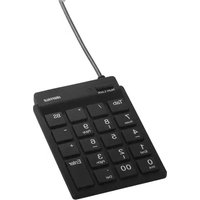
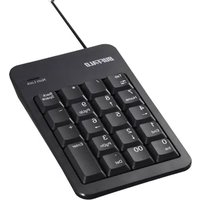
| Numeric Keypad | Yes |
| Multimedia Hotkeys | Yes (via Fn key) |
| Anti-Slip Feet | Yes |
| Maintenance | Clean with soft, dry cloth and compressed air |
| Safety Warnings | Keep away from liquids; unplug before cleaning |
| Spare Parts / Repairability | Standard USB cable; no user-serviceable internal parts |
Frequently Asked Questions - BSTK10WH BUFFALO
How do I connect the Buffalo BSTK10WH keyboard to my computer?
Plug the USB connector into an available USB 2.0 or newer port on your desktop or laptop. The keyboard is plug and play, so it will be recognized automatically without installing drivers. If using a USB hub, connect it to a powered hub for stable operation.
The keyboard is not responding, what should I do?
First disconnect and reconnect the USB cable. Try a different USB port. Restart your computer. If the issue persists, test on another device. Avoid using extension cables, and make sure the cable is fully inserted. For intermittent failures, replace the cable if it is detachable; on this model the cable is fixed, so contact support if needed.
Is the BSTK10WH compatible with macOS or Linux?
Yes. The keyboard uses standard USB HID communication, so it works with Windows, macOS, and most Linux distributions. The multimedia hotkeys may require a setup utility on Linux, but basic typing functions work out of the box.
How do I use multimedia hotkeys?
Hold the Fn key located in the lower row and press the labeled function keys (F1-F12) to activate shortcuts such as volume control, media play/pause, mute, or email. On Windows, these shortcuts generally work without extra software; on macOS, you may need to configure them in System Preferences.
How should I clean my keyboard?
Unplug the keyboard, turn it upside down, and shake it to remove debris. Use a soft, dry cloth slightly dampened with water or isopropyl alcohol to wipe the keys and casing. Never spray liquid directly on the keyboard. Use compressed air to clean between the keys.
Can I use this keyboard with a laptop?
Yes, connect the USB cable to any available USB port on your laptop. The full-size layout includes a numeric keypad, which is useful for spreadsheet work. The keyboard is powered through the USB port, so no battery is required.
Are the keys loud when typing?
The BSTK10WH uses a membrane switch design, which is relatively quiet compared to mechanical keyboards. Low-profile keys reduce the sound and require a light touch. If you want extra silence, place the keyboard on a desk mat or use a soft landing pad.
Does the keyboard require drivers?
No special drivers are required for basic operation under Windows, macOS, or Linux. The keyboard uses a standard HID class driver already included in the operating system. Optional manufacturer software may be available for customizing hotkeys, but it is not necessary for typing.
How can I reduce the risk of spills damaging the keyboard?
Keep drinks away from the keyboard area. If a small amount of liquid spills, unplug the keyboard immediately, turn it upside down, and allow it to dry completely before reconnecting. Do not use a hair dryer, as heat can damage the membrane layer. For larger spills, professional cleaning or replacement is recommended.
What should I do if a key becomes stuck or unresponsive?
Unplug the keyboard and gently pry up the keycap if it is removable. Clean the area underneath with compressed air or a cotton swab dampened with alcohol. If the key still does not respond, the membrane contact may be damaged. On this keyboard, individual switches are not user-replaceable; consider contacting Buffalo support if the keyboard is under warranty.
User questions about BSTK10WH BUFFALO
0 question about this device. Answer the ones you know or ask your own.
Ask a new question about this device
No questions yet. Be the first to ask one.
Download the instructions for your Keyboard in PDF format for free! Find your manual BSTK10WH - BUFFALO and take your electronic device back in hand. On this page are published all the documents necessary for the use of your device. BSTK10WH by BUFFALO.
USER MANUAL BSTK10WH BUFFALO

Manual assistant
Powered by Anthropic
Waiting for your message
Product information
Brand : BUFFALO
Model : BSTK10WH
Category : Keyboard