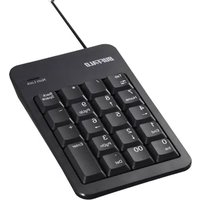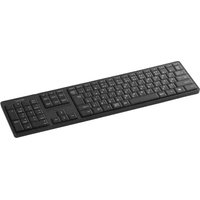
BUFFALO BSKBW100BK - Keyboard

BSKBW100BK - Keyboard BUFFALO - Free user manual and instructions

Find the device manual for free BSKBW100BK BUFFALO in PDF.

📄 2 pages English EN Download 💬 AI Question 10 questions ⚙️ Specs
Notice BUFFALO BSKBW100BK - page 1
Pick your language and provide your email: we'll send you a specifically translated version.
Product Type Keyboard
Model BSKBW100BK
Brand Buffalo
Color Black
Connectivity Wired USB
Cable Length 1.5 m
Host Interface USB Type-A
Key Switch Type Membrane
Number of Keys 104 (US layout)
Dimensions (W x D x H) 450 x 150 x 25 mm
Weight 500 g
Power Source USB bus power
Compatible Operating Systems Windows, macOS, Linux
Multimedia Keys Yes (e.g., volume, play/pause)
Wrist Rest No
Backlight No
Maintenance Wipe with a dry or slightly damp cloth
Safety Avoid liquid spills, unplug during cleaning
Repairability Not user-serviceable; contact support for issues

Frequently Asked Questions - BSKBW100BK BUFFALO

How do I connect the Buffalo BSKBW100BK keyboard to my computer?
Simply plug the USB cable into an available USB port on your computer. The keyboard is plug-and-play and should be recognized automatically by Windows, macOS, or Linux.
Does the keyboard require any drivers?
No, the BSKBW100BK is a standard USB keyboard that uses built-in operating system drivers. No additional software installation is needed.
Can I use this keyboard with a Mac?
Yes, it works with macOS. However, some multimedia keys may have different functions; you can remap them if needed.
How do I clean the keyboard?
Unplug the keyboard first. Use a soft, dry or slightly damp cloth to wipe the keys and surface. Do not use harsh chemicals or submerge in water.
What should I do if keys are sticking?
Check for debris under the sticky key. Gently pry the keycap off (if possible) and clean underneath. If the problem persists, contact Buffalo support.
Is the keyboard spill-resistant?
The keyboard is not specifically spill-resistant. Avoid liquids near it. If spilled, unplug immediately, turn upside down to drain, and let dry for 24 hours.
How long is the USB cable?
The cable is approximately 1.5 meters (4.9 feet) long.
Can I change the key functions or assign macros?
This keyboard does not have onboard memory or software for remapping keys or macros. You can use third-party software if needed.
Does the keyboard have multimedia keys?
Yes, it has dedicated multimedia keys such as volume control, play/pause, and mute. These may require basic driver support.
What should I do if the keyboard is not recognized?
Try a different USB port, restart your computer, or test on another device. If it still fails, the keyboard may be faulty; contact Buffalo customer support.

User questions about BSKBW100BK BUFFALO

0 question about this device. Answer the ones you know or ask your own.

Ask a new question about this device

The email remains private: it is only used to notify you if someone responds to your question.

No questions yet. Be the first to ask one.

Download the instructions for your Keyboard in PDF format for free! Find your manual BSKBW100BK - BUFFALO and take your electronic device back in hand. On this page are published all the documents necessary for the use of your device. BSKBW100BK by BUFFALO.

USER MANUAL BSKBW100BK BUFFALO

※We provide technical and customer support only to Japanese OS.

We provide technical and customer support only in Japanese

language.

We provide technical and customer support only for use in Japan
Manual assistant
Powered by Anthropic
Waiting for your message
Product information

Brand : BUFFALO

Model : BSKBW100BK

Category : Keyboard