
LS-WTGL-R1 - NAS BUFFALO - Free user manual and instructions
Find the device manual for free LS-WTGL-R1 BUFFALO in PDF.



| Product Type | NAS (Network Attached Storage) |
| Brand | Buffalo |
| Model | LS-WTGL-R1 |
| Network Interface | Gigabit Ethernet (10/100/1000 Mbps) |
| Hard Drives | 2 x SATA (not included) |
| USB Port | USB 2.0/1.1 |
| Supported Protocols | TCP/IP, SMB, FTP, HTTP, NTP |
| Power Supply | Internal, 100-240 V AC, 50/60 Hz |
| Power Consumption | ~32 W |
| Dimensions (W x D x H) | 100 x 163 x 225 mm |
| Weight | 2.8 kg |
| Operating Temperature | 0-35 °C |
| Operating Humidity | 20-80% (non-condensing) |
| System Compatibility | Windows 2000, XP, Vista; Mac OS 10.3+ |
| Key Features | Network backup, file sharing, media server, remote management |
| Package Contents | LinkStation Pro Duo, Ethernet cable, power cable, LinkNavigator CD-ROM, quick installation guide, warranty card |
| Security | User and share rights management |
| Maintenance and Cleaning | Keep in a dry, ventilated place; clean with a soft cloth |
Frequently Asked Questions - LS-WTGL-R1 BUFFALO
User questions about LS-WTGL-R1 BUFFALO
0 question about this device. Answer the ones you know or ask your own.
Ask a new question about this device
Download the instructions for your NAS in PDF format for free! Find your manual LS-WTGL-R1 - BUFFALO and take your electronic device back in hand. On this page are published all the documents necessary for the use of your device. LS-WTGL-R1 by BUFFALO.
USER MANUAL LS-WTGL-R1 BUFFALO
Buffalo LinkStation Pro Duo (LS-WTGL/R1)
Package Contents
Thank you for purchasing a Buffalo LinkStation Pro Duo.
Package contents include:
- LinkStation Pro Duo
- Ethernet Cable
Power Cable - LinkNavigator Installation CD
- Quick Setup Guide
Warranty Card
Back Panel Layout
1
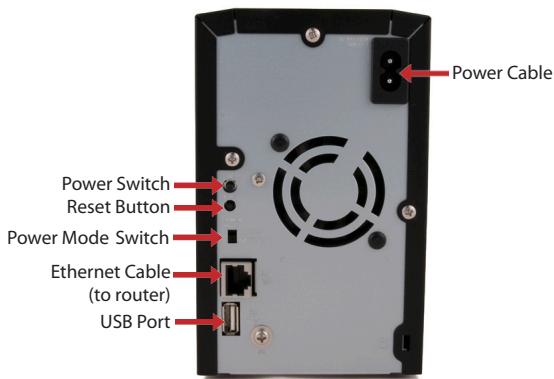
Fig:1
Note: Leave the Power Mode switch in the Manual position until installation is complete.
Insert the LinkNavigator CD into your computer's CD-ROM drive. If Setup doesn't launch automatically, you can launch it manually by clicking Start, then Run.... When the Run dialog opens, type d:\setup.exe (where "d" is the drive letter of your CD-ROM). Press OK to continue. (Fig: 2)
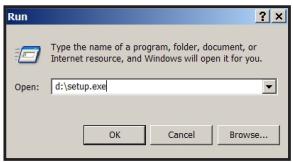
Fig:2
Click on Begin Installation (Fig: 3) and select the Easy Setup option (Fig: 4). The wizard will guide you through the installation.
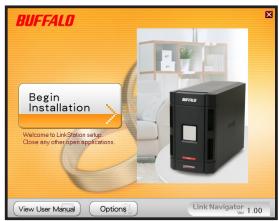
Fig:3
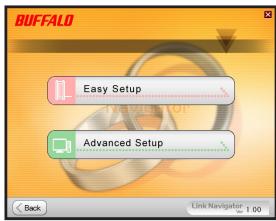
Fig: 4
Click on the Complete button to finish the setup of your LinkStation (Fig: 5).
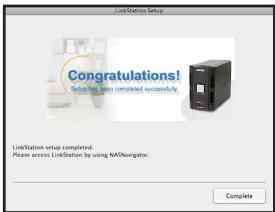
Fig:5
If you are installing the software on a Mac, open the CD and click the LinkNavigator icon to begin installation. (Fig: 6)

Fig: 6
The wizard will launch (Fig: 7) and guide you through the installation.
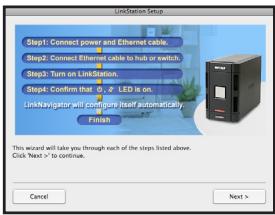
Fig:7 button to finish the setup of your LinkStation (Fig: 8).
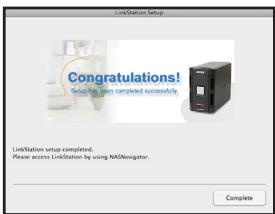
Fig: 8
Congratulations! Your LinkStation is ready to use. Please see the LinkStation User Manual on your CD for more help and configuration options.
If you're using a Windows PC, two new icons will be on your desktop: Shortcut for LinkStation and Buffalo NAS Navigator. (Fig: 9)
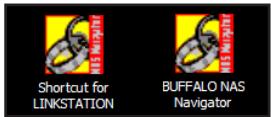
Fig:9
The LinkStation shortcut will take you directly to the folders on your LinkStation. Share is the main folder that you can put files and folders in. Info contains a copy of your user manual. (Fig: 10)
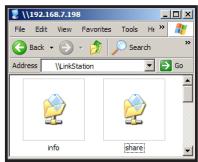
Fig:10
The Buffalo NAS Navigator icon opens the LinkStation's client utility. (Fig:11) This lets you easily view system information for your LinkStation(s). If you click Setup and choose Configuration Settings, it will take you to the settings configuration GUI, where you may change your LinkStation's settings. Until you change it, the GUI's username is "admin" and the password is "password". Consult your user manual for more information on the Buffalo NAS Navigator and the settings configuration GUI.
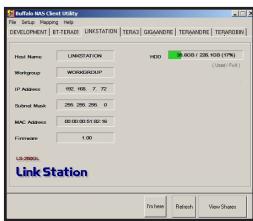
Fig:11
After installing the LinkNavigator software, your Mac will have new icons on the desktop and in the Dock. The LS-ProDuoSettings.txt file contains the IP address of your LinkStation. NASNavigator is the LinkStation's client utility.
(Fig: 12)
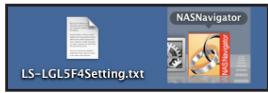
Fig:12
Clicking NASNavigator opens the LinkStation's client utility. (Fig: 13) This lets you easily view system information for your LinkStation and change its settings. Consult your user manual for more information on the Buffalo NAS Navigator.
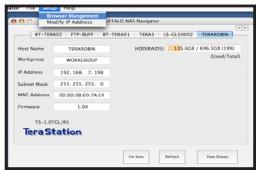
Fig:13
With the information in the LS-ProDuoSettings.txt file, (Fig: 14)you can easily connect to the LinkStation from any of your computers on your local network.
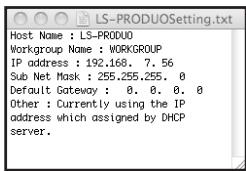
Fig:14
From the Finder, click Go, and then choose Connect to Server. In the Server Address field, enter your LinkStation's IP address in the form smb://ipaddress (where "ipaddress" is your LinkStation's IP address), and click Connect. (Fig: 15) You can get your LinkStation's IP address from the LS-ProDuoSettings.txt file on your desktop.
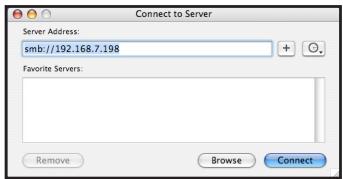
Fig:15
Select Guest and click on Connect. Note: If you have configured share permissions on your LinkStation, select Registered User and enter your login credentials. (Fig: 16)
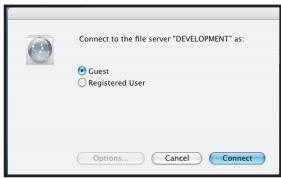
Fig:16
Select share from the list of folders on the LinkStation. (Fig: 17)
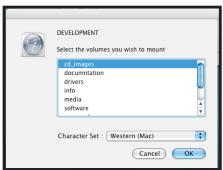
Fig:17
The share will open. A link to it will appear on your desktop, as shown.

Technical Specifications
| Data Transfer: | 10/100/1000 Mbps |
| Hard Drives: | (2) SATA |
| Main Connector: | RJ-45 (Ethernet) |
| USB Interface: | USB 2.0/1.1 |
| Protocol Support: | TCP/IP |
| SMB, FTP (File Sharing) | |
| HTTP (Management) | |
| NTP (Time Synchronisation) | |
| Power Supply: | Internal; 100-240V 50/60Hz |
| Client OS Support: | Windows®2000, XP, Vista™ |
| Mac OS 10.3 or later | |
| Power Consumption: | ~32W |
| Dimensions: | 100 x 163 x 225 mm |
| Weight: | 2.8 Kg |
| Operating Temperature: | 0-35°C; 20-80% non-condensing |
CE Mark Warning
This is a Class B product. In a domestic environment, this product may cause radio interference, in which case the user may be required to take adequate measures.
Environmental Information
- The equipment that you have purchased has required the extraction and use of natural resources for its production.
- The equipment may contain hazardous substances that could impact health and the environment.
- In order to avoid the dissemination of those substances in our environment and to diminish the pressure on the natural resources, we encourage you to use the appropriate take-back systems.
- The take-back systems will reuse or recycle most of the materials of your end life equipment in a sound way.
- The crossed-out wheeled bin symbol invites you to use those systems.

- If you need more information on the collection, reuse and recycling systems, please contact your local or regional waste administration.
Contact Details
Address:
Buffalo Technology UK Ltd
2 Bracknell Beeches
Old Bracknell Lane
Bracknell
Berkshire
RG127BW
United Kingdom
General Inquiries:
sales@buffalo-technology.com
Technical Support:
Buffalo Technology provide technical support in English, German, French, Italian and Spanish.
For opening hours and relevant telephone numbers, please go to:
http://www.buffalo-technology.com/contact
Buffalo Technology UK Ltd.
2 Bracknell Beeches
Old Bracknell Lane
Bracknell
Berkshire
RG127BW
United Kingdom
Allgemeine Fragen:
sales@buffalo-technology.com
Specifications techniques
Buffalo Technology UK Ltd
2 Bracknell Beeches
Old Bracknell Lane
Bracknell
Berkshire
RG127BW
Royaume-Uni
Assistance technique :
Buffalo Technology UK Ltd
2 Bracknell Beeches
Old Bracknell Lane
Bracknell
Berkshire
RG127BW
Regno Unito
Buffalo Technology UK Ltd.
2 Bracknell Beeches
Old Bracknell Lane
Bracknell
Berkshire
RG127BW
Reino Unido
Consultas genera:
Correo electrónico
sales@buffalo-technology.com
Asistencia Tecnica:
Buffalo Technology UK Ltd
2 Bracknell Beeches
Old Bracknell Lane
Bracknell
Berkshire
RG127BW
United Kingdom
Consultas Gerais:
Correio electrónico
sales@buffalo-technology.com
Suporte Técnico:
Adres: Buffalo Technology UK Ltd
2 Bracknell Beeches
Old Bracknell Lane
Bracknell
Berkshire
RG127BW
Verenigd Koninkrijk
Adress: Buffalo Technology UK Ltd
2 Bracknell Beeches
Old Bracknell Lane
Bracknell
Berkshire
RG127BW
Storbritannien
Allmänna frägor:
E-post sales@buffalo-technology.com
Teknisk support:
Buffalo Technology UK LTD
2 Bracknell Beeches
Old Bracknell Lane
Bracknell
Berkshire
RG127BW
United Kingdom
Generelle foresporssler:
E-post
sales@buffalo-technology.com
Buffalo Technology UK Ltd
2 Bracknell Beeches
Old Bracknell Lane
Bracknell
Berkshire
RG127BW
Storbritannien
Generelle sporgsmål:
sales@buffalo-technology.com
Teknisk support:
Buffalo Technology yder teknik support
pá engelsk, tysk, fransk, italiensk og spansk.
Buffalo Technology UK Ltd
2 Bracknell Beeches
Old Bracknell Lane
Bracknell
Berkshire
RG127BW
United Kingdom
Yleiset kyselyt:
Sähköpostiosoite
sales@buffalo-technology.com
Tekninen tuki:
- BUFFALO LINKSTATION PRO DUO (LS-WTGL/R1)
- PACKAGE CONTENTS
- PACKAGE CONTENTS INCLUDE
- BACK PANEL LAYOUT
- TECHNICAL SPECIFICATIONS
- CE MARK WARNING
- ENVIRONMENTAL INFORMATION
- CONTACT DETAILS
- ADDRESS
- GENERAL INQUIRIES
- TECHNICAL SUPPORT
- ALLGEMEINE FRAGEN
- SPECIFICATIONS TECHNIQUES
- ASSISTANCE TECHNIQUE
- CONSULTAS GENERA
- CORREO ELECTRÓNICO
- ASISTENCIA TECNICA
- CONSULTAS GERAIS
- CORREIO ELECTRÓNICO
- SALES@BUFFALO-TECHNOLOGY.COM
- SUPORTE TÉCNICO
- ALLMÄNNA FRÄGOR
- TEKNISK SUPPORT
- GENERELLE FORESPORSSLER
- GENERELLE SPORGSMÅL
- YLEISET KYSELYT
- SÄHKÖPOSTIOSOITE
- TEKNINEN TUKI
Brand : BUFFALO
Model : LS-WTGL-R1
Category : NAS