
USB 2.0 DOCKING STATION - USB Docking Station VIVANCO - Free user manual and instructions
Find the device manual for free USB 2.0 DOCKING STATION VIVANCO in PDF.



| Product type | USB 2.0 Docking Station |
| Brand | VIVANCO |
| Model | USB 2.0 DOCKING STATION |
| Dimensions | 178 x 58.6 x 28.7 mm |
| Weight | 148 g |
| Power supply | Power adapter 100-240 V AC, output 5 V DC, 2.5 A; self-powered or USB bus powered |
| Upstream ports | 1 USB type B port (to PC) |
| Downstream USB ports | 2 USB type A ports (compatible USB 1.1/2.0) |
| PS/2 ports | 1 keyboard port, 1 mouse port (mini-DIN 6-pin) |
| Serial port | 1 DB9 male port |
| Parallel port | 1 DB25 female port |
| Network port | 1 LAN 10/100 Mbps port (RJ45) |
| Maximum data rate | 480 Mbps |
| Maximum number of devices | Up to 127 hubs and devices |
| System compatibility | Windows 2000 and XP |
| Indicator LEDs | Power (red), USB ports (green), LAN 10/100 (green), link activity (blinking green) |
| Operating temperature | 0°C to 40°C |
| Storage temperature | -10°C to 80°C |
| Humidity | 90% RH (non-condensing) |
| Certifications | CE, FCC |
| Maintenance | Clean with a dry cloth; avoid moisture |
| Safety | Read the instructions; do not expose to moisture; contact a technician if damaged |
| Spare parts / repairability | The device contains no user-serviceable parts; contact a professional in case of failure |
Frequently Asked Questions - USB 2.0 DOCKING STATION VIVANCO
User questions about USB 2.0 DOCKING STATION VIVANCO
0 question about this device. Answer the ones you know or ask your own.
Ask a new question about this device
Download the instructions for your USB Docking Station in PDF format for free! Find your manual USB 2.0 DOCKING STATION - VIVANCO and take your electronic device back in hand. On this page are published all the documents necessary for the use of your device. USB 2.0 DOCKING STATION by VIVANCO.
USER MANUAL USB 2.0 DOCKING STATION VIVANCO
This equipment is in compliance with the requirements of the following regulations: EN 55 022: CLASS B
FCC Conditions
This equipment has been tested and found to comply with Part 15 of the FCC Rules. Operation is subject to the following two conditions:
(1) This device may not cause harmful interference (2) This device must accept any interference received. Including interference that may cause undesired operation.

Disclaimer
Information in this document is subject to change without notice. The manufacturer does not make any representations or warranties (implied or otherwise) regarding the accuracy and completeness of this document and shall in no event be liable for any loss of profit or any commercial damage, including but not limited to special, incidental, consequential, or other damage.
May 2005, Rev2.0
USB 2.0 DOCKING STATION
User Manual
Safety Instructions
USB 2.0 Docking Station x1
Power Adapter x1
USB 2.0 Cable x1
Driver CD x1
Always read the safety instructions carefully
- Keep this User Manual for future reference
- Keep this equipment away from humidity
- Lay this equipment out on a reliable flat surface before setting it up
- If any of the following situations arise, have the equipment checked by a service technician:
- The equipment has been exposed to moisture.
- The equipment has been dropped and damaged.
- The equipment has obvious sign of breakage.
- The equipment has not been working well or you cannot get it work according to User Manual.
Table of Contents
- Introduction 11 2.Installation 13
- Operation notes about the ports 17
- Specification 18
1. Introduction
This USB 2.0 Docking Station is a unique expansion unit specifically designed to accompany notebooks or desktop PCs with additional connectivity requirements.
With only one USB 2.0 port required from a notebook/Desktop PC, not only USB but also conventional PIO, SIO, LAN, and PS/2 peripheral devices can be accessed freely.
The USB 2.0 Docking Station allows you to add multiple high-performance USB 2.0 peripheral devices to your PC. Moreover, this product is fully backwards compatible with the USB Revision 1.1 products, which means that your previous USB 1.1 devices can continue to function as well. You also can add additional hubs and up to 127 devices.
No longer will you have to turn PC or notebook inside out for hardware setup or go through complex software installations in order to utilize peripherals. With the docking station, simply plug and play all types of USB/conventional peripherals simultaneously without having to worry about the availability of ports or the need to re-boot your notebook/PC.
Features
- Great expansion unit for notebook to other devices
- Compliant with USB 1.1/2.0 specifications. Maximum transfer rate of 480 Mbps. Supports PS/2 keyboard/mouse, IEEE-1284 parallel printer, serial device, and 10/100Mbps LAN connection.
- Two USB 2.0 downstream ports.
- Fully compliant with plug & play and hot swapping. Supports self-power and bus-power mode.
Package Contents
Before installation, please check the contents of the package. The package should contain the following items:
USB 2.0 Docking Station x1
Power Adapter x1
USB 2.0 Cable x1
Driver CD x1
This manual x1
System Requirements
- Pentium compatible PC or notebook
- Windows® 2000 or XP USB port
- CD-ROM drive (for driver installation)
Status
| LED | Color | Description | |
| Power | Red | Lights up when the docking station is powered on. | |
| USB Hub (1-2) | Green | Lights up when ready to connect to a USB device. | |
| LAN | 10/100 | Green | Lights up if the speed of LAN is 100Mbps. Off if the speed of LAN is 10Mbps or not connected. |
| Link | Green | LAN activity. Blinks when there is a data flow between the LAN and the host computer. | |
2. Installation
Running the Setup Program

Do NOT connect the docking station to your computer before installing the software from the provided CD.
If you accidentally plug in the docking station first, a couple of New Hardware Found Wizard screens will pop up.
Click Cancel to bypass the screens.
Before you connect the docking station to your computer for the first time, please run the setup program as follows:
- Insert the provided driver CD into your CD-ROM drive.
The setup program starts automatically and pops up the screen below. Select a language for the installation and click OK.
If the setup screen doesn't appear, locate and double-click the Setup.exe file under the root directory of the CD.
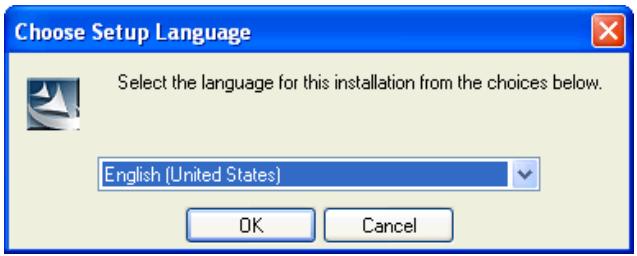
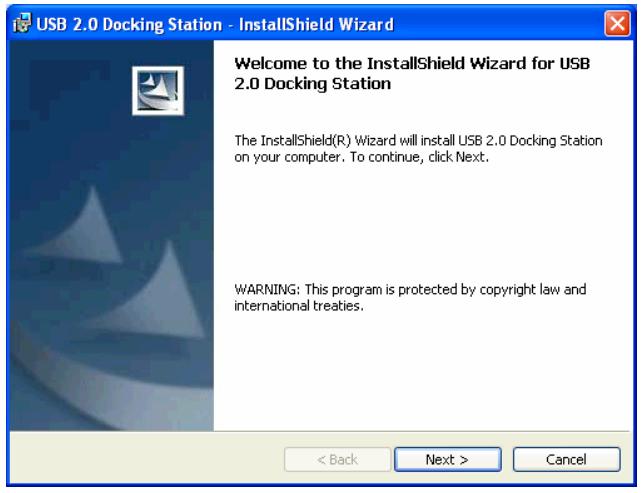
- When the welcome screen appears, click Next.
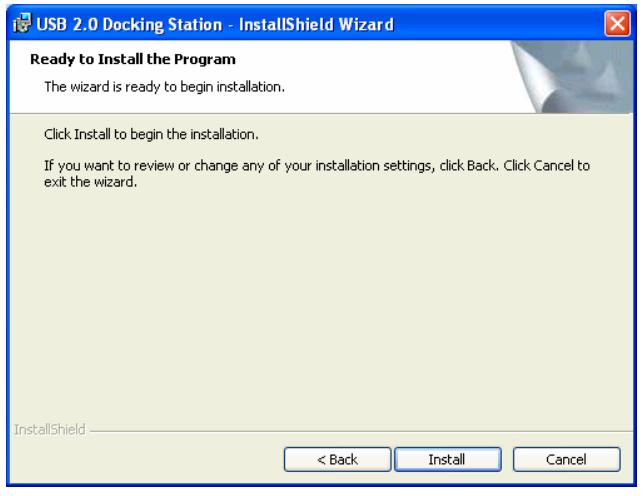
- Click Install to begin the installation.
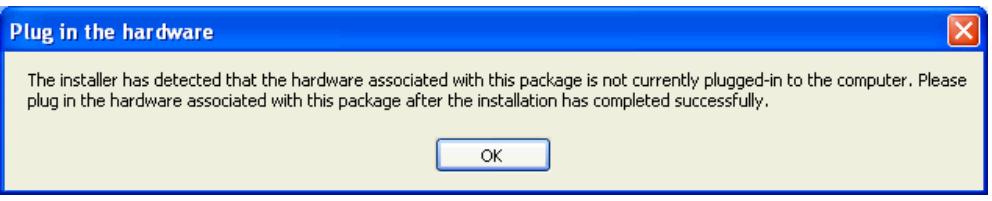
- When prompted to plug in the hardware, just click OK. DO NOT plug in the device at this point.
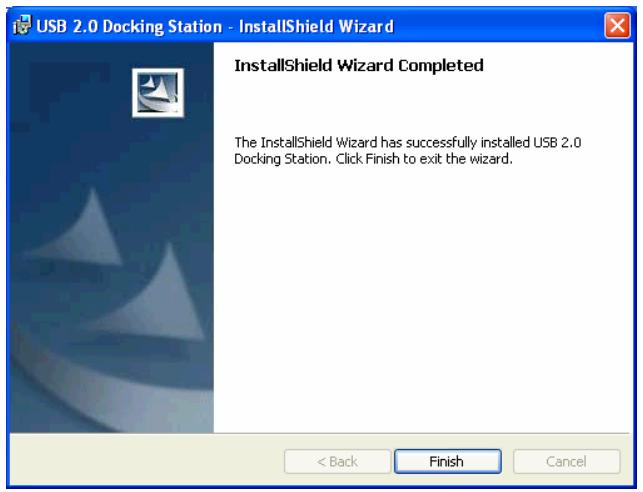
- Click Finish to complete the installation.
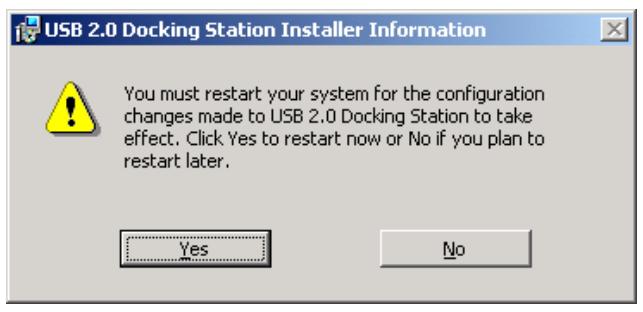
- If prompted to restart your computer, click Yes.
Connecting the Docking Station
After installing the software, proceed as follows to connect the device:
- Plug the square end (Type B male receptacle) of the USB cable into the USB upstream connector located on the side of docking station.
- Plug the flat end (Type A male receptacle) of the USB cable into a free USB port on your computer.
- (Optional) Plug the power adapter to a household AC outlet and plug the adapter's DC jack into the DC socket on the side of docking station.
*The docking station supports both self-power mode and bus-power mode.
Refer to the section "Self-Power Mode vs. Bus-Power Mode" for details.
Your installation is now complete.
You can now connect your peripherals to the docking station.
Checking Device Installation
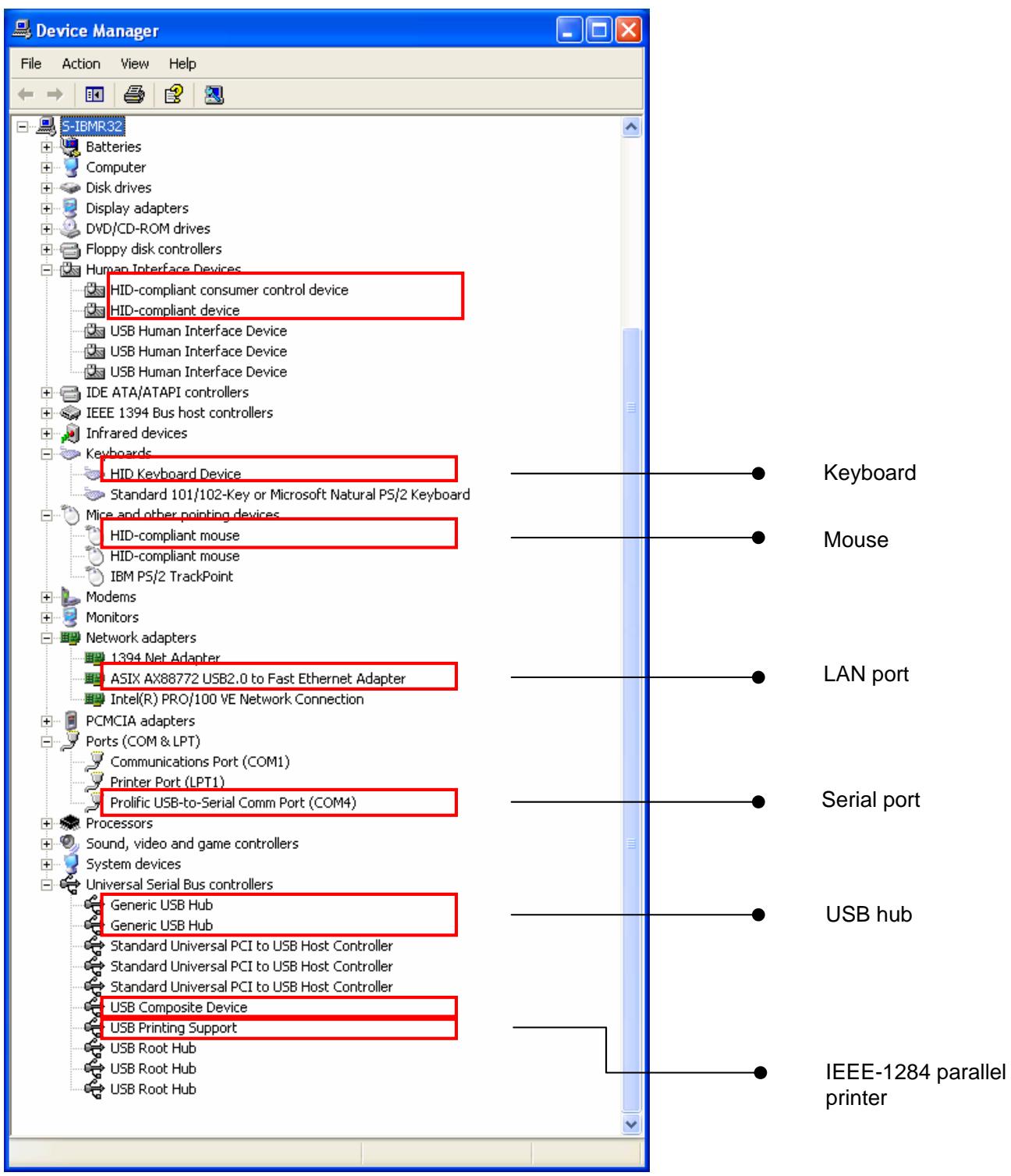
Once you finish the installation, you can open the Windows Device Manager
(via My Computer > Properties > Hardware) to verify that your docking station is properly installed with all the provided functions. There should be a couple of device entries added to the device list as shown below:
Self-Power Mode vs Bus-Power Mode
Note that there are two modes of powering USB peripherals, self-power mode and bus-power mode. The self-power mode means the peripheral has its own power adapter for operation. Bus-power mode means the peripheral operates under the power from the upstream port that it is connected to.
The USB 2.0 docking station can operate under both USB bus-power and self-power mode. However, under bus-power mode, the individual downstream facing ports of the docking station cannot supply current for more than 100 mA. Therefore, devices (e.g. USB scanner or multi-function peripheral, MFP) with power requirements higher than this value will not work. In this situation, it is recommended to operate the docking station in the self-power mode whenever possible. USB bus-power mode is only for devices with low power consumption.
3. Operation Notes About the Ports
When connecting peripheral devices to the docking station, pay attention to the following notes:
USB Hub Ports:
When connecting a USB device to one of the downstream USB ports of the docking station, make sure to follow the software installation manual accompanied (if any) with this USB device.
PS/2 Ports (Keyboard and mouse port):
Some compatibility issue may occur due to the loosely specified PS/2 protocols and the sheer number of existing brands/models. However, if the PS/2 keyboard or mouse is IBM PC compatible, then it should be able to work with the docking station properly.
Serial Port:
Note that serial port is not a plug and play interface. If you connect a serial port device (e.g. a modem) to the docking station and the docking station is already connected to a PC, you need to perform the Add New Hardware function from the Control Panel or remove and re-plug the docking station to the PC to find the device and perform the function.
USB-to-serial interface:
The interface was designed to work with modems or any serial device that has drivers capable of handling "VIRTUAL PORT". Serial mice are old devices, and most of their drivers recognize physical serial ports only. Thus, the compatibility of the USB-to-serial interface and the serial mouse is not guaranteed at all. There are a few rare cases where it can work, but the majority of the serial mice is not compatible with the USB-to-serial interface.
LAN Port:
This port supports Ethernet 10/100 Mbps function.
4. Specification
| Model | 2-Port Hub Model |
| Upstream port for computer side (Type B receptacle) | 1 |
| Downstream ports for USB hub (Type A receptacle) | 2 |
| PS/2 keyboard port (Mini Din 6 pin) | 1 |
| PS/2 mouse port (Mini Din 6 pin) | 1 |
| Serial port (DB 9 pin male) | 1 |
| Parallel port (DB 25 pin female) | 1 |
| 10/100M LAN port (8P8C RJ 45 shielding) | 1 |
| Power LED (Red) | 1 |
| USB Hub Port LED (Green) | 2 |
| LAN Port LED (Green) | 2 |
| Power Mode | Bus-powered and Self-powered |
| Emission | CE, FCC |
| Power | AC Input 100 V~240V DC Output 5V, 2.5A |
| Environments | Operating temperature: 0°C~40°C Storage temperature: -10°C~80~°CHumidity: 90% RH (No condensing) |
| Weight | 148 (g) |
| Dimensions | 178 x 58.6 x28.7 (mm) |
- Specification is subject to change without notice.
User's Manual
USB 2.0 Docking Station x1
This manual x1
System Requirements:
USB 2.0 Docking Station x1
Power Adapter x1
USB 2.0 Cable x1
Driver CD x1
This manual x1
System Requirements
USB 2.0 Docking Station x1
Power adapter x1
USB 2.0 cable x1
Self-Power Mode versus Bus-Power Mode
USB 2.0 Docking Station x1
Connecting the Docking Station
D-22926 Ahrensburg / Germany
Phone +49 (0) 4102 / 231 – 0
Fax +49 (0) 4102 / 231 – 160
Designs and specifications are subject to change without notice! All brand names are registered trademarks of their respective owners.


- FCC CONDITIONS
- DISCLAIMER
- USB 2.0 DOCKING STATION
- USER MANUAL
- SAFETY INSTRUCTIONS
- TABLE OF CONTENTS
- INTRODUCTION
- FEATURES
- PACKAGE CONTENTS
- SYSTEM REQUIREMENTS
- INSTALLATION
- RUNNING THE SETUP PROGRAM
- CONNECTING THE DOCKING STATION
- CHECKING DEVICE INSTALLATION
- SELF-POWER MODE VS BUS-POWER MODE
- OPERATION NOTES ABOUT THE PORTS
- USB HUB PORTS
- PS/2 PORTS (KEYBOARD AND MOUSE PORT)
- SERIAL PORT
- USB-TO-SERIAL INTERFACE
- LAN PORT
- SPECIFICATION
- USER'S MANUAL
- SELF-POWER MODE VERSUS BUS-POWER MODE
Brand : VIVANCO
Model : USB 2.0 DOCKING STATION
Category : USB Docking Station