
TOP GUN AFTERBURNER FORCE FEEDBACK - Joystick THRUSTMASTER - Free user manual and instructions
Find the device manual for free TOP GUN AFTERBURNER FORCE FEEDBACK THRUSTMASTER in PDF.



User questions about TOP GUN AFTERBURNER FORCE FEEDBACK THRUSTMASTER
0 question about this device. Answer the ones you know or ask your own.
Ask a new question about this device
Download the instructions for your Joystick in PDF format for free! Find your manual TOP GUN AFTERBURNER FORCE FEEDBACK - THRUSTMASTER and take your electronic device back in hand. On this page are published all the documents necessary for the use of your device. TOP GUN AFTERBURNER FORCE FEEDBACK by THRUSTMASTER.
USER MANUAL TOP GUN AFTERBURNER FORCE FEEDBACK THRUSTMASTER
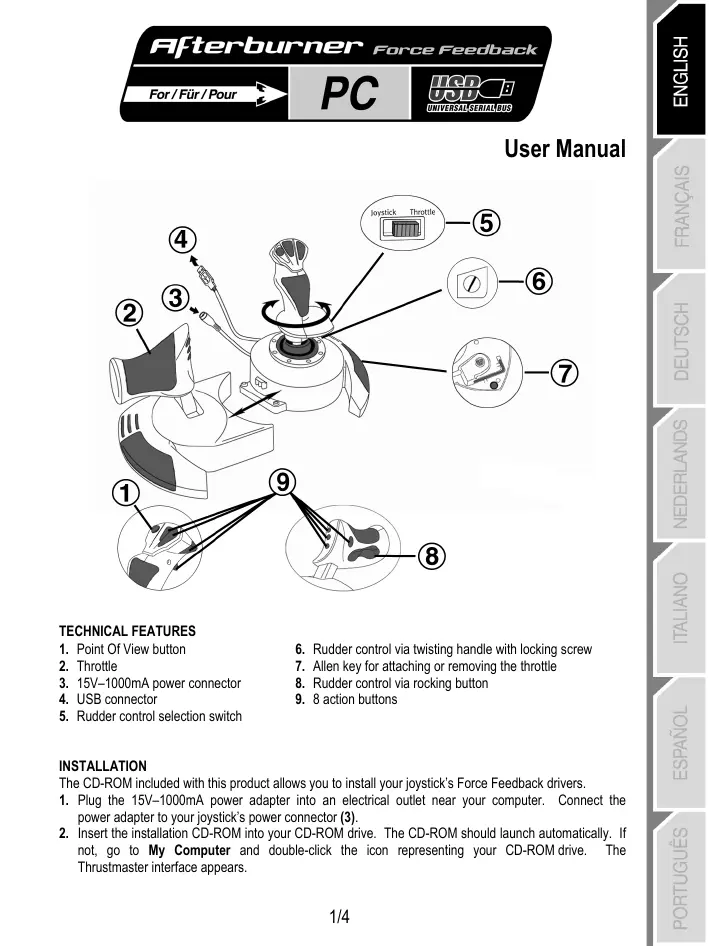
- Point Of View button
- Throttle
- 15V-1000mA power connector
- USB connector
-
Rudder control selection switch
-
Rudder control via twisting handle with locking screw
- Allen key for attaching or removing the throttle
- Rudder control via rocking button
- 8 action buttons
INSTALLATION
The CD-ROM included with this product allows you to install your joystick's Force Feedback drivers.
- Plug the 15V-1000mA power adapter into an electrical outlet near your computer. Connect the power adapter to your joystick's power connector (3).
-
Insert the installation CD-ROM into your CD-ROM drive. The CD-ROM should launch automatically. If not, go to My Computer and double-click the icon representing your CD-ROM drive. The Thrustmaster interface appears.
-
Click Drivers to install your joystick's drivers. Follow the on-screen instructions.
- When prompted to do so, connect your joystick's USB connector to one of your computer's USB ports. Windows 98/2000/Me/XP will automatically detect the new device (if you are connecting a USB device for the first time, Windows may prompt you to insert the Windows CD-ROM during the installation in order to install the required system files). Windows 98: The Add New Hardware Wizard will search for the appropriate drivers. Click Next. Follow the on-screen instructions to complete the installation. Windows 2000/Me/XP: The drivers are installed automatically.
- Once the installation is complete, exit the Thrustmaster interface (by clicking the X in the top right-hand corner) and restart your computer.
DIRECTX
If you do not already have this version, install DirectX 9 on the CD-ROM by clicking DirectX (must be installed in order for your joystick to function properly).
DEmos
In the CD-ROM interface, click Demos to check out the impressive effects made possible by the new generation of Thrustmaster Force Feedback joysticks featuring Immersion technology.
TESTING AND ADJUSTING YOUR JOYSTICK'S FORCE FEEDBACK EFFECTS
- Open the Gaming Options or Game Controllers window (in the Control Panel).
- Highlight the name of your joystick and click Properties. 4 tabs are displayed:
Test Input
Allows you to test all of your joystick's axes and buttons.
Test Forces
Allows you to test out some of the different Force Feedback effects available. A sound is associated with each effect.
Gain Settings
Overall Device Gain
Set the overall intensity of Force Feedback effects between 0 and 100% .
Spring Gain
Set the elasticity and range of your joystick's handle between 0 and 100% .
- Damper Gain
Set friction and environmental resistance between 0 and 100% .
- Default Spring
Set the default resistance of your joystick's handle between 0 and 100% . This function is also enabled in games which do not employ Force Feedback. Important: The higher the Default Spring value is set, the less Force Feedback effects will be felt. Find the right balance according to your taste.
Help
Access the help file for answers to common questions, to contact Thrustmaster technical support, and find out more about Thrustmaster products and TouchSense technology.

computer.
If your joystick is not working properly, exit the game and disconnect the joystick from your Reconnect the joystick and then restart your game.

If you are using a USB hub, your hub must use an independent power supply for your
joystick to operate properly.
RECOMMENDED USE
- The joystick has been designed for indoor use only.
- Make sure to install your joystick in such a way that an electrical outlet is nearby and easily accessible.
- If you are not planning on using your joystick again for an extended period of time, unplug the power cable.
- To avoid the risk of fire or electrical discharge, do not expose your joystick to rain or humidity, open it up, position it near a source of heat or expose it to direct sunlight.
GETTING TO KNOW YOUR JOYSTICK
Rudder control function
Your Top Gun Afterburner Force Feedback features a rudder control function, which in an airplane corresponds to the pedals used by the pilot to turn the rudder, allowing the airplane to pivot around its vertical axis. This rudder control function is accessible in two ways: on your joystick by twisting the handle to the left or to the right, or via the rocking button (8) on the throttle.
Selection of the rudder control mode (twisting handle or rocking button) is done via the rudder control selection switch (5). To control the rudder by twisting the handle, select JOYSTICK. To control the rudder using the rocking button, select THROTTLE.
If you are using the rocking button, you can stop the handle from twisting by using the locking screw (6) located at the base of the handle. Use a flathead screwdriver to change its position and thus lock/unlock the handle's twisting feature.
Throttle
Your Top Gun Afterburner Force Feedback features an imposing throttle (2) which you can use to easily control your airplane's acceleration. For greater convenience, the throttle's range of travel is delimited by the Idle and Afterburner positions.
You can also recreate real piloting conditions and play with the throttle positioned further to your left, as opposed to just beside the handle. The throttle on your Top Gun Afterburner Force Feedback is detachable.
- Remove the Allen key (7) attached to the underside of the unit.
- Unscrew the two Allen screws on the underside of unit, located at the far left-hand side of the handle section's base.
- Unwind the throttle cable and position the throttle where you will be most comfortable using it.
- For the sake of both aesthetics and stability, screw the base stabilizer piece included in the box onto the left-hand side of the handle section's base.
- Put the Allen key back in its place to make sure that you don't lose it.
Point Of View button
Your Top Gun Afterburner Force Feedback features a Point Of View button (1) which, as its name indicates, allows you to instantly view everything that is going on around your airplane. To use this feature, simply go into your game's setup menu and program the different views (rear view, view to the left, view to the right, and also the external views) onto the directions of the Point Of View button.
Of course, you can also reserve the Point Of View button for other uses (firing, etc.).
TECHNICAL SUPPORT
If you encounter a problem with your product, please go to http://lts.thrustmaster.com and click Technical Support. From there you will be able to access various utilities (Frequently Asked Questions (FAQ), the latest versions of drivers and software) that may help to resolve your problem. If the problem persists, you can contact the Thrustmaster products technical support service ("Technical Support").
By email:
In order to take advantage of technical support by email, you must first register online. The information you provide will help the agents to resolve your problem more quickly. Click Registration on the left-hand side of the Technical Support page and follow the on-screen instructions. If you have already registered, fill in theUsername and Password fields and then click Login.
By telephone:
| United Kingdom | 020 7216 0047 | price of a national phone call, Monday to Friday, from 12PM to 10PM |
| United States / Canada | 514-279-9911 | price of a long distance phone call, Monday to Friday, from 7AM to 5PM (Eastern time) |
| Australia | 1902 262 514 | $1.98/min, Monday to Friday from 9AM to 6PM |
| Denmark | 82 33 28 58 | price of a national phone call, Monday to Friday from 1PM to 10PM |
| Finland | 09 81 71 01 54 | price of a national phone call, Monday to Friday from 2PM to 11PM |
| Norway | 23 50 01 16 | price of a national phone call, Monday to Friday from 1PM to 10PM |
| Sweden | 08-51992032 | price of a national phone call, Monday to Friday from 1PM to 11PM |
WARRANTY INFORMATION
Worldwide, Guilemot Corporation S.A. ("Guilemot") warrants to the consumer that this Thrustmaster product will be free from material defects and manufacturing flaws for a period of two (2) years from the original date of purchase. Should the product appear to be defective during the warranty period, immediately contact Technical Support, who will indicate the procedure to follow. If the defect is confirmed, the product must be returned to its place of purchase (or any other location indicated by Technical Support).
Within the context of this warranty, the consumer's defective product will, at Technical Support's option, be either repaired or replaced. Where authorized by applicable law, the full liability of Guillemot and its subsidiaries (including for indirect damages) is limited to the repair or replacement of the Thrustmaster product. The consumer's legal rights with respect to legislation applicable to the sale of consumer goods are not affected by this warranty.
This warranty shall not apply: (1) if the product has been modified, opened, altered, or has suffered damage as a result of inappropriate or abusive use, negligence, an accident, normal wear, or any other cause not related to a material defect or manufacturing flaw; (2) in the event of failure to comply with the instructions provided by Technical Support; (3) to software not published by Guillemot, said software being subject to a specific warranty provided by its publisher.
Additional warranty provisions
In the United States of America and in Canada, this warranty is limited to the product's internal mechanism and external housing. Any applicable implied warranties, including warranties of merchantability and fitness for a particular purpose, are hereby limited to two (2) years from the date of purchase and are subject to the conditions set forth in this limited warranty. In no event shall Guilemot Corporation S.A. or its affiliates be liable for consequential or incidental damage resulting from the breach of any express or implied warranties. Some States/Provinces do not allow limitation on how long an implied warranty lasts or exclusion or limitation of incidental/consequential damages, so the above limitation may not apply to you. This warranty gives you specific legal rights, and you may also have other legal rights which vary from State to State or Province to Province.
COPYRIGHT
© 2004 Guillemot Corporation S.A. All rights reserved. Thrustmaster® and Thrustmapper™ are trademarks and/or registered trademarks of Guillemot Corporation S.A. Top Gun © 2004 Paramount Pictures. All rights reserved. Microsoft® Windows® 98 SE, Me, 2000, XP and DirectX® are either registered trademarks or trademarks of Microsoft Corporation in the United States and/or other countries. All other trademarks and brand names are hereby acknowledged and are property of their respective owners. Illustrations not binding. Contents, designs and specifications are subject to change without notice and may vary from one country to another.
FAQs, tips and drivers available at www.thrustmaster.com