
Aivia Krypton - Mouse GIGABYTE - Free user manual and instructions
Find the device manual for free Aivia Krypton GIGABYTE in PDF.


| Product Type | Wired gaming mouse |
| Brand | Gigabyte |
| Model | Aivia Krypton |
| Dimensions (L x W x H) | 130 x 73 x 40 mm |
| Weight (without cable) | 135 g (adjustable with weights) |
| Cable length | 1.8 m braided |
| Sensor type | Laser 8200 DPI |
| Maximum resolution | 8200 DPI |
| Number of buttons | 8 programmable buttons |
| Scroll wheel | Yes, 3 directions |
| Lighting | Customizable RGB |
| Refresh rate | 1000 Hz |
| Internal memory | Yes, for profiles |
| Power supply | USB (cable powered) |
| Supported operating system | Windows 7/8/10 |
| Configuration software | GHOST Macro Engine |
| Maintenance and cleaning | Clean with a slightly damp soft cloth |
| Safety instructions | Do not expose to moisture or extreme temperatures |
| Spare parts and repairability | Replacement mouse feet and weights available |
| General information | User manual available for download |
Frequently Asked Questions - Aivia Krypton GIGABYTE
User questions about Aivia Krypton GIGABYTE
0 question about this device. Answer the ones you know or ask your own.
Ask a new question about this device
Download the instructions for your Mouse in PDF format for free! Find your manual Aivia Krypton - GIGABYTE and take your electronic device back in hand. On this page are published all the documents necessary for the use of your device. Aivia Krypton by GIGABYTE.
USER MANUAL Aivia Krypton GIGABYTE
Alivia™
USERS' GUIDE
KRYPTON
DUAL-CHASSIS GAMING MOUSE
MULTI-LANGUAGE
EN DE SP RU CZ PL KO 中 FR
Alivia™
Krypton Dual-chassis Gaming Mouse
Introduction
The Aivia Krypton gaming mouse features a revolutionary new dual mouse chassis design which allows for a hot-swappable mouse chassis giving the user unparalleled freedom by changing fundamental mouse movement and dynamics to best fit the application at hand. Aivia Krypton further enables maximum control and flexibility by giving users the option to customize the center of gravity and weight of the mouse. GHOST Macro engine with built-in 32KB memory for onboard Macro memorization and gaming on the go.
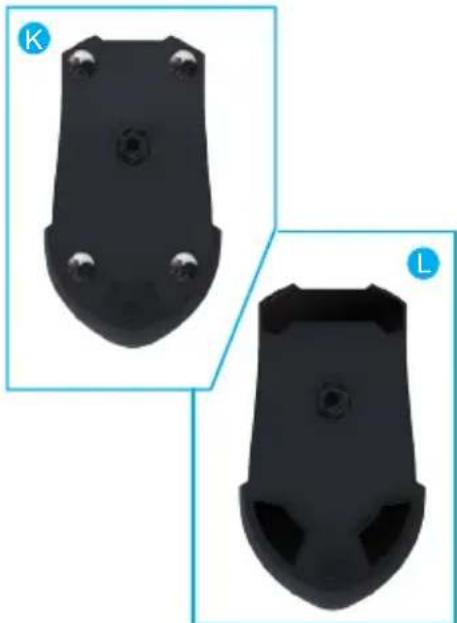
The Aivia Krypton comes equipped with two unique chassis foundations:
- The Speed Chassis features an abrasion-free ceramic foundation focused on quick movements, immediate reaction, and extraordinary speed.
- The Control Chassis utilizes an ultra smooth Teflon foundation which ensures precision movements for maximum control.
Features
- Advanced 8200dpi resolution laser sensor
- Optimized for speed + control performance
- Customizable center of gravity
• Build-in GHOST ^TM macro engine
Installation & Package Content

Installation
Windows® 98 / 2000/ XP / Windows7 Installation Instructions
- Download the GHOST macro engine installer from GIGABYTE official website.
- Run the installer and follow the onscreen instructions.
- Plug Aivia Krypton into the USB port of your computer.
- Execute the software and then the UI will automatically detect the Aivia Krypton Mouse.
- Set up advanced assignments for your Aivia Krypton via GIGABYTE software.
Package Contents
• Aivia Krypton Gaming Mouse
• Interchangeable Mouse Chassis(Speed / Control)
- Spare Teflon Feet Pads
• Weight Adjustment Case (Includes 10 weights)
• Metal Weight Removal Device
- Users' Guide
Mouse Instructions


natural_image
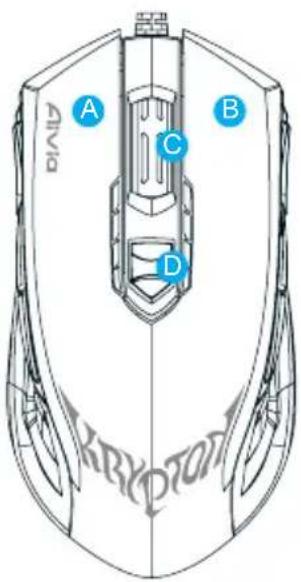
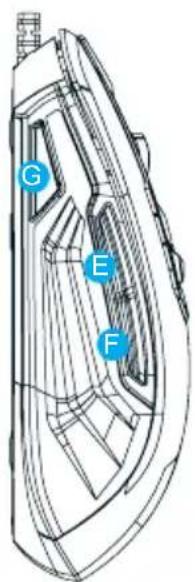
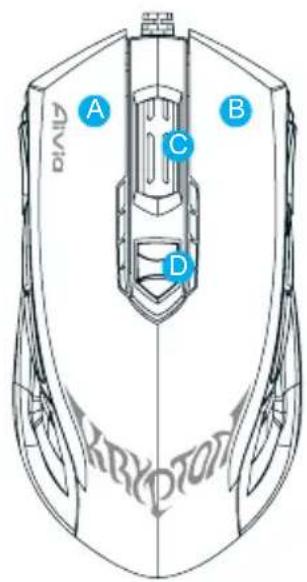
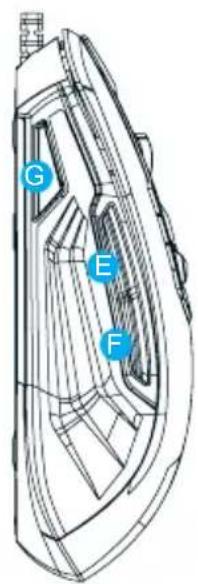
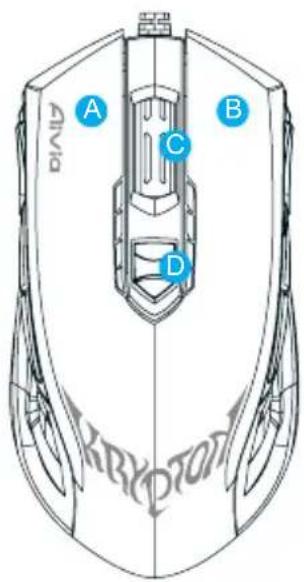
Two black plastic electronic device components labeled K and L, shown from top and side views (no text or symbols on the devices themselves)Default button assignments (right-hand mode):
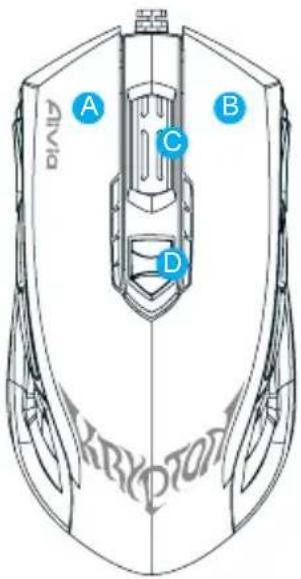
A — Left Click
B — Right Click
C — Scroll Click and wheel
D — On-the-fly DPI adjustment
E — Forward
F — Backward
G — Profile Switch
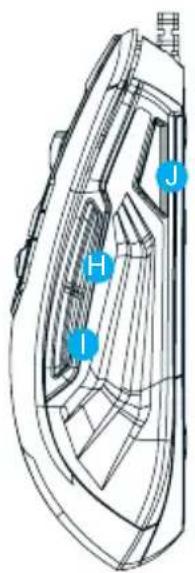
H — Forward
1—Backward
J — Profile Switch (Disabled on default, Profile Switch under Left-Hand mode)
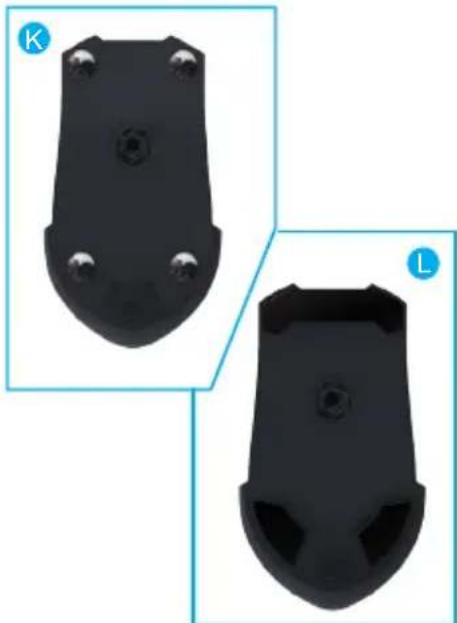
K — Speed Chassis with Abrasion-free™ ceramic mouse feet
L — Control Chassis with Ultra-durable™ teflon feet
Tip:
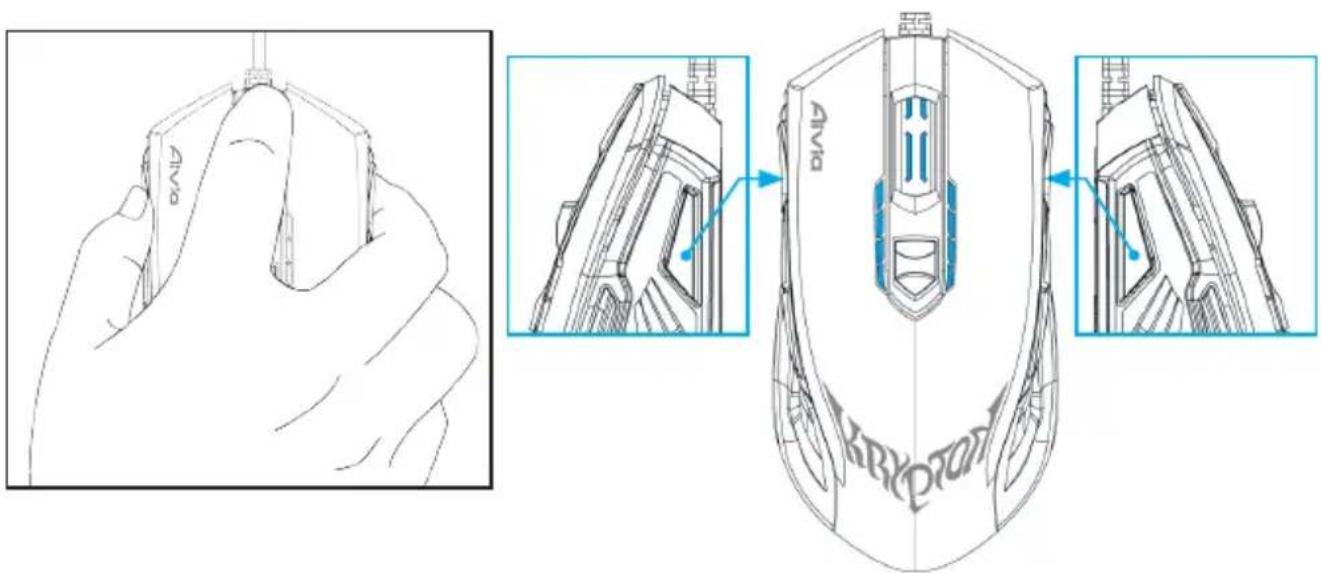
To quickly switch between Right-Hand and Left-Hand mode, simply press and hold both profile switch buttons for 3 seconds. The mouse has now switched between Left-Hand and Right-Hand operation modes. The LED indicator will automatically change to the correct orientation to show which mode the mouse is currently operating under.
LED Display
4-stage DPI indicator
Default: 800dpi/1600dpi/3200dpi/5600dpi
(customizable 400\~8200dpi adjustment via GHOST™ Engine)
Profile indicator
5 different colors indicates 5 onboard profiles
(customized color lighting via GHOST™ Engine)
GHOST™ Macro Engine
GHOST ^™ Macro Engine supports Windows XP, and Windows7. Install the software to assign buttons and set up your personal profiles.
Please download the latest software from GIGABYTE official website: www.gigabyte.com
MAIN PAGE

The main page is the landing page when you first install GHOST ^TM Macro Engine. More than one model may appear when you install another Aivia product.
Step1. Choose the Aivia model you wish to set up.
Step2. Click "PROFILES" to set up button assignments for the particular model.
Step3. Click "SETTINGS" to set up performance, lighting, and manage profiles.
You may also link to "GIGABYTE official website" or "Aivia forum" for more product information.
PROFILES
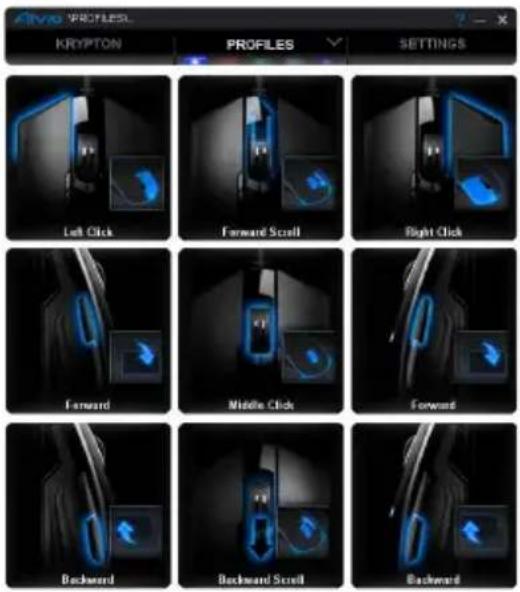
In the PROFILES tab, there are 5 profiles which appear as 5 LED bars
PROFILES underneath PROFILE to program for your specific games. A single LED bar indicates the current profile you locate. In each profile, you can assign either BASIC functions or advanced MACROS to particular buttons. Click any mouse button you wish to set up, you will then enter into the function menu.
(There are also hid buttons by clicking the arrowhead- DEFAULT is back to default setting for the current profile; DEFAULT ALL is back to default for all 5 profiles.)
BASIC
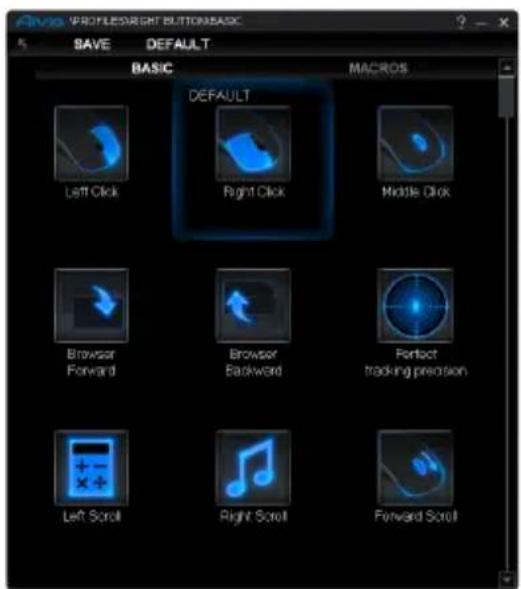
[BASIC] [MACROS]

- Select any button function you wish to change, and click either SAVE or double-click to save the change.
- or click ☑ to ignore the change and go back to previous page.
- or click DEFAULT to return the default setting.
• MACROS

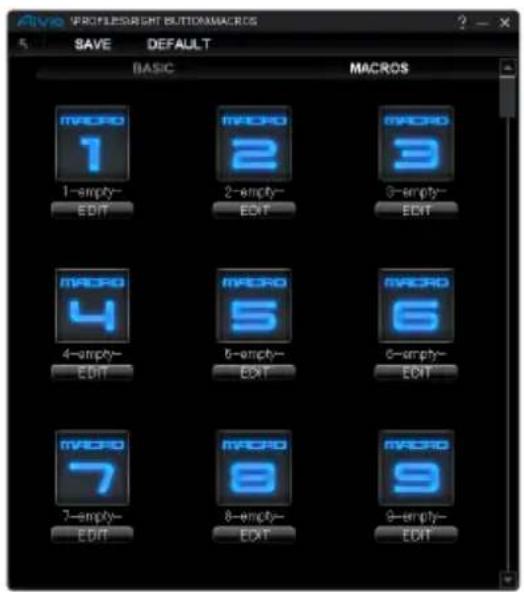
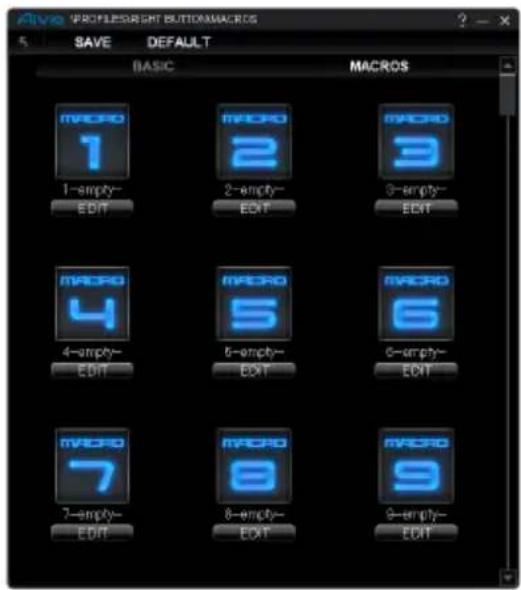
Macro depot is where you can pre-record a series of keystrokes and button presses with precise time interval for a gaming command. Here you have 70 blank macro cartridges. Pre-define the macro scripts and then assign to the mouse buttons.
Select any empty macro and click EDIT, and you will then enter into the macro depot.
★ How to record a macro script?
1. Learn your useful tools
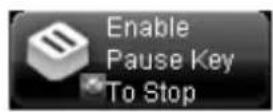
Enable/Disable Pause to stop recording Enable Pause Key to Stop Disable Pause Key to stop

Chose your recording objects
Keyboard and Mouse: Record both keystrokes and mouse button press. Keyboard Only: Only record keystrokes but ignore mouse button press. Mouse Only: Only record mouse button press but ignore keystrokes.
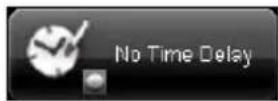
Time delay (interval)
No Time Delay: Do NOT record any time delay in-between commands. Real Time Delay: Record the real delay in-between as how it is entered. Fixed Time Delay: Key-in the time interval as a fixed time delay.
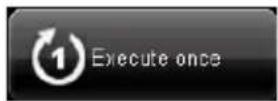
Action mode
Execute Once: Execute a macro once as press the mouse button once. Loop Mode: Execute a macro continuously, and press again to stop the running macro. Fire Mode: Execute a macro continuously until you release the assigned button.
2. Now begin to record a macro
Step1. Clicking change the tool buttons to set up your recording preference.
Step2. Click Record and start keying in keystrokes or button presses.
Step3. Click Stop to end up recording
Step4. You may also insert additional commands from the "Quick-insert bar" at the left screen.
Step5. Type on (the blue oblong) 1-empty- to rename this macro. Moreover, you may also change icon of your personal macro by clicking
Step6. Click SAVE to save the editing of this macro.

3. More
You may ▶ Export Macro the macros you'd edited to the PC, and also ▶ Import Macro macro back to GHOST macro engine.
SETTINGS

MANAGE PROFILES
You may either disable or enable a whole profile and also change the color of the profile indicator in this page. Type on the characters "PROFILE" to mark each profile.

SENSITIVITY
Sensitivity is how fast the mouse cursor travels across the screen.
Default setting has 4 sensitivity stages: 800, 1600, 3200, and 5600DPI.
You can create 4 preferred sensitivity stages by moving the single adjusting slider, and click to set different sensitivity value of X-Y axis independently.

WHEEL SETTINGS
You can adjust the scrolling speed and also the wheel brightness by moving the knob on the slider.

REPORT RATE
The report rate determines the time intervals that your PC retrieves data from your mouse. You can switch between to 125Hz, 142Hz, 166Hz, 200Hz, 250Hz, 333Hz, 500Hz, or 1000Hz on the slider.
Default setting: 500Hz
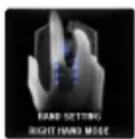
Right/Left hand mode
Clicking change this icon to change between right hand mode and left hand mode.

Memory Storage
Clean memory: Erase all data on memory, such as settings and macros
Back up: Back up the profile settings or macros to your PC
Restore: Restore the backed up the settings or data from your PC
*Please DO NOT remove the mouse during processing in case memory damages.*
Alivia™
Krypton Dual-chassis Gaming Mouse
Einführung

natural_image
Two black plastic electronic device components labeled K and L, shown from top and side views (no text or symbols on the devices themselves)
Krypton Dual-chassis Gaming Mouse
Introducción
[ BÁSICO ] [ MACROS ]

Krypton Dual-chassis Gaming Mouse
Введение
[ОСНОВНЫЕ] [МАКРОСЫ]

Krypton Dual-chassis Gaming Mouse
Úvod
4 | Krypton Dual-chassis Gaming Mouse
PROFILY

[ ZÁKLADNÍ ] [ MAKRA ]

Krypton Dual-chassis Gaming Mouse
Wprowadzenie
[ PODSTAWOWY ] [ MACROS ]
Krypton Dual-chassis Gaming Mouse
소개

natural_image
Two black plastic electronic device components labeled K and L, shown from top and side views (no text or symbols on the parts themselves)기본 버튼 배치(오른손 모드):
[기본]

[매크로]
Krypton Dual-chassis Gaming Mouse
簡介

natural_image
Two black plastic electronic device components labeled K and L, shown from top and side views (no text or symbols on the devices themselves)預設按鍵功能(右手使用模式):
[BASIC] [MARCOS]
Krypton Dual-chassis Gaming Mouse
简介


natural_image
Two black plastic electronic device components labeled K and L, shown from top and side views (no text or symbols on the devices themselves)预设按键功能(右手使用模式):
秘诀:
[BASIC] [MARCOS]

Krypton Dual-chassis Gaming Mouse
Introduction
Installation
Instructions d'installation Windows® XP / Vista/ Win7/ Win8
[BASIC] [MACROS]


- KRYPTON
- Alivia™
- Krypton Dual-chassis Gaming Mouse
- Introduction
- The Aivia Krypton comes equipped with two unique chassis foundations:
- Features
- Installation & Package Content
- Installation
- Package Contents
- Default button assignments (right-hand mode):
- Tip:
- LED Display
- Profile indicator
- GHOST™ Macro Engine
- MAIN PAGE
- PROFILES
- BASIC
- • MACROS
- Learn your useful tools
- Chose your recording objects
- Time delay (interval)
- Action mode
- Now begin to record a macro
- More
- SETTINGS
- MANAGE PROFILES
- SENSITIVITY
- WHEEL SETTINGS
- REPORT RATE
- Right/Left hand mode
- Memory Storage
- Einführung
- Introducción
- Введение
- Úvod
- PROFILY
- Wprowadzenie
- 소개
- 簡介
- 預設按鍵功能(右手使用模式):
- 简介
- 预设按键功能(右手使用模式):
- 秘诀:
Brand : GIGABYTE
Model : Aivia Krypton
Category : Mouse