
SEC-DVR504 - Voice recorder NEDIS - Free user manual and instructions
Find the device manual for free SEC-DVR504 NEDIS in PDF.


| Product Type | Digital Voice Recorder |
| Brand | Nedis |
| Model | SEC-DVR504 |
| Dimensions | Approximately 10.5 x 2.5 x 1.5 cm |
| Weight | Approximately 50 g |
| Power Supply | Rechargeable lithium-ion battery via USB cable |
| Battery Capacity | Approximately 300 mAh (several hours of battery life) |
| Supported Audio Formats | MP3, WAV |
| Internal Storage | 8 GB (typical estimate) |
| Main Functions | Audio recording, playback, pause, stop, standby mode, LED indicator, key lock |
| Connectivity | USB port for file transfer and charging |
| Care and Cleaning | Clean with a soft, dry cloth. Do not use abrasive products. |
| Safety | Do not expose to moisture, extreme temperatures, or shocks. |
| Spare Parts and Repairability | Integrated non-replaceable battery. No spare parts available. |
| Box Contents | Recorder, USB cable, user manual |
| Color | Black |
Frequently Asked Questions - SEC-DVR504 NEDIS
User questions about SEC-DVR504 NEDIS
0 question about this device. Answer the ones you know or ask your own.
Ask a new question about this device
Download the instructions for your Voice recorder in PDF format for free! Find your manual SEC-DVR504 - NEDIS and take your electronic device back in hand. On this page are published all the documents necessary for the use of your device. SEC-DVR504 by NEDIS.
USER MANUAL SEC-DVR504 NEDIS
natural_image
Collection of security cameras and surveillance equipment including a server, mouse, and multiple camera modules (no visible text or labels)MANUAL (p. 2)
Security DVR Camera System
MODE D'EMPLOI (p. 28)
MANUAL DE USO (p. 67)
- About this manual (p. 3)
• Package contents (p. 3)
• Technical specifications (p. 3)
• Product description (p. 6) - Front panel (p. 6)
- Rear panel (p. 7)
- Remote control (p. 7)
- Mouse (p. 8)
• Installation instructions (p. 9)
- User instructions (p. 9)
- Login (p. 9)
- Live view (p. 10)
- Status and toolbar (p. 10)
- Record setting (p. 10)
- Manual recording (p. 11)
- Schedule recording (p. 11)
- Video playback (p. 11)
- File back-up (p. 11)
- Back-up by time (p. 12)
- Network settings (p. 12)
• Mobile phone support (p. 12)
- Maintenance (p. 14)
- Warranty (p. 14)
- Disclaimer (p. 14)
- Disposal (p. 14)
About this manual
This manual describes the operation and installation of the digital video recorder (DVR) and the cameras. Please refer to the extensive English manual for further details about the DVR.
• We recommend that you read this manual before installing/using the security camera system.
- Keep this manual in a safe place for future reference.
Package contents
SEC-DVR504
- 1x DVR
• 1x Remote control (incl. 2x AAA batteries) - 1x USB mouse
• 1x AC/DC adapter with output for DVR and 4 cameras - 1x CD-ROM
SEC-SETDVR20
- 1x DVR
• 2x Camera SEC-CAM355
• 2x 18 m connection cable
• 1x Remote control (incl. 2x AAA batteries)
• 1x USB mouse - 1x AC/DC adapter with output cable for DVR and 4 cameras
- 1x CD-ROM
SEC-SETDVR30
- 1x DVR
• 2x Camera SEC-CAM25 - 2x 18 m connection cable
• 1x Remote control (incl. 2x AAA batteries) - 1x USB mouse
- 1x AC/DC adapter with output cable for DVR and 4 cameras
- 1x CD-ROM
SEC-SETDVR40
- 1x DVR
• 4x Camera SEC-CAM25 - 4x 18 m connection cable
• 1x Remote control (incl. 2x AAA batteries) - 1x USB mouse
- 1x AC/DC adapter with output cable for DVR and 4 cameras
- 1x CD-ROM
Technical specifications
Digital Video Recorder SEC-DVR504
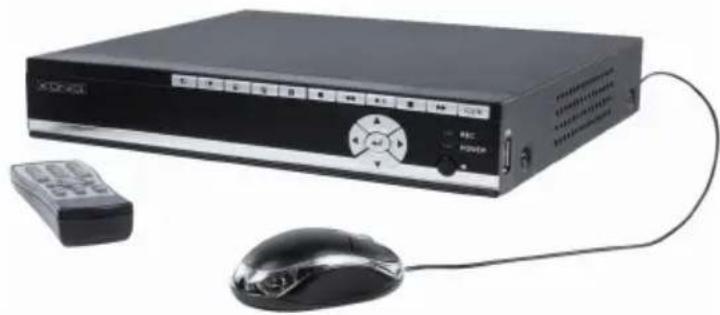
natural_image
Black rectangular electronic device with control panel and mouse, connected by cable (no visible text or symbols)
natural_image
Collection of surveillance cameras and computer modules connected by cables (no visible text or labels)• Video compression: H.264
• Video system: PAL/NTSC
- Operating system: Linux
• Video input: 4 channels, BNC
• Video output: 1 channel BNC/1 channel VGA
• VGA resolutions: 1280 x 1024
- Display resolutions: PAL: 720 x 576 / NTSC: 720 x 480
- Record resolutions: PAL: CIF (360 x 288) / HD1 (720 x 288) / D1 (720 x 576), NTSC: CIF (360 x 240) / HD1 (720 x 240) / D1 (720 x 480)
- Record frame rate: PAL: 50 fps @ D1, 100 fps @ HD1 / CIF, NTSC: 60 fps @ D1, 120 fps @ HD1 / CIF
- Display: Full screen / quad / PIP / S.E.Q.
- HDD interface: 1x SATA 3.5 inch
• HDD capability: Up to 2 TB (not included)
- Playback: 4 channels simultaneously
- Playback via network: 4 channels
• Network interface: RJ45, 10 M / 100 M
• Network protocol: Supports TCP / IP, DHCP, DDNS, PPPoE
• Network function: Supports live view with Internet Explorer & smartphone
- USB interface: USB 2.0 for mouse and file back-up/upgrade
- Back-up: AVI file via USB flash / removable HDD USB disk / USB CD / network
• Authority: Max. 7 users
• Operation: Live view, record, playback, back-up and remote access at the same time
- Recording quality: Best / good / normal
- Record modes: Normal / schedule / motion detection / remote recording
• Pre-recording: 3 sec.
- Playback mode: Play / fast forward / fast rewind / frame by frame
- Playback search: Date / time / file list
- Recording pack time: 15 / 30 / 45 / 60 min.
- Privacy zone: Yes
• Power supply: 12 V DC/2 A
- Dimensions: 250 × 220 × 40 ~mm
• Weight: 1.5 kg
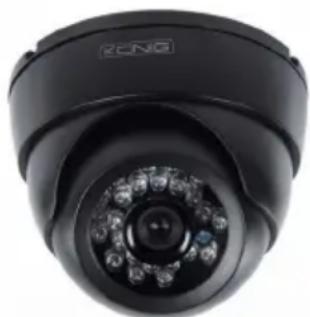
Camera SEC-CAM355
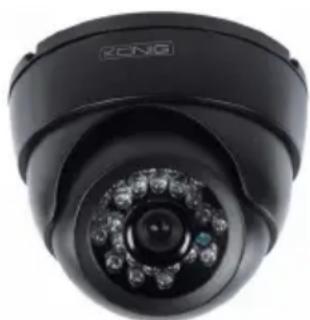
natural_image
Close-up of a black ZONG surveillance camera with circular lens and multiple LEDs (no text or symbols visible)• Image chip: 1/3" Sharp CCD
- Lens: 6.0 mm
• Horizontal resolution: 420 TVL
• View angle: 60°
• Infrared LED: 24 pcs, 15 M
• Light sensitivity: 0.001 Lux
- Electronic shutter: 1/50 (1/60) \~ 1/100,000 sec.
• S/N ratio: >48 dB
- White balance: Automatic
• Gamma correction: 0.45
• Protection: indoor use - Working temperature: -10^ 45^
• Video out: 1.0 V p-p / 75 Ω
• Voltage: DC 12 V
• Dimensions: Φ97 x 76
• Weight (with bracket): 148 g
Camera SEC-CAM25

natural_image
Close-up of a black security camera with a mounted sensor (no visible text or symbols)• Image chip: 1/4" Sharp CCD
- Lens: 3.6 mm
• Horizontal resolution: 420 TVL
- View angle: 60^
• Infrared LED: 24 pcs, 15 M
• Light sensitivity: 0.001 Lux
- Electronic shutter: 1/50 (1/60) \~ 1/100,000 sec.
• S/N ratio: >48 dB
- Gain: Auto
• Gamma correction: >0.45
- Protection: IP 66
- Working temperature: -10^ 45^
• Video out: 1.0 V p-p / 75 Ω
- Voltage: DC 12 V
• Dimensions: Φ57 x 157
• Weight (with bracket): 450 g
Safety precautions:

- Do not open the camera or DVR in the event of a malfunction. These products should only be opened by a qualified engineer.
- Do not submerge the camera and DVR in liquid.
- Do not expose the DVR to water or humidity.
- Do not expose the camera or DVR to high temperatures (see technical specifications).
- Do not install the system close to strong magnetic fields, such as speakers. This may affect the quality.
Product description
Description of the buttons and their functions on the front panel of the DVR:

Section A:

Press to select channel 1
Press to select channel 2
Press to select channel 3
Press to select channel 4
Press to select QUAD mode and view all channels simultaneously
Press to start or stop manual recording (for programmed recording, enter the menu section of the DVR)

Press to rewind the video recording during playback mode

Press to open the video search and playback menu. When the playback mode is activated, press this button to play/pause the recording.

Press to stop playback

Press to fast forward the video recording during playback mode

Press to access the toolbar, hide the toolbar, exit the menu and exit the sub menu. When the function toolbar is on screen, press the ENTER key to access the menu.
Section B:

Press the arrow buttons to navigate through the menu

Press the ENTER button to confirm choice in the menu
Section C:
REC Indicator lights up to indicate recording is in progress
POWER Indicator lights up when the DVR is powered on
IR Infrared receiving sensor for the use of the remote control
Section D:
USB port USB connection for mobile memory storage
Note: press the button in live view 10 times when there is no toolbar. This will switch the main menu between CVBS video output and VGA video output.
Description of the connectors on the rear panel of the DVR:

- Network interface RJ45, 10 M / 100 M
- VGA video output for monitor
- CVBS video output for monitor
- BNC input connectors for the connection of cameras
- DC power input (use only the supplied AC/DC power supply)
- USB port for mouse
Description of the remote control:
The functions and symbols of the buttons on the remote control are identical to the functions of the buttons with the same markings on the front panel of the DVR.
The following buttons can only be found on the remote control:

If the password is enabled, press the lock button to log out of the menu after changing settings such as the password.
Note: the default password for Admin is "888888" and the default password for user1 is "666666". In the menu > system > user, you can change the password of Admin and add another username and password.
Numerical buttons: press button 1, 2, 3 or 4 to select the camera channel. Other numerical buttons have no function for this model.
Press the ENTER button to confirm your choice in the menu.

Press the sequence button to start the automatic sequence between the connected cameras.

Mute button. Not applicable for this model.
Menu/ESC: press this button to enter the menu or exit menu/option
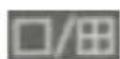
Quad button: press this button to switch to quad mode. Press button 1, 2, 3 or 4 to select the camera in full screen again.
Description of the mouse:
The mouse operates just like a mouse on a computer.
Right-clicking: In live view, right-clicking will either display or hide the toolbar.
From the main menu or a sub-menu, right-clicking will exit the current menu. Note that any changes to settings will not be saved after right-clicking.
Left-clicking: In menu unlock mode, left-clicking on the SYSTEM SETTINGS icon in the tool bar will open the main menu.
After entering the main menu, left-clicking will open sub-menus. In the “detail files” menu mode, left-clicking will play back one recording file.
By left-clicking, you can select values in edit boxes or pull-down menus. The system supports the input of Chinese characters and other special symbols, numbers and letters.
On the playback interface, left-clicking can control the fast-forward function, the rewind function, the slow-motion function, the frame-by-frame playback function and the normal play function. Left-clicking can also stop any of these processes or it can be used to exit from a mode or menu.
Left-clicking can be used to access the colour control bar, the volume control bar (n/a), and the screen control bar.
From the main menu, sub-menus, or playback view, left-clicking "x" will exit the current menu.
Left-clicking can also be used to select menu items.
Double-clicking In live view or video playback, double-clicking will maximize the left mouse key screen.
Mouse drag In the motion detection setting interface, you can left-click and then drag the frame to set the motion detection area.
Installation instructions
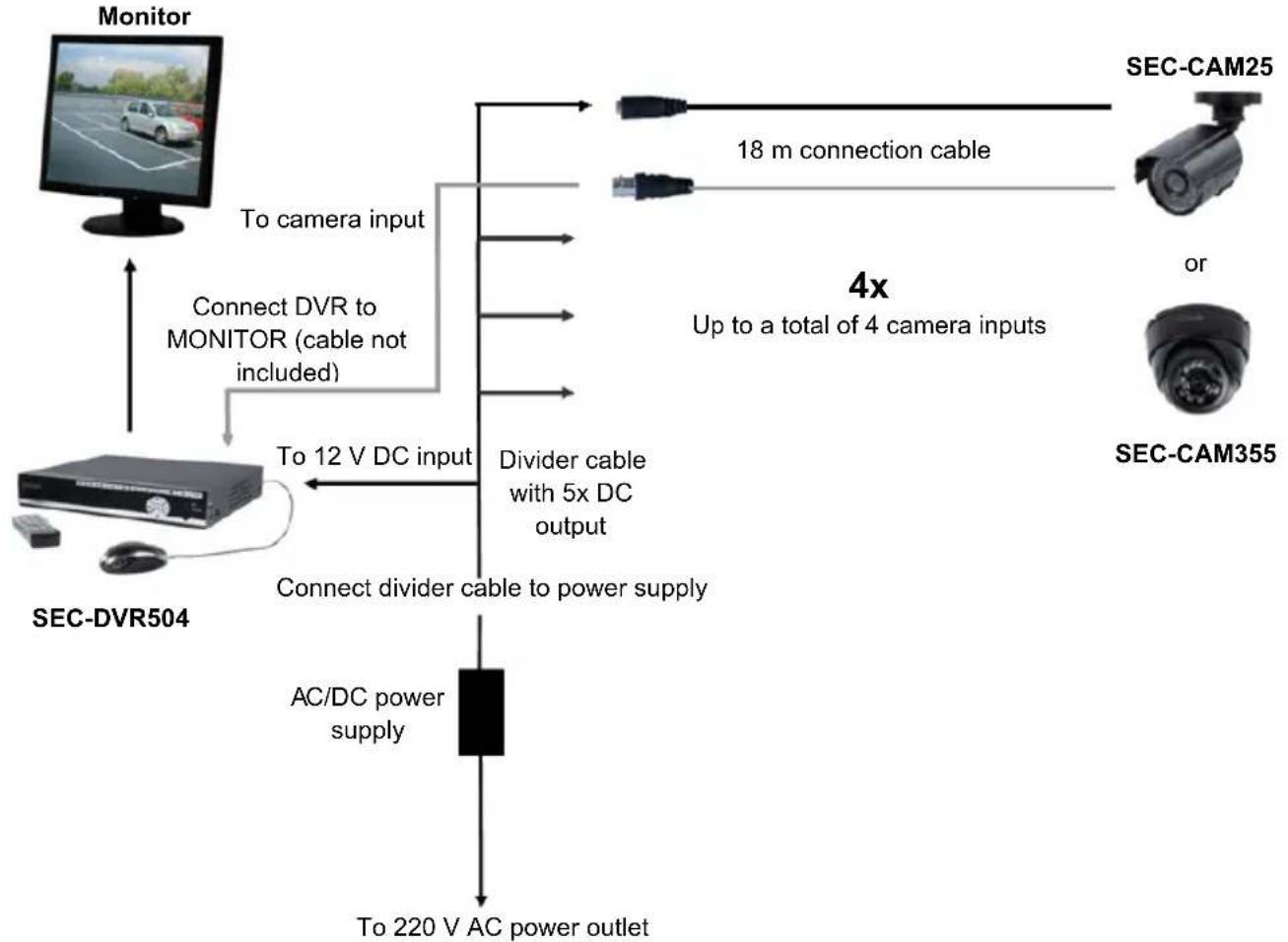
flowchart
graph TD
    A["Monitor"] -->|To camera input| B["SEC-DVR504"]
    A -->|Connect DVR to MONITOR (cable not included)| B
    B -->|To 12 V DC input| C["AC/DC power supply"]
    C --> D["To 220 V AC power outlet"]
    B --> E["Divider cable with 5x DC output"]
    E --> F["18 m connection cable"]
    F --> G["SEC-CAM25"]
    F --> H["or"]
    F --> I["SEC-CAM355"]
    style A fill:#f9f,stroke:#333
    style B fill:#ccf,stroke:#333
    style C fill:#cfc,stroke:#333
    style D fill:#fcc,stroke:#333
    style E fill:#cff,stroke:#333
    style F fill:#ffc,stroke:#333
    style G fill:#fcc,stroke:#333
    style H fill:#fcc,stroke:#333
    style I fill:#fcc,stroke:#333
User instructions
To get you started, the following chapters describe some of the features and functions of the DVR. Please refer to the extensive English manual for further details about the DVR. For system settings, it is recommended to use the mouse.
The DVR switches on automatically when the AC/DC power supply is connected to the DVR and a power outlet.
During configuration, press to restore the default setting. Press to save the settings.
Login:
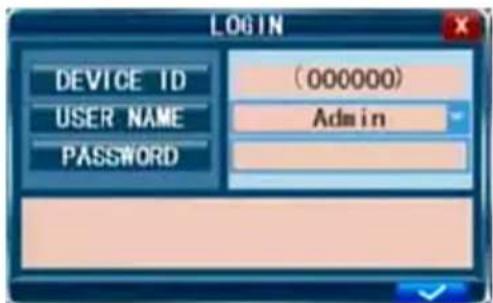
In live view, press ☐/☐ twice or double-click the right key of the mouse in live view to display the toolbar. The login window will appear if the password is enabled. You can enter a user name and password to login.
-
The default password for Admin is 888888 and the default password for user1 is 666666.
-
The device ID is used for connecting the IE interface. For the detailed operation, please refer to the extensive manual.
Note: logging into the DVR is necessary to enter the menu and change the settings.
Live view:
On-screen information during live view are real time images, names and states of each channel. The icons indicate the following:

Icon indicates that the channel has detected motion in the motion detection mode.

Red dot indicates that the channel is running in recording mode.
Status and toolbar:
In live view, press 📄/R once or click the right key of the mouse to display the status bar.

System time Estimated remaining time of hard disk recording
In live view, press ☐/☐ twice or double-click the right key of the mouse to display the toolbar if the password is disabled. When the password is available, you can see the toolbar only after login.

- System settings (menu) 6. E (electronic) Zoom
- Play ( playback menu) 7. VGA/BNC switch
- Manual recording 8. PIP 1x1
- Key lock 9. PIP 1x2
- Auto sequence
Record setting:
Select Toolbar → System settings → Record to enter the record menu. You can set quality, resolution, frame rate, pack time and record mode. There are three record modes: Manual Record, Always and Schedule. Always record mode will record with every channel all the time.
Frame rate: It is possible to adjust each channel frame rate independently. Real-time recording is 25 frames per second (fps) for PAL.
Please note that the recording frame rate limit varies depending on the recording resolution selected. Even though you may set the recording frame rate here, the system will automatically downgrade the recording frame rate if it exceeds DVR limitations.

Resolution: the recording resolution has three options: D1, HD1 and CIF resolution. Standard Quality TV is equivalent to D1 quality. The resolution of each channel for recording can be adjusted independently.
Note: the audio function is not applicable for this model.
Manual recording:
Manual recording is useful for the times when you want to immediately record an event. To turn on manual recording, select Toolbar → Manual Record or press the REC button on the front panel or on the remote control. A red dot will appear on the screen. To turn off the manual recording, press the REC button again.
Note: this option only works when the DVR is not already recording.
Schedule recording:
It allows you to create a schedule for recording tasks throughout the week, so that only certain selected events will be recorded.
CHANNEL: You can select one, two or all channels.
There are three modes for recording: Motion Detection record, NORMAL record and NO RECORD.
Different colours signify different recording modes: Orange means MD record, green means normal record and grey means no record. First select a colour cell below the screen. Then select a cell on the desired day. With the copy function, you can copy a setting to all days or a selected day.

After completing the schedule, click on √ to activate the setting.
Note: Option I/O is not applicable for this model.
Video playback:
Select Toolbar → Play to enter the Playback menu.
Method 1: Playback by date
Date input: Adjust the date and time to match the recording you are searching for. Select "TIME" and click on Enter to directly insert numbers to set the year, month and date. Now insert the time in the next field and click on ▶.
The following window will automatically appear. Select the channel of the video you want to play and click on ▶. If only one channel is selected, the video from that channel will be displayed in full-screen mode. If two or more channels are selected, the videos from the selected channels will be displayed simultaneously over four frames.

Method 2: Playback by recording status
Insert the date, click search and you can see the recording status of this date.
File back-up:
Select Toolbar → Play → Search to enter the file list. In this interface, you can back up a video file. Click


to switch pages. Select the video file you want to back up and click
to back up the video file to a USB memory device.

Backup by time:
Move the cursor to [▶] (the icon will be highlighted when selected) and left-click to enter the [REC SEARCH] setting interface or press [▶/∥] to enter the setting interface. Move the cursor to “U-DISK backup by time” and left click to access the “U-DISK backup by time” search (as shown in the figure below).


Network settings:
To set the network, any network/IP skills are recommended. Please contact your reseller or another person with network/IP skills for help.
To connect the DVR to the Internet, certain settings must be inserted into the DVR. To access your DVR via the Internet, you will need either a Static IP from your Internet Service Provider (ISP) or a router with Dynamic DNS (DDNS) capability and an account with an online DDNS service. This service is country-specific, but in many countries the manufacturer's suggested service is http://www.dyndns.com.
Select Toolbar → System Setting → Network.
Please refer to the extensive English manual for further details about the network settings.
Mobile phone support
This DVR device can transmit live feed from the CCTV cameras to your mobile phone, so that you can have ‘on the go’ access to your surveillance system from virtually anywhere. For this operation, your DVR needs to be connected and set to the Internet for mobile phone support.
To view images on your mobile phone, you must install a specific mobile operating system programme on your mobile phone. The mobile programmes are located on the supplied CD, or download them via iTunes for iPhone. In iTunes, please search for "MobileEye".
Please refer to the instruction manual of your mobile to install the programme. Currently, there are a limited number of compatible phones: Windows CE Mobile, Nokia Symbian S60 3rd and 5th Edition OS, Google Android, BlackBerry OS 4.x+ and Apple iPhone.
Note:
- Prior to using this feature, you should apply for an Internet connection service for your mobile phone, such as 3G or 2.5G. Please contact your mobile service provider for details.
- You can only watch one live feed channel at a time on your mobile phone. Split mode and playback of recorded files is not available at the moment.
In the following example, we use the Windows CE mobile. The use of other mobile programmes is substantially similar. For more detailed instructions, please refer to the extensive manual on the supplied CD. From the installation CD, install the file "MobileEye.cab" on your Windows Mobile phone.
Find and execute the programme "MobileEye". Click the "Setting" button and enter the IP address of the DVR.
In the left screen, enter the user name, password, server (IP address for your DVR) and port (default 10510).
Next, choose the Channel Count for streaming data from the drop-down menu and choose the Default Channel when connecting.
Choose a Record Name for your favourite files. Click OK to save the settings.
To connect to the system and start watching live feed from your CCTV cameras, click on the Connect button.
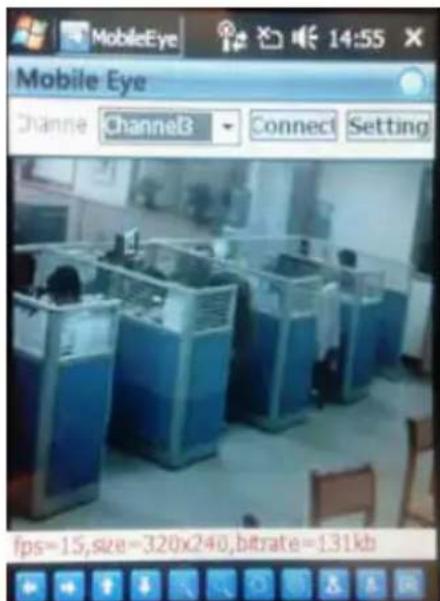
Use the Channel drop-down menu to choose a camera. Press the Setting button to modify settings.
On-screen data will provide information about the frame rate (fps), resolution (size) and bit rate (Kbps) of the current channel.
The toolbar contains the following controls:
Directional buttons to control the direction of the PTZ camera view (not applicable for this DVR model):

Zoom in / out:
Iris:
Focus:
Snapshot:
Refer to the user manual of your mobile phone for more details on installing this application.


Maintenance:
Clean the DVR with a dry cloth.
Do not use cleaning solvents or abrasives.
Warranty:
Any changes and/or modifications to the product will void the warranty. We cannot accept any liability for damage caused by incorrect use of this product.
Disclaimer:
Designs and specifications are subject to change without notice. All logos, brands and product names are trademarks or registered trademarks of their respective holders and are hereby recognised as such.
Disposal:

- This product is designated for separate collection at an appropriate collection point. Do not dispose of this product with household waste.
- For more information, contact the retailer or the local authority responsible for waste management.
DEUTSCH
Inhaltsverzeichnis:
natural_image
Black rectangular electronic device with control panel and mouse, connected by cable (no visible text or symbols)• Videokompression: H.264
• Videosystem: PAL / NTSC
natural_image
Close-up of a black security camera with circular lens and multiple LEDs (no visible text or symbols)natural_image
Close-up of a black surveillance camera with no visible text or symbols on the body
- Elimination (p. 40)
natural_image
Black rectangular electronic device with control panel, remote control unit, and mouse (no visible text or symbols)natural_image
Close-up of a black security camera with circular lens and multiple LEDs (no visible text or symbols)natural_image
Close-up of a black surveillance camera with a mounted sensor (no visible text or symbols)1 2 3 4 5 6 7 8 9
Paramètres réseau :
• 4x Camera SEC-CAM25
Digitale videorecorder SEC-DVR504

natural_image
Black rectangular electronic device with control panel, remote control unit, and mouse (no visible text or symbols)• Videocompressie: H.264
• Videosysteem: PAL/NTSC
• VGA-resoluties: 1280 x 1024
• Schermresoluties: PAL: 720 x 576 / NTSC: 720 x 480
- Opnameresoluties: PAL: CIF (360 x 288) / HD1 (720 x 288) / D1 (720 x 576), NTSC: CIF (360 x 240) / HD1 (720 x 240) / D1 (720 x 480)
natural_image
Close-up of a black security camera with circular lens and multiple LEDs (no visible text or symbols)natural_image
Close-up of a black surveillance camera with no visible text or symbols1 2 3 4 5 6 7 8 9
- Systeeminstellingen (menu) 6. E(lektronisch) zoomen
- Afspelen (afspeelmenu) 7. VGA/BNC-schakelaar
- Handmatig opnemen 8. PIP 1x1
- Toetsblokkering 9. PIP 1x2
- Automatische volgorde
Opname-instelling:
Onderhoud:
natural_image
Black rectangular electronic device with control panel and mouse, connected by cable (no visible text or symbols)• Compressione Video: H.264
- Sistema Video: PAL / NTSC
- Sistema operativo: Linux
• Ingresso Video: 4 canali, BCN
• Uscita video: 1 canale BCN /1 canale VGA
natural_image
Close-up of a black security camera with circular lens and multiple LEDs (no visible text or symbols)natural_image
Close-up of a black surveillance camera with a mounted sensor (no visible text or symbols)1 2 3 4 5 6 7 8 9
natural_image
Black rectangular electronic device with remote control and mouse, no visible text or symbolsSEC-SETDVR20
natural_image
Exterior view of a black surveillance camera with two security cameras and a mouse, connected to a remote (no visible text or symbols)SEC-SETDVR30
natural_image
Exterior view of a black rectangular security camera with two surveillance cameras above, connected to a mouse and remote control unit (no visible text or symbols)SEC-SETDVR40
natural_image
Exterior view of a security camera module with four surveillance cameras and a mouse (no text or symbols visible)natural_image
Black rectangular electronic device with control panel and mouse, connected by cable (no visible text or symbols)natural_image
Close-up of a black security camera with circular lens and multiple LEDs (no visible text or symbols)natural_image
Close-up of a black surveillance camera with a mounted sensor (no visible text or symbols)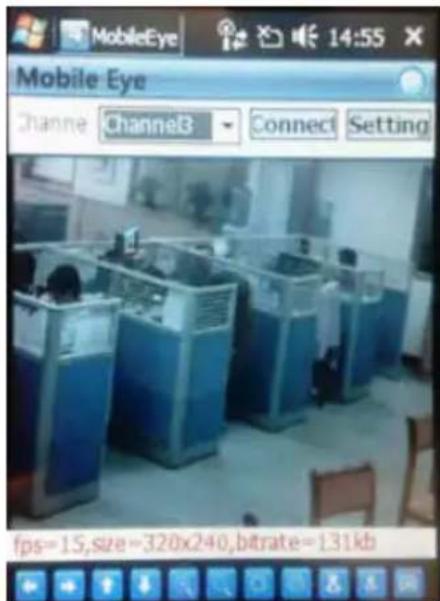
Mantenimiento:
natural_image
Black rectangular electronic device with control panel and mouse, connected by cable (no visible text or symbols)natural_image
Close-up of a black security camera with circular lens and multiple LEDs (no visible text or symbols)natural_image
Close-up of a black surveillance camera with a mounted sensor (no visible text or symbols)Hálózatbeállítás:
Karbantartás:
natural_image
Black rectangular electronic device with control panel and mouse, connected by cable (no visible text or symbols)
natural_image
Collection of surveillance cameras and computer modules connected by cables (no visible text or labels)NTSC: 60 fps @ D1, 120 fps @ HD1 / CIF
natural_image
Close-up of a black ZCNG surveillance camera with visible lens and control buttons (no text or symbols on the device itself)natural_image
Close-up of a black surveillance camera with no visible text or symbols on the bodyVerkkoasetukset:
Kunnossapito:
natural_image
Black rectangular electronic device with control panel and mouse, connected by cable (no visible text or symbols)• Videokompression: H.264
• Videosystem: PAL / NTSC
• Operativsystem: Linux
- Spela in bildhastighet: PAL: 50 fps @ D1, 100 fps @ HD1 / CIF, NTSC: 60 fps @ D1, 120 fps @ HD1 / CIF
• Display: Helskärm/ quad / PIP / S.E.Q.
natural_image
Close-up of a black security camera with circular lens and multiple LEDs (no visible text or symbols)natural_image
Close-up of a black surveillance camera with a mounted sensor (no visible text or symbols)Mobiltelefon support

natural_image
Black rectangular electronic device with control panel, remote control unit, and mouse (no visible text or symbols)natural_image
Close-up of a black security camera with circular lens and multiple LEDs (no visible text or symbols)natural_image
Close-up of a black surveillance camera with no visible text or symbols on the bodyNastavení sítě:
Vyberte Toolbar → System Setting → Network.
natural_image
Black electronic device with remote control and mouse, no visible text or symbols
natural_image
Exterior view of a black rectangular security camera with two circular surveillance cameras and a mouse, connected to a remote control unit (no visible text or symbols)
natural_image
Exterior view of a security camera module with two surveillance cameras and a mouse (no visible text or labels)
natural_image
Exterior view of a security camera module with four surveillance cameras and a mouse (no text or symbols visible)Date tehnice
Înregistrator video digital SEC-DVR504

natural_image
Black rectangular electronic device with control panel, remote control unit, and mouse (no visible text or symbols)• Compresie video: H.264
- Sistem video: PAL / NTSC
- Sistem de operare: Linux
• Intrare video: 4 canale, BNC
- leşire video: 1 canal BNC/1 canal VGA
natural_image
Close-up of a black security camera with circular lens and multiple LEDs (no visible text or symbols)• Cipul de imagine: Sharp CCD 1/3"
- Obiectiv: 6,0 mm
- Rezoluție orizontală: 420 TVL
- Unghiul de vizualizare: 60^
• LED cu infraroşii: 24 bucăți, 15 M
- Sensibilitate la lumină: 0,001Lux
- Declansator electronic: 1/50 (1/60)\~1/100.000 sec.
- Raport S/N: >48 dB
• Balans de alb: Automat
• Corectie gama: 0,45
- Protectie: utilizare
• Temperatura de lucru: -10°C\~45°C
- leşire video: 1,0 V p-p / 75 Ω
• Tensiune: 12 V CC
• Dimensiuni: Φ97 x 76
• Greutate (cu suport): 148 g
în interior
natural_image
Close-up of a black surveillance camera with no visible text or symbolsSetările rețelei:
Selectati Toolbar → System Setting → Network.
Întreținere:
natural_image
Black electronic device with remote control and mouse, no visible text or symbols
natural_image
Exterior view of a black rectangular security camera with two circular surveillance cameras and a mouse, connected to a remote control unit (no visible text or symbols)
natural_image
Exterior view of a security camera module with two surveillance cameras and a mouse (no visible text or symbols)
natural_image
Exterior view of a security camera module with four surveillance cameras and a mouse (no text or symbols visible)natural_image
Black rectangular electronic device with control panel and mouse, connected by cable (no visible text or symbols)• Συμπίεση βίντεο:
• Σύστημα βίντεο:
natural_image
Close-up of a black security camera with circular lens and multiple LEDs (no visible text or symbols)natural_image
Close-up of a black surveillance camera with a mounted sensor (no visible text or symbols)Ωρα συστήματος
Ρυθμίσεις δικτύου:
Συντήρηση:
natural_image
Black rectangular electronic device with control panel and mouse, connected by cable (no visible text or symbols)• Videokompression: H.264
• Videosystem: PAL / NTSC
- Styresystem: Linux
• Videoindgang: 4 kanaler, BNC
• Videoudgang: 1 kanal BNC /1 kanal VGA
- Optage rammehastighed: PAL: 50 fps @ D1, 100 fps @ HD1 / CIF, NTSC: 60 fps @ D1, 120 fps @ HD1 / CIF
• Display: Fuld skærm / quad / PIP / S.E.Q.
• HDD interface: 1x SATA 3,5 tommer
natural_image
Close-up of a black security camera with circular lens and multiple LEDs (no visible text or symbols)natural_image
Close-up of a black surveillance camera with no visible text or symbolsSystemtid Vurderet resterende tid for
harddisk optagelse
Fil reservekopiering:
Mobiltelefon support
natural_image
Black rectangular electronic device with control panel and remote control unit (no visible text or symbols)
natural_image
Collection of surveillance cameras and computer modules connected by cables (no visible text or labels)• Videokomprimering: H.264
• Videosystem: PAL / NTSC
• Operativsystem: Linux
• Videoinngang: 4 kanaler, BNC
• Videoutgang: 1 kanal BNC /1 kanal VGA
• VGA-oppløsning: 1280 x 1024
- Display-oppløsning: PAL: 720 x 576 / NTSC: 720 x 480
- Opptaksoppløsning: PAL: CIF (360 x 288) / HD1 (720 x 288) / D1 (720 x 576), NTSC: CIF (360 x 240) / HD1 (720 x 240) / D1 (720 x 480)
- Bildefrekvens for opptak: PAL: 50 bilder pr. sekund @ D1, 100 bilder pr. sekund @ HD1 / CIF, NTSC: 60 bilder pr. sekund @ D1, 120 bilder pr. sekund @ HD1 / CIF
- Display: Fullskjerm / firedelt / PIP / S.E.Q.
• HDD-grensesnitt: 1x SATA 3,5 tommer
• HDD-ytelse: Opptil 2 TB (medfølger ikke)
• Avspilling: 4 kanaler samtidig
• Avspilling via nettverk: 4 kanaler
- Nettverksgrensesnitt: RJ45, 10 M / 100 M
- Nettverksprotokoll: Støtter TCP / IP, DHCP, DDNS, PPPoE
- Nettverksfunksjoner: Støtter live-visning med Internet Explorer og smarttelefon
- USB-grensesnitt: USB 2,0 for mus og sikkerhetskopiering av filer / oppgradering
- Sikkerhetskopiering: AVI-fil via USB minnepinne / utskiftbar HDD USB-disk / USB CD / nettverk
- Støtte: Maks. 7 bruker
- Drift: Live-visning, opptak, avspilling, sikkerhetskopiering og fjerntilgang samtidig
• Opptakskvalitet: Best / god / normal
- Opptaksmodi: Normal / tidsplanlagt / bevegelsesvarsling / fjernstyrt opptak
- Forhåndsopptak: 3 sek.
• Avspillingsmodus: Spil av / hurtigfremspoling / hurtig tilbakespoling / bilde for bilde
• Avspillingssøk: Dato / tid / filliste
• Tid pr. opptakspakke: 15 / 30 / 45 / 60 min.
- Privatsone: Ja
- Strømforsyning: 12 V DC/2 A
- Mål: 250 x 220x 40 mm
• Vekt: 1,5 kg
Kamera SEC-CAM355
natural_image
Close-up of a black ZCNG security camera with visible lens and control buttons (no text or symbols on main subject)natural_image
Close-up of a black surveillance camera with a circular lens and mounted sensor (no visible text or symbols)• Bildebrikke: 1/4" Sharp CCD
- Linse: 3,6 mm
• Horisontal oppløsning: 420 TVL
- Synsvinkel: 60^
• Infrarød LED: 24 stk, 15 M
• Lysfølsomhet: 0,001 Lux
- Elektronisk lukker: 1 / 50 (1 / 60) \~ 1 / 100 000 sek.
• S/N-forhold: >48 dB
- Forsterkning: Auto
• Gammakorrigering: >0,45
- Beskyttelse: IP 66
- Driftstemperatur: -10^ 45^
• Videoutgang: 1,0 V p-p / 75 Ω
- Spenning: DC 12 V
• Mål: Φ57 x 157
• Vekt (inkl. brakett): 450 g

Содержание:
natural_image
Black electronic device with remote control and mouse, no visible text or symbolsSEC-SETDVR20
natural_image
Exterior view of a black surveillance camera unit with two security cameras and a mouse, connected by cables (no visible text or symbols)SEC-SETDVR30
natural_image
Exterior view of a security camera module with two surveillance cameras and a mouse (no visible text or symbols)SEC-SETDVR40
natural_image
Exterior view of a security camera setup including four surveillance cameras, a network switch, remote control, and mouse (no text or symbols visible)natural_image
Black rectangular electronic device with control panel and remote control, connected to a mouse and cable (no visible text or symbols)• Сжатие видео:
PAL: 50 fps @ D1, 100 fps @ HD1 / CIF,
NTSC: 60 fps @ D1, 120 fps @ HD1 / CIF
natural_image
Close-up of a black K-20 surveillance camera with circular lens and multiple LEDs (no text or symbols visible)natural_image
Close-up of a black surveillance camera with no visible text or symbolsСистемное время

Настройки сети:
SEC-DVR504, SEC-DVRSET20, SEC-SETDVR30, SEC-SETDVR40
Description: Security DVR Camera System
- About this manual
- Package contents
- SEC-DVR504
- SEC-SETDVR20
- SEC-SETDVR30
- SEC-SETDVR40
- Technical specifications
- Digital Video Recorder SEC-DVR504
- Camera SEC-CAM25
- Safety precautions:
- Product description
- Section A:
- Section B:
- Section C:
- Section D:
- Description of the connectors on the rear panel of the DVR:
- Description of the remote control:
- Description of the mouse:
- Installation instructions
- User instructions
- Login:
- Live view:
- Status and toolbar:
- Record setting:
- Manual recording:
- Schedule recording:
- Video playback:
- File back-up:
- Backup by time:
- Network settings:
- Mobile phone support
- Note:
- Maintenance:
- Warranty:
- Disclaimer:
- Disposal:
- DEUTSCH
- Inhaltsverzeichnis:
- Paramètres réseau :
- Digitale videorecorder SEC-DVR504
- Opname-instelling:
- Onderhoud:
- 2 3 4 5 6 7 8 9
- Mantenimiento:
- Hálózatbeállítás:
- Karbantartás:
- Verkkoasetukset:
- Kunnossapito:
- Mobiltelefon support
- Nastavení sítě:
- Date tehnice
- Înregistrator video digital SEC-DVR504
- Setările rețelei:
- Întreținere:
- Ρυθμίσεις δικτύου:
- Συντήρηση:
- Fil reservekopiering:
- Содержание:
- Настройки сети:
Brand : NEDIS
Model : SEC-DVR504
Category : Voice recorder