
Latitude C810 - Laptop DELL - Free user manual and instructions
Find the device manual for free Latitude C810 DELL in PDF.


| Product Type | Laptop |
| Brand | Dell |
| Model | Latitude C810 |
| Processor | Intel Pentium III or Celeron up to 1.2 GHz |
| Memory | 128 MB to 512 MB SDRAM |
| Storage | 20 GB to 40 GB IDE Hard Drive |
| Display | 14.1-inch or 15-inch XGA TFT (1024x768) |
| Graphics | ATI Mobility Radeon or Intel 815EM |
| Operating System | Windows 98 SE / Windows 2000 / Windows XP |
| Battery | Lithium-Ion 6-cell (typical 2-3 hours) |
| Weight | Approximately 6.5-7.5 lbs (2.9-3.4 kg) |
| Dimensions | 12.5 x 10.5 x 1.5 inches (318 x 267 x 38 mm) |
| Ports | USB 1.1 (2), Serial, Parallel, VGA, PS/2, Audio In/Out |
| Wireless | Optional 802.11b mini-PCI card |
| Audio | AC97 Audio, Built-in speakers and microphone |
| Optical Drive | CD-ROM or DVD-ROM (optional) |
| Modem | 56K V.90 PCI Modem |
| Ethernet | 10/100 Mbps Fast Ethernet |
| Power Supply | AC Adapter 65W, Input 100-240V |
| Maintenance | Easily accessible memory and hard drive compartments |
| Security | Kensington lock slot, BIOS password support |
| Repairability | User-replaceable RAM, hard drive, battery, and keyboard |
Frequently Asked Questions - Latitude C810 DELL
User questions about Latitude C810 DELL
0 question about this device. Answer the ones you know or ask your own.
Ask a new question about this device
Download the instructions for your Laptop in PDF format for free! Find your manual Latitude C810 - DELL and take your electronic device back in hand. On this page are published all the documents necessary for the use of your device. Latitude C810 by DELL.
USER MANUAL Latitude C810 DELL
Notes, Notices, Cautions

NOTE: A NOTE indicates important information that helps you make better use of your computer.

NOTICE: A NOTICE indicates either potential damage to hardware or loss of data and tells you how to avoid the problem.

CAUTION: A CAUTION indicates a potentially hazardous situation which, if not avoided, may result in potentially serious injury.
Information in this document is subject to change without notice. © 2001 Dell Computer Corporation. All rights reserved.
Reproduction in any manner whatsoever without the written permission of Dell Computer Corporation is strictly forbidden.
Trademarks used in this text: Dell, the DELL logo, Latitude, TrueMobile, AccessDirect, and DellWare are trademarks of Dell Computer Corporation; Intel and Pentium are registered trademarks of Intel Corporation; Microsoft and Windows are registered trademarks of Microsoft Corporation.
Other trademarks and trade names may be used in this document to refer to either the entities claiming the marks and names or their products. Dell Computer Corporation disclaims any proprietary interest in trademarks and trade names other than its own.
This product incorporates copyright protection technology that is protected by method claims of certain U.S. patents and other intellectual property rights owned by Macrovision Corporation and other rights owners. Use of this copyright protection technology must be authorized by Macrovision Corporation, and is intended for home and other limited viewing uses only unless otherwise authorized by Macrovision Corporation. Reverse engineering or disassembly is prohibited.
June 2001 P/N 2E409 Rev. A00
Dell™ Latitude™ System Information
Your Dell Latitude portable computer accessories box includes a reduced set of paper documentation. This document contains getting started, safety, regulatory, and warranty information about your Dell computer as well as information about other Dell documents that are available and how to obtain them.
Other Documents Available
- The Getting Started placemat, which provides step-by-step instructions for connecting your computer.

NOTE: The Getting Started placemat is not available in all regions.
- The User's Guides for your computer and other devices provide information on using your computer, installing parts such as memory modules, configuring drivers and utilities, using the system setup program, and using devices. Double-click the User's Guides icon on your desktop or the Start menu to access the electronic information stored on your hard-disk drive.
- Documentation updates are sometimes included with your computer to describe changes to your computer or software. Always read these updates before consulting any other documentation because the updates often contain the latest information.
- Operating system documentation, which is included if you ordered your operating system software from Dell.
Documents on the Web
You can obtain the latest versions of any of the documents on your hard drive as well as other troubleshooting information from the support site at http://support.dell.com.
Safety and EMC Instructions: Portable Computers
The following information defines the meaning of symbols used in the Safety and Electromagnetic Compatibility (EMC) Instructions.

Attention: Caution Risk of electric shock


Risk of explosion Aircraft


Risk of fire Use of this feature may be prohibited on aircraft


Safety Instructions
General
- Do not attempt to service the computer yourself unless you are an authorized service technician. Always follow installation instructions closely.
- If you use an extension power cable with your AC adapter, ensure that the total ampere rating of the products plugged in to the extension power cable does not exceed the ampere rating of the extension cable.

- Do not push objects into air vents or openings of your computer. Doing so can cause fire or electric shock by shorting out interior components.

- Place the AC adapter in a ventilated area, such as a desk top or on the floor, when you use it to run the computer or to charge the battery. Do not cover the AC adapter with papers or other items that will reduce cooling; also, do not use the AC adapter inside a carrying case.
- Do not allow your portable computer to operate with the base resting directly on exposed skin for extended periods of time. The surface temperature of the base will rise during normal operation (particularly when AC power is present). Allowing sustained contact with exposed skin can cause discomfort or, eventually, a burn.

- Do not use your computer in a wet environment, for example, near a bath tub, sink, or swimming pool or in a wet basement.

- If your computer includes an integrated or optional (PC Card) modem, disconnect the modem cable if an electrical storm is approaching to avoid the remote risk of electric shock from lightning via the telephone line.

- To help avoid the potential hazard of electric shock, do not connect or disconnect any cables or perform maintenance or reconfiguration of this product during an electrical storm. Do not use your computer during an electrical storm unless all cables have been disconnected and the computer is operating on battery power.
- If your computer includes a modem, the cable used with the modem should be manufactured with a minimum wire size of 26 American wire gauge (AWG) and an FCC-compliant RJ-11 modular plug.
- PC Cards may become very warm during normal operation. Use care when removing PC Cards after their continuous operation.
- Before you clean your computer, remove power. Clean your computer with a soft cloth dampened with water. Do not use liquid or acrosol cleaners, which may contain flammable substances.

Power (Safety Instructions, continued)

- Use only the Dell-provided AC adapter approved for use with this computer. Use of another AC adapter may cause a fire or explosion.
- Before you connect the computer to an electrical outlet, check the AC adapter voltage rating to ensure that the required voltage and frequency match the available power source.
- To remove power from the computer, turn it off, remove the battery pack, and disconnect the AC adapter from the electrical outlet.

- To help prevent electric shock, plug the AC adapter and peripheral power cables into properly grounded power sources. These power cables may be equipped with three-prong plugs to provide an earth grounding connection. Do not use adapter plugs or remove the grounding prong from the power cable plug. If you use a power extension cable, use the appropriate type, two-prong or three-prong, to mate with the AC adapter power cable.
- Be sure that nothing rests on your AC adapter's power cable and that the cable is not located where it can be tripped over or stepped on.

- If you are using a multiple-outlet power strip, use caution when plugging the AC adapter's power cable into the power strip. Some power strips may allow you to insert the plug incorrectly. Incorrect insertion of the power plug could result in permanent damage to your computer, as well as risk of electric shock and/or fire. Ensure that the ground prong of the power plug is inserted into the mating ground contact of the power strip.

Battery (Safety Instructions, continued)


- Use only Dell battery modules that are approved for use with this computer. Use of other types may increase the risk of fire or explosion.

- Do not carry a battery pack in your pocket, purse, or other container where metal objects (such as car keys or paper clips) could short-circuit the battery terminals. The resulting excessive current flow can cause extremely high temperatures and may result in damage to the battery pack or cause fire or burns.
- The battery poses a burn hazard if you handle it improperly. Do not disassemble it. Handle a damaged or leaking battery pack with extreme care. If the battery is damaged, electrolyte may leak from the cells and may cause personal injury.
- Keep away from children.


- Do not store or leave your computer or battery pack near a heat source such as a radiator, fireplace, stove, electric heater, or other heat-generating appliance. When heated to excessive temperatures, battery cells could explode or vent, posing a risk of fire.


- Do not dispose of your computer's battery in a fire or with normal household waste. Battery cells may explode. Discard a used battery according to the manufacturer's instructions or contact your local waste disposal agency for disposal instructions. Dispose of a spent or damaged battery promptly.

Air Travel (Safety Instructions, continued)

- Certain Federal Aviation Administration regulations and/or airline-specific restrictions may apply to the operation of your Dell™ computer while you are onboard an aircraft. For example, such regulations/restrictions may prohibit the use of any personal electronic device (PED) that has the capacity for intentional transmission of radio frequency or other electromagnetic signals while on an aircraft.

- In order to best comply with all such restrictions, if your Dell portable computer is equipped with Dell TrueMobile™ or some other wireless communication device, please disable this device before you board the aircraft and follow all instructions provided by airline personnel with regard to such device.

- Additionally, the use of any PED, such as a portable computer, may be prohibited in aircraft during certain critical phases of flight, for example, takeoff and landing. Some airlines may further define the critical flight phase as any time the aircraft is below 3050 m (10,000 ft). Please follow the airline's specific instructions as to when the use of a PED is allowed.
EMC Instructions
- Use shielded signal cables to ensure that you maintain the appropriate EMC classification for the intended environment. For parallel printers, a cable is available from Dell. If you prefer, you can order a cable from Dell at its world-wide website at http://www.dell.com.
- Static electricity can harm electronic components inside your computer. To prevent static damage, discharge static electricity from your body before you touch any of your computer's electronic components, such as a memory module. You can do so by touching an unpainted metal surface on the computer's input/output panel.
- Electromagnetic interference (EMI) is any signal or emission, radiated in free space or conducted along power or signal leads, that endangers the functioning of a radio navigation or other safety service or seriously degrades, obstructs, or repeatedly interrupts a licensed radio communications service. Your Dell computer is designed to comply with applicable regulations regarding EMI. Changes or modifications not expressly approved by Dell could void your authority to operate the equipment. Additional regulatory information regarding your computer can be found in your online User's Guide.
When Using Your Computer
Observe the following safety guidelines to prevent damage to your computer:
- When setting up the computer for work, place it on a level surface.
- When traveling, do not check the computer as baggage. You can put your computer through an X-ray security machine, but never put your computer through a metal detector. If you have the computer checked by hand, be sure to have a charged battery available in case you are asked to turn on the computer.
- When traveling with the hard-disk drive removed from the computer, wrap the drive in a nonconducting material, such as cloth or paper. If you have the drive checked by hand, be ready to install the drive in the computer. You can put the hard-disk drive through an X-ray security machine, but never put the drive through a metal detector.
- When traveling, do not place the computer in overhead storage compartments where it could slide around. Do not drop your computer or subject it to other mechanical shocks.
- Protect your computer, battery, and hard-disk drive from environmental hazards such as dirt, dust, food, liquids, temperature extremes, and overexposure to sunlight.
- When you move your computer between environments with very different temperature and/or humidity ranges, condensation may form on or within the computer. To avoid damaging the computer, allow sufficient time for the moisture to evaporate before using the computer.

NOTICE: When taking the computer from low-temperature conditions into a warmer environment or from high-temperature conditions into a cooler environment, allow the computer to acclimate to room temperature before turning on power.
- When you disconnect a cable, pull on its connector or on its strain-relief loop, not on the cable itself. As you pull out the connector, keep it evenly aligned to avoid bending any connector pins. Also, before you connect a cable make sure both connectors are correctly oriented and aligned.
- Handle components with care. Hold a component such as a memory module by its edges, not its pins.
- When removing a memory module from the system board or disconnecting a peripheral device from the computer, wait 5 seconds after turning off the computer before removing the memory module or disconnecting the device to help avoid possible damage to the system board.
- Clean the display with a soft, clean cloth and commercial window cleaner that does not contain wax or abrasives. Apply the cleaner to the cloth; then stroke the cloth across the display in one direction, moving from the top of the display to the bottom. If the display contains grease or some other contaminant, use isopropyl alcohol instead of commercial window cleaner.
- If your computer gets wet or is damaged, follow the procedures described in "Troubleshooting Your Computer" in the User's Guide that came with your computer. If, after following these procedures, you confirm that your computer is not operating properly, contact Dell. (See "Getting Help" in the User's Guide that came with your computer for the appropriate telephone number.)
Ergonomic Computing Habits

CAUTION: Improper or prolonged keyboard use may result in injury.

CAUTION: Viewing the display or external monitor screen for extended periods of time may result in eye strain.
For comfort and efficiency, observe the following ergonomic guidelines when setting up and using your computer:
- Position your computer directly in front of you as you work.
- Adjust the tilt of the computer's display, its contrast and/or brightness settings, and the lighting around you (such as overhead lights, desk lamps, and the curtains or blinds on nearby windows) to minimize reflections and glare on the display.
- When using an external monitor with your computer, set the monitor at a comfortable viewing distance (usually 510 to 610 millimeters [20 to 24 inches] from your eyes). Make sure the monitor screen is at eye level or slightly lower when you are sitting in front of the monitor.
- Use a chair that provides good lower-back support.
- Keep your forearms horizontal with your wrists in a neutral, comfortable position while using the keyboard, touch pad, track stick, or external mouse.
- Always use the palmrest with the keyboard, touch pad, or track stick. Leave space to rest your hands when using an external mouse.
- Let your upper arms hang naturally at your sides.
- Sit erect with your feet resting on the floor and your thighs level.
- When sitting, make sure the weight of your legs is on your feet and not on the front of your chair seat. Adjust your chair's height or use a footrest, if necessary, to maintain proper posture.
- Vary your work activities. Try to organize your work so that you do not have to type for extended periods of time. When you stop typing, try to do things that use both hands.
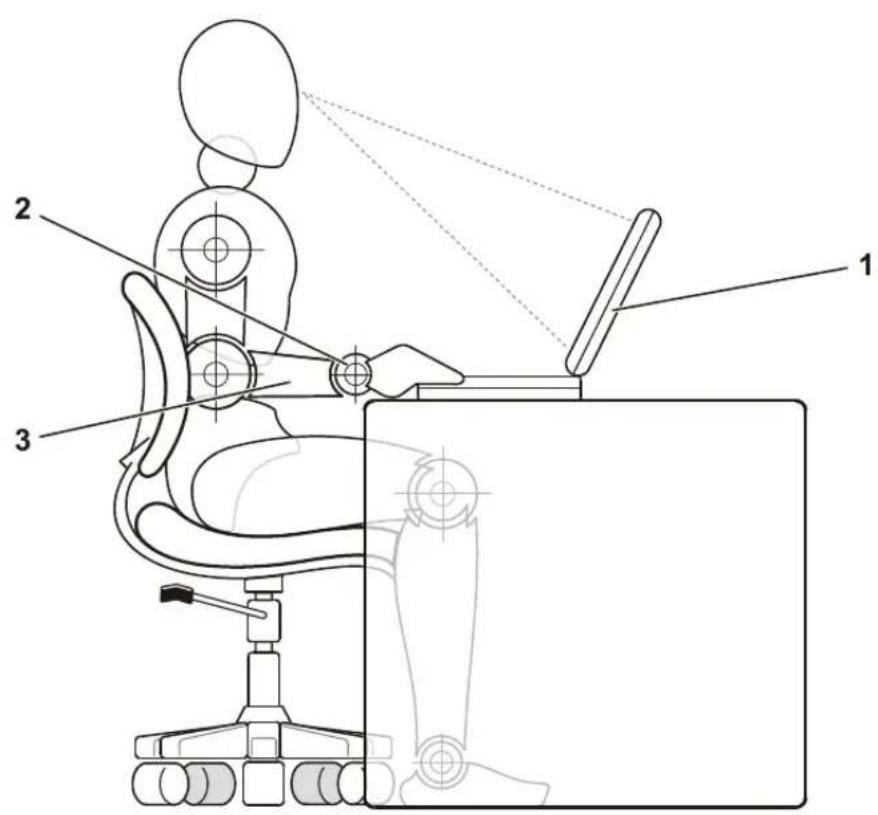
1 Computer positioned directly in front of user
2 Wrists relaxed and flat
3 Arms at desk level
When Removing or Installing Memory Modules
Before removing or installing memory modules, perform the following steps in the sequence indicated.

NOTICE: The only time you should ever access the inside of your computer is when you are installing memory modules.

NOTICE: Wait 5 seconds after turning off the computer before disconnecting a peripheral device or removing a memory module to help prevent possible damage to the system board.
1 Turn off your computer and any attached peripherals.
2 Disconnect your computer and peripherals from electrical outlets to reduce the potential for personal injury or shock. Also, disconnect any telephone or telecommunication lines from the computer.
3 Remove the main battery from the battery compartment and, if necessary, the secondary battery from the modular bay.
4 Ground yourself by touching the unpainted metal surface of the I/O panel on the back of the computer.
While you work, periodically touch the I/O panel to dissipate any static electricity that might harm internal components.
Protecting Against Electrostatic Discharge
Static electricity can harm electronic components inside your computer. To prevent static damage, discharge static electricity from your body before you touch any of your computer's electronic components, such as a memory module. You can do so by touching an unpainted metal surface on the computer's I/O panel.
As you continue to work inside the computer, periodically touch an I/O connector to remove any static charge your body may have accumulated.
You can also take the following steps to prevent damage from electrostatic discharge (ESD):
- When unpacking a static-sensitive component from its shipping carton, do not remove the component from the antistatic packing material until you are ready to install the component. Just before unwrapping the antistatic packaging, be sure to discharge static electricity from your body.
- When transporting a sensitive component, first place it in an antistatic container or packaging.
- Handle all sensitive components in a static-safe area. If possible, use antistatic floor pads and workbench pads.
The following notice may appear throughout your Dell documentation to remind you of these precautions:

NOTICE: See "Protecting Against Electrostatic Discharge" in your System Information guide.
Getting Started
To set up your computer, perform the following steps:
1 Unpack the accessories box (see "Accessories Box Contents").
2 Set aside the contents of the accessories box, which you will need to complete the setup of your computer.
The accessories box also contains user documentation and any software or additional hardware (such as PC Cards, drives, or batteries) you have ordered.
Accessories Box Contents
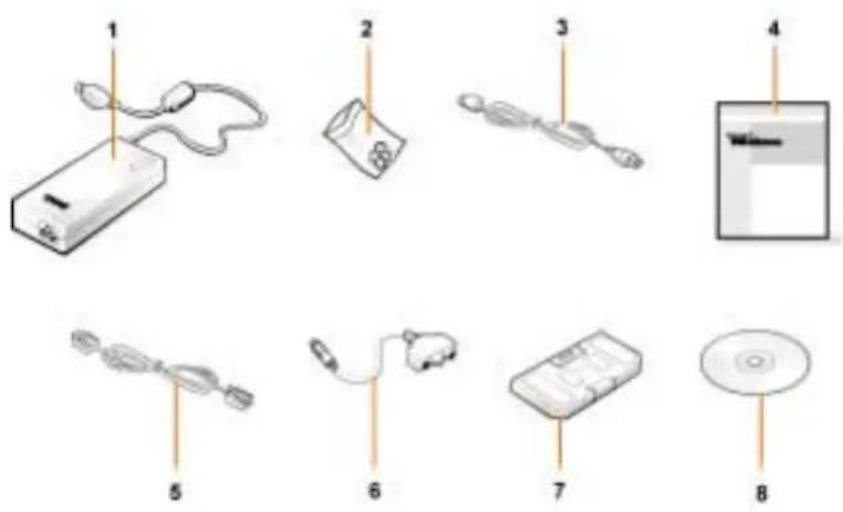
1 AC adapter 5 Cable for optional modem
2 Track stick caps 6 TV/digital audio adapter cable
3 AC adapter power cable 7 Travel module
4 Operating system documentation
8 Drivers and Utilities CD for your computer
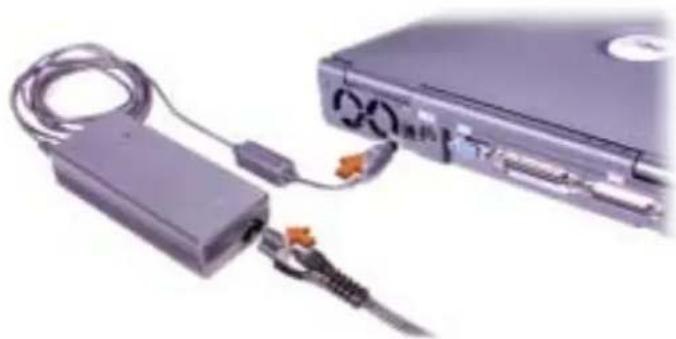
Connecting the AC Adapter
AC Adapter Connection
natural_image
Close-up of a computer setup with a USB cable, connector, and CD-ROM drive (no visible text or symbols)Turning On the Computer
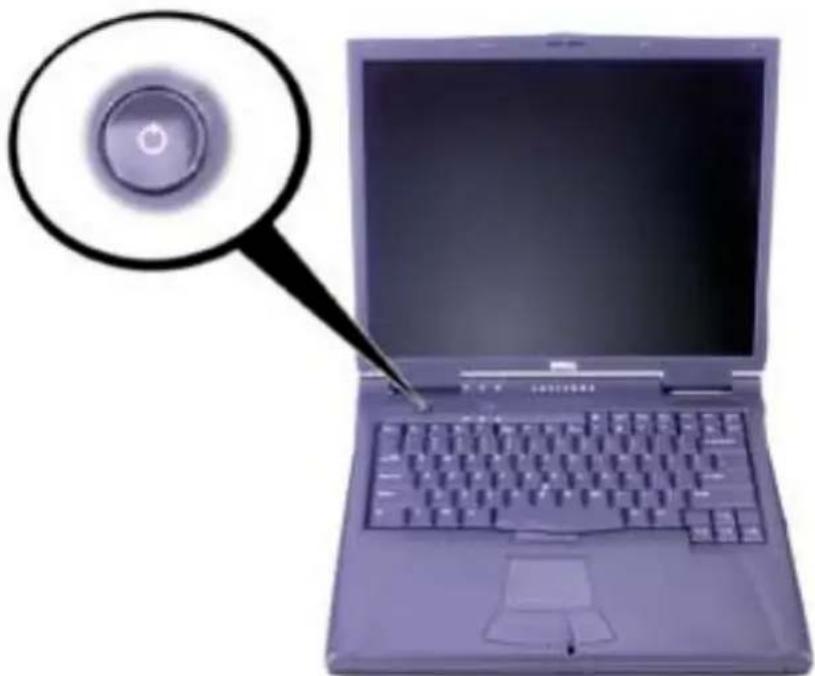
To turn on the computer, open the computer display and press the power button (see "Turning On the Computer").

NOTE: Do not dock the computer until it has been turned on and shut down at least once.
Turning On the Computer
natural_image
Illustration of a laptop with a magnifying glass highlighting the screen (no text or symbols present)Computer Components
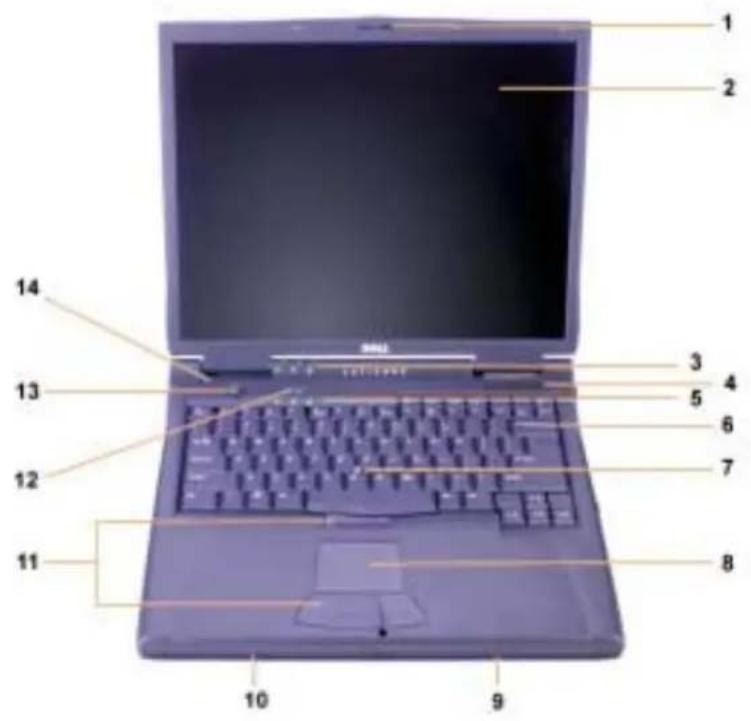
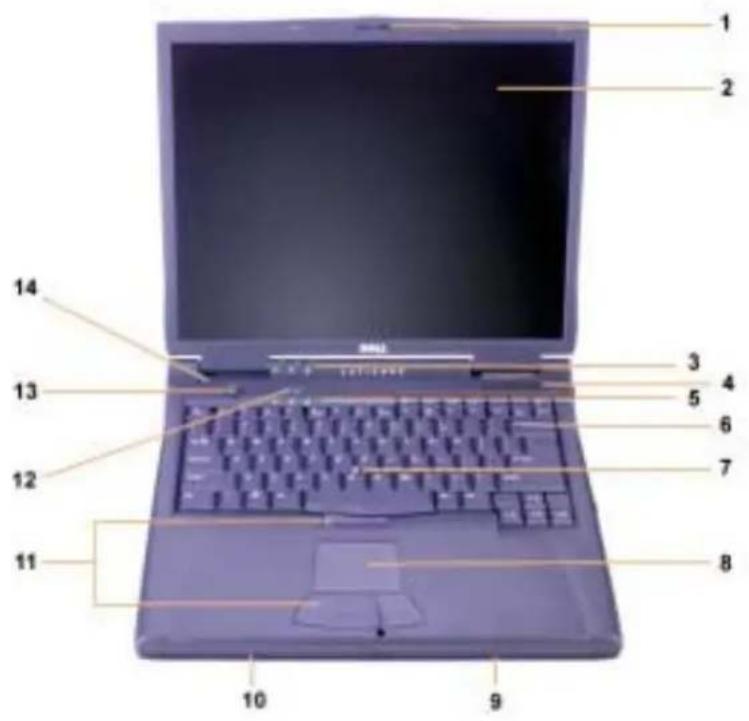
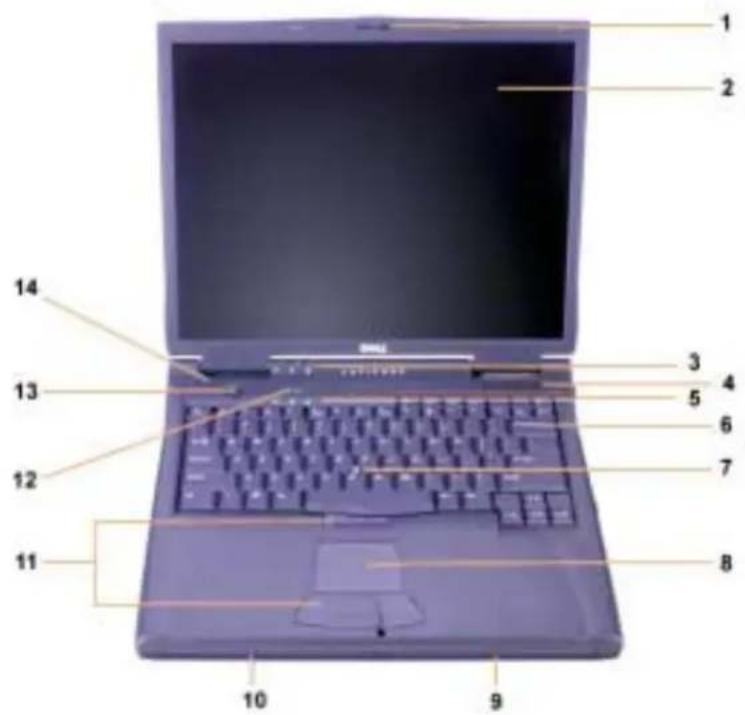
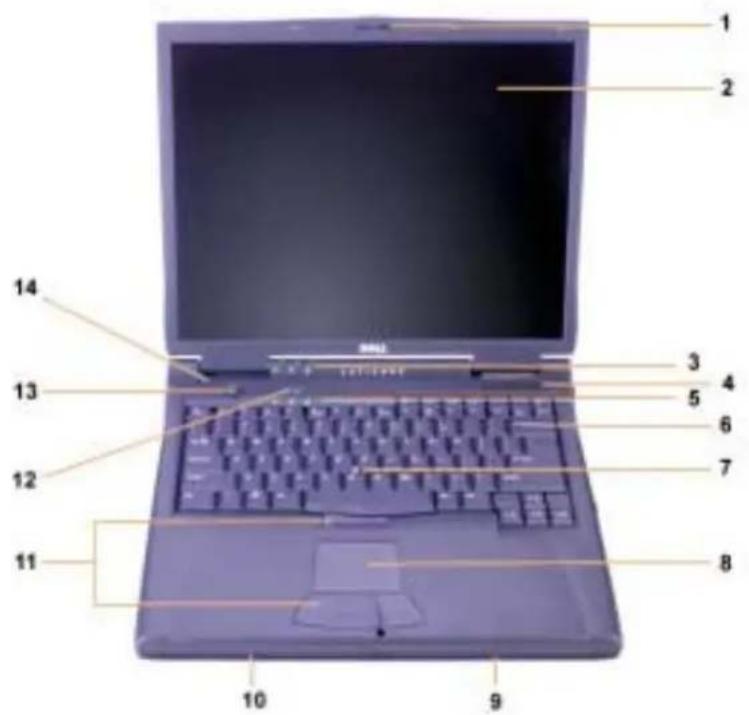
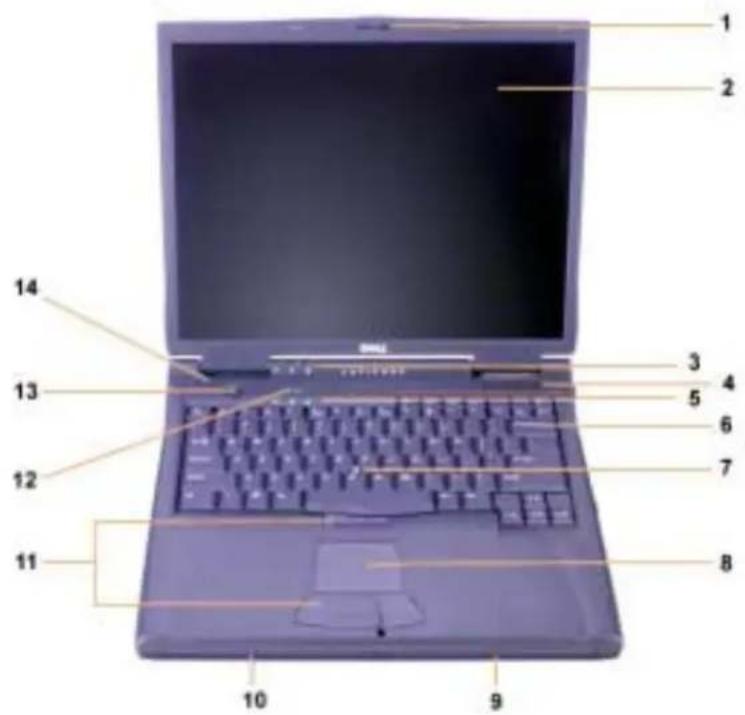
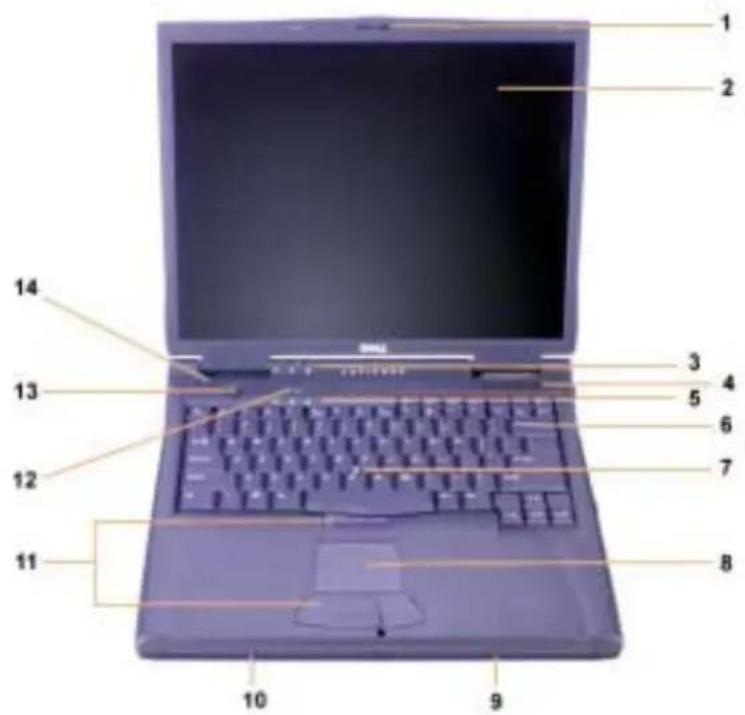
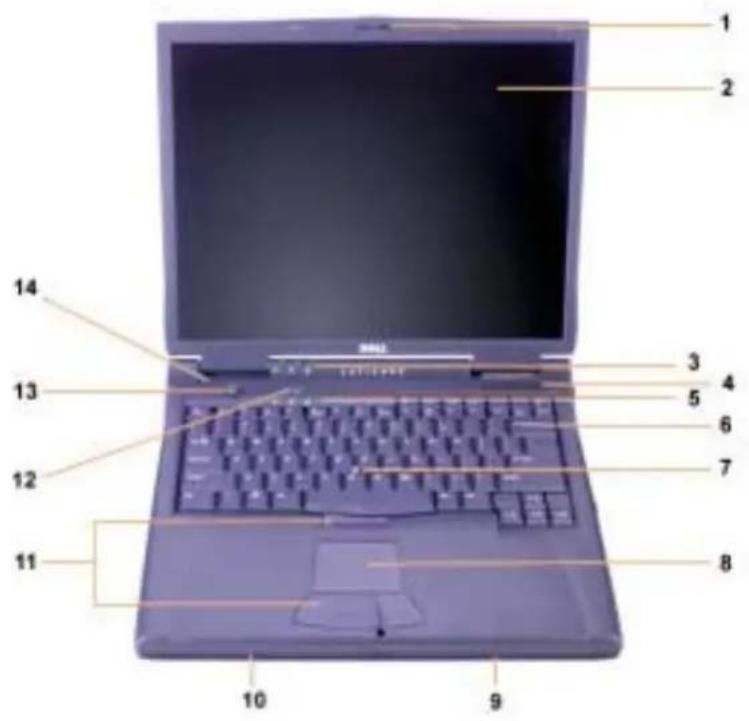
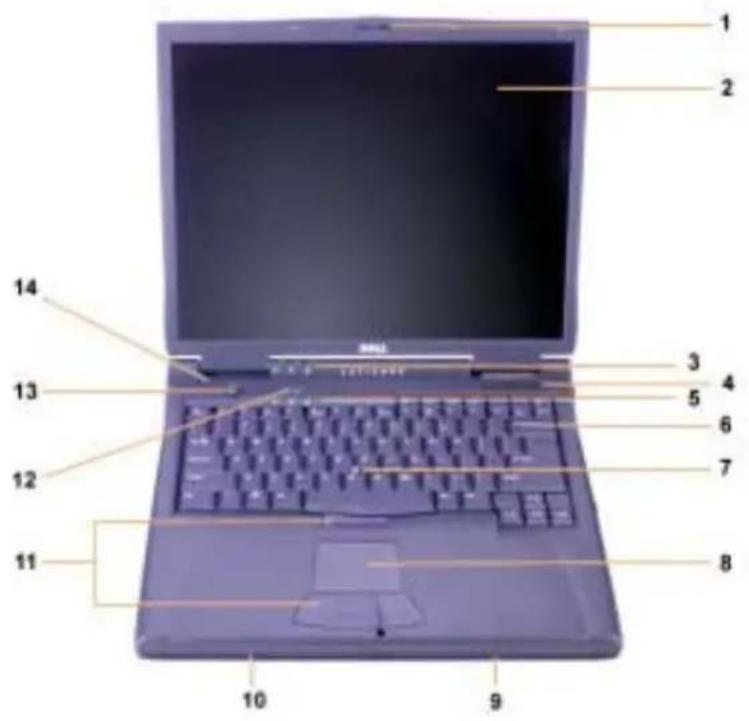
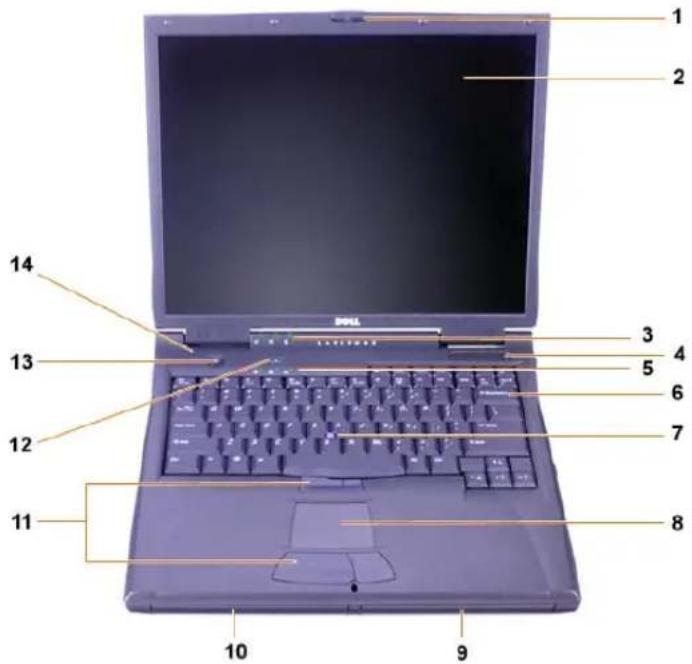
Front View
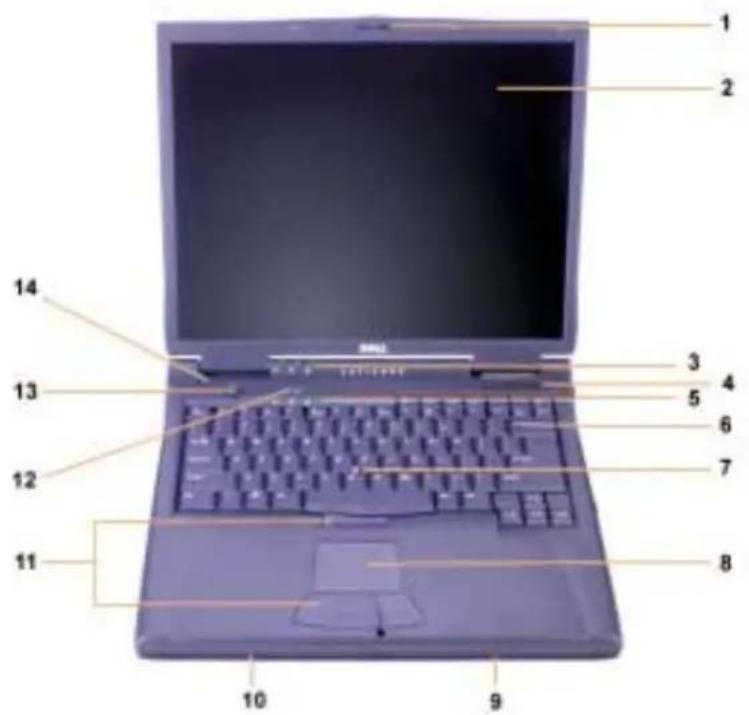
1 Display latch 8 Touch pad
2 Display 9 Battery
3 System status lights 10 Modular bay
4 Air intake 11 Track stick and touch pad buttons
5 Keyboard status lights 12 Dell™ AccessDirect™ key
6
Keyboard
7 Track stick 14 Internal microphone
13
Power
button
Right Side View
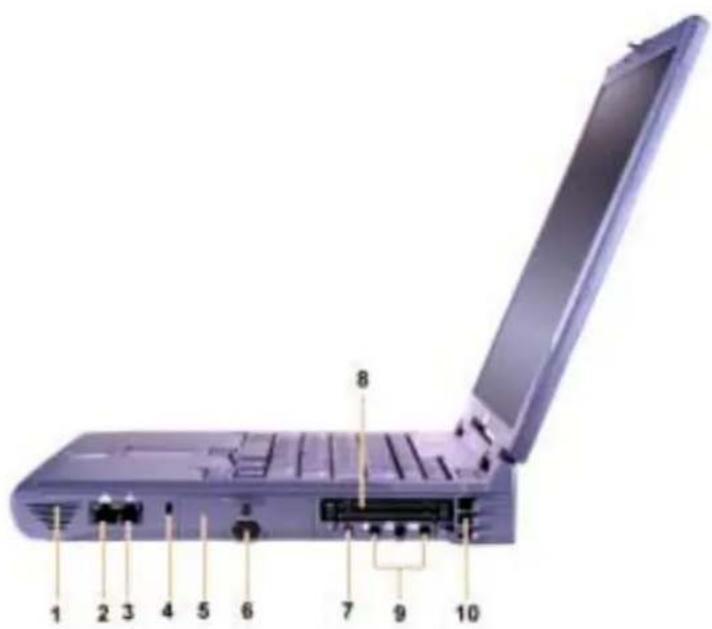
1 Speaker 6 IR sensor
2 Optional network connector 7 IEEE 1394 connector
3 Optional modem connector 8 PC Card slots
4 Security cable slot 9 Audio jacks
5 Hard-disk drive bay 10 Air intake
Back View
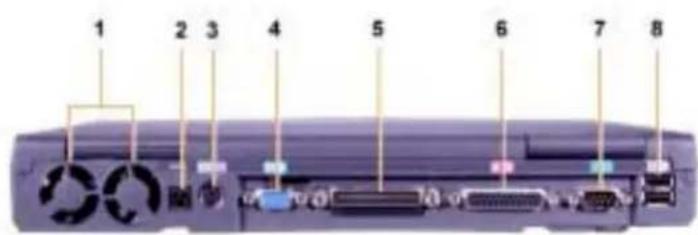
1 Fans 5 Docking connector
2 AC Adapter power connector 6 Parallel connector
3 PS/2 connector (for mouse, 7 Serial connector keyboard, or keypad)
4 Video connector 8 USB connectors
Left Side View
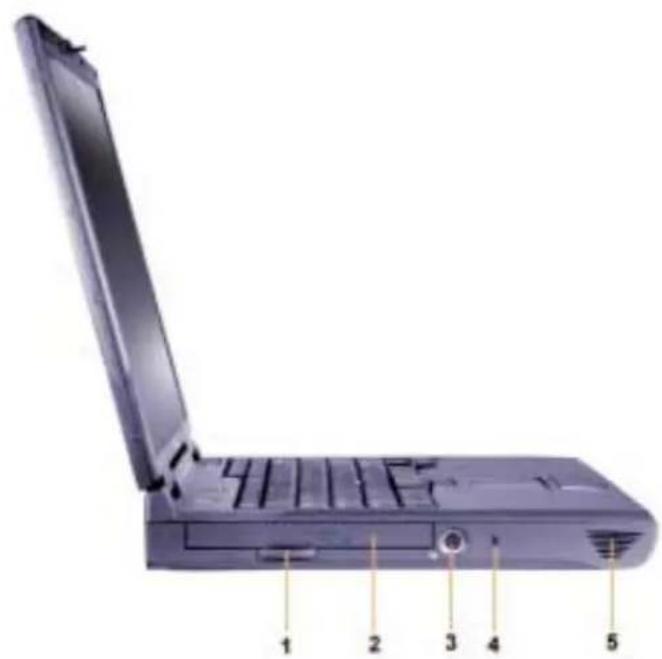
1 Fixed optical drive pull-tab 4 Security cable slot
2 Fixed optical drive 5 Speaker
3 S-video TV-out connector
Replacing the Main Battery

CAUTION: Using the wrong battery type may present a risk of fire or explosion. Replace the battery only with the same or equivalent type purchased from Dell. You can use your computer's battery in any Latitude™ C-Family computer except for the Latitude CS or CSx computers. Do not attempt to use the battery in CS or CSx, and do not use a battery from those computers in your computer.

NOTICE: To avoid data loss, do not replace a battery while the computer is turned on unless the computer is connected to an electrical outlet or a second battery is installed.

NOTICE: Only use lithium ion batteries in your computer. The computer does not support nickel-metal hydride (NiMH) batteries.
Before installing a new battery, check the battery's charge by pressing the battery test button. The battery gauge will not light if the battery is completely drained.
To replace a battery in the battery bay, perform the following steps.

NOTE: For full instructions, see your User's Guide.
1 Save your work and close all open files and application programs.
2 If the computer is docked, undock it.
3 If the modular bay contains a battery, go to step 5.

NOTICE: If you choose to replace the battery with the computer in a standby or hibernate mode, you have up to 2 minutes to complete the battery replacement. After 2 minutes, the computer shuts down and you will lose any unsaved data.
4 If the only battery in the computer is in the battery bay and that is the battery you want to replace, either connect the computer to an electrical outlet or preserve your data in one of these ways.
- Use suspend mode.
- Use hibernate mode.

NOTE: For more information about suspend and hibernate modes, see your User's Guide.
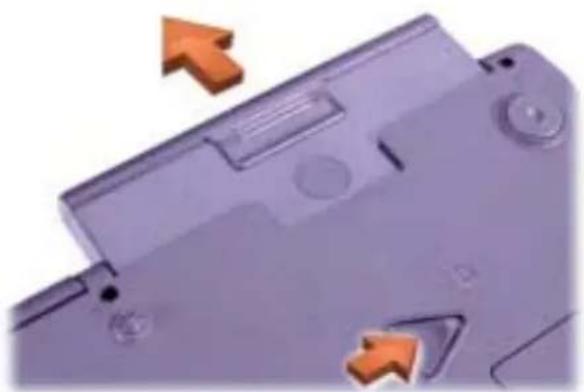
5 Close the computer display, turn the computer over, and remove the battery.
Battery Removal From the Battery Bay
natural_image
Close-up of a purple electronic device casing with orange arrows pointing to specific components (no text or symbols visible)6 Slide the new battery firmly into the battery bay. You should hear a click when the battery is fully seated.
7 Depending on the power management mode the computer is in, press the power button or open the display to resume normal operation.
Regulatory Notices
NOM Information (Mexico Only)
The following information is provided on the device(s) described in this document in compliance with the requirements of the official Mexican standards (NOM):
Exporter: Dell Computer Corporation
One Dell Way
Round Rock, TX 78682
Importer: Dell Computer de México,
S.A. de C.V.
Pasco de la Reforma 2620 - 11° Piso
Col. Lomas Altas
11950 México, D.F.
Ship to: Dell Computer de México,
Avenida Soles No. 55
Supply voltage: 100–240 VAC
Frequency: 50–60 Hz
Current consumption
(maximum): 1.5 A
Output voltage 20 VDC
Output current 3.5 A
(maximum)
Round Rock, TX 78682
Avcnida Soles No. 55
Dell provides a number of tools to help you if your computer does not perform as expected. For information on these help tools, see your User's Guide.
If you have a computer problem and are unable to access the online User's Guide, use the Dell Diagnostics to help you determine the cause of the problem and to help you solve it. The diagnostics are on the Drivers and Utilities CD for your computer.

NOTE: Run the diagnostics before you call Dell's technical support because the diagnostic tests provide information you may need when you call.
To start the diagnostics, perform the following steps:
1 Turn off the computer.
2 Undock the computer if you have it docked.
3 Turn on the computer.
4 Press
NOTE: Write down your current boot sequence in the event that you want to restore it after running the Dell Diagnostics.
5 Select the following boot sequence.
NOTE: You can boot only from a CD-ROM, CD-RW, or DVD-ROM drive installed as a fixed optical drive. You cannot boot from one of these modules installed in the modular bay.
- Boot First Device: Diskette Drive
- Boot Second Device: CD/DVD/CD-RW Drive
- Boot Third Device: Internal HDD
6 Insert the Drivers and Utilities CD into the CD-ROM drive.
7 Turn the computer off.
8 Turn the computer on.
9 When you have completed running the diagnostics, remove the Drivers and Utilities CD from the CD-ROM drive.
To change the boot sequence, repeat steps 1 through 6, customizing the boot sequence to fit your needs. Then restart your computer.
When you start the diagnostics, the Dell logo screen appears, followed by a message telling you that the diagnostics is loading. After the diagnostics loads, the Diagnostics Menu appears.
To select an option from this menu, highlight the option and press
natural_image
Close-up of a network device with attached cable and connector (no visible text or symbols)Zapnutí počítače
natural_image
Illustration of a laptop with a magnifying glass highlighting the screen (no text or symbols present)Součásti počítače
Pohled zepredu
natural_image
Close-up of a purple plastic electronic device with orange arrows indicating directional changes (no text or symbols visible)1 Vekselstrømsadapter 5 Kabel til valgfrit modem
2 Trackstick-hætter 6 Adapterkabel til tv/digital
audio
3 Strømkabel til
7 Rejsemodul
vekselstrømsadapter
natural_image
Close-up of a laptop connected to a power strip and cable, no visible text or symbolsnatural_image
Illustration of a laptop with a magnified circular button highlighting the screen (no text or symbols present)Komponenter i computeren
Forside
natural_image
Close-up of a purple electronic device with orange arrows indicating directional changes (no text or symbols visible)natural_image
Close-up of a computer setup with a USB cable, connector, and CD-ROM drive (no visible text or symbols)natural_image
Illustration of a laptop with a magnified circular button highlighting the screen (no text or symbols present)Tietokoneen osat
natural_image
Close-up of a purple electronic device casing with orange arrows indicating directional changes (no text or symbols)natural_image
Close-up of a laptop connected to a cable with connectors, showing network connection (no text or symbols visible)natural_image
Illustration of a laptop with a magnified circular button highlighting the screen (no text or symbols present)A számítógép részei
Elölnézet
natural_image
Close-up of a purple electronic device with orange arrows pointing to specific components (no text or symbols visible)natural_image
Close-up of a laptop connected to a power strip and cable, showing internal components (no text or symbols visible)Slå på maskinen
natural_image
Illustration of a laptop with a magnifying glass highlighting the screen (no text or symbols present)Komponenter i datamaskinen
Sett forfra
natural_image
Close-up of a purple electronic device casing with orange arrows indicating directional changes (no text or symbols)natural_image
Close-up of a laptop connected to a cable with connectors, showing network connection (no text or symbols visible)Włączanie komputera
natural_image
Illustration of a laptop with a magnified circular button highlighting the screen (no text or symbols present)Składniki komputera
Widok z przodu
natural_image
Close-up of a purple electronic device casing with orange directional arrows indicating movement or force (no text or symbols visible)1
Компьютер
находится
прямо
перед
пользователем
natural_image
Close-up of a network device with attached cable and connector (no visible text or symbols)natural_image
Illustration of a laptop with a magnifying glass highlighting the screen (no text or symbols present)natural_image
Close-up of a purple plastic electronic device with orange arrows pointing to specific components (no text or symbols visible)natural_image
Close-up of a laptop connected to a cable with connectors, showing network connection (no text or symbols visible)Zapnutie počítača
natural_image
Illustration of a laptop with a magnified circular button highlighting the screen (no text or symbols present)Komponenty počítača
Pohlad spredu
natural_image
Close-up of a purple electronic device with orange arrows indicating directional changes (no text or symbols visible)1 Napajalnik 5 Kabel za dodatni modem
natural_image
Close-up of a network device with attached cable and connector (no visible text or symbols)Vklop računalnika
natural_image
Illustration of a laptop with a magnifying glass highlighting the screen (no text or symbols present)Deli računalnika
Pogled od spredaj
natural_image
Close-up of a purple electronic device with orange arrows indicating directional changes (no text or symbols visible)6 Potisnite nov akumulator v ležišče za akumulator. Ko je akumulator v pravilnem položaju, boste zaslišali klik.
natural_image
Close-up of a gray electronic device with cables and connectors, next to a silver laptop (no visible text or symbols)Starta datorn
natural_image
Illustration of a laptop with a magnifying glass highlighting the screen (no text or symbols present)Datorkomponenter
Framifrån
natural_image
Close-up of a purple plastic electronic device with orange arrows pointing to specific components (no text or symbols visible)natural_image
Close-up of a laptop connected to a cable and connector, showing ports and connectors (no visible text or symbols)תְבָרִיַעֹת אּוֹת
natural_image
Laptop with keyboard and mouse, showing a magnified view of the screen (no text or symbols visible)בַרְשָׁה
תְרָה בְאַעֹת
natural_image
Close-up of a purple electronic device with orange arrows pointing to internal components (no text or symbols visible)- Notes, Notices, Cautions
- Dell™ Latitude™ System Information
- Other Documents Available
- Documents on the Web
- Safety and EMC Instructions: Portable Computers
- Safety Instructions
- General
- Power (Safety Instructions, continued)
- Battery (Safety Instructions, continued)
- Air Travel (Safety Instructions, continued)
- EMC Instructions
- When Using Your Computer
- Ergonomic Computing Habits
- When Removing or Installing Memory Modules
- Protecting Against Electrostatic Discharge
- Getting Started
- Connecting the AC Adapter
- Turning On the Computer
- Computer Components
- Right Side View
- Back View
- Left Side View
- Replacing the Main Battery
- Battery Removal From the Battery Bay
- Regulatory Notices
- NOM Information (Mexico Only)
- Zapnutí počítače
- Součásti počítače
- Pohled zepredu
- Komponenter i computeren
- Forside
- Tietokoneen osat
- A számítógép részei
- Elölnézet
- Slå på maskinen
- Komponenter i datamaskinen
- Włączanie komputera
- Składniki komputera
- Zapnutie počítača
- Komponenty počítača
- Pohlad spredu
- Vklop računalnika
- Deli računalnika
- Starta datorn
- Datorkomponenter
- Framifrån
Brand : DELL
Model : Latitude C810
Category : Laptop