
101 CHILDPAD FIGURINE - Kids Tablet ARCHOS - Free user manual and instructions
Find the device manual for free 101 CHILDPAD FIGURINE ARCHOS in PDF.
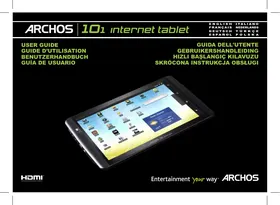


| Product Type | Children's Tablet |
| Brand | ARCHOS |
| Model | 101 CHILDPAD FIGURINE |
| Screen | 10.1 inches, capacitive touchscreen |
| Operating System | Android |
| WiFi Connectivity | Yes (802.11 b/g/n) |
| Camera | Built-in webcam |
| Audio | Speaker, microphone, 3.5mm headphone jack |
| Ports | micro-USB, mini-HDMI, USB host, micro-SD card reader |
| Power | Rechargeable lithium-ion battery, charges via power adapter |
| Buttons | Volume +/-, Power, Home, Menu, Back, Search (virtual + physical buttons) |
| Main Functions | Internet browsing, video/music playback, games, email, camera, AppsLib |
| Pre-installed Applications | Video, Music, Gallery, Web Browser, E-mail, Fring, AppsLib |
| Software Update | Yes, via WiFi or computer (www.archos.com/firmware) |
| Reset | Long press 10s on the ON/OFF button |
| Screen Calibration | Available in settings or via Recovery |
| Expandable Storage | micro-SD card (up to 32 GB, not specified) |
| Box Contents | Tablet, USB cable, power adapter |
| Care and Cleaning | Clean with a soft, dry cloth. Do not use chemical products. |
Frequently Asked Questions - 101 CHILDPAD FIGURINE ARCHOS
User questions about 101 CHILDPAD FIGURINE ARCHOS
0 question about this device. Answer the ones you know or ask your own.
Ask a new question about this device
Download the instructions for your Kids Tablet in PDF format for free! Find your manual 101 CHILDPAD FIGURINE - ARCHOS and take your electronic device back in hand. On this page are published all the documents necessary for the use of your device. 101 CHILDPAD FIGURINE by ARCHOS.
USER MANUAL 101 CHILDPAD FIGURINE ARCHOS
All brands and product names are registered trademarks and the property of their respective owners. Windows Media® and Windows® are trademarks or registered trademarks of Microsoft Corporation in the United States and/or other countries. Android is a trademark of Google Inc. Use of this trademark is subject to Google Permissions. Specifications are subject to change without notice. Errors or omissions excepted. Images and illustrations may not always match contents. All the information contained in this guide was correct at the time of publication.
COPYRIGHT ARCHOS © 2010. All rights reserved.
→ Directly on your ARCHOS On the web at www.archos.com/firmware
The ARCHOS operating system (the system that runs your device) is periodically updated to bring new features, improvements and bug fixes. There are two main ways to update your product's software: directly on your ARCHOS if your device can connect to a WiFi network (Menu > Settings > About device > Firmware update), or with a computer (www.archos.com/firmware).
NEED HELP?

Full Manual & FAQs: The full manual and FAQs (Frequently Asked Questions) are accessible directly from your device's Home screen, on one of the five panels. To access the FAQs, your device must be connected to the Internet (see: Connecting to the WiFi). You can also find them at www.archos.com/support.

Contact our Technical Support Team: Visit www.archos.com/support for e-mail support.
Please register your product before contacting Technical Support: Menu > Settings > About device > Online registration, or with a computer (www.archos.com/register).
As we are often updating and improving our products, your device's software may have a slightly different appearance or modified functionality than presented in this Quick Start Guide.
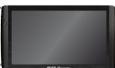
DESCRIPTION OF THE DEVICE
1 Volume buttons
Hardware Reset: In the event that your ARCHOS freezes operation, you can force the device to shut down by holding the ⏻ button for 10 seconds.
Power Button: press and hold to switch on/off.
To put your device in standby (and allow a quick start up), press the Power button once. When you press and hold on the Power button, a window appears with a list of options. Tap on "Power Off" > "Power Off" to fully shut down your ARCHOS.
Charging indicator (when power cable connected) - light on: battery charging / blinking: battery charged
4 Headphones
5 Micro-USB port: to connect your ARCHOS to your computer, using the included USB cable (to transfer files).
Built-in microphone
7 Micro-SD card reader
8 Mini-HDMI video output*
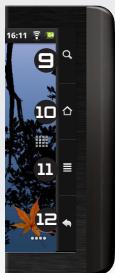
Search - allows you to search for an item on the device or on the Internet.
Home - Short press: return to the Home screen. Hold: jump to one of the recent applications.
11 Menu - gives menu options according to the current screen.
12 Back - returns to the previous screen
USB Host port: to connect a keyboard, a mouse or a mass storage USB device (for example a USB stick).
14 Power connector: to connect the supplied power cable. 15 Webcam
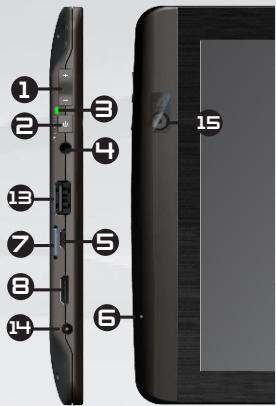
2 ▶ * With optional Mini-HDMI to HDMI cable. See the full user manual to learn more about the video output.
GO!
STARTING UP

Charging the Battery
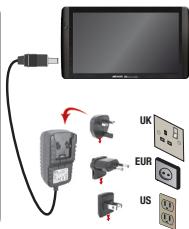
Before using your ARCHOS for the first time, completely charge the battery:
1. Connect the supplied power cable to the ARCHOS Power connector and to a wall outlet. The ARCHOS device will turn on and start charging. 2. The charging indicator light (left side of the device) is on when the battery is charging. It will blink when the battery is charged. It will blink rapidly if there is not enough charge to start the device. Let it charge for another 30 minutes. Note: You can still use the device while charging its battery.

Startup Wizard
The first time you start up your ARCHOS, the installation wizard will bring you through a few screens to help you set up the principal settings: Language, country, time, etc.

Transferring files to your ARCHOS
1. Connect the supplied USB cable to the ARCHOS and to a running computer. The ARCHOS will turn on and ask you if you want to connect it. Tap on Mount to connect it. Within a few seconds the ARCHOS will appear as an icon on your computer. You can transfer your media files to the ARCHOS either by copy/pasting them into the respective folders using Windows® Explorer (or the Finder on a Mac®), or by using Windows Media® Player (Sync tab). Once all your file transfers are finished, close Windows® Explorer and any other program that may have read or written to the ARCHOS. Click on the 'safely remove' icon in the system tray, next to the clock. You can now unplug the USB cable.
▶ See the full user manual to learn how to fully configure your ARCHOS device.
3

First of all, you need to configure a WiFi network. For this procedure to work, you need to be in a WiFi zone that will allow you to connect to it. Every time the ARCHOS is in range of a network that you have already configured once, it will attempt to make a connection.
To configure a new WiFi network, go on the Home screen, tap on the Menu icon, then select Settings
2. In the Settings screen, select Wireless & networks.
Settings

Wireless & networks
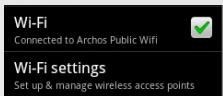
3 If the WiFi is off, tap on the Wi-Fi line to turn it on. Then select Wi-Fi settings. The ARCHOS will scan for available WiFi networks and display them at the bottom of the screen.
4 make the virtual keyboard appear. We recommend that you select Show password, to be able to see the characters you are typing.
Enter the required network information*, tap on Done, and then tap on Connect. Your ARCHOS will now attempt to establish a connection to that WiFi access point with the network parameters you entered.
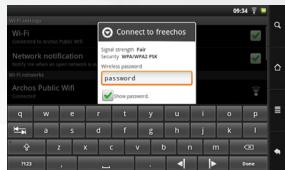
* For free access WiFi points, there is no need to enter any special information. For secured networks, you will need either a key (a series of numbers and/or letters) of the type WEP, WPA, or WPA2. Check with the person who manages the WiFi network to obtain the exact connection parameters required.
4
▶ Consult the full Manual to learn more about the Internet configuration.
When you rotate the product, the built-in accelerometer will automatically switch the screen between landscape and portrait views. Your ARCHOS device is equipped with a touchscreen. Most screen areas will react when you tap on them with your finger.
![graph TD A["Game Icon"] --> B["Game Icon"] B -->|Feedback| A](/content/2019/11/87070/images/04be2e95f2e3ab1a31c747575e0685a447afc823e565b2fb9fe03978894aa5b7.jpg)
Notification icons: tap and hold on the top bar until the notification window appears, then drag it downwards to reveal the notification messages (if any).
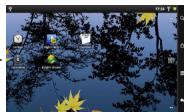
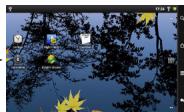
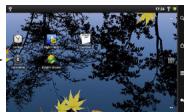
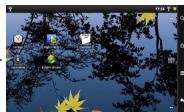
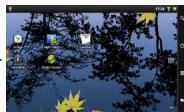
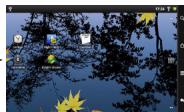
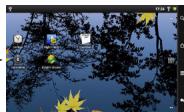
These are the main Android™ applications (Video, Music, Gallery, Web Browser, etc.). Tap on an icon to open the corresponding application. You can customize the Home screen by adding/removing shortcuts and widgets, changing the wallpaper, etc.
Home Screen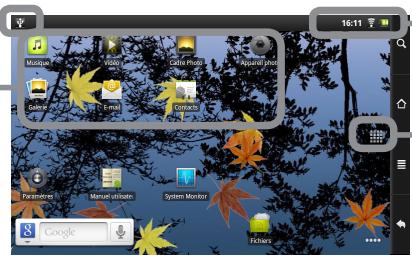
Status icons: (Time, WiFi connection status, battery level, etc.)
Applications Tab
Tap on this icon to reveal all the Android™ applications installed on your ARCHOS (games, various tools, etc.). You can copy them onto the Home screen. You can get more Android™ applications from the AppsLib which can be found on the Home screen.
▶ See the full manual for further information about the interface.

THE ARCHOS INTERFACE
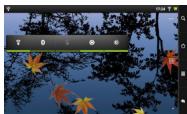
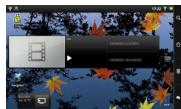
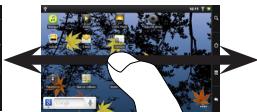
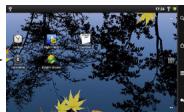
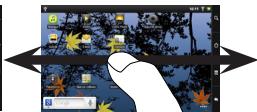
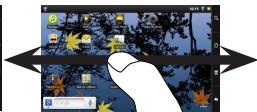
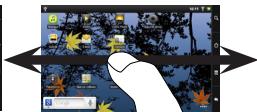
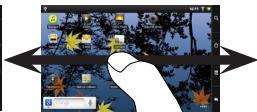
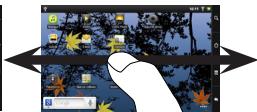
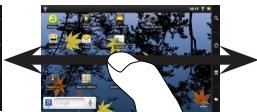
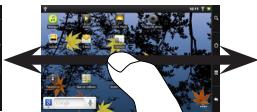
The extended Home screen: Slide your finger horizontally on the screen to navigate between the 5 panels of the extended Home screen.
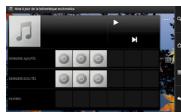
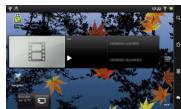
The main applications

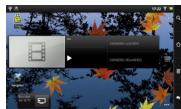
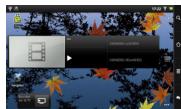
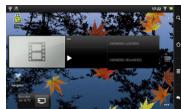
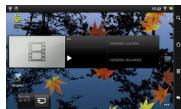
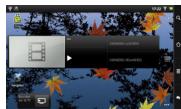
Video: Stop halfway through a video and pick up where you were watching just by tapping on the little "+" symbol, on the right of the file name.

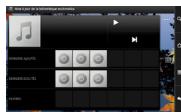
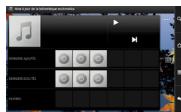
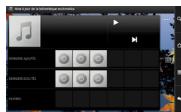
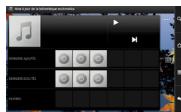
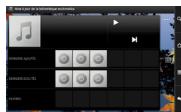
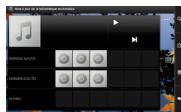
Music: Slide your finger (vertically or horizontally) on the album covers, on the left, to navigate more visually through your albums.

Gallery: View your pictures as a photo wall and then one-by-one, or as a running slideshow. Simply drag your finger horizontally to jump from one photo to another.

Browser: Have multiple pages open at once to jump back and forth between them.

Email: Allows for e-mail accounts of the type POP or IMAP.

Fring™: With this application and the built-in webcam you can make video conference calls.

Changing the Settings: From the Home screen, tap on the Menu icon 📋, tap on Settings 🔒 and choose a category: Wireless & networks, Sound & display, Date & time, etc.

Adding more applications: With the ARCHOS connected to the Internet, tap on the AppsLib icon 📋 on the Home screen. This online library of free and purchasable applications has hundreds of fun games and useful applications to download and use.
6
▶ See the full user manual to learn how to fully configure your ARCHOS device.
TOUCHSCREEN FUNCTIONING
When touchscreen functioning is impaired, you can recalibrate your touchscreen.
- If you can access the Android interface
- In the device homescreen, tap on ☐, then tap on Settings.
- In the Settings screen, tap on Repair & Formatting at the bottom of the menu list.
- In the Repair & Formatting screen, tap on Touchscreen Calibration. A message will tell you to put your ARCHOS down.
- Put the device on a flat surface.
- Tap on Calibrate the touchscreen.
The calibration of the touchscreen starts. Do not touch the product until the calibration is finished.
IMPORTANT: If you do not put the device on a flat surface (e.g. Table), the touchscreen calibration will not be successful.
- If you do not have access to the Android interface
- When turning on the device, hold down + and press ⏻. The ARCHOS Recovery screen is displayed. Use + to switch between options and ⏻ to validate your selection.
- Select Repair system and press ⏻.
- In the Repair system screen, select Force touchscreen calibration and press ⏻.
- Press ⏻ again to confirm. And put your product on a flat surface.
The calibration of the touchscreen starts. Do not touch the product until the calibration is finished.
IMPORTANT: If you do not put the device on a flat surface (e.g. Table), the touchscreen calibration will not be successful.
- At the end of the calibration, press ⏻. The ARCHOS Recovery screen is displayed.
- Select No. Your device will reboot. The touchscreen is now recalibrated.
NOTE: For more information, Refer to the Need help chapter.
APPSLIB : APPLICATION STORE
AppsLib is the application marketplace for Android tablets. Thousands of apps available to download straight to your Android tablet. Check out the best in free and paid-for applications.
Approved apps
Thanks to our approved stamp, you can see which applications have already been tested to work on your tablet by our engineers.

Simple, secure
Completely secure payment via Paypal. Tie your paypal account into AppsLib for hassle free shopping whenever you want.
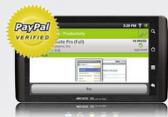
All kinds of applications
Clear and unique categories such as 3D games.

Ratings and comments
Share your opinions. With AppsLib you can rate and comment on your applications for all the AppsLib community to see.

When an update is available, you can:
UPDATE APPSLIB now
- Tap on the AppsLib icon ↓ on the Home screen. The application is opened. An update notification is displayed. 2. Tap on Update Now. The update starts. 3. Follow the on-screen instructions.
- At the end of the installation, tap on Open.
NOTE: Download Appslib at www.appslib.com
UPDATE APPSLIB later
- Tap on the AppsLib icon ↓ on the Home screen. The application is opened. An update notification is displayed.
- Tap on Update Later. You can access the application categories and download. Appslib will be listed on your My Apps list. Tap on it to update. As long as you do not update, a notification will be displayed whenever you open Appslib.
15 Webcam
3
26



36
42

Installation wizard

44
Notification icons:

Safe and easy
Update AppsLib later
50

Installation wizard
Main applications

All applications

Installation wizard
3
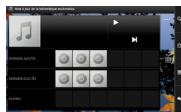
Main applications:

Update AppsLib later
Declaration of conformity
| Company | ARCHOS S.A. |
| Address | 12, rue Ampere 91430 Igny |
| Country | France |
| Telephone number | +(86)13509217854 |
| Telefax number | +(86)13509217854 |
| wlxie@archos.com | |
| Certify and declare under our responsibility that the following product: | |
| Product Description | A10.1 Internet Tablet |
| Manufacturer | ARCHOS S.A. |
| Brand Name | ARCHOS |
| Model/Type | 8000 |
| Is tested to and conforms with the essential test suites included in the following standards, which are in force within the EEA: | ||
| Standard | Issue date | Reference to report/file |
| EN 301 489-17 | 2008 | CE10-RTE091603 |
| EN 301 489-1 | 2008 | CE10-RTE091603 |
| EN 300 328 | 2006 | CE10-RTE091602 |
| EN 50371 | 2002 | CE10-RTE091605 |
| EN 55022 | 2006+A1:2007 | CE10-ITE091604 |
| EN 55024 | 1998+A1:2001+A2:2003 | CE10-ITE091604 |
| EN 61000-3-2 | 2006 | CE10-ITE091604 |
| EN 61000-3-3 | 2008 | CE10-ITE091604 |
| EN 60950-1 | 2006+A11:2009 | CE10-RTE0921S |
| And therefore complies with the essential requirements of the following directives: | |||
| Directive Name | Directive number | Further identification | |
| R&TTE Directive | 99/5/EC | ||
| LVD Directive | 2006/95/EC | ||
| EMC Directive | 2004/108/EC | ||
| The technical documentation as required by the conformity assessment procedure is kept at the following address for a period ending at least 10 years after the last product has been manufactured at the disposal of the relevant national authorities of any Member State for inspection: | |||
| Product is CE-marked in Europe | Date 2010.08.12 | [2662] | |
National restrictions
This device is intended for home and office use in all EU countries (and other countries following the EU directive 1999/5/EC) without any limitation except for the countries mentioned below:
| Country | Restriction | Reason/remark |
| Bulgaria | None | General authorization required for outdoor use and public service |
| France | Outdoor use limited to 10 mW e.i.r.p. within the band 2454-2483.5 MHz | Military Radiolocation use. Refarming of the 2.4 GHz band has been ongoing in recent years to allow current relaxed regulation. Full implementation planned 2012 |
| Italy | None | If used outside of own premises, general authorization is required. |
| Luxembourg | None | General authorization required for network and service supply (not for spectrum) |
| Norway | Implemented | This subsection does not apply for the geographical aera within a radius of 20 km from the centre of Ny-Alesund |
| Russian Federation | None | Only for indoor applications |
Note: Frequency 2454-2483.5 MHz is restricted to indoor use in France.
See the declaration of conformity at http://www.archos.com/products/declaration_conformity.html
FCC RF RADIATION EXPOSURE AND SAR STATEMENTS
SAR Statement
This device has been tested for body-worn Specific Absorption Rate (SAR) compliance. The FCC has established detailed SAR requirements and has determined that this device meets those requirements.
RF Exposure Information
The radio module has been evaluated under FCC Bulletin OET 65C (01-01) and found to be compliant with the requirements set forth in CFR 47 Sections 2.1093 and 15.247(b)(4) addressing RF exposure from radio frequency devices. This model meets the applicable government requirements for exposure to radio frequency waves. The highest SAR level measured for this device was 0.939 W/kg.

- NEED HELP
- DESCRIPTION OF THE DEVICE
- GO
- STARTING UP
- CHARGING THE BATTERY
- STARTUP WIZARD
- TRANSFERRING FILES TO YOUR ARCHOS
- APPLICATIONS TAB
- THE ARCHOS INTERFACE
- THE MAIN APPLICATIONS
- TOUCHSCREEN FUNCTIONING
- IF YOU CAN ACCESS THE ANDROID INTERFACE
- IF YOU DO NOT HAVE ACCESS TO THE ANDROID INTERFACE
- APPSLIB : APPLICATION STORE
- APPROVED APPS
- SIMPLE, SECURE
- ALL KINDS OF APPLICATIONS
- RATINGS AND COMMENTS
- UPDATE APPSLIB NOW
- UPDATE APPSLIB LATER
- INSTALLATION WIZARD
- NOTIFICATION ICONS
- SAFE AND EASY
- MAIN APPLICATIONS
- ALL APPLICATIONS
- DECLARATION OF CONFORMITY
- NATIONAL RESTRICTIONS
- FCC RF RADIATION EXPOSURE AND SAR STATEMENTS
- SAR STATEMENT
- RF EXPOSURE INFORMATION
Brand : ARCHOS
Model : 101 CHILDPAD FIGURINE
Category : Kids Tablet