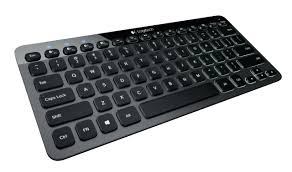
K810 BLUETOOTH ILLUMINATED KEYBOARD - Gaming Keyboard LOGITECH - Free user manual and instructions
Find the device manual for free K810 BLUETOOTH ILLUMINATED KEYBOARD LOGITECH in PDF.

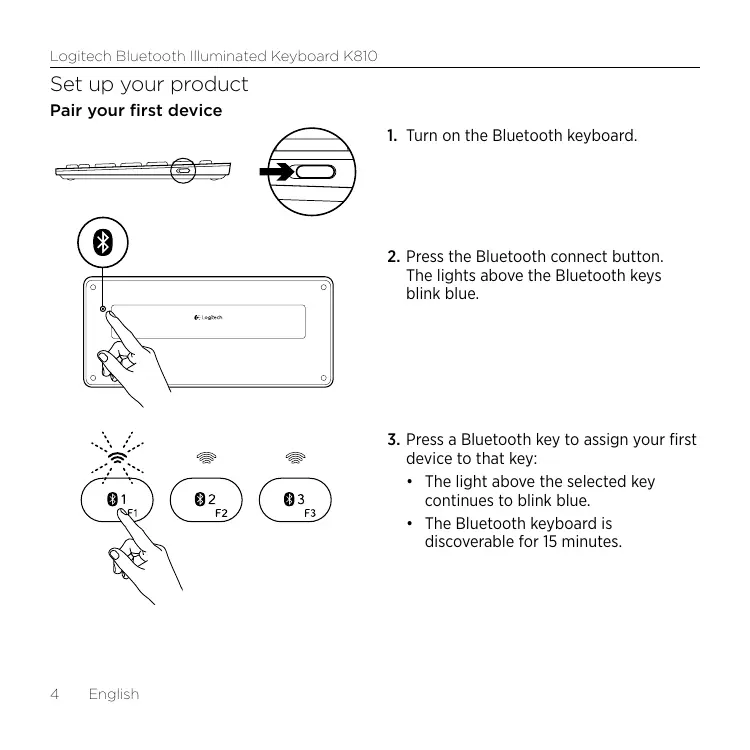


| Product type | Illuminated Bluetooth keyboard |
| Brand | Logitech |
| Model | K810 |
| Connectivity | Bluetooth 3.0 |
| Connectable devices | Up to 3 devices simultaneously |
| Backlighting | Automatic with presence and ambient light detection |
| Power | Lithium-ion rechargeable battery (charges via micro-USB) |
| Battery life | Approximately 10 days with backlighting (2 hours/day) or 1 year without |
| Charging time | Approximately 3 hours |
| Compatibility | Windows, iOS, Android |
| Function keys | Customizable via Logitech software (Windows) |
| Multimedia keys | Play/Pause, Mute, Volume +/-, Home, Calculator, etc. |
| Dimensions (approx.) | 290 x 120 x 20 mm |
| Weight (approx.) | 350 g |
| Maintenance and cleaning | Clean with a soft, dry cloth |
| Spare parts and repairability | Replaceable battery (procedure described in the manual) |
| General information | PDF manual available for free online |
Frequently Asked Questions - K810 BLUETOOTH ILLUMINATED KEYBOARD LOGITECH
User questions about K810 BLUETOOTH ILLUMINATED KEYBOARD LOGITECH
0 question about this device. Answer the ones you know or ask your own.
Ask a new question about this device
Download the instructions for your Gaming Keyboard in PDF format for free! Find your manual K810 BLUETOOTH ILLUMINATED KEYBOARD - LOGITECH and take your electronic device back in hand. On this page are published all the documents necessary for the use of your device. K810 BLUETOOTH ILLUMINATED KEYBOARD by LOGITECH.
USER MANUAL K810 BLUETOOTH ILLUMINATED KEYBOARD LOGITECH
Logitech® Bluetooth® Illuminated Keyboard K810 Setup Guide
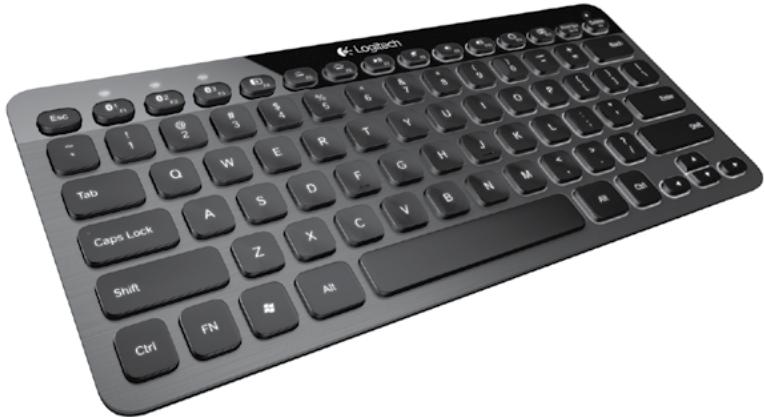
English. 3 1945 23
Deutsch 13 Italiano. 33
www.logitech.com/support 43
Know your product
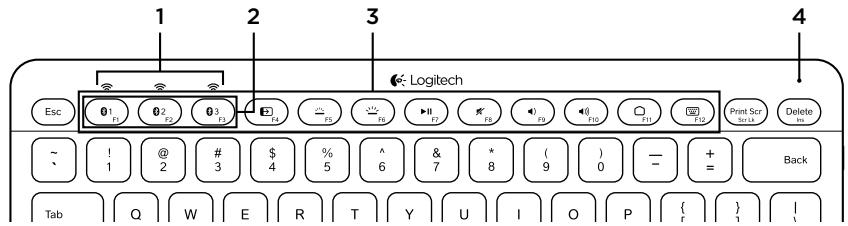
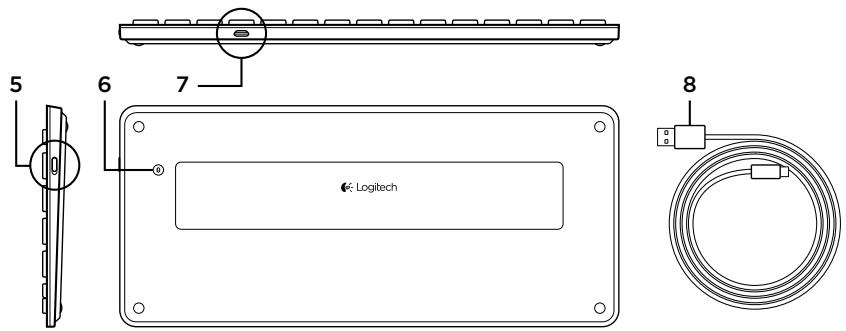
- Bluetooth® status lights
- Bluetooth keys
- Function keys
-
Battery status light
-
On/Off switch
- Bluetooth connect button
- Micro-USB port
- Micro-USB charging cable
Set up your product
Pair your first device
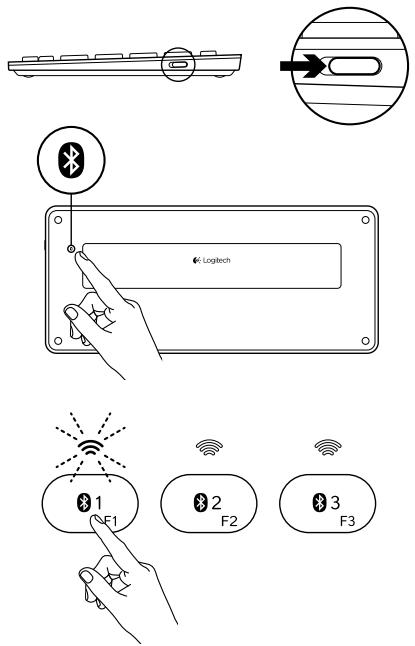
- Turn on the Bluetooth keyboard.
-
Press the Bluetooth connect button. The lights above the Bluetooth keys blink blue.
-
Press a Bluetooth key to assign your first device to that key:
-
The light above the selected key continues to blink blue.
-
The Bluetooth keyboard is discoverable for 15 minutes.
-
Complete Bluetooth pairing on your device:
Windows® 7 and 8:
a. Go to Control Panel > Devices and Printers.
b. Click "Add a device."
c. Choose "Logitech K810" from the device list.
d. Click "Next," and follow the on-screen instructions.
Apple iOS® (iPad® or iPhone®):
a. In Settings, choose General >Bluetooth, and then turn on Bluetooth.
b. Choose "Logitech K810" from the Devices menu.
Android
a. In Settings, choose Wireless and network > Bluetooth settings, and then turn on Bluetooth.
b. Choose "Logitech K810" from "Bluetooth devices."
Note: If your mobile device requests a PIN, enter the code using the Bluetooth keyboard and not the virtual keyboard on your mobile device.
The Bluetooth keyboard and your device are now paired. The light above the Bluetooth key you have selected turns blue for 30 seconds.
For Windows, to customize the function keys and to specify backlight settings, download and install software at www.logitech.com/support/k810.
Pair or reassign a Bluetooth key to another device
Pair up to three compatible devices with the Bluetooth keyboard.
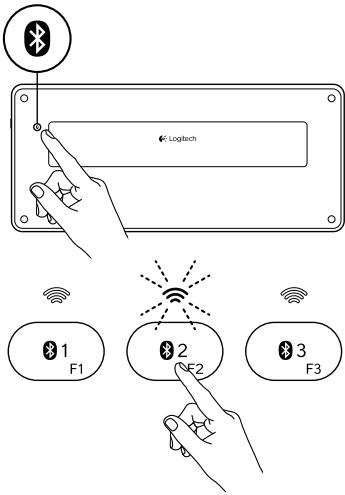
- Make sure the keyboard is on.
-
Press the Bluetooth connect button. The lights above the Bluetooth keys rapidly blink blue.
-
Press a Bluetooth key to assign your device to that key. For example, if you already paired a device to Bluetooth key 1, press the Bluetooth key 2.
-
The light above the selected key continues to blink blue.
The keyboard is discoverable for 3 minutes. -
Go to "Pair your first device" and follow step 4 to complete Bluetooth pairing.
Note: After you press the Bluetooth connect button, the lights above the Bluetooth keys blink blue. All three Bluetooth keys can be assigned or reassigned, and the Bluetooth keyboard is discoverable for 3 minutes.
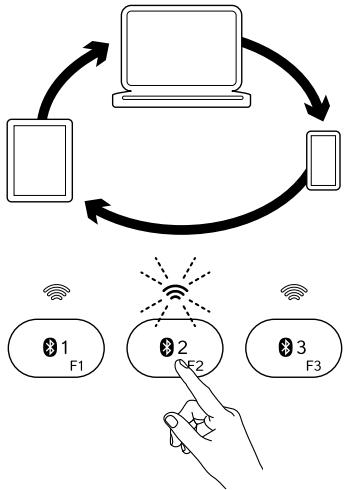
Switching among paired devices
To select a paired device:
- Press the Bluetooth key (1, 2, or 3) associated with it.
- The light above the selected key blinks blue, indicating the Bluetooth keyboard is connecting.
- The light turns solid blue for 5 seconds, indicating the connection has been made.
- For example, if a device is paired with the Bluetooth 2 key, press that key to use the device with the Bluetooth keyboard.
Note: Only one device can be active at a time.
Charge the batteries
A three-hour charge provides up to 10 days of use when you type about two hours a day with the backlight on, or about one year without backlight. You can use the Bluetooth keyboard while it charges.
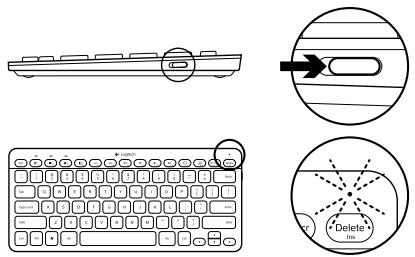
To check battery power and to charge the keyboard, do the following:
-
Turn on the Bluetooth keyboard.
-
Battery Status light flashes green: the battery has an adequate charge.
- Battery Status light flashes red: recharge the battery. Go to step 2.
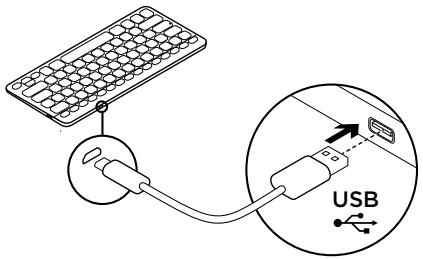
- Connect the Bluetooth keyboard to a computer using the Micro-USB charging cable. The Battery Status light will pulse green. Charge for 1 to 3 hours, or until the Battery Status light turns off.
Note: If the battery power is critically low, the keyboard backlight is disabled and the battery status light will blink red
Visit Product Central
There's more information and support online for your product. Take a moment to visit Product Central to learn more about your new Bluetooth keyboard.
Browse online articles for setup help, usage tips, or information about additional features. If your Bluetooth keyboard has optional software, learn about its benefits and how it can help you customize your product.
Connect with other users in our Community Forums to get advice, ask questions, and share solutions.
At Product Central, you'll find a wide selection of content
- Tutorials
- Troubleshooting
- Support community
- Software downloads
Online documentation
Warranty information - Spare parts (when available)
Go to www.logitech.com/support/k810
Use your product

Function and media keys
- Bluetooth keys 1, 2 and 3 Pair up to three compatible devices.
- Application switch Cycles through open apps.
- Decrease (F5) and Increase (F6) keyboard backlight intensity
-
Play/Pause
-
Mute
- Volume down
- Volume up
- Home
- Multifunction key
Calculator Windows only
Show/Hide virtual keyboard iOS only
F-keys: F1 to F12 To use in Windows, press and hold the Fn key, and then press an F-key. Customizable with optional software. See "Software for Windows."
Software for Windows
Download and install the Logitech Software for F-key functionality and customization; also specify backlight settings. Go to www.logitech.com/support/k810
Keyboard backlight
Keyboard sensors detect your hands, turning the backlight on and off. The backlight adjusts automatically to the level of your room light. Bright light and low battery power cause the backlight to turn off, which helps conserve battery power. In bright light, the F5 and F6 keys are disabled.
Automatic backlight control turns off when you use the F5 or F6 keys to adjust backlight intensity. You can restore automatic backlight control by turning the keyboard off then on. If the keyboard is idle for two hours or more, automatic backlight control is restored automatically.
Troubleshooting
Keyboard not working
- Slide the On/Off switch to Off then to On.
- If the Battery Status light flashes red, recharge the batteries. For more information, see "Charge the batteries."
- Go to Bluetooth settings on your device to check if "Logitech K810" is present. If it is, remove it. Then follow steps 2-4 in "Pair your first device" to redo Bluetooth pairing. If you're using custom Bluetooth hardware and software, refer to your product documentation to resolve any Bluetooth issues.
What do you think?
Please take a minute to tell us. Thank you for purchasing our product.
www.logitech.com/ithink
Battery disposal at product end of life
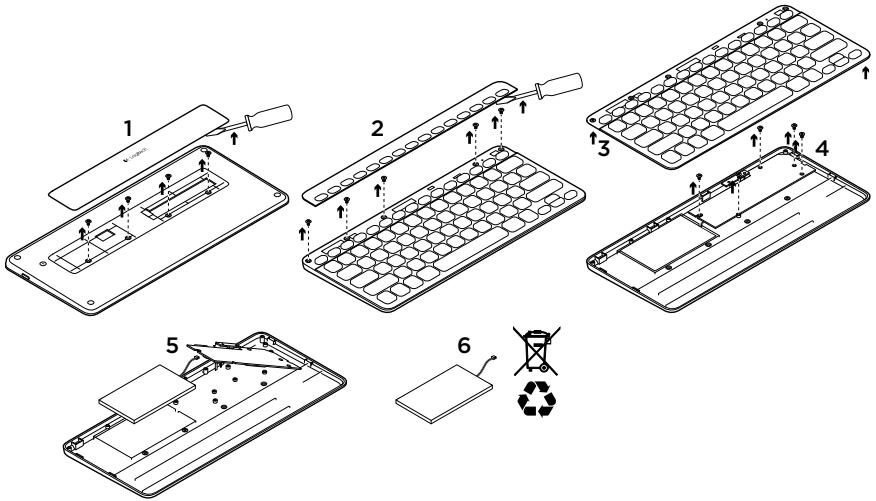
- On keyboard bottom, pry off cover and remove 4 screws.
- On keyboard top, pry off cover surrounding F-keys and remove 5 screws.
- Separate top and bottom cases.
- Remove 5 screws securing circuit board.
-
On bottom of circuit board, remove battery cable. Remove battery from bottom case.
-
Dispose of battery and product according to local laws.
12 English
www.logitech.com/support/k810
Belgie/Belgue Dutch: +32-(0)2 200 64 44;
French: +32-(0)2 200 64 40
Česka Republika +420 239 000 335
Italy +39-02-91 48 30 31
European, English: +41-(0)22 761 40 25
Mid. East., & Fax: +41-(0)218635402
African Hq.
Morges, Switzerland
Eastern Europe English: 41-(0)227614025
United States +1646-454-3200
Argentina +0800 555 3284
Brasil +0800 891 4173
Canada +1-866-934-5644
Chile +1230 020 5484
Colombia 01-800-913-6668
Latin America +1800-578-9619
Mexico 01.800.800.4500
www.logitech.com


- Logitech® Bluetooth® Illuminated Keyboard K810 Setup Guide
- Know your product
- Set up your product
- Pair your first device
- Windows® 7 and 8:
- Apple iOS® (iPad® or iPhone®):
- Android
- Pair or reassign a Bluetooth key to another device
- Charge the batteries
- Visit Product Central
- Use your product
- Function and media keys
- Software for Windows
- Keyboard backlight
- Troubleshooting
- Keyboard not working
- Battery disposal at product end of life
- English
- www.logitech.com/support/k810
Brand : LOGITECH
Model : K810 BLUETOOTH ILLUMINATED KEYBOARD
Category : Gaming Keyboard