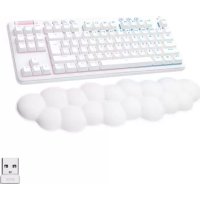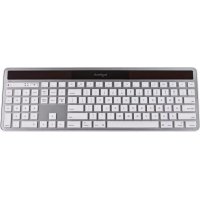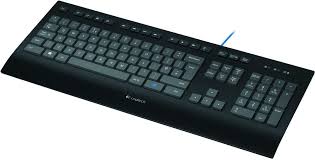
COMFORT KEYBOARD K290 - Gaming Keyboard LOGITECH - Free user manual and instructions
Find the device manual for free COMFORT KEYBOARD K290 LOGITECH in PDF.



User questions about COMFORT KEYBOARD K290 LOGITECH
0 question about this device. Answer the ones you know or ask your own.
Ask a new question about this device
Download the instructions for your Gaming Keyboard in PDF format for free! Find your manual COMFORT KEYBOARD K290 - LOGITECH and take your electronic device back in hand. On this page are published all the documents necessary for the use of your device. COMFORT KEYBOARD K290 by LOGITECH.
USER MANUAL COMFORT KEYBOARD K290 LOGITECH
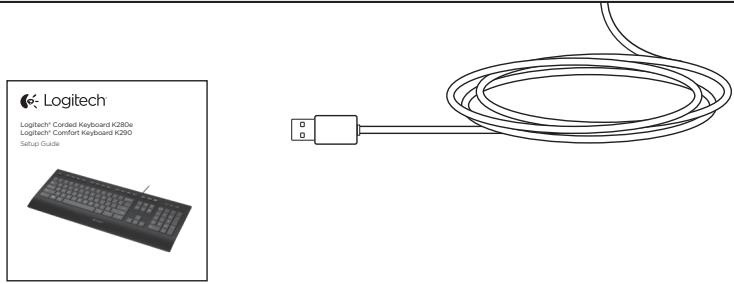
Logitech® Cored Keyboard K280e Logitech® Comfort Keyboard K290
Setup Guide

Contents
English. 4 Lietuviu 34
Francais 7 Hrvatski 37
Nederlands 10 Srpski 40
Eληνικα. 13 Slovenšcina 43
Iop-ycckn. 16 Slovencina. 46
Magyar 19 Română 49
Česká verze. 22 Šělárapské. 52
Po polsku 25 yKpaHcKa 55
Eesti 28 Turkce 58
Latviski 31 61.
www.logitech.com/support 67
Set up your product
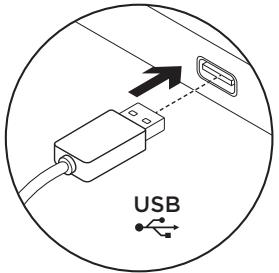
- Turn on your computer.
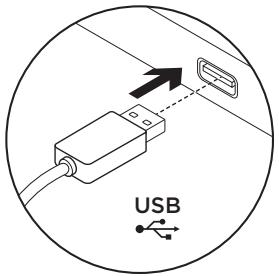
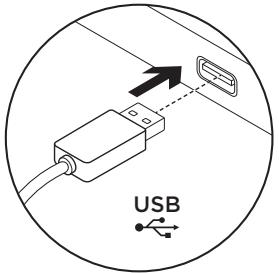
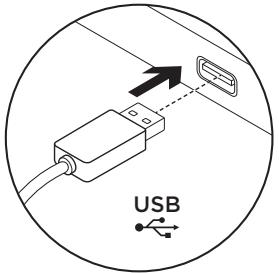
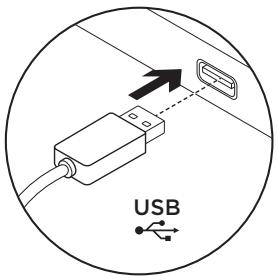
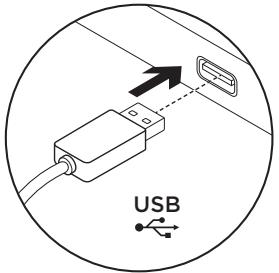
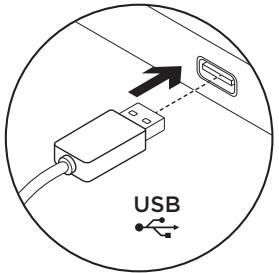
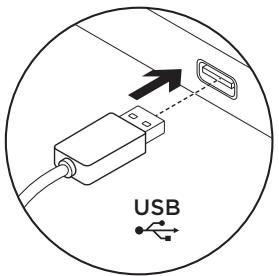
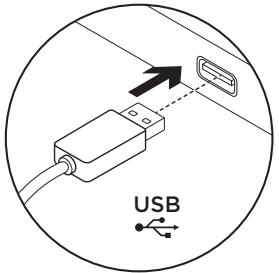
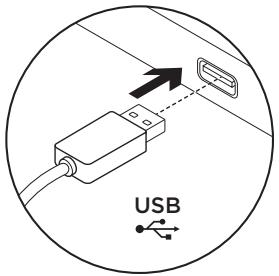
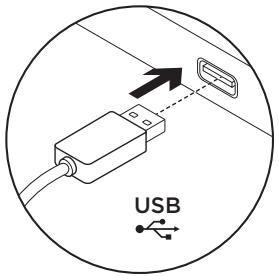
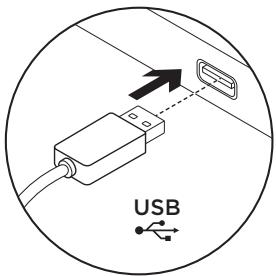
- Connect the keyboard to a USB port.
Visit Product Central
There's more information and support online for your product. Take a moment to visit Product Central to learn more about your new keyboard.
Browse online articles for setup help, usage tips, or information about additional features. If your keyboard have optional software, learn about its benefits and how it can help you customize your product.
Connect with other users in our Community Forums to get advice, ask questions, and share solutions.
At Product Central, you'll find a wide selection of content:
- Tutorials
- Troubleshooting
Support community - Software downloads
Online documentation
Warranty information - Spare parts (when available)
Go to
www.logitech.com/support/k280e
www.logitech.com/support/k290
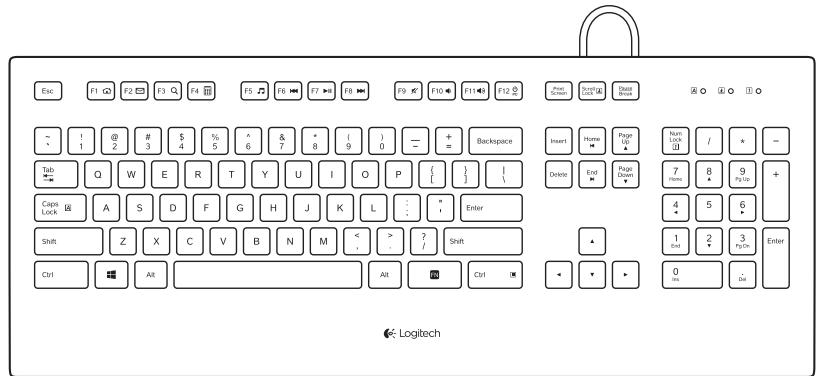
Function keys
The function keys available depend on which keyboard you have.
To identify your keyboard, look at the label fixed to the bottom.
Corded Keyboard K280e

To select a function key such as F1, just press the F-key.
To select a feature, press and hold the blue FN key on the bottom row of the keyboard, then press the F-key. The following features are available:
Fn+F1=Home Fn+F7=Play/Pause
Fn + F2 = Launch Email Fn ^+ F8 = Next Track
Fn + F6 = Previous Track Fn + F12 = PC Sleep
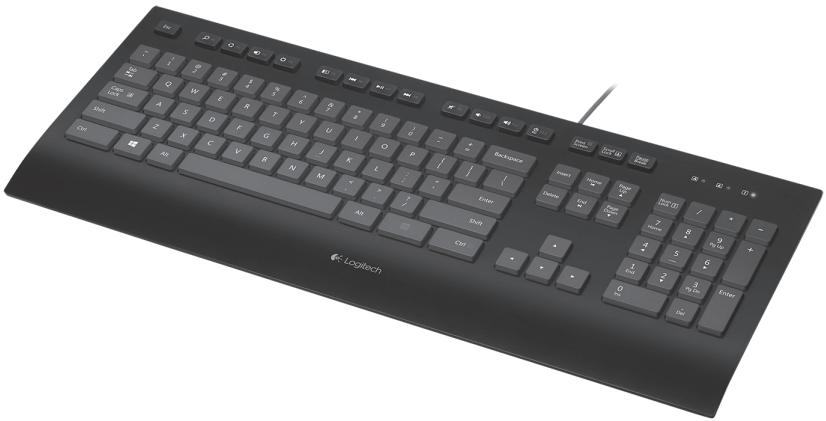
Comfort Keyboard K290

To select a function key such as F1, press and hold the blue FN key on the bottom row of the keyboard, and then press the F-key.
To select a feature, just press the F-key. The following features are available:
F1 = Search F7 = Play/Pause
F2 = Share F8 = Next Track
F3 = Devices F9 = Mute
F4 = Settings F10 =Volume down
F5 = Switch applications F11 = Volume up
F6 = Previous Track F12 = PC Sleep
Windows 8 feature.
Use the Logitech SetPoint software to map these keys to other functions.
You can download SetPoint from
www.logitech.com/support/k280e
www.logitech.com/support/k290
Troubleshooting
Keyboard does not work
- Check the USB cable connection.
- Use another USB port.
- Connect directly to the computer and don't use a USB hub.
- If the keyboard still doesn't work, please restart your computer.
What do you think?
Please take a minute to tell us.
Thank you for purchasing our product.
www.logitech.com/ithink
Coredd Keyboard K280e

Fn + F7 = Lecture/Pause
www.logitech.com/ithink
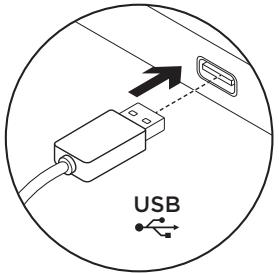
Uw product instellen
Coredd Keyboard K280e

www.logitech.com/ithink
Fn+F5= Ekkivnon Media Player
Fn+F6= PpOyOuEvo KoMaT
Fn+F7= Avapaywyn/Plaon
www.logitech.com/ithink
Hactpoika npodukta
- BkIIOUHTe KOMMbIoTeP.
2.ПодknIOUHTeКlaBnAtuTyKUSB-nOpTu.
Iocetnte pa3dien TeXnueckoIpoJepKKn
Pa3dennTexHnuecko nOdoepKKn cOedepKNT DOnOJNHTeJIbHbIe CBeDeHnN iNfOpMaCIO O noDpeKxKne IaBwEro pOdoykTa. YdeInTe MInHyTu, YTO6bl NocetITb pa3denn TexHnuecko nOdoepKKn y3HaTb 60nbSe O BaWei HOBo KnaBuaType.
O3HaKOMbTecb C INHTepHcTcTaBAMN, yTO6bI NOLyNTb NOMOuB B UcTaHOBKe, COBETb IIN CBeDEHnO O DOnJONHITeBhblx fHyHKUHX.EcInI dAaBse KlaBnaTypbI IMeETcDOnJONHITeBHO pOrppaMMHOE o6ecneueHnE,y3NaHeO eO rpeMyuEcCTbax nO pPeOCTaBnEMeBbIX NIM BO3MOXHOCTAX NO HAcTPOJIKe PNOyKTa.
PnpcoeINHNTcB KpyrIMN POJIb3OBAteJMaH HaOpymax COO6IeCTBa, YTObI NpOyUHTb COBt, 3aDaTb BOIPoCbI INPOdJIInTbC BcEDeHnMn OpeWeHn Ipo6IeM.
Bpa3dJe TeXnueckoI pndepkKIMeETc8 o6uHbI Ha6Op MaTePnaIOB no pa3NIuHbIM TeMaM.
- YpOKN
- UcTaPaHEnHe HEnOJaDOK
Coo6ueCTBO noIepeKKn
3arpy3ka nporpaMMHOro 06ceuehenia
ПосетитЕ Всб-странчу www.logitech.com/support/k280e www.logitech.com/support/k290
- INHTepHeT-DOKyMeHtauNIA
CbeHnO rapaHTm
3anaachbte qactn (npu nIX doCTynHocTn)
DyHKLIOHOaJIbHbIe KNaBNIUI
Bo3MOxHOCtN ΦyHKUHOHaJIbHbIX KlaBnIOTIIuAIOCTB 3aBVCIMOCTN OT MoDEJI N KlaBnATypbl.
MoeIb KnaBnAtypbI yKa3aHa Na dHnIe.
Coreded Keyboard K280e
| F1 | F2 | F3 | F4 | F5 | F6 | F7 | F8 | F9 | F10 | F11 | F12 |
UTo6bI BOCNoJIb3OBAtbcfYHKcHIOHaJIbHO KnlaBnSei, TaKo KaK F1, npocTo haxmnte ee.
YtO6bI BvI6paTb DOnONHInTeNbHyIO yHKUIO,HaxMMte UydepKNaBaIe TOrny6yIO KnaBnUy FN B HIXHM pAry,a3aTEM HaxMMTE COOTBeTCTByIOUIO yHKnUHOHaNbHyIO KlaBnUy. IocTyNbI CNeDyUOUIne DOnONHInTeNbHbIE yHKUIN:
Fn+F1= IepexoHa hauaJIbHyIO cTpaHnUy B6pa7epe
Fn+F2= 3aynck 3JIeKTPoHHoI nOHTbI
Fn + F3 = POnck
Fn+F7= Bocnpoun3BveedHe/nay3a
Fn+F8= Cnelnyozaekomnozua
www.logitech.com/ithink
Coredd Keyboard K280e
| F1 | F2 | F3 Q | F4 | F5 | F6 | F7 II | F8 | F9 | F10 | F11 | F12 PC |
www.logitech.com/ithink
Nastavení produktu
Klavesnice Corded Keyboard K280e
| F1 | F2 | F3 Q | F4 | F5 | F6 | F7 II | F8 | F9 | F10 | F11 | F12 PC |
www.logitech.com/ithink
Skonfiguruj produit
www.logitech.com/ithink
Toote seadistamine
- Lulitage arvuti sisse.
- Uhendage klaviatuur USB-pordiga.
Tootekeskuse kūlastamine
Coredd Keyboard K280e

www.logitech.com/ithink
lerices sagatavoosana darbam
- lesledziet datoru.
- Pievienojiet tastaturu pie USB pieslegvietas.
Informacija vietnes sadala „Izstradajumu centrale"
Tiesaistē iespejams atrast plašaku informaciju un atbalstu jusu ieriei.
www.logitech.com/ithink
Postavite uredaj
- Ukljucite računalo.
- Povežite tipkovnicu s USB prikljucnicom.
Posjetite Centar za proizvode
Coredd Keyboard K280e

Da biste odabrali funkciju tipku kao sto je F1, Jednostavnopritsnite F-tipku.
www.logitech.com/ithink
Coredd Keyboard K280e
| F1 | F2 | F3 | F4 | F5 | F6 | F7 | F8 | F9 | F10 | F11 | F12 |
Da biste izabrali funkcijski taster kao sto je F1, pritisnite odgovarajuci F-taster.
Da bist e izabrali funkcjju, pritisnite i zadrzite taster FN u redu na dnu tastature, a zatim pritisnite odgovarajuci F-taster. Dostupne su sledece funkcije:
www.logitech.com/ithink
Nastavite izdelek
Coredd Keyboard K280e
| F1 | F2 | F3 Q | F4 | F5 | F6 | F7 II | F8 | F9 | F10 | F11 | F12 PC |
www.logitech.com/ithink
Nastavenie produktu
Klavesnica Corded Keyboard K280e
| F1 | F2 | F3 Q | F4 | F5 | F6 | F7 II | F8 | F9 | F10 | F11 | F12 PC |
Ak chcete aktivovat funkcny klaves (napr. F1), stači ho stlačit.
www.logitech.com/ithink
Coredd Keyboard K280e

Pentru a selecta o tastafunctionala, cum ar fi F1, apasati pur si simplu tasta F.
Pentru a selecta o caracteristica, apasa tsi lung tasta FN albastr de pe randul de jos al tastaturii, apoi apasa tsi tasta F. Sunt disponibile urmatoarele caracteristic:
Fn + F1 = Pagină de pornire Fn+F7= Redare/Pauza
Fn + F2 = Lansare e-mail Fn ^+ F8 = Piesa urmatoare
Fn + F3 = C autare Fn + F9 = An ulare volum
Fn + F4 = Calculator Fn+F10=Scadere volum
Fn + F5 = Lansare Media Player Fn ^+ F11 = Crestere volum
Fn + F6 = Piesa anterioaraf Fn ^+ F12 = PC in modul standby
Comfort Keyboard K290

www.logitech.com/ithink
HactpoTe yctpoiCTBOTO
- Bklioute CBOR KOMNIObP.
- Cbbpkete KnaBnAtypaTa KbM USB npotT.
IoceteTe npOyKTOBnO tDeN
3a BaWIII pOdyKT ce npednaI aONbIInTeHnIHΦOpMaIgN I NOdIpBxKa OHJaN.
OTdJeTe BpeMe,3aДЯ NOCETIte PPOJyKTOBnO
OTdEn,KbDETo Ⅲe HayuHTe NOBEe 3a CBOTa
HOBA KJIaNbNAtya.
IpergteaTe CTATNIte OHnaH,
PpeoCTabAunCbdeCTBnE C NaCTPOKaT,
CBttn OTHOCHO UyTOpe6Ta IIN INΦOpMaunr
3a DoNtBJIHNTeHN FyHKuN. AKO BaWata
KlaBnAtya pAsNoIa C DoNtBJIHNTeNeH
coFThyep, HayUte NoBvee 3a PpeDmCTBaTa
OT Hero N KAK MoKeJa Bn NOMOrHe
Da nePcoHaJIImuPaTe CBov npOdyKT.
Cbpxte Ce c dpytn notpe6nte N haunTe nybnuHn oOpymu, 3a da noluynte CbBet, da 3aadaTe Bbnpocnte cn n da cnoJeIte peweHn.
B npodyktoBnO tDeI ue OTKpneTe pa3Hoo6pa3HO cneuaJHo pO6paHO cbbpxaHHe:
PbKOBOCTBa
- OTrpaHbAhe Ha Hen3npaBHOCTN
- 06uHOCCT,3aHIMBaUca Ce C BbnpocnHaPiDpBxKkata
- N3terTnHnHa coΦTyep
- OhnaH DOKyMeHTaCnA
- TapaHcHOnHa INHΦOpMaζη
- Pe3epBHH qactn (KOrato mTaKaIBa)
OTnTeHa
www.logitech.com/support/k280e
www.logitech.com/support/k290
DyHKLIOHajINKnaBn
AKTNBnHTe yHKnUHOHaJIH KnabNn 3aBcrt OT KnaBNaTpyaT, c KOrTo pa3noJarate.
3a da pa36epeTe KaKBa e KnaBnAtypa Ta Bn, nOrJIeHHeTe eTtKeTa, 3aJIeNEH Ha NbHOTO.
KnaBnAtya Cored Keyboard K280e
| F1 | F2 | F3 | F4 | F5 | F6 | F7 | F8 | F9 | F10 | F11 | F12 |
3a da n36pepe foHKUHOHAJIEN KJIABNIOT TUNa Ha F1, npocTo HATNCHeF-KNAHua.
3a da n36epete fynkun,HaTncheTe 3aDpBxTe cHnna KnaBnFN ha na-donnna pei Ha knabnaTypata n ced ToBa hntcneF-Knabu. Pa3nonarate cbc cnndnhe fynkun:
Fn+F1=Haayano Fn+F7=I3πbJIneHne/naay3a
Fn + F2 = OTbaprHe Na HOB IMeI Fn+F8= CneBaua necen
Fn + F3 = TbpcHe Fn + F9 = I3KJIIOUbaHeHa3Byka
Fn + F4 = KaIkyIaTOp Fn+F10=HaMaJIaBaHe cIIaTa Ha 3ByKa
Fn+F5= CstapTupaHe Ha Media Player Fn+F11 = YbelenuabaHcunlaTaHa 3Byka
Fn+F6= PpEiHnHa neceH Fn+F12 = PekmHa nokoi Ha KOMIOIbpa
KnaBnAtya Comfort Keyboard K290

3a da n36epeTe ΦyHKIIOHaJIeN KlaBnI, HapMpEe F1, HATNCHEe I 3aApbJxTe CINHnKlaBnI FN Ha NaI-DoJIHnIpeI Ha KlaBnAtypataI cIeT TOBa HATNCHEe F-KlaBnIa.
3a da n36epeTe yHKZnI, npocTo hATncHe T-KnaBnla. Pa3noIarate cbc CneHInTe yHKUIM:
F1 = Tbpcehe F7 = Bb3npo3Bexkdahe/Play3a
F2 = CnpoJenHe F8 = Cnpa necen
F3= UcTpoIcTba F9= I3KJIIOUBaHe Ha 3ByKa
F4= Hactpoien F10=HaamajBahe cnilata Ha 3Byka
F5 = Ппевключи прилобкеята F11 = Увенивае сида на заука
F6= Ppeiunha neceH F12 = PeKIM Ha NOKOHa KOMIOTbpa
OCTpaHЯBaHe Na HEn3IpaBHOCTN
KnaBnAtypata He pa6oTu
- Поберете CBьрзвано Ha USB ka6ena.
- I3noIaBte npyr USB npotr.
CbpxTe DnpeKTHO C KOMNIOTpba N He n3PON3BaIte USB KOHcHTpApOp. - Ako KlaBnAtypaTbCe OSe He pa60Tu, pectapTnpaiTe KOMNIOTpba.
KakBO MUCNITE?
OTdJeTe HAKONKO MNHyTN, 3a Da HN KaKeTe.
BnaIogapIM BN, Ye 3akynxte NaHnja npOyKT.
www.logitech.com/ithink
BCTaHOBnEHH npOdykTu
- YBIMKHiTb KOMnI'IOTeP.
2.ПлдклочьknlabiатуdoUSB-noptу.
Be6-caIeT«LcHtprnipOpykTb
Ha cbyoBe6-caTI hAraBHa DoaTkoBa iHOpMaCiI CTOCOBHO CbOro IPOyKTy, a TAKoXJ DOCTYnHa OHnH- nITpIMKa.
BidiDaiaIte Be6-caIT «LcHTe pIiTpIMKn npOdyKtIb", 06 i3HaTncs 6iNbwe npo 10 KnaiaTypy.
Ipeperhhe OHaaiHOBi cTaTti, 06o OTPMaTu DOBiKy 3i BCTaHOBJeHH, Nopadn 3 BIKOPNCtAHN a6o DiHaTmCn pno DoaATKOBI yHKuJI. KaIO nIe KNaIaTiypn HArBHe DoaTkoBE nporpamHe 3a6e3neueHH, dHaHTEcnpio Ioro nepebaru Te, kBOHO MOKe DOnOMOTn HaCTpoITn IpOdyKT.
Iocnilkytec3iHsMMKOpNCyBaamHaΦopymax HaloiCnIbHotn,IO6OTpImaTnnapd,NoCTaBNTn 3aINTaHHa6oOmbHrTncpiHeHHMaN.
Ha Be6-caTI «LeHTp NiItpmKn npOdyKTIB» MOxHa 3HaItn 6aIATO pI3HOMaHITHO BMICTy, TAKORO JK:
KnaiaTypa Coredd Keyboard K280e

IooB vIbpaTn fynKuoHaJIbHy knaIbiU, hAnpIKnlaF1, hAtncHtB bIDnoBiyH nyHKuoHaJIbHy knaIbiU.
IooB vIbpaTn fynKcuio, HATNCHtB i yTpmyTe CINIO KnaIbiUy FN y HNkhbOmy prkky KnaIbiAtpy, a notim HATNCHtB fynKcuioHaJIbHy knaIbiUy. DocTynHi taki fyHKcii.
Fn+F1= domaunHcTOpiHka Fn+F7= BiTbOpEHn/na3a
Fn+F2= 3anyck nporpaMn dny Fn+F8= HacTynHa doipixka
EneKtpoHoiNoHTN
Fn+F3= nouK Fn+F10= 3meHneHHpBnryHocti
Fn+F4= kalbkyjTOp Fn+F11 = 36iIbweHn piBn ruyHocti
Fn+F5= 3aIyckMeIaIpaIporpaBAuFa Fn+F12= peKIM cHy PIK
Fn+F6= nonepeDnA DoripKka
KnaBiaItypa Comfort Keyboard K290


Ioo6 Bn6paTn yHKUIOHaJIbHy KJIaIiHy, HApNpKlAd F1, HAtNCHtB i YTpIMyTe CnHIO KJIaIiHy FN y HnKhbOMy PdKy KJIaIaTpy, a NotIM HaTNCHtB yHKUIOHaJIbHy KJIaIiHy.
LioBbipnfoHkyKcui,HaNTNCiTb BiIDOBiHy fHKcIOHaIbHy KnaIbiy. DocTyHni Taki fHKciii.
F1 = nouyк
F2= cnilbHe BnKOpncTaHHa
F3 = npucrtpoi
F4= NaCTpOJkn
F5 = nepexid mixk nporpaammi
F6 = nonepedn aopikka
F7= BiTbOpEHn/nay3a
F8= NaCtynHa dopiKka
F9= BIMKHeHHa3Byky
F10 = 3mehnneHH npBn rnuHocti
F11 = 36ijbweHHpaBnryHocti
F12 = pexim cHy PIK
fynkuijWindows8
BnKopncTobynte npOrpamHe 3a6e3neueHnna Logitech SetPoint, uO6 npn3HaNTn tcm KlaBiAm iHsi fynkui. IpnorpamHe 3a6e3neueHnna Logitech SetPoint moXHa 3aBaHTaXnTu 3 Be6-CTOpiHKn www.logitech.com/support/k280e / www.logitech.com/support/k290
IhOpmaia yoO yCyHeHH HeCnpabHocTei
Klaiatypa He npauoE
- IpeBipTe niiKluoyenHn USB-Ka6eJIO.
BukopucToByTe iHsui USB-nopt.
Плдклічайтійбezиосяредьно КOMN'IOTeРаТHe BИКОпICTOBуTEUSB-KOнцentparTop.
KJIaIbIaIyBa BCE OJHO He IpaIoo, nepe3aBaHTaXTe KOMT'IOTeP.
Bashi dymkni
Bynb nacka, nojnilitbcra 3 Hami
CBOIM BpaXeHHaMn.
Дякемо за пokунки нашоюnpodукту.
www.logitech.com/ithink
Urünüzukurun
Coredd Keyboard K280e

www.logitech.com/ithink
ciiill jyooj yj
Cui jiyjue jia jia jial a cai yi jia jao jia jia jia jia jia jia jia jia jia jia jia jia jia jia jia jia jia jia jia jia jia jia jia jia jia jia jia jia jia jia jia jia jia jia jia jia jia jia jia jia jia
jia jy jil dji jao 2al aai dii iinii jie
$$ \text {c i g} \text {s a l l} = F 1 0 $$
$$ \text {d} \omega_ {\text {s}} \text {d} \omega_ {\text {s}} \text {d} \omega_ {\text {s}} \text {d} \omega_ {\text {s}} = F 1 1 $$
$$ \left. \int_ {0} ^ {1} \omega^ {2} d x \frac {\partial f}{\partial x} \right| _ {0} ^ {1} = F 1 2 $$
F1
45.12 = F2
品 j = 出 F3
= F4
山 = F5
F6
. Windows 8
SetPoint 1jz kki jk. Logitech SetPoint
www.logitech.com/support/k280e
www.logitech.com/support/k290
$$ \left. \begin{array}{l} \frac {1}{2} \end{array} \right] $$
i j 15 i j 15
li#i# i#j#
www.logitech.com/ithink
S OBC = S COD + S BOC - S COD
Jana 2 cillall
.USB
USB
.USB
sL) 1
jss
a
allll llll llll alll alll lllll
Coreded Keyboard K280e

F Clllall gl biall g w y lcy lo F1 20 cillb, clll a
.F clll al 15 bc i 15 15 15 15 15 15 FN clll al 15 bc i 15 15 15 15
alall l jlll
Caa/1 Fn+F7 4
1 =Fn+F8 2 Fn+F2
一 ≤slant F n + F 9 = F n + F 3
10 Fn+F4
山 山 山 =Fn+F11 Media Player =Fn+F5
1 =Fn+F12

www.logitech.com/support/k280e
www.logitech.com/support/k290
| België/Belgique | Dutch: +32-(0)2 200 64 44; French: +32-(0)2 200 64 40 |
| Česká Republika | +420 239 000 335 |
| Danmark | +45-38 32 31 20 |
| Deutschland | +49-(0)69-51 709 427 |
| Espana | +34-91-275 45 88 |
| France | +33-(0)1-57 32 32 71 |
| Ireland | +353-(0)1 524 50 80 |
| Italia | +39-02-91 48 30 31 |
| Magyarország | +36 (1) 777-4853 |
| Nederland | +31-(0)-20-200 84 33 |
| Norge | +47-(0)24 159 579 |
| Österreich | +43-(0)1 206 091 026 |
| Polska | 00800 441 17 19 |
| Portugal | +351-21-415 90 16 |
| Rocsnja | +7(495) 641 34 60 |
| Schweiz/Suisse | D +41-(0)22 761 40 12 |
| Svizzzera | F +41-(0)22 761 40 16 |
| I +41-(0)22 761 40 20 | |
| E +41-(0)22 761 40 25 |
| South Africa | 0800 981 089 |
| Suomi | +358-(0)9 725 191 08 |
| Sverige | +46-(0)8-501 632 83 |
| Türkiye | 00800 44 882 5862 |
| United Arab Emirates | 8000 441-4294 |
| United Kingdom | +44-(0)203-024-81 59 |
| European, Mid. East., & African Hq. Morges, Switzerland | English: +41-(0)22 761 40 25 Fax: +41-(0)21 863 54 02 |
| Eastern Europe | English: 41-(0)22 761 40 25 |
| Argentina | +0800 555 3284 |
| Brasil | +0800 891 4173 |
| Canada | +1-866-934-5644 |
| Chile | +1230 020 5484 |
| Colombia | 01-800-913-6668 |
| Latin America | +1 800-578-9619 |
| Mexico | 01.800.800.4500 |
| United States | +1 646-454-3200 |
www.logitech.com