USER MANUAL EL-2901RH SHARP
ELECTRONIC PRINTING CALCULATOR
OPERATION MANUAL
OPERATING INSTRUCTIONS
USER MANUAL
OPERATING MANUAL
INSTRUCTION MANUAL
USER GUIDE
The socket outlet shall be installed near the equipment and shall be easily accessible.
Caution!
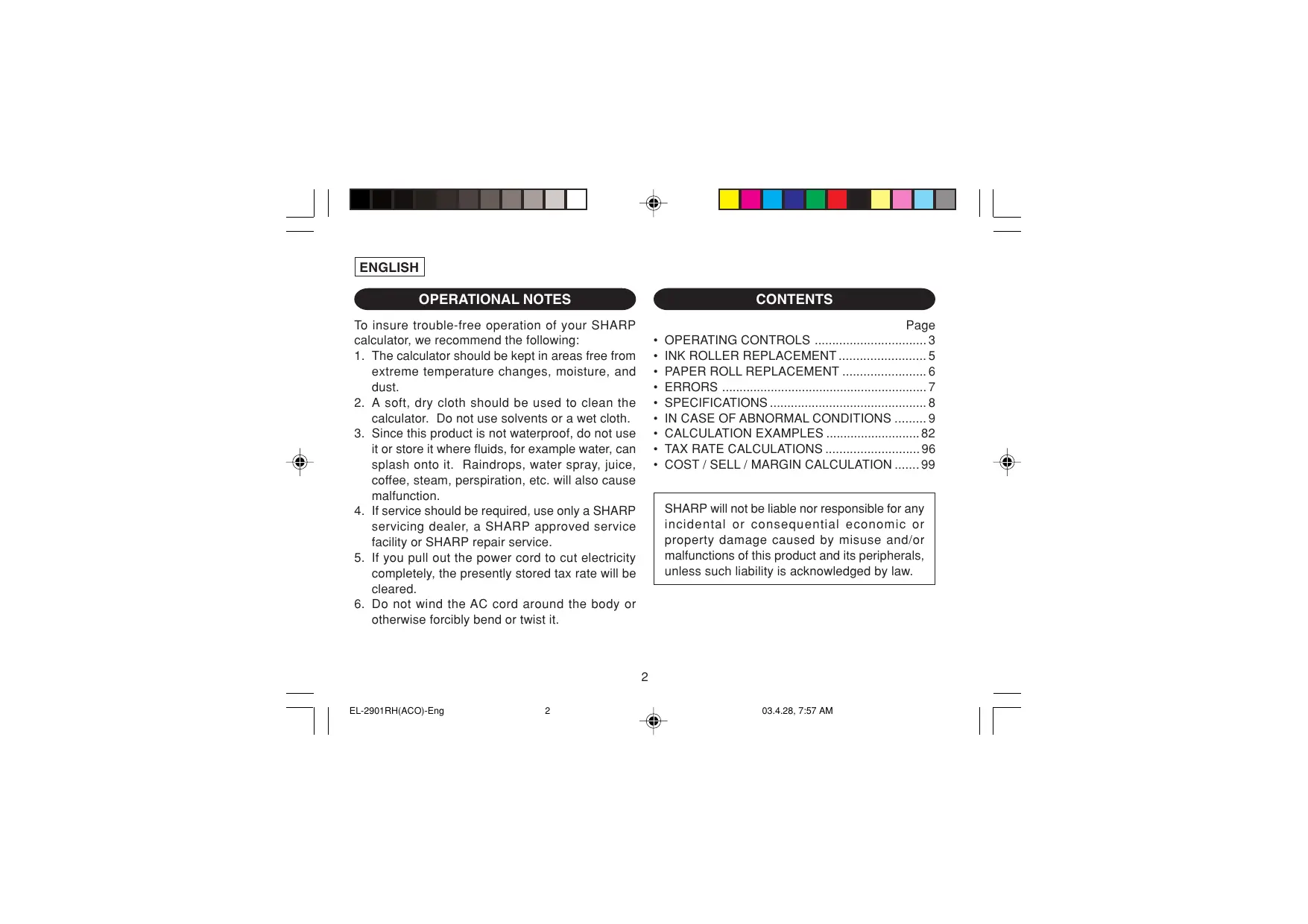
To ensure trouble-free operation of your SHARP calculator, we recommend the following:
- The calculator should be kept in areas free from extreme temperature changes, moisture, and dust.
- A soft, dry cloth should be used to clean the calculator. Do not use solvents or a wet cloth.
- Since this product is not waterproof, do not use it or store it where fluids, for example water, can splash onto it. Raindrops, water spray, juice, coffee, steam, perspiration, etc. will also cause malfunction.
- If service should be required, use only a SHARP servicing dealer, a SHARP approved service facility or SHARP repair service.
- If you pull out the power cord to cut electricity completely, the presently stored tax rate will be cleared.
- Do not wind the AC cord around the body or otherwise forcibly bend or twist it.
CONTENTS
Page
• OPERATING CONTROLS 3 - INK ROLLER REPLACEMENT .... 5 - PAPER ROLL REPLACEMENT .... 6 - ERRORS ....7 - SPECIFICATIONS 8 • IN CASE OF ABNORMAL CONDITIONS ..... 9 • CALCULATION EXAMPLES 82 • TAX RATE CALCULATIONS 96 • COST / SELL / MARGIN CALCULATION ..... 99
SHARP will not be liable nor responsible for any incidental or consequential economic or property damage caused by misuse and/or malfunctions of this product and its peripherals, unless such liability is acknowledged by law.
OPERATING CONTROLS

POWER SWITCH; PRINT / ITEM COUNT MODE SELECTOR:
"OFF": Power OFF
“●”: Power ON. Set to the non print mode.
“P”: Power ON. Set to the print mode.
“P•IC”: Power ON. Set to the print and item count mode.
For addition or subtraction, each time + is pressed, 1 is added to the item counter, and each time - is pressed, 1 is subtracted.
- The count is printed when the calculated result is obtained.
- Pressing of * , % CE % CE clears the counter.
Note: The counter has a maximum capacity of 3 digits (up to ±999 ). If the count exceeds the maximum, the counter will recount from zero.

ROUNDING SELECTOR:
Example: Set Decimal Selector to 2.
4 ÷ 9 = 0.444..., 5 ÷ 9 = 0.555...
| 4 ÷ 9 = | 5 ÷ 9 = |
| ↑ | 0.45 | 0.56 |
| 5/4 | 0.44 | 0.56 |
| ↓ | 0.44 | 0.55 |
Note: The decimal point floats during successive calculation by the use of × or ÷ .
If the decimal selector is set to "F" then the answer is always rounded down (↓).

GRAND TOTAL / RATE SETTING MODE SELECTOR:
"GT": Grand Total
“●”: Neutral
"RATE SET": Rate setting
- Enter the adding tax rate, then press TAX+ .
- A maximum of 4 digits can be stored (decimal point is not counted as a digit).
- Only one rate can be stored. If you enter a new rate, the previous rate will be cleared.

DECIMAL / ADD MODE SELECTOR:
"6 3 2 1 0": Presets the number of decimal places in the answer.
“F”: The answer is displayed in the floating decimal system.
“A”: The decimal point in addition and subtraction entries is automatically positioned to the 2nd digit from the lowest digit of entry number. Use of the add mode permits addition and subtraction of numbers without entry of the decimal point. Use of ☐, ☒ and ÷ will automatically override the add mode and decimally correct answers will be printed.

PAPER FEED KEY

NON-ADD / SUBTOTAL KEY

CLEAR / CLEAR ENTRY KEY

TOTAL KEY

EQUAL KEY

CHANGE SIGN KEY:
Changes the algebraic sign of a number (i.e., positive to negative or negative to positive).

RECALL AND CLEAR MEMORY KEY

RECALL MEMORY KEY

TAX-INCLUDING KEY

PRE-TAX KEY

GRAND TOTAL KEY

COST PRICE ENTRY KEY:
Press this key to enter the cost price.

SELLING PRICE ENTRY KEY:
Press this key to enter the selling price.

MARGIN ENTRY KEY:
Press this key to enter the margin.
DISPLAY
1 2 3, 4 5 6, 7 8 9, 0 1 2 · M/E
Symbols:
M : Appears when a number is in the memory.
- : Appears when a number is negative.
- : Appears when a number is in the grand total memory.
E : Appears when an overflow or other error is detected.
* Although all available symbols are shown here for instruction purposes, these symbols will not appear on the screen simultaneously.
INK ROLLER REPLACEMENT
If printing is blurry even when the ink roller is in the proper position, replace the roller.
Ink roller: Type EA-772R
WARNING
APPLYING INK TO WORN INK ROLLER OR USE OF UNAPPROVED INK ROLLER MAY CAUSE SERIOUS DAMAGE TO PRINTER.
1) Set the power switch to OFF. 2) Remove the printer cover. (Fig. 1) 3) Hold the top of the ink roller and remove the roller by pulling it toward you and then upward. (Fig. 2) 4) Install the new ink roller in the correct position. Make sure that the roller is securely in place. (Fig. 3) 5) Put back the printer cover.

Fig. 1
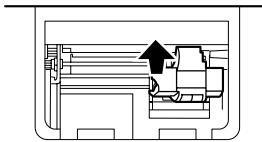
Fig. 2

Fig. 3
Cleaning the printing mechanism
If the print becomes dull after long time usage,
clean the printing wheel according to the
following procedures:
1) Remove the printer cover and the ink roller. 2) Install the paper roll and feed it until it comes out of the front of the printing mechanism. 3) Put a small brush (like a tooth brush) lightly to
the printing wheel and clean it by pressing ↗. 4) Put back the ink roller and the printer cover.
Note: • Do not rotate the printing mechanism manually, this may damage the printer.
PAPER ROLL REPLACEMENT
Never insert paper roll if torn. Doing so will cause paper to jam.
Always cut leading edge with scissors first.
1) Insert the leading edge of the paper roll into the opening. (Fig. 1) 2) Turn the power on and feed the paper by pressing . (Fig. 2) 3) Lift the attached metal paper holder up and insert the paper roll to the paper holder. (Fig. 3)
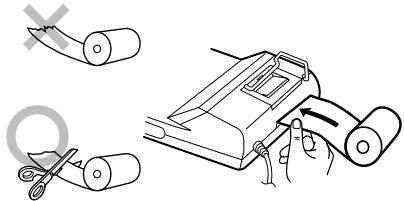
Fig. 1

Fig. 2

Fig. 3
DO NOT PULL PAPER BACKWARDS AS THIS MAY CAUSE DAMAGE TO PRINTING MECHANISM.
ERRORS
There are several situations which will cause an overflow or an error condition. When this occurs, "E" will be displayed. The contents of the memory at the time of the error are retained.
If an “0·E” is displayed at the time of the error, “— — — — — — ” will be printed in red and %CE must be used to clear the calculator.
Also, in rare cases, printing may stop midway and the indication “E” appear on the display. This is not a malfunction but is caused when the calculator is exposed to strong electromagnetic noise or static electricity from an external source. Should this occur, press the C/CE key and then repeat the calculation from the beginning.
Error conditions:
- When the integer portion of an answer exceeds 12 digits.
- When the integer portion of the contents of the memory exceeds 12 digits.
(Ex. *M 9999999999999 M+ 1 M+)
- When any number is divided by zero.
(Ex. 5 ÷ 0 = )
SPECIFICATIONS
Operating capacity:
12 digits
Power source:
AC: 220V–230V, 50Hz
PRINTING SECTION
| Printer: | Mechanical printer |
| Printing speed: | Approx. 2.1 lines/sec.(At temperature 25°C ( 77°F ), when “ 741.9 + ” is printed. The printing speed will vary with the number of rows and the figure types to be printed.) |
Printing paper:
| 57 mm (2-1/4") - 58 mm (2-9/32") wide |
| 80 mm (3-5/32") in diameter (max.) |
Operating temperature:
0°C - 40°C (32°F - 104°F)
Power consumption:
41 mA
Dimensions:
| 193 mm (W) × 256 mm (D) |
| × 62.5 mm (H) |
| (7-19/32" (W) × 10-3/32" |
| (D) × 2-15/32" (H)) |
Weight:
Approx. 1.0 kg (2.20 lb.)
Accessories:
1 paper roll, 1 ink roller (installed), and operation manual
WARNING
THE VOLTAGE USED MUST BE THE SAME AS SPECIFIED ON THIS CALCULATOR. USING THIS CALCULATOR WITH A HIGHER VOLTAGE THAN THAT WHICH IS SPECIFIED IS DANGEROUS AND MAY RESULT IN A FIRE OR OTHER TYPE OF ACCIDENT CAUSING DAMAGE. WE ARE NOT RESPONSIBLE FOR ANY DAMAGE RESULTING FROM USE OF THIS CALCULATOR WITH A VOLTAGE OTHER THAN THAT WHICH IS SPECIFIED.
IN CASE OF ABNORMAL CONDITIONS
When this unit is exposed to strong RF noise and/or extreme physical shock during the operation, or when the power cord is plugged into the AC outlet, the unit may start functioning abnormally which, in some rare occasion all keys - including the power key and the %CE key - cease to respond.
If such abnormal conditions are observed, unplug the AC cord from the socket. Keep the unit unplugged for about 5 seconds, reconnect the AC plug, then turn on the power.
Fig. 1

Fig. 2

Fig. 3
Fig. 2
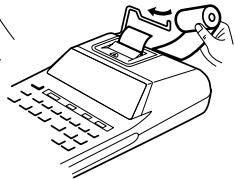
Fig. 3
Fig. 1
ERROR
"OFF": Power off.
Fig. 1

Fig. 2

Fig. 3
Fig. 2

Fig. 3
DO NOT PULL THE PAPER BACKWARD, AS THIS COULD DAMAGE THE PRINTING MECHANISM.

Fig. 1
ERRORS
Fig. 1

Fig. 2

Fig. 3
Fig. 1

Fig. 2

Fig. 3
Fig. 1

Fig. 2

Fig. 3
Fig. 2
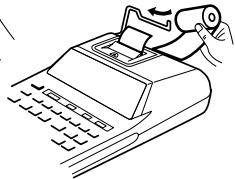
Fig. 3
DO NOT REVERSE THE MOVEMENT OF THE PAPER ROLL. THIS COULD DAMAGE THE PRINTING MECHANISM.

Fig. 1
ERRORS
DECIMAL SELECTOR/ADD MODE:
RECALL AND MEMORY CLEAR KEY
M MEMORY RECALL KEY
TAX+ TAX ADD KEY
TAX- TAX DEDUCTION KEY
GT GRAND TOTAL KEY
COST COST PRICE ENTRY KEY:
Figure 1

Figure 2
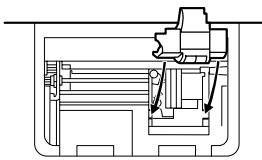
Figure 3
Cleaning the printer mechanism
Image 1

Image 2 Image 3
NEVER PULL THE PAPER BACKWARD AS THIS MAY CAUSE DAMAGE TO THE PRINTER MECHANISM.
WRONG
WINSTMARGE-INVOERTOETS:
Fig. 1
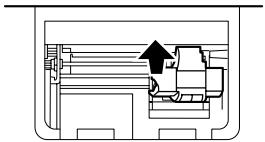
Fig. 2

Fig. 3
Fig. 1
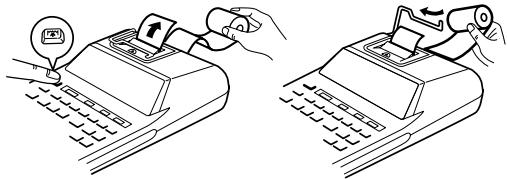
Fig. 2 Fig. 3
DO NOT PULL THE PAPER BACKWARD AS THIS COULD RESULT IN DAMAGE TO THE PRINTING MECHANISM.
ERRORS
IN CASE OF ABNORMAL OPERATION

CANCEL/CLEAR KEY

TOTAL KEY

EQUAL KEY

SIGN CHANGE KEY:
Changes the algebraic sign of a number (i.e., positive to negative or negative to positive).
*M MEMORY RECALL AND CLEAR KEY
◇M MEMORY RECALL KEY
TAX+ TAX PLUS KEY
TAX- TAX MINUS KEY
GT GRAND TOTAL KEY
COST COST PRICE ENTRY KEY:
Fig. 1

Fig. 2

Fig. 3
Fig. 2
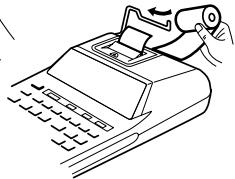
Fig. 3
DO NOT PULL THE PAPER BACKWARD, AS THIS COULD DAMAGE THE PRINTING MECHANISM.

Fig. 1
ERRORS
Fig. 1
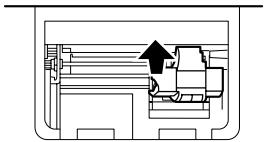
Fig. 2

Fig. 3
Fig. 1

Fig. 2 Fig. 3
DO NOT PULL THE PAPER BACKWARD, AS THIS COULD DAMAGE THE PRINTING MECHANISM.
ERRORS
Fig. 1

Fig. 2

Fig. 3
Fig. 2

Fig. 3
Fig. 1
ERRORS
- Set the decimal selector as specified in each example. The rounding selector should be in the "5/4" position unless otherwise specified.
- The grand total/rate set mode selector should be in the “•” position (off) unless otherwise specified.
- The print / item count mode selector should be in the "P" position unless otherwise specified.
- Press % CE % CE prior to beginning any calculation.
- If an error is made while entering a number, press % or → and enter the correct number.
- After entering a value, press COST, SELL or MGN to activate the Cost/Sell/Margin Calculation mode. In case of performing different calculation tasks, 9/CE 9/CE key must be pressed first to cancel the Cost/Sell/Margin mode.
- Example procedures are listed in following manner unless otherwise specified.
CALCULATION EXAMPLES
REPEAT ADDITION AND SUBTRACTION /
B. 11.11 ÷ 77.77 = ①
2 2. 2 2 ÷ 7 7. 7 7 = ②
F63210A

| (1) | (2) | (3) |
| 11.11 ÷ | 11.11 | 11 · 11 ÷ |
| 77.77 | | 77 · 77 = |
| 0.14285714285 | 0·14285714285 * 1 |
| 22.22 | | 22 · 22 = |
| 0.28571428571 | 0·28571428571 * 2 |
POWER / POTENZ / PUISSANCE / POTENCIA / POTENZA / POTENSRÄKNING / MACHTSVERHEFFEN / POTÊNCIA / POTENSSI / СТЕПЕНЬ
| (1) | (2) | (3) |
| 5.25 × | 5.25 | 5·25 × |
| = | | 5·25 = |
| | 27·563 * |
| 27.563 | |
| (1) | (2) | (3) |
| 5.25 × = | 5.25 | 5·25 ×5·25 =27·563 * |
| 27.563 | |
B. 53=
F63210A

| (1) | (2) | (3) |
| 5 × = | 5. | 5 · ×5 · =25 · * |
| 25. | |
| 25 · =125 · * |
| 125. | |
| | F63210A |
| 5 × × = | 5.25. | 5 · ×5 · ×5 · =125 · * |
| 125. | |
PERCENT / PROZENT / POURCENTAGE / PORCENTAJES / PERCENTUALE / PROCENTRÄKNING / PERCENTAGE / PORCENTAGEM / PROSENTTI / ПРОЦЕНТЫ
A. 100 × 25% =
F63210A

| (1) | (2) | (3) |
| 100 × | 100. | 100 · × |
| 25 % | | 25 · % |
| 25.00 | 25·00 * |
B. (123÷ 1368)× 100 =
F63210A

| (1) | (2) | (3) |
| 123 ÷ 1368 % | 123. | 123 · ÷1,368 % |
| 8.99 | 8.99 * |
RECIPROCAL / KEHRWERT / INVERSES /
RECÍPROCOS / RECIPROCO /
RECIPROKA TAL / RECIPROQUE /
RECÍPROCA / KÄÄNTEISARVO / ОБРАТНАЯ
ВЕЛИЧИНА
1/7 =
↑ 5/4 ↓


| (1) | (2) | (3) |
| 7 ÷ | 7. | 7 · ÷ |
| ÷ | 1. | 7 · ÷ |
| = | | 7 · = |
| | 0·14285714285 * |
| 0.14285714285 | |
ITEM COUNT CALCULATION /
amp; 1 0 0 + 2 0 0 + 3 0 0 = 1 +) amp; 3 0 0 + 4 0 0 + 5 0 0 = 2
Grand total / Endsumme / Total général / Total global / Totale generale / Slutsvar / ③ Eindtotaal / Total geral / Kokonaissumma / Общая сумма

| (1) | (2) | (3) |
| GT | | |
| 100 + | 100. | 100· + |
| 200 + | 300. | 200· + |
| 300 + | 600. | 300· + |
| * | | 600· *+ 1 |
| 600. | |
| 300 + | 300. | 300· + |
| 400 + | 700. | 400· + |
| 500 + | 1,200. | 500· + |
| * | | 1,200· *+ 2 |
| 1,200. | |
| GT | | 1,800· ** 3 |
| 1,800. | |
MEMORY / SPEICHER / MÉMOIRE / MEMORIA / MEMORIA / MINNE / GEHEUGEN / MEMÓRIA / MUISTILASKENTA / ПАМЯТЬ
| 46 × 78 = 1 |
| +) 125 ÷ 5 = 2 |
| - ) 72 × 8 = 3 |
| Total / Summe / Total |
| Total / Totale / Svar | 4 |
| Totaal / Total / Summa / Bcero | |
| (1) | (2) | (3) |
| *2 | *M | | |
| 46 | × | 46. | 46· × |
| 78 | M+ | | 78· = |
| | 3,588.M | 3,588· +M 1 |
| 125 | ÷ | 125.M | 125· ÷ |
| 5 | M+ | | 5· = |
| | 25.M | 25· +M 2 |
| 72 | × | 72.M | 72· × |
| 8 | M- | | 8· = |
| | 576.M | 576· -M 3 |
| ◇M | | 3,037· ◇M 4 |
| | 3,037.M | |
*2 : Press *M to clear the memory before starting a memory calculation. *2 : Vor dem Beginn einer Speicherberechnung drücken Sie *M, um den Speicher zu löschen. *2 : Effacer le contenu de la mémoire (*M) avant de procéder à un calcul avec mémoire. *2 : Apretar *M para cancelar la memoria antes de empezar a efectuar un cálculo con memoria. *2 : Premere *M per cancellare la memoria prima di iniziare un calcolo con memoria. *2 : Tryck på *M för att tömma minnet innan minnesräkning startas. *2 : Voordat u begint met het maken van een geheugenberekening drukt u op *M om het geheugen te wissen. *2 : Pressione *M para limpar a memória antes de começar um cálculo com memória. *2 : Tyhjennä muisti painamalla näppäintä *M ennen muistilaskun aloittamista. *2 : Нажмите клавишу *М для сброса памяти перед началом вычислений с использованием памяти.
TAX RATE CALCULATIONS BERECHNUNGEN DER STEUERRATE CALCULS DE TAXE CÁLCULOS CON EL TIPO DE IMPUESTO CALCOLO DELL'ALIQUOTA D'IMPOSTA RÄKNING MED SKATTESATS BELASTINGBEREKENINGEN CÁLCULOS COM UMA TAXA DE IMPOSTO VEROPROSENTTILASKELMAT ВЫЧИСЛЕНИЯ С ИСПОЛЬЗОВАНИЕМ НАЛОГОВОЙ СТАВКИ
EXAMPLE 1: Set a 5% tax rate. Calculate the total amount for adding a 5% tax to \800. BEISPIEL 1: Geben Sie eine Steuerrate von 5% ein. Berechne den Gesamtbetrag bei Addition von 5% Steuern auf \800. EXEMPLE 1: Choisir une taxe de 5%. Calculer le montant d'un article à \800 avec cette taxe. EJEMPLO 1: Fijar el tipo de impuesto al 5%. Calcular la cantidad total resultante de añadir el impuesto del 5% a \800.
EXAMPLE 2: Calculate the total amount for adding a 5% tax to the sum of \840 and \525.
OMAKUSTANNUSHINNAN/MYYNTIHINNAN/MARGINAALIN LASKEMINEN
Determine the cost price for 30% margin when the selling price is set at \$500.
① Selling Price ② Margin ③ Cost Price
BEISPIEL 1:
Determine the selling price for 30% margin when the cost price is set at \$350.
① Cost Price ② Margin ③ Selling Price
Determine the margin when the cost price is set at 350, and the selling price at500.
① Cost Price ② Selling Price ③ Margin
Also, obtain the margin when the cost price is set to $250.
This equipment complies with the requirements of Directives 89/336/EEC and 73/23/EEC as amended by 93/68/EEC.