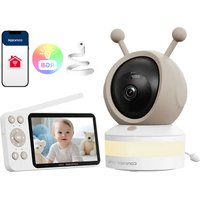
KD5010 - Baby monitors Concept - Free user manual and instructions
Find the device manual for free KD5010 Concept in PDF.


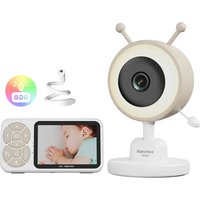
| Product type | Baby monitor with camera and monitor |
| Brand | Concept |
| Model | KD5010 |
| Camera power supply | USB-C, 5 V / 1 A |
| Monitor power supply | USB-C, 5 V / 1 A |
| Wi-Fi network | 2.4 GHz (does not support 5 GHz) |
| Range (theoretical) | Up to 300 m in open field (estimate) |
| Camera viewing angle | Manual and motorized rotations: up, down, left, right |
| Night vision | Yes, infrared sensor with automatic switch to black and white |
| Two-way communication | Yes, via built-in microphone and speaker |
| Motion and sound detection | Yes, notifications on the app |
| Temperature and humidity sensor | Yes, with alarm when threshold exceeded |
| Lullabies | Several built-in melodies, loop or alternating playback |
| LED night light | Yes, automatic or manual adjustment |
| Video and photo recording | Yes, on SD card (max 128 GB, not included) |
| Meal reminder | Yes, programmable |
| Mobile app | Concept Home (iOS and Android) |
| Mounting | On flat surface, wall (kit included) or on crib (flexible bracket) |
| Monitor screen | Color screen with brightness adjustment and sleep mode |
| Digital zoom | Yes, front/back |
| Care and cleaning | Soft, dry cloth, do not use abrasive or corrosive products |
| Repairability | Contact an authorized service center, do not open yourself |
| Warranty | Compliant with European directives |
| Included accessories | Camera, monitor, USB-C cables, adapters, wall mount, flexible bracket, mounting kit |
Frequently Asked Questions - KD5010 Concept
Make sure your Wi-Fi network is 2.4 GHz.
User questions about KD5010 Concept
0 question about this device. Answer the ones you know or ask your own.
Ask a new question about this device
Download the instructions for your Baby monitors in PDF format for free! Find your manual KD5010 - Concept and take your electronic device back in hand. On this page are published all the documents necessary for the use of your device. KD5010 by Concept.
USER MANUAL KD5010 Concept
Baby monitor with camera and app
natural_image
Illustration of a concept remote device and a digital camera displaying a sleeping baby (no text or symbols visible)KD5010
CZ HULVDEFBNSKPL ITES RO
POPIS VÝROBKU
POPIS VÝROBKU
OPIS PRODUKTU
A TERMÉK LEÍRÁSA
IERICES APRAKSTS
PRODUCT DESCRIPTION
PRODUKTBESCHREIBUNG
DESCRIPTION DU PRODUIT
DESCRIZIONE DEL
PRODOTTO
DESCRIPCIÓN DEL
PRODUCTO
DESCRIEREA PRODUSULUI

natural_image
Pure electrical circuit lines without any symbols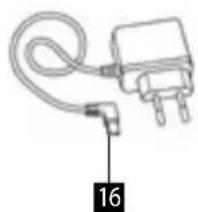
natural_image
Simple line drawing of a plug with a coiled cable and labeled number 16 (no text or symbols beyond the label)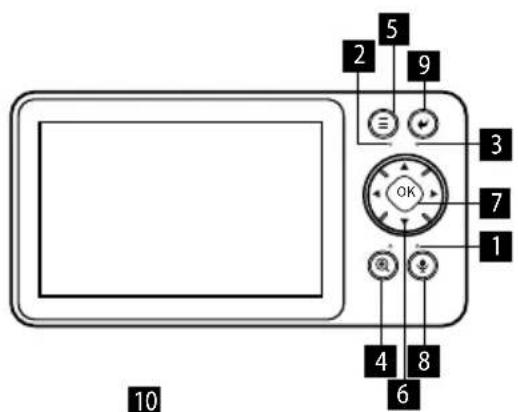
Metoda 1 / Method 1 Metoda 2 / Method 2 Metoda 3 / Method 3
Obr. 1 / Fig. 1 Obr. 2 / Fig. 2 Obr. 3 / Fig. 3 Obr. 4 / Fig. 4
Obr. 5 / Fig. 5 Obr. 6 / Fig. 6 Obr. 7 / Fig. 7
concept
CZ
PODĚKOVÁNÍ
natural_image
Digital photo of a newborn baby wrapped in white bedding, displayed within a digital camera interface (no visible text or symbols on the image itself)
flowchart
graph LR
    A["App Icon"] --> B["Control knob with ON/OFF"]
    B --> C["Process Step with OK/NG buttons"]
NÁVOD K OBSLUZE
Stažení aplikace
natural_image
Newborn baby lying on a blanket, no visible text or symbols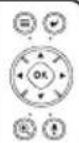

Nastavenie hlasitosti

natural_image
Digital photo of a newborn baby with hands on lap, displayed within a tablet device (no visible text or symbols)
INSTRUKCJA OBSŁUGI
Pobierz aplikację
natural_image
Newborn baby photo displayed in a mobile device interface (no visible text or symbols on the image itself)
HASZNÁLATI ÚTMUTATÓ
natural_image
Digital photo of a newborn baby with hands placed on the back, displayed within a tablet device (no visible text or symbols)
Skaluma
regulēšana

Ekrāna spilgtu-
ma regulēšana

Ekrāna
miega laiks

Edināšanas laika
atgādinājums

Kanālu
attēlošana


Gaismas avota
frekvence

lestatijumiŠūpuldziesm
flowchart
graph LR
    A["User Interface"] --> B["User Interface"]
    B --> C["Control knob with OK/Cancel buttons"]
LIETOŠANAS INSTRUKCIJA
Thank you for purchasing a Concept product. We wish you much joy with your new appliance every day you use it.
Please read the instruction manual carefully before initial use. To refer to this manual any time you need to, we recommend you to keep it in a safe place. And please pass it to any future owner of the appliance.
| Technical parameters | |||
| Power supply 5 V / 1 A typ C | Power consumption when switched off | max. 0,2 W | |
| WiFi network 2,4 GHz | |||
IMPORTANT SAFETY PRECAUTIONS
- Do not use the appliance in any other way than as described in this manual.
- Remove all the covering and marketing materials from the appliance before the first use.
- Make sure the mains voltage corresponds to the values on the rating plate of the appliance.
- When disconnecting the appliance from the wall outlet, never pull the power cord, grasp the plug end and disconnect it by removing it from the receptacle.
- Do not allow children or unauthorized people to handle the appliance, use it out of their reach.
- Persons with reduced mobility, reduced sensory perception, mental disadvantage or persons not familiar with the operation must use the appliance only under the supervision of responsible person, who is familiar with the instructions.
- Care should be taken when using the appliance near children.
39
EN
concept
concept
EN
- Do not let the power cord touch hot surfaces.
- Keep the power cord out of the reach of children.
- Protect the appliance from direct sunlight, high temperatures and humidity.
- Do not allow the appliance to hang on the power cord.
- Do not use the appliance in an environment where there are explosive gases and flammable substances (solvents, varnishes, adhesives, etc.).
- Do not use coarse and chemically aggressive substances to clean the appliance.
- Do not use the appliance if it is not working properly, has been dropped, damaged or immersed in liquid. Have it checked and repaired by an authorized service centre.
- Do not use the appliance with a damaged cord or plug and have it repaired immediately by an authorized service centre.
- Do not wrap the power cord around the appliance body.
- Do not use the appliance outdoors.
- The appliance is only suitable for home use and is not intended for commercial use.
- Do not immerse the power cord, plug or appliance in water or any other liquid.
- Do not use any accessories other than those recommended by the manufacturer. Do not use an extension cord.
- Do not repair the appliance yourself. Contact an authorized service centre.
- This appliance can be used by children aged from 8 years and above and persons with reduced physical, sensory or mental capabilities or lack of experience and knowledge if they have been given supervision or instruction concerning the use of the appliance in a safe way and understand the hazards involved. Cleaning and maintenance performed by
the user must not be carried out by children unless they are 8 years old and under supervision. Children aged under 8 years of age must be kept away from the appliance and its power cord. Do not let children play with the appliance.
Damages from failure to follow the manufacturer's instructions are not covered by the warranty.
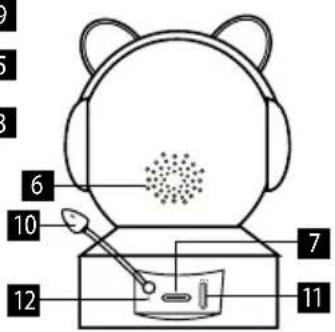
PRODUCT DESCRIPTION
| Baby Camera Description | 9 Night Vision LEDs |
| 1 Camera Lens | 10 Temperature Sensor |
| 2 Microphone | 11 Pairing Button |
| 3 Call/Pairing Button | 12 Status Indicator |
| 4 LED Light | 13 Infrared Sensor for Night Vision |
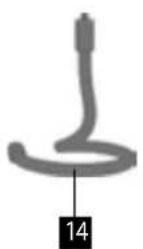
| 5 SD Card Slot (Max. 128 GB) | 14 Flexible Holder |
| 6 Speaker | 15 Mounting Kit |
| 7 USB-C Power Connector | 16 Adapter |
| 8 Restart Button |
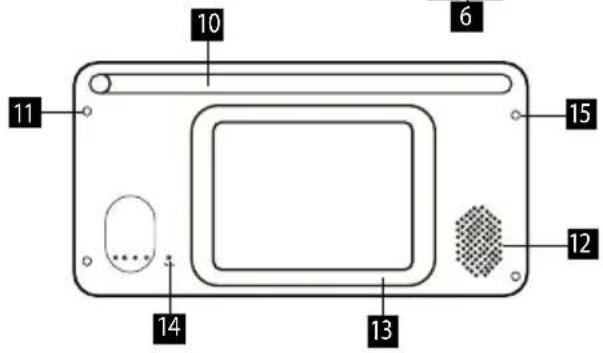
Monitor Description
| 1 Microphone | 9 Back |
| 2 Charging Indicator Light | 10 Antenna |
| 3 In-Use Indicator Light | 11 Power Button |
| 4 Zoom In/Out | 12 Speaker |
| 5 Menu | 13 Monitor Holder |
| 6 Direction | 14 Restart |
| 7 Confirm | 15 USB-C Connector |
| 8 Call |
Note: The charging indicator light (2) on the monitor is red during charging and green when fully charged. The in-use indicator light (3) is blue.
EN
concept
Monitor Display Description
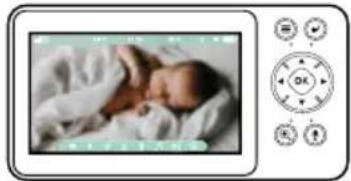
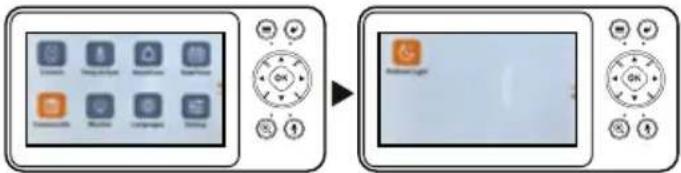
- Press Menu button to enter multi-function settings - icons will appear in the bottom row, use <> to switch between icons. Press OK on the selected icon, options will appear.
natural_image
Digital photo of a newborn baby wrapped in white bedding, displayed within a tablet device (no visible text or symbols on the image itself)
Volume
adjustment

Screen bright-
ness adjustment

Screen sleep
time

Feeding time
reminder

Channel
display

-

Light source
frequency

SettingsLullaby
- Press Menu button -> Settings icon -> OK to display settings options. Use <> to switch between icons. Use down arrow to go to the next page. Press OK on the selected icon, options will appear.
flowchart
graph LR
    A["Device 1"] --> B["Control knob"]
    C["Device 2"] --> D["Control knob"]
    E["Device 3"] --> F["Control knob"]
    G["Device 4"] --> H["Control knob"]
    I["Device 5"] --> J["Control knob"]
    K["Device 6"] --> L["Control knob"]
    M["Device 7"] --> N["Control knob"]
    O["Device 8"] --> P["Control knob"]
    Q["Device 9"] --> R["Control knob"]
    S["Device 10"] --> T["Control knob"]
OPERATING INSTRUCTIONS
Download the App
- Make sure your Wi-Fi network is 2.4GHz. The camera does not support 5 GHz networks.
- Scan the QR code below or search for "Concept Home" on Google Play or App Store to download the app to your mobile phone. If you already have
Concept Home, open the app, log in, and follow the pairing instructions. Note: The camera is designed for AC power. The indicator will be red when the camera is connected to power. The indicator will flash red during pairing. When the indicator is green, pairing is successful.
App
Concept
Home
concept
Connecting the camera to the app
- Connect the camera to the power source using the USB-C cable.
- Register or log in to the app.
- Follow the instructions in the app on your mobile phone.
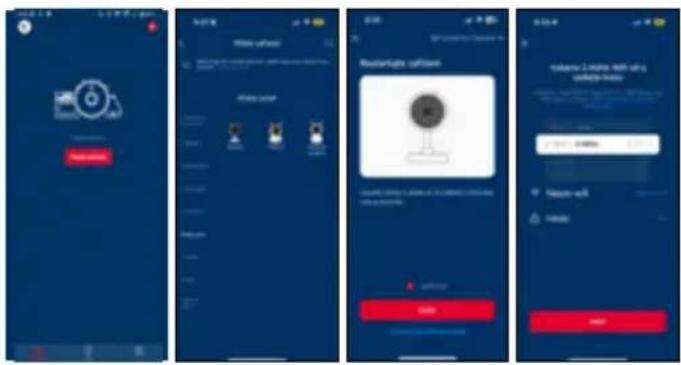
- Once logged in, click on "Add device" or click on the "+" in the upper right corner of the app to add the device (see picture no. 1). A list of appliances will appear, select from the list -> Baby care section -> KD5010 (see picture no. 2).
- Press and hold the restart button for 5 seconds, a tone will sound and the indicator will flash red (picture no. 3).
- Fill in the login details for your wireless network (see picture no. 4).
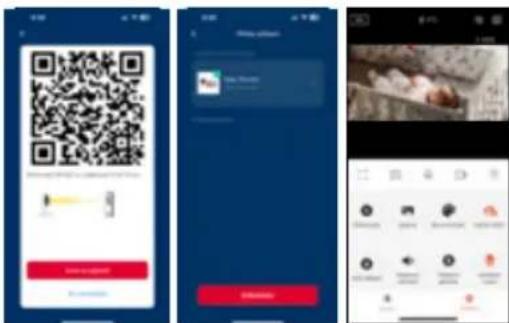
- A QR code will appear on the screen of your mobile phone, point it at the camera from a distance of 15-20 cm. Then click on the "Beep" button (see picture no. 5). The camera will now connect to your mobile phone.
- After successfully connecting the camera to the mobile phone, you can rename the device and then click the Done button (see Figure 6).
Connecting the camera to the monitor
- Turn on the camera and monitor, both will connect automatically.
- If the connection fails, please follow the steps below to pair.
- On the monitor screen, press the Menu button and select Settings -> Camera, select Camera No. 1, confirm with the OK button.
- Long press the pairing button on the camera until you hear a tone.
- If you need to pair multiple cameras, repeat the previous step.
- Note: If you want to set parameters for one of the cameras or enable its functions, select the camera first.
Camera display: Press the Menu button -> Channel View icon and select manual switching in the camera view or select automatic camera switching.
Canceling the connection of the camera and monitor
- On the monitor screen, press the Menu button and select Settings -> Camera.
- Select the camera you want to cancel the connection.
- Long press the OK button.
Baby monitor features
Motion/sound detection - The baby monitor can detect motion and sound and then send a notification to your phone.
EN
EN
concept
concept
EN
LED light/lullaby - When your baby cries, you can play a lullaby or turn on the night light. There are various lullaby modes to choose from (loop playback, switching between lullabies) and LED lights.
Night light - Can be set to automatic/off/on. When less light is detected, the night light is activated, the image switches to black and white mode.
Temperature and humidity detection - the alarm is triggered every time the upper or lower limit of the set temperature/humidity is exceeded.
Two-way communication - If you find that your baby is crying in the app, you can talk to him and calm him with your voice even from a distance.
Feeding time reminder - Set a reminder for regular feeding time.
Video recording and photo taking (SD card required)
Baby monitor installation options
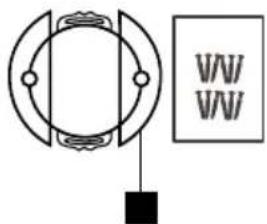
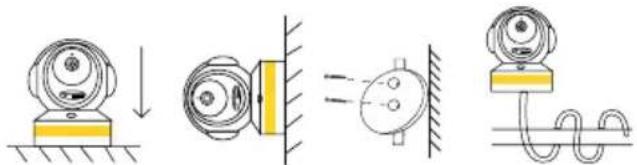
You can place the baby monitor on a flat surface (see Method 1 figure), or mount it on the wall using the included mounting bracket (see Method 2 figure), or attach to the crib frame or headboard of a double bed using the flexible mount (see picture method 3). Adjust the desired viewing angle by manually rotating the camera up/down/left/right or in the app/on the monitor.
SERVICE
Extensive maintenance or repair, which requires access to internal parts of the product, has to be performed by a qualified service centre.
ENVIRONMENTAL CONCERNS
- Packaging materials and old appliances should be recycled.
- Packaging materials may be disposed of as sorted waste.
- Dispose the plastic bags made of polyethylene (PE) of as sorted waste.
Recycling of the appliance at the end of its lifespan
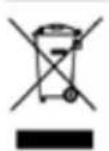
This appliance is labelled in accordance with European Directive 2012/19/EU concerning used electrical and electronic appliances (Waste Electrical and Electronic Equipment - WEEE). The symbol on the product or on its packaging indicates that this product may not be treated as household waste. Instead, it should be taken to the appropriate collection point for
the recycling of electrical and electronic equipment. By ensuring this product is disposed of correctly, you will help prevent potential negative consequences for the environment and human health, which could otherwise be caused by inappropriate waste handling of this product. The disposal of such material has to be done according to the recycling regulations. For more detailed information about recycling of this appliance see the authorized local office or service for household waste disposal or the shop, where you purchased the appliance.

The product meets all the necessary requirements of the EU directives applicable to the specific product.
Changes in text, design, and technical specifications are subject to change without notice and we reserve the right to change them.
DE
concept
concept
DE
DANKSAGUNG
natural_image
Newborn baby photo displayed in a mobile device interface (no visible text or symbols on the image itself)
natural_image
Digital camera interface displaying a sleeping photo of a newborn baby (no text or symbols visible)
Réglage du volume

Application
Concept
Home
FR
concept
concept
FR
natural_image
Digital photo of a newborn baby with hands placed on the back, displayed within a tablet device (no visible text or symbols)
natural_image
Digital photo of a newborn baby with hands placed on the back, displayed within a tablet device (no visible text or symbols)
Ajuste de volumen

natural_image
Newborn baby resting on a blanket, no visible text or symbols

Reglare
volum

Reglare lumino-
zitate ecran

Timp de inactivi-
tate ecran

Memento ora de
hrānire

Afışaj canal


Frecventa sursei
de lumină

SetāriCântec de leagān
INSTRUCTIUNI DE UTILIZARE

- concept
- PODĚKOVÁNÍ
- NÁVOD K OBSLUZE
- Stažení aplikace
- INSTRUKCJA OBSŁUGI
- Pobierz aplikację
- HASZNÁLATI ÚTMUTATÓ
- LIETOŠANAS INSTRUKCIJA
- IMPORTANT SAFETY PRECAUTIONS
- Damages from failure to follow the manufacturer's instructions are not covered by the warranty.
- Monitor Display Description
- OPERATING INSTRUCTIONS
- Download the App
- Connecting the camera to the app
- Connecting the camera to the monitor
- Canceling the connection of the camera and monitor
- Baby monitor features
- Baby monitor installation options
- SERVICE
- ENVIRONMENTAL CONCERNS
- Recycling of the appliance at the end of its lifespan
- DANKSAGUNG
- FR
- INSTRUCTIUNI DE UTILIZARE
Brand : Concept
Model : KD5010
Category : Baby monitors